Tag: playbook

  • WordPress White Screen Of Death: The Playbook, Step By Step

    WordPress White Screen Of Death: The Playbook, Step By Step

    A white screen is not an error message. It is the absence of one.

    There is no stack trace, no plugin name and no hint. Just an empty page on a site that worked an hour ago.

    That is why the usual advice starts with guessing: rename the plugins folder, switch the theme, raise the memory limit, and see what happens.

    Short answer: a WordPress white screen of death is a symptom with several different causes, and the fix depends on which one you have. WP Doctor is a Protuno playbook that works in five fixed steps: probe how it can reach the site, record a health baseline, match the evidence to a known failure signature, apply one fix behind a snapshot, then re-run the exact check that failed. If it cannot match a signature or safely reach the cause, it hands off instead of guessing.

    What this post is, and is not: it is a practical walk through how a diagnosis playbook is built, based on the WP Doctor playbook as it appears in the Protuno dashboard. It is not a claim that every white screen is fixable automatically, and it does not quote results from a run. Where a cause sits outside WordPress, the honest answer is a hand-off to a human.

    An empty page is a fact about the output. A signature is a fact about the cause.

    Why Deactivate Everything Falls Short

    The folk fix is to deactivate every plugin, then reactivate them one at a time. It works often enough that people trust it. It also hides three problems.

    First, it is a fix without a diagnosis. If the page comes back, you know a plugin was involved. You do not know the fault, or whether a stuck update was the real cause.

    Second, it assumes the cause lives in WordPress. A blank page can also come from the server or a CDN, and plugin shuffling touches neither.

    Third, there is no definition of “fixed”. If the homepage loads, the job feels done. But a homepage that returns 200 while the admin or the REST API is still failing is not a healthy site. This is the same trap described in WordPress rollback after an update: a homepage-only check misses the failures that sit below it.

    A good diagnosis fixes the order. Measure first. Match to a known cause. Change one thing. Check again.

    Three Ways To Look At A Blank Page

    When a site goes white you can approach it from three directions. None is enough alone.

    ViewWhat it tells youWhat it cannot prove alone
    The page itself (status code and body)Whether the response is a 500, an empty 200, a maintenance notice or WordPress’s own critical error messageWhy it happened
    The error log (debug.log)A fatal or parse error, with a file and a lineWhether that error is the cause of this blank page or an old one
    The site’s own state (files, options, tables)A stuck .maintenance file, an update lock, a corrupted permalink option, a table that fails its checkWhether it is currently breaking the page

    A white screen with a fatal in the log and a 500 is a different problem from an empty 200 with a clean log. You want all three views before you touch anything.
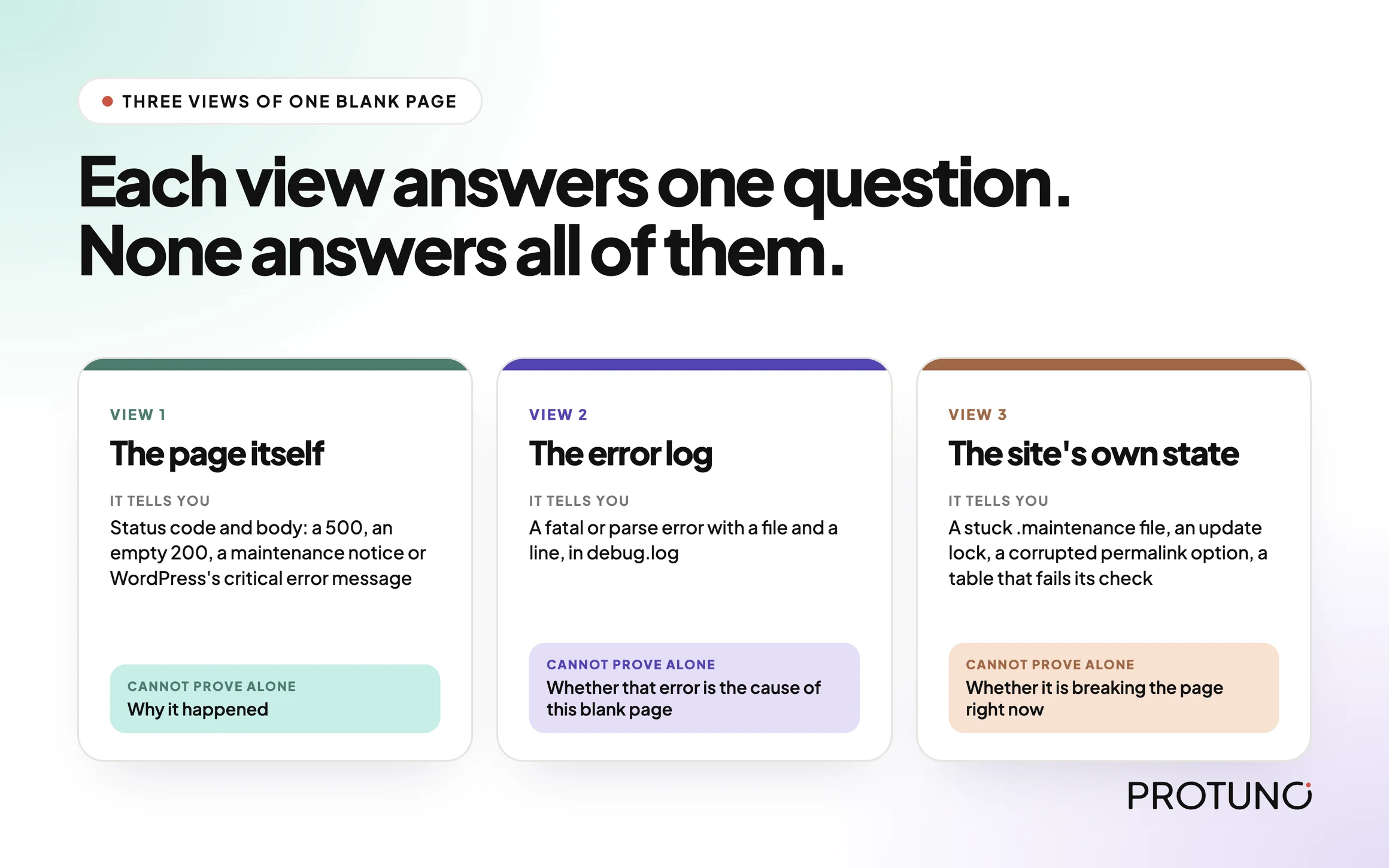
    Three views of one blank WordPress page: the page itself, the error log and the site state, each with what it cannot prove alone
    Each view answers one question. None answers all of them.

    The Playbook, Step By Step

    WP Doctor is a Protuno maintenance playbook, shown in the dashboard with a Beta label, five steps, and a “can write” status. It is a general-purpose WordPress diagnosis playbook, so a white screen is one of the problems it is built to handle. It is not on the public playbooks page yet, so treat it as a new playbook that is still being rolled out.

    It runs a fixed sequence. Steps 1 to 3 only read the site. Step 4 is the only one that can change anything, and only behind a backup. Step 5 re-checks and reports.
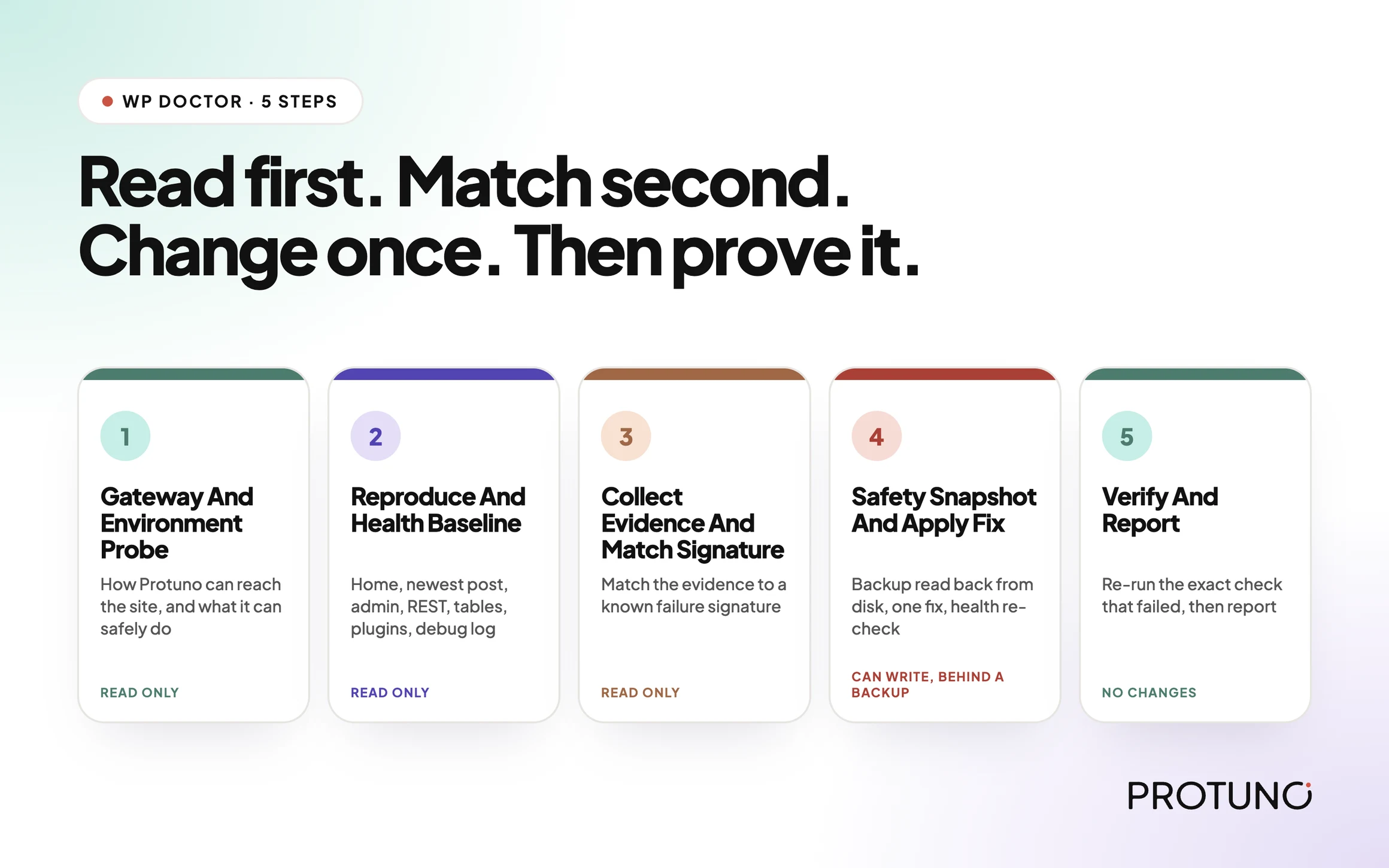
    The five WP Doctor steps in order: Gateway And Environment Probe, Reproduce And Health Baseline, Collect Evidence And Match Signature, Safety Snapshot And Apply Fix, Verify And Report
    Five steps in a fixed order: three read only, one that can write behind a backup, and a final check.
    #StepWhat it does
    1Gateway And Environment ProbeWorks out how Protuno can reach the site and what it can safely do. Records WordPress and PHP versions, the real table prefix, multisite status, server software and the site URLs. Read only.
    2Reproduce And Health BaselineProbes the homepage, the newest published post, wp-admin and the REST API. Checks the database tables, key options and files, active plugins and theme, and the recent tail of debug.log. Defines what “healthy” means for this site. Read only.
    3Collect Evidence And Match SignatureBundles the evidence and matches it against a catalogue of known failure signatures. Localizes the layer and decides: auto-fix, propose, hand off or escalate. Read only.
    4Safety Snapshot And Apply FixConfirms a backup exists on disk, applies the one fix the diagnosis named, re-checks health, and rolls back automatically if the site got worse. Or applies nothing and hands off.
    5Verify And ReportRe-runs the exact check that failed, then writes a report with a status: fixed, rolled back, handed off, escalated or healthy. Makes no changes.

    The order is the point. The baseline exists before any change, so “did we break something” has an answer. The match exists before the fix, so evidence picks the fix.

    Step 1: Know What You Can Reach

    Before it looks at the white screen, the playbook records how it can reach the site. In the step instructions, access is the Protuno connection running PHP on the site: it can run PHP, query the database, read debug.log and read and write files.

    It cannot run WP-CLI, has no SSH and has no CDN or edge API. Server and edge causes are detect-and-hand-off only. A tool that pretends it can reach everything will eventually “fix” something it cannot see.

    Step 2: Write Down Healthy Before Changing Anything

    The baseline probes the homepage, the permalink of the newest published post, the admin and the REST API, each with a timeout. It then runs a table check on the database, reads the siteurl, home, permalink structure and any core updater lock, and checks whether a .maintenance file and an .htaccess file exist. It lists the active plugins and the active theme, and reads roughly the last 200 lines of the debug log.

    Then it defines its health check. A site passes when the homepage returns 200, the newest post returns 200 (or there are no posts), wp-admin is reachable rather than erroring, the REST API returns 200, and no new PHP fatal or parse error has been added to the log since the baseline.

    That definition is the tripwire for every later step. If step 4 changes something and health gets worse than the baseline, the change is reversed.

    Step 3: Match A Signature, Or Say You Cannot

    This is the step that replaces guessing. The instructions carry a catalogue of known failure signatures, and the playbook matches the evidence to it deterministically. Each signature is a set of signals that must all be true, optional signals that raise confidence, and signals that disqualify the match.

    A few of the WordPress-layer signatures in the catalogue, in plain terms:

    • A stuck maintenance state: a .maintenance file exists, or the homepage shows the “Briefly unavailable for scheduled maintenance” message.
    • A stuck update lock: the core updater lock option is set and there is no maintenance file.
    • A permalink 404: the homepage returns 200, the post returns 404, and a permalink structure is set.
    • A plugin fatal: a PHP fatal or parse error in the log, together with a 500, an empty homepage body or the “critical error” message.
    • A theme conflict: errors in the log that point into the themes folder, with a 500.
    • Others cover a REST API failure, headers already sent, a 403, a login redirect loop and corrupted database tables.

    Server and edge signatures are in the catalogue too, such as a database connection error or a Cloudflare 521 to 524. A 521 to 524 means the origin is down, so the playbook places the cause at the server and hands off.

    Two rules keep it honest. If nothing matches, it escalates and no fix is invented. If two high-confidence matches point at different causes, it escalates rather than picking one.

    The decision that comes out is one of four: auto-fix, propose, hand off or escalate.

    Step 4: One Fix, Behind A Snapshot

    Only now can anything change. The hard gate comes first: the options and files about to be touched are exported and copied, then the playbook reads the backup back from disk to confirm it exists and is not empty. If it is missing or empty, it refuses to apply the change.

    Then it applies one logical fix. That can be more than one PHP call when the calls belong together, such as writing a corrupted permalink option back and then flushing the rewrite rules.

    After the change it re-runs the health check against the baseline. If the site is worse, it restores from the backup, runs the check again to confirm it is back at baseline, and records that it rolled back.

    For a plugin conflict, the fix is a bisect: deactivate the plugins, check health, then reactivate them one by one while checking between each, until the plugin that flips the site from passing to failing is found. It leaves that one deactivated and restores the rest. Every plugin that was active in the baseline and is not the culprit must end active. The site is never left stripped.

    Some things are never applied: changing the site URL on an unconfirmed canonical, repairing InnoDB tables, setting the memory limit blind or touching database credentials. Those go to hand-off with exact steps for a human.

    Step 5: Prove It, Or Do Not Claim It

    The last step re-runs the exact check named in the diagnosis, such as the post URL that returned 404 or the REST endpoint that should answer. Never a softer one. It then picks one honest status: fixed, rolled back, handed off, escalated or healthy. The report names the layer and signature, the evidence that matched, what was applied and anything left for a human. “Fixed” is only allowed when the re-run passes.

    WP Doctor: read first, match a signature, change once, then prove it.

    A Small Test You Can Run Today

    You do not need a playbook to see how a blank page behaves. Record four things before you change a setting:

    • The status code and the length of the body for the homepage, a recent post, the admin and the REST API.
    • Whether a .maintenance file exists in the WordPress root.
    • The last few lines of wp-content/debug.log, if logging is enabled.
    • The active plugin list and the active theme, written down.

    A rough version from a terminal:

    # status code and size for each URL
    for u in https://example.com/ https://example.com/a-recent-post/ 
             https://example.com/wp-admin/ https://example.com/wp-json/; do
      curl -s -o /dev/null -w "%{http_code} %{size_download} $un" "$u"
    done
    
    # a stuck maintenance state and the recent log
    ls -la .maintenance
    tail -n 50 wp-content/debug.log

    Keep that output as your baseline. If the debug log is publicly readable, fix that first; this post on exposed debug logs explains why it matters.

    Which Cause Are You Actually Looking At?

    Different symptoms point at different layers. This is a rough map based on the signatures above, not a promise that a symptom always means one cause.

    If you seeA likely signatureNext action
    “Briefly unavailable for scheduled maintenance”Stuck maintenance stateCheck for the .maintenance file after an interrupted update
    Homepage 200 but posts 404Permalink problemCheck the permalink structure and flush the rewrite rules
    500 plus a fatal error in the logPlugin fatalBisect the plugins with a restore point in place
    “There has been a critical error” with a clean logCritical error, medium confidenceFind the failing component by bisecting, since the log does not name it
    Cloudflare 521 to 524Origin downTreat it as a server problem and hand off
    “Allowed memory size exhausted” in the logMemory exhaustedHand off, since the real limit is set by the host

    What WP Doctor Does Not Solve

    A diagnosis playbook has edges. Being clear about them is part of the design.

    • Server and edge causes. There is no SSH and no edge API in the reach. These are diagnosed and handed off, with exact steps for a human.
    • Failures with no known signature. The decision is to escalate, with the evidence it found. It does not invent a fix.
    • Hacked sites. Malware and SEO spam indicators are routed to malware removal. They are not repaired here.
    • A site with no usable baseline. No baseline means no rollback tripwire, so it changes nothing.

    Questions To Ask Your Current Tooling

    Whatever repairs your broken sites, ask it:

    • How does it define “fixed”, and is that check the one that failed?
    • What happens when its fix makes things worse?
    • Does it say so when the cause is outside WordPress, or does it try anyway?

    If the answers are vague, you are being offered a button, not a process.

    Fixing In The Right Order

    When a fix is possible, order matters more than speed. Two practical rules apply to every case. Take a restore point before the first change, and confirm it can be read back. A backup you have not verified is a file with a hopeful name. Then re-run the check that failed after the change, not a friendlier one.

    If an update caused it, the update process, written out before it runs is the way to have fewer of these.

    A Five-Site Triage You Can Do This Week

    Pick five sites and note, for each:

    • The site and how it is hosted.
    • Whether debug.log is available to read, and whether it is public.
    • Whether a recent restore point exists and has been verified.
    • Whether a homepage-only monitor is your only alert.
    • Who gets the call if it goes white at 2 a.m.

    Then decide for each gap: fix now, test first, replace, remove, accept with an owner and a date, or investigate. A homepage-only monitor notices a white screen and little else. Uptime monitoring that asserts content gives the diagnosis something to start from.

    Why The Baseline Goes Stale

    A baseline describes one moment. After an update, a theme change or a hosting move it is out of date, so record it again. WordPress security monitoring makes the same point about snapshots.

    Where Protuno Fits

    WP Doctor is one of the playbooks in the Protuno dashboard, and it is currently marked Beta. It can change a site, which is why the backup gate, the single fix and the automatic rollback sit in the middle of it. The playbooks that are public today are listed on the Protuno playbooks page.

    The aim is not to remove the human. It is to make the first hour of a bad day a matter of evidence, and to say clearly when the next step is yours.

    The Point

    A white screen is a symptom, not a diagnosis.

    The question is not “which plugin do I turn off”. It is “what did the site look like before it broke, and what is the evidence for the cause”.

    Could you answer that for the next site that goes white?
  • Technical SEO Audit: The Playbook, Step By Step

    Technical SEO Audit: The Playbook, Step By Step

    A technical SEO audit can crawl fifty pages and still miss the one setting that hides all of them.

    That setting is a single checkbox. No crawler reads it from the outside, and it can sit switched on for months while every other report looks tidy.

    Short answer: a technical SEO audit is a fixed list of questions about whether a site can be found, read and trusted by a search engine. The useful ones start from inside WordPress, where the indexing switch lives, then check the public pages, then say plainly what they could not see. Protuno’s Technical SEO Audit is an eight-step, read-only playbook built in that order.

    What this post is, and is not: it is a practical walk through how one audit is put together and how to run a small version by hand today. It is not a promise that a clean audit will rank anything. Technical SEO removes reasons not to rank. It does not supply a reason to.

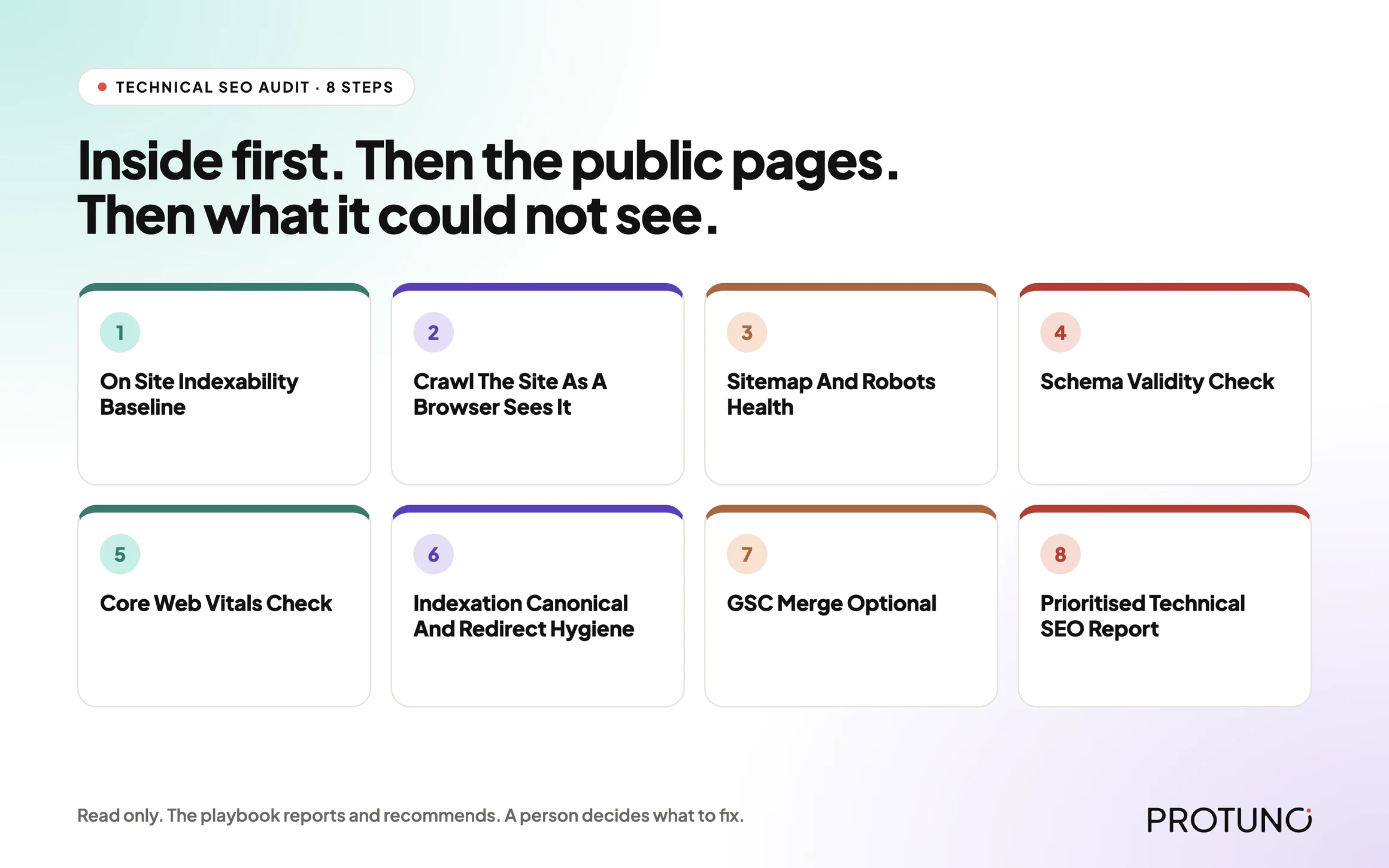
    Technical SEO audit pipeline: eight read-only steps from the on-site baseline to a prioritised report
    Eight read-only steps, from the indexing baseline to the report.

    An audit tool tells you what it found. A good audit also tells you what it could not look at.

    Why A Crawl Alone Is Not An Audit

    Most technical SEO audits begin with a crawler. Point it at the homepage, let it follow links, collect status codes, titles and canonicals, then sort the list.

    That is a useful view. It is also a view from the outside, and the outside has three blind spots.

    The first is configuration. A crawler can see a noindex tag on a page, but it cannot read the WordPress option that tells search engines to stay away from the whole site. We wrote about what that setting does and does not change in the robots.txt myth post, where Disallow and noindex turn out to be two different instructions.

    The second is reach. A crawler follows links. A page nothing links to never appears in the crawl, which is why orphan pages need a different source of truth.

    The third is honesty about coverage. A crawl that quietly stops at its page limit, or gets an interstitial page instead of the real site, produces a clean-looking report built on partial data.

    None of this makes crawling wrong. It makes crawling one step in a sequence, not the whole job. For what a crawl actually produces on a real site, see our crawl audit write-up.

    Three Ways To Look At The Same Site

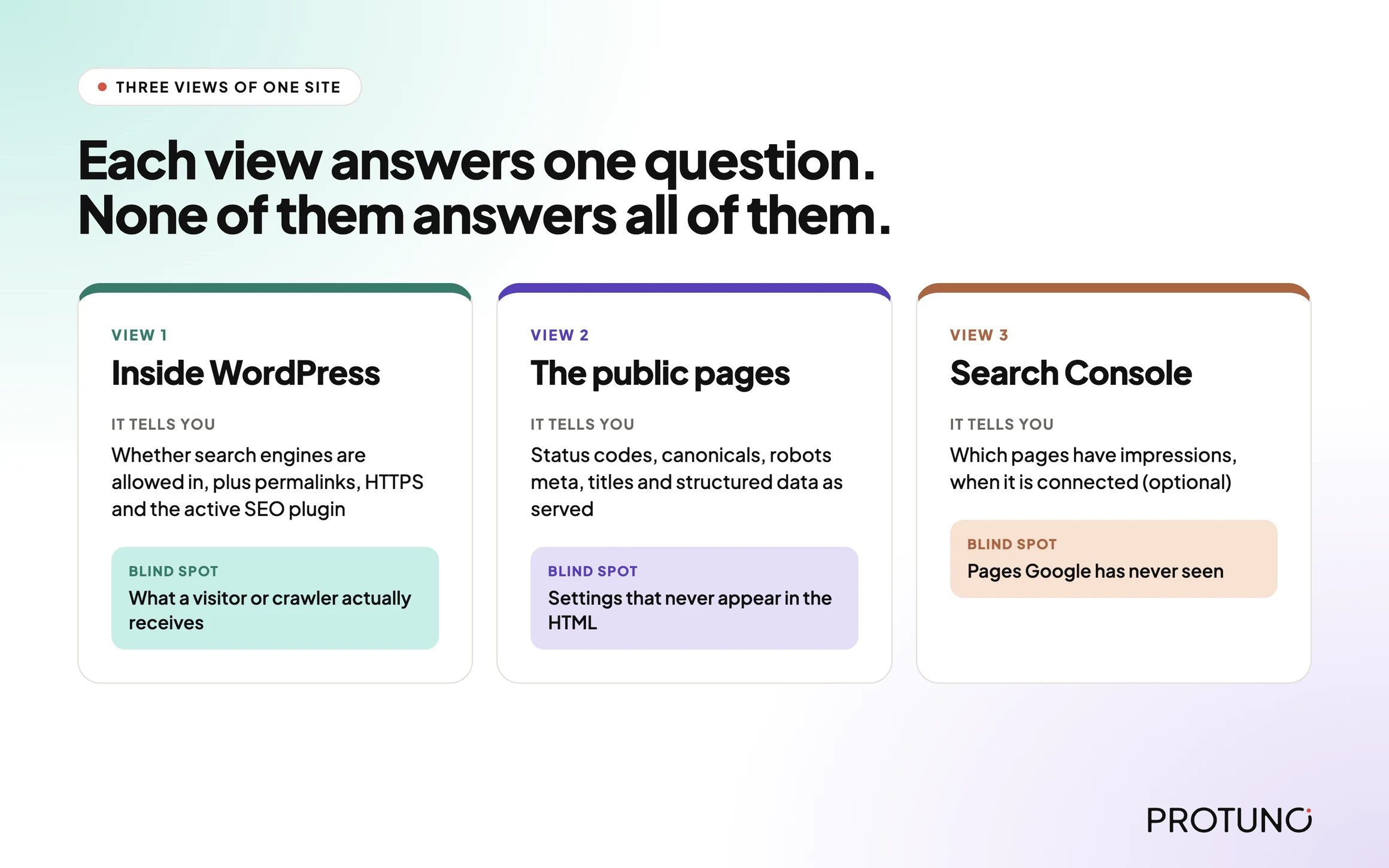
    A site can be examined from the inside, from the public pages, and from a search engine’s own records. Each answers a different question.

    ViewWhat it tells youWhat it cannot prove alone
    From inside WordPressWhether search engines are allowed in at all, the permalink structure, HTTPS, which SEO plugin is active, how many pages are publishedWhat a visitor or a crawler actually receives
    From the public pagesStatus codes, canonicals, robots meta, titles, descriptions, structured data as servedSettings that never show up in the HTML
    From Search ConsoleWhich pages have impressions and how Google treats themAnything about pages Google has never seen

    The third view is optional in Protuno’s playbook, and the playbook says so out loud. More on that below.

    Three views of one site: inside WordPress, the public pages, and Search Console, each with its blind spot
    Each view catches what the others cannot prove.

    A Small Test You Can Run Today

    You do not need a tool to check the highest-impact items. Pick one site and record these:

    • Is “Discourage search engines from indexing this site” switched on under Settings, Reading?
    • Does /robots.txt return 200, and does it contain a blanket Disallow: / for every user agent?
    • Does a sitemap exist at /sitemap.xml, /wp-sitemap.xml or /sitemap_index.xml?
    • Does the http:// version of the homepage redirect to https://?
    • Does your homepage declare a canonical that points to itself?
    • Does your latest post carry a robots meta tag with noindex?

    Three of those take one command each:

    curl -s https://example.com/robots.txt | head -20
    curl -sI http://example.com/ | head -5
    curl -s https://example.com/ | grep -i -E 'rel="canonical"|name="robots"'

    Write the answers down next to the date. Then do the same for four more sites. You now have the shape of a technical audit, and you will see why it needs a fixed order.

    The Playbook, Step By Step

    Technical SEO Audit is a Protuno SEO playbook. In the Protuno dashboard it is a Beta playbook handled by the SEO agent, Iris. It runs a fixed sequence of eight steps and only reads the site. It changes nothing. It is not on the public playbooks page yet, so treat it as a new playbook that is still being rolled out.

    #StepWhat it does
    1On Site Indexability BaselineReads the signals only the plugin can see: the search engine visibility option, permalink structure, HTTPS, which SEO plugin is active, whether core sitemaps are on, and how many posts and pages are published
    2Crawl The Site As A Browser Sees ItCrawls the public pages, bounded to about 50, and records status, canonical, robots meta, title and description length, and whether structured data is present
    3Sitemap And Robots HealthFetches robots.txt and looks for a sitemap at the usual addresses, checking it stays inside protocol limits
    4Schema Validity CheckScans for JSON-LD blocks and checks they parse and declare a context and a type
    5Core Web Vitals CheckAsks the public PageSpeed API for a lab estimate on the homepage, and reports unknown if it cannot
    6Indexation Canonical And Redirect HygieneFetches the homepage and the most recent posts and pages, comparing canonicals and robots meta, and tests whether plain HTTP redirects
    7GSC Merge OptionalAdds Search Console impressions if a source is connected, and skips cleanly if not
    8Prioritised Technical SEO ReportBuilds one ranked report with evidence, and lists any pillar it could not check

    Order matters here. Step 1 comes first because every later step depends on it, and the playbook treats a missing baseline as a broken chain, not as a pass. The crawl is step 2, not step 1, because a crawl with no baseline cannot tell a deliberate noindex from an accidental one.

    Step 1 In Detail: The Baseline Nobody Crawls

    The baseline reads the WordPress option that decides whether the whole site asks to be indexed. If that option says no, the playbook records a critical finding. A site asking Google not to index it is the most expensive technical problem you can have, and it is the least visible.

    It also flags a plain permalink structure (the ?p=123 style) and a site not served over HTTPS as high-severity findings. It notes the active SEO plugin and whether core sitemaps are enabled, because a site with neither has no sitemap source.

    Step 2 In Detail: A Crawl With Its Limits Stated

    The crawl is bounded to roughly fifty pages. If the crawl engine hits an interstitial page, such as a tunnel warning, the playbook discards that page rather than treating it as the site. If every page is an interstitial, it falls back to fetching pages from the server itself.

    The playbook also names a gap that most audits skip: signals injected by JavaScript can be invisible to a server-rendered read. That is stated as a coverage gap in the report, not hidden.

    Steps 3 To 6: One Pillar Each

    Robots and sitemap come from the site fetching itself, so nothing in front of the site can interfere. A robots file that blocks everything for all user agents is a critical finding. One that cannot be reached is a low finding, because an unreachable file does not prove there is none.

    Schema is checked structurally: does it parse, and does it declare a context and a type? The playbook says that is not full validation and points to Google’s Rich Results Test for the authoritative answer. It never claims rich-result eligibility.

    Core Web Vitals are lab estimates against the usual thresholds: LCP at 2.5 seconds, INP at 200 milliseconds, CLS at 0.1. INP is a field metric with no lab equivalent, so the playbook reports Total Blocking Time as a proxy and labels it as one. If the PageSpeed call fails, the pillar says unknown with the reason.

    Indexation hygiene looks at a small sample, the homepage plus the most recent posts and pages, and compares each page’s canonical to its own address. It flags a missing canonical, a canonical pointing elsewhere, unexpected noindex, and an HTTP version that does not redirect.

    Technical SEO Audit: eight read-only steps.

    What A Technical SEO Audit Does Not Solve

    A technical audit is narrow on purpose. It does not tell you:

    • Whether the content is any good, or whether anyone wants it.
    • Whether other sites link to you.
    • Whether a clean report will lead to rankings. It will not guarantee that.
    • What real visitors experience. Lab estimates are not field data.
    • Which fixes are safe to make. The playbook recommends, a person decides.

    Protuno’s own report footer says the same: technical audit only, no content quality or backlink judgment.

    Questions To Ask Your Current Audit Tool

    • Does it read the WordPress indexing option, or only what is in the HTML?
    • What is its page limit, and does the report say when the limit was hit?
    • What does it do when the site returns an interstitial page instead of content?
    • Does it separate “clean” from “could not check”?
    • Are Core Web Vitals labelled lab or field?
    • Does every finding come with the URLs it affects and the evidence behind it?

    If a tool cannot answer the fourth question, treat every green tick with suspicion. A false zero issues is worse than an honest “could not check”.

    Which Check Are You Actually Running?

    If you need to knowEvidence that answers itNext action
    Is the site allowed to be indexed?The visibility option, robots.txt, meta robots on key pagesFix the setting first, before anything else
    Can a search engine find the pages?Sitemap present and in limits, internal linksRepair the sitemap, see the sitemap audit post
    Are the pages consistent?Canonicals and redirects on a sampleCorrect the canonical or flatten the redirect
    Does the markup parse?JSON-LD scan, then Rich Results TestFix the invalid block
    Is it fast enough?Lab estimate, then field dataTreat the lab number as a pointer, not a verdict
    Which pages deserve effort first?Search Console impressionsConnect Search Console or accept severity-only ordering

    Fixing Findings In The Right Order

    The playbook ranks findings by severity, and by traffic too when Search Console is connected. That is a sensible default for a manual audit as well.

    PriorityExamplesWhy this order
    CriticalSite-wide noindex, robots blocking everythingNothing else matters while the site asks to be ignored
    HighPlain permalinks, no HTTPS, unexpected noindex on a pageThese change what can rank
    MediumMissing sitemap, canonical mismatch, redirect chain, HTTP not redirectingThese dilute signals
    LowUnreachable robots.txt, high Total Blocking TimeThese need a second look before action

    Two practical rules apply to every fix. Take a restore point before changing a setting or a redirect rule. Re-run the same check after the change, so you know the fix did what you intended and nothing else.

    A Five-Site Audit You Can Do This Week

    Pick five sites you look after. For each, record the visibility setting, robots.txt status, sitemap address, canonical on the homepage, and whether HTTP redirects to HTTPS.

    Then decide, for each finding, one of these:

    • Fix now, because it is critical or high.
    • Test first, because the change could affect live traffic.
    • Replace, because the plugin producing it is the problem.
    • Remove, because the setting or file is no longer needed.
    • Accept, with an owner and a date.
    • Investigate, because the evidence is incomplete.

    “Investigate” is a legitimate answer. It is better than guessing. If you want the longer version of the crawl side, the broken link audit post covers why a 404 is only the easy half.

    Why Optional Does Not Mean Unimportant

    Step 7, the Search Console merge, is labelled optional in the playbook. If no source is connected, it skips and the report says findings are ranked by severity alone, not severity times traffic. It does not invent impressions.

    That honesty matters. A page with a medium finding and ten thousand impressions deserves attention before a page with a high finding and none. Without the traffic data you cannot tell them apart, and the report says so.

    Speed is a related case. If a slow response is part of what worries you, the TTFB explainer covers why the usual number is easy to misread.

    Where Protuno Fits

    In the Protuno dashboard, the SEO agent, Iris, covers this work. The Technical SEO Audit playbook is read-only. It reports, a human decides what to fix, and the report hands the top pages on to a separate per-page playbook, the AI SEO Optimiser, for the fix layer.

    If you want to see how a Protuno playbook is laid out before running anything, the SEO agent page shows what is built and what is still in build.

    The Point

    An audit is a list of questions asked in a sensible order, with an honest note on the ones it could not answer.

    Start with whether the site is allowed in. Then check what a visitor and a crawler receive. Then say what you could not see.

    Which of your sites would you trust to pass question one today?

  • WordPress Malware Scan: The Playbook, Step By Step

    WordPress Malware Scan: The Playbook, Step By Step

    Your site can look perfectly fine to you and still be selling pills to Google.

    That is the unsettling part of modern WordPress malware. The owner loads the homepage, sees the real homepage, and moves on. The crawler gets a different page. The client finds out when a customer asks why the search result mentions casinos.

    Short answer: a useful WordPress malware scan checks four places, not one: what the site shows to crawlers, what is sitting in the files, what is sitting in the database, and what has been set up to bring the problem back. Then it verifies every hit before it accuses anything, and it says plainly which areas it could not reach.

    What this post is, and is not: this is a practical walkthrough of how a read-only malware scan is built and how to read its output. It is not a claim that any scanner can promise a site is clean forever, and it does not describe a cleanup. Detection and removal are different jobs, and mixing them is how good files get deleted.

    An alert says something matched. A report says what it is, how sure we are, and what we could not see.

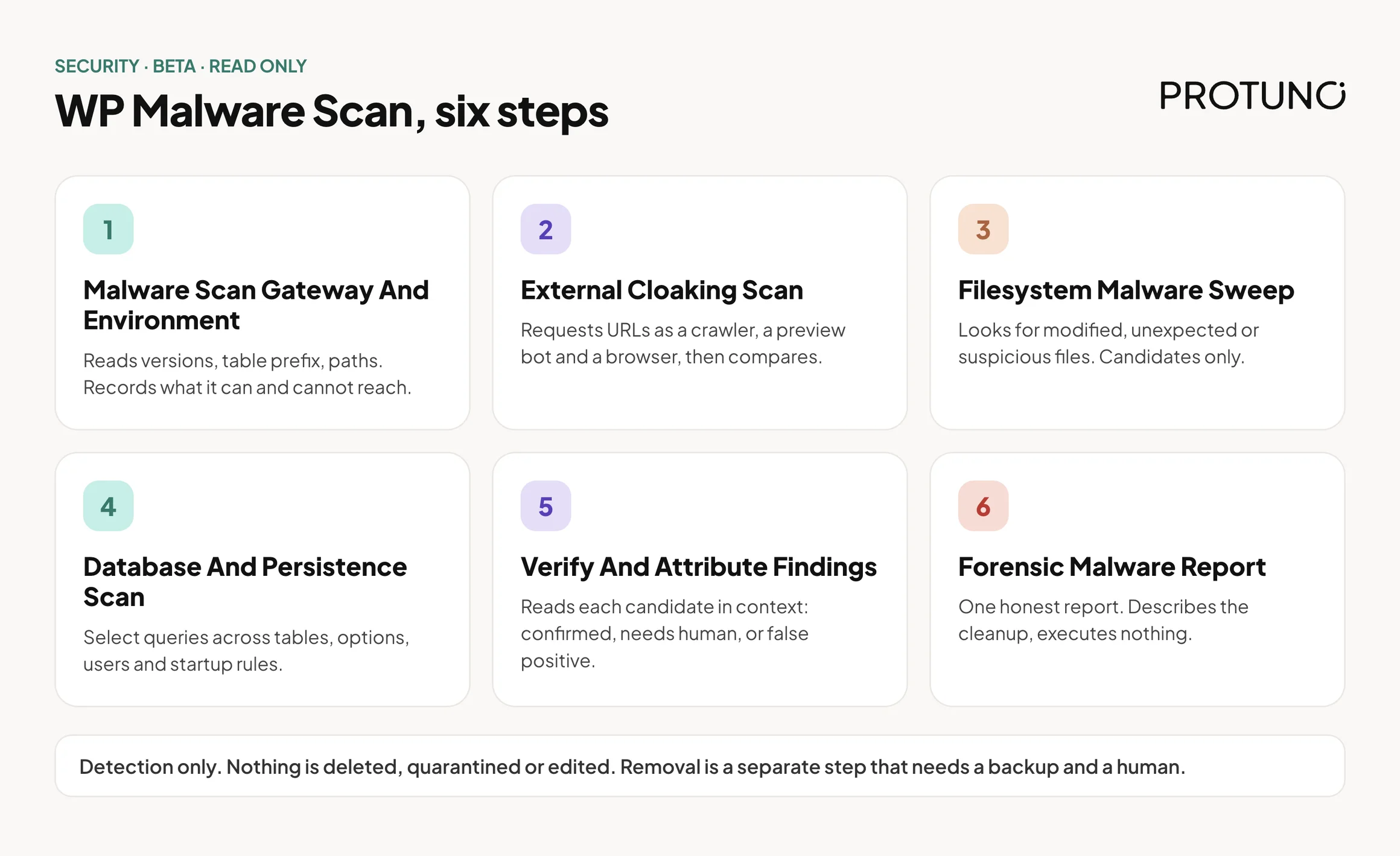
    Six numbered cards listing the WP Malware Scan steps: gateway and environment, external cloaking scan, filesystem malware sweep, database and persistence scan, verify and attribute findings, and forensic malware report. A note underneath says detection only, nothing is deleted, quarantined or edited.
    Six read-only steps, from environment to report.

    Why A Single Scan Falls Short

    Most people meet malware scanning as one button. It reads the files, matches them against a list, and prints a number.

    That catches the loud cases. It misses the quiet ones, and the quiet ones are the ones that last.

    Where can an attacker leave something behind?

    • In a PHP file that only runs when the visitor looks like a search engine.
    • In an option row in the database, stored encoded so a plain text search finds nothing.
    • In a scheduled task that quietly rewrites the payload an hour after you delete it.
    • In an administrator account that does not show up in the normal user list.
    • In an application password, which can survive a normal password reset.

    A scanner that reads files only will never see the second, third, fourth or fifth. A scanner that reads your pages only as a browser will never see the first. Each blind spot is a place to hide.

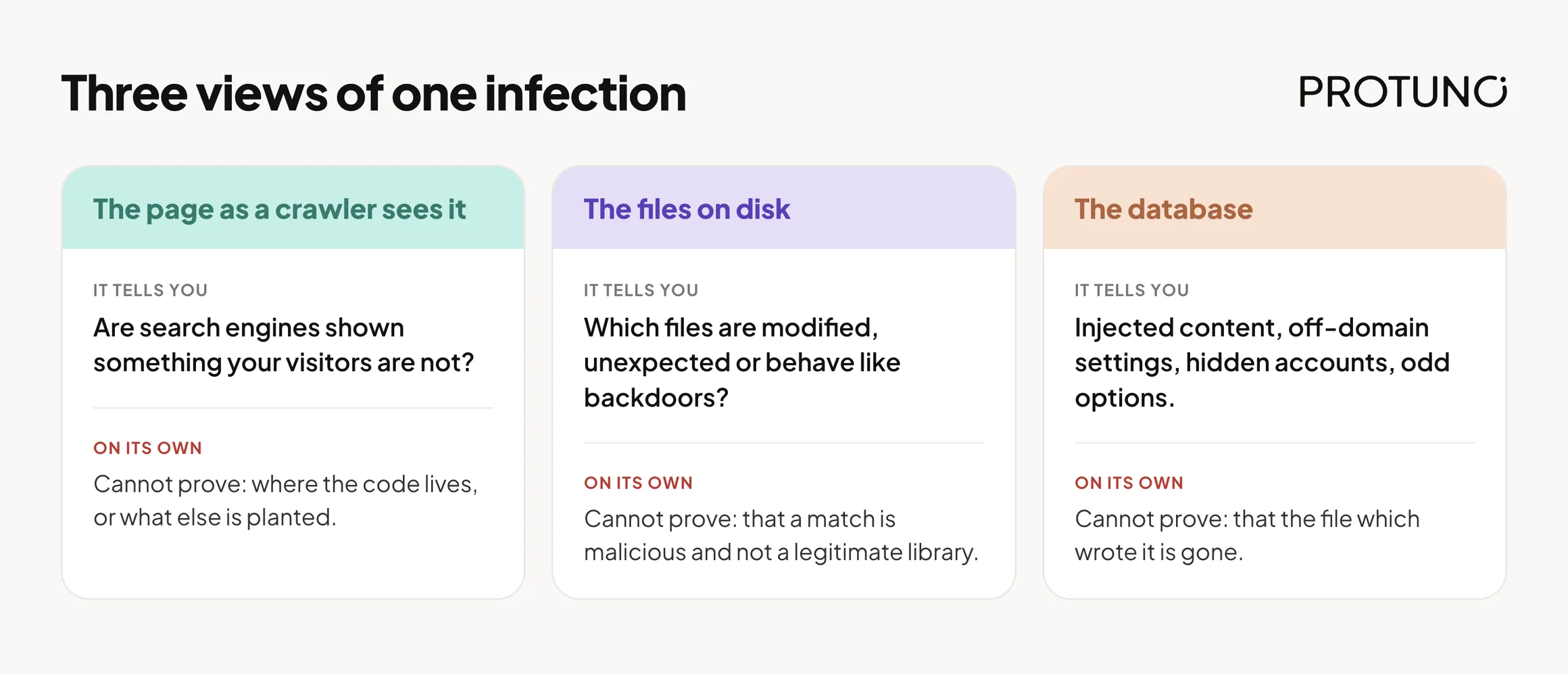
    Three Ways To Look At The Same Infection

    The same compromise looks different depending on where you stand. That is why one view alone is rarely enough.

    ViewWhat it tells youWhat it cannot prove alone
    The page as a crawler sees itWhether search engines are being shown something your visitors are notWhere the code lives, or whether anything else is planted
    The files on diskWhich files are modified, unexpected or behave like backdoorsWhether a match is malicious or a legitimate library that looks odd
    The databaseInjected content, off-domain settings, hidden accounts, odd optionsWhether the file that wrote it is still there to write it again

    A file match is a clue. A cloaked page is evidence of a symptom. A database row is a place to look. None of them is a verdict until someone reads it in context.

    Three views of one infection: the page a crawler sees, the files on disk and the database, with what each cannot prove alone
    Each view catches what the others cannot prove.

    A Small Test You Can Run Today

    Before you trust any scanner, including ours, ask a simpler question. Does your site show the same page to everyone?

    Pick five URLs: the homepage, two recent posts, one page from your sitemap, and one odd query string. Then request each one three ways and compare. Write down:

    • The page title for each request.
    • The social preview title and image.
    • Any words in the body that do not belong on your site.
    • Any script or image loaded from a host you do not recognise.

    A basic way to see it from a terminal:

    curl -s -A "Googlebot/2.1 (+http://www.google.com/bot.html)" https://example.com/ | grep -i "<title>"
    curl -s -A "Mozilla/5.0 (Macintosh; Intel Mac OS X 10_15_7)" https://example.com/ | grep -i "<title>"
    curl -s -A "Googlebot/2.1 (+http://www.google.com/bot.html)" "https://example.com/?g=casino" | grep -i "<title>"

    If the titles differ, or a query string produces a page that does not exist in your sitemap or your editor, stop and investigate. Two different titles are not proof of malware on their own, because some sites legitimately serve different markup to bots. But an unexplained difference is exactly what a scan is meant to surface.

    The Playbook, Step By Step

    WP Malware Scan is a Protuno security playbook, currently in beta. It runs a fixed sequence of six steps, and it only reads the site. It changes nothing: nothing is deleted, nothing is quarantined, nothing is edited. It needs the Protuno plugin on the site, because it runs its checks from inside it. It is not on the public playbooks page yet, so treat it as a new playbook that is still being rolled out.

    #StepWhat it does
    1Malware Scan Gateway And EnvironmentReads the WordPress and PHP versions, the real database table prefix, multisite status and key paths, then records what the scan can and cannot reach.
    2External Cloaking ScanRequests a bounded set of URLs as a crawler, a social preview bot and a desktop browser, and compares what each one is shown.
    3Filesystem Malware SweepLooks across the web root, WordPress core, plugins, themes, uploads, mu-plugins and drop-ins for modified, unexpected or suspicious files. Reports candidates, not verdicts.
    4Database And Persistence ScanReads options, posts, users and scheduled tasks, plus startup rules such as .htaccess, for injected content and ways back in. Select queries only.
    5Verify And Attribute FindingsReads each candidate in context and sorts it into confirmed, needs human review, or false positive. Looks for the likely way in.
    6Forensic Malware ReportWrites one honest report with a status, the evidence, and a described remediation plan. Executes nothing.

    The order matters. The first step decides what the others are allowed to claim. The next three collect candidates. The fifth step is the only one allowed to turn a candidate into a finding. The sixth cannot invent anything the earlier steps did not produce.

    Step 1: Know What You Can Reach

    Before it looks for anything, the scan records its own limits: can it read files, search content, query the database, make web requests, read the debug log. Server-level scheduled jobs and web server access logs sit outside what a WordPress plugin can read, so they are written down as coverage gaps from the start. It also reads the real table prefix instead of assuming wp_.

    Step 2: Look Like Google

    This is the step most scanners skip. The scan requests a bounded set of URLs, the homepage, up to around fifteen sitemap URLs and a few recent posts, as Googlebot, as a social preview bot and as a normal desktop browser. It compares titles, social titles and images, and checks the body for spam words such as casino, slot, pharmacy and replica. It also flags images or scripts loaded from hosts that commonly serve spam payloads.

    If the real server address is known, it asks the origin directly too, because a clean cached copy at a CDN can hide a dirty origin. If it is not known, that is recorded as a gap, not a pass. It also tries a couple of query strings as a crawler, because some spam pages only exist when a particular URL is requested.

    Step 3: Candidates Only

    The filesystem step works through the places files hide: odd folders and loose PHP in the web root, modified core files, plugins on disk but not active, PHP in uploads, mu-plugins and drop-ins, known web shell patterns and obfuscated code that runs input.

    Core files are compared with the official WordPress checksum list for the exact version installed. If that reference cannot be fetched, the step must say core integrity could not be checked. It may not compare against an empty reference and call a file modified. A false alarm that sends an agency hunting a compromise that does not exist is treated as worse than an honest “not checked”. Vendor folders and minified files are listed but never marked safe to auto-clean, because legitimate code uses the same tricks malware does.

    Step 4: The Database And The Way Back

    The database step reads every table with select queries only. In options it looks for injected scripts, off-domain site addresses and known indicator keys. It also decodes values that look like base64 and tests the decoded text, because an encoded payload contains none of the obvious markers.

    It compares the number of administrators in the database with the number in the user list; a gap means a hidden account. It lists application passwords by name, never the secret. For comments it reads only for injected markup. It does not count spam or advise emptying the spam or trash folders, because that trash is the undo path for comment cleanup.

    Step 5: Read Before You Confirm

    Every candidate is read in context and labelled confirmed, needs human, or false positive. Unsure means needs human, never confirmed. A documented list covers legitimate things that look suspicious, such as snippet plugins that store PHP in uploads on purpose.

    The step also tries to work out how the attacker got in, using the debug log where available. Without access logs, the report says attribution is limited. It maps everything that could rewrite a payload, so those can be switched off together, and if no vulnerability feed key is set it says that check was not assessed, never “no vulnerabilities”.

    Step 6: Say What Is Actually Known

    The report ends in one of four states:

    StatusWhat it means
    InfectedAt least one finding was confirmed, in a file, the database or a cloaked page.
    SuspiciousNothing confirmed, but at least one item needs a human to look.
    CleanNothing confirmed, nothing needing review, and full coverage with no gaps.
    IncompleteNothing confirmed, but some areas could not be scanned, or an earlier step did not finish.

    The last one is the important one. “No malware found in what could be scanned” is a different sentence from “your site is clean”. The playbook is written so that the word clean is earned, never assumed, and so that a layer that did not finish is never reported as clear.

    WP Malware Scan: six read-only steps.

    What A Read-Only Malware Scan Does Not Solve

    • It does not remove anything. Cleanup needs an off-site backup you hold and a human confirming each item.
    • It cannot see server-level persistence or web server access logs from inside WordPress.
    • It cannot promise the site stays clean after today.
    • It does not fix the way in. A stolen password or an outdated plugin will let the next one through.

    Questions To Ask Your Current Scanner

    Whatever you use today, these separate a scan from a signature match:

    • Does it ever request pages as a crawler, or only read files?
    • Does it check core files against the official checksums for your exact version?
    • Does it read the database, including encoded option values?
    • Does it look for hidden administrators and leftover application passwords?
    • When it finds a match, does it read it in context before calling it malware?
    • When it cannot reach a place, does it tell you, or stay silent?

    If the answer to the last one is silence, the green tick means less than it looks like.

    Which Check Are You Actually Running?

    If you need to knowThe evidence you needThe next action
    Whether search engines see spam you do notCrawler and browser responses comparedInvestigate any difference before touching files
    Whether WordPress core was alteredFiles compared against the official checksum listReinstall from a clean source, after a backup
    Whether something is hidden in the databaseOption, post and user rows read in full contextReview by a person, with a backup in hand
    Whether an old vulnerability is the doorInstalled versions matched against a vulnerability feedSee vulnerability monitoring
    Whether it will come backA map of every item that can rewrite the payloadNeutralise them together, then watch for reinfection

    Fixing Findings In The Right Order

    When a scan reports a confirmed finding, the order of work matters more than the speed.

    PriorityActionWhy this order
    1Take a full off-site backup of files and databaseYou need an undo that the attacker cannot touch
    2Note a health baselineSo you can tell whether your fix broke something
    3Reinstall legitimate core and plugin files from clean sourcesReplaces modified files without guessing
    4Neutralise everything that can rewrite the payload, togetherDelete one writer first and it regenerates
    5Move confirmed malware aside rather than deleting itQuarantine can be reversed
    6Rotate secrets and revoke rogue application passwordsA reset alone leaves some access in place
    7Prove it clean as a crawler and watch for ten to fourteen daysReinfection often shows up later

    Two practical rules sit under all of it. Restore point first, because you are about to change a live site. Re-check after each change, because the fix itself can break things. See verify a WordPress backup for why a backup you have not tested is only a hopeful file.

    A Five-Site Audit You Can Do This Week

    Pick five client sites. For each one, write down:

    • The site and who owns it.
    • Whether pages looked the same as a crawler and as a browser.
    • Whether the number of administrators matches the user list.
    • The date core files were last checked against official checksums.
    • Which areas nobody can currently see: server logs, scheduled jobs, the origin behind a CDN.

    Then choose one outcome for each item you found:

    • Fix now: confirmed, backup taken, plan agreed.
    • Test first: looks suspicious, reproduce it on a copy.
    • Replace: a plugin you cannot verify, swap it for a maintained one. See what happens when a plugin leaves the repository.
    • Remove: unused plugins and themes, which still count as attack surface.
    • Accept with an owner and a date: a known gap, written down, with a review date.
    • Investigate: unexplained difference, needs a person.

    Stopping the next break-in is half the job, so read the hardening checklist and the wp-config exposure check next.

    Why A Malware Scan Goes Stale

    A scan is a photograph. It tells you about the moment it ran.

    A clean result on Monday says nothing about a plugin installed on Tuesday, a password reused on Wednesday, or a vulnerability published on Thursday. The real value of a scan is not one report. It is the habit of running it again, comparing the answers, and noticing what changed.

    Coverage gaps matter as much as findings. A gap you wrote down is a question you can answer next month. A gap nobody recorded is where the next problem lives.

    Where Protuno Fits

    Protuno’s Rook is the Security Super Agent. WP Malware Scan is one of its playbooks, and it is read-only: it reports what it found, how sure it is and what it could not see, and a human decides what happens next. It does not clean, quarantine or delete anything. It is new and not on the public playbooks page yet; the current public security playbooks are listed on the playbooks page.

    For the wider picture of how security checks fit together, read WordPress security monitoring and WordPress security audit.

    The Point

    A site is not clean because nobody has complained yet.

    It is clean when the places that matter have been looked at, the matches have been read, and the gaps have been named.

    When did you last look at your site the way Google does?

  • WordPress Security Audit: The Playbook, Step By Step

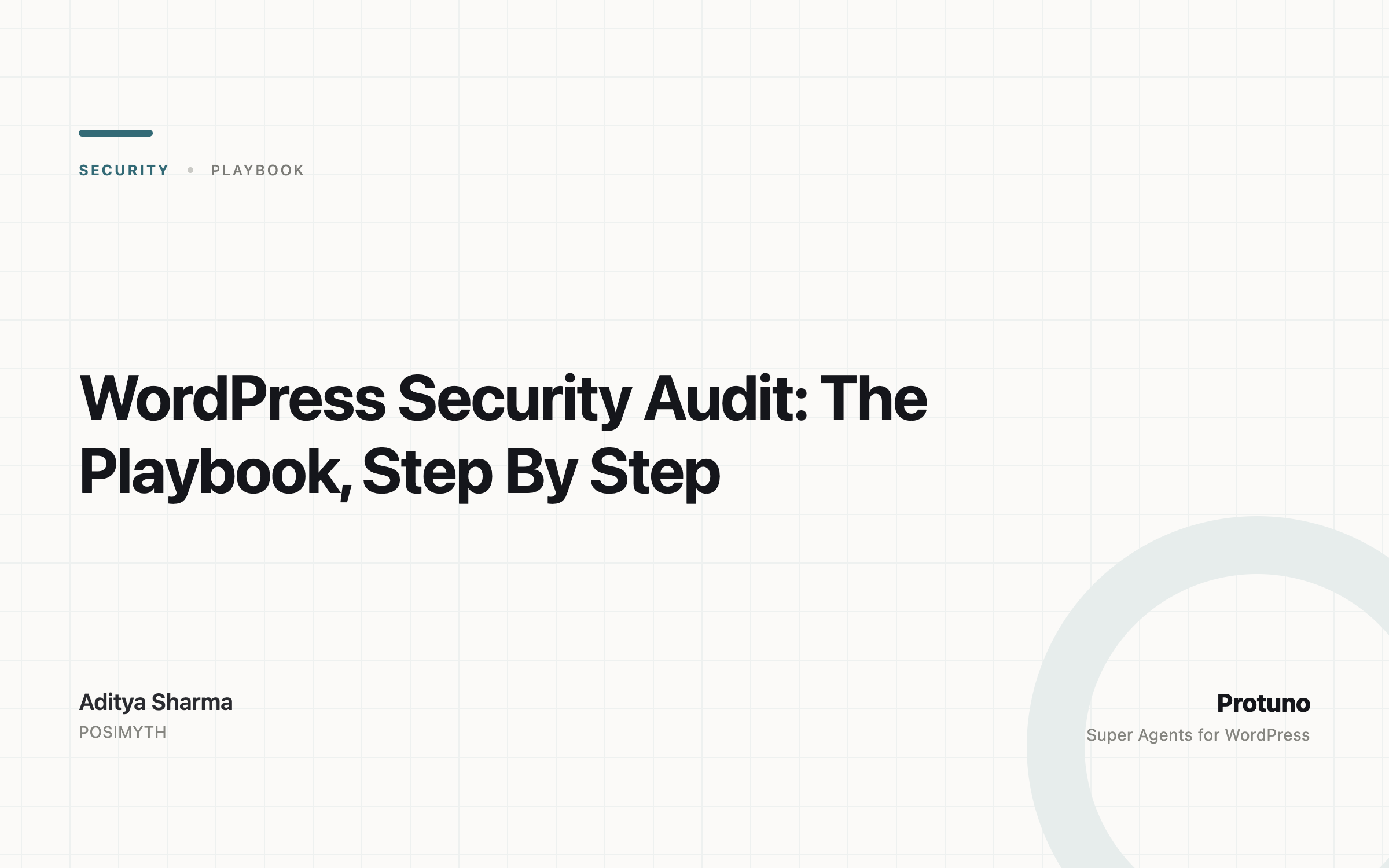
    WordPress Security Audit: The Playbook, Step By Step

    A security grade is only useful if it tells you what it did not check.

    That sounds like a small detail. It decides whether an “A” means your site is safe, or only that the scan never reached the parts that would have lowered it.

    Short answer: a good WordPress security audit reads the site in passes, checks the site directly, tries to verify what it finds, and then gives one grade with the gaps written beside it. A grade with no gaps listed is a guess dressed as a result.

    What this post is, and is not: it is a practical look at how a graded audit is built, and what one real run on a test site produced. It is not a claim that every finding below is exploitable, or that a grade replaces a human review.

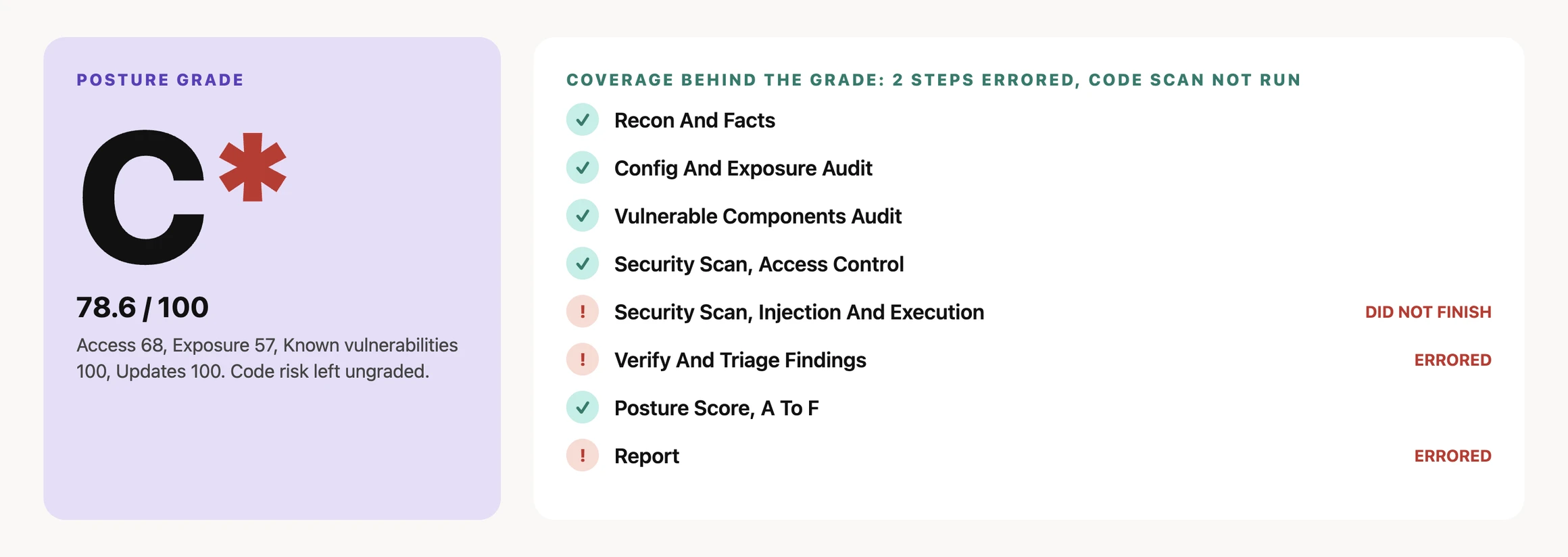
    Two cards side by side. The left card shows a security grade of C with an asterisk and a score of 78.6 out of 100. The right card lists the eight audit steps, with two marked as errored and the injection scan marked as not finished.
    A grade only means something next to the coverage behind it.

    Why A Single Grade Misleads

    Most people meet security as a number. A plugin shows a green badge. A report says 92 out of 100.

    The number is easy to read. What it hides is the question underneath it: what was actually looked at?

    A site can score well because it passed every check that ran, while the checks that matter most never ran at all. A timeout, a missing permission or a blocked feed can quietly remove half the evidence. The score still arrives.

    That is why a useful audit shows two things together: the grade, and the coverage behind it.

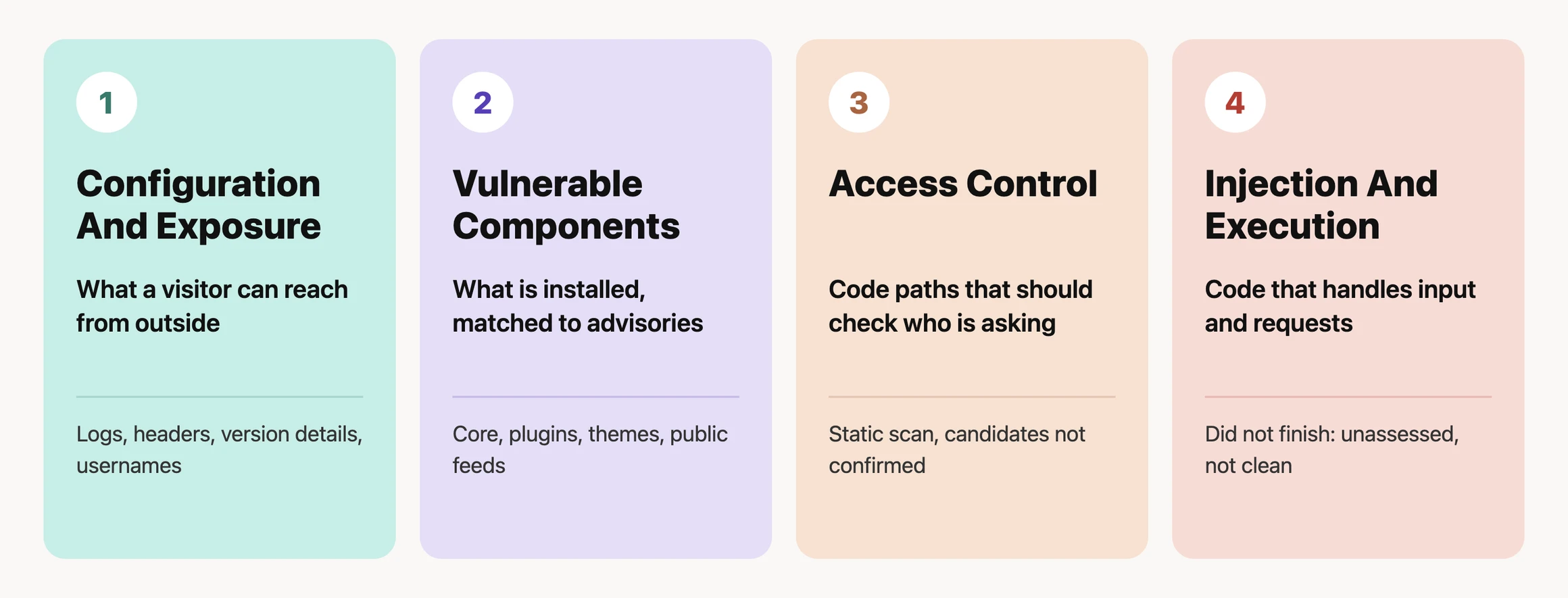
    Four Passes, Not One Scan

    A WordPress site can be exposed in different ways, and each way needs different evidence.

    PassWhat it looks atWhat it cannot tell you on its own
    Configuration and exposureSettings and files a visitor can reach from outside, such as logs, headers, version details and usernamesWhether any installed software has a known flaw
    Vulnerable componentsInstalled core, plugins and themes, matched against public advisory dataWhether a plugin that is not on wordpress.org has a problem
    Access controlCode paths that should check who is asking before they actWhether a flagged path can really be abused
    Injection and executionCode that handles input, uploads, requests and dynamic executionAnything, if the scan did not finish
    Four labelled columns showing configuration and exposure, vulnerable components, access control, and injection and execution, with the type of evidence each pass reads.
    Four passes, each reading a different kind of evidence.

    The audit is the work of putting these four side by side, so one pass can cover the blind spot of another. If you want the monitoring side of the same question, WordPress Security Monitoring covers how to keep checking after the first audit.

    A Small Test You Can Run Today

    Pick one staging site, or a site you are authorised to manage. Open these in a private window and write down what each one returns:

    /debug.log
    /?author=1
    /readme.html
    /wp-json/wp/v2/users

    Then look at the response headers for the home page and note which of these are present: Strict-Transport-Security, X-Content-Type-Options, X-Frame-Options, Referrer-Policy and Content-Security-Policy.

    A response is not automatically a vulnerability. It is evidence to review. The useful question is whether the exposure is needed, and who it helps.

    The Playbook, Step By Step

    WP Security Audit is a Protuno security playbook: a fixed sequence written down before it runs, so it asks the same questions every time. It only reads the site and changes nothing. There are eight steps, as they appear in the Protuno dashboard. It is not on the public playbooks page yet, so treat it as a new playbook that is still being rolled out.

    #StepWhat it does
    1Recon And FactsReads the live site: WordPress and PHP versions, theme, plugins, admin count and whether registration is open
    2Config And Exposure AuditChecks what an unauthenticated visitor can reach: debug log, headers, version disclosure, usernames, directory listing
    3Vulnerable Components AuditMatches installed core, plugins and themes against public vulnerability data
    4Security Scan, Access ControlSweeps plugin and theme code for routes that may skip an access check
    5Security Scan, Injection, Execution And Supply ChainLooks for injection, upload, request-forgery and dynamic-execution patterns
    6Verify And Triage FindingsChecks each finding against the real code before it is reported, and ranks it
    7Posture Score, A To FTurns the evidence into a grade, and marks any area it could not grade
    8ReportWrites the plain-language report with a fix for each finding

    Step six is the one that matters most, because an unverified finding is an accusation and a verified one is a task. It is also the step that errored in the real run below, so the findings in this post come from the direct checks in steps one to four, not from step six.

    What It Found On A Real Site

    The video below walks through the result of one real audit run on a WordPress test site, on 24 September 2026. Steps one to four and step seven completed. Step five did not finish, because its code scan timed out three times. Steps six and eight errored. That is part of the result, so it is shown rather than hidden.

    • Grade: C* with a score of 78.6 out of 100. The asterisk marks that one area was left ungraded.
    • Two critical findings: the debug log was publicly readable at about 1.4 MB, and the only admin account had no two-factor authentication.
    • Warnings: the admin username was revealed through the author archive, three security headers were missing, the WordPress version was disclosed in several places, plain HTTP was still served, there was no login lockout, and PHP errors were printed to visitors.
    • Low priority: in-dashboard plugin and theme installs were still allowed.
    • Passed: the checked components had no known vulnerabilities, and the core configuration checks passed, including file permissions, security salts, the file-edit lock and closed registration.
    • Not finished: step five (injection and execution) timed out three times, and steps six (verify and triage) and eight (report) errored. The report page still showed the findings from steps one to four and the score from step seven, and it states that the unfinished checks were unassessed, not clean.
    • Candidates, not confirmed: the access-control sweep flagged 65 candidates and one request-forgery candidate across 4,557 files. None was confirmed exploitable, and the report says so.
    WP Security Audit on a real test site, 24 September 2026.

    The honest part is the useful part. A scan that times out and still prints “no issues” is worse than a scan that says “this part did not run”. The grade here is lower than it might have been, and it is also more believable.

    What An Audit Does Not Solve

    An audit is one moment in time, and security monitoring covers what changes after it. Neither is a full security programme.

    It cannot, by itself, tell you whether:

    • the site is being attacked right now;
    • a plugin that is not on wordpress.org has a known flaw;
    • a flagged code path can really be abused by a real visitor;
    • a file changed after the scan finished; or
    • the site has already been compromised.

    Those are different questions that need different checks. This is also why the vulnerability monitoring question and the audit question are kept apart.

    Reading The Findings

    These are the main findings from that run, ordered by what to fix first. The smaller ones are listed in the run summary above.

    PriorityFindingWhy it matters
    CriticalPublic debug logIt can reveal paths, plugin names and errors to anyone. See WordPress Debug Log Exposed
    CriticalNo two-factor authentication on the adminOne stolen password is then enough
    WarningUsername shown by the author archiveIt hands an attacker half of a login. See WordPress REST User Enumeration
    WarningMissing security headersThey are cheap to add and easy to verify. See WordPress Security Headers
    WarningVersion disclosed in several placesRemoving one tag does not remove the others
    WarningPlain HTTP still servedVisitors and bots can still reach the site without encryption
    WarningNo login lockoutRepeated password guesses are not slowed down
    WarningPHP errors visible to visitorsDebug output belongs in a private log
    LowIn-dashboard plugin installs still allowedLow priority if you use the dashboard for updates

    Two practical rules keep this safe. Take a restore point before changing anything that can affect the site. And re-check the finding after the change: “the setting was changed” is not the same as “the exposure is gone and the site still works.” The hardening checklist lists the fixes in a suggested order.

    When The Audit Cannot See A Plugin

    One line in the report deserves its own section. Three plugins on the test site were private or off-repository, so public vulnerability feeds had nothing to say about them. The report listed them as “verify with the vendor” rather than counting them as clean.

    That distinction matters for any agency running custom or premium code. “No known vulnerabilities” can mean nothing was found, or it can mean nothing was checked. A good report tells you which. For a related risk, see WordPress Removed Plugin Risk.

    A Five-Site Audit You Can Do This Week

    Pick five sites you are responsible for. For each one, record:

    • WordPress and PHP versions
    • Whether a public debug log exists
    • Whether the author archive reveals a username
    • Which security headers are present
    • Whether the admin accounts use two-factor authentication
    • Whether failed logins are limited
    • Which plugins are private or off-repository
    • The owner, the next action and the date it was last checked

    You will learn two things quickly: which site has the biggest gap, and which of your checks would have been silently skipped. For each site, write the decision beside the finding: fix now, test first, accept with an owner and a date, or investigate. A finding without a decision is just a better-organised inbox.

    Where Protuno Fits

    In the Protuno dashboard, WP Security Audit sits under the Security agent, Rook. It is a read-only playbook with eight steps that reports a grade with its coverage beside it, and it does not change the site. Fixes stay a human decision, made with the evidence in front of you. It is new and not on the public playbooks page yet; the current public security playbooks are listed on the playbooks page.

    The Point

    A security grade should make you ask better questions, not stop asking them.

    A C that tells you what it could not check is worth more than an A that does not.

    So before asking “what is our score?”, ask the question underneath it: what did this audit actually look at, and what did it skip?

  • WordPress Security Monitoring: The Playbook, Step By Step

    WordPress Security Monitoring: The Playbook, Step By Step

    A vulnerability feed can tell you what is vulnerable. It cannot tell you which of your WordPress sites actually runs it.

    That sounds obvious. It changes the order a useful security check should happen in.

    Short answer: start with the site. Read its WordPress version, installed plugins, themes, and relevant exposure points. Match that inventory against known vulnerability information. Then validate whether the finding applies before asking anyone to act.

    Security monitoring becomes useful when it answers a question a site owner can do something with: what is running here, what needs attention, and why?

    What this post is, and is not: this is a practical monitoring playbook, not a claim that every visible endpoint is a vulnerability or that a vulnerability record proves a site is compromised. The checks below establish evidence, then give a human the context to decide what to do next.

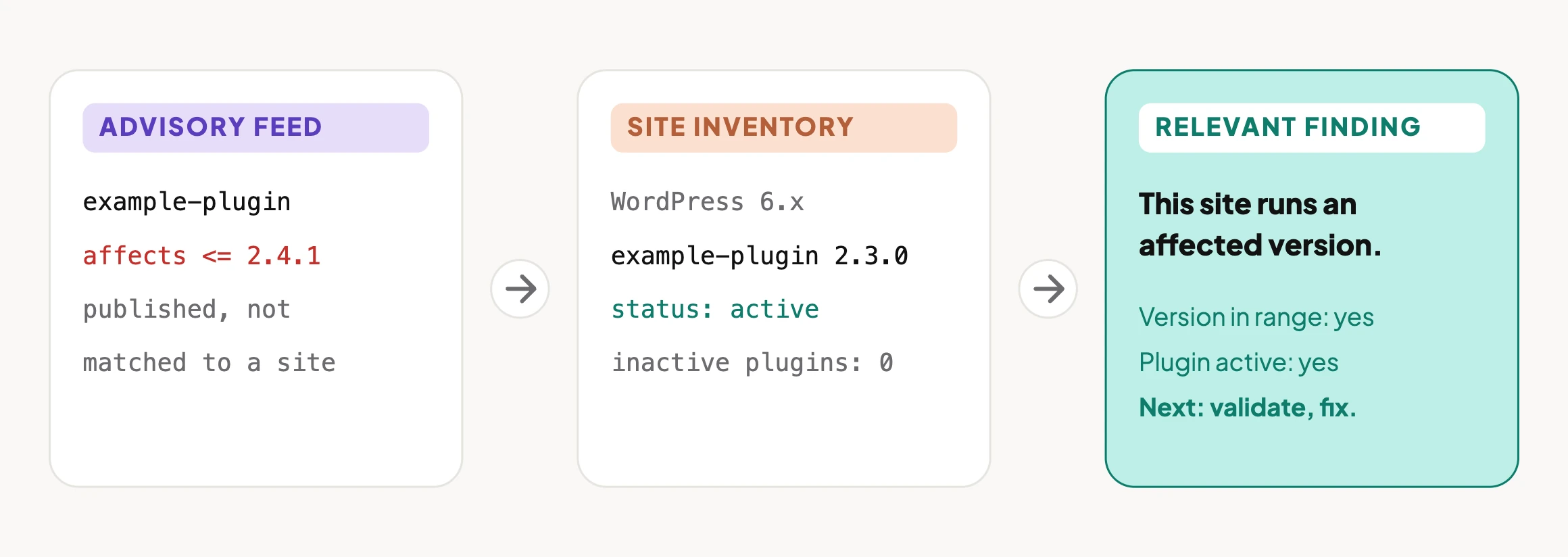
    Three cards left to right: an advisory feed entry saying example-plugin is affected up to version 2.4.1, a site inventory showing example-plugin 2.3.0 active with no inactive plugins, and a relevant finding that this site runs an affected version.
    An advisory is a fact about software. A finding is a fact about your site.

    Why The Feed Comes Second

    Most vulnerability monitoring begins with a feed.

    A vulnerability is published. A scanner finds a matching plugin name or version. An alert arrives. That is useful as far as it goes.

    But there is a question that comes before it:

    What is actually running on this site?

    A client portfolio is rarely uniform. One site has an active plugin at one version; another has the same plugin inactive; a third has removed it. Themes differ. Core versions differ. A vulnerability can also depend on a feature, role, configuration, or route being available.

    If a tool starts with the advisory alone, it can create a queue of alerts that are technically related and operationally vague. If it starts with the site, the finding can be specific: this site is running this affected version, and this is why it needs investigation.

    That is the difference between an alert and work someone can complete. The scanner-design side of this argument is covered in WordPress Vulnerability Scanner Design: Start From The Site; this post is the wider monitoring routine around it.

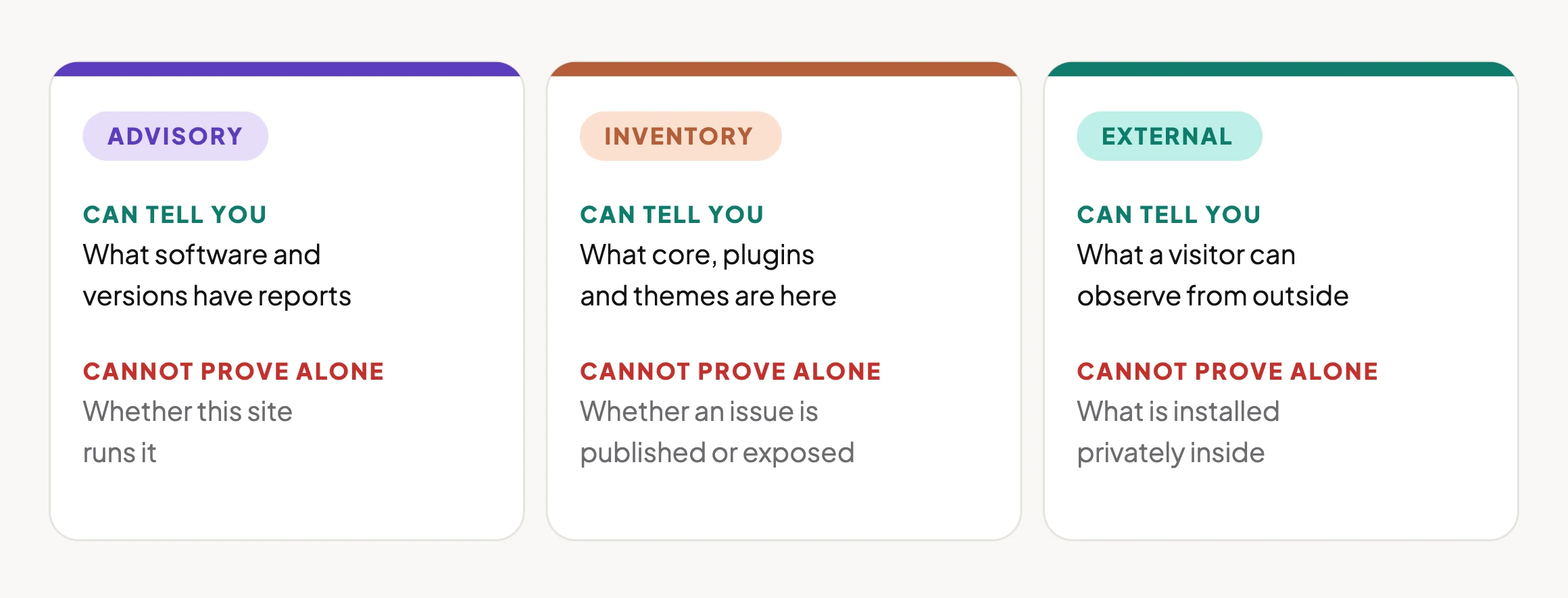
    Three Ways To Look For The Same Problem

    There are three useful views of WordPress security. They overlap, but they do not answer the same question.

    ViewWhat it can tell youWhat it cannot prove on its own
    Advisory informationWhat software and versions have publicly reported issuesWhether a particular site has that software installed or is affected in practice
    Installed inventoryWhat WordPress core, plugins, and themes the site has installedWhether a known issue has been published for them, or whether they are externally exposed
    External checksWhat a visitor can observe from outside the siteWhat is installed privately inside the WordPress site

    The monitoring job is to connect the three. Each catches a blind spot left by the others.

    Three cards comparing advisory, inventory and external views of WordPress security, each showing what it can tell you and what it cannot prove alone.
    Each view catches a blind spot left by the others.

    A Small Test You Can Run Today

    Pick one staging site or a site you are authorised to manage. Make a simple record of:

    • WordPress core version
    • Active plugins and their versions
    • Installed plugins that are inactive but still present
    • Active and installed themes
    • Administrator and editor access that needs review
    • Relevant exposure points, such as REST API routes, XML-RPC, security headers, and version disclosure

    Now compare the installed versions with the vulnerability information you rely on.

    The useful result is not:

    “Plugin X has a vulnerability.”

    It is:

    “This site is running the affected version of Plugin X. Here is the advisory, the affected version range, and the next action to validate or remediate it.”

    That language makes the difference clear. It separates an industry fact from a site-specific finding.

    The Playbook, Step By Step

    Vulnerability Watch is a Protuno security playbook, currently in beta: a fixed sequence written down before it runs, so it asks the same questions every time. It only reads the site. Here is the sequence, as it appears in the dashboard.

    #StepWhat it does
    1Inventory Installed SoftwareReads WordPress core, plugins and themes, their versions and whether each is active, and flags software that is not on wordpress.org
    2Load Vulnerability FeedPulls the public advisory data to check the inventory against
    3Match Versions Against RangesCompares each installed version with the affected version range in the advisory
    4Vulnerability ReportReports what matched, and states what it could not check

    The order matters. An advisory match without the inventory is a broad warning. An inventory without advisory context is a software list. The report is only useful if it says what it could not assess as clearly as what it found.

    What It Found On A Real Site

    The video below shows the playbook running on a real WordPress site. The run was on 24 September 2026, took 1 minute 57 seconds, and completed all four steps with none failed or skipped.

    • Inventory: WordPress core, four plugins (all active, none inactive) and two themes (one active, one installed).
    • Off-repository software: three plugins that are not on wordpress.org, so public feeds do not cover them. The report marks them as needing verification with the vendor.
    • Result: 0 vulnerable, 0 high or critical. Four of seven items were assessed; three were not.
    • A feed that could not be reached: the report notes when one advisory source was unavailable and that the scan fell back to another, rather than hiding it.

    That last point is the useful one. A clean result from a check that quietly skipped half its inputs is worse than an honest “assessed four of seven”.

    Vulnerability Watch running on a real WordPress site: four steps, read only.

    What A Vulnerability Check Does Not Solve

    A vulnerability check is important. It is not a complete security programme.

    It cannot, by itself, tell you whether:

    • a core or plugin file has changed unexpectedly;
    • an installed plugin has been abandoned or removed from its source;
    • too much user information is publicly exposed;
    • XML-RPC is unnecessarily available for the site’s needs;
    • response headers are missing protections the site expects;
    • a configuration change left a route open; or
    • the site has already been compromised.

    Those are different questions, so they need focused checks. Treating every signal as one giant “security score” makes it easier to miss what the signal actually means.

    This is why Protuno keeps security work in separate playbooks rather than one generic scan. Seventeen are planned and four are built today, because vulnerability matching, integrity checks, hardening and malware response each rely on different evidence and different safe actions.

    Questions To Ask Your Current Monitoring

    Before changing tools, test the monitoring you already have. On a site you control, work through these questions:

    1. Can it identify the exact plugin and version installed on the site?
    2. Does it distinguish active software from inactive software that is still installed?
    3. Does it link a finding to the affected version range and advisory details?
    4. Does it tell you which findings need validation before an update, replacement, or mitigation?
    5. Does it test anything outside the vulnerability database?
    6. Can you show a client the evidence without translating a generic severity label first?

    If the answer to the first three is no, the system may be reading the feed more reliably than it is reading the site.

    External Exposure: Test The Site, Not The Assumption

    External checks matter because the public site may reveal things that an installed-software inventory cannot.

    For example, on an authorised test or staging site, inspect whether the following routes respond and what they disclose:

    /wp-json/wp/v2/users
    /?author=1
    /wp-sitemap-users-1.xml

    The outcome can vary by WordPress configuration, user permissions, theme behaviour, and security controls. A response is not automatically a vulnerability. It is evidence to review: are usernames disclosed in a way that creates a meaningful risk for this site, and is the exposure needed?

    Related checks are worth running in the same pass: an exposed debug log and an exposed wp-config.php neighbour. The same principle applies to version disclosure. Removing one generator tag does not prove the version is no longer visible; version references can appear elsewhere, including asset URLs. The right check verifies the observable result after a change.

    Which Check Are You Actually Running?

    If you need to know…Check the evidence that answers itTypical next action
    Is this site running known-vulnerable software?Installed inventory plus advisory matchingUpdate, replace, mitigate, or investigate the match
    Have files changed unexpectedly?Core and extension integrity checksInvestigate the change before treating it as harmless
    Is an installed extension no longer maintained?Plugin lifecycle and source-availability reviewAssess replacement and removal risk
    Are usernames or other data unnecessarily visible?External enumeration and exposure checksReduce exposure where it is not needed
    Is XML-RPC appropriate for this site?XML-RPC reachability and use-case reviewRestrict it only after checking integrations that depend on it
    Are key security headers present?HTTP response-header checksAdd or correct headers, then verify the response
    Has the site been hardened safely?Targeted hardening checks plus functional verificationConfirm the security control and the site’s normal behaviour

    The table is deliberately unglamorous. It is also how a team avoids “we ran security” becoming a phrase that means nothing when a client asks what was checked.

    Fixing Findings In The Right Order

    Not every security finding needs the same response. Start with the issues most likely to leave a site exposed, then preserve evidence and verify each change.

    PriorityWhat to addressWhy it comes here
    1Known-vulnerable software that is confirmed on the siteIt has a documented issue and a site-specific match
    2Unexpected file changes or signs of compromiseUpdating first can overwrite evidence or conceal what happened
    3Abandoned or pulled softwareIt may not receive fixes and needs a replacement or removal plan
    4Meaningful public exposureReduce unnecessary information or routes after checking legitimate dependencies
    5Hardening improvementsApply carefully, then prove the intended protection and normal site behaviour

    Two practical rules make this safer:

    • Take a restore point before changes that can affect the site.
    • Re-check the finding after the change. “The update was clicked” is not the same as “the vulnerable version is no longer installed and the site still works.”

    A Five-Site Audit You Can Do This Week

    Pick five sites you are responsible for. For each one, make a short, comparable record:

    • WordPress version
    • Installed and active plugin versions
    • Installed themes and the active theme
    • Relevant known-vulnerability matches
    • Plugins that are abandoned, removed, or no longer needed
    • File-integrity status
    • Public REST API and user-enumeration exposure
    • XML-RPC status and whether a real integration needs it
    • Security-header status
    • The owner, next action, and date the finding was re-checked

    You will learn two useful things quickly: which sites have the largest gap, and whether your monitoring is giving you enough evidence to prioritise work without opening every dashboard by hand.

    For the most important sites, do not stop at an alert. Record the remediation decision: update now, test first, replace, remove, accept temporarily with an owner and review date, or investigate. A finding without a decision is just a better-organised inbox.

    Why A Security Check Goes Stale

    A security audit is a snapshot. The site changes after it.

    Plugins update. New advisories appear. A theme changes. A new user gets a role. A client installs an integration. A route that was restricted becomes public again after a configuration change.

    So the useful question is not:

    “Did we check this site?”

    It is:

    “When did we last check what this site is actually running and exposing?”

    That is where continuous security monitoring earns its place: it makes the next relevant change visible before it becomes the thing a client finds first.

    Where Protuno Fits

    Protuno’s Rook Security agent (see the playbook list) reads what a WordPress site actually has installed, watches relevant advisory information against that inventory, and reports focused security signals in plain language. Its security playbooks are kept separate for the same reason: each part of a site’s posture needs its own evidence.

    Rook is designed to report what it found and what should happen next. It should not be treated as permission to make broad changes blindly: security improvements are strongest when the evidence, site context, and remediation decision stay connected.

    The Point

    Security monitoring does not become more useful because it produces more alerts.

    It becomes more useful when every alert is connected to what the site actually runs, what the public site actually exposes, and the next action a person can take with confidence.

    So before asking “What vulnerabilities exist?”, ask:

    “What is this WordPress site actually running right now?”

  • WordPress Uptime Monitoring: The Playbook, Step By Step

    WordPress Uptime Monitoring: The Playbook, Step By Step

    Somewhere right now, a monitoring dashboard is glowing green for a site that is showing a client a blank white page. I served three broken pages from a test server and checked what three kinds of check would say.

    Short answer: a status-code check calls all three broken pages healthy, because all three return 200. I served them from a small test server and ran three kinds of check against the same responses. The status-code check missed every one. An error-word check caught only the fatal error. A check that looks for text the healthy page should contain caught all three, but somebody has to keep that text up to date.

    What this test is, and is not: the pages come from a 20-line local test server that returns the responses a broken WordPress site would (an uncaught PHP error printed as text, an empty body, a placeholder page). It shows what each kind of check can see. It is not a WordPress install, and I did not test any vendor’s product.

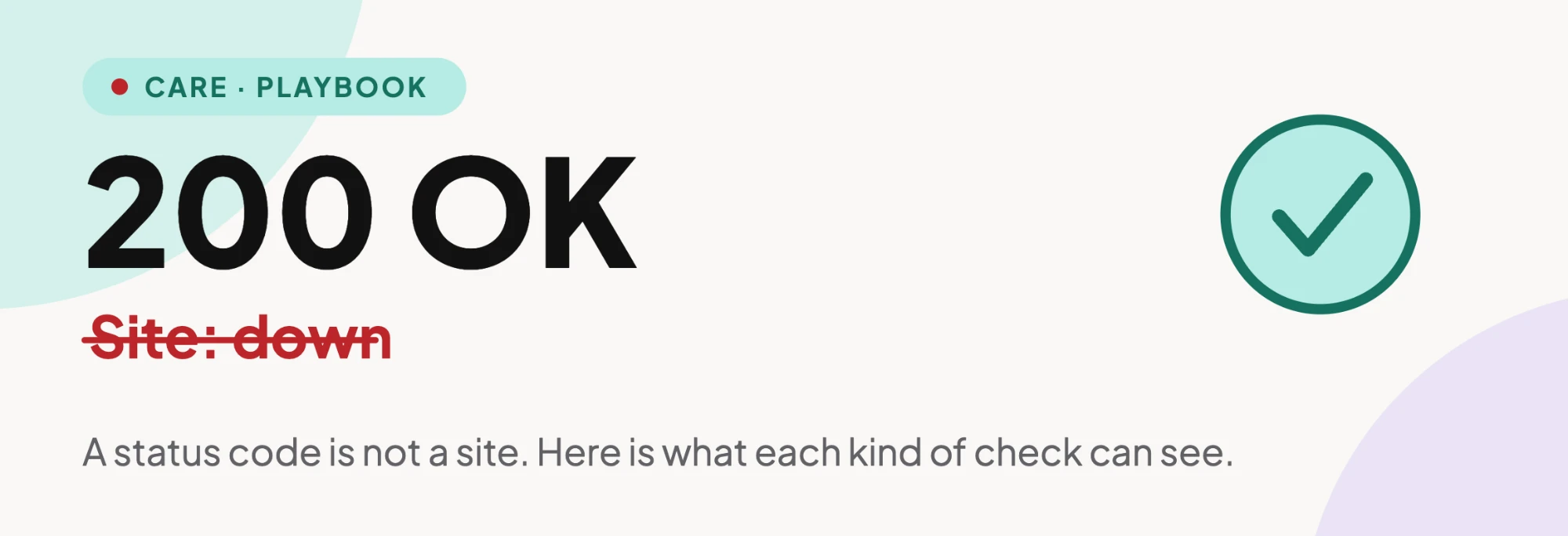
    A status code is not a site: 200 OK over a struck-through Site: down
    A status code is not a site.

    The Check Nobody Questions

    “Is the site up?” feels like a solved problem, the kind of thing you set up once and forget. Point a monitor at the homepage, ping it every few minutes, get a message if it stops answering. Many hosts, security plugins and budget monitoring tools default to exactly this.

    Here’s the part that should bother you more than it does: “up” to that monitor just means a server opened a connection and handed back a number under 400. That’s it. Nobody ever taught it what your homepage is supposed to look like. It’s a bouncer checking that the door opens, not checking who walked through it.

    Three Ways A WordPress Site Returns 200 While Being Broken

    These failure modes are common enough that most agencies have met at least one of them. Each produces a response the server is happy to label 200 OK.

    1. A fatal PHP error with display_errors left on. The server returns 200, the visitor gets a stack trace where the homepage used to be, and a status-code monitor waves it through.
    2. A plugin conflict producing a white screen. No error text, no clue, just an empty <body> and a 200 status sitting on top of nothing.
    3. A homepage overwritten by a template import or a failed migration. The page loads instantly, returns 200, and is completely the wrong page: a placeholder, a builder’s default template, last month’s cache.

    A status-code monitor sails through all three. A person notices straight away. Guess which one your client trusts more.

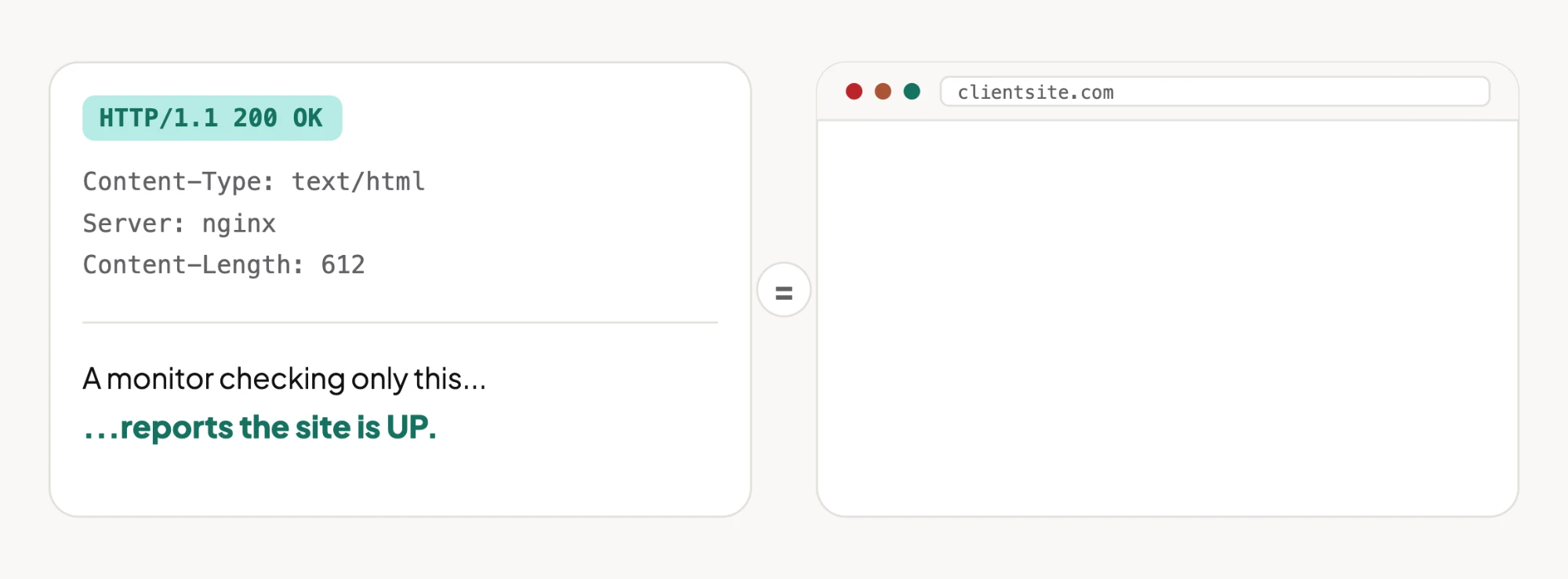
    An HTTP 200 OK response with headers next to a blank browser window at clientsite.com
    Same response code. One of these is a working site.

    Three Checks, Three Broken Pages

    I served the three broken pages plus one healthy page from the test server and ran three kinds of check against each. Everything in the table below was measured that way.

    CheckFatal error pageWhite screenWrong homepageHealthy page
    A. Status code only (alert if not 2xx)No alertNo alertNo alertNo alert
    B. Alert if the page contains an error word (“Fatal error”)AlertNo alertNo alertNo alert
    C. Alert if expected text (“Welcome”) is missingAlertAlertAlertNo alert
    Measured on a local test server: four pages, three checks, every page returning 200. The only check that saw all three failures is the one that knows what the healthy page should say.

    Row B is the one worth sitting with, because it looks like the problem solved itself. It only catches the failure that announces itself. A white screen has no words to match. A wrong homepage has plenty of words, just not yours.

    Row C is the good one, and it has a price. Somebody has to choose the expected text, keep it in sync every time the homepage changes, and repeat that for every site. When the copy changes and nobody updates the check, it raises a false alarm, and false alarms are how monitoring gets muted.

    The Playbook, Step By Step

    Uptime Checker is a Protuno playbook: a fixed sequence written down before it runs, so it does the same thing this Tuesday that it did last Tuesday.

    Here is the sequence, published in full.

    The playbook has seven steps:

    #Step
    1Uptime Config Gate
    2Ensure UptimeRobot Keyword Monitor
    3External Vantage Read UptimeRobot
    4On Site Probe And Classification
    5Uptime Confirmation Loop
    6Vantage Point Report
    7Fleet Verdict And Report

    Step 2 sets up a keyword monitor, which is the “expected text” idea from row C above. Step 5 is a confirmation loop, which is the “re-check before alerting” idea from the fixes table below.

    It is in beta, it only reads the site, and it needs UptimeRobot connected to work. I have not run it. It is not switched on for any site yet, so this post carries no timings and no results from it. The only measured numbers here are from the local test above.

    The three-check test above is why a sequence beats a single check: a status code misses all three broken pages, an error word misses two, and even the expected-text check only works while someone keeps that text current.

    What to ask of any monitor, this one included:

    • Does it check the page, or only the response code?
    • If it checks the page, who maintains what it expects to see?
    • Does it re-check before alerting, so one network blip doesn’t wake anyone up?
    • Can it tell a replaced homepage from the real one?
    Uptime Checker in 20 seconds: the same blank page run through three checks. Two miss it, one catches it.

    Testing What Your Current Setup Actually Catches

    Two checks, no tooling required beyond curl.

    Does your monitor look past the status code?

    curl -s -o /dev/null -w "%{http_code}\n" https://yoursite.com

    This alone tells you nothing except what your current monitor is probably already checking. The real test is what happens next.

    Simulate a silent content failure. Temporarily rename your active theme’s functions.php (on staging, not production) and watch whether your monitor says anything within its stated interval. A status-code-only monitor will report the site is up the entire time your visitors are seeing a fatal error or a blank page.

    If your monitor stays green through that test, it is checking the pipe, not the page.

    Which Row Is Your Monitor?

    Once you’ve run the functions.php test, match what happened to a row of the table above. That tells you what your monitor can and cannot see, and what to do next.

    What happened in your testYou’re runningWhat it will missNext step
    Nothing. It stayed green.Row A: status code onlyAll three failures in this postAdd an expected-text check (step 2 below)
    It alerted on a fatal error page, but stayed quiet on a blank oneRow B: error word presentWhite screens and wrong homepagesFlip the rule to “expected text is missing” (step 2 below)
    It alerted on every broken pageRow C: expected text missingNothing in this test, but the text goes stale when the homepage changesWrite the expected text down and review it whenever the homepage changes (step 3 below)
    It alerts on healthy pages tooRow C with stale textTrust. The team learns to ignore it.Update the expected text, then re-check from a second location before alerting (steps 3 and 4 below)
    Rows A, B and C are the same three checks measured in the table above.

    Fixing It In The Right Order

    #StepWhy here
    1Turn off display_errors in production, whatever monitoring you runA stack trace is a separate leak, not just a monitoring gap
    2Add an expected-text check to the uptime tool you already use, if it supports oneTurns a pipe check into a page check (row C above)
    3Write the expected text down where the whole team can find itIt goes stale the day the homepage changes
    4Re-check from a second location before trusting an alertOne flaky network path is what trains people to mute the whole system
    Step 2 without step 3 trades missed outages for false alarms.

    What I Would Do With A Client Portfolio This Week

    Pick your five busiest sites. Break one on purpose: rename functions.php on a staging copy, nothing production, nothing dramatic, and time how long your current monitoring takes to say a word about it. Set a timer. Walk away. Come back in twenty minutes.

    If the timer never goes off, you’ve found the gap this post is about. If it does, you have a monitor worth keeping.

    This is the same blind spot WordPress Cron Not Running covers from a different angle: the server doing exactly what it was told, faithfully, while the thing that actually matters quietly stops happening. SSL Certificate Expiry is the same trap on a calendar, and WooCommerce Checkout Monitoring is where it costs the most: a homepage that loads perfectly while checkout is broken. All of them circle the same idea: a system can report perfect health and still be lying to you, not out of malice, just out of asking the wrong question.

    Uptime Checker is one of Protuno’s playbooks. See the playbook list.

    So, one honest question before you close this tab: the last time something actually broke on one of your sites, how did you find out? If the answer involves the words “a client emailed me,” you already know which row of that table you’re running.