Tag: playbook

  • WordPress Spam Registrations: The Playbook, Step By Step

    WordPress Spam Registrations: The Playbook, Step By Step

    Open the Users screen and filter to Subscriber.

    If the list is full of accounts you do not recognise, with usernames that look machine-made, you are looking at the thing this post is about.

    The harder question is not how to delete them. It is which settings let them in, and whether the comment queues are filling up through the same open door.

    Short answer: WordPress spam registrations are new accounts created on a site by people you did not invite. Two settings decide how easy that is: whether anyone can register, and which role a new account gets. A read-only playbook can check both, count the comment queues and list accounts that are worth a look, without changing a user or a comment.

    What this post is, and is not: A method write-up of one read-only playbook, based on its two step files as shown in the Protuno dashboard and on its public page on 27 October 2026. It is not a result from a real run: no playbook was run for this post, and every number in the images and video is an example value. It does not say how spam accounts get past a registration form on any particular site, because that depends on the site.

    Two Doors Spam Walks Through

    A WordPress site has two common ways for a stranger to leave something behind. One is an account. The other is a comment.

    The account door is set in two places on the Settings, General screen. The WordPress documentation for that screen describes the first as “Anyone can register”, a checkbox for when “you want anyone to be able to register an account on your site”. The second is New User Default Role, which “allows you to select the default Role that is assigned to new users”. The valid choices it lists run from Subscriber up to Administrator.

    Those two settings work together. Open registration with a Subscriber default is a small risk. Open registration with a higher default role is a different kind of problem, because every stranger who signs up arrives with more power. The user roles post explains what each default role can do.

    The comment door is set on the Settings, Discussion screen. The documentation for that screen lists, among others, a checkbox that only lets logged-in, registered users comment, and a setting that closes comments on older posts after a number of days. A site where comments stay open everywhere and anyone can register has two open doors, and the queues behind them can grow without anyone noticing.

    An exposure audit reads both doors in one pass. It does not close either.
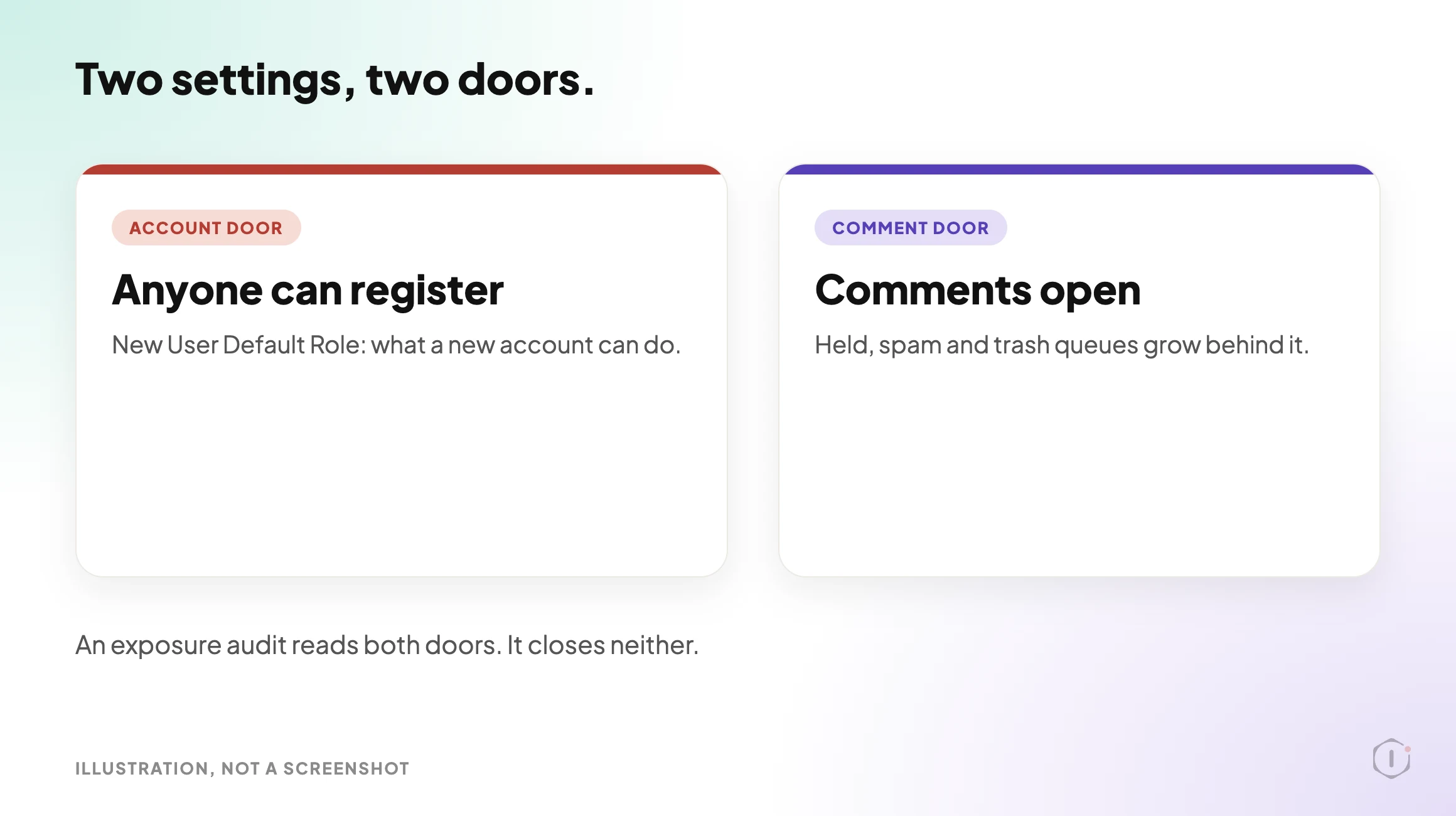
    WordPress spam registrations, illustration of two doors. The account door is Anyone can register, with the New User Default Role deciding what a new account can do. The comment door is comments left open, with the held, spam and trash queues growing behind it. Not a screenshot.

    What An Exposure Audit Looks At

    The playbook’s public page says it looks at three things:

    • Comment settings and queue sizes. Whether comments and pings are open by default, where they are still open, and how many comments sit in each queue.
    • Users by role and recent signups. How many accounts exist in each role, and how many registered in the last 30 days.
    • Accounts worth a look. Accounts with a throwaway email domain or a username that looks machine-made.

    It then gives an exposure rating and the next steps that apply. The next sections go through how.

    The Playbook, Step By Step

    The Comment & Signup Spam Exposure Audit playbook has two steps, in a fixed order. In the dashboard it carries a Beta label, sits in the Content group and only reads. The public page files it under Security, says it needs no connector, and says it runs when you start it with no schedule set. This post uses the public page’s category.

    A silent walk-through of the two steps. All scenes are illustrations with example values, not a real run.

    Step 1: Read Exposure Signals

    Step 1 is read-only. Every call it makes is a GET. It does four things:

    1. It reads the settings that open the doors: the default comment and ping status for new posts, whether anyone can register, the default role, whether comments are held for moderation, whether commenters must be registered, and whether comments close on old posts.
    2. It counts the comment queues: held for moderation, spam, trash and approved. It reads them 100 at a time, up to 20 pages, and reports “2000+” when a count hits that limit.
    3. It looks at where comments are still open on posts, pages and media, reading up to 10 pages of each.
    4. It counts users by role and how many registered in the last 30 days, using the 500 newest accounts.

    From those users it picks out accounts worth a look. That part gets its own section below.

    Step 2: Spam Exposure Report

    Step 2 makes no calls. It takes the numbers from step 1 and rates exposure as Low, Medium or High from fixed rules, then writes a report with these headings: Comments, Signups, Accounts worth a look, Not readable on this connection, Next steps, and Note.

    “Not readable on this connection” matters. If an option cannot be read, the report says so instead of guessing.

    How To Read A Rating

    RatingIt is given when any of these is true
    HighPending plus spam comments are 500 or more.
    High10 or more accounts are worth a look.
    HighComments are open on more than half of posts and 50 or more are pending.
    HighRegistration is open and the default role is above Subscriber (above Customer on a shop).
    MediumPending plus spam comments are 50 or more.
    MediumAt least one account is worth a look.
    MediumNew posts are open for comments by default.
    MediumRegistration is open.
    LowNone of the above.
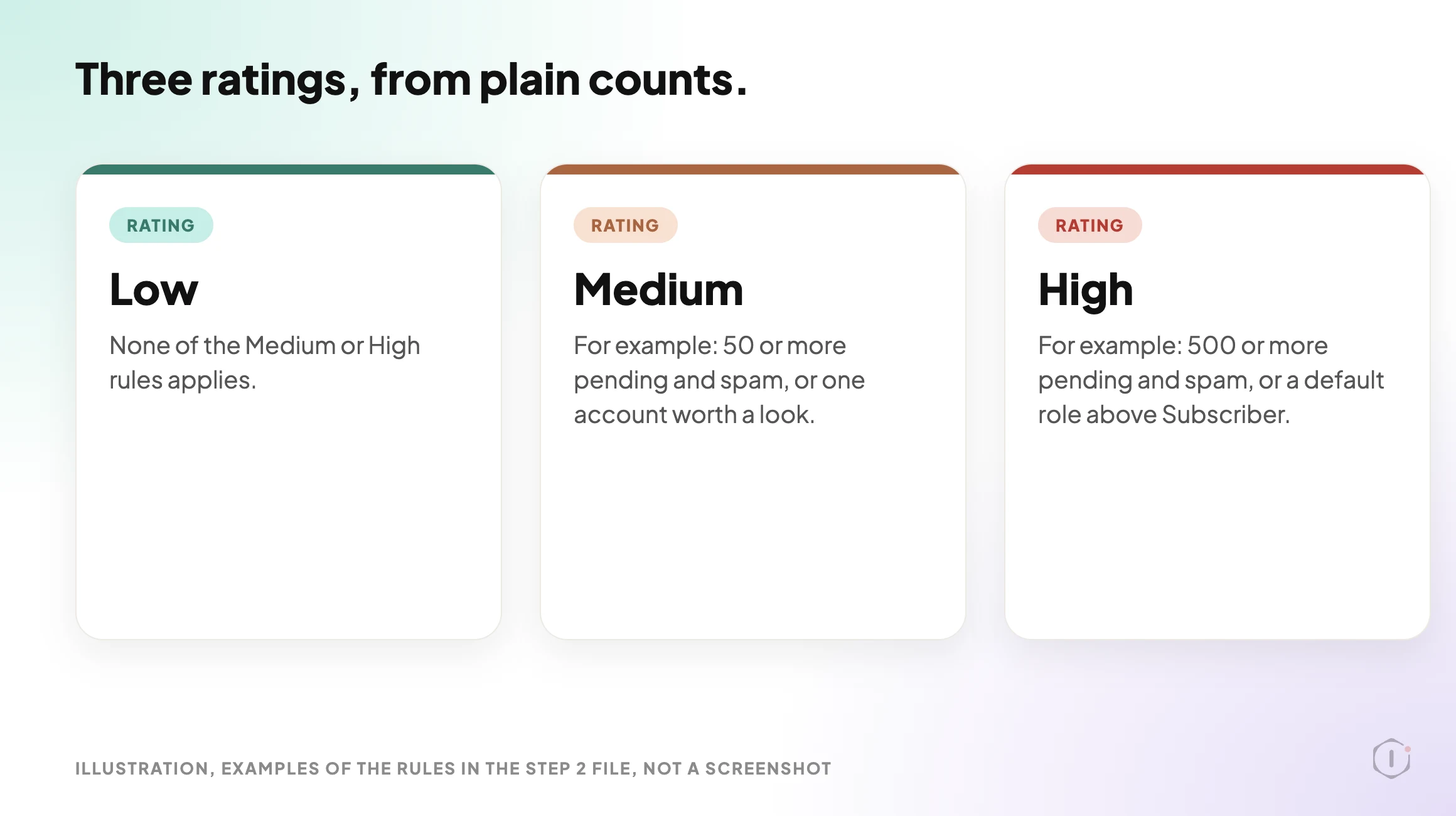
    WordPress spam registrations, illustration of three rating cards. Low applies when none of the Medium or High rules applies. Medium is given for example at 50 or more pending and spam comments, or one account worth a look. High is given for example at 500 or more pending and spam comments, or a default role above Subscriber. Not a screenshot.

    The rules are plain counts, so you can check any rating against the numbers in the report. A Medium rating on a site that simply allows registration is not an alarm. A High rating because the default role is above Subscriber is worth fixing today.

    The report’s next steps depend on what it found. They can point to the Spam Comment Deleter playbook when pending plus spam is 50 or more, to the Disable Comments playbook, to a review of the listed accounts in the Users screen “before changing anything”, and to fixing the default role or unticking “Anyone can register”. If something could not be read, it adds a pointer to check Settings, General and Discussion by hand.

    What “Worth A Look” Means

    This is the part most likely to be misread, so the step file is strict about it.

    Only accounts with the Subscriber role, or Customer on a shop, are considered. An account is called worth a look for one of two reasons:

    • Its email is on a fixed list of 30 throwaway domains, such as mailinator.com.
    • Its username looks machine-made. Two patterns count: a username with no separator that ends in six or more digits, or one of ten or more characters that switches between letters and digits four or more times.

    A few rules sit around that:

    • The report shows only the username and the email domain, never a full email address.
    • It says “worth a look”. It never calls an account fake, a bot, a spam account or malicious.
    • It never recommends deleting, banning or removing a user.

    The caution is fair. A real person can have a username that ends in digits, and a real person can use a throwaway address for a free download. A flag is a prompt for you to open the account and decide, nothing more. The playbook only reads, so no account changes whichever way you decide.

    What The Settings And The Public Page Say

    The two sources agree on the substance. Both say the playbook only reads, has two steps and needs no connector, and the public page says no step is set to pause for your approval. The one difference found is the group label: the dashboard says Content, the public page says Security.

    The settings panels for both steps, viewed in the dashboard on 27 October, show Automatic backup None and Approval checkpoint Off. For a playbook that changes nothing, that fits: there is nothing to back up and nothing to approve.

    What The Playbook Does Not Do

    The step files and the public page set clear limits:

    • It does not stop anyone registering. There is no blocklist and no email check at signup.
    • It does not say how an account got in. It reads signals; it does not trace them.
    • Counts stop at 2,000 comments per queue and at the 500 newest users, and the report says when a count hit its limit.
    • It flags only Subscriber and Customer accounts. An account with a higher role is not flagged for its email or username.
    • It does not approve, trash or delete any comment, and it does not change any user.
    • “Worth a look” is not a verdict. A clean report is not proof that nothing is wrong.

    A plugin that blocks signups is a separate tool. A read-only audit tells you how exposed you are; it does not close anything.

    Two cases deserve their own posts. If spam accounts keep appearing after you close registration, the question changes from exposure to compromise, and WordPress Hacked: The First Hour, In Order covers what to do first. And if you want to know which accounts can be found from outside, the user enumeration post is about the routes that list usernames.

    A Careful Version You Can Do By Hand

    You can read the same signals yourself. It takes longer as the site count grows.

    1. Open Settings, General. Note whether “Anyone can register” is ticked and what New User Default Role says. If registration is open and the role is above Subscriber, fix that first.
    2. Open Settings, Discussion. Note whether commenters must be registered, and whether comments close on older posts.
    3. Open Comments and read the count beside Pending, Spam and Trash.
    4. Open Users and click Subscriber. Read the usernames and the email domains on that list. A page of near-identical names is a reason to look closer.
    5. Write down what you found and the date, so the next check has something to compare with.
    6. Only then decide what to change. Closing registration and trashing spam are separate decisions, and neither needs to happen the same day.

    On one site this is a short job. Across twenty sites it becomes a recurring chore, and the repeatable part is the reading. The judgement stays with you: which accounts to open, and whether a site needs open registration at all.

    The two-factor post is the next layer if a flagged account turns out to be a real one with a weak login. It separates turning two-factor on from enforcing it.

    Two Outside Views

    A hosting company’s video and a forum thread. Both are about neighbouring problems rather than signup spam itself, and neither describes the Protuno playbook. They are here for the habit they share with it: read what is there before you change anything.

    Ahosting INC’s “Could Not Create Directory in WordPress: Find the Folder First (2026)“, published 5 October 2026, is about a plugin install error, not about accounts. Its advice is to diagnose first: find the folder path, check disk space and inode limits, and only then look at folder modes.

    Check both your space and inode gauges in your control panel or you will end up chasing permission ghosts forever.

    Ahosting INC, Could Not Create Directory in WordPress: Find the Folder First (2026), auto-generated English captions, 5 October 2026

    It is a hosting company’s explainer that points to its own written guide, and the captions are automatic. The same video is a source in the file permissions post, which covers the error itself.

    In an r/Wordpress thread, a poster describes investigating a compromised site. They say an attacker used a valid administrator session, installed a file manager plugin and used it to upload executable PHP files. Their main lesson:

    A successful WordPress admin login should be treated as a full application compromise.

    u/ThaiHeartly, r/Wordpress, 11 August 2026

    The poster says how the administrator session was first obtained is unknown. This is one poster’s account that I could not verify, and some replies asked whether the write-up was machine-written, which the poster denied. My reading, not theirs, is that the playbook would not see a case like this. It flags only Subscriber and Customer accounts, and an account created with a higher role is outside what it flags. The user roles post is the place to look at those.

    Where Protuno Fits

    The Comment & Signup Spam Exposure Audit playbook is the reading part of this job. It reads the comment and signup settings, counts the queues and the recent signups, lists accounts worth a look, and writes a Low, Medium or High rating with the rule that decided it. It needs no connector, runs when you start it and has no schedule set. It changes nothing.

    Two other playbooks cover the writing side, and the report points to them when they apply. Spam Comment Deleter trashes comments confirmed as spam, and Disable Comments stops new comments. Protuno publishes its playbooks as written-out steps you can read first. The playbooks page lists them, and this one has its own page at Comment & Signup Spam Exposure Audit.

    The Point

    Open registration is a choice, and the default role decides how big a choice it is. The comment queues are a second door. Neither tells you anything until someone reads them.

    Read both doors, treat a flag as a question, and keep the decision about each account with a person. A rating on paper is a reading list, not a verdict.

    If someone registered on your busiest site tonight, would you know which role they got?

    Sources And Further Reading

  • WordPress File Permissions: Check The Owner First

    WordPress File Permissions: Check The Owner First

    A plugin install stops with “Installation failed: Could not create directory.” An upload in the media library says “Unable to create directory wp-content/uploads/2026/10. Is its parent directory writable by the server?” Or an update stops on a screen that says “To perform the requested action, WordPress needs to access your web server. Please enter your FTP or SSH credentials to proceed.”

    The advice for all three is usually a number: set the folder to 777. The WordPress handbook warns against it, and a hosting company’s video about the first error says you never need it. These messages are not asking for a bigger number. They say WordPress tried to write something and the server refused, and the refusal has more than one possible cause.

    Short answer: find out who owns the files and which account PHP writes as, then read the mode. WordPress itself decides whether it can write by comparing owners, not by reading digits. For servers where PHP runs as the file owner, the handbook’s baseline is 755 for directories and 644 for files, with wp-config.php at 440 or 400, and it treats 777 as a number to question. The number is the last thing to change.

    What this post is, and is not: a walk-through built from the WordPress handbook, the WordPress 7.1.3 source on GitHub, two videos and one forum thread. I did not test anything on a site, and the commands near the end are read-only ones I have not run. The right values depend on your host, so the post says where to measure instead of giving one number to copy. Latest checked: WordPress 7.1.3 (6 October 2026) is the current stable release and 7.2 Beta 1 came out on 20 October. Neither announcement mentions file permissions or the filesystem.

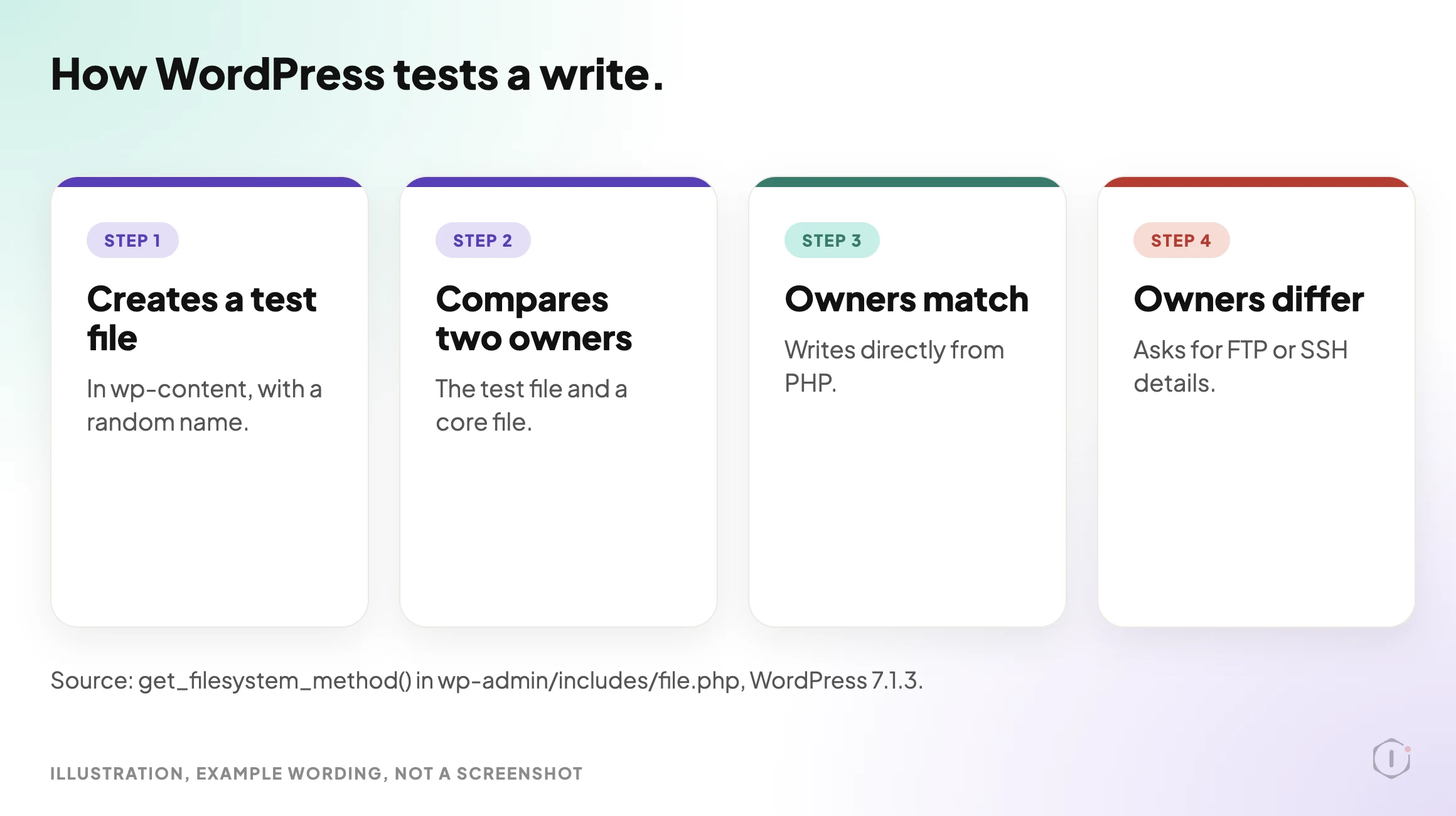
    Four cards in a row showing the WordPress write test: create a test file in wp-content, compare the owner of that file with the owner of a core file, write directly from PHP when the owners match, and ask for FTP or SSH details when they differ.
    Illustration of the check described in the WordPress 7.1.3 source. Example wording, not a screenshot.

    Three Digits, Three Audiences

    A mode is three digits: the owner, the group, and everyone else. Read is 4, write is 2 and execute is 1, and each digit is the sum. So 7 is read, write and execute, 5 is read and execute, and 4 is read only. That is the scheme the handbook’s file permissions page describes.

    ModeOwnerGroupEveryone else
    755read, write, executeread, executeread, execute
    644read, writereadread
    777read, write, executeread, write, executeread, write, execute

    “Everyone else” means every other account and process on that server. The handbook’s warning about 777 is about those accounts and processes, not about visitors reading files.

    How WordPress Decides It Can Write

    Before it writes during an install or update, WordPress runs a small test. In the 7.1.3 source it is the function get_filesystem_method() in wp-admin/includes/file.php. Unless the FS_METHOD constant is defined, it works like this:

    1. It tries to create an empty file named temp-write-test- plus a random string inside the wp-content directory.
    2. If that works, it compares the owner of the new file with the owner of a WordPress core file.
    3. If the two owners match, it writes directly from PHP.
    4. If they differ, or the test file could not be created at all, it falls back to SSH or FTP and shows the credentials screen quoted at the top.

    There is one more branch. A caller can allow “relaxed” ownership, and then a writable directory is enough to alter existing files, though that mode never creates new ones. The code comment says so.

    Two consequences follow from reading the code. I have not run either. First, a folder at 755 that is owned by the account PHP runs as passes the test, so no 777 is needed. Second, loosening a folder to 777 does not fix an owner mismatch. PHP can create the test file, but if PHP runs as a different account from the one that owns the core files, the new file has a different owner and WordPress still asks for FTP details. The same prompt also appears when the test file cannot be created at all, which is why it can mean two different problems.

    The handbook describes the working case for servers it calls “suexec”, where PHP runs as the owner of the files. There, it says, WordPress “will not ask for FTP credentials when upgrading or installing plugins”.

    FS_METHOD is the documented override. The handbook’s wp-config page says it forces the filesystem method and that you should generally change it only if you have update problems. It also says “direct” is chosen automatically when appropriate, and that forcing it is “fraught with opening up security issues on poorly configured hosts”. In the code, defining it skips the test above. It does not change who owns anything.

    What The Handbook Recommends

    The handbook’s file permissions page gives a scheme for servers where PHP runs as the file owner, and its hardening page repeats the key values.

    WhatHandbook valueWhere it says so
    Directories755 or 750File permissions page, the suexec scheme
    Files644 or 640Same scheme
    wp-config.php440 or 400Same scheme. The hardening page says only you and the web server should be able to read it, which “generally” means 400 or 440
    Upload directoriesNot 777: “No directories should ever be given 777, even upload directories”Same scheme
    wp-contentWritable by your user account and the web server processHardening page
    Plugin filesWritable only by your user accountHardening page

    The page also notes that wp-config.php is “initially created with 644 permissions, and it’s a hazard to leave it like that”.

    Three cautions on that table. First, the handbook says permissions differ from host to host, and that its guide covers general principles. Second, the page is not consistent about 777. Its general section says to start restrictive and raise permissions until it works, lists modes to try in order, and ends with “Only use 777 if necessary, and hopefully only for a temporary amount of time.” It also says “when you see 777 ask why it’s necessary”. Third, the hardening page says automatic updates run as the file owner and set files to 0644 and directories to 0755, so a mode you set by hand on core files is not guaranteed to survive. Check after an update, and read the auto updates post for what updates run on your site.

    777 In Plain Terms

    The handbook says 777 makes a file or directory readable, writable and executable by all users, groups and processes. Its worst case is that if an attacker can upload or modify a file to execute code, “they will have complete control over your blog, including having your database information and password.”

    The description of that same video, from Ahosting INC, is blunter. It says the usual advice is to make wp-content 777, and “You never need it.”

    The better fix is the one the handbook points to: any file that needs write access from WordPress should be owned, or group-owned, by the account WordPress runs as. That means changing the owner, then keeping the mode at 755 or 644. It does not mean raising the mode until the error goes away.

    Four Causes, One Message

    The same sentence can come from causes that have nothing to do with a mode.

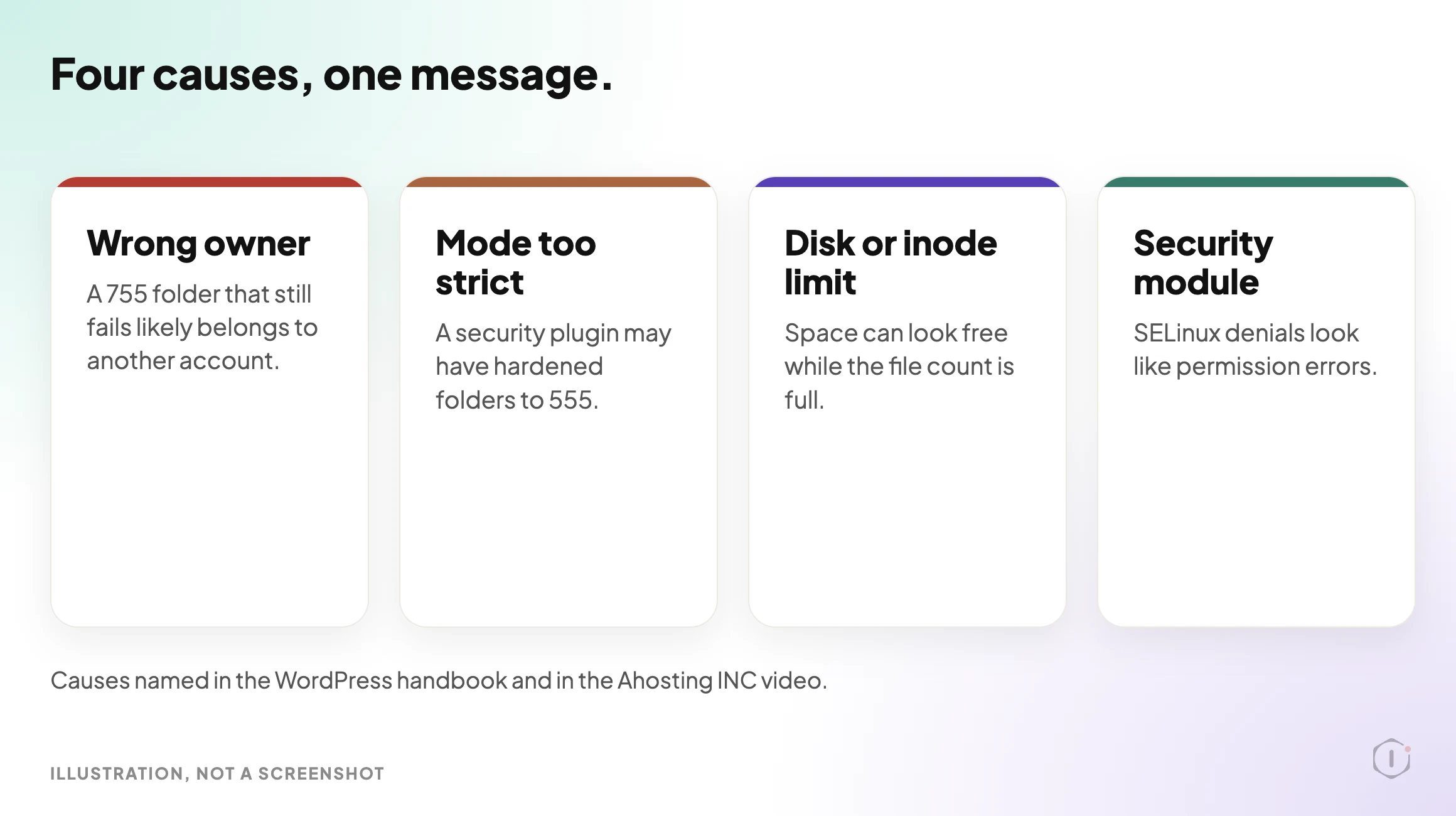
    Four cards in a row naming four causes of the same WordPress could not create directory error: wrong owner, mode too strict, disk or inode limit, and security module.
    Illustration. Each card is a cause named in the handbook or the Ahosting video.
    • Wrong owner. The Ahosting video says that if a 755 mode fails to let you write to a directory, the folder likely belongs to a different user account.
    • Mode too strict. The Ahosting video says a security plugin may have hardened folders to 555. The handbook’s .htaccess example says a mode set too low stops the server reading the file, which causes an error.
    • Disk or inode limit. The Ahosting video says WordPress creates every empty folder before it writes a file, that each folder needs an inode, and that an account near its inode limit can fail on folders while the storage gauge still shows room. It also says the server needs slightly more than twice the unpacked plugin size to hold the zip and the extracted copy.
    • A security module. The handbook says SELinux denials are often hard to tell from regular permission errors. It is typically installed on Red Hat family systems, and it can block writing the .htaccess file.

    I confirmed that the sentence “Could not create directory.” appears in the 7.1.3 file wp-admin/includes/file.php, and that the upload message above appears in wp-includes/functions.php. I did not count the places the Ahosting video says the sentence comes from.

    Find The Cause In Order

    The Ahosting video’s order is a good one: find the path, check space and inodes, then look at modes and ownership, and only then change anything. Adapted, with two extra steps:

    1. Read the full message. The Ahosting video says the Install Now button drops the folder path from its output, and shows two ways to retrieve it, which its written guide also covers. The path tells you which folder failed.
    2. Ask WordPress what it can write. Go to Tools, then Site Health, then the Info tab, and open Filesystem Permissions. In 7.1.3 it lists the main WordPress directory, wp-content, uploads, plugins, themes and fonts, plus the must-use plugins directory if it exists, each as Writable or Not writable. It asks PHP, so it reports what the web process can do, not what your own login can do.
    3. Check space and inodes. Look at both gauges in your hosting panel, or run the commands below on a server where you have a shell.
    4. Compare owner and mode. List the owner, group and mode of wp-config.php, wp-content, uploads and plugins, and compare the owner with the account PHP runs as. Your host can tell you which account that is. A command-line php run reports the command-line user, which may not be the one that serves pages.
    5. Check for a security module. On Red Hat family systems, ask whether SELinux is enforcing.
    df -h
    df -i
    stat -c '%U %G %a %n' wp-config.php wp-content wp-content/uploads wp-content/plugins
    getenforce

    These are read-only commands, and I have not run them on a site. stat -c is the GNU form and differs on macOS. getenforce exists only where SELinux is installed. On shared hosting without a shell, the same information is usually in the file manager and the hosting panel.

    Write down the result before you change anything. If the owner is the account PHP runs as and the modes match the handbook’s table, the mode was never the problem, and the next suspect is space, inodes or a security module.

    The Outside View Is A Different Check

    Nothing about a mode is visible over HTTP. An outside check can only show a file being served that should not be, and two earlier posts already cover that: the exposed twin of wp-config.php and the debug log that is readable from outside. Run those alongside this one. This post is the inside view.

    For a wider look at a whole install, the hardening measurements test advice on live sites before repeating it, which is the right habit for any permission change too.

    What Correct Permissions Do Not Solve

    Permissions say who on the server may touch a file. They are a small part of the picture.

    • A write made through WordPress. WordPress writes as whichever account PHP runs as. A plugin weakness, or a stolen administrator login, can make it write something unwanted even when the modes are correct.
    • An administrator. Anyone who can install plugins or edit files from the dashboard works around the filesystem question. Who really has the keys is the check for that.
    • File contents. A mode says nothing about whether a file changed. If something looks wrong, a malware scan and the first hour after a hack are the next steps.
    • A tightened mode that gets reset. The handbook says automatic updates set files to 0644 and directories to 0755.
    • A full account. As above, the error can come from space or inodes, and chasing a mode will not fix it.

    A permission pass belongs inside a bigger one. The security audit walk-through puts the order of work in one place.

    Two Outside Views

    Both picks below are about spam accounts, which is a neighbour of this topic rather than the same one. They are here for the point in the previous section: a correct mode does not say anything about who is allowed to create an account or what a form lets through.

    A video. WP Ultimate Security’s “Stop Fake and Spam Email Signups in WordPress“, published 3 August 2026, walks through two features of its own plugin, an email blocklist and email verification. It blocks addresses and whole domains, and it checks sign-ups, comments and WooCommerce checkout for badly formed, disposable or no-MX-record addresses. It tests each one on screen.

    It’s a simple way to keep spam accounts out and block problem users without having to delete anyone’s account manually.

    WP Ultimate Security, Stop Fake and Spam Email Signups in WordPress, auto-generated English captions, 3 August 2026

    It is a vendor’s tutorial for its own plugin, and the description says the features need both the free plugin and its Pro version. I did not test the plugin, and the captions are automatic. Nothing in the video touches file modes.

    A thread. In an r/Wordpress thread, a poster running a course site on Tutor LMS, with registration set to need manual administrator approval, describes accounts with crypto, casino and pharma names appearing as approved with no approval step and no notification email.

    Lately though, my site has been flooded with user registrations that are somehow automatically approved, no admin input required.

    u/realcryptogd, r/Wordpress, 18 September 2026

    The replies disagree. One says this is a backdoor symptom and suggests checking for hidden administrators, webshells in uploads and files in mu-plugins. Another asks why a backdoor would need registration open, and suspects a second registration endpoint that skips the approval step. The poster tried hiding the default login page and says it did not help, and the thread does not report a cause. My reading, not theirs, is that this is the kind of problem where a folder’s mode cannot tell you anything, because the accounts are created by the application, not by a file write. It is one poster’s account that I could not verify, and the replies are guesses.

    The Point

    Pick one site you manage. Without changing any mode, can you say which account owns wp-content and which account PHP writes as?

    If not, the number on the folder is not the thing to look at yet. The question is what WordPress sees when it tests a write, and what you would do if the answer were different on the next site.

    Sources And Further Reading

  • WordPress Core Update Readiness: The Playbook, Step By Step

    WordPress Core Update Readiness: The Playbook, Step By Step

    Open the WordPress dashboard and click Updates.

    A new version is waiting, with an Update Now button next to it.

    The click is easy. The harder question is which of your active plugins say they were tested with that version, and you would like the answer before you press the button, not after.

    Short answer: A WordPress core update means moving to a new version of WordPress itself. A minor release such as 7.1.3 can install in the background on most sites, while a major release such as 7.2 usually waits for you to start it, depending on how the site was set up. Each plugin states which WordPress version it was tested up to. The Major Update Readiness playbook reads that stated version for up to 20 active plugins and your theme from wordpress.org, compares each one with a target version you set, and writes a planning report that rates the site Not ready yet, Check first or Looks ready on paper. It only reads. It starts no update, and “declared compatible” never means the update will go well.

    What this post is, and is not: A method write-up of one read-only playbook, based on its two step files as shown in the Protuno dashboard and on its public page on 26 October 2026. It is not a result from a real run: no playbook was run for this post, and every plugin name, version and count in it is an illustration with example values.

    Minor Releases Install Themselves, Major Ones Usually Wait For You

    The WordPress documentation on updating describes two kinds of core update. Minor and security releases can be applied in the background on most sites. For major feature releases, the same page says you still click Update Now yourself.

    That is the default most sites follow, not the only one. The developer documentation says installations created on WordPress 5.6 or later get major core updates by default, unless a version control checkout is detected, while older ones keep the old behaviour. So whether 7.2 waits for a click depends on the site. WordPress Auto Updates: Which Ones To Switch On covers how to check yours.

    That split matches the release page today. WordPress 7.1.3, released on 6 October 2026, is a maintenance and security release with 7 security fixes and 4 bug fixes, and its notice says sites that support automatic background updates will begin updating automatically. WordPress 7.2 is a different kind of release. Beta 1 came out on 20 October 2026, the notice says not to install or test it on production or mission-critical sites, and the scheduled final release date is 8 December 2026.

    So there is a date, and the work comes before it: knowing what is installed and what each plugin says about the new version. After the final release, moving to 7.2 is a major update, which on many sites waits for a click and on some may start on its own.

    This post uses 7.2 as the example target because it is the next major release. Neither notice names a plugin, and this post does not test any plugin against 7.2.

    What “Tested Up To” Actually Means

    Every plugin on wordpress.org carries a readme file, and the developer documentation on how that file works defines the field. “Tested up to” is the version of WordPress that the plugin has been tested against. It ignores minor versions, so a plugin only needs to name the major version, and the plugin directory adds the minor version automatically.

    Three things follow from that wording:

    • It is a statement by the plugin’s developers. The readme is theirs. The field is a claim about testing, not a check anyone else ran.
    • It covers minor releases. A plugin that says it was tested up to 7.1 is covered for 7.1.3, because the field ignores minor versions.
    • A lower number is a gap, not a verdict. A plugin that says 7.1 when the target is 7.2 has not declared the new version yet. That can mean a real gap or a readme nobody has updated. The field cannot tell you which, and the playbook does not pretend it can.

    The playbook is strict about its words for the same reason. Its step files say “declared compatible” means the plugin’s wordpress.org page says it was tested up to that version, nothing more. They forbid the phrases “will work”, “is safe to update” and “will break”.

    The Playbook, Step By Step

    The Major Update Readiness playbook has two steps, in a fixed order. In the dashboard it carries a Beta label, sits in the Maintenance group and only reads. The public page files it under Care, says it needs no connector, and says it runs when you start it with no schedule set. This post uses the public page’s category.

    A silent walk-through of the two steps. All scenes are illustrations with example values, not a real run.

    Set The Target First

    You set the target in the playbook’s Instructions with a line like “Target WordPress version: 7.2”. Step 1 takes its major and minor numbers.

    Without that line the run stops and checks nothing. Step 1 makes no tool calls at all, and step 2 prints a short “not run” note that says how to add the line. The step files say the playbook never guesses a target and never borrows the plugins’ own tested values as one, because a verdict without a target would mislead.

    Step 1: Inventory And Compatibility Lookup

    Step 1 is read-only. It does five things, in order:

    1. It asks the site, through its REST API, for the active plugins and the active theme. It leaves out Protuno’s own connector plugins, matched by exact folder name, so a plugin that merely has “protuno” in its name is judged like any other.
    2. It takes at most 20 active plugins, in alphabetical order by folder name, and looks each one up on wordpress.org. It reads the version, the tested-up-to version, the minimum WordPress version, the PHP requirement and the last-updated date.
    3. It looks up the active theme the same way. If the theme returns no tested value, it is “not scored (no compatibility data)”.
    4. It sorts each plugin into exactly one class. The first match wins.
    5. It flags a plugin as STALE when its last update is 12 months or more old, and notes whether wordpress.org has a newer version than the installed one.

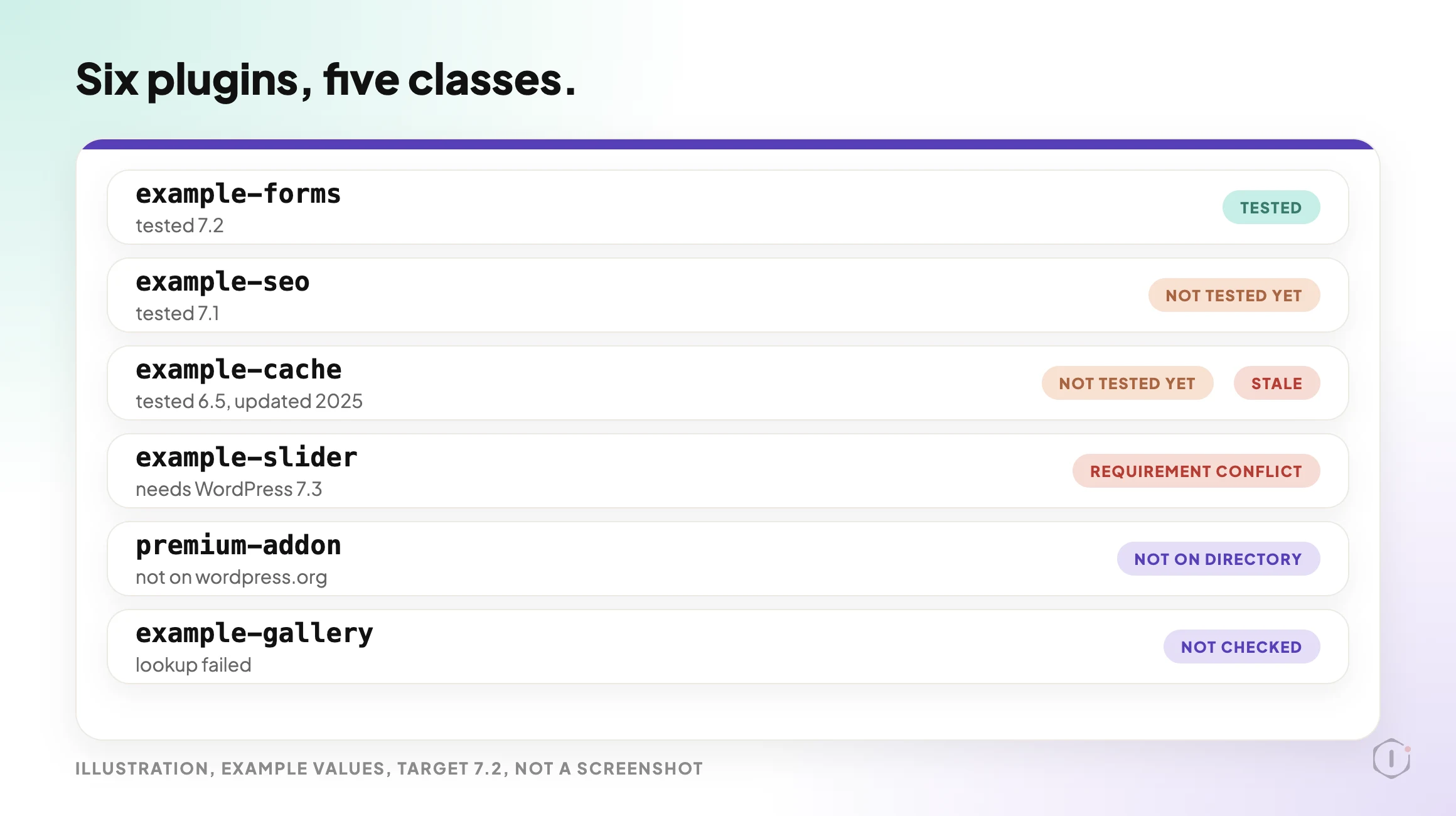
    The five classes, in the order the step file applies them:

    • NOT ON DIRECTORY: wordpress.org has no listing. The plugin is not scored.
    • NOT CHECKED: the lookup failed. The step file says never to call this “not tested”.
    • REQUIREMENT CONFLICT: the plugin’s minimum WordPress version is higher than the target.
    • NOT TESTED YET: the tested-up-to version is lower than the target. The versions are compared as numbers, so 6.10 counts as higher than 6.9.
    • TESTED: the tested-up-to version equals or exceeds the target.
    WordPress core update readiness playbook, illustration with six example plugin rows against target 7.2. One row is TESTED, two are NOT TESTED YET with one of them also flagged STALE, one is a REQUIREMENT CONFLICT, one is NOT ON DIRECTORY and one is NOT CHECKED. Example values, not a screenshot.

    Step 2: Readiness Report

    Step 2 makes no calls. It reads the block step 1 produced and writes one planning report. If step 1’s block is missing or step 1 failed, it says “BROKEN CHAIN” and stops.

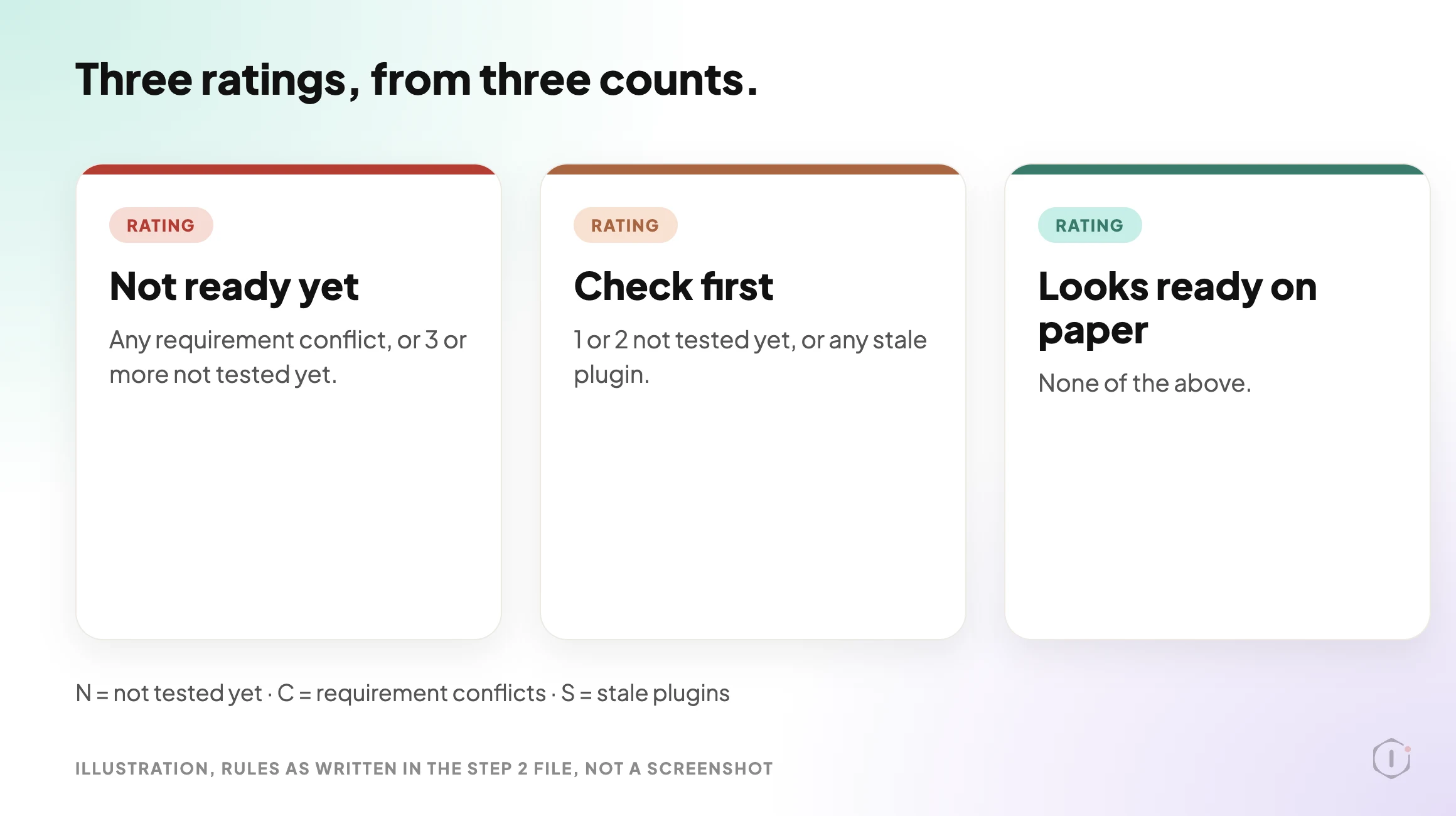
    It counts before it decides. N is the number of NOT TESTED YET plugins, C the number of requirement conflicts and S the number of stale plugins. A plugin that is both NOT TESTED YET and STALE counts in both N and S. The rating then follows fixed rules:

    RatingWhen it applies
    Not ready yetAny requirement conflict, or 3 or more NOT TESTED YET
    Check first1 or 2 NOT TESTED YET, or any STALE plugin
    Looks ready on paperNone of the above

    The “Check these first” table is ordered the same way every time: requirement conflicts, then plugins that are NOT TESTED YET and STALE, then NOT TESTED YET, then STALE only, then NOT CHECKED. Every row gets one action. The three allowed actions are “wait for an update that declares” the target, “test on staging first”, and, for stale plugins only, “consider a maintained alternative”.

    WordPress core update readiness playbook, illustration of three rating cards. Not ready yet applies to any requirement conflict or 3 or more not tested yet. Check first applies to 1 or 2 not tested yet or any stale plugin. Looks ready on paper applies when none of those are true. Example values, not a screenshot.

    The report has a fixed layout: a rule-check line that shows N, C and S and the rating they give, the rating, a summary line, the “Check these first” table, the plugins declared compatible, the plugins not scored (with the theme), a “Before you update” list, a “Not checked” list and a closing note that nothing was changed.

    How To Read A Rating

    The rating is a count, not a prediction. Take an illustrative site with 12 active plugins. If 2 are NOT TESTED YET and none is stale or in conflict, the rating is Check first, because 1 or 2 is Check first. If a third joins them, it becomes Not ready yet. If one plugin requires a higher WordPress version than the target, the rating is Not ready yet even when every other plugin is TESTED.

    The rule-check line prints N, C and S so you can see why the rating came out the way it did. The wording “on paper” is deliberate: the best rating still only says what wordpress.org pages declare.

    What The Settings And The Public Page Say

    The two sources agree on the substance. Both say the playbook only reads, has two steps and needs no connector, and the public page says no step is set to pause for your approval. The only difference I found is the group label: the dashboard says Maintenance, the public page says Care.

    I opened the settings panel for both steps in the dashboard, view only. Both show Automatic backup None and Approval checkpoint Off. For a playbook that changes nothing, that fits: there is nothing to back up and nothing to approve.

    What The Playbook Does Not Do

    The step files and the public page set clear limits:

    • It starts no update. It does not edit the site, and it is a planning report only.
    • It checks at most 20 active plugins and the theme. Plugins beyond the first 20 are not checked.
    • It does not check inactive plugins, custom code inside plugins and themes, or the host’s PHP version against each plugin’s PHP requirement.
    • It does not score premium or custom plugins that are not on wordpress.org. They are reported as not on the directory.
    • It does not read known issues reported outside wordpress.org.
    • “Declared compatible” is not a promise that the update will go well.

    Two of those limits are covered by other Protuno posts. A premium plugin that is not on wordpress.org is outside this playbook, and the Premium Plugin Licenses post covers premium plugins whose updates stop quietly. The host’s PHP version is a separate question, and the PHP version post covers it. A plugin that has been pulled from the directory should also come back as not on the directory, and the removed plugin post explains why nobody tells the site.

    A Careful Version You Can Do By Hand

    You can do the same reading without a playbook. It takes longer as the plugin count grows.

    1. Write down the target version, for example 7.2.
    2. Open Plugins, filter to Active, and list every plugin and the theme.
    3. For each one, open its wordpress.org page and read the Tested up to and Last updated values. For a premium plugin, read the vendor’s changelog or support page instead.
    4. Mark each plugin as tested, not tested yet, or not found. Flag anything not updated in 12 months.
    5. Take a restore point, and check that it restores. The backup verification post explains why a file with a hopeful name is not a backup.
    6. Run the update on a staging copy first and check the front end, forms and checkout. The staging drift post lists what stops a staging copy matching the live site.
    7. Know how you would undo it. The rollback post explains what a rollback after an update can and cannot undo.

    At 20 plugins, step 3 is 20 page visits and a spreadsheet nobody keeps. That is the repeatable part, and it is the part the playbook takes over. The judgement stays with you: which plugin matters most, and what you will test.

    The report’s own closing advice is a restore point, a staging test and plugin updates before the WordPress update. If a site already has two plugins doing the same job, the plugin conflicts post covers a separate read-only report on that.

    Two Outside Views

    A short video and a forum thread. Neither is an endorsement, and neither describes the Protuno playbook.

    Ahosting INC’s “Problems Auto-Updating Plugins and Themes: Fix It (2026)“, published 14 October 2026, is about the Site Health warning “Your site may have problems auto-updating plugins and themes”. It is not about plugin compatibility or core updates. Its useful point is what a green result measures: in the presenter’s account, a pass only means your code is not blocking updates, so a full disk or locked file permissions can still stop real ones.

    A clean diagnostic report proves your code and your interface are aligned.

    Ahosting INC, Problems Auto-Updating Plugins and Themes: Fix It (2026), auto-generated English captions, 14 October 2026

    The parallel is worth keeping in mind. A “tested up to” value and a “Looks ready on paper” rating also measure one narrow thing. The video is a hosting company’s explainer tied to its own blog post.

    In an r/Wordpress thread titled “Did your sites actually update to 7.1.2, or do you just have auto-updates turned on?”, the poster argues that the sites that fall behind are often the managed ones, not the neglected ones:

    It’s the client site with change control and a staging step, where the 7.1.2 ticket is still waiting on a reviewer who’s on holiday until Monday.

    u/Capital_Attention702, r/Wordpress, 30 September 2026

    One commenter in the same thread recommends setting WP_AUTO_UPDATE_CORE to 'minor' in wp-config.php, so that urgent security patches arrive without major updates. That matches what the developer documentation says the 'minor' value does. These are people’s accounts, not data. The thread also makes claims about attacks on 7.1.2 that I did not check, so I have left them out. A readiness list is something that reviewer on holiday could pick up and work from.

    Where Protuno Fits

    The Major Update Readiness playbook is the reading part of this job. It lists the active plugins and the theme, looks each one up on wordpress.org, compares them with a target you set, and writes a rating with a “Check these first” list. It needs no connector, runs when you start it and has no schedule set. It starts no update.

    A different playbook, Plugin Safe Update, is the one that applies plugin updates one at a time and then checks the site. The update process post is a written-out sequence for applying updates. Protuno publishes its playbooks as written-out steps you can read first. The playbooks page lists them, and this one has its own page at Major Update Readiness.

    The Point

    A major WordPress release comes with a date. The plugins on your site each say what they were tested with, and that is information you can read before you press the button.

    Set the target, read what each plugin declares, treat a gap as a question, and keep the judgement about what to test first. A rating on paper is a reading list, not a promise.

    If WordPress 7.2 were released tomorrow, could you list the plugins on your busiest site that say they were tested with it?

    Sources And Further Reading

  • WordPress Featured Images: The Playbook, Step By Step

    WordPress Featured Images: The Playbook, Step By Step

    Open a published post in the editor and look at the sidebar.

    Where a thumbnail should be, there is a link that says Set featured image.

    On one post that is a small gap. On a site with a few hundred posts, it is a list nobody has ever written down.

    Short answer: A WordPress featured image is the single picture that represents a post, page or custom post type. Posts published without one show a gap wherever a theme or block expects it. The Bulk Featured Images playbook finds published posts that have none, matches each to an image already in your media library by name, and sets the image only when the match is clear: one image, not used on another post, from a title of at least two key words. It never uploads, generates or replaces an image.

    What this post is, and is not: A method write-up of one playbook that can change the site, based on its two step files as shown in the Protuno dashboard and on its public page on 23 October 2026. It is not a result from a real run: no playbook was run for this post, and every post title, image name and count in it is an illustration with example values.

    What A WordPress Featured Image Is

    The WordPress theme handbook defines featured images, also called post thumbnails, as images that represent an individual post, page or custom post type. A theme can show one on an archive page, in a header or above a post.

    Two details from the handbook matter here:

    • A theme must declare support for featured images before the Featured Image interface appears on the Edit screen. The handbook shows this as a line of code in the theme’s functions file.
    • Once support is declared, the Featured Image meta box shows in the sidebar of the Edit Post and Edit Page screens. If a user cannot see it, they can turn it on in their screen options.

    Under the hood, the REST API describes the field as featured_media, “The ID of the featured media for the post”, an integer. The playbook’s step files use that same field. A post with featured_media of 0 has no featured image, which is how step 1 finds its candidates. For writing, WordPress has a core function, set_post_thumbnail(), that “sets the post thumbnail (featured image) for the given post.”

    In block themes, the Post Featured Image block displays the image. The block documentation says it is primarily nested inside a query loop block.

    Latest changes checked on 23 October 2026: WordPress 7.1.3 (6 October) is the current stable release, and 7.2 Beta 1 came out on 20 October. Neither announcement mentions featured images. So everything above comes from the theme handbook, the REST API reference and the block documentation, not from release notes.

    Why Posts End Up With None

    There is no single cause, and this post did not measure any of them. Three ordinary routes are enough to explain a long list:

    • The post was written before the theme declared featured image support, so the box was never on the screen.
    • The post was imported or created in bulk, and nobody opened it afterwards.
    • The author left the Set featured image link alone, because the post looked fine without it.

    None of those throws an error. The only sign is a missing picture where a layout expects one.

    Why It Matters Beyond The Thumbnail

    A missing featured image can show up in a theme’s archive page, in a Post Featured Image block, and in links shared elsewhere.

    A post on WordPress Open Graph tags covers six ways share previews break silently. A forum thread covered below shows the same problem from a site owner’s side: links to a blog showing a random uploaded image as the thumbnail. One reply there says the cleanest fix is to set a featured image on each post you actually share. That thread is about a WordPress.com free plan, so the options on a self-hosted site differ.

    A featured image also needs its own alt text. A post on an image alt text audit shows how a crawl reported 17,261 images missing alt text when the real count on those pages was zero. Counting images is harder than it looks.

    The Playbook, Step By Step

    The Bulk Featured Images playbook has two steps, in a fixed order. In the dashboard it carries a Beta label and can change the site. The public page files it under SEO and says it needs no connector, while the dashboard lists it under Content. This post uses the public page’s category. It runs when you start it, and no schedule is set.

    A silent walk-through of the two steps. All scenes are illustrations with example values, not a real run.

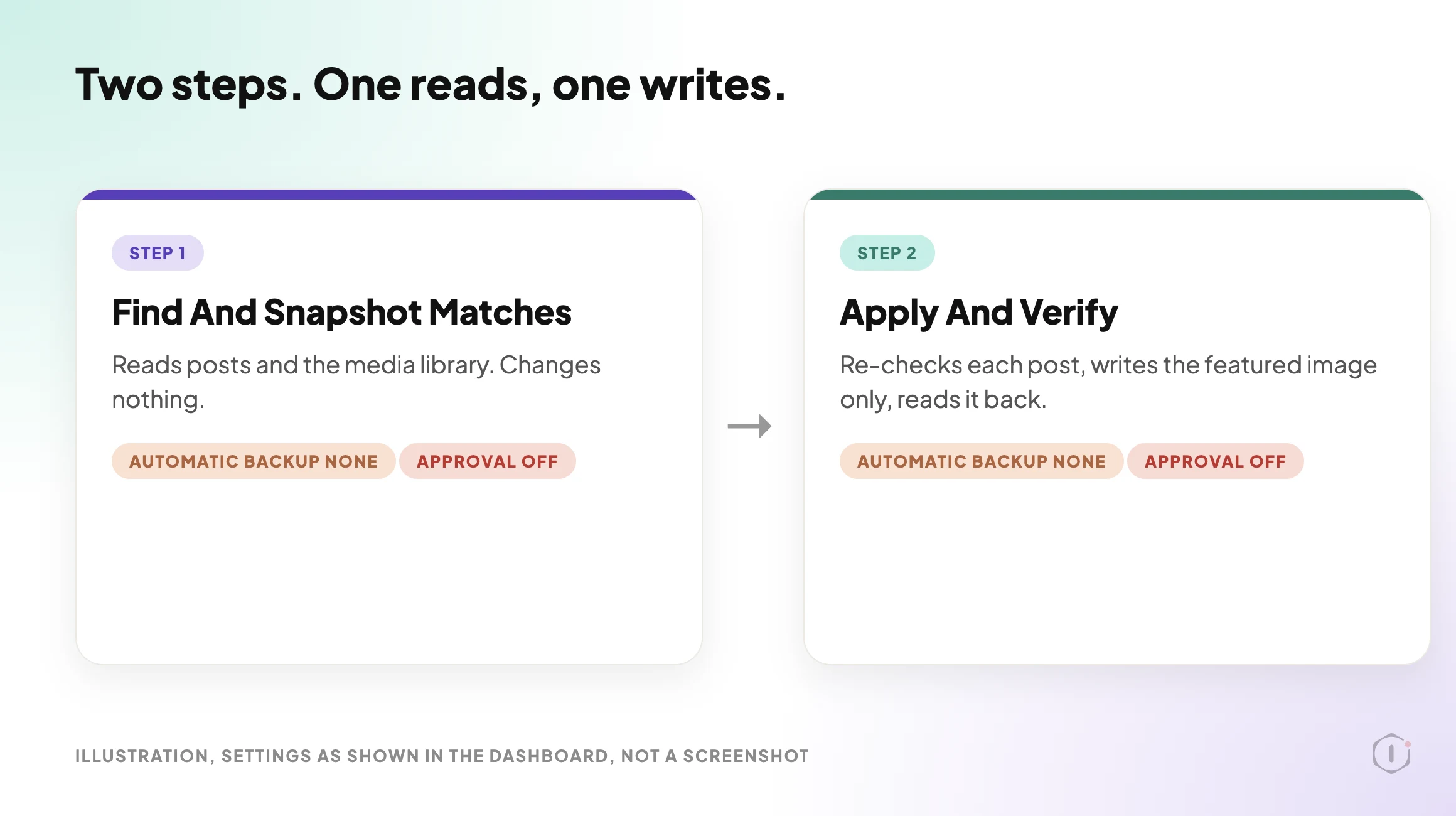
    Step 1: Find And Snapshot Matches

    Step 1 is read-only. The step file says it writes nothing, and that step 2 makes the change straight after it.

    It works in a fixed order:

    1. It lists published posts, newest first, 50 at a time, asking only for the id, the title and featured_media. It pages through at most 6 pages, which is 300 posts.
    2. It keeps the posts whose featured_media is 0. These are the candidates, newest first. It checks at most 25 and counts the rest as “remaining”. It also notes every image id that is already some post’s featured image.
    3. For each candidate, it takes the post title in lower case, removes punctuation, and removes a list of filler words. What is left are the title’s key words.
    4. For each candidate, it searches the media library for images, with those key words as the search. The step file says WordPress returns only images whose name contains every word. It sends up to six of these searches at a time.

    If a reply is cut off, the step asks again with half the page size. It never matches against a cut list.

    The step file calls the key words “dish words”, and its filler list includes words such as recipe, homemade, creamy and crispy. It reads as written with recipe-style titles in mind. Other titles are matched the same way, so the result depends on image names resembling titles.

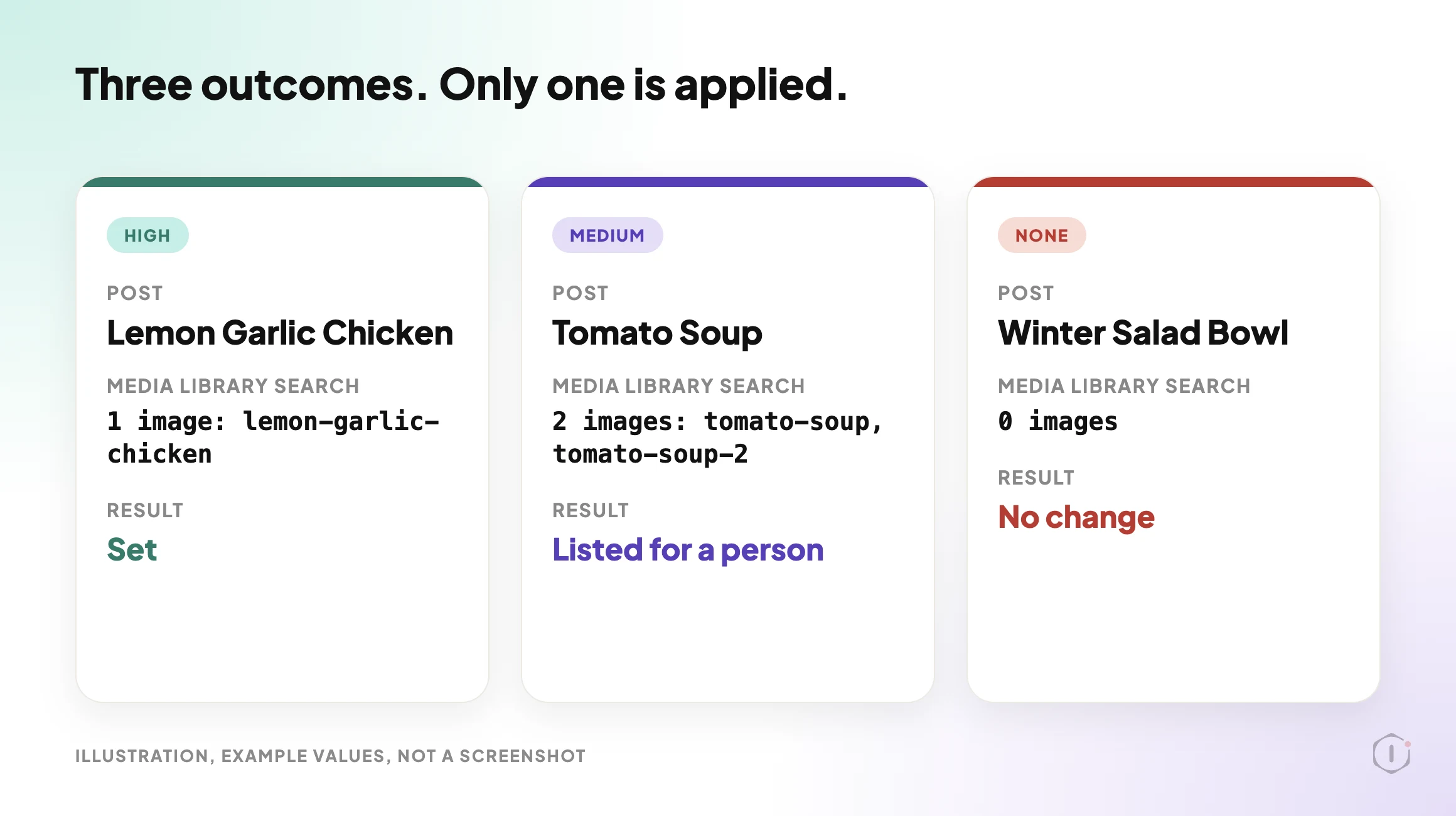
    The Three Outcomes

    Step 1 sorts each candidate by the number of results, with no judgement involved:

    • HIGH: exactly one image matches, that image is not already used as another post’s featured image, and the title has at least two key words. Only HIGH is ever applied.
    • MEDIUM: two or more images match, or the one match is already used on another post, or the title has only one key word. MEDIUM is never applied. It is listed for a person.
    • NONE: no image matches.
    WordPress featured image playbook, illustration with three cards. The HIGH card shows one image matching the post name and not used elsewhere, so it is set. The MEDIUM card shows two images matching, so the post is listed for a person. The NONE card shows no matching image, so nothing changes. Example values, not a screenshot.
    Three outcomes for a post with no featured image. Example titles and image names, not a real run.

    Step 1 ends by handing step 2 a fixed block. It holds the scanned count, one line for every post it checked, the list to apply, and the number remaining. The step file requires one line for every candidate searched, so the block can be checked against the count.

    Step 2: Apply And Verify

    Step 2 reads that block and does three things.

    First, it re-checks the posts on the apply list in one call. A post whose featured_media is no longer 0, or that is missing, is skipped as “changed since the scan”. It is never written.

    Second, for each remaining post it makes one write with the post id and the image id, and nothing else. The step file says the write records the post’s previous value, which is what the run’s Rollback restores. A write that errors is marked failed, and the step keeps going.

    Third, it reads the posts back. A post counts as set only when its featured_media now equals the image id.

    The step stops without writing in three cases. If the block from step 1 is missing or step 1 failed, it reports a broken chain. If step 1 produced more than one apply list, it reports a broken chain, because the list cannot be trusted. If the apply list says none, it reports “Nothing to apply”.

    WordPress featured image playbook, illustration of two steps. Step 1, Find And Snapshot Matches, reads posts and the media library and changes nothing. Step 2, Apply And Verify, re-checks each post, writes only the featured image, and reads it back. Both steps show Automatic backup None and Approval checkpoint Off, as in the dashboard settings. Example layout, not a real run.
    The two steps and what each hands on. Settings as shown in the dashboard, not a real run.

    The report has a fixed layout. A summary line gives the counts for set, skipped, failed, to review, no match and left for the next run. Then come tables for the images set, the posts skipped or failed, the posts to review and the posts with no match, and a closing note on how to undo.

    What The Settings And The Public Page Say

    This is the one place where the sources disagree, so read it closely.

    The public page says a run you start pauses before step 2 and waits for your approval. It also says a scheduled run skips step 2, so a scheduled run never makes the change.

    I opened the settings panel for both steps in the dashboard. Both show Automatic backup None and Approval checkpoint Off. The dashboard’s card text also says the playbook waits for your approval.

    This post does not decide which is right. Before a first run on a live site, check the Approval checkpoint setting on your own copy of step 2. The undo that step 2’s file describes works from the recorded before-value for each post, which for these posts is “no featured image”, not from a backup.

    What The Playbook Does Not Do

    The step files and the public page set clear limits:

    • It never uploads or generates an image, and it never replaces an existing featured image.
    • It changes one field only, the featured image. It sends no title, content, excerpt, status or meta.
    • It scans at most 300 of the newest published posts and checks at most 25 per run, so a large backlog takes several runs.
    • It never sets an image on a MEDIUM or NONE post. Those are listed for you.
    • It does not judge the picture. A name match is a hint about a file name, not proof that the image fits the post.
    • It does not look at image size, format or alt text.

    That last limit is worth planning for. A post on an image weight audit found a page carrying 2,590 KB of images, with a single 794 KB file still being served. A matched image can still be a heavy one.

    A Careful Version You Can Do By Hand

    You can do a rough version of this without any playbook. It follows the same order.

    1. Request your published posts from the REST API, asking only for id, title and featured_media, for example /wp-json/wp/v2/posts?per_page=50&_fields=id,title,featured_media. Posts with a featured_media of 0 have no featured image.
    2. For each of those, take the key words from the title and search the media library by those words.
    3. If exactly one image comes back, check it is not already the featured image of another post, and look at the picture before you use it.
    4. If two or more come back, or the title is one word long, decide by eye and write down why.
    5. Open the post, choose Set featured image, pick the image and save.
    6. Write down the before-value for every post you change, which is “none”, so you can undo it.
    7. Share one updated link and look at its preview. Platforms cache old previews, so a link shared before the change can keep showing the old one.

    Seven steps for 25 posts is why such a list tends not to get written. That is the part a playbook takes over.

    If your bigger worry is unused files in the library, the Unused & Duplicate Media playbook post covers the other side of the library. If you want to see how other playbooks handle changes in small batches, the Disable Comments post and the Find And Replace post each describe a two-step playbook that plans changes and waits for you.

    Two Outside Views

    A short tutorial and a forum thread. Neither is an endorsement, and neither describes the Protuno playbook.

    In a September 2026 video, the Quick Tutorials Vault channel shows how to add a featured image in WordPress. The presenter goes to Posts, picks a post, clicks Edit, and points to the Set featured image option on a post that has none. The presenter then selects the image, saves, and uses View post to confirm the image appears. It is a one-post, by-hand method, which is the baseline this playbook is compared against. The video does not cover finding posts that have no featured image.

    On Reddit, an r/Wordpress thread titled “How to set the image that shows up in my link thumbnails?” starts with a blog owner whose shared links showed “no title” and a random uploaded image as the thumbnail. A reply says:

    “the cleanest option without wrecking your homepage is to set a featured image on each post/page you actually share, not on the home page.”

    Reply in the thread, r/Wordpress, 8 October 2026

    The same reply adds that the poster is on a WordPress.com free plan, where control over the social image is limited, and that Facebook and iMessage can keep showing an old preview until you refresh it in their debugger. The thread is about that plan, so treat it as one site owner’s problem, not a rule for every WordPress site.

    Where Protuno Fits

    The Bulk Featured Images playbook is the repeatable, bounded part of this job. It finds published posts with no featured image, matches them to library images by name, and sets only clear one-image matches, at most 25 per run, then reads each change back and records the before-value so it can be rolled back. It needs no connector, runs when you start it, and has no schedule set.

    Protuno publishes its playbooks as written-out steps you can read first. The playbooks page lists them, and this one has its own page at Bulk Featured Images. If the undo model is your main concern, a post on rollback after an update explains why restoring files and restoring a database are not the same decision.

    The Point

    A featured image is one field on a post. Nobody notices it is empty until a layout, an archive or a shared link shows the gap.

    Find the empty ones, match only what is clear, change nothing else, and keep the before-value so any change can be undone. The matches that need a human eye should go to a human.

    How many of your published posts would show a gap if you asked for the ones with no featured image today?

    Sources And Further Reading

  • Find A WordPress Plugin Conflict Without Downtime

    Find A WordPress Plugin Conflict Without Downtime

    Picture a site with twenty-six active plugins. A page has stopped working. The screen either says “There has been a critical error on this website.” or says nothing at all, and a button simply does nothing.

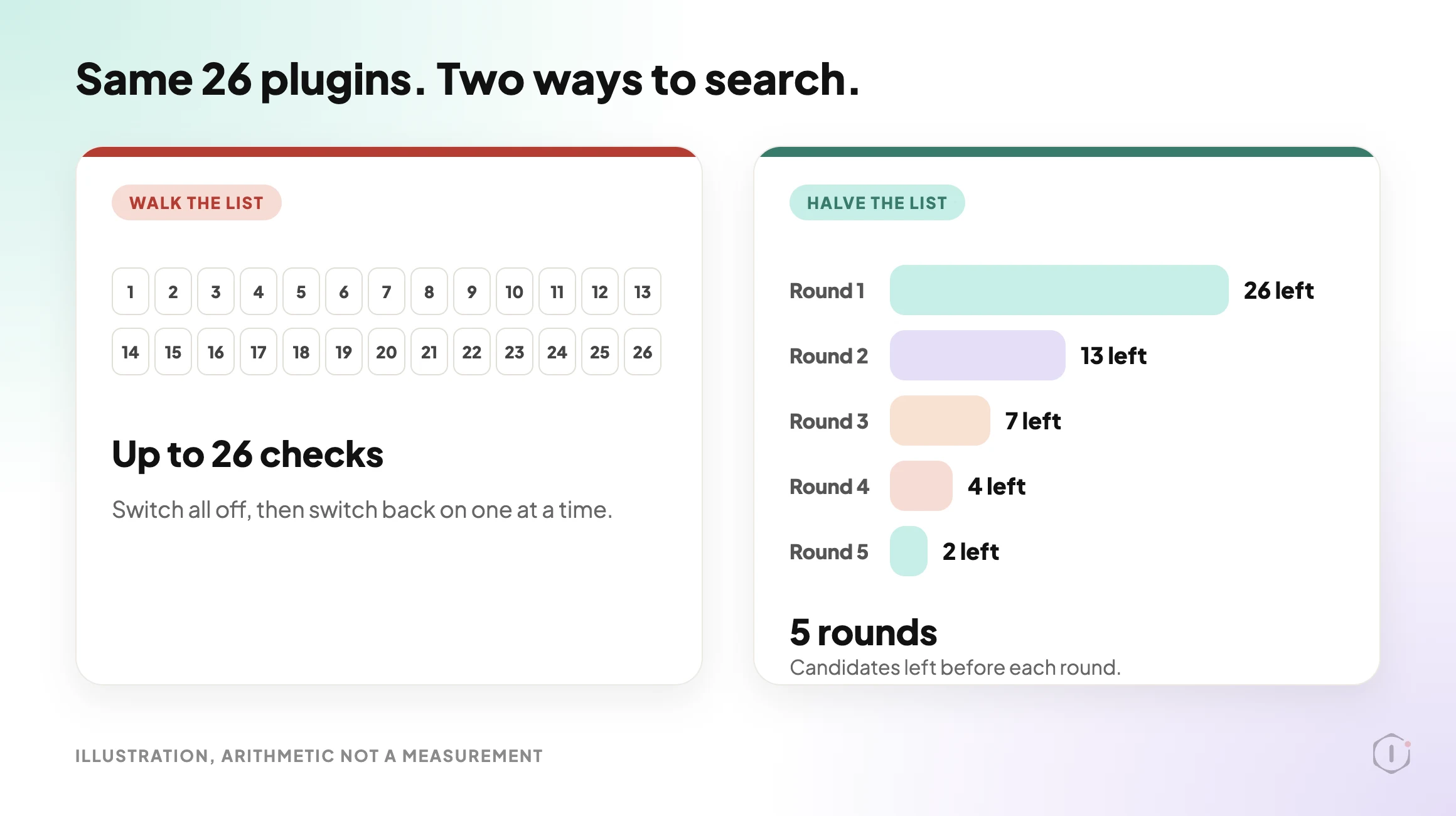
    You suspect a plugin. The usual advice is to switch every plugin off, then switch them back on one at a time. That works. It also means up to twenty-six checks, and a site stripped of its features for as long as the walk takes.

    Short answer: do the test on a copy of the site, not the live one. If the fault only shows on live, pause the plugins for your own browser session instead. Then halve the list each round rather than walking it. Twenty-six plugins is about five rounds and one confirming check, not twenty-six checks.

    What this post is, and is not: this is a method for finding which plugin is involved in a fault you can reproduce. It names a suspect, it does not fix anything. Knowing that two plugins clash does not tell you which one should change, and sometimes the cause is not a plugin at all. It does not cover faults that come and go, which need logs and time rather than toggling.

    Illustration comparing a walk through 26 plugins, up to 26 checks, with halving the list, five rounds that leave 26, 13, 7, 4 and 2 candidates before each round.
    Illustration, not a screenshot. The same 26 plugins, searched two ways. The counts are arithmetic, not a measurement.

    Why The Usual Advice Needs One Edit

    The official guidance already says most of this. The Learn WordPress lesson on plugin and theme conflicts tells you to take a backup, make a staging site, read the error log, try a default theme, then deactivate all plugins and reactivate them one at a time while checking the site after each one. WordPress.com’s own video on the same problem says you can do it on the normal site, “but I suggest using a staging site.”

    So the advice is sound. Two things get lost when it is repeated in one line: where you do it, and how many steps it takes.

    On a personal blog neither matters. On a site that takes orders, switching every plugin off is a visible change for every visitor. WordPress also lets plugins run their own code when they are activated or deactivated, which is one more reason to do the toggling somewhere nobody is watching.

    This method assumes you can still reach the dashboard. If you cannot, start with WordPress White Screen Of Death: The Playbook, Step By Step and come back. And if you are asking which plugins overlap rather than which one is broken, that is a different question, covered in WordPress Plugin Conflicts: The Playbook, Step By Step.

    Decide Where To Test First

    The right place depends on who can see the fault.

    Where the fault showsTest hereWhy
    For every visitorA staging copyYou can break it freely
    Only when logged inA staging copy, or a session pauseIt depends on your session or role
    Only for anonymous visitorsA staging copyA paused session is yours, not the visitor’s
    Only on live, never on the copyA session pause on live, and treat the copy as the bugThe copy differs from live in some way

    The last row matters most. A fault that lives on production but not on a fresh copy is often environmental rather than a plugin pairing.

    A 33-second silent walk-through: where to test, the session pause and its limits, halving the list, the record sheet, and what isolation does not do. All scenes are illustrations, and the plugin counts are arithmetic, not a measured result.

    Method One: Reproduce It On A Copy

    Take a staging copy, and before you touch a single plugin, confirm that the copy shows the same fault. If it does not, you have learned something useful instead of wasting an hour.

    The usual reasons a copy behaves differently:

    • A different PHP version.
    • A different object cache, or none.
    • A licence key that is only valid on the live domain.
    • A CDN or firewall in front of live that the copy does not have.
    • Data that exists only in the production database.

    WordPress Staging Site: What Drifts From Live is about exactly these differences. Before you change anything, take a backup you could restore. Verify A WordPress Backup, Or You Only Have A File With A Hopeful Name is about what “could restore” has to mean.

    One current reason to have a working copy: WordPress 7.1.3 (6 October 2026, 7 security fixes and 4 bug fixes) is the current stable release, and its notice does not mention plugin changes. WordPress 7.2 Beta 1 came out on 20 October, with the final release scheduled for 8 December 2026. The beta notice says not to run it on production and to use a test environment instead. A copy that can run a beta is also a copy you can bisect on.

    Method Two: Pause Plugins For Your Session Only

    Sometimes the fault only exists on live, and you have to work there. WordPress has a supported way to do that without changing what visitors see.

    The Health Check & Troubleshooting plugin describes a troubleshooting mode like this:

    Troubleshooting allows you to have a clean WordPress session, where all plugins are disabled, and a default theme is used, but only for your user until you disable it or log out.

    Health Check & Troubleshooting, WordPress.org plugin directory, page read 23 October 2026

    There is a catch, and the page states it. When I read it on 23 October 2026 it showed version 1.7.1, 200,000+ active installations, “tested up to” 6.6.10 and “last updated 2 years ago”, under a banner saying the plugin has not been tested with the latest three major releases of WordPress and may no longer be maintained. I have not tested it on 7.1. It may work fine, so try it on a staging copy before you rely on it on a client’s live site.

    Two limits apply to any session-scoped pause.

    First, it only helps with faults you can see while logged in as yourself. A fault that only affects anonymous visitors will not show inside your own paused session, because you would be testing a setup no visitor is using.

    Second, some plugins cannot be paused from the plugin list. Must-use plugins are enabled automatically on every site, do not appear in the default plugin list, and cannot be disabled from wp-admin. To disable one you remove its file from wp-content/mu-plugins. Hosts commonly use them for their own features. I have not tested whether a session pause leaves them running, so check the Must-Use section of your own Plugins screen before you trust a “clean” session.

    Method Three: Halve The List, Do Not Walk It

    Whichever place you test in, stop switching plugins one at a time.

    1. Write down every active plugin and its version.
    2. Switch off half of them, and test the broken page.
    3. If the fault is gone, the suspect is in the half you switched off. If it is still there, the suspect is in the half you left on.
    4. Take the suspect half, split it, and repeat.
    5. When one plugin is left, switch it off and on once more and check that the fault goes and comes back.
    Active pluginsWalking the list, worst caseHalving, rounds
    883
    16164
    26265
    50506

    That table is arithmetic: each round removes half the candidates. In practice each round is a page load, probably a cache clear, and a person checking carefully. The saving grows with the list.

    Keep related plugins in the same half. WordPress 6.5 added a “Requires Plugins” header: a plugin that declares it cannot be activated until the plugins it needs are active, and a plugin that others need cannot be deactivated while they are active. That only covers plugins that declare it. For shop add-ons and builder add-ons that do not, check by hand which one needs which parent, and put them together.

    A genuine conflict involves two plugins, and switching off either one can make the fault vanish. Halving finds one of them. Once you have a suspect, put it back on, then switch off plugins that do a related job and see whether the fault goes that way too. Two different plugins that each cure it when switched off alone are your pair.

    Write each round down as you go: which plugins were off, which page you tested, whether the fault was still there, and the time. By round four you will not remember round one, and a wrong note sends you down a branch that cannot hold the answer.

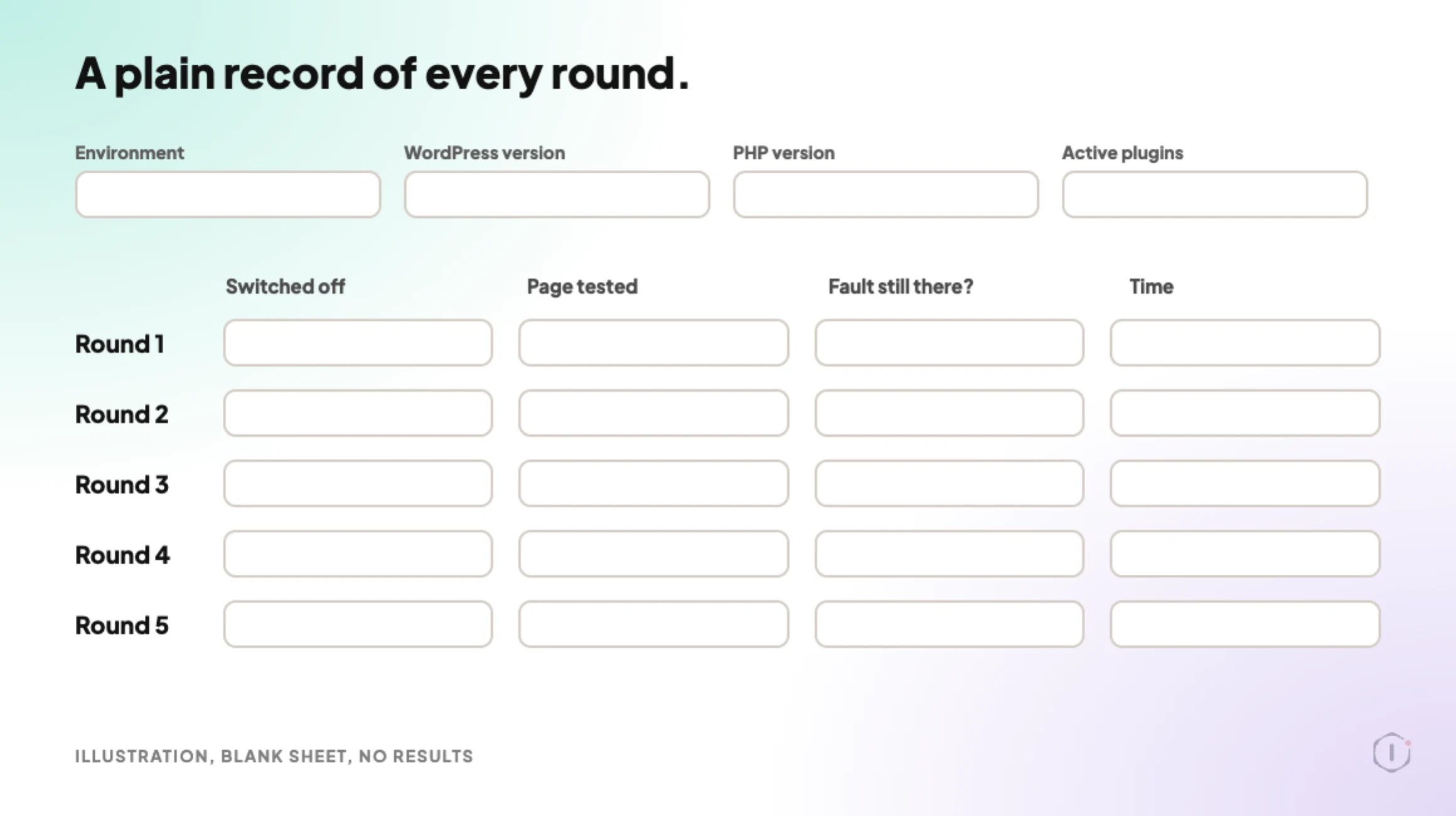
    A blank record sheet for a plugin bisection with header fields for environment and versions, and five empty rows for plugins switched off, page tested, whether the fault was still there, and time.
    Illustration of a blank sheet. No results are shown. Keep it as a plain text note if you prefer.

    Read The Log Once First

    Before any toggling, turn on logging and reproduce the fault once. The WordPress handbook’s example sets WP_DEBUG and WP_DEBUG_LOG to true and WP_DEBUG_DISPLAY to false, which writes errors to wp-content/debug.log and keeps them off the page.

    A fatal error line names a file, and a path under wp-content/plugins/ names the plugin. That can end the search in one step. Afterwards, check that the log is not publicly readable: Is Your WordPress Debug Log Exposed Right Now? is about that.

    An empty log does not clear the plugins. A conflict that produces wrong output rather than an error can leave nothing in the PHP log, and the browser console is the next place to look. Some failures leave no log at all, as the thread below shows.

    Two Outside Views

    A video from the platform side. WordPress.com’s own video, “What to Do When a WordPress Plugin or Theme Isn’t Working“, published 28 July 2026, follows the standard route. It deactivates the plugin WordPress names, uses recovery mode if the dashboard is unreachable, and for an unknown conflict deactivates all plugins, switches to a default theme and reactivates them one by one. On where to do it, the English captions say:

    You can do this on your normal site, but I suggest using a staging site.

    WordPress.com, What to Do When a WordPress Plugin or Theme Isn’t Working, English captions, 28 July 2026

    It is a hosting company’s tutorial for its own platform, so the screens are theirs. The method is the general one.

    A thread from people living with it. In an r/Wordpress thread titled “This error occurs when I activate certain plugins”, the poster gets a 500 error after activating plugins and says they have already tried deactivating all other plugins and themes. One reply starts where this post does:

    Enable your debug.log – in the majority of cases, it’s a PHP error happening and this will show up in your debug.log.

    u/jedidave, r/Wordpress, 30 July 2026

    Another reply, from someone who says they are a developer at SeedProd, one of the plugins in the thread, points out that there may be no log to find, because a hosting resource limit can end the PHP process before it writes an error:

    That pattern points at a resource ceiling rather than a bug in either plugin.

    u/nick_kimuli, r/Wordpress, 30 July 2026

    That is one person’s diagnosis, and it comes from a plugin vendor, so treat it as a lead to check with the host, not a verdict. It does show a useful outcome of isolation: the answer can be “not a plugin”.

    What This Does Not Solve

    Isolation names a suspect. It does not do any of the following.

    It does not say which plugin is at fault. In most real conflicts both plugins behave to their own specification and the combination fails.

    It does not help with intermittent faults. If the problem appears for one visitor in fifty, a round that passes proves nothing, because you may simply not have hit it.

    It does not explain a fault that started with an update. Then the question is what changed, not which plugins clash. The WordPress Update Process, Written Out Before It Runs is about recording the before state, and WordPress Rollback After An Update: What It Can Undo, And What It Destroys is about what a rollback does and does not restore.

    It does not help when the plugin no longer gets fixes. You can isolate it perfectly and have nowhere to go. When A WordPress Plugin Is Removed From The Repository, Nobody Tells The Site covers that case.

    It does not cover causes outside plugins, such as the PHP version or a host limit, which the Reddit thread above is about.

    And it does not reduce the number of plugins. A site with fifty active plugins will have another conflict.

    The Point

    Finding the plugin is a skill. Doing it somewhere nobody is watching is a habit.

    So for the site in your care list with the most active plugins: if a page broke this afternoon, could you reproduce it on a copy, or would you start switching plugins off on the live site?

    And if the answer is the copy: when did you last check that it still behaves like live?

    Sources And Further Reading

  • WooCommerce Shipping Zones: Regions That Cannot Check Out

    WooCommerce Shipping Zones: Regions That Cannot Check Out

    A payment gateway failure makes noise. The order fails, a customer emails, and somebody notices within the day.

    A shipping zone gap makes almost none.

    A customer in an uncovered region fills a cart, enters an address, and gets a sentence. On the cart it reads “No shipping options were found for” and then the address. At checkout it reads “There are no shipping options available. Please ensure that your address has been entered correctly, or contact us if you need any help.” Many customers take that as a typo, retype the address once, and leave.

    From the store’s side, nothing failed. No order was placed, so nothing sits in the orders list. The store owner’s week looks normal.

    Short answer: a WooCommerce shipping zone only serves the regions listed in it, and a customer is matched to the first zone, from the top of the list, whose regions fit their address. If that zone has no method available for their cart, they get the “no shipping options” message and the search stops there. Find the gaps by listing your zones in order against where your orders and traffic come from, then test an address from each suspect region on a staging copy.

    What this post is, and is not: this is a mapping exercise and a test you can run on a staging copy of a store, using your own zone settings and your own order history. It does not tell you what to ship, where, or at what price. It tells you which regions currently resolve to no usable method, which is a different and more answerable question.

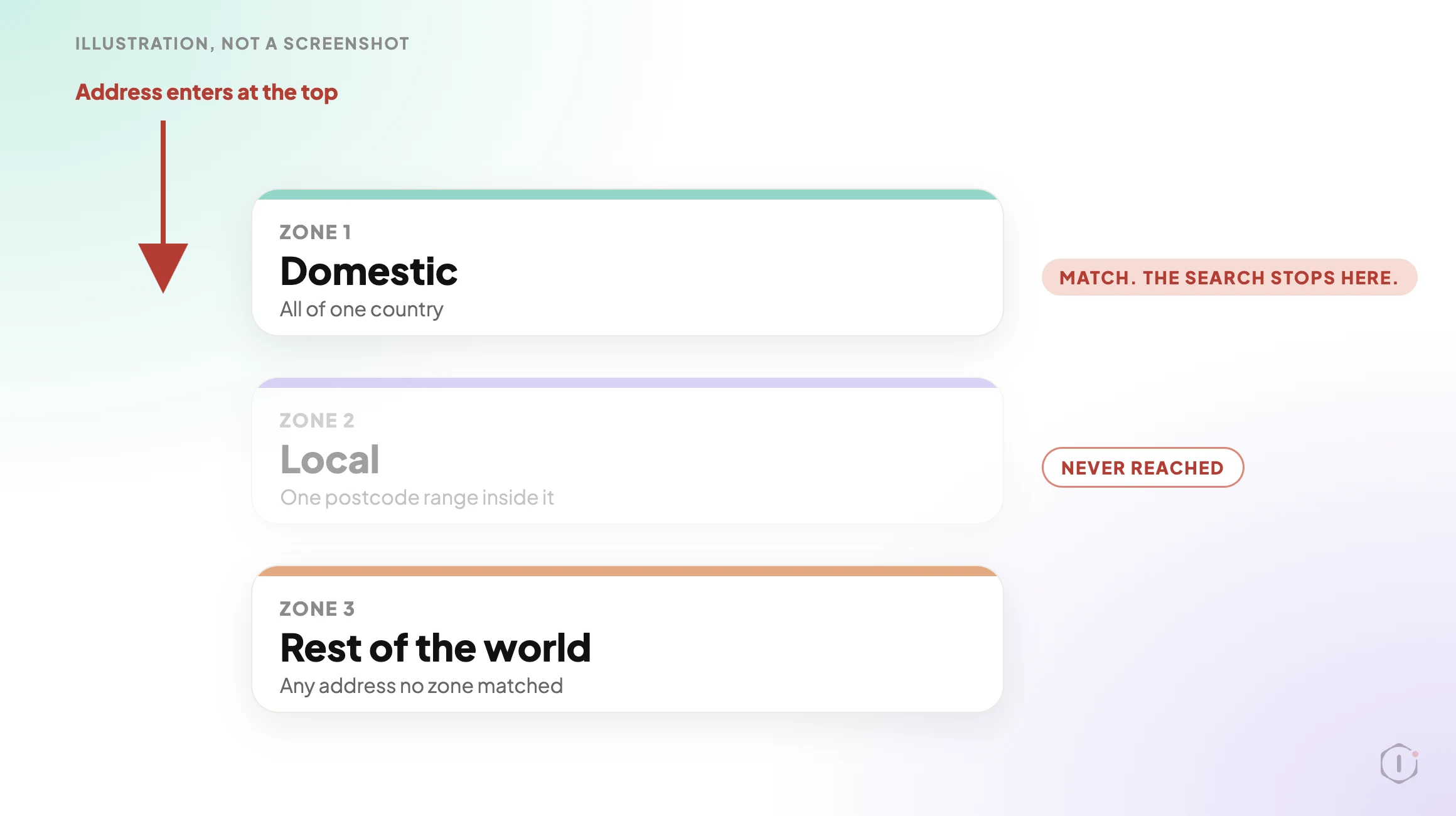
    A shipping zone list read from top to bottom. An address enters at the top and stops at the first matching zone, Domestic. The Local zone below it is greyed out and never reached. A Rest of the world box sits at the bottom.
    Illustration, not a screenshot. The zone names are examples.

    How The Matching Actually Works

    Zones feel like a list of places you ship to. They behave like a routing table.

    WooCommerce’s documentation says it plainly: a customer is assigned the first zone they match, and each customer matches only one zone. They are offered only the methods inside that zone, not the methods from every zone that could have fitted. The matching code agrees: it sorts zones by their saved order and takes the first match.

    Three consequences follow, and each produces a real gap.

    • Order matters. A broad zone placed above a narrow one swallows it. A zone for a whole country sitting above a zone for one postcode range inside that country means the narrow zone’s rates are never offered. The list is drag-sorted, so it can drift whenever somebody adds a zone in the wrong place.
    • A match with nothing usable is still a match. If the winning zone has no method, or only methods that are switched off or not yet earned, the customer is not passed down to the next zone. They are matched and then offered nothing.
    • The bottom zone is where everyone else lands. WooCommerce keeps a default zone called Rest of the world for any address no other zone matched. Adding methods to it is optional, so on a store that never added one, every unlisted region gets the same message.

    An empty zone is not always a mistake. The documentation describes it as the way to exclude a region when you use Rest of the world: add a zone for the region with no methods, and customers there are told no shipping is available. So the question is not “is there an empty result”. It is “was each empty result a decision”.

    The Conditions That Hide Inside A Zone

    A zone can look right in the admin and still hand the customer nothing, because a method can exist and not be available for a given cart.

    What is setWhat the customer seesWhere to look
    A method switched off in the matched zoneThe zone looks populated in the list, and the customer gets nothing from itThe Enabled toggle on each method inside the zone
    Free Shipping set to need a minimum order amountUnder the threshold, Free Shipping is not offeredThe “Free Shipping requires” setting on the method
    Free Shipping set to need a couponNobody without the coupon sees itThe same setting, plus the coupon’s own free shipping option
    A zone limited by postcodeAn address just outside a range or wildcard falls through to a lower zoneThe zone’s postcode list, which takes ranges and wildcards, one entry per line
    A shipping extension with its own rulesRates that depend on conditions the core settings do not showThe extension’s settings, after the core ones look right
    No address entered yetThe line “Enter your address to view shipping options” in the shipping section. Normal, not a gapThe Shipping options setting named “Hide shipping costs until an address is entered”

    If Free Shipping is the only method in a zone, a cart under its threshold has no method at all, which looks identical to a missing zone. Every row except the last ends at the same empty section, and nobody can tell the causes apart without the cart and address that reproduce it.

    One more setting sits upstream. The General settings page has a Shipping location(s) option, and the zone documentation says to check it before building zones. If it is wrong, no zone edit will fix what customers see.

    Mapping Zones Against Where Orders Come From

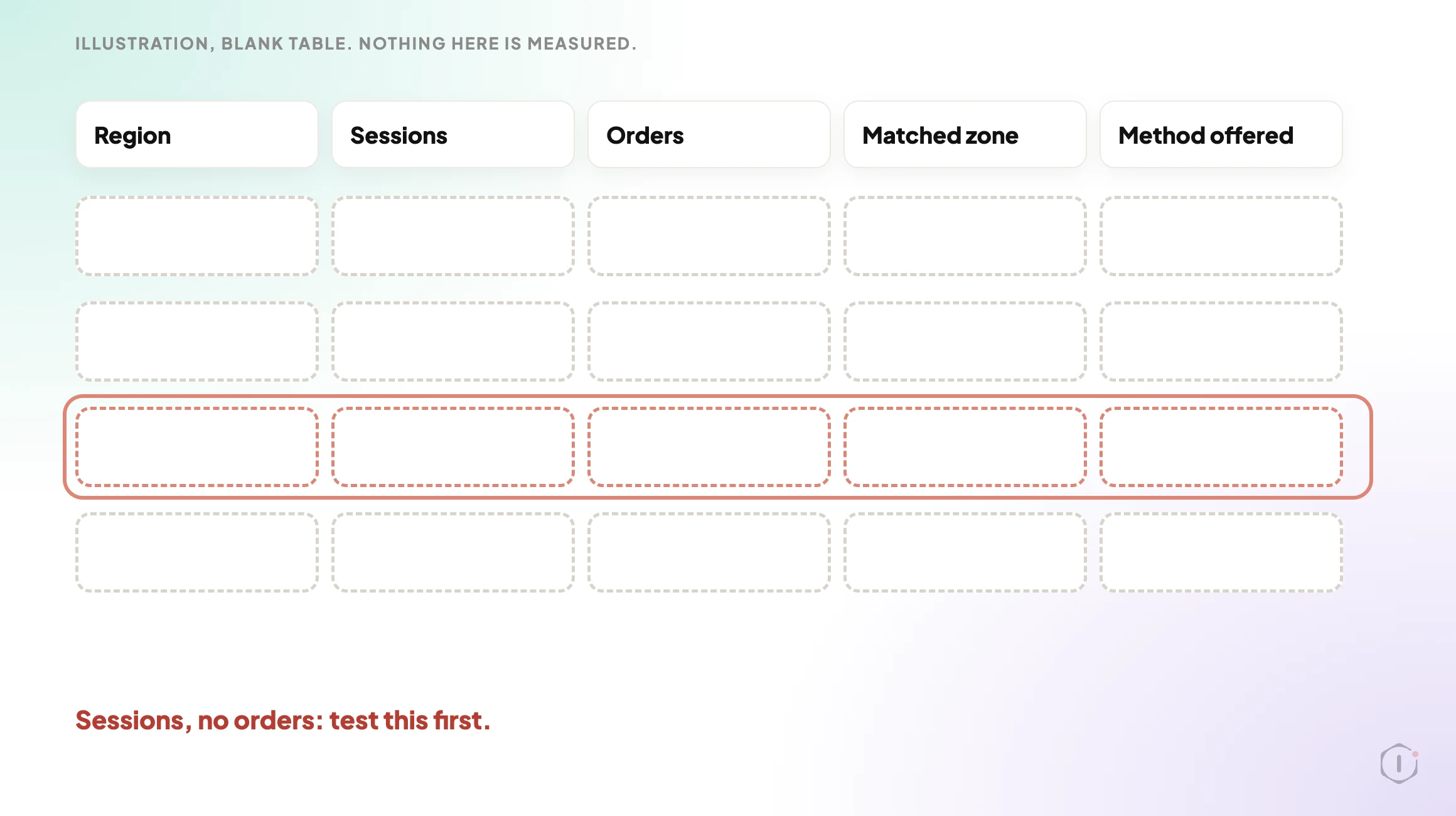
    A gap only matters where there is demand. A store that does not ship to a country nobody orders from has no problem. A store that cannot serve a region with steady traffic has an expensive one. Build one table with a row per region.

    1. Export your orders. Pull the last twelve months and count them by country, and by region for your largest countries. This demand map is biased on purpose: it only contains people who could finish an order, so the regions missing from it are the suspects.
    2. List your zones in their saved order. Write down each zone, its regions and postcode limits, and every method inside it, including methods switched off or carrying a condition from the table above.
    3. Pull sessions by region. A region with real sessions and no orders at all is the strongest signal you have.
    4. Mark each region as served by a zone with a method that works for a normal cart, served only by a conditional method, or falling to Rest of the world.

    The output you want is not this:

    “We have seven shipping zones configured.”

    It is this:

    “These regions produced sessions last quarter and no orders, and each falls through to a zone with no available method. Here is the address that reproduces it.”

    The second names the regions and the cause and comes with a reproduction. That is a bug report. The first is an inventory.

    A blank record table with columns Region, Sessions, Orders, Matched zone and Method offered, and four empty rows. One row is outlined in red with the note Sessions, no orders: test this first.
    Illustration of a blank sheet. Nothing on it is a measured result.

    Testing An Uncovered Region On Purpose

    Mapping gives you suspects. A test gives you proof.

    Use a staging copy that carries the live zone settings. A test on a stripped-down site with different zones tells you nothing, and a copy keeps abandoned carts and test customers out of the store’s real data.

    1. Pick one address per suspect region, in a real format for that region. An invalid postcode produces a validation error that looks like a zone gap and is not.
    2. Add a product that needs shipping to the cart, enter the address, and write down exactly what the shipping section shows.
    3. Repeat with a second cart at a different value, to catch a Free Shipping threshold.
    4. Repeat with a product from a different shipping class. Classes group products so a method such as Flat Rate can charge them differently, so a class is a variable worth varying.
    5. Repeat on a cart with only a virtual product, which should not ask for shipping at all.
    6. If you use a shipping extension, repeat with a heavy or bulky product.
    7. Record each combination: region, cart, zone matched, methods offered.

    WooCommerce has a switch that helps. Under the Shipping options settings there is a debug mode which, in the setting’s own words, shows matching shipping zones and bypasses the shipping rate cache. Rates are cached, so a retest can show yesterday’s answer without it. Turn it off afterwards. A walkthrough published on 20 October 2026 notes that the matched-zone notice appears on the classic Cart page and not in the Cart or Checkout blocks, so its absence is not a failed test.

    Six to eight combinations per suspect region takes an afternoon and leaves you exact addresses and carts that reproduce each failure. That list makes a fix verifiable.

    A checkout walk you can safely repeat is worth building once, and building a WooCommerce checkout probe safe to run daily covers how. That post is candid about its own limit: the probe will not catch a shipping method failing for one country, which is the gap here. Why an uptime ping cannot do this job is covered in an uptime check cannot see this. If you look after stores you did not build, detecting WooCommerce from the outside tells you which ones to test first.

    Illustration. The example zones, regions and amounts are made up, and nothing in the video is a measured result.

    Fixing It Without Promising Delivery You Cannot Make

    The fix is not always “add a shipping method”. Sometimes the right answer is that you do not ship there, and the job is to say so sooner.

    SituationReasonable fix
    You do ship there and the region was simply missingAdd the region to a zone, or create one with a method and a rate
    A broad zone above is intercepting a narrower oneReorder the zones so the narrower one is matched first
    You ship there only above a value, on purposeKeep the threshold, and make sure the customer is told about it somewhere other than an empty section
    You do not ship there at allLeave the empty zone in place on purpose, and consider a notice that says so before the customer fills the form
    The method exists but is switched offSwitch it on, then repeat the exact test that failed

    The fourth row is the one stores resist and customers appreciate. An explicit “we do not currently deliver to this region” beats a message that sounds like a typo, and a deliberate zone is something you can find later.

    Whatever you change, re-run the exact address and cart that failed. “The zone was updated” is not the same as “this address now sees a method and can complete an order”.

    What Changed Recently

    WordPress 7.1.3 shipped on 6 October 2026 and 7.2 Beta 1 followed on 20 October. Neither announcement mentions shipping. WooCommerce 11.2.1, released on 9 October 2026, lists two fixes: how classic checkout sends order review and coupon requests, and acceptance of older four-digit Argentine postcodes in the Checkout block. The postcode fix is about validation, not zone matching, so nothing above depends on a recent change.

    What This Does Not Solve

    This finds regions that cannot check out. It does not find most other ways a checkout quietly stops working.

    • It is a configuration check, not monitoring. It is true on the day you run it. A plugin update or an edit by someone else can reopen a gap next week.
    • It cannot see demand that never arrived. A region with no sessions because the store was never marketed there shows nothing. No traffic is not the same as no market.
    • Tax and address validation are separate. A region can have a working method and still fail on a tax setting or an address field rule. Different symptom, different check.
    • It says nothing about payment. A customer who sees a method and then cannot pay has hit a different wall, covered in payment gateway monitoring.
    • It does not catch orders that start and then fail. Those are visible, and worth watching separately, which is the subject of WooCommerce failed orders.
    • Caching can make a result lie. A cached page that serves one customer’s cart state to another can hide what real customers get. That failure has its own article: one URL, two customers.

    Two Outside Views

    A video that turns the same idea into six checks. Cobalt Branch Labs’ “WooCommerce Shipping Methods Missing at Checkout? Check These 6 Things“, published 20 October 2026, runs about five minutes. Its order is: reproduce the failure with the exact address and cart, check which zone matches including zone order and postcode rules, confirm the method is enabled inside the matched zone, check the Free Shipping requirement, check that the cart holds products that need shipping, and retest on staging after every change. Its staging example shows the first-match point: with a broad domestic zone above a local one, the same address matched the broad zone first, and the expected local method went missing until the zones were reordered. The description is upfront that the settings panels are illustrative and the outcomes were checked through WP-CLI and cart calculations, not recorded storefront sessions. It is a small channel, so treat it as a checklist.

    A thread from people living with it. In an r/woocommerce thread titled “WooCommerce delivery methods/rates not appearing, even on new checkout shortcode page”, the author reports that the zones and methods are all set up and the checkout still shows no delivery rates:

    WooCommerce shipping zones and delivery methods are set up, products are physical/not virtual, and shipping is enabled. The checkout is built with Elementor/JetWooBuilder. The order review shows product, total and payment, but no Standard/Express delivery methods or delivery rates appear.

    u/SoloUncharted, r/woocommerce, 9 July 2026

    That is a useful counterweight. The author says the zones and methods are set up and suspects a page-builder checkout is overriding WooCommerce’s own, so a clean zone check does not end the hunt. It is why the video above puts themes and checkout customisations last. The replies suggest looking for a checkout template in the Elementor theme builder, and checking the zone, caches and other plugins. The author answered with thanks only, so the thread does not confirm a fix.

    Sources And Further Reading

    The Point

    A payment failure announces itself. A shipping zone gap is the opposite: the customer reads one sentence, assumes it was their typo, and goes.

    So the question is not how many zones you have. It is simpler and less comfortable: which regions send you visitors and no orders, and has anyone ever entered an address from one of them and read what the checkout said?

  • WordPress Application Passwords: The Playbook, Step By Step

    WordPress Application Passwords: The Playbook, Step By Step

    Open any user’s profile in the dashboard and scroll past the password box.

    Below it sits a section called Application Passwords, with a name field, a button that says Add New Application Password, and a list of the keys that already exist.

    Most people never scroll that far. The keys in that list can outlive the password you changed last week.

    Short answer: WordPress application passwords are separate, revocable keys that apps and scripts use to sign in without the account’s normal password. Each one stays valid until someone revokes it, so a site can carry old keys nobody remembers. The New Admin Watch playbook reads every administrator and every application password, flags the recent and never-used ones, and, if you paste in a baseline, shows what changed since the last run. It only reads. It never creates, changes or revokes anything.

    What this post is, and is not: A method write-up of one read-only playbook, based on its two step files as shown in the Protuno dashboard and on its public page on 22 October 2026. It is not a result from a real run: no playbook was run for this post, and every username, date and id in it is an illustration with example values.

    What WordPress Application Passwords Are

    Application passwords arrived in WordPress 5.6. The core team’s integration guide describes them as a way to make authenticated requests to WordPress APIs without using the account’s normal password. Cookie sign-in stays as it was. An application password cannot be used on the login page, because it is meant for programs, not people.

    The same guide says how one is stored:

    • It is 24 characters of upper-case letters, lower-case letters and numbers.
    • It is kept in the user’s meta data, with the name given to the application, the time it was created, and when and from which IP address it was last used.
    • Each one also gets its own uuid, so it can be referred to without using its name.

    You manage them from the Edit User page, where you can create new ones and view or revoke the ones that exist. The Last Used column is accurate to within 24 hours, because WordPress only writes the date once a day. The guide says that makes it useful for finding passwords that are no longer in use, so they can be revoked.

    By default the feature is available on sites served over HTTPS and on local environments, and the developer reference says a filter can change that. The REST API handbook adds that the credentials go to REST requests over HTTPS using Basic Auth.

    Latest changes checked on 22 October 2026: WordPress 7.1.3 (6 October) is the current stable release, and 7.2 Beta 1 came out on 20 October. Neither announcement mentions application passwords or administrator accounts. So everything above comes from the 5.6 guide, the developer reference and the REST API handbook, not from release notes.

    Why A Key Outlives A Password

    A password reset feels like a clean slate. An application password does not care.

    A tutorial from SmartWP, covered below, makes the point in plain terms. An application password is a separate credential that you give to one app. You can issue several, and you can revoke one without touching the others. In his demo, changing the account’s normal password does not interrupt the app that holds a key.

    That is exactly why they are useful, and exactly why they get forgotten. The key sits in a list, nobody opens that list, and the app that used it may be long gone.

    A key also carries the powers of the account it belongs to. A post on WordPress MCP write access makes the point for AI connections: an application password issued to an administrator carries administrator capabilities.

    Two Lists To Read Together

    The first list is who can act as an administrator. The second is which keys exist for each user, and when each was last used.

    WordPress application passwords, illustration with two panels. The left panel is titled Administrators and shows three example accounts with a registered date. The right panel is titled Application passwords and shows three example keys, each with a short id, a created date and a last used date, one marked Never used. Example values, not a screenshot.
    Two lists side by side. Example values, not a real run.

    Neither list answers the real question on its own. “Who can get in?” needs both. A post on user roles covers listing every account and the three accounts to question first. This playbook adds the second list and puts both into one report.

    The Playbook, Step By Step

    The New Admin Watch playbook has two steps, in a fixed order. In the dashboard it carries a Beta label and only reads. The public page files it under Security and says it needs no connector. It runs when you start it, and no schedule is set.

    No step pauses for approval. I opened the settings panel for both steps, and both show Automatic backup None and Approval checkpoint Off, which fits steps that only read.

    A 33-second silent walk-through of the two steps. All scenes are illustrations with example values, not a real run.

    Step 1: Snapshot Admins And Credentials

    Step 1 makes one call to a Protuno read tool. The tool reads the site itself and applies every check in code. The step does not compare, count, judge or sort anything on its own. It copies what the tool returns into one fixed block for step 2.

    The step file says the tool applies eight checks, and names what it covers:

    • Which application password is this connection’s own, so it is not listed as a stranger.
    • Changes since the baseline, if one was pasted.
    • Recent accounts and recent passwords.
    • The admin username.
    • Passwords that have never been used.
    • Extra capabilities on a user.
    • Admin-level powers held without the administrator role.
    • Administrators through a second role.

    If the administrator list cannot be read, the step stops with “Could not read the administrator list.” and fails. In every other case it ends as a pass.

    The baseline is optional. It is three lines pasted into the playbook’s Instructions: a line starting BASELINE, then admins: and app-ids:.

    Step 2: Admin Watch Report

    Step 2 makes no calls and judges nothing. It lays out the block from step 1 in a fixed layout. A header line gives the number of administrators, the number of application passwords and whether a baseline was given, followed by the connection and the users by role. Then come six sections, always in this order:

    1. Checks.
    2. Changes since the baseline, as a table.
    3. Things to confirm, as a table with finding, user, detail, severity and what to do.
    4. Administrators, as a table with id, username, registered date, email domain and application passwords.
    5. Not checked.
    6. Baseline, a new set of three lines to copy.

    The findings are exactly the lines the tool returned. Nothing else counts as a finding, and the step may not add, drop, reword or re-rate a row. Two privacy rules apply. An email address is shown as its domain only. An application password is shown by the first 8 characters of its id, never by its name, because two passwords can share a name.

    WordPress application passwords playbook, illustration of two steps. Step 1, Snapshot Admins And Credentials, reads the administrators and their application passwords and makes one call. Step 2, Admin Watch Report, makes no calls and lays out the checks, the changes and the things to confirm. Both steps show Automatic backup None and Approval checkpoint Off. Example layout, not a real run.
    The two steps and what each hands to the next. Settings as shown in the dashboard, not a real run.

    How A Baseline Turns A List Into A Change

    Without a baseline, the report says “No baseline given: date-based checks only.” An administrator or an application password created in the last 30 days is flagged as recent. That is a useful nudge, but it cannot tell you what changed.

    With a baseline, the next run can say what is different. The dashboard card says the next run also shows new administrators, raised roles and new application passwords. If there is a baseline and nothing moved, the report says “No changes since the baseline.”

    The report ends with a new baseline to paste back in next time. To use it, open the playbook page, find “Runs on these sites”, open Instructions for the site, paste the three lines, and save.

    That is the whole habit: read, paste, compare later. A list you read once tells you what exists today. A list you compare tells you what moved.

    Reading A Finding

    The report is strict about words. It must never say the site “is secure”, “is safe”, “was hacked” or “is compromised”. A finding is something to confirm with the site owner, not an accusation.

    That matters in practice. A new administrator may be a new hire. A never-used key may be a connection someone set up last week and has not tested yet. The row tells you where to look and who to ask. It does not tell you what happened.

    What The Report Does Not Cover

    The step files list what stays out of reach:

    • Users hidden from the REST API by a plugin or malware. The list comes from the REST API, so it can never be proven complete.
    • Changes made directly in the database.
    • Powers a custom role grants by itself. Only powers given directly to a user are read.
    • Login history and failed logins.

    It also never reads a password, and it creates, changes or revokes nothing. If you find a key you do not recognise, the revoking is your decision, made on the Edit User page.

    If the REST user list is part of the question for you, a post on WordPress user enumeration looks at how that user list is exposed from outside.

    A Careful Version You Can Do By Hand

    You can do a rough version of this without any playbook. It follows the same order.

    1. Open Users, filter to the Administrator role, and write down every username. Mark any you cannot place.
    2. Open each administrator’s Edit User page and scroll to Application Passwords.
    3. For every key, write down its name, when it was created and its Last Used value.
    4. Mark keys that were never used, and keys that have not been used for a long time. Remember Last Used is accurate to within 24 hours.
    5. For any key you do not recognise, find out who owns it before you revoke it. Revoking cuts off whatever app uses it, and in the SmartWP demo that is the point.
    6. Save your notes as a plain text file with each username, key name and created date. That file is your baseline.
    7. Repeat monthly and compare the two files.

    Two keys can share a name, so a note by name alone can mislead. That is why the playbook identifies each key by the first 8 characters of its id.

    Application passwords are one of the sign-in routes that do not use the login form. A post on two-factor enforcement lists those routes, and a post on the first hour after a hack includes application passwords in the WordPress layer of access to review.

    Two Outside Views

    A tutorial and a forum thread. Neither is an endorsement, and neither describes the Protuno playbook.

    In a November 2024 video, SmartWP explains how to set up and use application passwords safely. He says an application password is like a normal WordPress password but meant for one app, and that sharing it is safer than sharing your real password. He says you can make several and revoke access to a specific application. In the demo he creates one named for Zapier, says it can be pasted into Zapier, and notes that resetting his normal password would not interrupt it. When he is done with Zapier he revokes the key so Zapier can no longer edit the site. The video is older than the releases above, and near the end he mentions a blogging platform he built that supports the feature.

    On Reddit, an r/Wordpress thread titled “How many people can log into your sites as Administrator, and do they open links?” starts with a site manager asking a simple question: “How many Administrator accounts are on the sites you look after?” This post does not rely on the opening post’s security claims. It uses the question and one reply, which describes the baseline habit in a few words:

    “We have a single administrator account on all the sites we manage, our own. There is a specific list of capabilities we have never given out and our nightly sync will alert us if this somehow changes in a site.”

    Reply in the thread, r/Wordpress, 3 October 2026

    Another reply in the same thread gives a different answer: “2-3 admin acccounts is the normal number but I only manage a couple dozen WP installations.” A count on its own does not settle much. What matters is whether you can see a change when it happens.

    Where Protuno Fits

    The New Admin Watch playbook is the repeatable, read-only part of this job. It lists every administrator and their application passwords, flags recent accounts, the default admin username, new or unused keys and extra capabilities, and writes a report with a baseline you can paste back in. It needs no connector, runs when you start it, and has no schedule set.

    It sits beside the other security posts rather than replacing them. The Security Audit playbook has its own post. The playbooks page lists the playbooks as Protuno publishes them, and this one has its own page at New Admin Watch.

    The Point

    A password is something you change. An application password is something you have to find.

    Read both lists together, keep a baseline, and treat every unfamiliar row as a question for the site owner. A report that revokes nothing is the safest way to see how many keys your sites are holding.

    Which keys on the sites you manage could you name today without looking?

    Sources And Further Reading

  • WordPress Unused Images: The Playbook, Step By Step

    WordPress Unused Images: The Playbook, Step By Step

    Your Media Library has grown large. In list view, the “Uploaded to” column says “(Unattached)” next to a lot of them, and the toolbar has an “Unattached” filter.

    It is tempting to read that filter as a list of files nobody uses.

    Short answer: For WordPress unused images, “Unattached” is not the same as unused. WordPress records which post an image was uploaded to. It does not record every place that image is shown. A logo, a widget, a gallery or a template part can use a file the library calls unattached. The Unused & Duplicate Media Report playbook reads the library, checks the places WordPress can show use of each image, and writes a list of duplicate files and files that are “possibly unused”. It deletes nothing.

    What this post is, and is not: A method write-up of one read-only playbook, based on its four step files as shown in the Protuno dashboard and on its public page on 21 October 2026. It is not a result from a real run: no playbook was run for this post, and every file name and picture in it is an illustration with example values.

    What The Media Library Does Not Tell You About WordPress Unused Images

    The “Uploaded to” column shows one thing: the post or page the file was uploaded from.

    A file can be uploaded from one post and shown on ten others. A file can be uploaded from no post at all and still be the site logo. In both cases the library gives you a weak hint, not an answer.

    A WordPress tutorial from August 2026 says it plainly. Its author points out that WordPress only reports attachments, and that an image can be used in a theme template, a header, a footer, a widget or a reusable block without showing up in the library. His rule is to never treat an empty attachment area as a green light.

    That is the whole problem this playbook is built around: telling WordPress unused images from files that only look unused. The risky mistake is calling a used image unused. The playbook’s second step says so in its own safety rule, and everything after it follows from that.

    Unattached Is A Label, Unused Is A Claim

    A label is something WordPress stores. A claim is something you have to check.

    To call an image possibly unused, you need to look in every place it could be shown. Some of those places are cheap to read in bulk, such as featured images and the site logo. Some need a search for the file name. Some cannot be read from outside at all.

    WordPress unused images, illustration with two panels. The left panel shows two example library rows, one labelled Unattached. The right panel lists five places WordPress can still show use of an image: a featured image, the site logo or icon, a widget, a classic gallery and a custom template part. Example file names, not a screenshot.
    A library label on the left, the places that can still show use on the right. Example file names, not a real run.

    The Playbook, Step By Step

    The playbook for WordPress unused images has four steps, in a fixed order. Every call in it is a read. In the dashboard it carries a Beta label, and the public page files it under Performance.

    A 35-second silent walk-through of the four steps. All scenes are illustrations with example values, not a real run.

    Step 1: Media Inventory And Duplicates

    The first step reads a few facts about the site. It lists the post types, notes which page builders are active and whether WooCommerce is running, checks whether the theme is a block theme, and reads the site logo and site icon.

    Then it lists the images. It pages through the library 30 at a time, oldest upload first, and stops at 400. If the library is bigger, the report says “first 400 by upload order; the rest were not read”. Counts come from paging, because the answers carry no totals. A reply that arrives cut off is never used as if it were complete.

    Step 1 also shows its own settings: Automatic backup None and Approval checkpoint Off. That fits a step that only reads.

    How A Duplicate Is Decided

    Duplicates are found by name, not by size. Each file name is lowercased and trimmed back to a group name, and files that share a group name are candidates for being copies.

    WordPress adds some endings on its own. The step strips a trailing -scaled, -rotated, an edited-copy ending (-e followed by ten or more digits) and a size ending such as -300x200. A trailing -1 or -2 is stripped only if the name without it belongs to another image in the library. Hand-added copy words, such as -copy or a leading copy-of-, follow the same rule.

    Example namesGrouped?Why
    beach, beach-scaled, beach-1YesThe scaled ending goes, and -1 goes because beach exists
    team-photo, team-photo-copyYesThe copy word goes because team-photo exists
    old-upload-1, old-upload-2NoThere is no plain old-upload, so the numbers stay
    IMG-0001, IMG-0002NoCamera numbers are different pictures

    For groups only, the step then reads file sizes. It checks at most 10 groups and 40 images. Inside a group, files with the same file size, width and height are an exact copy set. Files with the same name and a different size are versions. The oldest upload is marked as the one to keep. Same size alone never makes a group, because different names are never treated as copies.

    Step 2: Bulk Reference Check

    Step 2 marks an image as used when a cheap bulk source shows it in use. It does no name searches. The rest of the images become candidates for step 3.

    Where use is checkedWhat counts as used
    Featured imagesEvery featured image on every post type. Drafts, pending and private items count too
    Logo and iconThe site logo and the site icon, plus the WooCommerce placeholder image when a store is present
    Classic widgetsA media widget’s image, and any file name found in a widget’s content, on sites that do not use a block theme
    Classic galleriesThe image ids inside gallery shortcodes, found by search, for up to 10 hits
    Block theme partsCustom templates and template parts, up to 20, where the image’s name or id appears

    The safety rule sits at the top of this step: anything unclear counts as used, or as not checked, never as unused. The step also never asks for post content in a list call, because a long list gets cut off and an image named in the cut part would look unused. If a widget or gallery reply is cut and cannot be recovered, the step says so and no image can be listed as unused from that run.

    Step 3: Name Search Check

    Step 3 makes one call to a Protuno tool with every candidate id. The search runs on the Protuno server. It looks for each image’s own file name in posts and pages, drafts and private included, in reusable blocks and in other published content. It checks at most 25 images per run, lowest id first.

    The step does not search, sort, size or judge anything itself. It copies the lines the tool returns. If a page builder is active, each possibly unused image carries the note “check in” and the builder’s name, followed by “first”. Page builder data is on the not scanned list further down.

    Step 4: Media Cleanup Report

    Step 4 makes no calls. It writes one report in a fixed layout, with these sections in this order:

    1. Duplicate files, one row per group, with every id written out.
    2. Possibly unused, one row per image, never a range.
    3. Not checked this run, one line per id.
    4. What was checked.
    5. Not scanned on this site.
    6. Next step.

    The summary counts duplicate groups, possibly unused images and images not checked. Space is always “at least” a number of megabytes, because only the original files are counted and not the thumbnails WordPress makes from them. Oversized files are not this report’s job, so it points to the dashboard’s Image Weight card. A report that finds nothing is still a pass.

    WordPress unused images playbook, illustration of four steps in a row, each with its real limit underneath. Step 1 reads up to 400 images, step 2 checks the bulk sources, step 3 searches names for at most 25 images, and step 4 writes the report and makes no calls.
    The four steps and their limits. Limits as written in the step files, not a real run.

    The Words It Is Not Allowed To Use

    The playbook is strict about wording. It must never write “remove”, “delete”, “deletion”, “safe to”, “cleanup would” or “redundant”. It must never write “unused” without “possibly” in front of it.

    The strongest phrase it may use is “possibly unused: WordPress shows no use of it in the places checked”. The duplicate column is called “Other copies”, never “Remove”.

    That is not decoration. A report that says “safe to delete” invites a click. A report that says “WordPress shows no use of it in the places checked” invites a look.

    A Careful Version You Can Do By Hand

    You can look for WordPress unused images without any plugin. This follows the same order, and the habits in it come from the August tutorial.

    1. Take a copy of the uploads folder first. A full backup is better, and a post on verifying a backup covers how to know the file you saved is any good.
    2. Switch the library to list view and sort by date, oldest first.
    3. For each file you doubt, search its file name on the live site and in the editor. The tutorial’s author does this for any file whose name looks important.
    4. Check the places the library cannot see: the Customizer’s header and background, a post’s featured image panel, a widget.
    5. Work in batches of 10 or 20. Act on one batch, open the key pages, then move on.
    6. If you are not sure about a file, leave it.

    If you can, rehearse on a copy first. A post on staging drift explains why a staging site is not an exact copy of live, which matters if you plan to trust it.

    What The Report Does Not Cover

    Some places cannot be read by a search for a file name. The step files list them as not scanned:

    • Page builder data and custom fields.
    • Theme files and CSS.
    • The Customizer’s header and background images.
    • WooCommerce product galleries.
    • Menus.
    • Links to the file from other sites.
    • Images beyond the first 400, and thumbnails, which are not counted in the space total.

    This is why a “possibly unused” row in a list of WordPress unused images is a prompt to look, not a verdict.

    The report is also not about file weight, file format or alt text. Those are different questions, covered by a post on finding the oversized image, one on WebP and AVIF and one on an image alt text audit.

    Two Outside Views

    A tutorial and a forum thread. Neither is an endorsement, and neither describes the Protuno playbook.

    In an August 2026 video, Entrepreneurs Skool shows a no-plugin, no-code cleanup of a media library. He takes a copy of the uploads folder first and calls it his undo button. He then uses list view, the date filter and a search for words such as “logo” to find old files and duplicates. His main caution matches the one in this post: WordPress only reports attachments, so for an unattached file whose name looks important he opens the live site and searches for the name before touching it. He also says he works in small batches and checks the key pages after each one. The video is a delete tutorial and ends with a request to like and subscribe.

    On Reddit, an r/Wordpress thread titled “How to Delete 20,000 old post and images?” starts with a site owner who took over a site and wants to clear out old content. Further down, the poster says where the hard part is:

    “It will just be unattached images thats the problem.”

    Original poster, r/Wordpress, 1 July 2026

    One reply suggests trashing the posts with a bulk tool and then using a media cleaner plugin to find orphaned images, with this caution:

    “backup first obviously, and do it in batches if the host has execution time limits.”

    Reply in the same thread, r/Wordpress, 1 July 2026

    The thread is about deleting content rather than about proving an image is unused, so it only lines up with this post on the point that unattached files are the awkward part. Posts you delete leave images behind, and the library cannot say which of them are still shown somewhere else.

    Where Protuno Fits

    The Unused & Duplicate Media Report playbook is the repeatable, read-only part of finding WordPress unused images. It reads the media library, groups copies by name, checks the bulk places where WordPress shows use, runs one name search for the rest, and writes the list. It needs no connector, it runs when you start it, and no schedule is set.

    It sits beside other image posts rather than replacing them. The large image audit is about weight, and the playbook’s own report points to the dashboard’s Image Weight card for that. The playbooks page lists the playbooks as Protuno publishes them, and this one has its own page at Unused & Duplicate Media Report.

    The Point

    “Unattached” is a label WordPress stores. “Unused” is a claim you have to check.

    Treat every possibly unused row as a place to look first, check the places the report says it did not scan, and keep a backup before you act on any file. A report that deletes nothing is the safest way to find out how big the question really is.

    Which images on the site you manage would you trust the “Unattached” filter on today?

    Sources And Further Reading

  • WordPress Cookie Consent: Which Scripts Fire Before Yes

    WordPress Cookie Consent: Which Scripts Fire Before Yes

    A WordPress cookie banner has two buttons, Accept and Reject, and a line about cookies. That is the part everybody checks, because it is the part you can see.

    What the banner does not show you is the page behind it. A banner can sit in front of a page that has already made its requests. On a site where a tag was added outside the consent plugin, the analytics tag, an ads pixel or a chat widget can fire before the banner has finished appearing.

    Short answer: WordPress cookie consent has two halves. One is a banner that records a choice. The other is a loading order that decides what runs before that choice. To tell which half a site really has, load it in a fresh browser profile, click nothing, and write down every third-party request and every cookie that exists before the first click. Anything on that list that is not the consent tool itself or strictly functional fired before permission, whatever the banner says.

    What this post is, and is not: this is a repeatable observation you can run from outside any site, in a browser, in about ten minutes. It is not legal advice, and it does not tell you whether a given script is lawful in your jurisdiction. It tells you what actually loaded. What that means for a given site is a conversation between the site owner and their counsel.

    Six routes by which a script reaches a WordPress page head, from the theme header to server-side tracking. Each route has a chip reading Gated? Test it. A consent plugin box at the side says it gates only the routes it has been told about.
    Illustration, not a screenshot. Whether each route is gated is the thing you test.

    Why A Banner And Enforcement Are Different Things

    A consent plugin usually does two separate jobs, and it is normal for a site to have only the first one working.

    The first job is presentation: show a banner, record a choice, store it in a cookie, show a preferences link later. This part is visible, so it gets tested.

    The second job is enforcement: actually prevent the tags from loading until the choice is made. This part is invisible, so it is rarely tested. It also depends on things the consent plugin does not control, including how each tag was added to the site in the first place.

    That is where the gap opens. A tag added through a tag manager container, a theme options field, a header-scripts plugin, a page builder widget or a hard-coded line in header.php is not automatically known to the consent plugin. The plugin can only block what it has been told to block, or what it can recognise.

    So the honest version of the question is not “do we have a cookie banner”. It is:

    Which scripts on this page run before a visitor has made a choice, and is that the intended list?

    The Usual Sources Of A Pre-Consent Script

    A pre-consent tag has usually arrived by one of a small number of routes. Knowing them shortens the hunt.

    Where the tag livesWhy consent often misses itHow you spot it
    Hard-coded in the theme header or a child themeIt renders in wp_head before any consent logic runsView source, search for the vendor domain, note it is not wrapped in a consent attribute
    A header and footer scripts pluginOutput is a raw string the consent plugin cannot parseRequest fires on first paint with no consent cookie present
    A tag manager containerThe container loads, then fires its own tags on its own triggersOne container request followed by several vendor requests
    A page builder or widget embedVideo, map and social embeds often set cookies themselvesRequests to an embed domain on pages that contain the embed only
    A plugin that ships its own trackingAnalytics bundled into a forms, chat or reviews pluginRequest appears on every page, matched to a plugin asset path
    Server-side or proxied trackingNothing third-party shows in the network panel at allFirst-party request to an odd path, or no visible evidence from outside

    The last row is the honest limit of an external check, and it comes back later in this post.

    The Ten Minute Check, Step By Step

    This runs on any site you are authorised to test, from a browser, with no plugin installed and nothing changed. The panels are the Network and Application tabs in Chrome DevTools, and other browsers have the same two.

    1. Open a completely fresh private window. A fresh profile matters more than it sounds: an existing consent cookie makes the whole test meaningless, because the site will behave as though a choice was already made.
    2. Open the developer tools, go to the Network panel, and make sure request recording is on before you navigate.
    3. Load the page. A homepage first, then a post, then a page that has an embedded video or map, because those behave differently.
    4. Click nothing. Do not dismiss the banner.
    5. Sort the request list by domain. Write down every domain that is not the site’s own, and every domain that is the site’s own but is clearly a tracking path.
    6. Switch to the Application panel and list every cookie and every local storage key that now exists. Note which are first-party and which are third-party.
    7. Now click Reject. Reload. Repeat steps 5 and 6. Compare the two lists.
    8. Then click Accept in a new fresh profile and record a third list.

    Three lists, one page. The one that matters most is the first one.

    A blank record sheet with three columns, Before any click, After Reject and After Accept, and three rows, Third-party domains, Cookies set and Local storage keys. Every cell is empty. The first column is marked as the one that matters most.
    Illustration of a blank record sheet. Nothing on it is a measured result.

    The useful output is not:

    “The site has a cookie banner from a well-known consent plugin.”

    It is:

    “Before any click, this page set four cookies and made requests to three third-party domains. After Reject, it set two cookies and made requests to one. Here is which script is responsible for each.”

    The numbers in that second line are an example of the shape of the answer, not a finding. A client can act on a statement like it, and a developer can fix it without guessing.

    Reading The Result Without Overreading It

    A request before consent is not automatically a violation, and this is where a lot of audits lose credibility by overclaiming. A font file, a CDN asset, a security challenge, or the consent platform’s own configuration request are different in kind from an advertising pixel. The cookie that stores the consent choice has to be set for the banner to work at all.

    The categories worth separating:

    • The consent mechanism itself. Its own script and its own choice cookie. Expected.
    • Strictly functional. Session handling, cart state, security tokens, load balancing. Usually expected.
    • Measurement. Analytics, heatmaps, session recording. This is the group where a pre-consent fire is usually unintended.
    • Advertising and remarketing. Pixels, conversion tags, audience sync. This is the group where a pre-consent fire is usually the biggest problem.
    • Embeds. Video players, maps, fonts loaded from a third party, social widgets. Often forgotten entirely, because the person who embedded the video was not thinking about tags.

    Sorting your list into those five buckets takes a couple of minutes and changes the conversation from “you are non-compliant” to “these two things fire early, and here is where they come from”.

    The flags on the cookies themselves are a separate question worth running in the same sitting: which flags WordPress core sets on its own cookies, and the one it leaves out covers the Secure, HttpOnly and SameSite side. This post is about whether the cookie should have existed yet at all.

    Illustration. The example domains are made up and nothing in the video is a measured result.

    The Tag Manager Case, Which Behaves Differently

    A tag manager deserves its own paragraph because it fails in a way that looks like success. Install a consent plugin, point it at the container, and the container itself will often be correctly gated. You reload, see the container request held back, and conclude the job is done.

    But a container can hold tags set to fire on triggers that never consult the consent signal, and tags someone added last quarter for a campaign that ended. The gate at the container level is only as good as the configuration inside it. Worse, a site can end up with the same measurement tag twice, once through the container and once hard-coded in the header by whoever set it up first. That is a counting problem as well as a consent problem, covered in duplicate Google Analytics tags.

    If the numbers downstream also look wrong, the two are often one incident seen from different ends. Counting three sales from one order is the same class of fault: the page fires things nobody has a complete list of.

    Can You Enforce This At The Header Level?

    Partly, and it is worth knowing where the line is.

    A content security policy restricts which origins a page may load resources from. That is a useful backstop: the browser blocks a script from an origin that is not on the allowlist, whichever plugin injected it. It gives you an enforced inventory rather than a hopeful one, and it makes an unexpected new third-party domain visible immediately instead of six months later. Getting one onto a WordPress site without taking the site down is its own exercise, written up in a WordPress content security policy that does not break the site, and the wider set of response headers is in two security headers you can set today.

    What a policy will not do is express consent. It is static for all visitors, so it cannot say “allow this origin only after the visitor accepts measurement cookies”. Use the policy to control which origins are possible at all, the consent layer to control which of those fire before a choice, and the fresh-profile check above to verify the second one is working rather than merely installed.

    What This Does Not Solve

    This check is an outside observation of one browser, on a handful of pages, at one moment. It has real limits, and stating them is the difference between an audit and a guess.

    • It cannot see server-side tracking. If measurement happens on the server, or is proxied through a first-party path, nothing distinguishable appears in the network panel. You can only find that by reading the code or asking.
    • It is per page, not per site. A pixel added to one landing page will not show up unless you load that landing page. A site with hundreds of templates needs sampling.
    • It is a point in time. A plugin update, a new embed, a caching or optimisation change, or a tag added for a campaign can reintroduce an early-firing script the week after you certified the site clean. WordPress 7.1.3 shipped on 6 October 2026 and 7.2 Beta 1 followed on 20 October. Neither announcement mentions cookies or consent, so nothing here depends on a core change.
    • It does not read the consent record. Whether the choice is stored correctly, honoured on later visits, and available as evidence is a separate check against the consent platform.
    • It says nothing about geography. Some consent setups behave differently by region. A clean result from one location does not describe the behaviour visitors elsewhere receive.
    • It is not a legal conclusion. Loading a measurement script before a click is a fact. Whether that fact matters for a given site depends on jurisdiction, the nature of the data, and the legal basis claimed. This check produces the evidence, not the verdict.

    A Portfolio Pass You Can Do This Week

    If you run sites for other people, the single-site version of this is interesting and the portfolio version is useful.

    Pick every site you are responsible for that has a consent banner. For each one, record four things in one row: whether any third-party request fires before a click, whether any non-consent cookie is set before a click, whether Reject actually reduces the list, and which route each early script arrived by.

    If the sites cluster, that is the finding. One group built by the same person with the same header-scripts plugin will behave the same way, and a video embed on one page will show up only on that page. Clustering tells you whether you have thirty separate problems or two.

    Then record the decision next to each row, not just the observation. Fix now, fix at the next release, accept with a named owner and a review date, or escalate because it is the client’s tag and their call. A row with a finding and no decision just moves the problem into a nicer spreadsheet.

    Two Outside Views

    A video that turns the same idea into a checklist. DataShyre’s “WordPress Cookie Consent in 2026: 7 Checks Before You Go Live“, published 14 August 2026, is a two-and-a-half-minute list of seven things to test before a consent setup goes live. Four of them match this post: test blocking on real templates and not just the homepage, look at what plugins do before consent, check that withdrawing consent really changes behaviour, and retest after updates to caching, plugins or optimisation. The video’s own line is that a banner is not enough and the setup needs an operational check. It is a short, small-channel video, so treat it as a reminder list, not a method.

    Verify that withdrawing consent triggers real behavior changes across your site.

    DataShyre, “WordPress Cookie Consent in 2026: 7 Checks Before You Go Live” on YouTube, 14 Aug 2026

    A thread from people living with it. In an r/Wordpress thread titled “Videos do not appear unless allow cookies”, a site owner finds that embedded YouTube videos show as blank space until a visitor accepts cookies, and their cookie platform says that is standard behaviour. One reply points at the same embed problem from the other side:

    There is a WP plugin No Cookies for YouTube which will make any video use YouTube’s no-cookie domain. That may help, but some cookie consent solutions will still treat YouTube’s alternative tracking methods (e.g. local storage) as needing consent just like cookies.

    u/SpaceCmdr, r/Wordpress, 24 September 2026

    That is the embeds row of the table in practice. The embed loads nothing until a choice is made, and what counts as loading depends on how the consent tool reads local storage, not only cookies. It is also why the Application panel step lists local storage keys next to cookies.

    Sources And Further Reading

    The Point

    A banner is something visitors read. Enforcement is something the browser does, and only a network panel shows it.

    So the question for your own portfolio is not whether the banners are installed, because they are. It is simpler and less comfortable: on how many of your sites has anyone actually loaded the page in a clean profile, clicked nothing, and read the list?

  • WordPress Contact Form Health Check: The Playbook, Step By Step

    WordPress Contact Form Health Check: The Playbook, Step By Step

    A visitor fills in a contact form and sees “Thank you for your message. It has been sent.”

    If the message goes nowhere, nobody finds out until a client asks why enquiries stopped.

    Short answer: Contact Form 7 not sending emails is often a setup problem, and the setup behind a form can be checked before a single message is lost. Is an SMTP plugin active? Does the form send from the site’s own domain? Does it have a recipient? A read-only setup check can answer those in minutes, without sending a message. That is the whole job of the Contact Form Health Check playbook, and this post walks through its two steps.

    What this post is, and is not: A method write-up of one read-only playbook, based on its two step files as shown in the Protuno dashboard on 19 October 2026. It is not a result from a real run: no playbook was run for this post, and every picture in it is an illustration with example values. It checks the setup only. It never says that mail is delivered, and neither does this post.

    What A Setup Check Can See Before A Form Fails

    The post on a form that says it sent, while nothing arrives covers what happens after the message is lost. This one covers the part before that, when nothing has gone wrong yet.

    Contact Form 7’s own guidance on mail, “Best practice to set up mail”, explains why setup matters. Mail providers have been fighting spam and spoofing for years, and their filters are not flawless. Behaving like a spammer increases the chance of being treated like one. Its bottom line for the From field is plain: use an email address that belongs to the same domain as the site.

    None of that needs a failed message to check. Four facts sit in the site’s settings, and they are the first things anyone asks about when a form stops reaching its owner:

    • Is an SMTP plugin active, or does the site send form email with plain PHP mail?
    • Does each form send from an address on the site’s own domain?
    • Does each form have a recipient at all?
    • Is any anti-spam plugin active?

    A setup check reads those four. It cannot tell you whether a message arrived, because nothing in the setup says so.

    Illustration with two cards. The left card lists four things a setup check can read: an SMTP plugin, the From domain, the recipient and an anti-spam plugin. The right card lists three things it cannot see: delivery to an inbox, SPF, DKIM and DMARC records, and the SMTP plugin's own settings.
    What a setup check can read, and what it cannot see. Example list, not a real run.

    The Playbook, Step By Step

    Contact Form Health Check is a Beta playbook with two steps. It only reads: every call it makes is a GET, no form is submitted, no email is sent, and no plugin or setting is changed. The dashboard shows both steps with Automatic backup set to None and the approval checkpoint off, which is consistent with a playbook that changes nothing.

    It runs when you start it. No schedule is set by default, and it needs no connector.

    A short silent video walks through the same two steps.

    Silent video, illustration with an example form, not a real run.

    Step 1: Detect Forms And Mail Setup

    The first step reads the site and writes one block of facts for the second step to use. It makes about 15 calls, in this order:

    1. The site’s settings, to get the site’s host name and the domain of the administration email.
    2. The list of active plugins, sorted by exact slug into form plugins, SMTP or mail plugins, and anti-spam plugins.
    3. For Contact Form 7, the list of forms (up to 20), then the sender and recipient of each form (up to 10).
    4. For each active form plugin, a search of pages and posts for its shortcode, to find where forms are embedded.
    5. For Contact Form 7, which form sits on which page, by reading the content of up to 10 pages or posts that matched.

    The slug matching is exact. A plugin that is not on the lists is not counted, so a mail plugin under an unlisted name looks like no SMTP plugin at all. The form plugins it knows are Contact Form 7, WPForms Lite, WPForms, Gravity Forms, Fluent Forms, Ninja Forms and Formidable Forms. Elementor Pro is noted, but its forms live inside page layouts and are not checked.

    One privacy rule runs through the whole playbook: it never writes a full email address. The report shows the domain only, such as @example.com.

    Step 2: Form Health Report

    The second step makes no calls. It applies eight rules to what the first step found, and it evaluates every rule every time, so one finding never hides another.

    #RuleWhere it appearsSeverity
    1No SMTP plugin while forms are presentFindings tableHigh
    2An SMTP plugin is presentHeader lineNot a finding
    3A form sends from a different domain than the siteFindings tableMedium
    4A form has no recipientFindings tableMedium
    5Forms are present and no anti-spam plugin is activeFindings tableLow
    6Administration email is on another domainHeader lineNot a finding
    7A form plugin is active but no forms were foundHeader lineNot a finding
    8A form is not on any published pageFindings tableLow

    Only rules 1, 3, 4, 5 and 8 become rows in the findings table, ordered High, then Medium, then Low. Rules 2, 6 and 7 are lines at the top of the report, because they describe the setup rather than a problem.

    Illustration of the three severities. High: no SMTP plugin. Medium: a From address on another domain, and a form with no recipient. Low: no anti-spam plugin, and a form not on any published page. Three further rules appear as header lines, not findings.
    Five findings in three severities, plus three header lines. Example list, not a real run.

    Why Each Finding Matters

    The step file gives a reason for each finding, and the reasons are worth reading as they are written.

    No SMTP plugin (High). The site most likely sends form emails with plain PHP mail, which many mail providers reject or file as spam. It is the only High finding.

    A From address on another domain (Medium). Mail sent from a domain other than the site’s often fails SPF and DMARC checks. A From of the default site admin placeholder counts as the admin email’s domain, so the check compares that instead. This is the same advice as the Contact Form 7 documentation, turned into a rule a machine can apply to every form.

    A form with no recipient (Medium). A form whose To field is empty has nowhere to send. It is the simplest finding in the list.

    No anti-spam plugin (Low). Forms are present and no anti-spam plugin is active. It is rated Low, below the three findings that concern mail setup and recipients. The spam comments post covers the comment side of the same problem.

    A form not on any published page (Low). The form may be unused, or placed somewhere the check cannot see, such as a widget, a page builder layout or a theme template. The suggested next step is to check where the form is used and, if nowhere, leave it or tidy it up.

    What The Report Looks Like

    The report is plain markdown with a fixed layout. In order, it has:

    • A header with the form plugins, the number of forms, the pages that embed them, the mail setup line and the administration email domain.
    • A Checks section with one line per rule, showing the values compared and the outcome.
    • A Findings table, or the words “No findings”.
    • A Forms table with each form, its From and To, and where it appears.
    • Lists of where forms appear and of what was not checked.
    • Next steps, which always begin with sending a test message through each form.

    The mail setup line is worded carefully. When an SMTP plugin is active it reads “<plugin> is active; its settings and delivery were not verified.” The report never says mail works, is delivered, arrives or is fine. That restraint is the point of the playbook, and it is the right instinct for anyone writing a hand-made version of this check.

    A Ten-Minute Version By Hand

    You do not need the playbook to run the same check once.

    1. Open Plugins and note any form plugin, any SMTP or mail plugin and any anti-spam plugin that is active.
    2. Open Settings, then General, and note the domain of the administration email address.
    3. Open Contact, then Contact Forms. For each form, open the Mail tab and read the From and To fields.
    4. Compare each From domain with the site’s domain. Anything that differs is worth a second look.
    5. Find the page that embeds each form. A form you cannot find on a page may be unused.
    6. Send a real message through each form and confirm it reaches the inbox that should receive it.

    Step 6 is the one no setup check can replace. The playbook says so too, and it is the first item in its own next steps.

    What A Setup Check Does Not Solve

    It does not prove delivery. A site can pass every rule and still lose mail, for the reasons the email deliverability post describes.

    It does not read the sending domain’s DNS. SPF, DKIM and DMARC records are listed in the report as not checked. The posts on SPF lookups, DKIM selectors and DMARC for agencies cover those, and the next steps point to the SMTP Deliverability Check playbook for real delivery and DNS tests.

    It does not read the SMTP plugin’s own settings. “An SMTP plugin is present” is the strongest positive wording it allows itself.

    It lists forms one by one for Contact Form 7 only. Forms from other plugins are found only where they are embedded.

    One more limit follows from how the step is written, and it is my reading of the step file rather than something it states. Rule 5 looks at the active plugin list. The first step makes no call that reads a form’s own CAPTCHA or Turnstile settings, so a Contact Form 7 form protected only that way would still be reported as having no anti-spam plugin. Treat a Low finding there as a prompt to check, not as proof.

    Two Outside Views

    A tutorial and a forum thread. Neither is an endorsement, and neither describes the Protuno playbook.

    In a September 2026 video, WP Handy walks through the usual repair for a Contact Form 7 form that is not sending. The video’s own timestamps run from installing the free FluentSMTP plugin, through creating a Google Cloud project and a client ID and secret, to authenticating with Google and sending a test email. Its description lists, among the things it covers:

    “How to check and fix your Contact Form 7 Mail tab settings”

    WP Handy, How to Fix Contact Form 7 Emails Not Sending (Easy Method), video description, 11 September 2026

    That Mail tab check is the part the playbook reads automatically. The SMTP setup that follows is a long, hands-on job, and it is what the “No SMTP plugin” finding is pointing at.

    On Reddit, an r/Wordpress thread titled “Automated Email form tester” starts with a developer describing a worry close to the one this playbook is aimed at:

    “I’m a WP dev, that continues to have my client’s email forms suddenly stop working (email not delivered).”

    Original poster, r/Wordpress, 23 September 2026

    The replies split on what to test. One argues for checking the mail path rather than the form:

    “test the mail path, not the form”

    Reply in the same thread, r/Wordpress, 23 September 2026

    Another argues the opposite, that skipping the form loses an important part of the test:

    “SMTP can work while the submit button doesn’t.”

    Another reply in the same thread, r/Wordpress, 23 September 2026

    Both replies are about live testing, which is the step a setup report cannot do. That is the honest limit of any setup check, including the one this post describes.

    Where Protuno Fits

    The Contact Form Health Check playbook is the narrow, repeatable part of this problem. It reads the form plugins, the forms and the mail setup, applies the eight rules, and writes one report with findings by severity and a next step for each. It only reads, and it makes no promise about delivery.

    It sits beside the other checks. The plugin conflict post covers a different plugin-list check. This one has its own page at Contact Form Health Check, and the one that tests real delivery is SMTP Deliverability Check.

    The Point

    A form that has never failed can still be one weak setting away from failing. The setup is the part you can read today, and reading it costs no message at all.

    Run the check, fix the High and Medium findings, then send a real test through each form. The setup report tells you where to look. Only the test tells you whether it arrived.

    Which of your forms sends from a domain that is not the site’s?

    Sources And Further Reading