Archives: Docs

  • Manage And Secure The Connection

    Once a site is connected, the Protuno screen in wp-admin stops being a setup screen. It becomes the one place to see whether Protuno is reading your site, and to change or end that.

    The password behind it is yours. It lives in your site, and you can end the connection from either end without asking us.

    The connection screen

    The heading reads Protuno Is Connected, with your site’s domain beside a status word.
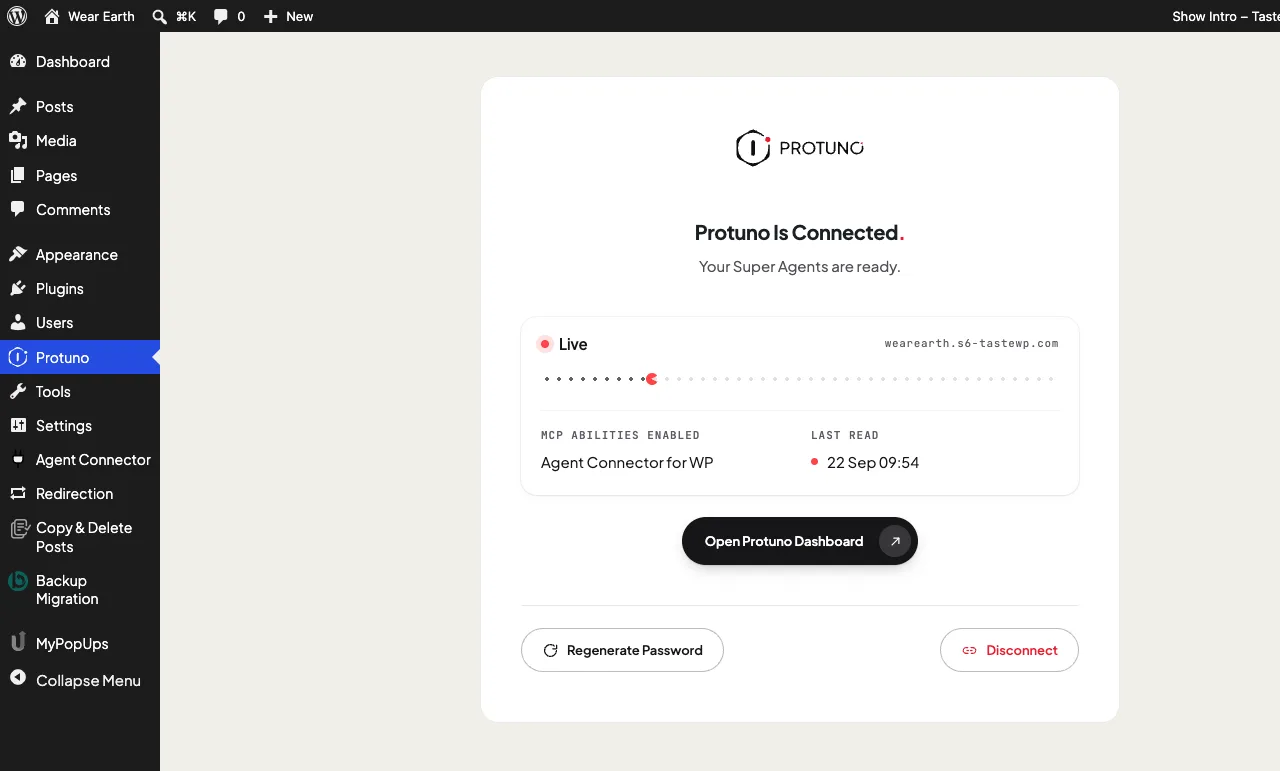
    The Protuno connection screen reading Live
    Live: Protuno has read the site in the last seven days.
    Status What it means
    Live Protuno has read the site in the last seven days. Live here is the connection status, not a sign that this is your live site rather than staging.
    Waiting The password has been handed over, but Protuno has not read the site in the last seven days, or at all yet.
    Disconnected The password has been revoked. Protuno cannot reach the site.

    Underneath are two facts:

    • MCP abilities enabled names the connector that is serving, or says Not running if none is.
    • Last read gives the time Protuno last read the site. Before the first read it shows Credential: Not used yet, and after a disconnect, Revoked.

    The screen updates itself. While the tab is open and visible, it checks every few seconds for up to fifteen minutes and reloads when the connection changes. It never reloads while a new password is on screen, so you will not lose one you have not copied.
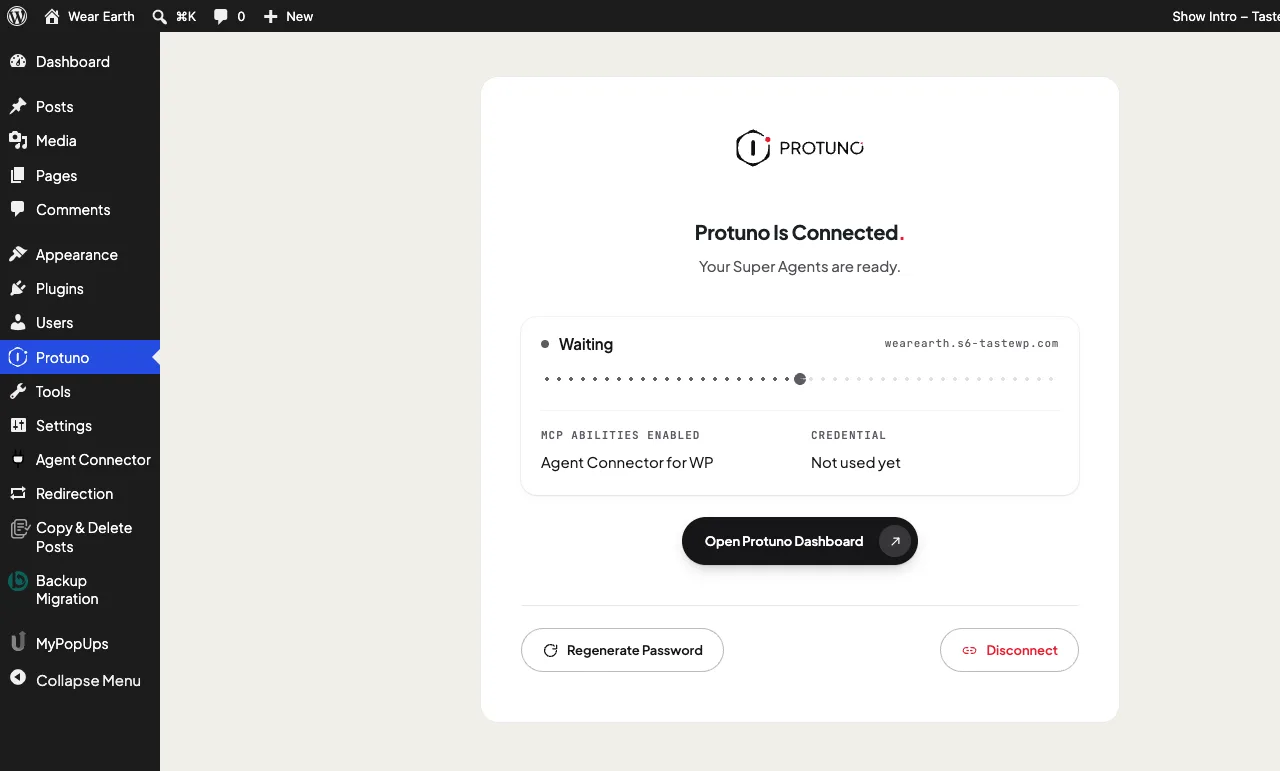
    The Protuno connection screen reading Waiting with Credential Not used yet
    Waiting: the password has been handed over but Protuno has not read the site yet.

    Open Protuno Dashboard takes you to your dashboard on protuno.com.
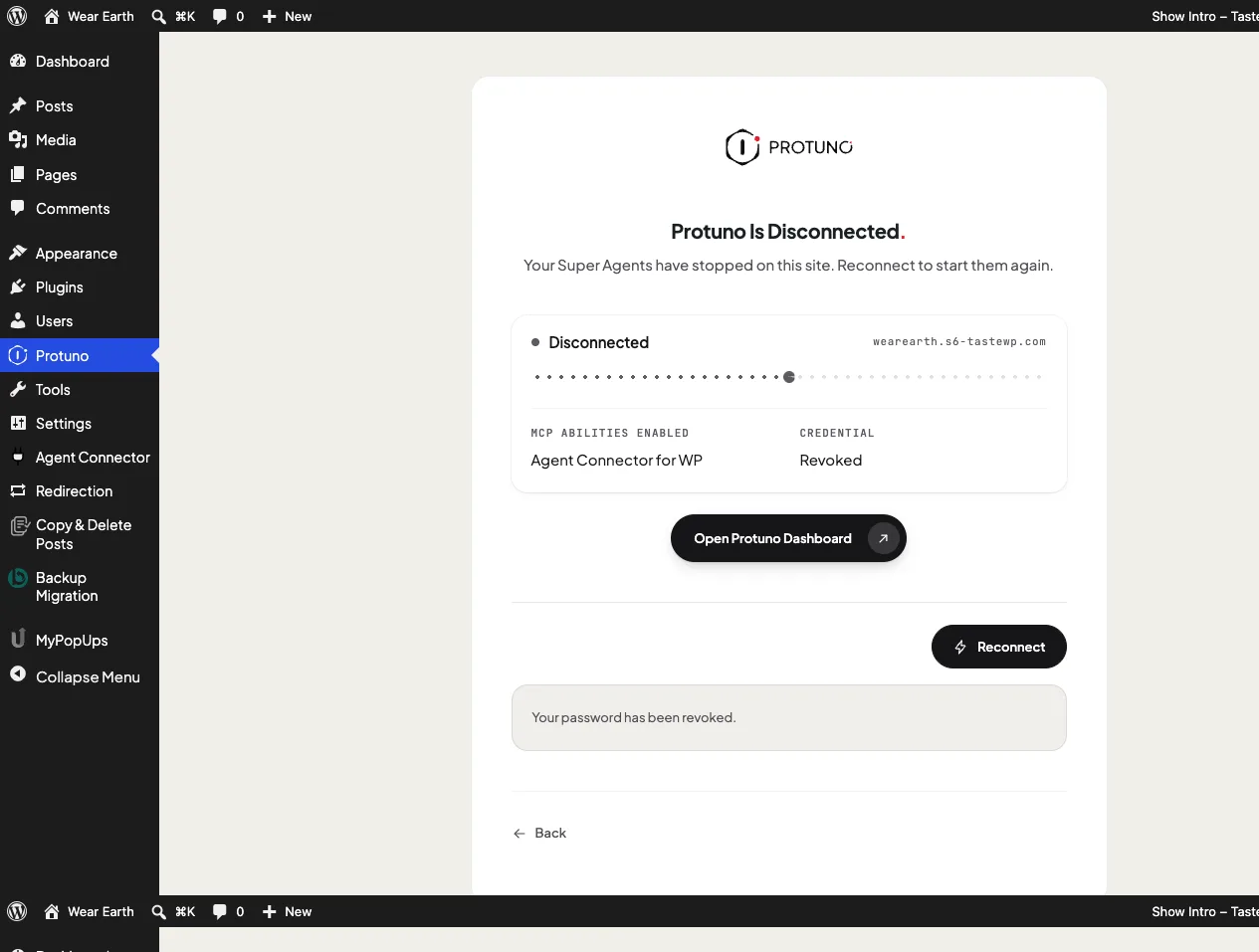
    The Protuno connection screen reading Disconnected with Credential Revoked
    Disconnected: the password has been revoked and Protuno cannot reach the site.

    Regenerate the password

    WordPress shows an application password once. If you lost it, or want to rotate it, make a new one.
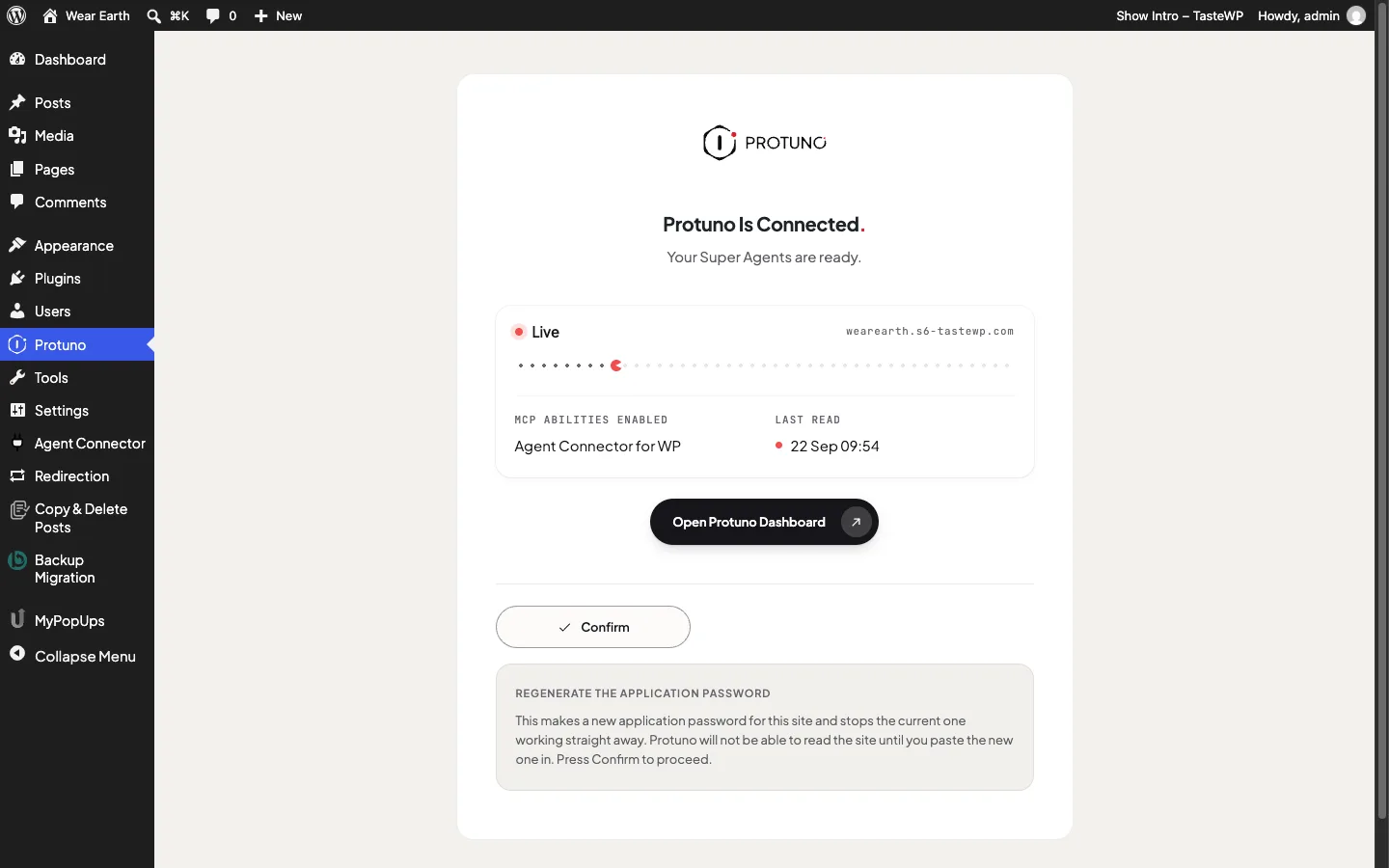
    The regenerate confirmation panel explaining the current password stops working straight away
    Regenerate asks once, and says plainly that the current password stops working immediately.
    1. Press Regenerate Password.
    2. Read the note and press Confirm. The current password stops working straight away, and Protuno cannot read the site until you paste the new one in.
    3. Copy the new username and password. They are shown under Your new application password.
    4. Press Update in Protuno and paste the new password into your dashboard.

    Only an administrator signed in to wp-admin can regenerate. A request made with the Protuno password itself is refused, so Protuno cannot issue itself a new key.

    Disconnect and reconnect

    Press Disconnect, then Confirm. This revokes the password and disconnects your site from Protuno completely. The connector stays installed.
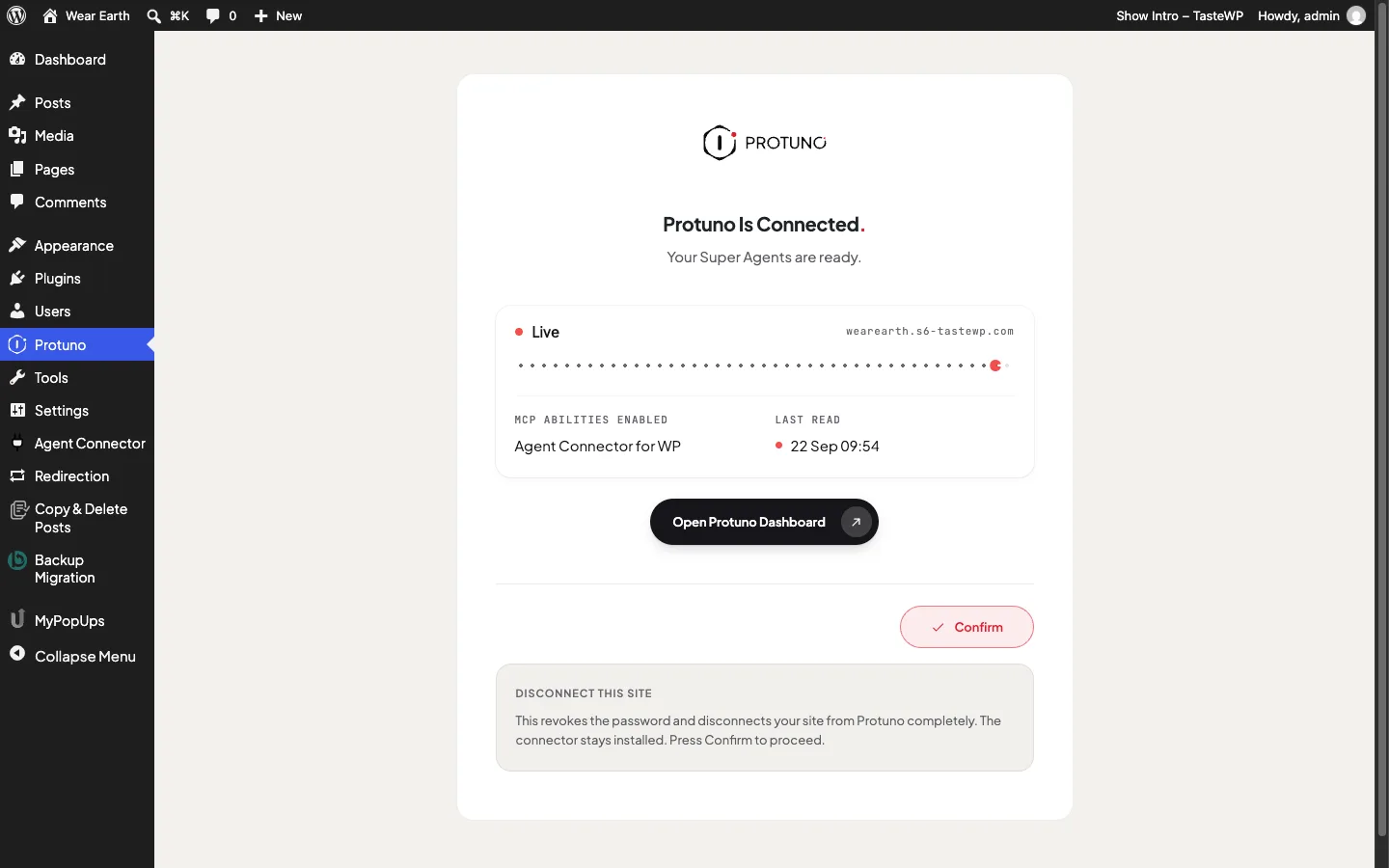
    The disconnect confirmation panel explaining the password is revoked and the connector stays installed
    Disconnect revokes the password. The connector stays installed.

    The screen then reads Protuno Is Disconnected and confirms your password has been revoked. Your Super Agents stop on this site.

    To start again, press Reconnect. If your connector is still set up, the plugin creates a new password straight away. If not, it takes you back to step two first.

    Disconnecting from your Protuno dashboard does the same thing from the other end.

    Revoke from your WordPress profile

    You do not need the Protuno screen, or us, to cut access.
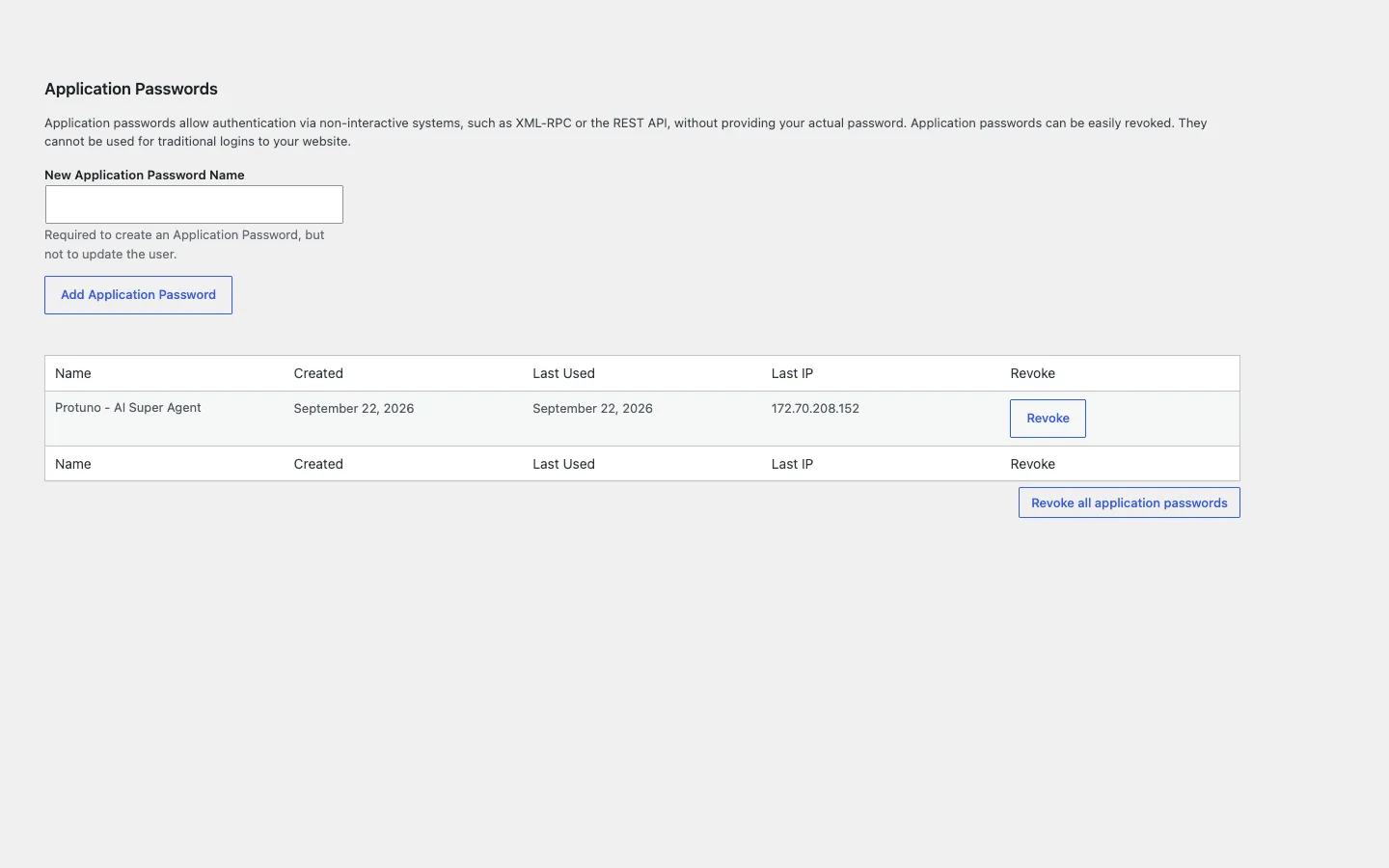
    The WordPress profile Application Passwords section showing Protuno - AI Super Agent with a Revoke button
    Users, Profile, Application Passwords. Revoking here stops the connection at once, without involving Protuno.
    1. In wp-admin, open Users, Profile.
    2. Scroll to Application Passwords.
    3. Find Protuno - AI Super Agent and press Revoke. Sites connected with an older version may show it as Protuno.

    The connection stops at once.

    How the password works

    The credential is a standard WordPress application password. It belongs to the administrator who pressed Continue, and WordPress stores only a hash of it. The plugin keeps no copy.

    It only opens the server you chose. Protuno uses the password to call your site’s REST API and the one MCP server you picked on step two. On any other MCP server on the site, the request is refused with a message saying the site is set to expose only that one connector to Protuno.

    That limit applies to the Protuno password alone. Your own sign-in and other application passwords work as before.

    Regenerate and Disconnect remove every Protuno password on the site, whichever user it belongs to. Application passwords made by other integrations are left alone. On multisite, a Protuno password belonging to a user you cannot edit is skipped, and the screen tells you so.

    What the plugin stores

    No tables, no logs and no user meta. Five small options, each doing one job:

    Option What it is for
    protuno_do_redirect Opens the Protuno screen once, after activation.
    protuno_last_identified When Protuno last read the site. Written at most once a minute.
    protuno_disconnected Tells a disconnected site apart from one that was never connected.
    protuno_mcp_choice Which MCP server you chose.
    protuno_write_lock A short lock so two changes cannot happen at once.

    Deactivating the plugin keeps these. Deleting it removes them all.

    Deleting the plugin does not revoke the password. The connection keeps working until the password is revoked. Disconnect first if you want both gone.

    Where to go next

  • MCP Connectors And Abilities

    The Protuno plugin gives an agent nothing on its own. Every ability comes from an MCP connector: a separate plugin that runs an MCP server on your site and registers what an agent may call.

    Abilities are the individual things an agent can do. Read a post, run an update, check an order. The connector decides which exist, and the plugin shows you which connector is serving before anything is granted.

    Protuno works with three connectors. It only ever installs one of them.

    Supported connectors

    Connector Made by How Protuno treats it
    Agent Connector for WP Soflyy. Free and open source. Recommended, and the only connector Protuno installs for you. Needs WordPress 7.0 and PHP 8.1.
    Angie Elementor Used when it is running an MCP server. You install and update it yourself.
    Novamira Dynamic.ooo Used when it is running an MCP server. You install and update it yourself.

    A site that already runs one of these is never offered an install. Protuno uses what is there.

    Installed, but not serving

    A connector can be active in your Plugins list and still run no MCP server. Some builds of Angie do this. It is switched on, but there is nothing for an agent to connect to.

    When that happens, step two names the plugin and says it is active but not running an MCP server. It then offers Agent Connector, because an agent needs a server to talk to and there is not one yet.

    Agent Connector for WP

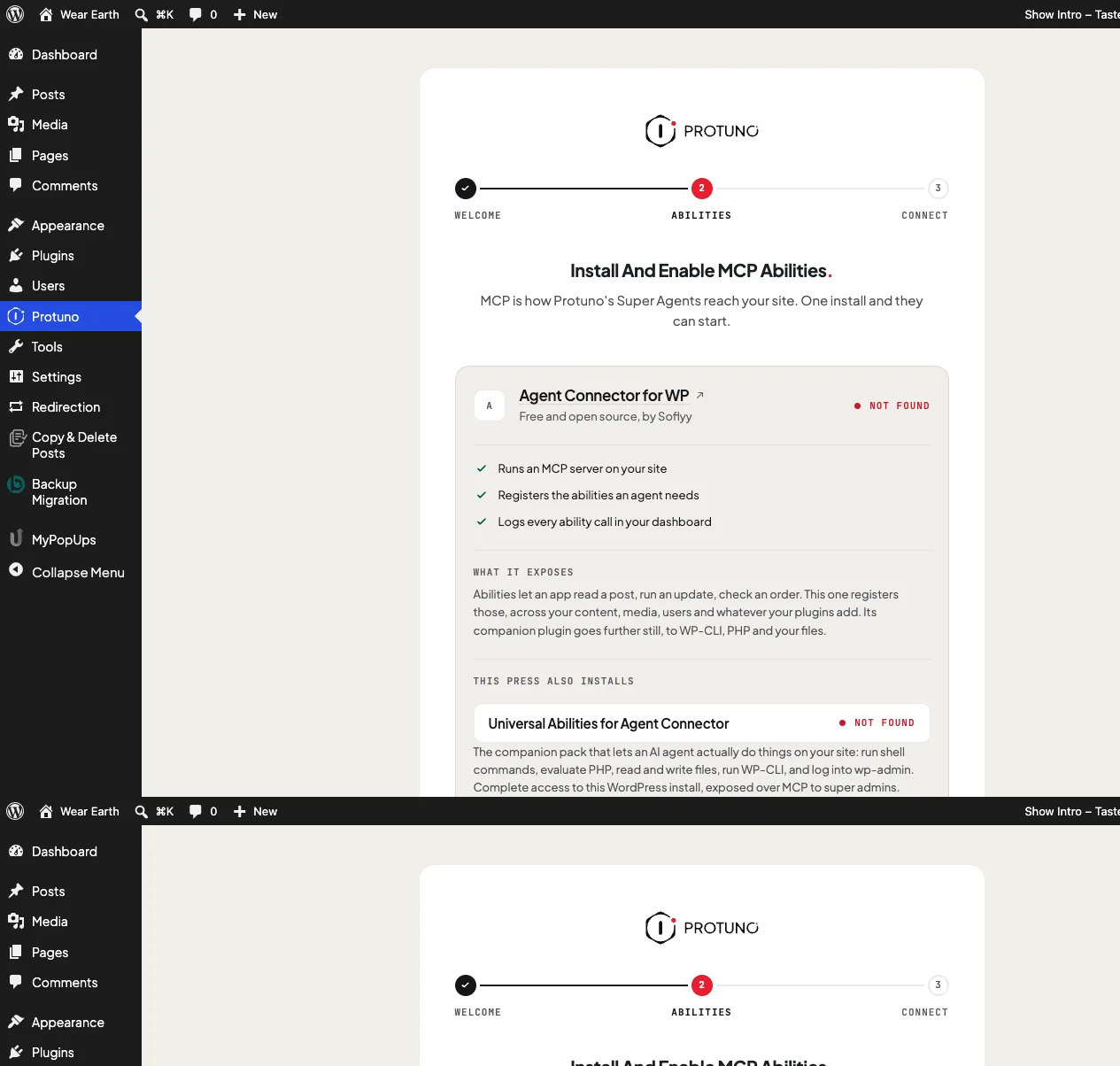
    This is the connector Protuno installs when a site has none. The card on step two lists what it does:

    The Agent Connector card on the Abilities step listing what it runs and what it exposes
    The card Protuno shows before anything is installed: what the connector runs, what it registers, and that the same press adds Universal Abilities.
    • Runs an MCP server on your site.
    • Registers the abilities an agent needs, across your content, media, users and whatever your other plugins add.
    • Logs every ability call in your dashboard.

    It downloads from Soflyy’s own release page. The plugin only accepts downloads from a short list of known addresses over HTTPS, and refuses anything else.

    Universal Abilities

    Universal Abilities is Agent Connector’s companion pack. The same press that installs Agent Connector installs it too, unless your site has turned that off.

    It gives an agent complete access to the install. With it on, an agent can run shell commands, evaluate PHP, read and write files, run WP-CLI and sign in to wp-admin. It is exposed over MCP to super admins.

    That is what lets a Super Agent actually fix things rather than only report them. It is also the part to think about before you leave it on, and the reason we suggest doing the fixing on your staging site. The screen tells you before you press and again after.

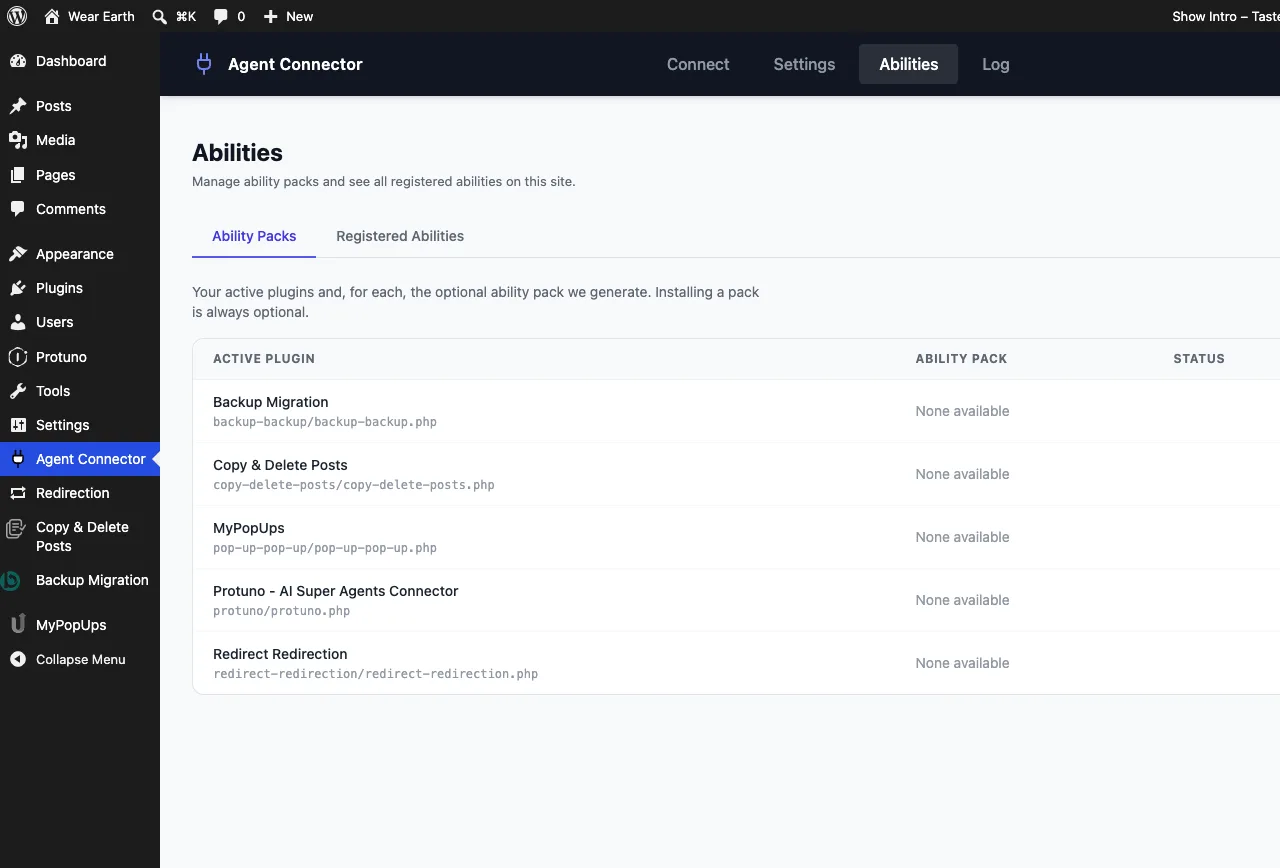
    The Agent Connector abilities list showing registered abilities including shell execution and PHP evaluation
    The abilities actually registered on the site. This list, not the Protuno plugin, is the real answer to what an agent can do here.
    • Every call is logged in your Protuno dashboard.
    • You can switch it off under Plugins at any time. Agent Connector keeps running without it, so your agents can still read the site but can no longer change it.
    • You can switch it back on from step two, which shows Install Universal Abilities or Enable Universal Abilities when the pack is missing or off.

    Universal Abilities works with Agent Connector only. It is listed under Agent Connector on step two while Agent Connector is the server Protuno uses.

    Choosing between servers

    A site can run more than one MCP server at once. Protuno uses exactly one.

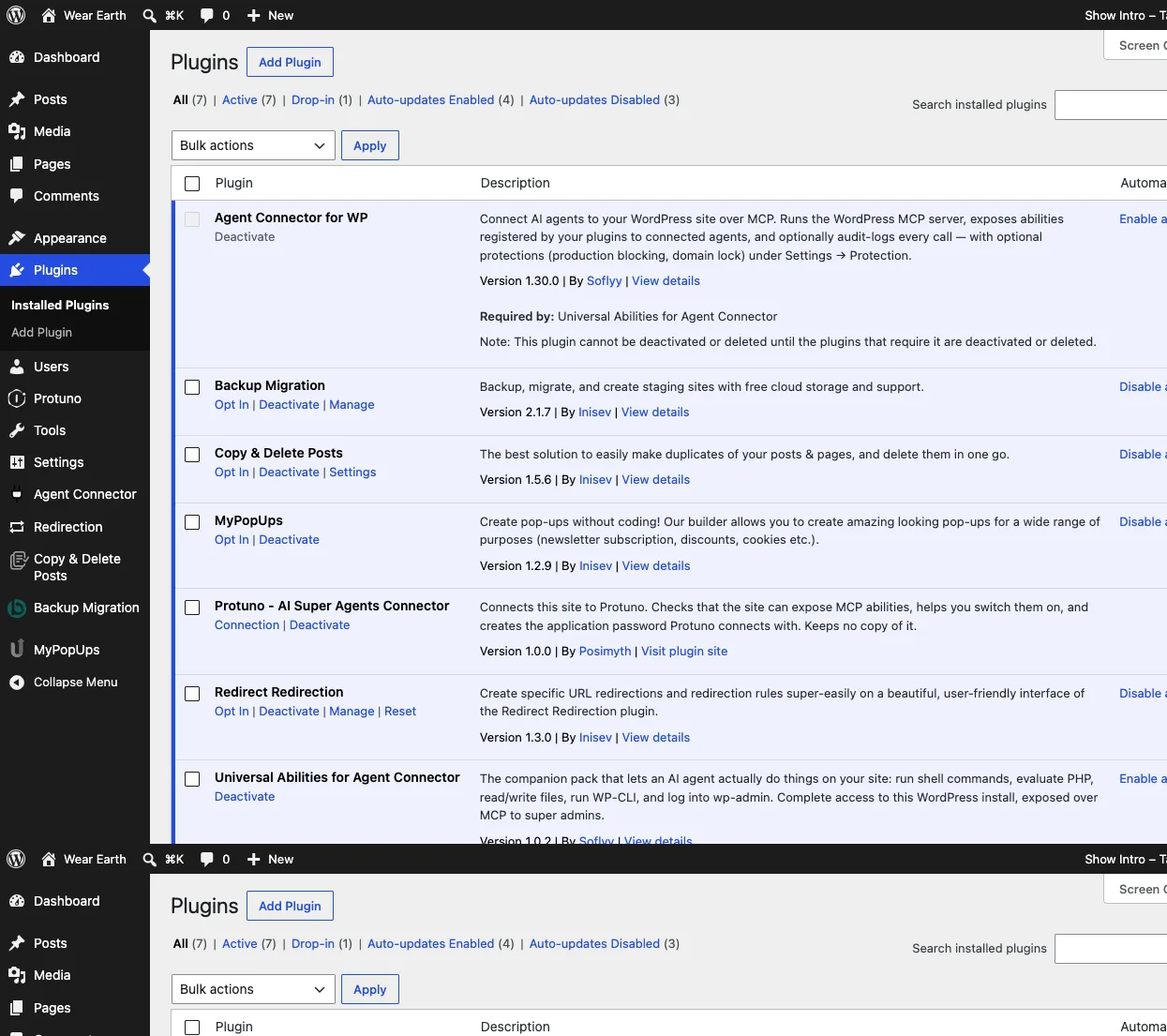
    The WordPress plugins list showing Protuno, Agent Connector for WP and Universal Abilities active
    After setup there are three separate plugins. Switching the companion pack off under Plugins leaves the connector running.

    If there is only one, there is no question to answer. Pressing Continue records it as your choice, so the password stays limited to it even if you add a second connector later.

    If there are several, step two says so and lists them under Providing abilities on this site. Enable the one Protuno should use. Enabling a different one turns the current one off, and Continue stays hidden until one is enabled.

    Protuno cannot reach the others. Its password is refused on every MCP server except the one you chose. Your own logins and any other application passwords are not affected.

    To change your choice later, open the Protuno screen, go back to step two and enable a different server.

    When another MCP server is running

    If your site runs an MCP server that is not one of the three above, step two says an MCP server is already running and that Protuno does not recognise it.

    Nothing needs removing. Your site simply runs a connector Protuno has not been tested against, so it cannot connect through it yet. You have two ways forward:

    • Switch to Agent Connector for WP, Angie or Novamira alongside it, and choose that one on step two.
    • Or turn your current server off and let step two install Agent Connector.

    Where to go next

  • Install And Connect A Site

    Connecting a site takes one plugin, one screen and about two minutes. Do it on your staging site first: Protuno does the work on staging, and your live site is only read. This page walks it from the requirements to the word Live on the connection screen.

    You will not need to open a file, edit a config or talk to your host, unless your site has something switched off that the plugin needs. When that happens, the screen tells you which thing it is.

    Before you start

    Check these first. Most sites already meet all of them.

    What Needs
    WordPress 6.9 or later.
    PHP 7.4 or later.
    HTTPS WordPress only issues an application password on a secure connection. A site set to the local environment type is exempt, so a local test site works.
    Your account An administrator. Anyone who can manage the site’s settings can connect it.
    Application passwords Switched on. They are on by default, but some security plugins turn them off.

    If your site has no MCP connector yet, Protuno installs Agent Connector for WP, and that asks for more: WordPress 7.0 and PHP 8.1. On an older site, step two says exactly which one falls short and offers Read The Requirements in place of the install.

    Install the plugin

    The plugin comes from your Protuno dashboard, not from WordPress.org, so you upload it once by hand.

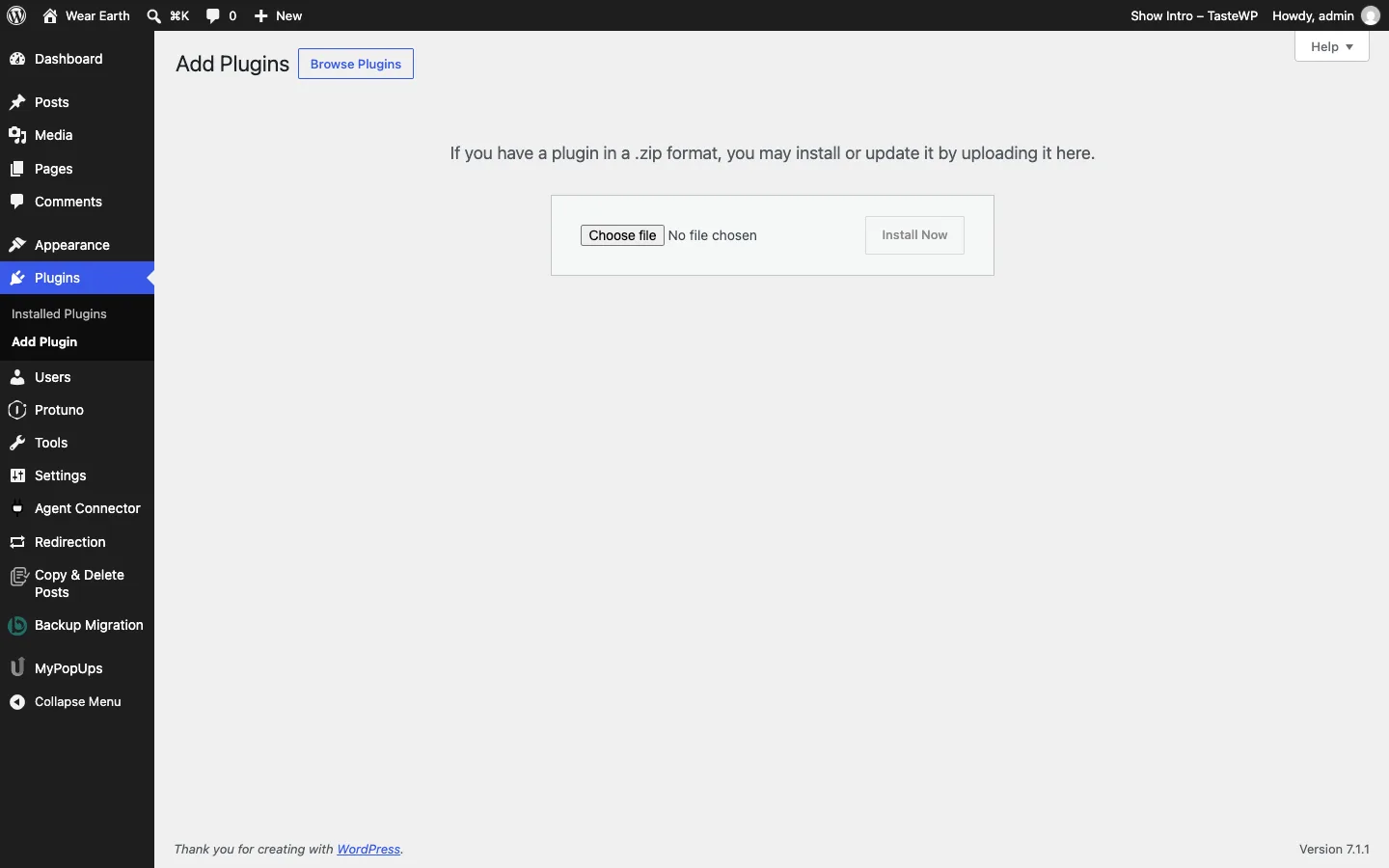
    The WordPress Add Plugins screen with the Upload Plugin panel open
    Plugins, Add New, Upload Plugin. The zip comes from your Protuno dashboard, not from wordpress.org.
    1. Download the plugin zip from your Protuno dashboard.
    2. In your staging site’s wp-admin, open Plugins, Add New, Upload Plugin, choose the zip and press Install Now.
    3. Press Activate.

    The Protuno screen opens by itself. If it does not, which happens on multisite or when you activate several plugins at once, open Protuno in the admin menu, or press Connect site under the plugin’s name on the Plugins screen.

    Updates come from protuno.com and appear under Dashboard, Updates, the same as any other plugin.

    Connect in three steps

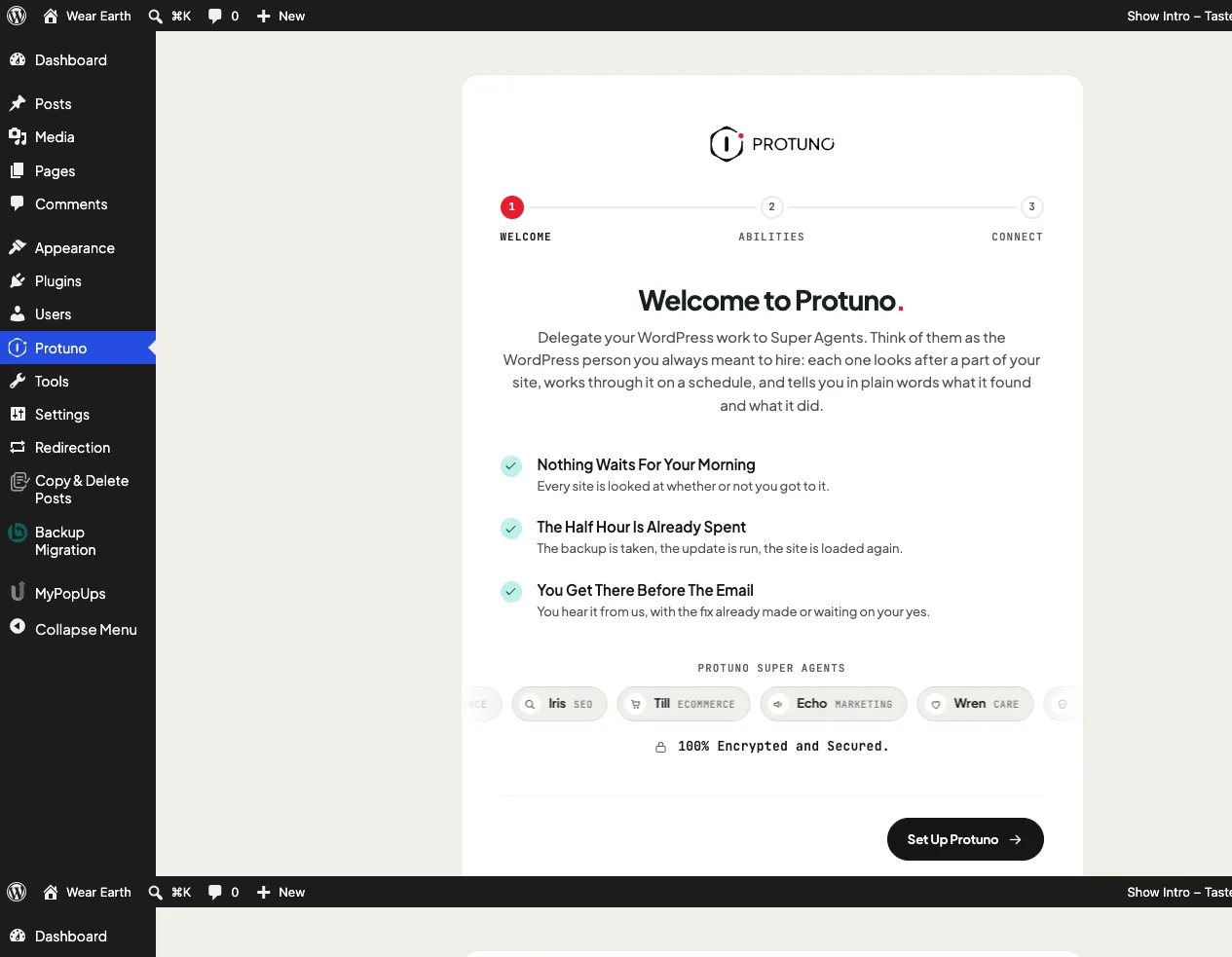
    The screen has a rail across the top: Welcome, Abilities, Connect. Nothing on your site changes until you press a button that says it will.

    Step one: Welcome

    The first screen introduces the Super Agents and what they look after. It changes nothing. Press Set Up Protuno.

    The Protuno Welcome step showing the Welcome, Abilities and Connect rail
    Step one changes nothing. It introduces the Super Agents and hands you a single button.

    Step two: Enable MCP abilities

    The second screen checks whether your site can expose abilities over MCP. It shows one of four things, and the heading tells you which.

    The heading says What it means What to do
    Install And Enable MCP Abilities No MCP connector on the site. Press Install & Enable MCP. It installs Agent Connector for WP and Universal Abilities, and switches both on.
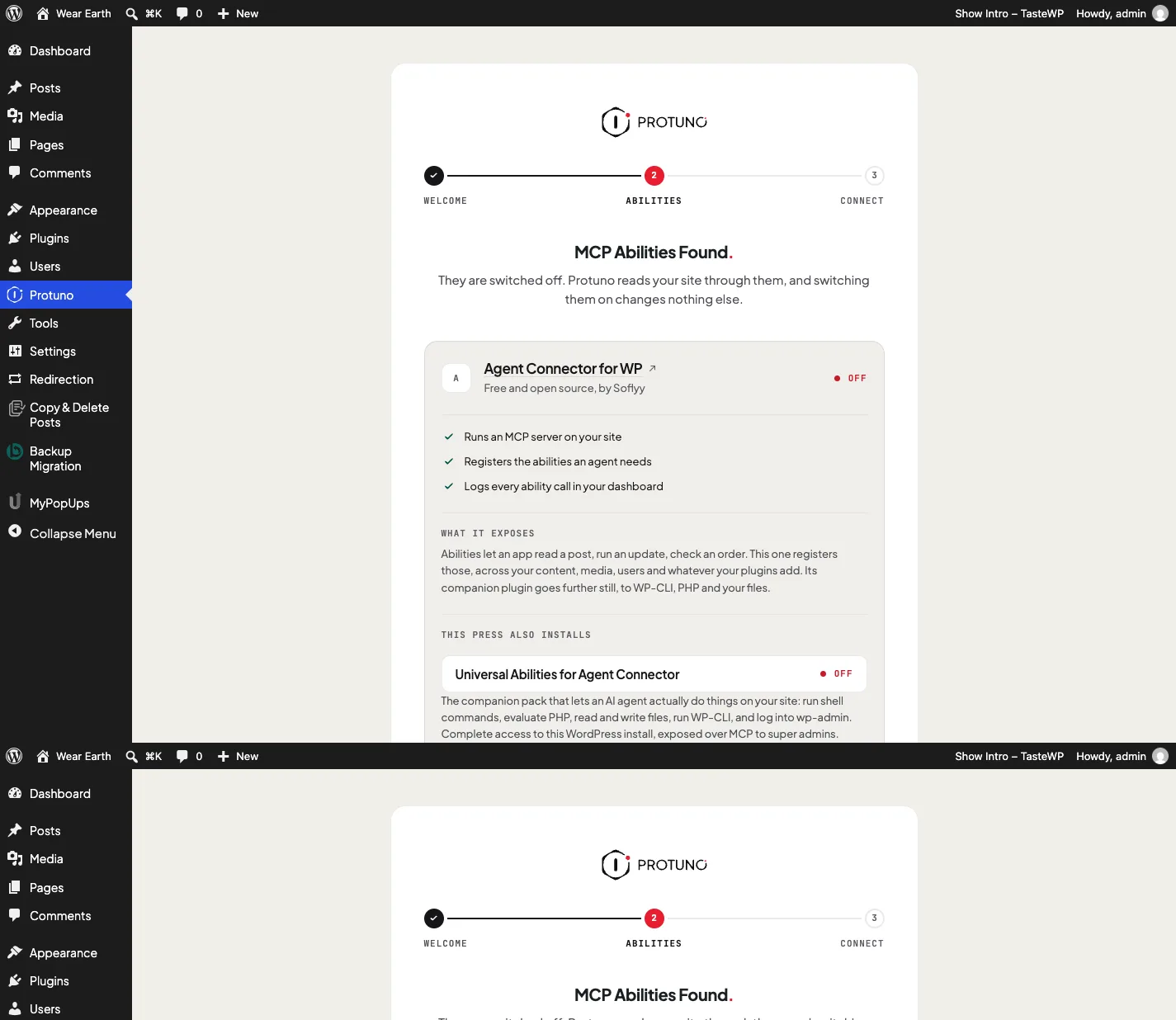
    MCP Abilities Found A connector is installed but switched off. Press Enable The Abilities. Switching them on changes nothing else.
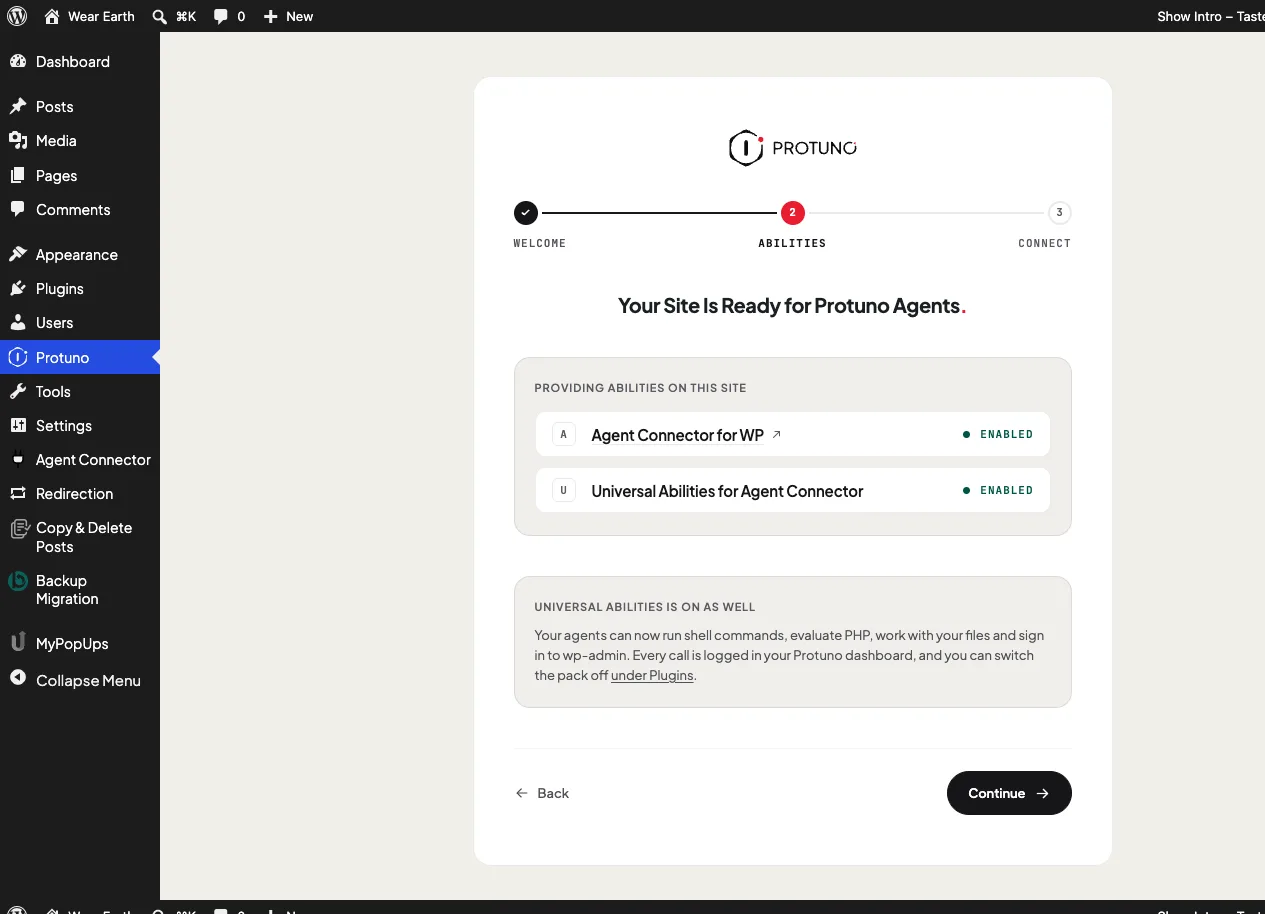
    Your Site Is Ready for Protuno Agents A connector is running. Check it is marked Enabled, then press Continue.
    An MCP Server Is Already Running A server Protuno has not been tested against. Read what to do with an unrecognised server.

    Read what you are switching on. The same press that installs Agent Connector adds Universal Abilities, which gives an agent complete access to the install. The card on this screen says so before you press. It is one more reason to start on staging. Here is what it grants.

    The Abilities step with Agent Connector for WP marked Not found and an Install and Enable MCP button
    No connector on the site: Protuno names the one it will install, lists what it exposes, and says plainly that the companion pack reaches WP-CLI, PHP and your files.

    If your site runs more than one MCP server, this screen asks which one Protuno should use, and Continue stays hidden until one is enabled. Choosing between servers explains why there can only be one.

    The Abilities step reading MCP Abilities Found, they are switched off
    A connector already installed but switched off. Nothing is downloaded; the button only enables what is there.

    If your site does not allow plugins to be installed from the dashboard, the button reads Get The Connector instead. Install it by hand, come back, and the screen picks up where it left off. Switching on a connector that is already installed still works.

    When the connector is running, press Continue. This is the moment the password is created.

    The Abilities step reading Your Site Is Ready for Protuno Agents with both packs marked Enabled
    When the abilities are serving, the step confirms which packs are on. Press Continue to move to the credential.

    Step three: Copy your credentials

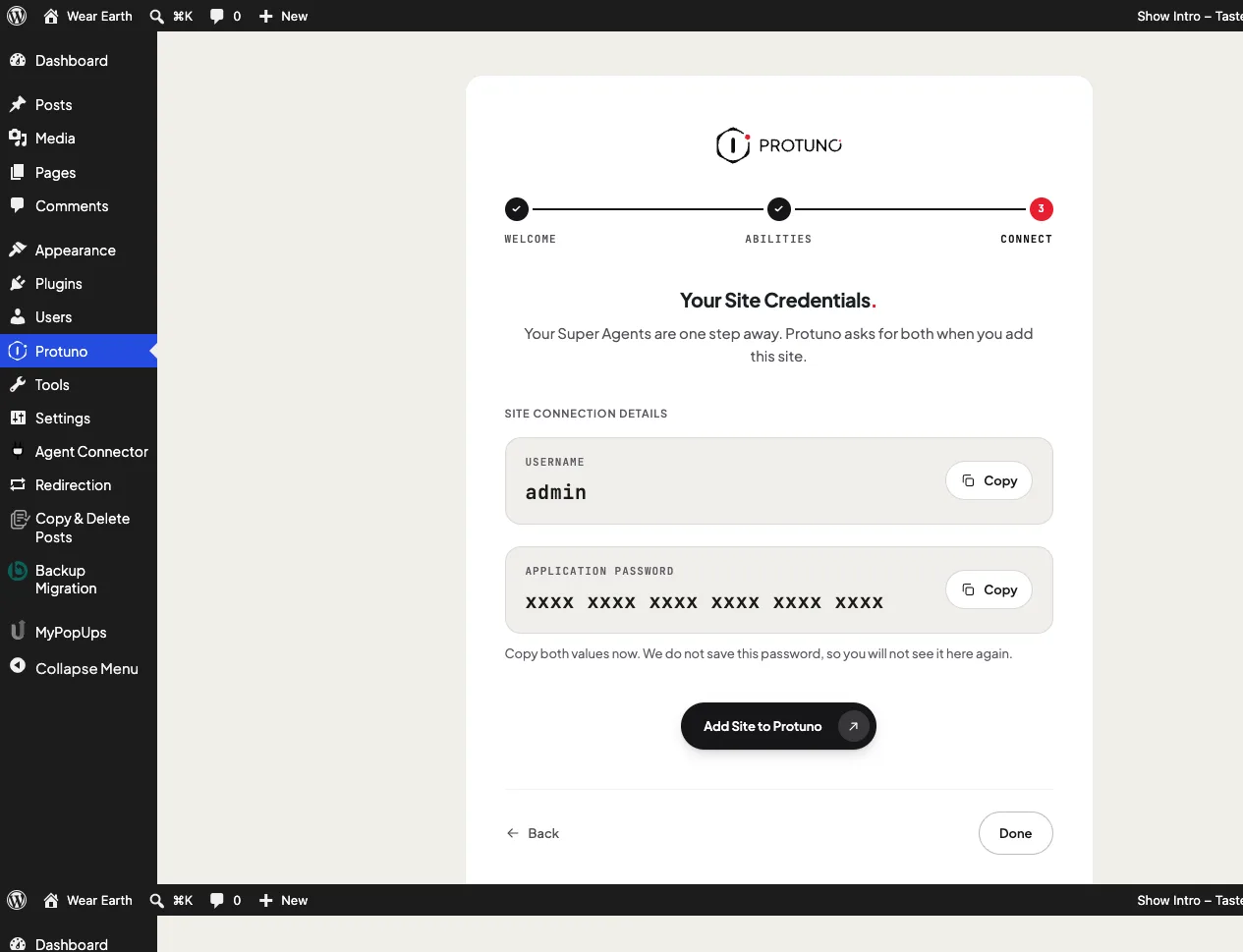
    The third screen, Your Site Credentials, shows two values: Username and Application password. Each has its own Copy button.

    You see the password once. The plugin does not save it, so it will not be shown here again. If you leave before copying it, make a new one with Regenerate Password on the connection screen.

    The Protuno credentials screen showing a username and an application password, password obscured
    Shown once. Copy both before you leave the screen.

    Press Add Site to Protuno. It opens your Protuno dashboard with this site already filled in. Paste both values there and save.

    Back in wp-admin, press Done.

    How you know it worked

    The Protuno screen becomes the connection screen, headed Protuno Is Connected. It reads Waiting until Protuno reads the site for the first time, then Live.

    The Protuno connection screen reading Live with the connector name and last read time
    Live, the connector that is serving, and the time Protuno last read the site.

    You do not need to reload. While the tab is open, the screen checks by itself every few seconds and updates when Protuno arrives.

    If it stays on Waiting after you have pasted both values, see Stuck on Waiting.

    Where to go next

  • The Protuno Plugin, Explained

    The Protuno plugin is the one thing you install on a WordPress site to connect it to Protuno. Install it on your staging site first, because that is where Protuno does the work. It is small on purpose.

    It does three jobs on one screen in wp-admin, then it gets out of the way. It never keeps a copy of the password it makes.

    This page covers what those jobs are, what the plugin leaves alone, and where the real access comes from.

    Three jobs, one screen

    Everything happens on one screen, under Protuno in the wp-admin menu. It opens by itself the first time you activate the plugin.

    The Protuno setup screen in wp-admin showing the Welcome, Abilities and Connect steps
    It opens by itself the first time you activate the plugin. Three steps across the top, and nothing else added to your admin menu.

    Step one: It checks what your site can expose

    Protuno’s Super Agents reach a site over MCP, the protocol apps use to call the abilities a site offers. The plugin does not run MCP itself. It looks for a connector that does: Agent Connector for WP, Angie or Novamira.

    If none is there, it installs Agent Connector for WP with one press. If one is installed but switched off, it switches it on. If more than one is running, it asks you which one Protuno should use.

    The Abilities step showing Agent Connector for WP marked Not found, with an Install and Enable MCP button
    On a site with no MCP connector, the second step names the one it will install, lists what it exposes, and says plainly that the companion pack reaches WP-CLI, PHP and your files. Nothing is installed until you press the button.

    Step two: It creates the credential

    When you press Continue, the plugin creates a WordPress application password named Protuno - AI Super Agent and shows it to you, with your username, once. You paste both into Protuno when you add the site.

    The Protuno screen showing a username and an application password, with the password obscured
    Shown once, with your username. Copy both before you leave the screen, because the plugin keeps no copy of the password.

    Step three: It reports the connection

    After that, the screen becomes a status page. It says whether the site is Live, Waiting or Disconnected, and when Protuno last read it. From there you can make a new password or disconnect.

    The Protuno connection screen reading Live, with the connector name and the time of the last read
    After that the screen is a status page: Live, Waiting or Disconnected, which connector is serving, and when Protuno last read the site.

    What it does not do

    The plugin connects. It does not act. That line is drawn in what it is built to do, not in a setting.

    • It registers no abilities and runs no MCP server. Everything an agent can do on your site comes from the connector you enable.
    • It runs nothing for a remote caller. It executes no PHP, reads no options and lists no plugins for anyone outside wp-admin.
    • It keeps no copy of the password. WordPress stores only a hash of it, the way it does for every application password.
    • It creates no tables, no logs and no user meta. It writes five small options, and deleting the plugin removes them.

    The plugin is the doorway, not the room. What Protuno can do on your site is set by the connector you enable, and the screen shows you that before anything is granted.

    How the pieces fit

    Four things are involved in a connection. Only one of them is this plugin.

    The WordPress plugins list showing Protuno, Agent Connector for WP and Universal Abilities all active
    Three separate plugins after setup. Protuno connects. Agent Connector runs the MCP server. Universal Abilities supplies the abilities that can change a site.
    Piece What it does Where it lives
    Protuno plugin Checks the site, creates the credential, reports the connection. Your site
    MCP connector Runs the MCP server and registers the abilities an agent can call. Your site
    Universal Abilities An optional pack for Agent Connector that lets an agent change things, not just read them. Your site
    Protuno dashboard Where you paste the credential, approve each change and read every run. The Super Agents work from your AI app, through Protuno. protuno.com

    Universal Abilities, said plainly

    When the plugin installs Agent Connector for WP, the same press adds Universal Abilities, its companion pack. It lets an agent run shell commands, evaluate PHP, read and write files, run WP-CLI and sign in to wp-admin.

    That is complete access to the install, and the screen says so before you press and again after. That is the reason to do the work on your staging site. Every call is logged in your Protuno dashboard, and you can switch the pack off under Plugins at any time. Agent Connector keeps working without it; your agents can then read the site but not change it. If you also connect your live site, consider switching the pack off there.

    The Agent Connector abilities screen listing registered abilities including shell execution and PHP evaluation
    The abilities actually registered on the site, listed inside Agent Connector. This is the real answer to what an agent can do here, not anything the Protuno plugin decides.

    One server, and only that one

    If your site runs more than one MCP server, you choose which one Protuno uses. Protuno’s password is then refused on every other MCP route on the site. Your own logins and any other application passwords are not affected.

    You hold the key

    The password belongs to your WordPress user and lives in your site. You can end the connection from either end, without asking us:

    The WordPress profile Application Passwords section showing Protuno - AI Super Agent with a Revoke button
    Users, Profile, Application Passwords. Revoke it here and the connection stops at once, without asking Protuno.
    • Press Disconnect on the Protuno screen in wp-admin.
    • Or open Users, Profile, Application Passwords and revoke Protuno - AI Super Agent.

    Either way the connection stops at once.

    Deleting the plugin does not revoke the password. It removes the plugin’s own settings, but the connection keeps working until the password is revoked. Disconnect first if you want both gone.

    Where to go next

  • What Is Protuno

    Protuno gives you a way to hand WordPress work to software and still know what happened.

    You point it at a site. It reads the site and tells you what it found in plain words. Then you connect the AI app you already use, such as Claude, and ask it to fix things. The AI app plans the work, you approve it in Protuno, and Protuno does the work on your staging site and writes down what it did. You check the fixes there, then move them to your live site in your own way.

    That is the whole idea. The rest of this page is how it works and what is live today.

    Start with the free audit

    The audit takes a domain and nothing else. No plugin, no login, no access to your server.

    It runs 54 checks from the address alone. Connect the site and that becomes 85, across eight areas: Security, Mail and DNS, SEO and Indexing, WordPress, Certificates, Performance, Commerce and Backups.

    Every one of them is read only. Nothing is written, nothing is changed, and the site does not know it is being looked at any more than it knows a visitor arrived.

    You get a score, and underneath it the findings that produced it. Not only a grade: “A certificate expires in 9 days” rather than “Security: B minus”. A finding you can forward to a client without rewriting it first.

    Run one at protuno.com. It takes about forty seconds.

    Connect a site to see inside it

    An address only tells you so much. Connecting a site adds 31 checks that can only be read from inside the install: which plugins are actually active, what version of PHP is really running, whether the debug log is writing to a file anyone can download.

    Connecting is three steps and takes about two minutes. Start with your staging site. Protuno does the work on staging. Your live site is only read.

    Step one: install the connector

    Download the Protuno Super Agent Connector from your dashboard, upload the zip in your staging site’s Plugins, Add New, Upload Plugin, and activate it. It is free, and it is the only thing you install.

    Step two: the site declares what it can do

    The connector reads which abilities the site can offer and shows them to you before anything is granted. You see the list; you are not asked to trust a description of it.

    Step three: paste a credential you own

    The plugin creates a WordPress application password and shows it to you once. You paste it into Protuno along with your username. The plugin keeps no copy.

    You can revoke it from your own WordPress user profile at any moment, without asking us, and the connection dies immediately. The key is yours, it lives in your site, and you can burn it whenever you like.

    Then connect your AI app

    Protuno has no AI to buy. The thinking happens in the AI app you already use, such as Claude, Claude Code, Codex or Cursor, on your plan there. You add Protuno to it once, sign in to Protuno and press Allow. There is no API key to copy. Letting it run code on your sites is a separate box, off unless you tick it, and code only runs on sites set to Execute. Connect your AI app has every step.

    Playbooks are the unit of work

    A playbook is one job, written out step by step before it ever runs.

    Take a backup. Check the backup is sound. Apply these updates. Load the site. Walk the checkout. If the site stops answering, put it back.

    No model decides at runtime what looks reasonable. You can read the entire sequence before you allow it, and it does the same thing on Tuesday that it did last Tuesday.

    That matters more than it sounds. An agency cannot audit a vibe. It can audit a list of steps.

    Super Agents do the work, in your AI app

    A Super Agent is a named agent that owns a group of playbooks. You ask one in your AI app, for example “Dash, clean up the database on my shop”. It shows you a plan, waits for you to approve it in Protuno, then runs the steps one at a time.

    • Wren, Care. Runs your updates behind a restore point, then loads the site again to be sure it still works.
    • Rook, Security. Reads what your site really has installed and closes the doors most installs leave open.
    • Dash, Performance. Finds the 4MB hero image and the cache that is not caching.
    • Iris, SEO. Crawls your site the way a search engine does.
    • Till, eCommerce. Walks one of your real products to the payment step.
    • Echo, Marketing. Confirms your forms still post and your tracking still fires.

    Only you can approve a plan, by pressing Approve on its card in Protuno. Your AI app can propose a plan, check it and decline it, but it cannot approve one.

    Permission is the product

    Permission is set per site, and there are two settings:

    • Read only. It analyses and reports. It changes nothing.
    • Execute. It may change files, the database and settings.

    A site you connect as a live site starts in Read only. A staging site starts in Execute, because staging is where Protuno does the work. Keep it that way: fix on staging, check the result there, then move the fixes to your live site in your own way, with your host’s push-to-live or the tools you already use. Only you can switch a site to Execute, in Protuno. Your AI app can set a site to Read only, never to Execute.

    On a Read-only site the tools that could change anything are taken out of the run before it starts, so the work is not a matter of asking the software nicely. An instruction is a policy. Taking the tool away is a good deal stronger than a policy.

    17 of the 27 playbooks only read. The other 10 can change something, and they say so on their own card before you run one.

    A playbook that changes a site takes a backup first and checks it is sound before it goes any further. Plugin updates go further still: each plugin folder is stashed before its update and put back if the site stops answering. Three playbooks can also be rolled back from the run report afterwards, and the report tells you which changes it can undo and which it cannot.

    Activity is the receipt

    Every run across every site you can see, newest first, each with its own report.

    It is the least exciting screen in the product and possibly the most important one, because “what did you actually do this month” is a question every agency gets, and the honest answer should not be a memory.

    What is live today

    • Live now. The free site audit. 54 read-only checks from a domain alone.
    • Live now. Connecting a site, the connector plugin, and the 31 deeper checks that come with it.
    • Live now. 27 playbooks on every plan. Run any of them from your AI app, and put them on a schedule with routines on Pro and Agency.
    • Live now. The six Super Agents, working in your AI app. You approve every change in Protuno, and Protuno takes a backup first and can undo it.

    We are shipping in order of least risk to most: the playbooks that only read, then updates behind a backup that has been checked, then the ones that change more.

    Where to go next