The Brain is what Protuno remembers about your sites: rules you gave it, lessons it learned from runs, and patterns it noticed across sites. Every run uses them.
Where to see it
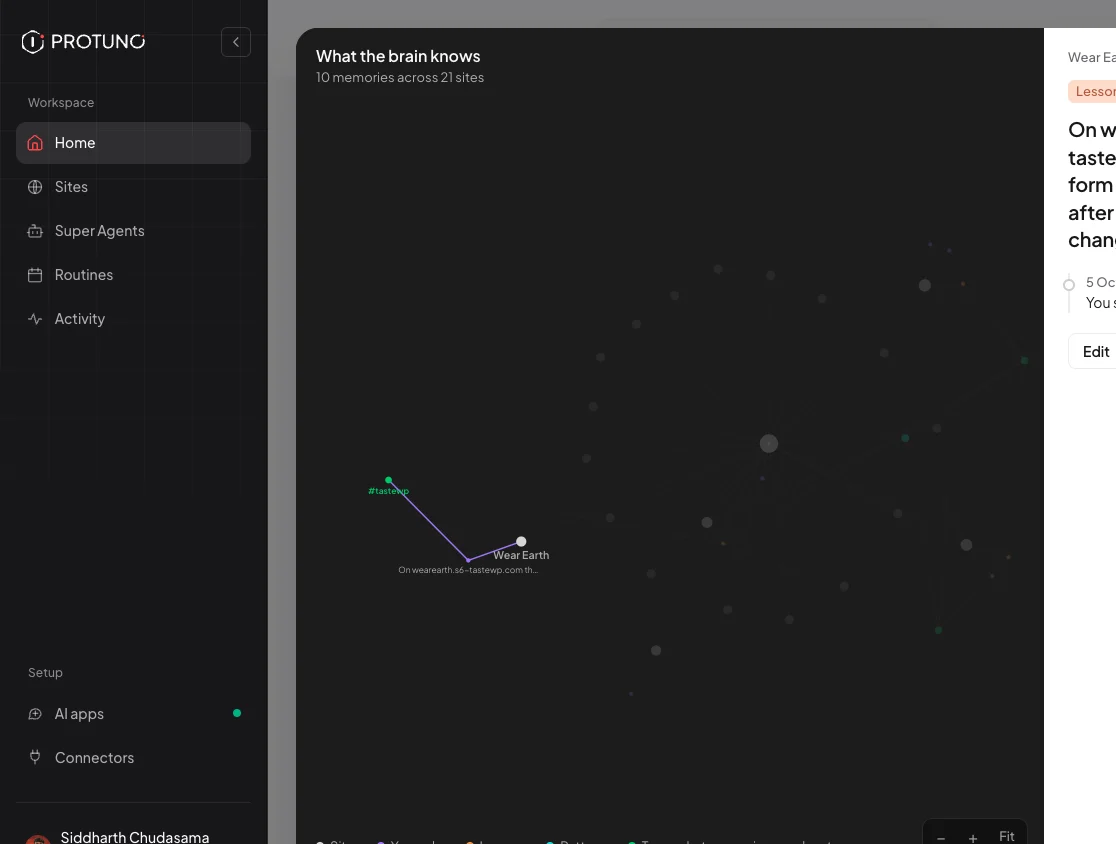
On Home, under What Protuno remembers, press Open Brain. It opens What the brain knows: a map of your sites, their memories and the tags that connect them. The key along the bottom shows Sites, Your rules, Lessons, Patterns and Tags.
Click a site or a dot to read the memory, see where it came from, and edit or forget it.
Read, edit or forget
Click a site or a dot to read a memory and see where it came from, for example “You said it in chat”. Then press Edit to change it, or Forget this to remove it.
Adding memories
Tell your AI app a rule, for example “Always update UpdraftPlus before any other plugin on my shop”, and it saves it to the Brain. Your AI app can also edit and forget memories for you.
How rules are used
Your saved rules are checked before any change. Notes saved about a site are treated as information, never as instructions.
The Brain is on every plan, Free included. Saving and recalling memories costs nothing extra.
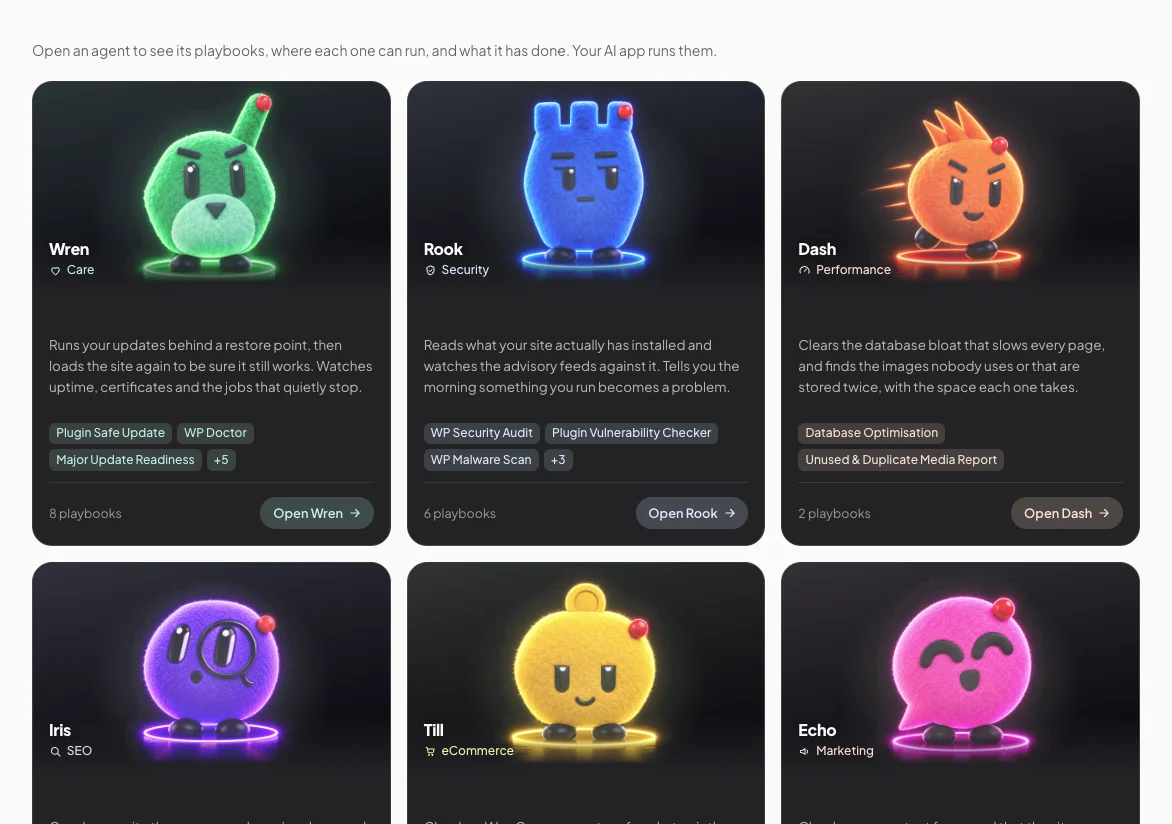
Echo looks after Marketing. Checks your contact forms and that the site can actually send email, and keeps comment spam and stray text under control.
Ask Echo in your AI app, for example “Echo, check my contact forms still send”. Echo shows you a plan, you approve it in Protuno, and it runs the playbooks one step at a time.
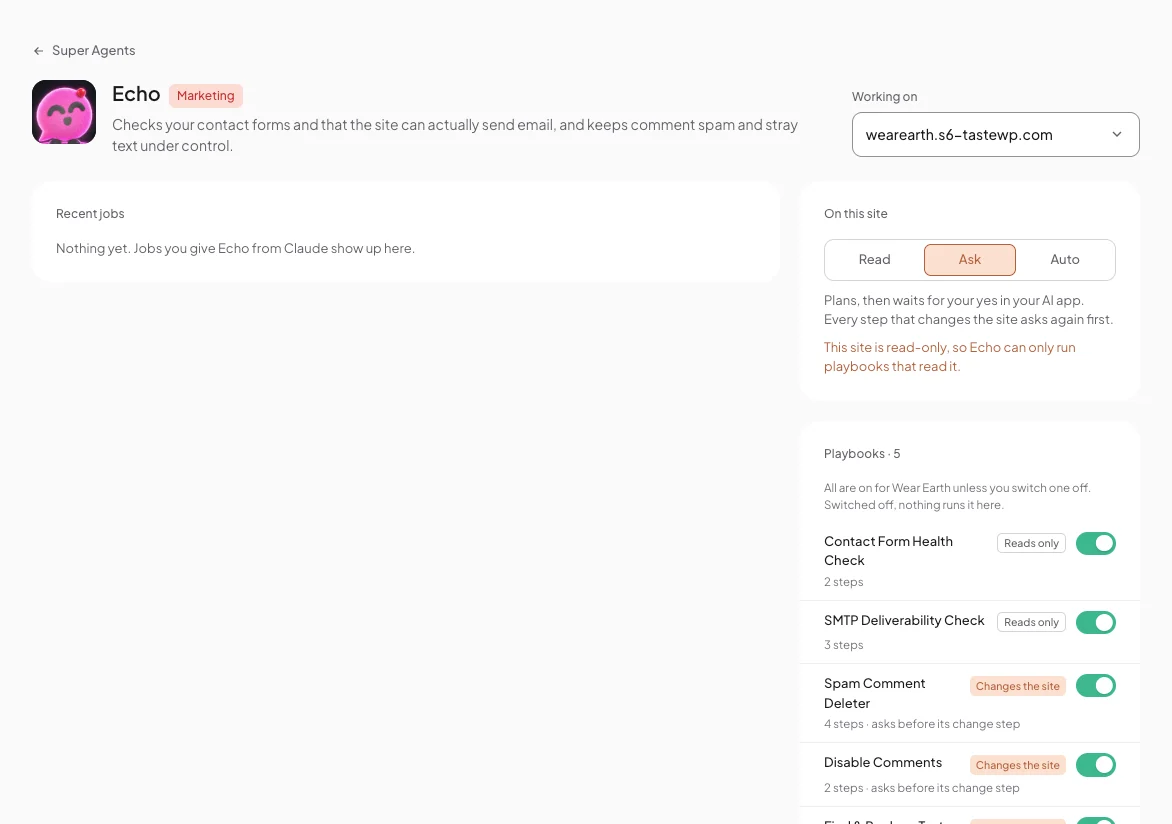
Echo’s page: the site it works on, its level on that site, and its playbooks.
Echo’s playbooks
Echo has 5 playbooks. 3 can change the site, and each asks before its change step. The other 2 only read.
Playbook
Reads or changes
Steps
What it does
Contact Form Health Check
Reads only
2 steps
Checks your form setup: form plugins, where forms sit, missing SMTP, a From address on another domain, forms with no recipient and missing spam protection. Never sends a test email.
SMTP Deliverability Check
Reads only
3 steps
Checks the site can really send email with a real test send, and reports SPF, DKIM and DMARC.
Spam Comment Deleter
Changes the site
4 steps · asks before its change step
Moves confirmed spam comments to the trash, after a plan you can read, then reports what was removed.
Disable Comments
Changes the site
2 steps · asks before its change step
Stops new comments and pings: closes the Discussion defaults and up to 25 open items per run. Existing comments are never deleted. Can be rolled back.
Find & Replace Text
Changes the site
2 steps · asks before its change step
Replaces a phrase you choose in post and page titles, excerpts and content, at most 10 items per run, showing each change before and after. Can be rolled back.
On Echo’s page
Pick a site under Working on. Recent jobs shows what you gave Echo from your AI app. On this site sets its level there: Read, Ask or Auto. Every playbook is on for that site unless you switch it off.
Till looks after eCommerce. Checks a WooCommerce store for what quietly stopped working: stuck orders, payment gateways left in test mode, stock, webhooks and store pages.
Ask Till in your AI app, for example “Till, check my store for stuck orders”. Till shows you a plan, you approve it in Protuno, and it runs the playbooks one step at a time.
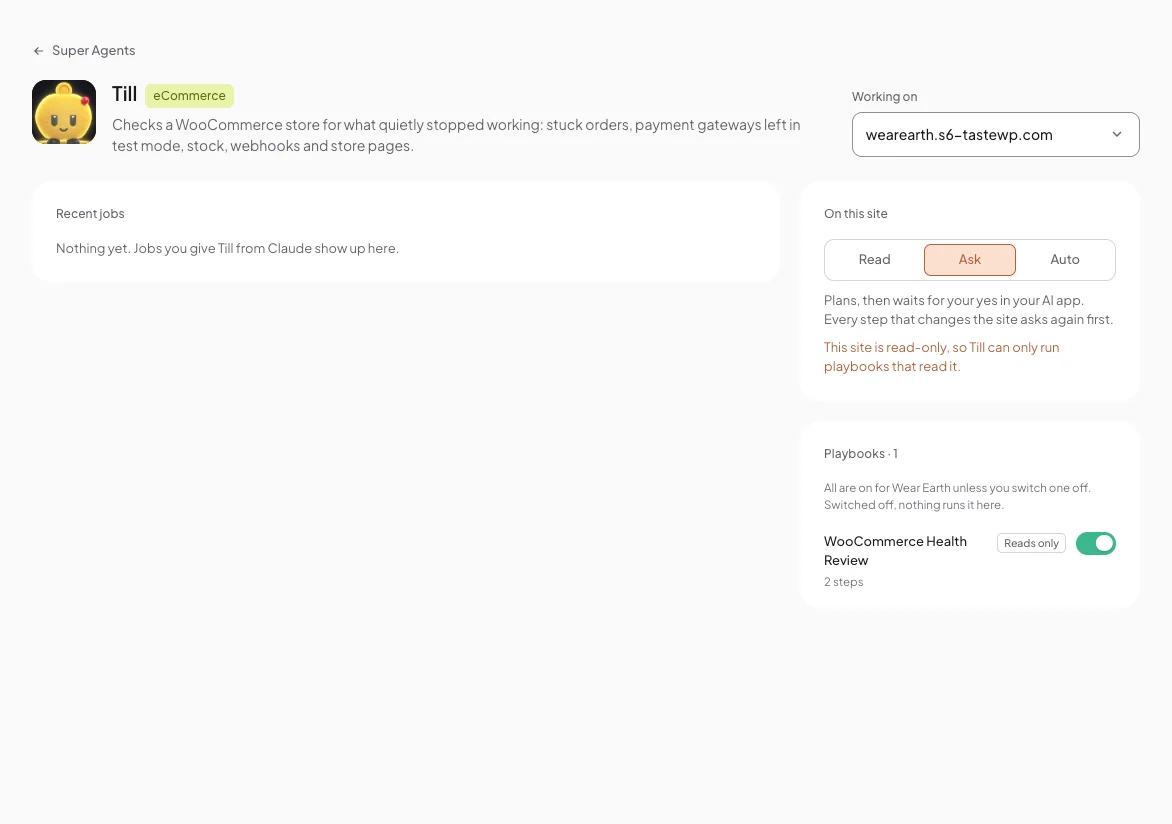
Till’s page: the site it works on, its level on that site, and its playbooks.
Till’s playbooks
Till has 1 playbook, and it only reads the site.
Playbook
Reads or changes
Steps
What it does
WooCommerce Health Review
Reads only
2 steps
Checks a WooCommerce store for what quietly stopped working: stuck and failed orders, payment gateways left in test mode, stock, switched-off webhooks and missing store pages.
On Till’s page
Pick a site under Working on. Recent jobs shows what you gave Till from your AI app. On this site sets its level there: Read, Ask or Auto. Every playbook is on for that site unless you switch it off.
Iris looks after SEO. Crawls your site the way a search engine does, and reports the pages that quietly stopped being linked or indexed.
Ask Iris in your AI app, for example “Iris, find the broken links on my blog”. Iris shows you a plan, you approve it in Protuno, and it runs the playbooks one step at a time.
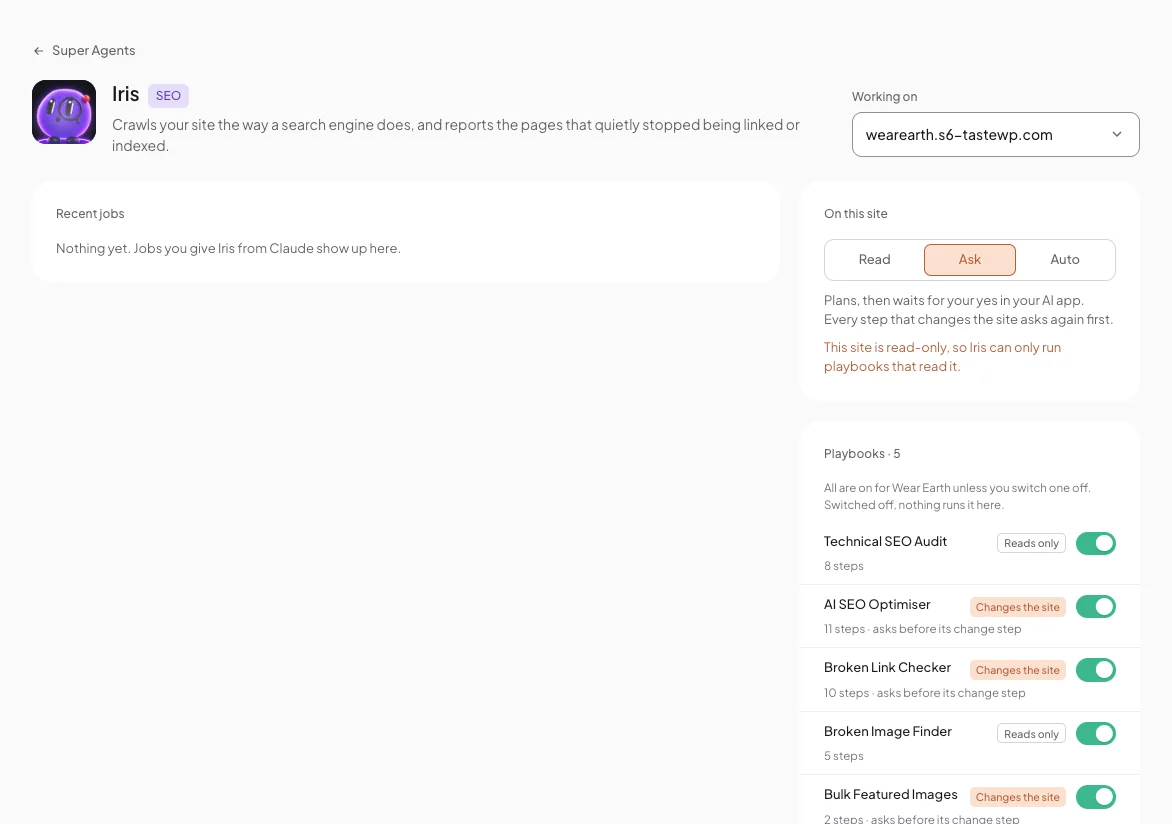
Iris’s page: the site it works on, its level on that site, and its playbooks.
Iris’s playbooks
Iris has 5 playbooks. 3 can change the site, and each asks before its change step. The other 2 only read.
Playbook
Reads or changes
Steps
What it does
Technical SEO Audit
Reads only
8 steps
A full SEO audit: crawling, indexing, sitemaps and robots, canonicals and redirects, schema and Core Web Vitals, across up to 50 pages, ranked by impact.
AI SEO Optimiser
Changes the site
11 steps · asks before its change step
Improves the SEO of one post at a time: title, meta description, image alt text and structured data, applied behind a backup and a WordPress revision so it can be undone.
Broken Link Checker
Changes the site
10 steps · asks before its change step
Finds broken links across up to 50 pages and fixes only the safe ones, where there is one clear replacement. Every fix can be rolled back.
Broken Image Finder
Reads only
5 steps
Finds broken images and missing alt text across up to 50 pages. Changes nothing.
Bulk Featured Images
Changes the site
2 steps · asks before its change step
Sets a featured image on published posts that have none, from images in your library whose names match the post title. At most 25 per run, never replaces an existing image, and can be rolled back.
On Iris’s page
Pick a site under Working on. Recent jobs shows what you gave Iris from your AI app. On this site sets its level there: Read, Ask or Auto. Every playbook is on for that site unless you switch it off.
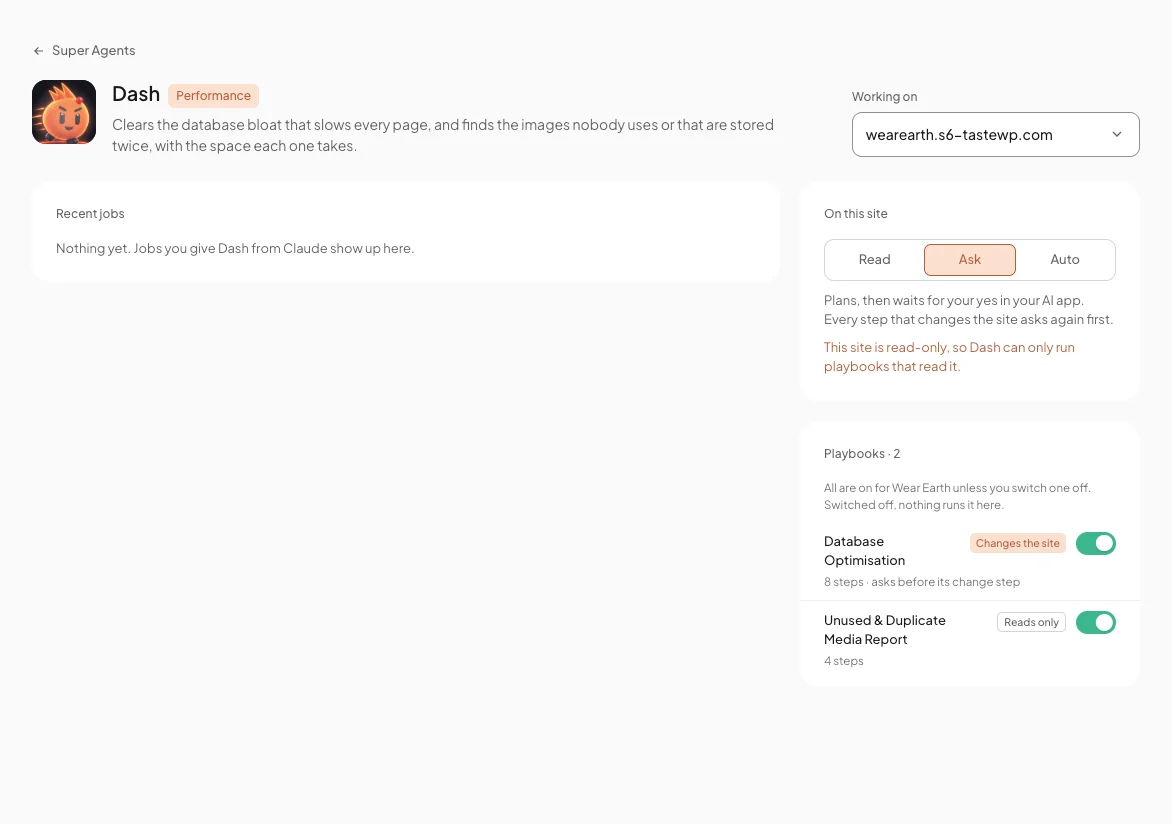
Dash looks after Performance. Clears the database bloat that slows every page, and finds the images nobody uses or that are stored twice, with the space each one takes.
Ask Dash in your AI app, for example “Dash, clean up the database on my shop”. Dash shows you a plan, you approve it in Protuno, and it runs the playbooks one step at a time.
Dash’s page: the site it works on, its level on that site, and its playbooks.
Dash’s playbooks
Dash has 2 playbooks. 1 can change the site, and it asks before its change step. The other 1 only read.
Playbook
Reads or changes
Steps
What it does
Database Optimisation
Changes the site
8 steps · asks before its change step
Cleans database bloat (revisions, spam and trashed comments, expired transients and similar) through WordPress’s own delete functions, after taking and checking a database backup. Deletes are permanent; the backup is the way back.
Unused & Duplicate Media Report
Reads only
4 steps
Finds images uploaded more than once and images nothing uses, with the space they take. Deletes nothing.
On Dash’s page
Pick a site under Working on. Recent jobs shows what you gave Dash from your AI app. On this site sets its level there: Read, Ask or Auto. Every playbook is on for that site unless you switch it off.
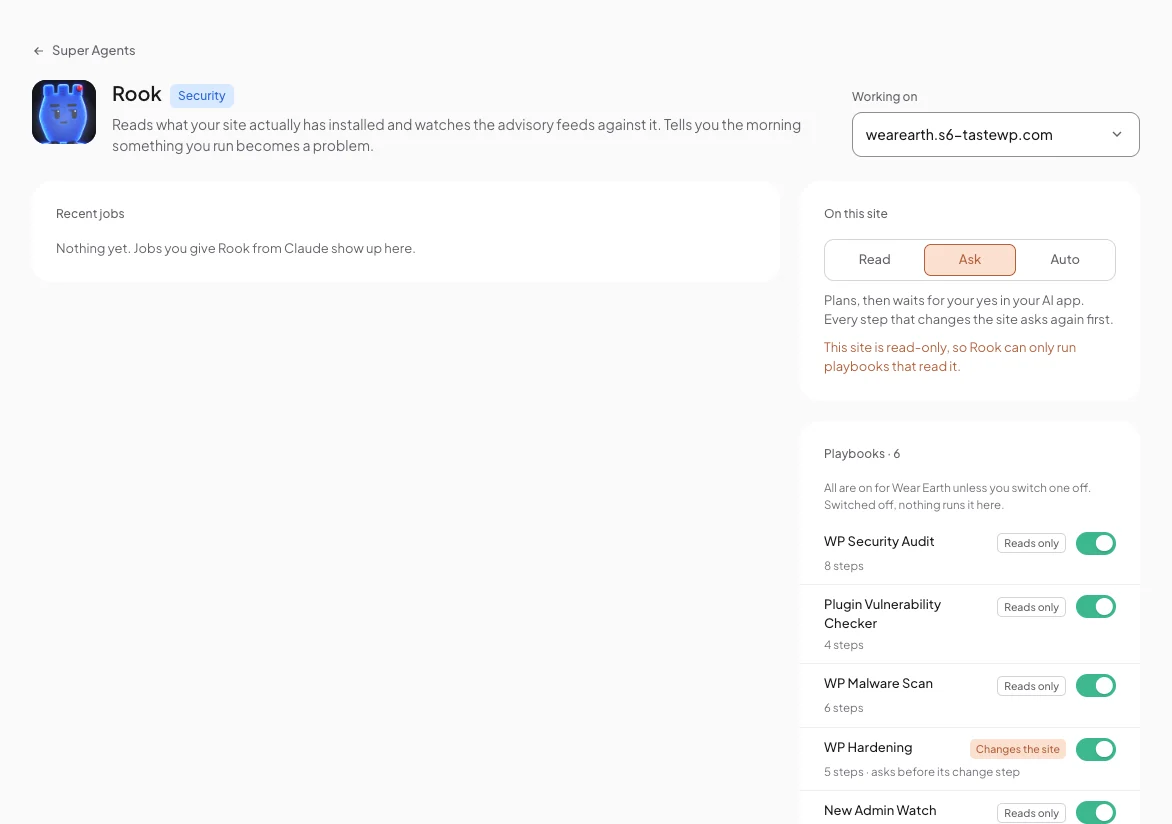
Rook looks after Security. Reads what your site actually has installed and watches the advisory feeds against it. Tells you the morning something you run becomes a problem.
Ask Rook in your AI app, for example “Rook, check my site for vulnerable plugins”. Rook shows you a plan, you approve it in Protuno, and it runs the playbooks one step at a time.
Rook’s page: the site it works on, its level on that site, and its playbooks.
Rook’s playbooks
Rook has 6 playbooks. 1 can change the site, and it asks before its change step. The other 5 only read.
Playbook
Reads or changes
Steps
What it does
WP Security Audit
Reads only
8 steps
A security audit graded A to F, covering setup and exposure, vulnerable plugins and themes, and access control. Every finding is checked against real code first.
Plugin Vulnerability Checker
Reads only
4 steps
Checks every installed plugin and its exact version against known vulnerability data, and tells you which need updating first.
WP Malware Scan
Reads only
6 steps
Scans files and the database for malware and checks each finding before it reports it. It finds only; it does not remove.
WP Hardening
Changes the site
5 steps · asks before its change step
Applies safe WordPress hardening one change at a time, after a backup, and lists the risky changes it leaves for you.
New Admin Watch
Reads only
2 steps
Reports every administrator and their application passwords: new admins, the default “admin” username and new or unused application passwords.
Comment & Signup Spam Exposure Audit
Reads only
2 steps
Shows where comments are open, the size of the spam and pending queues, and signups that look like bots.
On Rook’s page
Pick a site under Working on. Recent jobs shows what you gave Rook from your AI app. On this site sets its level there: Read, Ask or Auto. Every playbook is on for that site unless you switch it off.
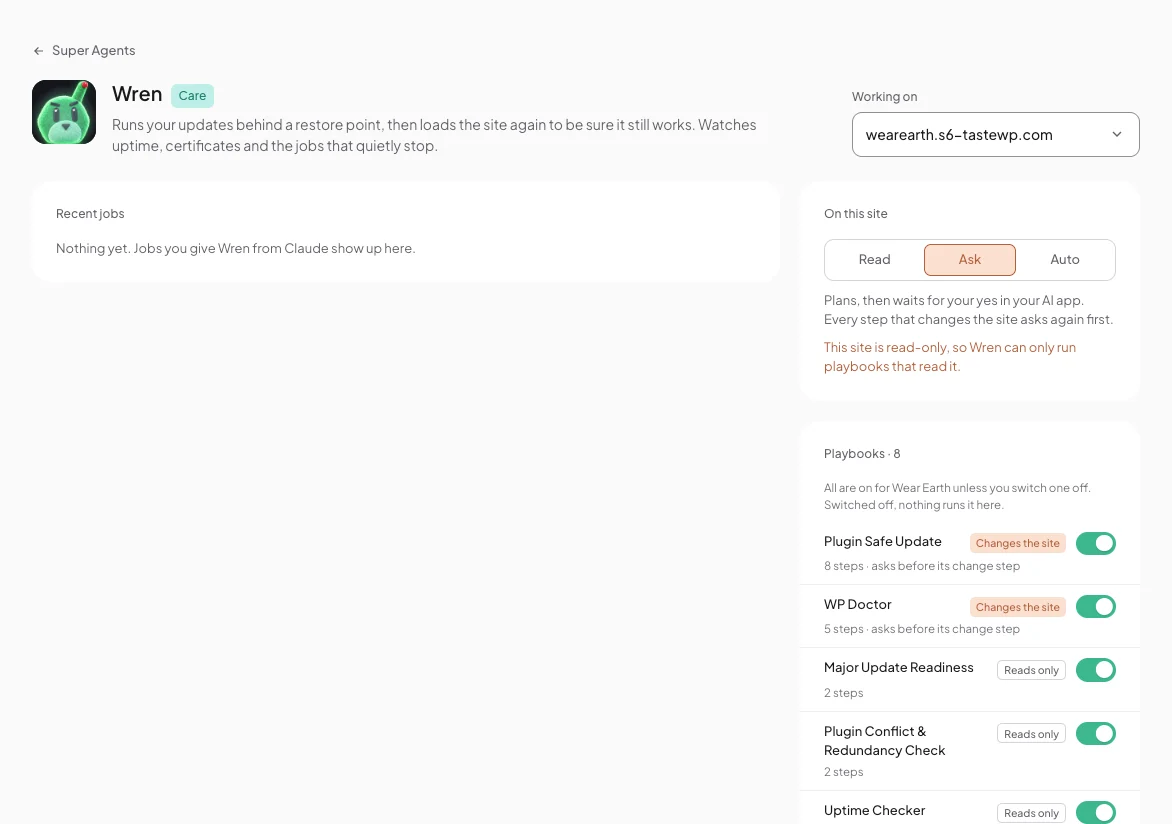
Wren looks after Care. Runs your updates behind a restore point, then loads the site again to be sure it still works. Watches uptime, certificates and the jobs that quietly stop.
Ask Wren in your AI app, for example “Wren, update the plugins on my shop”. Wren shows you a plan, you approve it in Protuno, and it runs the playbooks one step at a time.
Wren’s page: the site it works on, its level on that site, and its playbooks.
Wren’s playbooks
Wren has 8 playbooks. 2 can change the site, and each asks before its change step. The other 6 only read.
Playbook
Reads or changes
Steps
What it does
Plugin Safe Update
Changes the site
8 steps · asks before its change step
Updates your plugins one at a time behind a checked backup. Each plugin folder is stashed before its update and put back if the site stops working, then the site is checked again.
WP Doctor
Changes the site
5 steps · asks before its change step
Diagnoses a WordPress problem: checks the setup, reproduces the problem, matches it to a known cause, applies the fix behind a safety snapshot, then checks and reports.
Major Update Readiness
Reads only
2 steps
Before a WordPress update, checks every active plugin and the theme against the version you set, and tells you what to test first.
Plugin Conflict & Redundancy Check
Reads only
2 steps
Finds active plugins doing the same job (two caches, two SEO suites, two firewalls) and inactive plugins left installed.
Uptime Checker
Reads only
7 steps
Checks the site is really up, looking for a word that should be on the page, and confirms an outage before calling it one.
SSL And Domain Expiry Monitor
Reads only
6 steps
Checks when your certificate and domain expire, with the days left.
Cron Health Checker
Reads only
4 steps
Checks WordPress scheduled jobs, including stuck or overdue ones and the Action Scheduler.
Premium License Expiry
Reads only
7 steps
Lists premium plugins and themes whose licence has expired or is about to, which would quietly stop their updates.
On Wren’s page
Pick a site under Working on. Recent jobs shows what you gave Wren from your AI app. On this site sets its level there: Read, Ask or Auto. Every playbook is on for that site unless you switch it off.
You ask in your AI app, for example “Dash, clean up the database on my shop”.
Protuno picks the agent and returns its playbooks, the site’s saved rules and anything that blocks changes.
Your AI app proposes a plan. Each site is marked “will run” or “skipped”, with the reason.
The plan appears as a card in Protuno, and only you can approve it, by pressing Approve. Your AI app cannot approve for you.
The steps run one at a time. A step that changes the site waits for Approve this change on the job card, unless the agent is at Auto.
The run and its report land in Activity, and the job shows under Recent jobs on the agent’s page.
Trust level, per agent and per site
Each agent has its own page. Pick a site under Working on, then set the level under On this site:
Read. Looks, never touches. Runs only playbooks that read the site.
Ask. Plans, then waits for your yes. Every step that changes the site asks again first.
Auto. After you approve the plan, it runs without stopping to ask. Playbooks that need a backup make one as their first step.
New agents start at Ask. On a site in Read only, an agent can only run playbooks that read it, whatever its level.
An agent’s page: the site it works on, its level on that site, and its playbooks.
Playbook switches
On the agent’s page, every playbook is on for the site you picked unless you switch it off. Switched off, nothing runs it there.
Several sites in one job
A job across several sites runs one site at a time. A failure on one does not stop the rest, and you get one combined report. One job works on a site at a time; others wait their turn.
Fixes and Undo
Protuno takes a backup before every fix, on every plan, and a fix can be undone from the run report. The next scan decides whether a finding is closed.
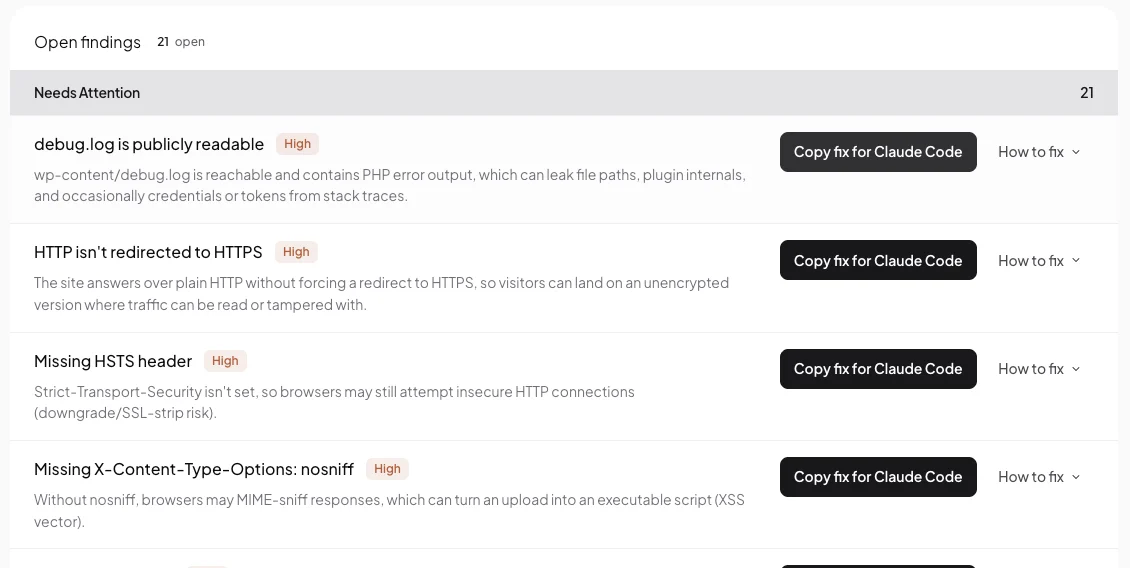
Protuno finds what is wrong. Your own AI app fixes it, on your plan, and asks you before it changes anything.
Two buttons on every finding
How to fix shows the change to make, in plain words.
Fix this hands the fix to your AI app.
With an app on your computer connected, the button copies the fix for it.
What Fix this does
It depends on what is set up.
The site has no plugin yet. It asks you to connect the plugin first, because no AI app can fix anything inside a site without it.
No AI app is connected. It asks you to connect one. See Connect your AI app.
Claude on the web is connected. The button reads Fix in Claude and opens Claude with the request already typed in.
An app on your computer is connected, such as Claude Code, Codex or Cursor. The button reads Copy fix for and the app’s name. It copies the request and tells you to paste it in the app and press Enter.
The request it hands over
“Use Protuno to fix this issue on (your site): “(the finding)”. Check it first, tell me your plan in plain words, and ask me before you change anything.”
Press Enter, read the plan, and approve it in Protuno. Protuno takes a backup before it changes anything, and the fix can be undone from the run report.
Read only and staging
On a site in Read only, your AI app can plan the fix but cannot apply it. Do the fix on your staging site, check it there, then move it to your live site in your own way.
A fix does not close a finding by itself. The next scan checks again and decides.
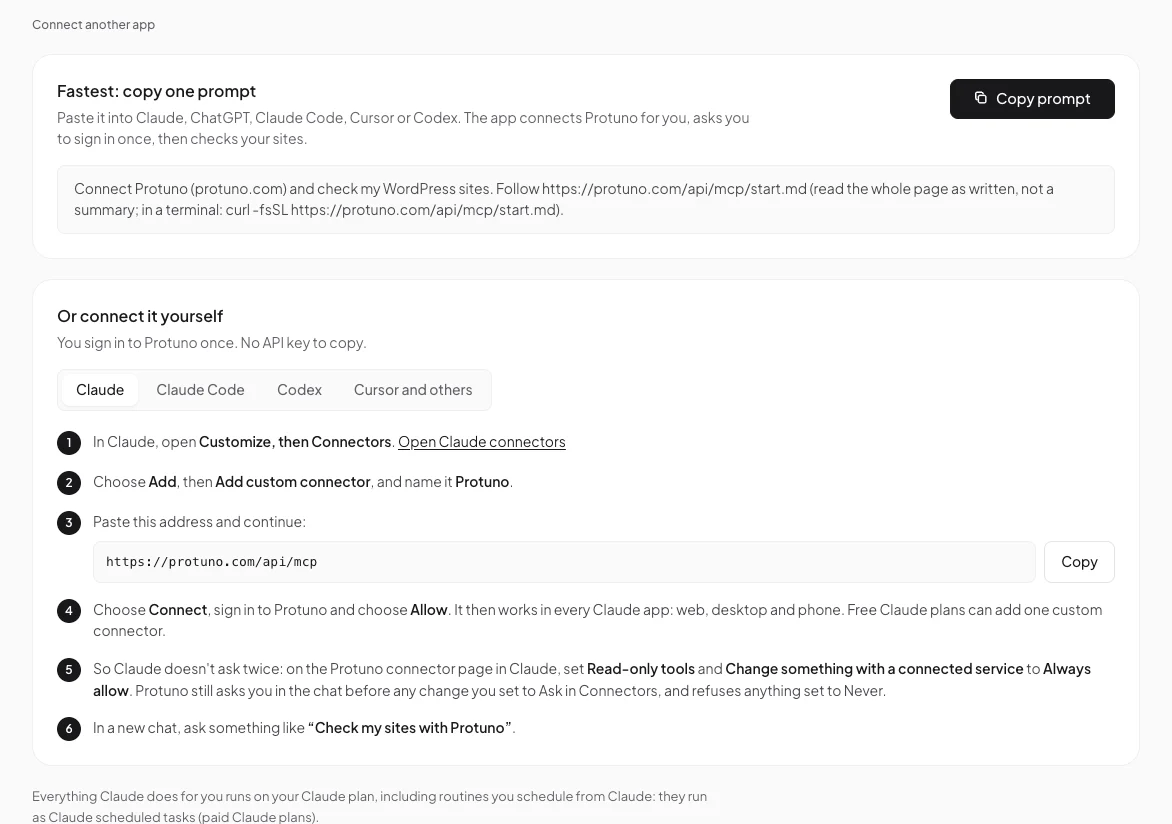
Protuno works inside the AI app you already use. Your AI app does the thinking, on your plan there. Protuno does the work on your sites and keeps the guardrails. You sign in to Protuno once, and there is no API key to copy.
The fastest way: copy one prompt
In Protuno, open AI apps (in the sidebar, under Setup) and press Copy prompt. Paste it into your AI app. The app connects Protuno for you, asks you to sign in once, then checks your sites.
AI apps: one prompt to paste, or the steps for each app.
One command: Claude Code, Codex and Cursor
If your AI app can run commands, it connects Protuno with one command. It runs the command itself; you only sign in.
Mac, Linux or Git Bash:curl -fsSL https://protuno.com/api/mcp/connect.sh | sh -s claude-code (or codex, or cursor)
Windows PowerShell:$env:PROTUNO_APP='claude-code'; irm https://protuno.com/api/mcp/connect.ps1 | iex
Your browser opens Protuno. Sign in and press Allow. The command adds Protuno to your app as a custom connector. Then restart the app so Protuno’s tools load; Cursor loads them without a restart. The key is never shown to you or printed.
Claude: web, desktop and phone
In Claude, open Customize, then Connectors.
Choose Add, then Add custom connector, and name it Protuno.
Paste https://protuno.com/api/mcp and continue.
Choose Connect, sign in to Protuno and choose Allow. It then works in every Claude app. Free Claude plans can add one custom connector.
So Claude does not ask twice, set Read-only tools and Change something with a connected service to Always allow on the Protuno connector page in Claude. Protuno still asks you before any change you set to Ask in Connectors, and refuses anything set to Never.
In a new chat, ask something like “Check my sites with Protuno”.
Claude Code, Codex and Cursor by hand
Claude Code: run claude mcp add --scope user --transport http protuno https://protuno.com/api/mcp, then type /mcp, pick protuno and sign in. A browser window opens once.
Codex: run codex mcp add protuno --url https://protuno.com/api/mcp, then codex mcp login protuno.
Cursor and others: add a remote MCP server (Streamable HTTP) at https://protuno.com/api/mcp. In Cursor that is Settings, then MCP, then Add a new MCP server. Sign in to Protuno when the app asks. If your app cannot sign in to a remote server, run it through the bridge instead: npx -y mcp-remote https://protuno.com/api/mcp.
What your AI app can and cannot do
The Allow screen lists it before you agree. Running code on your sites is a separate box, “Also let it run code on my sites”, off unless you tick it. Code only runs on sites set to Execute, and it asks before each run.
Only you approve plans and changes, in Protuno. Your AI app can set a site to Read only, never to Execute.
Everything your AI app does for you runs on your plan there, including routines, which run as scheduled tasks in the app. Claude needs a paid plan for those.
See and disconnect your apps
AI apps lists every app you signed in from, with when it was connected and last used. Disconnect cuts one off right away. Reconnecting the same app replaces the old connection rather than adding a second one.