Archives: Docs

  • Troubleshooting Sites, Scans And Runs

    Every message Protuno can show you on its own side, what it means, and the shortest way past it. The plugin has its own troubleshooting page for messages that appear in wp-admin.

    A site says it is not answering

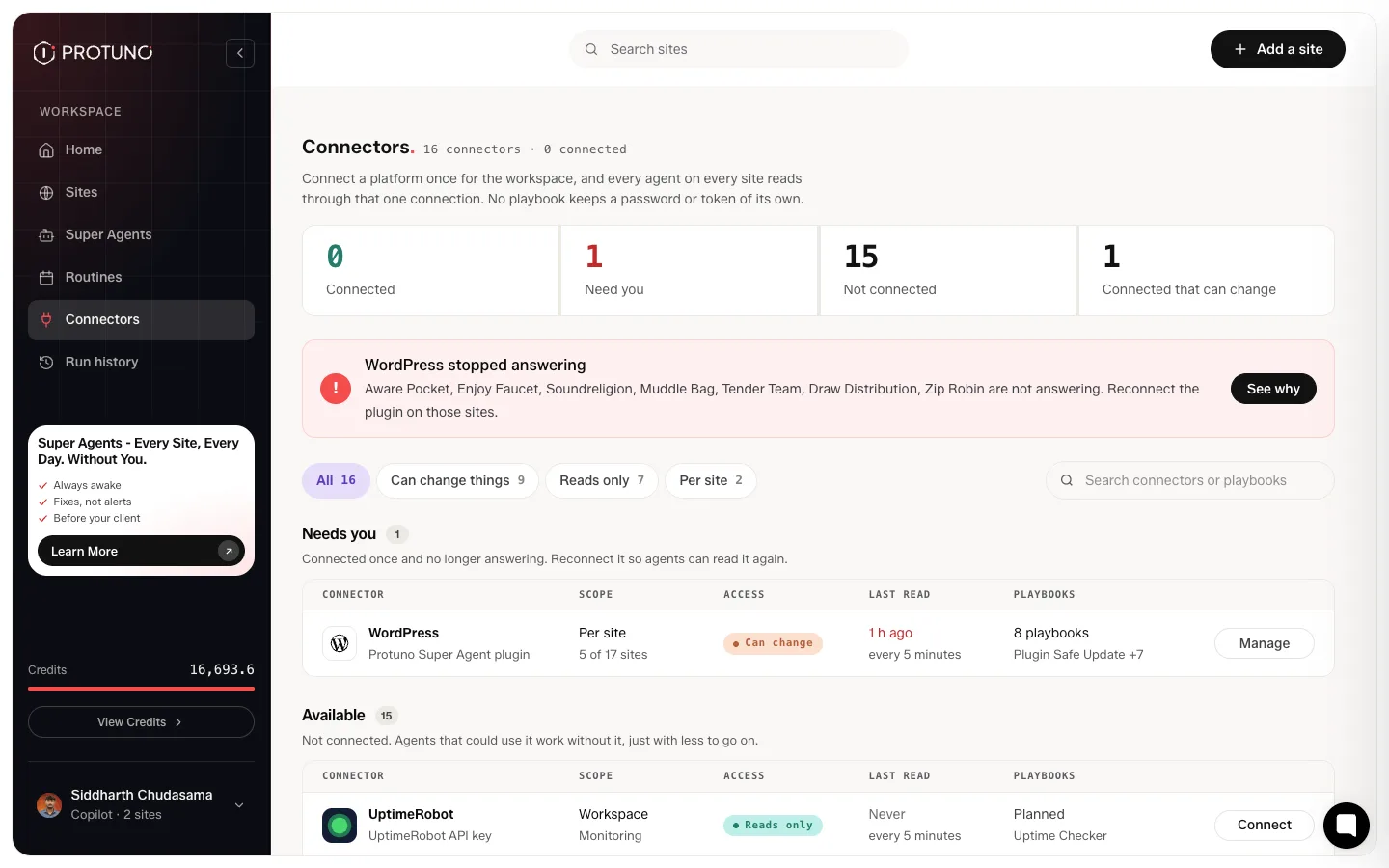
    “WordPress stopped answering” on the Connectors screen, naming the sites. This is the most common state you will meet, and it almost never means Protuno is broken.

    It means the application password Protuno holds no longer works, or the site itself is unreachable. Common causes, in order:

    • The password was revoked or regenerated in WordPress and the new one was never pasted into Protuno.
    • The Protuno plugin, or the MCP connector it depends on, was deactivated or deleted.
    • The site is a staging or sandbox install that has expired.

    Open the site and press Reconnect this site. The project, its history and its findings all stay; only the credential is replaced.
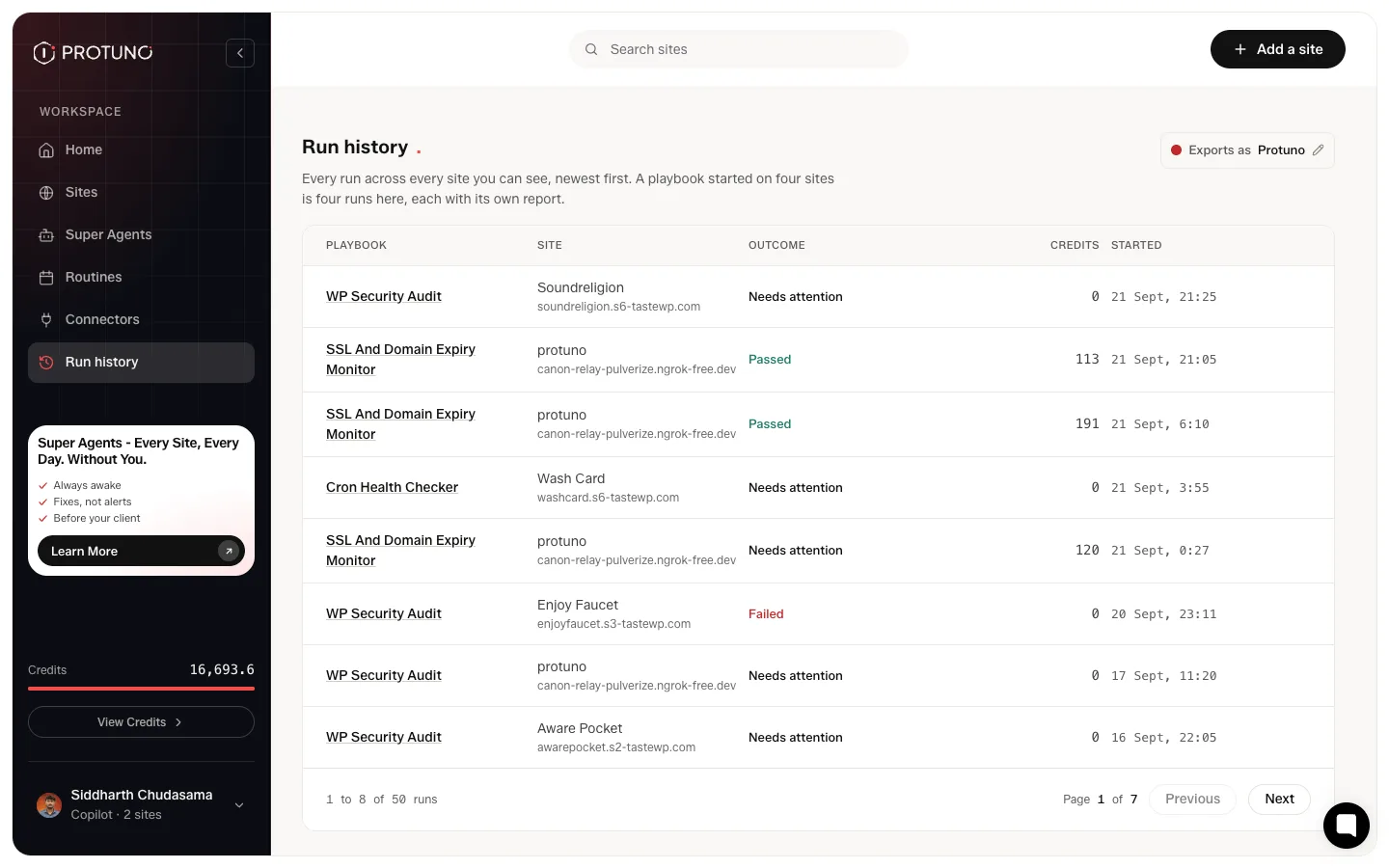
    The Protuno run history table showing playbook runs across sites with passed, needs attention and failed outcomes
    Run history is the fastest way to spot a site that stopped responding: the outcome column changes before anything else does.

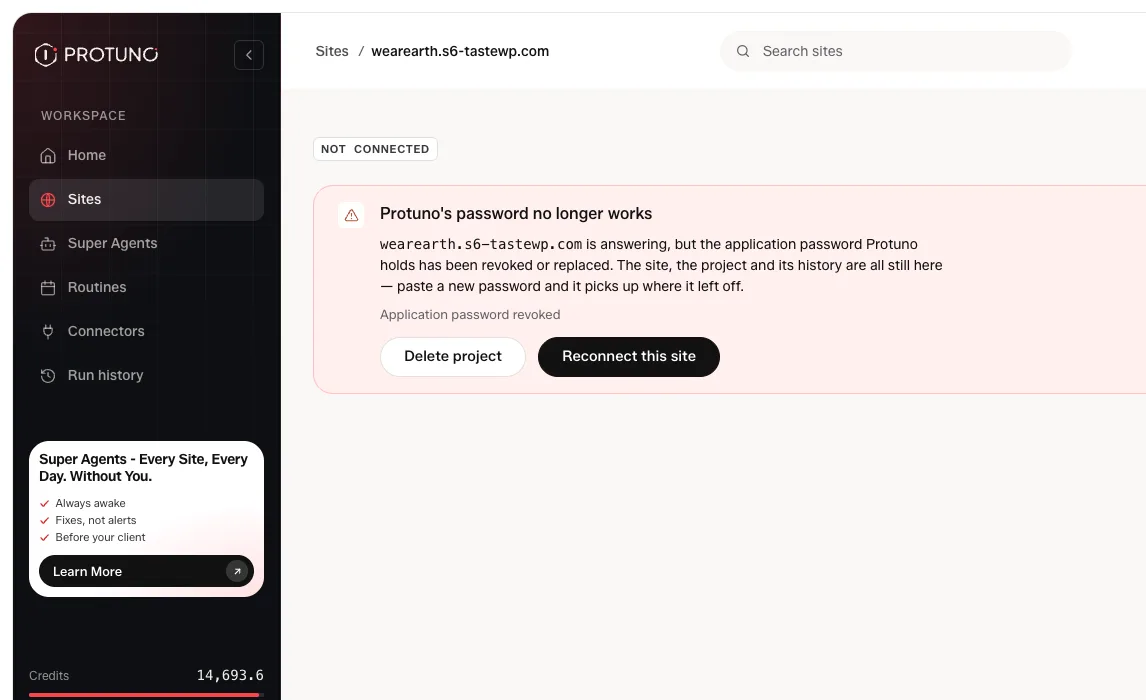
    Protuno’s password no longer works

    The site page says the site is answering but the credential has been revoked or replaced. Same problem from the other end, same fix: reconnect and paste a fresh application password from the plugin’s own screen.

    Delete project sits next to it. That is not the fix. It throws away the site’s history.

    “Invalid site URL. Use a full URL like https://yoursite.com”

    On the add-site screen, when the address was entered without a scheme. Enter the complete address including https://. The field accepts a bare domain for the check step, but the connect step wants the whole URL.

    “Could not read yoursite.com from here”

    A warning, not a blocker. It means the check could not reach the site from where Protuno ran it. Carry on and connect; the connect step will say if something is genuinely wrong. Plenty of sites that report this connect perfectly.

    A playbook is greyed out on one of my sites

    On a playbook’s page some sites are switched off and unclickable, each with a reason. The reason is almost always the same one: the site is not connected.

    Every playbook needs the plugin, including the ones that only read. A playbook step does not reach the address the way the free audit does. It goes through the site’s connection, so on a site with no connection every step would print “No site connected for this project” and the run would finish having done nothing. Connecting is also what proves the site is yours; an address on its own is a URL somebody typed.

    The wording changes to say which kind of playbook it is (“because this playbook changes the site”, “because this playbook runs code on the site”), but the gate is the same in all three cases. Connect the site and the toggle becomes available.

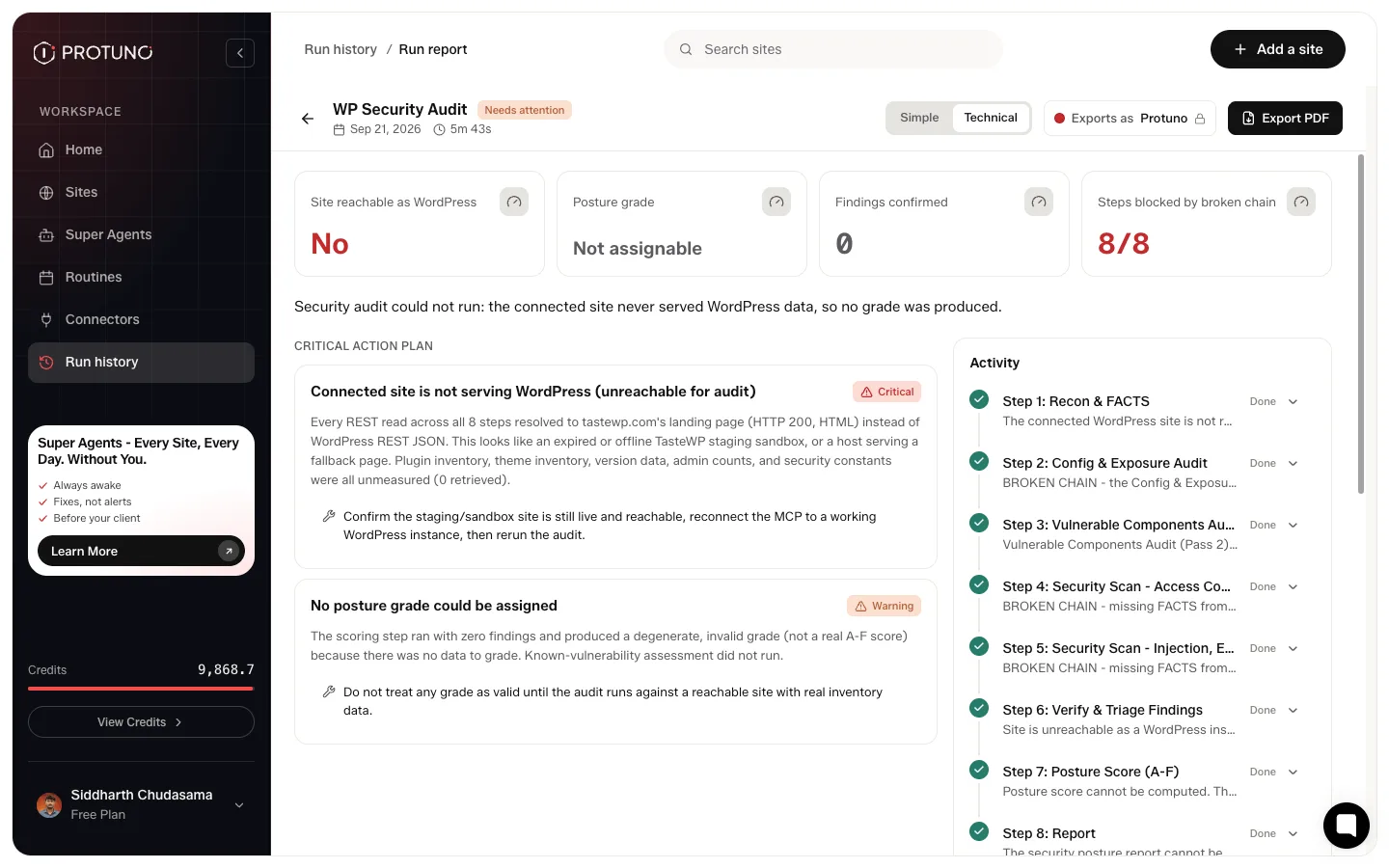
    A run failed and every step says “BROKEN CHAIN”

    The first step could not establish any facts about the site, so everything after it had nothing to work with. Each following step says so by name, for example “BROKEN CHAIN, missing PREFLIGHT from Node 1”, and stops rather than guessing.

    The usual cause is an address that answers, but not as WordPress: an expired staging sandbox serving its host’s landing page, or a holding page in front of the real site.

    The report says so explicitly and refuses to produce a score. A run that could measure nothing does not get graded.

    A routine never runs

    Routines are on Pro and Agency, and they run as a scheduled task in your AI app. Check that you added the routine’s task in your AI app after you saved it: Protuno does not warn you when the task is missing. Claude needs a paid plan for scheduled tasks.

    A different line, “Last scheduled run did not start: site read-only”, means the routine fired and was refused because the playbook can write and the site is in Read only. If this is your live site, leave it in Read only and put the routine on your staging site instead. If it is your staging site, switch it to Execute.

    The scan still shows domain-only results after connecting

    The deep scan runs on connect and takes a minute or two, longer on a large site. If the count stays at the domain-only figure, the credential was accepted but the connector is not serving. Open the Protuno screen in the site’s own wp-admin: it names the connector that is serving, or says it is not running, in which case the connector plugin has been deactivated.

    Your AI app cannot see Protuno

    If your AI app says it has no Protuno tools, the connection did not finish. Open AI apps in Protuno to see the apps you connected, then connect the app again. Reconnecting the same app replaces the old connection rather than adding a second one.

    Still stuck

    Email [email protected], any day of the week, with the site address and the run that went wrong. Every run has its own report and a link you can paste.
  • All 85 Checks, Referenced

    This is every check that runs on a connected site, grouped the way the report groups them. Eighty-five in total: the 54 that run from the address alone, plus the 31 that can only be read from inside the install.

    54 or 85: which number applies to your site

    Audit Checks What it needs
    From the domain alone 54 A web address. No account, no plugin.
    Connected site 85 The Protuno plugin installed and the site connected.

    The extra 31 are the things no outsider can see: which plugins are genuinely active, the real PHP version, what the database is carrying, whether a restore point exists at all.

    Why the report shows five categories and the website shows eight

    The report groups findings into five categories. Some of the marketing pages group the same checks into eight areas instead. The checks are identical; only the grouping differs. The five below are what you will see in the product.

    Security (42 checks)

    The ways a site gets taken, and the records that decide whether its mail is trusted.

    2 core files do not match WordPress 7.1.1
    HTTP isn’t redirected to HTTPS
    Missing HSTS header
    Missing X-Content-Type-Options: nosniff
    No clickjacking protection
    No DMARC record is published
    No SPF record is published
    Dashboard file editing is enabled
    No content security policy
    The WordPress login form is open to the internet
    User accounts are listable via the REST API
    Usernames are exposed via author enumeration
    Database uses the default ‘wp_’ table prefix
    No CAA record restricts who can issue certificates
    WordPress 7.1.1 is named in the homepage source
    WordPress version is publicly disclosed
    Admin accounts
    Certificate hostname coverage
    Cookie security flags
    Debug mode
    Directory listing
    DMARC policy
    DMARC reporting
    File permissions
    For a DKIM key
    For exposed debug.log
    For exposed sensitive files
    For login links on the homepage
    For mixed content
    HTTPS / SSL
    Plugin files
    Plugins against the directory
    Referrer policy
    Server version disclosure
    SPF lookup count
    SSL certificate expiry
    The certificate chain
    The public REST index
    The store’s admin API
    TLS protocol versions
    Wp-config.php access
    XML-RPC

    General (16 checks)

    The install itself, its mail delivery, its DNS, and the housekeeping nobody checks.

    Mail is being sent by the web server, not a mail service
    Default WordPress sample content is still published
    No site icon (favicon) is set
    Timezone is set to a fixed UTC offset
    Admin email
    DNS TTLs
    Mail servers
    Nameservers
    PHP version
    Search visibility
    Site URL consistency
    The checkout page
    Where mail is delivered
    WooCommerce status
    WordPress version
    WP-Cron

    Growth (12 checks)

    Whether search engines and AI assistants can find the site, and what they are told.

    No canonical tag on the homepage
    No llms.txt for AI assistants
    No Open Graph tags on the homepage
    No SEO plugin active
    No explicit AI-crawler policy
    Image alt text
    Mobile viewport meta
    Robots.txt crawl rules
    Site tagline
    Www and apex addresses
    Www and apex resolve
    XML sitemap

    Performance (10 checks)

    What the visitor waits for, and what the database is quietly carrying.

    Active plugins
    Cart and checkout caching
    Database autoload
    Database bloat
    For a page cache
    For duplicate analytics tags
    Measuring server response time
    Persistent object cache
    Response compression
    Static-asset caching

    Care (5 checks)

    Whether there is a restore point, and whether the scheduled work is still running.

    Backups
    For unmaintained plugins
    Inactive plugins
    Scheduled jobs
    Spam & trash comments

    What a check does when it cannot tell

    A check that cannot reach its answer says so, rather than passing. An unreadable cron array is reported as stopped, never as fine. A domain expiry that neither RDAP nor WHOIS will confirm comes back unknown, never “fine”. Worth knowing before reading a clean result as an all-clear.

    Where to go next

  • Connectors: Connect A Platform Once

    A connector is a platform you connect once and every agent reads through. No playbook keeps a password or token of its own.

    Most are connected once for the whole workspace. Two are per site, WordPress and WooCommerce, and the screen has a “Per site” filter for exactly those.

    How many connectors are actually wired up

    Sixteen connectors are listed. Being honest about the state of them matters more than the number: one of the sixteen is read by playbooks today, and that one is WordPress. The rest can be connected now and will feed agents as they learn to read them.

    The Connectors screen showing sixteen available connectors grouped by whether they are connected
    Sixteen connectors, filterable by whether they can change things or only read.

    The screen says this itself rather than leaving you to find out, and each card shows which playbooks use it or says “None yet”.

    WordPress, the only live connector

    WordPress, through the Protuno Super Agent plugin, is per site rather than per workspace, and it is what eight playbooks read. If a site stops answering, this is the connector that tells you, and it names the sites.

    The other fifteen connectors

    Group Connectors Status
    Monitoring UptimeRobot, Sentry UptimeRobot is planned for the Uptime Checker
    Hosting Kinsta, Hostinger, Pressable None yet
    Infrastructure Cloudflare Planned for three playbooks
    Search Firecrawl, Semrush Planned for the link and SEO playbooks
    Commerce Stripe, WooCommerce None yet
    Delivery Slack, ClickUp, Jira, Notion Send results out
    Developer GitHub None yet

    Which connectors can change things

    Nine of the sixteen can change something at the other end. Seven can only look. The filter at the top of the screen splits them, and it is worth using before connecting anything that could act on your behalf.

    How many you can connect

    Connectors are on every plan, Free included.

    Where to go next

  • What Protuno Costs: Plans And Billing

    Protuno has one price for the whole workspace and no credits. The AI work happens in your own AI app, such as Claude, on your plan there. Protuno never charges per job: watching, checking and fixing your sites cost nothing extra.

    Free, Pro and Agency compared

    Free Pro Agency
    Price $0 $12 a month or $99 a year $30 a month or $249 a year
    Sites 3 Up to 10 Up to 25
    Super Agents in your AI app Yes Yes Yes
    Playbooks All 27 All 27 All 27
    Fixes with approval and Undo Yes Yes Yes
    Brain remembers your rules Yes Yes Yes
    Connectors Yes Yes Yes
    One playbook on many sites Yes Yes Yes
    Uptime checks Every 5 minutes Every minute Every minute
    Routines No Yes Yes
    White-label reports No Yes Yes

    Yearly saves 31% on Pro and Agency. Prices are in US dollars and before tax; Paddle adds what is due where you are.

    More sites than your plan covers: every site keeps its site audit. Agent work, playbooks and routines run on the sites your plan covers.

    Your AI app is billed by its own provider, not by us. Routines run as scheduled tasks there, and Claude needs a paid plan for those.

    Changing plan

    Moving up is charged now, minus what is left of your current period, and the amount is shown first. Moving down starts at your next renewal. Cancelling stops the next charge; you keep the plan until the end of the period you paid for, then the workspace goes back to Free. All of this is in Billing, or at paddle.net.

    If you bought a credit pack under our earlier plans and still hold unused credits, contact support.

    Refunds

    You can ask for a full refund within 14 days of any payment: your first payment, a renewal or a plan upgrade. There is no reason needed and no credits to deduct. Ask support; once Paddle approves it, the workspace goes back to Free.

    Where to go next

  • Routines: Put A Playbook On A Schedule

    A playbook with a schedule is a routine: Daily, Weekly or Monthly, at a time and in a time zone you pick, on one site.

    Routines run in your AI app

    A routine runs as a scheduled task in your AI app, on your plan there, not on Protuno’s clock. When you save one, a pop-up gives you the task text with a Copy task button and three steps for adding it in Claude. Until you add that task in your AI app, the routine does not run, and Protuno does not warn you. Claude needs a paid plan for scheduled tasks.

    The routines calendar

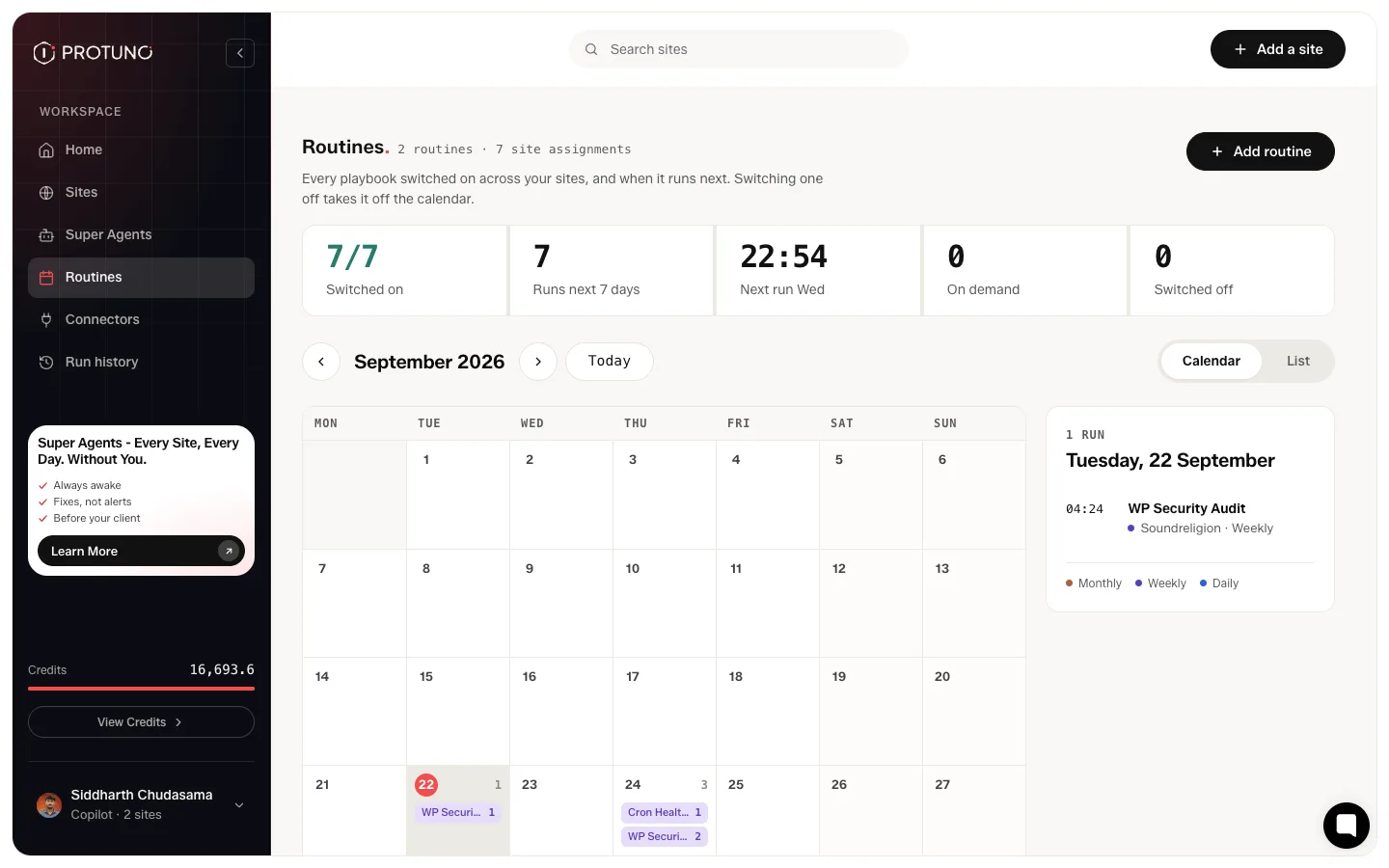
    Routines shows every scheduled playbook across every site, and when each one runs next.

    The Routines screen showing a month calendar with scheduled playbook runs and a summary of how many run in the next seven days
    A month at a time, with how many runs land on each day, and what is due next.

    There is a list view as well, grouped by playbook, showing each site’s own day and time. Switching a routine off takes it off the calendar without detaching the playbook from the site. Put routines for playbooks that change things on your staging site. On a live site left in Read only, a routine for a playbook that can write will not fire, and the row says so.

    Which sites can schedule

    Routines are on Pro and Agency. On Free, you run any of the 27 playbooks by asking your AI app.

    Where to go next

  • Run A Playbook And Read The Report

    A playbook is one job written out step by step before it runs. Not a model deciding at runtime what looks reasonable: a fixed sequence you can read first, that does the same thing every Tuesday.

    The 27 playbooks, and where to find them

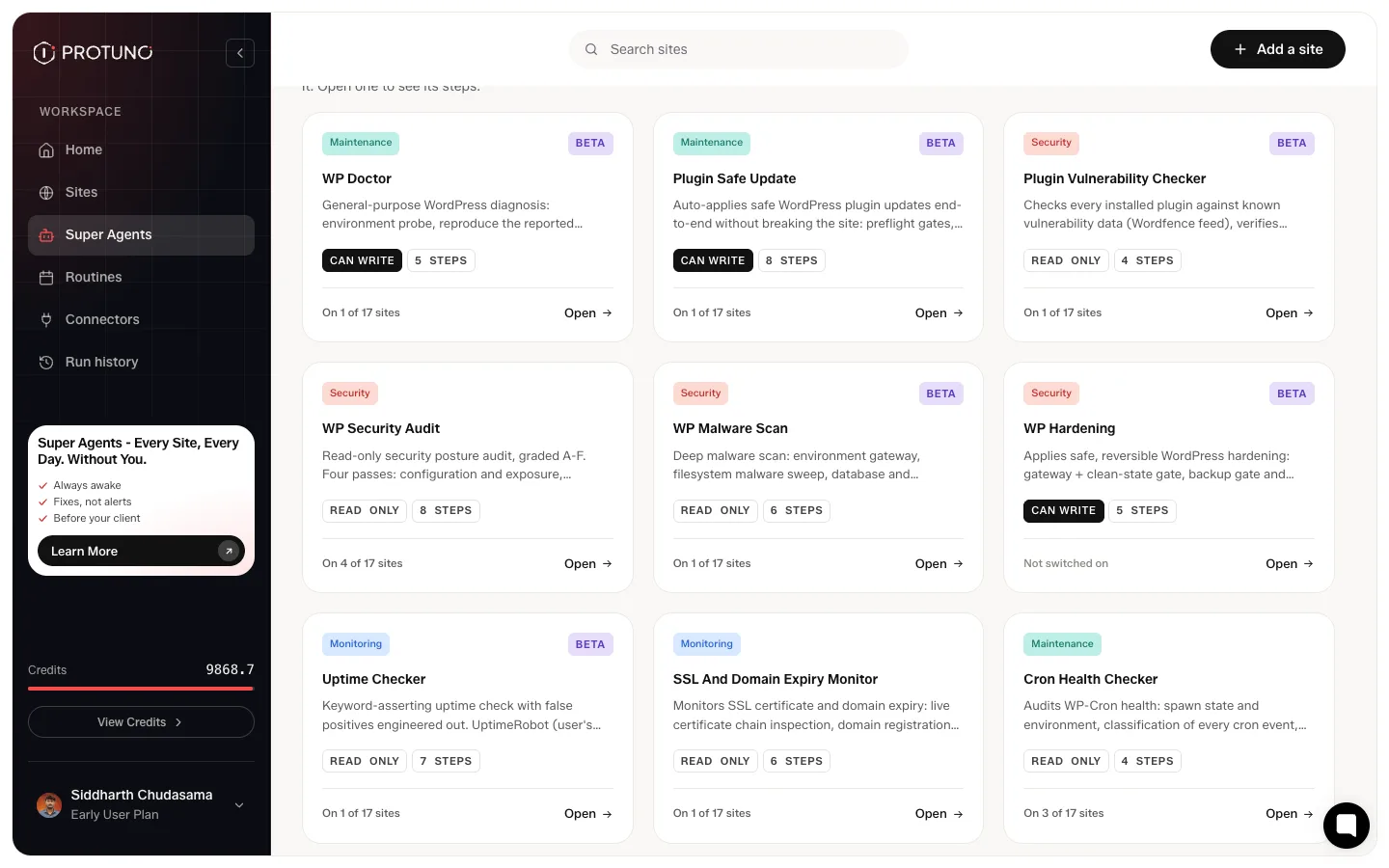
    All 27 live under Super Agents, in the Every playbook list, with the category, the number of steps and whether it can change the site shown on every card. 10 can change a site. The other 17 only read it.

    The Every Playbook grid on the Super Agents screen, showing playbook cards with their category, step count and whether they can write
    Scroll past the six agent cards and Every Playbook lists all 27, each with its category, its step count and whether it can write.

    The six named agents above the list each own a group of these playbooks. You ask an agent in your AI app, and it picks the playbook for the job.

    21 of the 27 carry a BETA tag on their card. They run, and they are the ones still being shaped. Six do not: WP Security Audit, SSL And Domain Expiry Monitor, Cron Health Checker, SMTP Deliverability Check, Broken Image Finder and Spam Comment Deleter.

    What a playbook page shows you

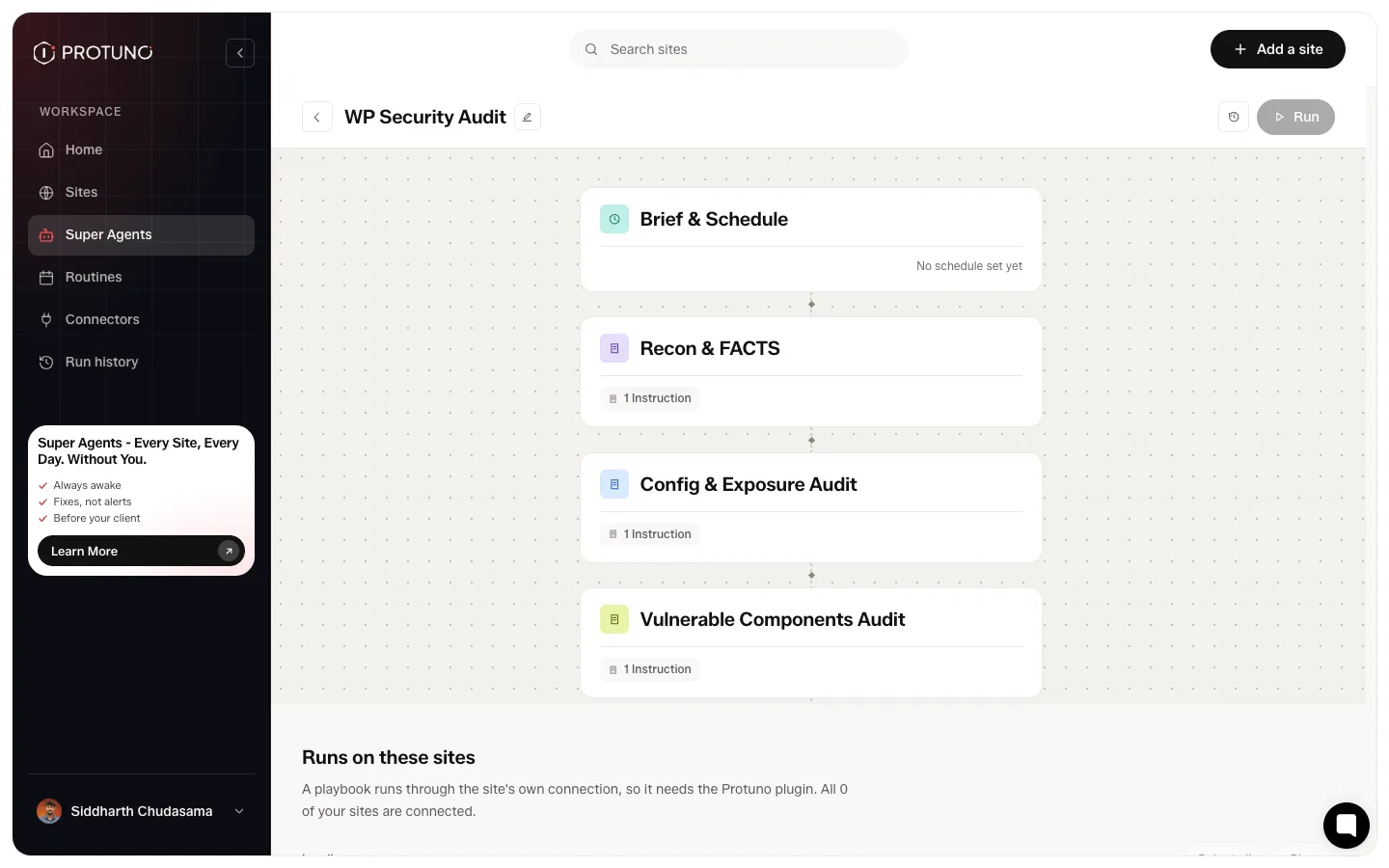
    A playbook page shows every step in order, and each step opens to reveal the instructions it runs and what it hands to the next step. A playbook that needs a restore point has a backup step of its own, and it shows up as a step.

    A playbook detail page showing its steps in order and the sites it is switched on for
    Steps on the left, sites on the right. Every playbook needs the plugin, so any site that is not connected is switched off here, with the reason on the row.

    Two things are worth knowing. Each site gets its own copy of the steps, so editing one site’s playbook does not touch another’s. And switching a site off keeps that copy rather than destroying it, so switching back on returns what was there.

    Switching on is not running

    On each agent’s page, for the site you pick, each playbook has a switch, and they start switched on. The switch decides whether a playbook can be used on that site. It does not run it. To run one, ask in your AI app, or press Fix this on a finding. Run the playbooks that change things on your staging site, not your live one.

    Reading the run report

    Every run lands in Activity. A finished run carries one of three verdicts: Passed, Needs attention, or Failed. Cancelled is a fourth terminal state, for a run that was stopped rather than judged. While a run is still going you will also see Running, Finishing report, Waiting for a slot and Waiting on you.

    A job across several sites runs one site at a time. A failure on one does not stop the rest, and you get one combined report.

    A Protuno run report showing a critical action plan, the steps that ran, and a technical detail section
    A run that could not do its job, saying so. The report refuses to produce a grade rather than inventing one.

    Each report has a simple and a technical view, and exports to PDF for sending on. After a run on staging, it is also your checklist: read what changed there before you move anything to your live site.

    The example above is worth dwelling on. Every step ran, but the site never returned WordPress data, so the run reports zero findings and explicitly declines to assign a posture grade. An unreadable site is not graded as healthy. That is the behaviour to expect throughout: uncertain is never reported as fine.

    Where to go next

  • What Protuno Can And Cannot Change

    This is the part worth reading before anything else. Protuno does the work on staging. Your live site is only read. On top of that habit, the safety model rests on one setting you control per site, plus a clear-eyed view of what can and cannot be undone afterwards.

    Read only and Execute: the two site modes

    Every connected site is in one of two modes, changed from the site’s own screen:

    Mode What it means
    Read only Analyses and reports. Changes nothing.
    Execute May change files, the database and settings.

    A site you connect as a live site starts in Read only. A site you connect as a staging site starts in Execute, because staging is where Protuno does the work. Leave your live site in Read only. Fix on staging, check the result there, then move the fixes to live in your own way, with your host’s push-to-live or the tools you already use. That last step is yours, not Protuno’s. If you are connecting a staging install that matters, check the mode after connecting rather than assuming it. Only you can switch a site to Execute, and only in Protuno. Your AI app can set a site to Read only, never to Execute.

    The mode is the control

    The site’s mode is what decides whether anything can be written. A site set to Execute grants write access to any playbook that runs on it. A site set to Read only does not get written to: every tool that could change the site is removed from the run’s inventory before the model sees it, so it cannot make the change rather than being asked not to.

    The Read Only / Can Write label on a playbook card is real and is enforced, but only for scheduled runs: a routine for a playbook that can write will not fire on a read-only site, and the routine row says so. 17 of the 27 only read. The other 10 can change something.

    Two limits worth knowing, because the guardrail is good rather than absolute. Tools are removed by matching their names against a list of changing verbs, so an ability the plugin adds under an unfamiliar name would survive. And the REST tool is deliberately kept, because it is the main way a site is read at all; on a read-only site it is held to reads by instruction rather than by removal. Neither is a reason to distrust the mode. Both are reasons to do the work on staging and keep your live site in Read only, rather than treating the mode as the only thing between an agent and the site you care about.

    You approve before anything changes

    When you ask a Super Agent for a job, your AI app shows you the plan, and the plan appears as a card in Protuno. Only you can approve it, by pressing Approve there. Your AI app cannot approve for you. Each agent also has a trust level on each site, set on the agent’s page under On this site:

    • Read. Looks, never touches. Runs only playbooks that read the site.
    • Ask. Plans, then waits for your yes. Every step that changes the site asks again first, with Approve this change on the job card.
    • Auto. After you approve the plan, it runs without stopping to ask. Playbooks that need a backup make one as their first step.

    New agents start at Ask. On top of that, the work runs on your staging site, that your live site stays in Read only unless you change it, and that the sequence about to run was written down in full before it ran, so you can read it first.

    A playbook you build yourself can carry an approval checkpoint, which holds the run at that step until somebody approves it. The run then shows as Waiting on you in Activity. None of the 27 ready-made playbooks uses one.

    If you want a conversation before a change, have it in your AI app. It proposes, you approve in Protuno, and nothing is applied until you do.

    Rolling a run back

    Every run records what it changed, as it changes it, by re-reading the target and confirming it is different. The run’s report carries a Rollback this run button, and opening it shows exactly what would be put back and what would not, before you commit to anything.

    The record is the honest part. A change made through a named capability is recorded with enough to reverse it. A change made by running arbitrary PHP is recorded as “cannot be undone”, because nothing observed what the snippet did. So a report will tell you “every change this run made can be undone”, or “4 changes can be undone; 2 cannot”, rather than offering a button that might mean either.

    What rollback fully covers

    Three playbooks are known to make only reversible changes, and they are exempt from the pre-run backup gate for that reason:

    Playbook How it goes back
    Plugin Safe Update Reinstalls the previous version from wordpress.org. It also rolls itself back during the run: each plugin folder is stashed before its update and restored if the site stops working.
    Spam Comment Deleter It never deletes. It moves comments between moderation states, and rollback moves them back.
    Broken Link Checker Each edit lands as a post update that records the post’s previous body, so rollback restores the text. The edit is also a WordPress revision, so you can restore it by hand from the post history.

    What rollback does not cover

    Everything else. WP Doctor, WP Hardening, Database Optimisation and AI SEO Optimiser all change things by running PHP on the site, which records “cannot be undone”. Those runs get the backup gate instead: the run refuses to start until a restorable backup exists.

    Database Optimisation is the clearest case, and the one worth reading twice. Its deletes are permanent. It does not run table optimisation and it does not use raw SQL; it removes revisions, spam and other bloat through WordPress’s own delete functions, and it skips any category that looks anomalous. Its second and third steps take a database backup and prove that backup is sound, before anything is deleted. That backup is the way back. Take your own as well if the site matters.

    Automatic rollback is not a general guarantee. It applies to plugin updates. Everything else either leaves a revision you can restore by hand, or cannot be undone at all.

    What the backup step actually checks

    Be precise about what is checked, because it is more than it sounds and less than a guarantee.

    A backup step does not just report that it ran. Protuno re-opens what it wrote: the archive has to open and contain files, the database dump has to be large enough to be real, decompress, carry the statements a dump carries, and be free of the specific corruption a past run produced. For a database-only backup, every table that exists on the site has to appear in the dump, and any that are missing are named. Only then does the verdict read Verified, and a run that needs a restore point will not proceed past a Failed one.

    What it does not do is restore the backup to see what comes back. Nothing is restored, extracted or written during the check.

    So it is a verified file rather than a rehearsed recovery. Run anything destructive on staging first, and before you move the result to a site that matters, take your own backup of that site as well and know it works.

    How to revoke Protuno’s access

    The credential Protuno holds is an application password issued by your own WordPress user. You can revoke it from Users, Profile at any moment, without contacting us, and the connection stops at once.

    Where to go next

  • Read Your Site Report

    A connected site gets a score out of 100, five category scores, and a list of open findings. This page explains what each of those is measuring, and which parts to trust.

    What the score out of 100 does and does not tell you

    The number at the top is a summary, not a verdict. It moves when findings open and close. It is useful for spotting that something changed since last week, and much less useful as an absolute grade.

    The findings underneath are the real output. Read those.

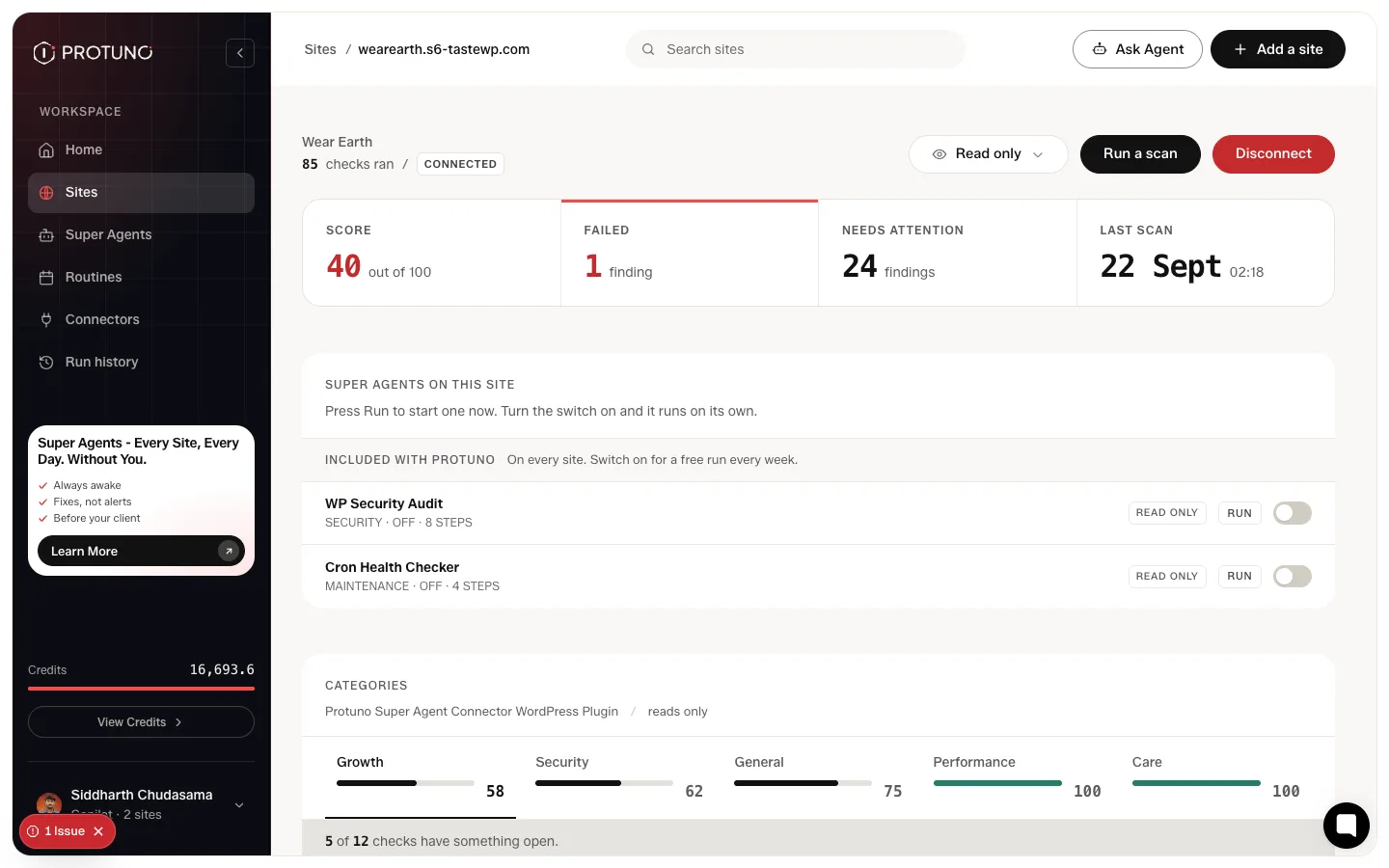
    A Protuno site report showing the score out of 100, failed and needs-attention counts, and the last scan time
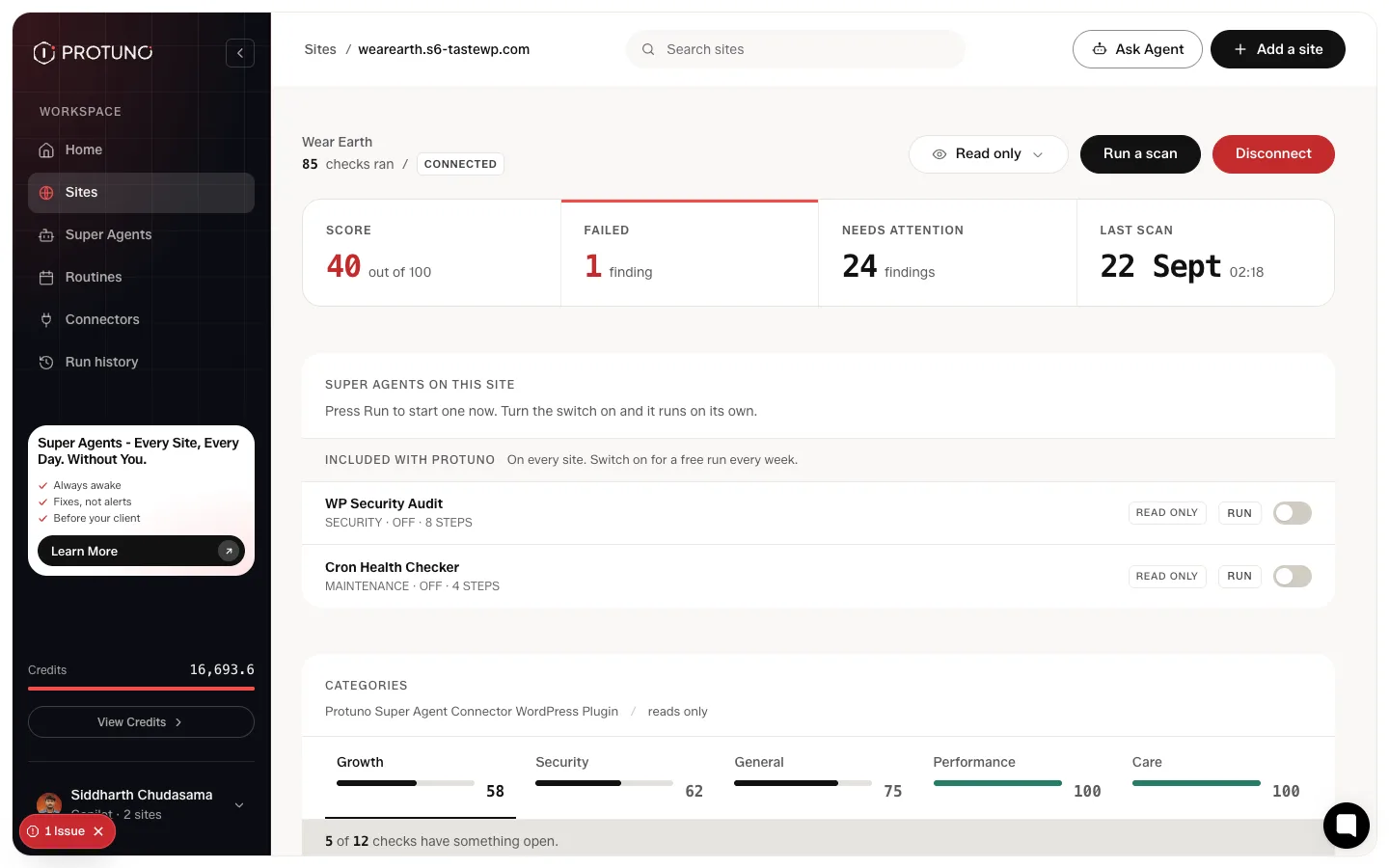
    Score, how many findings failed, how many need attention, and when the site was last read.

    The five report categories

    Findings group into Security, Performance, Care, Growth and General, each with its own score and its own list of what passed.

    The panel tells you how many checks in that category have something open, then lists every check underneath, including the ones that passed. Passed checks are worth reading. They are the evidence that something was actually looked at rather than skipped.

    Fix this, or How to fix

    Every finding states what was observed and why it matters, in the same plain register as the audit. Each one carries two buttons.

    • How to fix opens the exact change to make, in plain words.
    • Fix this hands the fix to your AI app, which checks the issue, tells you its plan and asks before it changes anything. Make it on your staging site, check it there, then move it to your live site in your own way. See Fix a finding in your AI app.

    A missing DMARC record is the clearest example. Nothing inside WordPress can publish one, so no amount of access would let Protuno fix it.

    A fix does not close a finding by itself. The next scan checks again and decides.

    The full Protuno site report showing categories and a list of open findings with fix buttons
    The whole report: categories at the top, then open findings ordered by severity.

    The five severity levels

    Findings carry one of five severities: Critical, High, Medium, Low and Info. Critical means something is either already broken or already exposed. A core file that does not match the official WordPress release is critical, because there are only two explanations and one of them is that someone injected code.

    Low and Info findings are still worth reading. They are the ones that become a problem later rather than today.

    Where to go next

  • Add A Site And Run Your First Audit

    Protuno starts with an address. Paste a domain and it runs 54 checks from the outside, the way any visitor sees your site. No account, no plugin, and you do not have to own the site to look at it.

    Connecting a site is the second step, and it is the one that changes what Protuno can see. Connect your staging site first: Protuno does the work on staging, and your live site is only read. This page covers both.

    What the free audit checks from your address alone

    The audit reads what the address gives up to anyone: the certificate, DNS and mail records, security headers, how fast the server answers, whether a store is reachable. It writes nothing and changes nothing.

    54 checks run from the domain alone. You get the literal finding rather than a grade. “A certificate expires in 9 days”, not “Security: B minus”. It is written so you can forward it to a client without rewriting it first.

    The first few findings show without an account. Opening the full report asks for a name and email.

    What connecting a site adds: 31 more checks

    An address only tells you so much. Some things can only be answered from inside the install: which plugins are genuinely active, the real PHP version, whether the debug log is writing somewhere downloadable, whether a restore point exists at all.

    Connecting a site adds 31 checks, for 85 in total. It takes one plugin and about two minutes.

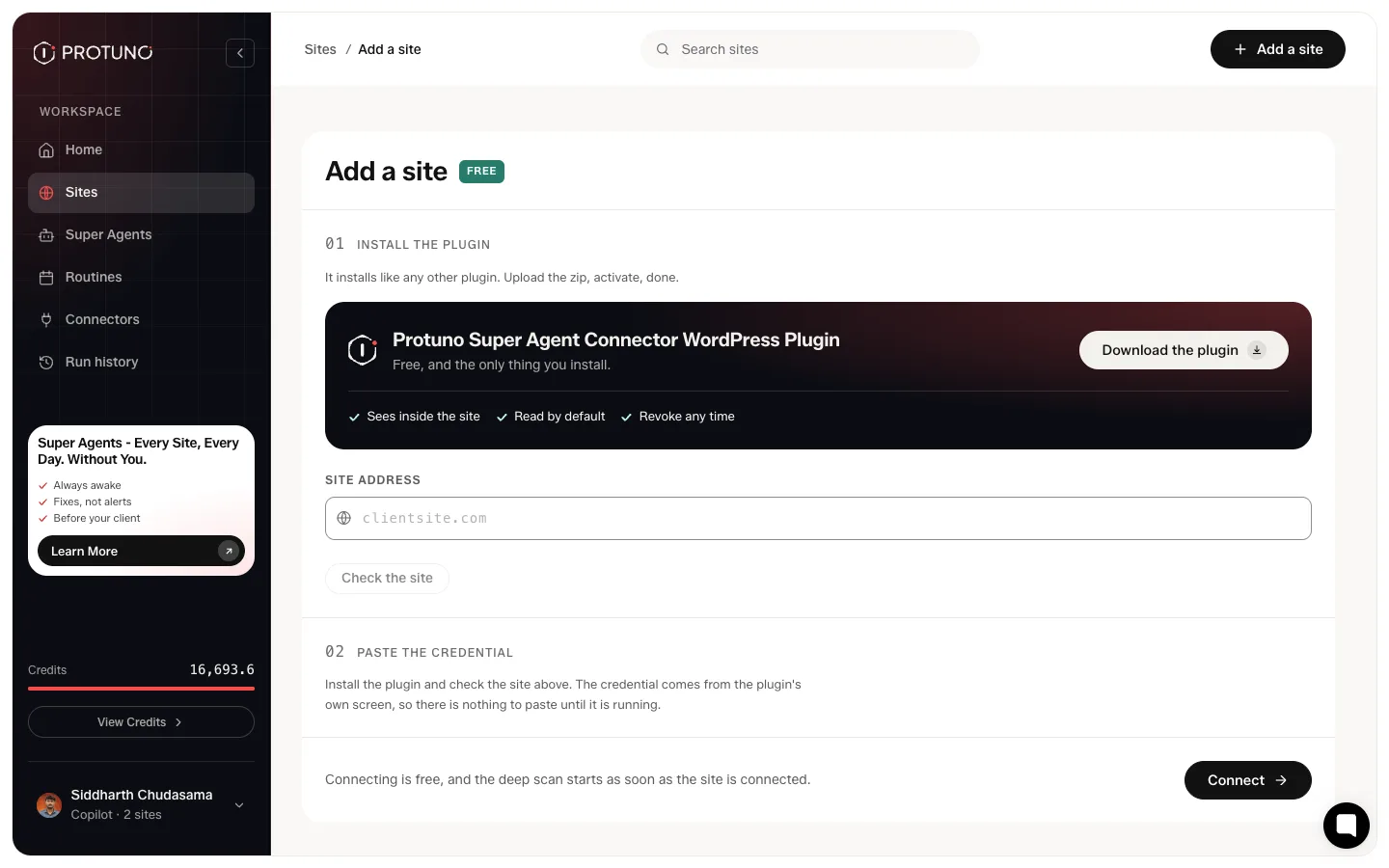
    The Add a site screen in Protuno with the plugin download, a site address field and credential fields
    Add a site: download the plugin, check the address, then paste the username and application password the plugin shows you.

    Use the full address, including https://. The field accepts a bare domain for the check but the connect step expects the complete URL.

    If the check reports that it could not read the site from here, that is a warning rather than a blocker. Carry on; the connect step will tell you if something is genuinely wrong.

    The deep scan starts on its own

    The deep scan starts on its own. It reads the site while you watch, counting up through the 85 checks, and the screen names each one as it goes.

    On most sites this takes about a minute. A large site can take two or three.

    Where your sites appear, ordered worst first

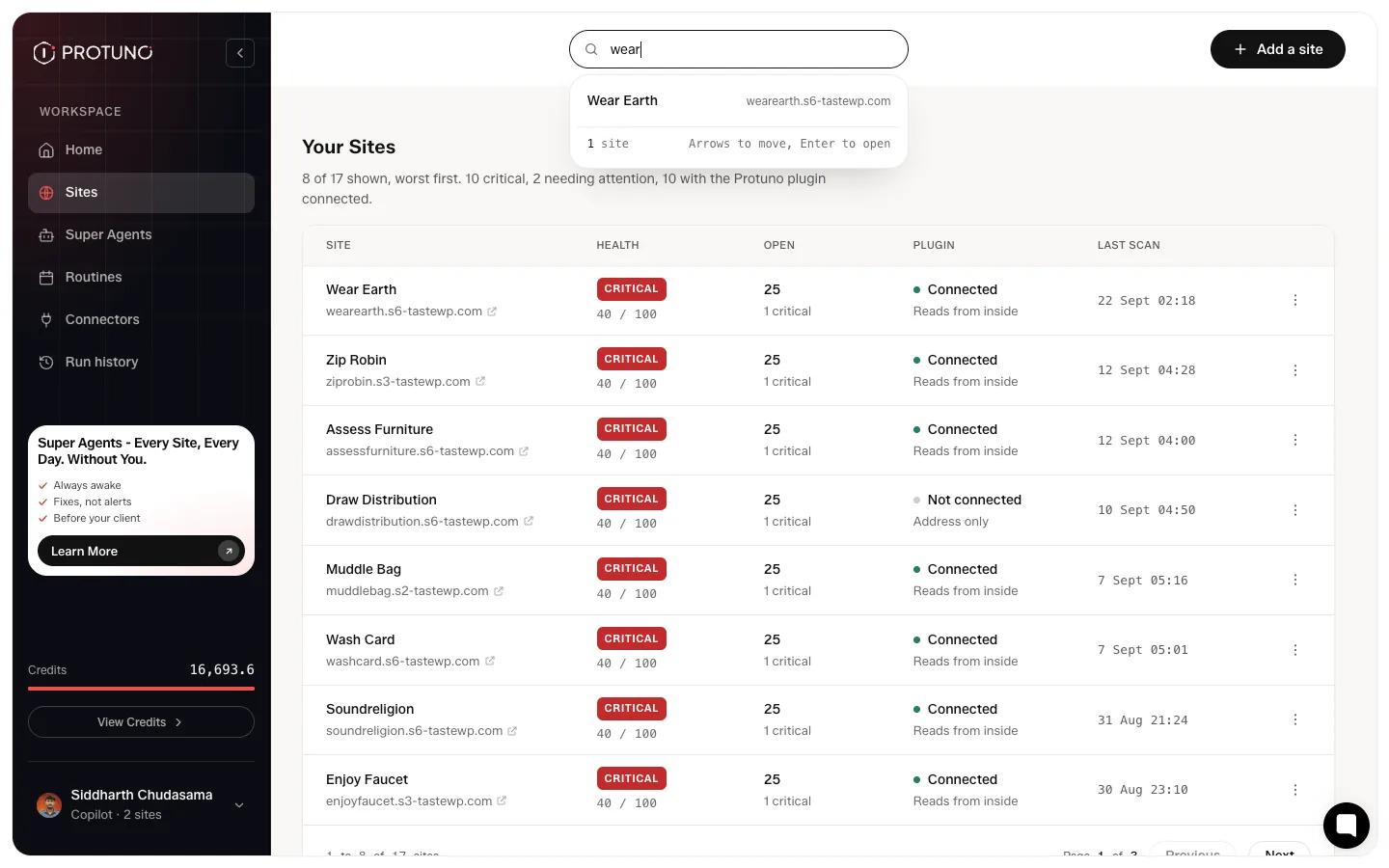
    Every site you add appears under Sites, ordered worst first rather than alphabetically, because the list is meant to answer one question: which of these needs me today.

    The Protuno sites list showing health score, open findings, plugin state and last scan date
    Health, open findings, whether the plugin is connected, and when it was last looked at.

    Each row says whether the site is connected and reading from the inside, or whether Protuno only has the address.

    Where to go next

  • Troubleshooting The Protuno Plugin

    When the plugin cannot do something, it says why in plain words. This page lists those messages, grouped by where you meet them, with the fix for each.

    Find the words on your screen, then read the lines under them. Most fixes take a minute and a setting.

    This site cannot issue a password

    This screen appears instead of the setup steps when WordPress will not create an application password on your site. The line under the heading names the reason. Once it is fixed, press Check Again.

    The site is served over http

    Protuno cannot connect to a site served over http, because WordPress will not issue an application password on one.

    WordPress only issues application passwords on a secure connection.

    To fix it, add an SSL certificate. Most hosts do it from their control panel in a few minutes, and many at no cost. Then make sure both addresses under Settings, General start with https.

    A security plugin turns them off

    Wordfence is switching application passwords off on this site. Turn them back on in its settings, then check again.

    The screen names the plugin when it is Wordfence, Solid Security, Sucuri Security or All In One WP Security. Wordfence ships with this setting on by default.

    To fix it, open that plugin’s login security settings and allow application passwords.

    Application passwords are disabled on this site, usually by a security plugin or the wp_is_application_passwords_available filter.

    Something is turning them off, but the plugin cannot tell what.

    To fix it, check your other security plugins first. If none of them is responsible, look for custom code or a must-use plugin that sets that filter.

    They are off for your account

    Application passwords are switched off for your account, usually by a security plugin. Another administrator can connect this site, or the policy can be changed for your user.

    Application passwords work on the site, but a policy blocks them for your user.

    To fix it, ask another administrator to connect the site, or change the policy in the security plugin for your account.

    WordPress is too old

    This site runs a WordPress version older than 5.6, which has no application passwords.

    Application passwords arrived in WordPress 5.6.

    To fix it, update WordPress. The plugin itself needs 6.9 or later.

    The connector won’t install

    These appear on step two, after you press Install & Enable MCP.

    The download failed

    The connector could not be installed: … Try again, and if it keeps failing the download source may be unreachable from this server.

    Your server could not fetch Agent Connector from its release page. The reason from WordPress appears in place of the dots.

    To fix it, press the button again. If it keeps failing, ask your host whether outbound HTTPS to github.com is blocked, or install Agent Connector by hand and come back.

    Nothing was downloaded. The connector address is not on this plugin’s allowed list. If a filter on this site changed it, that is what to revert.

    The plugin only downloads from a short list of known addresses. Something on your site pointed it somewhere else, so it stopped.

    To fix it, remove the custom code that changed the connector’s address.

    The site does not allow installs

    This site does not allow plugins to be installed from the dashboard, so this one has to go in by hand.

    File changes are switched off on this site, usually by your host.

    To fix it, press Get The Connector, upload it through your host or SFTP, then come back. Switching it on from this screen still works.

    Your account cannot activate plugins here. An administrator can switch on Agent Connector from the Plugins screen, and this page will carry on.

    Your user can see the screen but is not allowed to activate plugins.

    To fix it, ask an administrator to activate Agent Connector for WP under Plugins.

    The site is below the connector’s requirements

    It needs WordPress 7.0 or later. This site runs 6.9.

    Agent Connector for WP needs WordPress 7.0 and PHP 8.1. The screen shows the version it needs and the one your site runs, for WordPress or PHP.

    To fix it, update WordPress, or ask your host to move the site to a newer PHP. Read The Requirements has the full list.

    Universal Abilities didn’t install

    Agent Connector went in, but its companion pack did not. Your agents can read the site but not change it until the pack is added.

    Agent Connector is installed and switched on, but Universal Abilities could not be added: … Press the button again to retry just that part.

    The first half of the install worked. Only the pack failed.

    To fix it, press the button again. It retries the pack alone.

    WordPress will not install plugins on this site. Either your account lacks the permission, or file changes are switched off. Ask whoever hosts the site to add Universal Abilities.

    The same limit as above, met on the pack.

    To fix it, ask your host or an administrator to install Universal Abilities for Agent Connector.

    Stuck on Waiting

    The connection screen says Waiting when Protuno has not read the site in the last seven days, or has not read it yet. Right after you connect, work through these in order:

    Protuno showing that the application password no longer works, with a Reconnect this site button
    What Protuno shows when the password it holds has been revoked or replaced. The project and its history stay; pasting a new password picks up where it left off.
    • Both values went in. Check the username and the application password are pasted into your Protuno dashboard exactly as shown.
    • It is the newest password. If you pressed Regenerate Password, the old one stopped working. Paste the new one.
    • The password still exists. Look under Users, Profile, Application Passwords for Protuno - AI Super Agent.
    • A connector is running. MCP abilities enabled should name a connector, not say Not running. If it says Not running, go back to step two.
    • Nothing is blocking the REST API. A firewall or security plugin that blocks /wp-json/ stops Protuno before it reaches the site.

    Only one server is exposed

    This site is set to expose only Agent Connector for WP to Protuno. Change it on the Protuno screen in wp-admin.

    Protuno tried to use an MCP server other than the one you chose. Its password only opens that one.

    To fix it, open the Protuno screen, go to step two, and enable the server you want Protuno to use.

    Disconnecting and revoking

    Another change to this connection is already running, possibly in a second tab or by another administrator. Wait a moment and try again.

    Two changes cannot happen at once, so the second one waits.

    To fix it, wait a few seconds and press the button again.

    There was no Protuno password on this site to revoke.

    The password was already gone, usually revoked from a user’s profile.

    To fix it, there is nothing to do. The site is already disconnected.

    1 Protuno password could not be revoked and still works: … Remove it from that user’s profile screen, under Application Passwords.

    One password could not be removed from here and is still active.

    To fix it, open that user’s profile and revoke it under Application Passwords.

    1 Protuno credential belongs to a user your account cannot edit, so it was left alone. A network administrator can remove it.

    On multisite, you can only remove passwords of users you can edit.

    To fix it, ask a network administrator to revoke it.

    Known plugin conflicts

    • Wordfence, Solid Security, Sucuri Security, All In One WP Security. These can switch application passwords off. The screen names them when they do. See a security plugin turns them off above.
    • UiChemy. Older UiChemy builds could remove the Protuno plugin while cleaning up a retired tool that shared its file name. The current Protuno plugin tells UiChemy to leave it alone. If Protuno disappeared after you installed or updated UiChemy, install the latest Protuno again.
    • Tutor LMS. It could leave the Protuno screen showing with no styling. The current version fixes this, so update the Protuno plugin.

    Permission messages

    You do not have permission to view this page.

    The Protuno screen is for administrators only.

    To fix it, sign in as an administrator, or ask one to connect the site.

    Still stuck

    Note the exact words the screen shows and which step you were on. That is usually everything we need to tell you what is wrong.