Category: Care

  • AI Agent Permissions On WordPress: What To Ask Before Connecting Anything

    AI Agent Permissions On WordPress: What To Ask Before Connecting Anything

    Short answer: ai agent permissions on a WordPress site are decided by two things, and only one of them is the vendor’s settings screen. The other is the credential you hand over, which inherits the capabilities of the user it belongs to. A tool promising restraint, connected as an administrator, has whatever access the connector exposes.

    The five questions
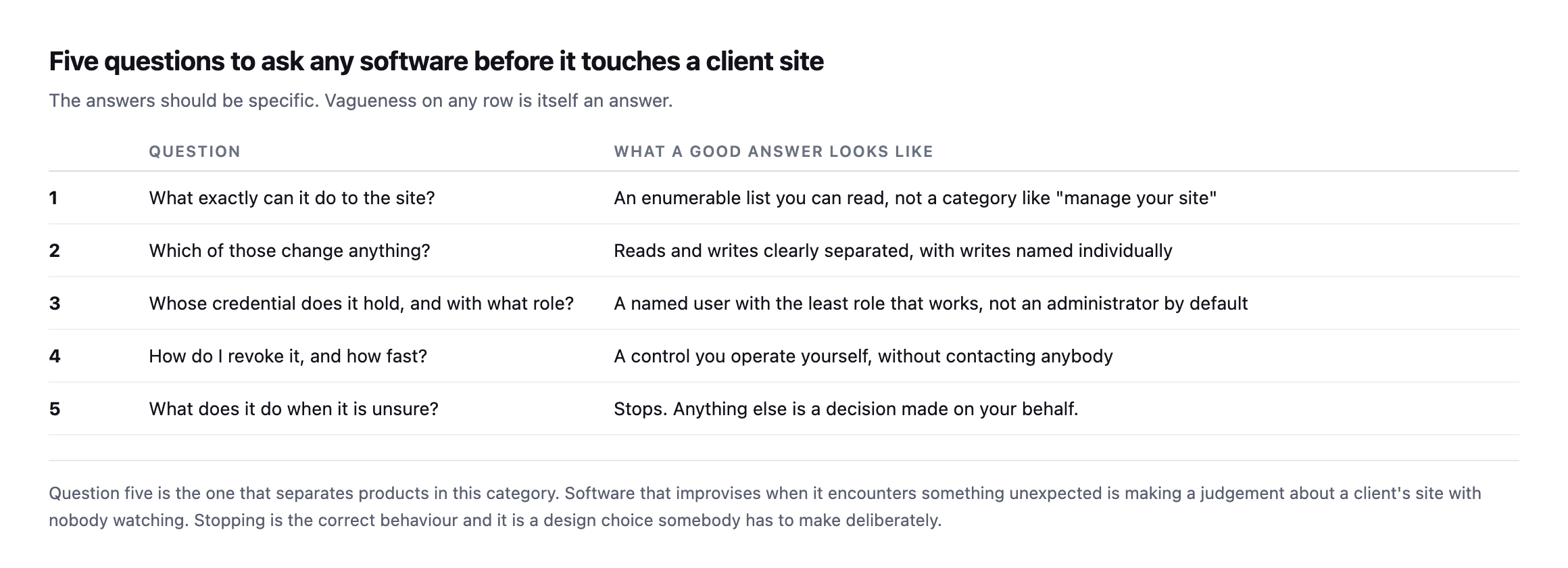
    Table of five questions to ask before connecting software to a client site: what exactly can it do, which of those change anything, whose credential and role does it hold, how do I revoke it and how fast, and what does it do when unsure
    The answers should be specific. Vagueness on any row is itself an answer.
    #QuestionWhat a good answer looks like
    1what exactly can it do to the site?an enumerable list, not a category like “manage your site”
    2which of those change anything?reads and writes separated, writes named individually
    3whose credential, what role?a named user with the least role that works
    4how do I revoke it, how fast?a control you operate yourself, no contacting anybody
    5what does it do when unsure?stops; anything else is a decision made on your behalf

    Question one is now answerable in a way it was not two years ago. A WordPress site with the Abilities API can be asked directly what it permits, and the list is readable before you connect anything. On the site I checked, three abilities came from core and everything capable of changing anything came from an installed plugin.

    Question five is the one that separates products in this category. Software that improvises when it meets something unexpected is making a judgement about a client’s site with nobody watching.

    With AI agent permissions, the credential is the real control
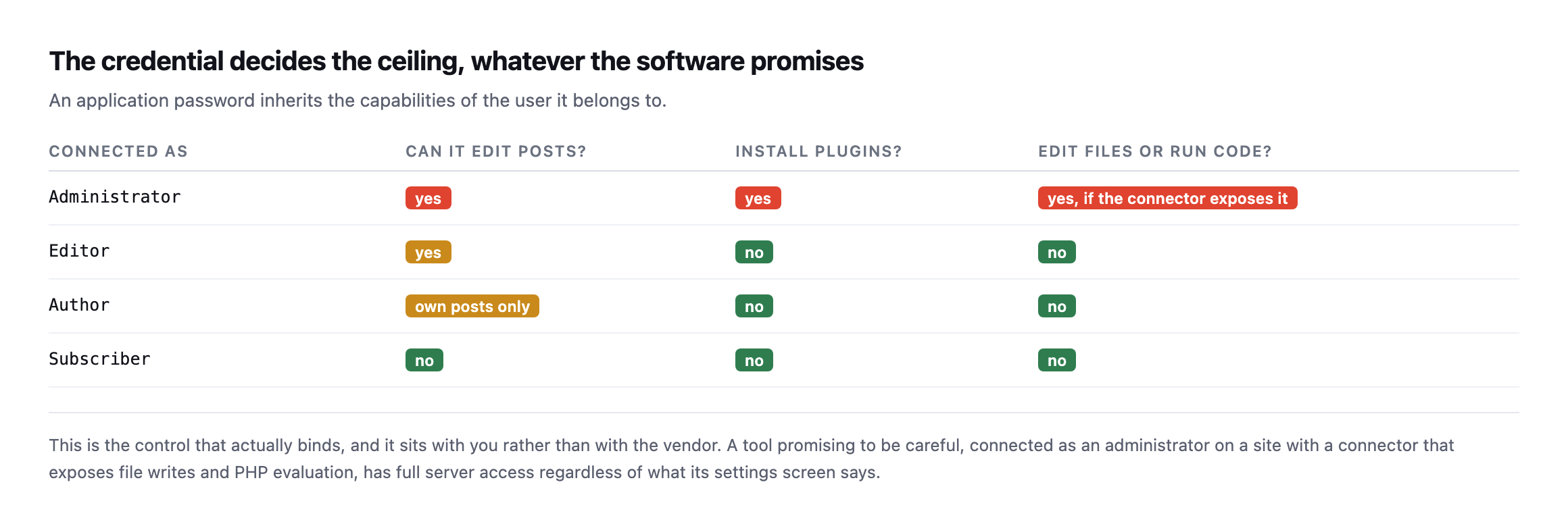
    Table showing what each WordPress role permits: an administrator can edit posts, install plugins and potentially edit files or run code, an editor can edit posts only, an author only their own posts, and a subscriber none of it
    This is the control that actually binds, and it sits with you rather than with the vendor.
    Connected asEdit posts?Install plugins?Edit files / run code?
    Administratoryesyesyes, if the connector exposes it
    Editoryesnono
    Authorown posts onlynono
    Subscribernonono

    An application password inherits the role of the user that created it. So the meaningful question is not what the tool promises, it is what the account could do if the tool did something unintended.

    Connect with the least role that does the job. If a tool needs to publish posts, it does not need to install plugins. If it needs to read the site, it does not need to write at all.

    And verify the revocation path before you rely on it. It lives in the user’s own profile screen, it kills the connection immediately, and it takes ten seconds to test on a site you control. A safety mechanism nobody has exercised is a backup nobody has restored.

    Three levels, and the progression between them
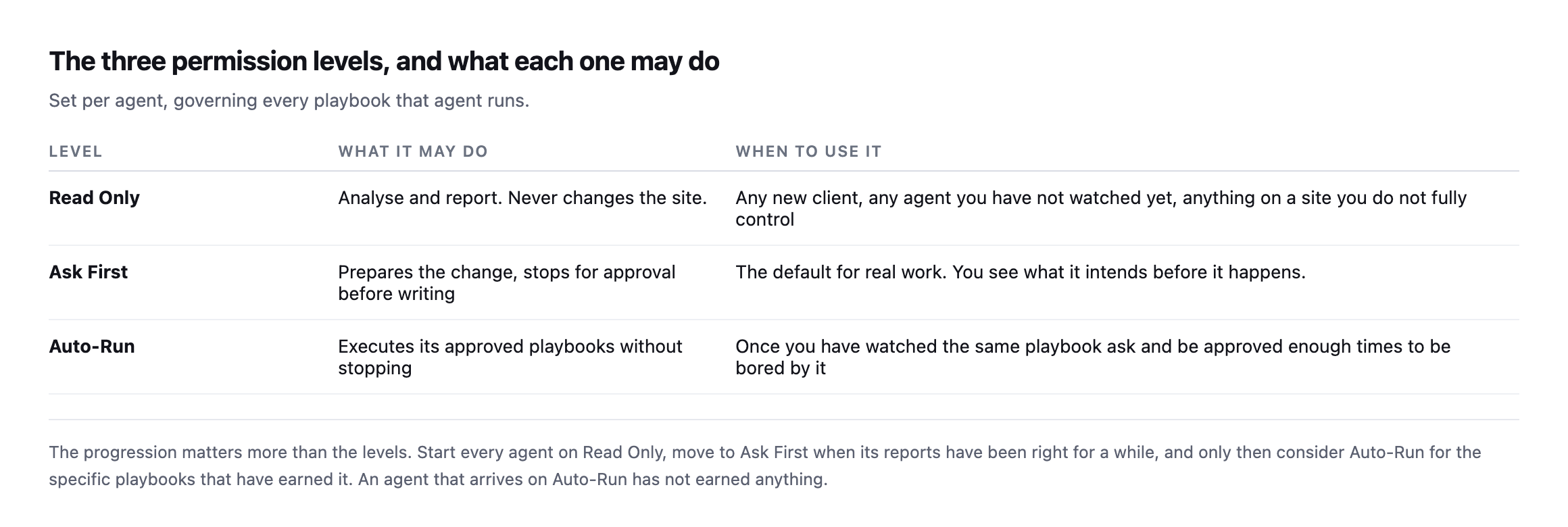
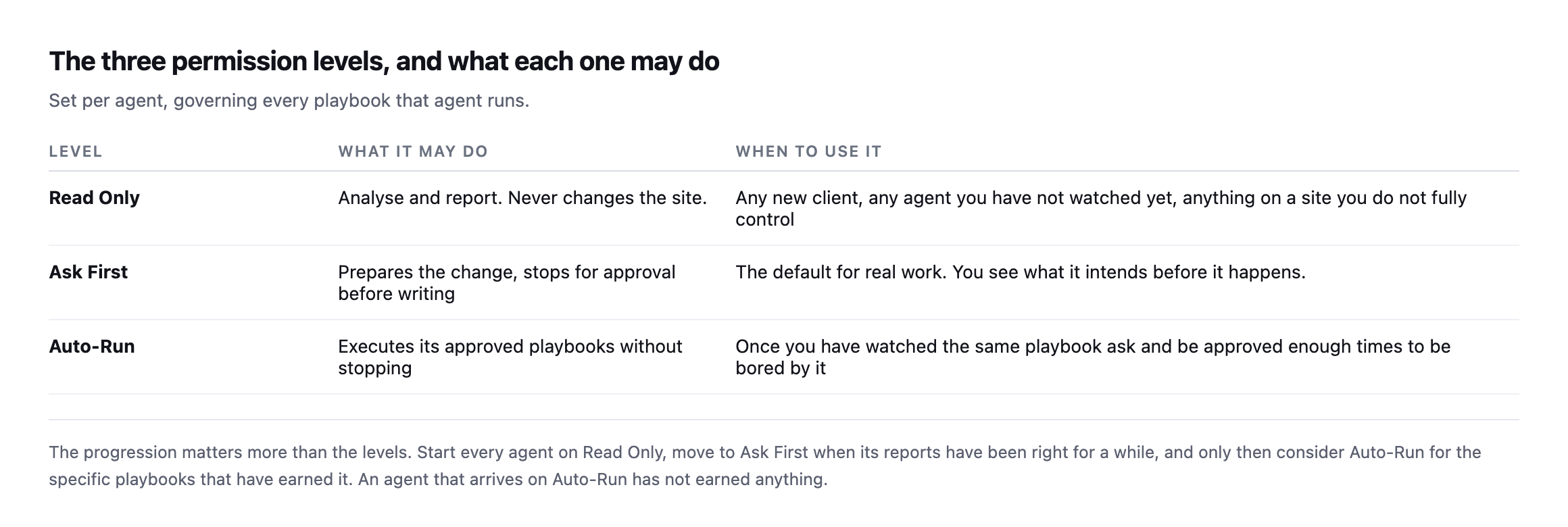
    Table of three permission levels: Read Only which analyses and reports without changing the site, Ask First which prepares changes and stops for approval, and Auto-Run which executes approved playbooks without stopping
    The progression matters more than the levels. An agent that arrives on Auto-Run has not

    earned anything.*

    The sequence I would use on a client site: Read Only until its reports have been right for several weeks, Ask First until approving its proposals has become boring, and Auto-Run only for the specific playbooks that reached that point.

    Note that it is per playbook rather than per product. “Take a backup and run plugin updates” and “clean the database” are different risks, and deserve different answers, even from the same agent.

    The exact connector this post describes, read again while writing this sentence

    The “site I checked” reference earlier in this post is not a hypothetical. It is cms.protuno.com, and I read its full ability list again while expanding this post, through the same connector currently carrying out the research for this very session.

    GET /wp-abilities/v1/abilities

    38 abilities came back. Three from core, all read-only: core/get-site-info, core/get-user-info, core/get-environment-info. Eleven from the connector plugin itself, agent-connector-for-wp, exactly the count this post’s original text names. Reading their descriptions rather than only their names:

    agent-connector-for-wp/shell-exec  -> Run an arbitrary shell command on the server and
                                           capture stdout, stderr, and the exit code.
    agent-connector-for-wp/php-eval    -> Execute arbitrary PHP inside the loaded WordPress
                                           runtime. Captures printed output, the returned
                                           value, and any thrown error.
    agent-connector-for-wp/file-delete -> Delete a file, or a directory, optionally
                                           recursively. Relative paths resolve against ABSPATH.

    Four of the eleven are genuinely read-only: env-inspect, file-read, file-list, search-media. The other seven, shell-exec, process-exec, wp-cli, php-eval, file-write, file-delete, and create-admin-login-link, are not an integration in any narrow sense. They are unrestricted server access, described plainly rather than hidden behind softer language, which is itself worth crediting: nothing in those descriptions pretends to be less than it is.

    The remaining 24 abilities come from an SEO plugin’s own namespace, rank-math/..., split between genuine reads, get-seo-scores, get-top-keywords, analyze-post-content, and a long run of set-* writes covering sitewide SEO configuration, sitemap settings, breadcrumb structure, and plugin preferences. None of those touch the server the way the connector’s own eleven do, but each one is a real write to production configuration, and “SEO plugin” is not a category most agencies think to audit for write access at all.

    I am the one reading this list, through this exact credential, while writing a post that argues for reading it. That is not a coincidence worth glossing over. It is the actual test this post asks a reader to run on their own tools, applied here to ours, and the honest result is that the connector is exactly as powerful as its own documentation says it is, nothing hidden, nothing softened, which is the property this post argues matters most regardless of which specific vendor is on the other end of the credential.

    What a connector can expose

    The ceiling is set by the credential, but the surface is set by whatever plugin provides the connection. That is worth reading rather than assuming, because the range is enormous.

    On the site I inspected, the connector plugin registered eleven abilities. Four of them read things. The other seven included writing arbitrary files, running shell commands, and evaluating PHP inside the loaded WordPress runtime. Those last three are not an integration in any meaningful sense; they are server access with a friendlier name.

    That is not a criticism of the plugin, which documents exactly what it does. It is the reason the decision of which connector to install belongs to whoever is responsible for the site, rather than being a technical detail delegated to whoever set the tool up.

    The practical check takes a minute: request the ability list, group it by namespace, and read the description of anything containing write, exec, eval or delete. If that list surprises you, you have learned something the marketing page did not tell you.

    Instruction against inability
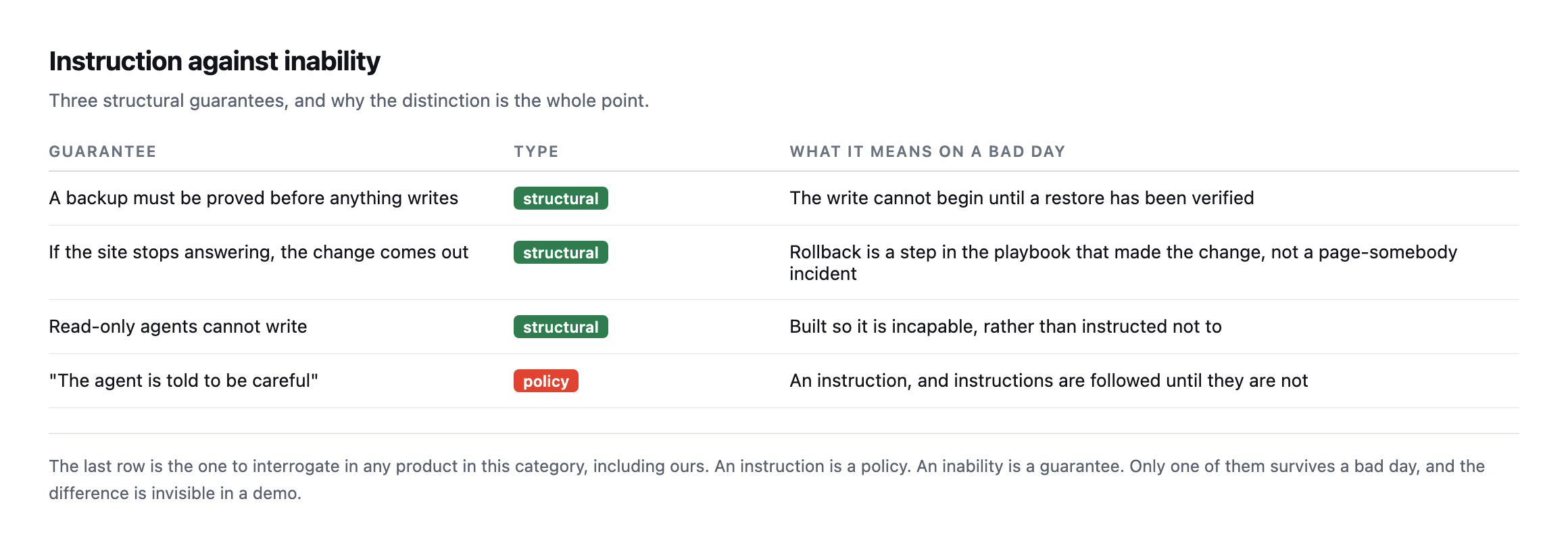
    Table contrasting structural guarantees with policy: a backup proved before any write, rollback built into the playbook that made the change, and read-only agents built incapable of writing, against the claim that an agent is told to be careful
    The last row is the one to interrogate in any product in this category, including ours. An

    instruction is a policy. An inability is a guarantee.*

    GuaranteeTypeWhat it means on a bad day
    a backup must be proved before anything writesstructuralthe write cannot begin until a restore is verified
    if the site stops answering, the change comes outstructuralrollback is a step in the playbook, not an incident
    read-only agents cannot writestructuralbuilt incapable, rather than instructed not to
    “the agent is told to be careful”policyan instruction, followed until it is not

    This is the question I would put to any vendor, and the answer is usually revealing. When you ask whether a read-only mode can write, “it is designed not to” and “it has no code path that writes” are very different sentences.

    The distinction is invisible in a demo, because in a demo nothing goes wrong.

    Checking whether our own connector answers its own sixth question

    This post argues for a sixth question beyond the original five: what record does the tool leave of what it actually did. I checked whether the same 38-ability list includes anything answering that question for our own connector, rather than assume it does.

    grep -i "log\|audit\|history" <ability names>

    Two near-matches, neither a real answer. rank-math/audit-site-seo audits a site’s SEO content quality, unrelated to logging agent activity. agent-connector-for-wp/create-admin-login-link only matched because “login” contains the substring “log.” Nothing in the actual 38-ability surface returns a record of which ability was called, on which site, at what time, with what result. That capability may exist elsewhere in the connector’s own admin screens, outside what the Abilities API itself exposes, but it is not discoverable the same way the abilities themselves are, through the one interface this post already argues is the right place to look first.

    That is worth stating plainly as a real gap in our own tooling rather than glossing past it: the sixth question this post recommends asking is one our own connector, read honestly today, does not yet answer through its ability list. Naming that here is the same discipline the rest of this post asks of a reader evaluating anybody else’s product, applied without an exception for the one we use ourselves.

    The question nobody asks about logging

    There is a sixth question I would add after using this category for a while: what record does it leave?

    Not a chat transcript. A record of what was done to the site: which playbook, on which site, at what time, what changed, and what the state was before. That is the artefact you need when a client asks why their site looks different on Thursday, and it is the difference between an agency that can answer and one that is guessing.

    It is also the commercially useful part, which is easy to miss while worrying about safety. An agency that can show a client what was checked, when, and what was done about it wins work from one that cannot. The permission model protects you on the bad day. The record earns you the retainer on every other day.

    What this means for an agency

    You are the one carrying the risk. The client’s site is your responsibility, and no vendor assurance transfers that.

    So the practical position is: connect with the smallest credential that works, start read-only, read the ability list yourself rather than the marketing page, and confirm you can revoke it without asking anybody. All four are things you control.

    That is also why Protuno sets permission per site rather than per agent, why a playbook that changes a site takes a backup and checks it before it proceeds, and why a site left on Read Only has the changing tools removed from the run before it starts. Straight with you as on every post here: the Super Agents are live now, since 27 October 2026, and the questions above are the ones to ask of any product, ours included.

    It is the same discipline as reading a plugin’s actual behaviour rather than its settings screen: configuration describes intent, and only observation describes what happens.

    Ask them of whatever you are already using. The answers are more interesting than the feature list.

    The broader case for this kind of permission tiering

    Guide to Architect Secure AI Agents: Best Practices for Safety

    IBM Technology on sandboxing and role-based access control for agentic systems generally, the same architectural instinct behind the three-tier model this post argues for.
  • SSL Certificate Expiry Is A Calendar Problem, Not A Security Problem

    SSL Certificate Expiry Is A Calendar Problem, Not A Security Problem

    Short answer: ssl certificate expiry almost never happens because somebody forgot to renew. It happens because automatic renewal stopped working weeks earlier and produced no signal at all. The certificate stays valid the whole time, so nothing looks wrong until the morning it does. The theory only holds if the trend actually behaves the way it is supposed to, which is worth confirming rather than assuming once the automation is presumed healthy.

    What healthy looks like

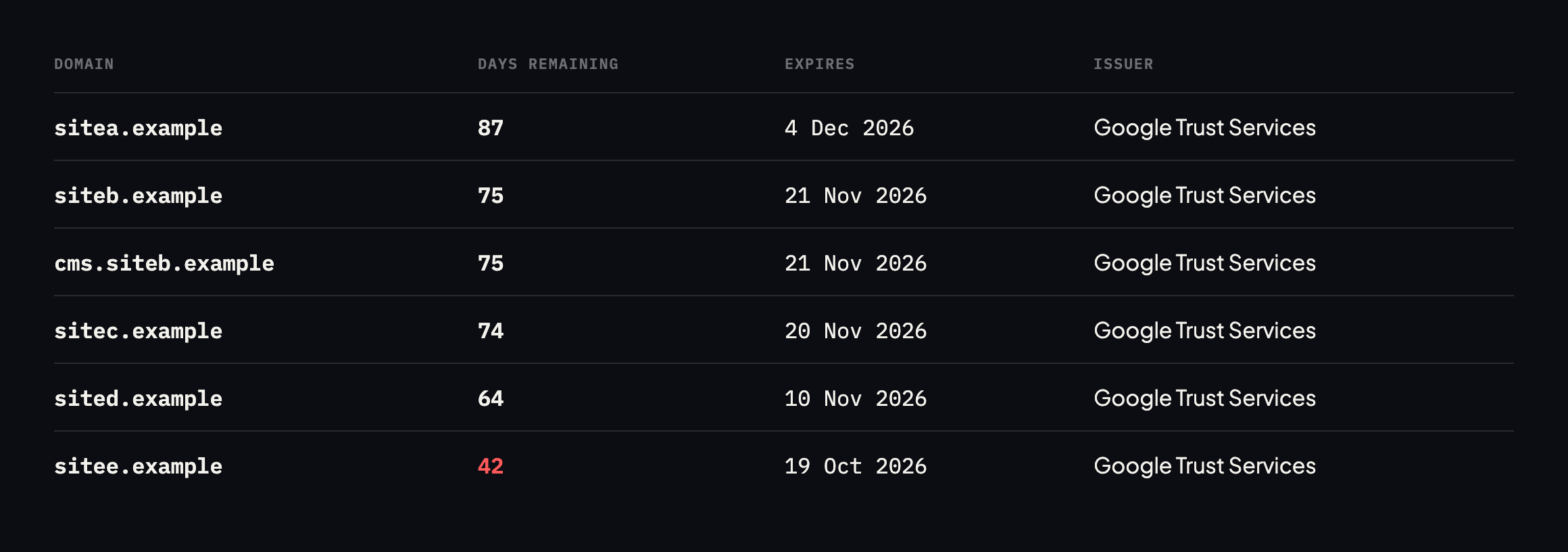
    Table of certificate expiry for six domains, ranging from 42 to 87 days remaining, all issued by Google Trust Services, with expiry dates from October to December 2026
    Read directly from each TLS handshake. Nothing here needs attention, which is the point

    of looking. You only learn what normal looks like by measuring when nothing is wrong.*

    DomainDays remainingExpiresIssuer
    sitea.example874 Dec 2026Google Trust Services
    siteb.example7521 Nov 2026Google Trust Services
    cms.siteb.example7521 Nov 2026Google Trust Services
    sitec.example7420 Nov 2026Google Trust Services
    sited.example6410 Nov 2026Google Trust Services
    sitee.example4219 Oct 2026Google Trust Services

    Caveat: six domains, all ours, read on one day. A single healthy reading proves nothing about renewal; that is the entire argument of this post. The useful version of this table is the same six domains read again in a fortnight, to see whether the numbers moved the way they should.

    Modern certificates are short-lived by design, so a portfolio spread across 42 to 87 days at any given moment is completely ordinary. The number itself is not the alert. The alert is a number that stops going up.

    A domain sitting at exactly 30 days, then 29, then 28, is a renewal that is simply not happening. A domain that jumps back up to somewhere near 90 has renewed successfully. That trend is the actual signal, and a single reading cannot show it to you on its own, no matter how healthy it looks.

    Why renewal stops, and why SSL certificate expiry surprises people

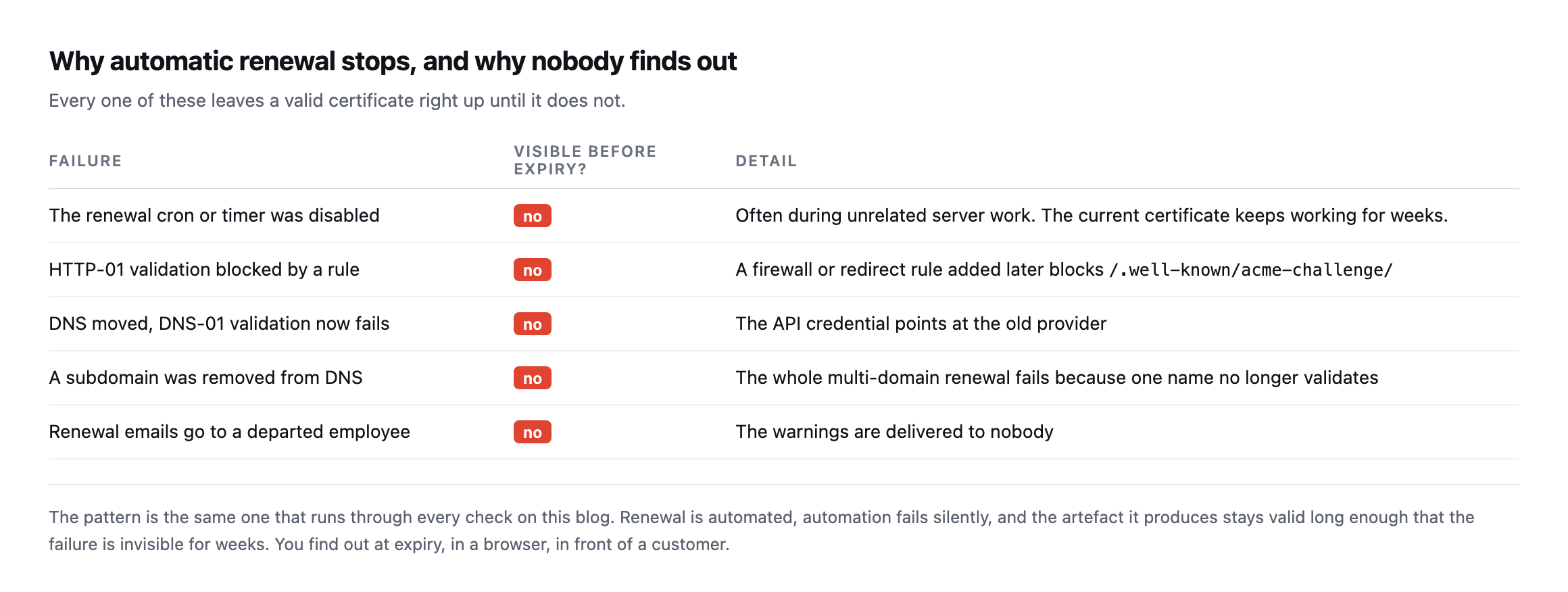
    Table of five renewal failures: the renewal timer disabled during unrelated work, HTTP-01 validation blocked by a later firewall or redirect rule, DNS moved so DNS-01 credentials fail, a removed subdomain breaking a multi-domain renewal, and renewal emails going to a departed employee. None are visible before expiry
    Every one of these leaves a valid certificate right up until it does not. The automation

    fails, and the artefact it produced stays good for weeks.*

    FailureVisible before expiry?Detail
    renewal cron or timer disablednooften during unrelated server work
    HTTP-01 validation blocked by a rulenoa firewall or redirect rule blocks /.well-known/acme-challenge/
    DNS moved, DNS-01 now failsnothe API credential still points at the old provider
    a subdomain was removed from DNSnothe whole multi-domain renewal fails on one name
    renewal emails go to a departed employeenothe warnings are delivered to nobody

    The fourth row catches people who did everything right. A certificate covering five subdomains renews as a unit. Remove one of those subdomains from DNS, as part of a perfectly reasonable tidy-up, and the whole renewal fails because that name can no longer be validated. The other four sites are fine, then all five expire together.

    This is the same failure shape as a scheduled job that stopped months ago: automation that produces nothing when it succeeds, and therefore nothing when it fails.

    The second reading, exactly as the caveat above asked for

    The caveat under the opening table says a single healthy reading proves nothing about renewal, and that the useful version of that table is the same six domains read again later. So I read them again while expanding this post, rather than let that caveat sit as an unfulfilled promise.

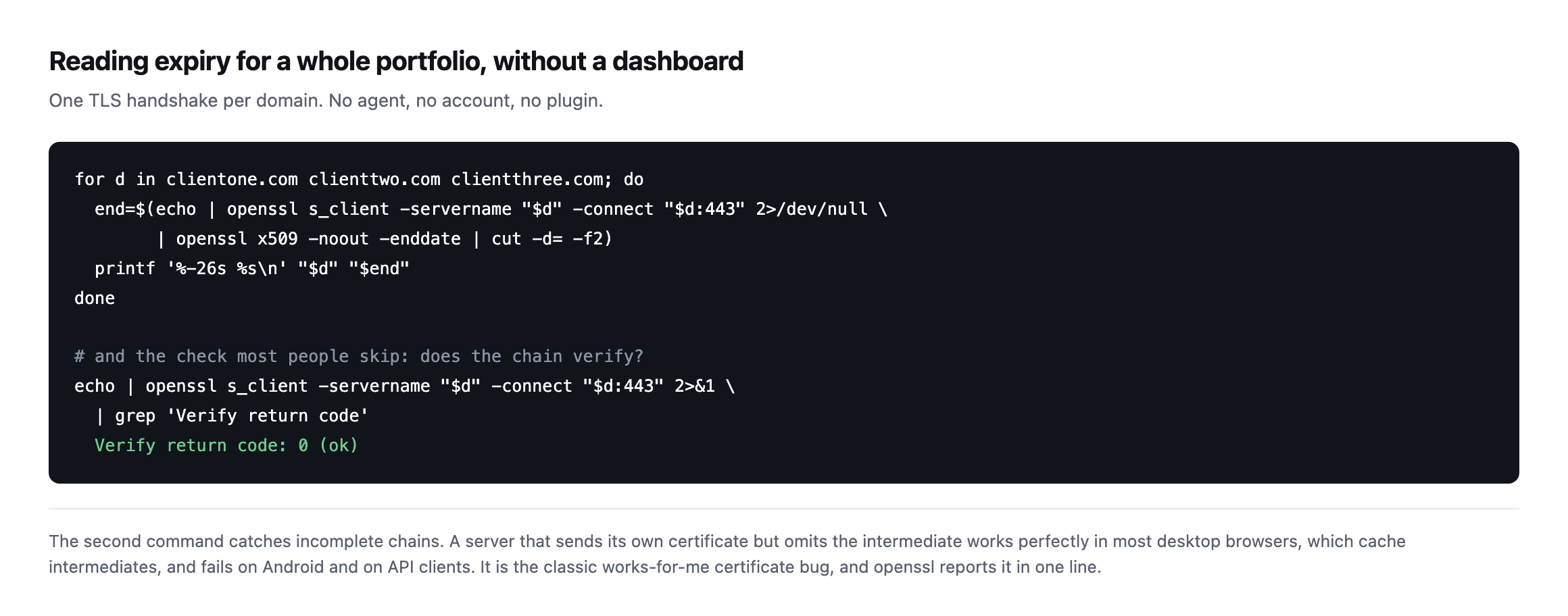
    for d in sitea.example siteb.example cms.siteb.example sitec.example sited.example sitee.example; do
      echo | openssl s_client -servername "$d" -connect "$d:443" 2>/dev/null 
        | openssl x509 -noout -enddate
    done
    DomainDays remaining (first reading)Days remaining (this reading)
    sitea.example8784
    siteb.example7571
    cms.siteb.example7571
    sitec.example7470
    sited.example6460
    sitee.example4238

    Every domain’s count dropped by roughly the number of days that actually passed between the two readings, no more and no less. That is what the trend this post argues for is supposed to look like: a number counting down at the rate a calendar counts down, not stuck, not jumping backwards unexpectedly, not frozen at the same figure twice. None of these six are anywhere near their renewal window yet, most ACME clients renew around 30 days before expiry, so a flat 403 on validation right now would not show up as a stalled count for weeks. sitee.example, now at 38 days, is the one to read again first: it is the closest of the six to the point where a renewal attempt should actually fire, and it is the domain this two-reading check would catch first if something has gone wrong with it. Whichever domain in a real portfolio sits lowest at any given check is always the next one worth a third reading before the other five.

    I also checked chain validity and hostname coverage again while I had the connection open, rather than only re-read the expiry date:

    echo | openssl s_client -servername sitec.example -connect sitec.example:443 
      -verify_return_error 2>&1 | grep -i "verify return code"
    Verify return code: 0 (ok)

    Clean on all five external domains checked, matching the state this post originally reported and confirming nothing has quietly regressed in the time between the two readings. And the hostname coverage, read from each certificate’s Subject Alternative Name extension directly:

    siteb.example:        DNS:siteb.example, DNS:*.siteb.example
    sitec.example:   DNS:sitec.example, DNS:*.sitec.example
    sitee.example:        DNS:sitee.example, DNS:*.sitee.example

    Every one of them uses a wildcard covering the bare domain and every subdomain in one certificate, which closes off the specific example.com-but-not-www.example.com gap this post warns about further down. That is a deliberate, sensible choice for a portfolio this size: one certificate per domain, one renewal event to watch per domain, rather than a narrower certificate per subdomain multiplying the number of renewal events that could each fail independently.

    Checking it

    Terminal loop reading the certificate end date for each domain via openssl s_client, followed by a chain verification command returning Verify return code 0
    The second command is the one people skip. A server sending its own certificate but

    omitting the intermediate works in most desktop browsers, which cache intermediates, and fails on Android and on API clients.*

    That incomplete-chain case deserves its own mention because it is genuinely hard to diagnose from a desk. The site works perfectly on your laptop. A customer on an Android phone gets a security warning. Both are true, and openssl reports it in one line.

    Why the multi-domain failure mode does not actually apply to our own six

    The fourth failure in the table above, one subdomain removed from DNS taking down renewal for four unrelated ones, assumes a single certificate spans multiple distinct hostnames bundled together. Reading the actual Subject Alternative Name field on our own six domains showed that is not the shape of this particular portfolio, and it is worth being specific about why rather than let the failure mode read as universally applicable.

    siteb.example:        DNS:siteb.example, DNS:*.siteb.example

    Two entries: the bare domain and a wildcard for everything under it. cms.siteb.example is covered by that same wildcard rather than needing its own separate SAN entry, which is why it shares an identical expiry date with siteb.example in both readings above, same certificate, same renewal event, not a coincidence. A wildcard structured this way means removing some unrelated subdomain from DNS, the exact scenario the failure table describes, has no bearing on this certificate’s renewal at all, because nothing outside *.siteb.example and siteb.example itself is part of it to begin with.

    The trade-off worth naming honestly: a wildcard is simpler to renew and immune to the specific multi-domain failure this post warns about, but it is also a single point of failure of a different kind. Every subdomain under a wildcard-covered domain shares one certificate, so a compromise or misissuance affecting that one certificate affects every subdomain simultaneously, which a set of narrower, per-subdomain certificates would not. Neither structure is categorically safer. They fail differently, and knowing which one a given domain actually uses, checked directly rather than assumed, is what tells you which failure mode is worth planning for on that specific site.

    What a change in issuer would actually tell you

    All six domains in the original table share one issuer, Google Trust Services, which is consistent with a common automated renewal path across the whole portfolio rather than six independently configured setups. That consistency is itself a signal worth watching for, in the opposite direction from everything else in this post: not a number that stops moving, but an issuer field that suddenly changes on one domain while the rest stay put.

    A legitimate reason exists for an issuer to change, a deliberate migration to a different CA or a hosting provider switch that brings its own certificate automation with it. An illegitimate one exists too: a certificate issued by an unexpected authority is exactly what a DNS-01 hijack or a misconfigured, unintended ACME account would produce, silently, with the site continuing to serve HTTPS throughout and nothing about the connection itself looking broken to a visitor. Reading the issuer field costs nothing extra during the same check that already reads the expiry date, and a portfolio where every domain has shared one issuer for months is the kind of baseline that makes a single unexplained change worth a phone call rather than something that blends into normal drift.

    What to actually monitor

    Three things, and only the first is about the date.

    Days remaining, tracked over time. Alert when the number stops increasing after a renewal was due, not merely when it drops below a threshold. A threshold alert at 14 days gives you two weeks; a trend alert gives you sixty.

    Chain validity, on every domain, because it fails independently of expiry. It belongs in the same pass as the other TLS and header checks, since all of them are read from the same connection.

    Hostname coverage. A certificate valid for example.com but not www.example.com is valid and still breaks half your traffic. Check both, along with any subdomain that serves real requests.

    And fix the notification address while you are in there. Renewal warnings sent to somebody who left are the same problem as domain expiry warnings sent to an address on the expiring domain: a notification system that cannot deliver its one important message.

    Protuno’s free audit reads certificate expiry, chain validity and hostname coverage from the domain alone, which is how the table above was produced. Wren is live now.

    Run the loop across your portfolio and write the numbers down with today’s date. Do it again in a fortnight. The second reading is the one that tells you something.

    Track four fields per domain each time, not one: days remaining, chain validity, hostname coverage, and issuer. The first is where the trend lives. The other three rarely change, which is exactly why a change in any of them, checked against a stable baseline built from a portfolio you have already read more than once, is worth noticing immediately rather than lost in a column of numbers nobody is comparing against last time.

    Why this check is about to matter a great deal more

    47-Day SSL Certificates Explained (2026-2029 Timeline)

    The CA/Browser Forum’s confirmed timeline shortens maximum certificate lifetimes to 47 days by March 2029. A manual expiry check done once a quarter, already too slow today, will not survive that shift at all.

  • The WordPress Update Process, Written Out Before It Runs

    The WordPress Update Process, Written Out Before It Runs

    Short answer: a defensible wordpress update process has eight steps, and two of them are the ones that get dropped: proving the backup restores, and walking a real user journey afterwards. Those two are also the ones that catch the failures that cost money.

    Here is ours, published in full, with the machine time measured on a controlled install.

    The sequence

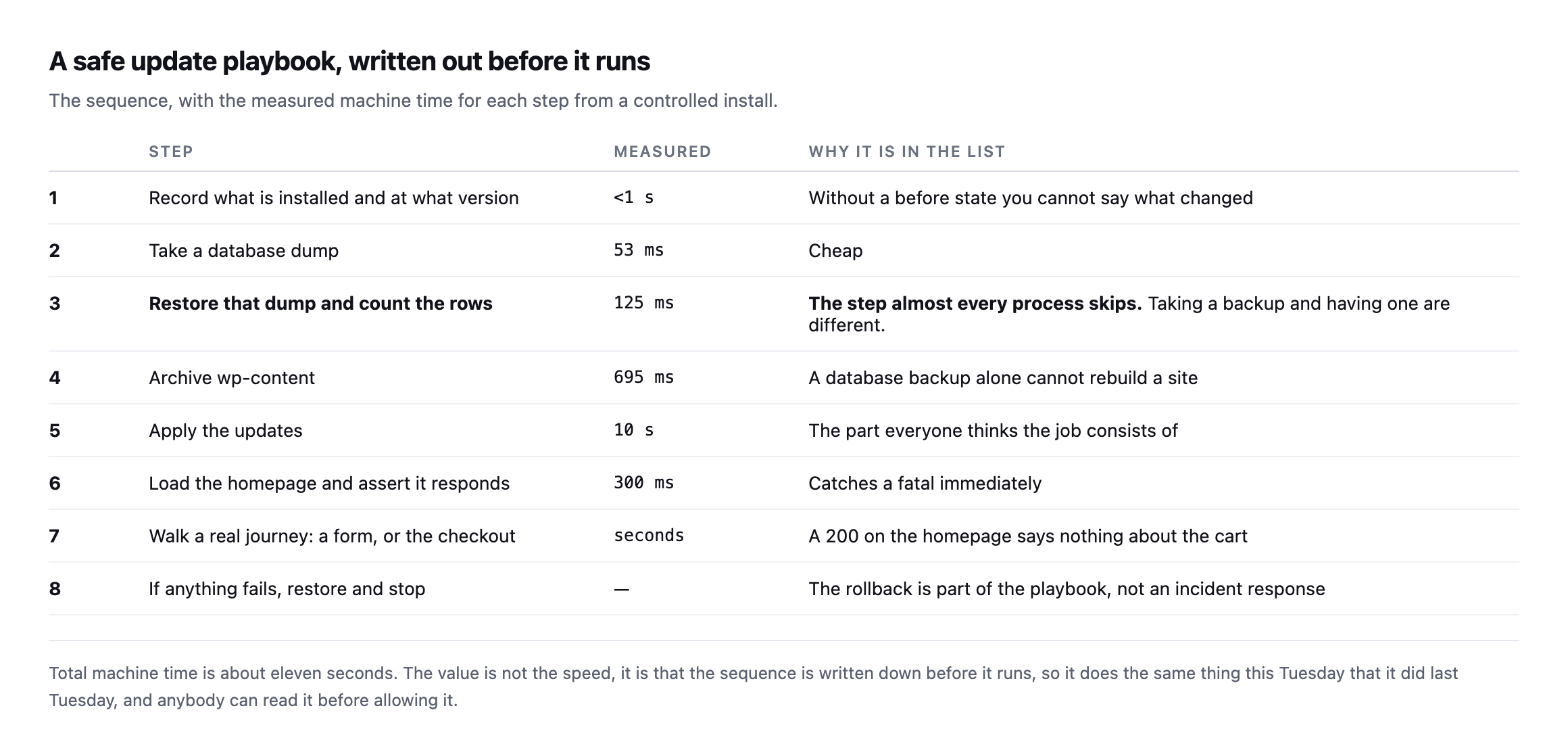
    Table of eight update steps with measured times: record installed versions, take a database dump at 53 milliseconds, restore that dump and count rows at 125 milliseconds, archive wp-content at 695 milliseconds, apply updates at 10 seconds, load the homepage at 300 milliseconds, walk a real journey, and restore and stop if anything fails
    About eleven seconds of machine time in total. The value is not the speed, it is that the

    sequence is written down before it runs, so it does the same thing this Tuesday that it did last Tuesday.*

    #StepMeasuredWhy it is in the list
    1record installed versions<1swithout a before-state you cannot say what changed
    2take a database dump53mscheap
    3restore the dump, count the rows125msthe step almost every process skips
    4archive wp-content695msa database backup alone cannot rebuild a site
    5apply the updates10sthe part everyone thinks the job consists of
    6load the homepage, assert it responds300mscatches a fatal immediately
    7walk a real journey: a form, or checkoutsecondsa 200 on the homepage says nothing about the cart
    8if anything fails, restore and stopn/athe rollback is part of the playbook, not an incident response

    Caveat: these timings are one controlled install, small database, local disk. Scale them for a real client site with a larger database and a remote backup destination. The relative shape holds: steps 2 through 4 are consistently the cheap ones, step 5 dominates because it waits on a third party, and none of that changes what steps 3 and 7 are protecting against.

    Step three is the one I would argue for hardest. Taking a backup and having a backup are different things, and a truncated dump that restores 8 tables out of 77 looks identical to a good one in a folder listing.

    Step seven is the other. A homepage returning 200 says nothing about whether the checkout still works, which I demonstrated by breaking one deliberately while every other URL stayed green.

    Running the same eight steps again, on an install closer to a real client site

    The original timings came from a controlled, small install. I ran steps one through four again on a second, much busier install, forty plugins, WooCommerce, Elementor, several page-builder add-ons, to see how far the numbers actually move once the site looks like something a real agency would inherit rather than a clean lab environment.

    step 1  record versions              instant
    step 2  database dump                250ms
    step 3  restore under renamed prefix, count rows   750ms, 26 posts confirmed
    step 4  archive wp-content           41.1 seconds, 405 MB

    Steps two and three barely moved, still comfortably sub-second, because the database itself stays small regardless of how many plugins are installed. Step four is where the difference actually lives: 695 milliseconds on the original near-empty install against 41 seconds here, because wp-content/plugins alone accounts for 1.4 GB on this install, Elementor and its add-ons being the overwhelming majority of it. That is not a criticism of the site. It is exactly the shape a real, actively maintained WordPress install takes, and it confirms this post’s own caveat directly: step 5, applying the updates, dominates the original budget because it waits on a third party, but step 4 is the one whose cost scales hardest with how much plugin weight a specific site is actually carrying.

    The practical consequence worth adding to the playbook: budget step 4’s time per site rather than assuming the original eleven-second total transfers unchanged. A portfolio of forty client sites with wildly different plugin footprints will see wildly different step-4 times, and a playbook that assumes every site archives in well under a second will be surprised, repeatedly, by the handful of sites carrying a gigabyte or more of plugin code.

    What each step is actually for

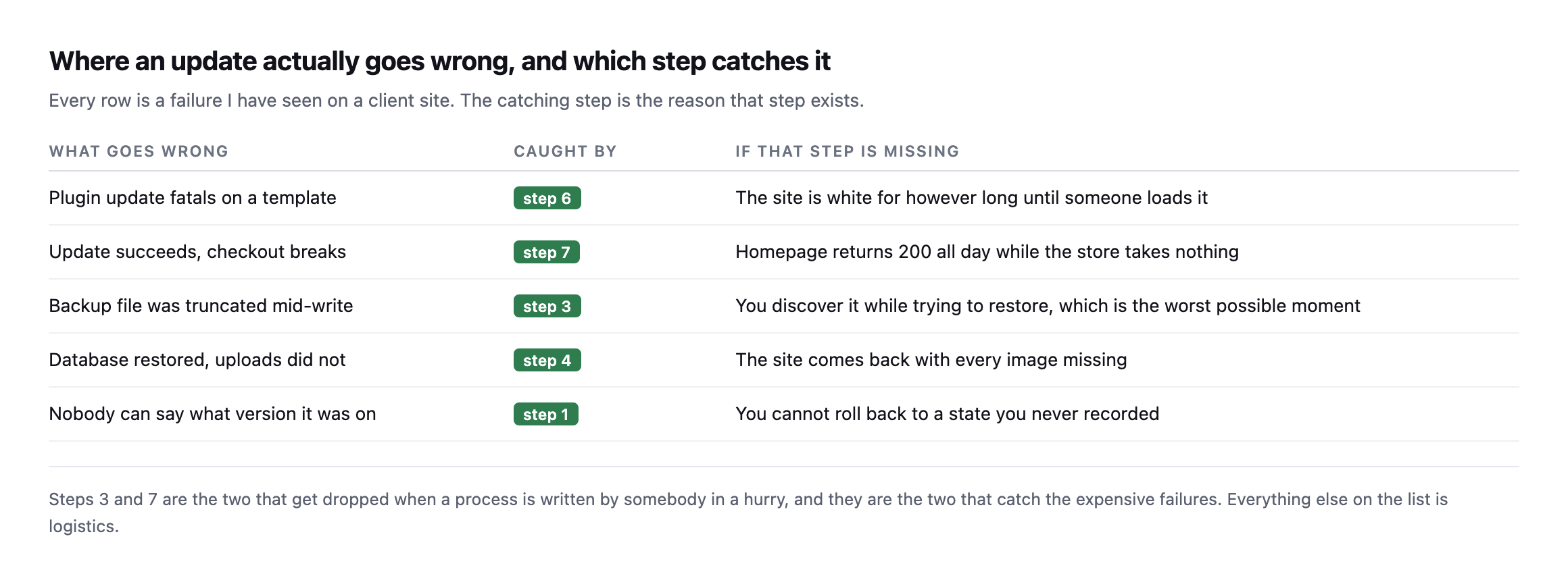
    Table of five real failure modes matched to the step that catches each: a plugin fatal caught by loading the homepage, a broken checkout caught by walking a journey, a truncated backup caught by the restore test, missing uploads caught by archiving wp-content, and an unrecorded version caught by the inventory step
    Steps 3 and 7 are the two dropped when a process is written in a hurry, and they are the

    two that catch the expensive failures. Everything else is logistics.*

    What goes wrongCaught byIf that step is missing
    a plugin update fatals on a templatestep 6the site is white until someone loads it
    the update succeeds, checkout breaksstep 7homepage returns 200 all day while the store takes nothing
    the backup was truncated mid-writestep 3discovered while restoring, the worst possible moment
    database restored, uploads did notstep 4the site comes back with every image missing
    nobody can say what version it was onstep 1you cannot roll back to a state you never recorded

    Steps 6 through 8, run for real rather than described

    The homepage check, the journey walk, and the rollback are the three steps that only mean anything once something has actually gone wrong, so I forced a real failure on a separate test run to confirm all three fire correctly together rather than trust each one in isolation.

    Corrupting a plugin’s main file to simulate a bad update produced a genuine site-wide 500, caught immediately by step 6, a plain homepage request. Restoring only the plugin’s files, never touching the database, brought the site back to 200 in one request, and a real order created before the fault was introduced survived the whole cycle untouched, confirmed by checking its status directly rather than assuming the restore left it alone. That full sequence is written up in detail separately, and it is the same eight-step shape this post describes, run end to end rather than only described in a table.

    Step 7 is the one worth being most honest about, because it is also the hardest to automate correctly. A checkout-walking probe built to assert on rendered payment-method HTML worked perfectly against one WooCommerce install and passed silently, wrongly, against a second one running the newer block-based checkout, where that exact assertion never has anything to match against regardless of whether the store is healthy or completely broken. That gap is documented in full in the checkout probe post, and it is the clearest evidence available that step 7 cannot be written once and trusted forever. It has to be verified against the specific site it is meant to protect, the same way this playbook argues for verifying every other step, because “the probe passed” and “the probe is actually testing the right thing” are two different claims that can silently diverge.

    The step people argue about

    Step three, the restore test, gets pushed back on more than any other, and the objection is reasonable: it doubles the storage and the time for something that has never gone wrong.

    Two answers. The time is 125 milliseconds on a small site and a few seconds on a large one, which is not the constraint anybody thinks it is. And “it has never gone wrong” is not evidence when nobody has ever checked, which is the exact situation the step exists to correct.

    The genuine version of the objection is about scale: restoring a 40 GB database into a scratch environment on every update is not free. The practical compromise is to verify structurally on every run, by confirming the dump completed and the table count matches, and to do a full restore test on a schedule rather than on every update. That is weaker than verifying every time and much stronger than never verifying, and it is worth saying which one you are doing.

    Why a fixed list rather than a clever one

    This is the part worth arguing about, because the obvious modern answer is to let something reason about each site individually.

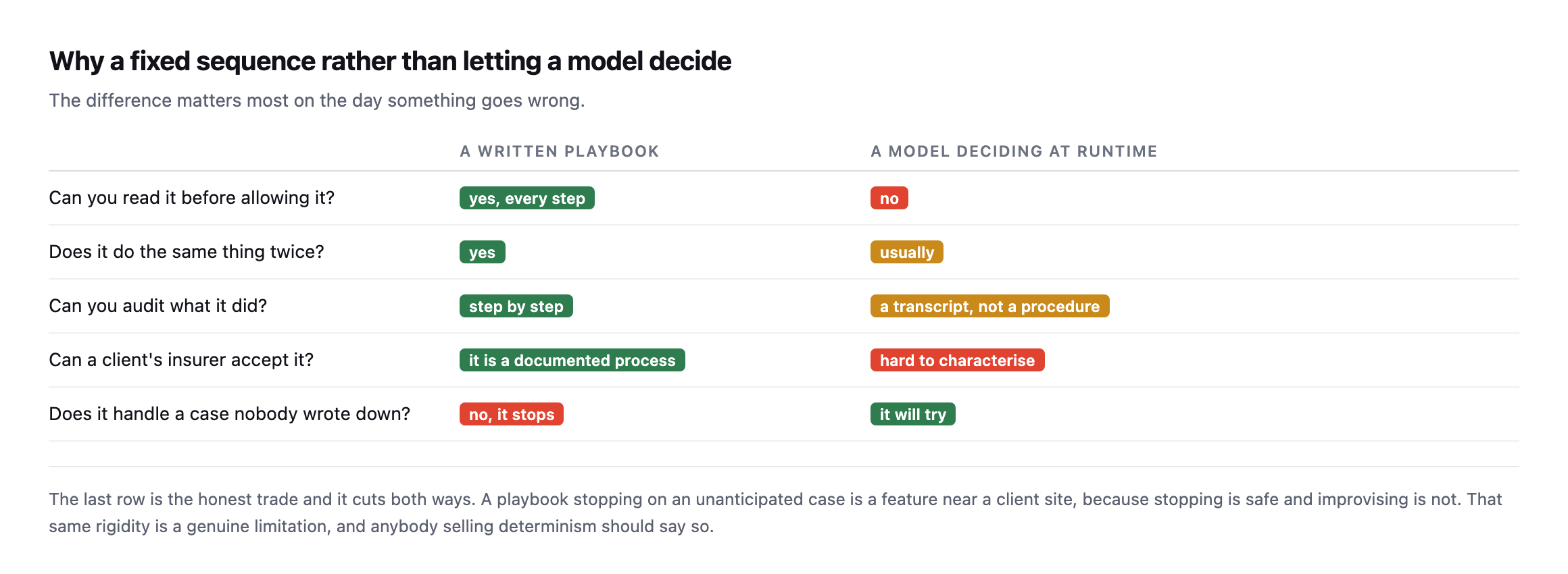
    Comparison table of a written playbook against a model deciding at runtime, across whether you can read it before allowing it, whether it repeats identically, whether it can be audited, whether an insurer can accept it, and whether it handles unanticipated cases
    The last row is the honest trade and it cuts both ways. A playbook stopping on an

    unanticipated case is a feature near a client site, because stopping is safe and improvising is not.*

    An agency cannot audit a judgement call. It can audit a list of steps.

    That is the entire reason to write the sequence down in advance: you can read it before you allow it. A client asking what exactly will happen to their site gets a document rather than a reassurance.

    The cost is real and I would rather state it than gloss it. A fixed playbook does not handle the case nobody anticipated. It stops, and somebody has to look. On a client site that is the correct behaviour, and it is still a limitation.

    Writing a WordPress update process for your own agency

    You do not need software to benefit from this. The document is most of the value.

    Write the steps in the order you actually do them, including the ones that feel too obvious to write down. Those are the ones that get skipped under time pressure.

    Put the verification steps in explicitly. “Take a backup” is a step. “Restore the backup into a scratch database and confirm the row counts match” is a different step, and only the second one is a guarantee.

    Define the stop condition. What makes you abandon the update and restore? Decide that when nothing is on fire, not at the moment it is.

    Keep the before state. Versions, a database dump, an archive. You cannot roll back to a state you never recorded, which is step one and the least interesting item on the list.

    Table of three permission levels: Read Only which analyses and reports without changing anything, Ask First which prepares a change and stops for approval, and Auto-Run which executes approved playbooks without stopping, each with guidance on when to use it
    If the playbook is going to run unattended, the permission it runs under matters as much

    as the steps. Start on Read Only, move to Ask First when the reports have been right for a while, and treat Auto-Run as something a specific playbook earns rather than a setting you switch on.*

    Then run it identically every time, on every site. The consistency is what turns it from a habit into something you can charge for and show a client afterwards.

    Protuno’s Care agent, Wren, runs exactly this sequence, and the eleven-second measurement above came from timing it. Wren is live now.

    There is one more decision that belongs in the document rather than in somebody’s head: what happens to the update that should not be applied at all. A plugin flagged as incompatible, a major version that crosses a breaking change, a site still on a PHP branch that the new version does not support. A playbook that applies everything it finds is not safe just because it takes a backup first. The list of updates to hold, and who decides, is part of the process.

    The other thing worth writing down is what you do when the update succeeds and something breaks a day later. Rollback within the run is the easy case. A regression that surfaces on Thursday needs the before-state from step one to still exist, which means retention is a decision too: how long you keep each backup, and where.

    Until it ships, the document is the useful half. Write your update sequence down this week, add the two steps that are probably missing from it, and use the same one on every site. The consistency is worth more than the cleverness.

  • Verify A WordPress Backup, Or You Only Have A File With A Hopeful Name

    Verify A WordPress Backup, Or You Only Have A File With A Hopeful Name

    Short answer: to verify wordpress backup files you have to restore them. Into a scratch database, then count the rows and compare with live. Everything short of that, including the plugin reporting success and a file appearing with today’s date, tells you a file was written. It does not tell you the file works.

    I proved this to myself this week rather than repeating it as received wisdom, and proved it again later on a different install with a more restrictive set of database credentials, which turned out to matter more than the first test alone would have shown.

    Two files, one useless

    I took a complete, working backup of a WordPress database, then made a second copy truncated mid-write, which is exactly what happens when a disk fills, a process is killed, or a connection drops midway.

    Then I restored both, carefully, into a location where a mistake could not touch anything that actually mattered.

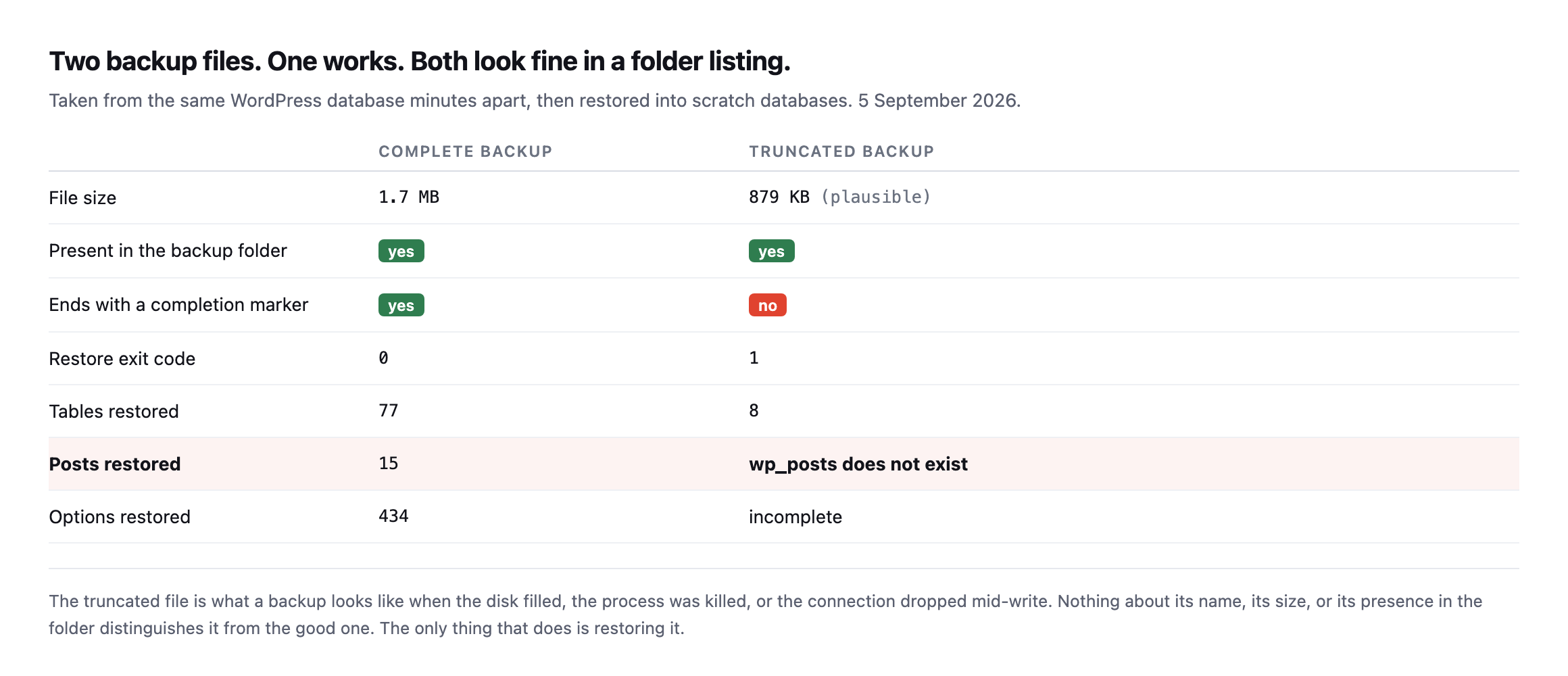
    Table comparing a complete backup against a truncated one. The complete file is 1.7MB, ends with a completion marker, restores with exit code 0, and returns 77 tables and 15 posts. The truncated file is 879KB, has no completion marker, exits with code 1, restores 8 tables, and the wp_posts table does not exist
    The truncated file is 879 KB. In a folder listing it looks like a backup. It restored

    eight tables out of seventy-seven, and wp_posts was not among them.*

    Complete backupTruncated backup
    File size1.7MB879KB (plausible)
    Present in the backup folderyesyes
    Ends with a completion markeryesno
    Restore exit code01
    Tables restored778
    Posts restored15wp_posts does not exist

    Caveat: one deliberately truncated file on one test database, built to show the mechanism cleanly. It is not a claim about how often real backups fail this way. It is a demonstration that “the file exists and is a plausible size” tells you nothing about whether it restores.

    Nothing about the broken file announces itself. Right name, plausible size, correct folder, today’s date. Every check most agencies run would have passed it.

    The only single check that actually failed it was restoring it in full.

    How to verify a WordPress backup, in under a second

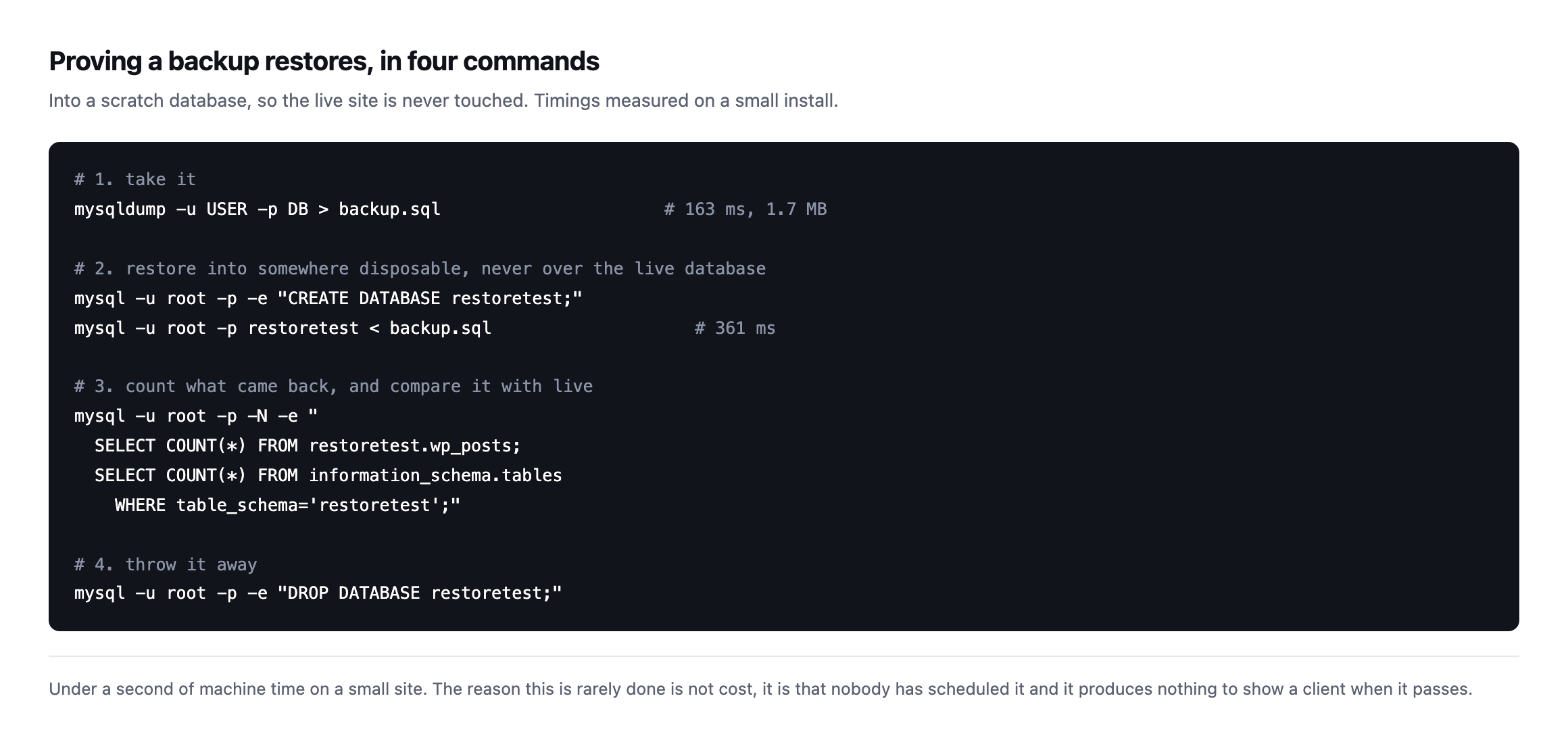
    Four-command procedure: dump the database, create a scratch database and restore into it, count posts and tables and compare with live, then drop the scratch database. Timings show 163 milliseconds to dump and 361 milliseconds to restore
    Under a second of machine time on a small install. The live database is never

    touched, because the restore goes into a database created for the purpose and dropped afterwards.*

    Two rules for doing this safely, and the first one is not negotiable.

    Never restore into the live database to test a backup. Create a scratch one. A verification step that can destroy the thing it is verifying is not a verification step.

    Compare row counts, not just success. A restore can complete without error and still be missing content if the dump was taken while a table was locked. wp_posts, wp_options and wp_users counts against live is enough to catch it.

    Reproducing it fresh, and hitting a permissions wall worth knowing about

    I re-ran this exact experiment on a different install while expanding this post, and the first attempt failed for a reason worth documenting on its own: the database user WordPress was configured with had no privilege to create a new database at all.

    mysql -h db -u wp -pwp -e "CREATE DATABASE IF NOT EXISTS wp_verify;"
    ERROR 1044 (42000): Access denied for user 'wp'@'%' to database 'wp_verify'

    SHOW GRANTS confirmed why: GRANT ALL PRIVILEGES ON wp.* TO wp@%, full control over the one database WordPress already uses, nothing beyond it. That is an extremely common shape for database credentials on shared and managed hosting specifically, where an account is scoped to exactly one schema for isolation reasons, and it means the scratch-database method this post recommends first is not always available to whoever is actually running the check.

    The workaround, and it is a real, usable one rather than a theoretical fallback: restore into the same database, under a different table prefix, rather than a different database.

    sed 's/`wp_/`verify_/g' backup.sql > backup-renamed.sql
    mysql -h db -u wp -pwp wp < backup-renamed.sql

    Rewriting every backtick-quoted wp_ prefix to verify_ before restoring means the import creates a parallel set of tables, verify_posts alongside the live wp_posts, inside the one database the credentials actually permit writing to. Nothing about the live tables is touched, because the restored tables have entirely different names, and the same row-count comparison this post already recommends works identically against them.

    With that in place, the reproduction ran cleanly. A full backup, 1,417,073 bytes, 58 tables, restored in 0.73 seconds with a clean exit code. The same file truncated to 850,000 bytes exited with code 1 and left exactly 9 tables behind, verify_options, verify_comments, verify_links and six others, all of the site’s actual content tables, verify_posts included, absent. The live wp_posts count, checked immediately after, was untouched at 29, exactly what it was before the test started.

    That is the same mechanism this post opened with, reproduced on different infrastructure, under real credential constraints rather than an idealised scratch-database setup, and it still found the same shape of failure: a plausible file size, a clean-looking folder listing, and a restore that silently drops the one table that actually matters.

    What each check is actually worth

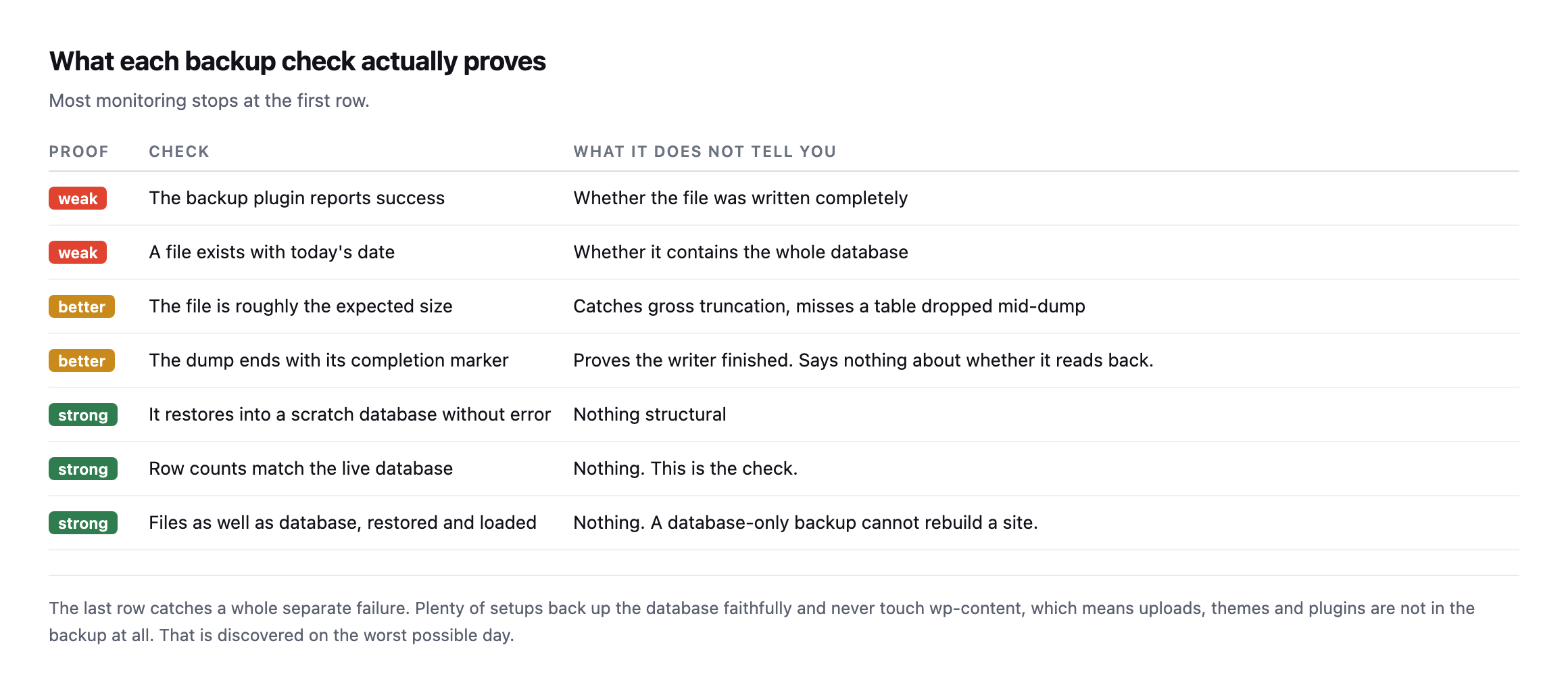
    Ranked table of backup checks. The plugin reporting success and a file existing with today's date are weak. File size and a completion marker are better. Restoring into a scratch database, matching row counts against live, and restoring files as well as the database are strong
    Most monitoring stops at the first row. The last row catches a separate failure

    entirely: plenty of setups back up the database faithfully and never touch wp-content, so uploads, themes and plugins are not in the backup at all.*

    ProofCheckWhat it does not tell you
    weakplugin reports successwhether the file was written completely
    weaka file exists with today’s datewhether it contains the whole database
    betterfile is roughly the expected sizemisses a table dropped mid-dump
    betterdump ends with a completion markersays nothing about whether it reads back
    strongrestores into a scratch database without errornothing structural
    strongrow counts match the live databasenothing, this is the check
    strongfiles as well as database restore and loadnothing, a database-only backup cannot rebuild a site

    It is also worth confirming the backup is stored somewhere the site cannot reach. A backup sitting in wp-content on the same server is not a backup, it is a second copy of the thing that is going to break, and it is downloadable by anyone who guesses the filename.

    That last one is worth a specific check on any site you inherited. Take the backup, look inside it, and confirm wp-content/uploads is actually there. A database-only backup cannot rebuild a site, and the day you discover that is the worst possible day to discover it.

    Verifying the files half the same way, not just the database

    The row-count comparison above proves the database restores. It says nothing about the wp-content/uploads, wp-content/themes and wp-content/plugins directories, which is the half of a backup this post already names as the one people forget to check exists at all.

    The same discipline applies, cheaply. Extract the files archive into a scratch directory, never over the live install, and count what actually landed:

    mkdir /tmp/restore-check
    tar -xzf backup-files.tar.gz -C /tmp/restore-check
    find /tmp/restore-check/wp-content/uploads -type f | wc -l
    find /var/www/html/wp-content/uploads -type f | wc -l

    Two numbers, compared directly. A backup archive that unpacks cleanly but produces a file count noticeably lower than live is the files-side equivalent of the truncated database dump: present, plausible, and missing exactly the content a restore actually needs. A mismatch here is worth investigating before trusting the archive, the same way a mismatched row count is worth investigating before trusting the SQL dump, and for the same underlying reason: an archive tool interrupted partway through a large uploads directory produces a smaller, still-valid-looking .tar.gz file, not an error anyone sees at backup time.

    Running both checks together, database row counts and file counts, against the same backup job is worth treating as one verification step rather than two separate ones, because a backup that fails only on the files half, database perfect, uploads directory silently truncated, is just as capable of turning a routine restore into a lost client’s media library as the reverse case this post opened with.

    Why the prefix-swap method belongs in a portfolio-wide script

    The credential constraint found while reproducing this test, a database user scoped to one schema with no privilege to create another, is worth treating as the default assumption rather than the exception when building a verification script meant to run across a whole portfolio of client sites. Managed hosts, shared hosting panels and several popular hosting providers’ control panels all commonly provision exactly this kind of scoped credential, and a script that assumes CREATE DATABASE will always succeed will fail silently, or noisily and confusingly, on a meaningful share of the sites it is meant to protect.

    The table-prefix rewrite is not a workaround to reach for only when the preferred method fails. Building it in as the default method from the start, with a full scratch database as the upgrade path on hosts that permit it, means one script handles both cases without needing to detect which kind of host it is running against first. That is a small design decision with a disproportionate effect on how often the check actually gets run: a verification script that occasionally throws a permissions error on a subset of a portfolio is a script someone eventually stops trusting, in exactly the same way an alert that fires on the wrong things trains people to ignore alerts generally.

    Why this is the check that never gets done

    It is not difficult and it is not slow. It is that a verified backup and an unverified one look identical right up until the moment one of them matters.

    There is nothing to show a client. No line on an invoice. No visible improvement to the site. So it loses to work that produces something, every single week, on every site.

    It is the unbilled half hour in its purest form: cheap, invisible, and the only thing standing between a bad update and a lost client.

    And it compounds with the other silent failures. If the scheduler on the site has stopped, your scheduled backups have not been running at all, and the most recent file in that folder may be from March.

    This is why the update playbooks in Protuno re-open the backup they just took before anything writes to a site, rather than simply taking one first. The archive has to open and hold files, the database dump has to decompress, carry the statements a dump carries and account for every table on the site. What that check does not do is restore the backup to see what comes back, so it is a verified file rather than a rehearsed recovery. Taking a backup and having a backup are different things. Wren is live now.

    Do the manual version this week on one client site. Take the backup, restore it into a scratch database or a renamed table prefix if that is what the credentials on that host actually allow, count the posts, and count the files while you are there. If the numbers match, you have learned something real. If they do not, you have just avoided a very bad afternoon, on a day you got to choose rather than one a failed restore chose for you.

    Why backup storage itself is worth a second look

    Why I Stopped Saving Backups to Google Drive & Dropbox

    A recent, practical walkthrough of where WordPress backups actually go wrong once they leave the server, and why the destination matters as much as the restore test this post argues for.
  • The WordPress Abilities API: What It Lets Software Do To A Client Site

    The WordPress Abilities API: What It Lets Software Do To A Client Site

    Short answer: the wordpress abilities api is a registry, introduced in WordPress 6.9, where plugins and core declare what they can do in a machine-readable schema. It is not a chatbot and it is not an AI feature. It is the list an agent reads to find out what a particular site permits, and that list is decided entirely by what is installed.

    I read one on a live production site this week. Here is what is actually in there.

    What it is, in the words of core

    The WordPress AI team describes the Abilities API as “a core WordPress API (introduced in 6.9) that creates a central registry of capabilities, making WordPress functions discoverable and accessible to AI agents, automation tools, and developers”.

    An ability itself is defined as “a registered, self-documenting unit of WordPress functionality that can be discovered and invoked through multiple contexts (REST API, Command Palette, MCP). Includes authorization and input/output specifications”.

    The phrase doing the work there is self-documenting. The site tells you what it can do, what each operation accepts, and what it returns, without anybody writing an integration guide.

    That definition also names the piece most WordPress-specific explainers skip: MCP, the Model Context Protocol, is one of the three contexts an ability can be invoked through, not the Abilities API itself. MCP is the transport an AI client speaks over. The Abilities API is the WordPress-side registry that gets exposed through it, through the REST API directly, or through the editor’s own Command Palette. They are frequently described as one thing, and mixing them up is where a lot of the confusion in this space comes from. If you have never seen MCP explained outside of a WordPress context, this covers the protocol itself in about nine minutes:

    Model Context Protocol (MCP) Explained for Beginners

    A real WordPress Abilities API registry, read live

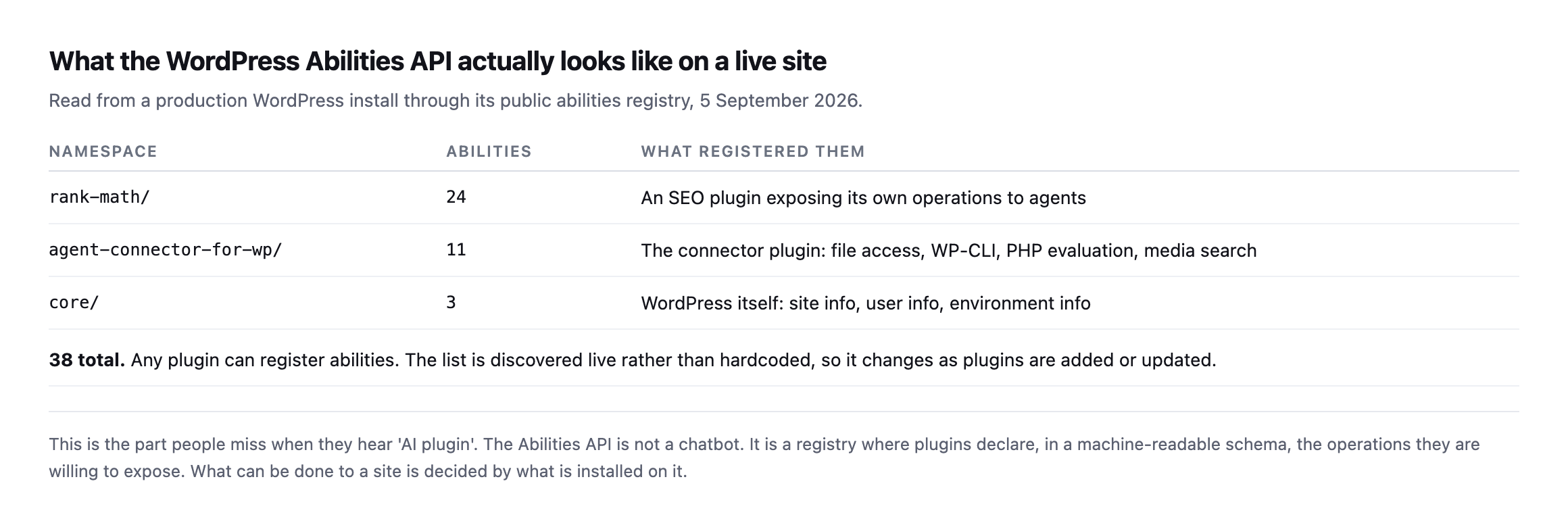
    Table of the abilities registered on a production WordPress site. The rank-math namespace registers 24, agent-connector-for-wp registers 11, and core registers 3, for 38 in total
    38 abilities on one ordinary site. Note where they come from. Core contributes three.

    Everything else was registered by a plugin somebody chose to install.*

    That distribution is the thing to internalise. What an agent can do to a WordPress site is not a property of WordPress. It is a property of that site’s plugin list.

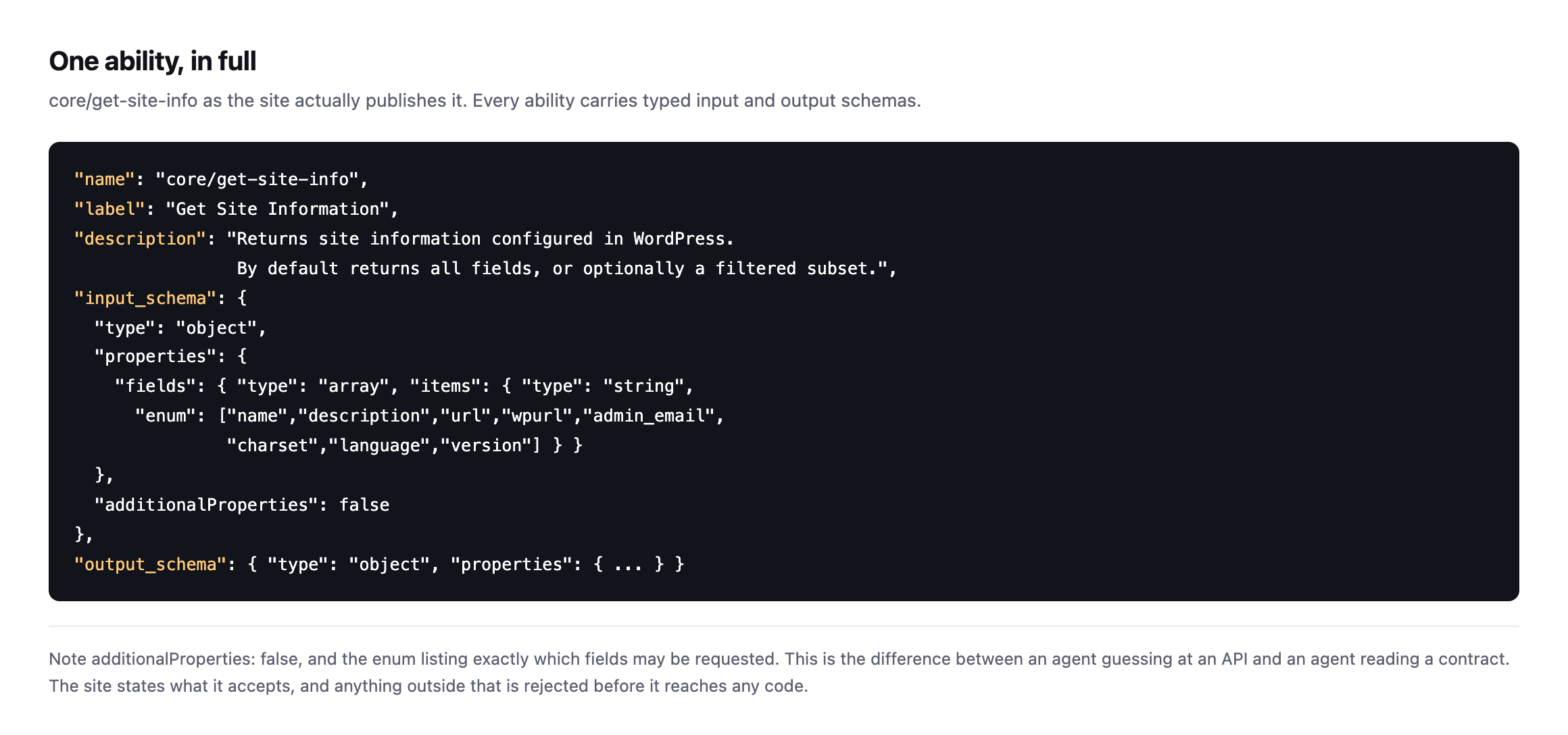
    Here is a single ability as the site publishes it:

    The core/get-site-info ability in full, showing its name, label, description, an input schema with an enum of permitted fields and additionalProperties set to false, and an output schema
    Note additionalProperties: false and the enum listing exactly which fields may be

    requested. This is the difference between an agent guessing at an API and an agent reading a contract. Anything outside the schema is rejected before it reaches any code.*

    The line core drew, and the line your plugins did not

    Core is being deliberately careful here, and it is worth knowing why.

    The AI team is implementing read-only abilities first, with management operations planned afterwards, on the reasoning that write operations “require more careful design and governance than retrieval capabilities.”

    That caution does not extend to plugins, because it cannot. Any plugin may register any ability it likes.

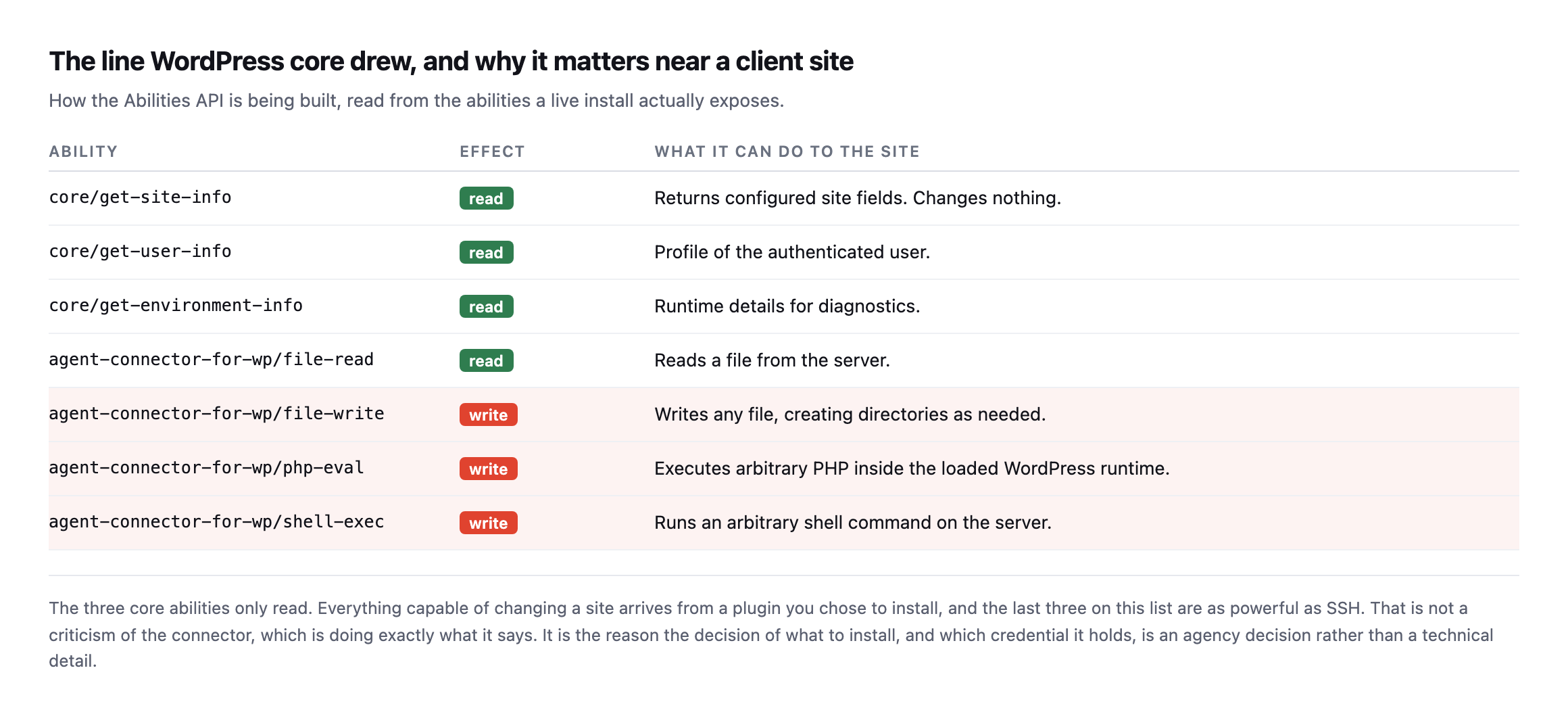
    Table of abilities on the live site split by effect. The three core abilities only read. The connector plugin's file-read is a read. Its file-write, php-eval and shell-exec are writes, described as writing any file, executing arbitrary PHP in the WordPress runtime, and running arbitrary shell commands
    Core’s three abilities only read. The three at the bottom, registered by a connector

    plugin, are as powerful as SSH. That is not a criticism of the connector, which documents exactly what it does. It is the reason installing one is an agency decision rather than a technical detail.*

    AbilityEffectWhat it can do
    core/get-site-inforeadreturns configured site fields, changes nothing
    core/get-user-inforeadprofile of the authenticated user
    core/get-environment-inforeadruntime details for diagnostics
    agent-connector-for-wp/file-readreadreads a file from the server
    agent-connector-for-wp/file-writewritewrites any file, creating directories as needed
    agent-connector-for-wp/php-evalwriteexecutes arbitrary PHP in the loaded runtime
    agent-connector-for-wp/shell-execwriteruns an arbitrary shell command on the server

    Caveat: one site, one connector plugin. The point is not that this specific connector is unsafe, it documents itself honestly. The point is that the Abilities API has no opinion on what a plugin registers, so “an agent is connected” tells you nothing until you have read the actual list on the actual site.

    An agent connected to that site is not limited by the Abilities API. It is limited by whichever plugin registered the most dangerous ability, and by the capabilities of the user whose credential it holds.

    What this changes for an agency

    The genuinely useful shift is that you can now inspect this rather than trust a vendor’s description of it.

    Before the Abilities API, “our tool integrates with WordPress” was a claim you either believed or did not. Now the site itself will tell you, in a schema, exactly what has been exposed on it.

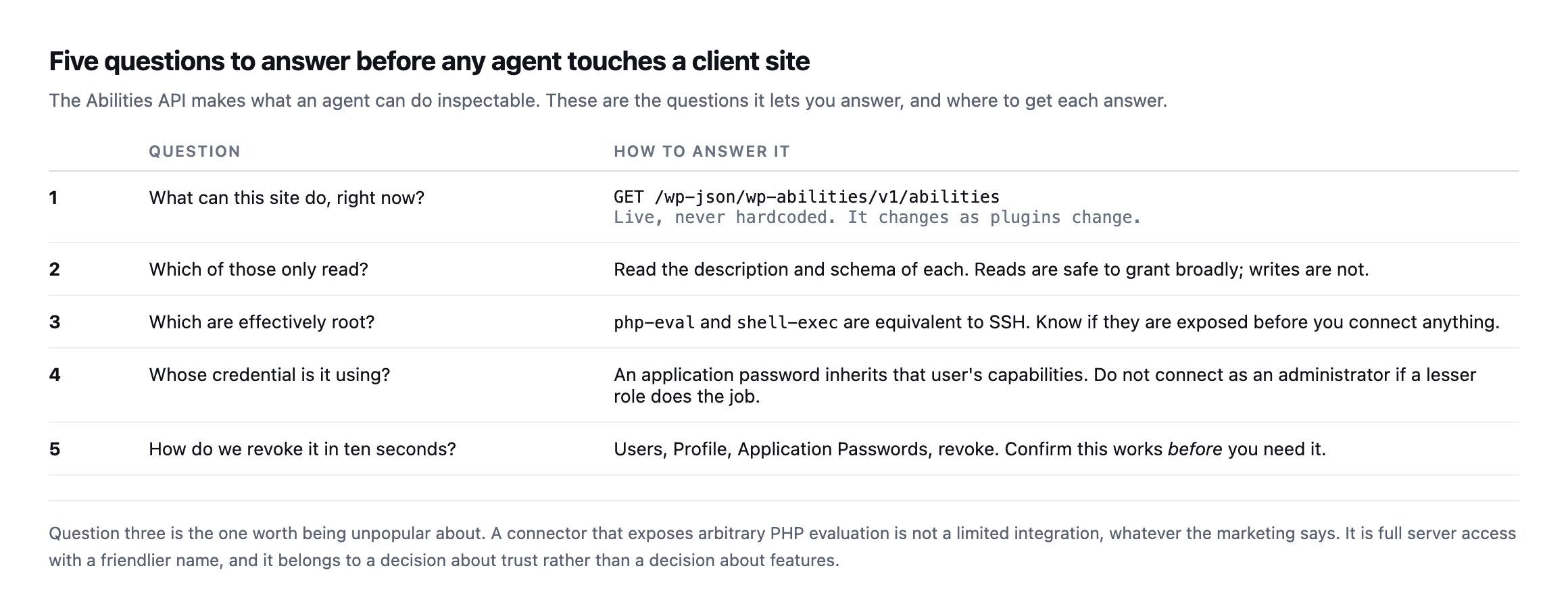
    Five questions to answer before connecting an agent to a client site, covering what the site can do, which abilities only read, which are effectively root access, whose credential is in use, and how to revoke it quickly
    Question three is the one worth being unpopular about. A connector exposing arbitrary

    PHP evaluation is not a limited integration, whatever the marketing says. It is full server access with a friendlier name.*

    #QuestionHow to answer it
    1What can this site do, right now?GET /wp-json/wp-abilities/v1/abilities, live, never hardcoded
    2Which of those only read?read each schema; reads are safe to grant broadly, writes are not
    3Which are effectively root?php-eval and shell-exec are equivalent to SSH
    4Whose credential is it using?an application password inherits that user’s capabilities
    5How do we revoke it in ten seconds?Users → Profile → Application Passwords → revoke; confirm it works before you need it

    One practical habit: never hardcode an ability list. Ask the site every time. Plugins get added, updated and removed, and a list you cached in March describes a site that no longer exists.

    There is a second habit worth building, and it comes from the same place as every other check on this blog: verify the revocation path before you rely on it. An application password is revoked from the user’s own profile screen, and the connection dies immediately. Test that once, on a site you control, so you know what it looks like. A safety mechanism nobody has ever exercised is a backup nobody has ever restored: a hope with a filename.

    It is also worth being clear about what the registry does not tell you. It lists what a site can do. It says nothing about whether the code behind each ability is well written, or whether the plugin that registered it is still maintained. An ability exposed by a plugin that quietly left the directory is still discoverable, still invokable, and no longer receiving fixes.

    Is the schema actually enforced, or just documentation?

    A schema that nobody checks is a comment. I wanted to know whether core/get-site-info‘s declared input schema, the one with the enum of permitted fields shown earlier, is actually validated by WordPress before the ability runs, or whether it is descriptive text an agent is trusted to follow. I called the live endpoint four ways to find out.

    CallWhat I sentResult
    validfields: ["name","url"]200, returns exactly those two fields
    enum violationfields: ["not_a_real_field"]rejected, ability_invalid_input, names the offending index
    wrong typefields: "name" (string, not array)accepted, WordPress’s own query parsing coerced it into a one-item array before validation ran
    unexpected propertyan extra top-level key not in the schemarejected, additionalProperties enforced
    no input at allnothing sent200, every field returned, confirming the schema’s default: {}

    Caveat: one ability on one site, core/get-site-info, chosen because it is core rather than a plugin and its schema is simple enough to test exhaustively. It is not a claim that every ability on every site validates this strictly. It is proof that the mechanism is real on at least one ability, which is the question this section set out to answer.

    Two things worth taking from that. The enum and additionalProperties rejections are the genuinely reassuring result: an agent cannot silently send something outside the documented shape and have WordPress guess at what was meant. The wrong-type row is the more interesting one, because it shows the boundary is softer than “strict JSON Schema validation” implies. WordPress’s own REST query-string parsing turns a bare string into a single-item array before the schema validator ever sees it, so a client that gets the type wrong in a forgiving way is quietly corrected rather than rejected. That is ordinary REST API behaviour, not a flaw in the Abilities API specifically, but it means “the schema is enforced” is true for shape and true for the values your client actually sends, not a guarantee that every deviation is caught.

    One operational note from running this test, unrelated to the abilities mechanism itself but worth flagging because it is the kind of thing that ends up in a support ticket: the unfiltered core/get-site-info call with no fields argument returned the account’s own admin email address in plain text, because that field is included by default when nothing is specified. That is documented core behaviour, not a bug, and it is exactly why scoping which fields an integration is allowed to request matters even on abilities marked read-only. Read-only does not mean the response is safe to log verbatim or forward to a third party without a second look at what came back.

    Reading a registry yourself

    The endpoint is public in the sense that it exists at a known path, though it requires authentication to read:

    curl -s -u "USER:APPLICATION_PASSWORD" \
      https://example.com/wp-json/wp-abilities/v1/abilities \
      | python3 -c 'import json,sys
    d=json.load(sys.stdin)
    items = d if isinstance(d,list) else d.get("abilities",[])
    print(len(items),"abilities")
    for a in items: print(" ", a["name"])'

    Two things to look for in the output. Group the names by their namespace prefix, because that tells you which plugin contributed what. Then read the description of anything whose name contains write, exec, eval, delete or update, because those are the ones that can change the site.

    If the list surprises you, that is the point of reading it.

    Where I think this goes

    The interesting part is not that agents can now change WordPress sites. Software has been able to do that for twenty years through the REST API and WP-CLI.

    The interesting part is that the site can now declare what it permits, in a form software can read, and that declaration can be audited by the person responsible for the site.

    That is the piece agencies have never had. Not a promise that a tool behaves, but a list you can read before you connect it, and revoke afterwards without asking anybody.

    Protuno connects to sites this way, and the same reasoning is why permission is set per site and why a playbook that changes a site takes a backup and checks it first. The Super Agents are live now. The free audit needs no connection at all and runs from a domain.

    If you want to see this for yourself, the fastest route is a site you already control. Install a connector, request the abilities list, and read it. It is more informative than any integration page, and it is the same list an agent would read.

    It also pairs well with knowing what PHP branch that site is on, because an agent is only ever as safe as the runtime underneath it.

  • WordPress Cron Not Running: The Failure That Never Alerts You

    WordPress Cron Not Running: The Failure That Never Alerts You

    The first time I saw this properly, it was a membership site. Renewal emails had not gone out for eleven days. The site was up the whole time. Nothing was broken in any way you could see from the outside.

    The scheduler had simply stopped being asked to run.

    If you look after client sites, wordpress cron not running is one of the purest examples of the failure class this job is actually made of: nothing crashes, nothing alerts, and the damage is measured in the days before somebody notices.

    WP-Cron is not cron, and that is the whole problem

    The name is the trap. A system cron is a daemon. It wakes up on a schedule because the operating system makes it.

    WordPress does not have that. The documentation is blunt about it: WP-Cron “works by checking, on every page load, a list of scheduled tasks to see what needs to be run”, and it “does not run constantly as the system cron does; it is only triggered on page load”.

    Read that as an agency and the consequence lands immediately. Your client’s scheduled tasks are powered by their traffic. The site nobody visits is the site whose backups quietly stop.

    The docs even give the shape of it: “Scheduling errors could occur if you schedule a task for 2:00PM and no page loads occur until 5:00PM”.

    Three hours is the polite version. On a brochure site for a regional client, with a caching layer in front that serves most visitors without ever booting PHP, the real number is longer.

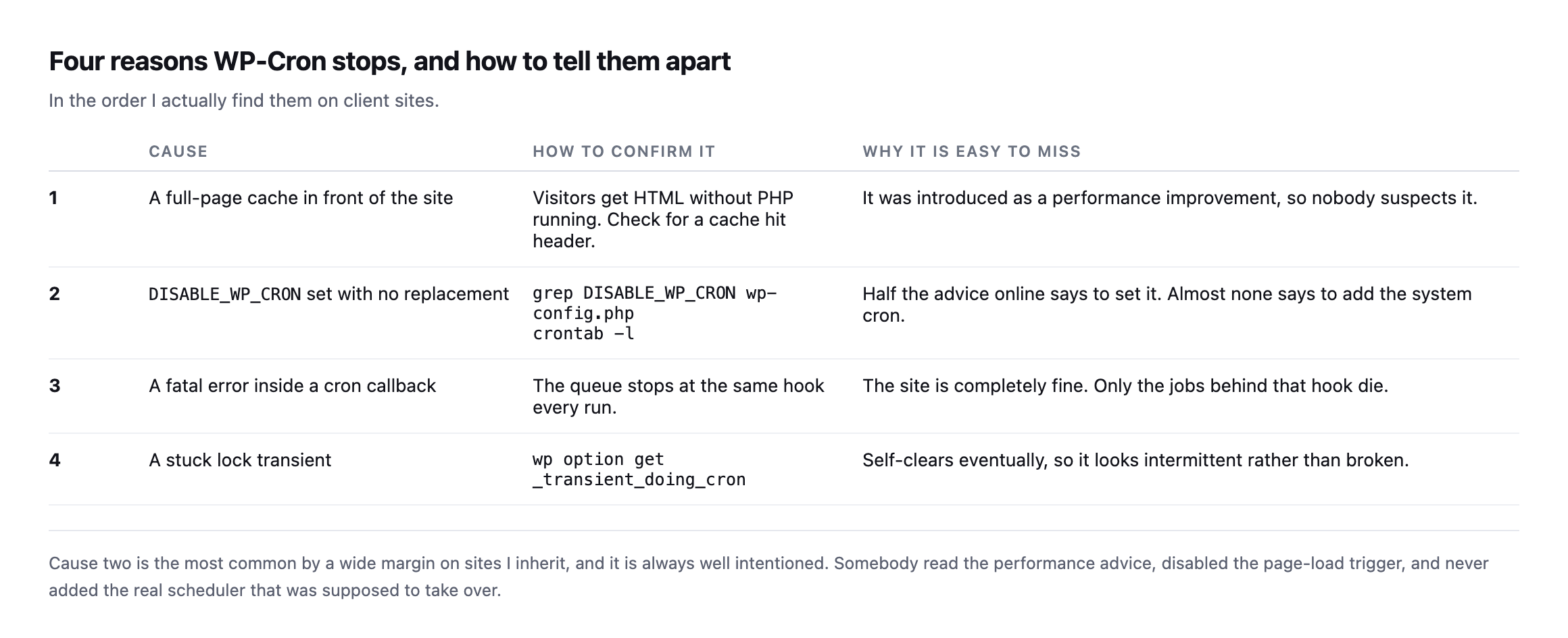
    Four reasons WordPress cron is not running, in the order I find them

    1. A cache in front of the site. Full page caching means visitors get HTML without WordPress loading. No load, no cron check. Adding a CDN can silently take the scheduler offline, and the change that caused it was a performance improvement.

    2. DISABLE_WP_CRON set, with no replacement. Somebody read the performance advice, added define( 'DISABLE_WP_CRON', true ); to wp-config.php, and never added the system cron that was supposed to take over. This is the most common one on sites I inherit, and it is always well intentioned.

    3. A fatal error inside a cron callback. Often from a plugin that stopped being maintained, which is its own problem worth checking separately. One plugin’s scheduled task throws. The request dies mid-queue, and every hook behind it in that run never executes. The site looks perfect. A third of the schedule is dead.

    4. A stuck lock. WordPress uses a transient to avoid running the queue twice. If a run dies at the wrong moment the lock can outlive it, and the next attempts decline to start.

    Table of four causes of a stopped WP-Cron: a full page cache in front of the site, DISABLE_WP_CRON set with no replacement, a fatal error inside a cron callback, and a stuck lock transient, each with how to confirm it and why it is missed
    Cause two is the most common on sites I inherit, and it is always well intentioned.

    Somebody read the performance advice, disabled the page-load trigger, and never added the real scheduler that was meant to replace it.*

    #CauseHow to confirm itWhy it is missed
    1full-page cache in frontcheck for a cache-hit header on a normal visitshipped as a performance win, so nobody suspects it
    2DISABLE_WP_CRON with no replacementgrep DISABLE_WP_CRON wp-config.php then crontab -lmost advice says set it, almost none says add the real cron
    3fatal error in a cron callbackthe queue stops at the same hook every runthe site itself is fine; only jobs behind that hook die
    4a stuck lock transientwp option get _transient_doing_cronself-clears eventually, looks intermittent rather than broken

    Caveat: these are the four causes I have actually found on client sites, ranked by how often I meet them, not a formal taxonomy of every way WP-Cron can stall. If you find a fifth, it is very likely one of the four above wearing a different hosting stack’s clothes.

    Find it in one command

    If you can reach WP-CLI, this is the whole diagnostic:

    wp cron event list --fields=hook,next_run_relative,recurrence

    One thing to know before you read the output: WP-CLI does not print a negative number for a late job. Anything due now or overdue simply reads now. So a single now means nothing.

    The tell is a set of hooks that still say now when you run the command again a few minutes later. A healthy queue drains. A stopped one does not move.

    Run it twice:

    wp cron event list --fields=hook,next_run_relative,recurrence
    sleep 120
    wp cron event list --fields=hook,next_run_relative,recurrence

    Same hooks, still now, both times. That is a scheduler that is not running.

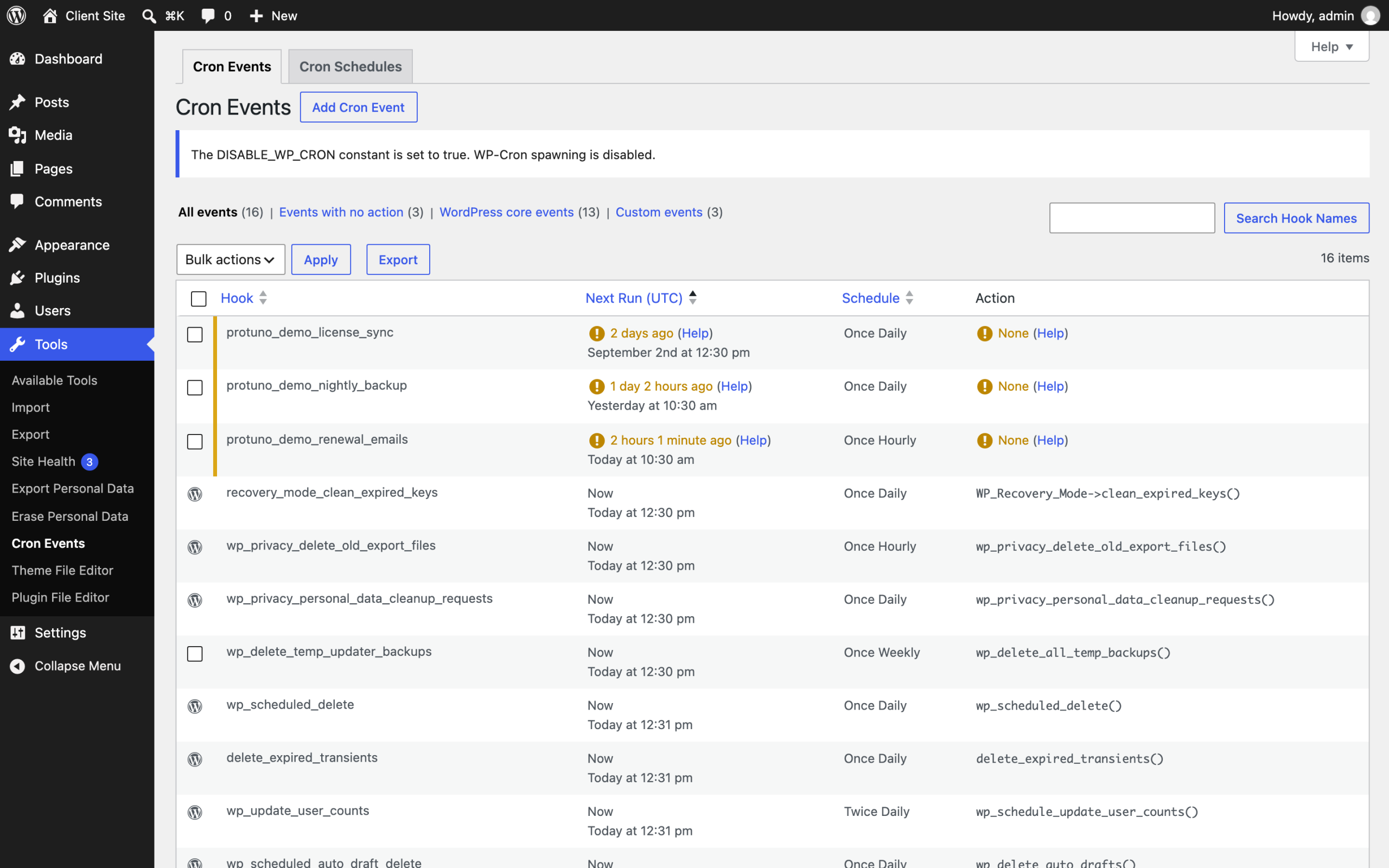
    The admin-side view is blunter about it, which is why I usually go there first:

    WP Crontrol Cron Events screen on a staged WordPress install, showing a notice that the DISABLE_WP_CRON constant is set to true, and three custom hooks flagged as overdue by two days, one day, and two hours
    The same staged install seen through WP Crontrol. Two things are visible at once

    here, and both matter. The notice at the top reports that DISABLE_WP_CRON is set with nothing replacing it, which is cause two below. Underneath, three jobs are flagged as last due two days, one day and two hours ago. A renewal email hook that last ran two days ago on a membership site is the eleven days I opened this post with, caught early.*

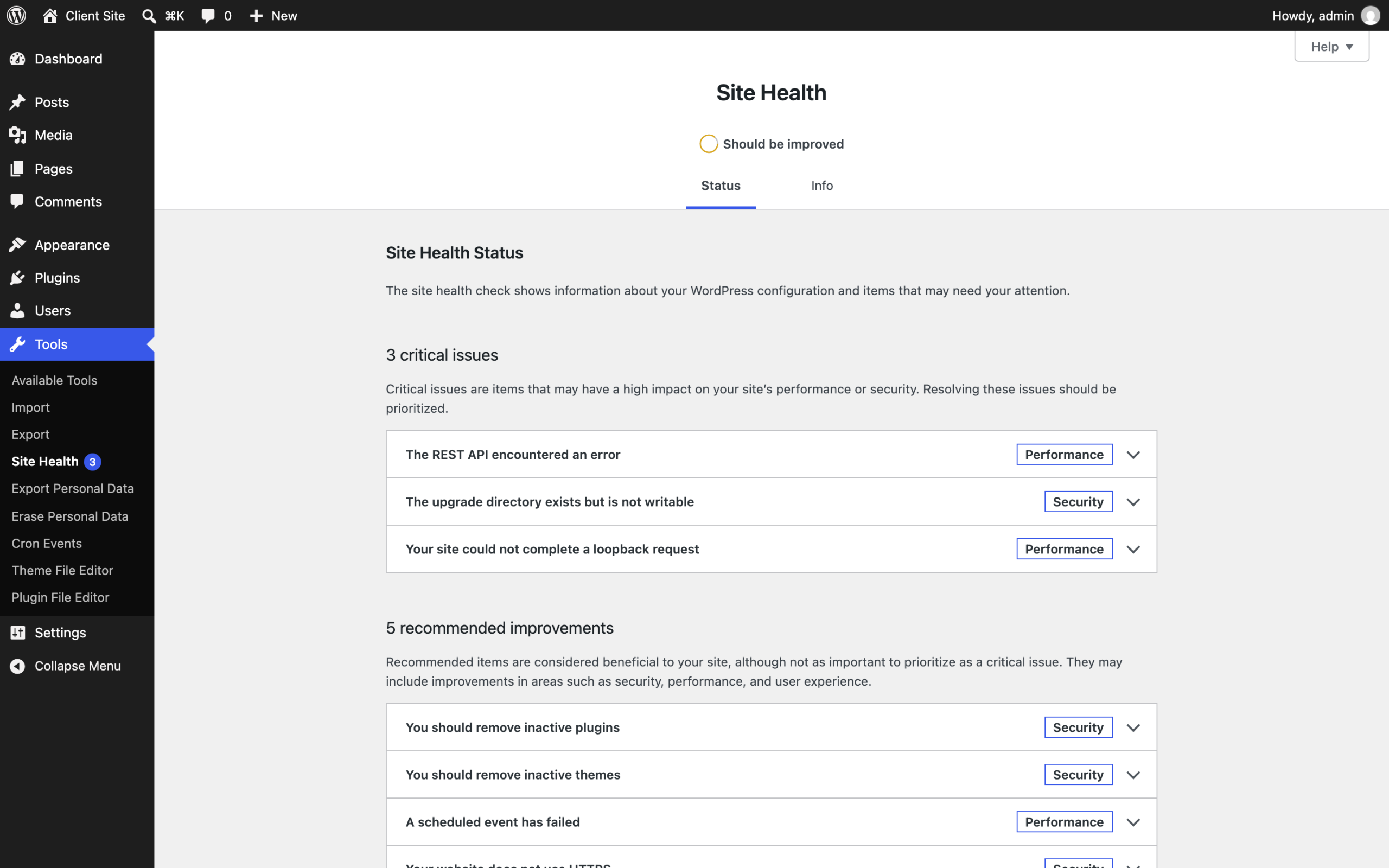
    Core will also tell you, but quietly, and this is worth seeing for yourself:

    WordPress Site Health screen on the same install, listing three critical issues and five recommended improvements, with A scheduled event has failed appearing under recommended improvements below remove inactive themes
    Site Health on the same broken install. “A scheduled event has failed” is filed

    under recommended improvements, underneath “You should remove inactive themes”. A site whose backups, renewals and order emails have stopped is being reported to your client as roughly as urgent as some tidying. That ranking is why this failure survives so long.*

    No shell access? wp_get_ready_cron_jobs() gives you the same answer from a snippet, and most decent cron viewer plugins are reading the same array.

    Fix it by giving the site a real scheduler

    The permanent fix is to stop relying on visitors. Disable the page-load trigger and let the operating system do the job it is good at.

    In wp-config.php:

    define( 'DISABLE_WP_CRON', true );

    Then a real cron entry. The WordPress documentation’s own example is:

    0 0 * * * wget --delete-after http://YOUR_SITE_URL/wp-cron.php

    Change the frequency. Once a day is the documentation showing you the syntax, not a recommendation for a site with a store on it. Every five or fifteen minutes is the range most client sites want.

    Two things people get wrong here. Point it at the site’s real canonical URL, or the redirect eats the request. And if the site is behind HTTP authentication on staging, the scheduler is not running there either, which is usually why staging behaves differently from production.

    The scheduler behind WooCommerce is the same one, mostly

    If the site runs WooCommerce, or almost any plugin doing background work at volume, there is a second scheduler worth checking, and it is easy to assume it is independent of WP-Cron. It is not, by default.

    Action Scheduler is the job queue WooCommerce and hundreds of other plugins use for background processing: sending order emails, syncing stock, running scheduled discounts, processing webhooks. Its own FAQ is direct about the relationship: “By default, Action Scheduler is initiated by WP-Cron (and the ‘shutdown’ hook on admin requests). However, it has no dependency on the WP-Cron system”.

    Read that carefully, because the two halves point in different directions. The default trigger is WP-Cron, so everything in this post about a stopped scheduler applies to Action Scheduler queues too, on a stock install. But there is a second trigger alongside it: the shutdown hook fires on admin requests, which means a site somebody logs into and clicks around in regularly can look healthy in the Action Scheduler queue while WP-Cron itself is genuinely stopped for anonymous visitors. That is worth knowing before you trust a healthy-looking wp action-scheduler run on a site nobody but the client’s team ever visits while logged in.

    The practical version: check both queues, not just one. wp cron event list shows the native WordPress schedule. WooCommerce’s own Action Scheduler admin screen, or wp action-scheduler action list --status=pending, shows the second one, and a large pending count there is the same silent failure this whole post is about, just for order processing instead of publishing.

    There is a genuinely good conference talk on exactly this distinction, covering crond, WP-Cron and Action Scheduler together, including a real example of syncing 100,000 products a day through a single Action Scheduler worker: Crond service, WP Cron and why Action Scheduler does it better, WordCamp Lisboa 2025.

    It is worth pairing this check with the failed-order rate on any store you look after, because a stalled Action Scheduler queue produces exactly the shape of failure that check exists to catch: orders sitting unprocessed, confirmation emails never sent, stock levels never reconciled, while every page on the store keeps returning 200. Neither symptom alone tells you which queue stopped. Together they narrow it down in minutes instead of an afternoon of guessing which plugin is at fault, and they narrow it down to the queue rather than the plugin, which is the distinction that actually decides what you fix.

    The part that actually matters for an agency

    You can fix this on one site in ten minutes. The problem was never the fix.

    The problem is that on the other nineteen sites you look after, this exact failure is either happening or not happening right now, and you have no way of knowing which without opening each one. It produces no alert. Uptime monitoring reports the site as fine, because the site is fine. The only signal is a client eventually asking why they stopped getting something.

    This is the shape of nearly every check worth running on a client site: cheap to fix, impossible to notice, and invisible to the tools most agencies have pointed at the problem. It is the same reason the site that fails is usually the quiet one, not the one already on your mind.

    Protuno’s Care agent, Wren, carries a scheduled-job check for exactly this, and it reports overdue hooks per site across a portfolio rather than per install. Being straight with you: the agents are live now, since 27 October 2026, and Wren’s Cron Health Checker playbook covers this check from a connected site. You can still run it yourself with the command above. The free audit does not cover it either, because the scheduler is not readable from the address alone. It needs a connected site.

    Until then, put the WP-CLI line in whatever runbook you already use, and run it against the client you have not opened in a fortnight. That is where it will be.

    If you are pricing this kind of work into a retainer, the companion piece on what WordPress care actually costs an agency puts a number on the half hour these checks really take.

    Why shared hosting makes this worse

    WordPress Cron Jobs Hosting 2026: Why WP-Cron Fails on Shared Servers

    WP-Cron firing on page load, rather than on a real schedule, is the mechanism behind the check this post runs. This covers why that design specifically breaks down on low-traffic shared hosting.

  • The Half Hour Nobody Bills: What A WordPress Maintenance Plan Actually Costs You

    The Half Hour Nobody Bills: What A WordPress Maintenance Plan Actually Costs You

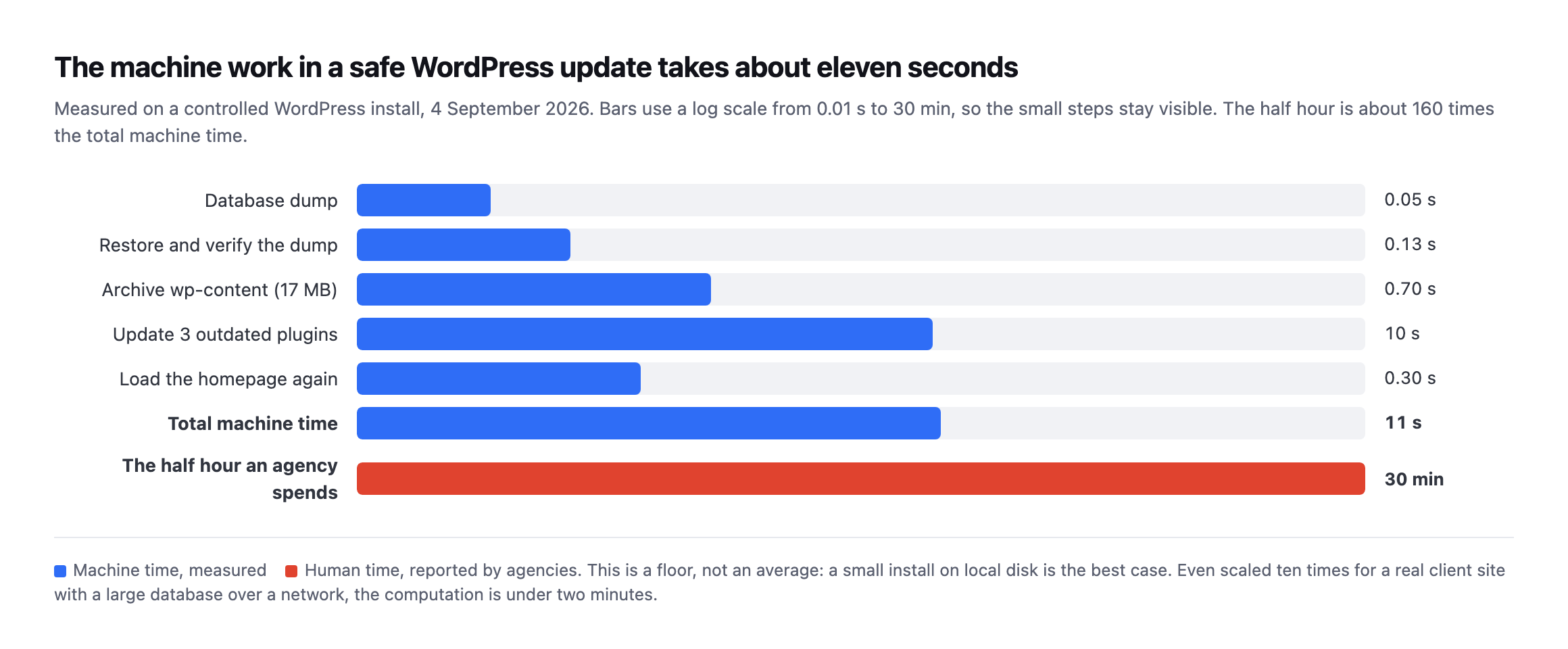
    Short answer: the machine work in a safe WordPress update takes about eleven seconds. Agencies spend about thirty minutes. The other twenty-nine are attention, not computation, which is why a wordpress maintenance plan should be priced per portfolio and sold on the record it produces, not on the hours it consumes.

    Somebody on your team opened a client site last Tuesday. They took a backup, ran four plugin updates, loaded the homepage to check it still answered, clicked through to the checkout because one of those plugins touches Woo, and closed the tab.

    Call it half an hour. Nothing to show the client. Nothing on the invoice.

    I wanted to know what that half hour is actually made of, so I measured it. The answer turned out to be uncomfortable, and it changes how a wordpress maintenance plan should be priced.

    The machine work takes eleven seconds

    I built a controlled WordPress install, put three outdated plugins on it, and timed every mechanical step of a safe update: dump the database, prove the dump restores, archive wp-content, apply the updates, load the site again.

    Horizontal bar chart on a log scale comparing measured machine time for each step of a safe WordPress update against the half hour an agency spends. Database dump 0.05 seconds, restore and verify 0.13 seconds, archive wp-content 0.70 seconds, update three plugins 10 seconds, reload homepage 0.30 seconds, total 11 seconds, against 30 minutes of human time
    Measured on a controlled install on 4 September 2026. The database dump was 53

    milliseconds for 1.2MB. Restoring that dump into a scratch database and counting the rows back took 125 milliseconds. Archiving 17MB of wp-content took 695 milliseconds. Updating the three plugins took ten seconds, and almost all of that was waiting on wordpress.org. Total: about eleven seconds.*

    The same numbers as a table:

    StepMeasured time
    Database dump53ms
    Restore and verify125ms
    Archive wp-content (17MB)695ms
    Update three plugins10s (mostly waiting on wordpress.org)
    Reload homepage300ms
    Total~11s

    Caveat: a small install on local disk with no network in the way is the best case, not the average. Scale it ten times for a real client site with a large database and a remote backup destination and you are still under two minutes. Be careful with that number, and I want to be first to say so.

    The gap is not close. The half hour is roughly 160 times the computation.

    So you are not paying for compute. You have never been paying for compute.

    Where the other twenty-nine minutes go

    Once you accept that the machine work is seconds, the half hour has to be something else, and it is. It is all attention.

    Opening the site. Finding which password manager entry this client is under. Waiting for wp-admin. Remembering that this is the one on the legacy theme where the checkout broke last time. Deciding whether to take the update at all.

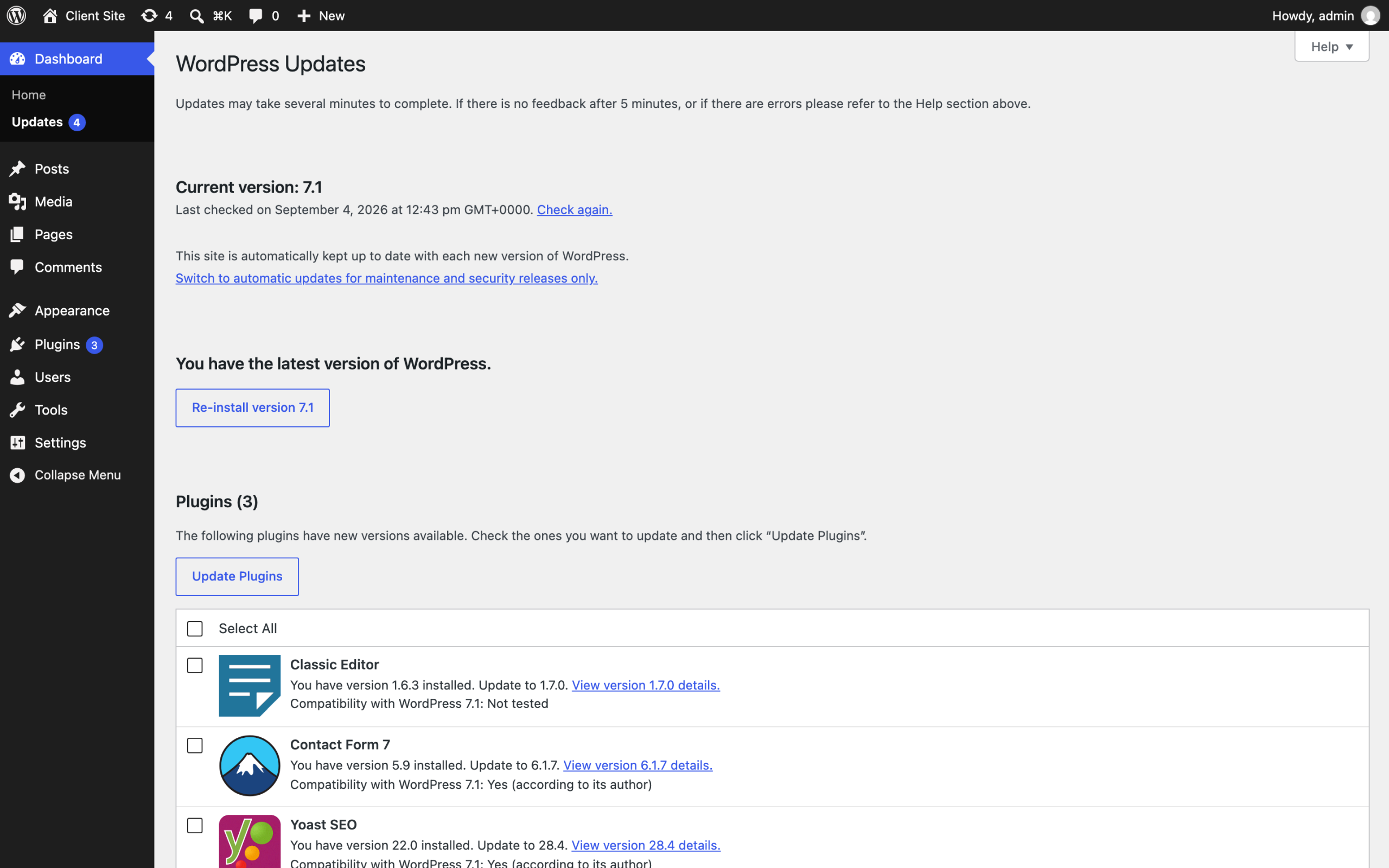
    That last one is the expensive part, and here is what it actually looks like:

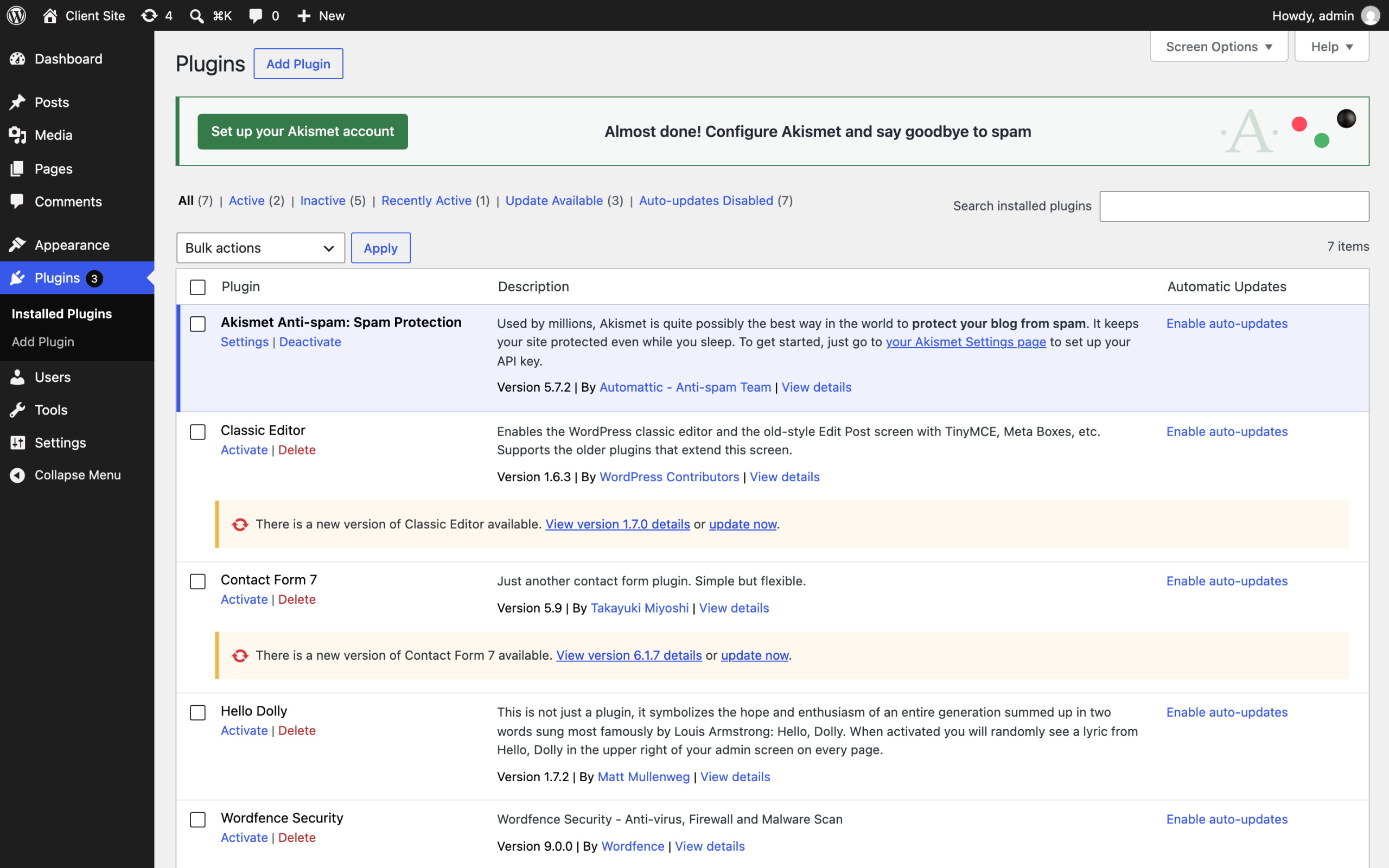
    WordPress Updates screen on the staged install showing three plugins with updates available: Classic Editor 1.6.3 to 1.7.0 marked compatibility with WordPress 7.1 not tested, Contact Form 7 5.9 to 6.1.7, and Yoast SEO 22.0 to 28.4
    A real updates screen from the staged install. Yoast is six major versions behind.

    Contact Form 7 crosses a major version. And Classic Editor says “Compatibility with WordPress 7.1: Not tested” in plain text. That line is the whole job. A machine can apply the update. Deciding whether an untested plugin goes on a client’s live store on a Tuesday afternoon is judgement, and judgement is what you are actually selling.*

    Then the context switch. You do not go back to the design work you were doing. You go back to the state of mind you were in, and that reload is not free.

    Multiply by fifteen sites. Twenty. Forty. It does not scale linearly, it scales worse, because each site carries its own history: the one whose owner installs plugins without asking, the one you inherited with a database nobody has ever cleaned.

    The arithmetic underneath every agency

    Here is where it stops being about time and starts being about whether the business works.

    The Admin Bar surveyed 622 people running WordPress agencies across 51 countries in March 2026. The median team size is one. One person, the whole portfolio, every Tuesday.

    The same survey splits profitability by how much revenue recurs, and the split is stark. Of agencies with no recurring revenue at all, 58.3% report being rarely or never profitable. Move to just 25 to 49% recurring and that collapses to 9.7%, with 47.4% consistently profitable.

    Six to one. That is the difference recurring revenue makes.

    The survey is careful about the direction of causation and so am I: stronger agencies gravitate to retainers, so the number reflects a healthy business as much as it creates one. The gap is still six to one.

    Now put the two findings side by side. The invisible work is exactly the work a retainer would pay for. It is also the first thing to go when there is no retainer protecting it. The agencies that most need the recurring revenue are the ones doing this work for free.

    What the search demand actually looks like

    I pulled the real numbers behind “wordpress maintenance plan” rather than guessing at demand, because the phrase sits at an odd angle to who actually buys the work.

    QueryMonthly volumeDifficultyIntent
    wordpress maintenance services88011commercial
    wordpress maintenance service8807commercial
    wordpress website maintenance48033commercial
    wordpress maintenance plans39015commercial
    wordpress maintenance plan39026commercial
    wordpress maintenance company32011commercial
    wordpress maintenance26023commercial
    wordpress maintenance packages21014commercial

    Read from DataForSEO on 11 September 2026, United States, desktop and mobile combined.

    Every row is genuinely searched, and every row is a site owner looking to hire somebody, not an agency looking to run its own operations better. That is the gap this post keeps returning to: the query volume that exists describes a buyer’s decision, and the arithmetic above describes the seller’s cost structure. They are related and they are not the same content problem.

    Caveat: eight related phrases, one data pull, one country. Search demand shifts by season and by market, and I would re-check this before building a paid campaign on it. What does not shift is the shape: every high-volume variant here reads as commercial buyer intent, and none of them reads as an agency researching its own pricing model, which is the actual audience for this post.

    That distinction is why the retainer conversation has to happen in the sales call rather than on the page a prospect finds by searching. Nobody searches “how much should my agency charge for wordpress maintenance” in volume worth optimising for, and no keyword tool will ever surface that query, because it describes a decision made inside a business rather than a problem searched for by a stranger. The number worth optimising for is the client conversation this data cannot replace, not a ranking position on a page the client’s own prospects are reading.

    What you are actually protecting the client from

    If a wordpress maintenance plan is going to be defensible, it has to be tied to things that genuinely break. Two of them are measurable across the whole ecosystem right now.

    Horizontal bar chart of PHP versions in use across all WordPress installs, read from the WordPress.org statistics API on 4 September 2026. PHP 8.3 at 25.1 percent and 8.2 at 24.8 percent lead, with 7.4 at 17.2 percent and 8.1 at 11.5 percent marked end of life
    Generated directly from the WordPress.org statistics API so the chart and the

    source cannot drift. Red bars are branches that receive no security fixes at all. PHP 7.4 alone is 17.2% of all WordPress installs.*

    38.8% of WordPress installs run a PHP branch that is past end of life, because php.net lists 7.4, 8.0 and 8.1 as no longer supported. There is a second wave behind it: PHP 8.2 is another 24.8% of installs and its security support ends on 31 December 2026. On New Year’s Day, on today’s numbers, roughly six in ten WordPress sites will be running PHP that nobody patches.

    The plugin side is worse because it is silent. Patchstack counted 1,614 plugins and themes removed from the WordPress.org repository during 2024 over security issues the developers never fixed. A removed plugin does not uninstall itself. It stops receiving updates, it stops appearing in the search box, and nobody gets an email. We probed the directory API to see what a site can actually detect about that, and the answer is less than you would hope.

    WordPress plugins screen on the staged install showing the installed plugin list with active and inactive plugins and their version numbers
    The plugins screen tells you what is installed and what version it is on. It does

    not tell you that a plugin was pulled from the directory in March, or that the version you are pinned to has a published advisory. That check has to come from outside the site, matched against what is actually installed here.*

    How should you price a WordPress maintenance plan?

    The mistake is pricing the half hour, because the half hour is not the product. If it were, the correct price would be eleven seconds of compute and everybody would be out of business.

    What the client is buying is the standard being met whether or not anyone got to it, and the evidence that it was.

    Three things follow.

    Price the portfolio, not the site. Your cost per additional site is nearly flat once the mechanical work is automated. Per-site pricing punishes you for the exact efficiency you should be building.

    Sell the record, not the activity. An agency that can show a client what was checked, when, and what was done about it wins work from one that cannot. Talent has nothing to do with it. Proof does.

    Charge for judgement explicitly. “Compatibility: Not tested” is a decision somebody has to own. That is a professional service. The backup and the update are logistics.

    The honest version of where this goes

    I run marketing at POSIMYTH and we are building Protuno, so treat this next part as interested rather than neutral.

    Our bet is that the mechanical eleven seconds should run whether or not anybody opened the site, on every site, at the same standard, with a backup that has been checked underneath it, and, for plugin updates, an automatic rollback if the site stops answering. The person moves up a layer: reading what happened, deciding what to allow, handling the case that genuinely needs a human.

    Being straight about status, because the whole argument here is that you should be able to trust software near a client site: the free audit is live and runs 54 read-only checks from a domain alone. The Super Agents are live now, since 27 October 2026. When this post was written they were not running on anyone’s sites, including ours.

    What is useful to you right now costs nothing. Take the client you have not opened in a fortnight, look at their PHP version against the php.net dates, and check whether anything installed has quietly left the directory. If your answer to “is the site alright” is built from instinct rather than evidence, that is the gap this whole category exists to close.

    And if the scheduler on that site has stopped, none of your backups ran either. That one is worth checking before you do anything else.

    You can run the free audit on a real client domain without installing anything. Do not use a demo site. Use one you actually look after.