Category: Care

  • WordPress Spam Comments: The Playbook, Step By Step

    WordPress Spam Comments: The Playbook, Step By Step

    Most spam cleanup is a button labelled Empty Spam. The button never asks which of those comments were real.

    A spam folder is a pile of guesses. Most are right. A few are a customer asking a question, and once the folder is emptied nobody can tell which few.

    Short answer: safe WordPress spam comment cleanup needs a second signal beyond the spam label, a rule that stops the whole job when the numbers look wrong, and a way back. The Protuno Spam Comment Deleter playbook does this in four steps. It moves only the comments that carry two signals to the trash, it never permanently removes anything, and it checks afterwards that the comments you wanted to keep did not move.

    What this post is, and is not: it is a practical walk through one playbook and the reasoning behind its order. It describes how the check works from the playbook’s own step files. It does not quote a run, a count or a result, because this post is written without running the playbook.

    An empty folder is a fact about a button. A clean comment section is a fact about every comment you kept.
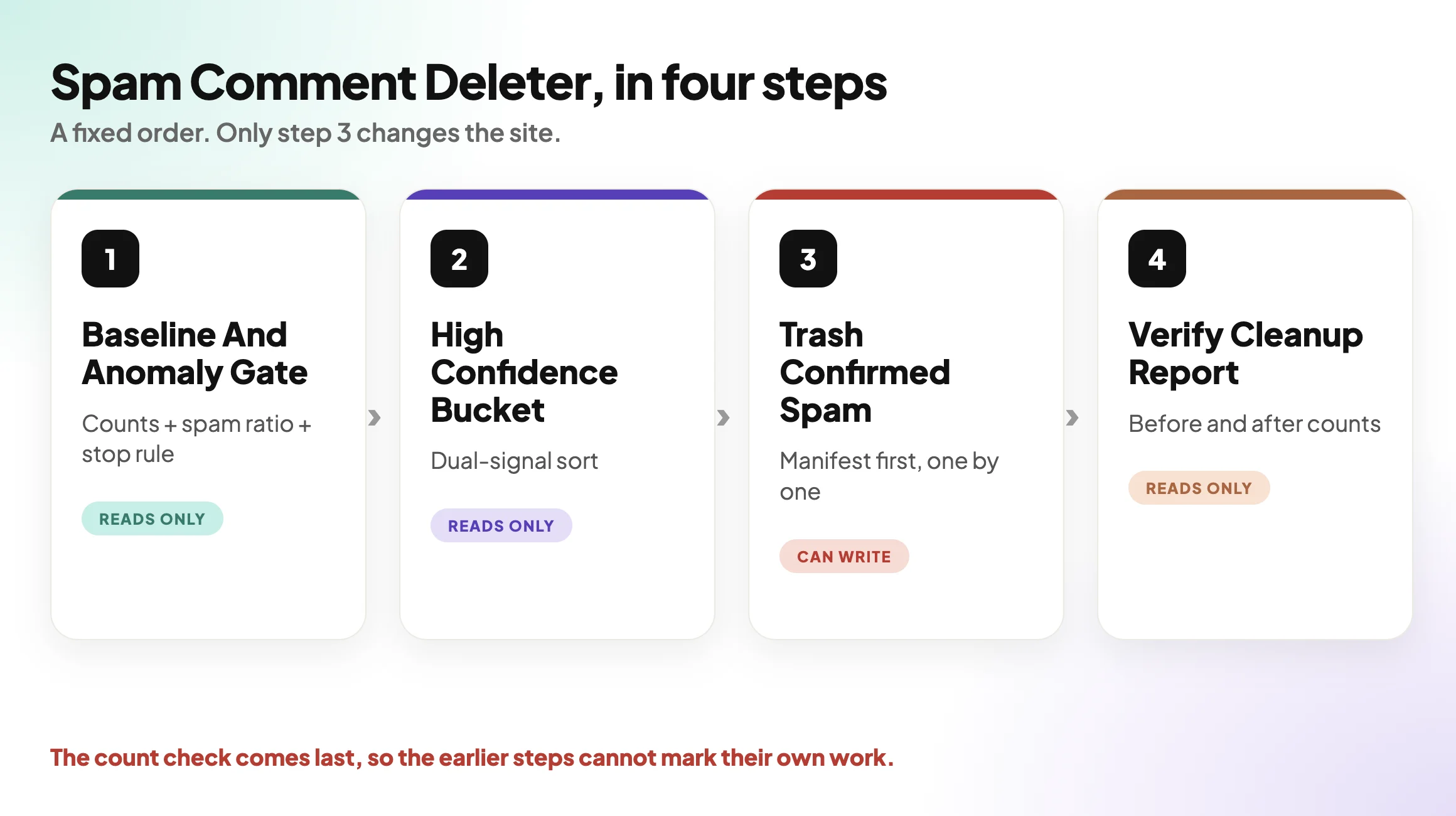
    Four steps of the Spam Comment Deleter playbook, from baseline and stop rule to a verified report

    Why Emptying The Spam Folder Falls Short

    WordPress gives every comment one status: approved, held for moderation, spam or trash. That status is a single label, set by whatever last touched the comment. A spam filter set it. A person set it. A plugin that misfired set it.

    Emptying the folder trusts that label completely. If the label is wrong on one comment, the comment is gone. There is no second look, because the button was built for speed.

    The opposite habit is just as common. The folder is never emptied, so spam that was caught and never cleared sits in the database indefinitely, and the comment tables grow for years. Nobody wants to be the person who clicks the button, so nobody does.

    Both habits come from the same gap. There is no step between “flagged” and “gone” that checks the flag.

    That gap is the interesting part of this playbook. It is also why the job is a poor fit for a blind schedule and a good fit for a written sequence.

    Three Signals On One Comment

    The playbook decides what is safe to move by looking at each spam comment in three ways. Any one of them alone is weak.

    SignalWhat it tells youWhat it cannot prove alone
    Comment status is spamSomething classed it as spamThat the classifier was right
    Akismet result on the commentA detector independently said true (or 1)That the comment has been there long enough to be settled
    Age of the commentIt is older than a minimum (10 minutes by default)That it is spam at all

    The rule that follows from the table is short. A comment is eligible only when it is already spam, a detector has confirmed it, and it is not brand new. The playbook calls that the dual-signal rule.

    Two cases matter more than the rest. An Akismet result that is explicitly false means the detector said this is not spam, so the comment is never eligible. A comment with no Akismet data at all has no second signal, so it is not eligible either, and the playbook will not call it confirmed spam.
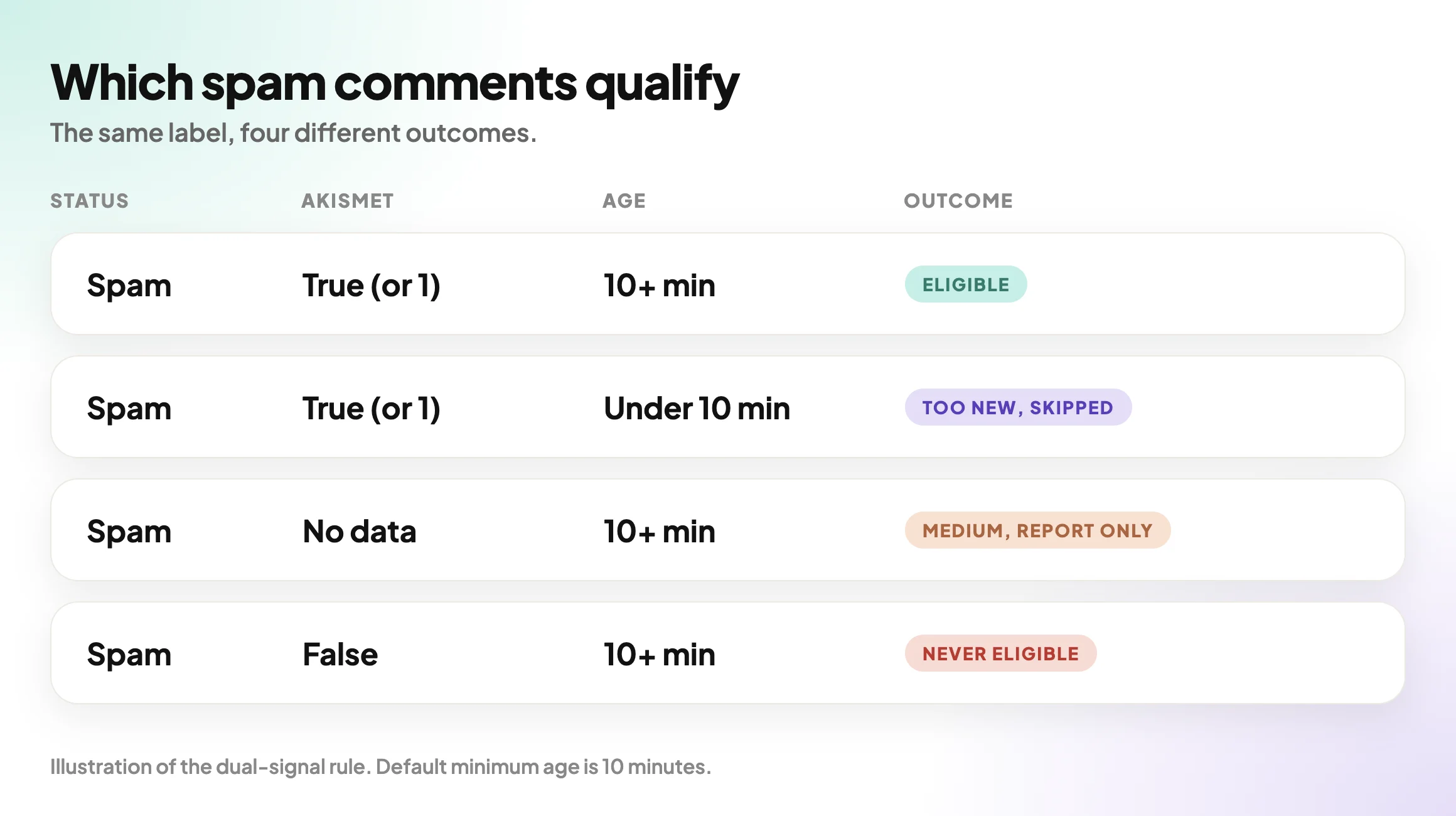
    Three signals compared: spam status, Akismet confirmation and age, with the combinations that qualify

    A Small Test You Can Run Today

    You can see the shape of your own problem in about ten minutes, with nothing installed.

    Write down five things for one site:

    • How many comments are approved, held for moderation, in spam and in trash.
    • Whether Akismet is installed and active.
    • Whether the trash is switched on, meaning a retention period is set rather than zero.
    • The oldest comment in the spam folder.
    • Any spam comment you recognise as a real person.

    Here are the places to look:

    /wp-admin/edit-comments.php?comment_status=spam
    /wp-admin/edit-comments.php?comment_status=trash
    /wp-admin/plugins.php          (is Akismet listed and active?)
    wp-config.php                  (search for EMPTY_TRASH_DAYS)

    If you find even one real comment in the spam folder, you have your reason to read on. A cleanup that cannot tell that comment apart is a cleanup you should not schedule.

    The Playbook, Step By Step

    Spam Comment Deleter is a Protuno Care playbook. It runs a fixed sequence of four steps, and only one of them changes the site. In the dashboard it carries the CAN WRITE label. The public playbooks page lists the same four-step playbook as Comment Cleanup, described as clearing the spam that WordPress has already flagged, and nothing else. The dashboard card calls it Spam Comment Deleter, so you may see either name.

    #StepWhat it does
    1Comment Baseline And Anomaly GateReads the comment counts (approved, moderated, spam, trash), works out the spam ratio, applies the stop rule, and records the trash retention period and whether Akismet is installed. Changes nothing.
    2Build High Confidence Spam BucketSorts spam comments into buckets under the dual-signal rule: eligible, medium (spam only, never actioned) and too new (skipped). Changes nothing.
    3Trash Confirmed SpamThe only step that writes. Moves eligible comments to the trash one at a time, after a retention check and a written audit manifest.
    4Verify Spam Cleanup ReportRe-reads the counts, asserts that spam dropped by exactly the number trashed and that approved and moderated did not change, then writes the report. Changes nothing.

    The order is the safety. The counts and the stop rule come before any bucket exists. The bucket exists before anything is trashed. The check comes after, and it is the only one that can say the earlier steps did what they claimed.

    Step 1 and step 2 both use one read capability, called comments-spam-audit, to compute the counts and the buckets on the site itself. The step file explains why: an earlier version paged the comments over the REST API, which cannot see comment meta. That version got seven of nine counts wrong and planned to trash six spam comments, including one whose Akismet result was explicitly false. The fix was to stop rebuilding the numbers from REST pages.

    That is a good rule for any cleanup tool you are considering. The classification has to be read from where the signal lives.

    What The Stop Rule Is Protecting You From

    Step 1 computes one ratio: spam divided by approved plus moderated plus spam. Trash is left out on purpose, because trashed comments are spam that has already been dealt with. The default threshold is 0.6.

    Here is how that works, with made-up numbers to show the arithmetic and not a result from any site.

    IllustrationApprovedModeratedSpamRatioGate
    A normal blog30020800.20Proceed
    A broken classifier10009000.90Stop

    When the gate says stop, the playbook stops the whole job. It reports that the spam volume is anomalous, likely a misconfigured classifier, and that manual review is needed before any cleanup.

    The reasoning is sound. A huge spam share is more likely to be a classifier gone wrong than a site that is 90 percent spam. Mass-trashing it could bury the real comments. A stop here counts as a correct outcome, not a failure.

    Step 3 adds its own gate. If the trash retention period is zero or unset, moving a comment to the trash would remove it for good. The playbook refuses and says so. By default WordPress keeps trashed items for 30 days, and the playbook reads the actual value on your site rather than assuming it.

    What Spam Comment Cleanup Does Not Solve

    • It does not stop new spam. It clears comments that are already flagged. Preventing them is a different job.
    • It does not work without a detector. If Akismet is not installed, nothing can be confirmed under the dual-signal rule, so nothing is eligible. The report leads with that root cause and recommends installing and activating Akismet.
    • It does not touch the medium bucket. Spam without a second signal is reported, and the recommendation is to review it by hand in the Comments screen.
    • It does not remove anything permanently. The playbook trashes. It never deletes and never recommends emptying the trash.
    • It does not touch approved or moderated comments. Step 3 re-checks every comment right before moving it and skips anything that is not still spam.
    • It does not read intent. A comment confirmed as spam is spam by two signals. That is strong evidence, not a mind reader.

    Questions To Ask Your Current Tooling

    • Does it use a second signal before it removes anything, or only the spam label?
    • What happens to a comment with no detector data?
    • Does it stop on a strange spam ratio, or does it carry on?
    • Does it check that your trash is switched on before it trashes?
    • Does it write down what it is about to move, before it moves it?
    • Can a whole run be undone with one action?
    • After the run, does anything compare the real comments before and after?

    If the answer to most of these is “I am not sure”, the tool is a button with a schedule.

    Which Check Are You Actually Running?

    If you need to knowThe evidenceNext action
    How much spam is sitting thereCounts of approved, moderated, spam and trashBaseline step, read-only
    Whether the classifier is healthySpam ratio against a thresholdStop and review by hand if it is anomalous
    Which spam is certainSpam status plus Akismet confirmation plus ageMove that bucket to the trash
    Which spam is only probableSpam status without a second signalReview by hand in the Comments screen
    Whether the cleanup was exactSpam dropped by the trashed count, real comments unchangedRead the verification report

    Fixing Findings In The Right Order

    When a run produces buckets, the order of work matters.

    PriorityFindingWhat to do
    1The stop rule firedFind out why the spam ratio is so high before touching anything
    2Trash is disabledSwitch the retention period on first, then clean up
    3No detector installedInstall and activate Akismet, then run again
    4High-confidence bucket has entriesMove them to the trash and read the report
    5Medium bucket has entriesReview by hand, comment by comment

    Two practical rules sit under this table.

    Restore point first. Before anything that changes a site, know how you would get back. The playbook writes an audit manifest of the exact comments it plans to move, before it moves any, and a run report that can roll the run back. For the site as a whole, verify the backup as well, because a backup you have never checked is a file with a hopeful name.

    Re-check after the change. The final step exists because “it said it worked” is not evidence. Step 4 compares the before and after counts.

    A Five-Site Audit You Can Do This Week

    Pick five sites. For each one, write down:

    • Approved, moderated, spam and trash counts.
    • Whether Akismet is active.
    • Whether the trash retention period is set.
    • The age of the oldest spam comment.
    • Whether any real person is sitting in the spam folder.

    Then decide one of these for each site:

    • Fix now: the folder holds certain spam and the trash is on.
    • Test first: the ratio looks odd, so find the cause before cleaning.
    • Replace: the site has no detector, so install one.
    • Remove: a comment form nobody uses and nobody moderates.
    • Accept with an owner and a date: the spam can stay, with a named person and a review date.
    • Investigate: the spam folder contains something that looks like a real person.

    It is the same arithmetic as the rest of maintenance work. Every small chore multiplies by the number of sites, which is where the unbilled half hour comes from.

    Why Spam Cleanup Goes Stale

    A cleaned folder is a snapshot, and new spam arrives the next day. Security Monitoring has a section on why a one-off security check goes stale, and the same logic applies here. The playbook is listed as weekly on the public playbooks page for that reason.

    Where Protuno Fits

    Spam Comment Deleter sits in the Care category. It is one of the playbooks that can change a site, so it needs the Protuno plugin on the site, and only one of its four steps writes. The other three only read. The decision to run it, and what to do with the comments it leaves alone, stays with a person.

    The split between reading and acting is the point of detection being solved while deciding is not. If you want the update version of this approach, The WordPress Update Process, Written Out Before It Runs is the closest match. And before you connect any automation to a client site, read what to ask about permissions.

    If the question is how a rollback works in practice, WordPress Rollback After An Update covers it, and it names spam comments among the changes the run report can undo.

    The Point

    A spam filter decides. A cleanup should check.

    The safe version needs two signals, a stop rule, a trash that is switched on and a before and after count.

    Which of your sites would you trust to empty the spam folder tonight?
  • WordPress Maintenance Plans: What The Contract Should Name

    WordPress Maintenance Plans: What The Contract Should Name

    Many maintenance plan arguments are not about price. They start with one sentence.

    “Can you just fix this?”

    The client believes the plan covers it. You believe it does not. Neither of you wrote down which one is true.

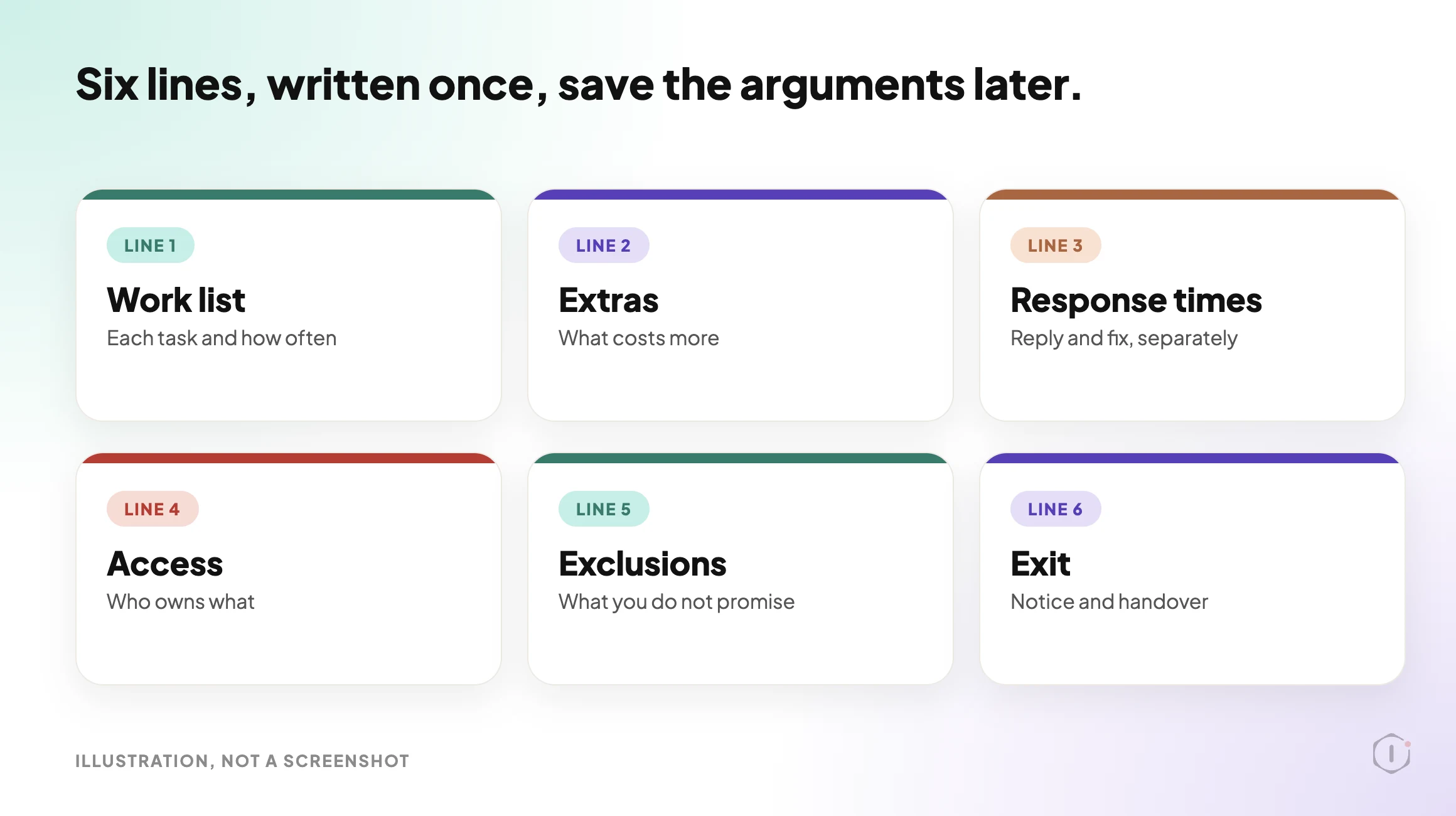
    Short answer: A maintenance plan contract should name six things in plain words: the work list and how often each task runs, what counts as extra, how fast you respond and how fast you fix, who owns every account, what you do not promise, and how the plan ends. If a line is missing, the first disagreement will fill it in for you.

    What this post is, and is not: A practical checklist for agencies and freelancers who sell or buy WordPress maintenance. It follows the problem from the contract side, not the price side. It is not legal advice, and a lawyer should review any contract before you use it. Nothing here is a result from a real client site.

    A plan is a promise. The contract is where the promise gets a size.

    Illustration listing the six things a WordPress maintenance contract should name: work list, extras, response times, access, exclusions and exit
    Six lines, written once, save most of the arguments later.

    Why A Plan Without A Contract Becomes An Argument

    A plan often starts with a list of friendly words. Updates, backups, monitoring, support. Each word means something different to the person selling it and the person paying for it.

    “Support” is the worst one. To a client it can mean anything that goes wrong. To an agency it means answering a question. The gap between those two meanings is where unpaid hours live.

    We covered the money side of that gap in The Half Hour Nobody Bills. This post covers the paper side. If the paper is vague, no price is safe.

    Six Lines The Contract Should Name

    LineWhat to writeWhat goes wrong when it is blank
    Work listEach task, how often it runs, and who does itThe client assumes more is done than is done
    ExtrasWhat costs more and how it is quotedEvery request becomes a debate
    Response timesWhen you reply, and when you aim to fixA client waits a day and decides you ignored them
    AccessWho owns hosting, domain, licences and loginsA handover turns into a hunt
    ExclusionsWhat the plan does not promiseA normal failure looks like a broken promise
    ExitNotice period and what the client gets backCancelling becomes a conflict

    Each line gets its own section below.

    The Same Promise, Vague And Named

    The fastest way to see the difference is to write one promise twice.

    VagueNamed
    Keep plugins up to dateApply plugin updates weekly, on a copy first, and list what changed in the monthly note
    Daily backupsA backup every day, stored off the server, kept for a stated period, with a restore test on a stated schedule
    Fast supportA reply within the stated hours, and a separate fix target that depends on the cause
    Security includedNamed checks run on a schedule, with the results shared. No promise that a site can never be breached
    Small changes includedText and image swaps on existing pages are covered. New pages and features are quoted

    The named version is longer. It is also the only one a client and an agency can both point at later and agree on.

    The Work List: Name Each Task And How Often

    Write tasks as verbs with a rhythm. “Apply plugin updates weekly” is a line. “Keep the site up to date” is a wish.

    A work list for a plan usually has four groups:

    The contract in 30 seconds: the vague sentence, the six lines, vague versus named, response times, ownership and the limits.

    Where The Plan Ends: Name What Costs Extra

    Every plan has an edge. Decide where it is before a client finds it for you.

    Common items that sit on the edge:

    • Cleaning up after a hack that happened before the plan started.
    • Restoring a site after a client edit went wrong.
    • Fixing a conflict caused by a plugin the client installed.
    • New pages, new features and content changes.
    • Moving the site to a new host.

    You do not have to charge for all of them. You do have to say which ones you do and which ones you quote. A short line such as “Work outside the list above is quoted before it starts” removes most of the surprise.

    Response Times: Acknowledge Is Not Fix

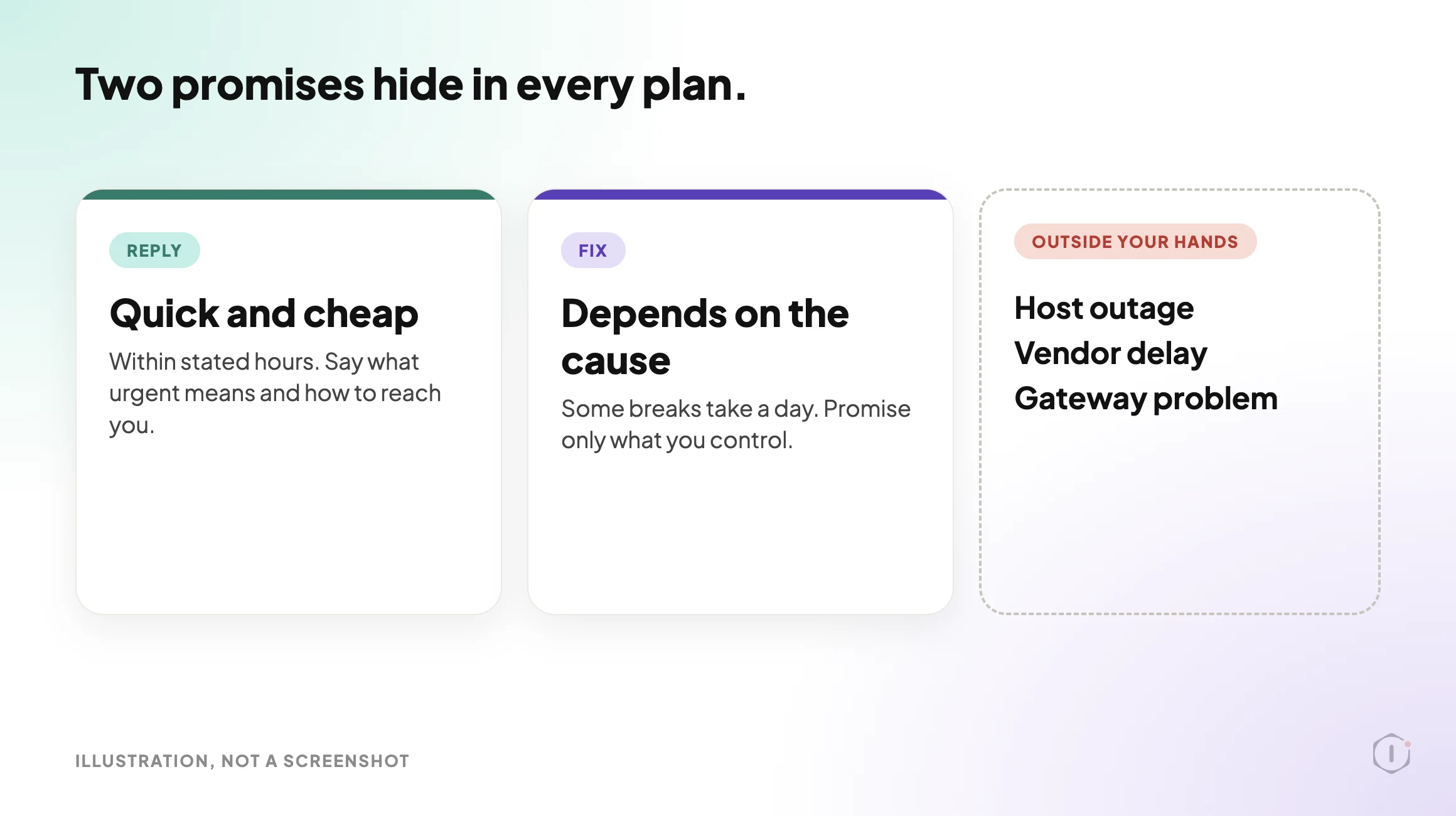
    Two numbers hide inside every plan. How fast will you reply, and how fast will you fix?

    They are different promises. A reply can be quick and cheap. A fix depends on what broke, and some breaks take a day.

    Name both, and name the hours they apply to. Say what “urgent” means, for example a checkout that does not complete, and how a client reaches you for it. Do not promise a fix time you cannot control. A host outage, a plugin vendor delay or a payment gateway problem sits outside your hands.

    Illustration of the two promises in a maintenance plan, a quick reply and a fix that depends on the cause, plus host outages, vendor delays and gateway problems outside the agency's control
    A reply is a promise about time. A fix is a promise about cause.

    Access And Who Owns What

    Most handover pain starts with ownership. Write down who holds each of these:

    • The domain registration and its renewal.
    • The hosting account.
    • Premium plugin and theme licences, and who pays to renew them.
    • The administrator accounts on the site. Give every person their own login and keep the number of Administrators small.
    • Third-party accounts such as email, analytics and payment gateways.

    The safest default is that the client owns the accounts and you are given access. A plan that depends on your own personal licence for a client’s key plugin will break the day you stop working together.

    Licences are an easy cost to leave unwritten. One r/Wordpress thread, “How much do you charge for Monthly Maintenance?”, starts from a freelancer who plans to include a page builder licence and hosting in the plan. That is exactly the kind of cost that has to be written down.

    “I plan on charging maintenance for client sites which includes my page builder license, hosting, as well as the typical maintenance tasks.”

    r/Wordpress, “How much do you charge for Monthly Maintenance?”, August 2024

    Software versions belong here too. WordPress 7.0 dropped support for PHP 7.2 and 7.3, so the server version is part of the plan, not a side detail. Name who is responsible for it, and see the WordPress PHP version problem for why it matters for security fixes.

    A free “Essentials” maintenance plan template for web designers, freelancers and small agencies, shared with the WPTuts community.

    WPTuts, “New Free Essentials Website Maintenance Plan Template” on YouTube, 24 Jul 2026

    How The Plan Ends

    Contracts are often written as if the plan will last forever. Write the ending too.

    • Notice. How much notice either side gives, and when the final charge lands.
    • Handover. What the client gets on exit: credentials, the latest backup, and a short list of what was done.
    • Cleanup. Which of your tools and accounts are removed from the site, and when.

    A clean exit protects the relationship more than a clean start does. Clients remember how it ended.

    What A Contract Does Not Solve

    A contract is a document. It does not do the work and it does not change how people behave.

    • It does not keep the site healthy. A signed plan with unverified backups is still a risk.
    • It does not replace a conversation. Send a short summary in plain words as well as the contract itself.
    • It does not cover what you cannot control. Host outages, vendor delays and client decisions sit outside the list.
    • It is not legal advice. Liability, data protection and jurisdiction vary. Have a lawyer review the final wording.
    • It does not set the price. That is a separate question, covered in the cost of a maintenance plan.

    A plan that promises everything is easy to sell and hard to keep. Say what you cover, and say what you do not.

    A One-Page Check You Can Run This Week

    Pick three of your current plans and ask these questions of each contract:

    1. Is every task named with how often it runs?
    2. Is there a line that says what costs extra?
    3. Are reply time and fix time written separately?
    4. Does the client own the domain, hosting and licences?
    5. Is there a line for what the plan does not promise?
    6. Is there a notice period and a handover list?

    Then choose one outcome per plan:

    1. Keep it as written.
    2. Add the missing lines and send it for agreement.
    3. Replace it with a clearer one-page version.
    4. Split it into two tiers with clear edges.
    5. Retire it, if it cannot be written down honestly.

    If a plan fails three or more questions, fix that one first.

    Sources And Further Reading

    • Updating WordPress: the official guide to core updates.
    • WordPress Backups: what a backup should include, from the official documentation.
    • Dropping support for PHP 7.2 and 7.3: the WordPress core announcement behind the PHP point above.
    • The video and the r/Wordpress thread in this post: a short look at what a maintenance plan template covers, and a freelancer’s question about what to bundle into a plan.

    The Point

    A maintenance plan is a short list of promises with a size on each one.

    You do not need a long contract. You need a clear one.

    Which line is missing from the plan you sold last?

  • WordPress White Screen Of Death: The Playbook, Step By Step

    WordPress White Screen Of Death: The Playbook, Step By Step

    A white screen is not an error message. It is the absence of one.

    There is no stack trace, no plugin name and no hint. Just an empty page on a site that worked an hour ago.

    That is why the usual advice starts with guessing: rename the plugins folder, switch the theme, raise the memory limit, and see what happens.

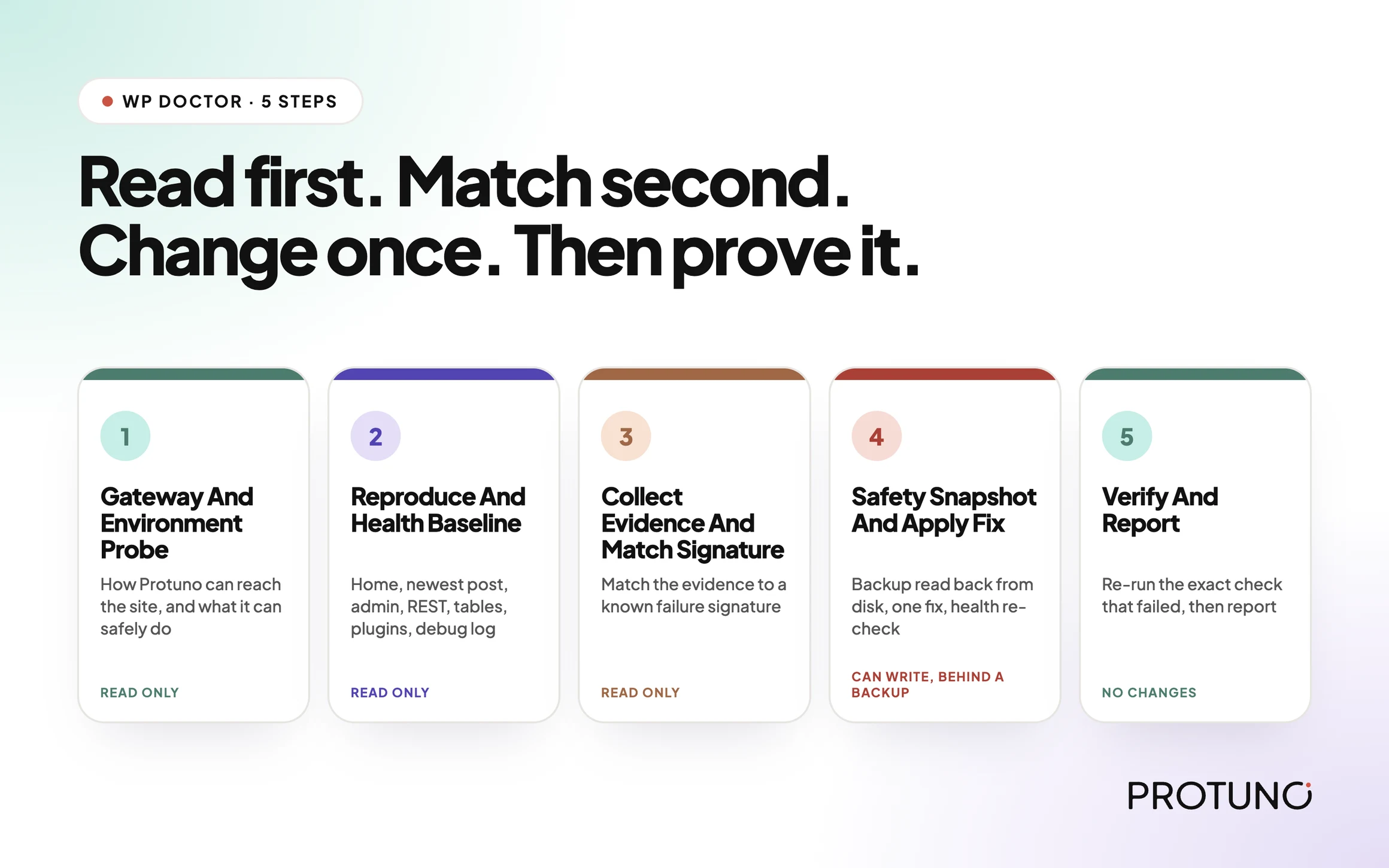
    Short answer: a WordPress white screen of death is a symptom with several different causes, and the fix depends on which one you have. WP Doctor is a Protuno playbook that works in five fixed steps: probe how it can reach the site, record a health baseline, match the evidence to a known failure signature, apply one fix behind a snapshot, then re-run the exact check that failed. If it cannot match a signature or safely reach the cause, it hands off instead of guessing.

    What this post is, and is not: it is a practical walk through how a diagnosis playbook is built, based on the WP Doctor playbook as it appears in the Protuno dashboard. It is not a claim that every white screen is fixable automatically, and it does not quote results from a run. Where a cause sits outside WordPress, the honest answer is a hand-off to a human.

    An empty page is a fact about the output. A signature is a fact about the cause.

    Why Deactivate Everything Falls Short

    The folk fix is to deactivate every plugin, then reactivate them one at a time. It works often enough that people trust it. It also hides three problems.

    First, it is a fix without a diagnosis. If the page comes back, you know a plugin was involved. You do not know the fault, or whether a stuck update was the real cause.

    Second, it assumes the cause lives in WordPress. A blank page can also come from the server or a CDN, and plugin shuffling touches neither.

    Third, there is no definition of “fixed”. If the homepage loads, the job feels done. But a homepage that returns 200 while the admin or the REST API is still failing is not a healthy site. This is the same trap described in WordPress rollback after an update: a homepage-only check misses the failures that sit below it.

    A good diagnosis fixes the order. Measure first. Match to a known cause. Change one thing. Check again.

    Three Ways To Look At A Blank Page

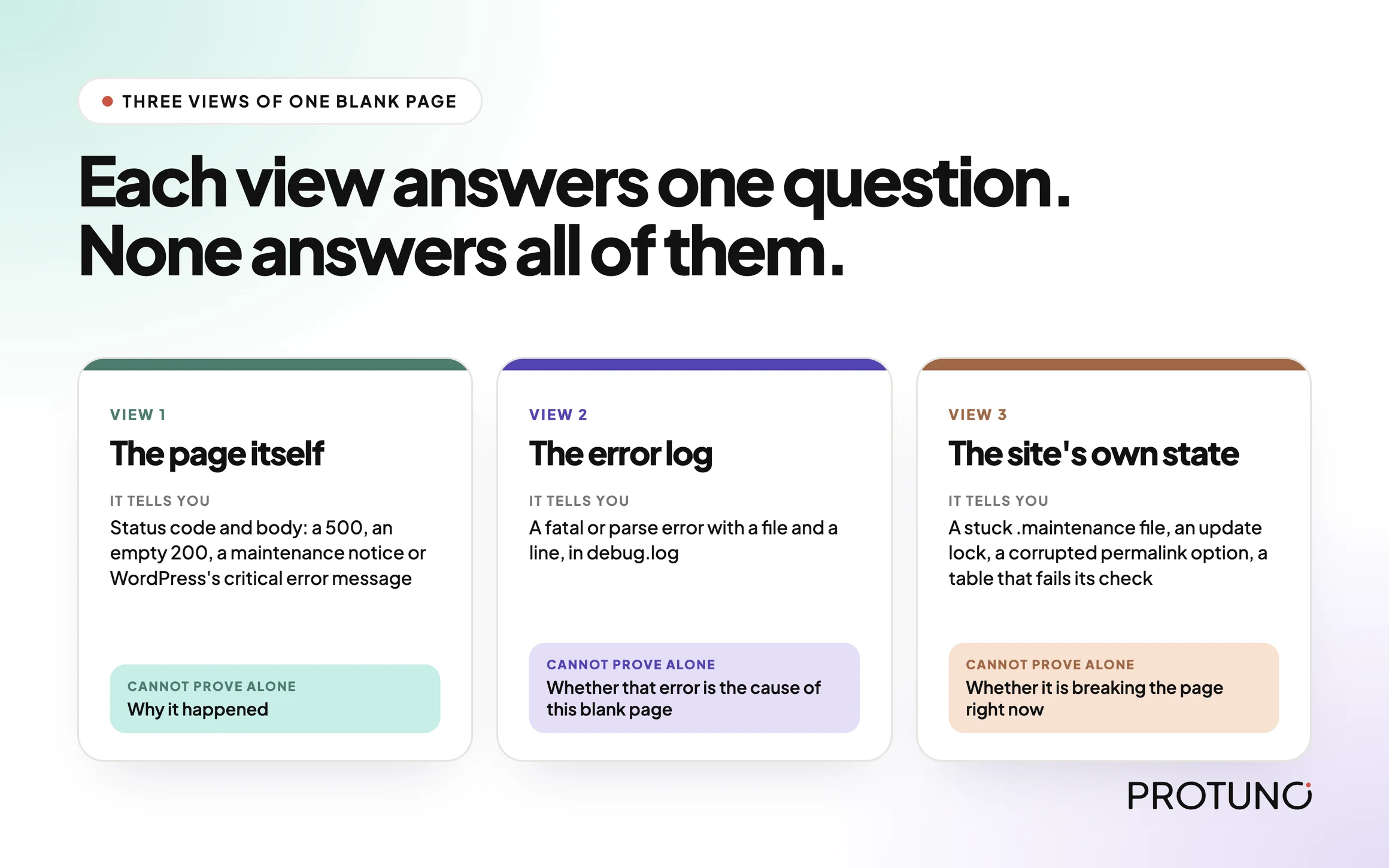
    When a site goes white you can approach it from three directions. None is enough alone.

    ViewWhat it tells youWhat it cannot prove alone
    The page itself (status code and body)Whether the response is a 500, an empty 200, a maintenance notice or WordPress’s own critical error messageWhy it happened
    The error log (debug.log)A fatal or parse error, with a file and a lineWhether that error is the cause of this blank page or an old one
    The site’s own state (files, options, tables)A stuck .maintenance file, an update lock, a corrupted permalink option, a table that fails its checkWhether it is currently breaking the page

    A white screen with a fatal in the log and a 500 is a different problem from an empty 200 with a clean log. You want all three views before you touch anything.

    Three views of one blank WordPress page: the page itself, the error log and the site state, each with what it cannot prove alone
    Each view answers one question. None answers all of them.

    The Playbook, Step By Step

    WP Doctor is a Protuno maintenance playbook, shown in the dashboard with a Beta label, five steps, and a “can write” status. It is a general-purpose WordPress diagnosis playbook, so a white screen is one of the problems it is built to handle. It is not on the public playbooks page yet, so treat it as a new playbook that is still being rolled out.

    It runs a fixed sequence. Steps 1 to 3 only read the site. Step 4 is the only one that can change anything, and only behind a backup. Step 5 re-checks and reports.

    The five WP Doctor steps in order: Gateway And Environment Probe, Reproduce And Health Baseline, Collect Evidence And Match Signature, Safety Snapshot And Apply Fix, Verify And Report
    Five steps in a fixed order: three read only, one that can write behind a backup, and a final check.
    #StepWhat it does
    1Gateway And Environment ProbeWorks out how Protuno can reach the site and what it can safely do. Records WordPress and PHP versions, the real table prefix, multisite status, server software and the site URLs. Read only.
    2Reproduce And Health BaselineProbes the homepage, the newest published post, wp-admin and the REST API. Checks the database tables, key options and files, active plugins and theme, and the recent tail of debug.log. Defines what “healthy” means for this site. Read only.
    3Collect Evidence And Match SignatureBundles the evidence and matches it against a catalogue of known failure signatures. Localizes the layer and decides: auto-fix, propose, hand off or escalate. Read only.
    4Safety Snapshot And Apply FixConfirms a backup exists on disk, applies the one fix the diagnosis named, re-checks health, and rolls back automatically if the site got worse. Or applies nothing and hands off.
    5Verify And ReportRe-runs the exact check that failed, then writes a report with a status: fixed, rolled back, handed off, escalated or healthy. Makes no changes.

    The order is the point. The baseline exists before any change, so “did we break something” has an answer. The match exists before the fix, so evidence picks the fix.

    Step 1: Know What You Can Reach

    Before it looks at the white screen, the playbook records how it can reach the site. In the step instructions, access is the Protuno connection running PHP on the site: it can run PHP, query the database, read debug.log and read and write files.

    It cannot run WP-CLI, has no SSH and has no CDN or edge API. Server and edge causes are detect-and-hand-off only. A tool that pretends it can reach everything will eventually “fix” something it cannot see.

    Step 2: Write Down Healthy Before Changing Anything

    The baseline probes the homepage, the permalink of the newest published post, the admin and the REST API, each with a timeout. It then runs a table check on the database, reads the siteurl, home, permalink structure and any core updater lock, and checks whether a .maintenance file and an .htaccess file exist. It lists the active plugins and the active theme, and reads roughly the last 200 lines of the debug log.

    Then it defines its health check. A site passes when the homepage returns 200, the newest post returns 200 (or there are no posts), wp-admin is reachable rather than erroring, the REST API returns 200, and no new PHP fatal or parse error has been added to the log since the baseline.

    That definition is the tripwire for every later step. If step 4 changes something and health gets worse than the baseline, the change is reversed.

    Step 3: Match A Signature, Or Say You Cannot

    This is the step that replaces guessing. The instructions carry a catalogue of known failure signatures, and the playbook matches the evidence to it deterministically. Each signature is a set of signals that must all be true, optional signals that raise confidence, and signals that disqualify the match.

    A few of the WordPress-layer signatures in the catalogue, in plain terms:

    • A stuck maintenance state: a .maintenance file exists, or the homepage shows the “Briefly unavailable for scheduled maintenance” message.
    • A stuck update lock: the core updater lock option is set and there is no maintenance file.
    • A permalink 404: the homepage returns 200, the post returns 404, and a permalink structure is set.
    • A plugin fatal: a PHP fatal or parse error in the log, together with a 500, an empty homepage body or the “critical error” message.
    • A theme conflict: errors in the log that point into the themes folder, with a 500.
    • Others cover a REST API failure, headers already sent, a 403, a login redirect loop and corrupted database tables.

    Server and edge signatures are in the catalogue too, such as a database connection error or a Cloudflare 521 to 524. A 521 to 524 means the origin is down, so the playbook places the cause at the server and hands off.

    Two rules keep it honest. If nothing matches, it escalates and no fix is invented. If two high-confidence matches point at different causes, it escalates rather than picking one.

    The decision that comes out is one of four: auto-fix, propose, hand off or escalate.

    Step 4: One Fix, Behind A Snapshot

    Only now can anything change. The hard gate comes first: the options and files about to be touched are exported and copied, then the playbook reads the backup back from disk to confirm it exists and is not empty. If it is missing or empty, it refuses to apply the change.

    Then it applies one logical fix. That can be more than one PHP call when the calls belong together, such as writing a corrupted permalink option back and then flushing the rewrite rules.

    After the change it re-runs the health check against the baseline. If the site is worse, it restores from the backup, runs the check again to confirm it is back at baseline, and records that it rolled back.

    For a plugin conflict, the fix is a bisect: deactivate the plugins, check health, then reactivate them one by one while checking between each, until the plugin that flips the site from passing to failing is found. It leaves that one deactivated and restores the rest. Every plugin that was active in the baseline and is not the culprit must end active. The site is never left stripped.

    Some things are never applied: changing the site URL on an unconfirmed canonical, repairing InnoDB tables, setting the memory limit blind or touching database credentials. Those go to hand-off with exact steps for a human.

    Step 5: Prove It, Or Do Not Claim It

    The last step re-runs the exact check named in the diagnosis, such as the post URL that returned 404 or the REST endpoint that should answer. Never a softer one. It then picks one honest status: fixed, rolled back, handed off, escalated or healthy. The report names the layer and signature, the evidence that matched, what was applied and anything left for a human. “Fixed” is only allowed when the re-run passes.

    WP Doctor: read first, match a signature, change once, then prove it.

    A Small Test You Can Run Today

    You do not need a playbook to see how a blank page behaves. Record four things before you change a setting:

    • The status code and the length of the body for the homepage, a recent post, the admin and the REST API.
    • Whether a .maintenance file exists in the WordPress root.
    • The last few lines of wp-content/debug.log, if logging is enabled.
    • The active plugin list and the active theme, written down.

    A rough version from a terminal:

    # status code and size for each URL
    for u in https://example.com/ https://example.com/a-recent-post/ 
             https://example.com/wp-admin/ https://example.com/wp-json/; do
      curl -s -o /dev/null -w "%{http_code} %{size_download} $un" "$u"
    done
    
    # a stuck maintenance state and the recent log
    ls -la .maintenance
    tail -n 50 wp-content/debug.log

    Keep that output as your baseline. If the debug log is publicly readable, fix that first; this post on exposed debug logs explains why it matters.

    Which Cause Are You Actually Looking At?

    Different symptoms point at different layers. This is a rough map based on the signatures above, not a promise that a symptom always means one cause.

    If you seeA likely signatureNext action
    “Briefly unavailable for scheduled maintenance”Stuck maintenance stateCheck for the .maintenance file after an interrupted update
    Homepage 200 but posts 404Permalink problemCheck the permalink structure and flush the rewrite rules
    500 plus a fatal error in the logPlugin fatalBisect the plugins with a restore point in place
    “There has been a critical error” with a clean logCritical error, medium confidenceFind the failing component by bisecting, since the log does not name it
    Cloudflare 521 to 524Origin downTreat it as a server problem and hand off
    “Allowed memory size exhausted” in the logMemory exhaustedHand off, since the real limit is set by the host

    What WP Doctor Does Not Solve

    A diagnosis playbook has edges. Being clear about them is part of the design.

    • Server and edge causes. There is no SSH and no edge API in the reach. These are diagnosed and handed off, with exact steps for a human.
    • Failures with no known signature. The decision is to escalate, with the evidence it found. It does not invent a fix.
    • Hacked sites. Malware and SEO spam indicators are routed to malware removal. They are not repaired here.
    • A site with no usable baseline. No baseline means no rollback tripwire, so it changes nothing.

    Questions To Ask Your Current Tooling

    Whatever repairs your broken sites, ask it:

    • How does it define “fixed”, and is that check the one that failed?
    • What happens when its fix makes things worse?
    • Does it say so when the cause is outside WordPress, or does it try anyway?

    If the answers are vague, you are being offered a button, not a process.

    Fixing In The Right Order

    When a fix is possible, order matters more than speed. Two practical rules apply to every case. Take a restore point before the first change, and confirm it can be read back. A backup you have not verified is a file with a hopeful name. Then re-run the check that failed after the change, not a friendlier one.

    If an update caused it, the update process, written out before it runs is the way to have fewer of these.

    A Five-Site Triage You Can Do This Week

    Pick five sites and note, for each:

    • The site and how it is hosted.
    • Whether debug.log is available to read, and whether it is public.
    • Whether a recent restore point exists and has been verified.
    • Whether a homepage-only monitor is your only alert.
    • Who gets the call if it goes white at 2 a.m.

    Then decide for each gap: fix now, test first, replace, remove, accept with an owner and a date, or investigate. A homepage-only monitor notices a white screen and little else. Uptime monitoring that asserts content gives the diagnosis something to start from.

    Why The Baseline Goes Stale

    A baseline describes one moment. After an update, a theme change or a hosting move it is out of date, so record it again. WordPress security monitoring makes the same point about snapshots.

    Where Protuno Fits

    WP Doctor is one of the playbooks in the Protuno dashboard, and it is currently marked Beta. It can change a site, which is why the backup gate, the single fix and the automatic rollback sit in the middle of it. The playbooks that are public today are listed on the Protuno playbooks page.

    The aim is not to remove the human. It is to make the first hour of a bad day a matter of evidence, and to say clearly when the next step is yours.

    The Point

    A white screen is a symptom, not a diagnosis.

    The question is not “which plugin do I turn off”. It is “what did the site look like before it broke, and what is the evidence for the cause”.

    Could you answer that for the next site that goes white?

  • WordPress Uptime Monitoring: The Playbook, Step By Step

    WordPress Uptime Monitoring: The Playbook, Step By Step

    Somewhere right now, a monitoring dashboard is glowing green for a site that is showing a client a blank white page. I served three broken pages from a test server and checked what three kinds of check would say.

    Short answer: a status-code check calls all three broken pages healthy, because all three return 200. I served them from a small test server and ran three kinds of check against the same responses. The status-code check missed every one. An error-word check caught only the fatal error. A check that looks for text the healthy page should contain caught all three, but somebody has to keep that text up to date.

    What this test is, and is not: the pages come from a 20-line local test server that returns the responses a broken WordPress site would (an uncaught PHP error printed as text, an empty body, a placeholder page). It shows what each kind of check can see. It is not a WordPress install, and I did not test any vendor’s product.

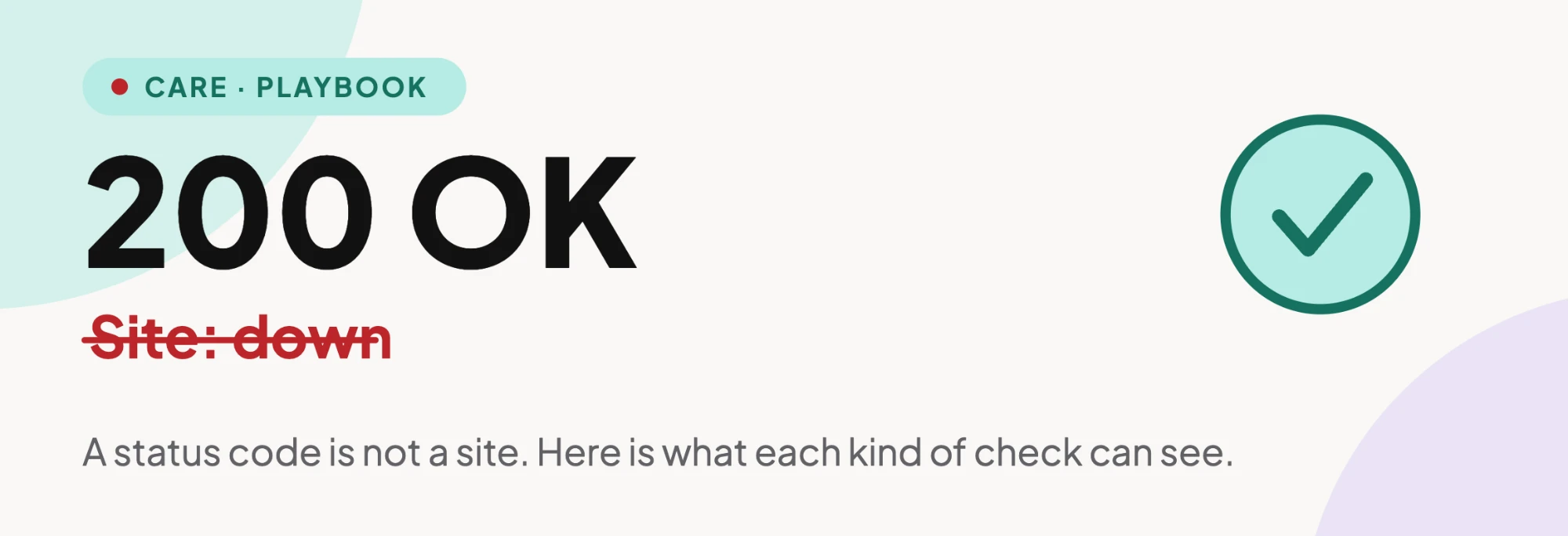
    A status code is not a site: 200 OK over a struck-through Site: down
    A status code is not a site.

    The Check Nobody Questions

    “Is the site up?” feels like a solved problem, the kind of thing you set up once and forget. Point a monitor at the homepage, ping it every few minutes, get a message if it stops answering. Many hosts, security plugins and budget monitoring tools default to exactly this.

    Here’s the part that should bother you more than it does: “up” to that monitor just means a server opened a connection and handed back a number under 400. That’s it. Nobody ever taught it what your homepage is supposed to look like. It’s a bouncer checking that the door opens, not checking who walked through it.

    Three Ways A WordPress Site Returns 200 While Being Broken

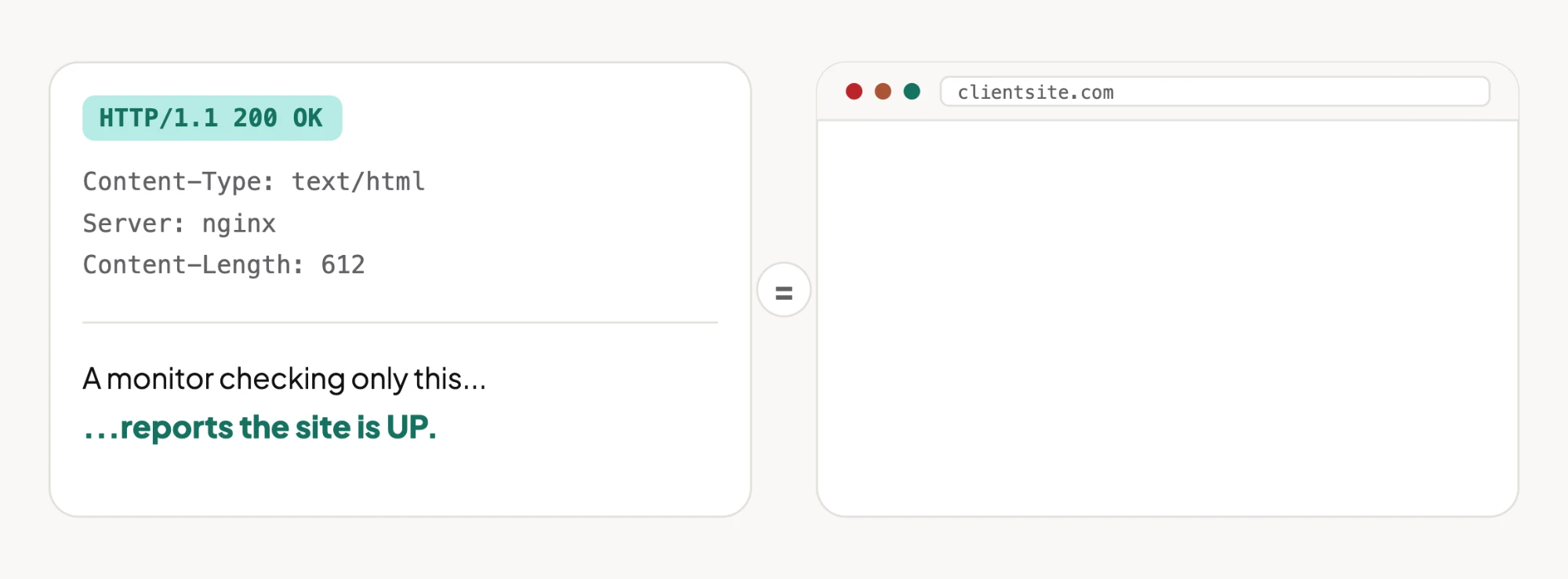
    These failure modes are common enough that most agencies have met at least one of them. Each produces a response the server is happy to label 200 OK.

    1. A fatal PHP error with display_errors left on. The server returns 200, the visitor gets a stack trace where the homepage used to be, and a status-code monitor waves it through.
    2. A plugin conflict producing a white screen. No error text, no clue, just an empty <body> and a 200 status sitting on top of nothing.
    3. A homepage overwritten by a template import or a failed migration. The page loads instantly, returns 200, and is completely the wrong page: a placeholder, a builder’s default template, last month’s cache.

    A status-code monitor sails through all three. A person notices straight away. Guess which one your client trusts more.

    An HTTP 200 OK response with headers next to a blank browser window at clientsite.com
    Same response code. One of these is a working site.

    Three Checks, Three Broken Pages

    I served the three broken pages plus one healthy page from the test server and ran three kinds of check against each. Everything in the table below was measured that way.

    CheckFatal error pageWhite screenWrong homepageHealthy page
    A. Status code only (alert if not 2xx)No alertNo alertNo alertNo alert
    B. Alert if the page contains an error word (“Fatal error”)AlertNo alertNo alertNo alert
    C. Alert if expected text (“Welcome”) is missingAlertAlertAlertNo alert
    Measured on a local test server: four pages, three checks, every page returning 200. The only check that saw all three failures is the one that knows what the healthy page should say.

    Row B is the one worth sitting with, because it looks like the problem solved itself. It only catches the failure that announces itself. A white screen has no words to match. A wrong homepage has plenty of words, just not yours.

    Row C is the good one, and it has a price. Somebody has to choose the expected text, keep it in sync every time the homepage changes, and repeat that for every site. When the copy changes and nobody updates the check, it raises a false alarm, and false alarms are how monitoring gets muted.

    The Playbook, Step By Step

    Uptime Checker is a Protuno playbook: a fixed sequence written down before it runs, so it does the same thing this Tuesday that it did last Tuesday.

    Here is the sequence, published in full.

    The playbook has seven steps:

    #Step
    1Uptime Config Gate
    2Ensure UptimeRobot Keyword Monitor
    3External Vantage Read UptimeRobot
    4On Site Probe And Classification
    5Uptime Confirmation Loop
    6Vantage Point Report
    7Fleet Verdict And Report

    Step 2 sets up a keyword monitor, which is the “expected text” idea from row C above. Step 5 is a confirmation loop, which is the “re-check before alerting” idea from the fixes table below.

    It is in beta, it only reads the site, and it needs UptimeRobot connected to work. I have not run it. It is not switched on for any site yet, so this post carries no timings and no results from it. The only measured numbers here are from the local test above.

    The three-check test above is why a sequence beats a single check: a status code misses all three broken pages, an error word misses two, and even the expected-text check only works while someone keeps that text current.

    What to ask of any monitor, this one included:

    • Does it check the page, or only the response code?
    • If it checks the page, who maintains what it expects to see?
    • Does it re-check before alerting, so one network blip doesn’t wake anyone up?
    • Can it tell a replaced homepage from the real one?
    Uptime Checker in 20 seconds: the same blank page run through three checks. Two miss it, one catches it.

    Testing What Your Current Setup Actually Catches

    Two checks, no tooling required beyond curl.

    Does your monitor look past the status code?

    curl -s -o /dev/null -w "%{http_code}\n" https://yoursite.com

    This alone tells you nothing except what your current monitor is probably already checking. The real test is what happens next.

    Simulate a silent content failure. Temporarily rename your active theme’s functions.php (on staging, not production) and watch whether your monitor says anything within its stated interval. A status-code-only monitor will report the site is up the entire time your visitors are seeing a fatal error or a blank page.

    If your monitor stays green through that test, it is checking the pipe, not the page.

    Which Row Is Your Monitor?

    Once you’ve run the functions.php test, match what happened to a row of the table above. That tells you what your monitor can and cannot see, and what to do next.

    What happened in your testYou’re runningWhat it will missNext step
    Nothing. It stayed green.Row A: status code onlyAll three failures in this postAdd an expected-text check (step 2 below)
    It alerted on a fatal error page, but stayed quiet on a blank oneRow B: error word presentWhite screens and wrong homepagesFlip the rule to “expected text is missing” (step 2 below)
    It alerted on every broken pageRow C: expected text missingNothing in this test, but the text goes stale when the homepage changesWrite the expected text down and review it whenever the homepage changes (step 3 below)
    It alerts on healthy pages tooRow C with stale textTrust. The team learns to ignore it.Update the expected text, then re-check from a second location before alerting (steps 3 and 4 below)
    Rows A, B and C are the same three checks measured in the table above.

    Fixing It In The Right Order

    #StepWhy here
    1Turn off display_errors in production, whatever monitoring you runA stack trace is a separate leak, not just a monitoring gap
    2Add an expected-text check to the uptime tool you already use, if it supports oneTurns a pipe check into a page check (row C above)
    3Write the expected text down where the whole team can find itIt goes stale the day the homepage changes
    4Re-check from a second location before trusting an alertOne flaky network path is what trains people to mute the whole system
    Step 2 without step 3 trades missed outages for false alarms.

    What I Would Do With A Client Portfolio This Week

    Pick your five busiest sites. Break one on purpose: rename functions.php on a staging copy, nothing production, nothing dramatic, and time how long your current monitoring takes to say a word about it. Set a timer. Walk away. Come back in twenty minutes.

    If the timer never goes off, you’ve found the gap this post is about. If it does, you have a monitor worth keeping.

    This is the same blind spot WordPress Cron Not Running covers from a different angle: the server doing exactly what it was told, faithfully, while the thing that actually matters quietly stops happening. SSL Certificate Expiry is the same trap on a calendar, and WooCommerce Checkout Monitoring is where it costs the most: a homepage that loads perfectly while checkout is broken. All of them circle the same idea: a system can report perfect health and still be lying to you, not out of malice, just out of asking the wrong question.

    Uptime Checker is one of Protuno’s playbooks. See the playbook list.

    So, one honest question before you close this tab: the last time something actually broke on one of your sites, how did you find out? If the answer involves the words “a client emailed me,” you already know which row of that table you’re running.

  • WordPress Statistics For Operations: The State Of Things, September 2026

    WordPress Statistics For Operations: The State Of Things, September 2026

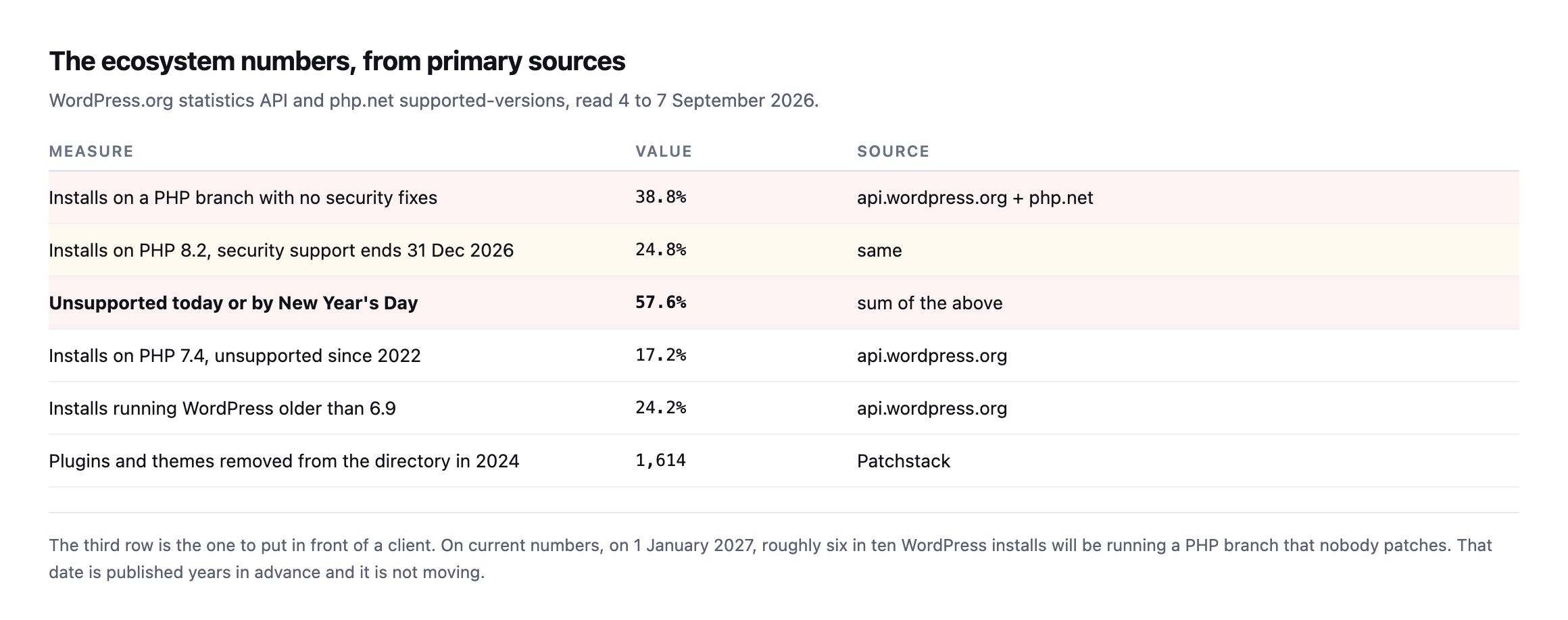
    Short answer: the headline wordpress statistics for operational health are worse than the ecosystem’s reputation suggests. 38.8% of installs run a PHP branch with no security fixes, and another 24.8% lose support on 31 December, taking the total to 57.6%.

    This is the first of these I have written. Everything below was measured rather than cited from somebody else’s report, and the second half is our own portfolio, including the parts that failed.

    The ecosystem-wide WordPress statistics

    Table of ecosystem measures. 38.8 percent of installs run an unsupported PHP branch, 24.8 percent are on PHP 8.2 losing support on 31 December, totalling 57.6 percent. 17.2 percent run PHP 7.4, 24.2 percent run WordPress older than 6.9, and 1,614 plugins and themes were removed from the directory in 2024
    From the WordPress.org statistics API and php.net’s own supported-versions page, read

    4 to 7 September 2026.*

    MeasureValueSource
    installs on a PHP branch with no security fixes38.8%api.wordpress.org + php.net
    installs on PHP 8.2, security support ends 31 Dec 202624.8%same
    unsupported today or by New Year’s Day57.6%sum of the above
    installs on PHP 7.4, unsupported since 202217.2%api.wordpress.org
    installs running WordPress older than 6.924.2%api.wordpress.org
    plugins/themes removed from the directory in 20241,614Patchstack

    The third row is the one worth putting in front of a client. On current numbers, on New Year’s Day, roughly six in ten WordPress installs will be running PHP that nobody patches. That date was published years in advance and it is not moving.

    I have written separately about how to have that conversation without predicting a breach, because overstating it is how the advice gets discounted.

    Our own portfolio

    A report about other people’s sites would be worth less, so here is ours.

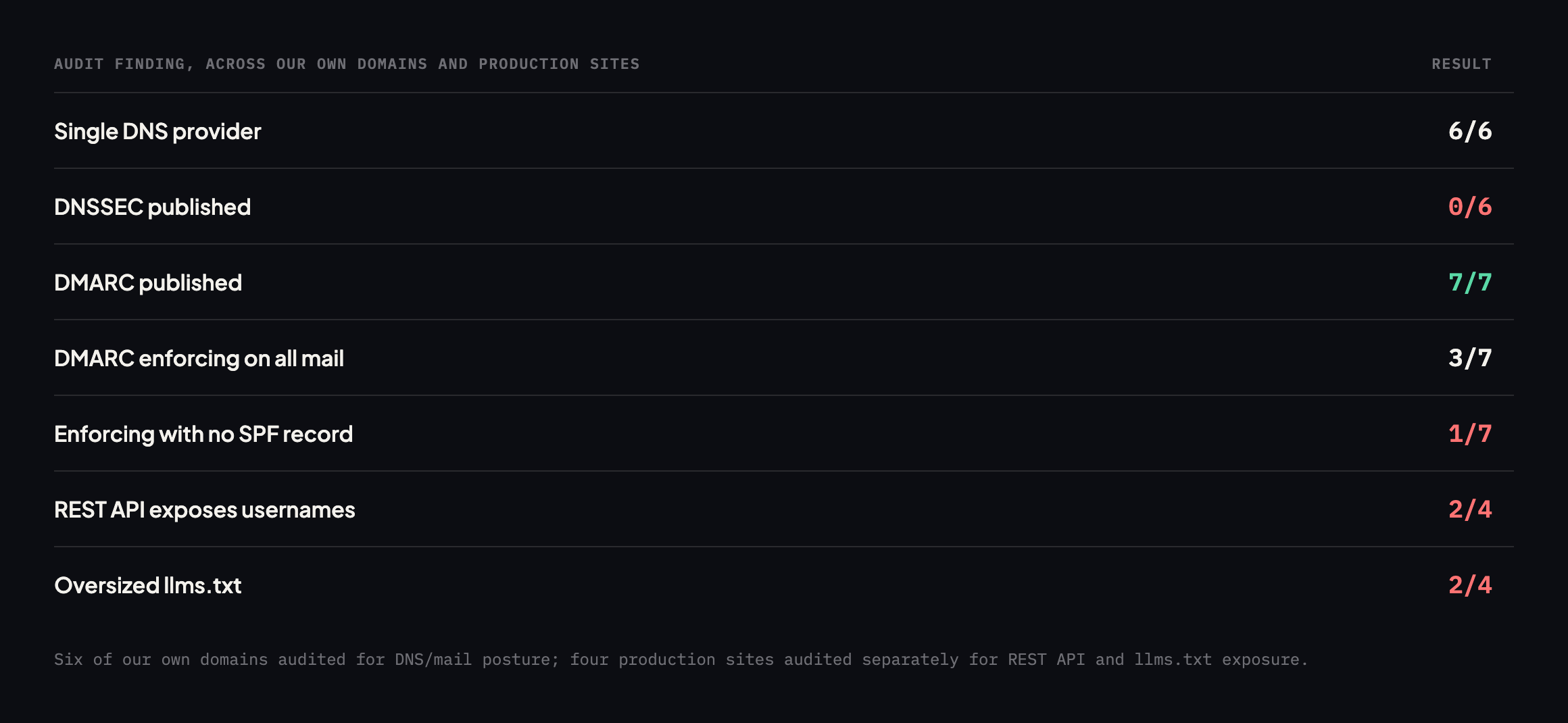
    Table of audit results across seven of our own domains and four production sites. All six domains use a single DNS provider and none publish DNSSEC. All seven have DMARC but only three enforce on all mail, and one enforces with no SPF record. Two of four sites expose ten usernames each via the REST API. Two publish oversized llms.txt files
    Publishing your own audit is uncomfortable and it is the only version of this worth

    reading. Every red row is now on a list with an owner.*

    CheckResultReading
    domains on a single DNS provider6 of 6one failure domain
    domains publishing DNSSEC0 of 6none
    domains publishing a CAA record1 of 6and that one is incomplete
    domains with a DMARC policy7 of 7all
    DMARC policies enforcing on all mail3 of 7two at pct=5, one at p=none
    domains enforcing DMARC with no SPF1a real gap
    sites exposing usernames via REST2 of 410 usernames each
    sites blocking xmlrpc.php3 of 4majority
    sites publishing an oversized llms.txt2119KB and 212KB
    certificates expiring within 90 days6 of 6normal, all auto-renewing

    Three findings I did not expect.

    Two of our sites expose ten usernames each through the REST API. Not a vulnerability, and half of what a credential attack needs.

    Two of our DMARC policies sit at pct=5, which applies the policy to five percent of failing mail and treats the rest as though there were no policy. That is a legitimate rollout step we stopped on and forgot.

    One domain publishes a p=quarantine DMARC policy with no SPF record at all, leaving DKIM as the only thing alignment can use.

    What measuring taught me about measuring

    The most useful thing to come out of this was not any single number.

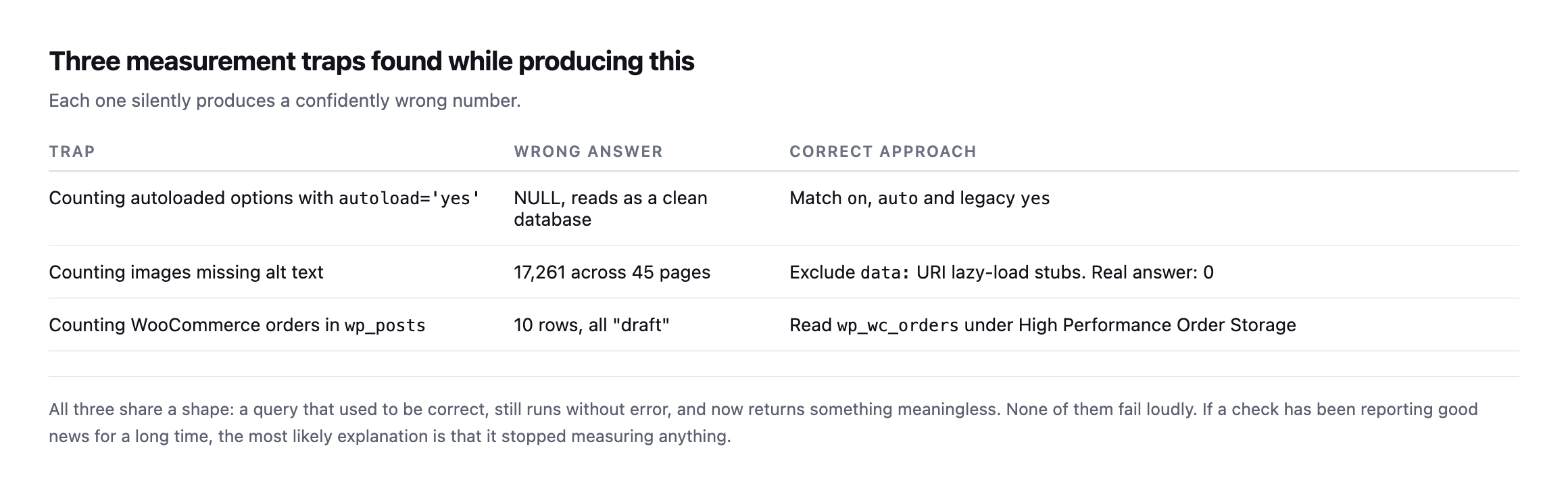
    Table of three measurement traps: counting autoloaded options with autoload equals yes returns NULL, counting images missing alt text returns 17,261 false positives, and counting WooCommerce orders in wp_posts returns ten drafts. Each with the correct approach
    All three share a shape. A query that used to be correct still runs without error and now

    returns something meaningless.*

    TrapWrong answerCorrect approach
    counting autoloaded options with autoload='yes'NULL, reads as a clean databasematch on, auto and legacy yes
    counting images missing alt text17,261 across 45 pagesexclude data: URI stubs; real answer: 0
    counting WooCommerce orders in wp_posts10 rows, all “draft”read wp_wc_orders under HPOS

    The alt-text one nearly went out as a headline. A crawl reported 17,261 images missing alt attributes across 45 pages. Every single one was a lazy-loading placeholder, and the real count was zero.

    The lesson generalises well beyond these three: if a check has been reporting good news for a long time, the most likely explanation is that it stopped measuring anything.

    What we are changing as a result

    A report that produces no work is entertainment, so here is what came out of ours.

    The two sites exposing usernames get display names separated from login names, which is the fix that survives future plugin changes rather than the filter that a plugin update can step around.

    The two pct=5 DMARC policies get finished. They have been paused mid-rollout for long enough that nobody remembered they were paused, which is the exact failure the report exists to catch.

    The domain enforcing DMARC with no SPF gets an SPF record published this week. That is the single most defective row in the table.

    The two oversized llms.txt files, at 119 KB and 212 KB, get rewritten by hand. A generator produced them, and generators have no opinion about which twenty links matter.

    DNSSEC and CAA get a decision rather than a fix. Both are cheap and both can break things when done carelessly, so the honest outcome is a written decision about whether we want them, not a rushed deployment because they appeared in a table.

    What to check first

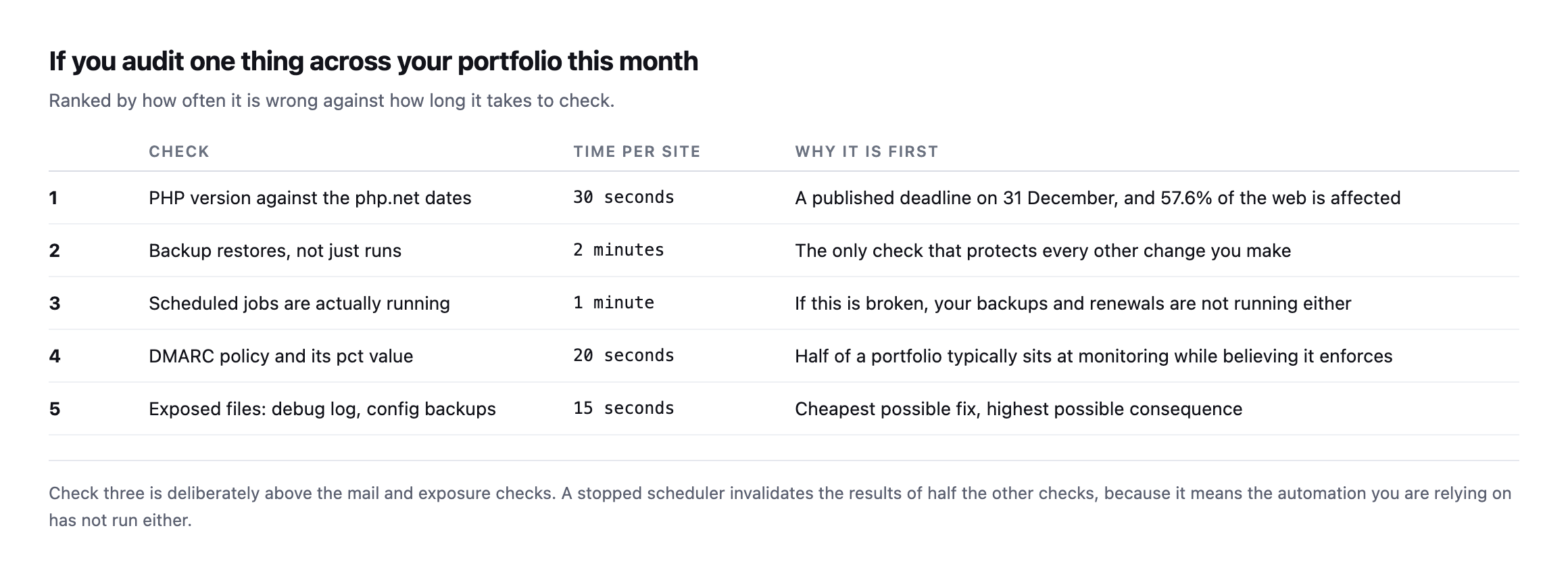
    Ranked table of five checks with time per site: PHP version against php.net dates at 30 seconds, backup restore test at 2 minutes, scheduled jobs running at 1 minute, DMARC policy and pct at 20 seconds, and exposed files at 15 seconds
    Check three sits above the mail and exposure checks deliberately. A stopped scheduler

    invalidates half the others, because the automation you are relying on has not run either.*

    #CheckTimeWhy it is first
    1PHP version against php.net dates30sa published deadline, 57.6% of the web affected
    2backups restore, not just run2minthe only check that protects every other change
    3scheduled jobs are actually running1minif broken, backups and renewals are not running either
    4DMARC policy and its pct value20shalf a portfolio typically sits at monitoring, believing it enforces
    5exposed files: debug log, config backups15scheapest fix, highest consequence

    Nothing on that list takes longer than two minutes per site. The total for a forty-site portfolio is an afternoon, once, and it produces a document you can act on for a year.

    The second reading, taken before a month had even passed

    This post closed by promising a monthly re-read, with the same numbers measured the same way, including the ones that make us look bad. I re-ran every check in the portfolio table while expanding this post rather than wait for a full month to pass, and the results are worth publishing exactly as promised.

    dig +short DS "$d"      # DNSSEC
    dig +short CAA "$d"     # CAA
    dig +short TXT "_dmarc.$d"

    DNSSEC: still 0 of 6. No change. It remains a decision nobody has made, exactly as this post already frames it.

    CAA: still 1 of 6, but that one domain moved from incomplete to correct. sitea.example‘s record now carries matching issue and issuewild entries across five certificate authorities, the specific gap this post’s original table flags, closed. The other five domains still publish none at all.

    A discrepancy in this post’s own original table, worth correcting rather than quietly smoothing over: siteb.example does not have a DMARC policy. This post’s original row states “domains with a DMARC policy: 7 of 7, all.” Re-checking _dmarc.siteb.example directly returns nothing, an empty TXT lookup, while the domain does publish SPF. Either that domain’s DMARC record existed briefly and was removed sometime between the original check and this one, or the original count was wrong. I cannot determine which from here, and the honest move is to report the current, directly-verified state rather than guess at which explanation is more flattering: as of this reading, it is 6 of 7, not 7 of 7.

    The ecosystem-wide PHP figure held almost exactly. Re-querying api.wordpress.org/stats/php/1.0/ directly and summing every branch with no current security support, not only the three largest, gave 38.36% against this post’s original 38.8%, a difference small enough to be ordinary day-to-day movement in a live distribution rather than a real trend in either direction. Unlike a companion post on this blog, whose narrower original figure needed an actual correction, this post’s own number was built the complete way from the start and needed none.

    The two pct=5 DMARC policies are unchanged. sitea.example and sitec.example both still enforce on five percent of failing mail, the exact figure this post lists as “paused mid-rollout, forgotten.” It is still forgotten.

    That overall mix, one real fix, one correction to the original post’s own accuracy, and most of the rest sitting unmoved, is precisely what a second, honest reading is supposed to surface. A monthly report that always shows uniform improvement is not measuring honestly. This one plainly does not, and that is exactly the point of running it a second time at all.

    Method, so you can disagree with it

    Worth stating, because a report without a method is an opinion with numbers attached.

    The ecosystem figures come from api.wordpress.org/stats/php/1.0/ and the equivalent WordPress version endpoint, read directly rather than from any intermediary. Support dates come from php.net’s own supported-versions page. Both are linked above and both can be re-read by anybody.

    The portfolio figures come from DNS lookups, TLS handshakes and plain HTTP requests against domains we own, run from one machine on 5 to 7 September 2026. Nothing required privileged access, which means you can run the identical checks against your own portfolio and get comparable numbers.

    The limits. Eleven domains and sites is a small sample and it is ours, so it is not representative of the ecosystem. The ecosystem figures are self-reported by installs that check in with WordPress.org, which under-counts sites that block those requests. And every measurement is a single point in time.

    I would rather publish a small, honest, reproducible sample than a large one nobody can check.

    The pattern underneath all of it

    Every finding in this report is the same kind of failure. Nothing crashed. No error appeared. Every site returned 200 throughout.

    A DMARC policy that enforces on five percent of mail looks identical to one that enforces on all of it. A backup that will not restore sits in the folder next to one that will. A scheduler that stopped in March produces exactly as many alerts as one running perfectly, which is none.

    That is the whole argument for measuring on a schedule rather than reacting to alerts. The failures that cost agencies money do not announce themselves, and the only thing that finds them is somebody looking on a day when nothing appears to be wrong.

    Protuno’s free audit runs 54 read-only checks from a domain alone, which is where most of the externally-visible numbers above came from. The Super Agents are live now.

    I intend to publish this monthly, with the same numbers measured the same way, including the ones that make us look bad. A single reading tells you very little. The second one tells you which direction things are moving.

  • Domain Expiration Monitoring: The Outage Nobody Plans For

    Domain Expiration Monitoring: The Outage Nobody Plans For

    Short answer: domain expiration monitoring means reading the registry expiry date for every domain you look after, on a schedule, and holding that list somewhere that is not the registrar. Auto-renew and renewal email are not monitoring. Both fail silently, and the failure takes the website and the mail down together.

    Reading the authoritative date

    Table of registry expiry dates for three domains we own. sitea.example expires 2029-06-25 with about two years nine months of runway. siteb.example expires 2028-07-24 and sitec.example 2028-07-20, both with about one year ten months
    Read from the registry with whois on 7 September 2026. Healthy, which is the point of

    checking rather than assuming.*

    whois example.com | grep -iE "Registry Expiry Date|Expiration Date" | head -1

    Always use the registry date. Not the registrar dashboard, which can lag behind a completed renewal, and not the renewal email, which may be about a different domain in the same account. When they disagree, the registry is correct.

    Extending the check to the rest of the portfolio, and to the locks

    The original table covers three domains. I re-ran the same whois command against six while expanding this post, adding the three not previously checked, and read one more field on all of them that the original check did not capture.

    whois example.com | grep -iE "Registry Expiry Date|Registrar:|clientDeleteProhibited|clientTransferProhibited"
    DomainRegistry expiryRegistrarTransfer/delete locked
    sitea.example2029-06-25GoDaddyyes
    siteb.example2028-07-24GoDaddyyes
    sitec.example2028-07-20GoDaddyyes
    sited.example2028-05-18GoDaddyyes
    sitee.example2028-05-19GoDaddyyes
    sitef.example2028-05-31GoDaddyyes

    All six healthy, all with at least a year and a half of runway, and every one carries both clientTransferProhibited and clientDeleteProhibited at the registry. Those two EPP status codes are worth checking alongside expiry, not only during a renewal audit but as a standing part of the same pass, because they answer a related but different question: not “will this domain lapse” but “can this domain be moved or removed without our knowledge even while it remains valid.” A domain a quarter from expiring but missing a transfer lock is exposed to a different attack entirely, a social-engineered or credential-based unauthorized transfer away from the account that controls it, which no renewal reminder would ever catch because the domain never actually lapses in that scenario.

    Six domains, one registrar, consistent locks across every one, is itself worth having confirmed rather than assumed. A portfolio this size concentrated on a single registrar means one compromised registrar account is a single point of failure for every domain in it, the same trade-off this blog’s own post on nameserver provider concentration already names for DNS specifically, applying here one layer up the stack.

    Why the renewal email does not save anybody

    Table of five ways registrar renewal notices fail: the registrant address belongs to a former employee, the registrant address is on the domain itself, the card on file has expired while auto-renew appears enabled, notices are filtered as bulk mail, and the client owns the domain while the agency owns the site
    The second row is the one that ends agencies. The warning for a lapsing domain goes to

    an address on that domain, so once it stops resolving, the only notification you would get can no longer be delivered.*

    FailureWhy the email doesn’t save anybody
    registrant address is a former employeethe mailbox was closed when they left
    registrant address is on the domain itselfonce it lapses, the mail stops, including the warning
    card on file expiredauto-renew fails silently, everything looks configured
    notices land in spamregistrar mail is bulk mail, filtered like bulk mail
    client owns the domain, you own the sitethe warning goes to somebody who does not know what it means

    The auto-renew case is worth dwelling on because it feels safe. Auto-renew is enabled, so the box is ticked, so nobody looks again. The card on file expired eleven months ago. The renewal attempt fails, the notice goes to a mailbox nobody reads, and the domain lapses with every setting looking correct.

    This is the same failure shape as a backup that has never been restored: a mechanism everyone believes in that has never once been exercised.

    What a lapse actually costs

    Not just downtime. It takes the mail with it, because the MX records live in the same zone. So the client cannot receive the notification that their domain expired, cannot receive password resets to fix it, and in many cases cannot prove ownership from an address on that domain.

    Then the recovery clock starts. Most gTLDs go through a grace period, then a redemption period with a substantial fee, then release. The recovery gets more expensive and less certain at each step, and the whole time the site is off the internet.

    Table of the domain lapse lifecycle showing grace period, redemption period with a fee often ten times the renewal, pending delete, and release to the public, with site and mail offline throughout
    Windows vary by registry, so confirm them for the TLDs you actually hold. The pattern

    does not vary: it gets more expensive and less certain at every stage, and the site is off the internet for all of it.*

    DayStageSite and mailRecovery
    0expiry passesmay still resolve brieflyrenew normally
    1 to 30grace periodusually parked or offlinerenew at normal price
    ~30 to 60redemption periodofflinefee, often 10x the renewal
    ~60 to 65pending deleteofflinenothing you can do
    ~65+released to the publicgoneanybody may register it

    Caveat: windows vary by registry and TLD. The stages and their ordering are general; the exact day counts are the ones to confirm for whichever TLDs you actually hold before quoting them to a client.

    The worst version is a domain that lapses on a Friday for a client who does not check their personal email at weekends.

    Setting up domain expiration monitoring properly

    Four things, none of which take long.

    Hold the list outside the registrar. A spreadsheet with domain, registry expiry, registrar, and who pays. The registrar is the system that is failing in every scenario above, so it cannot be the only place the information lives.

    Check the registry, on a schedule. The loop is one line per domain and reads the authoritative date rather than a cached one.

    Watch at 90, 60, 30 and 7 days. Ninety days is when a card can be replaced calmly. Seven days is when somebody needs to be phoned.

    Fix the registrant address. If it is on the domain itself, or belongs to somebody who left, that is the highest-value change on this page and it takes ten minutes per domain.

    While you are in the zone, the same pass is a good moment to confirm the nameservers still point where you expect and that nothing is pointing at a service that no longer exists.

    Why WHOIS itself cannot answer the registrant-address question anymore

    The failure table above names a stale or on-domain registrant address as one of the ways a renewal warning never arrives. I checked whether that specific detail is even visible from outside, the same way expiry and the transfer locks are.

    whois sitea.example | grep -iE "Registrant Email|Registrant Name|Admin Email"

    Nothing came back. Every one of the six domains checked for this post returns no registrant contact information at all through public WHOIS, standard practice since GDPR-driven privacy redaction became the registrar default rather than an opt-in. That is good for the domain owner’s personal privacy and it closes off the one external check that would otherwise confirm or rule out the exact failure mode this post spends the most time on: whether the address receiving renewal notices is still a working mailbox somebody reads.

    That gap is not a flaw in this post’s method, it is confirmation of something this post already argues from a different angle: the registrant-address question cannot be answered from outside at all, by design, on any domain registered in the last several years. It has to be answered from inside the registrar account, by someone who can actually see the contact record, which is precisely why the “who owns it” documentation this post recommends below is not a nice-to-have alongside the external expiry check. It is the only way this particular failure mode gets checked at all, because WHOIS privacy has made it permanently invisible to anyone looking from outside.

    Who actually owns it

    One organisational note, because it causes more lapses than any technical failure.

    For every client domain, somebody should be able to answer three questions immediately: which registrar, whose card, and whose email address receives the notices. If the answer to any of them is “I think the client handles it”, then nobody is monitoring that domain and everybody believes somebody is.

    Write it down per client, and keep it current as people join and leave. That single document is worth more than any alerting system you could configure without it.

    Protuno’s free audit reads the domain expiry date from the registry as part of the DNS checks, so a whole portfolio’s dates land in one place without logging into anything. Wren is live now.

    Pull the registry date for every domain you look after this week and put them in one document sorted by date. It takes an hour, and it is the cheapest insurance in this entire job.

    What a single-registrar portfolio actually needs, once expiry is handled

    Having confirmed all six of our own domains sit on one registrar, correctly locked, with healthy expiry dates, the remaining risk worth naming is the one that has nothing to do with any individual domain’s own status: access to the registrar account itself. Every protection covered so far, the transfer lock, the delete lock, the correct expiry date, is only as strong as whoever can log into that one GoDaddy account and change them.

    That reframes the practical checklist for a small portfolio like this one. Two-factor authentication on the registrar account, a short, current list of exactly who has access to it, and a plan for what happens if that access needs to be revoked quickly, matter more here than they would for a portfolio spread across a dozen registrars, because there is exactly one door and it opens onto everything. A compromised password on the account holding six years of combined domain runway is a worse single afternoon than any individual domain lapsing, because it can touch every domain in the portfolio simultaneously rather than one at a time.

    This is not a criticism of concentrating a small number of owned domains on a single registrar, which is a completely ordinary and often sensible choice for a portfolio this size. It is the other half of the trade-off this post’s earlier section names when it points at nameserver concentration: fewer moving parts to check, and a single point of failure worth protecting properly rather than assuming is safe because it has never failed yet. The registrar account’s own security posture, not the individual domain records inside it, is the actual thing worth auditing next, and it is a check this post’s own external whois loop cannot perform, because it lives entirely inside an account nobody outside the organisation can see.

  • WordPress Rollback After An Update: What It Can Undo, And What It Destroys

    WordPress Rollback After An Update: What It Can Undo, And What It Destroys

    Short answer: an automatic wordpress rollback update path should restore files freely and restore the database carefully. A database restore reverts the site to the moment the backup was taken, which destroys every order, form entry and comment created since. On a busy store that can be worse than the failure it is fixing.

    This is the part of the design that took us longest, and it is the part most discussions skip.

    Rollback is a structural property, not a promise

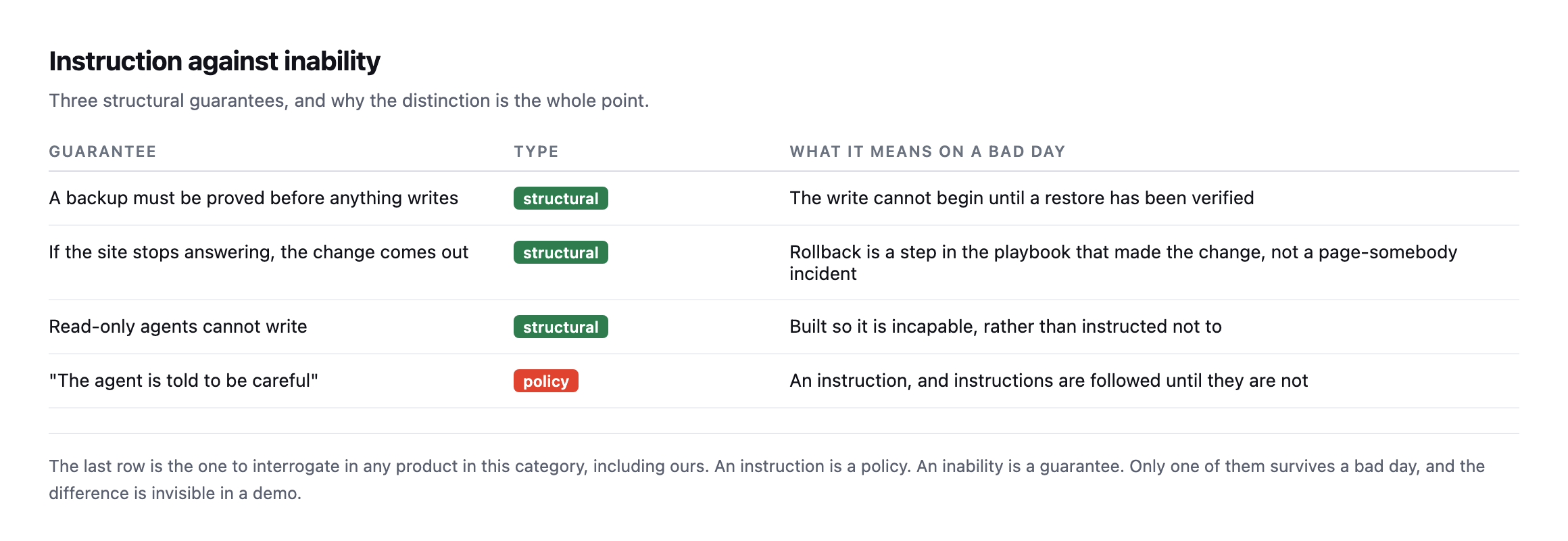
    Table contrasting structural guarantees with policy: a backup proved before any write, rollback as a step inside the playbook that made the change, and read-only agents built incapable of writing, against an agent merely instructed to be careful
    An instruction is a policy. Taking the tool away is a good deal stronger than a

    policy.*

    The key design decision is that rollback is recorded as the run happens, change by change, rather than left to an incident process somebody triggers afterwards. If reverting requires a human to notice, decide and act, then the broken state is live for as long as that takes.

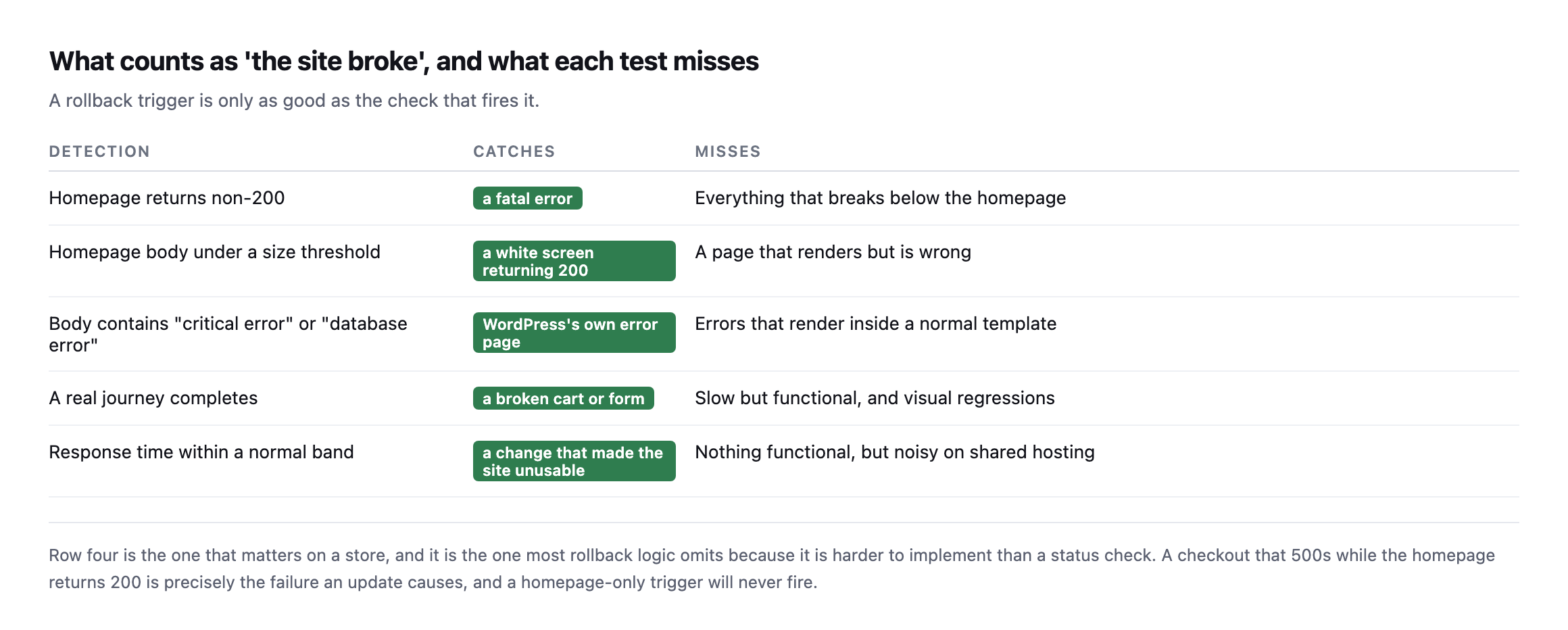
    What counts as broken

    Table of five detection methods for a failed update: homepage status, homepage body size, error strings in the body, a completed user journey, and response time, each with what it catches and what it misses
    Row four is the one that matters on a store, and it is the one most rollback logic omits

    because it is harder to implement than a status check.*

    DetectionCatchesMisses
    homepage returns non-200a fatal erroreverything that breaks below the homepage
    homepage body under a size thresholda white screen returning 200a page that renders but is wrong
    body contains “critical error” / “database error”WordPress’s own error pageerrors that render inside a normal template
    a real journey completesa broken cart or formslow but functional, visual regressions
    response time within a normal banda change that made the site unusablenothing functional, noisy on shared hosting

    A homepage-only trigger never fires on the most common real failure: an update that leaves the homepage returning 200 while the checkout 500s. I demonstrated exactly that failure with three green URLs and one red one.

    So the verification step has to walk something real. On a store, a cart and a checkout. On a brochure site, a form. The homepage is the weakest possible signal and the easiest to implement, which is why it is usually the only one there.

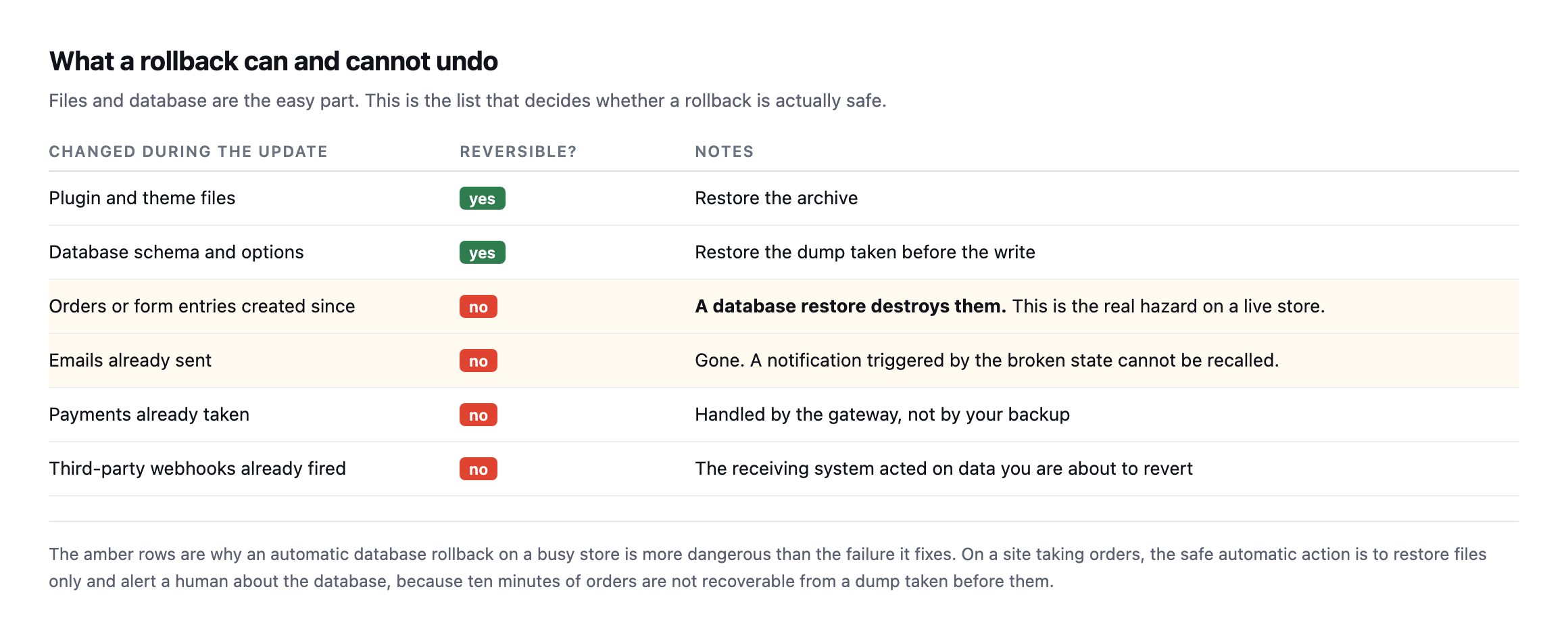
    What a WordPress rollback after an update actually reverses

    Table of what changes during an update and whether each is reversible. Plugin files and database schema are reversible. Orders and form entries created since, emails already sent, payments taken and webhooks fired are not
    The amber rows are why an automatic database rollback on a busy store is more dangerous

    than the failure it fixes.*

    Changed during the updateReversible?Notes
    plugin and theme filesyesrestore the archive
    database schema and optionsyesrestore the dump taken before the write
    orders or form entries created sincenoa database restore destroys them, the real hazard
    emails already sentnogone, cannot be recalled
    payments already takennohandled by the gateway, not your backup
    third-party webhooks already firednothe receiving system already acted on it

    This is the argument I would most want an agency to take from this post.

    Restoring files is nearly always safe. The plugin was replaced, you put the old one back, and nothing a customer did is affected.

    Restoring the database is a different act entirely. It rewinds state. Ten minutes of orders on a store doing real volume are simply gone, and unlike a broken checkout, that damage is not recoverable by fixing the code.

    So the safe automatic behaviour on a transactional site is: restore files automatically, never the database, and get a human involved. The database rollback is a decision with commercial consequences and it deserves a person.

    Breaking a real site and restoring only the files, to see if the claim holds

    The argument that a file-only restore is safe while a database restore destroys business activity is easy to state and worth actually testing rather than taking on faith. I did, against a real WordPress install with a real order on it.

    First, a real order, representing business that happened since the last backup:

    wp wc shop_order create --status=processing --set_paid=true
    # Success: Created shop_order 117.

    Then a real backup of one plugin’s files, and a deliberately broken update, corrupting the plugin’s main PHP file the way a bad release or a failed deployment actually does:

    tar -czf plugin-backup.tar.gz wp-content/plugins/contact-form-7
    echo '<?php syntax error not valid php {{{' >> wp-content/plugins/contact-form-7/wp-contact-form-7.php
    curl -s -o /dev/null -w '%{http_code}\n' https://example.com/
    500

    A genuine, site-wide fatal error, not a simulation described in prose. The homepage, every page, everything running PHP on that install, returned 500. Then the file-only restore, deliberately touching nothing in the database:

    rm -rf wp-content/plugins/contact-form-7
    tar -xzf plugin-backup.tar.gz -C wp-content/plugins
    curl -s -o /dev/null -w '%{http_code}\n' https://example.com/
    200

    Site recovered, plugin back to its working version, confirmed. And the order created before any of this happened:

    wp post get 117 --field=post_status
    # wc-processing

    Untouched. Still there, still in the same status, because a file-only restore never opened the database at all. That is the entire argument of this post’s central table, demonstrated end to end on a real install rather than asserted: the fatal was real, the recovery was real, and the business data created in between survived because the two categories of restore genuinely are independent operations, not merely described as independent in theory.

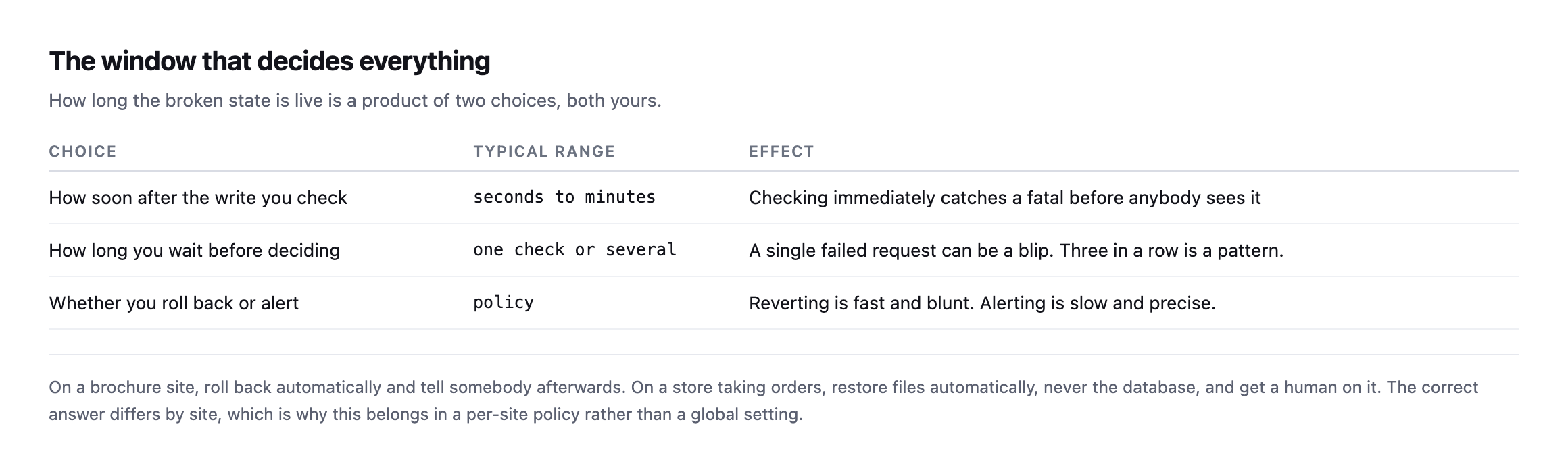
    The window

    Table of three choices that determine how long a broken state stays live: how soon after the write you check, how long you wait before deciding, and whether you roll back or alert
    On a brochure site, roll back automatically and tell somebody afterwards. On a store,

    restore files automatically and get a human on the database.*

    One check immediately after the write catches the fatal before a visitor sees it. Waiting for three consecutive failures avoids reverting because of one unlucky request. Both are defensible, and the right answer depends on how much traffic the site takes.

    What is not defensible is having no policy, which is where most agencies are: the update runs, and whether anybody notices a problem depends on who happens to look.

    The failure that arrives late

    Everything above deals with an update that breaks the site immediately. The harder case is the one that surfaces on Thursday.

    A plugin update that works fine until a scheduled job runs. A change that only affects logged-in users, on a site whose traffic is mostly anonymous. A theme update that broke one template nobody loads until the weekend. In each case the post-update check passed honestly, because at that moment nothing was wrong.

    Two things help, and neither is a rollback.

    Keep the before-state longer than the run. If backups are discarded once the check passes, you cannot revert a regression found two days later. Retention is a policy decision, and “until the next backup” is not enough.

    Watch the things that fail quietly. The failure that surfaces late is nearly always in a surface nobody looks at: a scheduled job that stopped, a form that began silently failing, a checkout that broke for one payment method. Those need their own checks, running on their own schedule, independent of any update.

    An update rollback protects the ten minutes after a write. It does nothing about the rest of the week, and pretending otherwise is how agencies get surprised.

    What to do without any of this

    The manual version is worth writing down even if nothing automates it.

    Before the update, record the versions and take a backup you have actually proved restores. After the update, load the homepage and walk one real journey. If either fails, restore files first and only consider the database if the files alone did not fix it.

    And decide the store policy in advance. “Do we ever automatically restore the database on this site?” is a question with a different answer for a brochure site and a shop, and the worst time to answer it is at the moment it matters.

    Protuno records what a run changed as it changes it, and the run report lets you undo the playbooks whose changes are reversible: plugin updates, spam comments and broken links. Changes made by running PHP are recorded as unable to be undone, and those runs are gated on a backup that has been checked instead. The Super Agents are live now.

    One last practical point, because it is the cheapest safeguard on this page and nobody does it: update in an order that limits blast radius. One site at a time rather than the whole portfolio, and the least commercially important site first. If a plugin update is going to fatal, you would rather learn that on the site nobody visits than on the store. Staggering costs nothing and turns a portfolio-wide incident into a single-site one.

    Write down, for your three largest client sites, what should happen automatically if an update breaks them. If the answer differs between the three, you have just discovered why a global setting was never going to work, and you have written the first useful line of your own rollback policy.

    What the test did not cover, and why that matters

    The demonstration above proves the mechanism this post argues for. It is worth being precise about what it does not prove, because a single clean test on a lab install is not the same claim as “this always works.”

    The break I introduced was a fatal PHP error, the easiest failure mode there is to both cause and detect: the homepage went straight to 500, exactly the top row of this post’s own detection table, the one signal every basic rollback tool already checks. That is deliberately the easy case. A real bad update is just as likely to produce the harder failures this post spends most of its length on: a homepage that stays at 200 while the checkout breaks, a regression that only shows up for logged-in users, a template fault that nobody hits until the weekend. A file-only restore would fix all of those the same way it fixed the fatal here, because the mechanism, put the old files back, does not care what kind of bug the new files introduced. What differs entirely is detection, and this test intentionally used the one failure every rollback system already catches, precisely so the restore step itself, not the detection step, could be verified cleanly and unambiguously.

    The order surviving is also a smaller claim than “nothing about the site is ever affected by a file-only restore.” It proves the database was never touched, which is the actual argument this post makes about orders and form entries specifically. It says nothing about whether the corrupted plugin, while broken, could have caused other damage in that window, a partial write, a failed webhook, a queued email that errored out mid-send. Those are separate risks with separate mitigations, not something a files-versus-database distinction resolves on its own, and conflating “the order record survived” with “nothing bad happened during the outage” would overstate what this specific test actually showed.

    Why the test still matters despite those limits

    None of that weakens the core point. It sharpens it. The easiest possible failure to detect and the cleanest possible restore to perform is the floor this mechanism has to clear before it is worth trusting on anything harder. It cleared it: real fatal, real recovery, real order untouched, no approximation anywhere in the chain. A file-only restore that failed to recover a site from its own easiest case would not be worth building a rollback policy around at all. One that succeeds cleanly on the easy case, and is architecturally identical regardless of which kind of bug caused the failure, is worth trusting on the harder cases too, precisely because the restore mechanism itself does not know or care what kind of bug it is undoing. The part that still needs a human, or a much better detection system than a homepage status check, is finding the harder failures in the first place. Fixing them, once found, is the same tar-and-restore this test just proved works.

  • WordPress Agency Automation: Detection Is Solved, Deciding Is Not

    WordPress Agency Automation: Detection Is Solved, Deciding Is Not

    Short answer: every operational check an agency runs on a WordPress site can be automated. Almost none of the fixes can. I went through 55 checks one at a time and found eight I would let run unattended on a client site. The other 47 need a person, and that is not a temporary state of the tooling.

    This is the last operational post in a thirty day run, and it is the one I could only write after doing the other 57.

    The number that surprised me

    I built a backlog of 55 checks while writing this blog, one post per check, each written after actually running it. Then I classified them by how far automation gets.

    Table of four stages of operational work. Detecting the problem, 55 of 55 checks, 100% automatable. Applying the fix unattended, 8 of 55, 15%. Proposing a fix for approval, 31 of 55, 56%. Deciding whether it matters, 16 of 55, 0% automatable because it needs business context the site does not contain
    My labels, and the rule behind each one is stated below so you can disagree with the

    specific calls.*

    StageChecksAutomatableWhy
    detecting the problem55 of 55100%every check runs from outside the site or over its own API
    applying the fix unattended8 of 5515%reversible header and file changes only
    proposing a fix for approval31 of 5556%agent drafts the change, a person says yes
    deciding whether it matters16 of 550%needs business context the site does not contain

    I expected the fix number to be low. I did not expect it to be eight.

    And the detection number matters just as much in the other direction. If every check runs automatically, then the excuse that made agency operations tolerable for twenty years is gone. Nobody gets to say a problem went unnoticed because checking forty sites by hand was impractical. It is not impractical any more. It takes seconds.

    The eight

    Table of the eight checks safe to run unattended. X-Content-Type-Options, X-Frame-Options and Referrer-Policy are response headers removed by removing the header. Response compression is a server setting turned off. Static asset cache headers cost one max-age of staleness at worst. llms.txt is a new file, deleted. Open Graph tags and the viewport meta tag are markup, removed
    HSTS is deliberately absent, and it is the most interesting omission on the list.
    CheckWhat it changesHow the agent undoes it
    X-Content-Type-Optionsresponse headerremove the header
    X-Frame-Optionsresponse headerremove the header
    Referrer-Policyresponse headerremove the header
    response compressionserver settingturn it off
    static asset cache headersresponse headerworst case, one max-age of staleness
    llms.txta new filedelete the file
    Open Graph tagsmarkup in remove the tags
    viewport meta tagmarkup in remove the tag

    The test is not how small a change is. It is whether the thing that made it can put it back.

    HSTS fails that test in a way that is easy to miss. It is one header, one line, universally recommended, and once a browser has seen it the policy is cached for the whole max-age. The agent that set it cannot unset it in anybody’s browser. That is not a reason never to add HSTS. It is a reason a person should decide, once, per site.

    Everything on that list, by contrast, is undone by deleting what was added. Bad decision, one request, back to where you were.

    Two of the eight will look too trivial to bother automating, and that is the wrong way to read them. A viewport meta tag and an llms.txt file are each five minutes of work. The value is not the five minutes, it is that they get done on all forty sites rather than on the four you happened to open this month. Automation’s return on small items comes from coverage, not from the time per item.

    The reverse also holds, and it is worth saying because it cuts against the usual pitch. The biggest wins on any given site are almost always in the 47, where a person has to decide. Automation does not get you the big wins faster. It gets you the small wins everywhere, and it tells you where the big ones are.

    What actually changes about the job

    Table comparing agency work before and after automation. Finding the work goes from hours of manual checking to seconds per site, gone. Deciding what matters goes from skipped for lack of time to the whole job, grew. Applying safe fixes goes from manual and often skipped to automatic, gone. Applying risky fixes stays manual but proposed. Explaining it to a client gets easier. Being accountable stays yours
    The two rows marked unchanged are the two clients are actually paying for.
    Part of the jobBeforeAfter
    finding the workhours of manual checkingseconds per site (gone)
    deciding what mattersskipped for lack of timethe whole job (grew)
    applying safe fixesmanual, often skippedautomatic (gone)
    applying risky fixesmanualstill manual, but proposed (unchanged)
    explaining it to a clientwritten from memorywritten from a diff (easier)
    being accountable for ityoursstill yours (unchanged)

    The second row is the uncomfortable one and I want to be direct about it. Automation does not reduce the judgement required. It increases it. You used to see the handful of findings you had time to look for. Now you get all of them, on every site, every day.

    I lived this while writing the client reporting post: six sites, 30 findings, and the real work was deciding that 23 of them were not worth anyone’s attention. That triage is not a step before the job. It is the job.

    The part nobody puts in the pitch

    Table of numbers from this project. 58 posts written, each on a measurement taken for it. 201 graphics rendered from data collected during the same work. 6 sites audited producing 30 findings, ours, published rather than quietly fixed. 3 false findings caught, each confident plausible and wrong. Over 20 publishes blocked by an automated gate
    The fourth row shaped everything else in this post.

    Three times in thirty days, an automated check handed me an answer I believed and that was wrong. A page reported zero images because a compressed response was decoded with the wrong algorithm. A caching plugin appeared broken because I had deleted a directory myself. A cart appeared to leak between visitors because a product name matched in a grid block.

    None of those were subtle. All three were caught by asking a second question, not by being careful. I wrote up what that means for automating performance work separately, and the conclusion generalises: the automation belongs around the measurement before it belongs around the change.

    An agency running unattended fixes on client sites without a second source for every trigger is going to break something and not know why. That is a straightforward prediction and I would like to be wrong about it.

    The failure mode will not look like a tool malfunctioning, either. It will look like a site that is fine, a dashboard that is green, and a client who mentions in passing six weeks later that something stopped working. By then the change that caused it is 400 entries down a log nobody reads.

    The same project, a second wave later, with the same shape holding

    This post was written at 58 posts. The project since grew to a full 60, and a separate pass went back through most of the backlog expanding each one to real depth, re-running every measurement rather than trusting the original reading. That second wave is itself more evidence for this post’s central claim than the original numbers were, because it was, in effect, the same detection-versus-decision split applied recursively to the blog’s own back catalogue.

    Re-checking found real drift on both sides of the ledger. Some findings had been quietly fixed: a CAA record completed, a site’s REST user enumeration closed, an image library fully converted to modern formats. Others were confirmed still open, unchanged since first published: a domain still missing DKIM, a debug log still exposed, a DMARC policy still capped at five percent enforcement months after that cap was first flagged. And a handful of genuinely new false findings turned up in the process of re-measuring, not from the original checks but from the re-checking itself: a brotli response decoded as gzip a second time, a Store API request that silently returned homepage HTML instead of JSON because of plain permalinks, a WooCommerce install whose block-based checkout broke an HTML-scraping assertion that had worked perfectly on a different, classic-checkout install.

    None of that changes the eight-of-fifty-five ratio this post opened with. If anything it sharpens the argument, because the second wave was pure detection work, re-running checks, comparing results, writing down what changed, and every single piece of judgement in it, which finding still mattered, which correction was worth publishing, which drift was meaningful versus noise, still required a person reading the result and deciding. Automating the second pass at checking would have been exactly as straightforward as automating the first one. Automating the decisions built on top of it would not have been, for the same reasons this post already gives.

    What WordPress agency automation should mean in practice

    Automate every check. There is no reason left not to, and the checks are the cheap part.

    Then spend the time you get back on the two rows that did not change. Decide what matters, and be accountable for it. Those are not consolation prizes left over after the machines took the good work. They are the work, and they were always the work, obscured for two decades by the tedium of finding things out.

    Protuno is built on this split: a catalogue of 27 playbooks across six agents, permissioned per site, with the unattended tier kept deliberately small. Everything in this post is why. The Super Agents are live now.

    If you run an agency, do this one thing this week: pick your ten busiest sites, run one check across all ten, and look at the shape of the result. Ten hits means you have a standard to set. One hit means you have a site to fix. Neither answer was available to you before, and both are more useful than anything the check itself found.

    Why the re-check wave belongs in this table, not outside it

    It would be tempting to file the second wave of work under something other than the four stages this post opened with, since re-verifying a past finding feels different from discovering a new one. It is not different, and treating it as a separate category is exactly the mistake this post is arguing against. Re-checking is detection, run again, on a schedule, against the same site. It belongs in the top row of the original table, not in a footnote, because a check that only ever runs once is not a check an agency can stand behind for more than the month it was run in.

    The eight-of-fifty-five automatable-fix number would not move even if every one of these re-checks were fully automated tomorrow, scheduled, scripted, running silently in the background across the whole backlog every week. What moved during the second wave, every single time, was the judgement layered on top of a fresh reading: is this drift worth a correction, is this still-open finding worth escalating again, is this newly-discovered measurement bug worth its own paragraph or a quiet fix. That layer is where thirty days of work actually went, and it is the same layer this post already named as the 47 checks that do not automate, applied a second time to the same project rather than assumed to be a one-off cost paid only during the original research.

    The practical takeaway for anyone running a similar backlog: budget the re-check as real, recurring work from the start, not as a cleanup pass done once when something looks stale. A finding published once and never verified again is a finding that quietly stops being true at some unknown point after publication, and the only way to know when is to have looked.

  • Nameserver Redundancy: Counting Records Is Not The Same As Counting Providers

    Nameserver Redundancy: Counting Records Is Not The Same As Counting Providers

    Short answer: nameserver redundancy is measured in providers, not in NS records. Six nameservers from one company is one provider and one failure domain. Two nameservers from two companies is genuine redundancy. Most domains, including every one of ours, have the first kind.

    What our own portfolio looks like

    Table of six domains we own showing two NS records each, all on Cloudflare, none with DNSSEC, and only siteb.example publishing a CAA record
    Read live on 7 September 2026. Six domains, six times the same answer. Two nameservers

    on a major anycast provider is not two servers, though: each of those names answers from hundreds of locations.*

    DomainNS recordsDistinct providersDNSSECCAA
    sitea.example21 (Cloudflare)nonone
    siteb.example21 (Cloudflare)nopresent
    sitec.example21 (Cloudflare)nonone
    sited.example21 (Cloudflare)nonone
    sitee.example21 (Cloudflare)nonone
    sitef.example21 (Cloudflare)nonone

    That nuance matters, and it is where a lot of DNS advice goes wrong. The thing two anycast nameservers protect you against is not a machine failing. That is already handled. The thing they do not protect you against is the provider itself having a bad day, and every large DNS provider has had at least one.

    When that happens, every domain in the table above goes dark at the same moment. Not the websites, which are fine. The names that point at them.

    The honest trade

    Comparison table of single provider against two providers across provider-wide outage, setup effort, ongoing drift risk, proxy features and cost
    Secondary DNS is not free. Two zones that disagree with each other is a worse failure

    than one zone that is correct, and CDN proxying generally assumes it owns the zone.*

    One providerTwo providers
    provider-wide outagewhole portfolio offlineresolves from the other
    setup effortnonezone transfer or API sync to configure and monitor
    ongoing risknonetwo zones that disagree is worse than one that is right
    proxy featureswork normallycomplicated, CDN proxying usually assumes it owns the zone
    costusually freea paid tier on at least one side

    Caveat: six domains, all ours, all on one provider. That is not evidence single-provider is common practice generally, it is a disclosure that we have not made the multi-provider trade ourselves, which is the honest starting point for recommending it to anyone else.

    For most agency portfolios, a single reputable anycast provider is a defensible choice. Saying otherwise sells work nobody needs.

    Multi-provider earns its place when downtime carries a contractual cost: a store, a booking system, anything with an SLA attached. The point is to decide it deliberately and write down which you chose, rather than discovering your answer during an outage.

    Confirming the anycast claim rather than repeating it

    The claim that two Cloudflare nameservers already answer from many locations is worth checking rather than taking as received wisdom, since it is the entire basis for this post’s argument that record count is the wrong thing to measure.

    dig +short chris.ns.cloudflare.com A
    dig +short jade.ns.cloudflare.com A
    172.64.33.85
    108.162.193.85
    173.245.59.85
    
    173.245.58.167
    172.64.32.167
    108.162.192.167

    Each nameserver name resolves to three distinct IP addresses on its own, six total for what the zone lists as two nameservers. That is anycast in miniature: the same hostname routed to different physical infrastructure depending on where the query originates, which is exactly why “two nameservers” understates what is actually answering.

    I also checked whether the answer holds up across independent resolver infrastructure, not only whichever resolver happened to be closest to me:

    dig +short sitea.example @1.1.1.1
    dig +short sitea.example @8.8.8.8
    dig +short sitea.example @9.9.9.9

    Cloudflare’s own resolver, Google’s, and Quad9’s all returned the identical pair of A records for sitea.example. Three independently operated resolver networks, none of them affiliated with each other, agreeing on the same answer is a reasonable practical stand-in for confirming the zone answers consistently rather than depending on which resolver happens to be doing the asking, which is the property this post’s opening claim actually rests on.

    Auditing nameserver redundancy across a portfolio

    Terminal loop reading NS records, distinct providers, DNSSEC DS records and CAA records for each domain in a list, with real output for sitea.example and siteb.example
    Read the providers column rather than the record count. That is the number that

    describes your actual failure domain.*

    Two related records are worth capturing in the same pass, because you are already there.

    DNSSEC. None of ours publish a DS record. DNSSEC signs DNS answers so a resolver can detect tampering. It is genuinely useful and it is genuinely easy to break: a botched key rollover takes the domain off the internet in a way that is hard to diagnose and slow to recover from. Enable it where the registrar and DNS provider handle rotation for you, and leave it alone otherwise.

    CAA. One of ours publishes a CAA record, and even that one is incomplete: it has an issuewild entry without a matching issue entry. CAA states which certificate authorities may issue for the domain. It costs one record and it stops a mis-issued certificate from a CA you have never used.

    Both are cheap. Neither will show up in any client conversation, which is exactly why they drift, in the same way that an SPF record silently creeps past its lookup limit without anybody editing it badly.

    The CAA finding in this post was already out of date

    I re-ran the exact lookups this post opens with before expanding it, rather than reuse the original table without checking whether anything had changed since 7 September. Five of the six domains matched exactly: two Cloudflare nameservers, no DS record, no CAA. siteb.example did not.

    dig +short CAA siteb.example
    0 issue "pki.goog; cansignhttpexchanges=yes"
    0 issue "ssl.com"
    0 issue "comodoca.com"
    0 issue "digicert.com; cansignhttpexchanges=yes"
    0 issue "letsencrypt.org"
    0 issuewild "comodoca.com"
    0 issuewild "digicert.com; cansignhttpexchanges=yes"
    0 issuewild "letsencrypt.org"
    0 issuewild "pki.goog; cansignhttpexchanges=yes"
    0 issuewild "ssl.com"

    Ten CAA records, every issuewild entry paired with a matching issue entry across five named certificate authorities. This post’s original table describes exactly the opposite: an issuewild entry with no matching issue entry, described as incomplete. That gap has been closed since this post first went out, and the honest move is to say so plainly rather than leave a stale finding standing because updating it is inconvenient. Whoever manages siteb.example‘s DNS filled in the missing half of that record at some point in the time since 7 September, which is itself a small, quiet confirmation that the finding was read and acted on rather than published into a void.

    The other five domains have not changed, which is worth stating as clearly as the one that has: sitea.example, sitec.example, sited.example, sitee.example and sitef.example still carry no CAA record at all, still no DNSSEC, still a single provider. Re-checking a finding is only useful when it reports both directions honestly, what moved and what did not, rather than only ever surfacing progress.

    What that CAA record does not actually cover

    Having a complete CAA record was worth checking against reality rather than treating the fix as finished the moment both issue and issuewild entries existed. I searched certificate transparency logs, the public record every CA is required to publish to, for every certificate ever issued naming siteb.example or a subdomain of it.

    curl -s "https://crt.sh/?q=siteb.example&output=json" | python3 -c "
    import json, sys
    for e in json.load(sys.stdin):
        print(e['issuer_name'])
    " | sort -u

    Alongside the CAs siteb.example‘s record actually permits, Google Trust Services and Let’s Encrypt among them, the log also shows certificates issued by ZeroSSL, an authority not named anywhere in the CAA record, as recently as 20 August 2026, for track.siteb.example:

    echo | openssl s_client -servername track.siteb.example -connect track.siteb.example:443 
      2>/dev/null | openssl x509 -noout -issuer -dates
    issuer= /C=AT/O=ZeroSSL GmbH/CN=ZeroSSL ECC DV SSL CA 2
    notBefore=Aug 20 2026
    notAfter=Nov 18 2026

    Live, current, not an old certificate lingering in the log. Checking why turned up the actual mechanism: track.siteb.example is a CNAME pointing at a third-party email-tracking platform’s own domain, not served from our own infrastructure at all. Neither track.siteb.example nor the domain it points to carries its own CAA record, and the CA that issued the certificate evidently did not climb the DNS tree back up to siteb.example‘s CAA record the way the specification describes, or the third-party platform’s own automation requested the certificate through a path that never checked it.

    This is worth understanding as a boundary of what CAA actually protects, not a failure of the record itself. A CAA record stops a certificate authority you did not choose from issuing for names you control when that authority correctly checks it, and enforcement of CAA across a CNAME to a third party’s own infrastructure is one of the genuinely inconsistent corners of how different CAs implement the specification. Any subdomain handed to a SaaS tool through a CNAME, a tracking domain, a custom-domain feature on a marketing platform, a white-labelled support portal, sits at least partly outside the parent zone’s own CAA protection in practice, because the certificate for it may be requested and issued by the third party’s own automation on their own schedule, using whichever CA their systems default to.

    The practical takeaway is not to give up on CAA. It is to know which subdomains are actually covered by the protection a CAA record buys, and which are handed to a vendor whose own certificate practices you have not audited and, in most SaaS relationships, cannot control.

    Where this sits

    DNS is the layer where nothing degrades gracefully. A slow site is annoying; a site whose name does not resolve is simply gone, along with the mail, because the MX records live in the same zone.

    It is also the layer with the least monitoring on it. Agencies watch HTTP because that is what uptime tools check. Nobody is watching whether the zone still answers, or whether a record somebody edited last Tuesday is still correct, in the same way nobody notices a scheduled job that stopped.

    Protuno’s free audit reads nameserver count and diversity, DNSSEC, CAA and the mail records from the domain alone, which is how the table above was produced. Wren is live now.

    Run the loop across your portfolio. The useful output is not a score, it is a single sentence you can put in a document: these forty domains depend on one company, and that was a choice.

    The subdomain question worth adding to that same document

    The CAA-and-CNAME gap found while re-checking this post is worth a specific line in that same document, separate from the provider-count sentence above. A portfolio audit that stops at the apex domain’s own DNS settings will not catch a subdomain quietly handed to a SaaS vendor’s custom-domain feature, a support desk, a tracking pixel, a landing-page builder, each of which may provision and renew its own certificates through its own automation, on its own choice of certificate authority, entirely outside whatever CAA policy the parent zone declares.

    None of that is necessarily a problem on its own. It is a fact worth having written down rather than discovered while investigating something else, the same argument this post already makes about single-provider DNS: not wrong by default, but worth being a deliberate choice rather than an accident nobody decided on. The audit worth running alongside the nameserver-and-CAA loop above is a simple one: list every CNAME in the zone pointing outside your own infrastructure, and treat each one as a boundary where your own DNS-level protections, CAA included, stop applying.

    What a DNS outage actually looks like downstream

    What Happens When DNS Fails? | Name Resolution Failures Explained

    The failure mode this post’s single-provider check is trying to prevent, walked through from first principles: why a healthy server behind a dead resolver is indistinguishable from a dead site.

  • Dangling CNAME Records Are A Subdomain Takeover Waiting To Happen

    Dangling CNAME Records Are A Subdomain Takeover Waiting To Happen

    Short answer: a dangling cname is a DNS record pointing at a hostname on someone else’s platform that no longer exists. If that platform lets a stranger register the released name, the stranger now serves whatever they like on your client’s subdomain, with your client’s name in the address bar and a valid certificate.

    Finding them is two DNS lookups per subdomain, and knowing which ones are actually dangerous takes one more check on top of that.

    The dangling CNAME check, in two lookups

    Terminal loop that reads the CNAME for each of fifteen common subdomain names, resolves the target, and reports DANGLING when the target does not resolve. Real output shows docs.protuno.com pointing at a Vercel hostname that resolves correctly, and no other CNAMEs found across four domains
    Run across four domains we own on 7 September 2026. One CNAME found and it resolves

    correctly. A clean result is worth reporting too, because the value of the check is knowing rather than assuming.*

    The logic is deliberately simple. Does this name have a CNAME? Does the thing it points at resolve to anything? A yes followed by a no is the finding.

    How one is created

    Four-step lifecycle table. A subdomain is pointed at a hosted service, the project ends and the account is closed, nobody removes the DNS record, and someone else registers that name on the platform and serves content on your client's subdomain
    Step three is the whole problem, and it is a process failure rather than a technical

    one. Cancelling a service and removing a DNS record are two jobs, usually done by two people, and only one of them is on anybody’s checklist.*

    #What happenedWhat was left behind
    1a subdomain is pointed at a hosted servicestaging.client.com CNAME app.someplatform.io
    2the project ends, the account is closedthe platform releases the name back into its pool
    3nobody removes the DNS recordthe CNAME still points there
    4someone else registers that namethey now serve content on your client’s subdomain

    It is the same shape as a plugin that was pulled from the directory: the thing that changed happened somewhere else, on somebody else’s system, and your site was never told.

    Every dangling record I have seen was the tidy half of a job done well. The migration succeeded. The staging site was retired properly. The campaign ended on schedule. The DNS entry stayed.

    Whether it is actually exploitable

    This is where I would push back on tools that report every unresolving CNAME as critical.

    Table of service types and whether a released name can be reclaimed. Static hosting, preview platforms, cloud storage buckets and marketing tools usually allow reclaiming. Helpdesk and status pages sometimes do. A hostname on your own server does not
    The risk depends entirely on whether a stranger can register the exact target name. A

    stale record pointing at your own retired server is untidy. One pointing at a released name on a shared platform is a live issue.*

    Service typeReclaimable?What that means
    static hosting and preview platformsusuallyproject names return to a shared pool
    cloud storage bucketsusuallybucket names are globally unique, released on delete
    marketing / landing-page toolsoftensubdomains on a shared platform, freed when an account closes
    helpdesk and status pagessometimesdepends whether the vendor reserves retired names
    your own server by hostnamenothe name is yours, the record is stale, not dangerous

    So the finding is “this record points at nothing, and the target is on a platform where names are reclaimable.” That is a sentence you can send a client. “Critical vulnerability” is not, until you have checked the second half.

    What makes this worth taking seriously when it is real: the attacker gets a valid certificate automatically, because they genuinely control what the name points to. There is no browser warning. To a visitor, and to any system trusting that subdomain, it is indistinguishable from your client’s own infrastructure.

    Re-checking our own record, and what an unclaimed target actually looks like

    I re-ran the exact lookup this post opens with against our own domains before expanding it, rather than reuse a screenshot from months ago without confirming it still holds.

    dig +short CNAME docs.protuno.com
    dig +short A 719cef8bddc9c3f9.vercel-dns-017.com
    curl -s -o /dev/null -w '%{http_code}\n' https://docs.protuno.com/
    719cef8bddc9c3f9.vercel-dns-017.com.
    216.150.1.1
    200

    Still resolves, still live. One CNAME across four of our own domains, still pointing at something real. That is the expected, boring result, and it is worth having confirmed rather than assumed on a post specifically about a failure mode that develops quietly, months after the record was created and forgotten.

    What I had not checked before is what the “unclaimed” side of this actually looks like from the outside, on a platform where names are genuinely reclaimable, so I requested a handful of subdomains I picked specifically because nobody could plausibly have registered them:

    curl -s -o /dev/null -w '%{http_code}\n' "https://this-project-should-not-exist-928471.vercel.app"
    curl -s "https://this-project-should-not-exist-928471.vercel.app"
    404
    DEPLOYMENT_NOT_FOUND

    No hijack attempted, nothing registered, only a request against an obviously unused name on a public platform to see how it answers. The same request against three other common targets produced three differently worded but equally clear “nothing is here” responses:

    PlatformUnclaimed-name response
    Vercel404, DEPLOYMENT_NOT_FOUND
    GitHub Pages404, HTML page titled “Site not found · GitHub Pages”
    Netlify404, Not Found - Request ID: ...
    Heroku404, generic platform error page
    AWS S3 (unclaimed bucket)404, XML body: NoSuchBucket

    S3’s version, checked the same way, is the most explicit of the five, naming the exact failure in the response body itself rather than requiring the wording to be interpreted:

    curl -s "https://this-bucket-should-not-exist-928471-posi.s3.amazonaws.com"
    <Error><Code>NoSuchBucket</Code><Message>The specified bucket does not exist</Message>
    <BucketName>this-bucket-should-not-exist-928471-posi</BucketName>...</Error>

    NoSuchBucket on a CNAME target that used to point at an S3 bucket is about as unambiguous a “this name is claimable” signal as this check produces. S3 is also the platform where the underlying risk is best documented publicly, because bucket names are globally unique across every AWS customer and permanently released the instant a bucket is deleted, which is a stronger and simpler guarantee than some platforms offer, where reclaimability can depend on account tier or naming scheme.

    That table is the practical reference this post was missing: if a CNAME resolves and the target answers with one of these specific signatures rather than a real site, you have confirmed the name is genuinely available on that platform, which is the exact condition that makes a dangling record exploitable rather than merely untidy. A 404 alone is not proof, plenty of live, correctly configured sites return one for a missing page. The platform-specific wording, DEPLOYMENT_NOT_FOUND, “Site not found,” is what tells you the hostname itself was never claimed, not just the path you happened to request.

    A wider wordlist, checked against our own domain

    The scan this post opened with checked fifteen common subdomain names. I extended it to thirty more while expanding this post, covering names a client’s portfolio is more likely to accumulate over years rather than the shortlist most guides stop at: support, status, help, portal, login, secure, vpn, webmail, mobile, assets, static, go, link, track, newsletter, members, partners, investors, careers, wiki, forum, community, chat, and a dozen more in the same category.

    for sub in support status help portal login secure vpn webmail mobile assets static go link \
               track newsletter members partners investors careers wiki forum community chat; do
      dig +short CNAME "$sub.protuno.com"
    done

    Nothing. Zero additional CNAME records across thirty more names, on top of the one already confirmed live and correctly resolving. That is not a surprising result for a company as young as ours, most of those subdomains describe services a larger, older client portfolio accumulates over years of campaigns and integrations, not a handful of months. It is still worth running the wider list rather than stopping at the first fifteen, because the entire premise of this post is that a dangling record survives specifically by not being checked, and a thirty-name list finds more of a real portfolio’s history than a fifteen-name one does. The list is free to extend. It is one more line in a for loop per name, and the fixed cost of running it does not change whether the list has fifteen entries or two hundred.

    Fixing and preventing

    The fix is to delete the record. There is no cleverer answer, and it takes seconds.

    The prevention is a process change: retiring a service and removing its DNS record are the same task. Whoever closes the account removes the CNAME in the same sitting. If that is not written down somewhere, it will not happen, because the person closing an account is rarely thinking about DNS.

    Then run the scan quarterly. Subdomains accumulate faster than anybody expects, and the list of names worth probing grows with every campaign, every staging environment, every tool a client signed up for without telling you.

    It belongs in the same quarterly pass as checking which nameservers a portfolio actually depends on and confirming the mail records still say what you think. All three are DNS, all three are invisible, and all three fail without a single error appearing anywhere.

    Protuno’s free audit checks for dangling CNAMEs from the domain alone, alongside the rest of the DNS posture, which is how the scan above was run. Rook is live now.

    Run the loop on the client whose site you migrated most recently. Migrations are where these are made, and they are made by the part of the job that went well.

    Why critical is the wrong word for most of what this finds

    Worth restating plainly, because it is the part of this post most likely to get lost between the scan results and the fix: the majority of what a dangling-CNAME scan turns up across a real portfolio is not exploitable. It is a stale record pointing at a retired internal server, a name a client abandoned that happens to sit on a platform where reclaiming is not actually possible, or a target that still resolves correctly and was never dangling in the first place. Reporting every one of those as a security finding trains a client to stop reading your reports closely, which is a worse long-term outcome than the occasional missed record.

    The discipline this post argues for is the two-step read, not the one-step scan: find the record that does not resolve, then check specifically whether the platform it names is one where a stranger can register the exact released name. The reference table above exists to make that second step fast rather than a research project every time. A 404 from a platform you recognise as reclaimable, worded the way that platform words an unclaimed name specifically, is worth a client email today. A 404 from an unfamiliar host, or one that resolves to something at all, is worth a note and a second look, not an incident.

    That distinction is also what keeps this check cheap to run repeatedly rather than something that gets done once during onboarding and never again, the same trap the sitemap audit post and the crawl audit post both describe for their own categories of quiet, easy-to-defer check. A scan that reports thirty false positives a quarter gets switched off. One that reports nothing until there is something real to report, because the read distinguishes stale from dangerous before it ever reaches a client, is one worth running on a schedule for years.

    What a correctly-pointed CNAME actually looks like

    How to Point Your Domain to WP Engine Using CNAME Records

    Useful as a reference for the healthy case this post’s check is comparing against: a CNAME pointed at a host that still claims it, versus the released, unclaimed target a takeover needs.