Category: Care

  • WordPress Critical Error: A WP Doctor Playbook Guide

    WordPress Critical Error: A WP Doctor Playbook Guide

    The message is short and unhelpful: “There has been a critical error on this website.” WordPress shows it when PHP stops on a fatal error, and it tells you nothing about which plugin, theme or setting caused it. Most site owners respond by changing several things at once, which makes the next failure harder to read than the first.

    This guide walks through how the WP Doctor playbook approaches that situation, step by step, and then shows the careful way to do the same work by hand. WP Doctor is run by the Super Agent Wren in the Care group. It diagnoses a problem you report and matches it to a known cause. It applies a fix only for safe WordPress-level causes and hands everything else back with exact steps.

    A fatal error has one visible symptom and many possible causes. A plugin update that needs a newer PHP version, a theme function that no longer exists, a memory limit that is too low, and a half-finished core update can all produce the same screen. The page gives no hint which one you are looking at.

    The usual panic response makes it worse. Deactivating every plugin, switching themes, raising limits and clearing caches in one sitting can make the site load again, but it leaves you without an explanation, and the cause is still there for the next update. Good diagnosis is mostly about changing one thing at a time and writing down the state before and after.

    This matters most if you look after sites for other people. A client who sends a screenshot of the error expects an answer, not a list of things you tried. A repeatable order of work, with a written record at the end, is what lets you give that answer calmly.
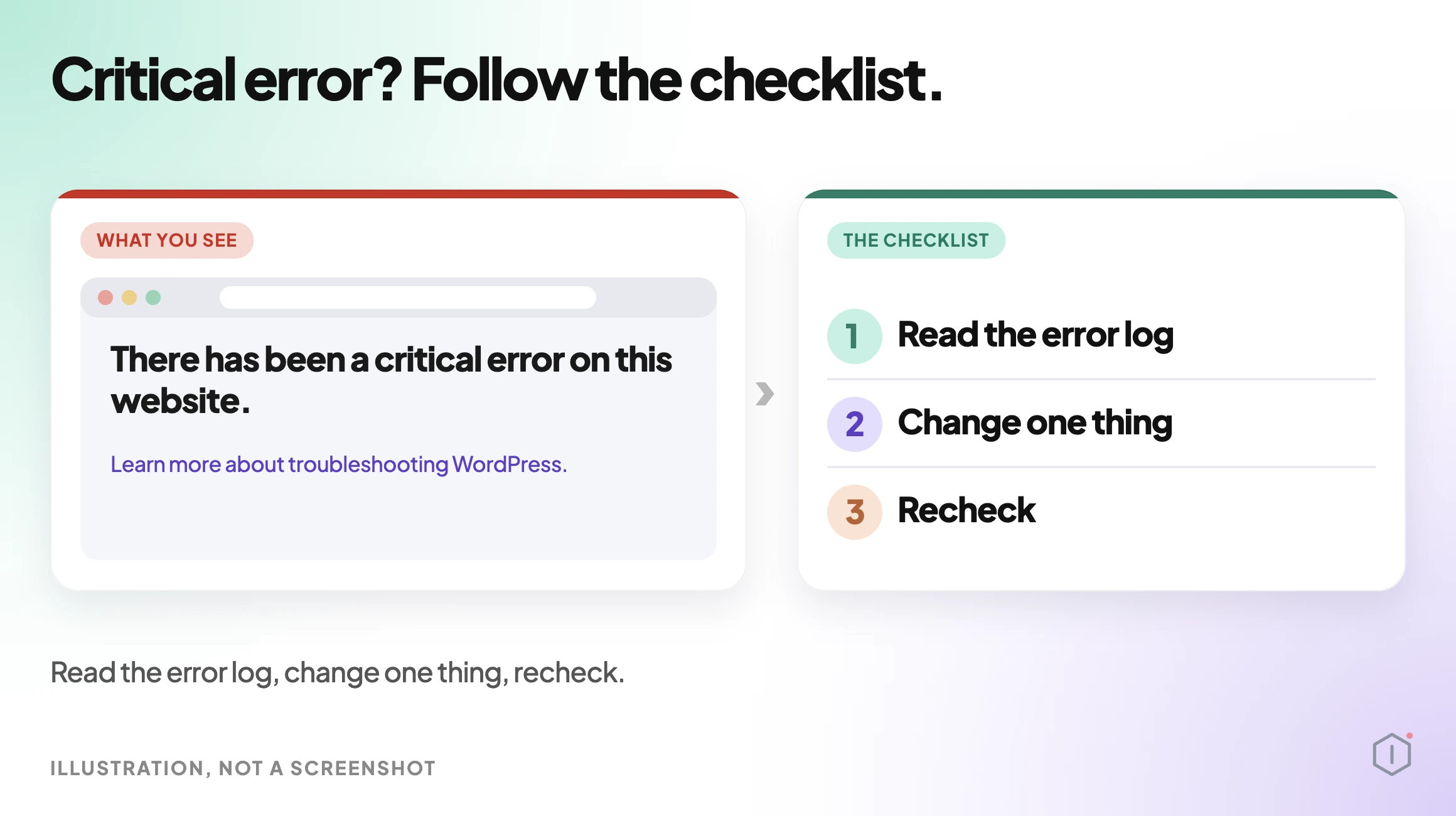
    Illustration of a WordPress critical error screen beside a three-step checklist: read the error log, change one thing, recheck.

    What The WP Doctor Playbook Is

    WP Doctor is a Care playbook with five steps. You start it by asking in your AI app, for example “Wren, run WP Doctor on my site.” It needs no connector, and it produces a Markdown report covering findings, evidence, changes made and the recheck result.

    It changes the site in step 4 only, and your AI app asks you before any step that changes the site. The playbook page also recommends connecting a staging copy before a live site.
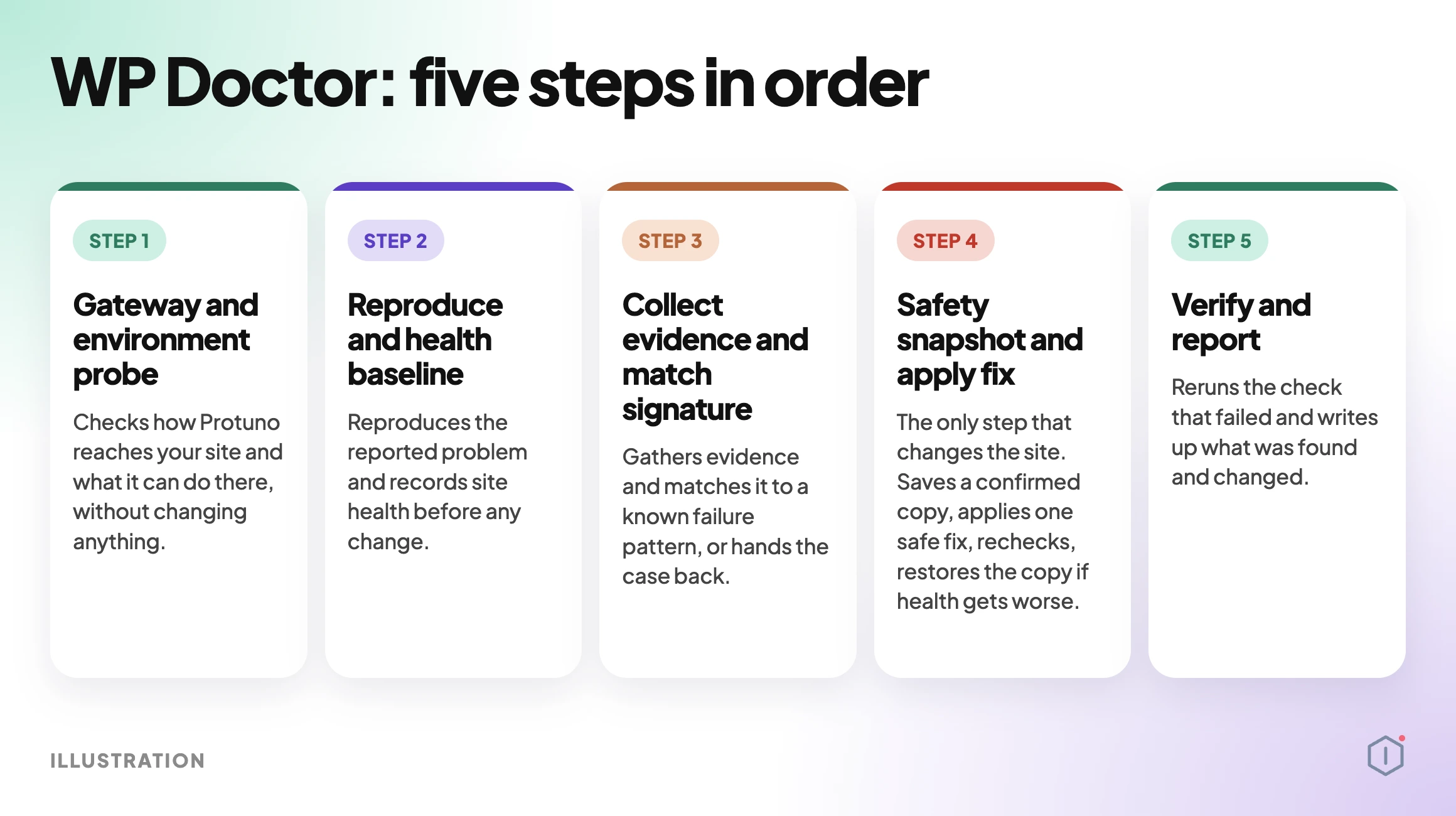
    Illustration of the five WP Doctor steps in order: Gateway and environment probe, Reproduce and health baseline, Collect evidence and match signature, Safety snapshot and apply fix, Verify and report.

    Step 1: Gateway And Environment Probe

    The first step checks how Protuno reaches your site and what it can do there, without changing anything. This is the part people skip by hand. Before you chase a plugin, confirm what you can actually see: can you reach wp-admin, can you read logs, do you have file access, and is there a staging copy.

    By hand, write down your PHP version, WordPress version, the list of active plugins and the active theme before you touch anything. If you also keep an eye on core update readiness, you will already have most of that list.

    Step 2: Reproduce And Health Baseline

    The second step reproduces the reported problem and records site health before any change. A baseline matters because it is the only way to tell later whether a fix helped or just moved the failure somewhere else.

    By hand, load the failing URL, note the exact message and the time, then load two or three pages that still work. Record which pages fail and which do not. A failure on one template points somewhere different from a failure on every page, including wp-admin.

    Step 3: Collect Evidence And Match Signature

    Step three gathers evidence and matches it to a known failure pattern, or hands the case back. The handing back is deliberate. If nothing matches, WP Doctor applies nothing and gives you the case with what it found.

    The evidence that matters most by hand is the PHP error itself. WordPress can write it to a log file when debugging is enabled. The official debugging documentation describes WP_DEBUG and WP_DEBUG_LOG for this. The log line names a file path, and the path usually names the plugin or theme folder responsible. Turn debugging back off when you are finished, and keep the log out of public reach, because paths and warnings help an attacker.

    Step 4: Safety Snapshot And Apply Fix

    Step four is the only step that changes the site. It saves a confirmed copy of what it will touch, applies one matching safe fix, rechecks, and restores the copy if health gets worse. Two details matter here: it applies one fix, not a batch, and it can undo its own change.

    The playbook page says it applies a fix only for “safe WordPress-level” causes but does not list which specific causes qualify. To find a plugin or theme conflict, it may switch plugins off and on with the site in maintenance mode. If you want to practise that technique on a staging copy first, see how to isolate a plugin conflict.

    Step 5: Verify And Report

    The last step reruns the check that failed and writes up what was found and changed. The report is the part that outlives the incident. Six months later, when the same error returns after an update, a written record of what the cause was and what fixed it saves the whole diagnosis.

    By hand, keep a plain text note per incident: date, message, log line, the one change you made, and the result. If a broken page also shows up as a spike of missing URLs, 404 monitoring will show the damage that visitors saw.

    Read the report in the order it is written. Findings tell you what was seen. Evidence tells you why the finding is believed. Changes made lists anything that was altered, which should be empty if the case was handed back. The recheck result tells you whether the failing check now passes. If the recheck still fails, treat the case as open, whatever the findings say.

    When a case is handed back, the exact steps are the useful part. They are written for you to carry out or pass to your host, so read them before you decide the playbook failed. A clear hand-off for a server problem is a correct result, because a server problem cannot be fixed from inside WordPress.

    What The Playbook Does Not Do

    WP Doctor is narrow on purpose. Server and CDN problems, uncertain causes, and suspected malware are diagnosed and handed off, never fixed. If no known failure pattern matches, it applies nothing and hands off. It fixes only what matches a known pattern, so unmatched problems get no automatic fix.

    That boundary is a feature. A fatal error that is really a compromised file should not be “fixed” by an automated tool that restores the site to look healthy. If you suspect that, start with a malware scan and treat it as a security incident.

    A Careful Version You Can Do By Hand

    You can follow the same discipline without any tool. Work in this order and stop as soon as the site recovers:

    1. Take a backup you have verified first. Files and database, stored off the server.
    2. Record the baseline. Versions, active plugins, the exact message, which pages fail.
    3. Read the error. Check the email WordPress sends to the admin address when it detects a fatal error, and the debug log. Both name the file involved.
    4. Change one thing. Deactivate only the plugin the log names, or rename its folder over FTP if wp-admin is unreachable.
    5. Recheck. Reload the failing page and the working pages from your baseline.
    6. Write it down. Cause, change, result.

    The limit of the manual route is time and recall. It works well for one site you know. It gets slow across many sites, and it depends on you remembering what you changed. If updates keep triggering these errors, a clear auto-updates policy reduces how often you meet them.

    A few habits make the manual route safer:

    • Use a staging copy when you have one. The WP Doctor page makes the same recommendation, and it applies to manual work too.
    • Do not edit files on the live site without a copy. A typing slip in a PHP file can turn one error into a different one.
    • Do not leave debugging on. Log files can expose paths and warnings you do not want public.
    • Do not stack changes. If two changes fix it, you will not know which one mattered.

    WordPress also sends the site admin an email when it detects a fatal error, and that email can include a link to recovery mode. If you have not received one, check the spam folder and confirm the admin address in settings is one you still read.

    Two Outside Views

    A 2024 thread in r/Wordpress titled “There has been a critical error on this website” has a commenter giving the common advice:

    “Easiest way to fix this is to find the plugin causing the error.”

    r/Wordpress, 2024

    That matches the approach in this guide: find the cause first, then change one thing at a time.

    In the video “How to Debug Critical Errors on your WordPress Website?” the presenter, speaking for the Techril channel, describes the screen and the first thing to check:

    “Now, you’re just met with this error. There has been a critical error on your website. Please check your site admin email inbox for instructions.”

    Techril, YouTube

    The presenter then asks whether you can still reach the admin area, which is the same first question the careful version above starts with.

    A silent walk-through of the steps. All scenes are illustrations with example values, not a real run.

    Where Protuno Fits

    Protuno gives you WP Doctor as one of its playbooks. You ask for it in your AI app, it works through the five steps above, and the changes happen only after your AI app asks you. The output is the Markdown report, so the incident record is written for you. Because it hands back anything it cannot match, you still make the decisions that matter.

    The Point

    A critical error is not a mystery, it is a missing log line. Record the state, read the error, change one thing, check the result and write it down. A tool can run that loop for you, and the loop is worth keeping even when you run it yourself.
    Sources And Further Reading

  • WordPress Core Update Readiness: The Playbook, Step By Step

    WordPress Core Update Readiness: The Playbook, Step By Step

    Open the WordPress dashboard and click Updates.

    A new version is waiting, with an Update Now button next to it.

    The click is easy. The harder question is which of your active plugins say they were tested with that version, and you would like the answer before you press the button, not after.

    Short answer: A WordPress core update means moving to a new version of WordPress itself. A minor release such as 7.1.3 can install in the background on most sites, while a major release such as 7.2 usually waits for you to start it, depending on how the site was set up. Each plugin states which WordPress version it was tested up to. The Major Update Readiness playbook reads that stated version for up to 20 active plugins and your theme from wordpress.org, compares each one with a target version you set, and writes a planning report that rates the site Not ready yet, Check first or Looks ready on paper. It only reads. It starts no update, and “declared compatible” never means the update will go well.

    What this post is, and is not: A method write-up of one read-only playbook, based on its two step files as shown in the Protuno dashboard and on its public page on 26 October 2026. It is not a result from a real run: no playbook was run for this post, and every plugin name, version and count in it is an illustration with example values.

    Minor Releases Install Themselves, Major Ones Usually Wait For You

    The WordPress documentation on updating describes two kinds of core update. Minor and security releases can be applied in the background on most sites. For major feature releases, the same page says you still click Update Now yourself.

    That is the default most sites follow, not the only one. The developer documentation says installations created on WordPress 5.6 or later get major core updates by default, unless a version control checkout is detected, while older ones keep the old behaviour. So whether 7.2 waits for a click depends on the site. WordPress Auto Updates: Which Ones To Switch On covers how to check yours.

    That split matches the release page today. WordPress 7.1.3, released on 6 October 2026, is a maintenance and security release with 7 security fixes and 4 bug fixes, and its notice says sites that support automatic background updates will begin updating automatically. WordPress 7.2 is a different kind of release. Beta 1 came out on 20 October 2026, the notice says not to install or test it on production or mission-critical sites, and the scheduled final release date is 8 December 2026.

    So there is a date, and the work comes before it: knowing what is installed and what each plugin says about the new version. After the final release, moving to 7.2 is a major update, which on many sites waits for a click and on some may start on its own.

    This post uses 7.2 as the example target because it is the next major release. Neither notice names a plugin, and this post does not test any plugin against 7.2.

    What “Tested Up To” Actually Means

    Every plugin on wordpress.org carries a readme file, and the developer documentation on how that file works defines the field. “Tested up to” is the version of WordPress that the plugin has been tested against. It ignores minor versions, so a plugin only needs to name the major version, and the plugin directory adds the minor version automatically.

    Three things follow from that wording:

    • It is a statement by the plugin’s developers. The readme is theirs. The field is a claim about testing, not a check anyone else ran.
    • It covers minor releases. A plugin that says it was tested up to 7.1 is covered for 7.1.3, because the field ignores minor versions.
    • A lower number is a gap, not a verdict. A plugin that says 7.1 when the target is 7.2 has not declared the new version yet. That can mean a real gap or a readme nobody has updated. The field cannot tell you which, and the playbook does not pretend it can.

    The playbook is strict about its words for the same reason. Its step files say “declared compatible” means the plugin’s wordpress.org page says it was tested up to that version, nothing more. They forbid the phrases “will work”, “is safe to update” and “will break”.

    The Playbook, Step By Step

    The Major Update Readiness playbook has two steps, in a fixed order. In the dashboard it carries a Beta label, sits in the Maintenance group and only reads. The public page files it under Care, says it needs no connector, and says it runs when you start it with no schedule set. This post uses the public page’s category.

    A silent walk-through of the two steps. All scenes are illustrations with example values, not a real run.

    Set The Target First

    You set the target in the playbook’s Instructions with a line like “Target WordPress version: 7.2”. Step 1 takes its major and minor numbers.

    Without that line the run stops and checks nothing. Step 1 makes no tool calls at all, and step 2 prints a short “not run” note that says how to add the line. The step files say the playbook never guesses a target and never borrows the plugins’ own tested values as one, because a verdict without a target would mislead.

    Step 1: Inventory And Compatibility Lookup

    Step 1 is read-only. It does five things, in order:

    1. It asks the site, through its REST API, for the active plugins and the active theme. It leaves out Protuno’s own connector plugins, matched by exact folder name, so a plugin that merely has “protuno” in its name is judged like any other.
    2. It takes at most 20 active plugins, in alphabetical order by folder name, and looks each one up on wordpress.org. It reads the version, the tested-up-to version, the minimum WordPress version, the PHP requirement and the last-updated date.
    3. It looks up the active theme the same way. If the theme returns no tested value, it is “not scored (no compatibility data)”.
    4. It sorts each plugin into exactly one class. The first match wins.
    5. It flags a plugin as STALE when its last update is 12 months or more old, and notes whether wordpress.org has a newer version than the installed one.

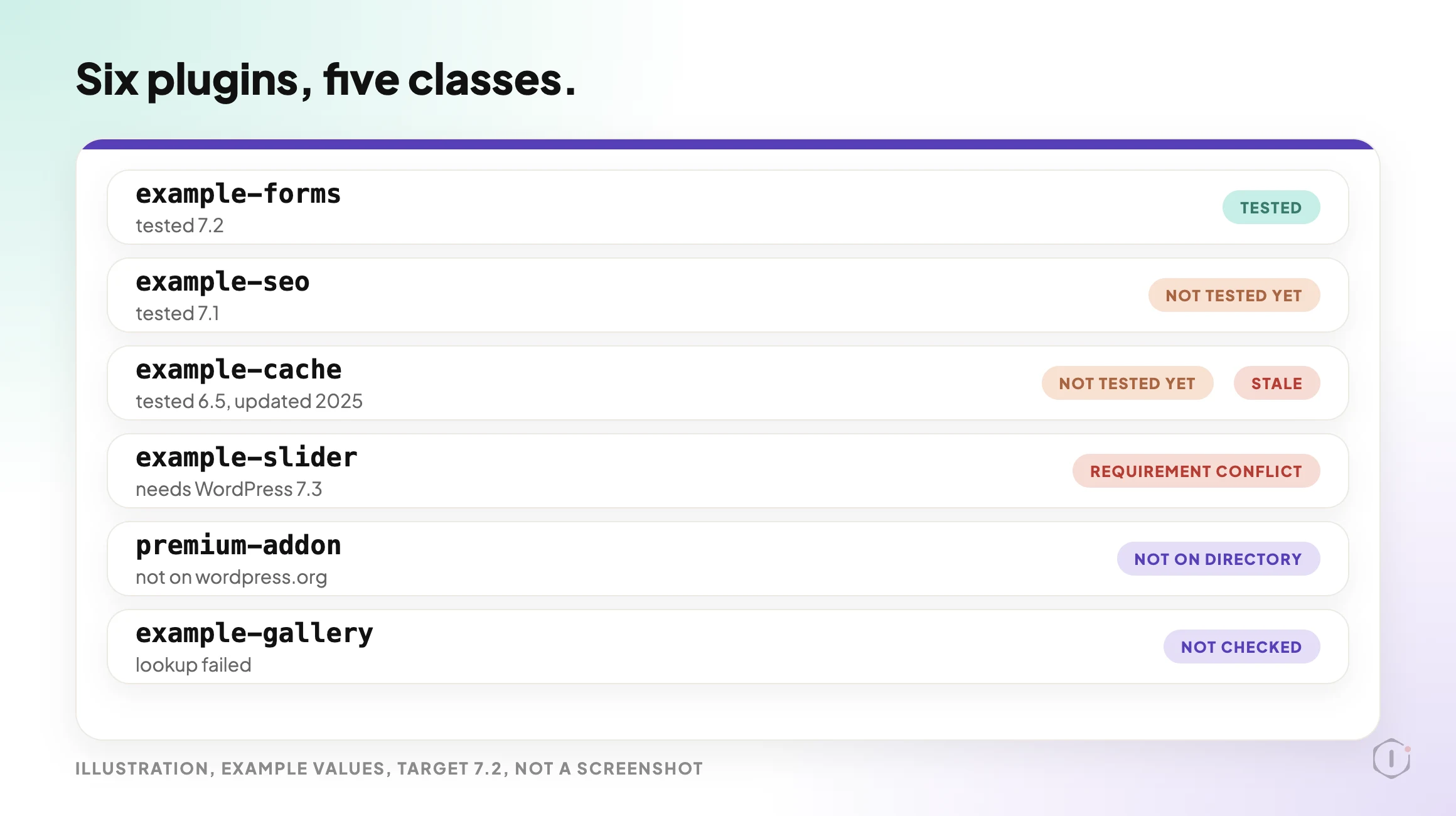
    The five classes, in the order the step file applies them:

    • NOT ON DIRECTORY: wordpress.org has no listing. The plugin is not scored.
    • NOT CHECKED: the lookup failed. The step file says never to call this “not tested”.
    • REQUIREMENT CONFLICT: the plugin’s minimum WordPress version is higher than the target.
    • NOT TESTED YET: the tested-up-to version is lower than the target. The versions are compared as numbers, so 6.10 counts as higher than 6.9.
    • TESTED: the tested-up-to version equals or exceeds the target.
    WordPress core update readiness playbook, illustration with six example plugin rows against target 7.2. One row is TESTED, two are NOT TESTED YET with one of them also flagged STALE, one is a REQUIREMENT CONFLICT, one is NOT ON DIRECTORY and one is NOT CHECKED. Example values, not a screenshot.

    Step 2: Readiness Report

    Step 2 makes no calls. It reads the block step 1 produced and writes one planning report. If step 1’s block is missing or step 1 failed, it says “BROKEN CHAIN” and stops.

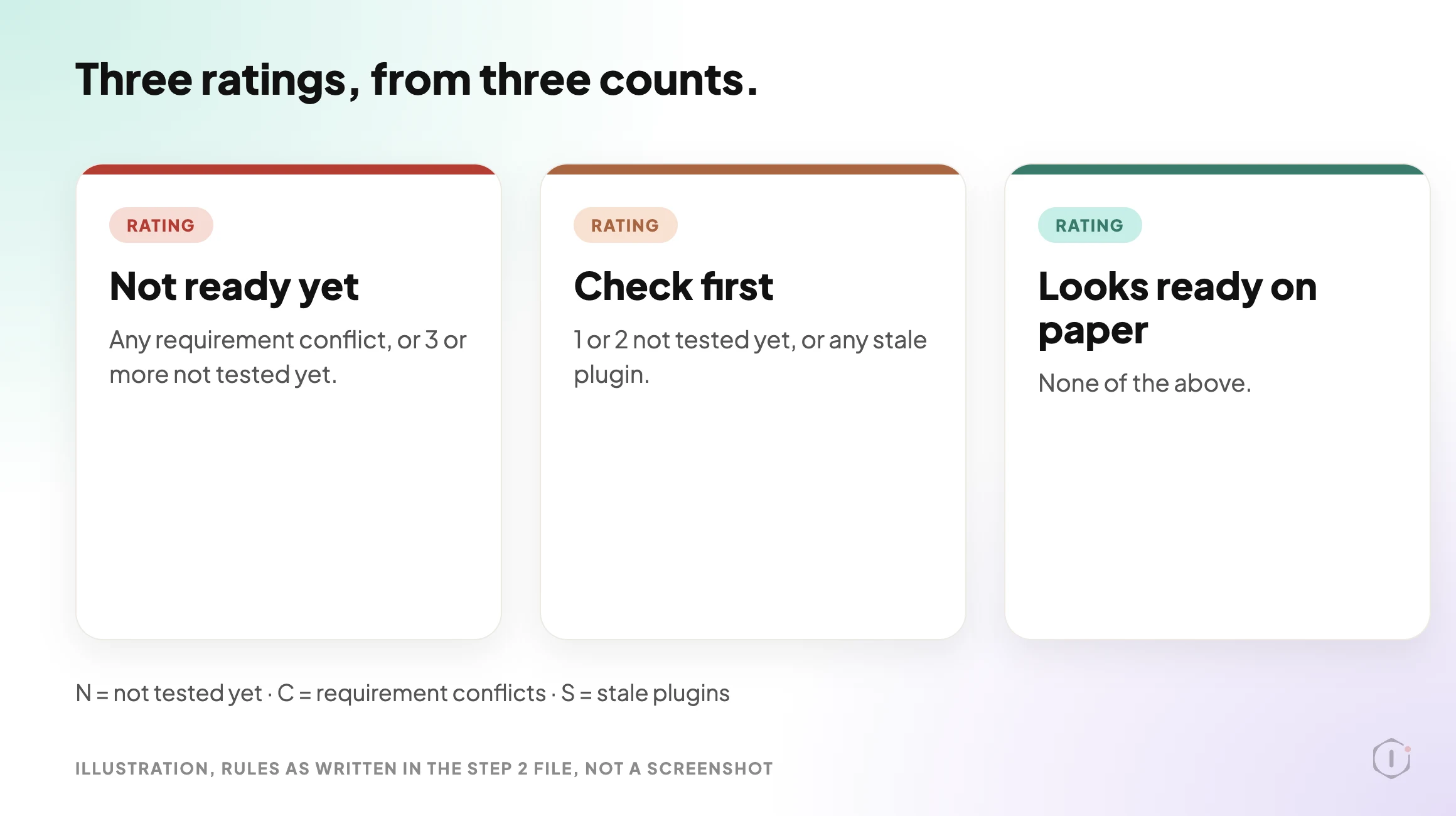
    It counts before it decides. N is the number of NOT TESTED YET plugins, C the number of requirement conflicts and S the number of stale plugins. A plugin that is both NOT TESTED YET and STALE counts in both N and S. The rating then follows fixed rules:

    RatingWhen it applies
    Not ready yetAny requirement conflict, or 3 or more NOT TESTED YET
    Check first1 or 2 NOT TESTED YET, or any STALE plugin
    Looks ready on paperNone of the above

    The “Check these first” table is ordered the same way every time: requirement conflicts, then plugins that are NOT TESTED YET and STALE, then NOT TESTED YET, then STALE only, then NOT CHECKED. Every row gets one action. The three allowed actions are “wait for an update that declares” the target, “test on staging first”, and, for stale plugins only, “consider a maintained alternative”.

    WordPress core update readiness playbook, illustration of three rating cards. Not ready yet applies to any requirement conflict or 3 or more not tested yet. Check first applies to 1 or 2 not tested yet or any stale plugin. Looks ready on paper applies when none of those are true. Example values, not a screenshot.

    The report has a fixed layout: a rule-check line that shows N, C and S and the rating they give, the rating, a summary line, the “Check these first” table, the plugins declared compatible, the plugins not scored (with the theme), a “Before you update” list, a “Not checked” list and a closing note that nothing was changed.

    How To Read A Rating

    The rating is a count, not a prediction. Take an illustrative site with 12 active plugins. If 2 are NOT TESTED YET and none is stale or in conflict, the rating is Check first, because 1 or 2 is Check first. If a third joins them, it becomes Not ready yet. If one plugin requires a higher WordPress version than the target, the rating is Not ready yet even when every other plugin is TESTED.

    The rule-check line prints N, C and S so you can see why the rating came out the way it did. The wording “on paper” is deliberate: the best rating still only says what wordpress.org pages declare.

    What The Settings And The Public Page Say

    The two sources agree on the substance. Both say the playbook only reads, has two steps and needs no connector, and the public page says no step is set to pause for your approval. The only difference I found is the group label: the dashboard says Maintenance, the public page says Care.

    I opened the settings panel for both steps in the dashboard, view only. Both show Automatic backup None and Approval checkpoint Off. For a playbook that changes nothing, that fits: there is nothing to back up and nothing to approve.

    What The Playbook Does Not Do

    The step files and the public page set clear limits:

    • It starts no update. It does not edit the site, and it is a planning report only.
    • It checks at most 20 active plugins and the theme. Plugins beyond the first 20 are not checked.
    • It does not check inactive plugins, custom code inside plugins and themes, or the host’s PHP version against each plugin’s PHP requirement.
    • It does not score premium or custom plugins that are not on wordpress.org. They are reported as not on the directory.
    • It does not read known issues reported outside wordpress.org.
    • “Declared compatible” is not a promise that the update will go well.

    Two of those limits are covered by other Protuno posts. A premium plugin that is not on wordpress.org is outside this playbook, and the Premium Plugin Licenses post covers premium plugins whose updates stop quietly. The host’s PHP version is a separate question, and the PHP version post covers it. A plugin that has been pulled from the directory should also come back as not on the directory, and the removed plugin post explains why nobody tells the site.

    A Careful Version You Can Do By Hand

    You can do the same reading without a playbook. It takes longer as the plugin count grows.

    1. Write down the target version, for example 7.2.
    2. Open Plugins, filter to Active, and list every plugin and the theme.
    3. For each one, open its wordpress.org page and read the Tested up to and Last updated values. For a premium plugin, read the vendor’s changelog or support page instead.
    4. Mark each plugin as tested, not tested yet, or not found. Flag anything not updated in 12 months.
    5. Take a restore point, and check that it restores. The backup verification post explains why a file with a hopeful name is not a backup.
    6. Run the update on a staging copy first and check the front end, forms and checkout. The staging drift post lists what stops a staging copy matching the live site.
    7. Know how you would undo it. The rollback post explains what a rollback after an update can and cannot undo.

    At 20 plugins, step 3 is 20 page visits and a spreadsheet nobody keeps. That is the repeatable part, and it is the part the playbook takes over. The judgement stays with you: which plugin matters most, and what you will test.

    The report’s own closing advice is a restore point, a staging test and plugin updates before the WordPress update. If a site already has two plugins doing the same job, the plugin conflicts post covers a separate read-only report on that.

    Two Outside Views

    A short video and a forum thread. Neither is an endorsement, and neither describes the Protuno playbook.

    Ahosting INC’s “Problems Auto-Updating Plugins and Themes: Fix It (2026)“, published 14 October 2026, is about the Site Health warning “Your site may have problems auto-updating plugins and themes”. It is not about plugin compatibility or core updates. Its useful point is what a green result measures: in the presenter’s account, a pass only means your code is not blocking updates, so a full disk or locked file permissions can still stop real ones.

    A clean diagnostic report proves your code and your interface are aligned.

    Ahosting INC, Problems Auto-Updating Plugins and Themes: Fix It (2026), auto-generated English captions, 14 October 2026

    The parallel is worth keeping in mind. A “tested up to” value and a “Looks ready on paper” rating also measure one narrow thing. The video is a hosting company’s explainer tied to its own blog post.

    In an r/Wordpress thread titled “Did your sites actually update to 7.1.2, or do you just have auto-updates turned on?”, the poster argues that the sites that fall behind are often the managed ones, not the neglected ones:

    It’s the client site with change control and a staging step, where the 7.1.2 ticket is still waiting on a reviewer who’s on holiday until Monday.

    u/Capital_Attention702, r/Wordpress, 30 September 2026

    One commenter in the same thread recommends setting WP_AUTO_UPDATE_CORE to 'minor' in wp-config.php, so that urgent security patches arrive without major updates. That matches what the developer documentation says the 'minor' value does. These are people’s accounts, not data. The thread also makes claims about attacks on 7.1.2 that I did not check, so I have left them out. A readiness list is something that reviewer on holiday could pick up and work from.

    Where Protuno Fits

    The Major Update Readiness playbook is the reading part of this job. It lists the active plugins and the theme, looks each one up on wordpress.org, compares them with a target you set, and writes a rating with a “Check these first” list. It needs no connector, runs when you start it and has no schedule set. It starts no update.

    A different playbook, Plugin Safe Update, is the one that applies plugin updates one at a time and then checks the site. The update process post is a written-out sequence for applying updates. Protuno publishes its playbooks as written-out steps you can read first. The playbooks page lists them, and this one has its own page at Major Update Readiness.

    The Point

    A major WordPress release comes with a date. The plugins on your site each say what they were tested with, and that is information you can read before you press the button.

    Set the target, read what each plugin declares, treat a gap as a question, and keep the judgement about what to test first. A rating on paper is a reading list, not a promise.

    If WordPress 7.2 were released tomorrow, could you list the plugins on your busiest site that say they were tested with it?

    Sources And Further Reading

  • WordPress Auto Updates: Which Ones To Switch On

    WordPress Auto Updates: Which Ones To Switch On

    The Plugins screen has an “Automatic update” column for every plugin. Tools, then Site Health, may say “Your site may have problems auto-updating plugins and themes”. Neither tells you what you most want to know: whether updates are actually arriving.

    Two bad arguments dominate: turn everything on, because unpatched sites get compromised, or turn everything off, because one auto-update once broke a client site. Both treat auto-updates as one switch. WordPress documents four types of automatic update, and core splits into three kinds, which makes five decisions on a normal site.

    Short answer: core minor and security releases on, and translations on, which is the default. Plugins and themes on for chosen items, once you can say what breaks if that item breaks. Core major releases decided on purpose, because the default depends on when the site was built. Then check the version, not the setting.

    What this post is, and is not: a policy framework built from WordPress’s documentation and one community thread. I did not test it on a site, and the commands near the end are read-only ones I have not run. It does not claim any setting is safe on your sites.

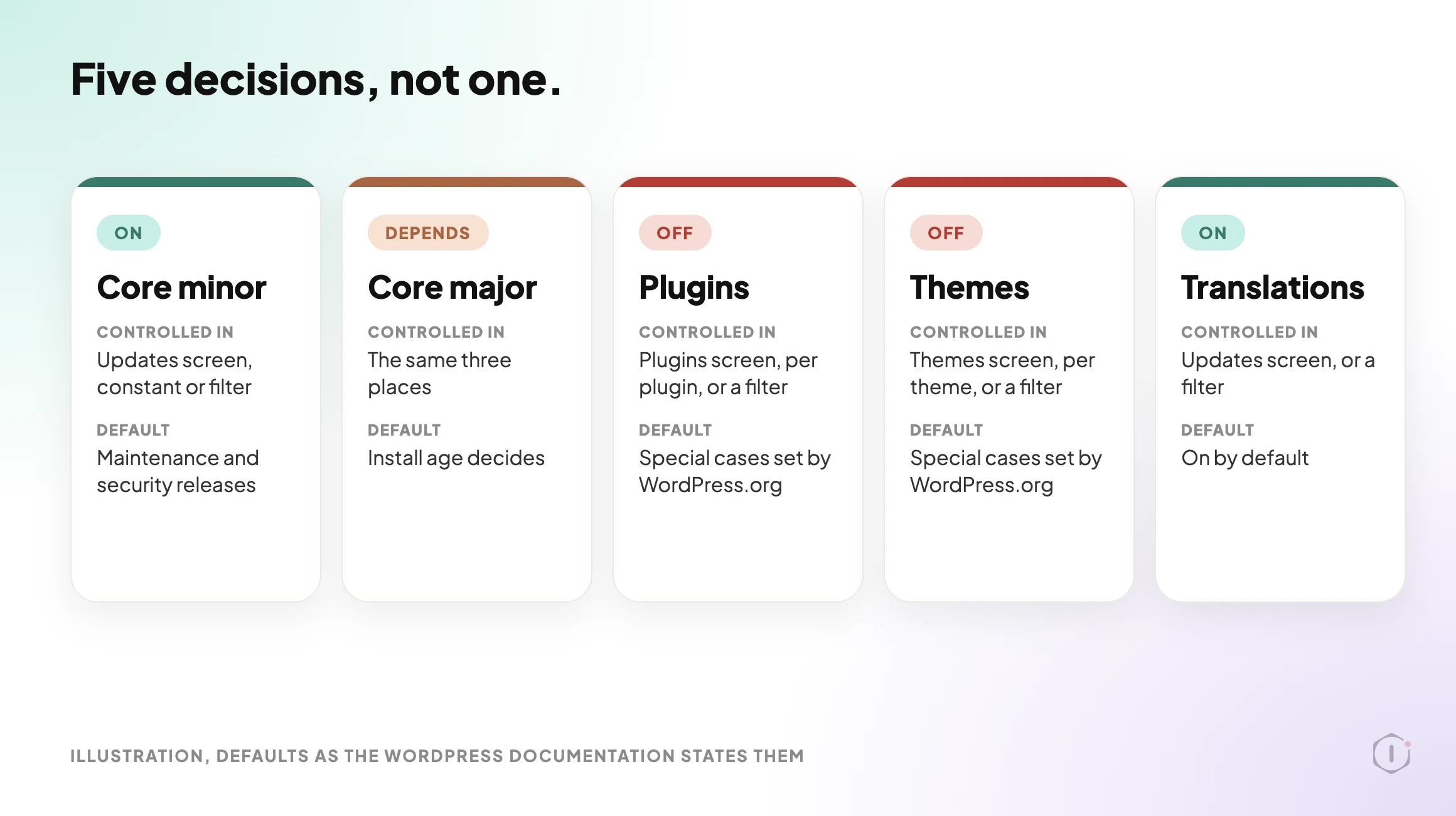
    Illustration of five cards for WordPress automatic updates: core minor on by default, core major depends on when the install was created, plugins and themes off unless chosen per item, and translations on by default.
    Illustration, not a screenshot. The five decisions and the defaults the WordPress documentation gives for them. It is not a measurement of any site.

    The Five Decisions, Not One

    The admin spreads these across the Updates, Plugins and Themes screens. The documentation describes them like this.

    DecisionWhere it is controlledDefault, as documented
    Core minor and security releasesUpdates screen, the WP_AUTO_UPDATE_CORE constant, or a filterOn
    Core major releasesThe same three placesDepends on the install
    PluginsThe “Automatic update” column on the Plugins screen, per plugin, or a filterOff, except special cases
    ThemesThe theme’s detail view on the Themes screen, per theme, or a filterOff, except special cases
    TranslationsUpdates screen, or a filterOn

    Three notes matter more than they look.

    Plugin and theme auto-updates are per item, since WordPress 5.5, so you can update the contact form plugin and leave the booking engine alone.

    The “special cases” are real. The documentation says plugins and themes update by default only “in special cases, as determined by the WordPress.org API response, which is controlled by the WordPress security team for patching critical vulnerabilities”. That is the route a forced security push takes, and the same page says a filter returning false switches off even those.

    The core major default depends on when the site was built. Before WordPress 5.6, every site got minor core updates and translations only. From 5.6, fresh installations get minor and major updates by default, unless WordPress detects a version control checkout. Existing installations keep the old behaviour unless an administrator, a constant or a filter changes it. So two sites on the same version can differ. That is the documentation’s account; I have not tested it.

    Core Minor Releases: On

    The documentation describes minor core updates as maintenance and security releases, and says the core developers made “a conscious decision to enable automatic updates for minor releases and translation files out of the box”. It calls disabling them “strongly discouraged”.

    The alternative is a person who has to notice an advisory and act on every site, every time, and people go on holiday. The exception is a site so tightly coupled to core internals that a point release is genuinely risky, and that site has a bigger problem than this setting.

    Core Major Releases: Decide On Purpose

    A major release can change things that page builders, commerce extensions and custom blocks build on. It is a piece of work with a staging test and a date, not a background task. Applied automatically, you learn about a compatibility problem from a visitor instead of from a test.

    Because the default depends on the install, decide it explicitly. The documented way to hold a site at minor releases is the constant below: its 'minor' value allows minor updates and blocks major ones.

    define( 'WP_AUTO_UPDATE_CORE', 'minor' );

    The documentation says this constant overrides the Updates screen, so it can quietly outrank what the screen shows. Write down that you set it: a constant nobody remembers is how a site gets stuck, as the thread below shows.

    Holding is not ignoring: a site two majors behind has stopped being conservative and started accumulating a migration. The next major is visible already. WordPress 7.2 Beta 1 came out on 20 October 2026, with the final release scheduled for 8 December 2026, and the notice says not to run it on production sites. Try it on a copy. A commenter in an r/Wordpress thread on that beta, quoted below, puts the priority in one line.

    Plugins: Selectively, And Here Is The Sort

    A blanket policy does the most damage here. Sort the plugin list into four buckets by one question: what happens on this site when this plugin changes without warning?

    BucketCharacteristicsAuto-update
    Low blast radiusNarrow function, no front end output, no checkout path, no custom code depends on itOn
    Security critical, low couplingFirewall, spam, login protection, where being a week behind is the real riskOn
    High blast radiusCheckout, payments, booking, membership, page builder, anything the revenue path runs throughOff, test first
    Customised or coupledYour child theme, filters or custom code reach into itOff, always

    The fourth bucket gets forgotten. A plugin can be stable and still break the site on update, because what breaks is your code reaching into it, and on an inherited site nobody recorded that. If an update breaks something and you cannot tell which plugin, Find A WordPress Plugin Conflict Without Downtime is the method.

    Two things change the sort. A plugin updated by its vendor instead of WordPress.org depends on that vendor’s licence staying valid: Premium Plugin Licenses: The Updates That Stop Quietly covers a lapse. And a plugin can be pulled from the repository, after which its updates simply stop: When A WordPress Plugin Is Removed From The Repository, Nobody Tells The Site covers that. In both, the setting reads as enabled and nothing arrives.

    Themes: Mostly A Non-Decision

    An inactive theme you do not plan to use should be removed, as the Site Health screen documentation recommends.

    The active theme splits the way plugins do. A theme used as shipped can be a candidate. A theme with changes made inside it must not auto-update, because an update replaces its files. The Theme Handbook says it plainly about editing a parent theme’s functions.php: “the next time your theme is updated, your function will disappear!” A child theme exists for exactly this. If you do not know whether the active theme was edited in place, assume it was until somebody checks.

    Before You Turn Anything On

    Three things should be real first. Each has its own post.

    WordPress added a rollback for plugin auto-updates in 6.6, and it is narrow. The testing notes say it “includes the ability to perform rollbacks when fatal errors occur during attempted plugin auto-updates by default”, and that only active plugins undergo the loopback test. A plugin that updates cleanly and then breaks checkout is not a fatal error, so it needs a check of its own.

    What An Enabled Setting Does Not Prove

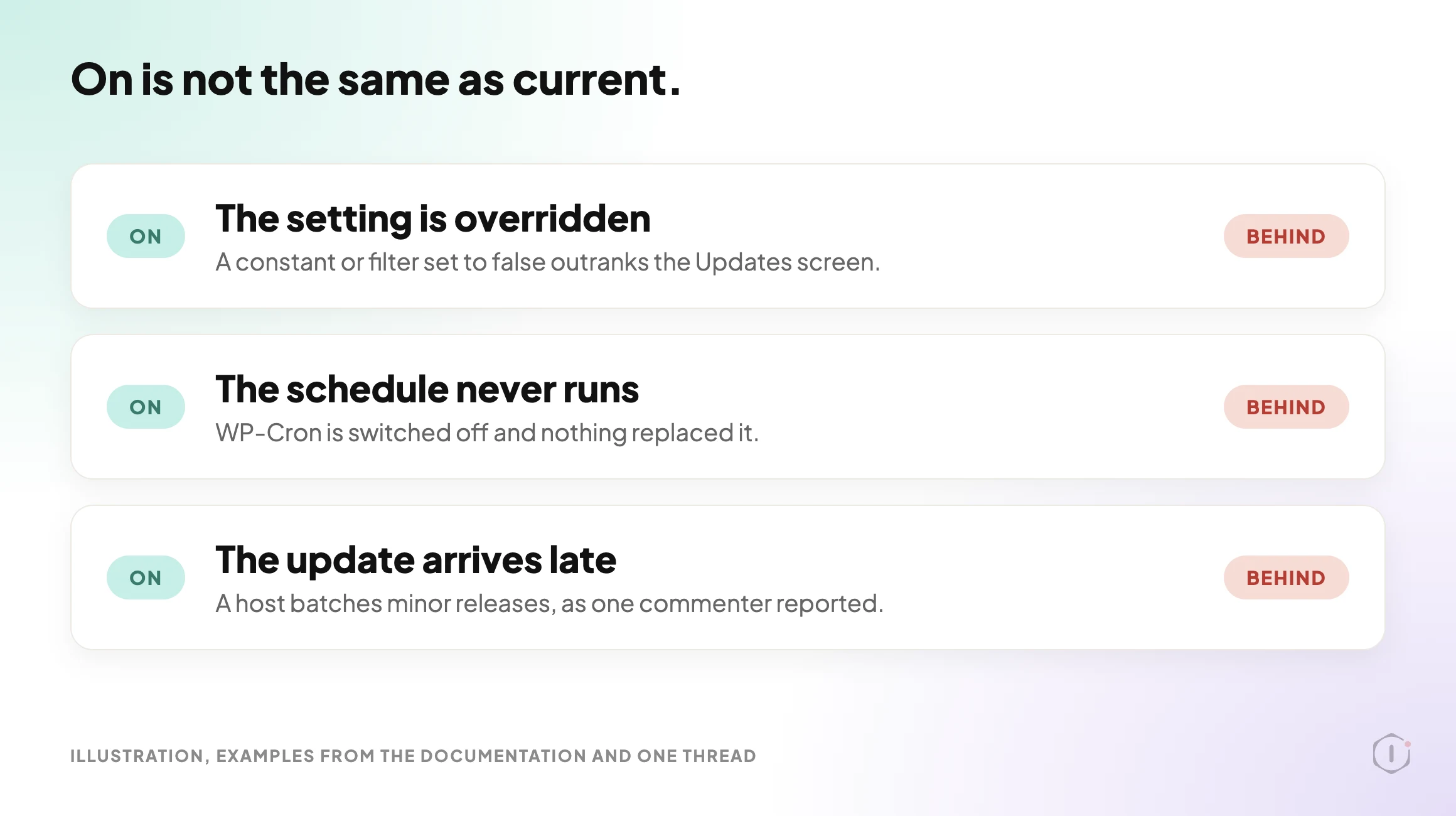
    A green setting says the system is permitted to update. It does not say an update has arrived. Three things sit between the two.

    1. Something overrides the setting. The documentation says the WP_AUTO_UPDATE_CORE constant overrides the Updates screen, and that AUTOMATIC_UPDATER_DISABLED turns off every type of automatic update. A .git, .hg or .svn folder in the WordPress directory or a parent counts as a version control checkout, with a filter to override that. A host or plugin can also remove the controls: if they are missing on 5.5 or later, WordPress’s help page says, “it probably means the feature was partially or completely deactivated by your hosting company or by a plugin.”
    2. The schedule never runs. The documentation says auto-updates “rely on WordPress Cron tasks to actually perform the update”, and by default run twice per day. If WP-Cron is switched off and nothing replaced it, nothing triggers: WordPress Cron Not Running: The Failure That Never Alerts You. The poster in the thread below names DISABLE_WP_CRON for this reason.
    3. The update arrives late. A commenter in the same thread says one host batches minor core releases, so an “immediate” update arrived overnight. That is one person’s report, not documented behaviour. Ask your host.
    Illustration of three ways a WordPress auto-update setting can read on while the site stays behind: a constant or filter overrides it, WP-Cron never runs, or the host delivers the update late.
    Illustration, not a screenshot. Three ways “on” and “up to date” differ. The example lines are the ones named in the documentation and the thread below.

    WordPress’s own Site Health test, introduced in 5.5, is described in the code reference as one that “Tests if plugin and theme auto-updates appear to be configured correctly.” Configured, not delivered: a pass is not evidence that the last update arrived. By default WordPress also emails the site owner when plugin or theme auto-updates succeed or fail, so check that address reaches someone who reads it.

    Check The Version, Not The Setting

    The boring check is to read the version. Recent releases show why.

    • WordPress 7.0.2, 17 July 2026, fixed one critical and one high severity issue. The notice says: “Due to the severity, the WordPress.org team have enabled forced updates via the auto-update system for sites running affected versions.”
    • WordPress 7.1.2, 22 September 2026, fixed one critical issue. Its notice says sites that support automatic background updates will start the update automatically, not that it is forced.
    • WordPress 7.1.3, 6 October 2026, has 7 security fixes and 4 bug fixes, with the same automatic wording.

    Note the July wording: forced updates go “via the auto-update system”. The notice does not say what happens on a site where that system is switched off, so the version number is what answers it.

    If you can run WP-CLI, these four commands answer most of it. They only read.

    wp core version
    wp config get WP_AUTO_UPDATE_CORE
    wp plugin list --fields=name,version,update,auto_update
    wp cron event list

    In order, they print the installed version, read the constant from wp-config.php (a site that does not set it follows the defaults above), list each plugin’s version, update status and auto-update state, and show what is scheduled and when it next runs. Without WP-CLI, the Updates and About screens show the version, and Site Health shows cron problems. I have not run these commands for this post; they come from the WP-CLI handbook.

    A 33-second silent walk-through: the five decisions, the install-age default, sorting plugins, three ways “on” fails, checking the version, and writing the policy down. All scenes are illustrations with example values.

    The PHP Version Underneath All Of It

    One constraint sits below every policy here. Core and plugins raise their PHP requirements over time, and no auto-update setting changes the PHP version the host runs. The WordPress PHP Version Problem: A Third Of Sites Get No Security Fixes is about that. Check it before you write an update policy, not after.

    Outside Views

    A video about the warning. Ahosting INC’s “Problems Auto-Updating Plugins and Themes: Fix It (2026)“, published 14 October 2026, explains the Site Health warning and says it is not about the server. In its account, WordPress runs a stand-in plugin through your update filters and compares the result with whether the “enable auto-updates” link is still shown, and a mismatch raises the warning. A pass, it says, only means your code is not blocking updates, so a full disk or locked file permissions can still stop real ones.

    A clean diagnostic report proves your code and your interface are aligned.

    Ahosting INC, Problems Auto-Updating Plugins and Themes: Fix It (2026), auto-generated English captions, 14 October 2026

    It is a hosting company’s explainer, tied to its own blog post. The mechanism is the video’s account: the code reference says only that the test checks whether auto-updates “appear to be configured correctly”, and I did not confirm the stand-in plugin detail.

    A thread from people living with it. In an r/Wordpress thread titled “Did your sites actually update to 7.1.2, or do you just have auto-updates turned on?”, the poster says the reply they keep getting is “auto-updates are on, we’re fine”, and asks readers to check wp-config.php:

    If there’s a WP_AUTO_UPDATE_CORE set to false in there, left over from some migration or a dev who wanted control back in 2021, that site hasn’t updated itself since 2021, and nothing in the dashboard is going to tell you.

    u/Capital_Attention702, r/Wordpress, 30 September 2026

    One reply, from someone who says they checked a few client installs after 7.1.2, found two causes: an old staging habit that left the constant set to false, and a host that batches minor releases. It ends on the same check:

    another was on a host that batches minor cores, so “immediate” was more like overnight. wp core version (or just glancing About on each site) is the boring check that actually answers the question.

    u/jenish_o4o2, r/Wordpress, 30 September 2026

    These are two people’s accounts, not measurements. The thread also makes claims about attacks on 7.1.2 that I did not check, so I have left them out.

    A video on the manual routine. BloggersPassion’s “How to Safely Update Your WordPress Website, Themes & Plugins Safely (Step by Step)“, published 16 September 2026, is about updating by hand, not about auto-updates. Its order is a full backup first (shown with UpdraftPlus), a staging copy if the host offers one, one update at a time with a check after each, then core, theme and plugins, and finally the homepage, a blog post and the contact form. That is the routine an auto-update skips, which is why the checks in this post matter.

    you will know exactly which update caused it instead of guessing.

    BloggersPassion, How to Safely Update Your WordPress Website, Themes & Plugins Safely (Step by Step), auto-generated English captions, 16 September 2026

    It is a short beginner tutorial from a blogging site’s team, with about a hundred views when I read it, and it says nothing about how auto-updates behave. I use it only for the one-at-a-time, check-after-each habit.

    A thread about the next major release. In an r/Wordpress thread titled “WordPress 7.2 Beta 1 is ready to test”, the poster lists what they like in the beta (more consistent icons, a faster admin, client side media processing support and the secrets API) and asks for thoughts. The replies are a handful of short opinions. One is about the very thing a major update puts at risk:

    My favourite feature is not breaking my site, prioritize that.

    u/geistly36, r/Wordpress, 22 October 2026

    That is one commenter’s wish, not a measurement, and I did not check the poster’s feature list against the beta notice.

    Writing The Policy Down

    A policy in somebody’s head is not a policy. For each site in your care list, record five lines:

    • Core minor state, and whether the WP_AUTO_UPDATE_CORE constant is set.
    • Core major approach and the date it is next reviewed.
    • The plugin buckets, and which plugins are on auto-update.
    • Whether the active theme was edited in place.
    • The date you last read the version number, and the date a backup was last restored.

    If someone else runs your updates, WordPress Maintenance Plans: What The Contract Should Name is about what a maintenance contract should name.

    What This Does Not Solve

    An auto-update policy is a narrow instrument.

    It does not make a site secure. Being current is a floor, and an update will not say whether a site is misconfigured or already compromised.

    It does not protect against a bad release. If an author ships a broken version, auto-updating means you receive it first, and the 6.6 rollback covers fatal errors, not a page that loads and works wrongly.

    It does not prove updates arrive. The absence of an update looks the same as there being nothing to update.

    And it does not remove judgement. The sort into buckets is a human reading of one site, which changes whenever a plugin is added or custom work is commissioned.

    The Point

    Pick any site you manage with auto-updates enabled on at least one plugin. Without opening the dashboard, can you say which WordPress version it runs and when a plugin on it last updated?

    If not, the question worth asking is not which switches you have turned on. It is how you would find out if one of them quietly stopped working, and who would notice first: you, or the client?

    Sources And Further Reading

  • Find A WordPress Plugin Conflict Without Downtime

    Find A WordPress Plugin Conflict Without Downtime

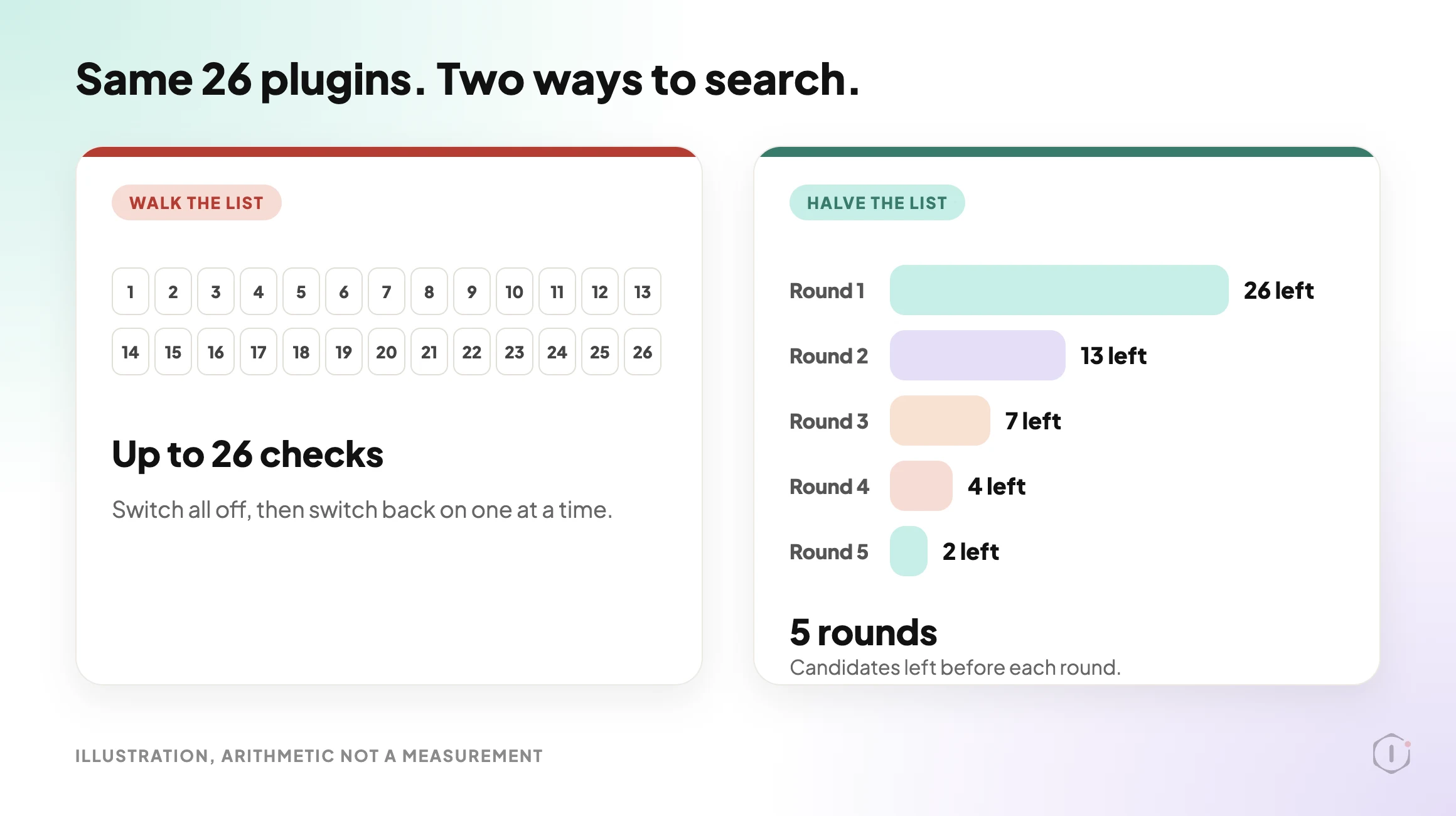
    Picture a site with twenty-six active plugins. A page has stopped working. The screen either says “There has been a critical error on this website.” or says nothing at all, and a button simply does nothing.

    You suspect a plugin. The usual advice is to switch every plugin off, then switch them back on one at a time. That works. It also means up to twenty-six checks, and a site stripped of its features for as long as the walk takes.

    Short answer: do the test on a copy of the site, not the live one. If the fault only shows on live, pause the plugins for your own browser session instead. Then halve the list each round rather than walking it. Twenty-six plugins is about five rounds and one confirming check, not twenty-six checks.

    What this post is, and is not: this is a method for finding which plugin is involved in a fault you can reproduce. It names a suspect, it does not fix anything. Knowing that two plugins clash does not tell you which one should change, and sometimes the cause is not a plugin at all. It does not cover faults that come and go, which need logs and time rather than toggling.

    Illustration comparing a walk through 26 plugins, up to 26 checks, with halving the list, five rounds that leave 26, 13, 7, 4 and 2 candidates before each round.
    Illustration, not a screenshot. The same 26 plugins, searched two ways. The counts are arithmetic, not a measurement.

    Why The Usual Advice Needs One Edit

    The official guidance already says most of this. The Learn WordPress lesson on plugin and theme conflicts tells you to take a backup, make a staging site, read the error log, try a default theme, then deactivate all plugins and reactivate them one at a time while checking the site after each one. WordPress.com’s own video on the same problem says you can do it on the normal site, “but I suggest using a staging site.”

    So the advice is sound. Two things get lost when it is repeated in one line: where you do it, and how many steps it takes.

    On a personal blog neither matters. On a site that takes orders, switching every plugin off is a visible change for every visitor. WordPress also lets plugins run their own code when they are activated or deactivated, which is one more reason to do the toggling somewhere nobody is watching.

    This method assumes you can still reach the dashboard. If you cannot, start with WordPress White Screen Of Death: The Playbook, Step By Step and come back. And if you are asking which plugins overlap rather than which one is broken, that is a different question, covered in WordPress Plugin Conflicts: The Playbook, Step By Step.

    Decide Where To Test First

    The right place depends on who can see the fault.

    Where the fault showsTest hereWhy
    For every visitorA staging copyYou can break it freely
    Only when logged inA staging copy, or a session pauseIt depends on your session or role
    Only for anonymous visitorsA staging copyA paused session is yours, not the visitor’s
    Only on live, never on the copyA session pause on live, and treat the copy as the bugThe copy differs from live in some way

    The last row matters most. A fault that lives on production but not on a fresh copy is often environmental rather than a plugin pairing.

    A 33-second silent walk-through: where to test, the session pause and its limits, halving the list, the record sheet, and what isolation does not do. All scenes are illustrations, and the plugin counts are arithmetic, not a measured result.

    Method One: Reproduce It On A Copy

    Take a staging copy, and before you touch a single plugin, confirm that the copy shows the same fault. If it does not, you have learned something useful instead of wasting an hour.

    The usual reasons a copy behaves differently:

    • A different PHP version.
    • A different object cache, or none.
    • A licence key that is only valid on the live domain.
    • A CDN or firewall in front of live that the copy does not have.
    • Data that exists only in the production database.

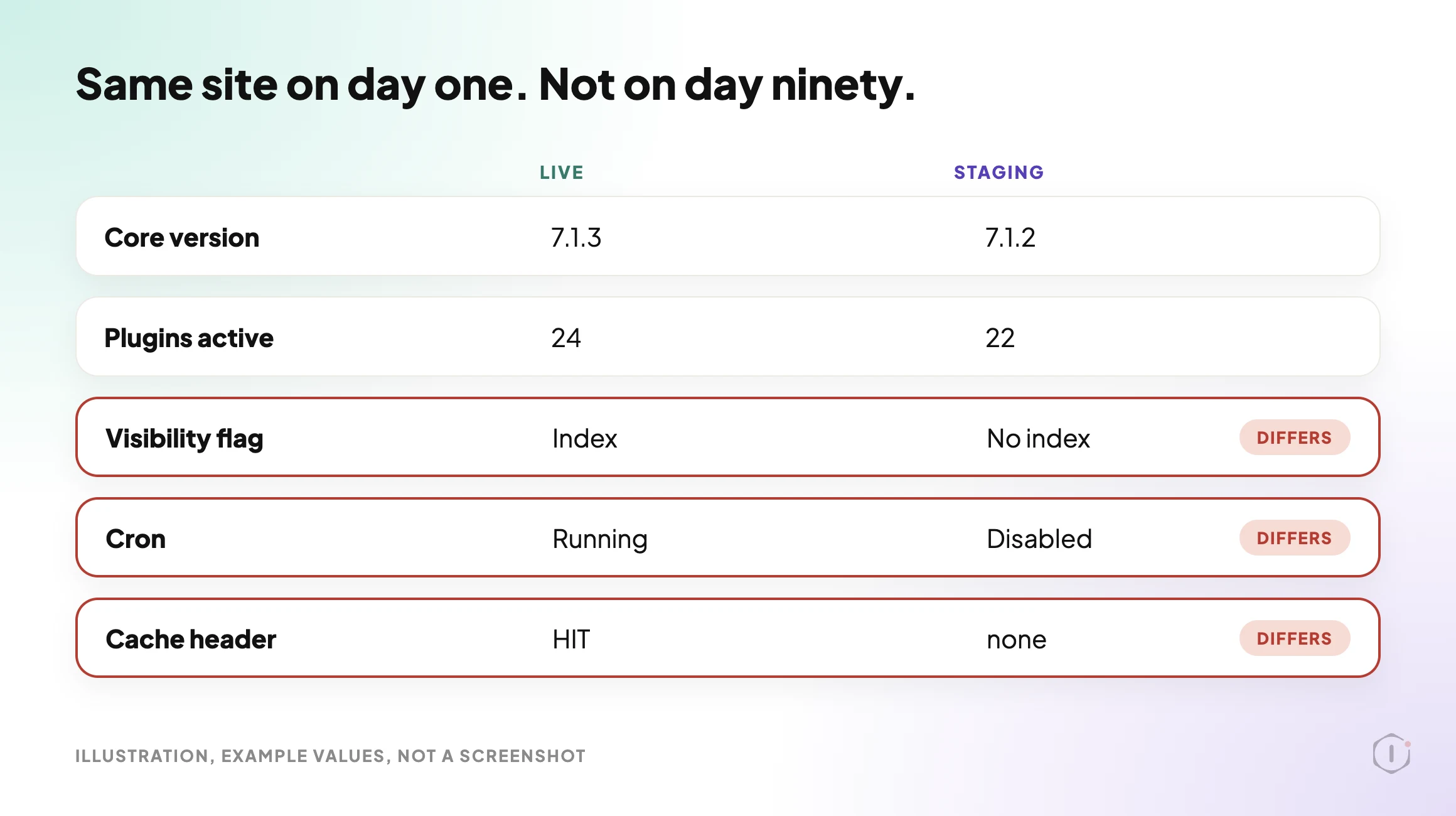
    WordPress Staging Site: What Drifts From Live is about exactly these differences. Before you change anything, take a backup you could restore. Verify A WordPress Backup, Or You Only Have A File With A Hopeful Name is about what “could restore” has to mean.

    One current reason to have a working copy: WordPress 7.1.3 (6 October 2026, 7 security fixes and 4 bug fixes) is the current stable release, and its notice does not mention plugin changes. WordPress 7.2 Beta 1 came out on 20 October, with the final release scheduled for 8 December 2026. The beta notice says not to run it on production and to use a test environment instead. A copy that can run a beta is also a copy you can bisect on.

    Method Two: Pause Plugins For Your Session Only

    Sometimes the fault only exists on live, and you have to work there. WordPress has a supported way to do that without changing what visitors see.

    The Health Check & Troubleshooting plugin describes a troubleshooting mode like this:

    Troubleshooting allows you to have a clean WordPress session, where all plugins are disabled, and a default theme is used, but only for your user until you disable it or log out.

    Health Check & Troubleshooting, WordPress.org plugin directory, page read 23 October 2026

    There is a catch, and the page states it. When I read it on 23 October 2026 it showed version 1.7.1, 200,000+ active installations, “tested up to” 6.6.10 and “last updated 2 years ago”, under a banner saying the plugin has not been tested with the latest three major releases of WordPress and may no longer be maintained. I have not tested it on 7.1. It may work fine, so try it on a staging copy before you rely on it on a client’s live site.

    Two limits apply to any session-scoped pause.

    First, it only helps with faults you can see while logged in as yourself. A fault that only affects anonymous visitors will not show inside your own paused session, because you would be testing a setup no visitor is using.

    Second, some plugins cannot be paused from the plugin list. Must-use plugins are enabled automatically on every site, do not appear in the default plugin list, and cannot be disabled from wp-admin. To disable one you remove its file from wp-content/mu-plugins. Hosts commonly use them for their own features. I have not tested whether a session pause leaves them running, so check the Must-Use section of your own Plugins screen before you trust a “clean” session.

    Method Three: Halve The List, Do Not Walk It

    Whichever place you test in, stop switching plugins one at a time.

    1. Write down every active plugin and its version.
    2. Switch off half of them, and test the broken page.
    3. If the fault is gone, the suspect is in the half you switched off. If it is still there, the suspect is in the half you left on.
    4. Take the suspect half, split it, and repeat.
    5. When one plugin is left, switch it off and on once more and check that the fault goes and comes back.
    Active pluginsWalking the list, worst caseHalving, rounds
    883
    16164
    26265
    50506

    That table is arithmetic: each round removes half the candidates. In practice each round is a page load, probably a cache clear, and a person checking carefully. The saving grows with the list.

    Keep related plugins in the same half. WordPress 6.5 added a “Requires Plugins” header: a plugin that declares it cannot be activated until the plugins it needs are active, and a plugin that others need cannot be deactivated while they are active. That only covers plugins that declare it. For shop add-ons and builder add-ons that do not, check by hand which one needs which parent, and put them together.

    A genuine conflict involves two plugins, and switching off either one can make the fault vanish. Halving finds one of them. Once you have a suspect, put it back on, then switch off plugins that do a related job and see whether the fault goes that way too. Two different plugins that each cure it when switched off alone are your pair.

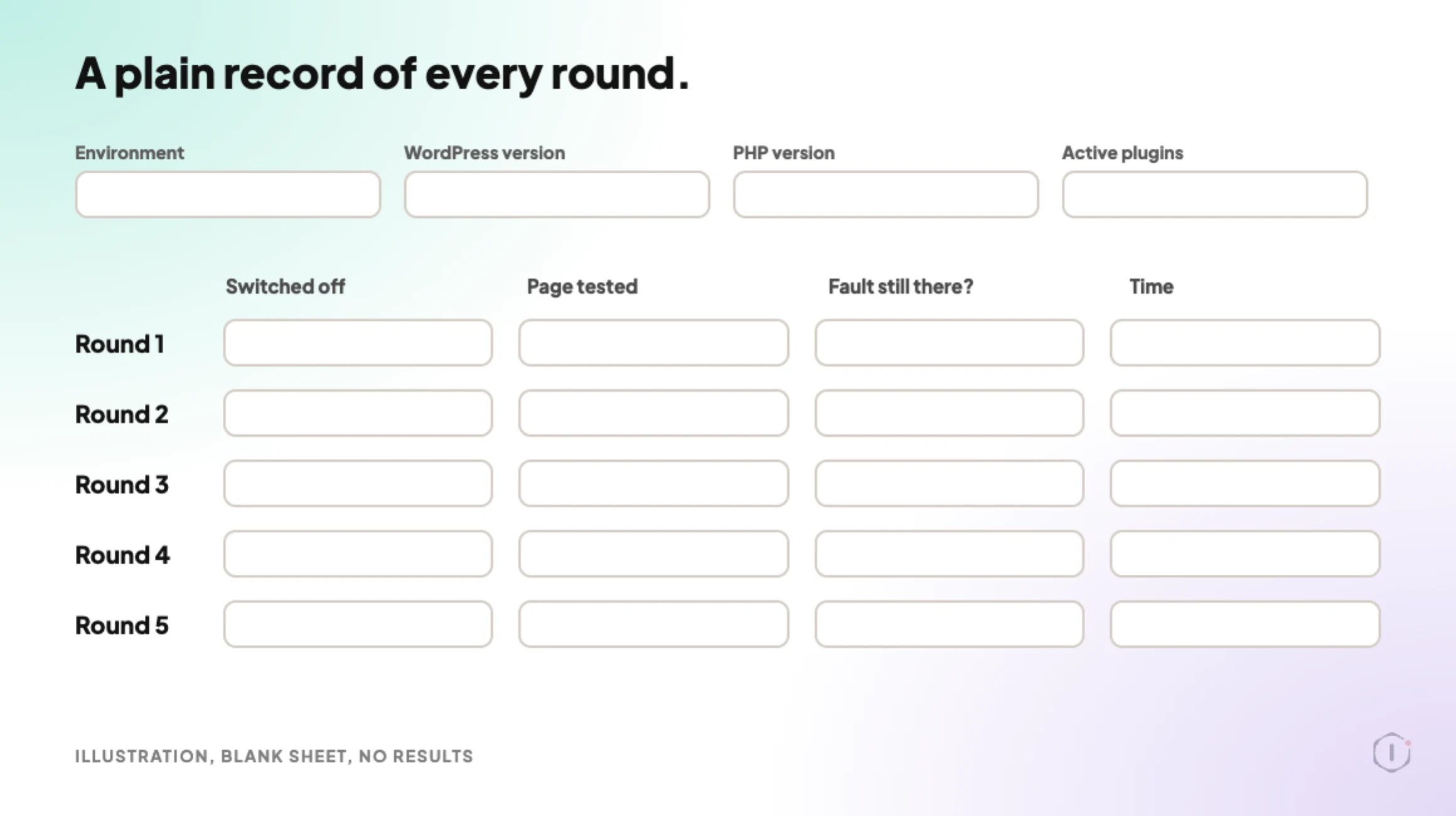
    Write each round down as you go: which plugins were off, which page you tested, whether the fault was still there, and the time. By round four you will not remember round one, and a wrong note sends you down a branch that cannot hold the answer.

    A blank record sheet for a plugin bisection with header fields for environment and versions, and five empty rows for plugins switched off, page tested, whether the fault was still there, and time.
    Illustration of a blank sheet. No results are shown. Keep it as a plain text note if you prefer.

    Read The Log Once First

    Before any toggling, turn on logging and reproduce the fault once. The WordPress handbook’s example sets WP_DEBUG and WP_DEBUG_LOG to true and WP_DEBUG_DISPLAY to false, which writes errors to wp-content/debug.log and keeps them off the page.

    A fatal error line names a file, and a path under wp-content/plugins/ names the plugin. That can end the search in one step. Afterwards, check that the log is not publicly readable: Is Your WordPress Debug Log Exposed Right Now? is about that.

    An empty log does not clear the plugins. A conflict that produces wrong output rather than an error can leave nothing in the PHP log, and the browser console is the next place to look. Some failures leave no log at all, as the thread below shows.

    Two Outside Views

    A video from the platform side. WordPress.com’s own video, “What to Do When a WordPress Plugin or Theme Isn’t Working“, published 28 July 2026, follows the standard route. It deactivates the plugin WordPress names, uses recovery mode if the dashboard is unreachable, and for an unknown conflict deactivates all plugins, switches to a default theme and reactivates them one by one. On where to do it, the English captions say:

    You can do this on your normal site, but I suggest using a staging site.

    WordPress.com, What to Do When a WordPress Plugin or Theme Isn’t Working, English captions, 28 July 2026

    It is a hosting company’s tutorial for its own platform, so the screens are theirs. The method is the general one.

    A thread from people living with it. In an r/Wordpress thread titled “This error occurs when I activate certain plugins”, the poster gets a 500 error after activating plugins and says they have already tried deactivating all other plugins and themes. One reply starts where this post does:

    Enable your debug.log – in the majority of cases, it’s a PHP error happening and this will show up in your debug.log.

    u/jedidave, r/Wordpress, 30 July 2026

    Another reply, from someone who says they are a developer at SeedProd, one of the plugins in the thread, points out that there may be no log to find, because a hosting resource limit can end the PHP process before it writes an error:

    That pattern points at a resource ceiling rather than a bug in either plugin.

    u/nick_kimuli, r/Wordpress, 30 July 2026

    That is one person’s diagnosis, and it comes from a plugin vendor, so treat it as a lead to check with the host, not a verdict. It does show a useful outcome of isolation: the answer can be “not a plugin”.

    What This Does Not Solve

    Isolation names a suspect. It does not do any of the following.

    It does not say which plugin is at fault. In most real conflicts both plugins behave to their own specification and the combination fails.

    It does not help with intermittent faults. If the problem appears for one visitor in fifty, a round that passes proves nothing, because you may simply not have hit it.

    It does not explain a fault that started with an update. Then the question is what changed, not which plugins clash. The WordPress Update Process, Written Out Before It Runs is about recording the before state, and WordPress Rollback After An Update: What It Can Undo, And What It Destroys is about what a rollback does and does not restore.

    It does not help when the plugin no longer gets fixes. You can isolate it perfectly and have nowhere to go. When A WordPress Plugin Is Removed From The Repository, Nobody Tells The Site covers that case.

    It does not cover causes outside plugins, such as the PHP version or a host limit, which the Reddit thread above is about.

    And it does not reduce the number of plugins. A site with fifty active plugins will have another conflict.

    The Point

    Finding the plugin is a skill. Doing it somewhere nobody is watching is a habit.

    So for the site in your care list with the most active plugins: if a page broke this afternoon, could you reproduce it on a copy, or would you start switching plugins off on the live site?

    And if the answer is the copy: when did you last check that it still behaves like live?

    Sources And Further Reading

  • WordPress Contact Form Health Check: The Playbook, Step By Step

    WordPress Contact Form Health Check: The Playbook, Step By Step

    A visitor fills in a contact form and sees “Thank you for your message. It has been sent.”

    If the message goes nowhere, nobody finds out until a client asks why enquiries stopped.

    Short answer: Contact Form 7 not sending emails is often a setup problem, and the setup behind a form can be checked before a single message is lost. Is an SMTP plugin active? Does the form send from the site’s own domain? Does it have a recipient? A read-only setup check can answer those in minutes, without sending a message. That is the whole job of the Contact Form Health Check playbook, and this post walks through its two steps.

    What this post is, and is not: A method write-up of one read-only playbook, based on its two step files as shown in the Protuno dashboard on 19 October 2026. It is not a result from a real run: no playbook was run for this post, and every picture in it is an illustration with example values. It checks the setup only. It never says that mail is delivered, and neither does this post.

    What A Setup Check Can See Before A Form Fails

    The post on a form that says it sent, while nothing arrives covers what happens after the message is lost. This one covers the part before that, when nothing has gone wrong yet.

    Contact Form 7’s own guidance on mail, “Best practice to set up mail”, explains why setup matters. Mail providers have been fighting spam and spoofing for years, and their filters are not flawless. Behaving like a spammer increases the chance of being treated like one. Its bottom line for the From field is plain: use an email address that belongs to the same domain as the site.

    None of that needs a failed message to check. Four facts sit in the site’s settings, and they are the first things anyone asks about when a form stops reaching its owner:

    • Is an SMTP plugin active, or does the site send form email with plain PHP mail?
    • Does each form send from an address on the site’s own domain?
    • Does each form have a recipient at all?
    • Is any anti-spam plugin active?

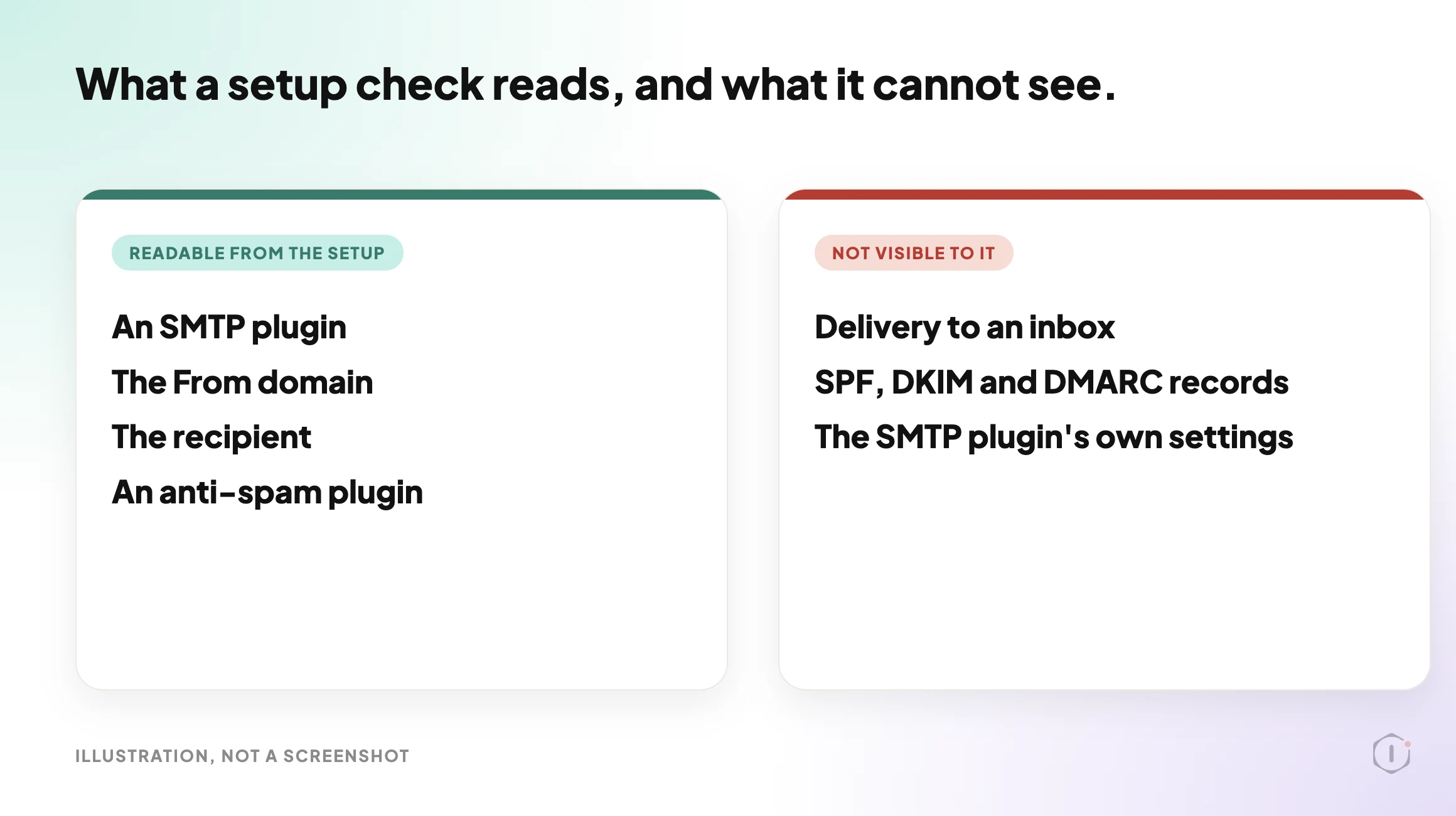
    A setup check reads those four. It cannot tell you whether a message arrived, because nothing in the setup says so.

    Illustration with two cards. The left card lists four things a setup check can read: an SMTP plugin, the From domain, the recipient and an anti-spam plugin. The right card lists three things it cannot see: delivery to an inbox, SPF, DKIM and DMARC records, and the SMTP plugin's own settings.
    What a setup check can read, and what it cannot see. Example list, not a real run.

    The Playbook, Step By Step

    Contact Form Health Check is a Beta playbook with two steps. It only reads: every call it makes is a GET, no form is submitted, no email is sent, and no plugin or setting is changed. The dashboard shows both steps with Automatic backup set to None and the approval checkpoint off, which is consistent with a playbook that changes nothing.

    It runs when you start it. No schedule is set by default, and it needs no connector.

    A short silent video walks through the same two steps.

    Silent video, illustration with an example form, not a real run.

    Step 1: Detect Forms And Mail Setup

    The first step reads the site and writes one block of facts for the second step to use. It makes about 15 calls, in this order:

    1. The site’s settings, to get the site’s host name and the domain of the administration email.
    2. The list of active plugins, sorted by exact slug into form plugins, SMTP or mail plugins, and anti-spam plugins.
    3. For Contact Form 7, the list of forms (up to 20), then the sender and recipient of each form (up to 10).
    4. For each active form plugin, a search of pages and posts for its shortcode, to find where forms are embedded.
    5. For Contact Form 7, which form sits on which page, by reading the content of up to 10 pages or posts that matched.

    The slug matching is exact. A plugin that is not on the lists is not counted, so a mail plugin under an unlisted name looks like no SMTP plugin at all. The form plugins it knows are Contact Form 7, WPForms Lite, WPForms, Gravity Forms, Fluent Forms, Ninja Forms and Formidable Forms. Elementor Pro is noted, but its forms live inside page layouts and are not checked.

    One privacy rule runs through the whole playbook: it never writes a full email address. The report shows the domain only, such as @example.com.

    Step 2: Form Health Report

    The second step makes no calls. It applies eight rules to what the first step found, and it evaluates every rule every time, so one finding never hides another.

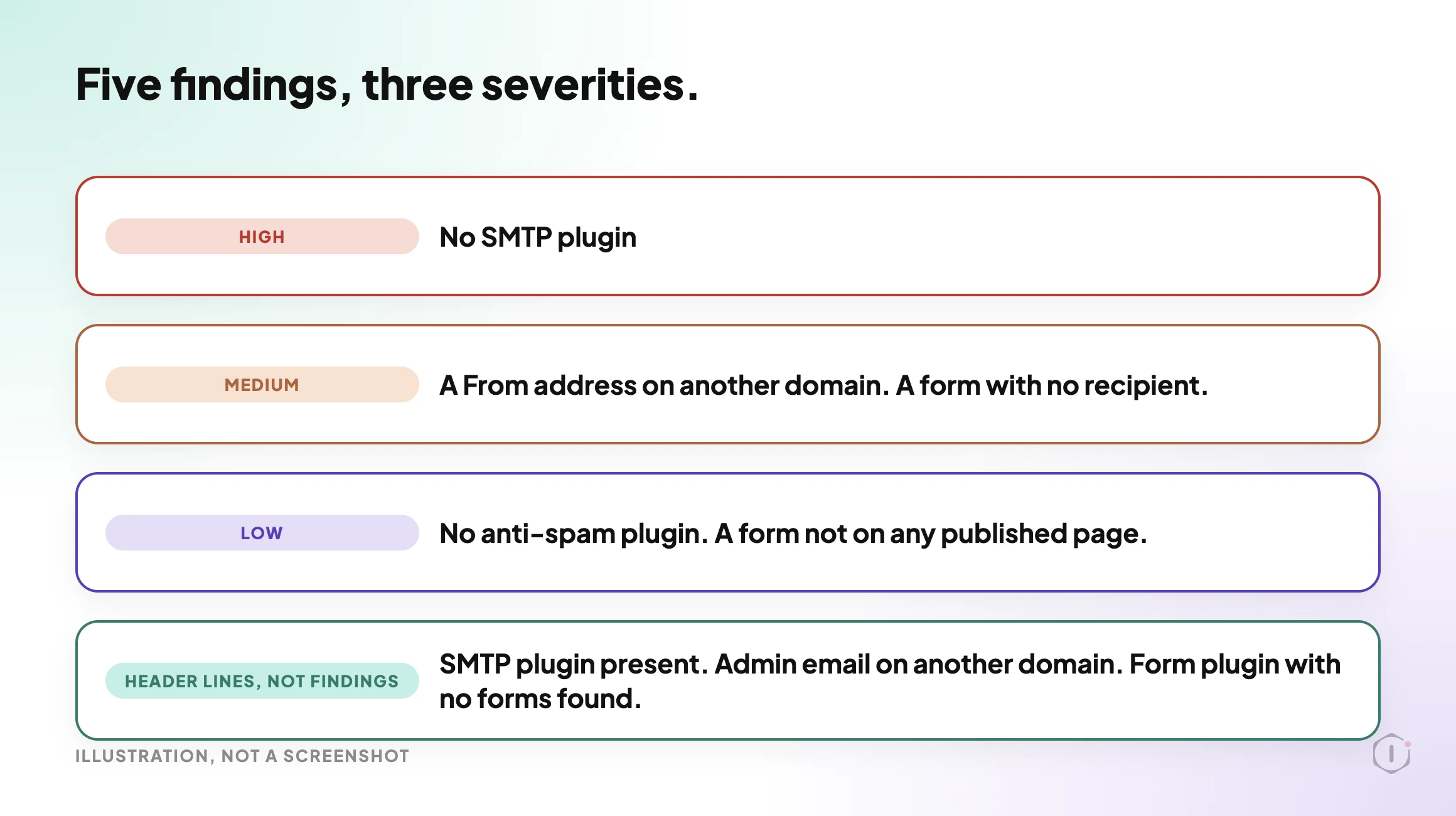
    #RuleWhere it appearsSeverity
    1No SMTP plugin while forms are presentFindings tableHigh
    2An SMTP plugin is presentHeader lineNot a finding
    3A form sends from a different domain than the siteFindings tableMedium
    4A form has no recipientFindings tableMedium
    5Forms are present and no anti-spam plugin is activeFindings tableLow
    6Administration email is on another domainHeader lineNot a finding
    7A form plugin is active but no forms were foundHeader lineNot a finding
    8A form is not on any published pageFindings tableLow

    Only rules 1, 3, 4, 5 and 8 become rows in the findings table, ordered High, then Medium, then Low. Rules 2, 6 and 7 are lines at the top of the report, because they describe the setup rather than a problem.

    Illustration of the three severities. High: no SMTP plugin. Medium: a From address on another domain, and a form with no recipient. Low: no anti-spam plugin, and a form not on any published page. Three further rules appear as header lines, not findings.
    Five findings in three severities, plus three header lines. Example list, not a real run.

    Why Each Finding Matters

    The step file gives a reason for each finding, and the reasons are worth reading as they are written.

    No SMTP plugin (High). The site most likely sends form emails with plain PHP mail, which many mail providers reject or file as spam. It is the only High finding.

    A From address on another domain (Medium). Mail sent from a domain other than the site’s often fails SPF and DMARC checks. A From of the default site admin placeholder counts as the admin email’s domain, so the check compares that instead. This is the same advice as the Contact Form 7 documentation, turned into a rule a machine can apply to every form.

    A form with no recipient (Medium). A form whose To field is empty has nowhere to send. It is the simplest finding in the list.

    No anti-spam plugin (Low). Forms are present and no anti-spam plugin is active. It is rated Low, below the three findings that concern mail setup and recipients. The spam comments post covers the comment side of the same problem.

    A form not on any published page (Low). The form may be unused, or placed somewhere the check cannot see, such as a widget, a page builder layout or a theme template. The suggested next step is to check where the form is used and, if nowhere, leave it or tidy it up.

    What The Report Looks Like

    The report is plain markdown with a fixed layout. In order, it has:

    • A header with the form plugins, the number of forms, the pages that embed them, the mail setup line and the administration email domain.
    • A Checks section with one line per rule, showing the values compared and the outcome.
    • A Findings table, or the words “No findings”.
    • A Forms table with each form, its From and To, and where it appears.
    • Lists of where forms appear and of what was not checked.
    • Next steps, which always begin with sending a test message through each form.

    The mail setup line is worded carefully. When an SMTP plugin is active it reads “<plugin> is active; its settings and delivery were not verified.” The report never says mail works, is delivered, arrives or is fine. That restraint is the point of the playbook, and it is the right instinct for anyone writing a hand-made version of this check.

    A Ten-Minute Version By Hand

    You do not need the playbook to run the same check once.

    1. Open Plugins and note any form plugin, any SMTP or mail plugin and any anti-spam plugin that is active.
    2. Open Settings, then General, and note the domain of the administration email address.
    3. Open Contact, then Contact Forms. For each form, open the Mail tab and read the From and To fields.
    4. Compare each From domain with the site’s domain. Anything that differs is worth a second look.
    5. Find the page that embeds each form. A form you cannot find on a page may be unused.
    6. Send a real message through each form and confirm it reaches the inbox that should receive it.

    Step 6 is the one no setup check can replace. The playbook says so too, and it is the first item in its own next steps.

    What A Setup Check Does Not Solve

    It does not prove delivery. A site can pass every rule and still lose mail, for the reasons the email deliverability post describes.

    It does not read the sending domain’s DNS. SPF, DKIM and DMARC records are listed in the report as not checked. The posts on SPF lookups, DKIM selectors and DMARC for agencies cover those, and the next steps point to the SMTP Deliverability Check playbook for real delivery and DNS tests.

    It does not read the SMTP plugin’s own settings. “An SMTP plugin is present” is the strongest positive wording it allows itself.

    It lists forms one by one for Contact Form 7 only. Forms from other plugins are found only where they are embedded.

    One more limit follows from how the step is written, and it is my reading of the step file rather than something it states. Rule 5 looks at the active plugin list. The first step makes no call that reads a form’s own CAPTCHA or Turnstile settings, so a Contact Form 7 form protected only that way would still be reported as having no anti-spam plugin. Treat a Low finding there as a prompt to check, not as proof.

    Two Outside Views

    A tutorial and a forum thread. Neither is an endorsement, and neither describes the Protuno playbook.

    In a September 2026 video, WP Handy walks through the usual repair for a Contact Form 7 form that is not sending. The video’s own timestamps run from installing the free FluentSMTP plugin, through creating a Google Cloud project and a client ID and secret, to authenticating with Google and sending a test email. Its description lists, among the things it covers:

    “How to check and fix your Contact Form 7 Mail tab settings”

    WP Handy, How to Fix Contact Form 7 Emails Not Sending (Easy Method), video description, 11 September 2026

    That Mail tab check is the part the playbook reads automatically. The SMTP setup that follows is a long, hands-on job, and it is what the “No SMTP plugin” finding is pointing at.

    On Reddit, an r/Wordpress thread titled “Automated Email form tester” starts with a developer describing a worry close to the one this playbook is aimed at:

    “I’m a WP dev, that continues to have my client’s email forms suddenly stop working (email not delivered).”

    Original poster, r/Wordpress, 23 September 2026

    The replies split on what to test. One argues for checking the mail path rather than the form:

    “test the mail path, not the form”

    Reply in the same thread, r/Wordpress, 23 September 2026

    Another argues the opposite, that skipping the form loses an important part of the test:

    “SMTP can work while the submit button doesn’t.”

    Another reply in the same thread, r/Wordpress, 23 September 2026

    Both replies are about live testing, which is the step a setup report cannot do. That is the honest limit of any setup check, including the one this post describes.

    Where Protuno Fits

    The Contact Form Health Check playbook is the narrow, repeatable part of this problem. It reads the form plugins, the forms and the mail setup, applies the eight rules, and writes one report with findings by severity and a next step for each. It only reads, and it makes no promise about delivery.

    It sits beside the other checks. The plugin conflict post covers a different plugin-list check. This one has its own page at Contact Form Health Check, and the one that tests real delivery is SMTP Deliverability Check.

    The Point

    A form that has never failed can still be one weak setting away from failing. The setup is the part you can read today, and reading it costs no message at all.

    Run the check, fix the High and Medium findings, then send a real test through each form. The setup report tells you where to look. Only the test tells you whether it arrived.

    Which of your forms sends from a domain that is not the site’s?

    Sources And Further Reading

  • WordPress Plugin Conflicts: The Playbook, Step By Step

    WordPress Plugin Conflicts: The Playbook, Step By Step

    Your site shows a white page, or the message “There has been a critical error on this website.”

    You updated one plugin an hour ago, and you have a lot of plugins installed.

    Short answer: A plugin list cannot prove a WordPress plugin conflict. Only errors, logs and a clean test can. What a plugin list can do is show you which plugins do the same job, which ones are switched off but still installed, and where to test first. That is the whole job of the Plugin Conflict & Redundancy Check playbook, and this post walks through its two steps.

    What this post is, and is not: A method write-up of one read-only playbook, based on its two step files as shown in the Protuno dashboard on 16 October 2026. It is not a result from a real run: no playbook was run for this post, and every picture and plugin name in it is an illustration with example values. It is not a conflict detector, and it does not read error logs.

    What A Plugin Conflict Looks Like When It Shows Up

    A conflict rarely announces itself with the names of the plugins involved.

    It shows up as a symptom. A page that stops loading. A checkout button that does nothing. A spinner in the editor that never finishes. In the worst case, the critical error message, or the white screen.

    WordPress’s own training material describes where these come from. The Learn WordPress lesson on plugin and theme conflicts lists the most common causes of a white screen or critical error as an exhausted memory limit, PHP errors, database issues, and plugin or theme conflicts or compatibility issues. Within conflicts, it names code incompatibility with the current WordPress version, JavaScript errors that stop a page loading, and deprecated functions.

    So a conflict is one of four possible causes, and the symptom does not say which. That matters for everything that follows. If you are staring at a broken page right now, read the white screen of death post first, because it covers the playbook for exactly that moment.

    This post is for the quieter situation. The site works. You want to know where trouble is most likely to start.

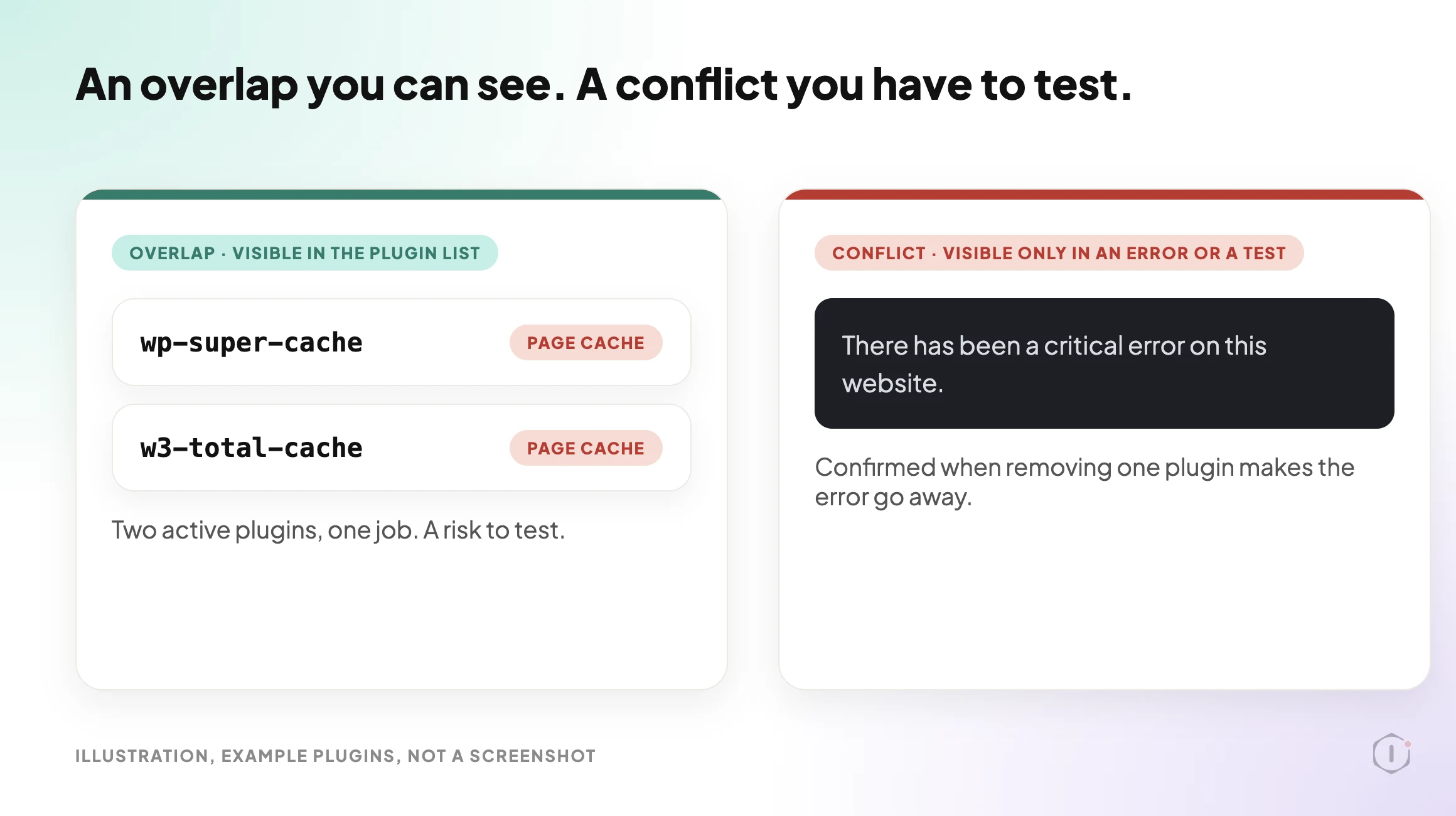
    Illustration comparing an overlap, two active page cache plugins visible in the plugin list, with a conflict, a critical error message that only an error or a test can confirm
    Two plugins on one job is a risk to test, not a proven conflict. Example plugins, not a real run.

    Overlap Is Not The Same As Conflict

    Two words get used as if they meant one thing. They do not.

    An overlap is two active plugins doing the same job. Two page cache plugins. Two SEO suites. Two backup plugins on separate schedules. You can see an overlap from the plugin list alone.

    A conflict is two pieces of code interfering with each other so that something breaks. You can only see a conflict from an error, a log, or a test that fails and then passes when one plugin is removed.

    Overlap is a sensible place to look first, because two plugins doing the same job can end up competing for the same files and settings. But it is only a place to look. Plugin A and plugin B can have nothing in common and still collide, and two plugins in the same job can sit side by side for years without a problem.

    The playbook is built around that gap. It reports overlaps and does not call them conflicts. The step instructions say so directly: say “overlap” or “risk”, never “broken” or “conflicting” as a fact, because the check reads the plugin list, not errors.

    That restraint is what makes the report usable. A report that cried “conflict” about every pair of plugins would train you to ignore it.

    The Playbook, Step By Step

    In the Protuno dashboard the playbook is called Plugin Conflict & Redundancy Check. It carries the Beta label, it has two steps, and it only reads. The public playbooks page lists it under Care with the same name and the same two steps, and says it needs no connector and sets no schedule: it runs when you start it.

    Both steps show Automatic backup as None and Approval checkpoint as Off in the dashboard. No step pauses to ask you anything.

    A short silent video walks through the same two steps.

    Silent video, illustration with example plugins, not a real run.

    Step 1: Plugin Inventory And Classification

    The first step reads the site’s plugin list twice: once for active plugins and once for inactive ones. Every call is a read. No plugin is activated, deactivated, updated, deleted or configured.

    Each plugin is then sorted into one job from a fixed table, by exact slug. The slug is the part of the plugin path before the first slash, so wordpress-seo/wp-seo becomes wordpress-seo.

    Three rules in this step are worth knowing before you read any report.

    • The table is closed. A plugin whose slug is not in the table is marked unclassified. The step is told never to infer a job from a plugin’s name or description.
    • Protuno’s own plugins are left out. The three connection plugins are listed as “Protuno connection” and are never classified or flagged.
    • The counts must add up. Classified plus unclassified plus Protuno connection must equal active plus inactive, and the step checks the sum before it answers.

    There is also a size limit. The reply from the plugin list is cut at 8,000 characters, which the step instructions estimate at about 75 plugins per status. If a list is cut, the step uses the complete items it has and records the inventory as partial. It never guesses the missing ones.

    The Fixed Table Of Jobs

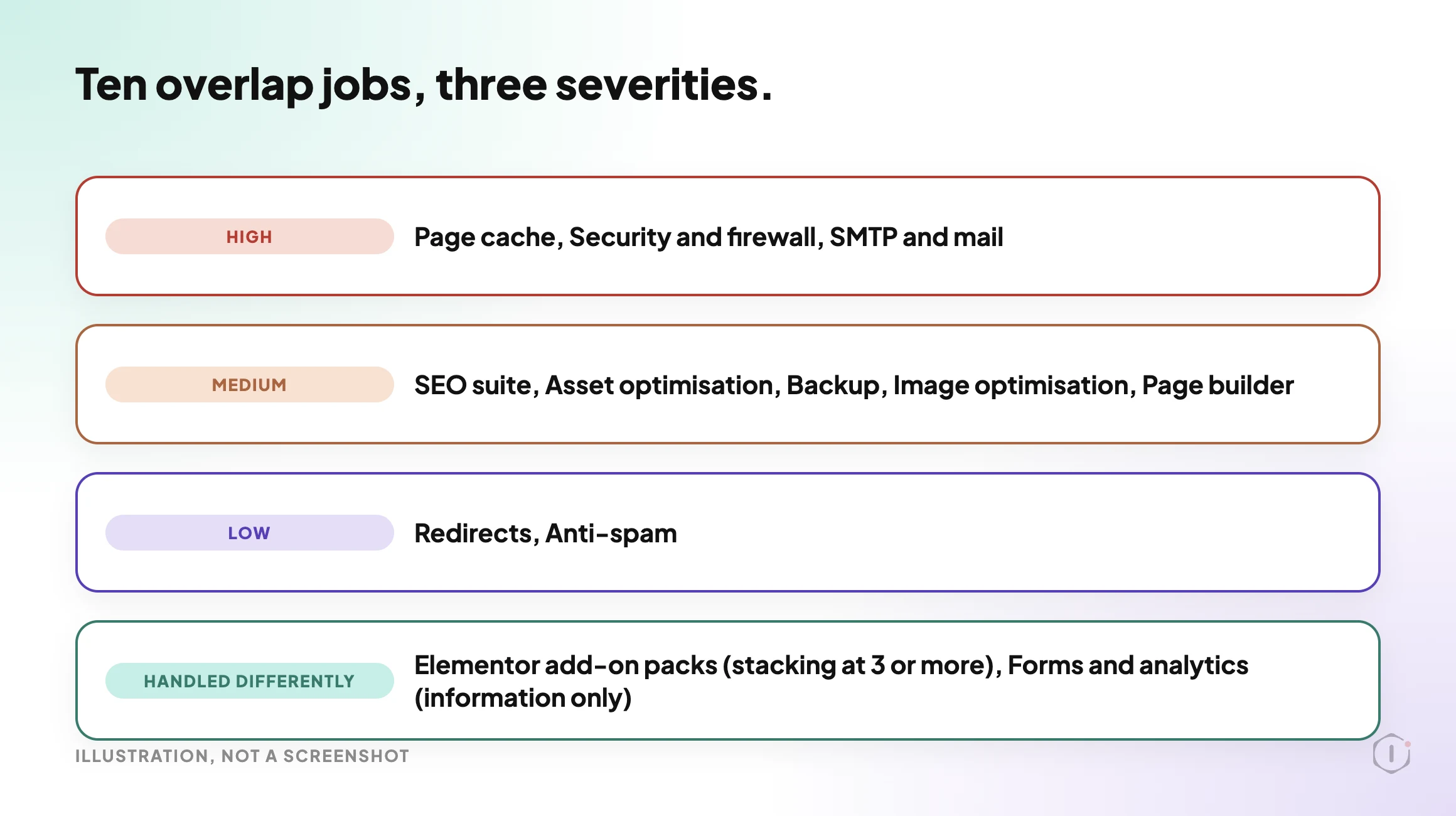
    The table has thirteen jobs. Ten of them can produce an overlap finding, and each carries a severity.

    JobSeverity when two or more are active
    Page cacheHigh
    Security and firewallHigh
    SMTP and mailHigh
    SEO suiteMedium
    Asset optimisationMedium
    BackupMedium
    Image optimisationMedium
    Page builderMedium
    RedirectsLow
    Anti-spamLow

    Three more jobs are handled differently. Elementor add-on packs count as stacking when three or more are active, and that is rated low. Forms and analytics plugins are listed for information only, because several of each on one site is often normal.

    Illustration of the ten overlap jobs grouped into high, medium and low severity, plus the stacking and information-only jobs
    The ten overlap jobs by severity, and the two that are handled differently. Illustration, not a screenshot.

    Step 2: Overlap And Conflict Report

    The second step makes no calls at all. It composes a report from the inventory, and if the inventory is missing or the first step failed, it stops with a broken-chain message rather than inventing one.

    It applies four findings and nothing else.

    1. Overlap. Two or more active plugins in the same job, rated by that job’s severity.
    2. Several installed. Two or more active forms or analytics plugins, listed under “For information” and not treated as a risk.
    3. Add-on stacking. Three or more active Elementor add-on packs, rated low, because of overlapping widgets and extra assets on every page.
    4. Inactive plugin. Every inactive plugin except Protuno’s own, rated low.

    Inactive plugins never count toward an overlap. The reason they still show up is different. Inactive code is still on disk, and the step’s own wording is that it can still be attacked. If a plugin is not needed, delete it from the Plugins screen. The same wording adds that deleting cannot be undone, so keep the zip or a backup.

    Why Each Overlap Matters

    For every job, the step has a fixed reason, so the report explains itself instead of only listing names.

    • Page cache: both try to own the cache and the advanced-cache.php file, so pages can go stale or break after an update.
    • Security and firewall: double login blocking and lockouts, and rules that can block each other.
    • SMTP and mail: both rewrite how mail is sent, and one can silently override the other. A separate post covers email deliverability.
    • SEO suite: duplicate titles, meta tags, sitemaps and schema.
    • Asset and image optimisation: double processing of the same files.
    • Backup: two schedules, double load and storage, and no clear answer on which one restores.
    • Page builder: two editors loading their assets.
    • Redirects and anti-spam: rules evaluated twice, which makes it harder to tell which one acted.

    Each finding names the plugins, gives the reason, and offers one safe next step: on staging, keep one, deactivate the other, then check the front end, forms and checkout.

    What The Report Looks Like

    The report has a fixed layout, so two reports from two sites can be read the same way.

    • Plugins read: the active and inactive counts, and whether the inventory is complete or partial.
    • Summary: overlaps by severity, inactive plugins, and unclassified plugins that were not assessed.
    • Overlaps: a table of severity, job, active plugins, why it matters, and the first step.
    • Add-on stacking, Inactive plugins and For information: each its own short section, or “none”.
    • Not checked: real runtime errors and hooks, each plugin’s own settings, must-use plugins, and every unclassified plugin.
    • Note: a line confirming it was a read-only check and nothing was changed.

    “No overlaps found” counts as a pass.

    A Five-Minute Version You Can Do By Hand

    You do not need a playbook to get the first half of this value. Open the Plugins screen and do this.

    1. Sort the installed plugins in your head into jobs: cache, security, SEO, backup, mail, images, redirects, spam, page builder.
    2. Write down any job that has two active plugins.
    3. Write down every inactive plugin and ask whether anyone needs it.
    4. Mark the overlaps by how much damage they could do. A doubled page cache or a doubled firewall is worse than a doubled redirect plugin.
    5. Pick one overlap. Test it on staging, not on the live site.

    If you test on staging, the staging drift post is about what drifts between staging and live, which matters before you trust a test result.

    The playbook applies the same table to every site you point it at, which is the real gain on a client portfolio. On a single site you own, the manual version is fine.

    What An Overlap Check Does Not Solve

    An overlap report is useful because it is narrow. Here is what it will not do.

    • It does not find conflicts between unrelated plugins. Plugins in different jobs can still collide, and the check cannot see it.
    • It does not read error logs. Logs are where a real error would show. A related post covers the debug log exposed check.
    • It does not judge plugins that are not in its table. They are listed as not assessed, and a re-run gives the same result, because the table is fixed.
    • It does not read plugin settings. Two caching plugins with caching switched off in one of them would still be reported as an overlap.
    • It does not see must-use plugins. The report says so under “Not checked”.
    • It does not fix anything. Fixing an overlap is the site owner’s decision, made on staging first.

    That last point is also a safety property. A tool that only reads and reports cannot break a site.

    If You Already Have A Real Conflict

    Then you need a test, not a report.

    WordPress has a supported way to run one. The Health Check and Troubleshooting plugin on WordPress.org describes a troubleshooting mode: a clean session where all plugins are disabled and a default theme is used, but only for your own user until you turn it off or log out. Everyone else keeps seeing the normal site. That is a safer way to answer the question “is it a plugin?” on a live site, because it does not change what the public sees.

    The Learn WordPress lesson also starts the same way every careful guide does. Make a backup before changing anything, and use a staging site if you have one. If the broken thing is an update you just ran, the update process playbook post is a related read.

    When the cause is a plugin that has stopped receiving updates, the story is different: the premium plugin licenses post and the removed plugin risk post cover two ways a plugin can drift out of support without anything visibly breaking.

    Two Outside Views

    A tutorial and a forum thread. Neither is an endorsement, and neither describes the Protuno playbook.

    In a March 2026 video, Ephraim Creations works through a site that kept crashing and shows the manual route most people take. He switches every plugin off at once by renaming the plugins folder in the host’s file manager, confirms the dashboard loads, renames the folder back so the plugins return in a deactivated state, and then turns them on one at a time until the site breaks again. The video ends with a plug for his own WordPress course.

    On Reddit, an r/Wordpress thread titled “How do you figure out which plugin is causing a conflict when your site breaks?” starts with someone describing the manual method and what it costs:

    u201cThe only way I could figure out to diagnose it was the classic “deactivate all plugins, reactivate one at a time, keep reloading the broken page.”u201d

    Original poster, r/Wordpress, 16 April 2026

    An early reply pushes back on that approach:

    u201cWP_DEBUG, DevTools, server logs. Randomly deactivating plugins and hoping something happens is not how you troubleshoot issues.u201d

    Reply in the same thread, r/Wordpress, 16 April 2026

    The original poster answers that logs gave only generic JavaScript failures with no stack trace pointing at a plugin, and that bisecting never isolates the case where two plugins only break when both are active. That is exactly the situation where a list of overlaps gives you somewhere to start.

    Where Protuno Fits

    The Plugin Conflict & Redundancy Check playbook is the narrow, repeatable part of this problem. It sorts the plugin list into jobs, reports the overlaps, the stacked add-ons and the inactive plugins, and says what to test first on staging. It only reads.

    It sits beside the other checks. A related post on the vulnerability scanner is about installed plugins and known problems, which is a different question from whether two of them overlap. The playbooks page lists the playbooks as Protuno publishes them, and this one has its own page at Plugin Conflict & Redundancy Check.

    The Point

    A plugin list cannot prove a conflict. It can tell you where to look first.

    Read the overlaps by severity, test one on staging, and treat a quiet report as a good result. The next time a site shows that critical error, you will already know which pairs of plugins were worth suspecting.

    Which job has two active plugins on the site you manage right now?

    Sources And Further Reading

  • Find And Replace In WordPress: The Playbook, Step By Step

    Find And Replace In WordPress: The Playbook, Step By Step

    Your company changed its name. Your site did not hear about it.

    The old name is in a hundred places: titles, excerpts, old announcements, a footer line you wrote years ago. Finding them is easy. Changing them safely is where the trouble starts.

    Short answer: a find and replace is safe when it only touches plain text, shows you every change as before and after, and refuses to touch anything it cannot read in full. A phrase can also sit inside a link, a block setting or a shortcode, and changing it there can break the thing it belongs to. Protuno’s Find & Replace Text playbook works in two steps: one read-only step that plans, then one write step that waits for your approval and reads every change back.

    Where a phrase can hide in a WordPress post

    What this post is, and is not: it is a practical walkthrough of how a Protuno playbook works and how to do the same job by hand. It is not a measured result from a real site, and it does not promise that every occurrence of a phrase on your site will be found. It explains what the playbook reads, what it changes, and what it deliberately leaves for a person.

    A phrase in a paragraph is text. A phrase in a link is part of the link.

    Why Search And Replace Goes Wrong

    The usual tool for this job is a search and replace plugin or a command. They are powerful, and that is the problem. A database-wide replace sees one big pile of text. It does not know that one match is a sentence and another match is the address of a page.

    Think about a rename from “Acme Studio” to “Acme Labs”. In a paragraph, the swap is exactly what you want. In a link address such as a URL that contains the old name, the same swap points the link at a page that does not exist. In a block comment that stores a setting, it can change a value the block expects to read back unchanged.

    Nothing warns you. The page still loads. The damage shows up later as a dead link or a block that quietly resets itself.

    A bulk replace is exactly the moment you want a verified backup. And scope matters too: a replace that runs everywhere also runs on menus, options and page builder data you never meant to touch.

    Four Ways To Change Text Across A Site

    There are four common ways to change a phrase everywhere. Each one answers a different question.

    ViewWhat it tells youWhat it cannot prove alone
    The WordPress search box in the Posts listWhich posts mention the phraseWhere in the post it sits, or whether it is inside a link
    A database search and replace pluginEvery matching string in the tables you pickWhether a match was text, markup or a stored setting
    WP-CLI search-replaceA fast, scriptable replace, with a dry run you can ask forWhich matches a person should have judged first
    A scoped, approval-gated playbookA before and after plan for plain text in posts and pagesAnything outside posts and pages, which it leaves alone by design

    None of these is wrong. The WP-CLI search-replace command is well documented, and a plugin such as Better Search Replace is popular for a reason. The mistake is treating a tool that can change everything as if it were a tool that should.

    Four ways to find and replace, and what each one cannot prove

    What The Playbook Looks At

    Find & Replace Text is a Protuno playbook on the Care side of the public Playbooks page. In the dashboard’s Every Playbook list it sits in the Content group. It is marked Beta, it can change the site, and it has 2 steps. It needs no connector. It reads through the Protuno plugin.

    It works on one phrase that you choose, and it works as plain text. The scope is narrow on purpose:

    • Titles, excerpts and content of posts and pages.
    • Every exact match of your phrase.
    • Whether a match also sits inside block markup, an HTML tag or attribute, a shortcode or a link address.

    It never changes post meta, options, menus, widgets or page builder data. It changes at most 10 items per run, and a post that is too long to read in full is not changed at all.

    You set the phrase in the playbook’s Instructions, one option per line:

    Find: Acme Studio
    Replace with: Acme Labs
    Post types: post, page
    Fields: title, excerpt, content

    Only Find: and Replace with: are required. The phrase must be at least 4 characters. Replace with: may be empty, which removes the phrase. Post types and fields are optional, and by default the playbook uses both post types and all three fields. Matching is case sensitive and exact, so “acme studio” is a different string from “Acme Studio”. If either required line is missing, the playbook makes no changes and tells you which line to add.

    The Playbook, Step By Step

    Find & Replace Text is a Protuno playbook with a fixed sequence of two steps. The first step only reads the site. The second changes it, and only after you approve.

    #StepWhat it does
    1Scan And Snapshot MatchesFinds your phrase in posts and pages, plans each change as before and after, and records when each item was last modified. It writes nothing.
    2Apply And VerifyAfter you approve, replaces the phrase in each approved item, skips any item that changed since the scan, and reads each one back to confirm.

    Step 1 is read-only. The dashboard shows its Approval checkpoint as Off and its Automatic backup as None, which fits a step that writes nothing. Step 2 has the Approval checkpoint On: the run waits for your approval. Its Automatic backup also shows None, so the safety net here is the approval, the item-level before and after plan, and the recorded before-values, not a site snapshot.

    Order matters here. The plan comes before the change, and the approval sits between them. If the order were reversed, you would be approving a result after the fact.

    Step 1 does three things worth knowing:

    1. It searches posts and pages, including drafts, pending, private and scheduled items, and keeps the first 10 matches in ID order. Anything beyond that is reported as over this run’s limit.
    2. It reads each item in full. If the reply is cut short, or the content is longer than 6,000 characters, the item is reported as not checked because it is too long to read in full. A change is never planned from a partial read.
    3. It sorts every item into change, review by hand, or no change.

    An item goes into review by hand when the phrase also appears inside block markup, a tag or attribute, a shortcode or a link address. Even one such occurrence in any field is enough. Protuno lists it for you to fix yourself rather than guess.

    Step 2 is careful in a different way. It records when each item was last modified during the scan. Before it writes, it re-reads the item and compares. If the item was edited in the meantime, it skips it with the reason “changed since the scan”. If the phrase now sits inside markup or a link, or has gone, it skips that too.

    Then it writes only the fields that held the phrase, through Protuno’s content update route, which records each changed field’s before-value. After the write it reads the item back. An item counts as changed only when each written field no longer contains the phrase and contains the replacement as many times as the phrase appeared before.

    Watch The Walkthrough

    The video below follows the two steps in order, from the instruction lines to the plan, the approval and the read-back. It is an illustration built from the playbook’s step names and described behaviour. It shows no real site and no measured result.

    Illustration of the two steps, built from the playbook’s step names. It is not a run on a real site.

    What Find And Replace Does Not Solve

    A scoped replace is safe because it is narrow. That also means it leaves things alone.

    • It does not change post meta, options, menus, widgets or page builder data. If your old name lives in a menu label or a builder template, you fix it there.
    • It does not change an item where the phrase also sits in a link, block settings or a shortcode. Those go on the review by hand list.
    • It does not handle more than 10 items per run. A site with hundreds of matches needs several runs.
    • It does not read posts that are too long to read in full, and it says so.
    • In a scheduled run, step 2 is skipped, so a scheduled run never makes the change. A person starts the run and approves it.

    A tool that says what it did not cover is more useful than one that reports a clean sweep. The same thinking sits behind the permission model for agents: the smaller the reach, the easier it is to trust.

    Questions To Ask Your Current Tooling

    Whatever you use for bulk text changes, ask it these:

    • Does it show me every change as before and after, before anything is written?
    • Does it tell me when a match sits inside a link or a setting, or does it replace it anyway?
    • Can it limit itself to titles, excerpts and content, or does it search the whole database?
    • What happens if someone edits a post between the preview and the write?
    • Is the before-value of every changed field recorded, so I can undo it?
    • Does it read the result back, or does it assume the write worked?

    If the answer to most of these is “I am not sure”, you are relying on luck, and a rollback plan is worth having before the next bulk change.

    Which Check Are You Actually Running?

    If you need to knowEvidence to look atNext action
    Which posts mention the phraseSearch results from the Posts listOpen the posts that matter and read them
    Whether a match is plain textThe post in the code editor, or the plan from step 1Change plain text, review the rest by hand
    Whether the change landedA read-back of each written fieldConfirm the count of replacements matches the count of matches
    Whether you can undo itRecorded before-values for each changed fieldUse Rollback on the run in the app

    Rollback is part of the design. Every change the playbook makes is recorded with its before-value, field by field, and Roll back in the app undoes the changes it made.

    Fixing Findings In The Right Order

    When the plan comes back, do not treat every line the same way.

    PriorityWhat to do
    FirstRead the review by hand list. These are the matches the playbook refused to change, and they are where a blind replace would have caused damage.
    SecondRead the before and after snippets for the items marked to change. Look for a replacement that reads oddly in context.
    ThirdCheck the not checked list. Long posts need a manual pass.
    LastApprove the run once the plan reads the way you want.

    Two rules help:

    1. Have a restore point first. Step 2 shows no automatic backup, so take your own before approving anything on a site you care about.
    2. Re-check after the change. Open two or three changed pages and a page from the review by hand list. Read them as a visitor would.

    A Five-Site Audit You Can Do This Week

    You do not need the playbook to test your own process. Pick five sites you look after and, for each one, write down:

    • The phrase that changed most recently, such as a brand name, a product name or a price label.
    • How many posts and pages mention it, from the Posts list search.
    • How many of those mentions are inside a link or a shortcode.
    • Whether the site has a restore point you could use today.
    • Who would approve a bulk change, and where that approval is written down.

    Then decide, for each site, one of these:

    • Fix now: the matches are plain text and a restore point exists.
    • Test first: copy the site to staging and try the replace there. See staging drift for why staging and live can disagree.
    • Replace by hand: the matches sit inside links or settings.
    • Leave it: the old phrase is harmless, and you note who decided and when.
    • Investigate: matches show up in places you did not expect, such as old drafts.

    Why Old Text Quietly Comes Back

    A bulk replace is a one-time event, but old wording finds ways back in: a teammate pastes from an old document, or a reusable block still holds the old name. That is why the playbook reports what it left alone. If you want to keep content tidy in other ways, the Disable Comments playbook and the image alt text audit follow the same read first, change second pattern, and the broken link audit is a useful follow-up after any large text change.

    Two Outside Views

    A tutorial and a forum thread. Neither is an endorsement.

    Extreme How To’s video walks through a plugin route: install Better Search Replace, type the text or URL to find and the replacement, pick the wp_posts table, run a test, then run the replace. The test step is the part worth copying. It is also where the plugin route stops: the plugin counts matches in a table, and it does not say which ones are plain text and which sit inside a link or a block.

    A short tutorial on finding and replacing a URL or text in WordPress with a search and replace plugin, including a dry run before the real change.

    Extreme How To’s, “How to find and replace URL or text WordPress [2026 Full Guide]” on YouTube, 14 Aug 2026

    On Reddit, an r/Wordpress thread is titled as a migration that still cannot update every reference to a local address. I could not read the replies, so this post does not summarise them. The title alone shows the shape of the problem: after a move, old addresses survive in places a simple text search does not reach, which is why a replace needs a plan before it needs a button.

    “Migrating from Studio still can’t update all references to local”

    r/Wordpress, “Migrating from Studio still can’t update all references to local”

    Where Protuno Fits

    Protuno’s Super Agents page describes the Care agent, Wren, as the one that runs updates behind a restore point and watches the jobs that quietly stop. This playbook is one of the Care playbooks that can change a site, so it asks first.

    The pattern is the same every time. Protuno plans the change, shows it to you, waits for you, then writes only what you approved and reads it back. You can see every step written out on the Playbooks page and meet the agents on the Agents page.

    The fields it works with, title, excerpt and content, are the same ones the WordPress REST API reference for posts documents.

    Sources And Further Reading

    The Point

    A find and replace should be boring. You pick a phrase, you see what will change, you approve it, and you check that it worked.

    The risk was never the swap. It was the swap in the wrong place.

    So when you last changed a phrase across a site, did you know which matches were text and which were part of something else?

  • Disable Comments In WordPress: The Playbook, Step By Step

    Disable Comments In WordPress: The Playbook, Step By Step

    You switched comments off. Your site still takes them.

    That is the quiet trap in WordPress. One checkbox sounds like a site-wide switch, and it is not one. If you want to disable comments WordPress-wide, that single setting is not enough.

    Short answer: the Settings > Discussion checkbox only sets the default for posts you write from now on. Every older post, page and media item keeps its own comment and ping setting. To really close comments, you need to close the defaults and the existing items, and keep the comments you already have untouched. Protuno’s Disable Comments playbook does exactly that in two steps: one read-only step that plans, then one write step that waits for your approval.

    Where comments can still be open on a WordPress site

    What this post is, and is not: it is a practical walkthrough of how a Protuno playbook works and how to do the same check by hand. It is not a measured result from a real site, and it does not promise that a closed item will never receive a spam attempt. It explains what the playbook reads, what it changes, and what it refuses to touch.

    A setting is a default. An item is a fact.

    Why The Settings Checkbox Falls Short

    Open Settings > Discussion in WordPress and you will find the box that says people can post comments on new posts. WordPress’s own documentation words it carefully: it is the setting for new articles, and individual articles can override it.

    That wording matters. The box is a template that gets copied onto each new post at creation time. Posts that already exist are not rewritten when you change the template.

    So a site that turned comments off two years ago can still have a hundred older posts with comments open. Spam bots do not care which setting you changed last. If you have ever had to clear a flood of junk, you have met the result. We covered the cleanup side in WordPress Spam Comments: The Playbook, Step By Step. This post is about closing the door instead of mopping the floor.

    There is a second, easier-to-miss setting. Comments and pings are separate switches. A post can have comments closed and still accept pings, the link notifications other sites send. WordPress’s documentation lists them as two different options. Pings are the same family of traffic as xmlrpc.php, so closing comments but leaving pings open leaves half the door ajar.

    Four Ways To Look At The Same Problem

    There are four common ways people turn comments off. Each one answers a different question.

    ViewWhat it tells youWhat it cannot prove alone
    Settings > Discussion defaultNew posts will start with comments closedWhether any existing post is still open
    Bulk edit in the Posts listThe posts you selected are now closedPages, media items, and posts you did not select
    A plugin that removes comments sitewideThe comment feature is hidden or blocked in the siteWhether the stored setting on each item changed, and how you undo it
    Auto-close after a number of daysOld posts close on a schedulePosts newer than the cut-off, and pages and media

    None of these is wrong. They answer different questions, and the mistake is treating the first one as if it answered all of them.

    The part people forget is media. WordPress can keep a comment status on attachment pages too, so an old image can be a place where comments are open even when no post looks open. A hand check that only looks at the Posts screen never sees it.

    An item is open if either comments or pings are open

    What The Playbook Looks At

    Disable Comments is a Protuno playbook in the Content group of the Every Playbook list. It is marked Beta and shown as Can Write, with 2 steps. You will find it in the dashboard’s Every Playbook list, not on the public playbooks page.

    It is built around one rule that is worth reading twice. The playbook only closes comments and pings. It changes two Discussion defaults, and each item’s comment status and ping status. It never deletes, approves, unapproves or edits a comment, and it never touches any other field.

    That scope is the reason it is safe to describe. A tool that can “manage comments” is a broad promise. A tool that can only flip two switches on a list you approved is a small one.

    The Playbook, Step By Step

    Disable Comments is a Protuno Content playbook with a fixed sequence of two steps. The first only reads the site. The second changes it, and only after you approve.

    #StepWhat it does
    1Comments Baseline And SnapshotReads the two Discussion defaults, counts open and closed posts, pages and media, counts existing comments, and plans up to 25 items to close. Writes nothing.
    2Apply Comment ClosuresAfter approval, closes the defaults and the planned items, reads every change back, and checks that the comment count has not changed.

    Here is how each step works, based on the step instructions shown in the dashboard.

    Step 1: Comments Baseline And Snapshot

    This step is 100 percent read-only. It begins with the before-values: whether new posts accept comments, and whether they accept pings.

    Then it reads posts, pages and media, newest first, 100 per page, asking only for the id and the two status fields. Drafts, private, pending and scheduled posts are included, not just published ones. The instructions cap the read at 5 pages per type.

    An item counts as open when its comment status is open, or its ping status is open. The instructions call out one case by name: pings open with comments closed is still open. WordPress’s default “Sample Page” is often exactly like that.

    It also counts existing comments, page by page, and writes down the number. That count is the control for step 2.

    Finally it builds the close list: open items in the order posts, then pages, then media, newest first, at most 25. Each item’s current values are written beside it, so the change can be undone later. The step ends with a plan block that step 2 reads, and nothing else.

    Step 2: Apply Comment Closures

    The dashboard shows this step with an approval checkpoint turned on, which means the run waits for you. Step 1 has no checkpoint because it only reads.

    After you approve, the step does the following, in this order:

    1. If either default is open, it closes both defaults. Nothing else is sent in that settings call.
    2. It re-checks the planned items. An item that is already closed or missing is skipped, not rewritten.
    3. It closes each remaining item, changing only the comment status and the ping status. Each item’s previous values are recorded.
    4. It reads everything back. An item only counts as closed when the read-back shows both comments and pings closed.
    5. It counts comments again and compares with step 1. The count must match, or the step fails.

    The order is the point. The re-check protects against a plan that went stale while you were reading it. The read-back protects against a write that quietly did not stick. The comment recount is the proof that nothing was deleted along the way.

    The report ends with three honest tables: the defaults with before and after values, the items closed, and anything skipped or failed. It says plainly that the Discussion defaults are not covered by rollback, so it tells you the before-values to set them back by hand. The items are covered by rollback, and the report says so.

    The clip above is an illustration of the two steps and their order, built from the playbook’s real step names. It is not a recording of a run and it shows no results.

    What Disable Comments Does Not Solve

    A two-switch playbook has edges. Here they are, so nobody is surprised.

    • It does not delete or moderate comments. Existing comments stay as they are. If you want spam cleared, that is a different job, covered in WordPress Spam Comments.
    • It closes up to 25 items per run. A site with a few hundred open items needs several runs. The plan says how many remain open after each one.
    • It reads a limited window. Step 1 reads at most 5 pages of 100 per type, newest first. On a very large site, treat the first runs as a start, not a full census.
    • It does not remove the comment form from your theme. A closed item stops accepting new comments. How your theme displays a closed notice is a theme matter.
    • It does not stop spam signups or other abuse. If bots register accounts, that lives elsewhere. See WordPress User Roles for the access side.
    • The defaults are not rolled back by Rollback. Only the item changes are. The report gives you the before-values.
    • It has no automatic backup of its own. The dashboard shows Automatic backup as None for both steps. The safety net is the recorded before-values and Rollback for items. Take your own restore point first if the site matters.

    A Small Test You Can Run Today

    You do not need Protuno to see the problem. WordPress exposes each public post’s comment and ping status in its REST API. Try this on your own site:

    # Replace example.com with your domain
    curl -s "https://example.com/wp-json/wp/v2/posts?per_page=100&_fields=id,comment_status,ping_status"
    curl -s "https://example.com/wp-json/wp/v2/pages?per_page=100&_fields=id,comment_status,ping_status"
    curl -s "https://example.com/wp-json/wp/v2/media?per_page=100&_fields=id,comment_status,ping_status"

    Write down, for each type:

    • how many items returned "comment_status":"open"
    • how many returned "ping_status":"open" with comments closed
    • how many are closed on both

    Then compare with Settings > Discussion. If the setting says closed and your list still shows open items, you have just seen the gap this playbook exists for.

    Three cautions. This only sees what the public API shows, so private and draft items are missing from it. Each call returns at most 100 items, so if you get exactly 100 back, there are more. And counting open items tells you what exists, not whether anyone is using it.

    Questions To Ask Your Current Tooling

    If you already use a plugin or a bulk action to turn comments off, ask it plainly:

    • Does it change the stored setting on each existing item, or only hide the form?
    • Does it cover pages and media, or only posts?
    • Does it close pings as well as comments?
    • Can you see the before-values, and can you undo item changes?
    • Does it prove that your existing comments are untouched afterwards?
    • Does it wait for you before it writes?

    A good answer to the last two matters most. A write that cannot be undone and cannot show what it did is the kind of write you should not run on a client site.

    Which Check Are You Actually Running?

    If you need to knowEvidenceNext action
    Will new posts accept comments?Settings > DiscussionClose the default
    Are existing posts open?Each item’s comment statusClose items, with a way back
    Are pings still open?Each item’s ping statusClose pings with comments
    Did anything get deleted?Comment count before and afterCompare the two numbers
    Did the change actually stick?A read-back after the writeOnly trust the read-back

    Fixing Findings In The Right Order

    If your check finds open items, here is a sensible order.

    PriorityFindingWhy
    1Open defaultsEvery new post inherits them, so the problem grows
    2Open posts with the most trafficThey are the likeliest spam targets
    3Pages that accept commentsOften forgotten, rarely meant to be open
    4Media items with comments openInvisible from the Posts screen
    5Pings open with comments closedSame family of traffic, easy to miss

    Two practical rules apply whatever tool you use:

    1. Take a restore point first. The playbook records before-values, but a backup of the database is still the cleanest way back. See WordPress Rollback After An Update for what a rollback can and cannot undo.
    2. Re-check after the change. Run the same count again and compare. If the numbers did not move, the write did not land.

    A Five-Site Audit You Can Do This Week

    Pick five sites you look after. For each one, record:

    • the Discussion default for comments and for pings
    • the count of open posts, pages and media
    • the count of existing comments
    • whether comments are actually wanted on this site

    Then decide for each site:

    • Fix now: comments are not wanted and items are open.
    • Test first: comments are used on some posts, so list which and close only the rest.
    • Replace: a plugin hides the form but items stay open underneath.
    • Remove: a comment plugin you no longer need.
    • Accept with owner and date: comments stay open on purpose, with a named person and a review date.
    • Investigate: the numbers do not match what the owner expects.

    The decision that is easy to skip is the last one. “Open on purpose, owned by someone, reviewed on a date” is a perfectly good answer. “Open because nobody noticed” is not.

    Why Comment Settings Go Stale

    Comment settings drift for ordinary reasons. A new plugin imports old posts with comments open. A theme change adds a feature that re-enables them. A migration copies content but not the default. A team member publishes a page from a template that was built years ago.

    None of it is dramatic. It is just that a setting you checked in March says nothing about the post you published in June.

    That is why it helps to treat this as a check you repeat, not a task you finish. The Settings screen answers one question once. The items answer it again every time something new is created.

    Two outside references show how this looks in practice. A YouTube tutorial covers turning off comments on WordPress posts, and an r/Wordpress thread asks whether comments should stay in core at all.

    A short tutorial on turning off comments on WordPress posts.

    Entrepreneurs Skool, “Disable Comments On WordPress Posts” on YouTube, 28 Aug 2026

    “There is no single “turn off comments” switch. It’s a dance of around 7 setting hooks, last time I checked.”

    r/Wordpress, “Move Comments to a plugin in 8.0”, September 2026

    The video title promises an easy fix. The Reddit reply explains why that is only half true: the setting is spread across several places, which is the gap the two steps above are built to cover.

    Where Protuno Fits

    Protuno is a set of Super Agents for WordPress, each running playbooks against your connected sites. Disable Comments is one of the playbooks in the Content group, available in the dashboard. Other playbooks are listed at protuno.com/playbooks, and the agents are at protuno.com/agents.

    This one changes the site, so it needs the Protuno plugin connected. It plans first, you approve, and it writes only the two comment fields. A human decides every change, and the playbook reports what it did in plain tables.

    If you also care about the other side of tidy access, see WordPress Security Audit for the wider read-only picture.

    The Point

    Closing comments is not one click. It is a default, a list of items, and a proof that nothing was deleted.

    The only honest report is the one that shows the before, the after, and a read-back in between.

    When did you last count how many of your old posts still take comments?

  • Premium Plugin Licenses: The Updates That Stop Quietly

    Premium Plugin Licenses: The Updates That Stop Quietly

    A lapsed license does not break a site.

    It does something quieter: it stops the updates.

    Short answer: A premium plugin keeps running after its license ends, but WordPress plugin updates from the vendor, including security fixes, can stop arriving. To find out where you stand, list every installed plugin, work out where each one gets its updates from, read the license record each vendor’s system left on the site, and sort every plugin into a clear state. When a state cannot be read, call it unknown. Never call it fine. That is the order the Premium License Expiry playbook in the Protuno dashboard follows, and it is a check you can run by hand.

    What this post is, and is not: A practical way to find out which premium plugins on a site have lost their update feed, and how to word what you find. It is not a ranking claim, not legal advice about licensing, and not a result from a real run: no playbook was run for this post, and every visual is a labelled illustration. The step names and rules come from the playbook as the Protuno dashboard shows it. The playbook is Beta and read only.

    Free plugins from the WordPress directory update from one place. Paid plugins update from many.

    Illustration of two update routes on one WordPress site: free plugins updating from the directory, and premium plugins updating through each vendor's own license
    Two update routes on one site. A lapsed license cuts the second one.

    Why A Lapsed License Is Easy To Miss

    Nothing visible happens on the day a license expires. The plugin still loads. The pages still render. The client sees no difference.

    What changes is the supply. A WooCommerce.com subscription, for example, is described by WooCommerce as giving you access to product updates and support for the duration it covers, billed annually or every two years. When that period ends without a renewal, the entitlement goes with it.

    Freemius describes licenses in similar terms: they control access to premium features based on the plan, the billing cycle and the number of allowed activations. Easy Digital Downloads Software Licensing works through its own license records too. Each vendor keeps a different record, in a different place, in a different shape.

    That is the real problem. There is no single license screen for a WordPress site. There is one screen per vendor, and nobody opens six of them on a Tuesday.

    The risk is not the expiry itself. It is the length of time between a security fix being published and anyone noticing the plugin never received it. WordPress 7.1.3, a security release with 7 security fixes, came out on 6 October 2026. Core has its own update path. A premium plugin with a lapsed license may get nothing from its vendor.

    Three Places A Plugin Gets Its Updates

    SourceHow the site learns about updatesWhat a lapse looks like
    The WordPress directoryCore checks the directory and records what it findsNot a license issue. A plugin pulled from the directory is a different problem
    The vendor’s own updaterThe plugin asks the vendor’s server, using a license keyThe key stops working. The plugin runs, and the update offer disappears or fails
    No updater at allNothing feeds itThe plugin was installed from a zip and never checks for anything

    The third row is the dangerous one, because it looks exactly like a healthy site. A plugin that has no updater does not show an error. It just never shows an update.

    Illustration of an inventory table with each plugin's name, version, active state and update source, two rows showing no update source
    An inventory that names the update source makes the silent rows visible.

    A Small Test You Can Run Today

    Open the plugin list on one site. For each plugin you did not get from the WordPress directory, write down:

    • The plugin name and version.
    • Whether it is active.
    • Which company sells it, and where you log in to see its license.
    • The expiry date that account shows, or “no account found”.
    • Whether the Updates screen has ever offered an update for it.

    Then ask one blunt question of every row: if this vendor published a security fix this morning, would this site hear about it?

    A rough way to see what WordPress itself knows about a site’s plugins, from a terminal with WP-CLI:

    wp plugin list --fields=name,version,status,update

    The update column shows what the site currently believes. It cannot tell you why a plugin shows nothing. A blank can mean up to date, or it can mean nothing is checking. That ambiguity is the whole point of this post.

    The Playbook, Step By Step

    Premium License Expiry is a Protuno Maintenance playbook. In the Protuno dashboard it carries a Beta label, is read only and runs seven steps, plus a Brief and Schedule screen. The public playbooks page lists a playbook with the same job under the shorter name License Expiry, described as warning before a paid plugin stops receiving security updates, and shows four steps. This post follows the dashboard’s names and seven steps. Check which version your account shows.

    #StepWhat it does
    1Enumerate Plugins And Update SourcesMakes one read-only call that lists every installed plugin with its name, version, active state and update source. A plugin that is installed but absent from the update records has no updater feeding it. It stops if the core plugin and update records cannot be read
    2Scan EDD LicensesReports the cached Easy Digital Downloads license records that really exist in the site’s options: a prefix, a status, an expiry and whether a key is present. No records is a normal, clean result. It never prints a key
    3Scan Freemius LicensesReports the cached Freemius license state: module, plan, expiry date, and whether it is lifetime or expired. A lifetime license is never reported as expired
    4Scan WooCommerce SubscriptionsReports whether the site is connected to WooCommerce.com, and for each subscription its product, expiry date, and whether it is active, expiring or expired
    5Classify Each PluginGives every plugin one class, with a confidence level and the evidence behind it
    6Optional Live License RecheckMakes no remote call. It needs an approval that a playbook has no interactive step for, and a vendor store address that standard WordPress options do not store. It will not guess one
    7License Expiry ReportTurns the classes into one report with a status of ok, warn or stopped, headlining the dangerous states first

    The order is the safety. Nothing is written at any step, and nothing is called healthy because it was not found broken.

    A 30-second walk-through of the seven steps. All example values are illustrations, not a real run.

    Seven Classes, And What Each One Means

    ClassPlain meaning
    validA license record was read and it is current
    expiring-soonA record was read and the expiry is close
    expired-still-runningThe license has ended, the plugin is still active. Updates are off, but the plugin works
    lapsedThe license has ended in a way the record marks as lapsed
    lifetimeA record was read and it has no expiry
    nulled-suspectA signal that may point to an unlicensed or tampered copy. Worded as “possible unlicensed or nulled copy (confidence: low, medium or high), needs verification”
    unknownThe state could not be determined

    Two of these deserve a pause.

    unknown is the honest class. The playbook’s rule is that an ambiguous or absent status is unknown, never valid, and that a vague match is never asserted as valid. A plugin the system cannot read gets reported as “unknown (not determined)”. It does not get the word fine.

    nulled-suspect is the class that can do harm if it is worded carelessly. A weak signal, for example a name with “Pro” in it and no entry in the update records, is not evidence of anything. Many paid plugins never appear in those records until their own updater has run. So every nulled-suspect line carries a confidence level, and a low-confidence line is a prompt to verify, never an accusation.

    What The Report Treats As Urgent

    FindingConfidenceHow it is treated
    expired-still-runningHigh, because a license status was actually readHeadline. The plugin works, but security updates are off
    lapsed or expiring-soonRead from a recordWarning
    nulled-suspectMedium or highWarning, worded as a possible unlicensed copy that needs verification
    nulled-suspectLowListed under “Needs verification”. Never urgent
    unknownNot determinedReported as unknown. Does not change the status

    For a low-confidence line, the advice is deliberately mild: open the plugin’s own license or settings page and confirm the license is active. If it is, there is nothing to do. The report does not tell you to remove, replace or switch a plugin on a weak signal.

    The status follows the same logic. The report is warn when any plugin is expired-still-running, lapsed or expiring-soon, or when a nulled-suspect has medium or high confidence. Low-confidence rows alone leave the status at ok, because otherwise every site whose connector plugin updates itself would be flagged.

    What A License Check Does Not Solve

    • Whether the plugin is any good. A valid license on an abandoned plugin is still an abandoned plugin. Our post on what a removed plugin leaves behind covers that side.
    • Whether a plugin has a known vulnerability. A license is about the update supply. Matching installed versions against vulnerability data is a different check, covered in vulnerability monitoring.
    • Vendor records the site does not keep. The playbook reads cached records on the site for Easy Digital Downloads, Freemius and WooCommerce.com. A vendor with its own system, or an account that only lives on the vendor’s server, is not covered by those steps.
    • A live answer from the vendor. Step 6 makes no remote call. What you get is what the site last recorded, not today’s answer from the vendor’s server.
    • Renewals. It reports. It never renews, updates or changes a license.
    • Sites that cannot run PHP. If the check cannot read the site’s own records, it says so and stops. It does not infer a license state from anything else.

    Which Check Are You Actually Running?

    If you need to knowThe evidenceNext action
    Whether a paid plugin is still being updatedThe update source and the license record, side by sideRenew, or plan a replacement
    Whether an installed plugin has a known security holeVersion against vulnerability dataRead the vulnerability monitoring approach
    Whether an update is safe to applyA backup, a test and a rollback pathSee how a safe update playbook is written down
    Whether the license cost belongs in the care planThe number of paid plugins and their renewal datesSee care plan economics

    A Five-Plugin Audit You Can Do This Week

    Pick five premium plugins across your busiest client sites. For each, record:

    1. The vendor and the account that owns the license. Is it your account, the client’s, or a former developer’s?
    2. The expiry date, or “not found”.
    3. The date of the last update the site actually received.
    4. Whether the plugin is active and whether anything depends on it.
    5. Who gets the renewal email, and whether that address still works.

    Then pick one outcome per plugin: renew now, move the license to the right owner, replace the plugin, leave it with a dated note, or confirm the license state with the vendor.

    The fifth question is the one that bites. A renewal notice that goes to a former contractor’s inbox is how a license lapses without anyone deciding to let it. Writing the owner and the renewal date into the maintenance contract is a small change that closes it.

    If A License Has Already Lapsed

    Do these in order:

    1. Take a backup, and make sure it restores.
    2. Check whether the vendor has published updates since the license ended.
    3. Renew, or schedule the plugin’s replacement.
    4. After renewing, re-read the Updates screen and confirm the offer comes back.
    5. Test the update on a copy before applying it live.

    If an update goes wrong, a clear undo is what matters. Our post on what an automatic rollback really reverses is a good test of any undo claim. If you suspect a plugin has already been used against the site, start with the first hour after a hack and ignore this post.

    Two Outside Views

    A tutorial and a forum thread. Neither is an endorsement.

    Presslyte’s tutorial on updating WordPress plugins safely walks through a five-step routine: back up, review, update one plugin, check the site and repeat. It also says that if the update source or support status is unclear, you should stop and verify it before going on.

    A beginner tutorial on updating WordPress plugins safely: back up, review, update one plugin, check the site and repeat.

    Presslyte, “How to Update WordPress Plugins Safely” on YouTube, 2 Sep 2026

    On Reddit, an r/Wordpress thread asks whether people wait for Black Friday to buy yearly plugin licenses, and the replies talk about monthly versus annual plans, lifetime deals and whether a first-year discount is worth it. It is a useful reminder that every yearly license is also a renewal date someone has to own.

    “A lot of plugin vendors discount only the first term, and year two renews at full price.”

    r/Wordpress, “Are you waiting for BlackFriday/CyberMonday with plugin purchases?”, September 2026

    Where Protuno Fits

    In the Protuno dashboard, Premium License Expiry sits with the Care playbooks. It is a Beta playbook that only reads, so it does not change a plugin, renew a license or print a key. It needs the Protuno plugin on the site first, and on the one connected site in the dashboard it is not switched on, so there is no run to show here.

    It does not decide whether to renew, and it does not replace asking the vendor. If a site is behind on core, update it first: WordPress 7.1.3, a security and maintenance release, came out on 6 October 2026.

    Sources And Further Reading

    The Point

    A lapsed license does not announce itself. The plugin keeps working, and the updates stop.

    List every plugin, find where each one gets its updates, read the license records, and write unknown when you cannot tell.

    Which premium plugin on your busiest site has no renewal date written down anywhere?

  • WordPress Staging Site: What Drifts From Live

    WordPress Staging Site: What Drifts From Live

    The update passed on staging. You pushed it to live. Live broke.

    Nobody did anything wrong in the update itself. The test was honest. It was just run against a site that had quietly stopped being a copy of the one that matters.

    That gap has a name worth using with clients: drift. A WordPress staging site and its live twin start identical on the day the clone is made, and then they separate, one small change at a time, until the test tells you about a site that no longer exists.

    Short answer: a staging site is only as useful as the distance between it and live, and that distance is measurable. Before you trust a staging test, compare six things: plugin and theme versions, database content, settings rows, the search engine visibility flag, cron, and the caching and CDN layer. If any of them differ in a way that touches the change you are testing, the test proved less than you think.

    What this post is, and is not: this is a comparison routine you can run yourself on two sites you control, from outside and from inside. It is not a claim that a matched staging site makes an update safe, and it is not a review of any specific host’s staging feature. Hosts implement staging differently, so confirm how your own host’s push behaves before you rely on it.

    A side by side comparison of a live WordPress site and its staging copy, with three rows highlighted where the two no longer match.
    The clone was identical on day one. This is day ninety.

    Why A Matching Staging Site Stops Matching

    Nobody decides to let staging drift. It happens because the two sites are used by different people for different reasons.

    Live gets content. Orders, posts, form entries, new users, a plugin the client installed after seeing it recommended somewhere. Staging gets experiments. A theme tweak nobody reverted, a plugin activated to test one thing six weeks ago, a constant added to wp-config.php during a debugging session.

    Both sites are being maintained honestly. They are just being maintained in different directions.

    The failure this produces is specific and it is the worst kind: a false pass. A failed staging test is useful, because you learn something before the client does. A passed staging test on a drifted site teaches you nothing and feels like proof. You then push to live with the confidence of someone who tested, which is exactly the confidence that skips the backup step.

    That is why drift belongs in the same conversation as the update process written out before it runs. A pre-flight that includes “did staging actually match” is a different pre-flight from one that only asks “did staging pass”.

    Why Core Version Drift Is Worse This Month

    WordPress 7.1.3 shipped on 6 October 2026 as a maintenance and security release, with 7 security fixes and 4 bug fixes. The announcement recommends updating immediately.

    Live sites that take a release like that quickly move to a new core version. A staging copy cloned last month does not move with them. It sits on the old core until somebody remembers it exists.

    So the first drift of the season is the boring one: live runs the patched core and staging runs the one before it. Any test you run on staging now is a test of a version your live site has already left. The plugin updates you queue up next are tested against the wrong foundation.

    The Six Things That Drift First

    Across sites, the same six categories separate before anything else does. They are listed here in the order you should check them, which is roughly the order of how often they bite.

    #What driftsHow it usually happensWhat it costs you
    1Plugin and theme versionsLive gets updates, staging does not, or the reverseYou test against code the live site is not running
    2Database contentLive keeps collecting orders, posts, users and form entriesQueries behave differently at a different row count
    3Settings rowsA plugin reconfigured on one site only, usually during debuggingThe feature you tested is configured differently on live
    4Search engine visibility flagThe clone discourages search engines, and a push carries it backLive goes no-index without anyone noticing
    5CronStaging cron is disabled to stop duplicate emailsScheduled work passes on staging because it never ran
    6Caching and CDNStaging has no page cache and no CDN in front of itNothing you measured about speed transfers to live

    Four and six deserve a sentence more than the table gives them. Cron, row five, is the other quiet one, and it gets its own check further down.

    The visibility flag is the one that turns a maintenance task into an SEO incident. Most staging clones are deliberately set to discourage search engines, which is correct for staging. The danger is the direction of travel: if a full database push moves that option row back to live, the live site is now asking not to be indexed, and nothing on the front end looks wrong. What that setting actually does, and what it does not do, is covered in the robots.txt myth. Read that before you decide how worried to be.

    Caching is the one people misread. A staging site usually runs with the page cache off and no CDN pointed at it, which makes it a reasonable place to test functionality and a poor place to test anything about speed or headers. If your test involved a page loading faster, you measured a site with a different delivery layer. The WordPress page cache header lies explains why the header you would check to confirm this is itself not trustworthy on its own.

    One small setting helps with all six, and it is easy to skip. WordPress lets a site declare an environment type: local, development, staging or production. A site that never sets it is treated as production. If staging and live each declare what they are, plugins and hosts have something honest to read, and you have a one-line fact to compare.

    Diagram of the six categories that drift first between a WordPress live site and its staging copy, with the visibility flag and cron rows flagged.
    Two of the six fail silently. Those are the two to check first.

    Comparing The Two Sites From Outside

    Start outside, because it needs no access and it catches the loudest differences in a couple of minutes.

    Request the same path on both hostnames and compare the responses. You are looking for four things:

    1. The HTTP status and the final URL after redirects. A staging site that redirects somewhere unexpected is telling you its site URL rows are wrong.
    2. The X-Robots-Tag response header, and the robots meta tag in the HTML, on both.
    3. Any cache or CDN headers present on live and absent on staging, or the reverse.
    4. The generator tag and any versioned asset URLs, which give you a rough read on whether core and plugin versions line up.

    Then fetch /robots.txt on both and read them side by side rather than skimming.

    curl -sI https://example.com/ | grep -i -E "^(HTTP|location|x-robots-tag|cache-control|age|cf-cache-status|x-cache)"
    curl -sI https://staging.example.com/ | grep -i -E "^(HTTP|location|x-robots-tag|cache-control|age|cf-cache-status|x-cache)"

    This outside pass will not tell you about settings rows or database size. It will tell you within minutes whether the two sites disagree about what they are, which is the category of drift most likely to cause a visible incident.

    Comparing The Two Sites From Inside

    The inside pass is where the real distance shows up. On both sites, record the same short list, then diff it:

    • WordPress core version.
    • Every installed plugin, its version, and whether it is active. Inactive but installed counts.
    • Every installed theme and which one is active.
    • The values of blog_public, home, and siteurl.
    • The row count of your largest content tables, and the total number of rows in the options table.
    • Whether DISABLE_WP_CRON is defined, and when the next scheduled event is due.
    • The environment type each site declares, and any constants in wp-config.php that exist on one site and not the other.

    Two of these are easy to get wrong. Inactive plugins matter because a push can activate them and because they still receive updates. And the options table is worth counting rather than eyeballing: the autoloaded portion of it behaves differently at different sizes, and the autoload query everyone is running covers how to measure it properly.

    Cron deserves its own check rather than a line in a list. A staging site with cron disabled will pass a test of anything scheduled, because nothing scheduled ran. You did not test the feature. You tested that the feature did not crash while sitting still. The failure that never alerts you is the same failure mode on live, which is a useful reminder that this is not a staging-only problem.

    One more inside check is worth the minute it takes: the PHP version. Staging and live on the same host usually match, but not always, and a staging environment left on an older branch will accept code that live rejects outright. The WordPress PHP version problem is the longer argument for treating this as a scheduled concern rather than an occasional one.

    What A Push Overwrites

    Before you push staging to live, the question to answer is not “is the code ready”. It is “what on live is about to be replaced”.

    A files push, a database push and a combined push each replace something different. The database push is the one that ends careers, because live kept collecting real work while staging sat still, and a full database push replaces that work instead of merging it. It also carries the options table, which is how a staging no-index flag reaches a production site.

    Two rules make this survivable. Take a restore point immediately before the push and confirm it is real, which is the whole argument of verifying a WordPress backup. And know in advance what a rollback can and cannot reverse, as set out in what an automatic rollback can undo and what it destroys.

    After the push, re-check the same six categories against live. Re-check the visibility flag and cron first, because those are the two that fail silently.

    A 2026 guide to creating a WordPress staging site, in about three minutes.

    Robbie’s Tutorials, “How to Create a WordPress Staging Site [2026 Full Guide]” on YouTube, 25 Jun 2026

    Has a migration or update ever gone wrong on a live site? What happened?

    r/Wordpress, “How do you handle moving WordPress sites between local/staging/production?”, August 2026

    Both are about getting a staging copy right. The video covers setting one up. The thread is a working question about moving sites between local, staging and production, and the line quoted above is the one this post answers: what goes wrong, and how you would have known.

    What Comparing Staging To Live Does Not Solve

    A matched staging site is a better test. It is not a safe one.

    Even with zero drift across all six categories, a staging test cannot tell you whether:

    • the update behaves the same under real traffic, because staging has none;
    • a third party integration will respond, since most are pointed at test credentials or nothing at all;
    • an email actually sends, because staging usually has outbound mail suppressed on purpose;
    • a payment path completes, for the same reason;
    • a scheduled job runs correctly over days rather than in a single manual trigger;
    • the CDN in front of live will serve the new asset, since staging is not behind it; or
    • the change interacts badly with data volumes that only exist on live.

    None of that is an argument against staging. It is an argument against reading a staging pass as a guarantee. The honest sentence to put in a client report is the same one that belongs in any check: what was tested, on what, and what was not assessed.

    There is also a drift you cannot close by matching. A staging site matched to live on Monday has drifted again by Friday, because live kept working. A comparison is a snapshot, so the useful question is not whether staging matched, but when you last checked that it did.

    Sources And Further Reading

    Which Of Your Staging Sites Is Still A Copy?

    If you run twenty sites, you probably have twenty staging environments, and you almost certainly do not know which ones still resemble the sites they were cloned from.

    Pick five. Run the outside pass, then the inside pass. Record the drift age, the version differences, the visibility flag, and the cron state for each pair.

    So: on the last update you pushed from staging, could you have said, with evidence, how far that staging site had drifted from live before you trusted the test?