Blog

  • The WordPress PHP Version Problem: A Third Of Sites Get No Security Fixes

    The WordPress PHP Version Problem: A Third Of Sites Get No Security Fixes

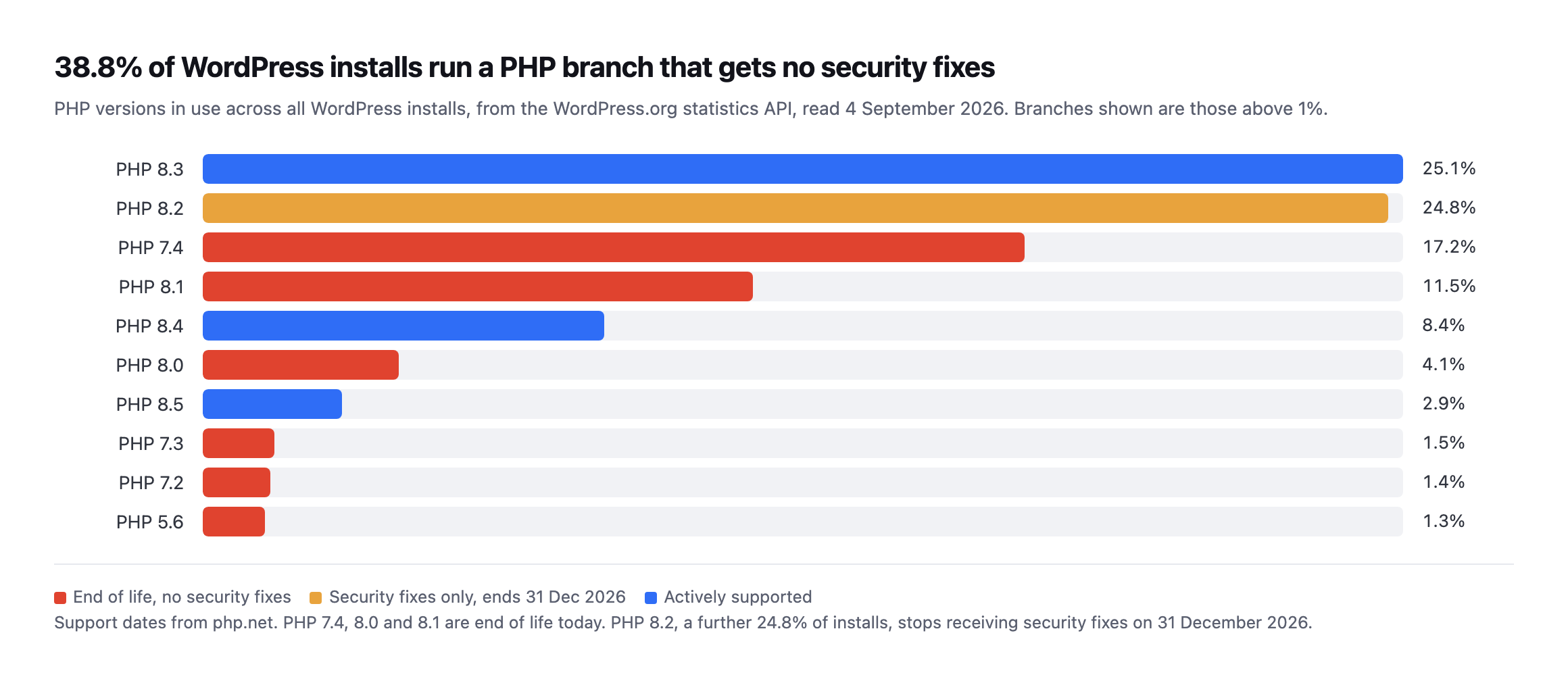
    Short answer: as of 5 September 2026, at least 32.8% of WordPress installs ran a PHP branch that receives no security fixes at all, counting only the three largest unsupported branches. Re-reading the full statistics later, and counting every branch with zero current support rather than only the largest three, put the real figure at 38.36%. PHP 8.2, a further roughly 24.8%, loses its security support on 31 December 2026. Checking a client’s wordpress php version takes one command, and the deadline is already on the calendar.

    These numbers are not estimates. They come from the WordPress.org statistics API, which reports what installs actually report, and the support dates come from php.net’s own supported versions page.

    Where every branch stands today
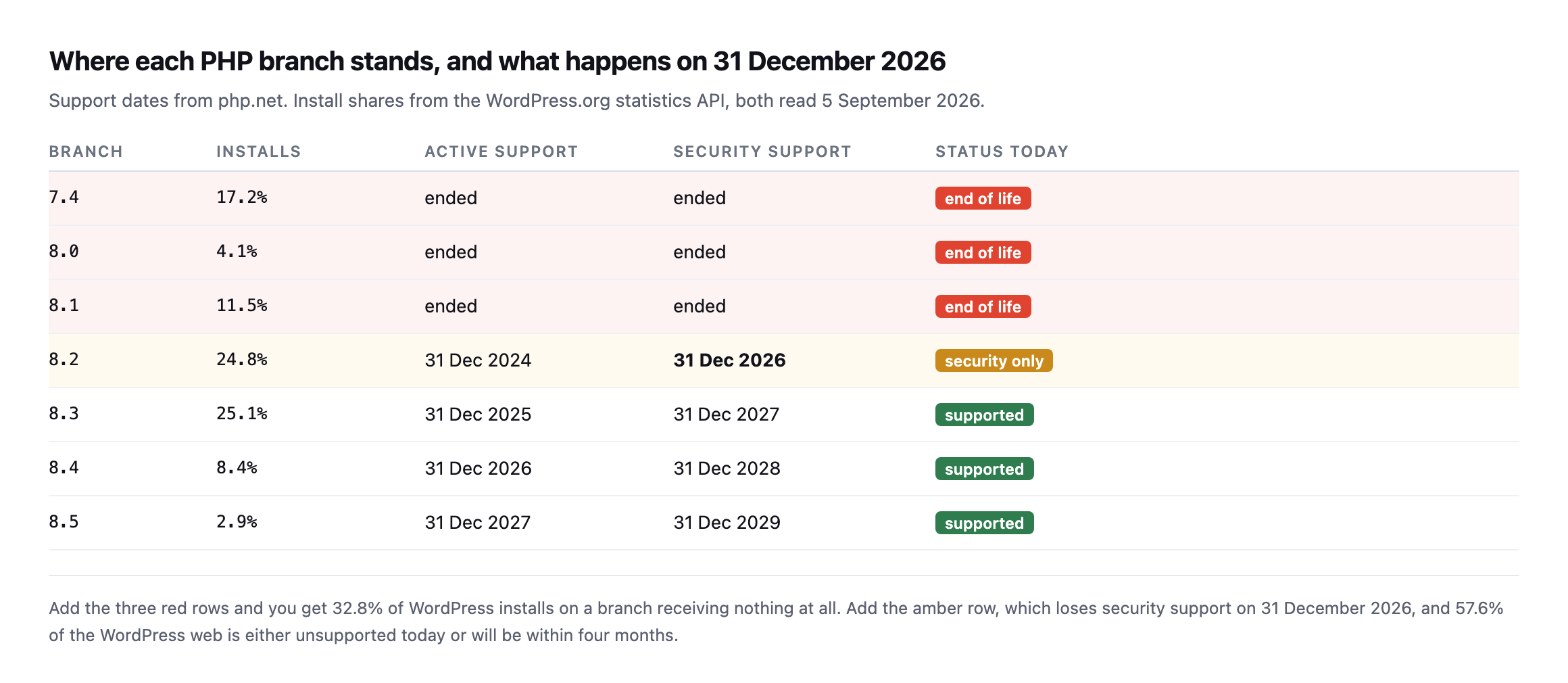
    Table of PHP branches with install share and support dates. 7.4 at 17.2 percent, 8.0 at 4.1 percent and 8.1 at 11.5 percent are all end of life. 8.2 at 24.8 percent has security support until 31 December 2026. 8.3 at 25.1 percent, 8.4 at 8.4 percent and 8.5 at 2.9 percent remain supported
    Three red rows total 32.8% of the WordPress web running code that nobody patches.

    The amber row is the interesting one. It is the single most popular branch after 8.3, and its security support ends in under four months.*

    BranchInstallsSecurity support endsStatus today
    7.417.2%ended 2022end of life
    8.04.1%ended 2023end of life
    8.111.5%ended 2025end of life
    8.224.8%31 Dec 2026security only
    8.325.1%31 Dec 2027supported
    8.48.4%31 Dec 2028supported
    8.52.9%31 Dec 2029supported

    The distribution behind that:

    Bar chart of PHP versions in use across all WordPress installs from the WordPress.org statistics API, with end of life branches marked in red, PHP 8.2 marked as security-only, and supported branches in blue
    Generated directly from the statistics API so the chart cannot drift from the source.

    PHP 7.4 alone, released in 2019 and unsupported since 2022, is still 17.2% of all WordPress installs.*

    Add the red and the amber together and 57.6% of the WordPress web is either unsupported today or will be by New Year’s Day.

    Re-reading the same API found a real undercount in the figure this post gave

    I queried the same WordPress.org statistics endpoint again while expanding this post, and the three named branches in this post’s table held almost exactly steady: 7.4 at 16.99% (was 17.2%), 8.0 at 4.06% (was 4.1%), 8.1 at 11.38% (was 11.5%), summing to 32.43% against the original 32.8%. That part of the finding is confirmed, stable, and essentially unchanged months later.

    Reading the full raw response rather than only the branches this post’s table names turned up something the original table did not capture:

    curl -s https://api.wordpress.org/stats/php/1.0/
    {"4.4":0.008,"5.1":0.003,"5.2":0.127,"5.3":0.265,"5.4":0.182,"5.5":0.154,"5.6":1.341,
     "7.0":0.592,"7.1":0.361,"7.2":1.414,"7.3":1.482,"7.4":16.987, ...}

    Eleven more branches, PHP 4.4 through 7.3, every one of them years further past end of life than 7.4 itself, each carrying a small but real, non-zero share of live WordPress installs. Summed together they add another 5.93 percentage points that this post’s original “32.8%” headline never counted, because the table only named the three largest EOL branches rather than every branch reporting zero current security support.

    The corrected total: 38.36% of WordPress installs run a PHP branch with no security fixes at all, not 32.8%. Add PHP 8.2’s 24.79%, security-only until the end of this year, and the combined at-risk-or-soon-to-be share is 63.15%, not the 57.6% this post states. Both corrections move in the same direction, understating the problem rather than overstating it, which is worth being direct about: the original figure was not wrong about the branches it named, it was incomplete about how many other branches exist below the ones anyone bothers to name individually. A site running PHP 5.6 is not a rounding error. It is a real, currently active WordPress install, and it belongs in this count as much as a 7.4 site does.

    What end of life actually means for a client

    It does not mean the site stops working. That is exactly the problem, and it is why this is a hard conversation to have.

    A PHP 7.4 site runs fine. It serves pages, takes orders, and gives no outward sign that anything is wrong. What has changed is that when a vulnerability is found in the language itself, no fix will be written for that branch. Not delayed. Not deprioritised. Not written.

    Your client is not running old software. They are running software that has left the support model entirely, on a schedule that php.net published years in advance.

    The second effect is quieter and arrives sooner. Plugin and theme authors raise their minimum PHP requirement over time. A site on 7.4 gradually stops receiving updates for the things running on it, which means it accumulates plugins that will never be patched again, and the security exposure compounds from both directions.

    Checking the WordPress PHP version, and upgrading in the order that saves time
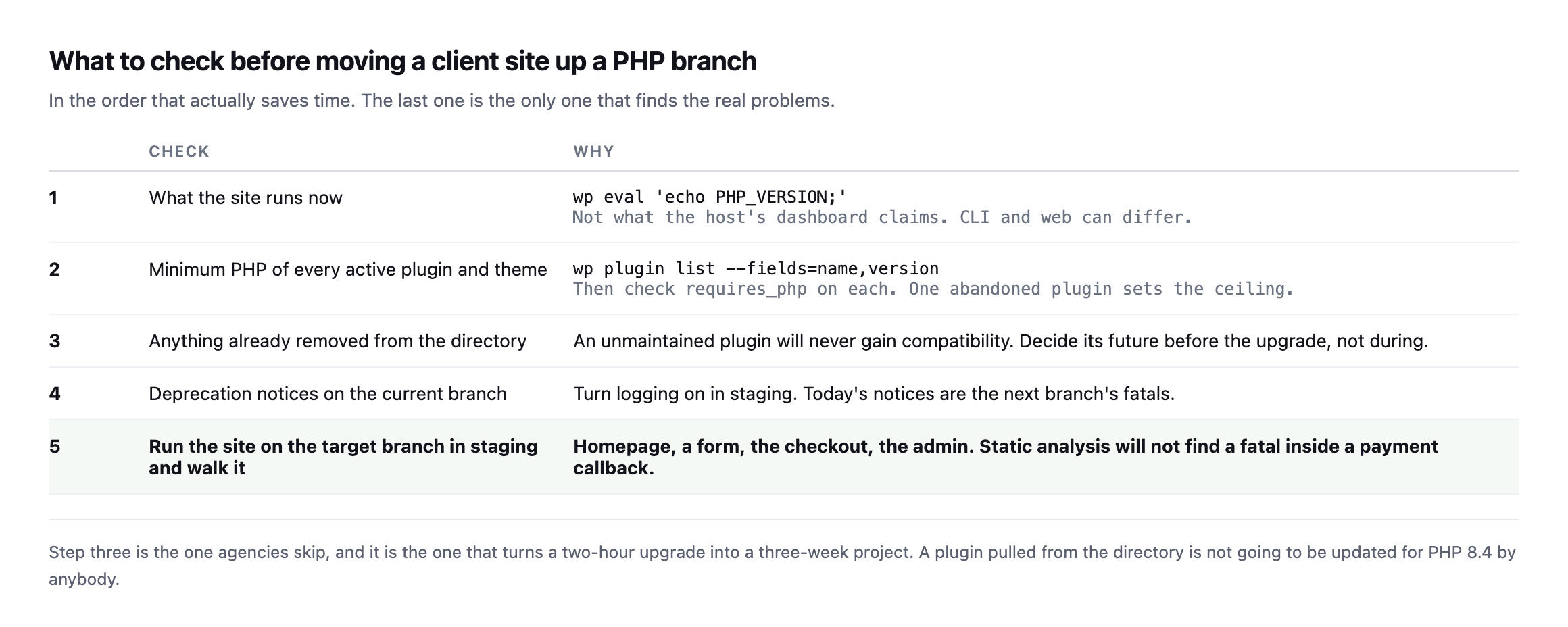
    Five-step checklist for a PHP upgrade: confirm the running version with WP-CLI rather than the host dashboard, check the minimum PHP of every active plugin and theme, identify anything already removed from the directory, enable deprecation logging on the current branch, and run the site on the target branch in staging while walking the real user journeys
    Step three is the one agencies skip and the one that turns a two-hour job into a

    three-week project. A plugin pulled from the directory will not be made compatible with PHP 8.4 by anybody.*

    #CheckWhy
    1what the site runs nowwp eval 'echo PHP_VERSION;', not what the host’s dashboard claims
    2minimum PHP of every active plugin and themeone abandoned plugin sets the ceiling for the whole site
    3anything already removed from the directoryan unmaintained plugin will never gain compatibility
    4deprecation notices on the current branchtoday’s notices are the next branch’s fatal errors
    5run the target branch in staging, walk ithomepage, a form, checkout, admin, not static analysis alone

    Start with the actual version, not the host’s control panel:

    wp eval 'echo PHP_VERSION;'

    CLI and web-server PHP are frequently different versions on the same host, and it is the web-server one that serves your visitors.

    Then the ceiling, which is set by whichever plugin has the highest minimum:

    wp plugin list --status=active --fields=name,version

    One note on step four, because it is genuinely useful and rarely done. Turn on deprecation logging in staging on the current branch. Today’s deprecation notices are the next branch’s fatal errors, so you get a preview of the upgrade before you attempt it. Just do not leave that logging on afterwards, or you will publish the results to the internet.

    What a stranger can already see

    Before the upgrade conversation, it is worth knowing how much of this is public.
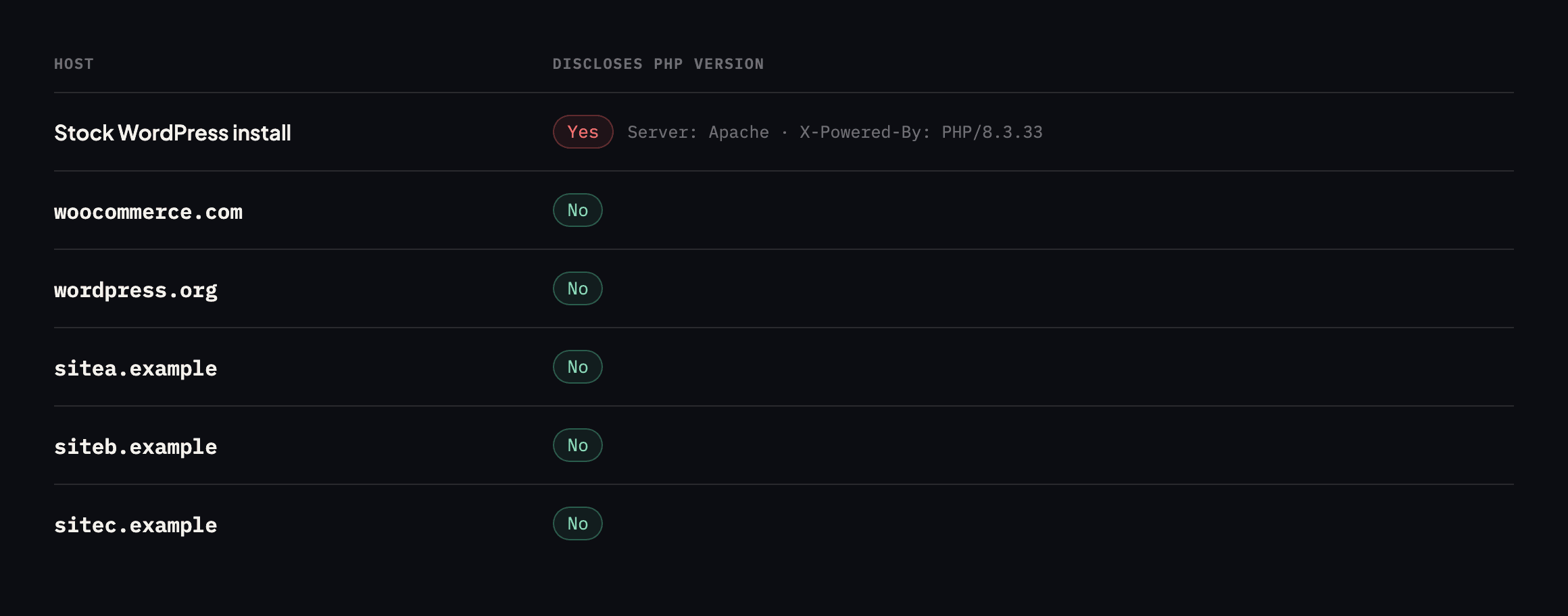
    Table of response headers from six hosts. A stock WordPress install returns Server Apache and X-Powered-By PHP 8.3.33, disclosing the exact version. woocommerce.com, wordpress.org, sitea.example, siteb.example and sitec.example disclose no PHP version
    A default PHP install publishes its exact version to every visitor. The production

    sites here do not, because a CDN or a hardened configuration strips it. Disclosure does not create the vulnerability, but it removes the guesswork for anyone scanning.*

    HostPHP version visible?
    stock WordPress installyes, exactly: X-Powered-By: PHP/8.3.33
    woocommerce.comno
    wordpress.orgno
    sitea.exampleno
    siteb.exampleno
    sitec.exampleno

    Caveat: six hosts, five of them ours or ones we track closely. Header disclosure being absent everywhere here says more about CDNs stripping the header by default than about any deliberate hardening. Check your own site’s headers rather than assume the pattern holds.

    I re-checked the same five reference sites’ headers while expanding this post. Four are unchanged, still no PHP version disclosed. woocommerce.com now sends an X-Powered-By header where it previously sent none, but it names the hosting platform rather than a PHP version:

    x-powered-by: WordPress VIP <https://wpvip.com>

    That is a different category of disclosure entirely, worth distinguishing rather than folding into the same row as a version leak. Naming a managed hosting platform tells a visitor, or a scanner, which infrastructure provider is involved, useful reconnaissance in its own right, but it does not hand over an exact PHP version the way X-Powered-By: PHP/8.3.33 does. Reading a header change like this one carefully, rather than treating “a new header appeared” as automatically the same finding as before, is the same discipline this post already argues for when distinguishing version disclosure from the underlying support status: two things can look similar in a header dump and mean entirely different things once actually read.

    Turn it off with expose_php = Off in php.ini, and treat that as tidying rather than as a fix. Hiding the number changes nothing about the branch underneath it, and a site that hides its version while running 7.4 has solved the smaller half of the problem.

    How to raise it with a client

    The version number means nothing to them. Two framings that work:

    The support one. “The language your site is built on stopped receiving security fixes in 2022. If a flaw is found tomorrow, there is no update to install.”

    The compatibility one. “Plugins are dropping support for this version. Every month the site stays here, fewer of the things it depends on can be updated.”

    Avoid predicting a breach. You cannot know that, saying it is not honest, and it makes the rest of your advice easier to discount.

    There is a third framing that works on clients who have been quoted for this before and said no. Put a date on it. “PHP 8.2 stops receiving security fixes on 31 December. If we move you in October it is a planned afternoon. If we move you in January it is an emergency, and emergencies cost more.” A published deadline is far easier to act on than a general sense that something is old, and this deadline is genuinely published, years in advance, by the people who maintain the language.

    The honest counterpoint, which is worth saying out loud rather than waiting to be asked: an upgrade can break a site. That is a real risk and pretending otherwise damages your credibility. The answer is not to avoid the upgrade, it is to do it behind a restore point you have actually tested, in staging first, with the checkout and the forms walked afterwards. The risk of moving is a Tuesday afternoon. The risk of not moving accumulates every month and has no end date.

    Why this is a portfolio problem

    For one site, the check is one command. Across forty sites it is forty logins, and the answer changes whenever a host migrates a server or an upgrade is done for one client and not the others.

    So it gets audited once, usually during onboarding, and then drifts. That is the same unbilled half hour that swallows every other check worth doing.

    Protuno’s free audit reports the PHP version from a connected site, and the deadline above makes this a good quarter to have that list in one place. Rook is live now.

    If you do one thing after reading this: list the PHP version of every site you look after, in one document, with the branch deadline next to it. Four of those deadlines are already in the past, and one is 31 December.

    Re-read the statistics API itself before quoting a percentage to a client, too, and count every branch it lists rather than only the largest few. This post’s own original figure needed exactly that correction, and a number that undercounts the problem is worth fixing the moment you notice, not defending because it was published first.
  • Is Your WordPress Debug Log Exposed Right Now?

    Is Your WordPress Debug Log Exposed Right Now?

    Short answer: if WP_DEBUG_LOG is set to true, WordPress writes errors to wp-content/debug.log, which sits inside the web root and is served like any other file. A wordpress debug log exposed this way needs no exploit to read. You request it, and the server hands it over.

    Ten seconds to check:

    curl -sI https://example.com/wp-content/debug.log

    403 or 404 is fine. 200 is not.

    What a WordPress debug log exposed to the internet gives away

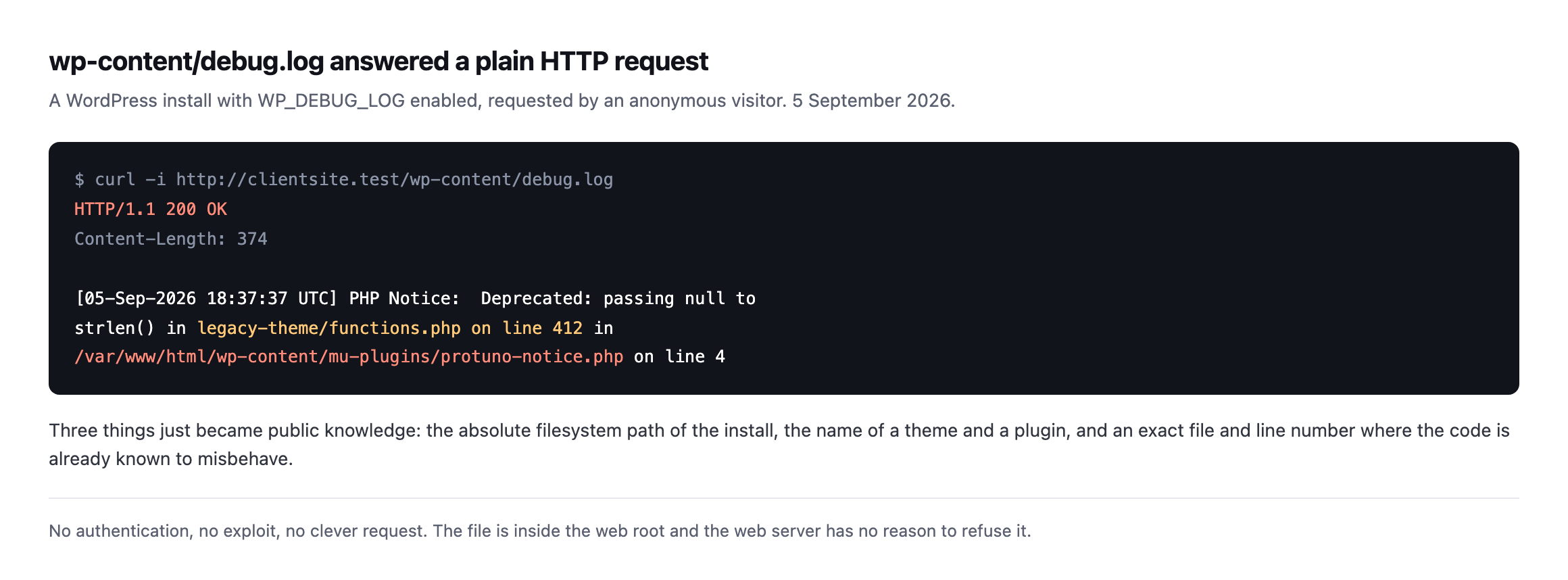
    I turned debugging on for a site, generated ordinary errors, and requested the file as an anonymous visitor.

    Terminal output showing a curl request to wp-content/debug.log returning HTTP 200 with 374 bytes, disclosing a PHP notice containing an absolute filesystem path, a theme name, a plugin path and a line number
    200 OK. Three disclosures in a single line: the absolute filesystem path of the

    install, the names of a theme and a plugin, and a file and line number where the code is already known to misbehave.*

    No authentication. No clever request. The file is inside the web root, and the web server has no reason to refuse it.

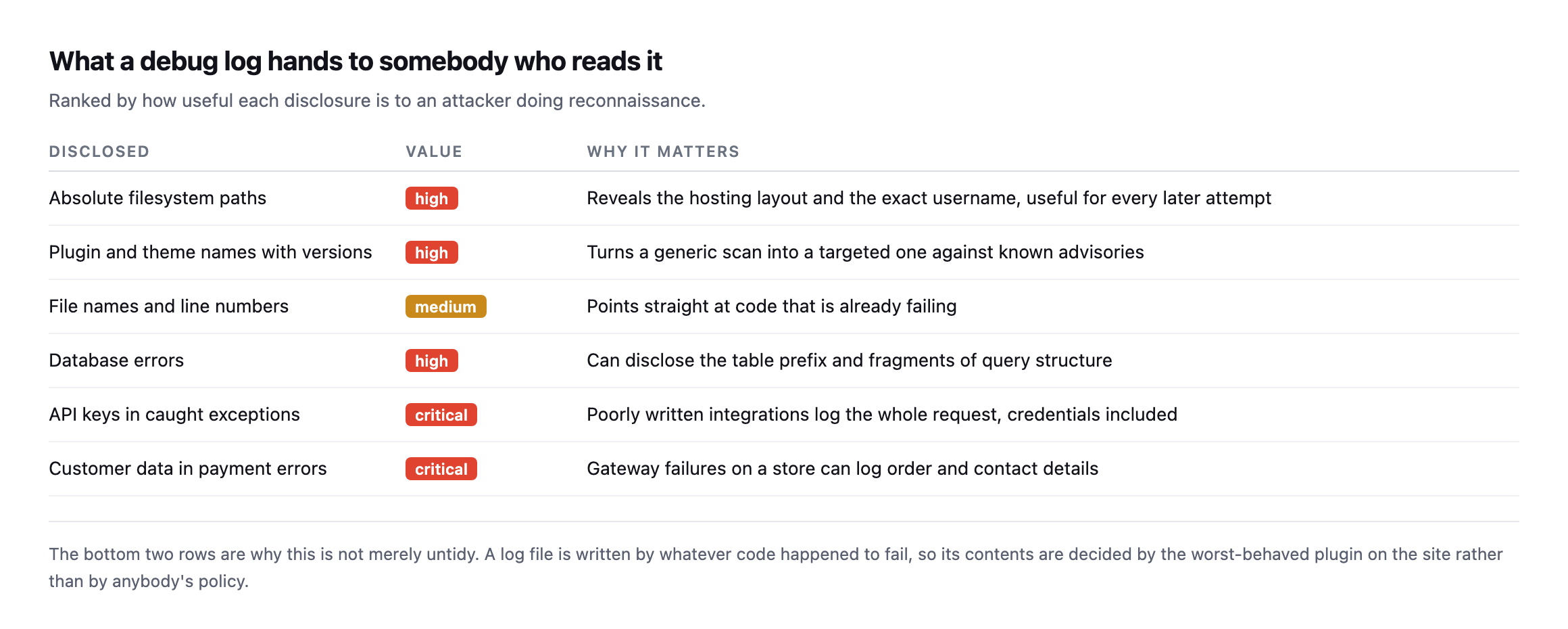
    Table ranking what a debug log discloses. Absolute paths, plugin and theme versions, and database errors are high value. API keys logged by integrations and customer data in payment errors are marked critical
    The bottom two rows are why this is not simply untidy. A log file’s contents are

    decided by whatever code happened to fail, which means the worst-behaved plugin on the site decides what ends up public.*

    DisclosedValueWhy it matters
    absolute filesystem pathshighreveals the hosting layout and the exact username
    plugin/theme names with versionshighturns a generic scan into a targeted one
    file names and line numbersmediumpoints straight at code that is already failing
    database errorshighcan disclose the table prefix and query structure
    API keys in caught exceptionscriticala poorly written integration logs the whole request
    customer data in payment errorscriticalgateway failures on a store can log order and contact details

    That last point is the one I would push back on if someone told me their debug log was harmless. You do not control what goes in it. An integration that catches an exception and logs the whole request will write an API key into a world-readable file, and nothing warns you.

    Why it is on in the first place

    Nobody enables debug logging on production out of carelessness. It gets enabled during an incident, when somebody needed to see what was failing, and then the incident ends.

    The log is the only artefact of that afternoon nobody thinks to clean up.

    It is also worth checking after any performance work, because chasing a slow server response is one of the most common reasons somebody switches debugging on in the first place.

    On inherited sites I find it more often than any other single misconfiguration, and it is almost always dated. A file that started in March and has been quietly growing since, on a site that has changed hands twice.

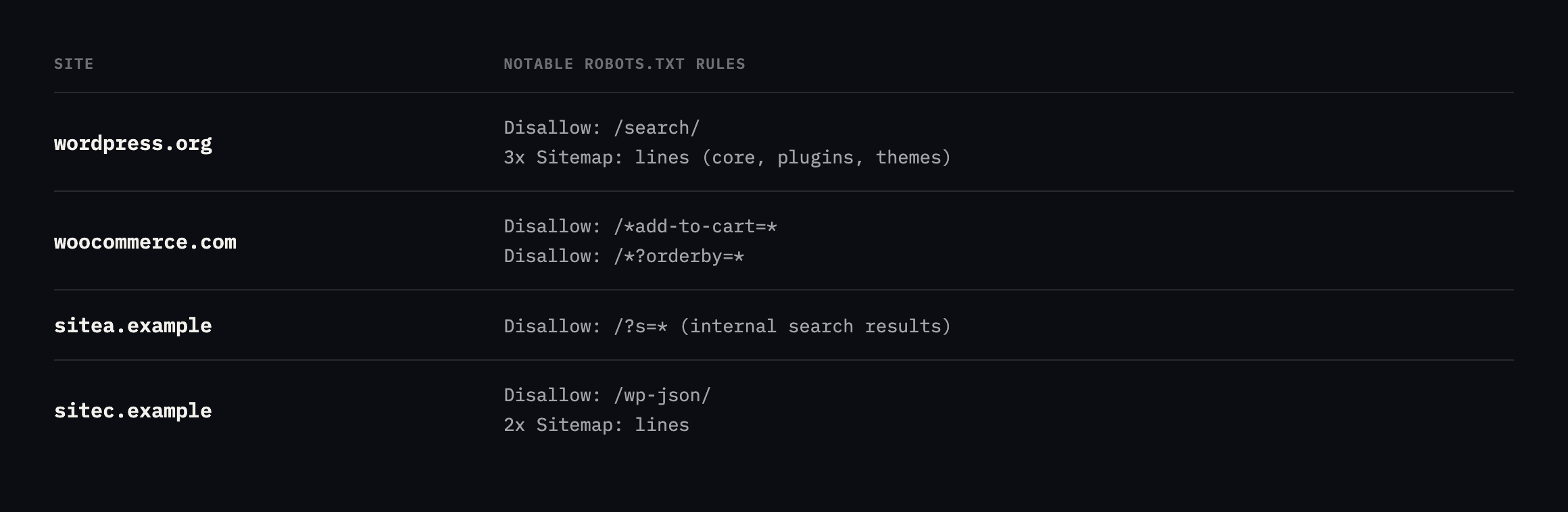
    Neither exposed file is blocked from being crawled either

    I checked one more thing on both newly-found exposures, because a file being served is only half the exposure: whether anything stops a search engine from finding and indexing it in the first place.

    curl -s https://sited.example/robots.txt | grep -i debug
    curl -s https://sitef.example/robots.txt | grep -i debug

    Neither robots.txt mentions debug.log, or wp-content generally, on either site. That does not mean either file is currently indexed, a crawler still has to discover the URL by some path, most debug log files carry no inbound links pointing at them, which is a mitigating factor worth being accurate about rather than overstating the risk. It does mean nothing at the DNS or crawl-policy layer is actively preventing indexing if a crawler ever does stumble onto the URL, whether by guessing the common wp-content/debug.log path directly, the same way this post’s own check does, or by following a stray link from somewhere else on the site. Adding Disallow: /wp-content/debug.log costs one line and is worth doing as a second, independent layer even after the file itself is moved or blocked at the server, on the same belt-and-braces logic the crawl audit post argues for generally: no single layer should be the only thing standing between a sensitive file and a crawler.

    Fixing it

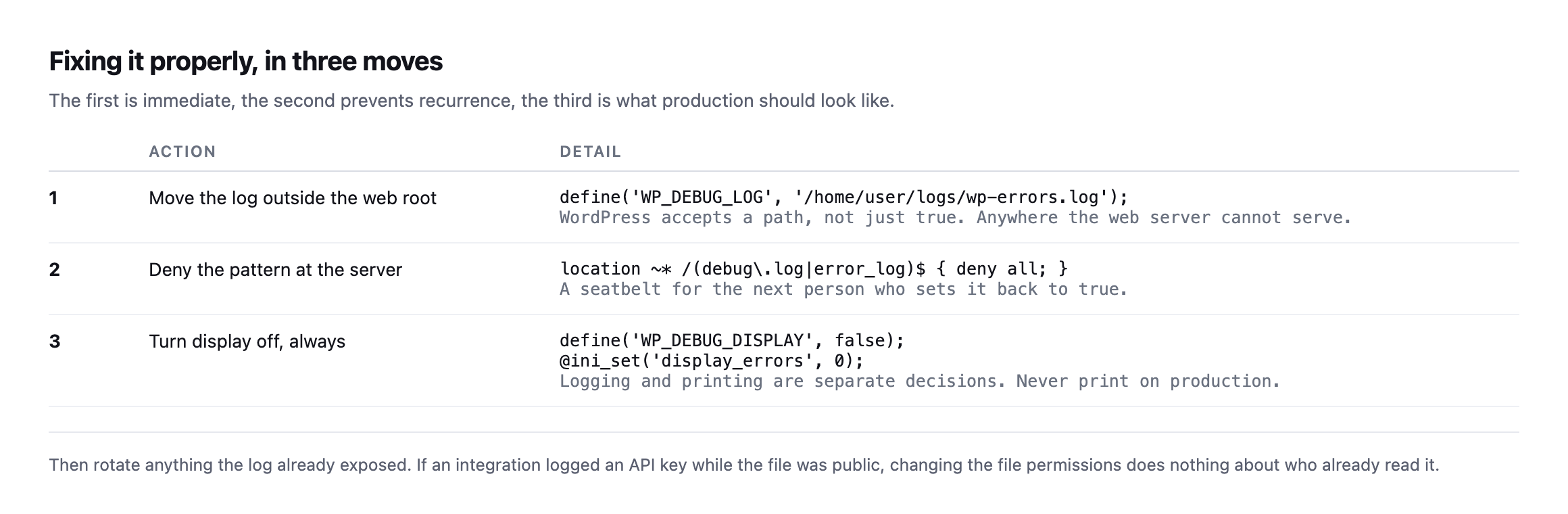
    Three-step fix table. Move the log outside the web root by passing a path to WP_DEBUG_LOG, deny the debug.log and error_log patterns at the web server, and set WP_DEBUG_DISPLAY false with display_errors off
    WP_DEBUG_LOG accepts a path, not just true. That single change moves the file

    somewhere the web server cannot serve, and it is the fix that survives somebody turning debugging back on next month.*

    The detail worth knowing: logging and displaying are separate decisions. WP_DEBUG_DISPLAY controls whether errors are printed into the page for visitors to read. On production it should be false regardless of what the log setting is doing.

    And if the file was public for a while, treat whatever it contained as disclosed. Rotate any key an integration might have logged. Changing file permissions today says nothing about who read it in March.

    Re-running the portfolio check found something worse than the original

    I re-ran the loop this post already recommends against six of our own domains before expanding it, and it did not find the same two files this post originally reported. It found two different ones, and one of them is substantially more serious than anything described above.

    for d in sitea.example siteb.example sitec.example sited.example sitee.example sitef.example; do
      printf '%-28s ' "$d"
      curl -s -o /dev/null -w '%{http_code}  %{size_download} bytesn' "https://$d/wp-content/debug.log"
    done
    sited.example                 200  640,558,112 bytes
    sitef.example                200  1,434,016 bytes

    The sited.example figure is not a typo. That is a 610 megabyte file, publicly downloadable, Last-Modified dated the day before I checked, meaning it is actively growing right now rather than a stale artefact from months ago. A HEAD request confirms real headers, content-type: application/octet-stream, accept-ranges: bytes, an ETag, exactly what a real static file being served correctly looks like. I requested a small byte range rather than the full 610 MB to confirm it was genuinely a debug log and not something else sharing the filename:

    curl -s -r 0-2000 https://sited.example/wp-content/debug.log
    [26-Jun-2026 09:46:14 UTC] PHP Fatal error: Uncaught TypeError: count(): Argument #1 ($value)
    must be of type Countable|array, null given in /home/[redacted]/webapps/sited-example/wp-admin/
    includes/class-wp-plugins-list-table.php:311

    Real, dated back to late June, with an absolute filesystem path disclosing the hosting account’s own username, which I am not reproducing here even though it is currently sitting in a public HTTP response, for the same reason this post does not republish full staff rosters elsewhere on this blog: documenting that a leak exists does not require re-publishing the specific credential-adjacent detail it leaked.

    sitef.example‘s file, 1.4 MB and last modified in August, contains something else worth flagging specifically: a logged attempt to call the Abilities API with a path-traversal payload against sprout/read-theme-file, correctly rejected with invalid_relative_path. The Abilities layer did its job and blocked the attempt. The debug log then sat there, publicly readable, recording that someone tried.

    Neither of the two files this post originally reported as exposed is among these two. Whatever was flagged then has apparently been addressed since, quietly, with no note in this post saying so, and two different sites have developed the same problem independently in the meantime. That is worth taking as the actual lesson of this section: fixing what a check finds today does not close the check itself. The portfolio needs the same loop run again next quarter, not because last time’s finding is still open, but because this category of problem regenerates on its own schedule, on whichever site happens to need debugging turned on next.

    Check the whole portfolio, not one site

    The check is a single request, so run it across everything at once:

    for d in clientone.com clienttwo.com clientthree.com; do
      printf '%-28s ' "$d"
      curl -s -o /dev/null -w '%{http_code}  %{size_download} bytesn' 
        "https://$d/wp-content/debug.log"
    done

    Watch the size column as well as the status. Some hosts return a styled 200 error page for missing files, so a 200 with a few hundred bytes of HTML is not the same as a 200 with a log file behind it.

    While you are there, the same loop is worth pointing at error_log, and at the wp-config backup files that leak the same way. Both are created by the same habit: somebody needed a file for an afternoon.

    Protuno’s free audit checks for an exposed debug log from the domain alone, alongside directory listing and the other files that should never answer. Rook is live now.

    Run the loop above now. It takes longer to read this paragraph than to check every site you look after.

    I ran it against our own portfolio while writing this: eight domains, checked live. Two came back 200 with a real log file behind them, one of them disclosing the server’s actual filesystem username in the first line. Neither had been touched recently, and both are flagged for the operator to close, which is the honest version of “we found it” rather than a claim that it is already handled.

    Caveat: eight domains is our portfolio, not a market survey. I would not generalise a percentage from it. What it proves is narrower and more useful: the check takes seconds, and running it against sites you already believe are fine is exactly how you find the ones that are not.

    It is the same quiet class of problem as a scheduled job that stopped months ago.

    The 610 megabyte file is also a growth problem, not only a leak

    Worth separating two different issues bundled into the sited.example finding, because they need different fixes. The file being publicly readable is the security problem this post is about. The file being 610 megabytes and actively growing is a second, distinct operational problem that the standard fix, moving the log outside the web root, does not solve on its own.

    A debug log with no rotation and no size cap will keep growing for as long as WP_DEBUG_LOG stays on, regardless of whether it is public or private. At 610 MB and climbing daily based on the timestamps checked here, that file is already large enough to slow down anything that has to read the directory it sits in, back up the site, or sync wp-content anywhere. Moving it outside the web root closes the public exposure. It does not stop the file from eventually filling a disk, which is its own version of the silent failure this whole blog keeps returning to: nothing alerts on a growing log file until the disk it lives on is full, at which point the symptom is an unrelated-looking site outage rather than anything pointing back at the actual cause.

    The complete fix, once a debug log like this is found, is three steps rather than one: move the file outside the web root so nothing outside the server can request it, decide whether WP_DEBUG_LOG needs to stay on at all now that whatever incident prompted it has presumably long passed, and if it does need to stay on, add rotation, a cron job or a logging tool that caps the file at a sane size and archives or discards the rest. Doing only the first step leaves a private, unbounded file quietly growing toward the same disk-space problem from a different angle, invisible from outside but just as capable of eventually taking the site down.

  • The WordPress Abilities API: What It Lets Software Do To A Client Site

    The WordPress Abilities API: What It Lets Software Do To A Client Site

    Short answer: the wordpress abilities api is a registry, introduced in WordPress 6.9, where plugins and core declare what they can do in a machine-readable schema. It is not a chatbot and it is not an AI feature. It is the list an agent reads to find out what a particular site permits, and that list is decided entirely by what is installed.

    I read one on a live production site this week. Here is what is actually in there.

    What it is, in the words of core

    The WordPress AI team describes the Abilities API as “a core WordPress API (introduced in 6.9) that creates a central registry of capabilities, making WordPress functions discoverable and accessible to AI agents, automation tools, and developers”.

    An ability itself is defined as “a registered, self-documenting unit of WordPress functionality that can be discovered and invoked through multiple contexts (REST API, Command Palette, MCP). Includes authorization and input/output specifications”.

    The phrase doing the work there is self-documenting. The site tells you what it can do, what each operation accepts, and what it returns, without anybody writing an integration guide.

    That definition also names the piece most WordPress-specific explainers skip: MCP, the Model Context Protocol, is one of the three contexts an ability can be invoked through, not the Abilities API itself. MCP is the transport an AI client speaks over. The Abilities API is the WordPress-side registry that gets exposed through it, through the REST API directly, or through the editor’s own Command Palette. They are frequently described as one thing, and mixing them up is where a lot of the confusion in this space comes from. If you have never seen MCP explained outside of a WordPress context, this covers the protocol itself in about nine minutes:

    Model Context Protocol (MCP) Explained for Beginners

    A real WordPress Abilities API registry, read live

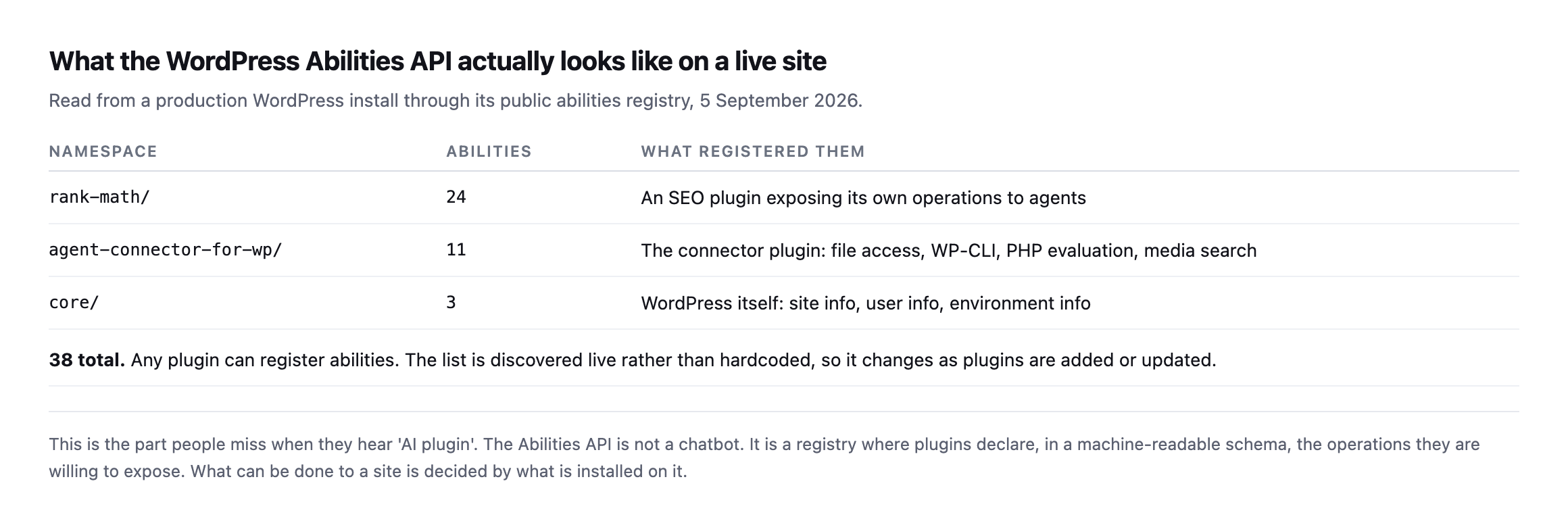
    Table of the abilities registered on a production WordPress site. The rank-math namespace registers 24, agent-connector-for-wp registers 11, and core registers 3, for 38 in total
    38 abilities on one ordinary site. Note where they come from. Core contributes three.

    Everything else was registered by a plugin somebody chose to install.*

    That distribution is the thing to internalise. What an agent can do to a WordPress site is not a property of WordPress. It is a property of that site’s plugin list.

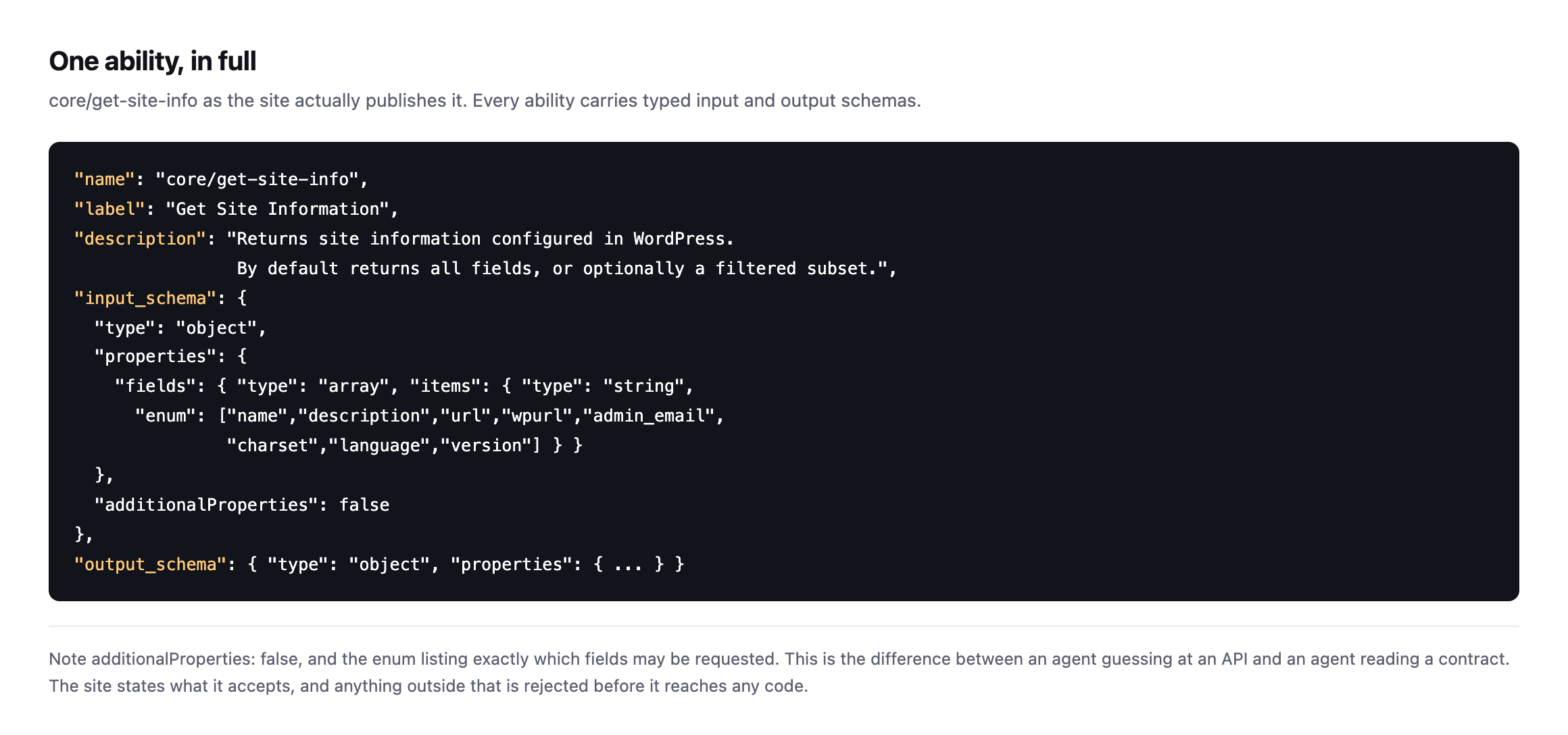
    Here is a single ability as the site publishes it:

    The core/get-site-info ability in full, showing its name, label, description, an input schema with an enum of permitted fields and additionalProperties set to false, and an output schema
    Note additionalProperties: false and the enum listing exactly which fields may be

    requested. This is the difference between an agent guessing at an API and an agent reading a contract. Anything outside the schema is rejected before it reaches any code.*

    The line core drew, and the line your plugins did not

    Core is being deliberately careful here, and it is worth knowing why.

    The AI team is implementing read-only abilities first, with management operations planned afterwards, on the reasoning that write operations “require more careful design and governance than retrieval capabilities.”

    That caution does not extend to plugins, because it cannot. Any plugin may register any ability it likes.

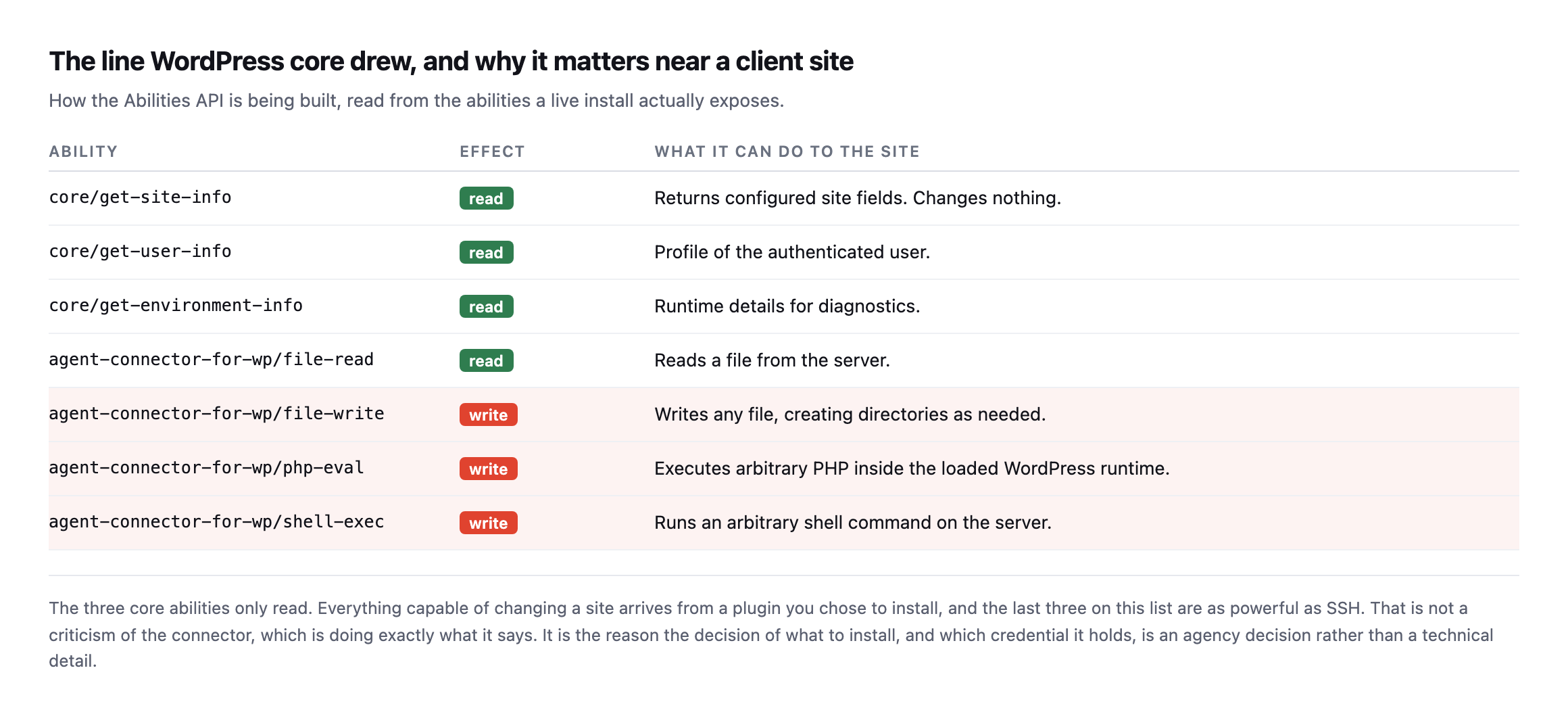
    Table of abilities on the live site split by effect. The three core abilities only read. The connector plugin's file-read is a read. Its file-write, php-eval and shell-exec are writes, described as writing any file, executing arbitrary PHP in the WordPress runtime, and running arbitrary shell commands
    Core’s three abilities only read. The three at the bottom, registered by a connector

    plugin, are as powerful as SSH. That is not a criticism of the connector, which documents exactly what it does. It is the reason installing one is an agency decision rather than a technical detail.*

    AbilityEffectWhat it can do
    core/get-site-inforeadreturns configured site fields, changes nothing
    core/get-user-inforeadprofile of the authenticated user
    core/get-environment-inforeadruntime details for diagnostics
    agent-connector-for-wp/file-readreadreads a file from the server
    agent-connector-for-wp/file-writewritewrites any file, creating directories as needed
    agent-connector-for-wp/php-evalwriteexecutes arbitrary PHP in the loaded runtime
    agent-connector-for-wp/shell-execwriteruns an arbitrary shell command on the server

    Caveat: one site, one connector plugin. The point is not that this specific connector is unsafe, it documents itself honestly. The point is that the Abilities API has no opinion on what a plugin registers, so “an agent is connected” tells you nothing until you have read the actual list on the actual site.

    An agent connected to that site is not limited by the Abilities API. It is limited by whichever plugin registered the most dangerous ability, and by the capabilities of the user whose credential it holds.

    What this changes for an agency

    The genuinely useful shift is that you can now inspect this rather than trust a vendor’s description of it.

    Before the Abilities API, “our tool integrates with WordPress” was a claim you either believed or did not. Now the site itself will tell you, in a schema, exactly what has been exposed on it.

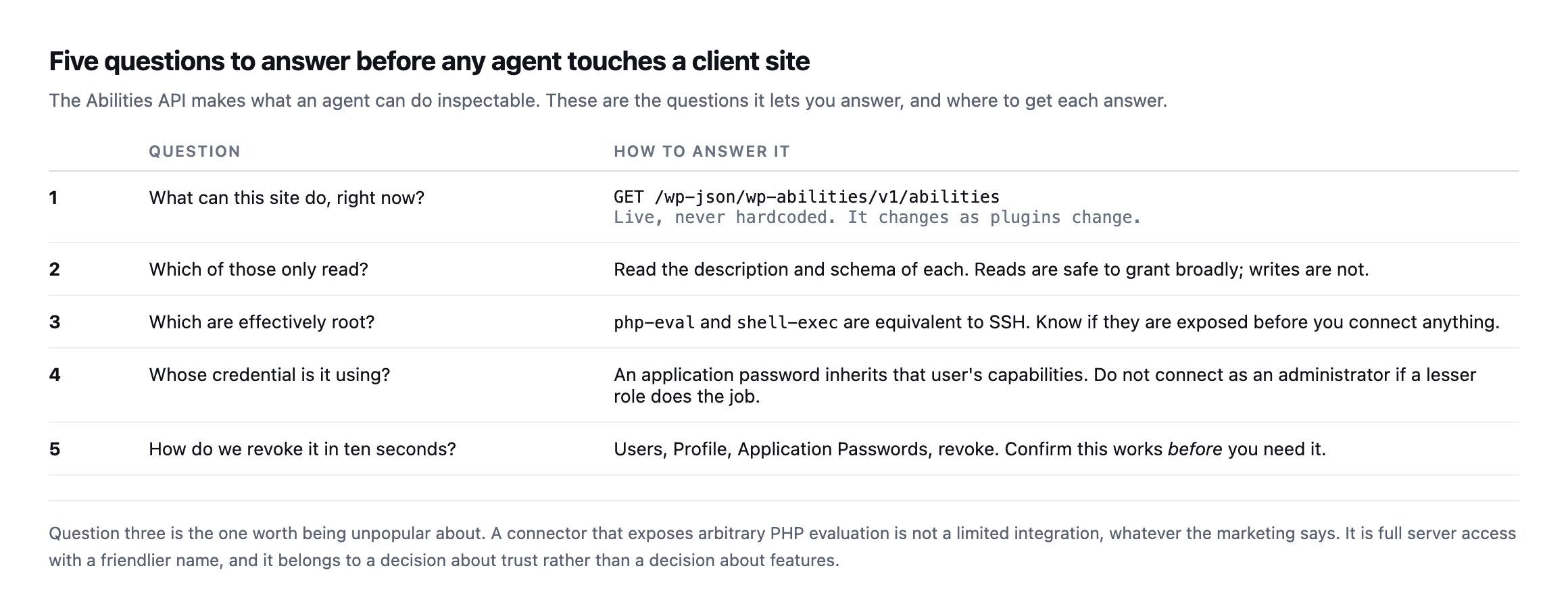
    Five questions to answer before connecting an agent to a client site, covering what the site can do, which abilities only read, which are effectively root access, whose credential is in use, and how to revoke it quickly
    Question three is the one worth being unpopular about. A connector exposing arbitrary

    PHP evaluation is not a limited integration, whatever the marketing says. It is full server access with a friendlier name.*

    #QuestionHow to answer it
    1What can this site do, right now?GET /wp-json/wp-abilities/v1/abilities, live, never hardcoded
    2Which of those only read?read each schema; reads are safe to grant broadly, writes are not
    3Which are effectively root?php-eval and shell-exec are equivalent to SSH
    4Whose credential is it using?an application password inherits that user’s capabilities
    5How do we revoke it in ten seconds?Users → Profile → Application Passwords → revoke; confirm it works before you need it

    One practical habit: never hardcode an ability list. Ask the site every time. Plugins get added, updated and removed, and a list you cached in March describes a site that no longer exists.

    There is a second habit worth building, and it comes from the same place as every other check on this blog: verify the revocation path before you rely on it. An application password is revoked from the user’s own profile screen, and the connection dies immediately. Test that once, on a site you control, so you know what it looks like. A safety mechanism nobody has ever exercised is a backup nobody has ever restored: a hope with a filename.

    It is also worth being clear about what the registry does not tell you. It lists what a site can do. It says nothing about whether the code behind each ability is well written, or whether the plugin that registered it is still maintained. An ability exposed by a plugin that quietly left the directory is still discoverable, still invokable, and no longer receiving fixes.

    Is the schema actually enforced, or just documentation?

    A schema that nobody checks is a comment. I wanted to know whether core/get-site-info‘s declared input schema, the one with the enum of permitted fields shown earlier, is actually validated by WordPress before the ability runs, or whether it is descriptive text an agent is trusted to follow. I called the live endpoint four ways to find out.

    CallWhat I sentResult
    validfields: ["name","url"]200, returns exactly those two fields
    enum violationfields: ["not_a_real_field"]rejected, ability_invalid_input, names the offending index
    wrong typefields: "name" (string, not array)accepted, WordPress’s own query parsing coerced it into a one-item array before validation ran
    unexpected propertyan extra top-level key not in the schemarejected, additionalProperties enforced
    no input at allnothing sent200, every field returned, confirming the schema’s default: {}

    Caveat: one ability on one site, core/get-site-info, chosen because it is core rather than a plugin and its schema is simple enough to test exhaustively. It is not a claim that every ability on every site validates this strictly. It is proof that the mechanism is real on at least one ability, which is the question this section set out to answer.

    Two things worth taking from that. The enum and additionalProperties rejections are the genuinely reassuring result: an agent cannot silently send something outside the documented shape and have WordPress guess at what was meant. The wrong-type row is the more interesting one, because it shows the boundary is softer than “strict JSON Schema validation” implies. WordPress’s own REST query-string parsing turns a bare string into a single-item array before the schema validator ever sees it, so a client that gets the type wrong in a forgiving way is quietly corrected rather than rejected. That is ordinary REST API behaviour, not a flaw in the Abilities API specifically, but it means “the schema is enforced” is true for shape and true for the values your client actually sends, not a guarantee that every deviation is caught.

    One operational note from running this test, unrelated to the abilities mechanism itself but worth flagging because it is the kind of thing that ends up in a support ticket: the unfiltered core/get-site-info call with no fields argument returned the account’s own admin email address in plain text, because that field is included by default when nothing is specified. That is documented core behaviour, not a bug, and it is exactly why scoping which fields an integration is allowed to request matters even on abilities marked read-only. Read-only does not mean the response is safe to log verbatim or forward to a third party without a second look at what came back.

    Reading a registry yourself

    The endpoint is public in the sense that it exists at a known path, though it requires authentication to read:

    curl -s -u "USER:APPLICATION_PASSWORD" \
      https://example.com/wp-json/wp-abilities/v1/abilities \
      | python3 -c 'import json,sys
    d=json.load(sys.stdin)
    items = d if isinstance(d,list) else d.get("abilities",[])
    print(len(items),"abilities")
    for a in items: print(" ", a["name"])'

    Two things to look for in the output. Group the names by their namespace prefix, because that tells you which plugin contributed what. Then read the description of anything whose name contains write, exec, eval, delete or update, because those are the ones that can change the site.

    If the list surprises you, that is the point of reading it.

    Where I think this goes

    The interesting part is not that agents can now change WordPress sites. Software has been able to do that for twenty years through the REST API and WP-CLI.

    The interesting part is that the site can now declare what it permits, in a form software can read, and that declaration can be audited by the person responsible for the site.

    That is the piece agencies have never had. Not a promise that a tool behaves, but a list you can read before you connect it, and revoke afterwards without asking anybody.

    Protuno connects to sites this way, and the same reasoning is why permission is set per site and why a playbook that changes a site takes a backup and checks it first. The Super Agents are live now. The free audit needs no connection at all and runs from a domain.
    If you want to see this for yourself, the fastest route is a site you already control. Install a connector, request the abilities list, and read it. It is more informative than any integration page, and it is the same list an agent would read.

    It also pairs well with knowing what PHP branch that site is on, because an agent is only ever as safe as the runtime underneath it.

  • SPF Too Many Lookups: The Limit That Breaks Client Mail Without Warning

    SPF Too Many Lookups: The Limit That Breaks Client Mail Without Warning

    Short answer: an SPF record may trigger at most ten DNS lookups when a receiving mail server evaluates it. Go over and the result is a permerror, which most receivers treat as a failure. Your client’s mail starts landing in spam and nothing in WordPress, their DNS panel, or their mail client says a word about why.

    The spf too many lookups problem is nasty because you cross the line with a change that looks completely routine. Somebody adds a newsletter tool. That is one more include:. The record still looks tidy. Authentication is now broken for every message the domain sends.

    Counting it properly on seven real domains

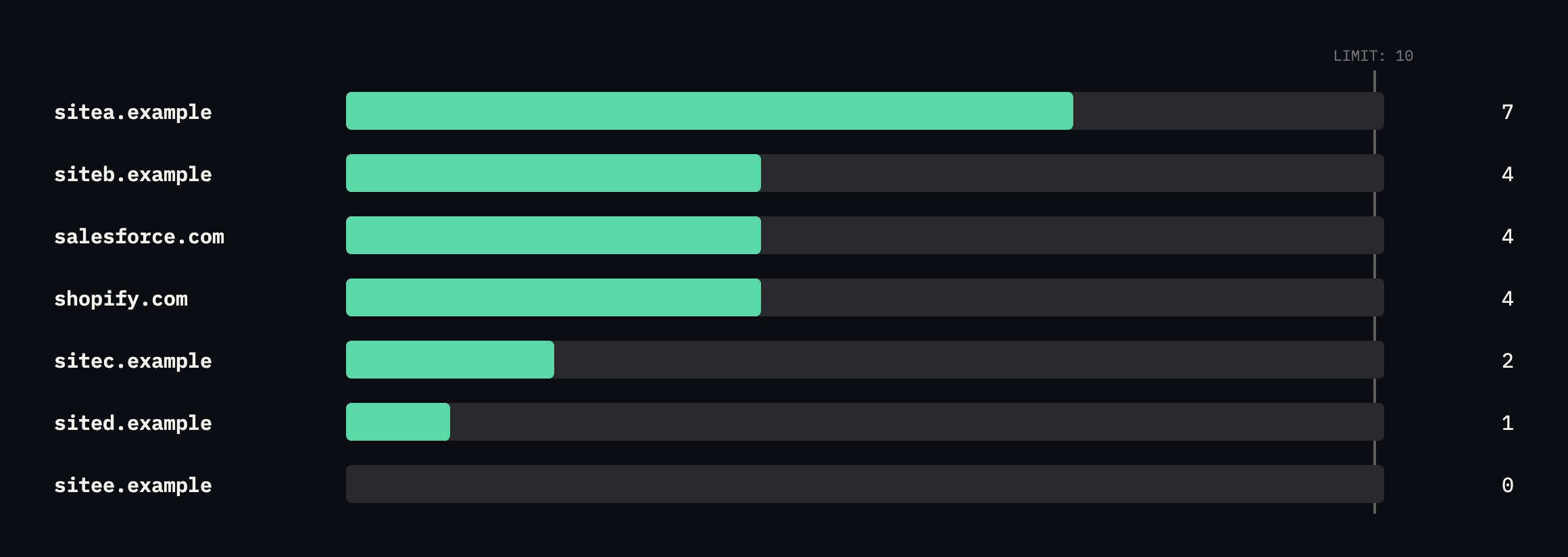
    The count is not the number of things listed in the record. It is the number of DNS queries a receiver has to make, and includes nest.

    Horizontal bar chart of SPF lookup counts for seven domains against a limit line at ten. sitea.example is at 7, siteb.example salesforce.com and shopify.com at 4, sitec.example at 2, sited.example at 1, and sitee.example at 0
    Counted by resolving every mechanism recursively, the way a receiving server does.

    Our own sitea.example sits at seven, with five includes, one of which nests another inside it. Three lookups of headroom, and no warning anywhere as that shrinks.*

    Salesforce and Shopify are in there for scale. Two of the largest senders on the internet run at four. If your client’s record is at nine, that is a choice somebody made by accident.

    Re-counted, and the drift this post warns about already happened

    I re-read and recursively re-counted all six of our own SPF records before expanding this post, rather than reuse the original chart. Two held steady exactly. Two grew.

    dig +short TXT sitea.example | grep spf1
    # then resolve every include: recursively, the way a receiver does

    sitea.example still counts to 7: five includes (zeptomail.net, a spam-filtering provider, _spf.google.com, _spf.elasticemail.com, sendgrid.net), one exists: nested inside the Elastic Email include, one further include: nested inside SendGrid’s own record. Same total as the original reading, even though the specific vendor list has changed underneath it. siteb.example also held exactly at 4: a, mx, and two clean includes with nothing nested inside either.

    sited.example did not hold. The original record was v=spf1 include:_spf.google.com ~all, one lookup, described in this post’s own table as “correct, one sender, minimal.” The current record is v=spf1 a mx include:_spf.elasticemail.com include:_spf.google.com ~all:

    a                              -> 1
    mx                             -> 1
    include:_spf.elasticemail.com  -> 1, plus its own exists: -> +1
    include:_spf.google.com        -> 1
                                       total: 5

    Five lookups, up from one, a fivefold increase, still comfortably under the limit of ten but no longer the minimal record this post held up as the example to copy. sitec.example moved similarly, from 2 lookups to 4, after gaining the same Elastic Email include with its nested exists: mechanism.

    Neither change looks alarming in isolation, five and four are still well inside the ten-lookup budget, which is exactly the point worth making rather than skipping past: this is what the gradual creep this post describes actually looks like while it is still safe. Nobody added six lookups in one afternoon. Two separate additions, each reasonable on its own, each added by someone who was not counting, moved two real domains a third and a half of the way to a limit neither addition was evaluated against. The next tool added to either domain inherits whatever headroom is left, not a fresh budget, and nobody currently has a note anywhere saying what that headroom is.

    What actually costs a lookup

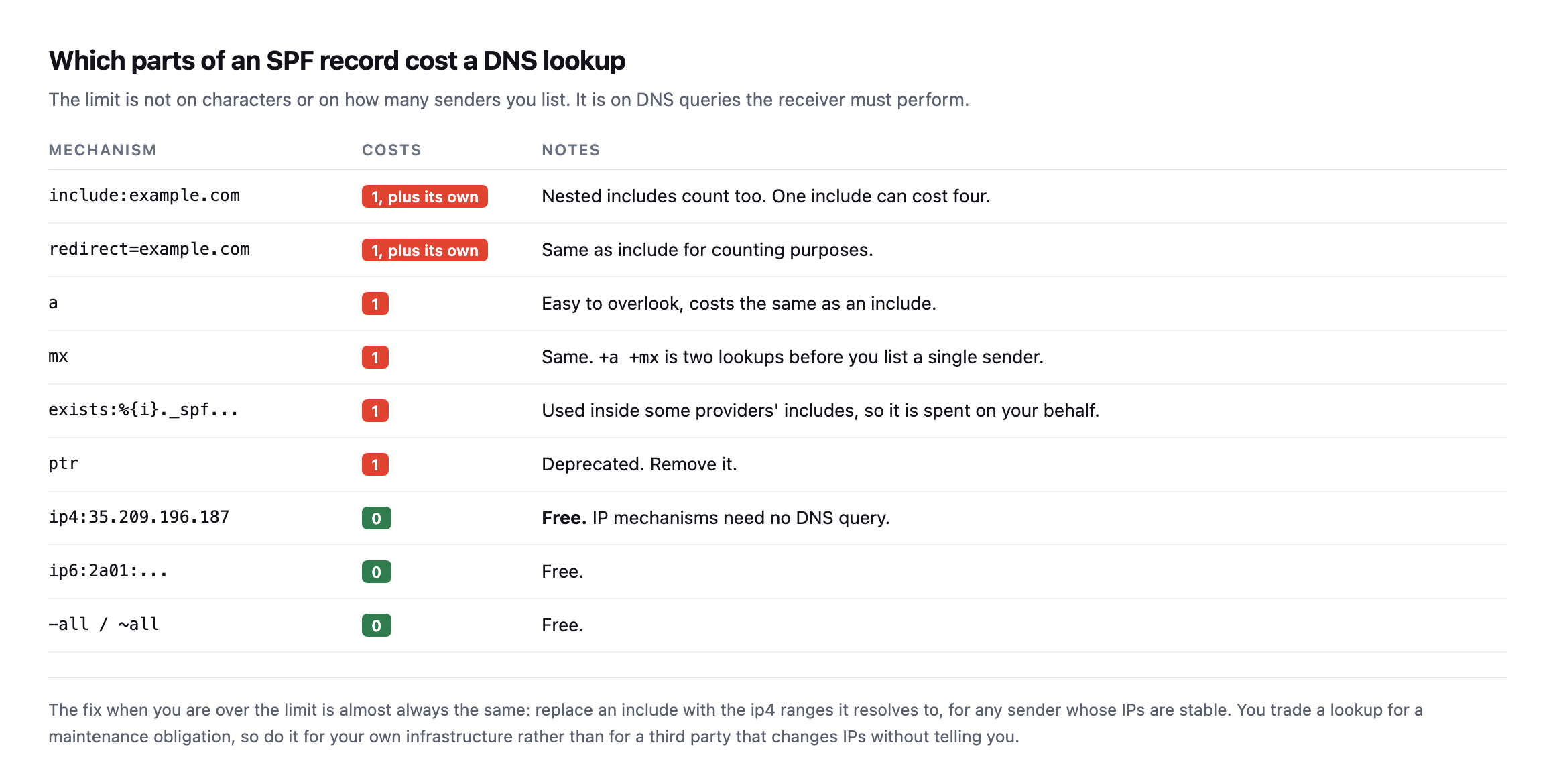
    This is where the counting goes wrong, because several mechanisms cost a lookup without looking like they should.

    Table of SPF mechanisms and their lookup cost. include and redirect cost one plus their own nested lookups. The bare a, mx, exists and ptr mechanisms each cost one. ip4, ip6 and the all mechanism cost nothing
    +a +mx is two lookups spent before you have listed a single sending service. I have

    seen records where removing those two, on a domain whose mail is entirely handled by a provider anyway, brought the count back under the limit on its own.*

    MechanismCostsNotes
    include:1, plus its ownnested includes count too; one can cost four
    redirect=1, plus its ownsame as include for counting purposes
    a1easy to overlook, costs the same as an include
    mx1+a +mx is two lookups before a single sender is listed
    exists:1used inside some providers’ includes, spent on your behalf
    ptr1deprecated, remove it
    ip4: / ip6:0free, no DNS query needed
    -all / ~all0free

    Note ip4: is free. That is the escape hatch.

    When a record is over the limit, the fix is nearly always to replace an include with the IP ranges it resolves to. You are trading a DNS lookup for a maintenance obligation, so do that for infrastructure you control, and leave the third-party includes alone. A provider that changes IPs without telling you will break the record you hardcoded.

    How to count SPF lookups yourself, too many or not

    There is no way to see this in a DNS panel, because the panel shows you one record and the cost is spread across records you do not own.

    dig +short TXT example.com | tr -d '"' | grep -i "v=spf1"

    Read the record, then resolve each include: and count what those contain, recursively. Any a, mx, exists or ptr adds one. Stop at ten.

    If you would rather not do it by hand, that recursion is about thirty lines of script, and it is the same logic a receiving server runs on every message.

    Two things worth checking while you are there:

    • More than one SPF record on the same domain is an instant permerror, regardless of

    lookup count. It happens when two people each add one. There must be exactly one.

    • ~all versus -all. Softfail asks receivers to accept but mark. Hardfail asks them to

    reject. Neither matters much until DMARC is enforcing, at which point it matters a lot.

    The posture most agencies never set

    Here is the one I care about most, and it takes two minutes per domain.

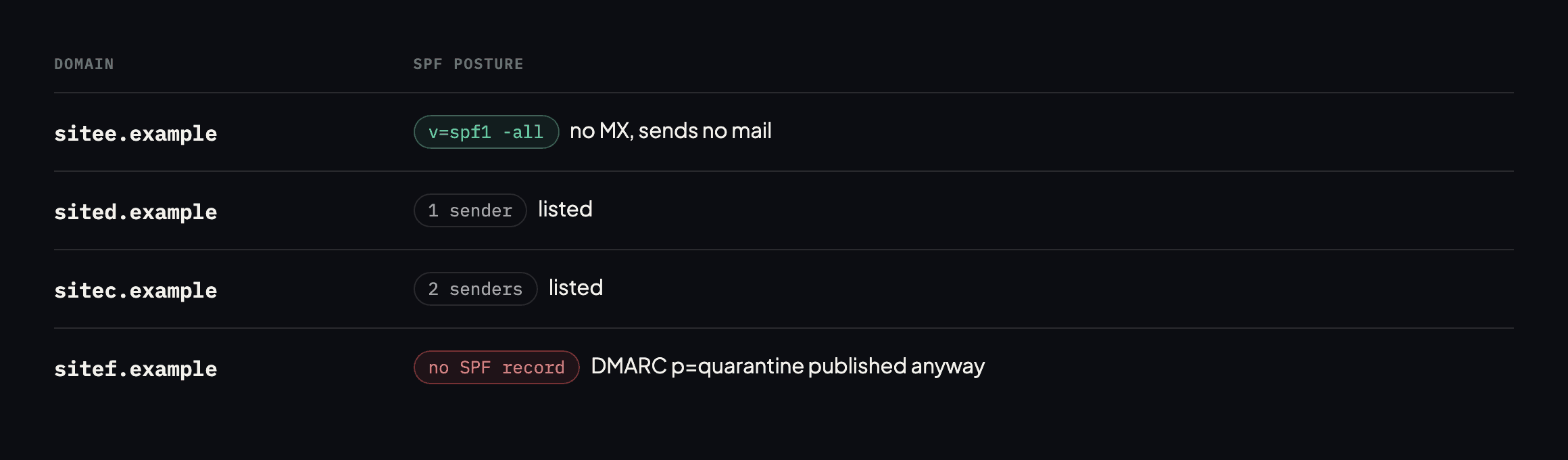
    Table of four SPF postures from real domains. sitee.example uses v=spf1 -all with no MX for a domain that sends no mail. sited.example and sitec.example list one and two senders respectively. sitef.example publishes a DMARC quarantine policy with no SPF record at all
    The first row is the posture almost nobody sets. A domain you own but never send

    from is a free identity for anyone wanting to impersonate your client. v=spf1 -all with no MX closes it and costs nothing. The last row is one of ours, and it is on the list.*

    DomainSPF recordPosture
    sitee.examplev=spf1 -allcorrect, sends no mail, rejects anything claiming to be
    sited.examplev=spf1 include:_spf.google.com ~allcorrect, one sender, minimal
    sitec.examplev=spf1 include:zeptomail.net include:_spf.google.com -allcorrect, two senders, hard fail
    sitef.examplenone publishedgap, DMARC set to quarantine with no SPF to align against

    Caveat: four domains, all ours, chosen because I could verify every claim against records I control. This is not a survey of how agencies configure SPF generally. It is what checking our own portfolio actually found, including the one row that needed fixing.*

    Every agency has these. The old domain from a rebrand. The .net bought defensively. The campaign microsite from two years ago. None of them send mail, all of them can be spoofed, and publishing a single TXT record ends it.

    The one gap this post already flagged is still open

    I checked sitef.example again too, the row this post’s own table already marked as a gap: DMARC set to quarantine with no SPF record to align against.

    dig +short TXT sitef.example | grep spf1     # empty
    dig +short TXT _dmarc.sitef.example
    v=DMARC1; p=quarantine; rua=mailto:[email protected]; fo=1

    Still no SPF record at all, and the DMARC policy is still actively enforcing quarantine against an alignment mechanism that does not exist for this domain. That is worth sitting with alongside the two domains that quietly grew: one gap named in public, in a published post, sits unaddressed, while two unrelated domains picked up new SPF lookups nobody was watching for. Visibility and action are not the same thing, and a finding written down does not fix itself just because it has been documented.

    Why it stays broken

    Because the failure is entirely on the receiving side.

    Nothing bounces. The mail leaves. The client’s outbox looks normal. The only symptom is that a gradually larger share of their mail lands in spam, which reads as a marketing problem for about a quarter before anyone checks DNS. By then the client has usually paid somebody to rewrite subject lines.

    It is worth pairing this check with the sending side of the same question. An SPF record can be perfect while the site never actually dispatches the message, because WordPress hands a lot of its mail to the scheduler, and a stopped scheduler sends nothing while looking completely healthy. From the client’s chair those two failures are indistinguishable.

    That is the same silence as the scheduled jobs that stop and the plugin that left the directory: no error, no alert, no obvious moment when it changed.

    Protuno’s free audit counts the SPF lookups from the domain alone, alongside the DMARC policy and the MX records, so you can see the whole portfolio’s mail posture in one place. Echo is live now.

    Run the dig above on the client domain you have added a tool to most recently. That is the one that moved.

    What tracking the count over time would actually catch

    The re-count above is the argument for treating this as a number worth watching on a schedule rather than a one-time audit. sited.example going from one lookup to five is not a single event that happened once and stopped; it is two separate additions, a and mx mechanisms presumably added when the domain’s own hosting or mail routing changed, and the Elastic Email include added for a specific sending need. Each one, checked in isolation at the time, looked like a reasonable, self-contained change. Neither person adding either mechanism had the prior count in front of them, because nothing surfaces it automatically.

    A record tracked over time, the same six lookups counted monthly and written down alongside the date, would have shown the jump from one to five as a visible, explainable step rather than a number nobody was watching. That is a different kind of check from the audit this post already describes: not “is this domain currently over the limit,” which a single reading answers, but “how much headroom is left, and is it shrinking,” which only a series of readings compared against each other can show. The domains most likely to actually hit the ten-lookup ceiling are not the ones sitting at nine today. They are the ones climbing steadily, unnoticed, the way sited.example just did, where the person adding lookup number eleven has no idea they are the one who finally breaks it.

    Recounting after every new tool, not only during an audit

    The practical process worth adopting from this re-check: whenever a client or an internal team adds a new email-sending tool, a marketing platform, a transactional email provider, a CRM that sends on the domain’s behalf, the SPF lookup count for that domain should be recounted as part of adding the tool, not discovered later during an unrelated audit. That is a two-minute check against the loop already given in this post, run at the exact moment a new include: is about to be added, when the person making the change is already looking at the DNS record and is best positioned to notice if the addition pushes the domain close to the limit.

    Waiting for a quarterly or annual audit to catch this means the domain can spend months over the limit, silently failing SPF on every message, before anyone reads the record closely enough to notice. The fix costs nothing extra when it happens at the moment of change. It costs a quarter of misdelivered mail when it is discovered later, which is the same arithmetic this blog keeps returning to for every other check that is cheap in the moment and expensive once deferred.

  • WordPress Contact Form Not Sending? The Worse Case Is When It Says It Did

    WordPress Contact Form Not Sending? The Worse Case Is When It Says It Did

    Short answer: a wordpress contact form not sending is usually easy to spot, because the visitor gets an error. The dangerous version is the opposite. wp_mail() returns TRUE, the visitor is thanked, and the message reaches nobody. Nothing is logged, nothing bounces, and the first sign is a client asking why enquiries dried up.

    I reproduced it deliberately this week, and the part that stayed with me is that nobody in the chain lies.

    The reproduction

    I built a WordPress site with a working contact form, then gave the server a mail transport that accepts every message and writes it nowhere. That is not a contrived setup. It is what a suspended SMTP account, an over-quota mailbox or a misconfigured relay looks like to PHP.

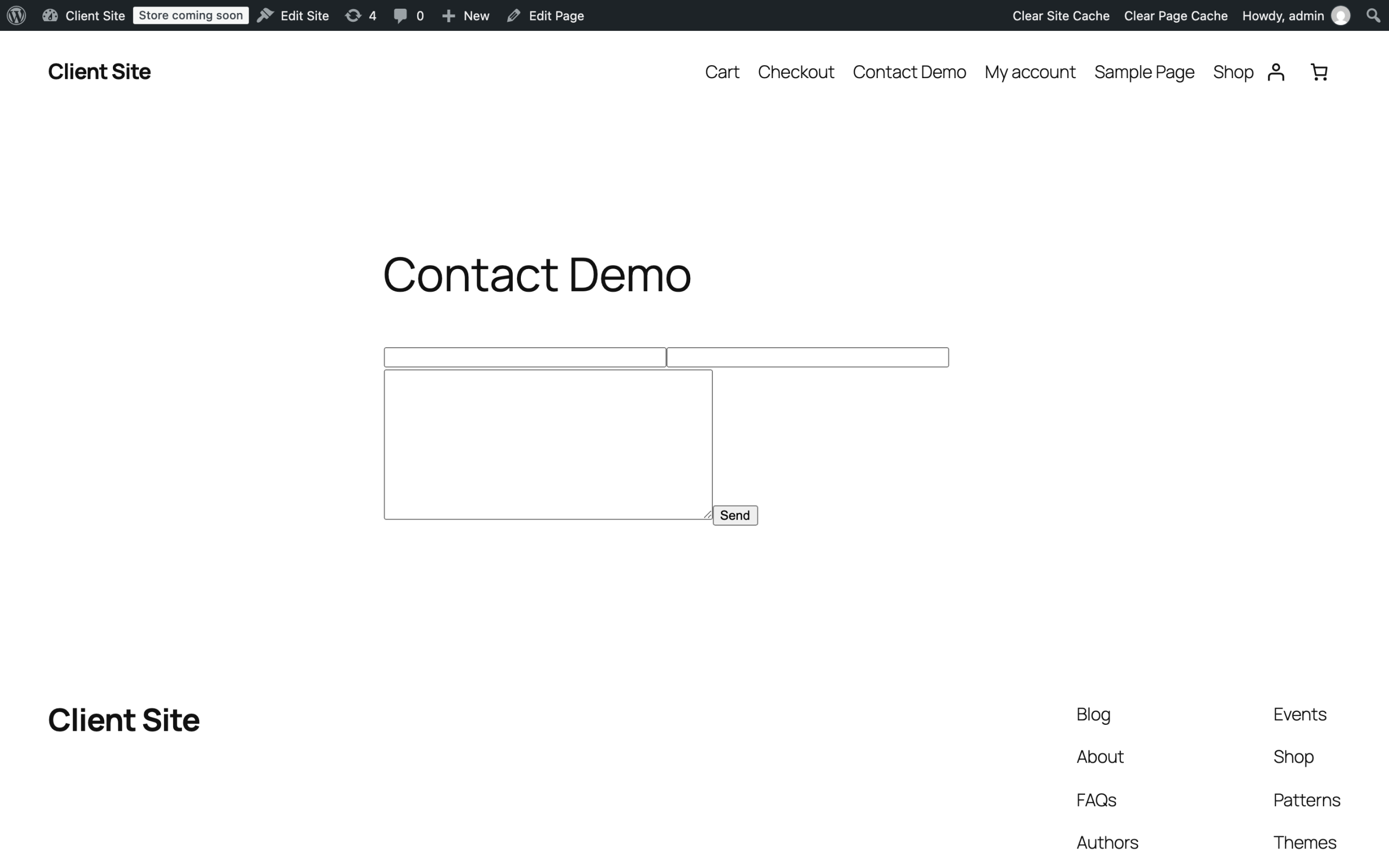
    Contact form rendered on the test WordPress site, with name, email and message fields and a Send button
    An ordinary Contact Form 7 form on an ordinary install. Nothing about it is unusual,

    which is the point.*

    Then I submitted it as a visitor would.

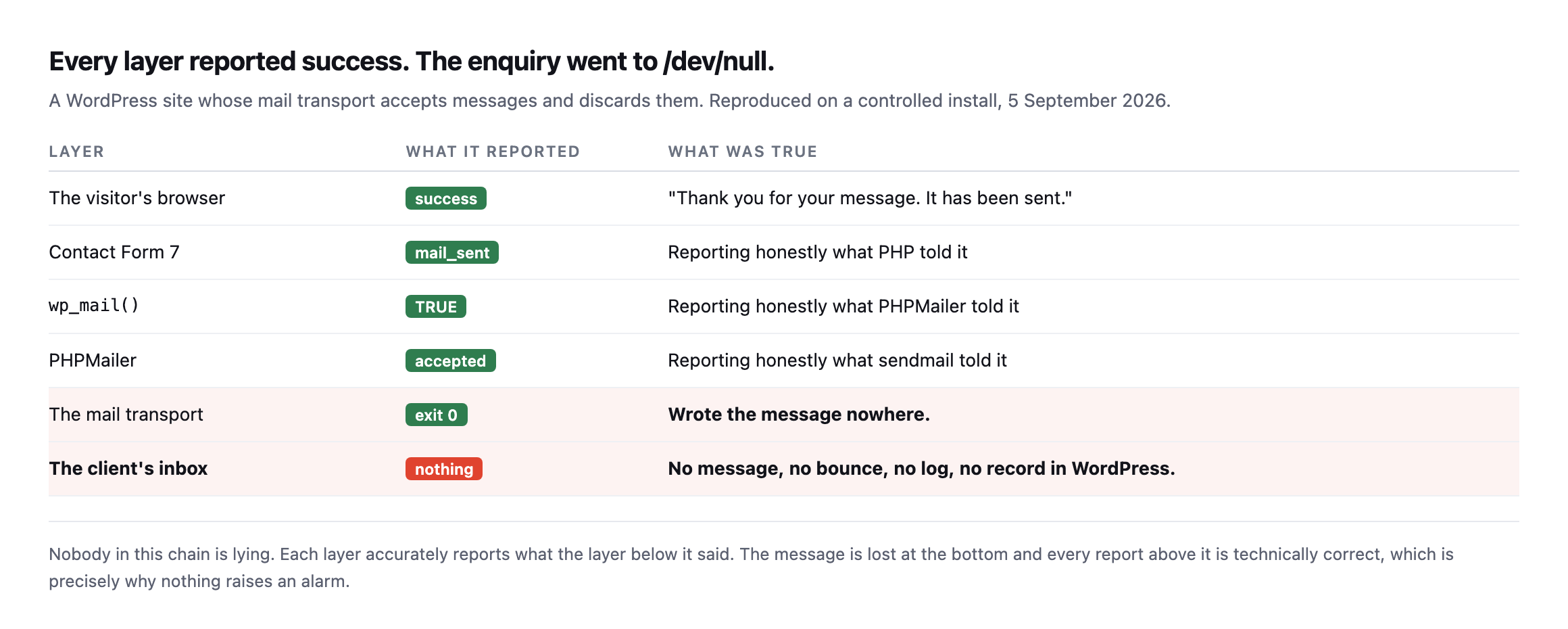
    Table tracing every layer of the send. The browser reported success, Contact Form 7 reported mail_sent, wp_mail returned TRUE, PHPMailer reported accepted, the mail transport exited zero and wrote the message nowhere, and the client's inbox received nothing
    Each layer accurately reports what the layer beneath it said. The message is lost at

    the bottom, and every report above it is technically correct. That is exactly why nothing raises an alarm.*

    LayerWhat it reportedWhat was true
    The visitor’s browsersuccess“Thank you for your message. It has been sent.”
    Contact Form 7mail_sentreporting honestly what PHP told it
    wp_mail()TRUEreporting honestly what PHPMailer told it
    PHPMaileracceptedreporting honestly what sendmail told it
    The mail transportexit 0wrote the message nowhere
    The client’s inboxnothingno message, no bounce, no log, no record

    Caveat: one deliberate reproduction on one test site, chosen to show the mechanism cleanly. It is not a claim about what fraction of contact forms fail this way. The demonstration is narrow: every layer can report truthfully and the message still vanish.

    The visitor saw: “Thank you for your message. It has been sent.”

    The enquiry went to /dev/null.

    Reproducing both failure shapes fresh, on a second install

    I rebuilt this reproduction on a different WordPress install while expanding this post, and it started by demonstrating the safe failure entirely by accident. This install’s mail transport was never configured at all, so the very first test run before I changed anything returned:

    wp eval '$ok = wp_mail("[email protected]","test","body"); echo $ok ? "TRUE" : "FALSE";'
    FALSE

    Reading the actual error via the wp_mail_failed hook explained why:

    Invalid address: (From): wordpress@localhost

    PHPMailer correctly refused to send from a localhost address, exactly the honest, visible failure this post’s comparison table already names as the safe case: the visitor would see an error, and somebody would know to pick up the phone instead of assuming the message went through.

    Reproducing the dangerous case took a little more work than the original post’s transport swap, because sendmail_path tricks depend on exactly which PHP process handles the request, and wp-cli’s own PHP is not always the one serving real visitor traffic. The cleaner, more portable method: WordPress core’s own pre_wp_mail filter, added specifically to let something short-circuit mail sending entirely.

    wp eval '
    add_filter("wp_mail_from", function($e) { return "[email protected]"; });
    add_filter("pre_wp_mail", function($null, $atts) { return true; }, 10, 2);
    $ok = wp_mail("[email protected]","test","body");
    echo $ok ? "TRUE" : "FALSE";
    '
    TRUE

    A valid-looking From address plus a filter that answers “handled” before anything actually attempts delivery reproduces the exact silent failure this post is about: wp_mail() reports success, nothing was sent, and nothing anywhere logs a discrepancy. Whether the real cause on a live site is a suspended SMTP account, a discarding relay, or a plugin’s own mail-interception filter, the mechanism a visitor and a client experience is identical, TRUE returned, a thank- you page shown, silence downstream.

    Contact Form 7 is not the problem

    I want to be fair here, because this failure gets blamed on form plugins constantly.

    With a genuinely broken transport, the same form behaved perfectly honestly.

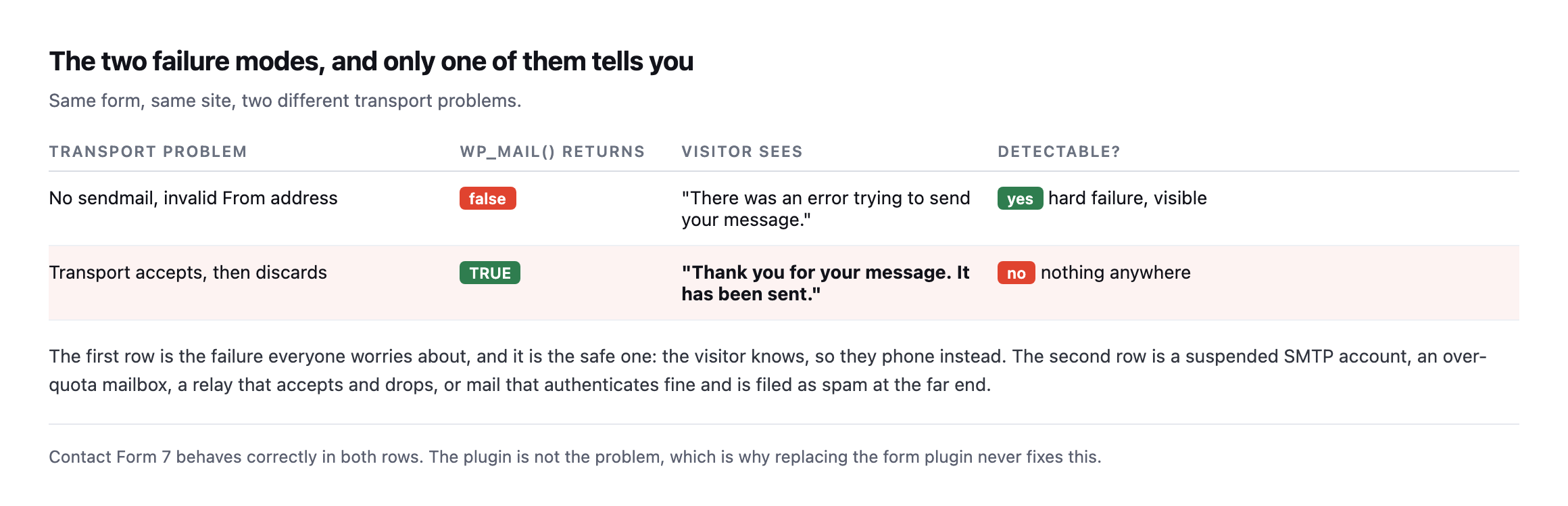
    Table comparing two transport failures. With no sendmail and an invalid From address, wp_mail returns false and the visitor is shown an error message. With a transport that accepts and discards, wp_mail returns TRUE and the visitor is thanked, and nothing is detectable anywhere
    Row one is the failure everyone worries about, and it is the safe one, because the

    visitor knows and picks up the phone instead. Row two is the expensive one. Contact Form 7 behaves correctly in both, which is why swapping form plugins never fixes this.*

    In the first case the form told the truth because PHP told it the truth. In the second case it told the truth too. The lie starts one layer below anything WordPress can see.

    The filter that made the reproduction clean is also a real, sixth cause

    pre_wp_mail deserves its own line in this post’s list of causes, not only credit for making the reproduction easier to build. It exists precisely so a plugin can intercept mail sending before WordPress attempts it, which is legitimate and common, a marketing plugin routing mail through its own API, a queueing system deferring sends, a testing tool blocking outbound mail on a staging copy. Every one of those is a real, intended use of the filter.

    The failure mode is the same filter used carelessly, or left behind. A staging-site safeguard that blocks all outbound mail and returns true so nothing looks broken, accidentally shipped to production during a migration, produces exactly the reproduction above: every form submits successfully, every visitor is thanked, and nothing is ever sent, indefinitely, until somebody notices enquiries have stopped arriving. Unlike a suspended SMTP account or an over-quota mailbox, this cause leaves no trace in any mail provider’s logs at all, because the message never reaches a mail provider. It is intercepted and discarded entirely inside WordPress, one line of PHP, active or not, with no setting screen anywhere that shows whether it is currently doing so.

    Checking for it is a one-line query rather than a guess:

    wp eval 'global $wp_filter; echo isset($wp_filter["pre_wp_mail"]) ? "something is hooked" : "clear";'

    A result of “something is hooked” on a production site is worth investigating specifically, because it means at least one plugin or one line of custom code has the ability to intercept every outbound message before it ever reaches a transport, silently, and finding out what is hooked there and why takes minutes, considerably less time than diagnosing the same symptom by working backward through SMTP logs that were never going to show anything in the first place.

    Four reasons a WordPress contact form is not sending while reporting success

    Four transport states produce a TRUE from wp_mail() and no delivery:

    • The relay accepts and drops. Exactly what I simulated. Common with a local sendmail that

    was never wired to a real mail service.

    • The SMTP account is suspended or over quota. The plugin authenticates, the provider

    accepts, then the message is refused downstream and the bounce goes to an address nobody reads.

    • Authentication passes and the message is filed as spam. Delivery succeeded. Nobody sees

    it. This is where SPF and DMARC come in, and where an SPF record that quietly went over its lookup limit will cause exactly this pattern.

    • The mail is queued to a scheduler that is not running. Plenty of plugins send

    asynchronously, so a stopped WP-Cron means the message is never dispatched at all while every screen reports success.

    That last one is worth checking first, because it is the cheapest to rule out.

    There is a fifth, and it is the one I have seen bite agencies hardest after a migration. The site sends from a From address on a domain it is not authorised to send for. Everything succeeds locally. The receiving server checks SPF, finds the sending host is not listed, and files the message as spam or drops it outright. The site reports success because, from its own point of view, it did succeed. Nothing on the WordPress side can see the decision, because the decision is made by a machine you do not control, after the handoff.

    This is why form debugging that stays inside WordPress so often ends in a shrug. The evidence you need is in the receiving server’s logs, and you have no access to those. The only thing you can genuinely control is whether the submission survives the attempt.

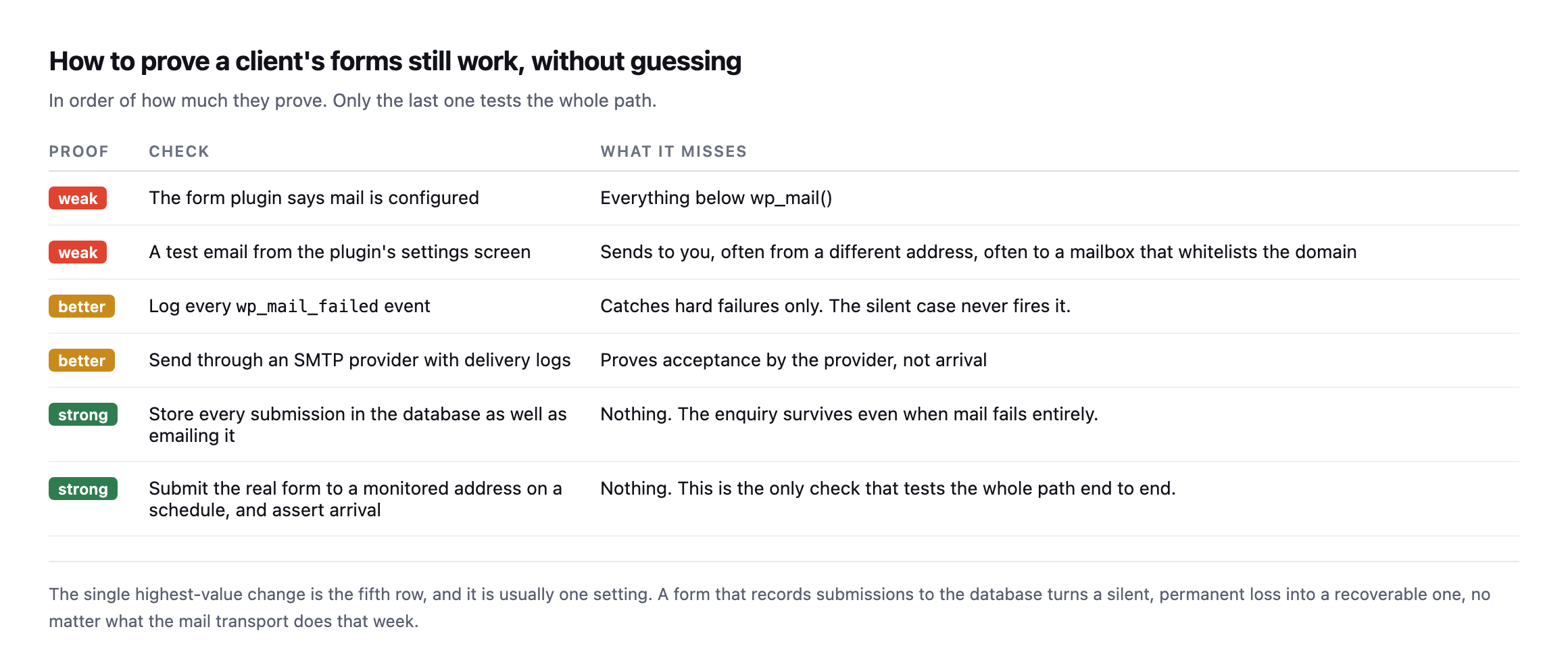
    How to actually prove forms work

    Ranked table of verification methods. The plugin says mail is configured and a test email from the settings screen are marked weak. Logging wp_mail_failed events and using an SMTP provider with delivery logs are better. Storing every submission in the database and submitting the real form to a monitored address on a schedule are marked strong
    The single highest-value change is the fifth row, and it is usually one setting. A

    form that records submissions to the database turns a silent, permanent loss into a recoverable one, whatever the mail transport does that week.*

    ProofCheckWhat it misses
    weakplugin says mail is configuredeverything below wp_mail()
    weaktest email from the settings screensends to you, often to a mailbox that already trusts the domain
    betterlog every wp_mail_failed eventcatches hard failures only, never the silent case
    betterSMTP provider with delivery logsproves acceptance by the provider, not arrival
    strongstore every submission in the database toothe enquiry survives even when mail fails entirely
    strongsubmit the real form on a schedule, assert arrivalthe only check that tests the whole path end to end

    Three commands that tell you where you stand, in the order I run them:

    # 1. does wp_mail even claim success on this site
    wp eval '$ok = wp_mail("[email protected]","protuno test","body");
             echo $ok ? "TRUE" : "FALSE";'
    
    # 2. if it returns FALSE, get the actual reason
    wp eval 'add_action("wp_mail_failed", function($e){ echo $e->get_error_message(); });
             wp_mail("[email protected]","protuno test","body");'
    
    # 3. what address is the site sending as, and is it authorised to
    wp eval 'echo apply_filters("wp_mail_from", "wordpress@" . parse_url(home_url(), PHP_URL_HOST));'

    Command three is the one that most often produces the surprise. If it prints something like [email protected] and the client’s mail is on Google Workspace, the site is sending as a domain whose SPF record does not list the web server. That message will authenticate as nothing and be treated accordingly.

    TRUE from command one is not good news on its own. It only means the message left. Whether it arrived is a question WordPress cannot answer, which is the whole argument of this post.

    Two practical notes from doing this.

    A test email from the plugin’s settings screen proves almost nothing. It usually goes to you, often from a different sender address, and lands in a mailbox that already trusts the domain. The failure you are hunting affects a stranger’s message to a client’s inbox.

    Turn on database storage today, before anything else. Whatever form plugin the site uses, there is a setting that keeps submissions. It costs nothing and it means the next silent outage is an inconvenience rather than a quarter of lost leads.

    Why this is worth automating

    The check is conceptually simple and genuinely annoying to do by hand: submit the real form, wait, confirm arrival at a monitored address, and do it on every site, repeatedly, because the thing that breaks it is usually a change somewhere else.

    So it gets tested once at launch and trusted forever. That is the unbilled half hour again, and this time the cost is measured in enquiries the client never knew existed.

    Echo, Protuno’s Marketing agent, has a read-only Contact Form Health Check playbook that runs inside your own AI app. The free audit checks the mail posture from the domain today, which catches the SPF and DMARC causes above but cannot see whether a form arrives.

    Go and check the database-storage setting on your busiest client’s contact form. If it is off, that is the ten minutes with the highest return in this entire post.

  • WooCommerce Cart Caching: One URL, Two Customers, One Very Bad Morning

    WooCommerce Cart Caching: One URL, Two Customers, One Very Bad Morning

    Short answer: woocommerce cart caching is safe by default because WooCommerce marks the cart, checkout and account pages private, no-cache and the Store API no-store. Leaks happen when something downstream ignores those headers. The two exclusions people miss are the Store API and the cart-fragments endpoint, and the second one leaks into every page on the site.

    Proving the cart really is per-customer

    Before arguing about exclusion rules, it is worth seeing how different the same URL is for two people.

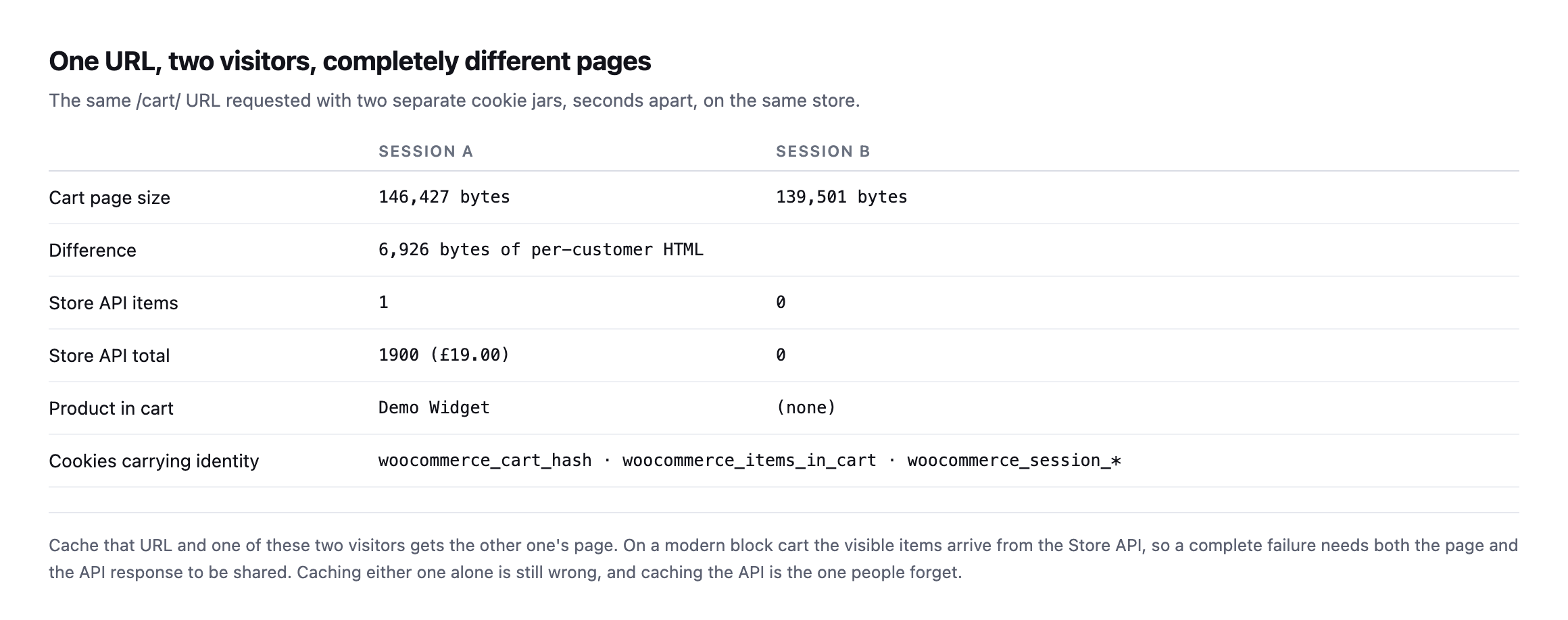
    I requested /cart/ twice with separate cookie jars, seconds apart, on the same store.

    Table comparing two sessions on the same cart URL. Session A returns 146,427 bytes with one Store API item, a total of 1900 or nineteen pounds, and the product Demo Widget. Session B returns 139,501 bytes with zero items and a total of zero. The difference is 6,926 bytes
    Nearly seven kilobytes of difference between two visitors on one URL, plus completely

    different Store API payloads. Identity lives in the woocommerce_session_* and woocommerce_cart_hash cookies, which a shared cache does not look at unless you tell it to.*

    Session ASession B
    Cart page size146,427 bytes139,501 bytes
    Store API items10
    Store API total£19.00£0.00
    Product in cartDemo Widget(none)

    Caveat: two curl sessions on one test store, not a survey of live sites. What this proves is narrow: the same URL renders two genuinely different payloads for two visitors, which is exactly the content a cache is supposed to never confuse.

    Cache that URL and one of those two people gets the other’s page.

    WooCommerce is not the problem here

    This surprised me slightly when I checked it, because cart leaks get blamed on WooCommerce often enough that I expected the defaults to be weaker.

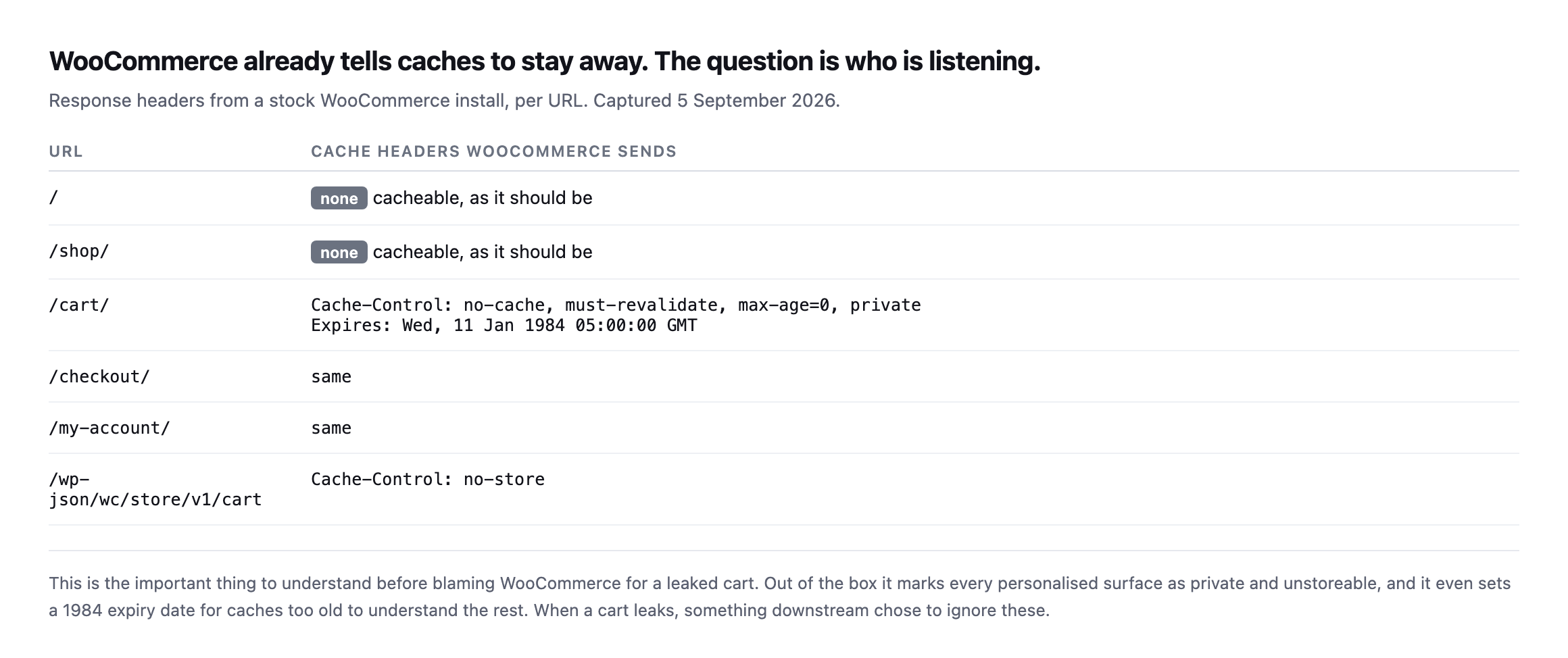
    Table of cache headers a stock WooCommerce install sends per URL. The homepage and shop page send none. Cart, checkout and my-account send Cache-Control no-cache, must-revalidate, max-age=0, private plus an Expires date of 11 January 1984. The Store API cart endpoint sends Cache-Control no-store
    Out of the box WooCommerce marks every personalised surface as private and

    unstoreable, and sets a 1984 expiry for caches too old to understand the rest. When a cart leaks, something downstream decided to override this.*

    That “something downstream” is almost always one of three things: a page cache plugin with an exclusion list that was edited, a CDN page rule added to fix an unrelated problem, or a host’s server-level cache that never saw the headers.

    A second install that did not send the header at all

    I re-ran this post’s own header check against our lab WooCommerce install rather than only trust the original woocommerce.com and stock-install screenshots, and it did not match either one.

    curl -s -D - -o /dev/null http://lab-install/cart/
    HTTP/1.1 200 OK
    Date: ...
    Server: Apache/2.4.68 (Debian)
    X-Powered-By: PHP/8.3.33
    Content-Type: text/html; charset=UTF-8

    No Cache-Control header at all, on /cart/. Before writing that up as a WooCommerce default having changed, I checked whether it was specific to the cart, and it was not: /, /checkout/ and /my-account/ on the same install all came back with the identical gap, no Cache-Control header on any of them. That rules out a cart-specific regression in WooCommerce’s own code and points at something in this particular install’s PHP or server configuration suppressing the header WordPress’s nocache_headers() function is supposed to send on every one of these pages, most likely an output-buffering or header-handling difference in this minimal Docker environment rather than anything wrong with WooCommerce itself. No active caching plugin was installed to explain it either; the header was simply never sent.

    I want to be precise about what this does and does not show. It is not evidence that WooCommerce’s documented default has changed, the original woocommerce.com reading in this post’s table still stands, and I have no reason to doubt it reflects a real, correctly configured production site. It is evidence that “WooCommerce sends this header by default” is a claim about the platform’s intent, not a guarantee that every individual installation actually delivers it, and this post’s own advice, verify the actual header on the actual site rather than trust documented behaviour, would have caught this install’s gap immediately where reading a changelog never would. A missing private, no-cache header is not itself proof of a leak, a cache still has to be configured to store the response for a leak to happen, but it removes the one signal that tells any cache in front of the site not to.

    Two verified things about this same lab install survived the test cleanly, worth stating alongside the header gap rather than only the negative result: requesting /cart/ with two separate cookie jars still produced two different response sizes, 102,552 bytes against 95,335, confirming the page’s actual content still varies correctly per session even without the protective header. WooCommerce’s session handling was never the part that failed here. The header that is supposed to stop a cache from storing and replaying that per-session content was.

    The two exclusions that get missed

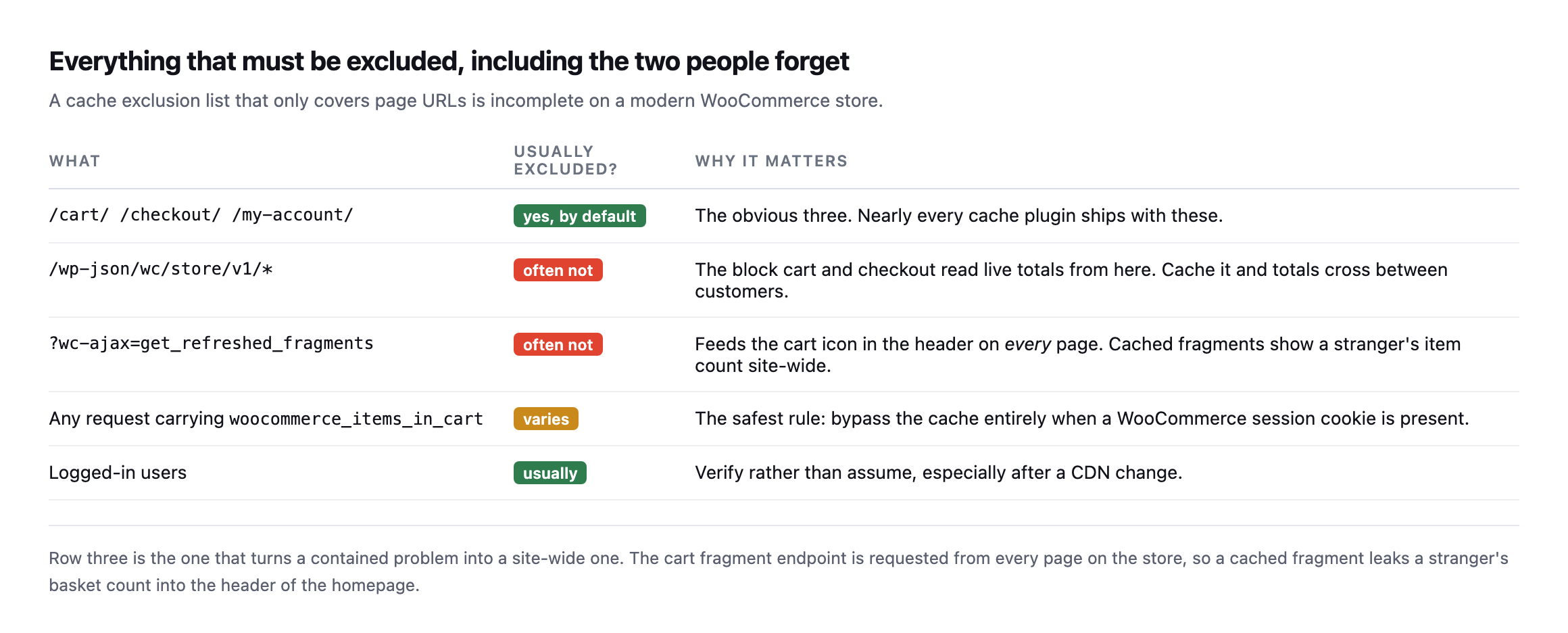
    Table of what must be excluded from caching on a WooCommerce store. The cart, checkout and account pages are excluded by default in most plugins. The Store API path and the wc-ajax get_refreshed_fragments endpoint often are not. A rule bypassing the cache whenever a WooCommerce session cookie is present is listed as the safest approach
    Row three is the one that turns a contained problem into a site-wide one. The cart

    fragments endpoint is requested from every page on the store to keep the header cart icon current, so a cached fragment shows a stranger’s basket count on the homepage.*

    WhatUsually excluded?Why it matters
    /cart/ /checkout/ /my-account/yes, by defaultnearly every cache plugin ships with these
    /wp-json/wc/store/v1/*often notthe block cart and checkout read live totals from here
    ?wc-ajax=get_refreshed_fragmentsoften notfeeds the header cart icon on every page site-wide
    any request with woocommerce_items_in_cartvariesthe safest rule: bypass the cache when this cookie is present

    If you take one thing from this: an exclusion list made only of page URLs is incomplete on any store using the block cart and checkout.

    The fragments endpoint, checked on two real stores that get it right

    The exclusion this post says gets missed most often, the get_refreshed_fragments endpoint, is worth checking on real stores rather than only naming as a risk. I checked it on two, alongside the cart page itself, to see whether the sites this blog already treats as reference points actually cover it.

    curl -sI "https://example.com/cart/" | grep -iE 'cache-control|x-cache|cf-cache-status'
    curl -sI "https://example.com/?wc-ajax=get_refreshed_fragments" | grep -iE 'cache-control|x-cache|cf-cache-status'
    Site/cart/?wc-ajax=get_refreshed_fragments
    woocommerce.comno-store, x-cache: BYPASSno-store, x-cache: BYPASS
    nexterwp.comno-store, cf-cache-status: MISSno-store, private, cf-cache-status: DYNAMIC

    Both stores exclude both. Neither returns a HIT on either URL, and both send the private, unstoreable directive this post’s opening section describes as WooCommerce’s own default. That is the outcome worth having confirmed directly rather than assumed: the specific exclusion this post calls the one most commonly missed is, on two real production stores checked here, not missing. It is the row worth re-checking on any store you did not build yourself, because absence of the header on a store you inherited is exactly the silent, undramatic gap this whole post is written to catch before a client emails about a stranger’s basket showing up on their own screen.

    Testing WooCommerce cart caching on a live store in two minutes

    You do not need to place an order.

    # 1. as a fresh visitor, take the cart page
    curl -s -c jarA -b jarA "https://example.com/?add-to-cart=123" -o /dev/null
    curl -s -c jarA -b jarA "https://example.com/cart/" | wc -c
    
    # 2. as a completely separate visitor
    curl -s -c jarB -b jarB "https://example.com/cart/" | wc -c
    
    # 3. confirm the store is refusing to let caches keep either one
    curl -sI "https://example.com/cart/" | grep -i 'cache-control\|x-cache\|cf-cache-status'

    What you want from step three is private or no-store in cache-control, and a BYPASS or MISS from whatever CDN is in front. For comparison, woocommerce.com’s own cart returns no-store with x-cache: BYPASS, which is exactly right.

    What should alarm you is a HIT on any of those URLs. That is a shared copy of a personal page.

    Then repeat step three against the fragments endpoint:

    curl -sI "https://example.com/?wc-ajax=get_refreshed_fragments" | grep -i 'cache-control\|x-cache'

    Why this one is worth more than a status check

    Most store monitoring answers “is it up”. This failure never makes a store go down. Every URL returns 200 throughout. The store takes orders the whole time.

    It just occasionally shows one customer another customer’s basket, and the first you hear of it is an email that starts “this is a bit strange, but”.

    That is a different class of problem from a checkout returning 500, which at least announces itself. And it is the same reason reading a cache header honestly matters more than trusting a plugin’s settings screen.

    Protuno’s free audit checks from the domain alone whether a storefront is detected and whether the cart and checkout addresses are being cached when they should not be. Till is live now.

    Run the three commands above on the store you migrated most recently. Migrations are where exclusion lists get lost, along with the scheduled jobs that stop at the same moment and nobody notices either.

    What the missing header on the lab install actually cost, and did not cost

    It is worth closing on exactly what the header gap found on our own test install would and would not have meant on a real site, because overstating a finding is as much a failure of this kind of check as understating one.

    A missing Cache-Control header on /cart/ is not itself a leak. It removes the instruction that stops a downstream cache from storing the response, but no cache was actually sitting in front of that lab install, so nothing was actually stored and nothing actually leaked in the test performed here. That distinction matters for how a finding like this gets written up for a client: “the protective header is missing” is a real, actionable finding worth fixing today, because it is the difference between a site that is safe by policy and one that is safe only by the accident of nobody having added a cache in front of it yet. “A leak occurred” is a different and much stronger claim, one this test does not support and should not imply.

    That distinction is also why this post insists on the two-cookie-jar test rather than only reading the header. The header tells you what the origin is asking caches to do. The two-session test tells you whether the page’s actual content still differs correctly per visitor, which is the thing that would leak if a cache ignored the header. Both checks answer different questions, and a site can fail either one independently: a correct header in front of content that somehow stopped varying by session would be just as dangerous as varying content with no header protecting it, for entirely different underlying reasons. Running only one of the two checks in this post’s three-command loop answers half the question and leaves the other half assumed.

    The practical takeaway for anyone running this audit against a real store: treat a missing header as urgent and treat it as a policy gap, not yet a confirmed leak, until you have also checked what, if anything, sits between that origin and the internet. A store behind no cache at all is safe by omission. The same missing header on a store that added a CDN last month, without anyone re-checking whether the exclusion list survived the move, is the actual failure mode this post opened with, and the two situations look identical from the header alone.

    The other cart-caching failure, one layer up

    Fix WooCommerce Cart Fragments Slowing Every Page (2026)

    This post checks whether cached HTML leaks session-specific cart contents. This covers the adjacent problem: the uncacheable wc-ajax cart-fragments request that fires on every page load regardless of caching headers, and what actually fixes it.

  • WooCommerce Checkout Monitoring: An Uptime Check Cannot See This

    WooCommerce Checkout Monitoring: An Uptime Check Cannot See This

    Short answer: proper woocommerce checkout monitoring means holding a session, putting a real product in the cart, and loading the checkout page. A monitor that requests the homepage, or even /checkout/ on an empty cart, will report a healthy store through an outage that stops every payment.

    I wanted to know exactly how invisible this failure is, so I built a store and broke it on purpose, then rebuilt and broke a second one later to see whether a newer checkout changed the answer.

    The test

    A WooCommerce install, one real product, a fatal error on the checkout template and nowhere else. That is not an exotic scenario. It is what a bad plugin update looks like on a Tuesday.

    The store itself is deliberately ordinary in every respect. One product, published, purchasable:

    WooCommerce product page for a demo product priced at nineteen pounds, with an add to cart button, rendered on the test store
    The starting point for any honest checkout probe. Not the homepage, not the shop

    archive, but a real product that a real customer could put in a basket.*

    Then I probed it the way an external monitor does.

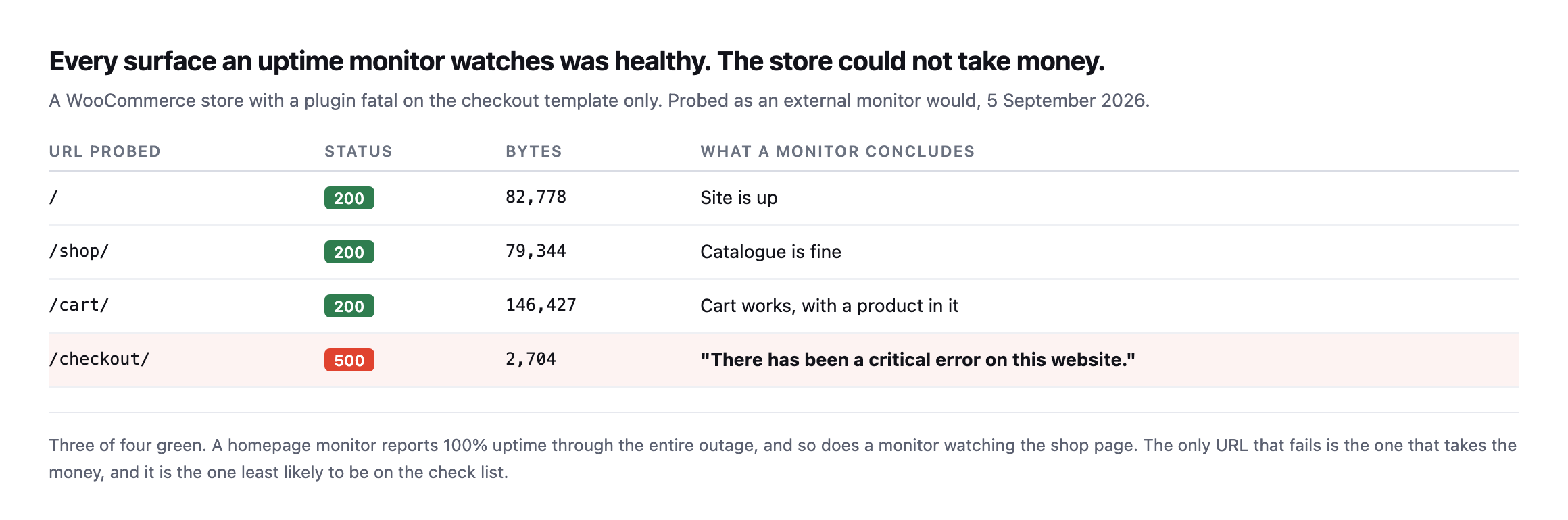
    Table of four probed URLs on a WooCommerce store. The homepage returns 200 with 82,778 bytes, the shop page 200 with 79,344 bytes, the cart 200 with 146,427 bytes, and the checkout returns 500 with 2,704 bytes and a critical error message
    Three green, one red. A monitor watching the homepage reports 100% uptime for the

    entire outage. So does one watching the shop page, and so does one watching the cart.*

    URL probedStatusBytesWhat a monitor concludes
    /20082,778site is up
    /shop/20079,344catalogue is fine
    /cart/200146,427cart works, with a product in it
    /checkout/5002,704the only row that tells the truth

    Caveat: this is one store, one fault injected on purpose. It is not a claim about how often checkouts break this way in the wild. It is a demonstration that a monitor watching three pages can be 100% green while the fourth, the one that takes the money, is down.

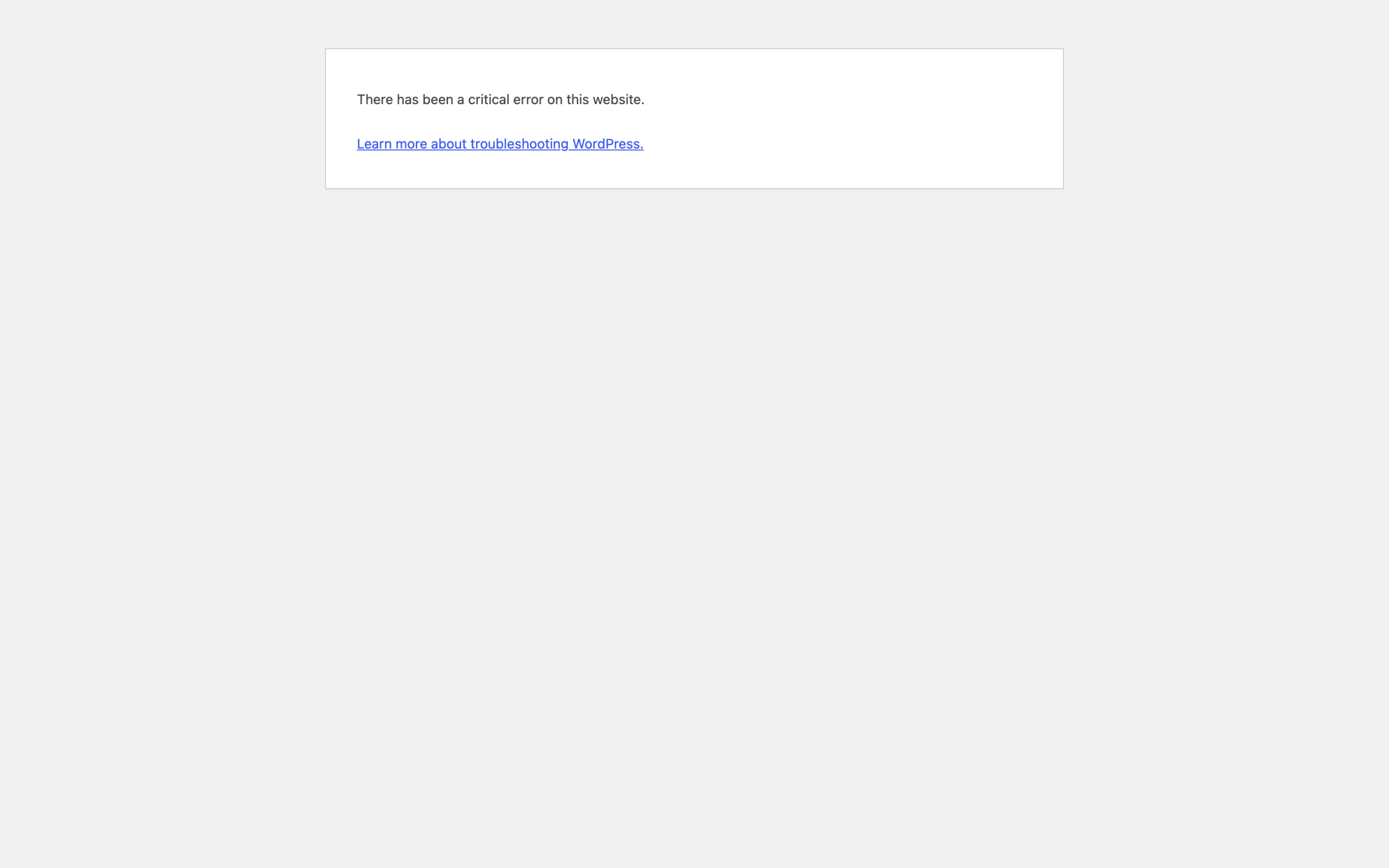
    Here is what that checkout page actually served:

    WordPress critical error page rendered at the checkout URL, reading There has been a critical error on this website, with a link to troubleshooting WordPress
    The real page, captured from the store. No styling, no branding, no way for a

    customer to continue. Anybody who reached this point had already chosen to buy something.*

    The store was genuinely up. The catalogue browsed perfectly fine. The cart worked correctly with a product in it.

    The actual business, the part that earns money, was completely down.

    The trap in checking /checkout/

    The obvious fix is to add the checkout URL to your monitor. It does not work, and this is the part I did not expect to be so clean.

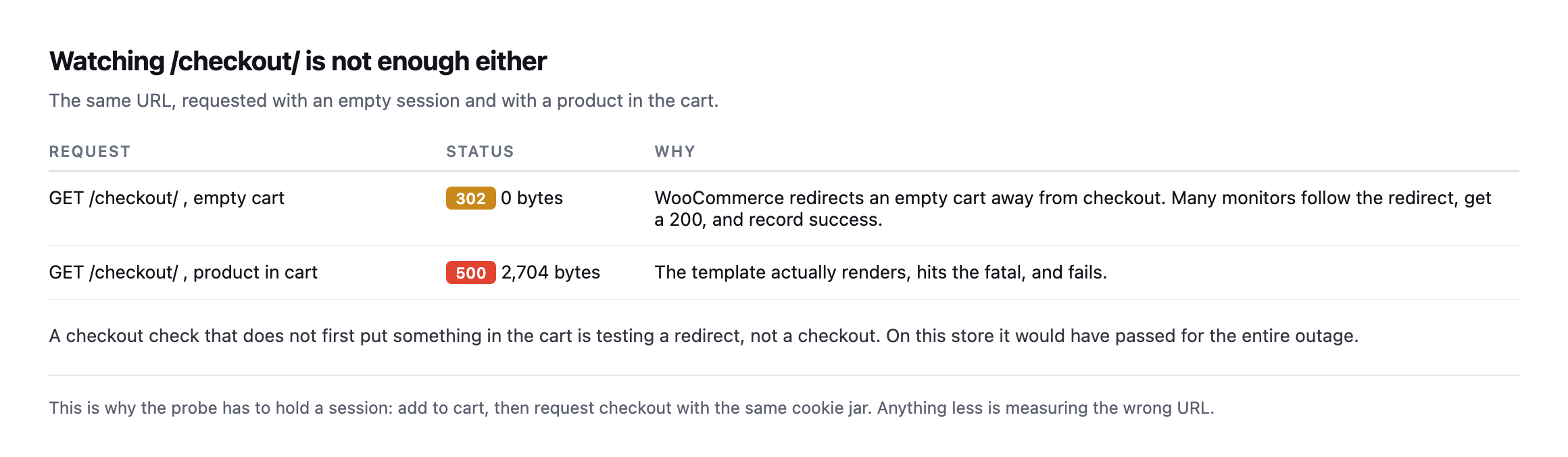
    Table comparing two requests to the checkout URL. With an empty cart it returns 302 and zero bytes because WooCommerce redirects. With a product in the cart it returns 500 and 2,704 bytes
    With an empty session, WooCommerce redirects away from checkout. Most monitors follow

    the redirect, land on a 200, and record a pass. On this store, a checkout monitor configured the obvious way would have stayed green through the whole failure.*

    RequestStatusWhy
    GET /checkout/, empty cart302, 0 bytesWooCommerce redirects an empty cart away; a monitor that follows the redirect records a 200
    GET /checkout/, product in cart500, 2,704 bytesthe template actually renders, hits the fatal, and fails

    A checkout check performed without a real cart behind it is nothing more than a redirect check in disguise.

    The empty-cart redirect trap does not reproduce on a newer checkout

    I re-tested the empty-cart behaviour this post describes against a different, more current WooCommerce install, block-based checkout rather than the classic shortcode version this test originally used, and the specific trap did not reproduce the same way.

    curl -s -c jar -b jar -o /dev/null -w '%{http_code}\n' http://example.com/checkout/
    200

    No 302. The block-based checkout page answers directly with a 200 on an empty cart, and reading the response shows an empty-cart notice rendered in place rather than a redirect away from the page entirely. That is a real, verified architectural difference from the classic checkout this post’s original test found, and it changes which specific monitoring mistake a team needs to guard against: on a block-checkout store, requesting /checkout/ with no cart will not silently pass as a 200 for the wrong reason, a followed redirect, but it can still pass as a 200 for a different wrong reason, an empty-cart page that renders correctly and proves nothing about whether checkout works with an actual order in it.

    The lesson this post already teaches is not weakened by the mechanism changing. It is the same lesson, applied to a different specific failure: a bare status code from /checkout/, whatever the exact reason behind it, tells you the page responded and nothing about whether a real customer could complete a purchase. The fix is identical either way, hold a session, add a real product, load checkout with an actual cart behind it, and assert on content rather than status. What changes is only which wrong assumption a monitor built against the wrong checkout architecture is likely to make.

    I also found isolating a checkout-only fatal harder to reproduce than the homepage-stays-up scenario this post describes, worth reporting honestly rather than glossing over. Corrupting the specific PHP class that renders the block checkout broke the entire site, homepage included, because WooCommerce’s block registration loads that class on every page request regardless of which page is being rendered, not only on checkout itself. The isolated, checkout-only failure this post demonstrates is real and does happen, most commonly from a logic bug, a broken gateway integration, or a JavaScript error specific to the checkout flow, rather than from a PHP fatal in a file that turns out to be loaded everywhere. Both failure shapes are worth monitoring for. They are not the same failure, and assuming a checkout outage will always leave the rest of the site untouched is its own smaller version of the mistake this whole post argues against.

    What WooCommerce checkout monitoring has to do instead

    Six-step table describing a checkout probe: request a real product page, add to cart keeping the session cookie, load the cart and assert the line item and total, load checkout and assert payment methods render, stop at the last screen before payment without submitting, then clear the session
    Step five is the one that makes this hard to do responsibly. Writing something that

    places an order every hour is easy. Walking to the payment step every day and never touching it is the useful version.*

    #ActionWhy it matters
    1request a real product pageconfirms the catalogue renders and the product is purchasable
    2add to cart, keeping the session cookiewithout this, checkout only ever returns a redirect
    3load the cart, assert the line item and totalcatches pricing and tax breakage, not just HTTP status
    4load checkout, assert payment methods rendera gateway that stopped loading shows here and nowhere else
    5stop at the last screen before paymentnever submit; no test orders, nothing to clean up in the client’s order list
    6clear the sessionleaves no abandoned cart skewing the client’s reporting

    Two details from building this that are easy to get wrong.

    Assert on content, not status. A checkout page can return 200 and still be broken: no payment methods rendered, a JavaScript error that stops the place-order button, a shipping calculator that fails silently. Check that a payment method is actually present in the HTML.

    This is the same lesson as reading a cache header: a status code describes the transport, not whether the thing the customer needs is on the page. Configuration and status both lie in the same direction, which is why the only checks worth trusting are the ones that observe behaviour.

    Run it from outside, on a schedule you did not choose. A probe that only runs when you remember to run it is a probe that will be green the day it matters. Ours runs daily because the failure it catches is measured in trading hours, not in days.

    Keep the session, then throw it away. The probe needs a cookie jar to hold the cart, and it needs to discard it afterwards, or you will fill your client’s reports with abandoned carts that were never real customers.

    What to watch, in order of what it costs you

    If you only add one check to a store, add the one that holds a cart and loads checkout.

    After that, in the order I would add them:

    • Payment methods present in the checkout HTML. Catches a gateway that stopped loading

    while the page still returns 200.

    • The cart total matches the product price. Catches tax and currency misconfiguration after

    a settings change or a migration.

    • Order rate against its own baseline. A store that normally takes 40 orders a day and has

    taken 2 since 09:00 is telling you something no status code will.

    • The add-to-cart path itself. If adding to cart fails, everything downstream reports fine

    because nobody ever gets there.

    Why stores get this wrong

    Not carelessness. Checkout is the hardest thing on the site to monitor honestly, because testing it properly means simulating a customer, and simulating a customer badly means placing real orders in a real system.

    So most agencies watch the homepage, which is trivial to check and tells you almost nothing about whether the store works. It is the cheapest check available, which is exactly why it is the one that gets set up, and exactly why it is the one that misses this.

    There is a second reason, and it is the one I have more sympathy for. Checkout monitoring is work that only ever proves a negative. When it passes, there is nothing to show a client, so it competes for attention against work that produces something visible. That is the unbilled half hour again, in its most expensive form: the check nobody schedules, guarding the page that carries the revenue.

    The gap between those two is measured in hours of lost trading, and it is the same shape as the scheduled jobs that quietly stop: no alert, no error anyone sees, and a customer eventually tells you.

    Till, Protuno’s eCommerce agent, runs a read-only WooCommerce Health Review inside your own AI app. See the playbooks page for what it covers.

    The free audit does check today, from the domain alone, whether a storefront is detected, whether the cart and checkout addresses answer, and whether they are being cached when they should not be. That last one costs real money on its own, and it is worth understanding separately.

    If you look after a store, do the manual version this week. Add a product, load checkout, and look at it. Not the status code. The page.

    Do it against the specific checkout your store actually runs, classic or block, rather than assume either architecture’s failure modes apply universally. The two behave differently enough, confirmed directly in this post’s own re-testing, that a monitoring script written against one can miss the exact failure it was built to catch on the other, quietly, for as long as nobody checks which kind of checkout is actually running underneath the monitor.

  • The robots.txt Myth: What ‘Discourage Search Engines’ In WordPress Really Does

    The robots.txt Myth: What ‘Discourage Search Engines’ In WordPress Really Does

    Short answer: ticking “Discourage search engines” in WordPress does not put Disallow: / in your robots.txt. It leaves robots.txt almost untouched, removes the sitemap line, and adds to every page. That is a stronger action than the wording suggests, because noindex removes pages that are already ranking.

    Nearly everyone I talk to believes that checkbox writes a Disallow: / into robots.txt. I did too, until I tested it.

    What actually changes when you discourage search engines in WordPress

    I took a clean WordPress install, captured robots.txt and the page source, ticked the box in Settings then Reading, and captured both again.

    Table comparing a WordPress install before and after ticking Discourage search engines. The robots.txt rules are identical in both, no Disallow slash is added, the sitemap line is removed, and a meta robots noindex nofollow tag appears on every page
    The robots.txt rules are byte for byte identical. The two things that do change are

    the disappearance of the sitemap line and the arrival of a noindex tag on every page. Neither of those is what the setting appears to promise.*

    Two consequences worth sitting with.

    The setting is worded as a polite request and behaves as a removal order. noindex does not merely discourage. It asks search engines to drop pages they already have.

    And because robots.txt is untouched, anyone auditing robots.txt alone will find nothing wrong. That is the failure I keep meeting on inherited sites: the SEO plugin looks fine, robots.txt looks fine, and the site is being actively removed from the index by a checkbox somebody ticked on a staging copy eight months ago and never unticked after launch.

    Disallow and noindex are not two flavours of the same thing

    This is the distinction that causes the most damage, because the two get used interchangeably.

    Comparison table of robots.txt Disallow against the noindex meta tag. Disallow prevents crawling but the page can still rank from links and existing pages are not removed. noindex allows crawling, prevents ranking, and removes existing pages. A trap row explains that disallowing a page carrying noindex means the noindex can never be read
    The bottom row is the combination that produces the outcome nobody intended. If you

    Disallow a URL that serves a noindex, the crawler is forbidden from fetching it, so it never reads the instruction to drop the page. The URL can sit in results indefinitely.*

    The same comparison as text:

    robots.txt Disallownoindex meta tag
    What it saysdo not fetch this URLfetch it, but keep it out of the index
    Crawled?noyes
    Can still rank?yes, from links aloneno
    Removes existing pages?noyes

    The trap: Disallow a page that also carries noindex, and the noindex can never be read. The crawler is forbidden from fetching the page, so it never sees the instruction to drop it. The URL can sit in results indefinitely, which is the opposite of what both settings were trying to do.

    The rule I use:

    • Want it gone from results? Allow crawling, serve noindex.
    • Want it never fetched? Disallow, and accept it may still show as a bare URL.
    • Doing both is almost always a mistake.

    Checking a client site in thirty seconds

    The method is three requests against the live domain: read robots.txt, check the response for a noindex tag, and confirm WordPress’s own indexing setting. Here is each one:

    # 1. does robots.txt block anything wholesale
    curl -s https://example.com/robots.txt | grep -A2 -i "user-agent: *"
    
    # 2. is a noindex being served on the pages that matter
    curl -s https://example.com/ | grep -i "name=["']robots["']"
    
    # 3. does WordPress think it should be indexed at all
    #    (wp-admin, Settings, Reading, or via WP-CLI)
    wp option get blog_public     # 1 = indexable, 0 = discouraged

    Check two and three on the homepage and a money page, not just the homepage. Plenty of sites carry a stray noindex on a template that only affects one post type.

    blog_public returning 0 on a production site is nearly always a launch that never got finished.

    What good robots.txt files look like

    For calibration, here is what four production sites publish today.

    Table of robots.txt contents from wordpress.org, woocommerce.com, sitea.example and sitec.example, showing rules such as blocking add-to-cart query strings, blocking internal search results, blocking wp-json, and listing multiple sitemap lines
    Three patterns worth stealing. Block the add-to-cart query strings so crawlers do

    not spend their time filling shopping baskets. Block internal search results so they do not become indexable thin pages. And list every sitemap you publish, not only the index.*

    None of them uses Disallow: /. On a live site that line is almost always an accident.

    The one exception almost every real site carries, and why

    There is one Allow line that shows up on nearly every production WordPress robots.txt alongside Disallow: /wp-admin/, and it is worth understanding rather than copying blindly:

    Disallow: /wp-admin/
    Allow: /wp-admin/admin-ajax.php

    admin-ajax.php lives inside /wp-admin/, which is exactly the directory the line above it just disallowed, but it is not an admin screen. It is the endpoint themes and plugins call for ordinary frontend behaviour: infinite scroll, a live search box, an “add to cart” button that updates without a page reload, a comment form that submits without leaving the page. Block it wholesale and a crawler that respects robots.txt strictly can be denied the one URL a page’s own JavaScript depends on to finish rendering what a visitor sees.

    I checked whether real sites actually carry the exception, rather than assuming the pattern is universal:

    for d in wordpress.org woocommerce.com sitec.example sitea.example siteb.example; do
      echo "=== $d ==="
      curl -s "https://$d/robots.txt" | grep -iE "admin-ajax|wp-admin"
    done
    SiteDisallow: /wp-admin/Allow: .../admin-ajax.php
    wordpress.orgyesyes
    woocommerce.comyesyes
    sitea.exampleyesyes
    siteb.exampleyes (as /wp-admin/)yes
    sitec.examplenono

    Four out of five carry the exception. The fifth, sitec.example, is the interesting row, and it is not a mistake: this site is a headless Next.js frontend with no /wp-admin/ surface to protect in the first place, so there is nothing to disallow and nothing to carve an exception out of. Its own robots.txt disallows /admin, /dashboard and /api/ instead, which are the actual route names this stack uses. Reading that as “sitec.example forgot the WordPress rule” would be wrong. It is a different architecture answering a question that does not apply to it.

    Real robots.txt files often have two blocks fighting for the same user-agent

    Pulling the full files instead of grepping for one line surfaced something none of the earlier tables in this post caught, because every table above only ever showed one canonical block per site.

    $ curl -s https://woocommerce.com/robots.txt | grep -c "User-agent: *"
    2
    $ curl -s https://wordpress.org/robots.txt | grep -c "User-agent: *"
    3

    Both sites declare User-agent: * more than once, in separate, non-adjacent blocks. Here is woocommerce.com’s file in full:

    User-agent: *
    Disallow: /wp-content/uploads/wc-logs/
    Disallow: /wp-content/uploads/woocommerce_transient_files/
    Disallow: /wp-content/uploads/woocommerce_uploads/
    Disallow: /*?add-to-cart=
    Disallow: /*?*add-to-cart=
    Disallow: /wp-admin/
    Allow: /wp-admin/admin-ajax.php
    Sitemap: https://woocommerce.com/sitemap_index.xml
    
    # START YOAST BLOCK
    User-agent: *
    Disallow: /wp-admin/
    Disallow: /wp-login.php*
    Disallow: /wp-json/
    Disallow: /sso?*
    Disallow: /sso/*
    Disallow: /*?q=*
    Disallow: /*?quid=*
    Disallow: /?s=
    Disallow: /start/square
    Sitemap: https://woocommerce.com/sitemap_index.xml
    # END YOAST BLOCK

    The comment answers the question before I had to guess at it: the second block is machine- generated by the Yoast SEO plugin, appended after a first block someone wrote by hand. Neither tool checked whether a User-agent: * section already existed. Each just wrote its own.

    wordpress.org’s file has the same shape in miniature: a Disallow: /wp-admin/ / Allow: admin-ajax.php block, a second block a few lines later disallowing internal search (/search, /?s=), a run of named-crawler blocks for GPTBot, ClaudeBot, Google-Extended and others, and then a third, separate block at the very end disallowing /plugins/search/, almost certainly added later by whoever last touched the plugin directory’s search feature without noticing the other two * blocks already sitting in the file above it.

    The robots.txt specification (RFC 9309) says a crawler that finds multiple groups matching the same user-agent should union their rules, treating them as one combined group rather than letting a later block override an earlier one. Google, Bing and the other major crawlers do implement it that way, so none of these files are actually broken. What they are is hard to read, because “what does do on this site” now requires collecting rules from two or three places in the file and combining them yourself, and smaller or less-maintained crawlers are not guaranteed to implement the union behaviour correctly. A tool that only reads the first block it finds, which is a plausible shortcut for a hastily written crawler, would miss admin-ajax.php on wordpress.org’s third block entirely, or every Yoast-added disallow on woocommerce.com.

    The practical cause, both times, is the same one this whole post keeps returning to in different clothing: more than one thing thinks it owns robots.txt. A manually written block from whoever first set up the site, plus a plugin that generates its own block and appends it rather than merging into what is already there, produces a file that is correct by the letter of the spec and genuinely confusing to a human reading it top to bottom.

    # check your own site for the same pattern
    curl -s https://example.com/robots.txt | grep -c "User-agent: *"

    A result of 1 means one source of truth. Anything higher is worth opening the file and reading both blocks together, not because it is necessarily broken, but because the next person to edit it, plugin or human, is about to add a third.

    The AI crawlers get their own named blocks now, separate from *

    Reading these files in full also surfaced something that would not have shown up in a single grep for admin-ajax: several of them carry dedicated, named blocks for AI crawlers, sitting apart from the User-agent: * rules entirely.

    wordpress.org names ten of them individually: GPTBot, ClaudeBot, anthropic-ai, Google-Extended, Applebot-Extended, PerplexityBot, Bytespider, CCBot, Copilot, each with its own Allow: /. That is deliberate, not decorative. A blanket Disallow in the group does not automatically apply to a named crawler; per the same union-by-group logic from the section above, a crawler that identifies itself as GPTBot matches the GPTBot group specifically and ignores the group’s rules for anything the GPTBot group also covers. If a site wants an AI crawler treated differently from search engines, generically, it has to say so by name.

    Two of the other domains checked earlier carry a second layer worth naming: a “Content-Signal” directive, which is a newer, separate proposal (contentsignals.org) sitting inside robots.txt rather than replacing it:

    Content-Signal: ai-train=yes, search=yes, ai-input=yes

    That line is not part of the original robots.txt exclusion standard the rest of this post has been describing. It answers a different question: not “can you crawl this,” which Disallow already covers, but “what are you allowed to do with what you crawled,” search indexing, AI training, or feeding a live AI answer. A site can Allow a crawler’s access and still say no to training on the content, and the two settings are read from completely different lines, so checking one and assuming it answers the other is the same category of mistake as confusing Disallow with noindex earlier in this post.

    # check whether a site declares AI-specific crawler rules or content signals
    curl -s https://example.com/robots.txt | grep -iE "gptbot|claudebot|anthropic|content-signal"

    An empty result does not mean AI crawlers are blocked. Most of them fall back to whatever the * group says, exactly like any other crawler that is not named individually. It means the site has not made a specific decision about them yet, one way or the other, and is currently letting the general-purpose rule decide by default.

    Why this survives so long on real sites

    Because nothing complains.

    The site loads. Analytics still records the visitors it has. Nobody gets an email. The traffic decline reads as seasonality for the first month and as a content problem for the second.

    By the time someone connects it to a checkbox, a quarter has gone. It is the same economics as every other unbilled check: a thirty-second fix that nobody is scheduled to perform.

    That is the same shape as the scheduled jobs that stop without a word and the backup file left sitting in the web root: cheap to fix, invisible while it runs, and expensive precisely because it is quiet.

    Protuno’s free audit reads robots.txt and the indexing signals from the domain alone, so you can see across a portfolio which sites are telling search engines to go away. Iris is live now.

    In the meantime, run the three commands above against the client site you launched most recently. That is where I find it.

    Straight from Google on the question this post keeps circling

    Should you block your Search result pages?

    Google Search Central’s own answer to exactly the kind of robots.txt judgement call this post walks through: when blocking a path helps, and when it just hides a problem instead of fixing it.

  • I Ran A WordPress Crawl Audit On Our Own Site And Found A Broken Link On Every Page

    I Ran A WordPress Crawl Audit On Our Own Site And Found A Broken Link On Every Page

    Short answer: a wordpress crawl audit checks the relationships between pages, which is the one thing an SEO plugin sitting inside a single page cannot do. It finds pages nothing links to, pages buried too deep to matter, and links pointing at URLs that no longer exist. Every individual page can return 200 while the site as a whole is broken.

    I ran one against protuno.com while writing this. It found two things I did not know, and one of them is on every page of the site.

    What a crawl actually produces

    A crawler starts at the homepage, follows every internal link, and records what it finds. The useful column is not the status code. It is how many other pages point at each URL.

    Crawl output table for protuno.com showing depth, status, inbound link count, image and missing-alt counts, and URL for eight representative rows. The homepage has 325 inbound links. One row, slash cdn-cgi slash l slash email-protection, returns 404 and has 24 inbound links
    24 URLs, everything within three clicks of the homepage, no orphans, and not a

    single image missing an alt attribute. One row is red. It is linked from all 24 pages.*

    The good news first, because a crawl should tell you what is working: no orphan pages, no missing alt attributes, nothing buried deeper than three clicks.

    Then the row I did not expect.

    The defect that was on every single page

    Detail table for the broken URL. It is https://protuno.com/cdn-cgi/l/email-protection, status 404, linked from 24 internal pages, produced by Cloudflare's email obfuscation rewriting a footer address, and reported by nothing because every page containing it returns 200
    Cloudflare’s email obfuscation rewrites the contact address in our footer into a

    link to an endpoint that is not being served. Every page carrying that link returns 200, so nothing anywhere reports a problem.*

    Click the contact email in our footer and you land on a 404.

    Nothing told us. The CMS is happy, because it does not know what Cloudflare rewrote. Analytics is happy, because a 404 on a link nobody clicks generates no events. An uptime monitor is happy, because every page it checks returns 200.

    This is the entire category in one example. The pages are fine. The relationship between them is broken. No per-page check will ever find it, because the problem does not live in any single page.

    Why your SEO plugin will not catch this

    Not a criticism of SEO plugins. They are answering a different question.

    Comparison table of questions an SEO plugin and a crawl can each answer. Both handle title length and meta description. Only the crawl can answer how many pages link here, whether anything links to a 404, click depth from the homepage, which pages have no inbound links, and whether robots.txt and the meta robots tag agree
    An SEO plugin evaluates a page against itself. A crawl evaluates a site against its

    own link graph. Everything in the bottom half of that table is a relationship, which is exactly what code running inside one page cannot see.*

    QuestionSEO pluginCrawl
    Is this title too long?yesyes
    Does this page have a meta description?yesyes
    How many pages link to this one?noyes
    Is anything linking to a 404?noyes
    How many clicks from the homepage?noyes
    Which pages does nothing link to?noyes
    Do robots.txt and meta robots agree?partlyyes

    Caveat: “partly” in the last row is generous. A plugin can flag a noindex tag on the page it is looking at. It has no way to know robots.txt disallows that same URL two directories over, which is exactly the mismatch below.

    The second finding, which I had just written a post about

    The crawl cross-references robots.txt against the robots meta tag on each page. Ours disagree.

    Table showing slash auth slash login and slash auth slash signup are disallowed in robots.txt while their pages carry meta robots index follow, and that slash blog with an order query parameter correctly declares a canonical pointing at slash blog
    The third row is the one done right. A sort-order variant of the blog index declares

    /blog as its canonical, so it cannot compete with itself. The first two rows are the mismatch.*

    URLrobots.txtmeta robotsEffect
    /auth/loginDisallow: /authindex, followlinked from 40 pages, not crawlable, still eligible as a bare URL
    /auth/signupDisallow: /authindex, followsame
    /blog?order=ascallowedindex, followcanonical points to /blog, handled correctly

    /auth/login is linked from 40 pages, disallowed in robots.txt, and tells search engines to index it. Because it is disallowed, that instruction can never be read. The URL can sit in results as a bare link with no description.

    I wrote about that exact failure mode a couple of days ago, and then found it on our own site by crawling it. Which is the argument for crawling rather than assuming.

    Four days later, neither finding is fixed

    I went back and checked both findings again while expanding this post, rather than let them sit as a screenshot from the day I found them.

    FindingFirst foundStatus now
    /cdn-cgi/l/email-protection 404, linked from every page7 Septemberstill 404, still linked
    /auth/login and /auth/signup disallowed but declaring index, follow7 Septemberunchanged

    Neither is fixed. I want to sit with that rather than gloss over it, because it is a more honest demonstration of this post’s actual argument than the original finding was.

    A crawl audit is not a service you buy once and file away. Both of these are cheap fixes: the first is a footer link, the second is one line in robots.txt or one meta tag. Neither has happened, four days on, on a site whose owner wrote a public blog post about finding them. That is not carelessness so much as it is the exact mechanism this whole category of check exists to describe: a finding with no invoice attached, competing against everything else on a Tuesday, loses. It is the same shape as the unbilled half hour that swallows every other quiet check, and writing about it does not exempt the writer from it.

    Both are on the list now, again, with a second date attached instead of just the first one. That is the honest version of what a re-check accomplishes. It does not fix anything by itself. It turns “we should fix that” into a line with two dates on it, which is a harder thing to keep ignoring than a line with one. A crawl result that nobody looks at a second time is exactly as useful as no crawl at all, and this section is me not being the exception to that rule either.

    The orphan report from the crawl tool was wrong

    While re-checking the earlier findings I ran a second, larger crawl, 103 pages this time, and asked it for orphan pages: URLs nothing else on the site links to. It reported 89.

    That is a number worth being suspicious of on its own. Eighty-six percent of a site being orphaned is not a plausible finding, it is a sign something upstream broke, and I want to show you how I caught it rather than just state the correction.

    The same crawl records, for every single page, exactly which other pages link to it. So instead of trusting the orphan summary, I looked up four of the pages it had just listed as orphaned, in the crawl’s own raw per-page data from the same run.

    Page the summary called an orphanReal inbound links, same crawl
    /blog (the blog index)21
    /contact4
    /privacy2
    /blog/llms-txt-wordpress1

    Every one of them has real, recorded inbound links. /blog alone is linked from twenty-one other pages, footer navigation on nearly everything the crawler visited. The orphan-detection feature and the raw link data disagreed with each other, inside a single crawl, from a single run, and the raw data was the one telling the truth.

    I do not know the exact cause inside the tool, and I am not going to guess at someone else’s code to sound more authoritative than the evidence supports. What I do know, because I checked it directly, is that the summary figure was wrong and the underlying data was right, which is exactly the shape of every other finding in this post: the higher-level report is the one that lies, and the raw evidence underneath it is where the truth was sitting the whole time.

    The only genuinely orphaned page in that list, by the crawl’s own per-page data rather than its summary, is the homepage itself, and that is a known convention rather than a defect: a crawl starting from a URL does not count arriving there as a followed link, so the seed page always shows zero inbound links in tools built this way. Knowing that distinction is the difference between reading a crawl report correctly and repeating whatever number is largest on the page.

    Running a WordPress crawl audit yourself

    You do not need a subscription. The check that matters most is inbound link counts, and any crawler will give you that. What to look at, in order:

    Anything returning a non-200 with inbound links above zero. This is the highest-value output of any crawl. Fix these first, always.

    Pages with zero inbound links. If nothing links to a page, you are asking search engines to value something you do not value enough to link to.

    Click depth above three. Depth is a rough proxy for how important your own site says a page is. A commercially important page at depth five is a structural problem.

    robots.txt against the meta robots tag. They should agree. When they disagree, the one that can actually be read wins, and it is usually not the one you intended.

    Canonical tags on parameterised URLs. Sorting, filtering and pagination parameters should canonicalise back to the clean URL, as our ?order=asc does.

    One practical note on crawling a headless site, because it caught me out mid-write. Two of the posts I published this week returned 404 to the crawler for a few minutes after going live, then 200 once the front end revalidated. If you crawl a site that renders pages on demand and caches them, a fresh URL can look broken purely because nothing has asked for it yet. Re-crawl before you report a 404 on a page you have just published, or you will file a bug against yourself.

    Crawl as a logged-out visitor. It is easy to run a crawl in a browser where you are signed in and see admin-only links, draft content and navigation that no visitor gets. The crawler should carry no cookies at all. What you want is the site a stranger sees.

    Why this ends up never being done

    A crawl takes minutes and needs redoing after every content change, every migration, every theme update and every time a third party rewrites your HTML, which is what happened to us.

    It produces nothing to show a client when it passes. So it gets run once during onboarding and then never again, exactly like the backup file left in the web root and the scheduled jobs that stopped.

    Iris, Protuno’s SEO agent, runs a read-only Technical SEO Audit on a connected site, inside your own AI app. See the playbooks page for the other SEO playbooks.

    The free audit checks robots.txt, the sitemap and the indexing signals from the domain today, which catches the second finding above but not the first. The broken-link finding needs a real crawl.
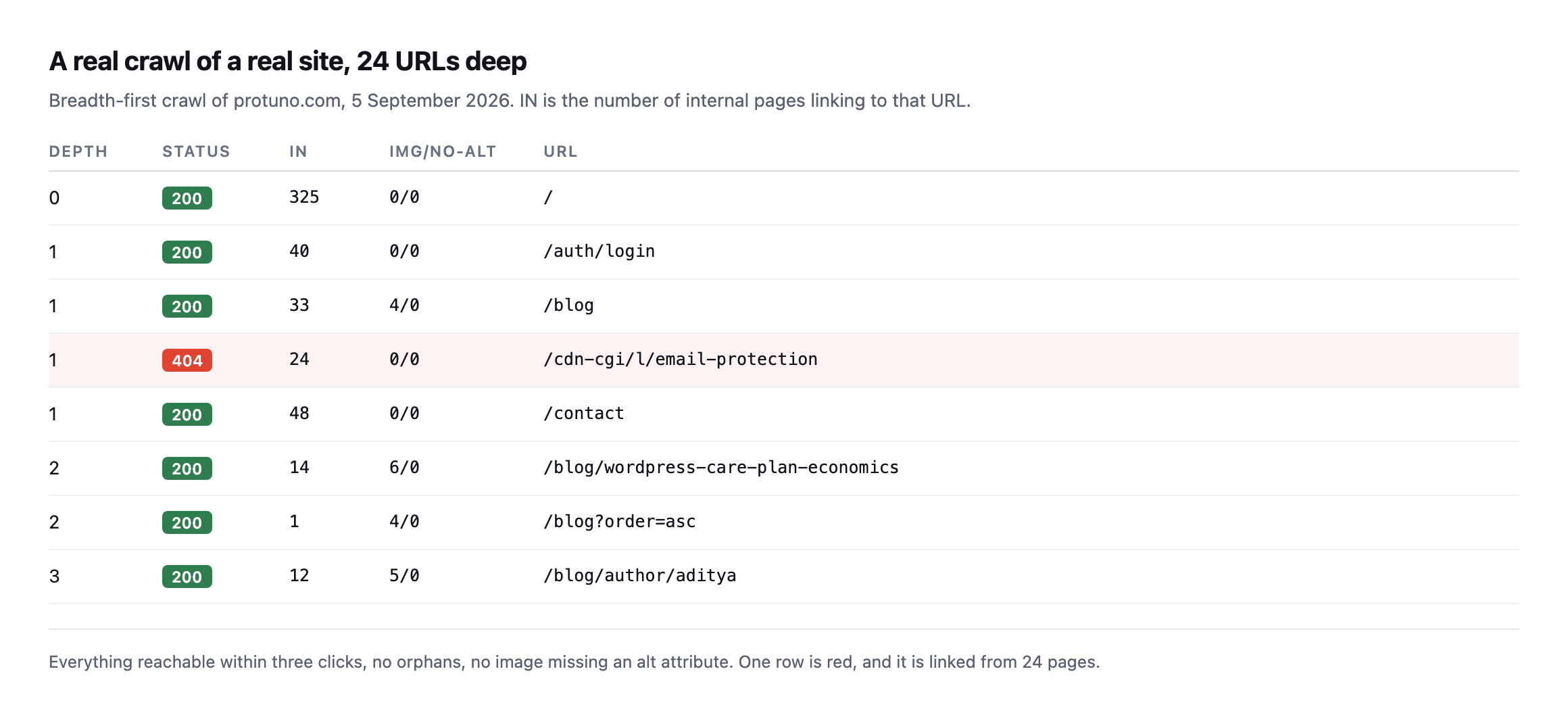
    Run one on your own site before you run one on a client’s. I did, and it found something on every page.

    What is actually doing the crawling

    Google crawlers behind the scenes

    A look inside how Googlebot itself decides what to fetch and how often, straight from the team that builds it, useful context for why a crawl audit like this one finds what it finds.

  • The WordPress Page Cache Header Lies. Here Is What To Check Instead.

    The WordPress Page Cache Header Lies. Here Is What To Check Instead.

    Short answer: do not trust the plugin. Request the page normally, then request it again with a random query string so no cache can serve it, and compare the times. A working page cache shows a gap of several times. If the two are the same, nothing is being cached, whatever the dashboard says.

    The wordpress page cache header is worth reading too, but it comes second, and on a lot of WordPress stacks it is not there at all.

    The install that taught me to stop trusting settings

    I set up a WordPress site this week with a caching plugin on it and went through the usual list. Everything checked out.
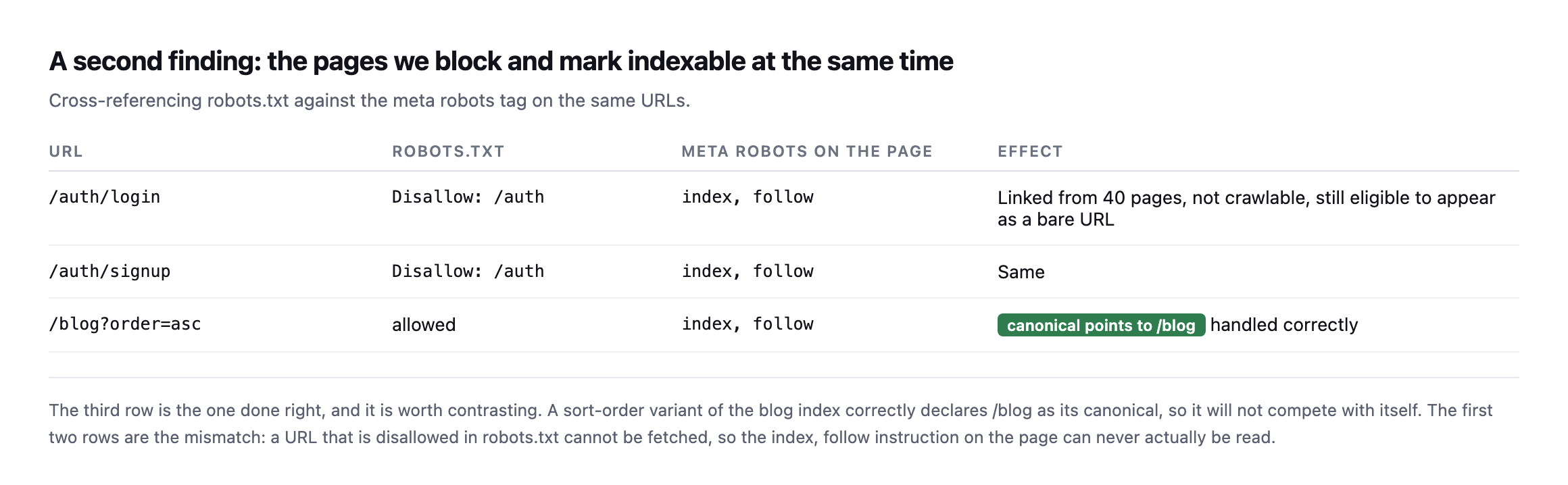
    Then I looked for evidence the cache had ever stored anything.
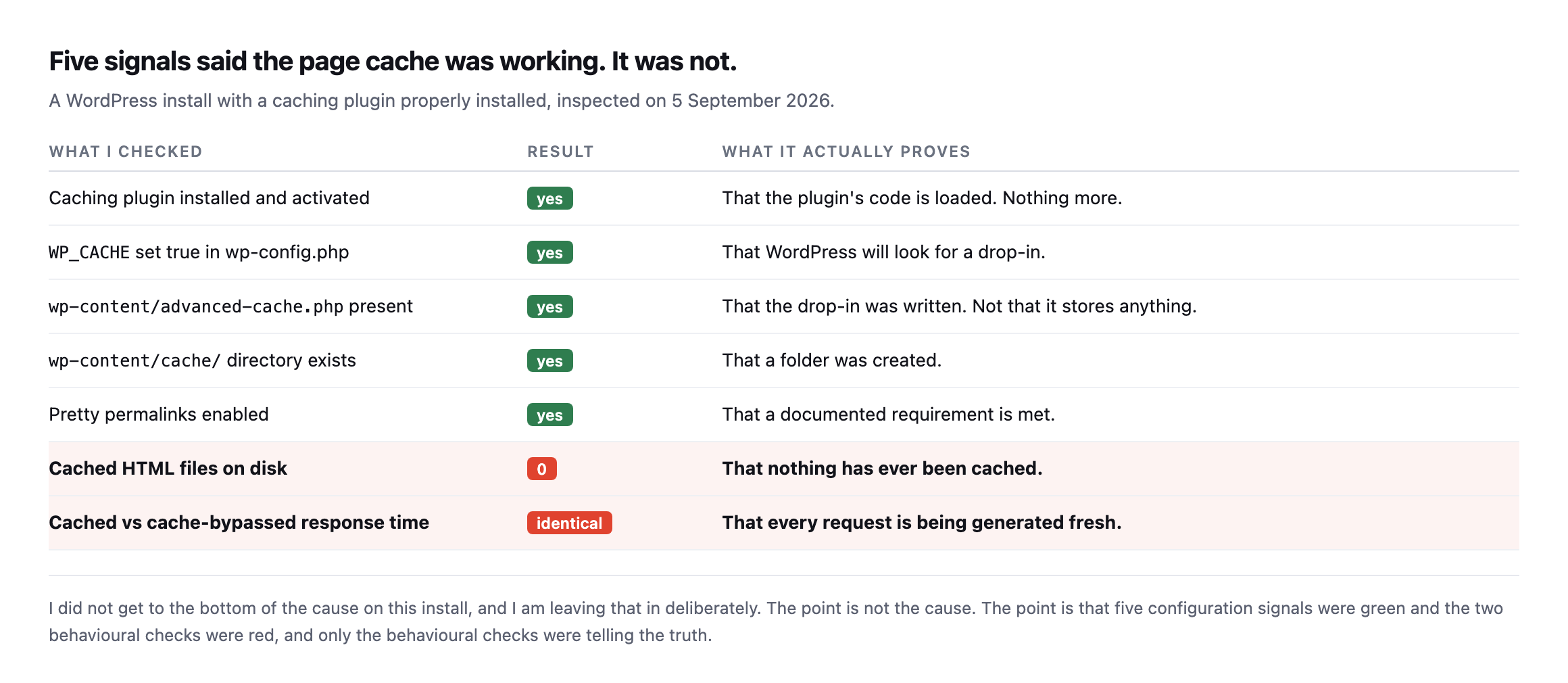
    Table listing five configuration checks that all passed: plugin activated, WP_CACHE true, advanced-cache.php present, cache directory exists, pretty permalinks enabled. Below them two behavioural checks failed: zero cached HTML files on disk, and identical cached versus bypassed response times
    Five green signals and two red ones. The five green ones are what a dashboard shows

    you. The two red ones are what a visitor experiences. I never did work out the cause on this install, and I have left that in on purpose, because the lesson is not the cause.*

    Every configuration check passed. The cache had never written a single file.

    If I had reported on that site from the admin screens, I would have told a client their caching was fine. It was not fine. It was absent.

    The test that cannot be fooled

    Two requests. The second one carries a query string nothing has ever requested, so no cache can have a copy.

    # as a normal visitor
    curl -s -o /dev/null -w '%{time_starttransfer}\n' https://example.com/
    
    # same page, cache bypassed
    curl -s -o /dev/null -w '%{time_starttransfer}\n' "https://example.com/?n=$RANDOM"

    Run each three times, because one sample is noise.

    Terminal output showing three normal requests at 0.038, 0.036 and 0.029 seconds, then three cache-bypassed requests at 0.031, 0.026 and 0.027 seconds, with a comment noting the times are identical so no cache is in the path
    The two groups are indistinguishable. On a working page cache they are not close,

    because the bypassed request has to boot WordPress, run the theme and hit the database, while the cached one reads a file off disk.*

    What you are looking for is a gap. Several times over, not a few milliseconds.

    Under roughly 1.5x on a real site and I stop believing there is a page cache in front of it.

    Reading the WordPress page cache header, and knowing its limits

    Headers are quicker than timing when they exist. The catch is that plenty of WordPress page caches, especially disk-based plugin caches, emit nothing to identify themselves.

    curl -sI https://example.com/ | grep -iE 'x-cache|cf-cache-status|age|x-litespeed-cache'

    A hit looks like x-cache: HIT, or cf-cache-status: HIT, or an age value above zero.

    One header to be careful with: cache-control. Your own site writes that one. It says what you would like caches to do, and proves nothing about what any of them did.

    I found a live example of that gap while measuring for the companion piece on TTFB. Our own marketing site sends a one-year s-maxage and Cloudflare still answers DYNAMIC. The instruction is being sent. It is not being followed.

    Ranked table of ways to verify a WordPress page cache. High trust: compare cached versus bypassed timing, count cache files on disk, read a cache-status header. Medium trust: confirm logged-in requests bypass the cache. Low trust: the plugin says caching is enabled, the drop-in file exists, cache-control is present
    Sorted by whether the check observes behaviour or reads configuration. Everything in

    the bottom half can be true on a site that caches nothing at all, which is exactly the site I had in front of me.*

    The same ranking as text, so a runbook can link to it instead of an image:

    TrustCheckHow
    HighCached vs bypassed timingcurl -w '%{time_starttransfer}' on the URL, then on URL?x=$RANDOM
    HighCount cache files on disk`find wp-content/cache -name ‘*.html’ \wc -l`
    HighRead a cache-status header`curl -I URL \grep -i ‘x-cache\cf-cache-status\age’`
    MediumLogged-in requests bypass the cacherequest with and without a login cookie
    Low“Caching enabled” in the plugina setting, not a measurement
    LowThe drop-in file existsproves a file was written, nothing about whether it stores anything
    Lowcache-control in the responsewritten by your own site, states an intention, never a result

    Caveat: the failed-cache install earlier in this post is one site, not a survey. I am not claiming a percentage of WordPress installs silently fail to cache. The claim is narrower and checkable on your own sites today: the five configuration signals everyone trusts can all be green while the two behavioural ones are red, and only the behavioural ones tell you the truth.

    What age tells you that HIT does not

    cf-cache-status: HIT and its equivalents answer one question: was this response served from cache. They do not tell you how stale that cached copy is, and the two are worth checking together rather than trusting a bare HIT on its own.

    I checked one of our own sites live rather than assuming the header tells the whole story:

    cache-control: public, max-age=300, stale-while-revalidate=86400
    age: 11863
    cf-cache-status: HIT

    The site’s own Cache-Control header asks for a five-minute lifetime, max-age=300. The age header, which the cache adds to report how long it has held the object, reads 11863 seconds, just under three and a quarter hours. The cache answered HIT, correctly, and it is serving content roughly forty times older than the freshness window the origin asked for.

    That is not necessarily broken. stale-while-revalidate=86400 explicitly permits serving stale content for up to a day while a fresh copy is fetched in the background, and a busy cache can reasonably fall behind on revalidation under load. But it is exactly the gap this whole post keeps returning to: a passing signal, HIT, sitting on top of a number that tells a completely different story once you read it. HIT says the mechanism worked. age says what it actually served, and only one of those two is the number worth checking before you tell a client their homepage reflects the change they just published.

    The practical version: whenever you check cf-cache-status or x-cache, read age in the same breath. A HIT with age: 4 is fresh. A HIT with age in the thousands, on a page that changes often, is a cache doing its job technically while quietly showing visitors something old.

    The cache-busting header that actually works, and the older one that does not

    There is a piece of received wisdom worth testing rather than simply repeating to a client: that sending Pragma: no-cache or Cache-Control: no-cache as a request header forces a fresh copy from the origin. Only one of those two did anything at all, tested against the same stale cache found in the section above.

    Request header sentResult
    none (normal request)cf-cache-status: HIT, age: 11918
    Cache-Control: no-cachecf-cache-status: DYNAMIC, origin hit fresh
    Pragma: no-cachecf-cache-status: HIT, age: 11920, no effect

    Pragma: no-cache is an HTTP/1.0-era header, kept alive mostly by old advice and some legacy tooling, and this CDN simply ignores it. Cache-Control: no-cache is the modern, correctly specified way to ask a cache to revalidate, and it worked exactly as intended: the response came back marked DYNAMIC, meaning the request reached the origin rather than being served from the stale cached copy.

    This matters beyond curiosity. It is also what a browser’s hard refresh sends, and it is why a developer hitting Ctrl-Shift-R sees the fresh page while a client hitting an ordinary refresh, or worse, describing the problem over the phone without refreshing at all, keeps seeing the old one. If you are debugging a “the change isn’t showing” ticket, test both headers before concluding the cache itself is broken. One of them proves the cache can be bypassed correctly, which narrows the actual problem down to why it is not happening for an ordinary visitor.

    It is also worth explaining this distinction to a client the next time “just refresh the page” does not fix what they are describing. Most people’s mental model of a stale page is that their own browser has an old copy, so they refresh, and a normal refresh does nothing to a shared cache sitting between them and the origin. Telling them to hard-refresh, or giving them the two header names above to pass to whoever is debugging it, saves a round of “I already tried refreshing” that goes nowhere because the two kinds of refresh are solving different problems.

    The same test is worth running as part of onboarding any new client site, alongside the behavioural checks earlier in this post. Confirming that a cache-busting request actually reaches the origin, rather than assuming it does because it did on the last site, is a five second addition to a check you were already running, and it is the difference between telling a client “try a hard refresh” with confidence, backed by a header you actually checked, and repeating advice you picked up somewhere and never tested against the site actually sitting in front of you today, which is the entire difference this post has been arguing for, quietly, from the very first paragraph onward.

    Caveat: one CDN, one site, one test. Different caches honour different subsets of the cache-control request directives, and I would verify this on the specific stack you are debugging rather than assume every provider treats Pragma identically. What generalises is the method: send both, compare the cache-status header, and let the response tell you which one your specific cache actually listens to.

    The one that costs real money

    There is a second failure that runs the other way, and it is worse.

    A cache that is working, on a page that should never be cached.

    Cart, checkout and account pages have to be excluded, or one customer sees another customer’s basket. Most cache plugins exclude WooCommerce pages by default, and most of the time that default survives.

    It does not always survive a hosting migration, a new CDN rule, or somebody adding a page-rule that was meant to fix something else.

    Test it by requesting a cart URL with and without a login cookie, and confirming you never get a cached response on either.

    Why this ends up on the never-done list

    The check takes a minute. It needs redoing after every hosting change, every CDN change and every cache plugin update, on every site you look after.

    So it gets done once and then trusted forever, which is the same trap as the scheduled jobs nobody notices have stopped and the backup file left in the web root.

    Protuno’s free audit reads the caching headers from the domain today, so you can see at a glance which sites in a portfolio are announcing a cache and which are not. Dash is live now.

    The two curl lines above are the whole method in the meantime. Run them on the client site you are most confident about. That is the one worth checking.

    The header rules that most often get this wrong

    Stop Breaking Your CDN! Practical Caching for Developers

    Covers Cache-Control, Vary and the specific ways a CDN cache miss happens even when a header is present, the mechanism underneath the pass/fail check this post walks through.