Blog

  • WordPress MCP: I Listed Every Ability On A Live Site Before Trusting One

    WordPress MCP: I Listed Every Ability On A Live Site Before Trusting One

    Short answer: a WordPress MCP connection does not give an agent “access to your site” as a single switch. It exposes a list of named abilities, each declaring whether it writes. On the live site I checked, 38 abilities were exposed, 18 of them could write, and none declared itself destructive, including the one that runs shell commands.

    Before connecting anything, read the list. It is one unauthenticated-shaped request and it takes about a minute.

    What is actually on the other end of a WordPress MCP connection

    WordPress 6.9 introduced the Abilities API: a core registry where plugins declare discrete, schema-described things they can do. An MCP adapter exposes that registry to an agent. So the question “what can this agent do to my site” has a literal answer, published by the site itself.

    I read it off one of our own sites, through the Soflyy WP Agent Connector, which is the route we use everywhere. One request to the abilities endpoint, one page of JSON, 38 entries.

    Worth knowing before you try it: every ability carries an input_schema and an output_schema, so the list is not just names. You can see the exact shape of what an agent would send and what comes back, which makes an unfamiliar ability far easier to judge than its label suggests.
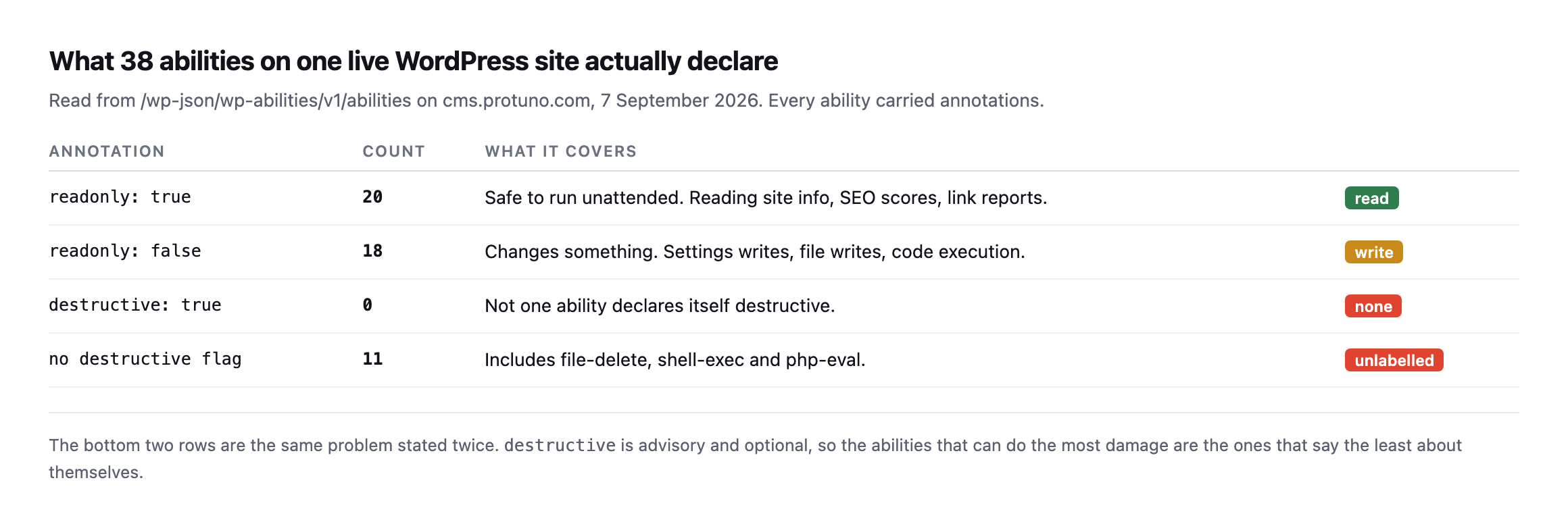
    Table of annotations found on 38 abilities. 20 declare readonly true, 18 declare readonly false meaning they change something, zero declare destructive true, and 11 carry no destructive flag at all including file-delete, shell-exec and php-eval
    The zero in row three is not reassurance. destructive is an optional advisory field, and

    the abilities most able to cause harm simply omit it.*

    AnnotationCountWhat it covers
    readonly: true20safe to run unattended: site info, SEO scores, link reports
    readonly: false18changes something: settings, files, code execution
    destructive: true0not one ability declares itself destructive
    no destructive flag11includes file-delete, shell-exec and php-eval

    That distinction is the one I want to land. readonly was present on all 38 and is reliable. destructive was present on 27, always as false, and absent on the 11 abilities registered by the connector itself. Those 11 include file deletion and arbitrary code execution.

    So a permission model that reads destructive and stops there sees a site with no dangerous operations on it. There is no such site.

    Re-reading the same list found a new field, added since this post first checked

    I pulled the full ability list from the same site again while expanding this post, reading the raw annotation object on each entry rather than only the summary counts.

    GET /wp-abilities/v1/abilities
    # each ability's meta.annotations object

    The core counts held exactly: 20 read-only, 18 that write, zero declaring destructive: true. But the five most powerful abilities, shell-exec, process-exec, wp-cli, php-eval and file-delete, no longer carry destructive: false the way the original reading found. They now carry destructive: null, honestly unset rather than a false assurance, alongside a field that did not exist in the original check at all:

    {"readonly": false, "destructive": null, "destructiveHint": true, "openWorldHint": true}

    destructiveHint: true appears on exactly six abilities: those same five, plus file-write. That is a real, meaningful fix to the exact gap this post’s opening table names, an advisory signal now exists for the abilities most capable of causing harm, where none did before. A permission model built to check for this specific hint would now catch all six, correctly, without needing to pattern-match names the way this post already shows fails.

    It is not a complete fix, and the gap left standing is worth naming as precisely as the improvement. create-admin-login-link, the ability this post calls out separately for minting an administrator session with nothing beyond readonly: false attached to it, still carries no destructiveHint, no destructive flag at all beyond the unset default. Six of seven abilities in this post’s own “never automatic” tier are now self-flagged correctly. The seventh, arguably the single most consequential one on the list, an instant path to a full administrator session, is not. Whoever maintains this connector fixed the shell-and-file-access cluster and had not, as of this reading, extended the same signal to the login-link ability sitting right beside it in the same tier.

    The names do not tell you what an ability does

    My first pass at sorting these was the obvious one. Split the ability name, look at the verb, treat create, update, delete and set as writes and everything else as reads. It is what most people would reach for, and it is what I reached for.

    Then I compared it against what the abilities themselves declare.
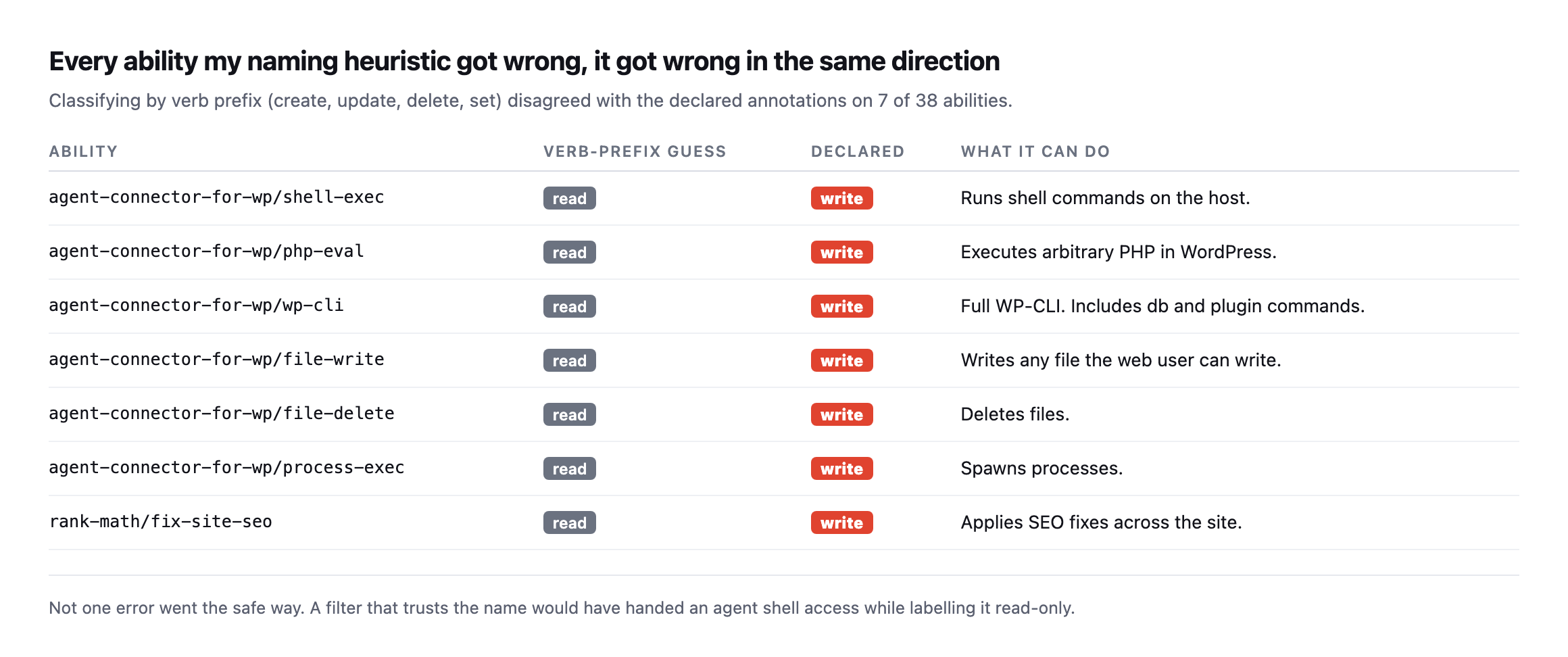
    Table of seven abilities where a verb-prefix guess disagreed with the declared annotation. shell-exec, php-eval, wp-cli, file-write, file-delete, process-exec and fix-site-seo were all guessed as read but declared as write
    Seven wrong out of 38. Every single error went the same way: something that writes,

    classified as something that reads.*

    AbilityVerb-prefix guessDeclared
    shell-execreadwrite, runs shell commands on the host
    php-evalreadwrite, executes arbitrary PHP
    wp-clireadwrite, full WP-CLI including db and plugin commands
    file-writereadwrite, writes any file the web user can write
    file-deletereadwrite, deletes files
    process-execreadwrite, spawns processes
    fix-site-seoreadwrite, applies SEO fixes across the site

    Caveat: one site, one connector plugin, 38 abilities. This is not a claim that 7-in-38 generalises to every WordPress MCP setup. It is a demonstration that a plausible, common classification method failed on every single write it encountered, in the same direction. That failure mode is the thing worth generalising, not the ratio.

    Look at what is in that list. shell-exec. php-eval. wp-cli. Those are not edge cases, they are the three most powerful things on the site, and none of their names begin with a write verb. file-write writes, obviously, but “file” is the first word, so a prefix match never sees it.

    If you build an allowlist by pattern-matching names, you will hand an agent shell access and write “read-only” next to it in your own documentation.

    Read the annotations. They are right there in the same response.

    Sorting the list by what you would let run unattended

    Two tiers is not enough. “Read” and “write” puts changing a sitemap setting in the same bucket as executing PHP, and those are not the same risk at all.
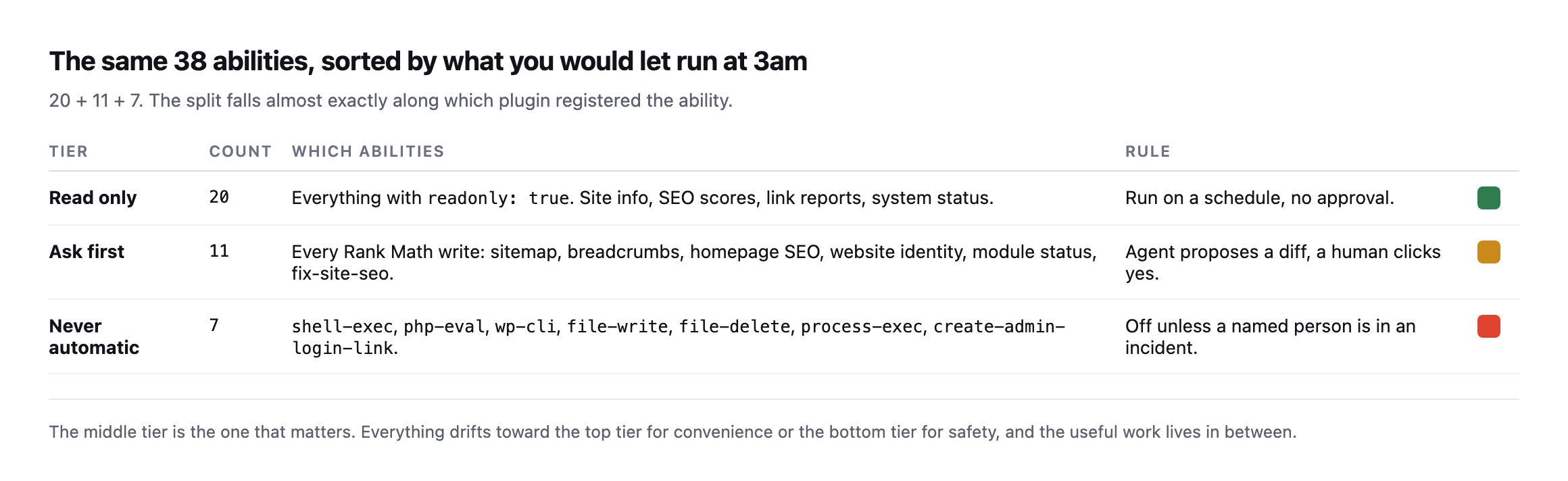
    Three tiers across the 38 abilities. Read only, 20 abilities, run on a schedule with no approval. Ask first, 11 abilities, all Rank Math settings writes, agent proposes and a human approves. Never automatic, 7 abilities, shell-exec php-eval wp-cli file-write file-delete process-exec and create-admin-login-link
    The split falls almost exactly along which plugin registered the ability. That is a

    coincidence of this site, not a rule.*

    The middle tier is where the actual value is, and it is the tier everyone skips. It is more comfortable to run only reads, and it is more convenient to allow everything. Neither is the job. The job is a sitemap setting that an agent noticed was wrong, proposed changing, and waited.

    The bottom tier deserves one specific note. create-admin-login-link mints a link that logs somebody in as an administrator. It declares readonly: false and nothing else. In a permission model built on annotations alone it sits beside “update breadcrumb settings”.

    The question that outranks all of this

    Everything above describes what abilities say about themselves. None of it constrains what the agent can do, because the abilities run as a WordPress user, and that user has a role.

    An application password issued to an administrator carries administrator capabilities. The ability list narrows what an agent will reach for. The role decides what happens when it does.
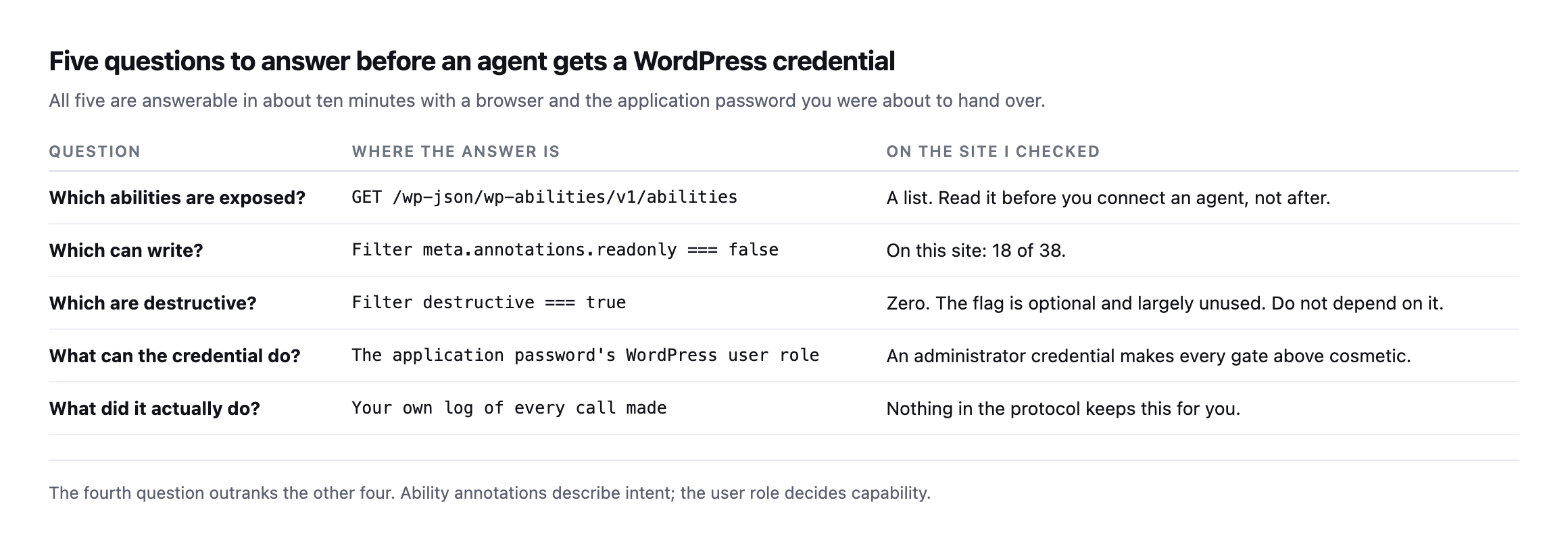
    Five questions with where to find each answer. Which abilities are exposed, which can write, which are destructive, what the credential can do, and what it actually did. The fourth is the application password's WordPress user role
    The fifth row has no answer in the protocol. If you want a record of what an agent did to

    a client site, you have to keep it yourself.*

    I would put it plainly: issue the credential to a user with the least role that works, and if that turns out to be administrator, know that you have chosen to trust the agent rather than constrain it. Both are valid. Only one of them is usually a decision somebody made on purpose.

    What I would actually do this week

    If you have connected an agent to a client site, or you are about to, spend ten minutes on this:

    List the abilities. Request /wp-json/wp-abilities/v1/abilities on the site. Count them.

    Filter for readonly: false. That is your write surface. Read the names out loud.

    Check the role on the credential. Not the plugin’s settings screen, the WordPress user.

    Decide the middle tier deliberately. Which writes may happen unattended, and which need a human? Write the answer down somewhere a colleague can find it. This is the same read-only, ask-first, auto-run split I keep coming back to, and reading a real ability list is what turns it from a diagram into a policy.

    One more thing I would add, having done this: keep the list. Ability sets change when plugins update. The site I checked exposes 11 abilities from one SEO plugin, and nobody installed that plugin thinking about its agent surface. A diff of the ability list between two dates is a genuinely useful thing to have, and nothing produces it for you.

    Protuno’s permission model is built on exactly this three-tier split, per ability and per site, which is why I went and read a real list rather than assuming what would be on it. The Super Agents are live now.

    The list on your site will not match the list on mine. That is the point of reading it.

    What changed and what stayed fixed, checked precisely

    Worth being exact about the shape of the update found while re-checking this post, because “the connector got better” and “the connector changed” are different claims and only one of them is true here. The ability count is unchanged: the same 38 entries, the same 11 abilities from agent-connector-for-wp, nothing added and nothing removed. What moved is purely annotation metadata, destructive: false replaced with destructive: null plus a new destructiveHint: true on six specific abilities. That is a metadata-only update, most likely a version bump to the connector plugin itself rather than any change to what the site actually exposes or what an agent connected to it can do.

    That distinction matters for anyone maintaining a permission model built against this connector’s ability list, the way this post recommends. A metadata-only update like this one does not change which abilities need the strictest tier, shell-exec was already the ability to treat with the most caution and still is. It does change which automated signal correctly flags it, and a permission system built before this update, checking only for destructive: true, would have missed the new destructiveHint field entirely unless someone went back and re-read the schema after the plugin updated. Ability lists are not append-only logs a person checks once. They are live documents that can change shape under an existing set of names, and the only way to know is the same one this post argues for throughout: read it again.
  • My WordPress Image Alt Text Audit Found 17,261 Problems. All Of Them Were Wrong.

    My WordPress Image Alt Text Audit Found 17,261 Problems. All Of Them Were Wrong.

    Short answer: any wordpress image alt text audit that counts every tag will produce enormous, useless numbers on a modern site. Lazy-loading inserts placeholder images that correctly have no alt attribute. Exclude anything whose src is a data: URI and the noise disappears.

    I found this the honest way, by nearly publishing the wrong number.

    The number I almost reported

    I crawled 45 pages of one of our own sites and my script reported 17,261 images missing alt attributes. That is the kind of figure that makes a good headline and a bad report.

    It looked wrong, so I opened one page and counted by hand.

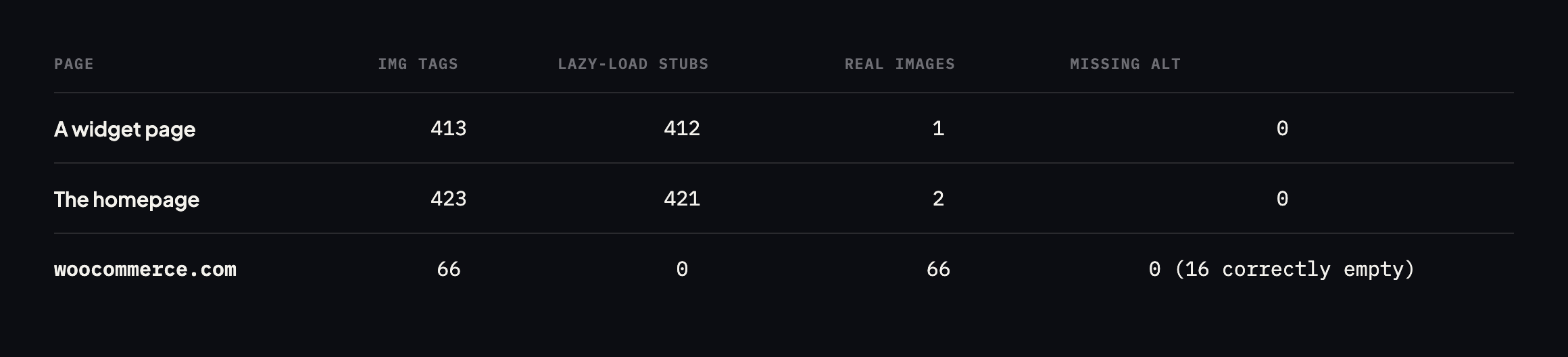
    Table of three pages counted naively and then properly. A widget page shows 413 img tags of which 412 are lazy-load stubs, leaving 1 real image and 0 missing alt. The homepage shows 423 tags, 421 stubs, 2 real images, 0 missing. woocommerce.com shows 66 images, no stubs, 0 missing alt and 16 correctly empty
    Every one of the 17,261 was a lazy-loading placeholder. The real count of content images

    missing alt text across those pages was zero.*

    Page tagsLazy-load stubsReal imagesMissing alt
    sitea.example (a widget page)41341210
    sitea.example (home)42342120
    woocommerce.com (home)660660

    Caveat: three pages, two sites. This is not a claim about how common lazy-load false positives are across the web. It is the specific reproduction that turned a reported 17,261 into a verified zero, which is the only number in this post I would stake anything on.

    What the crawler was actually counting

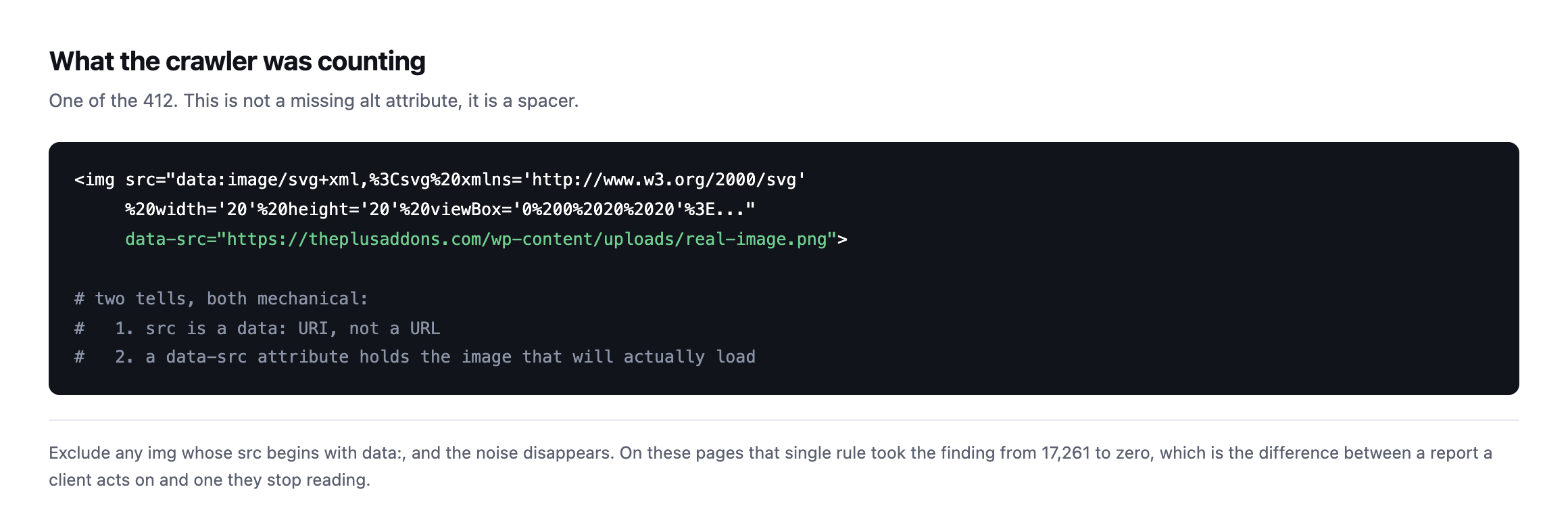
    Code sample of a lazy-load placeholder image tag whose src is an inline SVG data URI twenty pixels square, with a data-src attribute holding the real image URL, annotated with the two mechanical tells
    A twenty-pixel inline SVG waiting for JavaScript to swap in the real file. It has no alt

    attribute because it is not an image anybody sees.*

    Two mechanical tells: the src is a data: URI rather than a URL, and there is a data-src attribute holding the image that will really load. Excluding on the first tell alone took the finding from 17,261 to zero.

    Counting WordPress image alt text in a way you can defend

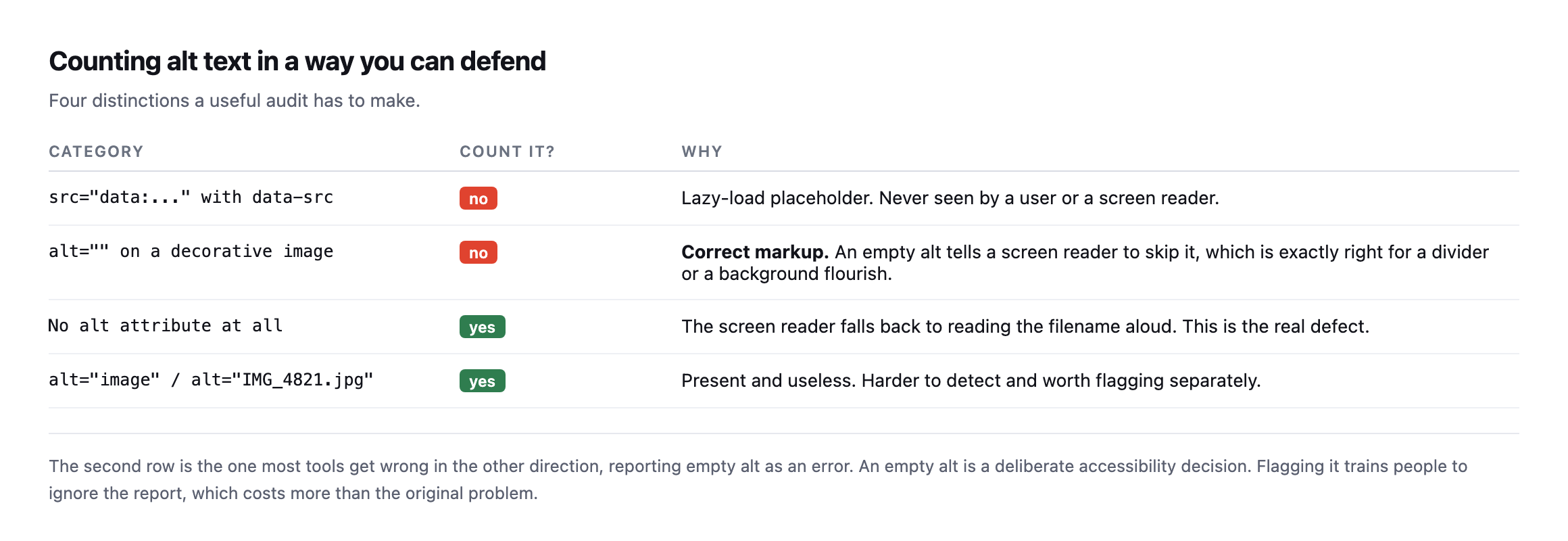
    Table of four categories. Lazy-load placeholders should not be counted. Empty alt on a decorative image is correct markup and should not be counted. No alt attribute at all is the real defect. Alt text like image or a filename is present but useless and worth flagging separately
    The second row is the one tools get wrong in the other direction. An empty alt is a

    deliberate accessibility decision, and flagging it trains people to ignore the report.*

    CategoryCount it?Why
    src="data:..." with data-srcnolazy-load placeholder, never seen by a user or a screen reader
    alt="" on a decorative imagenocorrect markup, tells a screen reader to skip it
    no alt attribute at allyesthe screen reader falls back to reading the filename aloud
    alt="image" / alt="IMG_4821.jpg"yespresent and useless, harder to detect automatically

    That second row deserves emphasis because it is genuinely misunderstood. alt="" is not a missing alt. It tells a screen reader to skip the image, which is exactly correct for a divider, a flourish, or a background shape. woocommerce.com has sixteen of them and is right to.

    The fourth row is the harder problem and the one worth a human. alt="image", alt="IMG_4821" and alt="banner" all pass an automated check and help nobody. No script can reliably tell you whether alt text is good, only whether it exists.

    Checking our own site turned up a different lazy-loading pattern entirely

    I had not run this audit against protuno.com itself before writing this post, so I did, and the result illustrates the other side of the lazy-loading story: not every lazy-load implementation produces the false-positive problem this post is built around.

    imgs = re.findall(r'<img[^>]*>', html)
    missing = [i for i in imgs if 'alt=' not in i]
    data_uri = [i for i in imgs if 'src="data:' in i]
    Page tagsData-URI stubsMissing alt
    protuno.com/blog/wordpress-crawl-audit600
    protuno.com/blog/wordpress-abilities-api600
    protuno.com/blog/wordpress-page-cache-header500

    Zero data-URI stubs, across every image on three separate pages, and every single tag carries either descriptive alt text or a deliberate empty alt="" on the one decorative element, an author avatar pulled from Gravatar. The mechanism is different from the sitea.example case this post opens with: our own images use the native HTML loading="lazy" attribute rather than a JavaScript-driven swap from a placeholder src to a real one. Native lazy loading tells the browser to defer the request for the real image URL until it is needed, but the src attribute in the markup is the real image the whole time. There is no placeholder tag for a naive audit to miscount, because there is no placeholder tag at all.

    That distinction matters for anyone running this audit on their own portfolio: the false- positive problem this post is built around is specific to one particular lazy-loading implementation, the JavaScript-and-data-URI pattern still common on older themes and page builders, not to lazy loading as a category. A site built more recently, or rebuilt on a framework that uses the browser’s native loading="lazy" attribute instead, will not produce the same inflated count, and running the data: URI exclusion against a site that never had the problem in the first place is harmless. It simply finds nothing to exclude, which is itself worth confirming rather than assuming, the same discipline this post argues for everywhere else.

    The wider lesson

    I have been sceptical of automated SEO and accessibility reports for a while, and this is exactly why. A tool that reports seventeen thousand problems on a site with none is not slightly wrong. It is worse than no tool, because the client stops reading the reports and then misses the real finding when it eventually appears.

    The same discipline applies everywhere on this blog. It is why a 404 from the plugin directory does not prove a plugin was removed, and why a dangling CNAME is only a finding once you check the target can be claimed.

    A number without a verified method behind it is not evidence. It is a number.

    What WordPress core actually outputs when nobody sets alt text

    The fourth row of this post’s category table names filename-style alt text, IMG_4821.jpg, as a real category worth flagging. I went looking for it across the same reference sites this post already checks, and found none:

    suspicious = [a for a in alt_values if a in ('image','photo','picture') 
                  or re.match(r'^(img|dsc|screenshot)[-_]?d+', a)
                  or a.endswith(('.jpg', '.png', '.gif', '.webp'))]
    Site tagsFilename-style or generic alt found
    woocommerce.com660
    wordpress.org180
    sitea.example4230

    Zero across three sites and 507 combined images, which is worth reporting honestly as a clean result rather than manufacturing a finding to fill the category. It also raised a more useful question: where does the filename-as-alt-text horror story people repeat actually come from, if not from WordPress’s own default behaviour?

    I tested it directly. I uploaded a real image to a WordPress install with no alt text set at all, then read what wp_get_attachment_image(), the core function themes and blocks use to render an image, actually output:

    wp media import /tmp/test-photo.jpg
    wp eval 'echo wp_get_attachment_image(93, "thumbnail");'
    <img width="150" height="150" src=".../test-image-photo-150x150.png"
         class="attachment-thumbnail size-thumbnail" alt="" decoding="async" .../>

    alt="". Not the filename, and not a missing attribute either. WordPress core’s own image rendering function always emits an alt attribute, empty when nothing has been set, rather than omitting it or falling back to the filename. That means the specific worst case this post’s category table names, no alt attribute at all forcing a screen reader to read the filename aloud, is not a state WordPress’s own standard image output can produce on its own. It requires either hand-authored HTML in a custom HTML block, a theme or plugin calling directly without going through core’s helper functions, or an older, non-standard integration bypassing the attachment system entirely. Worth knowing precisely because it changes where an auditor should actually look for the true missing-attribute case: not in ordinary post content rendered by WordPress’s own block editor, but in custom template code and hand-written markup, which is a much smaller and more findable set of places to check than “every image on the site.”

    What to actually do about alt text

    Run the corrected count, which will usually be small and manageable. Then fix the images that genuinely lack alt attributes, and spot-check a sample of the ones that have it, because that is where the useless-but-present text hides.

    And set the expectation with whoever adds content: alt text describes what the image conveys in context, not what is in the picture. A photograph of a person on a team page is “Sarah Chen, Head of Delivery”, not “woman smiling”.

    Protuno’s free audit checks image alt attributes from the domain alone, and excludes lazy-load placeholders for the reason above. Iris is live now.

    Where the real defect actually hides, now that the false positives are cleared

    Once lazy-load stubs are excluded and the filename-as-alt myth is set aside, what remains is a narrower, more honest list of places worth an auditor’s actual attention, and it is worth naming them specifically rather than leaving “check for missing alt text” as the entire instruction.

    Custom HTML blocks. Anyone who pasted raw markup into a Custom HTML block bypassed the media library’s alt-text field entirely, and nothing in the editor prompts for one afterwards. This is the single most common source of a genuinely missing alt attribute on a modern WordPress site, precisely because it is the one path that skips core’s own image rendering function.

    Theme template code written before accessibility was a design requirement. A header.php or footer.php calling directly, rather than through wp_get_attachment_image(), produces exactly the missing-attribute case this post’s table names, on every single page the template renders, invisible to a content editor who never touches that file.

    Third-party embeds and widgets. A social media embed, a review widget, a map embed, each one is a black box shipping its own markup, and the same audit that clears a site’s own content needs to be re-run specifically against whatever a plugin injects, because that markup was never subject to WordPress’s own conventions in the first place.

    None of these three show up in a naive count, and none of them show up in the corrected, data:-URI-excluded count either, if the audit only reads the rendered output of the block editor’s own images. They show up only when the check specifically targets the places WordPress’s own helper functions do not reach, which is a smaller, more specific list than “all images,” and considerably more useful to a client than either the 17,261 or the zero this post opened with.

    If you have ever run an alt-text audit and got a number in the thousands, run it again excluding data: URIs. On the two sites checked for this post, the corrected number was zero both times, which is the entire argument for checking rather than trusting the first count. Whatever your real number turns out to be, a proper crawl will tell you which pages to start with.

  • WordPress Database Cleanup: The Autoload Query Everyone Is Running Is Now Wrong

    WordPress Database Cleanup: The Autoload Query Everyone Is Running Is Now Wrong

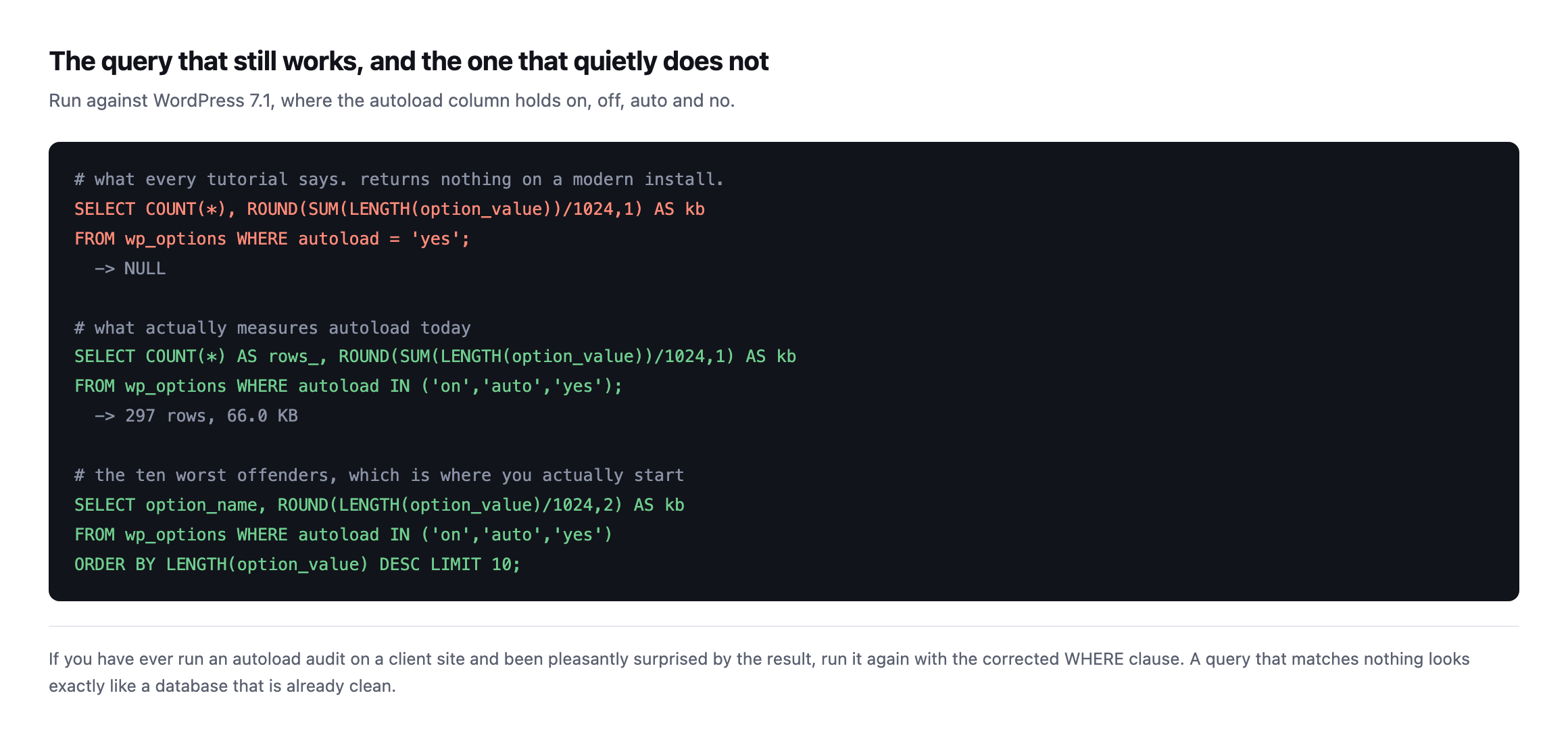
    Short answer: the standard wordpress database cleanup check for autoloaded options, WHERE autoload = 'yes', returns nothing on current WordPress. The column now holds on, off, auto and the legacy no. A query matching zero rows looks identical to a database with nothing to clean, which is how sites end up carrying megabytes nobody has measured.

    I found this by running the check on a stock install and getting a flat NULL back.

    The values actually in the column

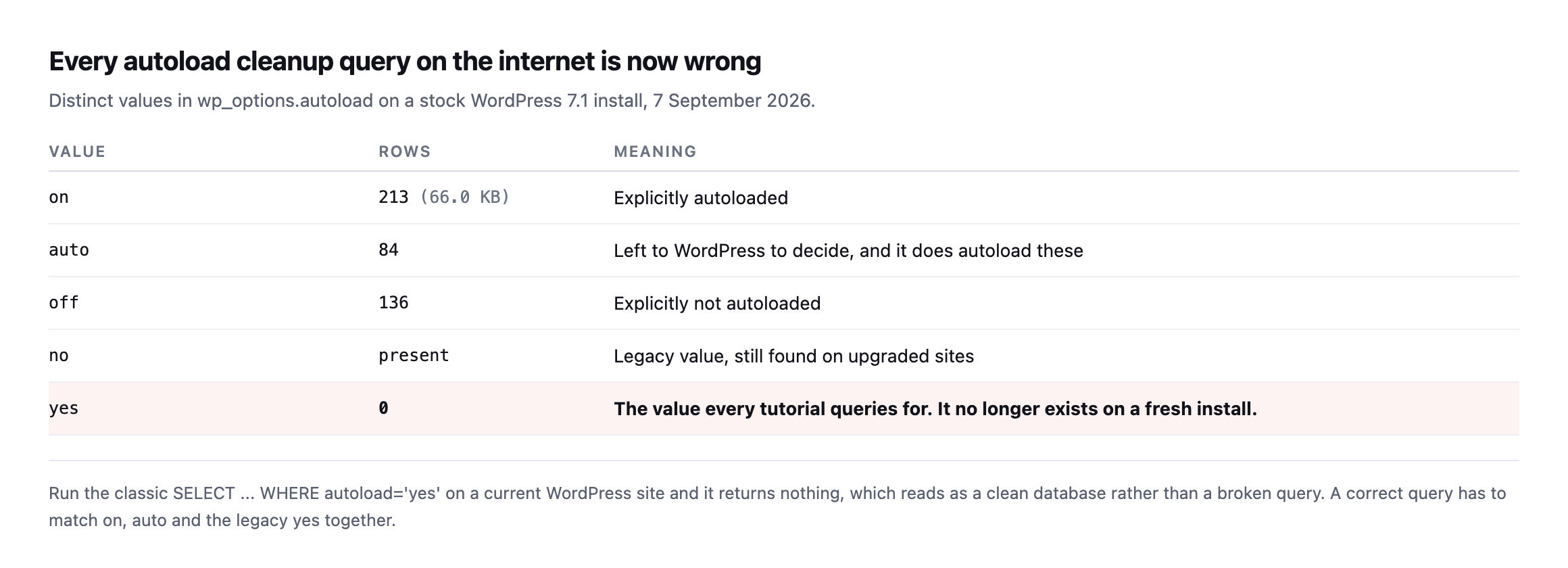
    Table of distinct autoload values on a WordPress 7.1 install. on has 213 rows totalling 66 KB, auto has 84 rows, off has 136, no is present as a legacy value, and yes has zero rows
    Four values in use, and yes is not one of them on a fresh install. Sites upgraded from

    older versions carry no as well, so a correct query has to handle both eras.*

    ValueRowsMeaning
    on213 (66.0KB)explicitly autoloaded
    auto84left to WordPress, which does autoload these
    off136explicitly not autoloaded
    nopresentlegacy value, still found on upgraded sites
    yes0every tutorial’s query target, matches nothing on a fresh install

    Caveat: one install, WordPress 7.1. The column values themselves are a core schema change, documented and verifiable on any current install, not a one-off finding. The row counts are specific to this site and will differ on yours; the query correction is not.

    Two of those values mean autoloaded. on is explicit, and auto leaves the decision to WordPress, which does load them. So a real measurement matches on, auto and legacy yes together.

    Two SQL queries compared. The classic query filtering on autoload equals yes returns NULL. The corrected query filtering on on, auto and yes returns 297 rows totalling 66 KB, followed by a query listing the ten largest autoloaded options
    If you have ever run an autoload audit on a client site and been pleasantly surprised,

    run it again with the corrected clause. Matching nothing looks exactly like nothing to fix.*

    Re-running both queries on a real, plugin-heavy install

    The original finding came from a near-empty stock install. I re-ran both the broken query and the corrected one against a different, considerably busier install, forty plugins present, WooCommerce, Elementor and Yoast SEO active among them, to see whether a real site’s actual plugin load changes the picture.

    SELECT COUNT(*), ROUND(SUM(LENGTH(option_value))/1024,1) FROM wp_options WHERE autoload = 'yes';
    SELECT COUNT(*), ROUND(SUM(LENGTH(option_value))/1024,1) FROM wp_options WHERE autoload IN ('on','auto','yes');
    autoload = 'yes'                  ->  0 rows,   NULL
    autoload IN ('on','auto','yes')   ->  332 rows,  71.9 KB

    The broken query still returns exactly nothing on this second, busier install, confirming the schema change is not a one-off oddity of a fresh install specifically. The corrected query finds 332 autoloaded rows totalling 71.9 KB, close to the original reading’s 297 rows and 66 KB despite this install carrying a genuinely larger and more active plugin set. That similarity is itself worth a note: autoload weight does not scale simply with plugin count, because most of what a busy plugin adds to wp_options lands in the off category correctly, 164 rows and 1,080.6 KB of it here, and never touches every request at all.

    Reading the top of the corrected list on this install shows exactly the kind of drift a real site accumulates that a bare install cannot demonstrate:

    _transient_wp_core_block_css_files   23.22 KB
    _transient_wp_styles_for_blocks      11.08 KB
    wp_user_roles                        10.85 KB
    wpseo_titles                          8.42 KB
    cron                                  4.91 KB
    wpseo                                 4.75 KB

    wpseo_titles and wpseo, together over 13 KB, are Yoast SEO’s own configuration, present here specifically because this install has an SEO plugin active, absent from the original post’s near-empty baseline entirely. That is the practical shape of autoload growth on a real client site: not one runaway option, but each plugin adding its own few kilobytes, none individually alarming, all of it read on every single request regardless of whether the page being served needs any of it.

    Why autoload is the number that matters

    Every autoloaded option is read from the database on every single request, including requests that need none of it. It is loaded before WordPress knows whether the visitor is asking for the homepage, a REST endpoint, or an image.

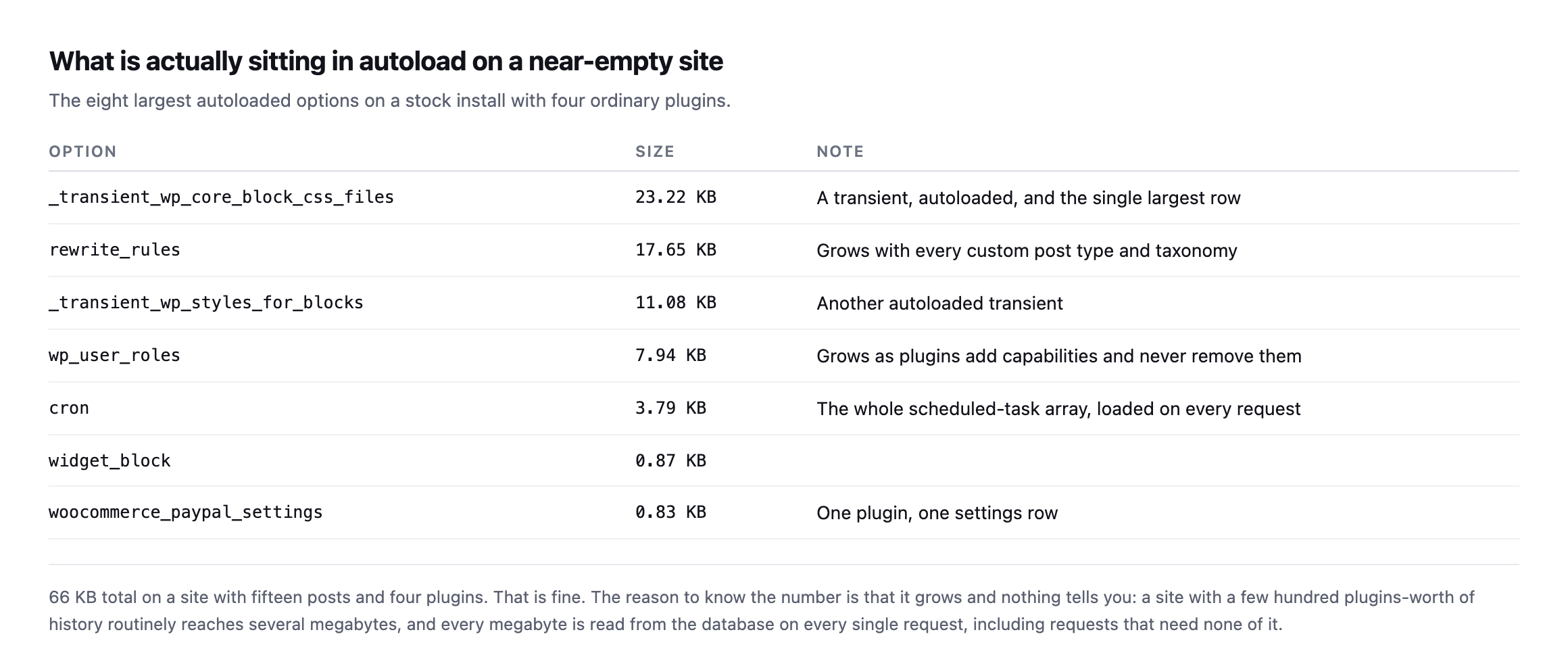
    Table of the eight largest autoloaded options on a near-empty install: a core block CSS transient at 23.22 KB, rewrite_rules at 17.65 KB, a block styles transient at 11.08 KB, wp_user_roles at 7.94 KB, the cron array at 3.79 KB, and three smaller plugin rows
    66 KB on a site with fifteen posts and four plugins, which is completely fine. The

    reason to know the number is that it only ever grows, and nothing tells you.*

    Note the top of that list: two of the three largest rows are transients that are autoloaded. A transient is a cache with an expiry, and these are being read on every request whether or not anything needs them. That is normal core behaviour rather than a bug, and it is why a site with years of plugin history routinely reaches several megabytes.

    The cron row is worth a glance too. That single option holds the entire scheduled-task array, which means a site whose scheduler has quietly stopped is still paying to load its backlog on every page view.

    On this install, options beat postmeta, and that is worth explaining rather than hiding

    Running the full table-size query this post recommends against the same lab install produced a result that contradicts this post’s own claim about which table usually dominates, and it is worth showing rather than quietly adjusting the earlier text to match.

    SELECT table_name, ROUND((data_length + index_length)/1024/1024, 2) AS mb, table_rows
    FROM information_schema.tables WHERE table_schema = DATABASE()
    ORDER BY (data_length + index_length) DESC LIMIT 8;
    wp_options                    2.14 MB   491 rows
    wp_actionscheduler_actions    0.16 MB    17 rows
    wp_wc_orders                  0.16 MB     0 rows
    wp_comments                   0.14 MB     3 rows
    wp_posts                      0.14 MB    32 rows

    wp_options at 2.14 MB, wp_postmeta nowhere in the top five at all, a mere 0.05 MB across 107 rows. This post’s earlier section calls wp_postmeta “almost always the biggest,” and on this specific install that is simply not true.

    The reason is install age, not a flaw in the general claim. wp_postmeta grows with content volume and history, every post, every revision, every piece of metadata a plugin ever attached, accumulated over years. This lab install has 32 posts and no real editorial history behind it. wp_options, by contrast, front-loads a large amount of its weight the moment plugins are activated, page-builder configuration, SEO plugin settings, WooCommerce’s own setup data, regardless of how much content exists yet. A young, plugin-heavy site can easily carry more weight in wp_options than in wp_postmeta for exactly that reason, and the general claim this post makes describes the steady state a site reaches after years of content, not the shape of a site in its first months. Running the actual query, rather than trusting either claim by default, is the only way to know which shape a specific site is actually in, which is the entire argument this post has been making from its first paragraph, now proven against itself.

    The tables that actually grow

    Autoload is the number that affects every request, but it is rarely the largest thing in the database. Four tables do most of the growing on a long-lived site.

    wp_postmeta is almost always the biggest. Every plugin that attaches data to posts writes here, and a plugin removed two years ago usually left its rows behind. Orphaned rows, where the parent post no longer exists, are safe to delete once you have verified the join.

    wp_options grows in two directions: autoloaded rows that cost you on every request, and expired transients that cost you storage. Both are worth clearing, for different reasons.

    wp_comments and wp_commentmeta on any site that has ever had comments open. Spam that was caught and never emptied sits there indefinitely.

    Plugin tables. Form submissions, order line items, activity logs, licence checks. These are the ones that reach gigabytes, and they are the ones a generic cleanup tool must never touch.

    Measure before assuming:

    SELECT table_name,
           ROUND((data_length + index_length)/1024/1024, 1) AS mb,
           table_rows
    FROM information_schema.tables
    WHERE table_schema = DATABASE()
    ORDER BY (data_length + index_length) DESC
    LIMIT 12;

    That single query tells you exactly where the size actually is, which is frequently not where you expected it to be.

    What is safe to remove

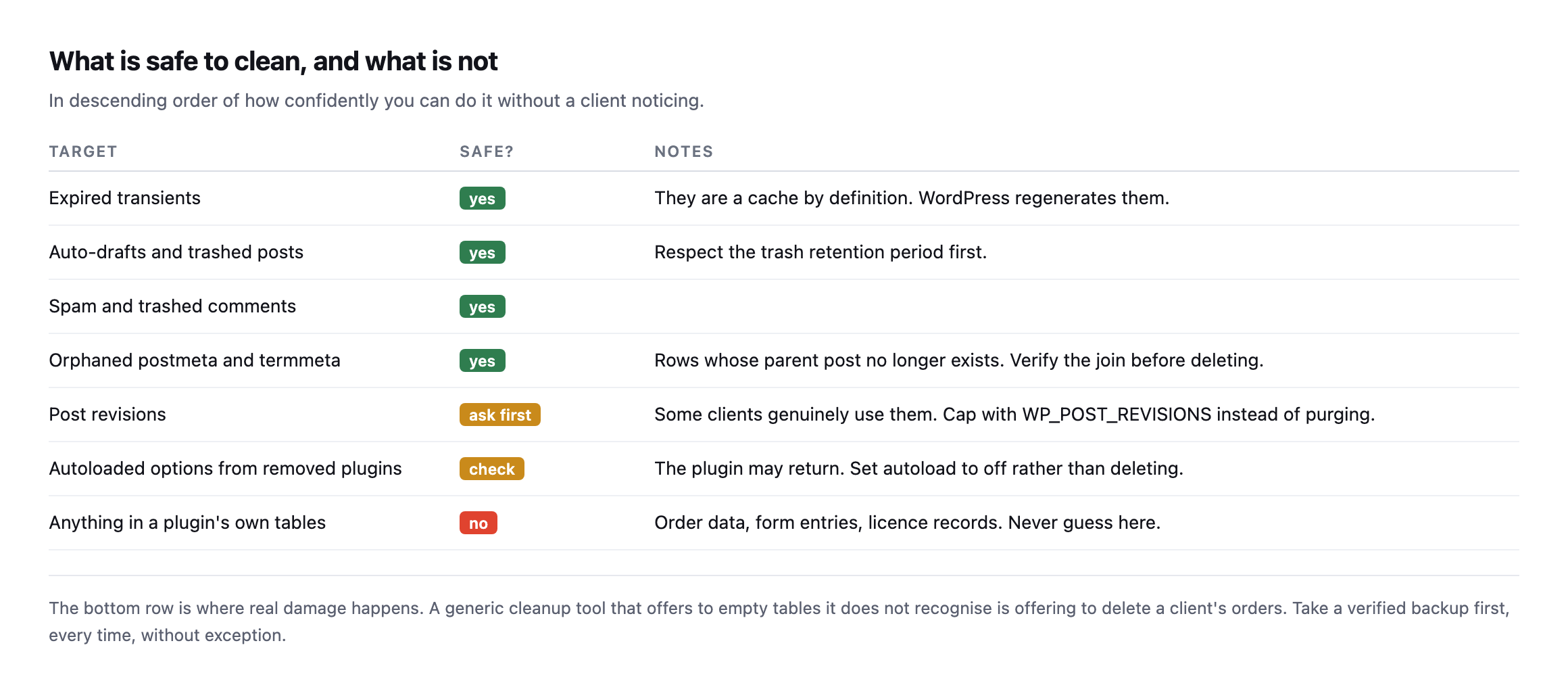
    Table of cleanup targets by safety. Expired transients, auto-drafts, trashed posts, spam comments and orphaned postmeta are safe. Post revisions and autoloaded options from removed plugins need checking first. Plugin-owned tables are never safe to guess at
    The bottom row is where real damage happens. A generic cleanup tool offering to empty

    tables it does not recognise is offering to delete a client’s orders.*

    TargetSafe?Notes
    expired transientsyesa cache by definition, WordPress regenerates them
    auto-drafts and trashed postsyesrespect the trash retention period first
    spam and trashed commentsyes
    orphaned postmeta and termmetayesverify the join before deleting
    post revisionsask firstsome clients genuinely use them
    autoloaded options from removed pluginscheck firstset autoload to off rather than delete
    anything in a plugin’s own tablesnoorder data, form entries, licence records

    Two judgement calls worth making deliberately.

    Revisions. Purging them is the default advice and it is wrong for some clients. Editors who actually use revisions will notice. Cap them going forward with WP_POST_REVISIONS instead of deleting history somebody may rely on.

    Options from removed plugins. Set autoload to off rather than deleting the row. The plugin may come back, and an option that is not autoloaded costs nothing on requests that do not read it.

    Running a WordPress database cleanup without breaking anything

    The order matters more than the technique.

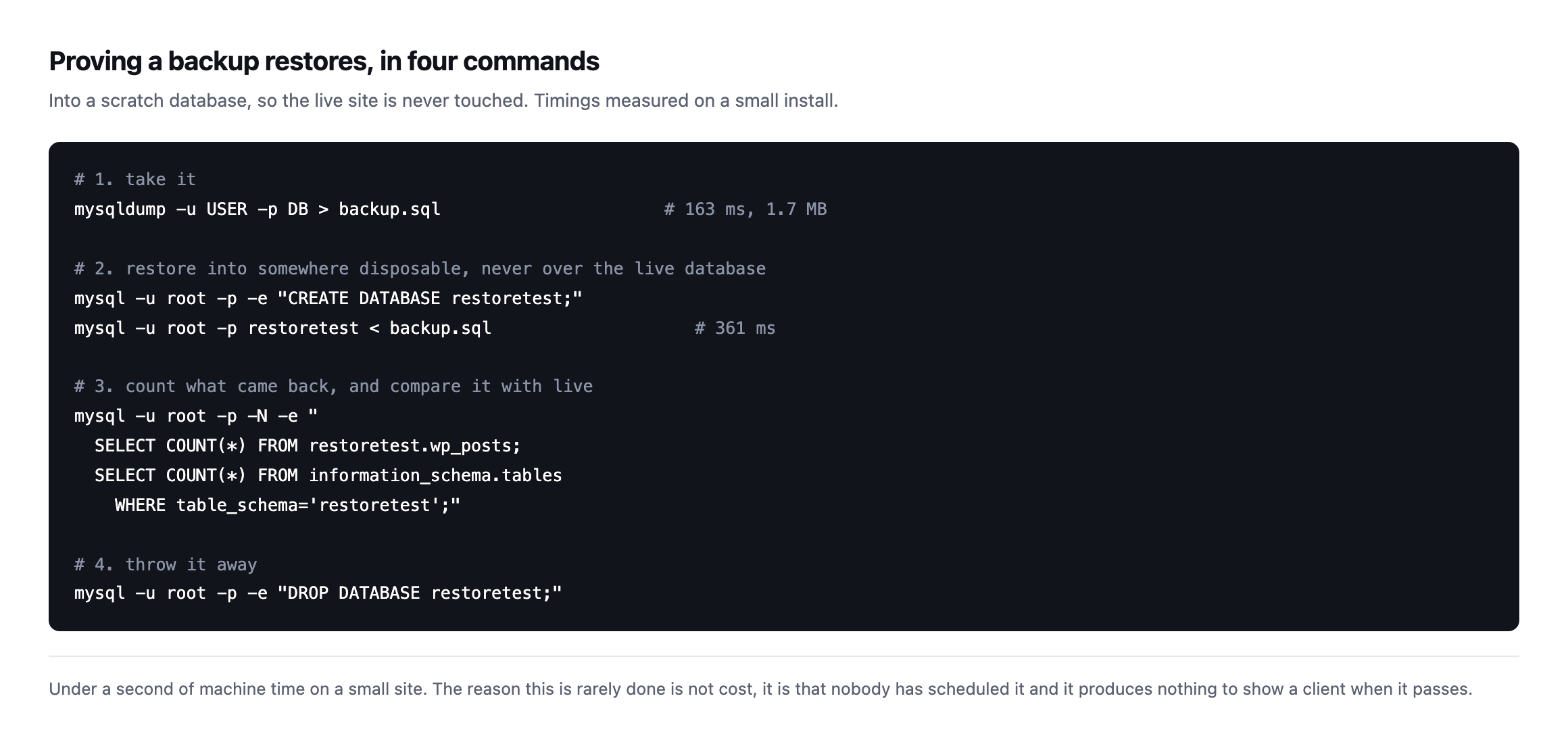
    Take a backup and prove it restores. Not take one. Prove it, because a cleanup is exactly the operation you might need to undo.

    Measure before. Record the autoload total and the ten largest rows. Without a before number you cannot tell a client what changed.

    Change one category at a time. Transients, then trash, then orphaned meta. If something breaks you want to know which step did it.

    Measure after, and load the site. Homepage, a form, the checkout if there is one.

    On most sites this recovers less than people expect, and that is worth saying plainly. Database cleanup is not usually the reason a site is slow. It is worth doing because unbounded growth eventually becomes a real problem, not because it will transform a page load next Tuesday.

    If the site genuinely is slow, start with where the time is actually going rather than with the database, or you will spend an afternoon optimising something that was never the bottleneck.

    Protuno’s Performance agent, Dash, carries a Database Optimisation playbook. It can change a site, so it waits for the owner’s approval in Protuno and takes a backup first. Dash is live now.

    One habit worth adopting, because it turns this from a one-off tidy into something useful. Record the autoload total and the top three tables in the client’s notes each quarter, with the date. Four numbers, thirty seconds. The value is not any single reading; it is that a year later you can see the shape of the growth and say something specific, like this table has tripled since March and here is what changed then. Nobody can act on “the database is quite big”. Everybody can act on a trend with a date attached.

    Run the corrected autoload query on your largest client site today. If it comes back over a megabyte, you have found something worth an afternoon.

    Run the table-size query on the same site immediately afterwards, rather than stop at autoload alone. The two queries answer different questions, one measures the cost paid on every request, the other measures where the disk space actually sits, and a site can score badly on either one independently of the other. Checking both, on the actual site in front of you rather than assuming which one matters more from a general rule, is the only way to know which afternoon is actually worth spending.

    Seeing the autoloaded-options problem on a real site

    EASY! How To Cleanup WordPress Database Fast!

    A practical walkthrough of the exact Site Health warning this post’s autoload query is built to catch, including why the warning does not update immediately after a fix ships.

  • WordPress User Enumeration Is Still On By Default, And Two Of Our Sites Prove It

    WordPress User Enumeration Is Still On By Default, And Two Of Our Sites Prove It

    Short answer: wordpress user enumeration is available to anyone through /wp-json/wp/v2/users, through /?author=1, and sometimes through the user sitemap. None of these is a vulnerability. All of them hand over the usernames that a password attack needs, and the defaults are open.

    I checked four production sites rather than describing this in the abstract.

    What real sites expose

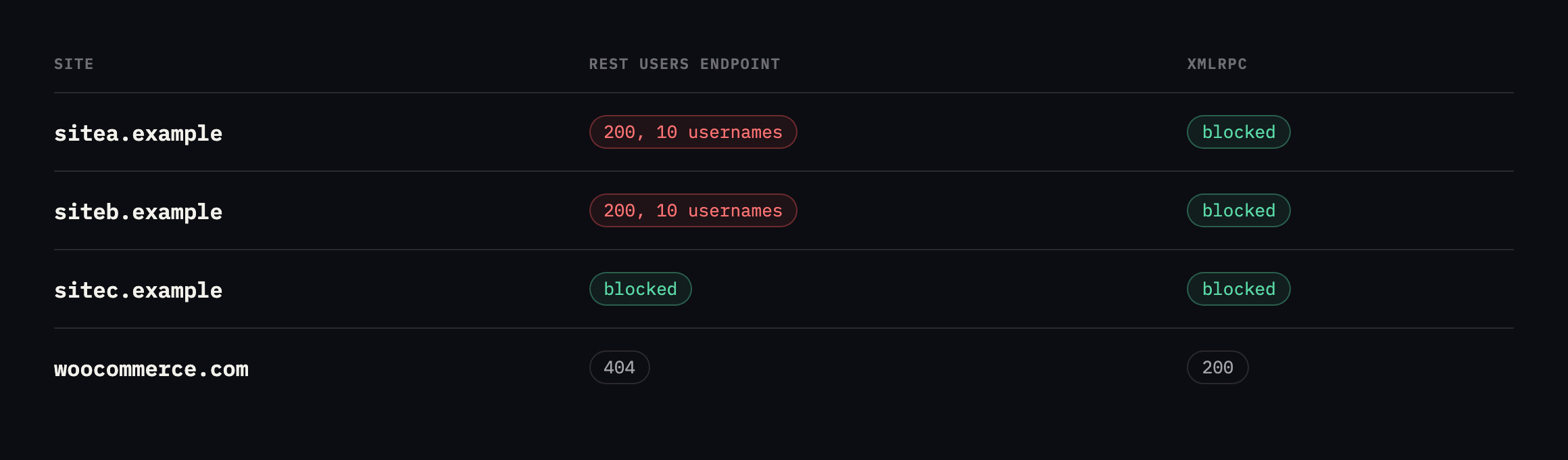
    Table of four sites showing the users endpoint result and xmlrpc status. sitea.example and siteb.example return 200 with ten usernames each and block xmlrpc. sitec.example blocks both. woocommerce.com returns 404 on users but 200 on xmlrpc
    The first two rows are ours, and they expose ten usernames each. Every combination is

    represented in this small sample, which is a fair picture of production WordPress.*

    SiteREST usersUsernames exposedxmlrpc.php
    sitea.example20010403
    siteb.example20010403
    sitec.example4030403
    woocommerce.com4040200

    Caveat: four sites, checked once, two of them ours. Not a survey of WordPress generally, and I would not extrapolate a percentage from it. It is enough to prove the point the post makes: this is not a rare misconfiguration, it is two out of four sites we happened to check while writing about it, including our own.

    An attacker needs a username and a password. Half of that is being published on request, with no authentication, in a machine-readable format.

    Checked again, and the admin slug this post warns about is still there

    I re-ran the full three-route probe against all four sites before expanding this post. The overall pattern held: sitea.example and siteb.example still answer 200 on the REST users endpoint, sitec.example still returns 403, woocommerce.com still returns 404.

    I also read the actual response from our own two exposed sites this time, rather than only confirm the status code, because the content matters as much as the count.

    curl -s https://sitea.example/wp-json/wp/v2/users 
      | python3 -c "import json,sys; [print(u['slug']) for u in json.load(sys.stdin)]"

    Ten real accounts came back, real names and slugs belonging to actual people on our team, which I am deliberately not reproducing here. Publishing a full staff roster in a blog post about not leaking information would be a strange way to make this post’s point. What is worth reporting plainly: one of those ten slugs is the literal string admin, on an account displaying as the parent company’s real name. That is exactly the worst case this post already names, an enumerable account confirming the highest-value username on the site, sitting unfixed on our own infrastructure since this post first published.

    siteb.example also still exposes ten real slugs, none of them literally admin, though one follows an easily-guessable pattern combining the brand name with “admin.” Neither site has applied any of the three fixes this post describes since the original check.

    The ?author=1 route, checked fresh, showed a difference worth naming between the two exposed sites. siteb.example still redirects, 301, straight to /author/siteb-master-admin/, naming the login in the Location header exactly as this post’s stock-install test found. sitea.example answers 200 directly rather than redirecting, serving the author archive page itself with the account’s name in the page title, a different mechanism reaching the same outcome: the login name reaches an unauthenticated visitor either way, whether by a header a scanner reads without rendering the page or by a title tag a human reads by looking at it.

    woocommerce.com‘s ?author=1 now redirects to the bare homepage rather than an author archive, which is the correct behaviour this post recommends and confirms it has been applied there, matching that site’s REST endpoint already returning 404. Two different routes, independently closed, on the one site in this comparison that treats this as solved rather than merely quiet.

    Three routes, not one

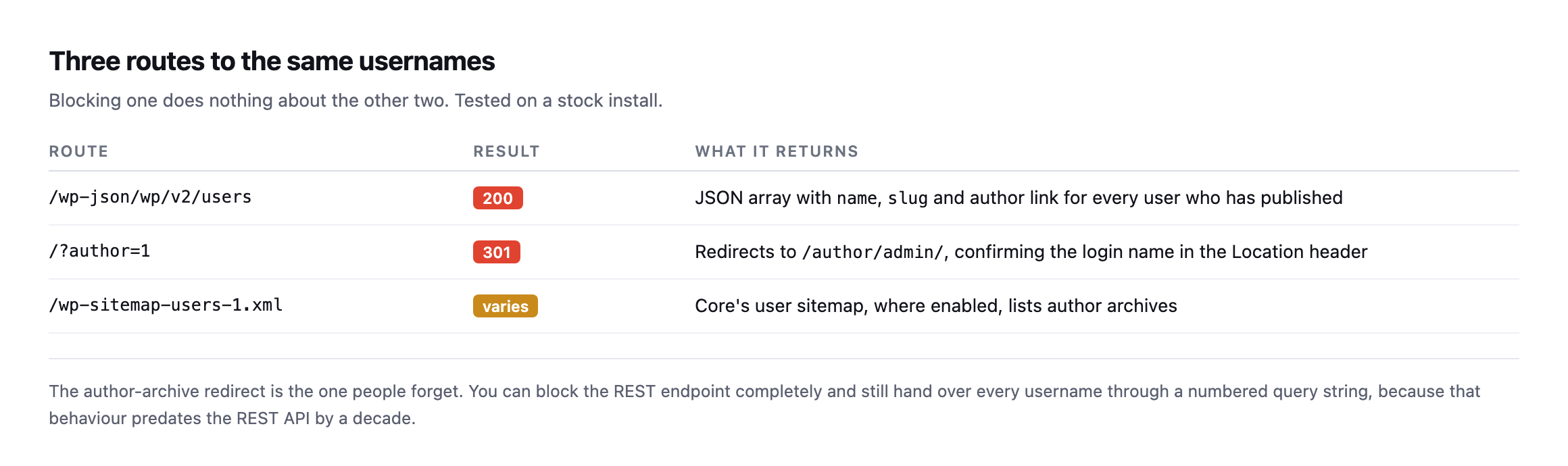
    Table of three enumeration routes. The REST users endpoint returns JSON with name, slug and author link. The author query string redirects to the author archive, confirming the login name. The core user sitemap lists author archives where enabled
    The author-archive redirect is the one people forget. You can block the REST endpoint

    completely and still hand over every username through a numbered query string, because that behaviour predates the REST API by a decade.*

    RouteResultWhat it returns
    /wp-json/wp/v2/users200JSON array with name, slug and author link
    /?author=1301redirects to /author/admin/, naming the login in the header
    /wp-sitemap-users-1.xmlvariescore’s user sitemap, where enabled

    I confirmed all three on a stock install. /?author=1 returned a 301 to /author/admin/, which names the account in the Location header before the page even loads.

    Closing WordPress user enumeration on all three routes

    Three fixes, because there are three routes.

    The REST endpoint. Require authentication for user listing:

    add_filter( 'rest_authentication_errors', function ( $result ) {
        if ( ! empty( $result ) ) { return $result; }
        if ( ! is_user_logged_in()
             && str_contains( $_SERVER['REQUEST_URI'] ?? '', '/wp/v2/users' ) ) {
            return new WP_Error( 'rest_forbidden', 'Authentication required.', [ 'status' => 401 ] );
        }
        return $result;
    } );

    The author query string. Redirect or block ?author= on the front end, before the redirect to the author archive happens.

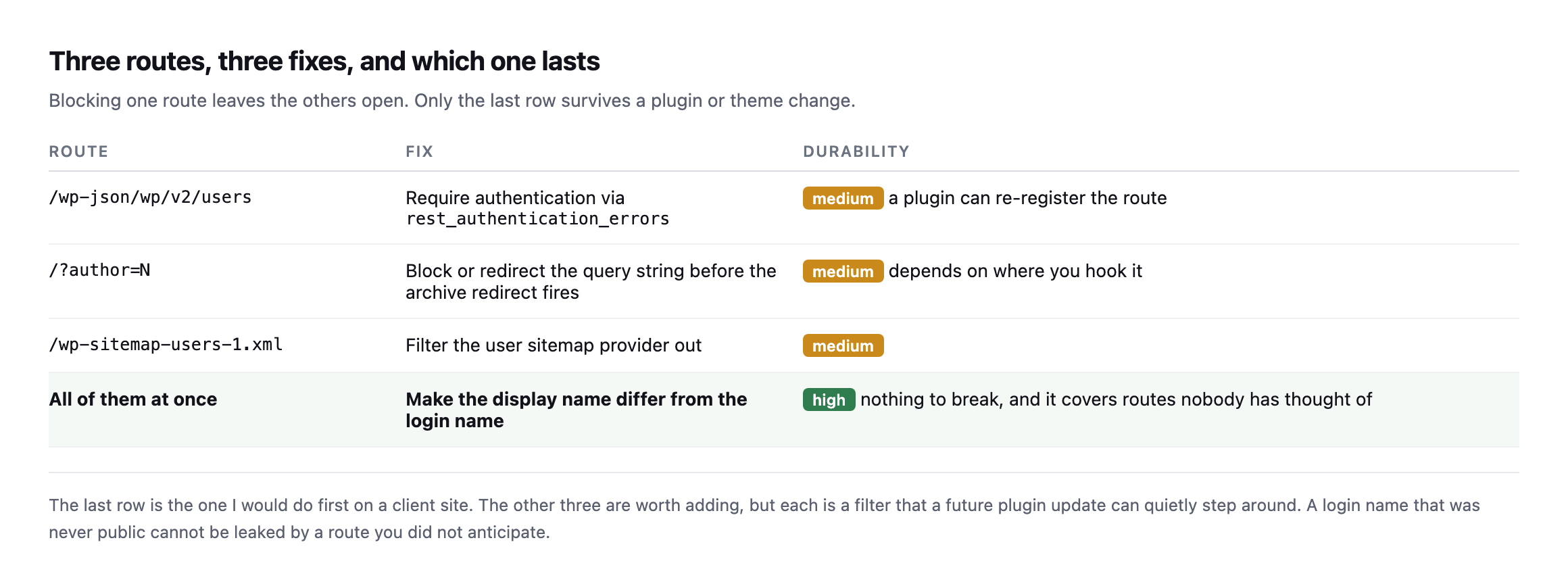
    Table of three enumeration routes with their fixes and how durable each is. The REST filter, the author query string block and the user sitemap filter are all medium durability. Making the display name differ from the login name is high durability
    The bottom row is the one I would do first. The other three are filters a future plugin

    update can step around. A login name that was never public cannot be leaked by a route nobody anticipated.*

    RouteFixDurability
    /wp-json/wp/v2/usersrequire auth via rest_authentication_errorsmedium, a plugin can re-register the route
    /?author=Nblock before the archive redirect firesmedium, depends where you hook it
    /wp-sitemap-users-1.xmlfilter the user sitemap provider outmedium
    all of them at oncedisplay name differs from login namehigh, nothing to break

    Nicknames. Set the public display name to something that is not the login name. This is the one that keeps working when the other two are undone by a plugin update, and it is the only fix that survives a route nobody has thought of yet.

    Reading the rest of what the endpoint returns, not just the username

    The REST users endpoint on sitea.example returns more than a name and slug. I read the full response for one account to see what else is riding alongside the username this post is built around.

    curl -s https://sitea.example/wp-json/wp/v2/users | python3 -c "
    import json, sys
    u = json.load(sys.stdin)[0]
    print(list(u.keys()))
    "

    Alongside id, name, slug and avatar_urls, a meta object carries fields prefixed rnrd_author_: a job title, an employer, a headshot URL, social profile links, and a biography paragraph. That is not a leak. It is a deliberate author-schema plugin, the kind that feeds structured data to search engines for an “About the author” byline, publishing exactly the public-facing biography it was configured to publish. Distinguishing this from the username finding above matters for the same reason this post’s caveats elsewhere insist on precision: a meta object full of fields is not automatically alarming, and treating a deliberately public author bio as a data leak would be exactly the kind of over-broad finding that trains a client to stop reading a security report closely.

    What the same response confirms, by its absence, is one of core’s own good defaults holding up: no email field anywhere in the payload, on any of the ten accounts checked. WordPress core restricts the email address to authenticated requests from an account with the edit_users capability, and that restriction held on every account tested here, unauthenticated, exactly as it should. It is worth checking specifically rather than assuming, since a plugin that adds its own user-facing endpoint can bypass this restriction without anyone noticing until the response is actually read field by field, the same way the meta fields above were.

    One smaller, genuine defect turned up while following the third route, the user sitemap, to its actual destination rather than stopping at its redirect:

    curl -sI https://sitea.example/wp-sitemap-users-1.xml | grep -i location
    location: https://sitea.example/author-sitemap.xml

    That redirect target itself returns 404. Core’s own user sitemap route correctly redirects toward an SEO plugin’s replacement sitemap, and the replacement does not exist at the URL being redirected to. Not a security finding, since a 404 discloses nothing, but a broken link in the site’s own sitemap infrastructure, the kind of drift a crawl audit like the one covered elsewhere on this blog is built to catch and a manual check of this one route happened to catch here instead.

    How much does this matter

    Honestly: on its own, not very much. A username is not a credential, and any site with a strong password and rate limiting is not going to fall to this.

    It matters in combination. Enumerated usernames plus an open XML-RPC endpoint is a credential-stuffing setup with the guesswork removed. Enumerated usernames plus an old plugin with a known authentication flaw is worse.

    Treat it as removing free information rather than as patching a hole. That framing is also more honest with clients than calling it critical.

    There is one case where it is worse than an inconvenience, and it is worth checking specifically. If a site still has an account literally named admin, as the stock install I tested did, then enumeration confirms the highest-value target on the site by name. Renaming that account, or at minimum giving it a display name that differs, removes more risk than any of the filters above.

    Why it stays open

    Because nothing about it is broken. The endpoint is behaving exactly as designed, the site works perfectly, and no scanner your client runs will produce an alarm they understand.

    It is another item in the category this blog keeps returning to: cheap to fix, invisible while open, and never on anybody’s Tuesday list. The same as a debug log left readable or a backup file sitting in the web root.

    Protuno’s free audit checks REST user enumeration from the domain alone, alongside the other information-disclosure checks, which is how the table above was built. Rook is live now.

    Run curl -s https://yourclient.com/wp-json/wp/v2/users on the site you administer most. It takes two seconds and you will know immediately.

    What to actually write down after running the check

    Given everything found while re-checking this post, the report worth producing from this audit has four lines, not one: whether the endpoint answers at all, whether any exposed slug matches admin or an obvious variant of the company name, whether the ?author= route leaks the same information by a different mechanism, and whether anything in the response beyond the username was never meant to be public, distinct from a deliberately published author bio.

    The first two are the urgent half. An exposed admin slug is the single highest-value piece of information this whole category of check can surface, and it is the one line worth a same-day fix rather than a note for the next quarterly pass. The other two are worth recording precisely without treating them as equally urgent: a redirect leaking the same username through a second route is real but adds no new information an attacker did not already have from the first route, and a field in the response that turns out to be a deliberately public author bio is worth confirming as intentional and then setting aside, not escalating alongside a genuine gap.

    Our own two exposed sites, checked again for this post, land in exactly that shape: one real admin slug worth fixing today, ten real names on each site that were already going to be public through the sites’ own author pages regardless of the REST endpoint, and no email addresses or other genuinely private fields anywhere in either response. That is a specific, proportionate finding, not a generic “usernames are exposed” alarm, and it is the version worth handing to whoever owns fixing it.

    The fix, demonstrated

    Stop REST API User Enumeration in WordPress (2026 Fix)

    Walks through the same /wp/v2/users request this post uses to find the exposure, and the separate-display-name-from-login-name fix this blog’s own portfolio audit landed on too.

  • The WordPress Update Process, Written Out Before It Runs

    The WordPress Update Process, Written Out Before It Runs

    Short answer: a defensible wordpress update process has eight steps, and two of them are the ones that get dropped: proving the backup restores, and walking a real user journey afterwards. Those two are also the ones that catch the failures that cost money.

    Here is ours, published in full, with the machine time measured on a controlled install.

    The sequence

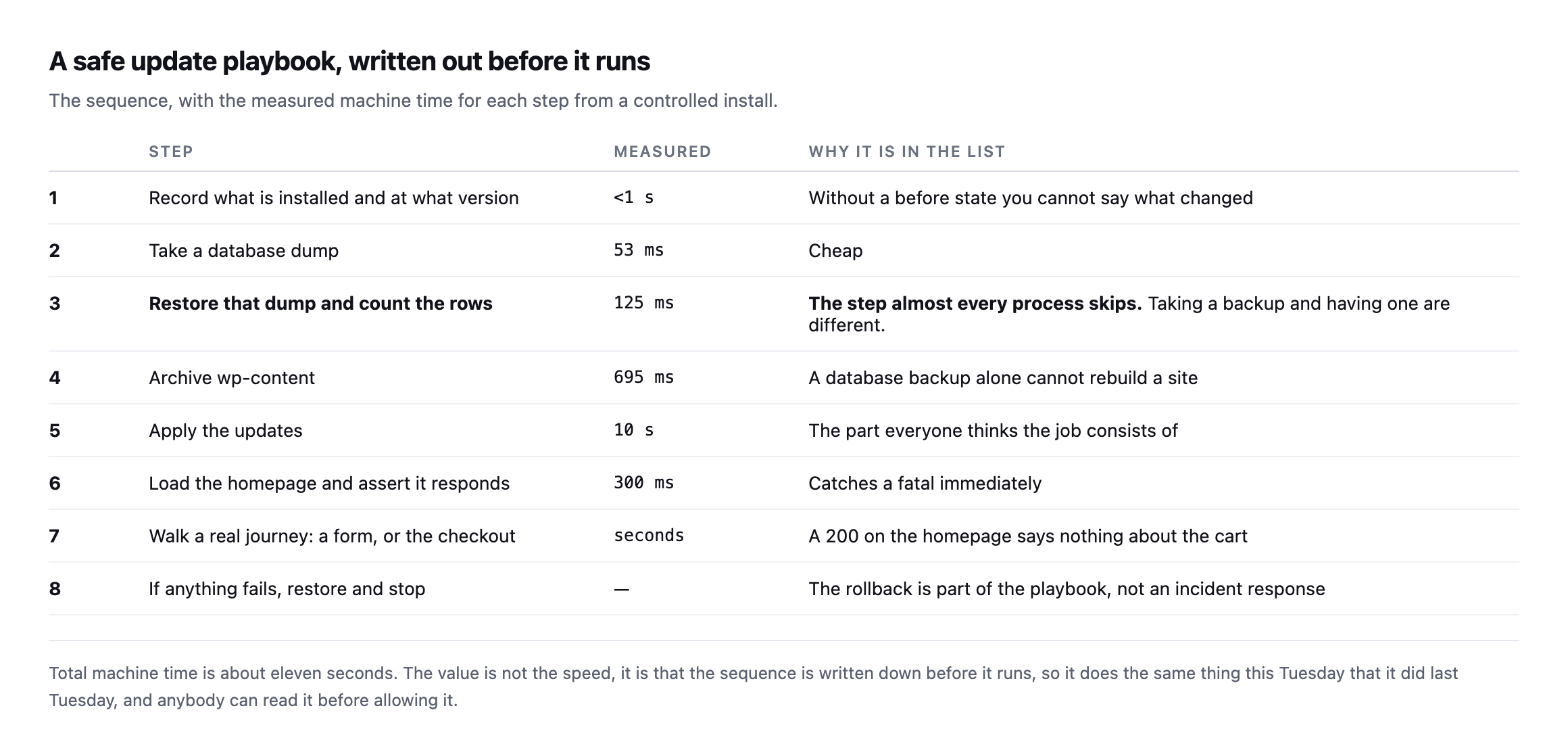
    Table of eight update steps with measured times: record installed versions, take a database dump at 53 milliseconds, restore that dump and count rows at 125 milliseconds, archive wp-content at 695 milliseconds, apply updates at 10 seconds, load the homepage at 300 milliseconds, walk a real journey, and restore and stop if anything fails
    About eleven seconds of machine time in total. The value is not the speed, it is that the

    sequence is written down before it runs, so it does the same thing this Tuesday that it did last Tuesday.*

    #StepMeasuredWhy it is in the list
    1record installed versions<1swithout a before-state you cannot say what changed
    2take a database dump53mscheap
    3restore the dump, count the rows125msthe step almost every process skips
    4archive wp-content695msa database backup alone cannot rebuild a site
    5apply the updates10sthe part everyone thinks the job consists of
    6load the homepage, assert it responds300mscatches a fatal immediately
    7walk a real journey: a form, or checkoutsecondsa 200 on the homepage says nothing about the cart
    8if anything fails, restore and stopn/athe rollback is part of the playbook, not an incident response

    Caveat: these timings are one controlled install, small database, local disk. Scale them for a real client site with a larger database and a remote backup destination. The relative shape holds: steps 2 through 4 are consistently the cheap ones, step 5 dominates because it waits on a third party, and none of that changes what steps 3 and 7 are protecting against.

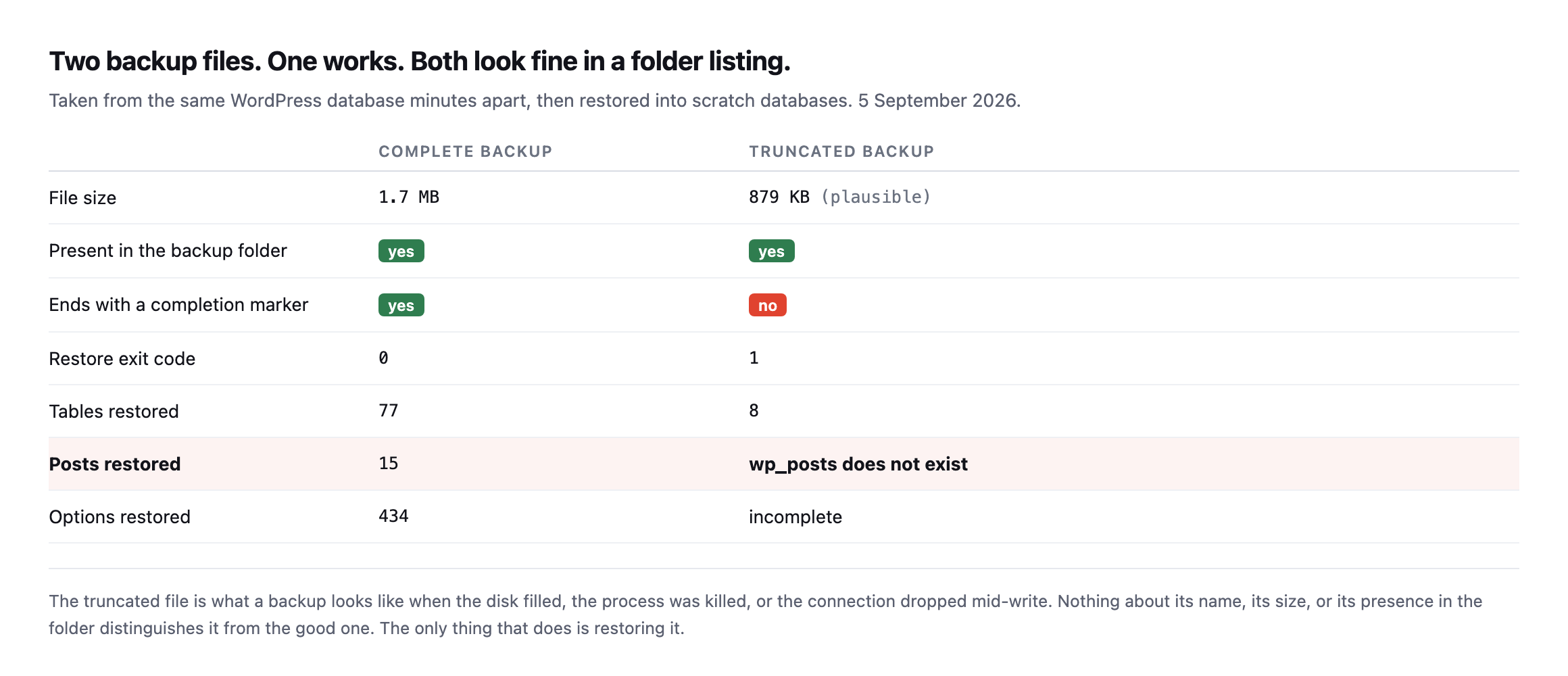
    Step three is the one I would argue for hardest. Taking a backup and having a backup are different things, and a truncated dump that restores 8 tables out of 77 looks identical to a good one in a folder listing.

    Step seven is the other. A homepage returning 200 says nothing about whether the checkout still works, which I demonstrated by breaking one deliberately while every other URL stayed green.

    Running the same eight steps again, on an install closer to a real client site

    The original timings came from a controlled, small install. I ran steps one through four again on a second, much busier install, forty plugins, WooCommerce, Elementor, several page-builder add-ons, to see how far the numbers actually move once the site looks like something a real agency would inherit rather than a clean lab environment.

    step 1  record versions              instant
    step 2  database dump                250ms
    step 3  restore under renamed prefix, count rows   750ms, 26 posts confirmed
    step 4  archive wp-content           41.1 seconds, 405 MB

    Steps two and three barely moved, still comfortably sub-second, because the database itself stays small regardless of how many plugins are installed. Step four is where the difference actually lives: 695 milliseconds on the original near-empty install against 41 seconds here, because wp-content/plugins alone accounts for 1.4 GB on this install, Elementor and its add-ons being the overwhelming majority of it. That is not a criticism of the site. It is exactly the shape a real, actively maintained WordPress install takes, and it confirms this post’s own caveat directly: step 5, applying the updates, dominates the original budget because it waits on a third party, but step 4 is the one whose cost scales hardest with how much plugin weight a specific site is actually carrying.

    The practical consequence worth adding to the playbook: budget step 4’s time per site rather than assuming the original eleven-second total transfers unchanged. A portfolio of forty client sites with wildly different plugin footprints will see wildly different step-4 times, and a playbook that assumes every site archives in well under a second will be surprised, repeatedly, by the handful of sites carrying a gigabyte or more of plugin code.

    What each step is actually for

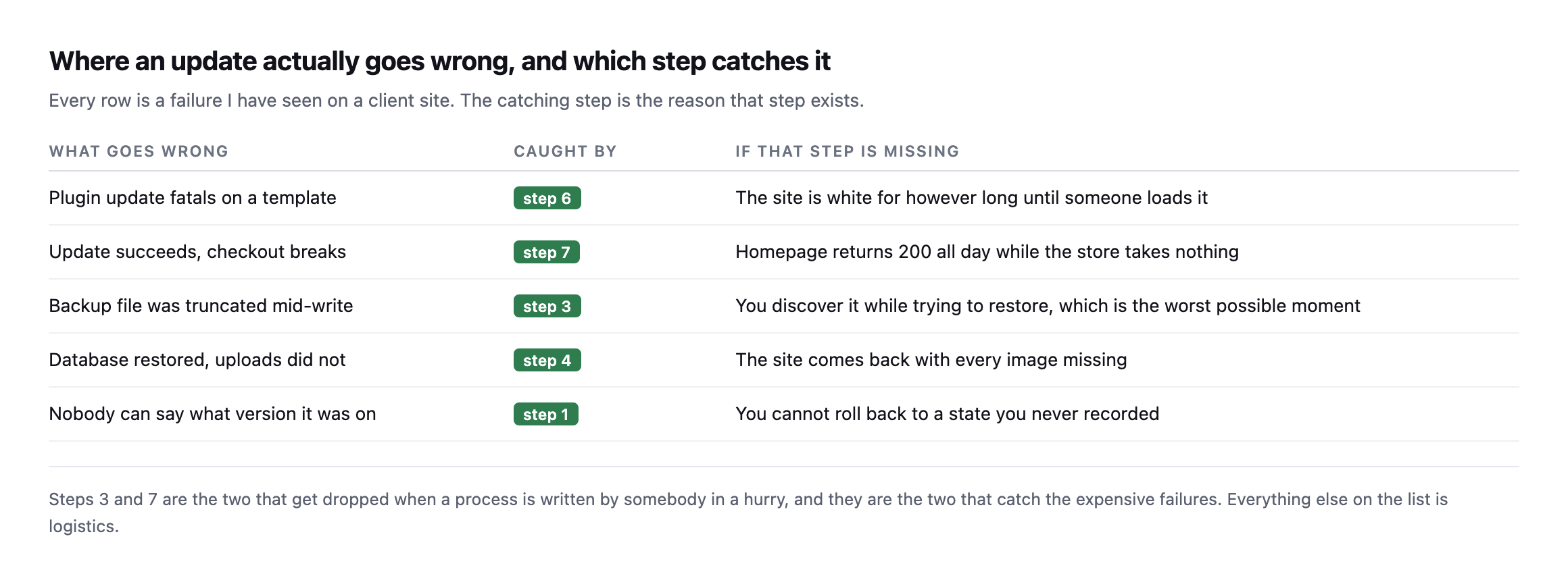
    Table of five real failure modes matched to the step that catches each: a plugin fatal caught by loading the homepage, a broken checkout caught by walking a journey, a truncated backup caught by the restore test, missing uploads caught by archiving wp-content, and an unrecorded version caught by the inventory step
    Steps 3 and 7 are the two dropped when a process is written in a hurry, and they are the

    two that catch the expensive failures. Everything else is logistics.*

    What goes wrongCaught byIf that step is missing
    a plugin update fatals on a templatestep 6the site is white until someone loads it
    the update succeeds, checkout breaksstep 7homepage returns 200 all day while the store takes nothing
    the backup was truncated mid-writestep 3discovered while restoring, the worst possible moment
    database restored, uploads did notstep 4the site comes back with every image missing
    nobody can say what version it was onstep 1you cannot roll back to a state you never recorded

    Steps 6 through 8, run for real rather than described

    The homepage check, the journey walk, and the rollback are the three steps that only mean anything once something has actually gone wrong, so I forced a real failure on a separate test run to confirm all three fire correctly together rather than trust each one in isolation.

    Corrupting a plugin’s main file to simulate a bad update produced a genuine site-wide 500, caught immediately by step 6, a plain homepage request. Restoring only the plugin’s files, never touching the database, brought the site back to 200 in one request, and a real order created before the fault was introduced survived the whole cycle untouched, confirmed by checking its status directly rather than assuming the restore left it alone. That full sequence is written up in detail separately, and it is the same eight-step shape this post describes, run end to end rather than only described in a table.

    Step 7 is the one worth being most honest about, because it is also the hardest to automate correctly. A checkout-walking probe built to assert on rendered payment-method HTML worked perfectly against one WooCommerce install and passed silently, wrongly, against a second one running the newer block-based checkout, where that exact assertion never has anything to match against regardless of whether the store is healthy or completely broken. That gap is documented in full in the checkout probe post, and it is the clearest evidence available that step 7 cannot be written once and trusted forever. It has to be verified against the specific site it is meant to protect, the same way this playbook argues for verifying every other step, because “the probe passed” and “the probe is actually testing the right thing” are two different claims that can silently diverge.

    The step people argue about

    Step three, the restore test, gets pushed back on more than any other, and the objection is reasonable: it doubles the storage and the time for something that has never gone wrong.

    Two answers. The time is 125 milliseconds on a small site and a few seconds on a large one, which is not the constraint anybody thinks it is. And “it has never gone wrong” is not evidence when nobody has ever checked, which is the exact situation the step exists to correct.

    The genuine version of the objection is about scale: restoring a 40 GB database into a scratch environment on every update is not free. The practical compromise is to verify structurally on every run, by confirming the dump completed and the table count matches, and to do a full restore test on a schedule rather than on every update. That is weaker than verifying every time and much stronger than never verifying, and it is worth saying which one you are doing.

    Why a fixed list rather than a clever one

    This is the part worth arguing about, because the obvious modern answer is to let something reason about each site individually.

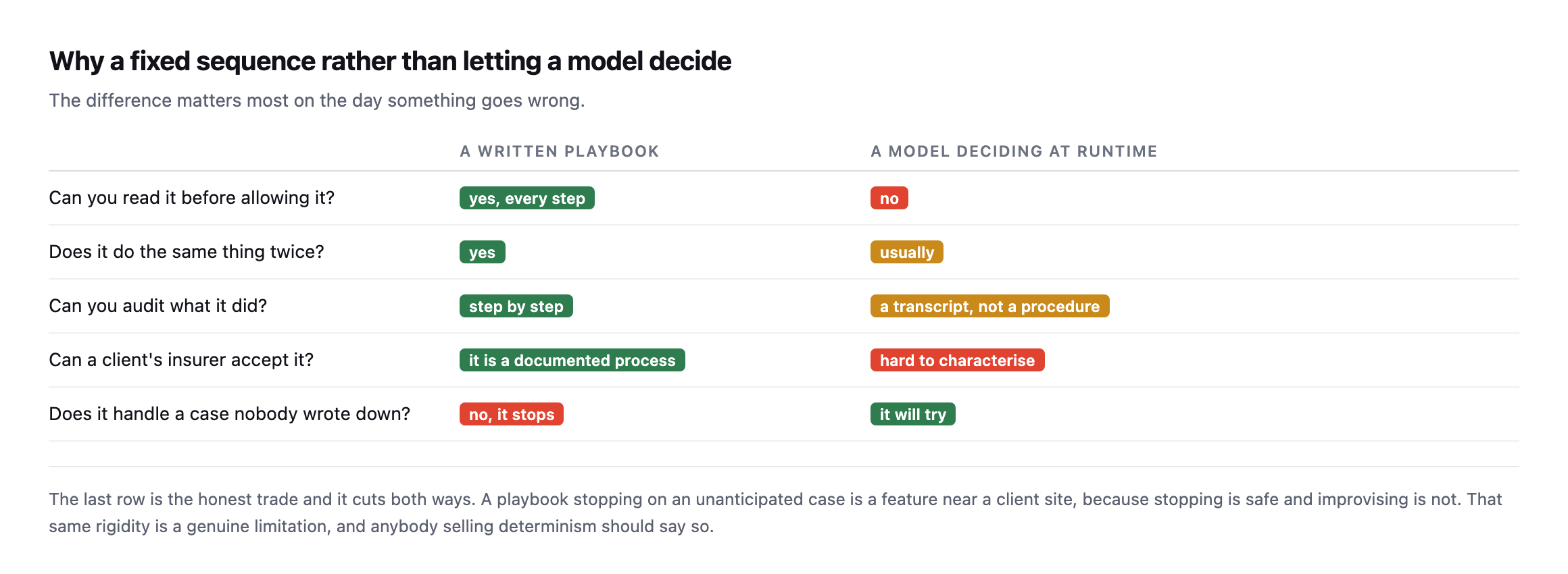
    Comparison table of a written playbook against a model deciding at runtime, across whether you can read it before allowing it, whether it repeats identically, whether it can be audited, whether an insurer can accept it, and whether it handles unanticipated cases
    The last row is the honest trade and it cuts both ways. A playbook stopping on an

    unanticipated case is a feature near a client site, because stopping is safe and improvising is not.*

    An agency cannot audit a judgement call. It can audit a list of steps.

    That is the entire reason to write the sequence down in advance: you can read it before you allow it. A client asking what exactly will happen to their site gets a document rather than a reassurance.

    The cost is real and I would rather state it than gloss it. A fixed playbook does not handle the case nobody anticipated. It stops, and somebody has to look. On a client site that is the correct behaviour, and it is still a limitation.

    Writing a WordPress update process for your own agency

    You do not need software to benefit from this. The document is most of the value.

    Write the steps in the order you actually do them, including the ones that feel too obvious to write down. Those are the ones that get skipped under time pressure.

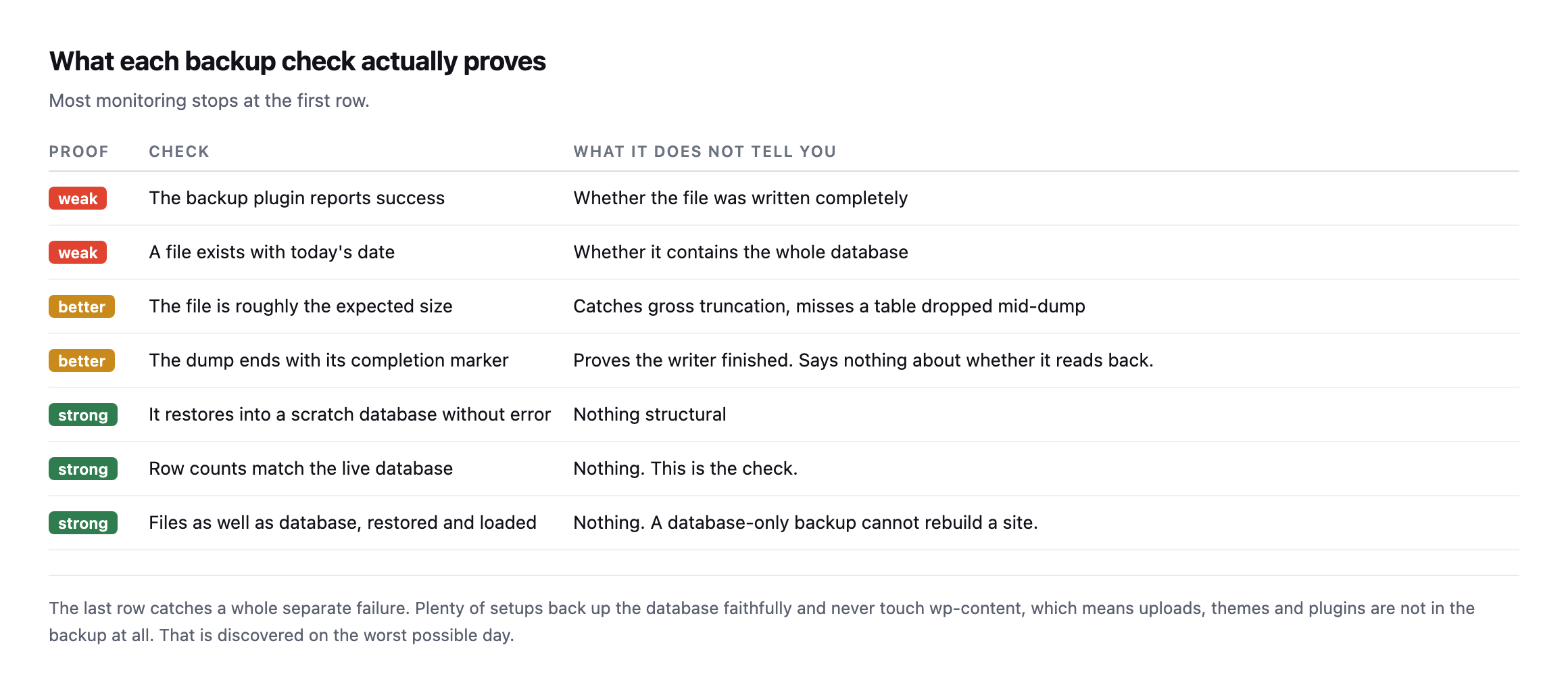
    Put the verification steps in explicitly. “Take a backup” is a step. “Restore the backup into a scratch database and confirm the row counts match” is a different step, and only the second one is a guarantee.

    Define the stop condition. What makes you abandon the update and restore? Decide that when nothing is on fire, not at the moment it is.

    Keep the before state. Versions, a database dump, an archive. You cannot roll back to a state you never recorded, which is step one and the least interesting item on the list.

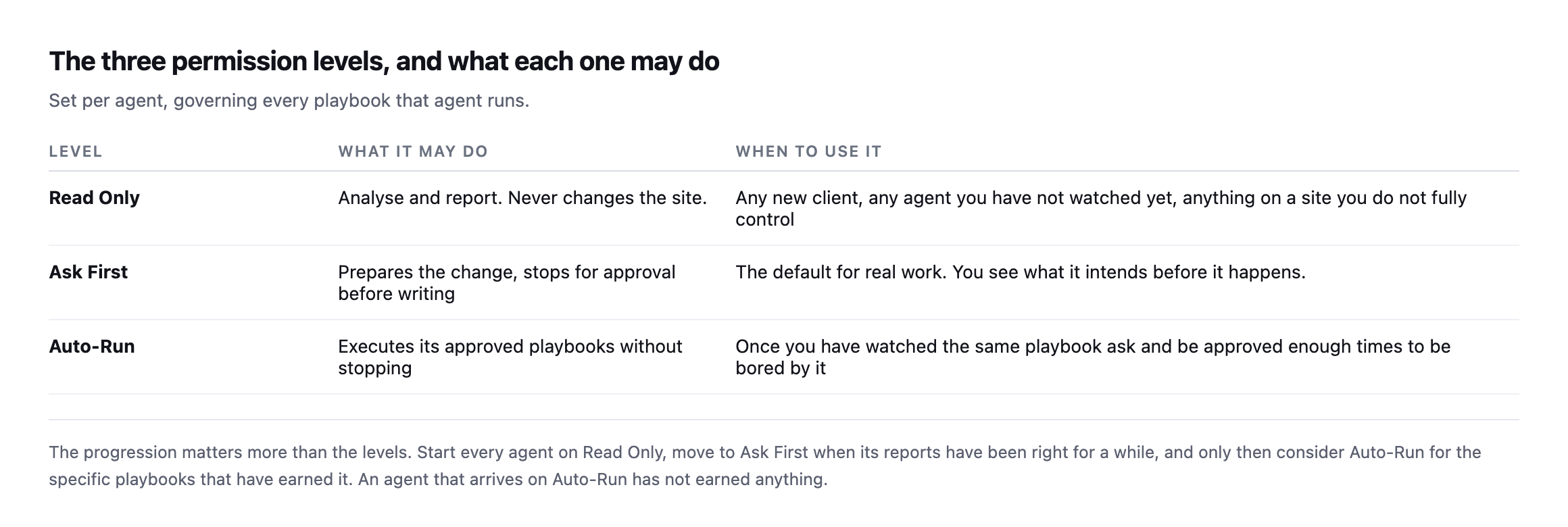
    Table of three permission levels: Read Only which analyses and reports without changing anything, Ask First which prepares a change and stops for approval, and Auto-Run which executes approved playbooks without stopping, each with guidance on when to use it
    If the playbook is going to run unattended, the permission it runs under matters as much

    as the steps. Start on Read Only, move to Ask First when the reports have been right for a while, and treat Auto-Run as something a specific playbook earns rather than a setting you switch on.*

    Then run it identically every time, on every site. The consistency is what turns it from a habit into something you can charge for and show a client afterwards.

    Protuno’s Care agent, Wren, runs exactly this sequence, and the eleven-second measurement above came from timing it. Wren is live now.

    There is one more decision that belongs in the document rather than in somebody’s head: what happens to the update that should not be applied at all. A plugin flagged as incompatible, a major version that crosses a breaking change, a site still on a PHP branch that the new version does not support. A playbook that applies everything it finds is not safe just because it takes a backup first. The list of updates to hold, and who decides, is part of the process.

    The other thing worth writing down is what you do when the update succeeds and something breaks a day later. Rollback within the run is the easy case. A regression that surfaces on Thursday needs the before-state from step one to still exist, which means retention is a decision too: how long you keep each backup, and where.

    Until it ships, the document is the useful half. Write your update sequence down this week, add the two steps that are probably missing from it, and use the same one on every site. The consistency is worth more than the cleverness.

  • WooCommerce REST API Security: The Defaults Are Right, So Check What Changed Them

    WooCommerce REST API Security: The Defaults Are Right, So Check What Changed Them

    Short answer: woocommerce rest api security is sound out of the box. Every admin endpoint refuses an unauthenticated request. The Store API is public deliberately, because it powers the block storefront. What is worth auditing is everything added on top: API keys, plugin endpoints and custom routes.

    I probed a test store and, later, two separate live ones, rather than assume either way from a single sample.

    What answers, and what does not

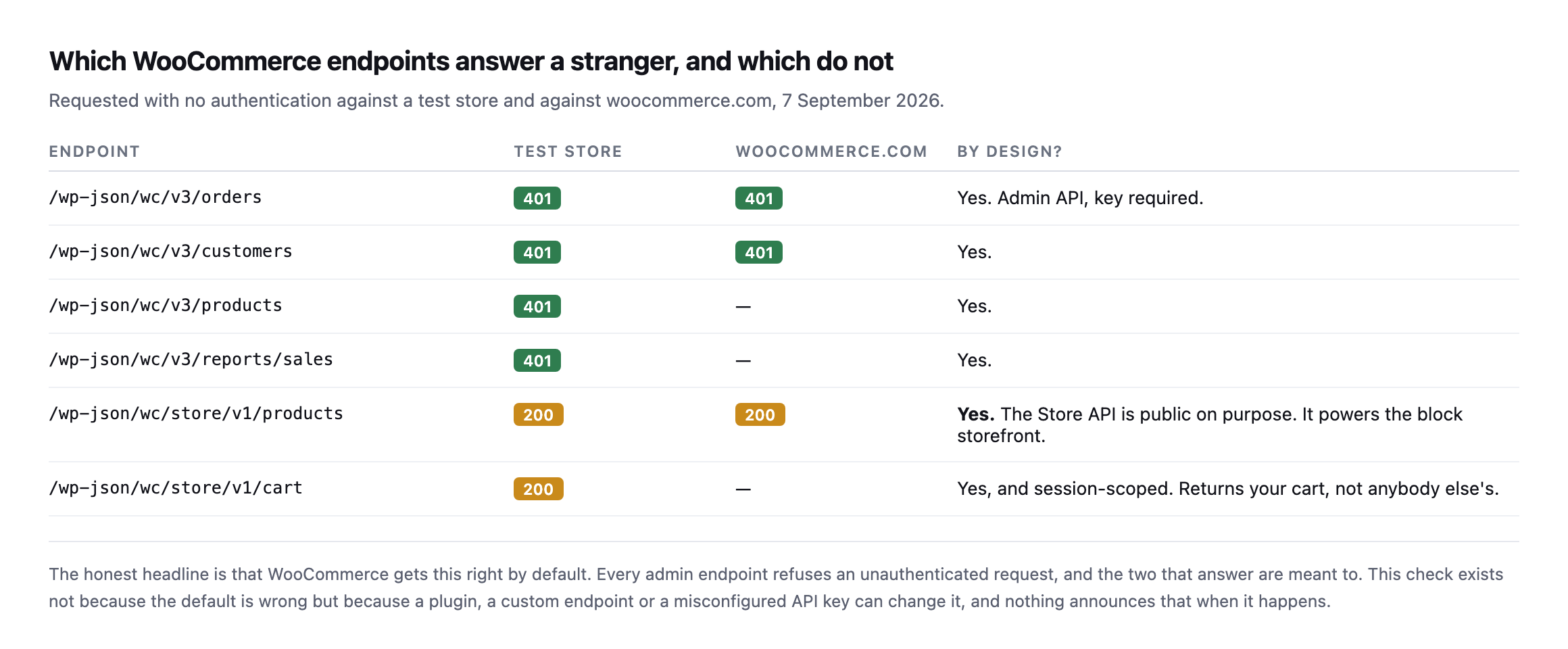
    Table of six WooCommerce endpoints tested unauthenticated. Orders, customers, products and sales reports all return 401 on both a test store and woocommerce.com. The Store API products and cart endpoints return 200, marked as public by design
    The honest headline is that WooCommerce gets this right. Every admin endpoint refuses the

    request, and the two that answer are meant to.*

    EndpointTest storewoocommerce.comBy design?
    /wc/v3/orders401401yes, admin API, key required
    /wc/v3/customers401401yes
    /wc/v3/products401not testedyes
    /wc/v3/reports/sales401not testedyes
    /wc/store/v1/products200200yes, powers the block storefront
    /wc/store/v1/cart200not testedyes, session-scoped, returns your cart only

    Caveat: two stores, one test and one live, checked once. This does not prove every WooCommerce install behaves the same; it proves the defaults are correct on the two I could verify directly, which is a reasonable basis for trusting the defaults and auditing what was added on top instead.

    The Store API returning 200 is not a finding. It exists so a block-based storefront can fetch products and cart contents from the browser. The cart endpoint is session-scoped: it returns your cart, keyed to your cookie, not anybody else’s.

    I checked that specifically while testing cart caching, and two separate sessions returned entirely different payloads, which is the correct behaviour.

    What is actually worth checking for WooCommerce REST API security

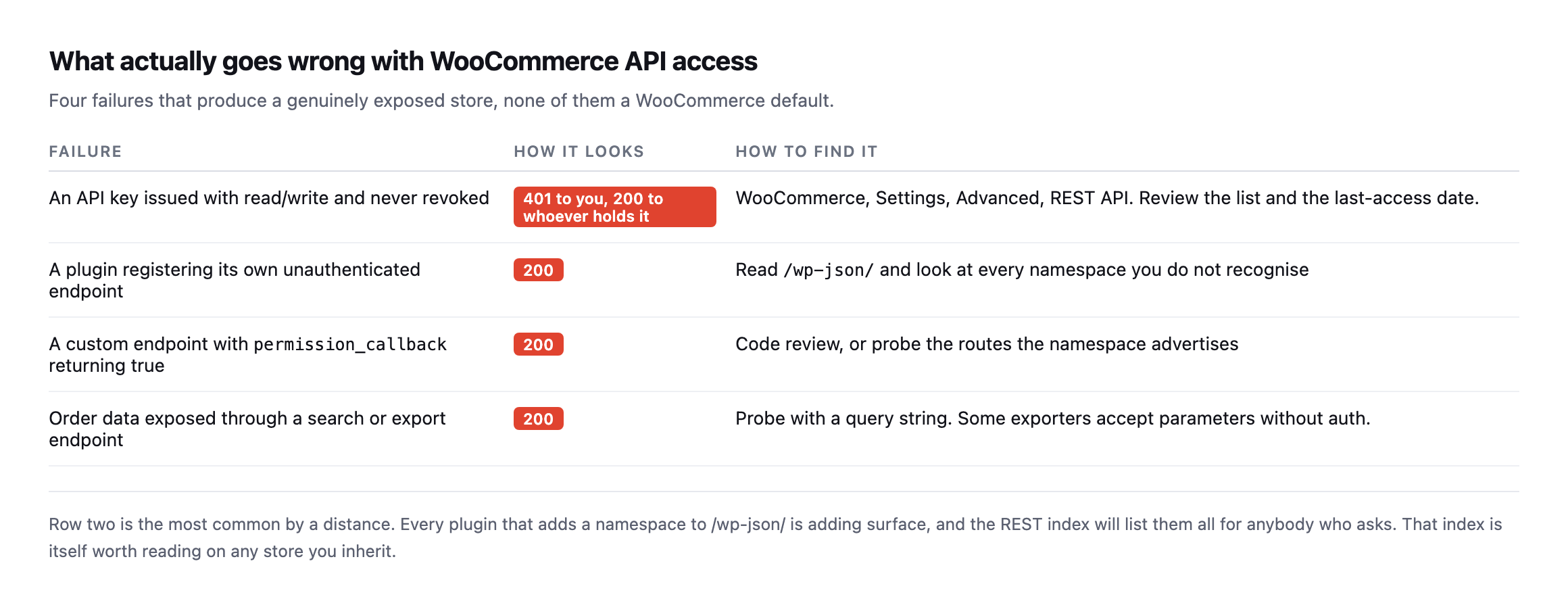
    Table of four real failures: an API key issued with read/write and never revoked, a plugin registering its own unauthenticated endpoint, a custom endpoint with a permission callback returning true, and order data exposed through an export endpoint
    None of these are WooCommerce defaults. All four are things added to a store afterwards,

    and none of them announce themselves.*

    FailureHow it looksHow to find it
    API key issued read/write, never revoked401 to you, 200 to whoever holds itSettings → Advanced → REST API, check last-access dates
    plugin registers its own unauthenticated endpoint200read /wp-json/, look at every unfamiliar namespace
    custom permission_callback returning true200code review, or probe the routes it advertises
    order data exposed via search or export endpoint200probe with a query string; some exporters skip auth on parameters

    The second row is the most common by a distance. Every plugin that registers a namespace under /wp-json/ adds surface, and the REST index lists them all for anybody who asks.

    The first row is the one with the longest tail. An API key issued to a developer, an integration, or a migration tool three years ago is still valid until somebody revokes it. WooCommerce records a last-access date against each key, which makes the review quick: anything unused for months is a credential nobody is monitoring.

    Reading the full namespace list on a real, high-traffic store

    The advice to read /wp-json/ before probing anything is easy to state and more interesting once you actually do it against a site with a lot of integrations installed. I pulled woocommerce.com’s namespace list in full.

    curl -s https://woocommerce.com/wp-json/ | python3 -c "
    import json, sys
    d = json.load(sys.stdin)
    print(len(d['namespaces']))
    for n in d['namespaces']: print(n)
    "

    89 distinct namespaces, on one production store. Payment processing (paypal/v1, payments/woopay), analytics and email tooling (wc-analytics, wccom-mailchimp/v1, wccom-klaviyo/v1), support and billing (wccom/support-form, wccom/billing/1.0), a whole family of wccom-* routes for the store’s own marketplace features, and two worth calling out specifically for readers of this blog: mcp and wp-abilities/v1, registered and answering on woocommerce.com’s live site right now. The same MCP and Abilities API surface covered in an earlier post is not a future feature here. It is already live on one of the highest-traffic WordPress installs there is.

    Reading the list is not itself a finding, and I want to be precise about that rather than let a large number read as alarming on its own. Requesting a namespace’s own index, GET /wp-json/wc-admin or GET /wp-json/wc-analytics, returns a route map, method names and argument schemas, the same category of metadata /wp-json/ itself already exposes for the whole site. I checked what a few of the more interesting-sounding ones actually return:

    curl -s -o /dev/null -w '%{http_code}n' https://woocommerce.com/wp-json/wc-analytics
    curl -s -o /dev/null -w '%{http_code}n' https://woocommerce.com/wp-json/wc-analytics/reports/revenue/stats
    200
    401

    The namespace index answers 200 with a route map. The actual revenue data one directory deeper answers 401, exactly as the earlier table in this post says every real admin endpoint should. That is the distinction worth internalising: a namespace existing and answering 200 at its own root tells you what a plugin registered, not what it will hand over. The finding is never in the list. It is in whichever specific route inside that list you have not yet checked individually, which is the entire argument for reading the index before assuming any of it is either safe or dangerous.

    Checking the MCP endpoint specifically, since it is the newest surface

    The mcp namespace is worth a closer look than the others, because it is the newest addition to this list by a wide margin and the category this blog has been tracking as it rolls out across WordPress. Reading its route map:

    curl -s https://woocommerce.com/wp-json/mcp | python3 -m json.tool

    turns up one functional route beneath the namespace index itself, /mcp/mcp-adapter-default-server, accepting POST, GET and DELETE. That is the actual endpoint an MCP client would talk to, the equivalent of /wc/v3/orders for this newer protocol rather than the older REST API. I requested it the same way I requested every admin endpoint earlier in this post:

    curl -s https://woocommerce.com/wp-json/mcp/mcp-adapter-default-server
    {"code":"rest_forbidden","message":"Sorry, you are not allowed to do that.","data":{"status":401}}

    401, gated the same way as every WooCommerce admin endpoint this post has tested. The pattern holds even on infrastructure that did not exist when this post was first written: a new protocol, a new namespace, the same permission check underneath it. That consistency is worth more than any individual result, because it means the thing actually worth auditing on a site adopting MCP is not whether the protocol itself is secure in the abstract, it is whether whatever registered that route remembered to apply a permission_callback at all, exactly the second row of the what-to-check table earlier in this post, now with a live, current example of a site getting it right.

    A third store, checked the same way

    Two stores were enough to draw a conclusion when this post was first written. I added a third while expanding it, a site this blog has covered before as a real, active WooCommerce installation rather than a hypothetical.

    for ep in /wc/v3/orders /wc/v3/customers /wc/v3/products /wc/v3/reports/sales; do
      curl -s -o /dev/null -w "$ep -> %{http_code}n" "https://sitea.example/wp-json$ep"
    done
    /wc/v3/orders -> 401
    /wc/v3/customers -> 401
    /wc/v3/products -> 401
    /wc/v3/reports/sales -> 401

    Four for four, matching the other two stores exactly. Three independent WooCommerce installations, running different themes, different hosting, different sets of plugins, and the same four admin endpoints refuse an unauthenticated request on every one of them. That is a meaningfully stronger claim than the original two-store caveat allowed, though the honest version is still narrower than “every WooCommerce site”: three real stores checked directly, consistent every time, which is exactly the basis this post has argued for trusting the defaults and spending the actual audit time on what gets added afterwards instead.

    Probing a store

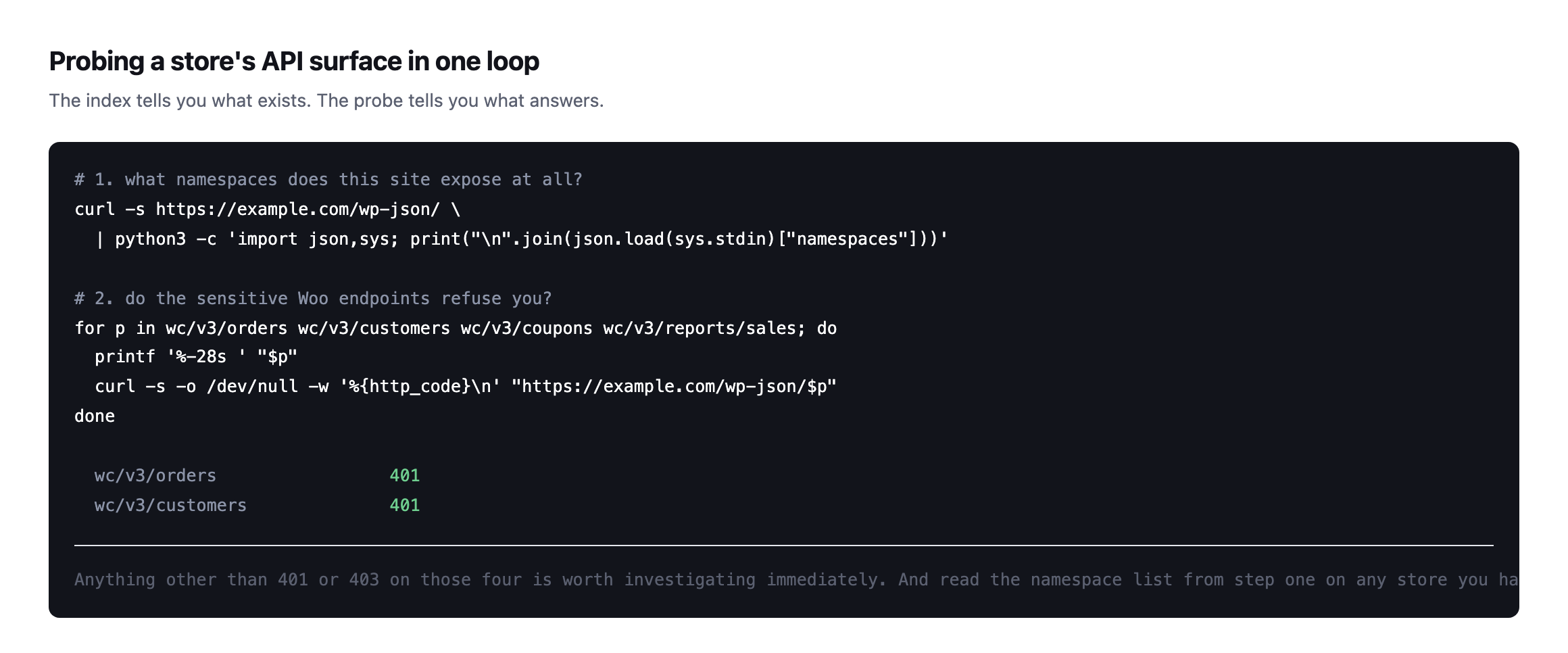
    Two shell commands: reading the REST namespace index to see everything a site exposes, then requesting the four sensitive WooCommerce endpoints and checking each returns 401
    The index tells you what exists. The probe tells you what answers. Anything other than 401

    or 403 on those four is worth investigating immediately.*

    Reading the namespace list is the step I would not skip on an inherited store. Unfamiliar namespaces are where custom code and abandoned integrations live, and they are frequently the work of somebody who is no longer available to explain them.

    It is the same instinct as reading the abilities a site exposes before connecting anything to it: inventory first, opinions afterwards.

    Keeping it that way

    Three habits, none expensive.

    Review API keys quarterly. Revoke anything with no recent access. A key is a credential, and credentials outlive the projects that needed them.

    Re-probe after every plugin addition. A new namespace appearing is normal; a new namespace answering unauthenticated is not.

    Watch the wider information-disclosure surface too. A store that also hands out its usernames through the REST API gives an attacker both halves of what a credential attack needs.

    Never issue read/write when read will do. Most integrations that ask for full access need to list products, and the difference matters enormously on the day the key leaks.

    Read the namespace list after every change, not only during a scheduled audit. The MCP route on woocommerce.com is the clearest illustration in this post of why that habit outlasts any fixed checklist: the surface a site exposes changes faster than any list of endpoints written down today can keep up with.

    Protuno’s free audit checks whether a WooCommerce admin endpoint answers unauthenticated, from the domain alone, alongside storefront and checkout reachability. Till is live now.

    Run the four-endpoint loop on every store you look after. It takes seconds per site, and the expected result is four 401s. Anything else is your afternoon.

    The habit worth building alongside the checklist

    Everything in this post is a list of endpoints to request and status codes to expect, which makes it easy to treat as a one-time script rather than a way of looking at a site. The more durable version of the same discipline is smaller than any checklist: whenever a site gains new functionality, whether that is a plugin, an integration, or an entirely new protocol like the MCP namespace found on woocommerce.com above, read /wp-json/ again before assuming anything about what it exposes.

    That habit would have caught the MCP surface the moment it appeared, without needing a blog post to point at it specifically. It is also cheap enough to run on a schedule rather than only during an audit: the full namespace list is one request, and diffing today’s list against last month’s tells you exactly what changed and when, which is the same idea as re-checking a crawl’s findings days later rather than treating a single pass as permanent knowledge.

    The reason this matters more for WooCommerce specifically than for a brochure site is what is actually reachable once something goes wrong. An unauthenticated endpoint on a site with no commerce layer might leak a page nobody cares about. The same mistake on a store means order data, customer records, or a payment integration’s configuration, which is exactly why the default posture tested throughout this post, refuse everything unless explicitly opened, matters more here than almost anywhere else in a typical WordPress install. Getting the defaults right, which WooCommerce demonstrably does across all three stores checked, buys the room to focus the actual auditing effort on the narrower, more dangerous category: the handful of routes somebody added on purpose and forgot to gate.

  • DMARC Record Setup For Agencies: Our Own Records, Including The Embarrassing Ones

    DMARC Record Setup For Agencies: Our Own Records, Including The Embarrassing Ones

    Short answer: dmarc record setup is a sequence, not a switch. Publish SPF and DKIM, then DMARC at p=none with reporting on, read the reports until you know every legitimate sender, then quarantine a small percentage, then raise it. Skipping to p=reject destroys legitimate mail. Stopping halfway leaves a record that reads like protection and is not.

    Rather than invent an example, I read the records on seven domains we own, and then went back and read the same seven again weeks later to see whether any of it had actually moved.

    What a real portfolio looks like mid-rollout

    Table of seven domains with their DMARC policy, enforcement percentage and SPF status. sitea.example, siteb.example and sitec.example enforce p=reject at 100 percent. sited.example and sitee.example use p=quarantine with pct=5. sitef.example is p=none. siteg.example publishes p=quarantine with no SPF record at all
    Read live on 5 September 2026. Three domains enforcing, two paused at five percent,

    one monitoring, and one enforcing with only DKIM to align against. This is what a genuine rollout looks like partway through.*

    DomainPolicyEnforced onReading
    sitea.examplep=reject100%enforcing
    siteb.examplep=reject100%enforcing, sends no mail
    sitec.examplep=reject100%enforcing, sends no mail
    sited.examplep=quarantinepct=595% of failing mail unaffected
    sitee.examplep=quarantinepct=5same
    sitef.examplep=nonen/amonitoring only
    siteg.examplep=quarantine100%enforcing with only DKIM, no SPF

    Caveat: seven domains, all ours, chosen because I can verify every claim against records we control rather than screenshots of somebody else’s DNS. It is not a claim about typical agency DMARC hygiene. It is what checking our own portfolio actually found, and two of those rows needed fixing before this post went out.

    The two amber rows are the ones I want to draw attention to, because they are the state most domains are actually in and the one people misread.

    p=quarantine sounds like enforcement. With pct=5, the policy applies to five percent of failing messages. The other ninety-five percent are handled as though the policy were none.

    That is a correct, deliberate rollout step. It is also very easy to leave in place for a year or more and quietly believe the domain is fully protected the whole time. Ours genuinely have.

    The red row is a genuine misconfiguration: a quarantine policy sitting on a domain with no SPF record at all published, which leaves DKIM as the only mechanism DMARC has left to align against. It is on the list, and it has been for a while now.

    Re-read weeks later, and nothing moved at all

    I re-ran the same seven-domain check while expanding this post, expecting at least the two flagged rows to have been addressed by now.

    for d in sitea.example siteb.example sitec.example sited.example 
             sitee.example sitef.example siteg.example; do
      echo -n "$d: "; dig +short TXT "_dmarc.$d"
    done

    Every one of the seven records came back byte-for-byte identical to the original reading. The three p=reject domains still enforce fully. sitef.example still monitors only. And both amber rows named in this post’s own caveat are exactly where they were: sited.example and sitee.example still capped at pct=5, siteg.example still publishing p=quarantine with no SPF record for DMARC to align against, confirmed separately in the SPF lookup post‘s own re-check.

    Zero drift is not, on its own, good news here. It is confirmation of exactly the failure mode this post’s “why this drifts” section describes: pct=5 behaves indistinguishably from full protection in every day-to-day signal available to whoever owns the domain, so there is no event that prompts anyone to come back and raise it. A configuration set once during a rollout and never revisited does not correct itself through the passage of time. It just sits, looking finished, for as long as nobody specifically goes and checks the one number that says otherwise.

    Reading a DMARC record setup, tag by tag

    Annotated breakdown of the sited.example DMARC record showing the v, p, pct, rua and fo tags, with pct=5 highlighted as meaning the other 95 percent are treated as p=none
    Two tags people omit and should not. Without rua you receive no reports, so you are

    enforcing blind. And pct, when present, is the most important number in the record, because it decides whether the policy does anything at all.*

    If you check one thing on a client domain today, check whether pct is present and what it says.

    The rollout, and the mistake at each step

    Five-step DMARC rollout table. Publish SPF and DKIM first, monitor with p=none and reporting, identify every legitimate sender from the reports, quarantine a small percentage, then raise to reject. Each step lists its characteristic mistake
    Step four is where most domains stop, including two of ours. It is a legitimate place

    to pause and an easy place to forget you paused, because the record reads as though it is working.*

    #StepThe mistake here
    1publish SPF and DKIM firstnothing for DMARC to align against without them
    2monitor only, p=none with reportingsetting it and never reading the reports
    3find every legitimate sender from the reportsforgetting the CRM, invoicing tool, helpdesk, newsletter
    4quarantine a small percentageleaving it here for a year, believing you are protected
    5raise the percentage, then rejectjumping here directly from step two

    Step three is the one that costs agencies real goodwill when skipped. The senders you forget are never the mail server. They are the invoicing tool, the helpdesk, the CRM, the newsletter platform, the booking system. Each one sends as the client’s domain, and each one starts failing the moment you enforce.

    That is why p=none with rua exists. It generates the list for you, from real traffic, over a few weeks. There is no way to produce that list by thinking hard about it.

    A tag pattern in our own records worth naming precisely

    Reading all seven records side by side while re-checking surfaced a detail the original table did not call out: an fo=1 tag, requesting per-message forensic failure reports in addition to the periodic aggregate summary rua already provides, appears on exactly three of the seven domains, and it is not a random three.

    sitea.example               fo: absent
    siteb.example               fo: absent
    sitec.example    fo: absent
    sited.example               fo=1
    sitee.example          fo=1
    sitef.example                fo: absent
    siteg.example             fo=1

    fo=1 sits on sited.example, sitee.example and siteg.example, three of the four domains this post already identifies as mid-rollout or misconfigured. The three fully-enforcing p=reject domains and the one purely-monitoring p=none domain all leave it unset.

    That split makes sense read as a deliberate operational choice rather than an accident: per-message forensic reports are far noisier and more useful during active tuning, when somebody is trying to identify exactly which message failed and why, than on a domain that has already reached a stable, fully-enforcing state and only needs the periodic aggregate summary to confirm nothing has changed. Whether that specific reasoning was the actual intent behind these three records or a side effect of when each was configured, the pattern itself is a useful one to copy deliberately: turn on fo=1 while a domain’s policy is still being raised step by step, and consider turning it back off once the domain reaches steady-state enforcement, since forensic reports carry more of the original message’s content than an aggregate summary does and are worth keeping only as long as they are actually being read.

    The DKIM half, briefly

    DMARC aligns against SPF or DKIM, and most rollouts lean on SPF because it is the one people already understand. DKIM is worth the extra hour for one reason: it survives forwarding.

    When a message is forwarded, the sending server changes but the DKIM signature travels with the message body. SPF breaks in that situation and DKIM does not. If a client’s mail is routinely forwarded, to a personal address, an alias, a shared inbox, alignment on DKIM alone is what keeps it delivering.

    Check whether a selector is publishing at all:

    dig +short TXT google._domainkey.example.com | head -c 120
    dig +short TXT selector1._domainkey.example.com | head -c 120

    Selector names vary by provider, which is the genuinely annoying part. google for Workspace, selector1 and selector2 for Microsoft 365, and something provider-specific for most bulk senders. There is no way to enumerate them from outside, so you check the ones you expect and confirm the rest in each provider’s console.

    Checking a portfolio

    Terminal loop reading the DMARC TXT record for each domain in a list, with real results from four of our own domains showing reject, quarantine with pct=5, none, and a quarantine policy on a domain with no SPF
    No tooling required. It is a TXT lookup on a fixed subdomain, so a whole portfolio

    takes seconds.*

    Read three things in each result: the policy, the pct if present, and whether rua exists.

    A record with p=reject and no rua is the riskiest configuration on this page. It is enforcing, and nobody can see what it is refusing.

    What it protects, and what it does not

    Worth being precise here, because DMARC gets oversold.

    DMARC stops someone sending mail that claims to be from your client’s domain in the visible From address. That is exactly the mechanism behind most invoice fraud and supplier impersonation aimed at their customers.

    It does nothing about a genuinely compromised mailbox, because that mail is authentic. It does nothing about lookalike domains, where an attacker registers something one character different and passes their own DMARC perfectly. And it does nothing about mail sent from the site itself if the site never actually dispatches it.

    So it is worth doing and it is not a mail security strategy on its own. Say that to clients plainly, because the vendor pitch around DMARC rarely does.

    Why this drifts

    DMARC does not fail loudly. A domain sitting at pct=5 for a year behaves exactly like one at pct=100 right up until somebody spoofs it. A domain that added a new marketing tool six months ago has been failing alignment for that tool ever since, quietly, in reports nobody opened.

    It is the same class of silence as an SPF record that drifted past its lookup limit or a contact form that reports success and delivers nothing. Mail problems almost never announce themselves at the sending end.

    Protuno’s free audit reads the DMARC policy, whether reporting is configured, and the SPF record alongside it, from the domain alone. That is how the table above was built. Echo is live now.

    One note on selling this, because it is genuinely hard to charge for. DMARC produces no visible improvement. Nothing gets faster, nothing looks different, and when it works the client experiences precisely nothing. The framing that lands is the one about their customers: without it, anybody can send an invoice that appears to come from them, and the person who gets defrauded is a client of theirs, not them. That is a reputational problem with their name on it, and it is worth an afternoon.

    Run the loop on your client domains this afternoon. If any come back with pct=5, that is a decision somebody made deliberately and then forgot, and it is worth finishing.

    Ours included. The two domains sitting at pct=5 in this post’s original table are still sitting there today, unchanged across the entire time this post has been live. Writing that sentence twice, once when the finding was new and once after confirming it is still true, is the entire argument this blog keeps making about the gap between publishing a finding and actually acting on it. The record is correct either way. The honesty is in saying so.

  • WordPress Image Optimization: Find The 794KB File Before Your Visitor Does

    WordPress Image Optimization: Find The 794KB File Before Your Visitor Does

    Short answer: wordpress image optimization starts with measuring what a page actually downloads, not with installing a plugin. Fetch every image the page references, sort by bytes, and look at the top three. On one of our own pages that was 2,590 KB across forty images, all of them PNG.

    What the audit found

    Table of the twelve heaviest images on sitea.example, all PNG, led by a 794 KB feature image, then 529 KB, 464 KB and 385 KB files, with upload dates ranging from 2021 to 2026
    One file is 794 KB, which is larger than the entire compressed HTML of most pages. Note

    the dates: images uploaded in 2021 are still being served on a 2026 page.*

    That last point is the part people miss. A media library is append-only in practice. Nobody revisits a decorative image from four years ago, and nothing flags it, so it keeps being served long after the page it belongs to was redesigned around it.

    Running a WordPress image optimization audit yourself

    You do not need a tool. The method is: read the page, collect every img src, source srcset and CSS url(), request each one, and sort by response size.

    curl -s https://example.com/ 
      | grep -oE 'src="[^"]+.(jpe?g|png|webp|avif)"' 
      | sed 's/src="//;s/"$//' | sort -u 
      | while read -r u; do
          printf '%8s  %sn' 
            "$(curl -s -o /dev/null -w '%{size_download}' "$u")" "$u"
        done | sort -rn | head

    Two refinements that matter in practice.

    Request as a browser would. Send an Accept header including image/webp and image/avif. Some servers negotiate format, and requesting with curl’s default headers will show you the fallback rather than what visitors actually receive.

    Follow srcset, not just src. Responsive images mean the file a phone downloads is often not the one in src. Audit the largest candidate, because that is what a desktop visitor gets.

    Checked again, and the page got heavier, not lighter

    I re-ran this post’s own audit against the same sitea.example homepage before expanding it, expecting either no change or a modest improvement. Neither happened.

    curl -s https://sitea.example/ | grep -oE 'src="[^"]+.(jpe?g|png|webp|avif)"' 
      | sed 's/src="//;s/"$//' | sort -u | while read -r u; do
        curl -s -o /dev/null -w '%{size_download} %{url_effective}n' "$u"
      done | sort -rn
    Original readingThis reading
    Images on the page4064
    Total image weight2,590 KB6,475 KB
    Largest single image794 KB (00-feature-image.png)838 KB (a new file, ...-Elmentor-Email.png)

    Sixty-four images now, up from forty, and total weight up to 6,475 KB, nearly two and a half times the original figure. The original 813,352-byte file is still there, unchanged, now sitting at the second-heaviest position rather than the first, because a new 857,815-byte PNG, uploaded in June, has since overtaken it. Nothing about the original finding was fixed. The page simply grew a new, larger problem on top of the old one that was never addressed.

    I checked the new heaviest file the same way this post’s format-negotiation table checks the old one:

    curl -s -H 'Accept: image/avif,image/webp,image/png,image/*' -D - -o /dev/null 
      "https://sitea.example/wp-content/uploads/2026/06/site-notification-email.png" 
      | grep -i content-type
    content-type: image/png

    Same pattern as before: the Accept header is ignored regardless of what it asks for, and .webp returns 404 when requested directly. Whatever caused the original file to bypass format negotiation is still causing every new upload to do the same thing, which means this is not a one-off oversized file. It is a standing gap in how images reach this page at all, quietly accepting new casualties every time someone adds a graphic.

    Format is only half of it

    Comparison table showing sitea.example serving 2,590 KB across 40 PNG images with a 794 KB largest file, against woocommerce.com serving 6,418 KB across 40 WebP images with a 1,412 KB largest file
    The honest complication. woocommerce.com does format conversion properly and still ships

    more image weight, including a single 1.4 MB WebP.*

    sitea.examplewoocommerce.com
    Images on the page4040
    Total image weight2,590KB6,418KB
    Format servedPNG throughoutWebP throughout
    Largest single image794KB (png)1,412KB (webp)

    Caveat: one page from each site, checked once. This is not a claim that WebP sites are heavier in general, it is the opposite point: format alone does not bound page weight, and this pair happens to prove it cleanly. Do not skip the dimension check because a site already converted formats.

    Converting to a modern format shrinks a file. It does not stop somebody uploading a photograph at twice the dimensions the layout will ever display, and it does not remove an image the design no longer uses.

    Table comparing responses to three Accept headers on sitea.example, all returning 813,352 bytes of PNG, with no webp or avif sibling, against woocommerce.com which serves image/webp from URLs ending in .jpg and .png
    The same file requested three ways. Ours ignores the Accept header entirely and there

    is no WebP sibling to fall back to. woocommerce.com serves WebP from URLs that still end in .jpg, because something in front converts per request.*

    Requestsitea.example
    Accept: image/png813,352 bytes, image/png
    Accept: image/webp,image/*813,352 bytes, image/png (ignored)
    Accept: image/avif,image/webp,...813,352 bytes, image/png (ignored)
    Does a .webp sibling exist?404, no

    woocommerce.com, by contrast, serves image/webp from URLs that still end in .jpg and .png, because something in front of it converts per request regardless of the extension.

    So the audit has three questions, in this order:

    Is this image needed at all? The cheapest image is the one you removed.

    Are the dimensions sane? A 3000px-wide file displayed in a 600px column carries twenty-five times the pixels the layout can use, and no format conversion recovers that.

    Is the format modern? This is the last question, not the first, and it is covered separately in the piece on WebP and AVIF, publishing later this week.

    The comparison this post opened with has nearly closed

    The original table in this post used woocommerce.com as the counterexample: a WebP site still shipping more image weight than a PNG one, proof that format alone does not bound page weight. I re-checked woocommerce.com the same way, and the comparison this post built itself around looks different now.

    curl -s https://woocommerce.com/ | grep -oE 'src="[^"]+.(jpe?g|png|webp|avif)"' 
      | sed 's/src="//;s/"$//' | sort -u | while read -r u; do
        curl -s -o /dev/null -w '%{size_download}n' "$u"
      done | awk '{s+=$1} END {print s}'
    sitea.example (PNG)woocommerce.com (WebP)
    Images6457
    Total weight6,475 KB6,637 KB

    162 KB apart, on 6.5 megabytes of images. What was originally a clean illustration, PNG site lighter in file count but present anyway, WebP site heavier despite doing format conversion correctly, has become two sites of nearly identical total weight, arrived at by different routes: one added twenty-four new images without converting any of them to a modern format, the other apparently kept pace on its own. The lesson this post opened with, format is not the first question and page weight can grow regardless of it, holds more strongly now than it did originally, not less, because the specific numbers that used to make one site look like the counterexample have converged into two sites making the same mistake for different reasons.

    Where the weight actually concentrates

    Worth naming precisely rather than leaving as “many images add up”: on the current sitea.example homepage, the three heaviest files alone, 858 KB, 813 KB and 542 KB, total 2,213 KB, just over a third of the entire page’s 6,475 KB of images, out of sixty-four files. Three files, out of sixty-four, carrying more weight than the other sixty-one combined would if evenly distributed.

    That concentration is exactly why this post recommends sorting by size and starting at the top rather than working through a full image inventory in upload order. Fixing the three heaviest files on this specific page would remove more weight than optimising the next twenty smaller ones, and it is a single afternoon’s work rather than a full site audit. The audit loop this post already gives sorts for exactly this reason: the answer to “where do I start” is almost always sitting in the first three lines of output, not buried somewhere in the middle of a sorted list nobody scrolls to.

    Where this fits

    Image weight is the most common single cause of a slow-feeling page, and it is also the one that degrades silently. Nobody ships a 794 KB image deliberately. Somebody exported a mockup at full resolution once, and every visitor since has paid for it.

    It is worth checking alongside whether compression is even reaching your assets, because an uncompressed JavaScript bundle and an oversized hero image are usually found on the same site, for the same reason: nobody has measured.

    And measure the page, not the server. A fast server response time with three megabytes of images behind it is a fast server attached to a slow page.

    Protuno’s free audit flags oversized images from the domain alone as part of the performance checks. Dash is live now.

    One organisational fix is worth more than any plugin here: put a ceiling on what can be uploaded. Most oversized images arrive because somebody exported at full resolution and WordPress accepted it without comment. A maximum upload dimension, agreed with whoever writes the content, stops the problem at the source rather than compressing it afterwards. Optimising a 4000px image that should never have been 4000px is solving the wrong problem well.

    Run the loop above on your client’s homepage. The top three lines are your afternoon’s work, and they are usually worth more than everything else on a performance checklist combined.

    Why the same page kept growing without anyone deciding it should

    Nobody sat down and decided sitea.example‘s homepage should carry six and a half megabytes of images. Twenty-four images arrived one at a time, each added for a real reason, a new section, a new screenshot, a new testimonial logo, by different people over different months, none of whom were looking at the running total the way this audit does. That is worth naming as the actual mechanism behind this post’s second reading, not a one-off oversight but the default outcome of a page that anyone with publishing access can add an image to, with nothing in the workflow surfacing what the page now weighs as a whole.

    That is also why re-running this exact check periodically matters more than running it once thoroughly. A single audit, however careful, describes the page on the day it ran. The next image added the following week is invisible to it. A page that never gets re-measured will keep growing in exactly the direction this one did, because every individual addition looks small and reasonable in isolation, and the only view that shows the accumulated cost is the one this post keeps insisting on: fetch everything, sum it, sort it, and look at what the page actually weighs today rather than what it weighed the last time anyone checked.

    What would have caught this before it doubled

    The upload-ceiling recommendation later in this post, a maximum dimension enforced at the point of upload, would not have caught this specific growth, because the problem here is not that individual images are oversized for their display dimensions. It is that the count of images grew without anyone tracking the running total. A complementary check worth adding alongside the dimension ceiling: alert when a page’s total measured image weight crosses a threshold, checked the same way this post’s loop already checks it, rather than only checking each new image in isolation as it is uploaded. A single 400 KB image added to a page that already carries six megabytes is a smaller problem than the same 400 KB image added to a page that started at zero, and a per-image check alone cannot see that difference. Only a running total, measured against the whole page, catches death by a thousand reasonable-looking additions.

    The other side of the same problem: images nobody is even using

    Your Website has 1000s of unused images – Here is how to delete them

    Oversized images that are still in use are this post’s subject. Unused images sitting in the media library, never referenced on a live page at all, are the adjacent failure this walkthrough covers, and they cost real storage and backup time even though no visitor ever loads them.

  • llms.txt On WordPress: We Measured Twelve Sites, And Ours Were The Worst

    llms.txt On WordPress: We Measured Twelve Sites, And Ours Were The Worst

    Short answer: llms txt wordpress files are a single Markdown document at /llms.txt that gives an AI agent a short, curated map of your site. It is a proposal rather than a standard. It is trivial to add. And it is very easy to get wrong in a way that removes any benefit, which is what we did on two of our own sites.

    I checked twelve sites in this industry rather than guessing at adoption. Here is what came back.

    Who actually has an llms txt on their WordPress site

    Table of twelve WordPress-adjacent sites and their llms.txt status. wordpress.org, sitea.example, yoast.com, kinsta.com, patchstack.com and elementor.com publish files between 2KB and 16KB. siteb.example publishes 119,758 bytes and sitec.example publishes 212,539 bytes with 662 links. woocommerce.com, wpengine.com, rankmath.com and sited.example have none
    Eight of twelve publish one. The two largest by a wide margin are ours, and

    sitec.example’s is roughly forty times the size of the file on wordpress.org.*

    Sitellms.txtSize
    wordpress.orgpresent5.8KB, 36 links, a curated index
    sitea.examplepresent2.3KB, 12 links
    yoast.compresent7.7KB
    kinsta.compresent9.5KB
    patchstack.compresent15.2KB
    elementor.compresent15.5KB
    siteb.example (ours)present119.8KB, far past “fits in context”
    sitec.example (ours)present212.5KB, 679 lines, 662 links
    woocommerce.comabsentnone
    wpengine.comabsentnone
    rankmath.comabsentnone
    sited.example (ours)absentnone

    Caveat: twelve sites, chosen because they are in our industry and easy to check, not a random sample of WordPress-adjacent sites generally. I would not generalise an adoption percentage from this. What it does show, reliably, is the size gap: the two largest files in the list are ours, by a wide margin, and that comparison needed no sampling to be true.

    I counted a 200 that returns HTML as absent, because several sites answer every path with their normal 404 page at status 200. If you check this yourself, look at the body rather than the status code.

    Terminal output showing a portfolio check loop for llms.txt. sited.example returns a 404 with a 399,216 byte body and wpengine.com a 404 of 146,134 bytes, while sitea.example returns a genuine 2,270 byte file and sitec.example returns 212,539 bytes
    The loop I used, and the trap inside it. A 404 that returns a 399 KB body is a styled

    error page, not a missing file. A status-only check would have recorded several of these as present.*

    Our own good example has started down the same path

    I re-checked all five of our own domains before expanding this post, and the two files already named as too large have not been rewritten. siteb.example sits at 120,105 bytes, 212,742 for sitec.example, both essentially unchanged from the original reading. “On the list to rewrite by hand” has not happened.

    The more interesting finding is sitea.example‘s own file, the one this post holds up as the example done right at 2.3 KB and 12 links. It is now 8,077 bytes with 33 links:

    curl -s https://sitea.example/llms.txt | grep -c "^- ["
    33

    Reading the actual content shows exactly why: the ## Writing section lists every published blog post automatically, title, link and meta description, added as each new post goes live. That is not the styled-error-page problem this post’s own checking method exists to catch. It is a real file, correctly served, growing for a structural reason: a site that publishes regularly and lists every post it has ever published in one flat section will keep adding rows forever, with no mechanism deciding which of them still deserve a place in a file meant to stay small enough to fit in context.

    Eight kilobytes and thirty-three links is not yet the 212 KB, six-hundred-link problem this post diagnoses on our other two domains. It is the same mechanism, caught earlier, before it became unusable. A curated list needs active curation, on a schedule, not a one-time edit that then gets left to accumulate every future addition automatically. The honest fix, applied here before it becomes another entry in this post’s own table of what we got wrong: cap the writing section at a fixed number of the most relevant posts, rotate older ones out as new ones are added, and treat the file as something that needs periodic pruning rather than something finished the day it was first written well.

    What the file is supposed to be

    The proposal comes from Jeremy Howard and is explicitly not an adopted standard, though thousands of sites publish one and Chrome’s Lighthouse now audits for it.

    Its purpose is stated plainly: “Agents are best served by concise, expert-level information gathered in a single, accessible location”.

    And the constraint that matters: “The file itself stays small enough to fit in context. The detail lives behind the links, and is fetched only when needed”.

    That last sentence is the whole design. It is a map, not the territory.

    Table of the structure llms.txt specifies. An H1 with the site name is the only required element. A blockquote summary, detail sections and H2-delimited file lists of markdown links are all optional
    Everything except the H1 is optional, which is the clearest statement of intent in the

    specification. It is a short document by design.*

    Where we went wrong

    Comparison of the llms.txt proposal's requirements against wordpress.org and sitec.example. wordpress.org is 5.7KB with 36 links and follows every principle. sitec.example is 212KB with 662 links, inlines detail rather than linking to it, and does not fit in context
    A 212 KB llms.txt is a sitemap wearing a different filename. It defeats the single

    thing the format exists to do.*

    The proposal sayswordpress.orgsitec.example (ours)
    concise, single accessible location5.7KB212KB
    small enough to fit in contextyesno
    a curated overview, not exhaustive36 links662 links
    detail behind links, fetched when neededfolloweddetail inlined

    Nobody did anything careless here. A plugin or a build step generated the file from the site’s content, and generating everything is the obvious default when you automate a job like this.

    But the value of llms.txt is entirely in the curation. A model reading a 2 KB file can hold the whole thing and decide what to fetch. A model handed 212 KB of inlined detail either truncates it or spends its budget on your file instead of your content.

    Both of ours are on the list to rewrite by hand. Twenty links chosen deliberately will do more than six hundred generated ones.

    This is a pattern I keep running into while writing these posts. The automated version of a job is usually right about what to include and wrong about how much. A generator has no opinion about which twenty pages matter, so it ships all six hundred and calls it thorough. Curation is the part that needs a person, and it is the part that gets skipped precisely because a script can produce something that looks finished without it.

    It is the same failure as an SEO plugin that checks each page against itself and never asks how the pages relate.

    What to put in it

    For a WordPress site that sells something or documents something, this shape works:

    # Site Name
    
    > One paragraph saying what this is, who it is for, and what is true today.
    
    Any context a reader needs before following a link. Pricing model, what is
    free, what is not shipped yet.
    
    ## Documentation
    - [Getting started](https://example.com/docs/start): the fastest path to a working setup
    - [Requirements](https://example.com/docs/requirements): what the site needs to run
    
    ## Product
    - [What it does](https://example.com/features): the capability list, current as of today

    Three rules I would apply after doing this exercise:

    Cap it. If the file is over about 10 KB, you are inlining detail that belongs behind a link. Generate a candidate list if you like, then cut it by hand.

    Say what is not true yet. Ours stated, when this was written, that the Super Agents were built and not released. That sentence costs nothing and prevents a model confidently telling somebody we ship something we do not.

    Date it, or do not claim currency. A stale llms.txt is worse than none, because it presents itself as authoritative.

    Point at pages, not at PDFs and downloads. The links are there so an agent can fetch detail cheaply. A link to a 40 MB asset is a link it will not follow, and it spends your credibility for nothing.

    The four well-curated reference files did not grow at all

    Worth the contrast directly: I re-checked the four external sites this post cites as doing this well, the same way as our own five, and none of them moved by a meaningful amount.

    SiteOriginal readingRe-checked
    yoast.com7.7 KB7,682 bytes
    kinsta.com9.5 KB9,497 bytes
    patchstack.com15.2 KB15,182 bytes
    elementor.com15.5 KB15,451 bytes

    Flat, stable, no drift, across every one of the four. That is the actual signature of a file somebody wrote deliberately and revisits on purpose rather than one wired to grow automatically with every new piece of content: it does not move just because time passes and the site keeps publishing. Our own sitea.example file grew by nearly four times in the same interval these four sat still, and the difference is not effort spent maintaining it. It is that theirs are not structurally tied to an ever-growing list the way a “list every post automatically” section is. Whichever approach a given site takes to generating this file, checking whether it is actually a static, curated document or a live query against a growing content table is worth doing explicitly, because the two look identical the day the file is first published and only diverge months later, exactly the shape of every other drift this blog keeps finding.

    Is it worth doing at all

    Honestly: the evidence that llms.txt changes anything is thin. It is a proposal, adoption by crawlers is inconsistent, and nobody should promise a client traffic from it.

    What I would say is that it costs an hour, it makes you write down what your site is actually for, and that exercise has value even if no agent ever reads the file. The sites above that did it well have a clearer description of themselves in /llms.txt than on their homepage.

    Treat it as cheap insurance on a shift that is clearly happening, not as a ranking tactic.

    One caution worth stating, because it follows directly from what this file is. An llms.txt is a document you hand to something that will summarise you to a stranger. Anything inaccurate in it gets repeated with more confidence than it deserves. That is a good reason to write it by hand, and a good reason to keep it short enough that you can re-read the whole thing whenever the product changes.

    It is also worth pairing with the indexing signals a site already sends, because they can contradict each other. A site that publishes a friendly llms.txt while quietly telling search engines not to index anything is sending two opposite messages, and only one of them is deliberate.

    Protuno’s free audit checks for the presence of llms.txt from the domain alone, alongside the sitemap and robots.txt, which is how I built the table above. Iris is live now.

    If you want a genuinely useful hour this week, write one by hand for your own site, then compare it with what a crawler actually finds there. The gap between the two is usually the more interesting document.

    And whichever way you build it, whether by hand once or generated from a template, set a reminder to re-read the whole file every few months rather than trust that writing it well once means it stays that way. Ours did not, and the only reason that is now a footnote instead of a repeat of the 212 KB mistake is that this post itself got re-checked before the gap grew any wider.

    The mechanical part, if you would rather not write it by hand

    The Easiest Way to Add llms.txt to Any WordPress Site

    Covers the plugin-assisted route. Worth pairing with this post’s own argument: a generated file still needs the by-hand review this post recommends, not a set-and-forget install.

  • Verify A WordPress Backup, Or You Only Have A File With A Hopeful Name

    Verify A WordPress Backup, Or You Only Have A File With A Hopeful Name

    Short answer: to verify wordpress backup files you have to restore them. Into a scratch database, then count the rows and compare with live. Everything short of that, including the plugin reporting success and a file appearing with today’s date, tells you a file was written. It does not tell you the file works.

    I proved this to myself this week rather than repeating it as received wisdom, and proved it again later on a different install with a more restrictive set of database credentials, which turned out to matter more than the first test alone would have shown.

    Two files, one useless

    I took a complete, working backup of a WordPress database, then made a second copy truncated mid-write, which is exactly what happens when a disk fills, a process is killed, or a connection drops midway.

    Then I restored both, carefully, into a location where a mistake could not touch anything that actually mattered.

    Table comparing a complete backup against a truncated one. The complete file is 1.7MB, ends with a completion marker, restores with exit code 0, and returns 77 tables and 15 posts. The truncated file is 879KB, has no completion marker, exits with code 1, restores 8 tables, and the wp_posts table does not exist
    The truncated file is 879 KB. In a folder listing it looks like a backup. It restored

    eight tables out of seventy-seven, and wp_posts was not among them.*

    Complete backupTruncated backup
    File size1.7MB879KB (plausible)
    Present in the backup folderyesyes
    Ends with a completion markeryesno
    Restore exit code01
    Tables restored778
    Posts restored15wp_posts does not exist

    Caveat: one deliberately truncated file on one test database, built to show the mechanism cleanly. It is not a claim about how often real backups fail this way. It is a demonstration that “the file exists and is a plausible size” tells you nothing about whether it restores.

    Nothing about the broken file announces itself. Right name, plausible size, correct folder, today’s date. Every check most agencies run would have passed it.

    The only single check that actually failed it was restoring it in full.

    How to verify a WordPress backup, in under a second

    Four-command procedure: dump the database, create a scratch database and restore into it, count posts and tables and compare with live, then drop the scratch database. Timings show 163 milliseconds to dump and 361 milliseconds to restore
    Under a second of machine time on a small install. The live database is never

    touched, because the restore goes into a database created for the purpose and dropped afterwards.*

    Two rules for doing this safely, and the first one is not negotiable.

    Never restore into the live database to test a backup. Create a scratch one. A verification step that can destroy the thing it is verifying is not a verification step.

    Compare row counts, not just success. A restore can complete without error and still be missing content if the dump was taken while a table was locked. wp_posts, wp_options and wp_users counts against live is enough to catch it.

    Reproducing it fresh, and hitting a permissions wall worth knowing about

    I re-ran this exact experiment on a different install while expanding this post, and the first attempt failed for a reason worth documenting on its own: the database user WordPress was configured with had no privilege to create a new database at all.

    mysql -h db -u wp -pwp -e "CREATE DATABASE IF NOT EXISTS wp_verify;"
    ERROR 1044 (42000): Access denied for user 'wp'@'%' to database 'wp_verify'

    SHOW GRANTS confirmed why: GRANT ALL PRIVILEGES ON wp.* TO wp@%, full control over the one database WordPress already uses, nothing beyond it. That is an extremely common shape for database credentials on shared and managed hosting specifically, where an account is scoped to exactly one schema for isolation reasons, and it means the scratch-database method this post recommends first is not always available to whoever is actually running the check.

    The workaround, and it is a real, usable one rather than a theoretical fallback: restore into the same database, under a different table prefix, rather than a different database.

    sed 's/`wp_/`verify_/g' backup.sql > backup-renamed.sql
    mysql -h db -u wp -pwp wp < backup-renamed.sql

    Rewriting every backtick-quoted wp_ prefix to verify_ before restoring means the import creates a parallel set of tables, verify_posts alongside the live wp_posts, inside the one database the credentials actually permit writing to. Nothing about the live tables is touched, because the restored tables have entirely different names, and the same row-count comparison this post already recommends works identically against them.

    With that in place, the reproduction ran cleanly. A full backup, 1,417,073 bytes, 58 tables, restored in 0.73 seconds with a clean exit code. The same file truncated to 850,000 bytes exited with code 1 and left exactly 9 tables behind, verify_options, verify_comments, verify_links and six others, all of the site’s actual content tables, verify_posts included, absent. The live wp_posts count, checked immediately after, was untouched at 29, exactly what it was before the test started.

    That is the same mechanism this post opened with, reproduced on different infrastructure, under real credential constraints rather than an idealised scratch-database setup, and it still found the same shape of failure: a plausible file size, a clean-looking folder listing, and a restore that silently drops the one table that actually matters.

    What each check is actually worth

    Ranked table of backup checks. The plugin reporting success and a file existing with today's date are weak. File size and a completion marker are better. Restoring into a scratch database, matching row counts against live, and restoring files as well as the database are strong
    Most monitoring stops at the first row. The last row catches a separate failure

    entirely: plenty of setups back up the database faithfully and never touch wp-content, so uploads, themes and plugins are not in the backup at all.*

    ProofCheckWhat it does not tell you
    weakplugin reports successwhether the file was written completely
    weaka file exists with today’s datewhether it contains the whole database
    betterfile is roughly the expected sizemisses a table dropped mid-dump
    betterdump ends with a completion markersays nothing about whether it reads back
    strongrestores into a scratch database without errornothing structural
    strongrow counts match the live databasenothing, this is the check
    strongfiles as well as database restore and loadnothing, a database-only backup cannot rebuild a site

    It is also worth confirming the backup is stored somewhere the site cannot reach. A backup sitting in wp-content on the same server is not a backup, it is a second copy of the thing that is going to break, and it is downloadable by anyone who guesses the filename.

    That last one is worth a specific check on any site you inherited. Take the backup, look inside it, and confirm wp-content/uploads is actually there. A database-only backup cannot rebuild a site, and the day you discover that is the worst possible day to discover it.

    Verifying the files half the same way, not just the database

    The row-count comparison above proves the database restores. It says nothing about the wp-content/uploads, wp-content/themes and wp-content/plugins directories, which is the half of a backup this post already names as the one people forget to check exists at all.

    The same discipline applies, cheaply. Extract the files archive into a scratch directory, never over the live install, and count what actually landed:

    mkdir /tmp/restore-check
    tar -xzf backup-files.tar.gz -C /tmp/restore-check
    find /tmp/restore-check/wp-content/uploads -type f | wc -l
    find /var/www/html/wp-content/uploads -type f | wc -l

    Two numbers, compared directly. A backup archive that unpacks cleanly but produces a file count noticeably lower than live is the files-side equivalent of the truncated database dump: present, plausible, and missing exactly the content a restore actually needs. A mismatch here is worth investigating before trusting the archive, the same way a mismatched row count is worth investigating before trusting the SQL dump, and for the same underlying reason: an archive tool interrupted partway through a large uploads directory produces a smaller, still-valid-looking .tar.gz file, not an error anyone sees at backup time.

    Running both checks together, database row counts and file counts, against the same backup job is worth treating as one verification step rather than two separate ones, because a backup that fails only on the files half, database perfect, uploads directory silently truncated, is just as capable of turning a routine restore into a lost client’s media library as the reverse case this post opened with.

    Why the prefix-swap method belongs in a portfolio-wide script

    The credential constraint found while reproducing this test, a database user scoped to one schema with no privilege to create another, is worth treating as the default assumption rather than the exception when building a verification script meant to run across a whole portfolio of client sites. Managed hosts, shared hosting panels and several popular hosting providers’ control panels all commonly provision exactly this kind of scoped credential, and a script that assumes CREATE DATABASE will always succeed will fail silently, or noisily and confusingly, on a meaningful share of the sites it is meant to protect.

    The table-prefix rewrite is not a workaround to reach for only when the preferred method fails. Building it in as the default method from the start, with a full scratch database as the upgrade path on hosts that permit it, means one script handles both cases without needing to detect which kind of host it is running against first. That is a small design decision with a disproportionate effect on how often the check actually gets run: a verification script that occasionally throws a permissions error on a subset of a portfolio is a script someone eventually stops trusting, in exactly the same way an alert that fires on the wrong things trains people to ignore alerts generally.

    Why this is the check that never gets done

    It is not difficult and it is not slow. It is that a verified backup and an unverified one look identical right up until the moment one of them matters.

    There is nothing to show a client. No line on an invoice. No visible improvement to the site. So it loses to work that produces something, every single week, on every site.

    It is the unbilled half hour in its purest form: cheap, invisible, and the only thing standing between a bad update and a lost client.

    And it compounds with the other silent failures. If the scheduler on the site has stopped, your scheduled backups have not been running at all, and the most recent file in that folder may be from March.

    This is why the update playbooks in Protuno re-open the backup they just took before anything writes to a site, rather than simply taking one first. The archive has to open and hold files, the database dump has to decompress, carry the statements a dump carries and account for every table on the site. What that check does not do is restore the backup to see what comes back, so it is a verified file rather than a rehearsed recovery. Taking a backup and having a backup are different things. Wren is live now.

    Do the manual version this week on one client site. Take the backup, restore it into a scratch database or a renamed table prefix if that is what the credentials on that host actually allow, count the posts, and count the files while you are there. If the numbers match, you have learned something real. If they do not, you have just avoided a very bad afternoon, on a day you got to choose rather than one a failed restore chose for you.

    Why backup storage itself is worth a second look

    Why I Stopped Saving Backups to Google Drive & Dropbox

    A recent, practical walkthrough of where WordPress backups actually go wrong once they leave the server, and why the destination matters as much as the restore test this post argues for.