Category: SEO

  • WordPress Crawl Depth: Why Buried Posts Never Rank

    WordPress Crawl Depth: Why Buried Posts Never Rank

    Open Google Search Console’s Page Indexing report on a site with more than a few hundred posts and the same two lines show up: “Discovered – currently not indexed” and “Crawled – currently not indexed.” Click into either one and the URLs are almost never the newest posts or the homepage. They are the posts buried four, five, six clicks deep, the ones no menu, no “related posts” widget, and no other article links to. Google found them. It just never came back.

    That gap between “found” and “indexed” has two names. People who build site navigation call it click depth, the number of clicks from the homepage. Google’s own documentation calls the same distance crawl depth. This post uses crawl depth, since that is the term Google’s own pages use, but every count below is the same count either way.

    The Screen That Started This Check

    “Discovered – currently not indexed” means Googlebot’s crawl scheduler put a URL on the list and then never got around to fetching it. Google’s own help documentation defines the status plainly: “The page was found by Google, but not crawled yet. Typically, Google wanted to crawl the URL but this was expected to overload the site; therefore Google rescheduled the crawl.” (Google Search Console Help, Page Indexing report) The practical pattern reported across SEO forums and tools is consistent: pages with a high crawl depth, especially anything more than three or four clicks from the homepage, show up disproportionately in this bucket.

    The fix is rarely “write a better page.” It is “put a link somewhere Google already looks.”

    What Crawl Depth Actually Counts

    Crawl depth, or click depth, is the smallest number of clicks it takes to get from the homepage to a given page, following only the links a browser could actually follow. A page linked directly from the main navigation menu sits at depth 1. A page one click into a category archive from that menu item sits at depth 2. A blog post that only shows up on page 5 of the blog archive sits at depth 5: four clicks through the archive pages (2, 3, 4 and 5), then one more click to open the post.

    The homepage is depth 0. Nothing sits at a negative depth, and nothing below the homepage counts the click needed to load the homepage itself.

    This is a structural measurement, not a visual one. A link in the footer counts exactly the same as a link in the hero banner, as long as both are real, crawlable anchor tags in the rendered HTML. A link that only appears after a reader clicks a “load more” button that fires JavaScript with no underlying URL does not count, because Googlebot never gets the click.

    Why Depth Zero Is The Homepage, Not The Logo

    A common mistake when counting depth by hand is starting from a page rather than the actual root URL. The homepage is whatever resolves at the bare domain, not the page the site’s logo links to if that happens to differ (some sites point their logo at a different “home” than the domain root, usually by accident after a migration or a find and replace on URLs). Before counting anything else, confirm the domain root and the logo link go to the same URL. If they do not, the site has two different depth-zero candidates depending on how a visitor arrived, and any depth count built on the wrong one will be off by one everywhere downstream.

    How Google Treats A Page Three Clicks Deep

    Google’s own crawl budget documentation lists “popularity” as one of two drivers of crawl demand, and defines it in one plain line: “URLs that are more popular on the Internet tend to be crawled more often to keep them fresher in our systems.” (Google Search Central, Crawl Budget Management) A page reachable in one or two clicks, linked from dozens of other pages on the same site, looks more “popular” by that measure than one reachable only by chance. This is distinct from PageRank in the classic sense, but it borrows the same intuition. Depth is a proxy for how much the site itself seems to vouch for a page.

    The practical effect shows up as a widening gap the deeper a page sits. A page at depth 1 or 2 on a well-linked site gets recrawled on a schedule close to the site’s overall crawl rate. A page at depth 5 or 6 might get its first crawl weeks after publish, and a recrawl only when something else on the site changes enough to trigger a fresh pass. For a site publishing daily, that lag compounds: today’s post is buried under tomorrow’s before Google ever came back to look twice.

    A silent walk-through of the steps. All scenes are illustrations with example values, not a real run.

    Where Depth Quietly Grows: Menus, Pagination, Tags

    Three structural habits add depth without anyone deciding to:

    • Paginated archives. A category page showing 10 posts per page puts post 11 at depth 3 (category, then page 2, then the post) and post 31 at depth 5, just from pagination, with no other link path shortening it.
    • Tag and taxonomy sprawl. Tags that exist mainly as metadata, with no link to them anywhere but the post footer, create a path that technically “links” to related posts but adds a hop that readers and crawlers rarely use on purpose.
    • Menu pruning. Every time a navigation menu gets trimmed for a cleaner header, whatever used to hang off the removed menu item loses its shortest path to the homepage and falls back to whatever the next-shortest internal link offers, which is often a lot deeper. If the old menu target was deleted rather than unlinked, also check which 404 errors actually cost you.

    None of these habits are mistakes on their own. A publication with thousands of posts cannot put all of them in the main menu. The problem is that none of these choices get revisited once made, so depth creeps upward every time new content is added below the fold of an existing archive.

    Measuring Crawl Depth On Your Own Site
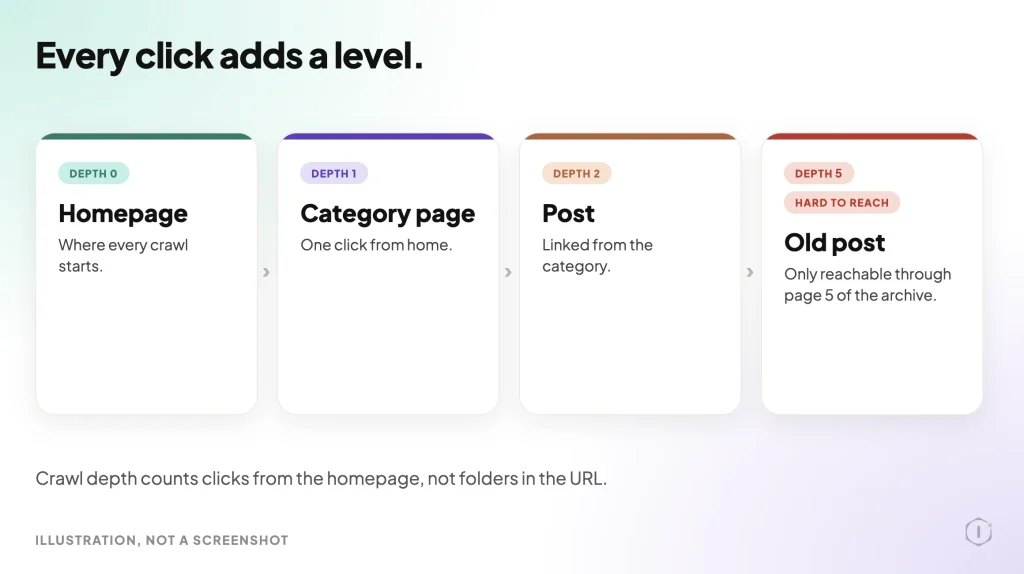
    Four cards showing WordPress crawl depth: the homepage at depth 0, a category page at depth 1, a post at depth 2, and an old post at depth 5 marked hard to reach, only reachable through page 5 of the archive.

    A rough measurement takes four steps and no paid tool:

    1. List the main navigation links. These sit at depth 1 by definition, assuming the homepage links to them directly.
    2. Open each one and list what it links to. Everything found this way, that was not already counted at a shallower depth, sits at depth 2.
    3. Repeat outward. Depth 3 is everything newly reachable from a depth-2 page, and so on. Stop once a check of 15 to 20 sample URLs, picked from across the site’s age and traffic range, stabilizes into a clear pattern (most content lands at depth 2 to 3, with a long tail past depth 5).
    4. Cross-check against Search Console. Export the Page Indexing report, filter to “Discovered – currently not indexed” and “Crawled – currently not indexed,” and spot-check ten of those URLs for how many clicks it actually takes to reach each one from the homepage. A strong correlation between high depth and non-indexed status confirms the diagnosis; a weak one means something else (duplicate content, a noindex tag left on by accident, a canonical pointing elsewhere) is the more likely cause.

    Dedicated crawler tools automate steps 1 through 3 and report depth directly, but they are optional for a site under a few thousand URLs. The manual version above is slower, not less accurate, and depth is only one line in a fuller technical SEO audit.

    Three Fixes That Do Not Require A Redesign
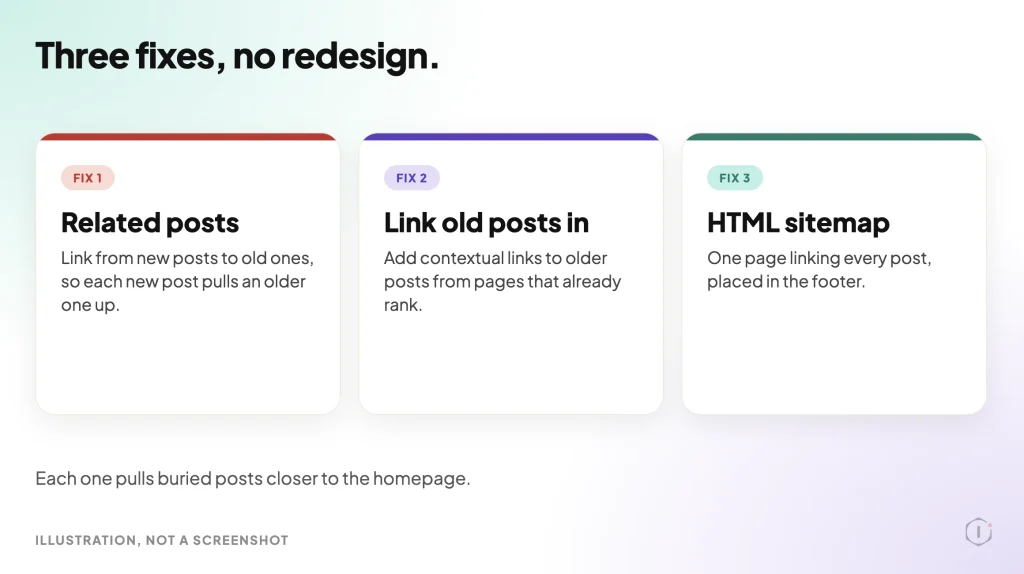
    Three cards naming fixes for crawl depth without a redesign: related posts, linking old posts in from pages that already rank, and an HTML sitemap linked in the footer.
    • Add a “recent in this category” or “related posts” block that links by topic, not just by date. This creates new depth-2 and depth-3 paths into older content without touching the main menu.
    • Link forward from new posts into relevant older ones, inside the body text. A single contextual link from a high-traffic new post can cut an old post’s depth by two or three in one edit.
    • Build or fix an HTML sitemap page, and link to it from the footer. This does not replace the XML sitemap submitted to Search Console, but it gives Googlebot, and readers, one more guaranteed short path to everything the site considers worth listing.

    None of these require touching the primary navigation, which is usually the part of the site most resistant to change because it affects every visitor, not just the ones arriving from search.

    What Shallow Crawl Depth Does Not Solve

    Reducing crawl depth gets a page crawled more often. It does nothing for page speed, for whether the content actually answers the query, or for whether the server itself responds fast enough to make a healthy crawl rate worth having. A CDN that is not actually serving cached responses undercuts crawl efficiency in a different way than depth does, by making every fetch, shallow or deep, slower and more expensive for the crawler’s time budget. The two problems get confused because they both show up as “pages not getting indexed,” but they need separate checks and separate fixes.

    Depth also does not fix duplicate or near-duplicate content. A page reachable in one click that duplicates another page’s content is not going to outrank or out-index its twin just because it is shallow. Depth is a necessary condition for a healthy crawl pattern. It is not a sufficient one, and redirect chains waste crawls in their own way.

    A Careful Version You Can Do By Hand

    For a site with no budget for a crawler subscription, the honest manual version is exactly the four-step process above, done with a spreadsheet and a few hours of clicking. The limitation is scale: hand-counting depth past a few hundred URLs becomes impractical, and any manual count is a snapshot, not a live monitor, so it goes stale the moment the menu or a major archive page changes. For a site that size, rerun the check quarterly, or any time the navigation changes, rather than treating one count as permanent.

    Two Outside Views

    A thread in r/SEO asked the direct question: “Does click depth have an impact on seo?” The original poster described a site with “3 clicks depth for strategic pages” and asked whether adding a mega menu to cut that to one click would help rankings.

    Short answer is yes, but 3 clicks is fine. Most people are trying to reduce it from 6-9 clicks.

    r/SEO, 2022

    Another reply in the same thread cautioned against over-correcting with navigation changes: “The mega menu can affect your DOM and your site speed. You can try to internal linking from the other blog articles, also your blog category structure has to be great.”

    A short YouTube explainer, “What is Crawl Depth in SEO?” from the channel Sabir Ali, frames the same idea from the crawler’s side rather than the link structure’s side.

    This video will explain what crawl depth is in SEO and why it’s important for your website’s ranking.

    Sabir Ali, YouTube

    Both sources land on the same practical number that keeps surfacing in this research: three clicks or fewer for anything that matters, with real damage usually starting past six.

    The Point

    Crawl depth is the kind of problem that never announces itself. Nothing breaks, no error appears in wp-admin, and the posts affected still look fine to a human who finds them directly. The only visible symptom is a Search Console report quietly filling up with “discovered” and “crawled” rows that never flip to “indexed.” Counting clicks from the homepage, by hand if needed, is one of the few SEO checks that costs nothing but time and tells a site owner exactly which pages the site itself is hiding from its own crawler.

    Sources And Further Reading

  • WordPress Featured Images: The Playbook, Step By Step

    WordPress Featured Images: The Playbook, Step By Step

    Open a published post in the editor and look at the sidebar.

    Where a thumbnail should be, there is a link that says Set featured image.

    On one post that is a small gap. On a site with a few hundred posts, it is a list nobody has ever written down.

    Short answer: A WordPress featured image is the single picture that represents a post, page or custom post type. Posts published without one show a gap wherever a theme or block expects it. The Bulk Featured Images playbook finds published posts that have none, matches each to an image already in your media library by name, and sets the image only when the match is clear: one image, not used on another post, from a title of at least two key words. It never uploads, generates or replaces an image.

    What this post is, and is not: A method write-up of one playbook that can change the site, based on its two step files as shown in the Protuno dashboard and on its public page on 23 October 2026. It is not a result from a real run: no playbook was run for this post, and every post title, image name and count in it is an illustration with example values.

    What A WordPress Featured Image Is

    The WordPress theme handbook defines featured images, also called post thumbnails, as images that represent an individual post, page or custom post type. A theme can show one on an archive page, in a header or above a post.

    Two details from the handbook matter here:

    • A theme must declare support for featured images before the Featured Image interface appears on the Edit screen. The handbook shows this as a line of code in the theme’s functions file.
    • Once support is declared, the Featured Image meta box shows in the sidebar of the Edit Post and Edit Page screens. If a user cannot see it, they can turn it on in their screen options.

    Under the hood, the REST API describes the field as featured_media, “The ID of the featured media for the post”, an integer. The playbook’s step files use that same field. A post with featured_media of 0 has no featured image, which is how step 1 finds its candidates. For writing, WordPress has a core function, set_post_thumbnail(), that “sets the post thumbnail (featured image) for the given post.”

    In block themes, the Post Featured Image block displays the image. The block documentation says it is primarily nested inside a query loop block.

    Latest changes checked on 23 October 2026: WordPress 7.1.3 (6 October) is the current stable release, and 7.2 Beta 1 came out on 20 October. Neither announcement mentions featured images. So everything above comes from the theme handbook, the REST API reference and the block documentation, not from release notes.

    Why Posts End Up With None

    There is no single cause, and this post did not measure any of them. Three ordinary routes are enough to explain a long list:

    • The post was written before the theme declared featured image support, so the box was never on the screen.
    • The post was imported or created in bulk, and nobody opened it afterwards.
    • The author left the Set featured image link alone, because the post looked fine without it.

    None of those throws an error. The only sign is a missing picture where a layout expects one.

    Why It Matters Beyond The Thumbnail

    A missing featured image can show up in a theme’s archive page, in a Post Featured Image block, and in links shared elsewhere.

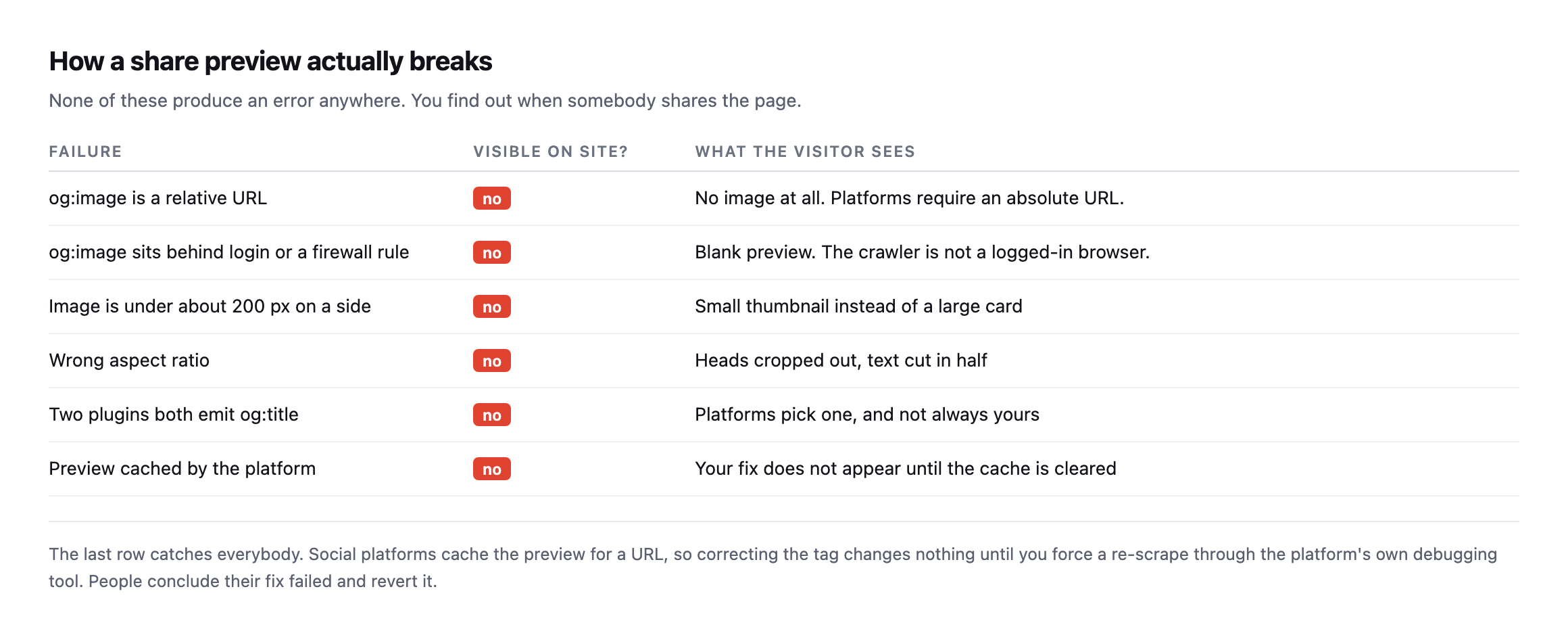
    A post on WordPress Open Graph tags covers six ways share previews break silently. A forum thread covered below shows the same problem from a site owner’s side: links to a blog showing a random uploaded image as the thumbnail. One reply there says the cleanest fix is to set a featured image on each post you actually share. That thread is about a WordPress.com free plan, so the options on a self-hosted site differ.

    A featured image also needs its own alt text. A post on an image alt text audit shows how a crawl reported 17,261 images missing alt text when the real count on those pages was zero. Counting images is harder than it looks.

    The Playbook, Step By Step

    The Bulk Featured Images playbook has two steps, in a fixed order. In the dashboard it carries a Beta label and can change the site. The public page files it under SEO and says it needs no connector, while the dashboard lists it under Content. This post uses the public page’s category. It runs when you start it, and no schedule is set.

    A silent walk-through of the two steps. All scenes are illustrations with example values, not a real run.

    Step 1: Find And Snapshot Matches

    Step 1 is read-only. The step file says it writes nothing, and that step 2 makes the change straight after it.

    It works in a fixed order:

    1. It lists published posts, newest first, 50 at a time, asking only for the id, the title and featured_media. It pages through at most 6 pages, which is 300 posts.
    2. It keeps the posts whose featured_media is 0. These are the candidates, newest first. It checks at most 25 and counts the rest as “remaining”. It also notes every image id that is already some post’s featured image.
    3. For each candidate, it takes the post title in lower case, removes punctuation, and removes a list of filler words. What is left are the title’s key words.
    4. For each candidate, it searches the media library for images, with those key words as the search. The step file says WordPress returns only images whose name contains every word. It sends up to six of these searches at a time.

    If a reply is cut off, the step asks again with half the page size. It never matches against a cut list.

    The step file calls the key words “dish words”, and its filler list includes words such as recipe, homemade, creamy and crispy. It reads as written with recipe-style titles in mind. Other titles are matched the same way, so the result depends on image names resembling titles.

    The Three Outcomes

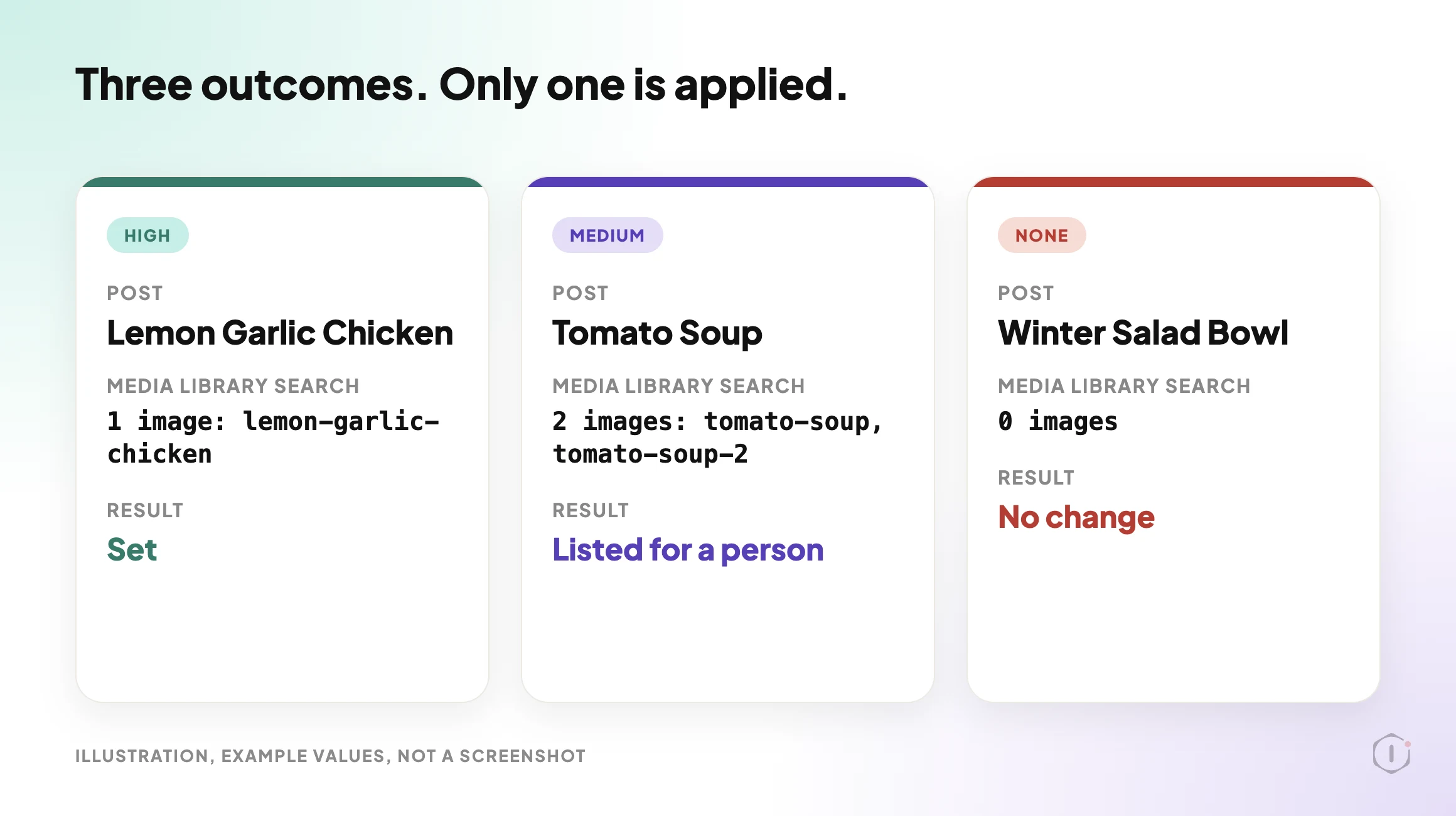
    Step 1 sorts each candidate by the number of results, with no judgement involved:

    • HIGH: exactly one image matches, that image is not already used as another post’s featured image, and the title has at least two key words. Only HIGH is ever applied.
    • MEDIUM: two or more images match, or the one match is already used on another post, or the title has only one key word. MEDIUM is never applied. It is listed for a person.
    • NONE: no image matches.
    WordPress featured image playbook, illustration with three cards. The HIGH card shows one image matching the post name and not used elsewhere, so it is set. The MEDIUM card shows two images matching, so the post is listed for a person. The NONE card shows no matching image, so nothing changes. Example values, not a screenshot.
    Three outcomes for a post with no featured image. Example titles and image names, not a real run.

    Step 1 ends by handing step 2 a fixed block. It holds the scanned count, one line for every post it checked, the list to apply, and the number remaining. The step file requires one line for every candidate searched, so the block can be checked against the count.

    Step 2: Apply And Verify

    Step 2 reads that block and does three things.

    First, it re-checks the posts on the apply list in one call. A post whose featured_media is no longer 0, or that is missing, is skipped as “changed since the scan”. It is never written.

    Second, for each remaining post it makes one write with the post id and the image id, and nothing else. The step file says the write records the post’s previous value, which is what the run’s Rollback restores. A write that errors is marked failed, and the step keeps going.

    Third, it reads the posts back. A post counts as set only when its featured_media now equals the image id.

    The step stops without writing in three cases. If the block from step 1 is missing or step 1 failed, it reports a broken chain. If step 1 produced more than one apply list, it reports a broken chain, because the list cannot be trusted. If the apply list says none, it reports “Nothing to apply”.

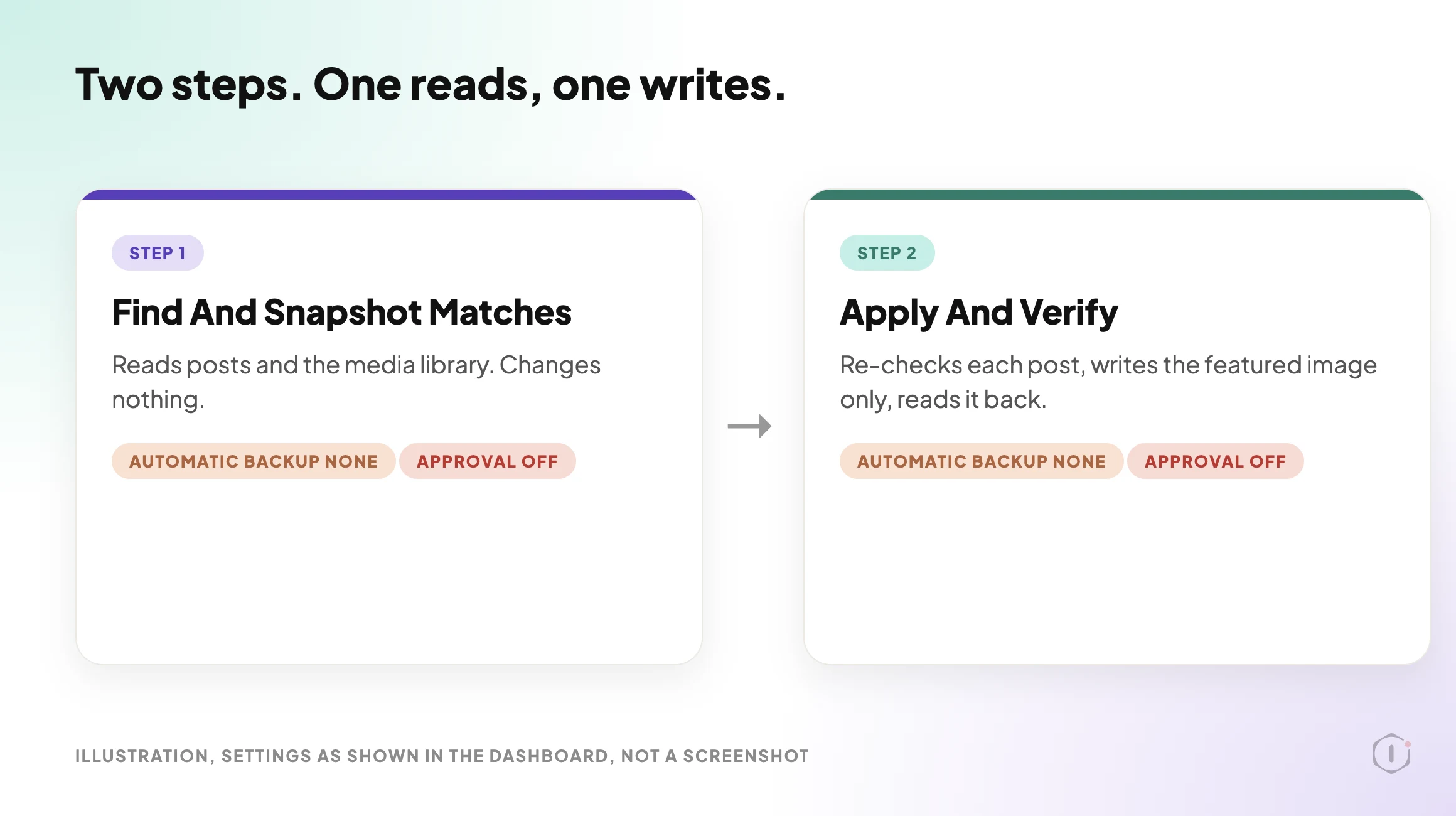
    WordPress featured image playbook, illustration of two steps. Step 1, Find And Snapshot Matches, reads posts and the media library and changes nothing. Step 2, Apply And Verify, re-checks each post, writes only the featured image, and reads it back. Both steps show Automatic backup None and Approval checkpoint Off, as in the dashboard settings. Example layout, not a real run.
    The two steps and what each hands on. Settings as shown in the dashboard, not a real run.

    The report has a fixed layout. A summary line gives the counts for set, skipped, failed, to review, no match and left for the next run. Then come tables for the images set, the posts skipped or failed, the posts to review and the posts with no match, and a closing note on how to undo.

    What The Settings And The Public Page Say

    This is the one place where the sources disagree, so read it closely.

    The public page says a run you start pauses before step 2 and waits for your approval. It also says a scheduled run skips step 2, so a scheduled run never makes the change.

    I opened the settings panel for both steps in the dashboard. Both show Automatic backup None and Approval checkpoint Off. The dashboard’s card text also says the playbook waits for your approval.

    This post does not decide which is right. Before a first run on a live site, check the Approval checkpoint setting on your own copy of step 2. The undo that step 2’s file describes works from the recorded before-value for each post, which for these posts is “no featured image”, not from a backup.

    What The Playbook Does Not Do

    The step files and the public page set clear limits:

    • It never uploads or generates an image, and it never replaces an existing featured image.
    • It changes one field only, the featured image. It sends no title, content, excerpt, status or meta.
    • It scans at most 300 of the newest published posts and checks at most 25 per run, so a large backlog takes several runs.
    • It never sets an image on a MEDIUM or NONE post. Those are listed for you.
    • It does not judge the picture. A name match is a hint about a file name, not proof that the image fits the post.
    • It does not look at image size, format or alt text.

    That last limit is worth planning for. A post on an image weight audit found a page carrying 2,590 KB of images, with a single 794 KB file still being served. A matched image can still be a heavy one.

    A Careful Version You Can Do By Hand

    You can do a rough version of this without any playbook. It follows the same order.

    1. Request your published posts from the REST API, asking only for id, title and featured_media, for example /wp-json/wp/v2/posts?per_page=50&_fields=id,title,featured_media. Posts with a featured_media of 0 have no featured image.
    2. For each of those, take the key words from the title and search the media library by those words.
    3. If exactly one image comes back, check it is not already the featured image of another post, and look at the picture before you use it.
    4. If two or more come back, or the title is one word long, decide by eye and write down why.
    5. Open the post, choose Set featured image, pick the image and save.
    6. Write down the before-value for every post you change, which is “none”, so you can undo it.
    7. Share one updated link and look at its preview. Platforms cache old previews, so a link shared before the change can keep showing the old one.

    Seven steps for 25 posts is why such a list tends not to get written. That is the part a playbook takes over.

    If your bigger worry is unused files in the library, the Unused & Duplicate Media playbook post covers the other side of the library. If you want to see how other playbooks handle changes in small batches, the Disable Comments post and the Find And Replace post each describe a two-step playbook that plans changes and waits for you.

    Two Outside Views

    A short tutorial and a forum thread. Neither is an endorsement, and neither describes the Protuno playbook.

    In a September 2026 video, the Quick Tutorials Vault channel shows how to add a featured image in WordPress. The presenter goes to Posts, picks a post, clicks Edit, and points to the Set featured image option on a post that has none. The presenter then selects the image, saves, and uses View post to confirm the image appears. It is a one-post, by-hand method, which is the baseline this playbook is compared against. The video does not cover finding posts that have no featured image.

    On Reddit, an r/Wordpress thread titled “How to set the image that shows up in my link thumbnails?” starts with a blog owner whose shared links showed “no title” and a random uploaded image as the thumbnail. A reply says:

    “the cleanest option without wrecking your homepage is to set a featured image on each post/page you actually share, not on the home page.”

    Reply in the thread, r/Wordpress, 8 October 2026

    The same reply adds that the poster is on a WordPress.com free plan, where control over the social image is limited, and that Facebook and iMessage can keep showing an old preview until you refresh it in their debugger. The thread is about that plan, so treat it as one site owner’s problem, not a rule for every WordPress site.

    Where Protuno Fits

    The Bulk Featured Images playbook is the repeatable, bounded part of this job. It finds published posts with no featured image, matches them to library images by name, and sets only clear one-image matches, at most 25 per run, then reads each change back and records the before-value so it can be rolled back. It needs no connector, runs when you start it, and has no schedule set.

    Protuno publishes its playbooks as written-out steps you can read first. The playbooks page lists them, and this one has its own page at Bulk Featured Images. If the undo model is your main concern, a post on rollback after an update explains why restoring files and restoring a database are not the same decision.

    The Point

    A featured image is one field on a post. Nobody notices it is empty until a layout, an archive or a shared link shows the gap.

    Find the empty ones, match only what is clear, change nothing else, and keep the before-value so any change can be undone. The matches that need a human eye should go to a human.

    How many of your published posts would show a gap if you asked for the ones with no featured image today?

    Sources And Further Reading

  • WordPress Redirect Loops And Chains: Find The Hop

    WordPress Redirect Loops And Chains: Find The Hop

    A client calls because the site will not load. The browser shows a “too many redirects” error and says the page redirected too many times. Nothing was deployed, nobody touched the theme, and it worked yesterday.

    Three weeks later the same site is fine. Every page loads, nobody is calling, and one URL is taking three hops before it reaches the page. Nobody will ever call about that one.

    Same underlying fault, two very different experiences. One is an outage with a loud alarm. The other is a quiet detour that only shows up if you go looking.

    Short answer: a loop is a redirect sequence with no end, so the browser gives up. A chain is a sequence that does end, just not on the first hop. Both are diagnosed the same way: request the URL from outside with redirects turned off, follow each hop by hand, and record the status code and the Location header at every step. The hop where the destination stops making sense is the layer that is misconfigured.

    What this post is, and is not: this is an outside-in tracing method you can run against any URL you are allowed to test, plus the three configuration conflicts that cause most loops. It is not a guide to any one CDN’s rule screen, and it does not measure what a chain costs in rankings or load time, because that cannot be read from one site.

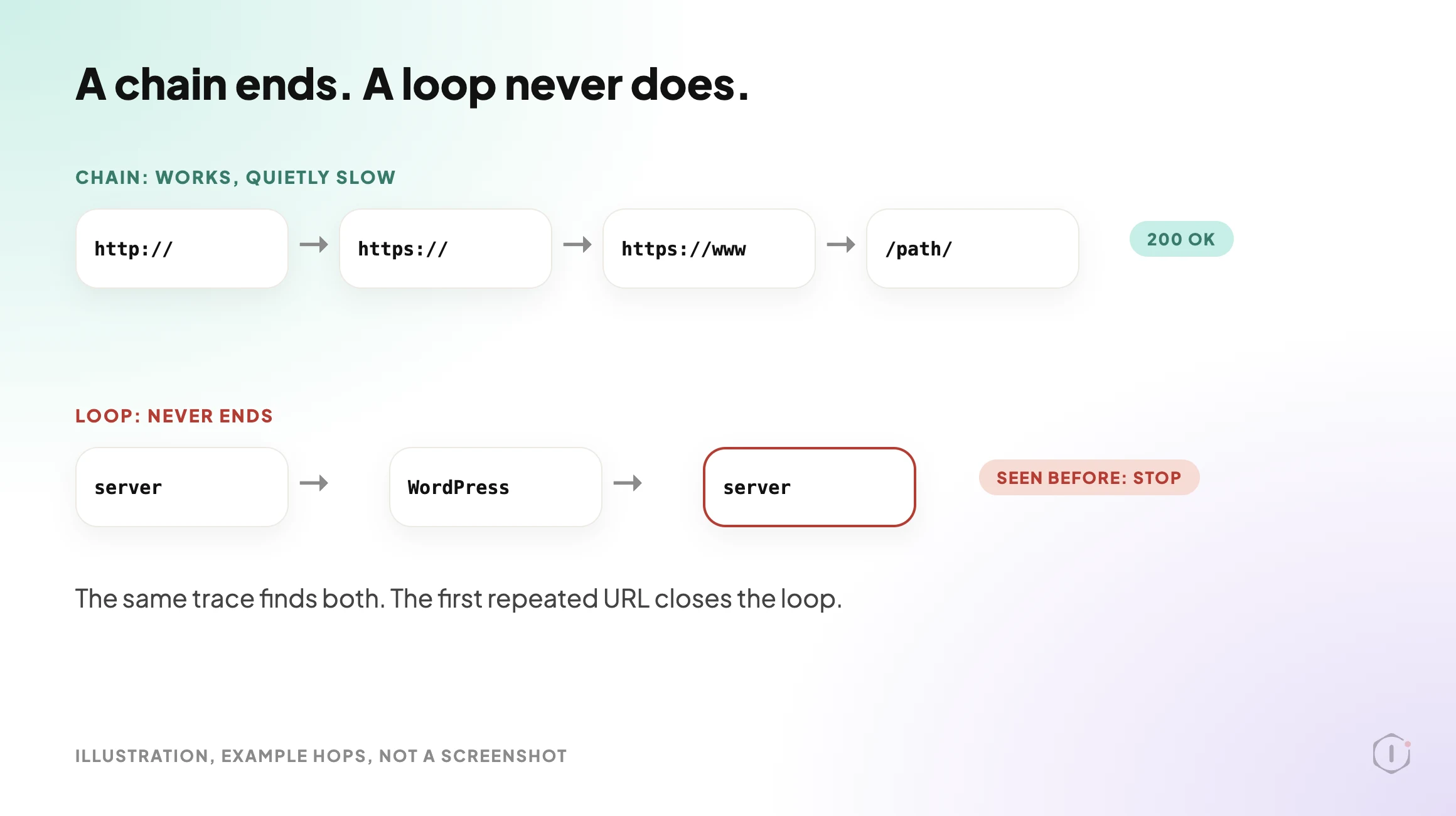
    Diagram comparing a WordPress redirect chain that resolves after three hops against a redirect loop that returns to its start and fails.
    The top one is working. That is the problem with it.

    A Loop And A Chain Are The Same Bug

    Both start the same way: more than one thing on the request path believes it is responsible for deciding the canonical URL.

    A chain happens when each of those things makes a different but compatible decision. The server upgrades to HTTPS. WordPress adds the www. A redirect plugin maps the old slug to the new one. Each hop is individually correct, and the visitor still arrives at the right page after several round trips.

    A loop happens when two of those decisions point in opposite directions. The server sends www to the bare domain. WordPress, whose siteurl option still has www in it, sends it back. Neither is wrong on its own. Together they never end, and the browser stops after its own limit and shows an error.

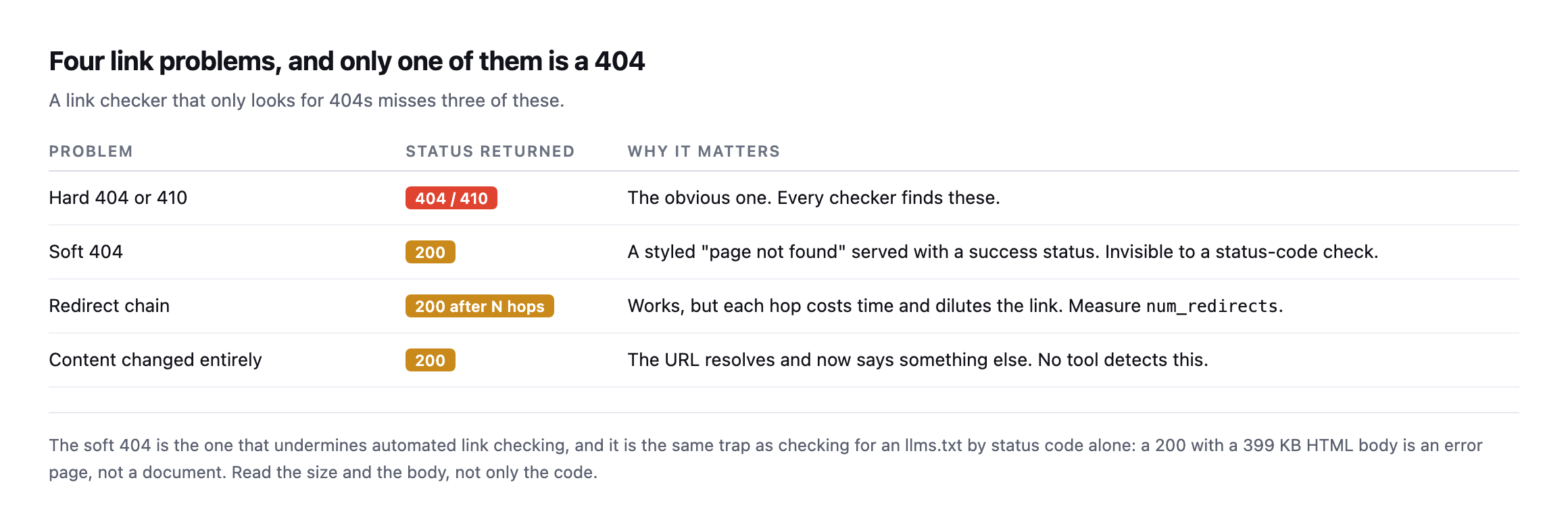
    You do not need two diagnostic routines. The same trace finds both. For what a chain does to a link audit, and why a clean 200 can hide it, see why a 404 is the easy half of a link check. This post stays on finding the hop.

    Trace Every Hop From Outside

    The whole diagnosis is one habit: stop letting your tools follow redirects for you.

    A browser follows the chain silently and shows you the final page. A checker that reports “200 OK” has already walked every hop and thrown the evidence away. You want the hops, one at a time.

    Request the URL with redirect following off, and record four things for each hop:

    1. The URL you requested.
    2. The status code that came back.
    3. The exact Location header, including protocol, host, path and query string.
    4. Whether the Location is absolute or relative.

    With curl, a header-only request does not follow redirects by default:

    curl -sI http://example.com/path

    Then request the Location value and repeat, until you reach a non-redirect status or a URL you have already recorded. A repeat is the definition of a loop, and the URL that repeats tells you where the cycle closes. To let curl do the walking and stop it from running forever, cap the hops and print the count:

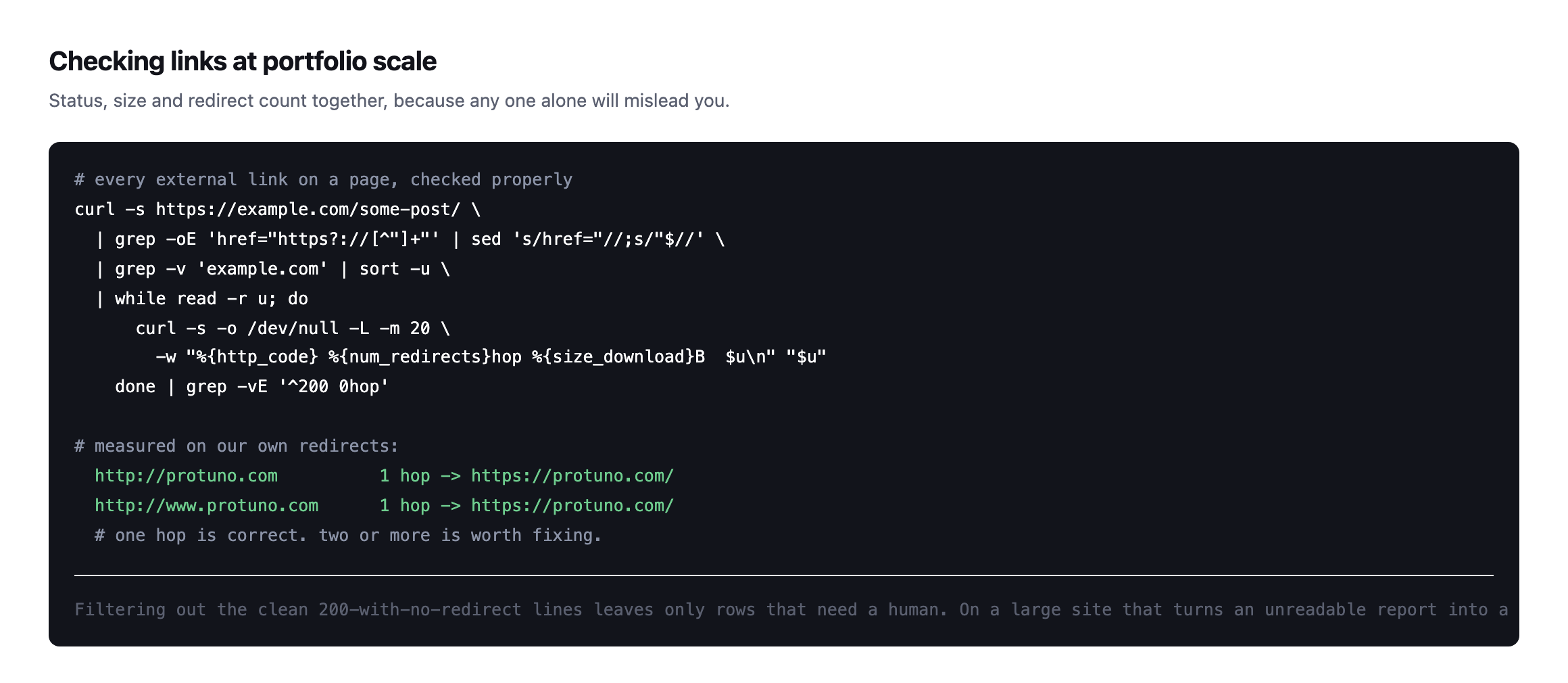
    curl -sIL --max-redirs 10 -o /dev/null -w '%{num_redirects} %{url_effective}n' http://example.com/path

    If the cap is hit, curl reports that the maximum number of redirects was followed, which is a loop. Use this only on URLs you are authorised to test.

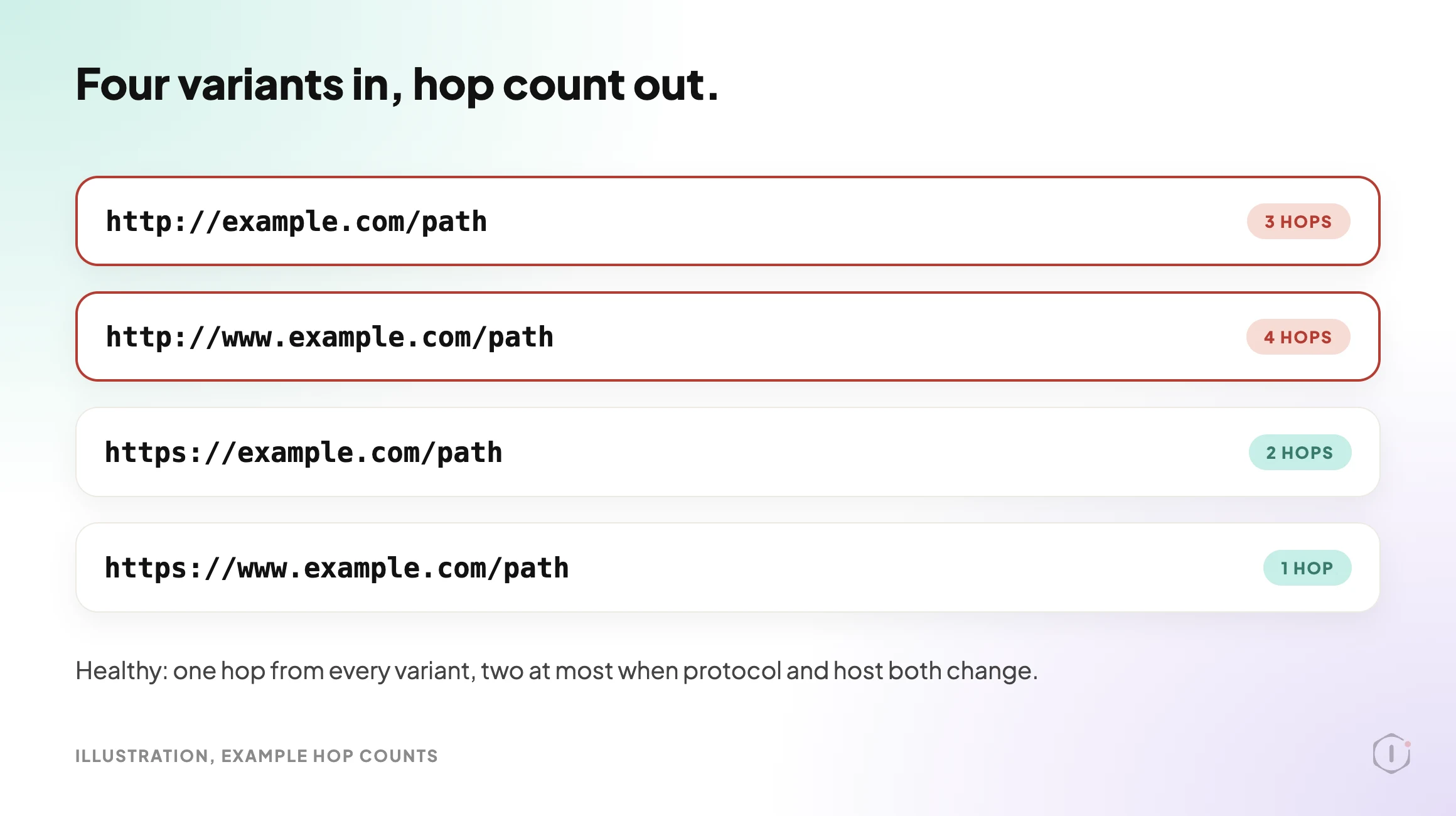
    Run the trace against four variants of the same page, because the variants are where the disagreements live:

    • http://example.com/path
    • http://www.example.com/path
    • https://example.com/path
    • https://www.example.com/path

    A healthy result is that every variant reaches the canonical URL in one hop, or two when both the protocol and the host have to change. Three or more hops from any starting point means something is doing the same job twice.

    Table tracing redirect hops from four URL variants of a WordPress site, with two variants highlighted for taking three or more hops.
    Four requests, no login, and the misconfigured layer is usually already visible.

    Capture the status code at each hop as well. A 301 and a 302 are both redirects, but they say different things about intent, and a chain that mixes them was probably assembled by more than one person. MDN’s page on 301 Moved Permanently and 302 Found is the quickest way to check what each one promises.

    The Three Usual Culprits

    Most loops and many long chains come from one of three conflicts. Check them in this order.

    #ConflictWhat it looks like in the traceWhere to look
    1Protocol and host settings disagreeingA hop that adds www followed by one that removes it, or HTTPS to HTTP and backWordPress siteurl and home options against the server rewrite rules
    2A plugin redirect fighting a server ruleTwo hops to the same destination, differing by a trailing slash or letter caseThe redirect plugin’s rule list against the server configuration file
    3A CDN or proxy rule added separatelyA hop whose Location matches nothing in WordPress or the server configThe CDN’s own rules and SSL mode, read in its dashboard

    The first is the classic loop. Four combinations of protocol and host exist. Three of them must redirect to the fourth, and that rule should live in one place. WordPress keeps its own opinion in the siteurl and home settings, and its redirect_canonical() function redirects requests toward that address. If the server holds a different opinion about the canonical host, the request bounces between the two. The WordPress documentation on changing the site URL explains the settings, and the wp-config reference covers the WP_HOME and WP_SITEURL constants that can override them.

    The second is the classic chain. A redirect plugin maps /old-page to /new-page, and the server separately enforces a trailing slash, so the visitor goes to /new-page and then to /new-page/. Both rules are right. Together they add a hop to every request that path ever gets.

    The third is the one that wastes an afternoon, because the trace shows a hop that exists nowhere you can read on the server. A CDN rule runs before the request reaches your origin, so it is invisible from inside. Cloudflare documents one well-known version: an SSL mode that makes the CDN talk to the origin over plain HTTP while the origin insists on HTTPS, which loops. Its guide to too many redirects errors is the reference. The way to see it is to compare a request made through the CDN with a request made straight to the origin. If the hop appears in one and not the other, you have found the layer.

    A redirect can also be cached. That means a rule you already removed may still be served to some visitors from somewhere. The WordPress page cache header lies explains why the header you would check to confirm a cached response is not conclusive on its own, so test with a cache-busting request before you declare it fixed.

    Watch Out For Browser Memory

    One thing breaks the method quietly. Browsers remember some redirects, especially permanent ones, and a browser that remembers a 301 will skip the hop you are trying to observe.

    So trace with curl or another client that keeps no memory, or use a private window and clear site data between attempts. If the browser still shows a loop while curl shows a clean path, the difference is stored on the visitor’s side: a cached redirect or a cookie. That is a useful finding on its own, because it explains why one person sees the loop and the next does not.

    Illustration of tracing four URL variants with redirects off. Example values, not a real site.

    Two Outside Views

    A tutorial and a forum thread. Neither is an endorsement.

    Guides by Leonard’s tutorial on the WordPress too many redirects error goes through a short checklist: clear the browser cache and cookies, clear the CDN cache, make sure the WordPress Address and Site Address settings match and use the same protocol, deactivate plugins one by one, regenerate the .htaccess file by re-saving permalinks, and use an online redirect checker to see the path. It is a good first pass. It can clear a loop, and it does not say which layer caused it, which is what the trace in this post is for.

    A beginner tutorial on the WordPress too many redirects error: clear caches, match the two URL settings, test plugins, regenerate .htaccess, then check the redirect path with a tool.

    Guides by Leonard, “Fix WordPress Error Too Many Redirects (2026 Easy Guide)” on YouTube, 21 Feb 2026

    On Reddit, an r/Wordpress thread describes a wp-admin redirect loop after login while the front end still loads normally. The replies were not available for this post, so it does not summarise them. The title is a useful reminder that a loop can sit on one path only, such as the login, which is why a trace should cover more than the homepage.

    “WordPress wp-admin infinite redirect loop after login while frontend still works normally”

    r/Wordpress, “WordPress wp-admin infinite redirect loop after login while frontend still works normally”

    Fixing It Without Creating The Next One

    Once you know which layer is adding the hop, the repair is short. Keeping it fixed is harder.

    Decide the canonical form once and write it down. Protocol, host and trailing slash, in one line of the site’s documentation. Most of these faults exist because two people made the same reasonable decision in two places six months apart.

    Enforce it in exactly one layer. Server rule, or CDN rule, or WordPress. Not two, and never a split where each handles part of the decision. The split works right up until one side is edited.

    Point old rules at the final destination. When /a redirects to /b and /b later moves to /c, update the first rule to point at /c. Adding a second rule is faster today and is how long chains are born.

    Re-trace after every change. The fix is not “the rule was edited”. The fix is “the four variants now resolve in one hop”, and only the trace proves it.

    Take a restore point before you touch rewrite rules on a live site, because a bad rule can lock you out of the admin as well as the front end. If you have a staging copy, test the change there first, and remember that staging drifts from live in exactly the settings that matter here: the site URL, the CDN and the cache.

    What Tracing Redirects Does Not Solve

    A clean redirect map is real work with a real payoff. It is also a narrow fix, and claiming more for it is how these audits lose credibility with clients.

    A trace cannot tell you whether:

    • the destination is a good answer to the request, since a 301 to a loosely related page is technically clean and useless to the visitor;
    • rankings changed because of it, because too many things move at once on a live site to credit one change;
    • a crawler has re-processed the new path yet, as that happens on a schedule you do not control;
    • every rule in the list is still needed, because a rule for a URL nobody has asked for in years still costs evaluation time; or
    • the page at the end of the chain is reachable from anywhere a visitor would actually start.

    The broader limit: a trace tells you what happens to a URL you already know about. It cannot find the URLs you have not thought to test. Finding those means crawling the site and tracing what the crawl turns up, which is the routine in the WordPress crawl audit on our own site. Redirects also belong next to the other checks, as in the technical SEO audit playbook post, rather than being scored on their own. If the redirects you are chasing started as 404s, which 404s actually cost you covers deciding what deserves a redirect in the first place.

    Sources And Further Reading

    For the wider review this belongs to, see the playbooks page.

    Do You Know How Many Hops Your Sites Take?

    Every site you run has a canonical form, and most of them enforce it in more than one place, quietly, on every request.

    Pick five sites. Trace the four variants of the homepage and two inner URLs on each. Write down the hop count and the longest chain. It takes an afternoon, and the results tend to be worse than anyone expects.

    So, across the sites in your care: do you know which ones take an extra hop on every request, or only the ones where it got bad enough that somebody phoned you?
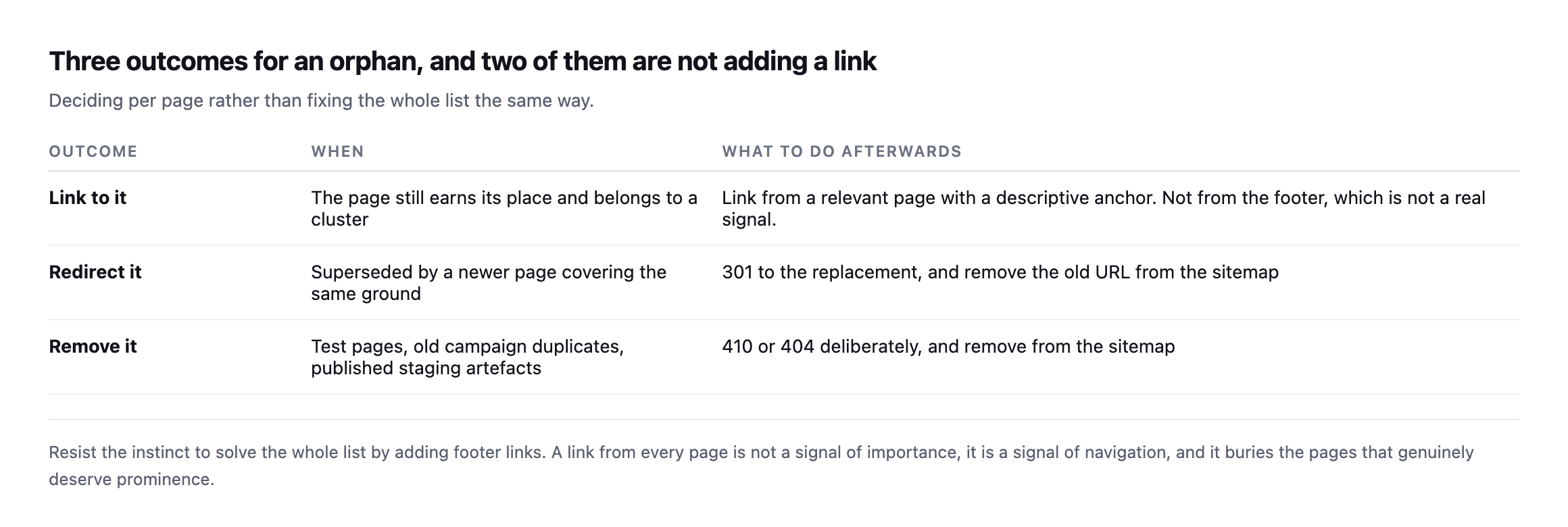
  • WordPress 404 Errors: Which Ones Actually Cost You

    WordPress 404 Errors: Which Ones Actually Cost You

    A client opens a plugin dashboard and sees 4,000 logged 404 errors. They forward the screenshot with one line: “is this bad?”

    The honest answer is that the number on its own means almost nothing. A 404 log is not a defect list. It is a list of requests, and requests come from everywhere: a scanner probing for /wp-admin/setup-config.php, a dead link in a five year old forum post, a typo in an email newsletter, a page the client deleted on purpose last week, and one URL that used to receive real visitors every day.

    Those five things have nothing in common except a status code.

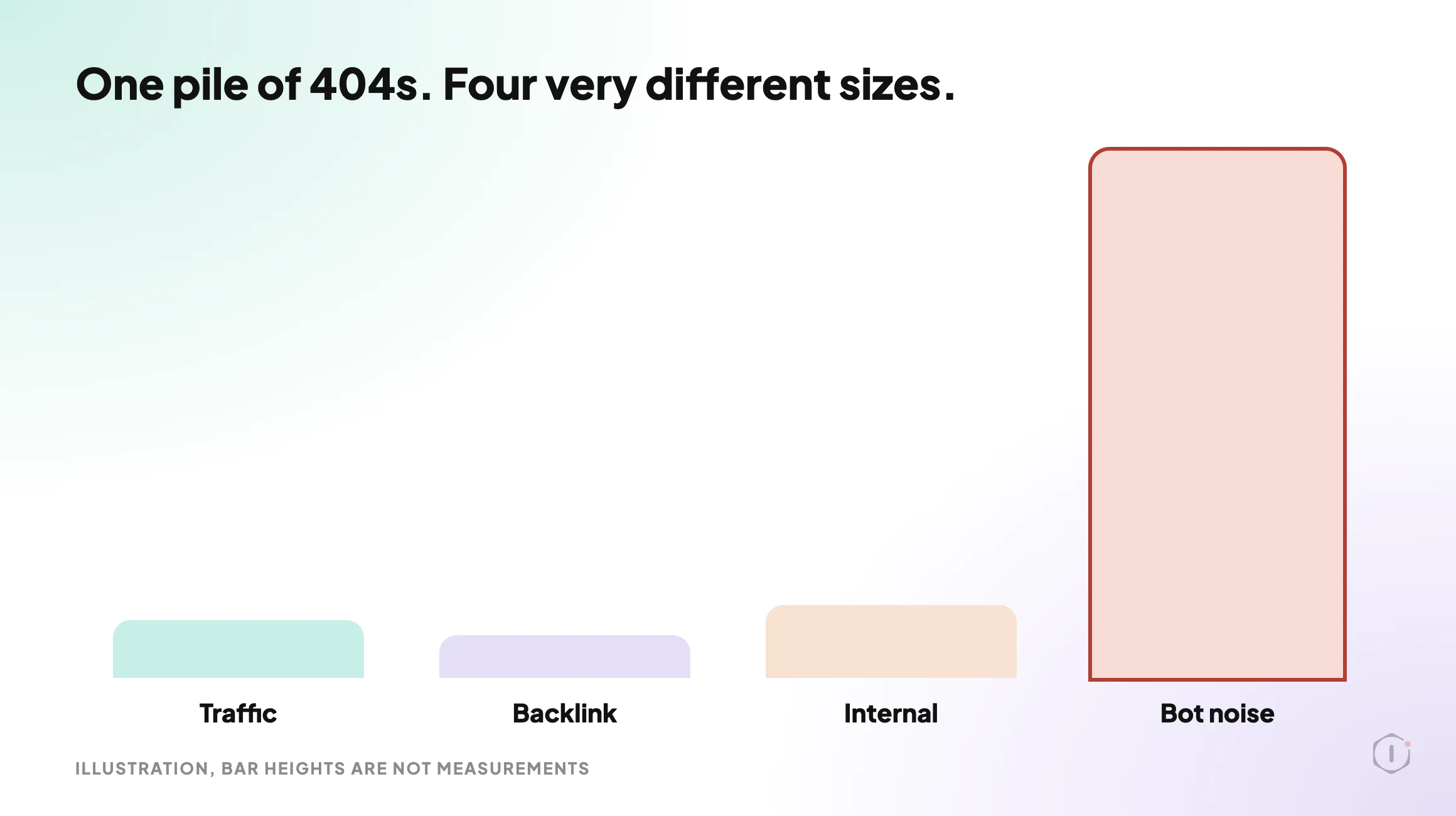
    Short answer: sort 404 errors by what they were connected to, not by how many there are. A URL that had organic traffic, has an external backlink, or is still linked from your own navigation costs you something real and needs a decision. A URL that only ever appeared in bot logs costs you nothing and should stay a 404. Redirect the first group to the closest genuine equivalent, leave the second group alone, and use 410 for pages you deliberately removed.

    What this post is, and is not: this is a triage routine for a 404 log you already have, using data from your own analytics, your own Search Console property and a crawl of your own site. It is not a claim that fixing 404s raises rankings on its own, and it does not measure how any search engine weighs a 404 against a 410.

    Diagram sorting a pile of WordPress 404 errors into four buckets, with bot noise as the largest group by a wide margin.
    Illustration. The pile is big. The part that costs you anything usually is not.

    Why The Count Is The Wrong Number

    A 404 is the correct response to a request for something that does not exist. The status code is doing its job. Treating every one as a defect means treating your server’s correct behaviour as a bug.

    The count feels alarming because 404 logging plugins record everything, including traffic that was never going to be a visitor. Vulnerability scanners walk a list of known paths against every WordPress site they can reach. A site with no inbound links at all will still pick up thousands of 404s a month from that alone.

    Compare two lines from the same log:

    /wp-content/plugins/revslider/temp/update_extract/

    /2024/03/our-pricing-changed/

    The first is a scanner. Nobody linked to it, no human requested it, and redirecting it only adds a rule your server evaluates on every request from then on.

    The second was a real page. If it had traffic or links, it is losing both right now. That is one of the four thousand, and it is the whole job.

    Part of this is already handled for you. WordPress tries to guess the intended address for a missing URL by matching the slug, which is what redirect_guess_404_permalink() does. So a lazy typo in a post slug can resolve without a rule. A deleted page, a changed permalink structure or a renamed category usually cannot, and those are the ones to look for.

    The Four Buckets

    Every 404 in your log belongs in one of four buckets. Sort in this order and stop as soon as a URL qualifies.

    BucketTestCost if ignoredAction
    Had organic trafficThe URL appears in analytics or Search Console data for the period before it brokeLost sessions and any conversions on that pathRedirect to the closest genuine equivalent
    Has external backlinksAnother site links to itLost referral traffic and a wasted inbound linkRedirect, even if traffic was low
    Linked internallyYour own pages, menus, sitemap or templates still point at itVisitors hit a dead end and crawlers waste requestsFix the link at the source, then decide on a redirect
    Bot noiseNone of the above applyNothingLeave it as a 404

    The order stops you overthinking. A URL with a backlink gets a redirect whether or not it ever had traffic, because the link is an asset you already own. A URL with no traffic, no links and no internal references is not a problem to solve, however many times it appears.

    The fourth bucket will usually be the overwhelming majority. That is the expected result, not a sign you checked wrong.

    Getting The Data For Each Test

    Each bucket needs a different source, and none of them is the 404 plugin itself.

    Traffic history. Your analytics property holds the before picture. Export the landing pages that received organic sessions over a window long enough to cover the period before the URL broke, then intersect that list with your 404 list. Anything in both is bucket one. If analytics was reinstalled or duplicated at some point, the numbers for that period may be wrong in ways that are easy to miss, which the duplicate Google Analytics tag post covers.

    Backlinks. This is the one piece you cannot derive from your own site. You need a backlink source, and the result will be incomplete whichever one you use, because no index sees every link. Treat the result as a floor, not a total.

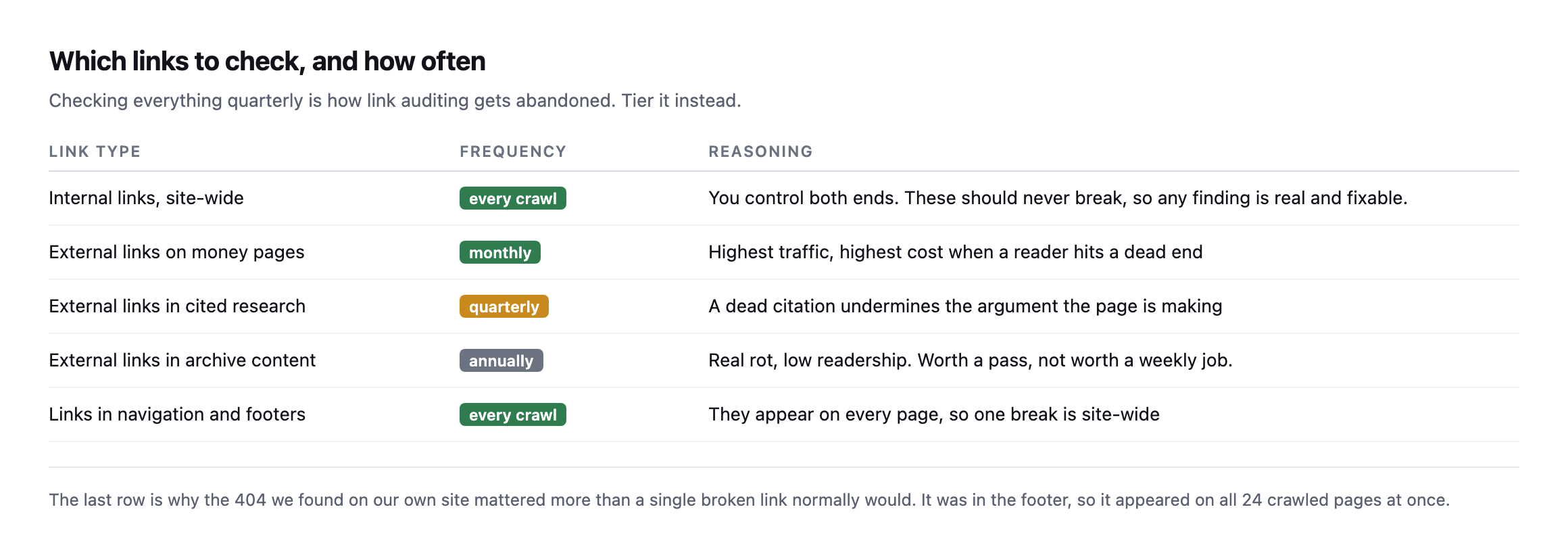
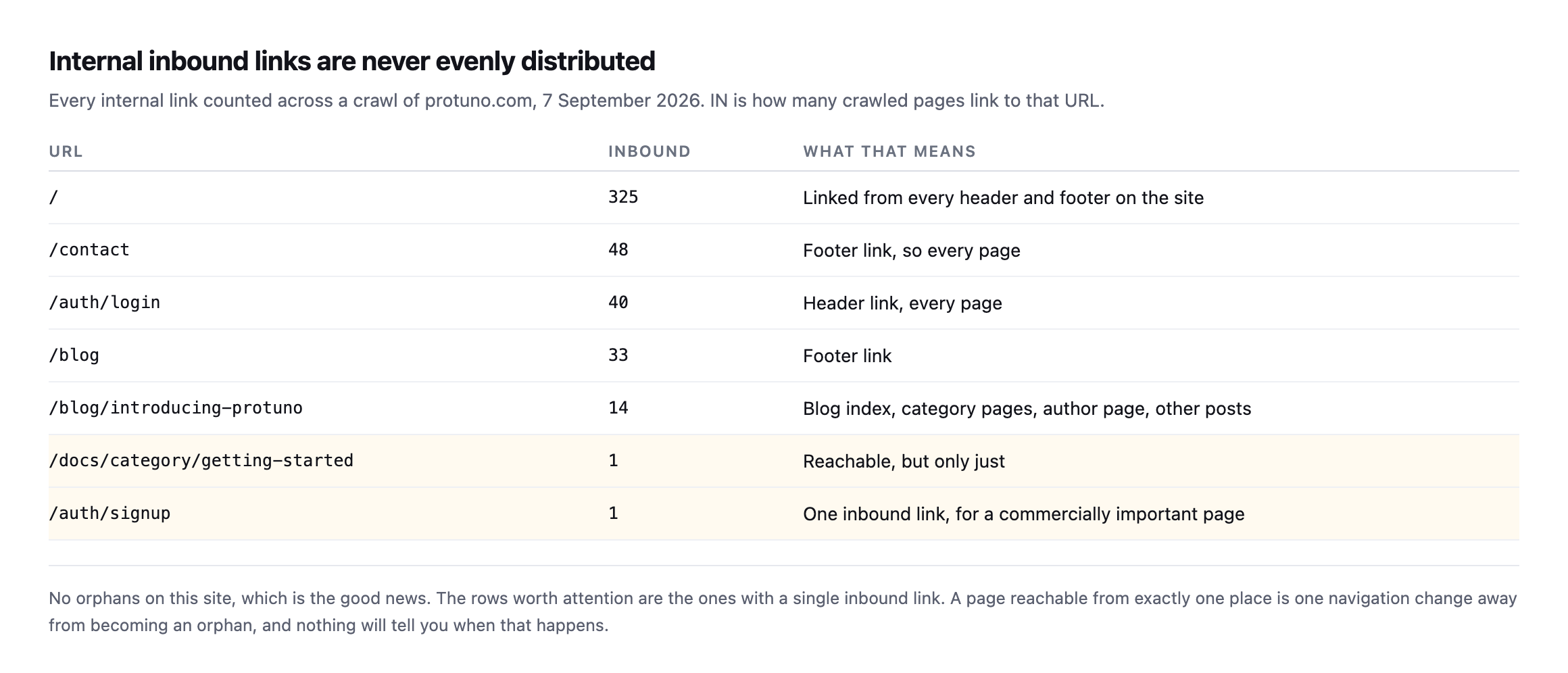
    Internal links. This one you can answer completely, and you should, because it is the only bucket that is entirely your own doing. Crawl your own site and collect every internal link that returns a 404. The WordPress crawl audit post is about what only a crawler can find, which is exactly this job. A crawl also exposes the opposite failure, pages that exist but nothing links to, which the orphan pages post covers.

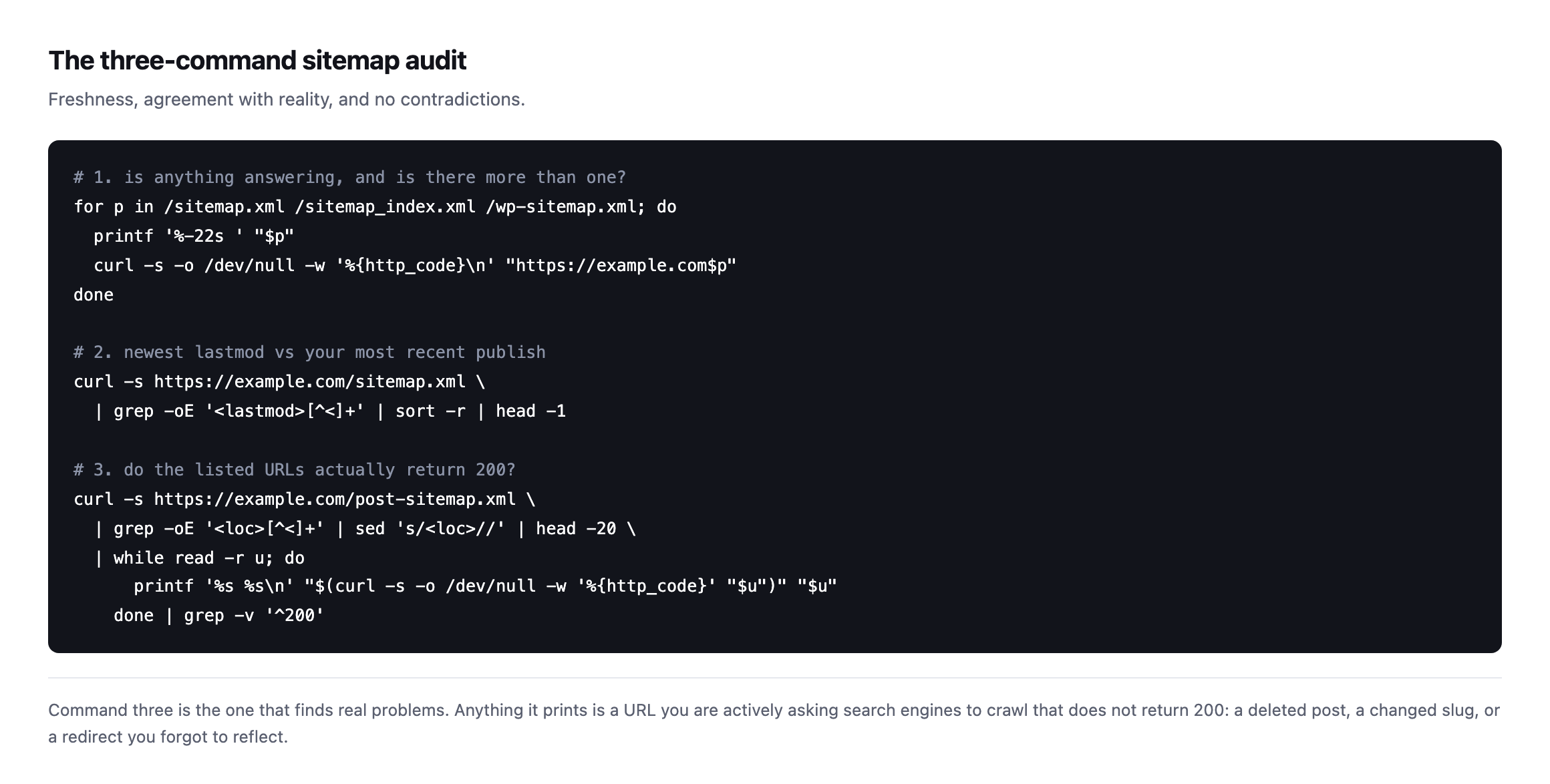
    Sitemap entries. A 404 listed in your sitemap is a specific and avoidable mistake, because you are actively submitting a dead URL for crawling. Pull the sitemap, request each URL and flag every non-200 response. The sitemap audit post has the commands.

    The links you control are the easy half of this. The broken link checker post explains why a plain 404 check also misses soft 404s and redirect chains, so this post leaves those two alone.

    410 Versus 301, And When To Use Neither

    Once a URL is in a bucket you have three options, and the choice is less about search engines than most arguments about it suggest.

    ResponseMeansUse it when
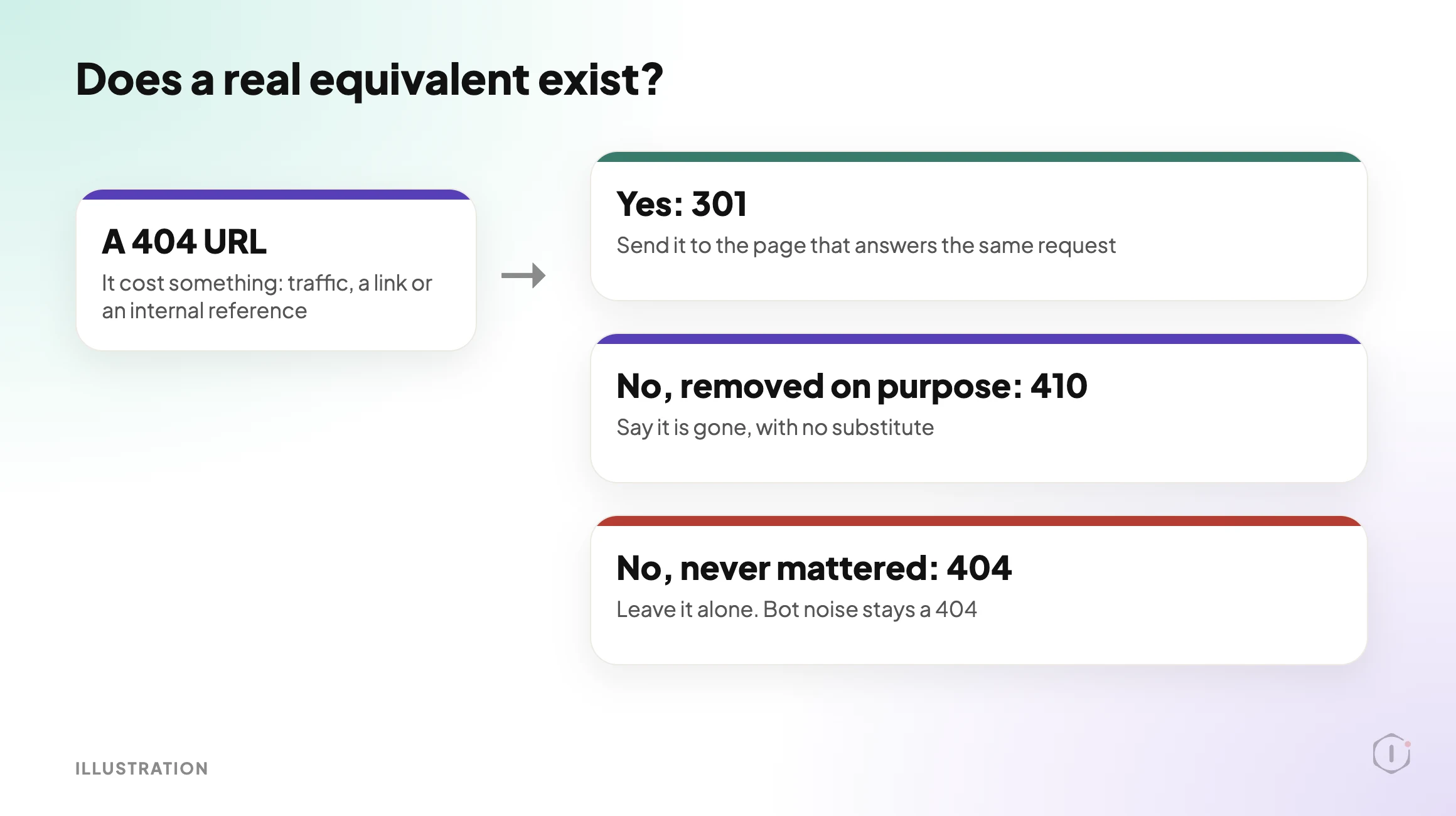
    301This has permanently moved hereA genuine equivalent exists for what the visitor wanted
    410This is gone on purpose and is not coming backYou deliberately removed the page and there is no equivalent
    404This does not existEverything else, including all bot noise

    The rule that keeps this clean: a 301 is a promise that the destination answers the request the visitor made. Redirecting a deleted product page to your homepage does not do that. The visitor wanted a product and got a homepage, which is a dead end wearing a 200 status code. It is worse than the 404, because the 404 at least told the truth. Google’s own 301 redirect guidance is about pointing to the new location of the same content.

    So the test for a redirect is not “do I have somewhere to send this”. It is “does that destination give the visitor the thing they came for”. If no page does, use 410 for deliberate removals and leave the rest as 404.

    The MDN reference for 410 Gone describes it as a deliberate, permanent removal, and suggests 404 when you do not know whether the removal is permanent. That is a good rule of thumb. A 410 is a cleaner statement than a 404 that could be a temporary failure. It is not required, and a site that only ever uses 404 is not broken.

    Decision diagram choosing between a 301 redirect, a 410 response and leaving a WordPress URL as a 404.
    Illustration. Three outcomes. Most URLs take the third branch.

    One habit to avoid: mass redirecting everything in your log to a single destination. It turns a readable report into noise, adds rules that run on every request, and when you later redirect something properly you risk building a chain of hops instead of a single one.

    A walkthrough of the Redirection plugin: installing it, setting up 301 redirects and tracking 404s in its error log.

    JOSHUA, “How to Fix 404 Errors Using the Redirection WordPress Plugin (Easy Guide)” on YouTube, 10 Jul 2026

    “…I am thinking of changing the response to “410 Gone” to see if they go away permanently.”

    r/TechSEO, “404 Not Found or 410 Gone?”, October 2026

    Both are about the same decision. The video covers the mechanics of setting a redirect up in a plugin, and it does not tell you which URLs deserve one. The thread is a working question about whether answering 410 clears long-gone URLs out of Search Console, and the line quoted above is the one this post answers: did the URL ever cost anything, and is there a real equivalent?

    The 404 Log Is A Security Signal Too

    Scanner paths are not an SEO problem. They are still information.

    A sharp rise in requests for paths that never existed on your site means someone is probing. You do not need to act on each line, but you should record the rise and compare it with what changed that week. If it lines up with a plugin install or a published vulnerability, that is worth a look. The security monitoring playbook post is the place to start for that side of it.

    Keep the two uses apart. If scanner volume and real regressions feed the same alert, the volume will bury the regression every time.

    Monitoring It Without Drowning In It

    Triage once and you have cleaned up a backlog. The useful version catches the next one within days instead of at the next audit.

    Two signals are worth watching, and they are not the same signal.

    The first is a URL that used to return 200 and now returns 404. That is a regression, and it is the only 404 event that deserves an alert. You detect it by holding a list of your own known-good URLs and requesting them on a schedule, not by watching the log.

    The second is a rise in 404s against URLs that never existed. That is scanner activity, covered above.

    A small test you can run today:

    • Export the URLs from your sitemap and from your main navigation.
    • Request each one and record the status code, the final URL after redirects and the date.
    • Re-run it after every core, theme or plugin update, and after any permalink change.
    • Treat any URL that moved from 200 to 404 as an incident, and everything else as housekeeping.
    # status and final URL for one address
    curl -s -o /dev/null -L -w "%{http_code} %{url_effective}\n" https://example.com/pricing/

    Staging drift is a common cause of the 200 to 404 jump, because a permalink or plugin setting that differs between staging and live changes which URLs exist.

    What 404 Triage Does Not Solve

    Sorting your 404s is housekeeping with a clear payoff. It is not an SEO strategy, and it proves little on its own.

    It cannot tell you whether:

    • the page that was removed should have been removed, which is a content decision nobody can make from a status code;
    • the redirect you added serves the visitor’s intent, since a 301 to a loosely related page still fails the person who clicked;
    • a ranking change followed the fix, because too many other things move at once to attribute it;
    • your backlink data is complete, since every index is partial;
    • the traffic a broken URL used to get would return if you restored it, as demand may simply have moved on; or
    • a URL returning 200 is actually working, because a page that renders nothing but returns 200 passes every status check you run.

    That last one is the real gap. Every test here is built on the status code. Catching a page that answers 200 and shows nothing needs a check that looks at what the page contains. Google describes these as soft 404s in its HTTP status code documentation.

    The other limit is scope. This routine is about URLs that are gone. It says nothing about URLs that exist, are reachable and are still not doing anything useful.

    Fixing In The Right Order

    1. Take a restore point first, so a bad redirect rule can be undone.
    2. Fix internal links at the source. A redirect that hides your own broken link is a patch, not a fix.
    3. Redirect the traffic and backlink URLs one to one, each to its closest genuine equivalent.
    4. Remove dead URLs from the sitemap.
    5. Mark deliberate removals as 410.
    6. Re-request every changed URL and confirm one hop, then re-run the known-good list.

    Sources And Further Reading

    For the wider technical review this belongs to, see the Technical SEO Audit playbook post and the playbooks page.

    How Many Of Your Sites Have A 404 Log Nobody Has Read?

    Most agencies have a 404 log on every site and a triage habit on none of them, because the counts are large and the signal is buried.

    Pick three sites. For each one, pull the unique 404 URLs, intersect them with analytics and a crawl, and write down two numbers: how many had any cost attached, and how many were scanner noise.

    So, on the sites you run: when a client next asks whether four thousand 404s is bad, can you answer with the handful that actually cost them something, or only with the four thousand?

  • WordPress On-Page SEO Checklist, Step By Step

    WordPress On-Page SEO Checklist, Step By Step

    A green score is an opinion about one version of a post.

    It is not a reading of the page a visitor or a crawler actually receives.

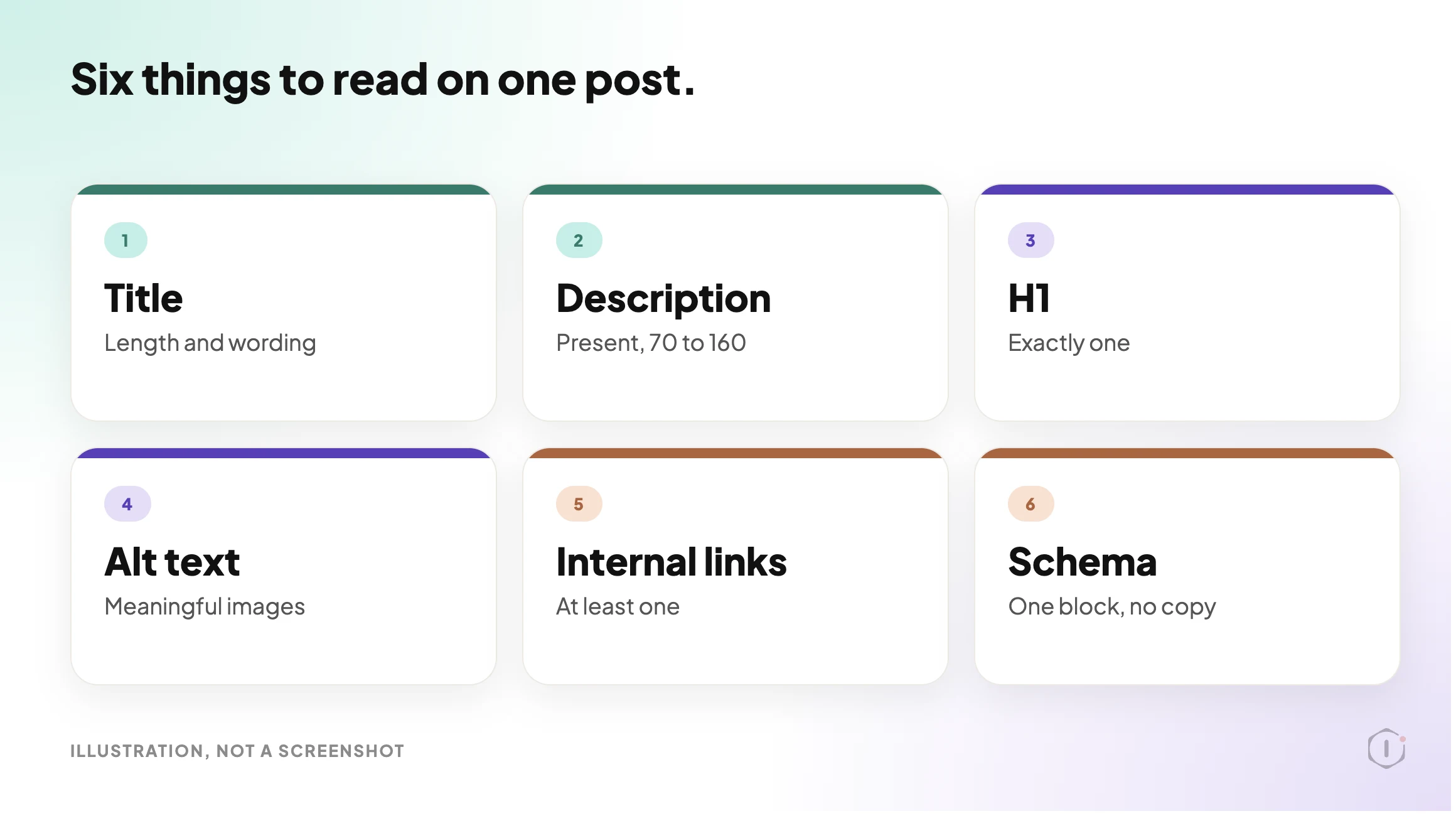
    Short answer: Check one post at a time, in a fixed order. Find out which plugin owns the title and description. Read what is stored. Read what the live page serves. Compare both against a short list of limits: title, description, one H1, alt text, internal links and schema. Write each fix as a before and after. Change only what you can undo, then read it back. That is a WordPress on-page SEO checklist you can run by hand, and it is the same order the AI SEO Optimiser playbook in the Protuno dashboard follows.

    What this post is, and is not: A practical checklist for one post at a time, with the limits we use and the reasons for them. It is not keyword research, not a ranking promise and not a result from a real run: no playbook was run for this post, and every visual is a labelled illustration. The step names and rules come from the playbook as the Protuno dashboard shows it. The playbook is Beta.

    An audit tells you what is wrong. A diff tells you exactly what changed.

    Illustration of the six on-page checks on one WordPress post: title, description, H1, image alt text, internal links and schema
    Six things to read on one post. Everything else is a different job.

    Why A Green Score Is Not A Checklist

    An editor score is built from the post as you are writing it. The page that goes out is built later, by your theme, your plugins and your cache.

    That gap is where on-page problems hide. A theme can print its own H1. A second plugin can output a different title tag. A caching layer can serve last week’s version. The score cannot see any of that.

    Google adds another layer. Its documentation says title links are created automatically from several sources: the title element, the main visual title, heading elements such as the H1, og:title tags, anchor text and more. The title you type is one input, not the verdict.

    Snippets work the same way. Google says they are primarily created from the page content, and that it sometimes uses the meta description when it describes the page better. So a description is a pitch you offer, not a result you control.

    A good check looks at what is served, and says what it cannot see.

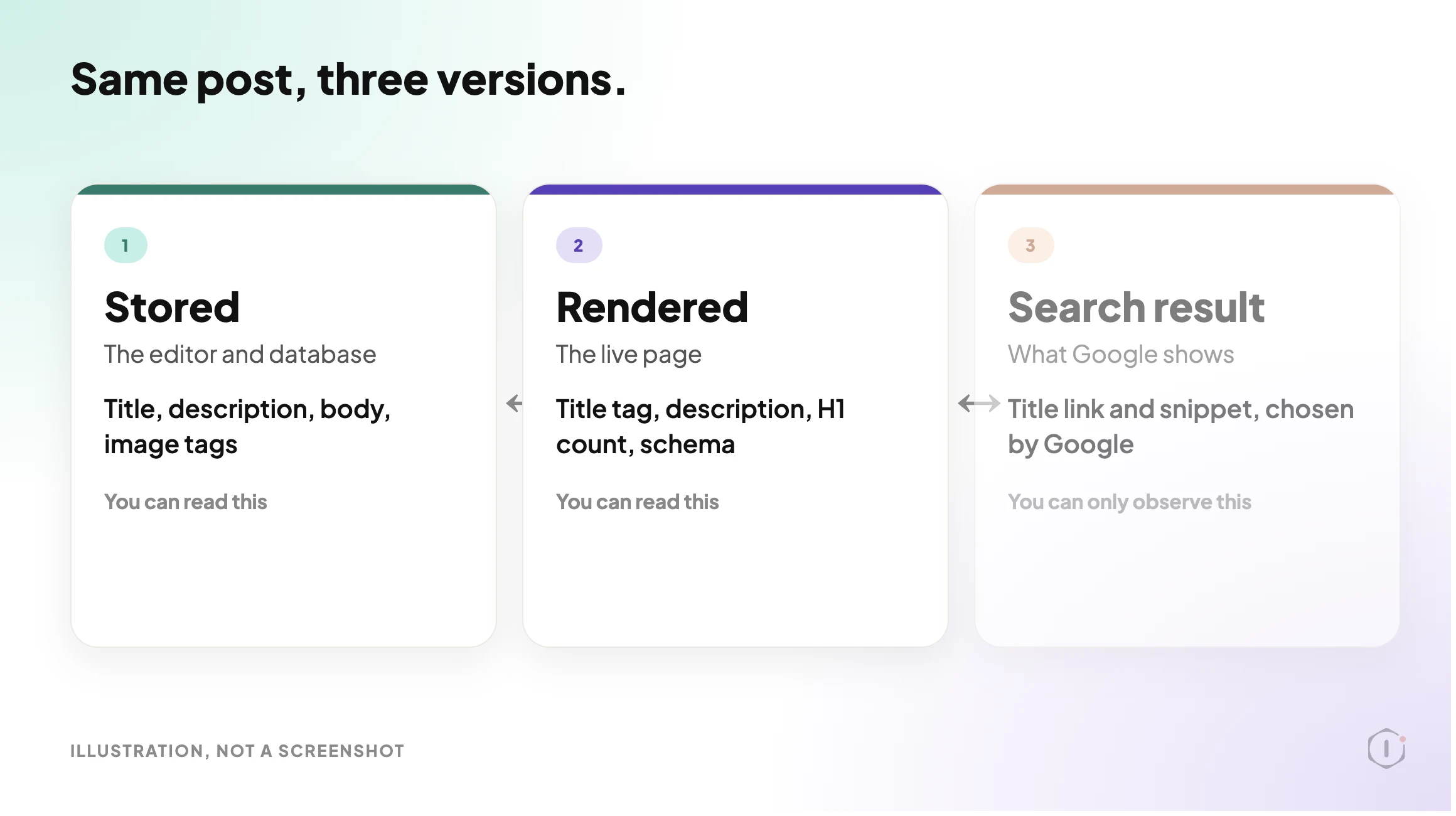
    Three Places The Same Post Lives

    ViewWhat it tells youWhat it cannot prove alone
    Stored (the database and the editor)The title, description and body as saved, plus the image tags in the bodyWhether a theme or plugin changes any of it before it is served
    Rendered (the live page)The title tag, description, H1 count and schema a crawler really receivesWhether you saved what you meant to, or whether a cache is stale
    Search result (Google)The title link and snippet Google chose to showAnything about your page. Google decides this, and it can differ by query

    The first two you can check today. The third you can only observe, and it changes after Google recrawls the page.

    Illustration of one WordPress post seen three ways: stored in the editor, rendered on the live page, and shown as a search result
    Same post, three versions. A good check compares the first two.

    A Small Test You Can Run Today

    Pick one published post. Write down:

    • The post URL and which SEO plugin is active (Yoast, Rank Math, All in One SEO or none).
    • The title as served, and how many characters it is.
    • The meta description as served, and how many characters it is.
    • How many H1 tags the live page contains.
    • Which images have no alt text, or an empty one.
    • How many links in the body point to your own site.
    • Whether the page already has a JSON-LD schema block, and which plugin prints it.

    A rough way to read the served page from a terminal:

    URL="https://example.com/your-post/"
    curl -s "$URL" -o post.html
    grep -o -i '<title>[^<]*' post.html
    grep -o -i '<meta name="description"[^>]*' post.html
    grep -o -i '<h1' post.html | wc -l
    grep -o -i '<img[^>]*>' post.html | grep -v -i 'alt="[^"]'
    grep -o 'application/ld+json' post.html | wc -l

    These lines read the served HTML only. A tag that a script adds in the browser will not show up, and the attribute order in the description tag varies, so if nothing prints, open view-source and look. The image line lists every image with a missing or empty alt, which includes decorative ones. Treat the output as a prompt to look, not as a score.

    The Playbook, Step By Step

    AI SEO Optimiser is a Protuno SEO playbook. In the Protuno dashboard it carries a Beta label, runs eleven steps in a fixed order and can change a site: it rewrites one post’s content and SEO fields. The public playbooks page lists a playbook with the same purpose under the name Page Optimise, described there in five steps. This post follows the dashboard’s names and eleven steps. Check which version your account shows before you rely on either.

    #StepWhat it does
    1Resolve Target And GatewayReads one setting, the target post ID. If nothing is set it stops. It never picks a post for itself. Confirms the post exists and is a published post or page
    2Detect SEO FrameworkLooks for Yoast, then Rank Math, then All in One SEO. Yoast and Rank Math have writable title and description fields. With All in One SEO or no plugin, those two are deferred
    3Read On Page StateReads the stored title and length, description and length, H1 count, heading outline, images without alt, internal link count and any inline JSON-LD
    4Read The Live PageFetches the rendered page to see the served title, description, H1 count and JSON-LD. If it cannot, it says so. Core Web Vitals are not available here
    5Keyword And SERP ContextOptional. Only if a target keyword is set, it looks up the top ten results for title and snippet context. Otherwise it skips
    6Diagnose On Page SEOTurns the reads into findings tagged by severity
    7Compose Proposed FixesWrites the exact title, description and image alt text, and an Article schema block only if none exists. Every value is checked against length limits first
    8SEO Diff Approval GateBuilds before, after and reason rows. Drops anything out of bounds or unverifiable
    9SEO Safety SnapshotRecords the current title, description and a hash of the body in a backup field before anything is overwritten
    10Apply SEO FixesWrites to the one target post only. The body goes through a recorded content update. Title and description use a recorded meta write when the site offers one
    11Recheck And SEO ReportReads every changed field back, checks the rendered page, and reports before and after with the exact undo

    The order is the safety. Nothing is written before a snapshot, and nothing is called done before it is read back.

    A 31-second walk-through of the eleven steps. All example values are illustrations, not a real run.

    Read The Gate Carefully

    Step 8 is named an approval gate. The instructions for that step say plainly that this playbook has no interactive human step, and that the steps after it, the snapshot, the recorded write and the read-back, stand in for one. The public Page Optimise listing describes applying on approval. Those are two different promises. Before you switch a playbook that writes to a client post, find out which one your version makes, and decide whether you are comfortable with it.

    The Limits It Checks Against

    FieldWhat it flagsSeverity
    Meta descriptionMissingHigh (low if the site has no SEO plugin, since there is nowhere to store one)
    Meta descriptionOver 160 characters, or 1 to 69Medium for too long, low for too short
    TitleOver 60 charactersMedium
    TitleUnder 15 charactersLow
    H1None, or more than oneMedium
    ImagesAny inline image without alt textMedium
    Internal linksNone in the bodyLow
    SchemaNever adds a block if one already exists, inline or plugin-renderedNot a finding

    These are the playbook’s bounds, not Google’s rules. Google’s own pages say there is no limit on how long a title element or a meta description can be, and that Google shortens what it shows to fit the device width. Treat 60 and 160 as a practical editing target, not as a ranking threshold.

    One more limit matters. The image rule counts an image with an empty alt as missing. The W3C accessibility guidance says the opposite for purely decorative images: they should have an empty alt on purpose. A sweep like this will flag them anyway, so a human has to sort real gaps from decoration. Our alt text audit shows how easily an alt count can mislead.

    What An On-Page Check Does Not Solve

    • Whether anyone searches for the topic. Nothing here does keyword research or judges search intent.
    • Whether the content is good. A tidy title on a thin page is still a thin page.
    • Rankings. No set of fixes to one post guarantees a position. Core Web Vitals are not available to this playbook either.
    • The H1 and the links. The playbook reports them and leaves the change to a person. Restructuring a heading or adding links needs judgement.
    • Image alt text that lives on the media record instead of in the post. It is reported, not written.
    • The rest of the site. It acts on one post. For site-wide patterns, the technical SEO audit reads the whole site and changes nothing.

    Questions To Ask Your Current Tooling

    • Does it read the live page, or only the editor?
    • Which plugin owns the title and description, and what happens if two are active?
    • Does it change anything on its own, and where is the target post chosen?
    • Is there a record of the old value before a new one goes in?
    • How do you undo a change that went wrong, and does the undo cover the title as well as the body?
    • Does it tell you what it could not check, or does it return a clean score?

    Which Check Are You Actually Running?

    If you need to knowThe evidenceNext action
    Whether the post is set up wellStored and served title, description, H1 and alt, side by sideFix the gaps in the order below
    Whether the whole site has the same gapA crawl across every pageRead the technical SEO audit approach, then batch the fix
    Whether a page is reachable at allSitemap and internal links, not on-page fieldsSee the sitemap audit and the orphan pages post
    Whether AI answer engines can use the pageStructured data and clear, quotable textSee AI search optimization guidance

    Fixing Findings In The Right Order

    OrderFixWhy here
    1Take a restore pointEverything after this changes the post
    2Resolve the H1 questionA human decision, and it changes what Google may treat as the main title
    3TitleHighest-visibility field, but only one of several inputs
    4DescriptionA pitch Google may or may not use
    5Alt text on meaningful imagesFix real gaps, leave decorative images empty on purpose
    6Internal linksAdded by hand, where they help a reader
    7SchemaLast, and only if none exists yet

    Two rules hold for every row. Take the restore point first. Re-read the live page after each change, because a cache can show the old version for a while.

    A write that you cannot undo is a different kind of risk. Our post on what a rollback actually reverses is a good test of any undo claim. And before an agent gets write access to a site at all, the WordPress MCP ability list shows how to sort what it can do by what you would let it do unattended.

    A Five-Post Audit You Can Do This Week

    Take five published posts, ideally the ones that earn the most traffic. For each, record:

    1. The served title and its length.
    2. The served description and its length, or “missing”.
    3. The H1 count on the live page.
    4. Images without alt, split into meaningful and decorative.
    5. The number of internal links, and whether any point to a post that no longer exists.

    Then pick one outcome per post: fix it now, test it on a staging copy first, hand it to the person who owns the content, leave it as is with a note, or defer it until the plugin question is settled.

    If a post fails three of the five, start there. A fixed list of steps is easier to repeat than a clever one, which is the argument in our piece on writing the update process down before it runs.

    Why On-Page Fields Go Stale

    Plugins get swapped, themes change and titles get rewritten by someone else. A title that was right in March can be wrong in October. A theme update can add a second H1. A plugin swap can leave the description in a field the new plugin does not read, and a cache can keep serving the old page. Nothing in the editor will tell you any of that. Run the five-post audit again after any theme or SEO plugin change.

    Two Outside Views

    A tutorial and a forum thread. Neither is an endorsement.

    Technical Bro’s WordPress SEO course is a Rank Math tutorial. By its own description it covers the SEO title and meta description, heading structure, image alt text, internal linking and schema, which are the six things this checklist reads. The description also says that following a checklist does not guarantee first-page rankings.

    A WordPress SEO tutorial built on Rank Math, covering title, meta description, headings, alt text, internal links and schema.

    Technical Bro, “Wordpress SEO full course 2026 | How to Rank Website on Google First Page | Rank Math SEO Tutorial” on YouTube, 27 Sep 2026

    On Reddit, an r/Wordpress thread describes a company site running two SEO plugins, Rank Math and All in One SEO, and the poster asks what to check before removing one. That is step 2 of the playbook as a real question: which plugin owns the title and description.

    “…is there anything I need to consider when deactivating one of the plugins?”

    r/Wordpress, “Company Site has 2 SEO Plugins, Need to Remove One.”, October 2026

    Where Protuno Fits

    In the Protuno dashboard, the SEO agent is Iris, and this playbook’s category is SEO. It is a Beta playbook that can change a site, so it needs the Protuno plugin on the site first. It works on one post you name, shows its proposed changes as a diff, snapshots before it writes, and reads everything back.

    It does not choose the post, and it does not replace judgement on headings and links.

    Sources And Further Reading

    The Point

    A score says how a post looked in the editor. A checklist says what the page serves.

    Run the checks in order, change one thing at a time, and keep the old value.

    Which of your five best posts has never had its served title and description read side by side?

  • Technical SEO Audit: The Playbook, Step By Step

    Technical SEO Audit: The Playbook, Step By Step

    A technical SEO audit can crawl fifty pages and still miss the one setting that hides all of them.

    That setting is a single checkbox. No crawler reads it from the outside, and it can sit switched on for months while every other report looks tidy.

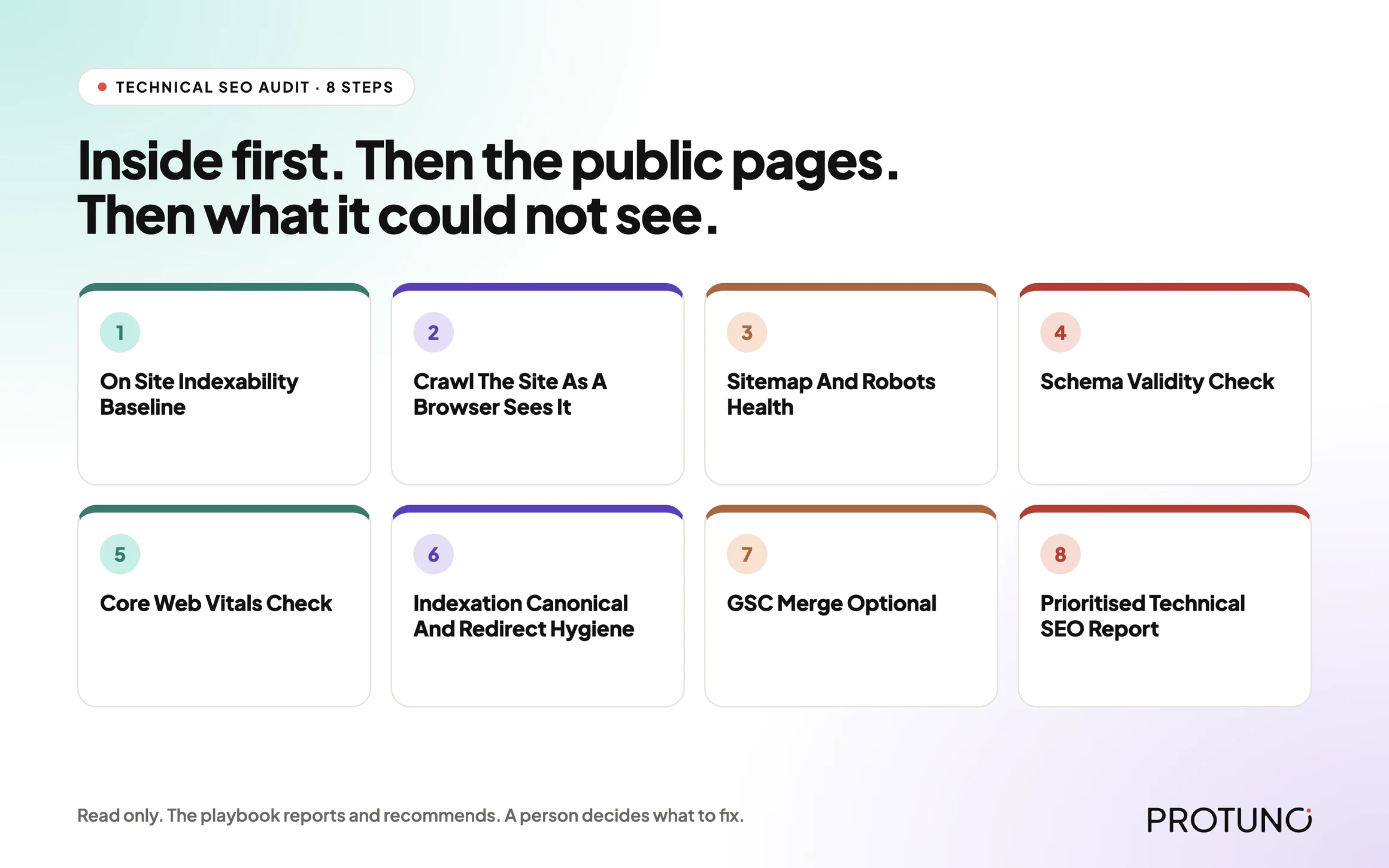
    Short answer: a technical SEO audit is a fixed list of questions about whether a site can be found, read and trusted by a search engine. The useful ones start from inside WordPress, where the indexing switch lives, then check the public pages, then say plainly what they could not see. Protuno’s Technical SEO Audit is an eight-step, read-only playbook built in that order.

    What this post is, and is not: it is a practical walk through how one audit is put together and how to run a small version by hand today. It is not a promise that a clean audit will rank anything. Technical SEO removes reasons not to rank. It does not supply a reason to.

    Technical SEO audit pipeline: eight read-only steps from the on-site baseline to a prioritised report
    Eight read-only steps, from the indexing baseline to the report.

    An audit tool tells you what it found. A good audit also tells you what it could not look at.

    Why A Crawl Alone Is Not An Audit

    Most technical SEO audits begin with a crawler. Point it at the homepage, let it follow links, collect status codes, titles and canonicals, then sort the list.

    That is a useful view. It is also a view from the outside, and the outside has three blind spots.

    The first is configuration. A crawler can see a noindex tag on a page, but it cannot read the WordPress option that tells search engines to stay away from the whole site. We wrote about what that setting does and does not change in the robots.txt myth post, where Disallow and noindex turn out to be two different instructions.

    The second is reach. A crawler follows links. A page nothing links to never appears in the crawl, which is why orphan pages need a different source of truth.

    The third is honesty about coverage. A crawl that quietly stops at its page limit, or gets an interstitial page instead of the real site, produces a clean-looking report built on partial data.

    None of this makes crawling wrong. It makes crawling one step in a sequence, not the whole job. For what a crawl actually produces on a real site, see our crawl audit write-up.

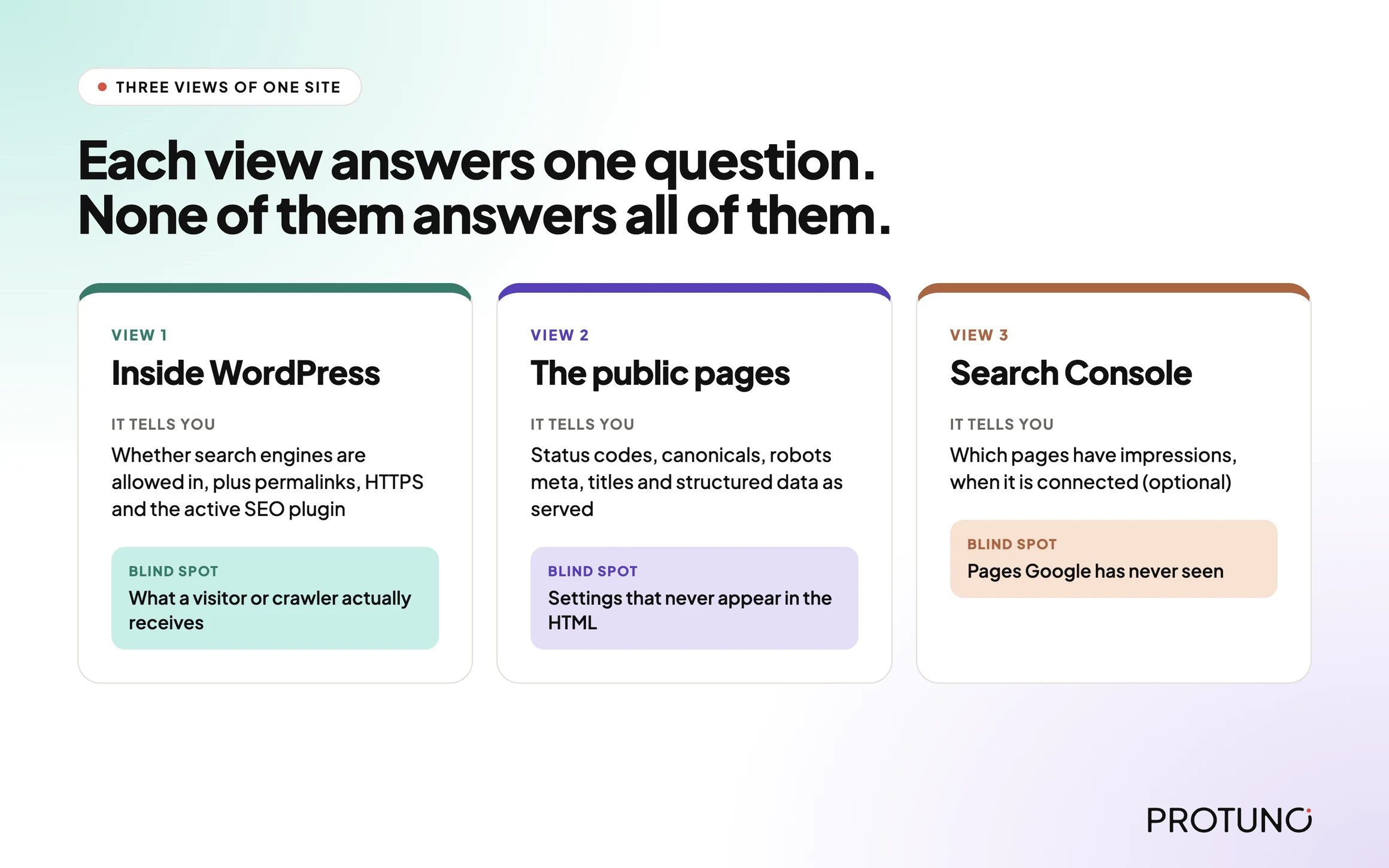
    Three Ways To Look At The Same Site

    A site can be examined from the inside, from the public pages, and from a search engine’s own records. Each answers a different question.

    ViewWhat it tells youWhat it cannot prove alone
    From inside WordPressWhether search engines are allowed in at all, the permalink structure, HTTPS, which SEO plugin is active, how many pages are publishedWhat a visitor or a crawler actually receives
    From the public pagesStatus codes, canonicals, robots meta, titles, descriptions, structured data as servedSettings that never show up in the HTML
    From Search ConsoleWhich pages have impressions and how Google treats themAnything about pages Google has never seen

    The third view is optional in Protuno’s playbook, and the playbook says so out loud. More on that below.

    Three views of one site: inside WordPress, the public pages, and Search Console, each with its blind spot
    Each view catches what the others cannot prove.

    A Small Test You Can Run Today

    You do not need a tool to check the highest-impact items. Pick one site and record these:

    • Is “Discourage search engines from indexing this site” switched on under Settings, Reading?
    • Does /robots.txt return 200, and does it contain a blanket Disallow: / for every user agent?
    • Does a sitemap exist at /sitemap.xml, /wp-sitemap.xml or /sitemap_index.xml?
    • Does the http:// version of the homepage redirect to https://?
    • Does your homepage declare a canonical that points to itself?
    • Does your latest post carry a robots meta tag with noindex?

    Three of those take one command each:

    curl -s https://example.com/robots.txt | head -20
    curl -sI http://example.com/ | head -5
    curl -s https://example.com/ | grep -i -E 'rel="canonical"|name="robots"'

    Write the answers down next to the date. Then do the same for four more sites. You now have the shape of a technical audit, and you will see why it needs a fixed order.

    The Playbook, Step By Step

    Technical SEO Audit is a Protuno SEO playbook. In the Protuno dashboard it is a Beta playbook handled by the SEO agent, Iris. It runs a fixed sequence of eight steps and only reads the site. It changes nothing. It is not on the public playbooks page yet, so treat it as a new playbook that is still being rolled out.

    #StepWhat it does
    1On Site Indexability BaselineReads the signals only the plugin can see: the search engine visibility option, permalink structure, HTTPS, which SEO plugin is active, whether core sitemaps are on, and how many posts and pages are published
    2Crawl The Site As A Browser Sees ItCrawls the public pages, bounded to about 50, and records status, canonical, robots meta, title and description length, and whether structured data is present
    3Sitemap And Robots HealthFetches robots.txt and looks for a sitemap at the usual addresses, checking it stays inside protocol limits
    4Schema Validity CheckScans for JSON-LD blocks and checks they parse and declare a context and a type
    5Core Web Vitals CheckAsks the public PageSpeed API for a lab estimate on the homepage, and reports unknown if it cannot
    6Indexation Canonical And Redirect HygieneFetches the homepage and the most recent posts and pages, comparing canonicals and robots meta, and tests whether plain HTTP redirects
    7GSC Merge OptionalAdds Search Console impressions if a source is connected, and skips cleanly if not
    8Prioritised Technical SEO ReportBuilds one ranked report with evidence, and lists any pillar it could not check

    Order matters here. Step 1 comes first because every later step depends on it, and the playbook treats a missing baseline as a broken chain, not as a pass. The crawl is step 2, not step 1, because a crawl with no baseline cannot tell a deliberate noindex from an accidental one.

    Step 1 In Detail: The Baseline Nobody Crawls

    The baseline reads the WordPress option that decides whether the whole site asks to be indexed. If that option says no, the playbook records a critical finding. A site asking Google not to index it is the most expensive technical problem you can have, and it is the least visible.

    It also flags a plain permalink structure (the ?p=123 style) and a site not served over HTTPS as high-severity findings. It notes the active SEO plugin and whether core sitemaps are enabled, because a site with neither has no sitemap source.

    Step 2 In Detail: A Crawl With Its Limits Stated

    The crawl is bounded to roughly fifty pages. If the crawl engine hits an interstitial page, such as a tunnel warning, the playbook discards that page rather than treating it as the site. If every page is an interstitial, it falls back to fetching pages from the server itself.

    The playbook also names a gap that most audits skip: signals injected by JavaScript can be invisible to a server-rendered read. That is stated as a coverage gap in the report, not hidden.

    Steps 3 To 6: One Pillar Each

    Robots and sitemap come from the site fetching itself, so nothing in front of the site can interfere. A robots file that blocks everything for all user agents is a critical finding. One that cannot be reached is a low finding, because an unreachable file does not prove there is none.

    Schema is checked structurally: does it parse, and does it declare a context and a type? The playbook says that is not full validation and points to Google’s Rich Results Test for the authoritative answer. It never claims rich-result eligibility.

    Core Web Vitals are lab estimates against the usual thresholds: LCP at 2.5 seconds, INP at 200 milliseconds, CLS at 0.1. INP is a field metric with no lab equivalent, so the playbook reports Total Blocking Time as a proxy and labels it as one. If the PageSpeed call fails, the pillar says unknown with the reason.

    Indexation hygiene looks at a small sample, the homepage plus the most recent posts and pages, and compares each page’s canonical to its own address. It flags a missing canonical, a canonical pointing elsewhere, unexpected noindex, and an HTTP version that does not redirect.

    Technical SEO Audit: eight read-only steps.

    What A Technical SEO Audit Does Not Solve

    A technical audit is narrow on purpose. It does not tell you:

    • Whether the content is any good, or whether anyone wants it.
    • Whether other sites link to you.
    • Whether a clean report will lead to rankings. It will not guarantee that.
    • What real visitors experience. Lab estimates are not field data.
    • Which fixes are safe to make. The playbook recommends, a person decides.

    Protuno’s own report footer says the same: technical audit only, no content quality or backlink judgment.

    Questions To Ask Your Current Audit Tool

    • Does it read the WordPress indexing option, or only what is in the HTML?
    • What is its page limit, and does the report say when the limit was hit?
    • What does it do when the site returns an interstitial page instead of content?
    • Does it separate “clean” from “could not check”?
    • Are Core Web Vitals labelled lab or field?
    • Does every finding come with the URLs it affects and the evidence behind it?

    If a tool cannot answer the fourth question, treat every green tick with suspicion. A false zero issues is worse than an honest “could not check”.

    Which Check Are You Actually Running?

    If you need to knowEvidence that answers itNext action
    Is the site allowed to be indexed?The visibility option, robots.txt, meta robots on key pagesFix the setting first, before anything else
    Can a search engine find the pages?Sitemap present and in limits, internal linksRepair the sitemap, see the sitemap audit post
    Are the pages consistent?Canonicals and redirects on a sampleCorrect the canonical or flatten the redirect
    Does the markup parse?JSON-LD scan, then Rich Results TestFix the invalid block
    Is it fast enough?Lab estimate, then field dataTreat the lab number as a pointer, not a verdict
    Which pages deserve effort first?Search Console impressionsConnect Search Console or accept severity-only ordering

    Fixing Findings In The Right Order

    The playbook ranks findings by severity, and by traffic too when Search Console is connected. That is a sensible default for a manual audit as well.

    PriorityExamplesWhy this order
    CriticalSite-wide noindex, robots blocking everythingNothing else matters while the site asks to be ignored
    HighPlain permalinks, no HTTPS, unexpected noindex on a pageThese change what can rank
    MediumMissing sitemap, canonical mismatch, redirect chain, HTTP not redirectingThese dilute signals
    LowUnreachable robots.txt, high Total Blocking TimeThese need a second look before action

    Two practical rules apply to every fix. Take a restore point before changing a setting or a redirect rule. Re-run the same check after the change, so you know the fix did what you intended and nothing else.

    A Five-Site Audit You Can Do This Week

    Pick five sites you look after. For each, record the visibility setting, robots.txt status, sitemap address, canonical on the homepage, and whether HTTP redirects to HTTPS.

    Then decide, for each finding, one of these:

    • Fix now, because it is critical or high.
    • Test first, because the change could affect live traffic.
    • Replace, because the plugin producing it is the problem.
    • Remove, because the setting or file is no longer needed.
    • Accept, with an owner and a date.
    • Investigate, because the evidence is incomplete.

    “Investigate” is a legitimate answer. It is better than guessing. If you want the longer version of the crawl side, the broken link audit post covers why a 404 is only the easy half.

    Why Optional Does Not Mean Unimportant

    Step 7, the Search Console merge, is labelled optional in the playbook. If no source is connected, it skips and the report says findings are ranked by severity alone, not severity times traffic. It does not invent impressions.

    That honesty matters. A page with a medium finding and ten thousand impressions deserves attention before a page with a high finding and none. Without the traffic data you cannot tell them apart, and the report says so.

    Speed is a related case. If a slow response is part of what worries you, the TTFB explainer covers why the usual number is easy to misread.

    Where Protuno Fits

    In the Protuno dashboard, the SEO agent, Iris, covers this work. The Technical SEO Audit playbook is read-only. It reports, a human decides what to fix, and the report hands the top pages on to a separate per-page playbook, the AI SEO Optimiser, for the fix layer.

    If you want to see how a Protuno playbook is laid out before running anything, the SEO agent page shows what is built and what is still in build.

    The Point

    An audit is a list of questions asked in a sensible order, with an honest note on the ones it could not answer.

    Start with whether the site is allowed in. Then check what a visitor and a crawler receive. Then say what you could not see.

    Which of your sites would you trust to pass question one today?

  • WordPress Open Graph Tags Are A Client-Facing Check

    WordPress Open Graph Tags Are A Client-Facing Check

    Short answer: wordpress open graph tags decide what appears when somebody shares a page in Slack, LinkedIn, WhatsApp or anywhere else. When they break, nothing on the site errors, nothing in the dashboard complains, and the first person to notice is your client posting their own campaign page.

    That last part is why I treat this as a client-facing check rather than an SEO nicety.

    What good looks like

    Table of Open Graph tags across sitea.example, siteb.example, woocommerce.com and wordpress.org. All four have og:title, og:description and og:image. Dimensions are 1200x630, 1200x628 and 2400x1260 respectively, with wordpress.org not declaring them. Two declare og:image:alt
    All four get the basics right. The interesting column is dimensions: 1200×630 and

    2400×1260 are both the 1.91:1 ratio the major platforms crop to.*

    Tagsitea.examplesiteb.examplewoocommerce.comwordpress.org
    og:titleyesyesyesyes
    og:descriptionyesyesyesyes
    og:imageyesyesyesyes
    og:image dimensions1200×6301200×6282400×1260not declared
    og:image:altyesyesnono
    twitter:cardsummary_large_imagenot declaredsummary_large_imagesummary_large_image

    Caveat: four sites, ours and three reference points. Not a claim about typical adoption, a calibration of what “good” looks like on sites we could verify directly.

    Declaring og:image:width and og:image:height is the small win most sites skip. It lets a platform reserve the right space before the image downloads, which is why some previews render cleanly and others jump.

    The six ways it breaks

    Table of six Open Graph failure modes: a relative og:image URL, an image behind login or a firewall rule, an image under 200 pixels, a wrong aspect ratio, two plugins both emitting og:title, and the platform caching an old preview. None are visible on the site itself
    None of these produce an error anywhere. The last row catches everybody: platforms cache

    the preview for a URL, so a correct fix appears to do nothing until you force a re-scrape.*

    FailureVisible on site?What the visitor sees
    og:image is a relative URLnono image at all, platforms require an absolute URL
    og:image behind login or a firewall rulenoblank preview, the crawler is not a logged-in browser
    image under ~200px on a sidenosmall thumbnail instead of a large card
    wrong aspect rationoheads cropped out, text cut in half
    two plugins both emit og:titlenoplatforms pick one, not always yours
    preview cached by the platformnoyour fix does not appear until the cache clears

    The duplicate-tag case is the most common one I find on WordPress specifically. An SEO plugin emits og:title, then a theme or a social plugin emits another. Platforms pick one, not always yours, and the site looks completely fine.

    Check for duplicates explicitly:

    curl -s https://example.com/ | grep -oiE 'property="og:title"' | wc -l

    Anything other than 1 is a finding, and it is worth running against your own template library specifically, since duplicates almost always trace back to two plugins both left active from an old migration rather than anything a single developer would knowingly ship.

    Checking WordPress Open Graph tags properly

    Terminal commands extracting every og and twitter meta tag from a page, then following the og:image URL to confirm it returns 200 with a real content-length
    The second command is the one worth running. A perfectly formed tag pointing at a 404,

    or at an image behind a rule that blocks unknown user agents, produces a blank preview and no error on the site.*

    That firewall case is worth calling out. Social crawlers are not browsers and do not carry a normal user agent. A security rule that blocks unrecognised agents will block the preview crawler too, and the page will look perfect to you and blank to everybody sharing it.

    The failure mode nobody lists, because it only exists for a few minutes

    While writing this post I found a seventh failure that belongs next to the six above, and it is specific to a site architecture more agencies are shipping now: a headless frontend that renders pages on demand and caches the result, exactly the kind the crawl audit post warned catches you out mid-crawl.

    I published a post to protuno.com and checked its Open Graph tags within minutes:

    curl -s -o /dev/null -w '%{http_code}n' https://protuno.com/blog/wordpress-sitemap-audit
    curl -s https://protuno.com/blog/wordpress-sitemap-audit | grep -oE 'property="og:title"[^>]*'
    404
    <meta property="og:title" content="Protuno · Super Agents For WordPress Automation"/>

    The page had not finished its first render, so the frontend answered 404, and a 404 still carries a full, valid set of Open Graph tags: the site’s tags, not the post’s. Title, description and image all point at the homepage. None of that is a bug in the ordinary sense. It is the site’s fallback behaving correctly for a page that does not exist yet from the frontend’s point of view, even though the content is live in the CMS.

    The consequence is narrow but real: share that URL in the first few minutes after publishing, before the frontend has rendered and cached it, and the preview card shows your homepage’s title and image instead of the post’s. Miss that window and the exact same link, pasted a few minutes later, produces the correct preview. I confirmed it by checking the same URL again a few minutes after the first request and watching the response settle.

    CheckResult
    Request within minutes of publish404, homepage Open Graph tags served
    Same URL, checked again later200, post-specific tags served

    The practical rule this adds to the checklist above: on a headless or ISR-backed WordPress frontend, do not share the URL the moment you hit publish. Wait for the page to return 200 first, exactly the same wait the crawl-audit post recommends before trusting a fresh URL’s status code at all, and the two checks are worth running together since they are testing the same underlying render-and-cache gap from two different angles.

    Verifying the pixels, not just the declared numbers

    og:image:width and og:image:height are declarations. Nothing forces the number in the tag to match the file it points at, so I downloaded the image and checked.

    curl -s -o og.png https://protuno.com/og.png
    file og.png
    og.png: PNG image data, 1200 x 630, 8-bit/color RGB, non-interlaced

    Declared 1200 by 630, actual file 1200 by 630, 72KB on disk. That is not a given. A resized template, an image swapped out without updating the meta tags, or a CDN that serves a different crop at the same URL would all produce a mismatch here while the tag itself still validates as well-formed markup. The file command, or identify from ImageMagick if it is installed, takes the same few seconds as any of the other checks in this post and catches a class of error none of them do: the tag was telling the truth about a file that no longer matches it.

    Twitter reads its own tags first, and falls back quietly when they are missing

    Everything so far has been Open Graph, the og: prefix Facebook originated and most platforms now read. X, still branded twitter: in its own meta tag namespace, is not required to use those tags at all. It defines a parallel set, twitter:card, twitter:title, twitter:description, twitter:image, and reads those first when they exist.

    curl -s https://protuno.com/blog/wordpress-robots-txt-blocking | grep -oE '<meta[^>]*name="twitter:[^"]*"[^>]*>'
    <meta name="twitter:card" content="summary_large_image"/>
    <meta name="twitter:title" content="Discourage Search Engines WordPress: What It Really Does"/>
    <meta name="twitter:description" content="Discourage search engines does not add Disallow slash to robots.txt..."/>
    <meta name="twitter:image" content="https://protuno.com/blog/media/2026/09/wordpress-robots-txt-blocking-2.png"/>

    Ours declares all four explicitly, which is the safer of two valid approaches. The card falls back to the matching og: tag for anything left undeclared, twitter:title to og:title, twitter:image to og:image, and the specification documents that fallback as intentional rather than an error state. A site that only ships Open Graph tags and no twitter: block at all is not necessarily broken on X. It is trusting a fallback path instead of testing it.

    The distinction is worth a minute of checking rather than assuming, because the fallback applies per field, not as an all-or-nothing switch. A site that declares og:title and og:image but a bare twitter:card with no twitter:image, a pattern I have seen on WordPress installs where a theme hardcodes the card type and a separate SEO plugin handles everything else, still gets a working preview through the fallback. The one worth actually watching for is a mismatched image ratio between the two: og:image sized for the 1.91:1 ratio most link previews use, alongside an explicit twitter:image pointing at something square or portrait left over from an older template, produces a preview that looks fine on LinkedIn and cropped strangely on X, because the platform found its own tag and used it instead of falling back to the one you actually tested.

    Testing the firewall case directly, rather than trusting it is fine

    The six-failure table earlier names a WAF or security rule blocking preview crawlers as a cause, without proof it applies to any site in particular. Proof is one curl flag away, so I ran it against our own site instead of leaving it as a theoretical risk.

    for ua in "facebookexternalhit/1.1" "LinkedInBot/1.0" "Twitterbot/1.0" "Slackbot-LinkExpanding 1.0"; do
      curl -s -o /dev/null -w "%{http_code}  $uan" -A "$ua" https://protuno.com/blog/wordpress-robots-txt-blocking
    done
    User agent claimedResponse
    facebookexternalhit/1.1200
    LinkedInBot/1.0200
    Twitterbot/1.0200
    Slackbot-LinkExpanding 1.0200
    ordinary browser UA, for comparison200

    All four pass cleanly on protuno.com today. That is not a universal result, it is one site’s answer to a question worth asking about every site you manage, particularly one sitting behind Cloudflare, a WAF appliance, or a security plugin with bot-blocking turned on. Those tools often ship a default rule list that treats any user agent it does not recognise as suspicious, and a preview crawler identifying itself honestly as LinkedInBot rather than pretending to be a browser is exactly the kind of request a strict allowlist can catch by accident.

    Run the same four-line loop against a client site the next time a preview reports blank with no other explanation. If any of those four come back anything other than 200, or redirect to a challenge page, you have found the cause in under a minute, and it is a firewall misconfiguration rather than anything wrong with the Open Graph tags themselves. Checking the tags first and the firewall second, when the actual fault is the firewall, is how this specific failure ends up burning an afternoon that four curl commands would have closed immediately.

    Where it fits

    This belongs in the pre-launch pass and in the check after any migration, because both are where header and tag configuration quietly gets lost.

    It also pairs with the indexing signals, since a page that tells search engines not to index it usually has an equally accidental story behind its social tags. Both are set once, forgotten, and invisible from the site itself.

    And confirm the image is a sensible size while you are there. An og:image that happens to be a 794 KB PNG is downloaded by every platform that renders the preview.

    Protuno’s free audit checks Open Graph tags from the domain alone, alongside the other things a crawler reads. Iris is live now.

    Take the last campaign page a client asked you to build and paste it into a Slack message to yourself. That is the complete test, and it takes five seconds.

    If it comes back blank or wrong, work the list in order: check the tags exist and are not duplicated, check the image resolves and matches its declared dimensions, check a preview crawler’s own user agent is not the thing being blocked, and only then blame the platform’s cache. Four checks, all of them a single curl command, and every one of them was tested on a real site while writing this post rather than described from memory.

  • WordPress Sitemap Not Updating: Published, Valid, And Quietly Wrong

    WordPress Sitemap Not Updating: Published, Valid, And Quietly Wrong

    Short answer: a wordpress sitemap not updating still returns 200 and still validates. The check is not whether it exists, it is whether its newest lastmod is more recent than your last publish, and whether the URLs inside it actually resolve.

    What a healthy one looks like

    Terminal output listing seven URLs from protuno.com/sitemap-blog.xml, all published blog posts, with the newest lastmod in the index dated today
    Read hours after publishing. Every published post is present, and the newest lastmod

    is today rather than a date months in the past.*

    That comparison is the entire health check. Newest lastmod against your most recent publish date. If the sitemap is older, something between WordPress and the served file has stopped.

    Why a WordPress sitemap stops updating

    Table of five ways a sitemap goes stale while remaining valid: cached by a CDN, generation running on a stopped WP-Cron, two conflicting sitemaps from core and an SEO plugin, lastmod set to build time rather than edit time, and noindexed or redirecting URLs listed inside
    Every one of these leaves a well-formed sitemap returning 200. The XML is not the

    problem; what it says is.*

    FailureStill valid XML?Effect
    cached by a page cache or CDNyesnew posts never appear, the XML is a month old and looks perfect
    generation runs on WP-Cron, which stoppedyesfrozen at whatever date the scheduler died
    two sitemaps published, core and a pluginyesboth answer, disagreeing
    lastmod set to build time, not edit timeyesevery URL claims to have changed today, meaningless
    contains noindexed or redirecting URLsyescrawling pages you told search engines to ignore

    The second row is the one I hit most often. Plenty of SEO plugins regenerate their sitemap on a scheduled event, so a site whose WP-Cron has stopped has a sitemap frozen at whatever date the scheduler died. The site publishes normally. The sitemap simply stops changing, and nothing anywhere reports it.

    The third row is worth a specific check on any site with an SEO plugin installed. Core publishes /wp-sitemap.xml and most SEO plugins publish their own index. If both answer with different contents, you are sending search engines two contradictory maps.

    The audit

    Three shell commands: checking which sitemap paths answer and whether more than one does, extracting the newest lastmod, and requesting every listed URL to find any that do not return 200
    Command three is the one that finds real problems. Anything it prints is a URL you are

    actively asking search engines to crawl that does not return 200.*

    Two things worth knowing about lastmod.

    It should reflect when the content changed, not when the file was generated. Some setups stamp every entry with the build time, which makes every URL claim to have changed today and destroys the signal’s usefulness entirely.

    And it is a hint, not an instruction. A correct lastmod helps a crawler prioritise; it does not compel anything. Sites that game it by touching every date achieve nothing except making their own diagnostics useless.

    What should not be in it

    A sitemap is a list of pages you want indexed. So it should not contain:

    • URLs carrying a noindex, which is a direct contradiction and the same confusion behind

    the discourage-search-engines setting

    • Redirecting URLs, which waste crawl budget pointing at their own replacements
    • Paginated archives and tag pages nobody intends to rank
    • Anything disallowed in robots.txt, since a crawler cannot fetch it to read the sitemap’s advice

    That last combination appears constantly on WordPress sites and is entirely self-inflicted.

    The noindex row is not a hypothetical example picked for tidiness. It is the exact finding further down this post, caught on our own infrastructure rather than borrowed from somebody else’s audit: a sitemap that lists pages correctly marked not to be indexed, generated by a plugin doing exactly what it was configured to do, on a domain the sitemap check itself was never pointed at until writing this section made it worth checking.

    I checked our own sitemap against the actual publishes of today

    The freshness check earlier in this post is easy to state and easy to skip verifying, so I ran it against protuno.com’s own sitemap while several posts were being published today, rather than trust that the comparison works the way I described it.

    curl -s https://protuno.com/sitemap-blog.xml | grep -o "<loc>[^<]*</loc>\|<lastmod>[^<]*</lastmod>"
    URLlastmod
    /blog/wordpress-robots-txt-blocking2026-09-11T16:06:47Z
    /blog/wordpress-crawl-audit2026-09-11T16:01:06Z
    /blog/wordpress-page-cache-header2026-09-11T15:57:05Z
    /blog/wordpress-ttfb-explained2026-09-11T15:53:24Z
    /blog/wp-config-exposed-check2026-09-11T15:50:52Z
    /blog/wordpress-removed-plugin-risk2026-09-11T15:44:39Z
    /blog/introducing-protuno (untouched today)2026-09-01T11:17:38Z

    Six posts republished within roughly twenty-two minutes of each other show six distinct lastmod timestamps, each within a minute or two of the actual edit, while a post nobody touched sits at a date ten days old. That is what a sitemap doing its job looks like: the timestamp tracks the edit, not the last time someone regenerated the file wholesale, and a stale entry stands out immediately next to fresh ones instead of blending in with a site-wide regeneration date that moves for every URL at once.

    That last distinction is worth being specific about, because it is the difference between a useful lastmod and the meaningless kind described earlier in this post. If every URL in a sitemap shared the same timestamp, down to the second, that would be a signal the file was regenerated on a schedule rather than updated per edit, and it would tell a crawler nothing about which pages actually changed. Six different timestamps, each matching a real edit, is the opposite of that failure mode, confirmed on the file this post itself just caused to update.

    The noindexed pages sitting in our own sitemap

    The earlier section on what should not be in a sitemap names noindexed URLs first. I went looking for one on our own infrastructure rather than assume the rule only applies to other people’s sites, and found one within a few requests.

    Protuno’s frontend at protuno.com is headless, served by Next.js, with its own sitemap system entirely separate from WordPress. The WordPress install behind it, at cms.protuno.com, is a second, independent web server, and it runs Rank Math, which generates its own sitemap the moment the plugin is active, whether or not anyone intends the CMS domain itself to be crawled:

    curl -s https://cms.protuno.com/robots.txt
    # Sitemap: https://cms.protuno.com/sitemap_index.xml
    
    curl -s https://cms.protuno.com/sitemap_index.xml

    That index lists a post-sitemap.xml containing 23 URLs, all on the cms.protuno.com domain rather than protuno.com, one per published post, plus the CMS homepage. I requested one of them directly:

    CheckResult
    GET https://cms.protuno.com/wordpress-robots-txt-blocking/200
    on that pagenoindex, nofollow
    pointing back to protuno.comabsent
    Is /sitemap_index.xml itself disallowed in robots.txt?no

    Every individual page correctly declares noindex, nofollow, which is right: the CMS domain is infrastructure, not a page meant to rank, and the actual public copy lives at protuno.com/blog/.... But the sitemap listing those same URLs is not blocked, is not marked in any way as a duplicate, and carries no canonical tag pointing a crawler at the real, indexable version. It is, byte for byte, the exact contradiction named earlier in this post: a sitemap advertising URLs that explicitly ask not to be indexed, on a domain search engines can reach freely because nothing in robots.txt stops them from requesting the sitemap file itself.

    The practical risk is narrower than it sounds, because noindex is respected on every one of those 23 pages individually, so none of them should actually enter a search index. What the finding shows is not “our content is at risk of appearing twice.” It is that a plugin turned on for one purpose, in this case Rank Math handling on-page SEO fields for the editorial team, ships a sitemap generator nobody asked for as a side effect, and that side effect produces the exact anti-pattern this post has been describing the whole way through, on infrastructure I did not think to check until writing this section. A Disallow on /sitemap_index.xml and /*-sitemap.xml in cms.protuno.com‘s robots.txt, or turning the sitemap module off entirely since the CMS domain is not the canonical source for anything, closes it. Neither has happened yet, so this is a finding, not a fix, exactly in the spirit of the still-open items in the crawl audit post.

    The check worth taking away, if a site of yours runs a similar headless setup: the sitemap to audit is not only the one your visitors’ browsers ever see. Any WordPress SEO plugin running on a backend that a frontend has replaced is still generating its own sitemap unless someone has explicitly told it to stop, and that sitemap answers requests on its own domain whether or not anyone remembers it exists.

    The sitemap file itself can be cached, on top of everything above

    One more layer worth checking, because it interacts with the freshness comparison rather than replacing it: the sitemap XML file is itself a URL, and a URL can sit behind a CDN like any other page.

    curl -sI https://protuno.com/sitemap-blog.xml | grep -iE "cache-control|cf-cache-status"
    cache-control: public, max-age=0, s-maxage=3600, stale-while-revalidate=86400
    cf-cache-status: DYNAMIC

    The header declares up to an hour of edge caching, s-maxage=3600. DYNAMIC on this particular request means Cloudflare answered from the origin rather than a cached copy, which is why the lastmod values in the earlier table lined up with the actual edit times to within a minute or two rather than lagging by up to an hour. Had that request come back HIT instead, the freshness comparison earlier in this post would still run and still look sensible, just against whatever snapshot of the file the edge happened to be holding, which could be anywhere up to an hour stale relative to the newest publish.

    This is the same gap the page cache header post describes for ordinary pages, applied to one specific URL that happens to be your sitemap rather than a landing page: a passing signal on its own, 200 and well-formed XML, sitting on top of a caching layer that can silently be serving something older than what WordPress or your frontend actually generated most recently. Checking cf-cache-status or the equivalent header on the sitemap URL itself, alongside the lastmod comparison, is the difference between trusting a number and trusting a number you have confirmed was not served from an hour-old edge copy.

    Where it fits

    Sitemaps are a low-effort, low-drama check that fails silently and gets audited once at launch. The failure is invisible because the file is still there and still valid, which is the same category as a caching plugin that caches nothing.

    Protuno’s free audit checks whether a sitemap is published and reachable from the domain alone, alongside robots.txt and the other crawl signals. Iris is live now.

    Run command two on the client site that publishes most often. If the newest lastmod is older than their last post, you have found something worth an hour.

    Then run the same three commands against whatever sits behind the site you can see, if there is one: a headless backend, a staging copy, a subdomain nobody remembers is still live. The finding earlier in this post did not turn up on the domain anyone actually visits. It turned up on the one nobody thought to check.

    Reading the report that the checks in this post feed into

    How to read the Indexing Report

    A sitemap that is fresh and correct is only useful once Google actually indexes what it points to. This walks through the Search Console report that tells you whether that happened.

  • WordPress Broken Link Checker: Why A 404 Is The Easy Half

    WordPress Broken Link Checker: Why A 404 Is The Easy Half

    Short answer: a wordpress broken link checker that only looks for 404s finds the least interesting failure. Soft 404s return 200, redirect chains return 200, and a page whose entire content has since changed still returns 200. All three break the reader’s experience and none of them appear in a status-code report.

    Starting with our own work

    Before ever auditing anybody else’s site I checked mine first, carefully.

    Table showing 17 distinct external URLs checked across three published posts, all returning 200, spanning patchstack.com, wordpress.org, php.net, theadminbar.com, make.wordpress.org, github.com and sitea.example, with zero broken
    A clean result, reported as such. The value of the check is not that it finds something

    every time. It is that a citation which quietly 404s makes every other claim on the page harder to believe.*

    That matters more on a blog like this one than on a brochure site. Every post here leans on primary sources, and a dead citation is a claim the reader cannot verify.

    Extending the check to every citation across this blog, not just three posts

    The original check covered three posts and seventeen links. I extended it while expanding this post, pulling every genuine external citation from every post published so far, not the placeholder example.com URLs used inside code samples, and checking each one the same way: status, redirect count, and byte size together.

    grep -ohE "https?://[a-zA-Z0-9./_?=#-]+" posts/*.md | grep -v "protuno.com|example.com"
    for url in $(cat citations.txt); do
      curl -s -o /dev/null -w '%{http_code} redirects:%{num_redirects} size:%{size_download}n' -L "$url"
    done

    Twelve genuine citations across a different, later set of posts than the original check: Action Scheduler’s own admin and FAQ pages, two developer.wordpress.org cron references, the Content Signals and llms.txt specification pages, a WordPress core AI-team page, the Patchstack whitepaper this blog cites for its removed-plugin statistic, a survey page, a WordPress.tv talk, PHP’s own supported-versions page, and one YouTube video. All twelve returned 200, zero redirect hops, plausible byte sizes matching real content rather than a small styled error page.

    Combined with the original seventeen, that is twenty-nine real citations checked across this blog’s own published output, all clean. Worth stating precisely what that does and does not prove: it is not evidence that link rot is rare in general, twenty-nine links checked days to weeks after publication is far too soon for the kind of drift this post describes to have had time to happen. It is evidence that the citation discipline this blog has tried to hold itself to, quoting the specific claim relied on rather than a bare link, linking to stable specification and documentation pages rather than a blog post likely to be rewritten, has not yet produced a single broken reference. Whether that holds up in a year is exactly the kind of thing worth re-checking again, on a schedule, rather than assuming from a clean result today.

    The three failures a 404 check misses

    Table of four link problems. A hard 404 or 410 is caught by every checker. A soft 404 returns 200 with an error page. A redirect chain returns 200 after several hops. Content that changed entirely returns 200 and no tool detects it
    The soft 404 is the one that undermines automated link checking. A styled “page not

    found” served with a success status is invisible to a status-code check.*

    ProblemStatus returnedWhy it matters
    hard 404 or 410404 / 410the obvious one, every checker finds these
    soft 404200a styled “page not found” served with success
    redirect chain200 after N hopseach hop costs time and dilutes the link
    content changed entirely200resolves and now says something else, no tool detects it

    I hit a live example of the soft 404 while researching a different post. Checking several sites for an llms.txt file, four returned 200 with bodies of 399 KB, 146 KB and similar. Those were not files. They were the sites’ normal HTML error pages, served with a success status.

    The lesson generalises: read the status, the size and the content type together. Any one of them alone will tell you something confidently wrong.

    The fourth row deserves honesty too. No tool can tell you that a URL you cited two years ago now points at a rewritten page saying something different. That is a human job, and the practical mitigation is to quote the specific sentence you relied on, so a reader can tell whether the source still says it.

    The soft-404 example in this post no longer reproduces, and that is worth saying

    This post’s own soft-404 illustration comes from checking several sites for an llms.txt file and finding styled HTML error pages served with 200. I re-ran that specific check against the same category of site while expanding this post, and it no longer reproduces the same way.

    curl -s -D - -o /dev/null https://siteb.example/llms.txt | grep -i content-type
    curl -s -D - -o /dev/null https://sitec.example/llms.txt | grep -i content-type
    curl -sI https://woocommerce.com/llms.txt | grep -i location
    content-type: text/plain; charset=utf-8      (siteb.example, 120,105 bytes)
    content-type: text/plain; charset=utf-8      (sitec.example, 212,742 bytes)
    location: https://woocommerce.com/wp-content/uploads/llms.txt   (301, then a real 10,148-byte file)

    All three sites now serve genuine text/plain content at that path, woocommerce.com via a correct 301 redirect to the actual file rather than a soft 200. Whatever produced the styled error pages this post originally caught, most likely the file simply not existing yet on sites that had not adopted the format when this post first checked, has been resolved, and llms.txt adoption itself has clearly moved forward in the meantime.

    That is a genuinely good outcome, and it belongs in this post for the same reason every other re-check on this blog reports both directions: a soft-404 example that quietly stopped being true would otherwise sit in a published post indefinitely, describing a problem that no longer exists as though it still does. The mechanism this post teaches, checking content-type and size alongside the status code, is exactly what caught both the original finding and its later resolution, which is the strongest argument this post can make for running the check again rather than trusting either a stale finding or a stale all-clear.

    Redirect chains

    Terminal command checking every external link on a page for status, redirect count and size together, filtering out clean results, with measured output showing our own http to https redirects completing in a single hop
    Filtering out the clean lines leaves only rows that need a human. On our own domains,

    http://protuno.com and http://www.protuno.com both reach the canonical HTTPS URL in a single hop, which is what you want.*

    One hop is correct and unavoidable: HTTP to HTTPS, or www to apex. Two or more means somebody added a rule without checking what already existed, usually during a migration.

    Chains are worth fixing not because they break anything but because each hop is a round trip the visitor waits through, and because the chain tends to grow. Three hops today becomes five after the next redesign.

    Running a WordPress broken link checker across a portfolio

    Internal links and external links are different jobs.

    Internal links are your responsibility and should never break, because you control both ends. A crawl finds them, and it is how I found a 404 linked from every page of our own site.

    External links rot on somebody else’s schedule. A quarterly pass is enough for most sites, and the highest-value target is your most-trafficked content rather than everything.

    Table of link types with recommended check frequency: internal links and navigation on every crawl, external links on money pages monthly, cited research quarterly, and archive content annually
    Checking everything on the same schedule is how link auditing gets abandoned. The last

    row is why the 404 on our own site mattered more than usual: it sat in the footer, so one broken link appeared on every page at once.*

    Link typeFrequencyReasoning
    internal links, site-wideevery crawlyou control both ends, any finding is real
    external links on money pagesmonthlyhighest traffic, highest cost when a reader hits a dead end
    external links in cited researchquarterlya dead citation undermines the argument
    external links in archive contentannuallyreal rot, low readership
    links in navigation and footersevery crawlappear on every page, one break is site-wide

    Two practical notes. Rate-limit the checker, or you will get blocked and record false failures on perfectly healthy sites. And send a real user agent, because plenty of hosts refuse unknown ones, which produces the same false result.

    That second point is worth taking seriously: a link checker that reports failures on sites that are actually fine is the same false-positive problem as an alt-text audit counting lazy-load placeholders. A report full of noise is a report nobody reads, and then the real finding arrives and is ignored with the rest.

    The one that costs money

    There is a category of broken link that deserves separate treatment, and it rarely appears in an SEO report because it is not on a page at all.

    Links inside transactional email. The order confirmation pointing at a tracking page that moved. The password reset URL built from a stale site address. The invoice link to a document store that was migrated. These break exactly like page links and nobody crawls them, because they live in templates rather than in HTML anybody visits.

    The check is manual and worth doing once per client: trigger each transactional email on a staging copy and click every link in it. On a store that is the order confirmation, the shipping notification and the password reset at minimum. It takes half an hour and it is the only way these are ever found, short of a customer reporting one.

    The same reasoning applies to anything a form sends after submission: the reply nobody reads is also the reply nobody has checked the links in.

    What to do about a broken link

    Fix, redirect, or remove, in that order of preference.

    If the target moved, update the link. If it is gone but the point still stands, find an equivalent source rather than deleting the sentence. If neither is possible, remove the link and keep the claim only if you can support it another way.

    What not to do is leave it. A broken link in an old post is a small thing; a page full of them tells a reader the content is unmaintained, which is a judgement about everything else on the site too.

    Protuno’s free audit checks the crawl-visible link health of a site from the domain alone. Iris is live now.

    One habit that removes most of this work permanently: link to canonical, stable URLs in the first place. A link to a documentation homepage outlives a link to a specific anchored heading on it. A link to a specification outlives a link to somebody’s summary of the specification. You cannot stop the web from changing, but you can choose the targets least likely to move.

    Run the loop above on your three most valuable pages. Not the whole site, just the three that earn money. That is twenty minutes and it covers the links that actually matter.

    Then run it again next quarter, on the same pages, and compare the result to this one rather than treating either a clean pass or a finding as the final word. Link rot and its opposite, a broken destination quietly getting fixed, both happen on somebody else’s schedule, and the only way to know which direction a given page has moved is to have checked it more than once.

    The same check, walked through end to end

    Broken Links on Your Site: How to Fix Them for Better SEO

    A recent, practical run-through of finding and fixing broken links, covering the same ground as the loop above from the SEO-impact side rather than the raw HTTP-status side.

  • Orphan Pages In SEO: The Ones Your Own Site Refuses To Link To

    Orphan Pages In SEO: The Ones Your Own Site Refuses To Link To

    Short answer: an orphan page exists on the site and has zero internal links pointing at it. Finding them for orphan pages seo work needs two separate sources, a page inventory and a crawl, because a crawl by definition cannot report a page it never reached.

    What the distribution actually looks like

    I crawled our own site and counted every single internal link pointing at every page.

    Table of inbound internal link counts on protuno.com. The homepage has 325, contact 48, login 40, blog 33 and the launch post 14, while a docs category page and the signup page have one each
    No orphans on this site, which is the good news. The rows worth attention are the two

    with a single inbound link.*

    URLInboundWhat that means
    /325linked from every header and footer
    /contact48footer link, every page
    /auth/login40header link, every page
    /blog33footer link
    /blog/introducing-protuno14blog index, categories, author page, other posts
    /docs/category/getting-started1reachable, but only just
    /auth/signup1one inbound link, for a commercially important page

    Caveat: one site, one crawl, one day. The distribution shape (a handful of huge numbers, a long tail near one) is a general pattern of site link graphs, not a claim about what your own numbers will be. Run the crawl on your own site rather than assume this one transfers.

    That kind of distribution is entirely normal and it is far more useful than a binary orphan check. Header and footer links produce genuinely enormous counts. Content pages sit somewhere in the middle. And a small tail of pages are reachable from exactly one place.

    A page with one inbound link is one navigation change away from being an orphan, and nothing will tell you when that happens. On our site, the signup page is in that tail, which is worth knowing given what it is for.

    Re-crawling turned up the exact trap this post warns about, from the crawl tool itself

    I ran a fresh crawl of protuno.com while expanding this post and asked the tool’s own orphan-detection feature for its summary before reading anything else. It reported 194 of 209 pages as orphans, every single page except fifteen.

    That is not a plausible number for a working site with real internal navigation, and reading the same crawl’s raw per-page data rather than trusting the summary confirmed why:

    pages = {p['url']: p for p in export['pages']}
    for u in ['/blog', '/contact', '/privacy', '/blog/llms-txt-wordpress']:
        print(u, len(pages[u]['linked_from']))
    Page the summary called an orphanReal inbound links, same crawl
    /blog17
    /contact6
    /privacy4
    /blog/llms-txt-wordpress2

    Every one of them has real, recorded inbound links sitting in the same crawl’s own raw data. The orphan-detection summary and the underlying link graph disagreed with each other inside a single crawl run, and the raw data was the one telling the truth, exactly the same failure this blog already documented on a different crawl of this same site months earlier. Finding it again, independently, on a fresh crawl ID, is stronger evidence than the original catch alone: this is not a one-off fluke in the tool’s summary logic, it is a repeatable characteristic of how it aggregates orphan status, and anyone using this tool’s own orphan report as the final word would be told, wrongly, that this site’s navigation is almost entirely broken.

    The only page in the flagged list that is a genuine orphan by the raw data is the homepage itself, linked_from: 0, which is the expected, harmless seed-URL convention: a crawl starting at a URL does not count arriving there as a followed link. Every other name on that 194-page list is a false positive, caught by doing exactly what this post’s own two-source method already argues for, not trusting a single automated summary as the final answer.

    What orphan pages actually cost, in SEO terms and otherwise

    Table of four consequences of an orphan page ranked by severity. A person cannot find it by browsing is high. The site not vouching for it and slower crawler discovery are medium. Never being indexed at all is low and frequently overstated
    Lead with the first row when explaining this to a client, because it is the one that is

    unambiguously true. The ranking arguments are real but softer, and overstating them is how SEO advice loses credibility.*

    ConsequenceSeverityDetail
    a person cannot find it by browsinghighthe real cost, no visitor can reach it without the direct URL
    your own site does not vouch for itmediuminternal links are how a site says which pages matter
    slower to be discovered by crawlersmediumbeing crawled is not the same as being valued
    never indexed at alllowrare in practice if the page is in the sitemap, often overstated

    I want to be careful here, because orphan pages get oversold. A page in your sitemap will usually be crawled and can rank perfectly well with no internal links at all.

    The honest problem is simpler and worse: somebody wrote that page, and no visitor browsing the site can reach it. That is a wasted asset regardless of what any search engine does.

    The single-link page named as fragile is still exactly that

    This post’s opening table flags /auth/signup specifically: one inbound link, for a commercially important page, one navigation change away from becoming an orphan outright. The fresh crawl’s raw data shows it sitting at exactly the same count, still one, unchanged since the original reading.

    That is worth taking as confirmation rather than a non-event. A page flagged as fragile that is still exactly as fragile months later means nobody has acted on the original finding, and it also means nothing has accidentally made it worse in the meantime, which is its own small piece of good news. /auth/login, the equivalent page in the signup flow, moved only slightly, 40 to 42 inbound links, essentially stable. /contact moved considerably more, from 48 down to 6, which is worth investigating rather than reading as decline on its face: a real drop that large usually traces to a specific structural change, a footer redesign, a navigation simplification, or a template that used to link to it from every post and no longer does, and finding out which is exactly the kind of question this post’s two-source method is built to answer rather than leave as a number that moved for unknown reasons.

    Finding them without fooling yourself

    Three-step method: extract the page inventory from the sitemap, crawl the site for linked pages, and diff the two lists, with a warning that crawling only from the homepage produces false orphans and crawling logged in hides real ones
    A crawl cannot tell you about a page it never found, which is exactly the population you

    are trying to measure. The inventory has to come from somewhere else.*

    Two mistakes make this check useless.

    Taking the inventory from the crawl. If you only know about pages the crawl reached, every orphan is invisible by construction. Use the sitemap, or a database export of published URLs.

    Crawling while logged in. Admin navigation, draft previews and role-specific menus all appear, so pages look linked when no visitor can see the link. Crawl with no cookies, as a stranger would.

    What to do with the list

    Not every orphan should be fixed. Three outcomes, and two of them are not “add a link”.

    Link to it, if the page still earns its place. From a relevant page in the same cluster, with an anchor that describes the destination rather than saying “click here”.

    Redirect it, if it has been superseded. An old service page that a newer one replaced should point at the replacement rather than sitting in the sitemap competing with it.

    Remove it, if it should not exist. Test pages, duplicate landing pages from an old campaign, a staging artefact that got published. Deleting these is a genuine improvement, and it is the outcome people resist because deleting feels like loss.

    Table of three outcomes for an orphan page: link to it from a relevant page with a descriptive anchor, redirect it to a replacement, or remove it deliberately, each with what to do to the sitemap afterwards
    Resist the instinct to solve the whole list by adding footer links. A link from every page

    is a signal of navigation, not of importance, and it buries the pages that genuinely deserve prominence.*

    OutcomeWhenAfterwards
    link to itstill earns its place, belongs to a clusterlink from a relevant page, descriptive anchor, never the footer
    redirect itsuperseded by a newer page301 to the replacement, remove the old URL from the sitemap
    remove ittest pages, old duplicates, staging artefacts410 or 404 deliberately, remove from the sitemap

    Whichever you choose, keep the sitemap honest afterwards. A redirected or deleted URL that stays in the sitemap is exactly the contradiction that makes a sitemap useless.

    The WordPress-specific sources

    Four things generate orphans on WordPress specifically, and knowing them shortens the investigation.

    Retired taxonomies. Delete a category and its posts survive, but the archive that linked them disappears. If those posts were only reachable through that archive, they are now orphaned.

    Page builder templates. A template that generated a listing or a loop can be replaced during a redesign, taking a whole set of internal links with it while every target page remains published.

    Attachment pages. WordPress creates a page per uploaded media item by default. They are almost never linked, almost never useful, and they can quietly form the largest group in an orphan report. Disabling them is usually the right call.

    Old campaign landing pages. Published outside the navigation on purpose, linked only from an ad that stopped running two years ago. Technically orphans, and often genuinely finished work that somebody should decide about.

    That last group is the reason to review an orphan list with the client rather than acting on it alone. Some of those pages exist deliberately.

    Why this drifts

    Orphans are almost always created by a change somewhere else. A navigation redesign drops a menu item. A category is retired. A plugin that generated a listing page is removed. In every case the page survives and its only route in does not.

    So this is not a one-time audit. It is a check to run after every navigation or template change, and it is the same class of quiet, structural drift as a link that starts 404ing on every page at once.

    Protuno’s free audit reads the sitemap and the crawl-visible structure of a site from the domain alone. Iris is live now.

    There is a related check worth running in the same pass, and it finds more on most sites than the orphan list does: pages with exactly one inbound link. They are not orphans today and they are the population that becomes orphaned next. Sorting the crawl output by inbound count ascending gives you both lists at once, and the second one is where you can act before there is a problem rather than after.

    Run the two-source diff on your largest client site. The list is usually short, and about half of it is content somebody forgot they had. That half is the return on the exercise: pages already written, already paid for, and one internal link away from being useful again.

    The content that survives but stops earning its place

    3 Ways to Solve Content Decay on Your Website (Quick and Easy)

    An orphan page has lost every internal link. Decayed content is the earlier stage of the same problem: still linked, still crawlable, quietly losing relevance while nobody notices until the traffic is already gone.