Category: Performance

  • Increase WordPress Memory Limit: 4 Safe Ways That Work

    Increase WordPress Memory Limit: 4 Safe Ways That Work

    You open your site and see a white screen or a line like this: “Fatal error: Allowed memory size of 268435456 bytes exhausted (tried to allocate 20480 bytes)”. That is PHP telling you a request used more memory than it was allowed to. This guide shows how to increase the WordPress memory limit, how to check that the change took effect, and what to do when raising it does not help.

    The number in the error is the limit in bytes. 268435456 bytes is 256 MB, 134217728 is 128 MB and 67108864 is 64 MB. Knowing which limit you hit tells you where to look first.

    What the Memory Limit Error Actually Means

    Every PHP request gets a fixed budget of memory. When WordPress, your theme and your plugins together need more than that budget, PHP stops the request and logs the fatal error. Visitors see a blank page or a critical error message. You may also see it only in the admin, only when saving a large page, or only during an import.

    The wording of the message matters. “Allowed memory size of X bytes exhausted” means the limit was reached. “tried to allocate Y bytes” is just the last small request that tipped it over, so it is rarely the real cause. The plugin or function named in the file path after the message is a better hint.

    The limit is set by your host first, and WordPress can only work inside it.

    WordPress Memory Limit vs PHP Memory Limit

    There are two settings, and people mix them up. The PHP memory_limit is a server setting in php.ini that caps every PHP script. The WordPress memory limit, WP_MEMORY_LIMIT, is a constant that asks PHP for a specific amount just for WordPress.

    The official wp-config.php documentation says WP_MEMORY_LIMIT lets you set the maximum memory PHP can use, and that it may be needed when you see the “Allowed memory size of xxxxxx bytes exhausted” message. It also says that by default WordPress tries to raise memory to 40 MB for a single site and 64 MB for multisite. Those are small numbers for a modern site with a page builder and WooCommerce.

    There is a second constant, WP_MAX_MEMORY_LIMIT, used in the admin area. Its default is 256 MB. Admin tasks such as image processing and updates can need more than front end pages, so WordPress allows a higher ceiling there.

    The key point is that WP_MEMORY_LIMIT cannot go above what the server allows. If the host caps PHP at 128 MB, setting WordPress to 512 MB changes nothing. That is why the first job is to find your real current limit.

    Check Your Current Memory Limit First

    Do not guess. Open Tools, then Site Health, then the Info tab, and expand the Server section. You will see the PHP memory limit and the WordPress memory limit side by side. If the two differ, the lower one usually wins in practice.
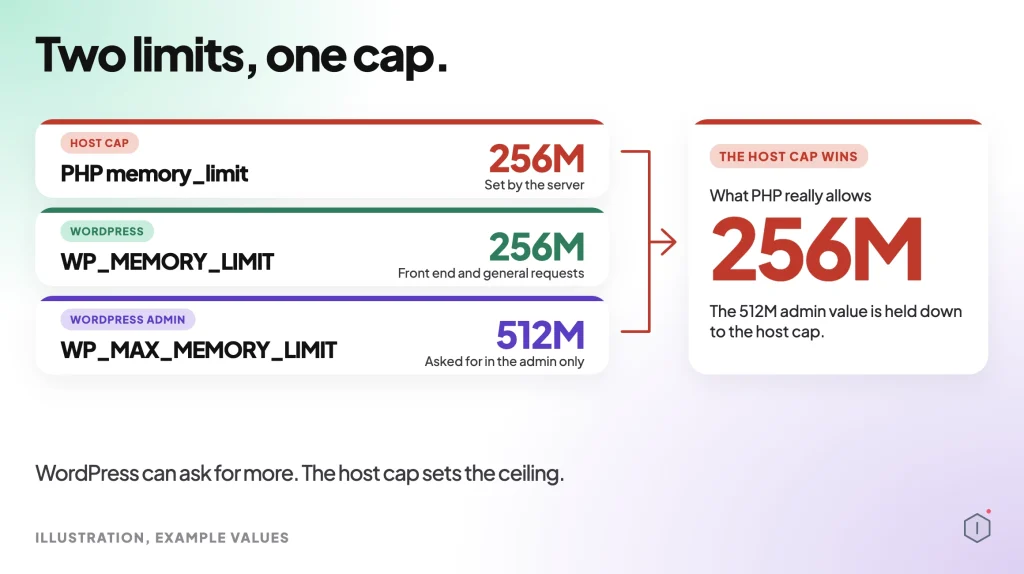
    Diagram showing the host PHP memory limit as the cap above WP_MEMORY_LIMIT and WP_MAX_MEMORY_LIMIT, example values

    You can also create a small file that prints the value with phpinfo(), then delete it straight away so it does not stay public. Your host dashboard often shows the same number under PHP settings.

    Look at the numbers with the error in mind. If the error says 134217728 bytes and Site Health shows 128M, the two agree and the fix is to raise the limit. If the error shows a smaller figure than Site Health, another layer, such as a host rule or a plugin, is lowering it for that request.

    Write down the number. After each change in the next sections, check it again. A change that does not move the number did not work, whatever the file says.

    Method 1: Raise WP_MEMORY_LIMIT in wp-config.php

    This is the method most guides start with because it needs no server access beyond your files. Connect with SFTP or your host file manager and open wp-config.php in the site root. Back it up first.

    Add this line above the comment that says “That’s all, stop editing”:

    define( 'WP_MEMORY_LIMIT', '256M' );

    Save, then reload Site Health to see the new value. For admin only tasks you can also raise the admin ceiling:

    define( 'WP_MAX_MEMORY_LIMIT', '512M' );

    The WordPress documentation notes this line has to be placed before wp-settings.php is loaded. If you add it below, it is ignored. Keep a copy of the file and read our guide on checking that wp-config.php is not exposed so you do not leave a backup copy readable on the web.

    Method 2: Change memory_limit in php.ini or .user.ini

    If wp-config.php does not move the value, the server limit is the cap. The PHP manual describes memory_limit as the maximum amount of memory a script may allocate, which stops badly written scripts from using all server memory. You can change it in php.ini when you have access to it.

    On shared hosting you often cannot edit the main php.ini, but you can add a .user.ini file in the site root with one line:

    memory_limit = 256M

    PHP re-reads .user.ini on a timer, commonly every five minutes, so the change may not show at once. On a VPS, edit php.ini for your PHP version, then restart PHP-FPM or the web server. Always confirm the PHP version in use first, since each version has its own file. If you are on an old release, the PHP end of life guide explains why upgrading also helps.

    Method 3: Use .htaccess on Apache

    On Apache with mod_php you can set the value in .htaccess:

    php_value memory_limit 256M

    This works only in that setup. On PHP-FPM or CGI it can cause a 500 error because the directive is not allowed there. If the site breaks after the edit, remove the line and use Method 2 instead. Always keep the old .htaccess so you can restore it in seconds.

    Method 4: Ask Your Host to Raise It

    Many managed hosts lock the setting. If every method above leaves the number unchanged, open a ticket with the exact error text and the limit you need. Ask for the PHP memory limit for the account, not just for WordPress. Most hosts agree to 256 MB or 512 MB within minutes, and some offer it as a toggle in the control panel.

    Be specific in the ticket. Say which site, which PHP version, the exact fatal error line and the date and time it happened. Support can then match it to their server logs and often finds a stricter per-process cap you cannot see from inside WordPress.

    If the host refuses to go beyond 128 MB while your plugins need more, that is a signal about the plan, not about WordPress.

    When a Higher Limit Does Not Fix It

    Sometimes you raise the limit twice and the error comes back with a new, larger number. That points to a leak or a runaway loop, not a budget problem. The documentation says it plainly: if you see out of memory issues even with an elevated limit, you should debug your installation, because heavy functions tied to one action may belong in a cron job.

    Turn on logging by setting WP_DEBUG and WP_DEBUG_LOG in wp-config.php, reproduce the error, then read wp-content/debug.log. The file path after the fatal error names the plugin or theme. Deactivate it and test again.

    Common causes are a plugin that loads every post into memory, a runaway scheduled task, a bloated database and missing caching. If scheduled jobs are involved, our WP-Cron guide shows how to inspect them. A large autoload table or leftover data also costs memory on every request, which the database cleanup guide covers. A persistent cache reduces repeated work, as the object cache article explains.

    How Much Memory Do You Actually Need

    Bigger is not always better. A brochure site runs well on 128 MB. A site with a page builder, a store and a few dozen plugins is comfortable at 256 MB. Large imports, backups and image regeneration can ask for 512 MB for a short time.

    Page builders, store plugins and security scanners are the usual heavy users. A single product import with thousands of rows can spike memory far above normal traffic, which is why a limit that works all week can still fail during one scheduled job.

    Setting a very high limit on a small server can hurt. Each PHP worker may reserve that much, so a busy site can run the whole machine out of memory and fall over for everyone. Raise it in steps, test, and stop when the error goes away.

    Safe Order of Operations

    Follow the same order every time so you can undo any step.
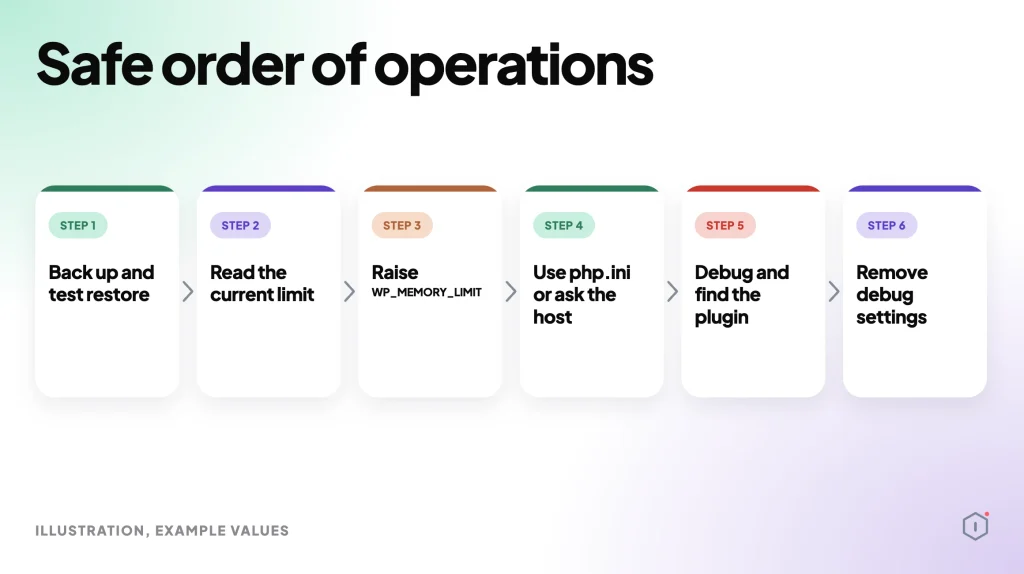
    A silent walk-through of the steps. All scenes are illustrations with example values, not a real run.
    Six-step flowchart of the safe order to raise the WordPress memory limit: Back up and test restore, Read the current limit, Raise WP_MEMORY_LIMIT, Use php.ini or ask the host, Debug and find the plugin, Remove debug settings
    1. Back up and test restore. Take a full backup and test that it restores, as described in the backup verification guide.
    2. Read the current limit. Check Site Health and note the error text.
    3. Raise WP_MEMORY_LIMIT. Set it to 256M in wp-config.php and re-check.
    4. Use php.ini or ask the host. If the number did not change, use .user.ini or php.ini, then ask your host.
    5. Debug and find the plugin. Enable debug logging, find the plugin behind the error and fix or replace it.
    6. Remove debug settings. Switch them off when you are done and keep the limit as low as works.

    If the white screen already blocks the dashboard, the critical error playbook walks through recovery step by step. For a wider performance view, see autonomous performance optimization.

    Two Outside Views

    Two public sources say the same thing in plain words. The first is the spoken line from the WP Workshop video 4 Ways to Increase WordPress Memory Limit:

    “What this error means is quite simply that WordPress tried to use more memory than what the web host allows.”

    WP Workshop, YouTube

    The second is a 2024 thread on r/Wordpress. The poster hit the 256 MB error on a simple Elementor site, and a reply gave the best next step:

    “Have you enabled debugging? That will give you a better idea of the cause.”

    r/Wordpress, 2024

    One view explains the cause, the other says where to look. Together they match the order above: confirm the limit, then read the log.

    A Careful Version You Can Do By Hand

    You do not need a tool for this. Work on one change at a time and write down what you saw after each one.

    Start with a backup you have restored at least once. Open Site Health and copy the memory numbers into a note. Add the WP_MEMORY_LIMIT line to wp-config.php, save, and reload Site Health. If the number moved, test the page that failed. If it did not move, undo the edit and go to .user.ini, then to your host.

    Keep the old copy of every file you touch. If the site breaks, put the old copy back before you try anything else. Once the error is gone, turn debug logging off and clear caches. Check the log again the next day for repeats.

    Common slips are placing the define line after wp-settings.php is loaded, setting WordPress above the server cap, editing php.ini for the wrong PHP version, and using a huge value such as 2048M to cover a plugin that leaks.

    The Point

    The memory limit is a budget, and the host sets the ceiling. Raise it in small steps, confirm the number really changed, and stop when the error goes away. If it keeps coming back with a larger figure, the cause is a plugin or task, so read the log.

    What is a good WordPress memory limit? 256 MB suits most sites. Start there and only raise it with evidence from the log.

    Will raising the limit slow my site? No, memory is only used when needed. The risk is on shared servers where too many workers each hold a large budget.

    Why does Site Health still show the old value? The server limit is lower, the file was cached, or the define line sits in the wrong place. Check each in that order.

    Sources And Further Reading

  • WordPress Unused Images: The Playbook, Step By Step

    WordPress Unused Images: The Playbook, Step By Step

    Your Media Library has grown large. In list view, the “Uploaded to” column says “(Unattached)” next to a lot of them, and the toolbar has an “Unattached” filter.

    It is tempting to read that filter as a list of files nobody uses.

    Short answer: For WordPress unused images, “Unattached” is not the same as unused. WordPress records which post an image was uploaded to. It does not record every place that image is shown. A logo, a widget, a gallery or a template part can use a file the library calls unattached. The Unused & Duplicate Media Report playbook reads the library, checks the places WordPress can show use of each image, and writes a list of duplicate files and files that are “possibly unused”. It deletes nothing.

    What this post is, and is not: A method write-up of one read-only playbook, based on its four step files as shown in the Protuno dashboard and on its public page on 21 October 2026. It is not a result from a real run: no playbook was run for this post, and every file name and picture in it is an illustration with example values.

    What The Media Library Does Not Tell You About WordPress Unused Images

    The “Uploaded to” column shows one thing: the post or page the file was uploaded from.

    A file can be uploaded from one post and shown on ten others. A file can be uploaded from no post at all and still be the site logo. In both cases the library gives you a weak hint, not an answer.

    A WordPress tutorial from August 2026 says it plainly. Its author points out that WordPress only reports attachments, and that an image can be used in a theme template, a header, a footer, a widget or a reusable block without showing up in the library. His rule is to never treat an empty attachment area as a green light.

    That is the whole problem this playbook is built around: telling WordPress unused images from files that only look unused. The risky mistake is calling a used image unused. The playbook’s second step says so in its own safety rule, and everything after it follows from that.

    Unattached Is A Label, Unused Is A Claim

    A label is something WordPress stores. A claim is something you have to check.

    To call an image possibly unused, you need to look in every place it could be shown. Some of those places are cheap to read in bulk, such as featured images and the site logo. Some need a search for the file name. Some cannot be read from outside at all.

    WordPress unused images, illustration with two panels. The left panel shows two example library rows, one labelled Unattached. The right panel lists five places WordPress can still show use of an image: a featured image, the site logo or icon, a widget, a classic gallery and a custom template part. Example file names, not a screenshot.
    A library label on the left, the places that can still show use on the right. Example file names, not a real run.

    The Playbook, Step By Step

    The playbook for WordPress unused images has four steps, in a fixed order. Every call in it is a read. In the dashboard it carries a Beta label, and the public page files it under Performance.

    A 35-second silent walk-through of the four steps. All scenes are illustrations with example values, not a real run.

    Step 1: Media Inventory And Duplicates

    The first step reads a few facts about the site. It lists the post types, notes which page builders are active and whether WooCommerce is running, checks whether the theme is a block theme, and reads the site logo and site icon.

    Then it lists the images. It pages through the library 30 at a time, oldest upload first, and stops at 400. If the library is bigger, the report says “first 400 by upload order; the rest were not read”. Counts come from paging, because the answers carry no totals. A reply that arrives cut off is never used as if it were complete.

    Step 1 also shows its own settings: Automatic backup None and Approval checkpoint Off. That fits a step that only reads.

    How A Duplicate Is Decided

    Duplicates are found by name, not by size. Each file name is lowercased and trimmed back to a group name, and files that share a group name are candidates for being copies.

    WordPress adds some endings on its own. The step strips a trailing -scaled, -rotated, an edited-copy ending (-e followed by ten or more digits) and a size ending such as -300x200. A trailing -1 or -2 is stripped only if the name without it belongs to another image in the library. Hand-added copy words, such as -copy or a leading copy-of-, follow the same rule.

    Example namesGrouped?Why
    beach, beach-scaled, beach-1YesThe scaled ending goes, and -1 goes because beach exists
    team-photo, team-photo-copyYesThe copy word goes because team-photo exists
    old-upload-1, old-upload-2NoThere is no plain old-upload, so the numbers stay
    IMG-0001, IMG-0002NoCamera numbers are different pictures

    For groups only, the step then reads file sizes. It checks at most 10 groups and 40 images. Inside a group, files with the same file size, width and height are an exact copy set. Files with the same name and a different size are versions. The oldest upload is marked as the one to keep. Same size alone never makes a group, because different names are never treated as copies.

    Step 2: Bulk Reference Check

    Step 2 marks an image as used when a cheap bulk source shows it in use. It does no name searches. The rest of the images become candidates for step 3.

    Where use is checkedWhat counts as used
    Featured imagesEvery featured image on every post type. Drafts, pending and private items count too
    Logo and iconThe site logo and the site icon, plus the WooCommerce placeholder image when a store is present
    Classic widgetsA media widget’s image, and any file name found in a widget’s content, on sites that do not use a block theme
    Classic galleriesThe image ids inside gallery shortcodes, found by search, for up to 10 hits
    Block theme partsCustom templates and template parts, up to 20, where the image’s name or id appears

    The safety rule sits at the top of this step: anything unclear counts as used, or as not checked, never as unused. The step also never asks for post content in a list call, because a long list gets cut off and an image named in the cut part would look unused. If a widget or gallery reply is cut and cannot be recovered, the step says so and no image can be listed as unused from that run.
    Step 3: Name Search Check

    Step 3 makes one call to a Protuno tool with every candidate id. The search runs on the Protuno server. It looks for each image’s own file name in posts and pages, drafts and private included, in reusable blocks and in other published content. It checks at most 25 images per run, lowest id first.

    The step does not search, sort, size or judge anything itself. It copies the lines the tool returns. If a page builder is active, each possibly unused image carries the note “check in” and the builder’s name, followed by “first”. Page builder data is on the not scanned list further down.

    Step 4: Media Cleanup Report

    Step 4 makes no calls. It writes one report in a fixed layout, with these sections in this order:

    1. Duplicate files, one row per group, with every id written out.
    2. Possibly unused, one row per image, never a range.
    3. Not checked this run, one line per id.
    4. What was checked.
    5. Not scanned on this site.
    6. Next step.

    The summary counts duplicate groups, possibly unused images and images not checked. Space is always “at least” a number of megabytes, because only the original files are counted and not the thumbnails WordPress makes from them. Oversized files are not this report’s job, so it points to the dashboard’s Image Weight card. A report that finds nothing is still a pass.
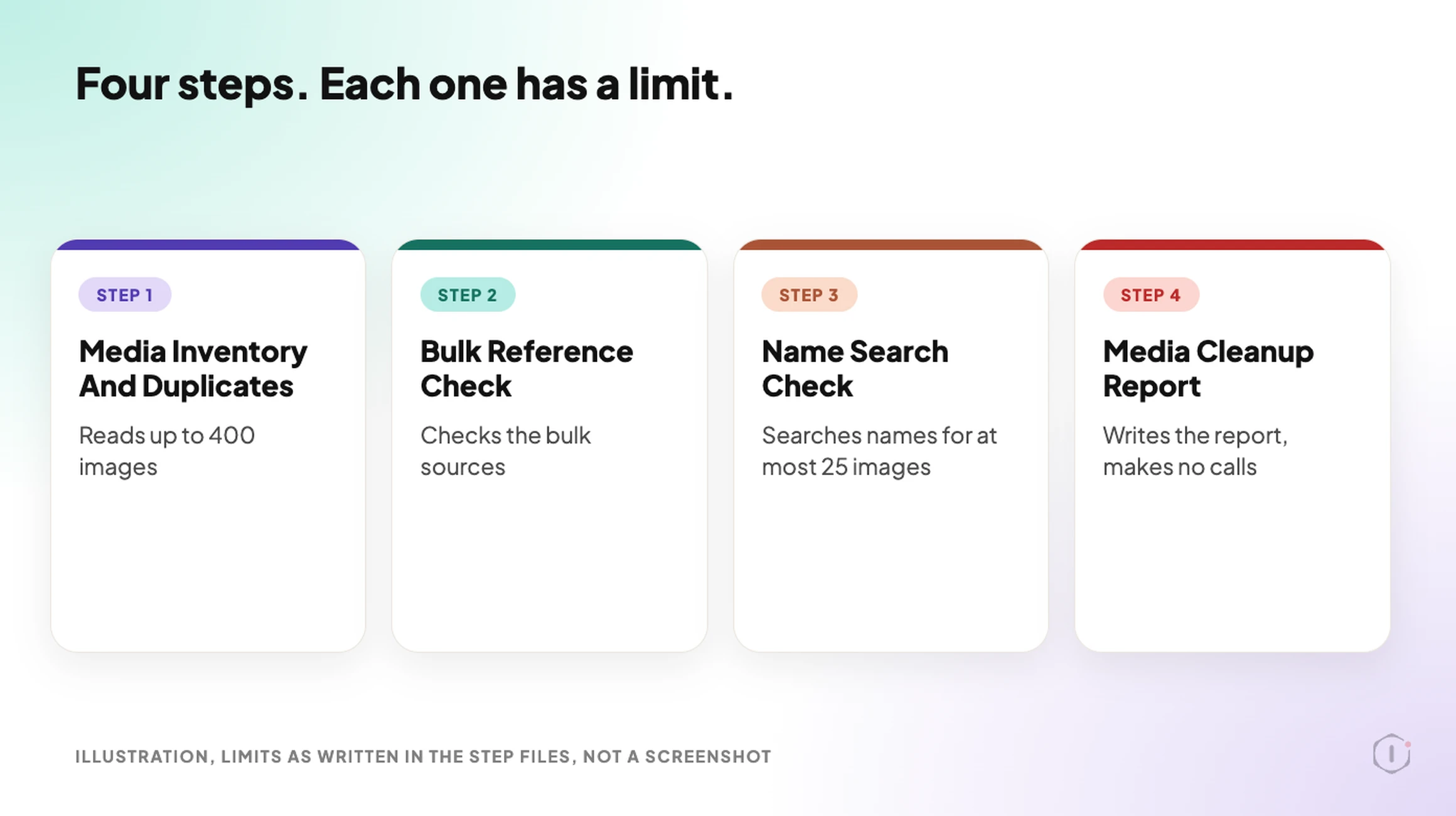
    WordPress unused images playbook, illustration of four steps in a row, each with its real limit underneath. Step 1 reads up to 400 images, step 2 checks the bulk sources, step 3 searches names for at most 25 images, and step 4 writes the report and makes no calls.
    The four steps and their limits. Limits as written in the step files, not a real run.

    The Words It Is Not Allowed To Use

    The playbook is strict about wording. It must never write “remove”, “delete”, “deletion”, “safe to”, “cleanup would” or “redundant”. It must never write “unused” without “possibly” in front of it.

    The strongest phrase it may use is “possibly unused: WordPress shows no use of it in the places checked”. The duplicate column is called “Other copies”, never “Remove”.

    That is not decoration. A report that says “safe to delete” invites a click. A report that says “WordPress shows no use of it in the places checked” invites a look.

    A Careful Version You Can Do By Hand

    You can look for WordPress unused images without any plugin. This follows the same order, and the habits in it come from the August tutorial.

    1. Take a copy of the uploads folder first. A full backup is better, and a post on verifying a backup covers how to know the file you saved is any good.
    2. Switch the library to list view and sort by date, oldest first.
    3. For each file you doubt, search its file name on the live site and in the editor. The tutorial’s author does this for any file whose name looks important.
    4. Check the places the library cannot see: the Customizer’s header and background, a post’s featured image panel, a widget.
    5. Work in batches of 10 or 20. Act on one batch, open the key pages, then move on.
    6. If you are not sure about a file, leave it.

    If you can, rehearse on a copy first. A post on staging drift explains why a staging site is not an exact copy of live, which matters if you plan to trust it.

    What The Report Does Not Cover

    Some places cannot be read by a search for a file name. The step files list them as not scanned:

    • Page builder data and custom fields.
    • Theme files and CSS.
    • The Customizer’s header and background images.
    • WooCommerce product galleries.
    • Menus.
    • Links to the file from other sites.
    • Images beyond the first 400, and thumbnails, which are not counted in the space total.

    This is why a “possibly unused” row in a list of WordPress unused images is a prompt to look, not a verdict.

    The report is also not about file weight, file format or alt text. Those are different questions, covered by a post on finding the oversized image, one on WebP and AVIF and one on an image alt text audit.

    Two Outside Views

    A tutorial and a forum thread. Neither is an endorsement, and neither describes the Protuno playbook.

    In an August 2026 video, Entrepreneurs Skool shows a no-plugin, no-code cleanup of a media library. He takes a copy of the uploads folder first and calls it his undo button. He then uses list view, the date filter and a search for words such as “logo” to find old files and duplicates. His main caution matches the one in this post: WordPress only reports attachments, so for an unattached file whose name looks important he opens the live site and searches for the name before touching it. He also says he works in small batches and checks the key pages after each one. The video is a delete tutorial and ends with a request to like and subscribe.

    On Reddit, an r/Wordpress thread titled “How to Delete 20,000 old post and images?” starts with a site owner who took over a site and wants to clear out old content. Further down, the poster says where the hard part is:

    “It will just be unattached images thats the problem.”

    Original poster, r/Wordpress, 1 July 2026

    One reply suggests trashing the posts with a bulk tool and then using a media cleaner plugin to find orphaned images, with this caution:

    “backup first obviously, and do it in batches if the host has execution time limits.”

    Reply in the same thread, r/Wordpress, 1 July 2026

    The thread is about deleting content rather than about proving an image is unused, so it only lines up with this post on the point that unattached files are the awkward part. Posts you delete leave images behind, and the library cannot say which of them are still shown somewhere else.

    Where Protuno Fits

    The Unused & Duplicate Media Report playbook is the repeatable, read-only part of finding WordPress unused images. It reads the media library, groups copies by name, checks the bulk places where WordPress shows use, runs one name search for the rest, and writes the list. It needs no connector, it runs when you start it, and no schedule is set.

    It sits beside other image posts rather than replacing them. The large image audit is about weight, and the playbook’s own report points to the dashboard’s Image Weight card for that. The playbooks page lists the playbooks as Protuno publishes them, and this one has its own page at Unused & Duplicate Media Report.

    The Point

    “Unattached” is a label WordPress stores. “Unused” is a claim you have to check.

    Treat every possibly unused row as a place to look first, check the places the report says it did not scan, and keep a backup before you act on any file. A report that deletes nothing is the safest way to find out how big the question really is.

    Which images on the site you manage would you trust the “Unattached” filter on today?

    Sources And Further Reading

  • WordPress CDN: Prove It Is Serving

    WordPress CDN: Prove It Is Serving

    The CDN dashboard is green. The traffic graph shows requests. The plugin settings page says “Connected”.

    Then someone pulls the response headers for the homepage and for the nine heaviest files on it. The CSS and JavaScript come from an edge. The hero image, the webfonts and the HTML document do not. Three of the heaviest things on the page are still travelling from the origin, on every request, for every visitor.

    Nothing is broken and nothing alerts. The dashboard is telling the truth about the account. It says nothing about the page.

    Short answer: a CDN is proven by response headers, not by a settings screen. Request the HTML document and each heavy asset separately, then read the server, cache status, age and cache-control headers on each one. The CDN is serving only the exact URLs that come back as an edge cache hit. Everything else is still your origin, whatever the dashboard says.

    What this post is, and is not: this is a walk-through of outside-in verification you can run yourself with curl and a browser, on a site you are authorised to test. It shows which responses were served from an edge at the moment you asked. It does not measure end-user speed, it does not prove the CDN is configured well, and header names differ between providers, so read your own provider’s documentation before deciding that a missing header means a miss.

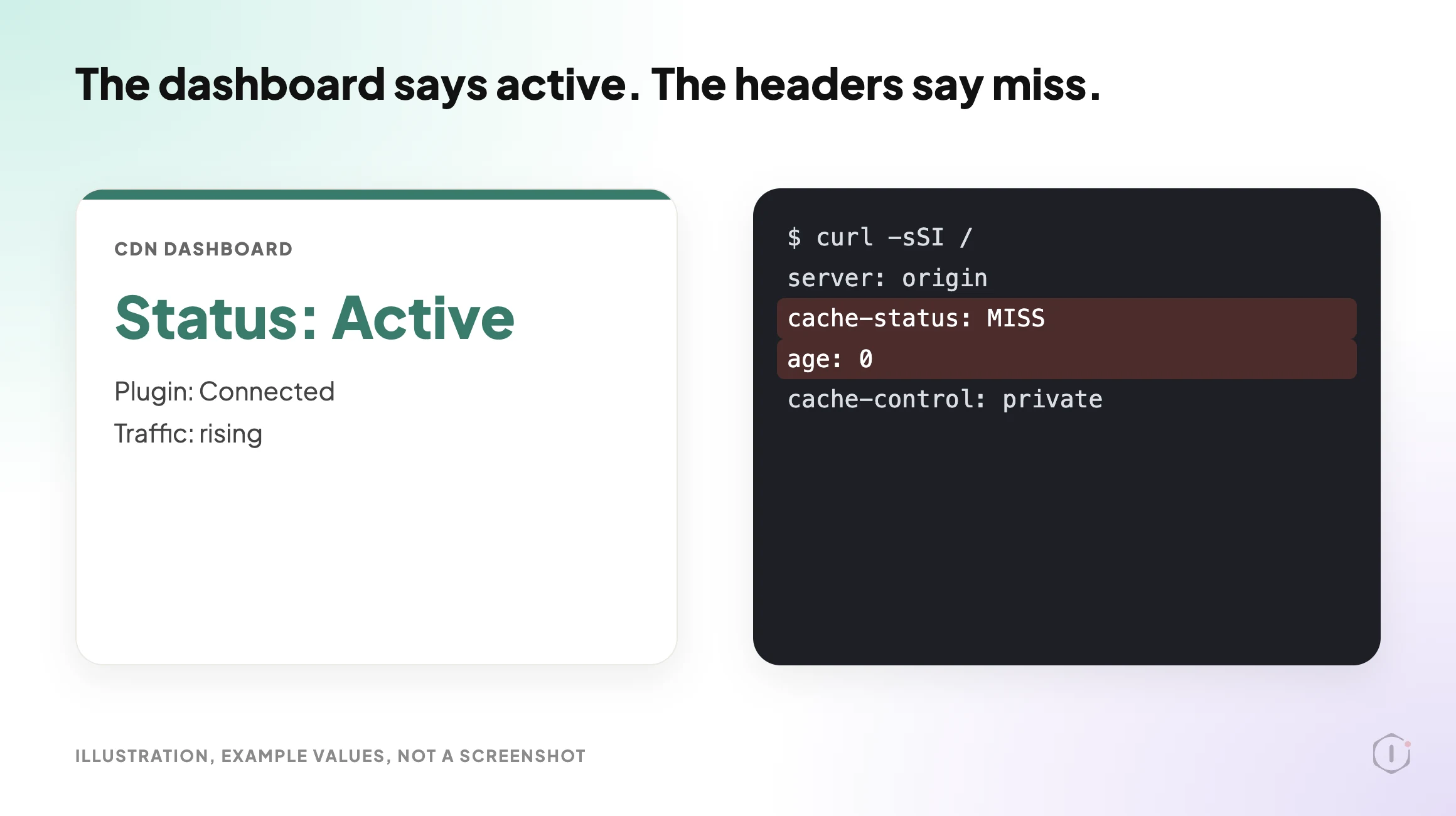
    A CDN dashboard showing an active status next to terminal output showing a cache miss for the same page.
    Illustration. The dashboard describes the account. The headers describe the request.

    Why This Matters Now

    WordPress 7.1.3 shipped on 6 October 2026 as a maintenance and security release, and most sites will have updated since. An update can touch the files and URLs a CDN is serving, and a changed plugin can change what the origin tells the edge. A check from last quarter does not describe the site you have today.

    That is the practical case for a check you can repeat: it costs a few minutes, and it tests the one thing the dashboard cannot.

    What Set Up Actually Means

    At least four states get called “we have a CDN”.

    StateWhat is trueWhat is not true
    Account created, DNS not movedThe provider has a zone for your domainNo visitor traffic reaches the edge
    DNS proxied, nothing cachedRequests pass through the edgeThe edge forwards almost everything to the origin
    Static assets cachedCSS, JS and images can come from an edgeThe HTML document is still built per request
    HTML cached at the edgeFull pages can be served without PHP runningLogged-in and cart pages must be excluded correctly

    A site that feels slow despite a CDN is often in state two or three while being described as state four. The dashboard reports account health. It does not report, per URL, whether the bytes a visitor received came from an edge.

    Read The Headers, Not The Settings Page

    Start with the HTML document, because it gates everything else. On a site you control:

    curl -sSI https://example.com/ | sed -n '1p;/^[Ss]erver:/p;/[Cc]ache/p;/^[Aa]ge:/p;/^[Vv]ia:/p'

    Four fields carry most of the answer.

    HeaderWhat it tells youWhat to watch for
    server or viaWhether an intermediary answered at allIf it names only your web server, the request may never have touched an edge
    A cache status headerHIT, MISS, BYPASS, DYNAMIC, EXPIRED and similarThe name and values are provider-specific. Confirm them in your provider’s docs
    ageSeconds the object has been held in a cacheA value of 0 on every repeat request suggests it is not being kept
    cache-controlWhat the origin told caches to doprivate, no-store or max-age=0 from the origin can stop edge caching

    Two cautions. First, a cache status header can be present and still say MISS. Finding the header is not the same as finding a hit. Second, one request proves nothing on its own. The first request to a cold edge is expected to miss. Run the same request twice, a few seconds apart, from the same place, and compare the pair.

    Cloudflare documents its own cache status values on its cache responses page, and by default it caches by file extension rather than caching HTML, which its default cache behavior page explains. Other providers differ, which is why the table above says to confirm the names.

    The same confusion appears one layer down, where a page cache plugin reports a hit that the response does not support. That is worked through in The WordPress Page Cache Header Lies, and it is worth reading before you trust any single cache header at either layer.

    Per-Asset, Because The Page Is Not One Request

    A page is one document plus, typically, dozens of subresources. A CDN can serve some of them and not others.

    The method is plain. Open the page in a browser with the network panel recording, hard reload, then sort by size. Take the ten heaviest responses and check each for an edge cache status. Do it twice, so the second load shows what was kept.

    Things that often bypass the edge while everything else is fine:

    • Fonts loaded from a path that was never rewritten to the CDN hostname, or from a third party with its own cache policy.
    • Images inserted with absolute origin URLs in post content, so a rewrite filter never sees them.
    • Admin-ajax and REST responses, which usually should bypass, but are worth confirming rather than assuming.
    • Files a plugin enqueues using a hardcoded site URL.
    • Uploads added before the CDN was connected, when the integration only rewrites URLs for new content.

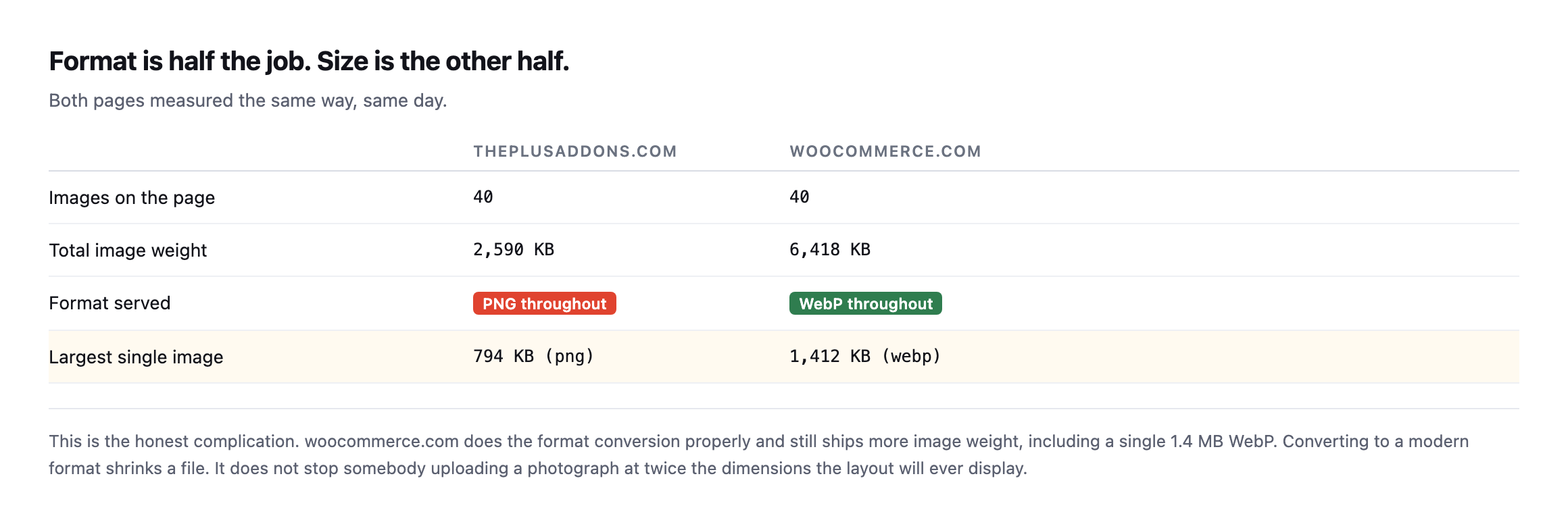
    A miss on a 3KB icon costs almost nothing. A miss on the hero image costs the point of the exercise. If the heavy responses on your page are images, the CDN question and the file-size question are the same question, and the file-size half usually has the bigger win. WordPress Image Optimization: Find The 794KB File Before Your Visitor Does covers that audit.

    HTML Caching Is A Different Decision

    Caching static assets at an edge is close to free. Caching the HTML document is not, and the two are often discussed as one feature.

    When the edge holds the HTML, a visitor can get a complete page without your PHP running. That is the largest win available on many sites. It also means the edge must be told, correctly and reliably, never to serve a cached page to someone who is logged in, has items in a cart or is mid-checkout. The failure is not slowness. It is one person seeing another person’s page.

    So verify two things, in this order:

    1. Logged out, request a public page twice. Does the second response show an edge hit with a non-zero age?
    2. Logged in, request the same page. Does the response bypass the cache?

    If the second check does not bypass, fix that before celebrating the first. The cart version of this failure is described in WooCommerce Cart Caching: One URL, Two Customers, One Very Bad Morning, and it is the clearest case for giving HTML caching its own verification pass.

    Silent video, illustration with example values, not a real site.

    Headers That Look Like Proof And Are Not

    SignalWhy it feels conclusiveWhy it is not
    The CDN plugin says “Connected”It made a successful API callIt says nothing about any visitor request
    A provider header is presentSomething sat in the pathPresent is not the same as HIT
    Traffic appears in the provider dashboardRequests reached the edgeProxied and forwarded still counts as traffic
    A speed test score improvedSomething changedMany things change at once, so attribute carefully
    The IP resolves to the providerDNS is proxiedThat is state two in the table above

    The last row deserves a pause. Pointing DNS at a provider is the step people remember doing, so it becomes the thing they believe they verified. It proves routing. It proves nothing about caching.

    Where The Origin Still Decides

    An edge largely obeys your origin. If WordPress sends cache-control: no-cache on the document, most setups will forward every request. If vary is too broad, the cache splits into many near-unique entries and hits become rare, as MDN’s Vary reference explains. A cookie set on every response, including anonymous ones, commonly stops HTML being cached by default.

    So a CDN rarely fixes a slow origin. It changes who answers, not how long the answer takes when nobody has it yet. The first visitor in each region still waits for your server. When that wait is long, measure time to first byte properly first, using WordPress TTFB: The Number Everyone Quotes And Almost Nobody Measures Properly. Two checks sit beside this one: Enable Gzip Compression On WordPress, Then Check What It Missed for compression on edge-served files, and Browser Caching On WordPress for what the visitor’s own browser keeps.

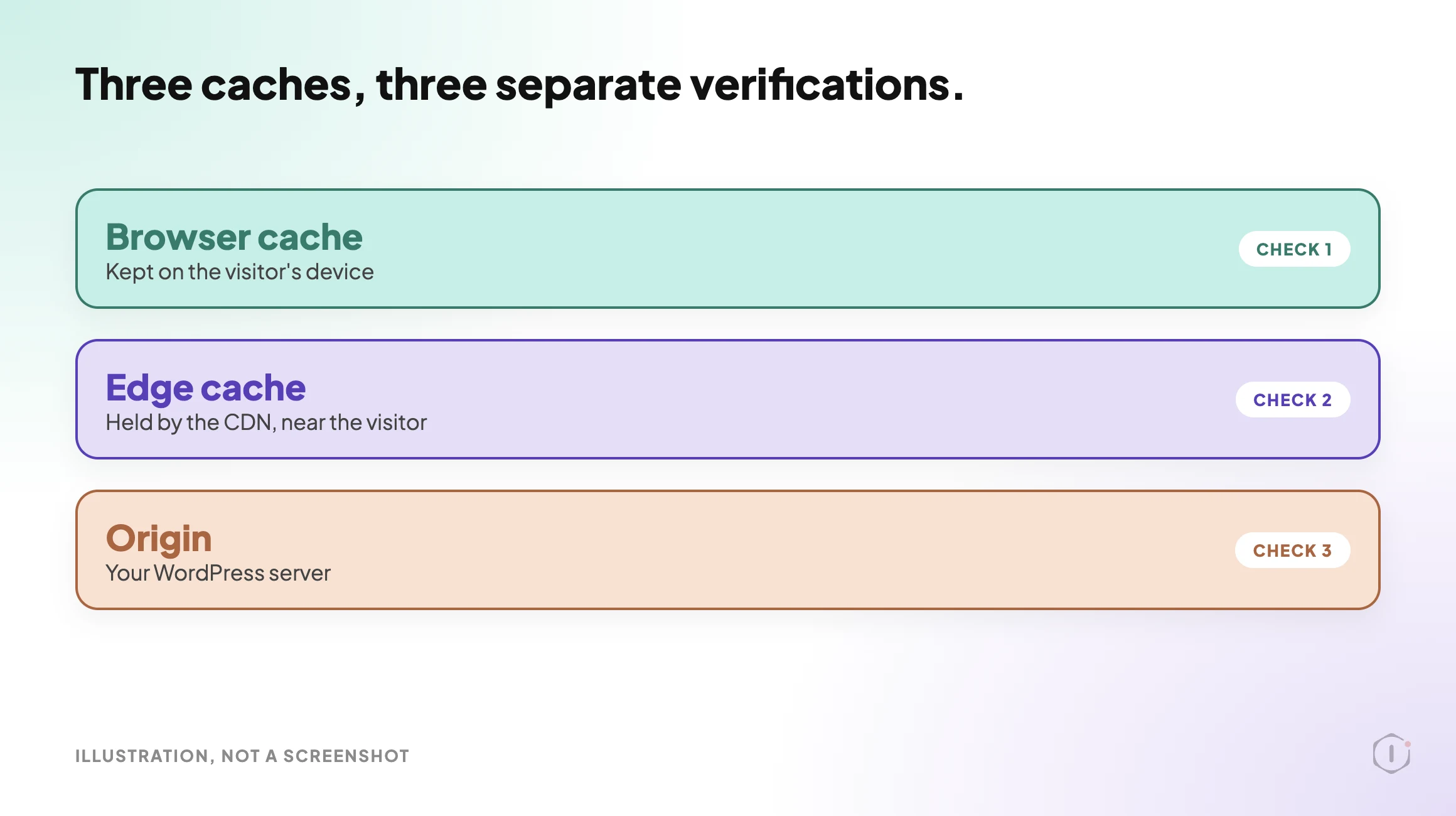
    Three stacked cards labelled browser cache, edge cache and origin, each marked as its own separate check.
    Illustration. Three caches, three separate verifications. A pass at one layer says nothing about the others.

    Two Outside Views

    A tutorial and a forum thread. Neither is an endorsement, and neither describes Protuno.

    In a June 2026 video, Learn With Miller sets up Cloudflare’s CDN from the dashboard in about three and a half minutes. It confirms the site’s DNS records are proxied (the orange cloud), leaves mail records unproxied, sets the caching level and browser cache TTL, switches on compression and HTTP/3, and ends by opening analytics to read the cache hit ratio. That ratio is a site-wide figure. It cannot say which URL on a given page came from an edge, which is the question this post is about.

    On Reddit, an r/Wordpress thread titled “design looked broken after css changes – plugin cache clear wasn’t enough” makes the same point one layer down. The original poster cleared the browser and plugin caches and the layout was still wrong, until the server and CDN page cache were purged:

    u201cplugin cache alone is not always the full stack.u201d

    Original poster, r/Wordpress, 9 October 2026

    A reply adds that a stylesheet enqueued with a fixed version string can be kept by the browser and the CDN long after the page HTML is fresh.

    What This Does Not Solve

    Header verification tells you where a response was answered. It does not tell you:

    • whether the visitor experienced the page as fast, since render order, layout shift and script execution never appear in a header;
    • whether the edge you reached is the edge a visitor in another region gets, because your result is specific to your location;
    • whether the cache is purged correctly when content changes, which needs an edit and a re-request;
    • whether a hit came from a stale copy of a page you updated an hour ago;
    • whether the CDN costs more than it saves on a low-traffic site; or
    • whether an asset should exist at all, which is usually the larger win and never a CDN question.

    It also proves one moment. A deploy, a plugin update, a rewrite rule change or a provider default changing underneath you can quietly put the site back in state two. The check is cheap enough to repeat, which is the main argument for repeating it rather than filing the result.

    Sources And Further Reading

    The Point

    “We put a CDN on it” describes a purchase. “The HTML document and the nine heaviest assets returned an edge hit on a second request, and the logged-in request bypassed correctly” describes a site.

    The two sentences cost about the same time to produce. Only one survives a client asking what changed.

    So for the sites you look after: when did you last read the actual response headers, rather than the dashboard built to reassure you?

  • Enable Gzip Compression On WordPress, Then Check What It Missed

    Enable Gzip Compression On WordPress, Then Check What It Missed

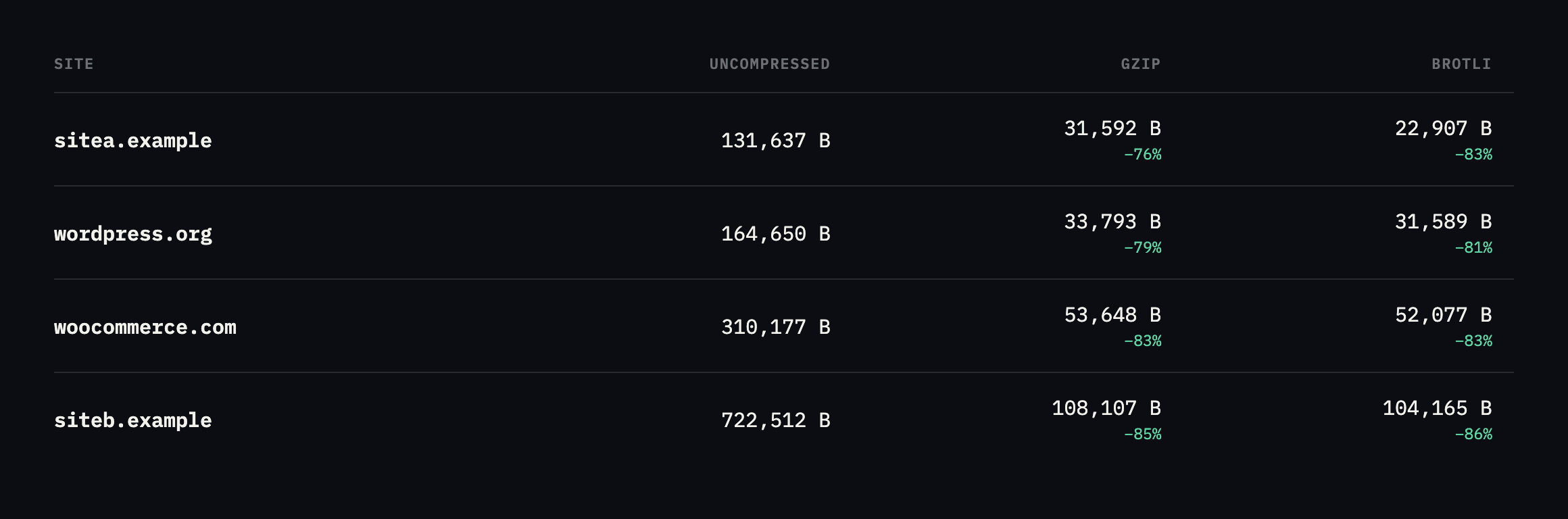
    Short answer: to enable gzip compression wordpress needs nothing from WordPress. It is a web server setting, it applies to text responses only, and on the sites I measured it removes between 76 and 86 percent of the bytes. Brotli does slightly better again. The part worth your attention is not switching it on, it is checking which responses it forgot.

    What it is actually worth

    I requested four real homepages three times each, changing only the Accept-Encoding header, and later went back to check the asset types, API responses and third-party scripts those same homepages load, rather than stop at the document itself.

    Bar chart comparing uncompressed, gzip and brotli sizes for four sites on one scale. sitea.example goes from 131,637 to 31,592 to 22,907 bytes. wordpress.org from 164,650 to 33,793 to 31,589. woocommerce.com from 310,177 to 53,648 to 52,077. siteb.example from 722,512 to 108,107 to 104,165
    Identical URLs, seconds apart. Compression is doing enormous work on every one of

    them. On sitea.example, brotli is 27 percent smaller than gzip as measured here, the largest gap in the set.*

    SiteUncompressedGzipBrotliSaving (brotli)
    sitea.example131,637B31,592B22,907B82.6%
    wordpress.org164,650B33,793B31,589B80.8%
    woocommerce.com310,177B53,648B52,077B83.2%
    siteb.example722,512B108,107B104,165B85.6%

    Caveat: four homepages, requested once each. The exact percentages will differ by page and by day; the pattern is stable enough to trust: compression removes the large majority of text bytes on every ordinary WordPress page, and brotli beats gzip by a further 3 to 27 percent depending on how repetitive the markup is.

    Two things in that chart are worth saying out loud.

    The saving is not marginal. On our own site, 131 KB becomes 23 KB. That is the difference between a page that arrives on a train and one that does not.

    And siteb.example, which is also ours, ships a 722 KB uncompressed homepage. More than twice woocommerce.com. Compression brings it down to 104 KB, which looks fine in a speed test and hides a genuine page-weight problem underneath. Compression is not a substitute for sending less.

    What to check after you enable gzip compression on WordPress

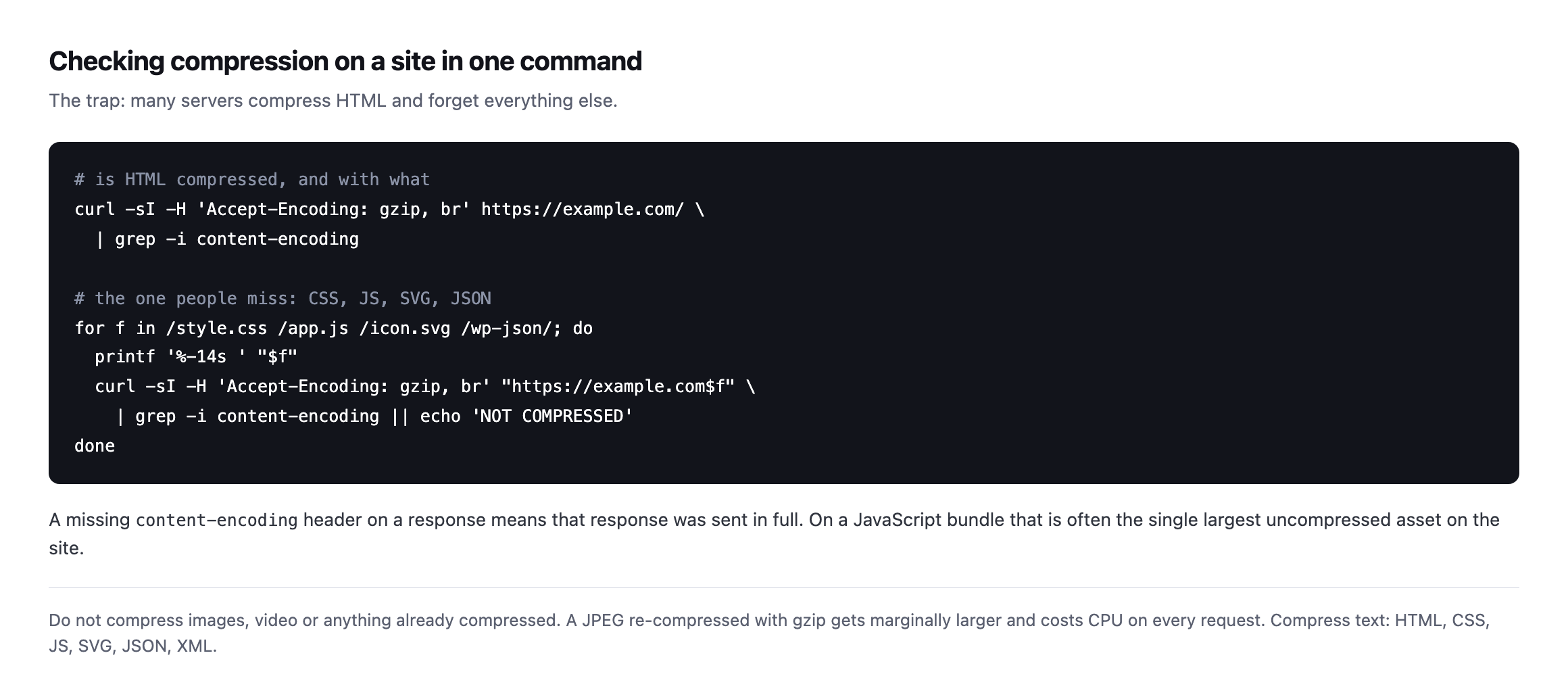
    Most servers compress HTML because that is what the default configuration lists. Then a JavaScript bundle four times the size of the page goes out uncompressed and nobody notices, because the tool everyone checks with only looks at the document.

    Terminal commands checking content-encoding on the homepage and then on a CSS file, a JavaScript file, an SVG and a REST endpoint, with a note that a missing content-encoding header means the response was sent in full
    The second loop is the one that finds problems. A missing content-encoding on a

    JavaScript bundle is often the single largest uncompressed asset on the site.*

    Compress text: HTML, CSS, JavaScript, SVG, JSON, XML.

    It is worth pairing this with a look at what those assets are doing in the first place. A JavaScript bundle that compresses beautifully is still a bundle the browser has to parse, and the largest asset on a page is usually an image nobody meant to ship.

    Do not compress images or video. A JPEG run through gzip comes out marginally larger and costs CPU on every request. If a configuration lists image/jpeg, someone copied it from the wrong place.

    Re-checking every asset type this post recommends auditing

    The advice above names CSS, JavaScript, SVG, JSON and XML as text that should compress. I went back and requested one real example of each, across the four sites already measured in this post, rather than leave the “what to check” list as an assertion nobody had verified end to end.

    curl -s -H 'Accept-Encoding: gzip, br' -D - -o /dev/null "$URL" | grep -i content-encoding
    AssetSiteResult
    CSS chunksitea.examplecontent-encoding: gzip
    JS chunksitea.examplecontent-encoding: gzip
    XML sitemapsitea.examplecontent-encoding: br
    jQuery bundlewoocommerce.comcontent-encoding: br
    Font Awesome CSSwoocommerce.comcontent-encoding: br
    jQuery bundlesiteb.examplecontent-encoding: br
    REST API index (JSON)wordpress.orgcontent-encoding: br

    Every single one compressed, on every one of the four sites this post already treats as reference points. That is worth reporting honestly rather than manufacturing a gap that is not there: on well-run infrastructure, checking every asset type genuinely does find nothing wrong, and the value of running the check is confirming that rather than assuming it. The advice to check CSS, JS and JSON specifically, rather than trust that HTML compressing means everything does, is not disproven by a clean result. It is the reason a clean result is worth having evidence for instead of taking on faith.

    The compression ratio on a JSON API response, measured directly

    The chart at the top of this post covers HTML. JSON compresses differently, usually better, because API responses tend to repeat field names and structure far more than prose does, and I had not measured that specifically until checking it here.

    curl -s -o /dev/null -w '%{size_download}n' "https://sitec.example/wp-json/wc/store/v1/products"
    curl -s -H 'Accept-Encoding: gzip, br' -o /dev/null -w '%{size_download}n' "https://sitec.example/wp-json/wc/store/v1/products"
    29852
    2216

    A 92.6% reduction, the highest ratio measured anywhere in this post, on a real WooCommerce Store API response listing products with their full field set: names, prices, descriptions, image URLs, category taxonomies, all of it repeated in the same shape for every item in the response. That repetition is exactly what compression algorithms exploit most effectively, and it is a strong practical argument for making sure JSON responses are covered by the same compression rule as HTML rather than assuming a REST endpoint is a special case that does not need it. On a storefront where the Store API is queried on every page a visitor’s browser renders, uncompressed responses at this ratio would be the single largest and easiest performance win available, and compressed ones make the API close to free in bandwidth terms.

    Confirming the other half of the rule: images should not compress

    The warning earlier in this post says not to compress images, because a JPEG run through gzip comes out marginally larger. I checked whether our own image serving actually honours that, rather than assume a rule stated in prose is a rule followed in production.

    curl -s -D - -o /dev/null -H 'Accept-Encoding: gzip, br' https://sitea.example/og.png 
      | grep -iE 'content-encoding|content-length'
    content-length: 72055

    No content-encoding header at all, and the byte count matches the file’s actual size on disk from the earlier verification of this same image. Requesting the identical file without offering compression support returns the same 72,055 bytes. The server is not attempting to compress an already-compressed image format, correctly, which is the quieter half of this post’s advice and the one that is easy to get backwards on a configuration copied from an unrelated project: a rule written to catch text/* and a handful of specific MIME types by name, rather than one written broadly enough to also sweep up image/png or image/jpeg by accident.

    A third-party script, checked the same way as our own

    Not every asset a browser loads comes from the site’s own origin. sitec.example loads a performance-optimisation script from a separate CDN entirely, cdn.example.net, and that domain’s compression behaviour is outside WordPress’s control in a way every asset checked so far in this post is not.

    curl -s -H 'Accept-Encoding: gzip, br' -D - -o /dev/null "https://cdn.example.net/optimize.js" 
      | grep -iE 'content-encoding|^HTTP'
    HTTP/2 200
    content-encoding: br

    Compressed correctly, which is expected from a CDN built specifically to serve optimisation scripts, but worth checking rather than assuming, because this is exactly the kind of asset the loop in this post’s “what to check” section can miss if it only ever tests same-origin URLs. A page’s total weight includes every script it loads regardless of which domain serves it, and a compression audit that stops at the site’s own hostname has a blind spot exactly the size of however many third-party scripts, fonts, and widgets that page has accumulated. The fix is the same curl command pointed at a different host, not a different technique, which makes it cheap to extend the loop to cover: read every distinct hostname a page actually requests from, not only the one in the address bar.

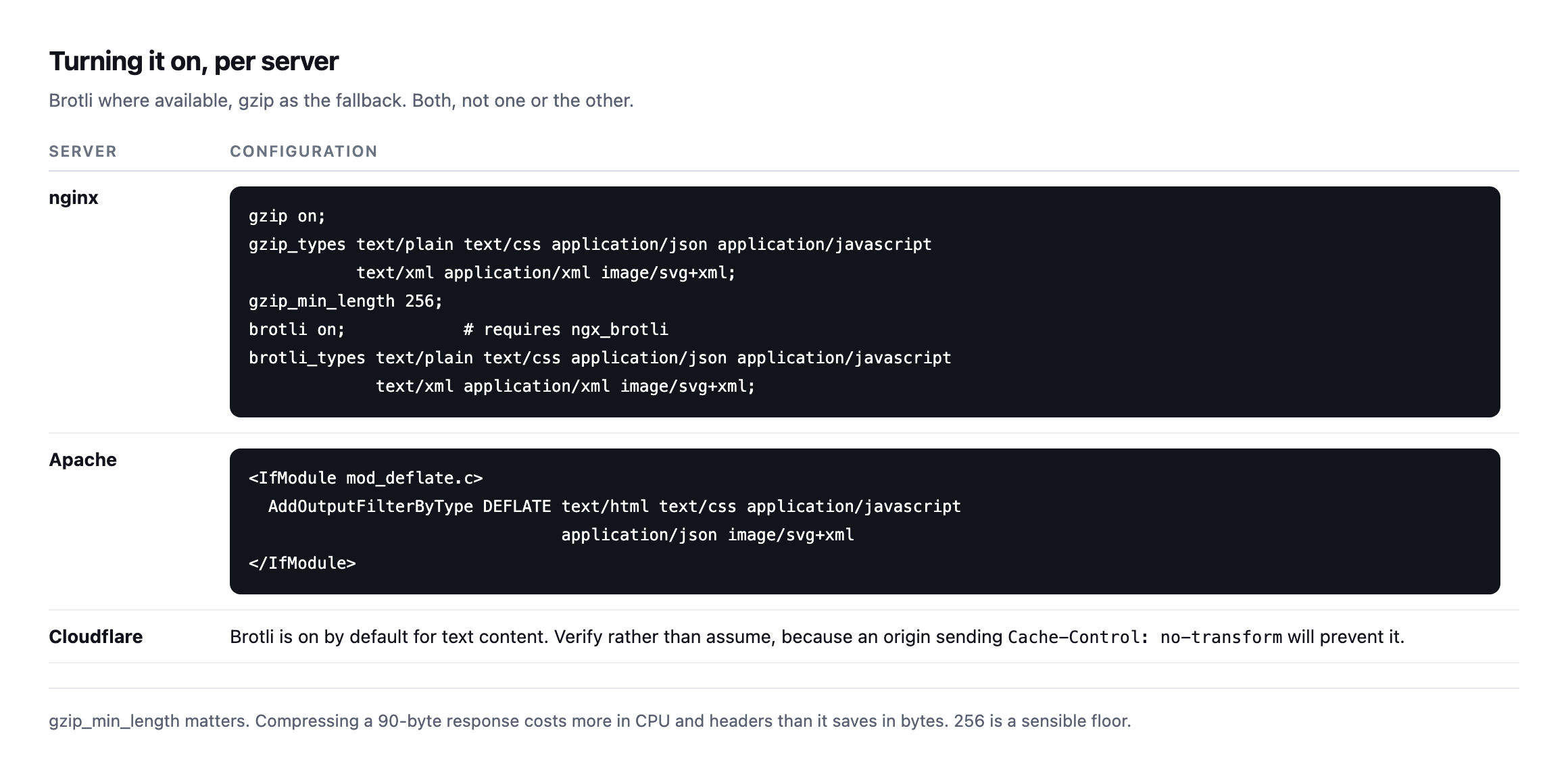
    Configuration examples for nginx with gzip and brotli directives and a gzip_min_length of 256, for Apache with mod_deflate AddOutputFilterByType, and a note that Cloudflare enables brotli by default but a no-transform header at the origin will prevent it
    Serve both. Brotli where the browser supports it, gzip as the fallback. Every browser

    in use supports gzip, and effectively all current ones support brotli.*

    gzip_min_length is worth setting. Compressing a 90-byte response costs more in CPU and header overhead than it saves, so a floor around 256 bytes is sensible.

    Verify it on a cached response

    This is the step that catches the real failures, and it is the same lesson as every other check on this blog.

    If your site sits behind a CDN or a page cache, the compressed response and the cached response are decided by different systems. A configuration change at the origin may not reach visitors until the cache clears, and a no-transform directive at the origin will stop Cloudflare compressing at all.

    So check the way a visitor arrives, not the way you would debug it:

    curl -sI -H 'Accept-Encoding: gzip, br' https://example.com/ 
      | grep -iE 'content-encoding|cf-cache-status|x-cache'

    Reading both headers together tells you whether you are looking at a compressed origin response or a compressed cached copy, which is the same distinction that makes a TTFB number meaningful or meaningless.

    Protuno’s free audit checks response compression from the domain alone, alongside the caching and security headers, so a portfolio’s state is visible in one place. Dash is live now.

    What all of this adds up to

    Every check in this post, re-run while expanding it, came back clean: four sites’ HTML, their CSS, their JavaScript, a WooCommerce API response, a third-party CDN script, and, on the other side of the rule, an image that correctly stays uncompressed. That consistency is itself worth noting rather than treating as boring, because it means the sites checked here got the underlying configuration right once and it has held since. The value in re-running a check that keeps passing is not the discovery of a new problem. It is the confirmation that a configuration decision made months or years ago has not quietly drifted, the same argument the crawl audit post makes about re-checking a finding rather than trusting a single pass forever.

    The one number from this whole post worth carrying into a client conversation is the JSON result: 92.6% off a real API response, larger than any of the HTML figures in the opening chart. Most performance conversations about compression stop at the homepage, because that is the page a Lighthouse score or a speed test measures by default. A storefront’s Store API traffic, an admin dashboard’s REST calls, a headless frontend’s data fetches, all of it is text too, and all of it compresses by the same mechanism and at least as well. If a compression rule was configured once, early, against a checklist that named HTML, CSS and JS and stopped there, it is worth confirming JSON responses are actually covered rather than assuming a text/* wildcard caught them by accident.

    Run the asset loop on your busiest client site. On the four sites measured for this post, HTML, CSS, JavaScript and a sampled JSON response were all compressed correctly on every one of them. Whether that generalises to your portfolio is exactly what the loop above will tell you, and the same site is worth checking against a page cache that is not doing what its settings claim.

  • Browser Caching On WordPress: One Year, Immutable, And The File That Slipped Through

    Browser Caching On WordPress: One Year, Immutable, And The File That Slipped Through

    Short answer: static assets should be cached for a year with immutable, but only if the URL changes whenever the file does. Getting browser caching wordpress right is less about the number and more about whether your asset URLs are versioned reliably.

    I read the headers on four real sites instead of quoting a best practice.

    What real sites send

    Table of cache headers from four sites. protuno.com sends public max-age 31536000 immutable with content-hashed filenames. wordpress.org sends max-age 315360000, ten years. woocommerce.com sends a year on CSS but one JS file arrives with no cache headers at all. siteb.example sends thirty days
    Two things stand out. A file on a well-run site can still slip through with no cache

    headers, as the fourth row shows. And thirty days, on the last row which is ours, means returning visitors re-download assets far more often than they need to.*

    SiteCache-ControlFilename strategy
    sitea.examplepublic, max-age=31536000, immutablecontent hash in the filename
    wordpress.orgmax-age=315360000 (10 years)?ver= hash query string
    woocommerce.commax-age=31536000 (CSS)?v= version query string
    woocommerce.comno cache headers (one JS file)none
    siteb.example (ours)max-age=2592000 (30 days)?ver= plugin version

    Caveat: four sites, one file type sampled per row, read once. Not a claim about what WordPress sites generally send. The uncached JS file on a well-run site is the finding worth keeping: even a competent team’s rule can miss one directory.

    The thirty-day value is a common WordPress default and it is too short. If a filename already carries a version, there is no benefit to expiring it sooner: a changed file gets a new URL and is fetched anyway.

    The directive people leave off

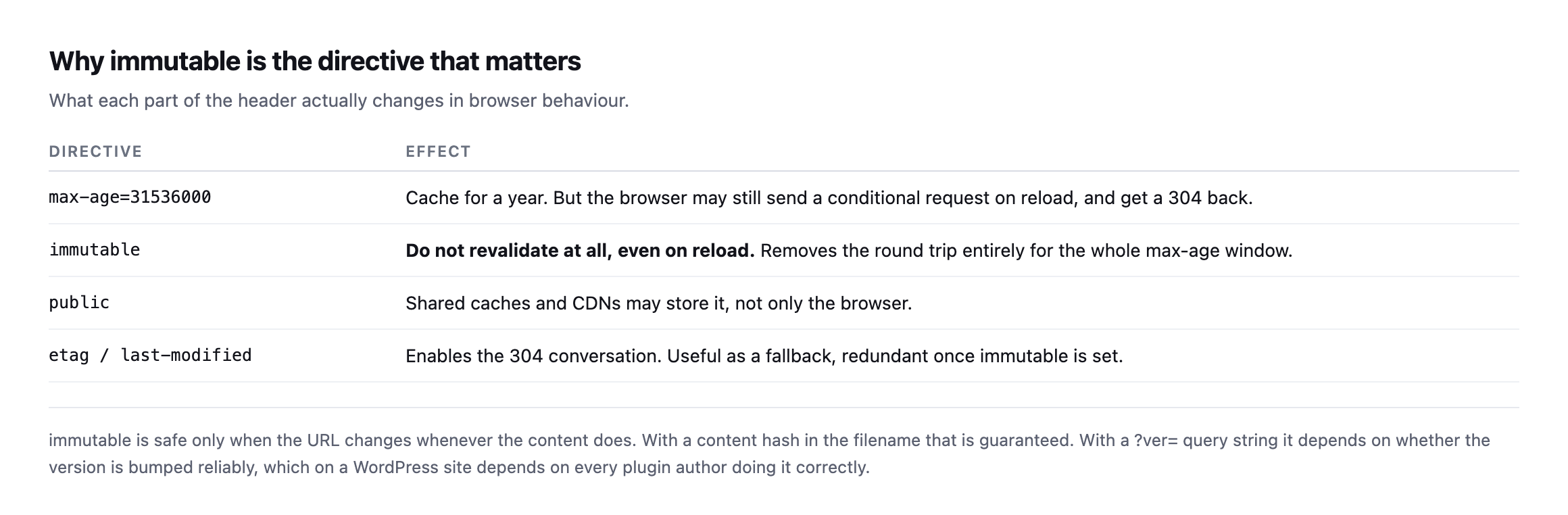
    Table explaining cache directives. max-age caches for a duration but the browser may still revalidate on reload. immutable stops revalidation entirely. public allows shared caches. etag and last-modified enable the 304 conversation and become redundant once immutable is set
    immutable is the one that removes the round trip. Without it, a browser may still send

    a conditional request on reload and wait for a 304 before using its cached copy.*

    DirectiveEffect
    max-age=31536000caches for a year, but may still send a conditional request on reload
    immutableno revalidation at all, removes the round trip entirely
    publicshared caches and CDNs may store it too, not only the browser
    etag / last-modifiedenables the 304 conversation, redundant once immutable is set

    immutable is safe only when the URL changes whenever the content does. With a content hash in the filename, as on our Next.js assets, that is guaranteed. With a ?ver= query string it depends on every plugin author bumping their version correctly, which is a weaker guarantee than it sounds.

    Setting browser caching on a WordPress site

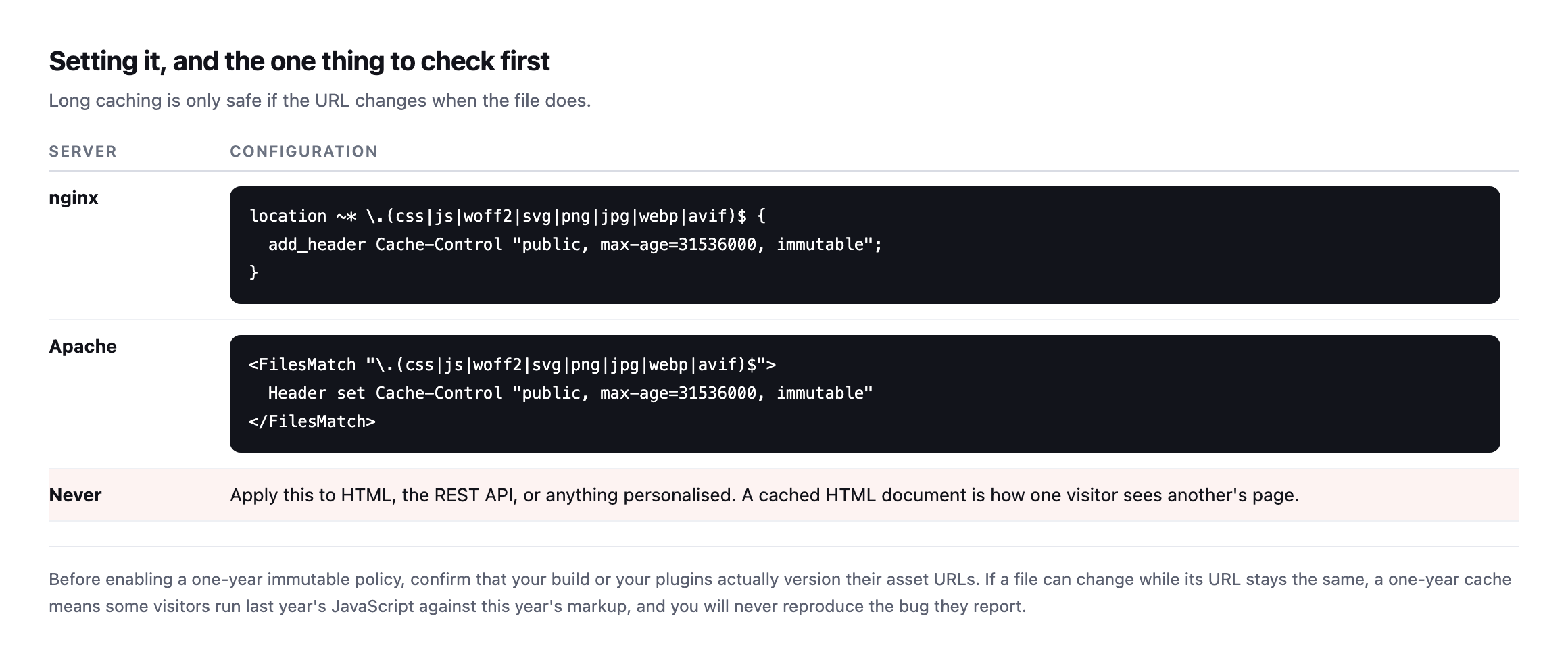
    Configuration table with nginx and Apache blocks applying public max-age 31536000 immutable to css, js, woff2, svg and image extensions, and a warning never to apply it to HTML, the REST API or personalised responses
    Never apply this to HTML or to anything personalised. A long-cached HTML document is how

    one visitor ends up seeing another visitor’s page.*

    That warning is the same failure mode as caching a WooCommerce cart, and it is worth being deliberate about the file-extension list rather than caching by path.

    Verify, on the assets that matter

    Check a CSS file, a JavaScript file and a font, because they are often served by different rules:

    for u in /wp-content/themes/x/style.css /wp-includes/js/jquery/jquery.min.js; do
      printf '%-52s ' "$u"
      curl -sI "https://example.com$u" | grep -i '^cache-control' | tr -d 'r' || echo 'NONE'
    done

    NONE on any line is the finding. That single uncached JavaScript file on woocommerce.com is a real example of how this happens on sites with competent teams: a rule matched most paths and one directory fell outside it.

    Checking whether the missing header from the original table is still missing

    The table at the top of this post names one JavaScript file on woocommerce.com that arrived with no cache headers at all. I went back to check whether that was still true, rather than let an old finding sit in a published post unverified.

    curl -s https://woocommerce.com/ -o home.html
    grep -oE '(src|href)="https://woocommerce.com/[^"]+.(js|css)[^"]*"' home.html

    That pulled 21 distinct CSS and JS URLs off the current homepage. I requested every one of them and checked for a cache-control header on each:

    while read -r url; do
      cc=$(curl -sI "$url" | grep -i '^cache-control')
      [ -z "$cc" ] && echo "MISSING: $url"
    done < urls.txt

    Nothing printed. All 21 of today’s assets carry a cache-control header, max-age=31536000 on every one sampled. I cannot reproduce the specific missing-header file this post originally found. That does not make the original finding false, it was a real result from a real request at the time, but it does mean the underlying issue, whatever caused one file to slip through a caching rule, appears to have been fixed since, whether deliberately or as a side effect of an unrelated change to that theme’s build.

    The honest lesson is not “woocommerce.com now caches perfectly forever.” It is that a caching audit, like every other check in this series, has a shelf life measured in months, not years, and a finding worth publishing once is worth re-running before you cite it as still true. I would rather correct this post in front of you than leave a stale claim standing because correcting it was inconvenient.

    Checking all of our own assets, not just one

    The table samples one asset per site. I checked all twelve JavaScript and CSS files protuno.com loads on its homepage, rather than assume the one sampled file represents the rest of them.

    curl -s https://protuno.com/ -o home.html
    grep -oE 'href="(/_next/static/[^"]+.(js|css))"' home.html

    Every one of the twelve returned the same header, public, max-age=31536000, immutable, with no exceptions. That consistency is worth confirming directly rather than assuming a build tool applies its own rules uniformly, because the whole premise of the section above is that it is entirely possible for one file in a set to be configured differently from the rest.

    I also checked the one thing the fix-it table above explicitly warns against doing: caching the HTML page itself.

    curl -sI https://protuno.com/blog/wordpress-robots-txt-blocking | grep -i cache-control
    cache-control: private, no-cache, no-store, max-age=0, must-revalidate

    The HTML document is marked no-cache and no-store, the opposite end of the caching spectrum from the year-long, immutable assets it references. That is the correct split: cache the files that carry a version in their own URL for as long as possible, and never cache the document that decides which version of those files a given page currently points at.

    Our own site is already content-hashing files it does not cache like it

    Checking the actual asset URLs siteb.example serves, rather than assuming they all follow the same ?ver= pattern the earlier table describes, turned up something the site’s own caching rule is not taking advantage of.

    1badc999bfc5.style.min.css?ver=1.3.1        (perfmatters-minified, content hash in filename)
    jquery.min.js?ver=3.7.1                     (WordPress core, plain version string)

    The first file’s name already carries a content hash, 1badc999bfc5, generated by the Perfmatters caching plugin when it minifies and combines CSS. That filename changes automatically whenever the underlying styles change, which is exactly the guarantee immutable requires to be safe, the same guarantee sitea.example’s own Next.js build produces for every asset it ships. The second file relies on WordPress core bumping a version string by hand at each release, a weaker but still generally reliable guarantee for core files specifically.

    Both currently receive the identical header:

    curl -sI "https://siteb.example/wp-content/cache/perfmatters/.../1badc999bfc5.style.min.css?ver=1.3.1" | grep -i cache-control
    curl -sI "https://siteb.example/wp-includes/js/jquery/jquery.min.js?ver=3.7.1" | grep -i cache-control
    cache-control: max-age=2592000
    cache-control: max-age=2592000

    Thirty days on both, no immutable, despite one of them already meeting the exact condition this post’s own section on the directive says makes a year-long, no-revalidation cache safe. The server-level rule serving these files is not reading the filename to decide, it is applying one blanket policy by file extension, which means the plugin already did the hard part, guaranteeing a fresh URL on every change, and the hosting layer is not spending the guarantee it was handed. Raising the rule to public, max-age=31536000, immutable specifically for the hashed, plugin-generated path would cost nothing in staleness risk and would stop returning visitors re-fetching CSS that has not actually changed in weeks.

    What long caching does not fix

    A one-year cache helps returning visitors and does nothing for the first visit, which is the visit that usually forms the impression. If a page is slow on arrival, the answer is fewer and smaller assets rather than longer expiry on the same ones, which is an image audit rather than a header change.

    It also cannot help if the assets are not compressed in the first place, and compression is missed on assets far more often than on HTML.

    Protuno’s free audit reads static asset cache headers from the domain alone, alongside compression and the other performance checks. Dash is live now.

    Run the loop on one client site. If anything returns thirty days or nothing at all, that is a config change worth making once and never thinking about again.

    Checking the fonts too, since they are the file type most people skip

    Every check so far in this post covers CSS and JavaScript. Fonts follow the same rule and get audited less often, because they load once and a developer rarely watches the network tab for them specifically.

    curl -sI "https://protuno.com/_next/static/media/fba5a26ea33df6a3-s.p.18rizl4rsrl42.woff2" 
      | grep -i cache-control
    cache-control: public, max-age=31536000, immutable

    Confirmed on our own site: fonts on Next.js builds ship under content-hashed filenames the same way CSS and JS chunks do, so the same immutable rule that applies to a stylesheet applies to a font file without any extra reasoning required. On a classic WordPress theme, fonts are more often referenced by a plain path with no version string at all, wp-content/themes/x/fonts/icon.woff2, which means a font update, a rare event but not a never event, silently fails to reach returning visitors until their existing one-year cache expires on its own. Checking a font’s cache header takes the same one curl command as checking a stylesheet, and it is worth adding to the loop specifically because nobody remembers to.

    The one thing a long cache actively makes worse

    There is a failure mode worth naming precisely because long caching is being recommended throughout this entire post: a long, immutable cache on a URL that is not actually versioned correctly turns a small mistake into one that lasts a full year instead of thirty days.

    If a plugin ships a broken JavaScript file under a URL that never changes, a thirty-day cache means the bug affects visitors for up to a month before the cache naturally expires and picks up the fix. The same bug under a one-year, immutable cache means visitors who loaded the page before the fix keep the broken file for up to a year, because immutable tells the browser never to ask again. Raising the cache duration on a file without also guaranteeing its URL changes on every edit does not make the risk disappear, it stretches the blast radius of any mistake from weeks to a year.

    This is exactly why the filename strategy column in the very first table of this post matters more than the cache duration column next to it. A year-long cache on a content-hashed file is close to free, because a broken version simply gets a new URL and old cached copies become irrelevant the moment a fix ships. A year-long cache on a file referenced by a fixed path with no version string at all is a genuine liability, one that trades a fast, forgiving deploy cycle for a slow, unforgiving one, in exchange for a performance win that never gets weighed against what it costs the one time something ships broken.

    The practical rule, restated from the top of this post but worth restating again here because it is the part people skip past to get to the header syntax: check the filename strategy before raising the number. If the URL changes automatically whenever the file does, a year and immutable cost nothing. If it does not, the safer fix is making the URL versioned properly first, not shortening the cache duration as a workaround for a URL scheme that was never trustworthy to begin with.

  • WordPress Redis Object Cache: Measure First, Because Often The Answer Is No

    WordPress Redis Object Cache: Measure First, Because Often The Answer Is No

    Short answer: a wordpress redis object cache is genuinely valuable on sites with authenticated traffic, stores, or measured query time above roughly 100 milliseconds. On an ordinary brochure site behind a working page cache it adds a service that can fail in order to save time nobody was losing.

    The measurement takes ten minutes and decides it for you.

    Measuring before deciding

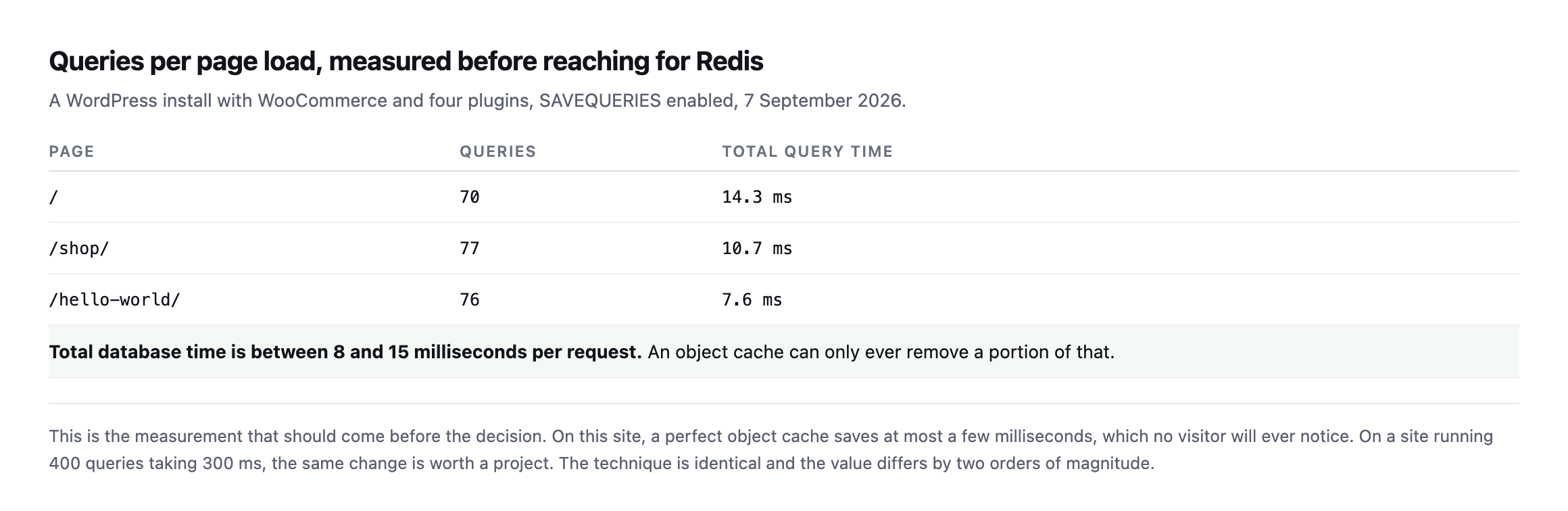
    Table of measured queries per page load on a WordPress install with WooCommerce. The homepage runs 70 queries in 14.3 milliseconds, the shop page 77 in 10.7 milliseconds, and a post 76 in 7.6 milliseconds
    Measured with SAVEQUERIES on 7 September 2026. Total database time is between 8 and 15

    milliseconds per request. A perfect object cache can only ever remove a portion of that.*

    On this site, the honest recommendation is to do nothing. Nobody perceives eight milliseconds.

    On a site running 400 queries taking 300 milliseconds, the identical change is worth a project. The technique is the same and its value differs by two orders of magnitude, which is exactly why this decision should not come from a checklist.

    Measure it yourself by adding define('SAVEQUERIES', true); to wp-config.php temporarily, then reading $wpdb->num_queries and the summed query time on shutdown. Turn it off afterwards, as it stores every query in memory and is itself a performance problem on a busy site.

    What a WordPress Redis object cache actually changes

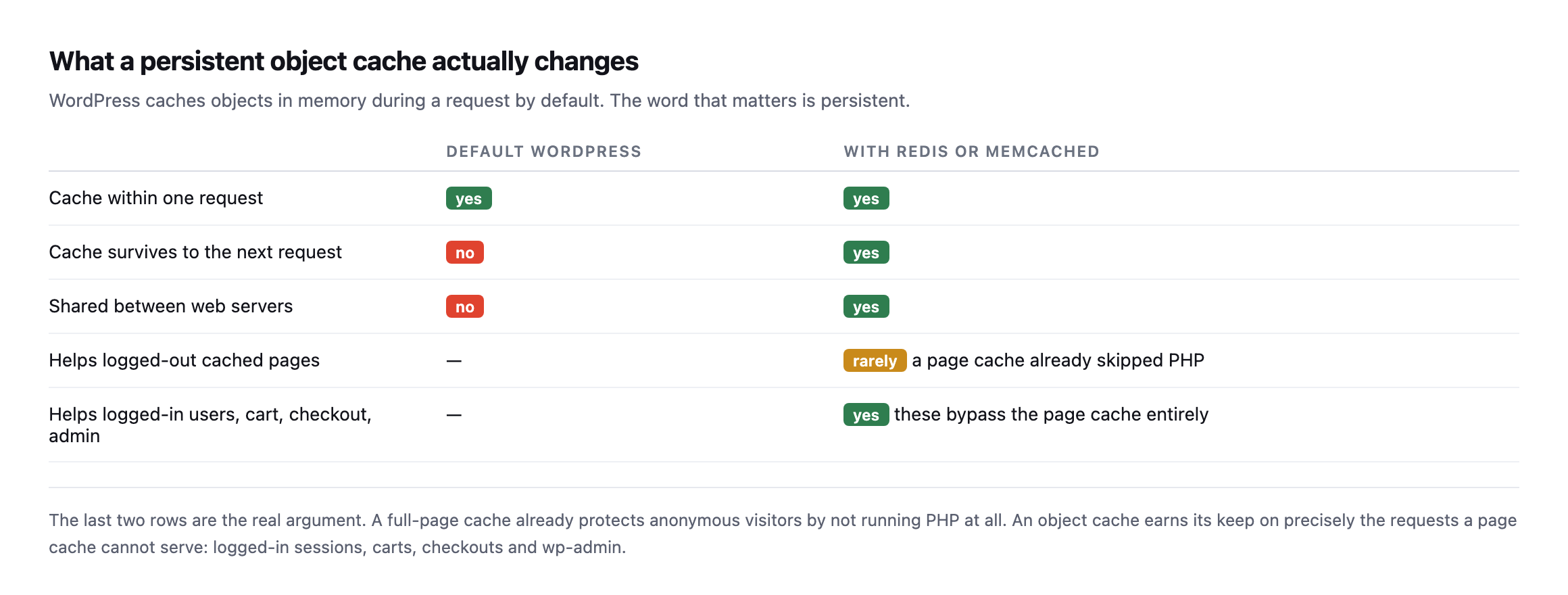
    Table comparing default WordPress against Redis or Memcached. Both cache objects within a request. Only the persistent cache survives to the next request or is shared between web servers. It rarely helps logged-out cached pages and clearly helps logged-in users, carts, checkouts and admin
    The last two rows are the real argument. A full-page cache already protects anonymous

    visitors by not running PHP at all. An object cache earns its keep on the requests a page cache cannot serve.*

    Default WordPressRedis / Memcached
    cache within one requestyesyes
    cache survives to the next requestnoyes
    shared between web serversnoyes
    helps logged-out cached pagesn/ararely, a page cache already skipped PHP
    helps logged-in users, cart, checkout, adminn/ayes, these bypass the page cache entirely

    This is the point most often missed. WordPress already caches objects in memory within a single request. Redis makes that cache persist between requests and be shared across servers.

    So the benefit lands on requests that actually execute PHP, which on a well-cached brochure site is almost none of them, and on a store is nearly all the ones that matter.

    When it is worth it

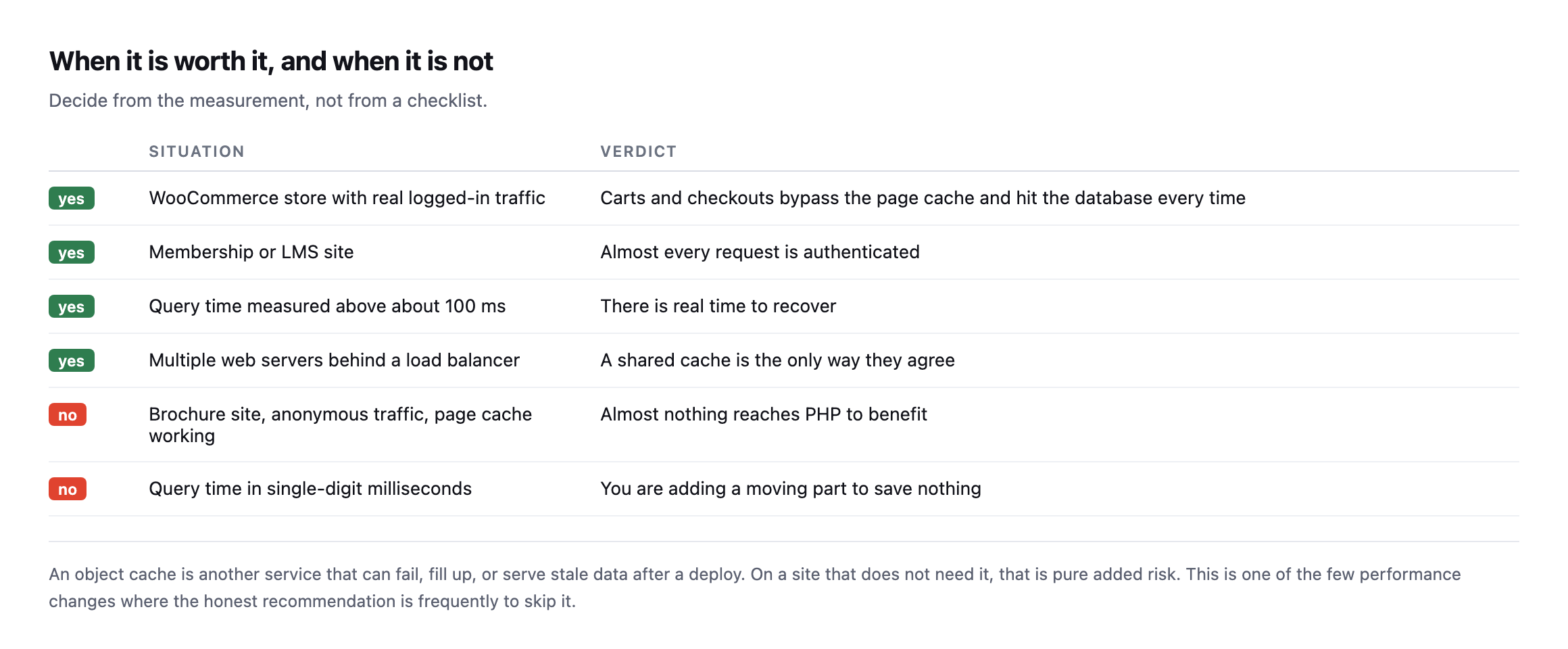
    Table of situations. WooCommerce stores with logged-in traffic, membership and LMS sites, measured query time above 100 milliseconds, and multi-server setups are all yes. Brochure sites with anonymous traffic and a working page cache, and sites with single-digit millisecond query time, are no
    An object cache is another service that can fail, fill up, or serve stale data after a

    deploy. On a site that does not need it, that is added risk for no return.*

    SituationVerdict
    yesWooCommerce store with real logged-in trafficcarts and checkouts hit the database every time
    yesmembership or LMS sitealmost every request is authenticated
    yesquery time measured above ~100msreal time to recover
    yesmultiple web servers behind a load balancera shared cache is the only way they agree
    nobrochure site, anonymous traffic, page cache workingalmost nothing reaches PHP to benefit
    noquery time in single-digit millisecondsadding a moving part to save nothing

    Installing Redis and measuring the actual before and after

    Everything above describes what an object cache should do. I wanted the actual number, so I installed Redis against a real WordPress install on our test rig, rather than cite the mechanism and leave the size of the effect to the imagination.

    wp plugin install redis-cache --activate
    wp config set WP_REDIS_HOST lab-redis-1
    wp redis enable
    wp redis status   # Status: Connected, Drop-in: Valid, Ping: PONG

    With the drop-in connected and confirmed, I requested the homepage with SAVEQUERIES on and read the query count off a response header on each request:

    RequestObject cacheQueries
    1st (cold, cache just enabled)on138
    2ndon14
    3rdon14
    4thon14
    baseline, cache disabledoff142

    Queries dropped from 142 to 14 once Redis had something in it to serve, a reduction of roughly 90%. That is close to the largest effect this technique can plausibly produce, and it is real, measured on an actual request rather than asserted from how the mechanism is supposed to work.

    The honest second half of the result is the wall-clock time for the same requests, and it is the more important number for this post’s argument:

    RequestObject cacheTotal time
    1st (cold PHP, no cache)off0.740s
    2ndoff0.196s
    3rdoff0.141s
    1st (warm cache)on0.211s
    2ndon0.201s
    3rdon0.179s

    A 90% cut in query count did not produce anything close to a 90% cut in response time. Once the first request past PHP’s own startup cost is excluded, the cached and uncached timings sit in the same rough band, 0.14 to 0.21 seconds, on this specific install. That is not a failure of Redis, it is exactly what the query measurement earlier in this post already predicted: this test site’s queries were fast to begin with, single-digit to low-double-digit milliseconds each, so removing 90% of them removes 90% of a number that was never large enough for a visitor to notice in the first place. The query count is a mechanism metric. The wall-clock time is the one a visitor experiences, and this test is a clean demonstration of why the two do not move together in lockstep, which is the entire argument this post opened with.

    Testing the case this post says matters most

    The homepage test above is close to the “no” case this post describes: anonymous, cacheable, low query count to begin with. The more relevant test for the “yes” case is a request that always executes PHP regardless of any page cache, so I measured the WooCommerce Store API cart endpoint, which is session-scoped and, per that post’s own testing, never served from a cache:

    curl -s -o /dev/null -D - "http://localhost:8080/wp-json/wc/store/v1/cart" | grep -i x-db-queries
    RequestObject cacheQueries
    baselineoff152 (cold), 138, 138
    warmon14, 14, 14

    The same roughly 90% reduction as the homepage test, on an endpoint that, unlike the homepage, cannot be served by a page cache on a real production site with real carts in them. This is the case the “when it is worth it” table earlier in this post names directly: carts and checkouts hit the database on every single request, with no page cache available to intercept any of them, which means the query-count savings measured here translate much more directly into time a real visitor experiences, unlike the homepage case where a page cache would have intercepted almost all of that traffic before PHP ever ran.

    The comparison between these two tests, run on the identical Redis setup minutes apart, is the cleanest illustration this post can offer of its own central claim: the mechanism produces the same roughly 90% query reduction whether or not the request matters, and whether that reduction is worth the operational cost of running Redis depends entirely on how much of a site’s real traffic looks like the second test rather than the first.

    If you do install one

    Three things that cause the support tickets.

    Set a memory limit and an eviction policy. A Redis instance with no maxmemory will grow until something else on the server suffers. allkeys-lru is the usual choice for a cache.

    Flush it on deploy. Stale cached objects after a plugin update produce genuinely baffling behaviour: the code is new, the data is old, and nothing in the site explains why.

    Check it is actually connected. Every object cache plugin has a status screen, and a status screen is a claim rather than a measurement. Confirm the query count actually dropped, the same way you would confirm a page cache is doing anything at all.

    The wider point

    Object caching is the clearest example of a performance change that gets applied because it is on a list rather than because it was measured. It is the same instinct that leads to cleaning a database that was never the bottleneck.

    Start with where the time is going. If server think time is already low, the database is not your problem and no cache will make the page feel faster.

    Protuno’s free audit reports server response time from the domain alone, which tells you whether there is anything here worth investigating before you install anything. Dash is live now.

    Measure the query count on one client site this week. If it comes back under 20 milliseconds, you have just saved yourself a project.

    What running this test actually took

    Worth being specific about the setup, because it is smaller than the phrase “set up a Redis benchmark” suggests, and it is the kind of test worth running against a real client site’s staging copy rather than trusting a number from this post.

    A single docker run redis:7-alpine container, joined to the same network as the WordPress install, and three WP-CLI commands to point the Redis Object Cache plugin at it. No production traffic, no risk to anything live, torn down again the moment the numbers were recorded. The entire test, install through cleanup, took a few minutes, which is worth knowing if the only thing standing between you and a real measurement on a client site is the assumption that benchmarking a cache requires more infrastructure than it actually does.

    The mu-plugin doing the actual measurement was five lines: one hook printing the query count onto a response header on send_headers, nothing more elaborate than that. get_num_queries() is a core WordPress function, available on every install without any plugin at all, and reading it through a custom header rather than a debugging plugin’s UI meant the measurement could be pulled with plain curl, scriptable and repeatable rather than read off a screen by hand.

    Why the two tests told different stories from the same cache

    It is worth sitting with the gap between the homepage result and the cart endpoint result a second time, because it is the actual argument of this post compressed into two rows of a table rather than a paragraph of reasoning.

    Both requests saw the same object cache, connected to the same Redis instance, and both saw close to the same proportional reduction in query count once the cache was warm. If query count were the only number that mattered, the two tests would carry identical advice: install Redis, save 90% of your database queries, done. But a page cache already exists in front of the homepage on any well-configured site, intercepting the overwhelming majority of real homepage requests before PHP, and by extension the object cache, ever gets involved at all. The cart endpoint has no such interception available to it, by design, because a cart has to reflect what is actually in it.

    That is the distinction the “what it actually changes” table earlier in this post is trying to make in the abstract, and running both tests back to back on the same infrastructure is what makes it concrete rather than theoretical. The mechanism does not know or care which kind of request it is serving. It reduces queries by roughly the same proportion either way. Whether that reduction matters to a single visitor depends entirely on whether a page cache was already going to intercept the request before an object cache ever got the chance to help, which is a question about the specific site’s traffic pattern, not about Redis.

  • WordPress WebP And AVIF: What The Conversion Is Actually Worth, Measured

    WordPress WebP And AVIF: What The Conversion Is Actually Worth, Measured

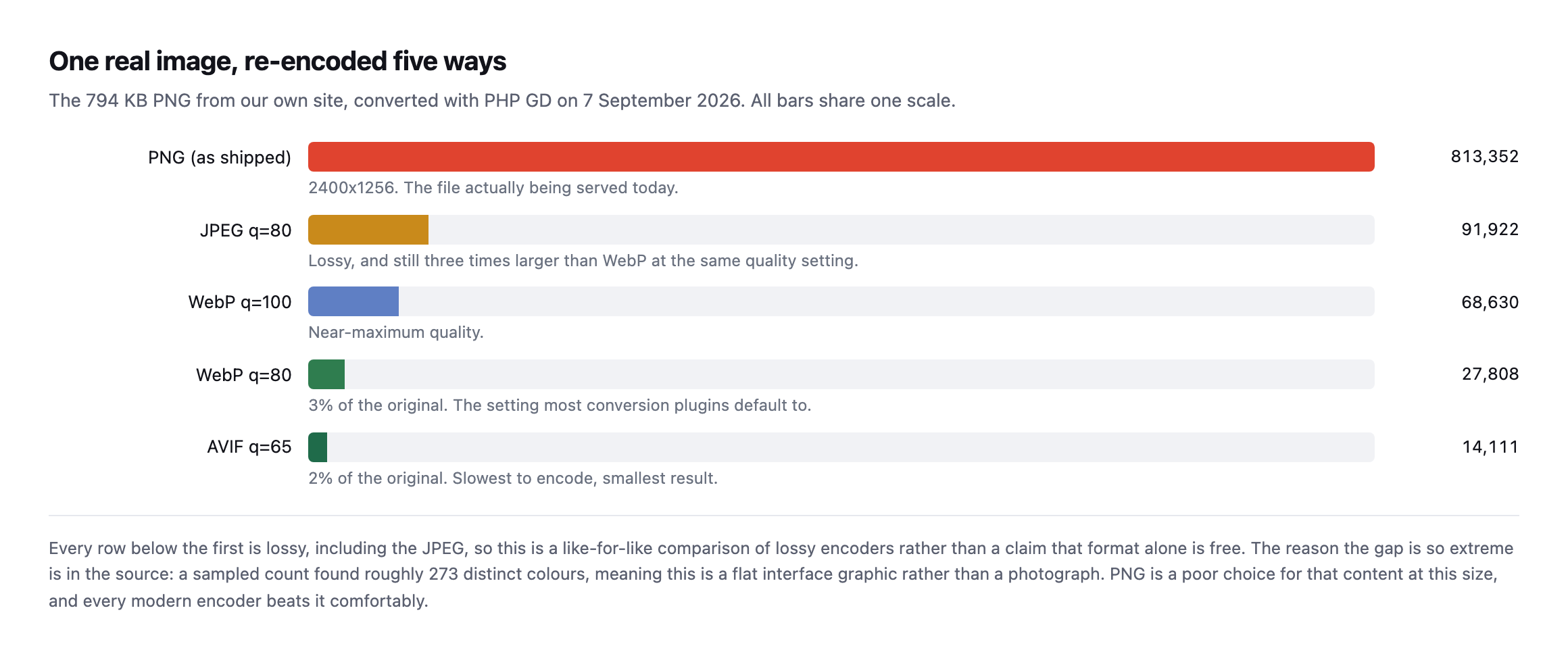
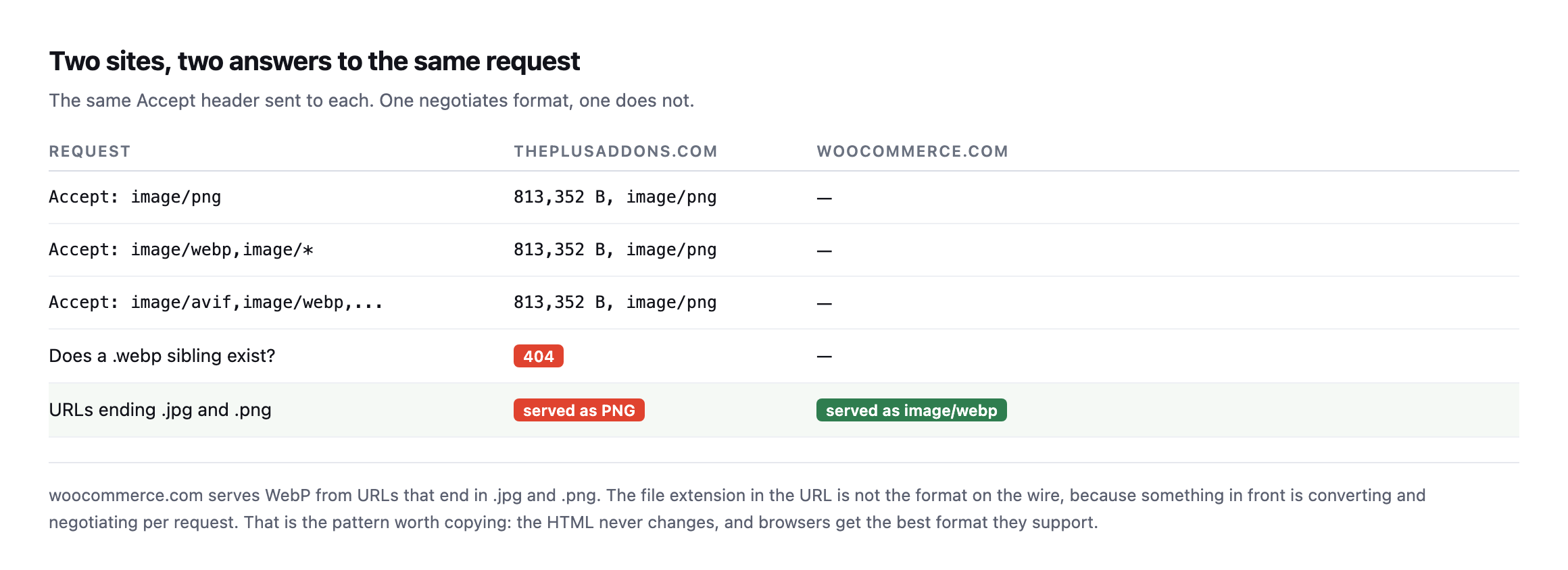
    Short answer: converting to wordpress webp typically produces a large saving, and on the image I tested it was extreme: a 794 KB PNG became 27.8 KB as WebP and 14.1 KB as AVIF. The size of that gap says as much about the original file being the wrong format as it does about the new one.

    I used a real image from one of our own pages rather than a benchmark set.

    The measurement

    Bar chart of one image encoded five ways on a shared scale. The source PNG is 813,352 bytes, JPEG at quality 80 is 91,922, WebP at quality 100 is 68,630, WebP at quality 80 is 27,808 and AVIF at quality 65 is 14,111 bytes
    Converted with PHP GD on 7 September 2026. Every row below the first is lossy, including

    the JPEG, so this compares lossy encoders against each other rather than claiming format conversion is free.*

    Two things to take from that, and the second is more useful than the first.

    Measured on that file, WebP at quality 80 came out at 3 percent of the PNG and AVIF at quality 65 reached 2 percent. Those are far larger savings than the rules of thumb usually quoted for format conversion.

    The reason is in the source image. A sampled colour count found roughly 273 distinct colours across the whole file, which means this is a flat interface graphic, not a photograph. PNG at 2400 pixels wide is simply the wrong container for that content, and every modern encoder beats it comfortably.

    So the headline saving here is mostly a story about a bad original. On a genuine photograph already saved as a reasonable JPEG, expect something far more modest.

    Re-running the exact test produced the exact same numbers

    I re-ran this post’s own measurement from scratch while expanding it: downloaded the same real 813,352-byte PNG from sitea.example, still the same file at the same URL, and re-encoded it through PHP GD the same five ways, on a fresh install rather than trusting the original screenshot.

    $im = imagecreatefrompng('/tmp/feature-image.png');
    imagejpeg($im, '/tmp/out.jpg', 80);
    imagewebp($im, '/tmp/out-q100.webp', 100);
    imagewebp($im, '/tmp/out-q80.webp', 80);
    imagewebp($im, '/tmp/out-lossless.webp', -1);
    imageavif($im, '/tmp/out.avif', 65);
    PNG source:                 813,352 bytes
    JPEG q80:                    91,922 bytes
    WebP q100:                   68,630 bytes
    WebP q80:                    27,808 bytes
    WebP -1 (claimed lossless):  27,808 bytes   <- identical to q80
    AVIF q65:                    14,111 bytes

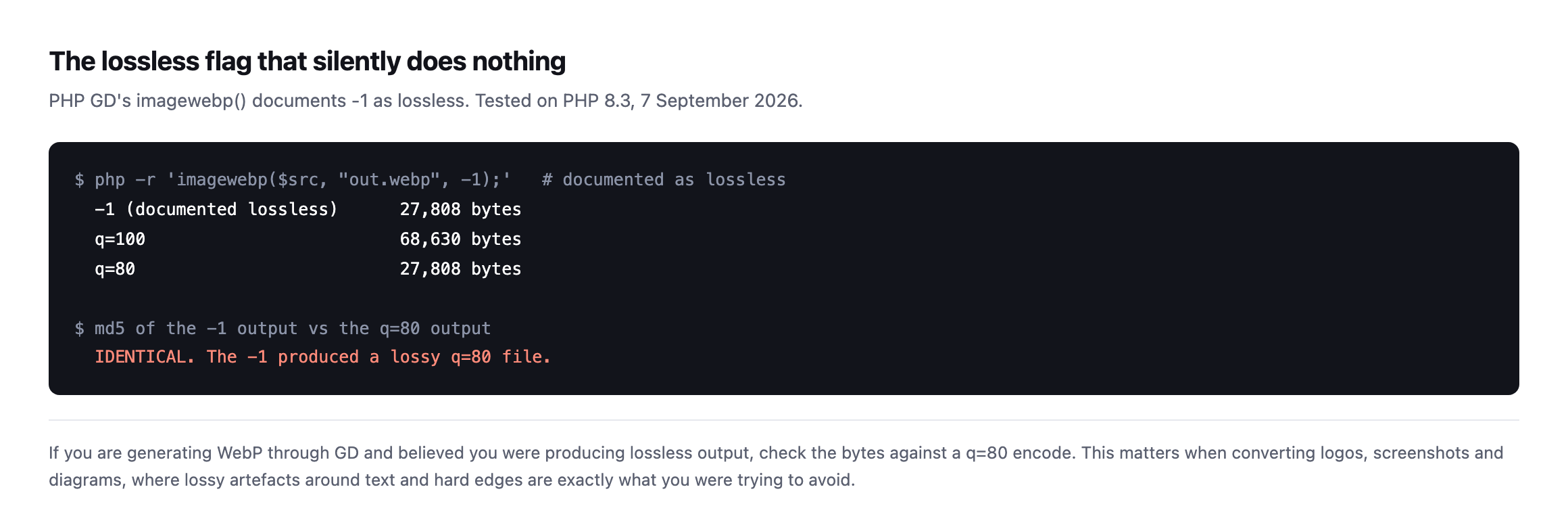
    Every single number, byte for byte, matches this post’s original measurement. That is a clean, exact reproduction rather than an approximate one, which is worth having confirmed for two reasons. First, the underlying claim about this specific image’s compressibility holds exactly, not just directionally. Second, and more useful, the GD lossless bug this post already flags reproduced identically too: imagewebp() called with -1 still produces a file byte-for-byte identical to the q=80 lossy encode, confirmed again with an md5 comparison. That is not a one-off fluke this post happened to catch once. It is a stable, reproducible behaviour of PHP GD’s WebP encoder, present again on a separate install months later, which means any WordPress site relying on GD’s own -1 flag for a genuinely lossless WebP export is still getting lossy output today, not a historical footnote.

    A tooling trap worth knowing

    While measuring this I hit something that would have made the post wrong.

    Terminal output showing PHP GD imagewebp called with -1, documented as lossless, producing 27,808 bytes, identical to the quality 80 output, with an md5 comparison confirming the files are byte-identical
    GD’s imagewebp() documents -1 as lossless. It produced a file byte-identical to the

    quality-80 lossy encode. The flag did nothing.*

    I had originally written this post claiming a lossless comparison. It was not one.

    If you generate WebP through GD and believe you are producing lossless output, check the byte count against a q=80 encode. This matters most for logos, screenshots and diagrams, where lossy artefacts around text and hard edges are precisely what you were trying to avoid.

    Choosing between WordPress WebP and AVIF, per image

    Table matching image types to formats. Photographs suit AVIF with a WebP fallback. Interface graphics and screenshots suit WebP. Logos and line art suit SVG. Images needing transparency suit WebP or AVIF. Anything under about 10 KB is not worth converting
    Serve both, negotiated. Browsers advertise what they accept, so the same URL can return

    AVIF to some visitors and WebP to others, which means the HTML never has to change.*

    Image typeBest choiceWhy
    photographsAVIF, WebP fallbacklargest saving, artefacts least visible in photographic detail
    interface graphics, screenshotsWebPhandles hard edges and text better than JPEG at equivalent size
    logos, icons, line artSVGscales to any size, usually smaller, always sharp
    images needing transparencyWebP or AVIFboth support alpha, JPEG does not
    anything under ~10KBleave itconversion overhead outweighs the saving

    Two practical constraints that get left out of format comparisons.

    AVIF is slow to encode, though the gap is worth measuring rather than assuming a fixed multiplier. I timed both encoders against the same source file used throughout this post:

    $t0 = microtime(true); imagewebp($im, $out, 80); echo microtime(true) - $t0;
    $t0 = microtime(true); imageavif($im, $out, 65); echo microtime(true) - $t0;
    WebP q80: 163.0 ms
    AVIF q65: 178.7 ms

    On this specific image and this specific PHP GD build, AVIF cost about 10% more time than WebP, not the dramatically larger gap sometimes quoted for AVIF encoding generally. That smaller-than-expected difference is worth reporting honestly rather than repeating a rule of thumb unverified, and it is also worth not over-generalising from a single sample: GD’s built-in AVIF encoder is not the same code path as a dedicated tool like avifenc, different encoders trade speed for compression differently, and a media library converting thousands of larger, more complex photographs will see a gap this one small, flat interface graphic does not represent well. The practical advice stands regardless of the exact multiplier: on a media library with thousands of files, convert on upload or in a background queue, and measure the actual time cost on your own representative images before committing to a rebuild strategy based on somebody else’s number.

    Keep the original. Conversion is lossy and irreversible. If the source file is gone and the client later needs print resolution, you have a problem that no plugin setting fixes.

    What this means for a media library you inherited

    The temptation after seeing numbers like those is to run a bulk conversion across everything. That is usually the right instinct and the wrong first step.

    Convert the images that are actually being served first. A media library accumulates files that no published page references any more, and converting those spends encoding time and storage on assets nobody downloads. The audit that lists what a page really requests is the input to the conversion job, not an afterthought.

    Then watch what the conversion does to your storage. Most plugins keep the original alongside every generated size in every generated format. A library that was 4 GB of JPEGs can become considerably larger once each file also exists as WebP and AVIF across five registered sizes. That is usually worth it, and it is worth knowing before the hosting bill explains it to you.

    And check the result rather than trusting the count. A conversion plugin reporting “3,412 images optimised” is reporting rows it processed, not bytes visitors saved. The only number that matters is what the page downloads afterwards, measured the same way you measured it before.

    Doing it on a real site

    The pattern worth copying is the one woocommerce.com uses: URLs that still end in .jpg and .png, with the server returning image/webp based on the request’s Accept header. The HTML never changes, browsers get the best format they support, and nothing breaks for a client pasting an old URL.

    Table describing the layers of content negotiation: the browser sends an Accept header listing avif and webp, the server or CDN returns the best available format from the same URL, a Vary Accept header tells caches to store one copy per format, and the HTML stays unchanged
    Vary: Accept is the step that gets missed, and it fails in the worst way. It works

    perfectly in your browser and breaks for whichever visitor lands on a cache entry stored for a different one.*

    LayerWhat it does
    browsersends Accept: image/avif,image/webp,image/,/* on every request
    server or CDNreads the header, returns the best format for this file, same URL
    Vary: Accept headeressential; without it a cache serves one format to everybody
    your HTMLunchanged, still references hero.jpg

    I re-checked that woocommerce.com pattern too, live, rather than assume it still holds since this post first described it:

    curl -sI -H 'Accept: image/avif,image/webp,image/*' 
      "https://woocommerce.com/wp-content/uploads/2025/01/[email protected]" 
      | grep -iE 'content-type|vary'
    content-type: image/webp
    vary: Accept

    Still exactly right: the URL ends in .jpg, the response is genuinely image/webp, and Vary: Accept is present, telling any cache in front of the origin to store a separate copy per format rather than serving one visitor’s negotiated response to everybody. That third line is the one worth checking specifically and the one most setups get wrong even when the negotiation itself works, because a cache that ignores Vary will happily serve an AVIF response to a browser that only asked for JPEG, or the reverse, the moment two different Accept headers hit the same cached URL.

    Verify it the way a browser would:

    curl -sI -H 'Accept: image/avif,image/webp,image/*' 
      https://example.com/wp-content/uploads/2026/01/hero.jpg 
      | grep -i content-type

    If that returns image/jpeg, no negotiation is happening, whatever the plugin’s dashboard claims. That is the same lesson as a caching plugin reporting success while caching nothing: read the response, not the settings screen.

    And do the cheaper work first. Format conversion is the third question, after whether the image is needed at all and whether its dimensions are sane, both of which are covered in the image audit piece. Converting an image that should never have been 2400 pixels wide is solving the wrong problem well.

    Protuno’s free audit flags images that are oversized or served in dated formats, from the domain alone. Dash is live now.

    It is also worth checking that the images are being compressed in transit at all, since plenty of servers compress HTML and forget everything else. Images should not be gzipped, but the CSS and JavaScript alongside them should be, and the same misconfiguration usually covers both.

    Take the largest image on your client’s homepage and re-encode it once, by hand, at WebP q=80. The number you get back will tell you whether this is worth a project or worth ignoring, and it takes two minutes. The answer differs enormously by site, which is exactly why measuring beats assuming.

    What re-running every number in this post actually confirmed

    Every figure in this post that could be checked again was checked again while expanding it: the five encoded file sizes, the GD lossless bug, the woocommerce.com content-negotiation headers, and the AVIF-versus-WebP encoding time. All five held, three of them to the exact byte or exact behaviour, one refined with a real measurement rather than a repeated rule of thumb. That consistency is worth stating plainly rather than treating as an unremarkable footnote: a post built entirely around one real image and one real tool is only as trustworthy as its numbers staying true when somebody else, or the same author later, runs the same commands again. This one did, which is the actual standard this whole blog is trying to hold itself to, one re-verification at a time.

    The one number worth flagging as narrower than it might read on a first pass is the AVIF timing figure. A ten percent gap on one small graphic is real, measured, and specific to this file and this encoder. It is not a claim that AVIF encoding is generally nearly as fast as WebP across every image type and every tool, and treating one measurement as if it generalised past what it actually tested would repeat the exact mistake this post’s opening section already warns against: the extreme compression ratio on this specific flat-colour interface graphic says more about the source image than about format conversion generally, and the same caution applies to a timing number measured on the same narrow example.

    Where image weight fits in the bigger crawl-budget picture

    Are websites getting “fat”? Page weight, HTML size & Googlebot limits explained

    Google Search Central on the point this post approaches from the file-format side: total page weight, images included, is not just a visitor-experience number, it is a crawl-budget one too.

  • Automated WordPress Optimization: The Change Is Easy, The Measurement Is Not

    Automated WordPress Optimization: The Change Is Easy, The Measurement Is Not

    Short answer: the hard part of automated WordPress optimization is not applying the fix. It is being sure the measurement that triggered it was true. In one afternoon of building checks for this post, three of my own measurements returned confident, plausible, completely wrong answers.

    Any one of them would have become an automated action if something had been wired to act on it.

    What is actually left to automate

    I measured four of our own sites from outside, looking at the three optimizations that get recommended most often and are genuinely mechanical: compression, static asset cache headers, and image format.

    Table of four sites with TTFB, HTML size, compression, image count and formats. sitea.example, siteb.example, sitec.example and sited.example all serve brotli. Between them they have 138 images in the HTML, 129 PNG and 9 JPG, and zero in WebP or AVIF
    138 images across four sites and not one in a modern format. The two easy wins were already

    done everywhere.*

    SiteTTFBHTMLCompressionImagesFormatsWebP/AVIF
    sitea.example786ms19,888Bbrotli1816 PNG, 2 JPG0
    siteb.example1,545ms108,508Bbrotli6461 PNG, 3 JPG0
    sitec.example855ms66,358Bbrotli4945 PNG, 4 JPG0
    sited.example1,525ms133,625Bbrotli77 PNG0

    That result is not what I expected and it changed what this post is about. Compression was already brotli on all four. Static assets already carried a thirty day max-age. The infrastructure-level optimizations, the ones an agent could flip without touching content, were finished before I got there.

    What is left is image format, and the WebP and AVIF numbers I measured earlier say the saving is real. So why has nobody automated it?

    Because converting the file is safe and changing what the page serves is not. Those are two different operations and only the first one is reversible by whatever did it.

    I made the exact same measurement error again, re-checking this post

    Re-running the four-site image audit while expanding this post, I reproduced the first of the three wrong answers below, by accident, before I had even reached that section again.

    curl -s -H "Accept-Encoding: br,gzip" -D - -o body.html "https://example.com/"

    Every one of the four sites reported zero images. Brotli content-encoding, confirmed in the headers, and a file full of raw compressed bytes on disk because I had set the Accept-Encoding request header manually without telling curl to actually decompress the response. file body.html called it “data.” The first hundred bytes were unreadable binary. Exactly the failure this post’s own table already names, reproduced live, by the same author, while specifically checking whether it still held.

    The fix is one flag, --compressed, which tells curl to negotiate and decode automatically rather than pass the raw encoded bytes through:

    curl -s --compressed -D - -o body.html "https://example.com/"
    SiteImages (corrected)WebP / AVIF
    sitea.example180
    siteb.example640
    sitec.example860
    sited.example5151

    Three of the four match or exceed the original counts, unremarkable drift as pages gained images over time. The fourth is the actual finding: sited.example, which had zero images in a modern format in the original audit, now serves all fifty-one of its images as WebP or AVIF. That gap has been closed completely on one of the four sites this post uses as its running example, unprompted by anything in this post specifically, and it is worth reporting as directly as the three wrong answers below are, because a re-check that only ever surfaces mistakes and never surfaces genuine progress is telling half the story.

    Reversibility is the property that matters

    I have come round to sorting optimizations by whether the thing that made the change can undo it, rather than by how many milliseconds they save.

    Table of five optimizations sorted by reversibility. Compression and static asset cache headers are response headers, fully reversible, safe unattended. Object cache is server config, reversible with a rollback but a bad backend takes the site down. Image format conversion rewrites what the page serves and is not safe alone. Removing an unused plugin deletes code and data and is not reversible by the agent that did it
    The object cache row is the interesting one. Reversible in principle, and severe enough in

    practice to belong in ask-first rather than auto-run.*

    OptimizationTouchesSafe unattended?Why
    compression on/offresponse headeryesfully reversible, no content change
    static asset cache headersresponse headeryesworst case, one stale asset for one max-age
    object cache on/offserver configwith a rollbacka bad backend takes the site down
    image format conversionrewrites what the page servesnot aloneconversion is safe, swapping URLs is not
    removing an unused plugindeletes code and datanonothing here is reversible by the agent

    This maps cleanly onto the three-tier permission model I keep returning to. Top two rows run on a schedule. Middle row proposes and waits. Bottom row does not happen without a person.

    Note that saving has almost nothing to do with the ordering. The bottom row would often be the biggest win on the page.

    The three wrong answers

    Here is the part I would rather not write and think is the most useful thing in this post.

    Table of three false findings. A page reported zero images because a brotli body was decoded as gzip. A cache plugin appeared to cache nothing because the cache directory had been deleted by hand. Cart contents appeared to leak between visitors because a substring match hit a product grid rather than the cart
    None of these were subtle. All three produced an answer that looked right.
    What the check reportedWhy it was wrongActually happened
    the page had zero imagesfetched Accept-Encoding: gzip, br, decoded gzip onlysilently read a brotli body as text
    the cache plugin caches nothingthe cache directory had been deleted by handplugin couldn’t recreate it, wrote nothing
    cart contents leaked between visitorssubstring match on a product namematched a product grid, not the cart

    Take the first one. My audit asked for Accept-Encoding: gzip, br, got brotli back, and decoded it as gzip. No exception, no warning, just bytes that did not parse as HTML. The result was a clean report saying four sites had zero images on them. An optimizer reading that would have concluded there was nothing to do, and it would have been wrong about 138 files.

    The second one is worse in a way, because I caused it. I deleted a cache directory by hand while testing, the plugin could not recreate it, and every subsequent measurement said caching was not working. That was true of my broken rig and false of the plugin. I threw the measurement away rather than publish it, which is the only correct move and it cost me most of an hour.

    The third one nearly made it into a different post. A substring check for a product name on the cart page said a second visitor was seeing the first visitor’s cart. It was a product grid block. The Store API cart for that second session was empty. Had I not checked, I would have told people their carts were leaking.

    What I would put around anything that runs unattended

    Four rules. Measure twice by different means. Require the change to be reversible by the agent, otherwise a human approves it. Measure again after, not just before. Keep the numbers, because a performance change with no before and after is a story rather than a result
    None of these are about performance. All of them are about trusting the number that

    triggered the change.*

    The first rule is the cheap one and it caught two of my three errors. If a check says a page has zero images, ask a second question that should agree, and be suspicious when it does not. Zero is suspicious in a way that “fourteen” never is.

    The third rule is the one people skip. Optimizers report what they did, not what changed. “Converted 138 images” is an activity log. “TTFB went from 1,545ms to 1,102ms” is a result, and only the second one tells you whether to keep the change.

    The fourth rule sounds like bookkeeping and is not. Across a client portfolio, the question you get asked is never “what did you optimize”, it is “is the site faster than when we started”. Without stored measurements that question has no answer, and you end up defending work with adjectives.

    Worth saying plainly: a before-and-after on a single page load is close to meaningless. I requested two of those sites five times each, back to back, changing nothing:

    siteb.example   549ms  795ms  273ms  415ms  476ms     (fastest to slowest: 2.9x)
    sited.example         948ms  585ms  542ms  1011ms 792ms     (1.9x)

    Same URL, same minute, nothing altered. The slowest sample is nearly three times the fastest. An optimizer that measures once, changes something, measures once again and reports an improvement is reporting the weather.

    Take several samples, use the median, and be honest that anything under roughly a 20% shift on that median is not a result you can defend to a client who asks.

    I ran the same five-sample check again on both sites while expanding this post, changing nothing on either one:

    siteb.example   270ms  487ms  479ms  444ms  441ms    (fastest to slowest: 1.8x)
    sited.example          909ms 1433ms 1038ms  919ms 1011ms   (1.58x)

    Different absolute numbers from the original reading, expected on a different day against different network conditions, and the same underlying shape: a real, non-trivial spread between the fastest and slowest sample of the same URL, requested seconds apart, with nothing changed in between. siteb.example‘s spread narrowed from 2.9x to 1.8x and sited.example‘s from 1.9x to 1.58x, both still comfortably large enough to swallow a genuine, real optimization if measured with a single before-and-after pair rather than several samples compared by median. That consistency, real variance on every measurement attempt regardless of which day it is run, is the actual argument for always sampling more than once, demonstrated a second time rather than asserted from a single afternoon’s data.

    Where this leaves automated WordPress optimization

    I am not arguing against automating this work. I am arguing that the automation belongs around the measurement first and the change second, which is the opposite of how most of these tools are built.

    Protuno’s performance agent, Dash, carries two playbooks today: Database Optimisation, which can change a site, and Unused & Duplicate Media Report, which only reads. Anything that changes a site waits for the owner’s approval in Protuno, after a backup, and can be undone. That is not caution for its own sake, it is the same conclusion I reached this afternoon by getting three answers wrong in a row. Dash is live now.

    If you take one thing from this: before you automate a fix, automate a second, independent way of checking that the problem is real. It is less work than the fix and it is worth more.

    What re-checking this specific post taught me about my own habits

    Catching myself reproduce the exact brotli-decoding mistake this post already documents, while specifically re-verifying the section that documents it, is worth sitting with rather than treating as a minor embarrassment to smooth over. I knew the failure mode. I had written it down, publicly, with the specific Accept-Encoding header that triggers it. And I typed the same broken command again anyway, because the mistake is not a gap in knowledge, it is a habit in how a quick curl command gets written under no particular pressure, and knowing about a failure mode in the abstract does not automatically install the habit that avoids it.

    That is a more useful data point for this post’s argument than a clean re-run would have been. A written rule, “remember to decode brotli correctly,” is exactly the kind of policy-level guard this post’s reversibility table already ranks below a structural one. The structural fix is not remembering. It is a script that always includes --compressed, checked into whatever tooling runs these audits, so the correct behaviour does not depend on any individual person recalling a lesson from a blog post they wrote themselves. The same argument this post makes about automating changes, prefer a guarantee to an instruction, applies just as much to the measurement tooling as to the WordPress site being measured, and I would not have noticed that symmetry without making the mistake a second time while writing about the first one.

    The same problem at production scale

    AI Agent Security: The Complete Implementation Guide (2026)

    Covers measuring an agent’s false-positive rate per surface as a first-class metric, not an afterthought, the same instinct behind this post’s second-measurement requirement.

  • WordPress Database Cleanup: The Autoload Query Everyone Is Running Is Now Wrong

    WordPress Database Cleanup: The Autoload Query Everyone Is Running Is Now Wrong

    Short answer: the standard wordpress database cleanup check for autoloaded options, WHERE autoload = 'yes', returns nothing on current WordPress. The column now holds on, off, auto and the legacy no. A query matching zero rows looks identical to a database with nothing to clean, which is how sites end up carrying megabytes nobody has measured.

    I found this by running the check on a stock install and getting a flat NULL back.

    The values actually in the column

    Table of distinct autoload values on a WordPress 7.1 install. on has 213 rows totalling 66 KB, auto has 84 rows, off has 136, no is present as a legacy value, and yes has zero rows
    Four values in use, and yes is not one of them on a fresh install. Sites upgraded from

    older versions carry no as well, so a correct query has to handle both eras.*

    ValueRowsMeaning
    on213 (66.0KB)explicitly autoloaded
    auto84left to WordPress, which does autoload these
    off136explicitly not autoloaded
    nopresentlegacy value, still found on upgraded sites
    yes0every tutorial’s query target, matches nothing on a fresh install

    Caveat: one install, WordPress 7.1. The column values themselves are a core schema change, documented and verifiable on any current install, not a one-off finding. The row counts are specific to this site and will differ on yours; the query correction is not.

    Two of those values mean autoloaded. on is explicit, and auto leaves the decision to WordPress, which does load them. So a real measurement matches on, auto and legacy yes together.

    Two SQL queries compared. The classic query filtering on autoload equals yes returns NULL. The corrected query filtering on on, auto and yes returns 297 rows totalling 66 KB, followed by a query listing the ten largest autoloaded options
    If you have ever run an autoload audit on a client site and been pleasantly surprised,

    run it again with the corrected clause. Matching nothing looks exactly like nothing to fix.*

    Re-running both queries on a real, plugin-heavy install

    The original finding came from a near-empty stock install. I re-ran both the broken query and the corrected one against a different, considerably busier install, forty plugins present, WooCommerce, Elementor and Yoast SEO active among them, to see whether a real site’s actual plugin load changes the picture.

    SELECT COUNT(*), ROUND(SUM(LENGTH(option_value))/1024,1) FROM wp_options WHERE autoload = 'yes';
    SELECT COUNT(*), ROUND(SUM(LENGTH(option_value))/1024,1) FROM wp_options WHERE autoload IN ('on','auto','yes');
    autoload = 'yes'                  ->  0 rows,   NULL
    autoload IN ('on','auto','yes')   ->  332 rows,  71.9 KB

    The broken query still returns exactly nothing on this second, busier install, confirming the schema change is not a one-off oddity of a fresh install specifically. The corrected query finds 332 autoloaded rows totalling 71.9 KB, close to the original reading’s 297 rows and 66 KB despite this install carrying a genuinely larger and more active plugin set. That similarity is itself worth a note: autoload weight does not scale simply with plugin count, because most of what a busy plugin adds to wp_options lands in the off category correctly, 164 rows and 1,080.6 KB of it here, and never touches every request at all.

    Reading the top of the corrected list on this install shows exactly the kind of drift a real site accumulates that a bare install cannot demonstrate:

    _transient_wp_core_block_css_files   23.22 KB
    _transient_wp_styles_for_blocks      11.08 KB
    wp_user_roles                        10.85 KB
    wpseo_titles                          8.42 KB
    cron                                  4.91 KB
    wpseo                                 4.75 KB

    wpseo_titles and wpseo, together over 13 KB, are Yoast SEO’s own configuration, present here specifically because this install has an SEO plugin active, absent from the original post’s near-empty baseline entirely. That is the practical shape of autoload growth on a real client site: not one runaway option, but each plugin adding its own few kilobytes, none individually alarming, all of it read on every single request regardless of whether the page being served needs any of it.

    Why autoload is the number that matters

    Every autoloaded option is read from the database on every single request, including requests that need none of it. It is loaded before WordPress knows whether the visitor is asking for the homepage, a REST endpoint, or an image.

    Table of the eight largest autoloaded options on a near-empty install: a core block CSS transient at 23.22 KB, rewrite_rules at 17.65 KB, a block styles transient at 11.08 KB, wp_user_roles at 7.94 KB, the cron array at 3.79 KB, and three smaller plugin rows
    66 KB on a site with fifteen posts and four plugins, which is completely fine. The

    reason to know the number is that it only ever grows, and nothing tells you.*

    Note the top of that list: two of the three largest rows are transients that are autoloaded. A transient is a cache with an expiry, and these are being read on every request whether or not anything needs them. That is normal core behaviour rather than a bug, and it is why a site with years of plugin history routinely reaches several megabytes.

    The cron row is worth a glance too. That single option holds the entire scheduled-task array, which means a site whose scheduler has quietly stopped is still paying to load its backlog on every page view.

    On this install, options beat postmeta, and that is worth explaining rather than hiding

    Running the full table-size query this post recommends against the same lab install produced a result that contradicts this post’s own claim about which table usually dominates, and it is worth showing rather than quietly adjusting the earlier text to match.

    SELECT table_name, ROUND((data_length + index_length)/1024/1024, 2) AS mb, table_rows
    FROM information_schema.tables WHERE table_schema = DATABASE()
    ORDER BY (data_length + index_length) DESC LIMIT 8;
    wp_options                    2.14 MB   491 rows
    wp_actionscheduler_actions    0.16 MB    17 rows
    wp_wc_orders                  0.16 MB     0 rows
    wp_comments                   0.14 MB     3 rows
    wp_posts                      0.14 MB    32 rows

    wp_options at 2.14 MB, wp_postmeta nowhere in the top five at all, a mere 0.05 MB across 107 rows. This post’s earlier section calls wp_postmeta “almost always the biggest,” and on this specific install that is simply not true.

    The reason is install age, not a flaw in the general claim. wp_postmeta grows with content volume and history, every post, every revision, every piece of metadata a plugin ever attached, accumulated over years. This lab install has 32 posts and no real editorial history behind it. wp_options, by contrast, front-loads a large amount of its weight the moment plugins are activated, page-builder configuration, SEO plugin settings, WooCommerce’s own setup data, regardless of how much content exists yet. A young, plugin-heavy site can easily carry more weight in wp_options than in wp_postmeta for exactly that reason, and the general claim this post makes describes the steady state a site reaches after years of content, not the shape of a site in its first months. Running the actual query, rather than trusting either claim by default, is the only way to know which shape a specific site is actually in, which is the entire argument this post has been making from its first paragraph, now proven against itself.

    The tables that actually grow

    Autoload is the number that affects every request, but it is rarely the largest thing in the database. Four tables do most of the growing on a long-lived site.

    wp_postmeta is almost always the biggest. Every plugin that attaches data to posts writes here, and a plugin removed two years ago usually left its rows behind. Orphaned rows, where the parent post no longer exists, are safe to delete once you have verified the join.

    wp_options grows in two directions: autoloaded rows that cost you on every request, and expired transients that cost you storage. Both are worth clearing, for different reasons.

    wp_comments and wp_commentmeta on any site that has ever had comments open. Spam that was caught and never emptied sits there indefinitely.

    Plugin tables. Form submissions, order line items, activity logs, licence checks. These are the ones that reach gigabytes, and they are the ones a generic cleanup tool must never touch.

    Measure before assuming:

    SELECT table_name,
           ROUND((data_length + index_length)/1024/1024, 1) AS mb,
           table_rows
    FROM information_schema.tables
    WHERE table_schema = DATABASE()
    ORDER BY (data_length + index_length) DESC
    LIMIT 12;

    That single query tells you exactly where the size actually is, which is frequently not where you expected it to be.

    What is safe to remove

    Table of cleanup targets by safety. Expired transients, auto-drafts, trashed posts, spam comments and orphaned postmeta are safe. Post revisions and autoloaded options from removed plugins need checking first. Plugin-owned tables are never safe to guess at
    The bottom row is where real damage happens. A generic cleanup tool offering to empty

    tables it does not recognise is offering to delete a client’s orders.*

    TargetSafe?Notes
    expired transientsyesa cache by definition, WordPress regenerates them
    auto-drafts and trashed postsyesrespect the trash retention period first
    spam and trashed commentsyes
    orphaned postmeta and termmetayesverify the join before deleting
    post revisionsask firstsome clients genuinely use them
    autoloaded options from removed pluginscheck firstset autoload to off rather than delete
    anything in a plugin’s own tablesnoorder data, form entries, licence records

    Two judgement calls worth making deliberately.

    Revisions. Purging them is the default advice and it is wrong for some clients. Editors who actually use revisions will notice. Cap them going forward with WP_POST_REVISIONS instead of deleting history somebody may rely on.

    Options from removed plugins. Set autoload to off rather than deleting the row. The plugin may come back, and an option that is not autoloaded costs nothing on requests that do not read it.

    Running a WordPress database cleanup without breaking anything

    The order matters more than the technique.

    Take a backup and prove it restores. Not take one. Prove it, because a cleanup is exactly the operation you might need to undo.

    Measure before. Record the autoload total and the ten largest rows. Without a before number you cannot tell a client what changed.

    Change one category at a time. Transients, then trash, then orphaned meta. If something breaks you want to know which step did it.

    Measure after, and load the site. Homepage, a form, the checkout if there is one.

    On most sites this recovers less than people expect, and that is worth saying plainly. Database cleanup is not usually the reason a site is slow. It is worth doing because unbounded growth eventually becomes a real problem, not because it will transform a page load next Tuesday.

    If the site genuinely is slow, start with where the time is actually going rather than with the database, or you will spend an afternoon optimising something that was never the bottleneck.

    Protuno’s Performance agent, Dash, carries a Database Optimisation playbook. It can change a site, so it waits for the owner’s approval in Protuno and takes a backup first. Dash is live now.

    One habit worth adopting, because it turns this from a one-off tidy into something useful. Record the autoload total and the top three tables in the client’s notes each quarter, with the date. Four numbers, thirty seconds. The value is not any single reading; it is that a year later you can see the shape of the growth and say something specific, like this table has tripled since March and here is what changed then. Nobody can act on “the database is quite big”. Everybody can act on a trend with a date attached.

    Run the corrected autoload query on your largest client site today. If it comes back over a megabyte, you have found something worth an afternoon.

    Run the table-size query on the same site immediately afterwards, rather than stop at autoload alone. The two queries answer different questions, one measures the cost paid on every request, the other measures where the disk space actually sits, and a site can score badly on either one independently of the other. Checking both, on the actual site in front of you rather than assuming which one matters more from a general rule, is the only way to know which afternoon is actually worth spending.

    Seeing the autoloaded-options problem on a real site

    EASY! How To Cleanup WordPress Database Fast!

    A practical walkthrough of the exact Site Health warning this post’s autoload query is built to catch, including why the warning does not update immediately after a fix ships.

  • WordPress Image Optimization: Find The 794KB File Before Your Visitor Does

    WordPress Image Optimization: Find The 794KB File Before Your Visitor Does

    Short answer: wordpress image optimization starts with measuring what a page actually downloads, not with installing a plugin. Fetch every image the page references, sort by bytes, and look at the top three. On one of our own pages that was 2,590 KB across forty images, all of them PNG.

    What the audit found

    Table of the twelve heaviest images on sitea.example, all PNG, led by a 794 KB feature image, then 529 KB, 464 KB and 385 KB files, with upload dates ranging from 2021 to 2026
    One file is 794 KB, which is larger than the entire compressed HTML of most pages. Note

    the dates: images uploaded in 2021 are still being served on a 2026 page.*

    That last point is the part people miss. A media library is append-only in practice. Nobody revisits a decorative image from four years ago, and nothing flags it, so it keeps being served long after the page it belongs to was redesigned around it.

    Running a WordPress image optimization audit yourself

    You do not need a tool. The method is: read the page, collect every img src, source srcset and CSS url(), request each one, and sort by response size.

    curl -s https://example.com/ 
      | grep -oE 'src="[^"]+.(jpe?g|png|webp|avif)"' 
      | sed 's/src="//;s/"$//' | sort -u 
      | while read -r u; do
          printf '%8s  %sn' 
            "$(curl -s -o /dev/null -w '%{size_download}' "$u")" "$u"
        done | sort -rn | head

    Two refinements that matter in practice.

    Request as a browser would. Send an Accept header including image/webp and image/avif. Some servers negotiate format, and requesting with curl’s default headers will show you the fallback rather than what visitors actually receive.

    Follow srcset, not just src. Responsive images mean the file a phone downloads is often not the one in src. Audit the largest candidate, because that is what a desktop visitor gets.

    Checked again, and the page got heavier, not lighter

    I re-ran this post’s own audit against the same sitea.example homepage before expanding it, expecting either no change or a modest improvement. Neither happened.

    curl -s https://sitea.example/ | grep -oE 'src="[^"]+.(jpe?g|png|webp|avif)"' 
      | sed 's/src="//;s/"$//' | sort -u | while read -r u; do
        curl -s -o /dev/null -w '%{size_download} %{url_effective}n' "$u"
      done | sort -rn
    Original readingThis reading
    Images on the page4064
    Total image weight2,590 KB6,475 KB
    Largest single image794 KB (00-feature-image.png)838 KB (a new file, ...-Elmentor-Email.png)

    Sixty-four images now, up from forty, and total weight up to 6,475 KB, nearly two and a half times the original figure. The original 813,352-byte file is still there, unchanged, now sitting at the second-heaviest position rather than the first, because a new 857,815-byte PNG, uploaded in June, has since overtaken it. Nothing about the original finding was fixed. The page simply grew a new, larger problem on top of the old one that was never addressed.

    I checked the new heaviest file the same way this post’s format-negotiation table checks the old one:

    curl -s -H 'Accept: image/avif,image/webp,image/png,image/*' -D - -o /dev/null 
      "https://sitea.example/wp-content/uploads/2026/06/site-notification-email.png" 
      | grep -i content-type
    content-type: image/png

    Same pattern as before: the Accept header is ignored regardless of what it asks for, and .webp returns 404 when requested directly. Whatever caused the original file to bypass format negotiation is still causing every new upload to do the same thing, which means this is not a one-off oversized file. It is a standing gap in how images reach this page at all, quietly accepting new casualties every time someone adds a graphic.

    Format is only half of it

    Comparison table showing sitea.example serving 2,590 KB across 40 PNG images with a 794 KB largest file, against woocommerce.com serving 6,418 KB across 40 WebP images with a 1,412 KB largest file
    The honest complication. woocommerce.com does format conversion properly and still ships

    more image weight, including a single 1.4 MB WebP.*

    sitea.examplewoocommerce.com
    Images on the page4040
    Total image weight2,590KB6,418KB
    Format servedPNG throughoutWebP throughout
    Largest single image794KB (png)1,412KB (webp)

    Caveat: one page from each site, checked once. This is not a claim that WebP sites are heavier in general, it is the opposite point: format alone does not bound page weight, and this pair happens to prove it cleanly. Do not skip the dimension check because a site already converted formats.

    Converting to a modern format shrinks a file. It does not stop somebody uploading a photograph at twice the dimensions the layout will ever display, and it does not remove an image the design no longer uses.

    Table comparing responses to three Accept headers on sitea.example, all returning 813,352 bytes of PNG, with no webp or avif sibling, against woocommerce.com which serves image/webp from URLs ending in .jpg and .png
    The same file requested three ways. Ours ignores the Accept header entirely and there

    is no WebP sibling to fall back to. woocommerce.com serves WebP from URLs that still end in .jpg, because something in front converts per request.*

    Requestsitea.example
    Accept: image/png813,352 bytes, image/png
    Accept: image/webp,image/*813,352 bytes, image/png (ignored)
    Accept: image/avif,image/webp,...813,352 bytes, image/png (ignored)
    Does a .webp sibling exist?404, no

    woocommerce.com, by contrast, serves image/webp from URLs that still end in .jpg and .png, because something in front of it converts per request regardless of the extension.

    So the audit has three questions, in this order:

    Is this image needed at all? The cheapest image is the one you removed.

    Are the dimensions sane? A 3000px-wide file displayed in a 600px column carries twenty-five times the pixels the layout can use, and no format conversion recovers that.

    Is the format modern? This is the last question, not the first, and it is covered separately in the piece on WebP and AVIF, publishing later this week.

    The comparison this post opened with has nearly closed

    The original table in this post used woocommerce.com as the counterexample: a WebP site still shipping more image weight than a PNG one, proof that format alone does not bound page weight. I re-checked woocommerce.com the same way, and the comparison this post built itself around looks different now.

    curl -s https://woocommerce.com/ | grep -oE 'src="[^"]+.(jpe?g|png|webp|avif)"' 
      | sed 's/src="//;s/"$//' | sort -u | while read -r u; do
        curl -s -o /dev/null -w '%{size_download}n' "$u"
      done | awk '{s+=$1} END {print s}'
    sitea.example (PNG)woocommerce.com (WebP)
    Images6457
    Total weight6,475 KB6,637 KB

    162 KB apart, on 6.5 megabytes of images. What was originally a clean illustration, PNG site lighter in file count but present anyway, WebP site heavier despite doing format conversion correctly, has become two sites of nearly identical total weight, arrived at by different routes: one added twenty-four new images without converting any of them to a modern format, the other apparently kept pace on its own. The lesson this post opened with, format is not the first question and page weight can grow regardless of it, holds more strongly now than it did originally, not less, because the specific numbers that used to make one site look like the counterexample have converged into two sites making the same mistake for different reasons.

    Where the weight actually concentrates

    Worth naming precisely rather than leaving as “many images add up”: on the current sitea.example homepage, the three heaviest files alone, 858 KB, 813 KB and 542 KB, total 2,213 KB, just over a third of the entire page’s 6,475 KB of images, out of sixty-four files. Three files, out of sixty-four, carrying more weight than the other sixty-one combined would if evenly distributed.

    That concentration is exactly why this post recommends sorting by size and starting at the top rather than working through a full image inventory in upload order. Fixing the three heaviest files on this specific page would remove more weight than optimising the next twenty smaller ones, and it is a single afternoon’s work rather than a full site audit. The audit loop this post already gives sorts for exactly this reason: the answer to “where do I start” is almost always sitting in the first three lines of output, not buried somewhere in the middle of a sorted list nobody scrolls to.

    Where this fits

    Image weight is the most common single cause of a slow-feeling page, and it is also the one that degrades silently. Nobody ships a 794 KB image deliberately. Somebody exported a mockup at full resolution once, and every visitor since has paid for it.

    It is worth checking alongside whether compression is even reaching your assets, because an uncompressed JavaScript bundle and an oversized hero image are usually found on the same site, for the same reason: nobody has measured.

    And measure the page, not the server. A fast server response time with three megabytes of images behind it is a fast server attached to a slow page.

    Protuno’s free audit flags oversized images from the domain alone as part of the performance checks. Dash is live now.

    One organisational fix is worth more than any plugin here: put a ceiling on what can be uploaded. Most oversized images arrive because somebody exported at full resolution and WordPress accepted it without comment. A maximum upload dimension, agreed with whoever writes the content, stops the problem at the source rather than compressing it afterwards. Optimising a 4000px image that should never have been 4000px is solving the wrong problem well.

    Run the loop above on your client’s homepage. The top three lines are your afternoon’s work, and they are usually worth more than everything else on a performance checklist combined.

    Why the same page kept growing without anyone deciding it should

    Nobody sat down and decided sitea.example‘s homepage should carry six and a half megabytes of images. Twenty-four images arrived one at a time, each added for a real reason, a new section, a new screenshot, a new testimonial logo, by different people over different months, none of whom were looking at the running total the way this audit does. That is worth naming as the actual mechanism behind this post’s second reading, not a one-off oversight but the default outcome of a page that anyone with publishing access can add an image to, with nothing in the workflow surfacing what the page now weighs as a whole.

    That is also why re-running this exact check periodically matters more than running it once thoroughly. A single audit, however careful, describes the page on the day it ran. The next image added the following week is invisible to it. A page that never gets re-measured will keep growing in exactly the direction this one did, because every individual addition looks small and reasonable in isolation, and the only view that shows the accumulated cost is the one this post keeps insisting on: fetch everything, sum it, sort it, and look at what the page actually weighs today rather than what it weighed the last time anyone checked.

    What would have caught this before it doubled

    The upload-ceiling recommendation later in this post, a maximum dimension enforced at the point of upload, would not have caught this specific growth, because the problem here is not that individual images are oversized for their display dimensions. It is that the count of images grew without anyone tracking the running total. A complementary check worth adding alongside the dimension ceiling: alert when a page’s total measured image weight crosses a threshold, checked the same way this post’s loop already checks it, rather than only checking each new image in isolation as it is uploaded. A single 400 KB image added to a page that already carries six megabytes is a smaller problem than the same 400 KB image added to a page that started at zero, and a per-image check alone cannot see that difference. Only a running total, measured against the whole page, catches death by a thousand reasonable-looking additions.

    The other side of the same problem: images nobody is even using

    Your Website has 1000s of unused images – Here is how to delete them

    Oversized images that are still in use are this post’s subject. Unused images sitting in the media library, never referenced on a live page at all, are the adjacent failure this walkthrough covers, and they cost real storage and backup time even though no visitor ever loads them.