Author: Aditya Sharma

  • WordPress Application Passwords: The Playbook, Step By Step

    WordPress Application Passwords: The Playbook, Step By Step

    Open any user’s profile in the dashboard and scroll past the password box.

    Below it sits a section called Application Passwords, with a name field, a button that says Add New Application Password, and a list of the keys that already exist.

    Most people never scroll that far. The keys in that list can outlive the password you changed last week.

    Short answer: WordPress application passwords are separate, revocable keys that apps and scripts use to sign in without the account’s normal password. Each one stays valid until someone revokes it, so a site can carry old keys nobody remembers. The New Admin Watch playbook reads every administrator and every application password, flags the recent and never-used ones, and, if you paste in a baseline, shows what changed since the last run. It only reads. It never creates, changes or revokes anything.

    What this post is, and is not: A method write-up of one read-only playbook, based on its two step files as shown in the Protuno dashboard and on its public page on 22 October 2026. It is not a result from a real run: no playbook was run for this post, and every username, date and id in it is an illustration with example values.

    What WordPress Application Passwords Are

    Application passwords arrived in WordPress 5.6. The core team’s integration guide describes them as a way to make authenticated requests to WordPress APIs without using the account’s normal password. Cookie sign-in stays as it was. An application password cannot be used on the login page, because it is meant for programs, not people.

    The same guide says how one is stored:

    • It is 24 characters of upper-case letters, lower-case letters and numbers.
    • It is kept in the user’s meta data, with the name given to the application, the time it was created, and when and from which IP address it was last used.
    • Each one also gets its own uuid, so it can be referred to without using its name.

    You manage them from the Edit User page, where you can create new ones and view or revoke the ones that exist. The Last Used column is accurate to within 24 hours, because WordPress only writes the date once a day. The guide says that makes it useful for finding passwords that are no longer in use, so they can be revoked.

    By default the feature is available on sites served over HTTPS and on local environments, and the developer reference says a filter can change that. The REST API handbook adds that the credentials go to REST requests over HTTPS using Basic Auth.

    Latest changes checked on 22 October 2026: WordPress 7.1.3 (6 October) is the current stable release, and 7.2 Beta 1 came out on 20 October. Neither announcement mentions application passwords or administrator accounts. So everything above comes from the 5.6 guide, the developer reference and the REST API handbook, not from release notes.

    Why A Key Outlives A Password

    A password reset feels like a clean slate. An application password does not care.

    A tutorial from SmartWP, covered below, makes the point in plain terms. An application password is a separate credential that you give to one app. You can issue several, and you can revoke one without touching the others. In his demo, changing the account’s normal password does not interrupt the app that holds a key.

    That is exactly why they are useful, and exactly why they get forgotten. The key sits in a list, nobody opens that list, and the app that used it may be long gone.

    A key also carries the powers of the account it belongs to. A post on WordPress MCP write access makes the point for AI connections: an application password issued to an administrator carries administrator capabilities.

    Two Lists To Read Together

    The first list is who can act as an administrator. The second is which keys exist for each user, and when each was last used.
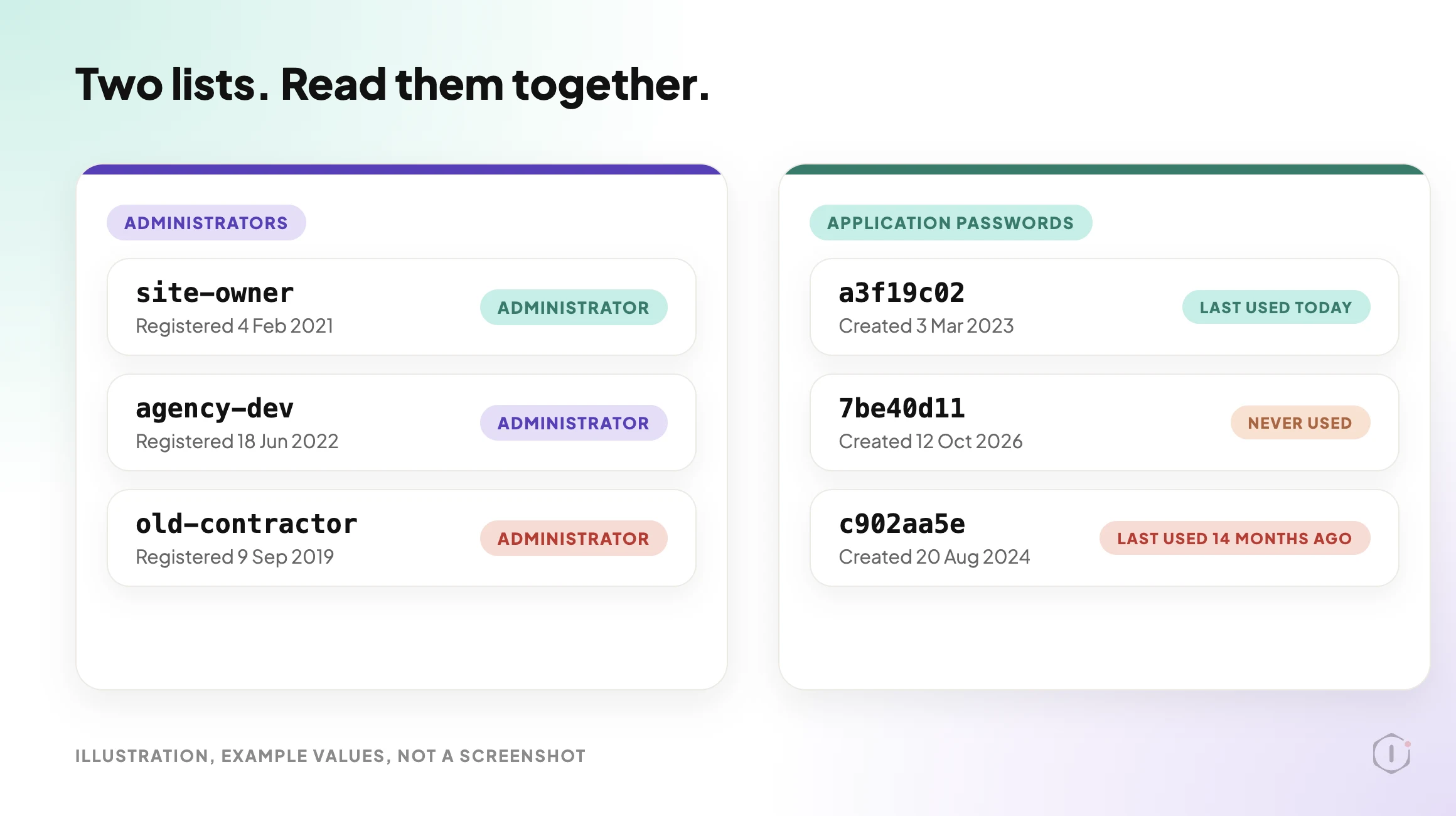
    WordPress application passwords, illustration with two panels. The left panel is titled Administrators and shows three example accounts with a registered date. The right panel is titled Application passwords and shows three example keys, each with a short id, a created date and a last used date, one marked Never used. Example values, not a screenshot.
    Two lists side by side. Example values, not a real run.

    Neither list answers the real question on its own. “Who can get in?” needs both. A post on user roles covers listing every account and the three accounts to question first. This playbook adds the second list and puts both into one report.

    The Playbook, Step By Step

    The New Admin Watch playbook has two steps, in a fixed order. In the dashboard it carries a Beta label and only reads. The public page files it under Security and says it needs no connector. It runs when you start it, and no schedule is set.

    No step pauses for approval. I opened the settings panel for both steps, and both show Automatic backup None and Approval checkpoint Off, which fits steps that only read.

    A 33-second silent walk-through of the two steps. All scenes are illustrations with example values, not a real run.

    Step 1: Snapshot Admins And Credentials

    Step 1 makes one call to a Protuno read tool. The tool reads the site itself and applies every check in code. The step does not compare, count, judge or sort anything on its own. It copies what the tool returns into one fixed block for step 2.

    The step file says the tool applies eight checks, and names what it covers:

    • Which application password is this connection’s own, so it is not listed as a stranger.
    • Changes since the baseline, if one was pasted.
    • Recent accounts and recent passwords.
    • The admin username.
    • Passwords that have never been used.
    • Extra capabilities on a user.
    • Admin-level powers held without the administrator role.
    • Administrators through a second role.

    If the administrator list cannot be read, the step stops with “Could not read the administrator list.” and fails. In every other case it ends as a pass.

    The baseline is optional. It is three lines pasted into the playbook’s Instructions: a line starting BASELINE, then admins: and app-ids:.

    Step 2: Admin Watch Report

    Step 2 makes no calls and judges nothing. It lays out the block from step 1 in a fixed layout. A header line gives the number of administrators, the number of application passwords and whether a baseline was given, followed by the connection and the users by role. Then come six sections, always in this order:

    1. Checks.
    2. Changes since the baseline, as a table.
    3. Things to confirm, as a table with finding, user, detail, severity and what to do.
    4. Administrators, as a table with id, username, registered date, email domain and application passwords.
    5. Not checked.
    6. Baseline, a new set of three lines to copy.

    The findings are exactly the lines the tool returned. Nothing else counts as a finding, and the step may not add, drop, reword or re-rate a row. Two privacy rules apply. An email address is shown as its domain only. An application password is shown by the first 8 characters of its id, never by its name, because two passwords can share a name.
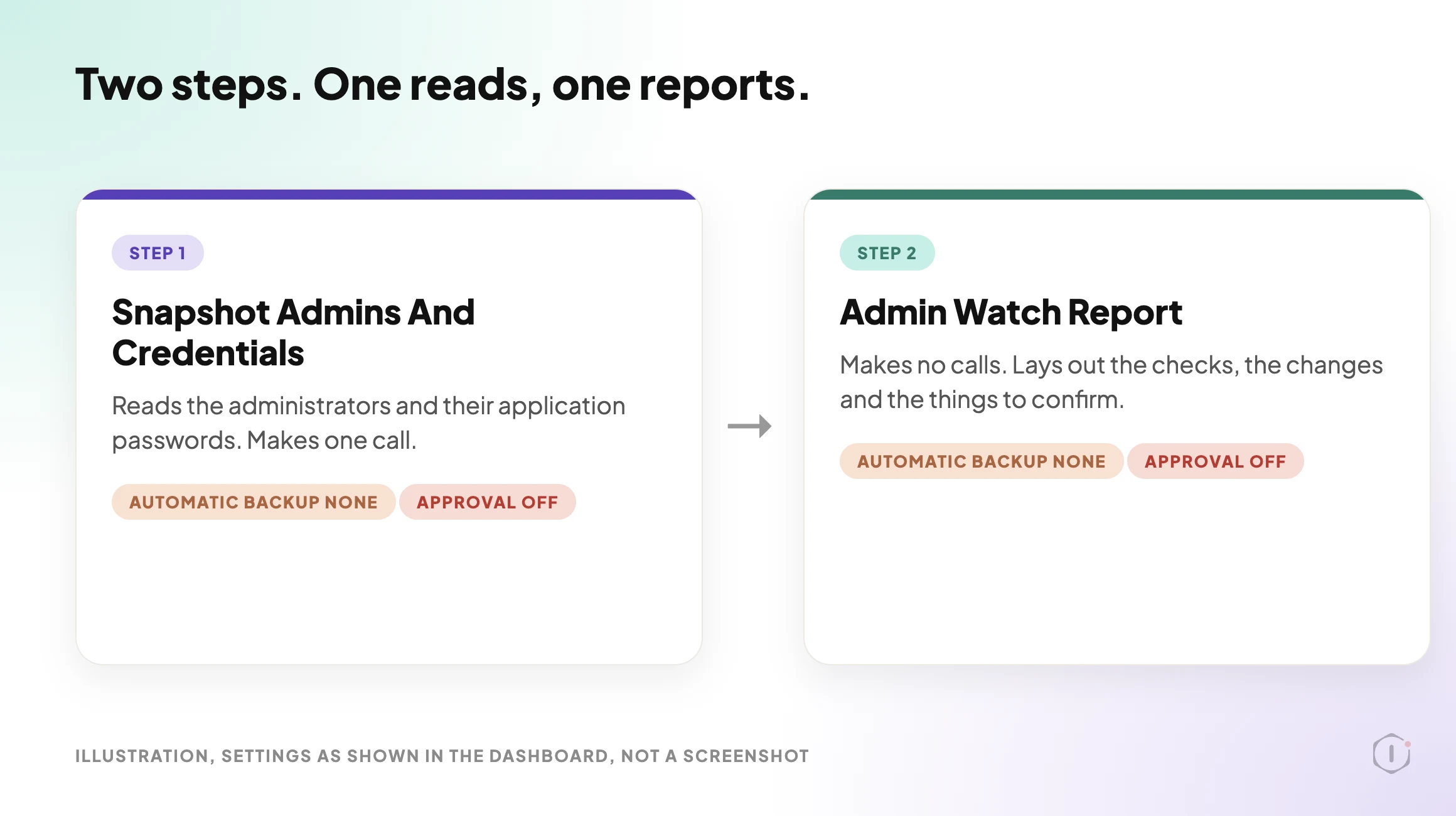
    WordPress application passwords playbook, illustration of two steps. Step 1, Snapshot Admins And Credentials, reads the administrators and their application passwords and makes one call. Step 2, Admin Watch Report, makes no calls and lays out the checks, the changes and the things to confirm. Both steps show Automatic backup None and Approval checkpoint Off. Example layout, not a real run.
    The two steps and what each hands to the next. Settings as shown in the dashboard, not a real run.

    How A Baseline Turns A List Into A Change

    Without a baseline, the report says “No baseline given: date-based checks only.” An administrator or an application password created in the last 30 days is flagged as recent. That is a useful nudge, but it cannot tell you what changed.

    With a baseline, the next run can say what is different. The dashboard card says the next run also shows new administrators, raised roles and new application passwords. If there is a baseline and nothing moved, the report says “No changes since the baseline.”

    The report ends with a new baseline to paste back in next time. To use it, open the playbook page, find “Runs on these sites”, open Instructions for the site, paste the three lines, and save.

    That is the whole habit: read, paste, compare later. A list you read once tells you what exists today. A list you compare tells you what moved.

    Reading A Finding

    The report is strict about words. It must never say the site “is secure”, “is safe”, “was hacked” or “is compromised”. A finding is something to confirm with the site owner, not an accusation.

    That matters in practice. A new administrator may be a new hire. A never-used key may be a connection someone set up last week and has not tested yet. The row tells you where to look and who to ask. It does not tell you what happened.

    What The Report Does Not Cover

    The step files list what stays out of reach:

    • Users hidden from the REST API by a plugin or malware. The list comes from the REST API, so it can never be proven complete.
    • Changes made directly in the database.
    • Powers a custom role grants by itself. Only powers given directly to a user are read.
    • Login history and failed logins.

    It also never reads a password, and it creates, changes or revokes nothing. If you find a key you do not recognise, the revoking is your decision, made on the Edit User page.

    If the REST user list is part of the question for you, a post on WordPress user enumeration looks at how that user list is exposed from outside.

    A Careful Version You Can Do By Hand

    You can do a rough version of this without any playbook. It follows the same order.

    1. Open Users, filter to the Administrator role, and write down every username. Mark any you cannot place.
    2. Open each administrator’s Edit User page and scroll to Application Passwords.
    3. For every key, write down its name, when it was created and its Last Used value.
    4. Mark keys that were never used, and keys that have not been used for a long time. Remember Last Used is accurate to within 24 hours.
    5. For any key you do not recognise, find out who owns it before you revoke it. Revoking cuts off whatever app uses it, and in the SmartWP demo that is the point.
    6. Save your notes as a plain text file with each username, key name and created date. That file is your baseline.
    7. Repeat monthly and compare the two files.

    Two keys can share a name, so a note by name alone can mislead. That is why the playbook identifies each key by the first 8 characters of its id.

    Application passwords are one of the sign-in routes that do not use the login form. A post on two-factor enforcement lists those routes, and a post on the first hour after a hack includes application passwords in the WordPress layer of access to review.

    Two Outside Views

    A tutorial and a forum thread. Neither is an endorsement, and neither describes the Protuno playbook.

    In a November 2024 video, SmartWP explains how to set up and use application passwords safely. He says an application password is like a normal WordPress password but meant for one app, and that sharing it is safer than sharing your real password. He says you can make several and revoke access to a specific application. In the demo he creates one named for Zapier, says it can be pasted into Zapier, and notes that resetting his normal password would not interrupt it. When he is done with Zapier he revokes the key so Zapier can no longer edit the site. The video is older than the releases above, and near the end he mentions a blogging platform he built that supports the feature.

    On Reddit, an r/Wordpress thread titled “How many people can log into your sites as Administrator, and do they open links?” starts with a site manager asking a simple question: “How many Administrator accounts are on the sites you look after?” This post does not rely on the opening post’s security claims. It uses the question and one reply, which describes the baseline habit in a few words:

    “We have a single administrator account on all the sites we manage, our own. There is a specific list of capabilities we have never given out and our nightly sync will alert us if this somehow changes in a site.”

    Reply in the thread, r/Wordpress, 3 October 2026

    Another reply in the same thread gives a different answer: “2-3 admin acccounts is the normal number but I only manage a couple dozen WP installations.” A count on its own does not settle much. What matters is whether you can see a change when it happens.

    Where Protuno Fits

    The New Admin Watch playbook is the repeatable, read-only part of this job. It lists every administrator and their application passwords, flags recent accounts, the default admin username, new or unused keys and extra capabilities, and writes a report with a baseline you can paste back in. It needs no connector, runs when you start it, and has no schedule set.

    It sits beside the other security posts rather than replacing them. The Security Audit playbook has its own post. The playbooks page lists the playbooks as Protuno publishes them, and this one has its own page at New Admin Watch.

    The Point

    A password is something you change. An application password is something you have to find.

    Read both lists together, keep a baseline, and treat every unfamiliar row as a question for the site owner. A report that revokes nothing is the safest way to see how many keys your sites are holding.

    Which keys on the sites you manage could you name today without looking?

    Sources And Further Reading

  • WordPress Unused Images: The Playbook, Step By Step

    WordPress Unused Images: The Playbook, Step By Step

    Your Media Library has grown large. In list view, the “Uploaded to” column says “(Unattached)” next to a lot of them, and the toolbar has an “Unattached” filter.

    It is tempting to read that filter as a list of files nobody uses.

    Short answer: For WordPress unused images, “Unattached” is not the same as unused. WordPress records which post an image was uploaded to. It does not record every place that image is shown. A logo, a widget, a gallery or a template part can use a file the library calls unattached. The Unused & Duplicate Media Report playbook reads the library, checks the places WordPress can show use of each image, and writes a list of duplicate files and files that are “possibly unused”. It deletes nothing.

    What this post is, and is not: A method write-up of one read-only playbook, based on its four step files as shown in the Protuno dashboard and on its public page on 21 October 2026. It is not a result from a real run: no playbook was run for this post, and every file name and picture in it is an illustration with example values.

    What The Media Library Does Not Tell You About WordPress Unused Images

    The “Uploaded to” column shows one thing: the post or page the file was uploaded from.

    A file can be uploaded from one post and shown on ten others. A file can be uploaded from no post at all and still be the site logo. In both cases the library gives you a weak hint, not an answer.

    A WordPress tutorial from August 2026 says it plainly. Its author points out that WordPress only reports attachments, and that an image can be used in a theme template, a header, a footer, a widget or a reusable block without showing up in the library. His rule is to never treat an empty attachment area as a green light.

    That is the whole problem this playbook is built around: telling WordPress unused images from files that only look unused. The risky mistake is calling a used image unused. The playbook’s second step says so in its own safety rule, and everything after it follows from that.

    Unattached Is A Label, Unused Is A Claim

    A label is something WordPress stores. A claim is something you have to check.

    To call an image possibly unused, you need to look in every place it could be shown. Some of those places are cheap to read in bulk, such as featured images and the site logo. Some need a search for the file name. Some cannot be read from outside at all.

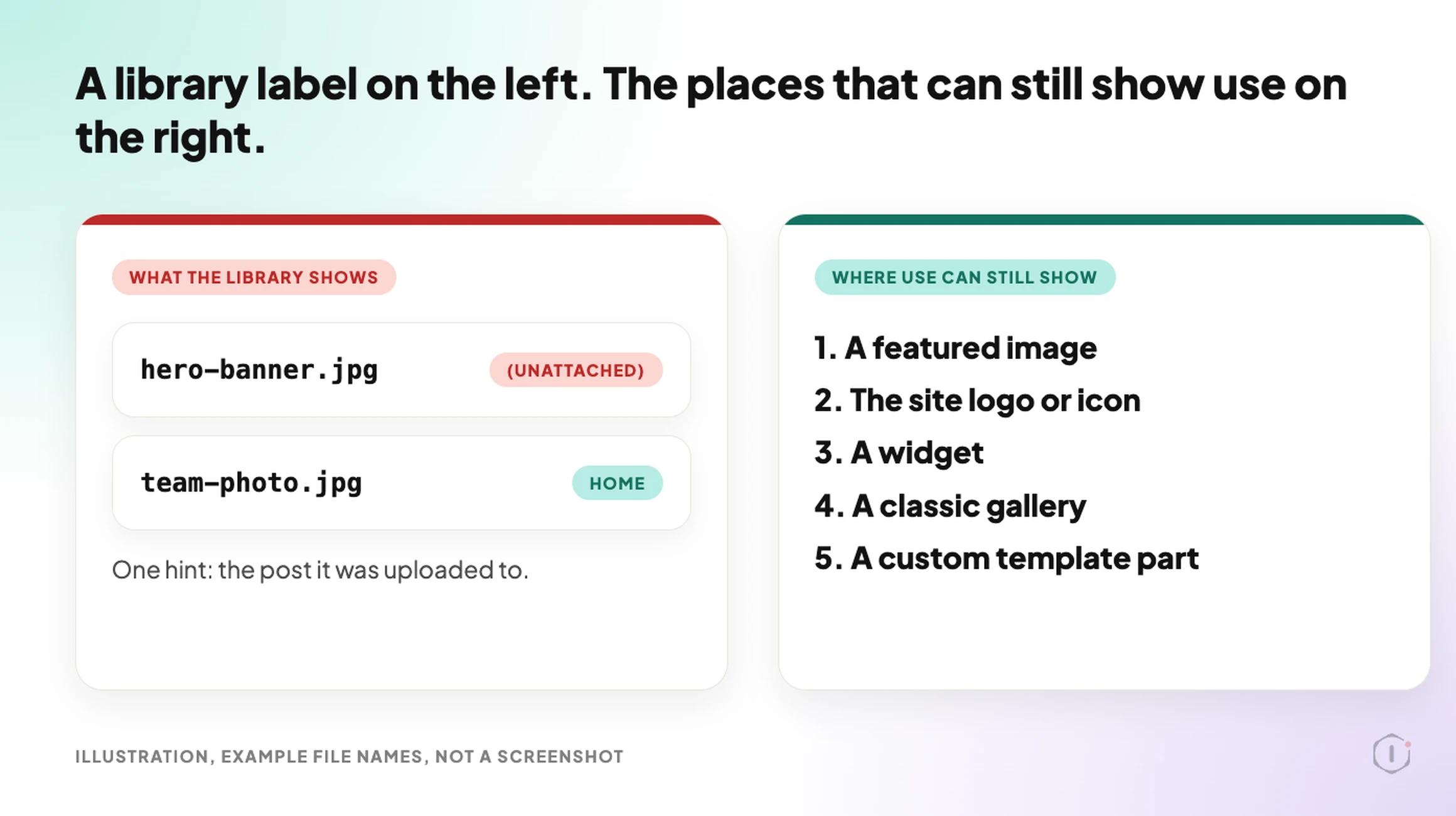
    WordPress unused images, illustration with two panels. The left panel shows two example library rows, one labelled Unattached. The right panel lists five places WordPress can still show use of an image: a featured image, the site logo or icon, a widget, a classic gallery and a custom template part. Example file names, not a screenshot.
    A library label on the left, the places that can still show use on the right. Example file names, not a real run.

    The Playbook, Step By Step

    The playbook for WordPress unused images has four steps, in a fixed order. Every call in it is a read. In the dashboard it carries a Beta label, and the public page files it under Performance.

    A 35-second silent walk-through of the four steps. All scenes are illustrations with example values, not a real run.

    Step 1: Media Inventory And Duplicates

    The first step reads a few facts about the site. It lists the post types, notes which page builders are active and whether WooCommerce is running, checks whether the theme is a block theme, and reads the site logo and site icon.

    Then it lists the images. It pages through the library 30 at a time, oldest upload first, and stops at 400. If the library is bigger, the report says “first 400 by upload order; the rest were not read”. Counts come from paging, because the answers carry no totals. A reply that arrives cut off is never used as if it were complete.

    Step 1 also shows its own settings: Automatic backup None and Approval checkpoint Off. That fits a step that only reads.

    How A Duplicate Is Decided

    Duplicates are found by name, not by size. Each file name is lowercased and trimmed back to a group name, and files that share a group name are candidates for being copies.

    WordPress adds some endings on its own. The step strips a trailing -scaled, -rotated, an edited-copy ending (-e followed by ten or more digits) and a size ending such as -300x200. A trailing -1 or -2 is stripped only if the name without it belongs to another image in the library. Hand-added copy words, such as -copy or a leading copy-of-, follow the same rule.

    Example namesGrouped?Why
    beach, beach-scaled, beach-1YesThe scaled ending goes, and -1 goes because beach exists
    team-photo, team-photo-copyYesThe copy word goes because team-photo exists
    old-upload-1, old-upload-2NoThere is no plain old-upload, so the numbers stay
    IMG-0001, IMG-0002NoCamera numbers are different pictures

    For groups only, the step then reads file sizes. It checks at most 10 groups and 40 images. Inside a group, files with the same file size, width and height are an exact copy set. Files with the same name and a different size are versions. The oldest upload is marked as the one to keep. Same size alone never makes a group, because different names are never treated as copies.

    Step 2: Bulk Reference Check

    Step 2 marks an image as used when a cheap bulk source shows it in use. It does no name searches. The rest of the images become candidates for step 3.

    Where use is checkedWhat counts as used
    Featured imagesEvery featured image on every post type. Drafts, pending and private items count too
    Logo and iconThe site logo and the site icon, plus the WooCommerce placeholder image when a store is present
    Classic widgetsA media widget’s image, and any file name found in a widget’s content, on sites that do not use a block theme
    Classic galleriesThe image ids inside gallery shortcodes, found by search, for up to 10 hits
    Block theme partsCustom templates and template parts, up to 20, where the image’s name or id appears

    The safety rule sits at the top of this step: anything unclear counts as used, or as not checked, never as unused. The step also never asks for post content in a list call, because a long list gets cut off and an image named in the cut part would look unused. If a widget or gallery reply is cut and cannot be recovered, the step says so and no image can be listed as unused from that run.

    Step 3: Name Search Check

    Step 3 makes one call to a Protuno tool with every candidate id. The search runs on the Protuno server. It looks for each image’s own file name in posts and pages, drafts and private included, in reusable blocks and in other published content. It checks at most 25 images per run, lowest id first.

    The step does not search, sort, size or judge anything itself. It copies the lines the tool returns. If a page builder is active, each possibly unused image carries the note “check in” and the builder’s name, followed by “first”. Page builder data is on the not scanned list further down.

    Step 4: Media Cleanup Report

    Step 4 makes no calls. It writes one report in a fixed layout, with these sections in this order:

    1. Duplicate files, one row per group, with every id written out.
    2. Possibly unused, one row per image, never a range.
    3. Not checked this run, one line per id.
    4. What was checked.
    5. Not scanned on this site.
    6. Next step.

    The summary counts duplicate groups, possibly unused images and images not checked. Space is always “at least” a number of megabytes, because only the original files are counted and not the thumbnails WordPress makes from them. Oversized files are not this report’s job, so it points to the dashboard’s Image Weight card. A report that finds nothing is still a pass.

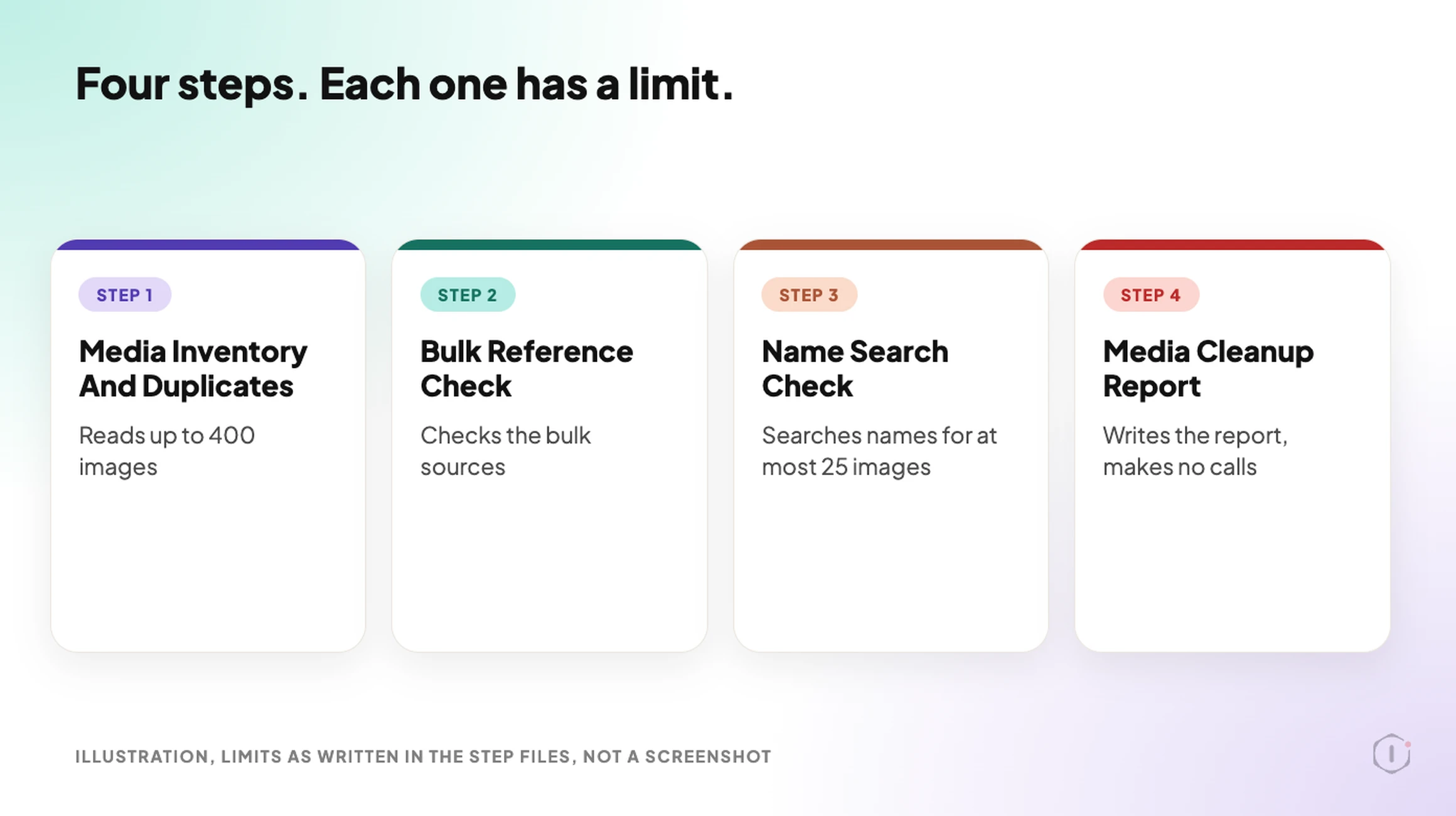
    WordPress unused images playbook, illustration of four steps in a row, each with its real limit underneath. Step 1 reads up to 400 images, step 2 checks the bulk sources, step 3 searches names for at most 25 images, and step 4 writes the report and makes no calls.
    The four steps and their limits. Limits as written in the step files, not a real run.

    The Words It Is Not Allowed To Use

    The playbook is strict about wording. It must never write “remove”, “delete”, “deletion”, “safe to”, “cleanup would” or “redundant”. It must never write “unused” without “possibly” in front of it.

    The strongest phrase it may use is “possibly unused: WordPress shows no use of it in the places checked”. The duplicate column is called “Other copies”, never “Remove”.

    That is not decoration. A report that says “safe to delete” invites a click. A report that says “WordPress shows no use of it in the places checked” invites a look.

    A Careful Version You Can Do By Hand

    You can look for WordPress unused images without any plugin. This follows the same order, and the habits in it come from the August tutorial.

    1. Take a copy of the uploads folder first. A full backup is better, and a post on verifying a backup covers how to know the file you saved is any good.
    2. Switch the library to list view and sort by date, oldest first.
    3. For each file you doubt, search its file name on the live site and in the editor. The tutorial’s author does this for any file whose name looks important.
    4. Check the places the library cannot see: the Customizer’s header and background, a post’s featured image panel, a widget.
    5. Work in batches of 10 or 20. Act on one batch, open the key pages, then move on.
    6. If you are not sure about a file, leave it.

    If you can, rehearse on a copy first. A post on staging drift explains why a staging site is not an exact copy of live, which matters if you plan to trust it.

    What The Report Does Not Cover

    Some places cannot be read by a search for a file name. The step files list them as not scanned:

    • Page builder data and custom fields.
    • Theme files and CSS.
    • The Customizer’s header and background images.
    • WooCommerce product galleries.
    • Menus.
    • Links to the file from other sites.
    • Images beyond the first 400, and thumbnails, which are not counted in the space total.

    This is why a “possibly unused” row in a list of WordPress unused images is a prompt to look, not a verdict.

    The report is also not about file weight, file format or alt text. Those are different questions, covered by a post on finding the oversized image, one on WebP and AVIF and one on an image alt text audit.

    Two Outside Views

    A tutorial and a forum thread. Neither is an endorsement, and neither describes the Protuno playbook.

    In an August 2026 video, Entrepreneurs Skool shows a no-plugin, no-code cleanup of a media library. He takes a copy of the uploads folder first and calls it his undo button. He then uses list view, the date filter and a search for words such as “logo” to find old files and duplicates. His main caution matches the one in this post: WordPress only reports attachments, so for an unattached file whose name looks important he opens the live site and searches for the name before touching it. He also says he works in small batches and checks the key pages after each one. The video is a delete tutorial and ends with a request to like and subscribe.

    On Reddit, an r/Wordpress thread titled “How to Delete 20,000 old post and images?” starts with a site owner who took over a site and wants to clear out old content. Further down, the poster says where the hard part is:

    “It will just be unattached images thats the problem.”

    Original poster, r/Wordpress, 1 July 2026

    One reply suggests trashing the posts with a bulk tool and then using a media cleaner plugin to find orphaned images, with this caution:

    “backup first obviously, and do it in batches if the host has execution time limits.”

    Reply in the same thread, r/Wordpress, 1 July 2026

    The thread is about deleting content rather than about proving an image is unused, so it only lines up with this post on the point that unattached files are the awkward part. Posts you delete leave images behind, and the library cannot say which of them are still shown somewhere else.

    Where Protuno Fits

    The Unused & Duplicate Media Report playbook is the repeatable, read-only part of finding WordPress unused images. It reads the media library, groups copies by name, checks the bulk places where WordPress shows use, runs one name search for the rest, and writes the list. It needs no connector, it runs when you start it, and no schedule is set.

    It sits beside other image posts rather than replacing them. The large image audit is about weight, and the playbook’s own report points to the dashboard’s Image Weight card for that. The playbooks page lists the playbooks as Protuno publishes them, and this one has its own page at Unused & Duplicate Media Report.

    The Point

    “Unattached” is a label WordPress stores. “Unused” is a claim you have to check.

    Treat every possibly unused row as a place to look first, check the places the report says it did not scan, and keep a backup before you act on any file. A report that deletes nothing is the safest way to find out how big the question really is.

    Which images on the site you manage would you trust the “Unattached” filter on today?

    Sources And Further Reading

  • WordPress Cookie Consent: Which Scripts Fire Before Yes

    WordPress Cookie Consent: Which Scripts Fire Before Yes

    A WordPress cookie banner has two buttons, Accept and Reject, and a line about cookies. That is the part everybody checks, because it is the part you can see.

    What the banner does not show you is the page behind it. A banner can sit in front of a page that has already made its requests. On a site where a tag was added outside the consent plugin, the analytics tag, an ads pixel or a chat widget can fire before the banner has finished appearing.

    Short answer: WordPress cookie consent has two halves. One is a banner that records a choice. The other is a loading order that decides what runs before that choice. To tell which half a site really has, load it in a fresh browser profile, click nothing, and write down every third-party request and every cookie that exists before the first click. Anything on that list that is not the consent tool itself or strictly functional fired before permission, whatever the banner says.

    What this post is, and is not: this is a repeatable observation you can run from outside any site, in a browser, in about ten minutes. It is not legal advice, and it does not tell you whether a given script is lawful in your jurisdiction. It tells you what actually loaded. What that means for a given site is a conversation between the site owner and their counsel.

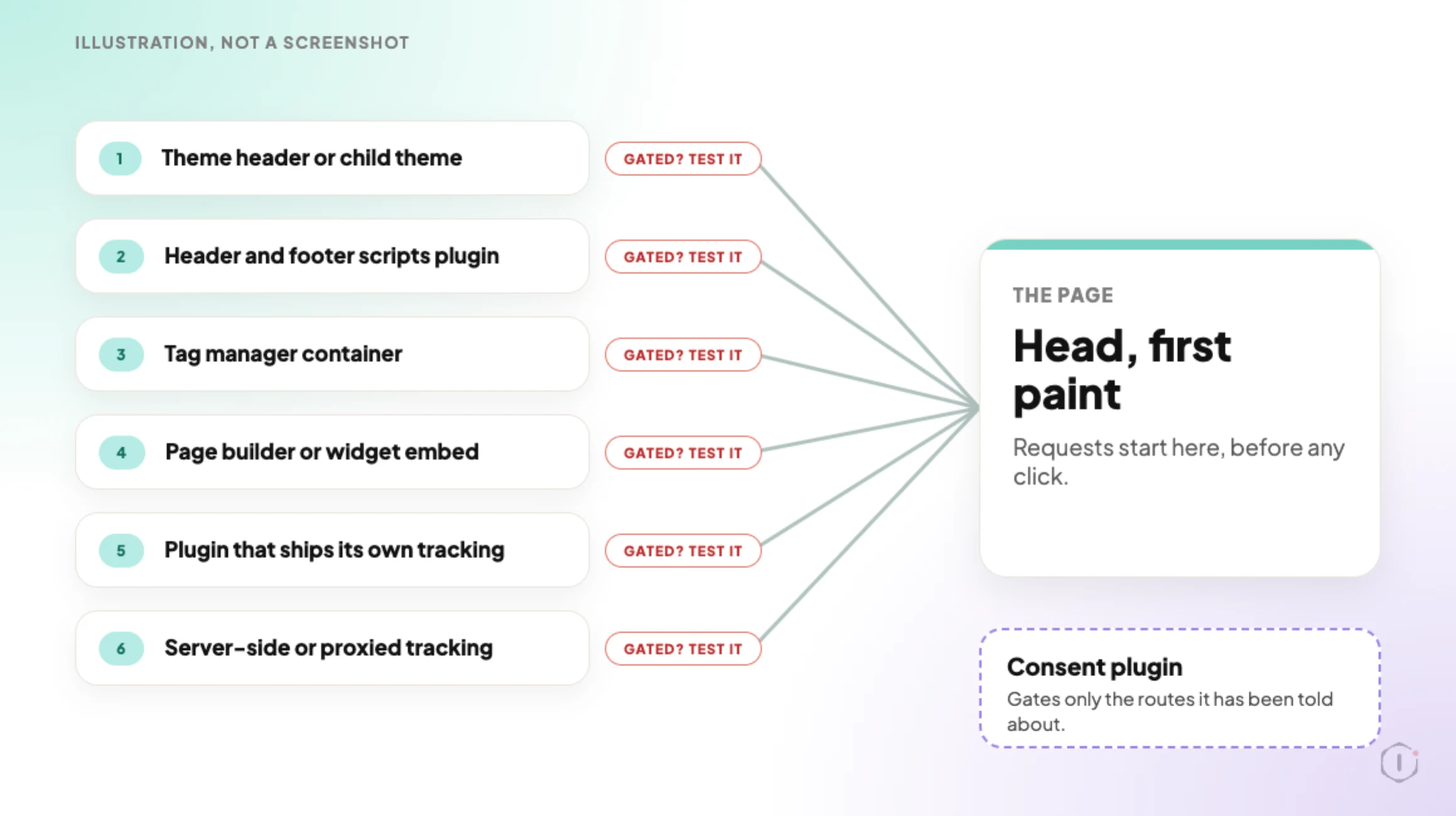
    Six routes by which a script reaches a WordPress page head, from the theme header to server-side tracking. Each route has a chip reading Gated? Test it. A consent plugin box at the side says it gates only the routes it has been told about.
    Illustration, not a screenshot. Whether each route is gated is the thing you test.

    Why A Banner And Enforcement Are Different Things

    A consent plugin usually does two separate jobs, and it is normal for a site to have only the first one working.

    The first job is presentation: show a banner, record a choice, store it in a cookie, show a preferences link later. This part is visible, so it gets tested.

    The second job is enforcement: actually prevent the tags from loading until the choice is made. This part is invisible, so it is rarely tested. It also depends on things the consent plugin does not control, including how each tag was added to the site in the first place.

    That is where the gap opens. A tag added through a tag manager container, a theme options field, a header-scripts plugin, a page builder widget or a hard-coded line in header.php is not automatically known to the consent plugin. The plugin can only block what it has been told to block, or what it can recognise.

    So the honest version of the question is not “do we have a cookie banner”. It is:

    Which scripts on this page run before a visitor has made a choice, and is that the intended list?

    The Usual Sources Of A Pre-Consent Script

    A pre-consent tag has usually arrived by one of a small number of routes. Knowing them shortens the hunt.

    Where the tag livesWhy consent often misses itHow you spot it
    Hard-coded in the theme header or a child themeIt renders in wp_head before any consent logic runsView source, search for the vendor domain, note it is not wrapped in a consent attribute
    A header and footer scripts pluginOutput is a raw string the consent plugin cannot parseRequest fires on first paint with no consent cookie present
    A tag manager containerThe container loads, then fires its own tags on its own triggersOne container request followed by several vendor requests
    A page builder or widget embedVideo, map and social embeds often set cookies themselvesRequests to an embed domain on pages that contain the embed only
    A plugin that ships its own trackingAnalytics bundled into a forms, chat or reviews pluginRequest appears on every page, matched to a plugin asset path
    Server-side or proxied trackingNothing third-party shows in the network panel at allFirst-party request to an odd path, or no visible evidence from outside

    The last row is the honest limit of an external check, and it comes back later in this post.

    The Ten Minute Check, Step By Step

    This runs on any site you are authorised to test, from a browser, with no plugin installed and nothing changed. The panels are the Network and Application tabs in Chrome DevTools, and other browsers have the same two.

    1. Open a completely fresh private window. A fresh profile matters more than it sounds: an existing consent cookie makes the whole test meaningless, because the site will behave as though a choice was already made.
    2. Open the developer tools, go to the Network panel, and make sure request recording is on before you navigate.
    3. Load the page. A homepage first, then a post, then a page that has an embedded video or map, because those behave differently.
    4. Click nothing. Do not dismiss the banner.
    5. Sort the request list by domain. Write down every domain that is not the site’s own, and every domain that is the site’s own but is clearly a tracking path.
    6. Switch to the Application panel and list every cookie and every local storage key that now exists. Note which are first-party and which are third-party.
    7. Now click Reject. Reload. Repeat steps 5 and 6. Compare the two lists.
    8. Then click Accept in a new fresh profile and record a third list.

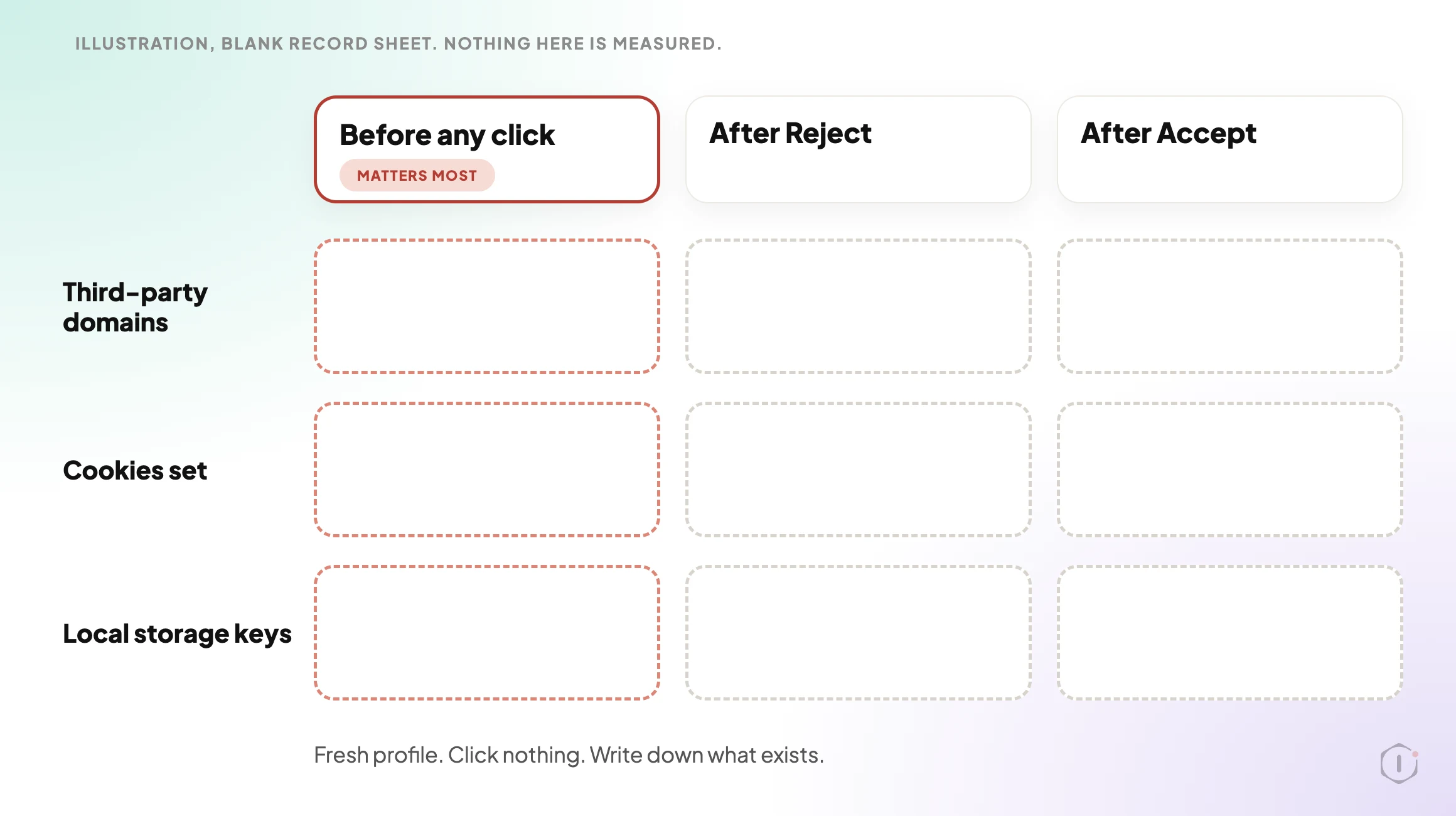
    Three lists, one page. The one that matters most is the first one.

    A blank record sheet with three columns, Before any click, After Reject and After Accept, and three rows, Third-party domains, Cookies set and Local storage keys. Every cell is empty. The first column is marked as the one that matters most.
    Illustration of a blank record sheet. Nothing on it is a measured result.

    The useful output is not:

    “The site has a cookie banner from a well-known consent plugin.”

    It is:

    “Before any click, this page set four cookies and made requests to three third-party domains. After Reject, it set two cookies and made requests to one. Here is which script is responsible for each.”

    The numbers in that second line are an example of the shape of the answer, not a finding. A client can act on a statement like it, and a developer can fix it without guessing.

    Reading The Result Without Overreading It

    A request before consent is not automatically a violation, and this is where a lot of audits lose credibility by overclaiming. A font file, a CDN asset, a security challenge, or the consent platform’s own configuration request are different in kind from an advertising pixel. The cookie that stores the consent choice has to be set for the banner to work at all.

    The categories worth separating:

    • The consent mechanism itself. Its own script and its own choice cookie. Expected.
    • Strictly functional. Session handling, cart state, security tokens, load balancing. Usually expected.
    • Measurement. Analytics, heatmaps, session recording. This is the group where a pre-consent fire is usually unintended.
    • Advertising and remarketing. Pixels, conversion tags, audience sync. This is the group where a pre-consent fire is usually the biggest problem.
    • Embeds. Video players, maps, fonts loaded from a third party, social widgets. Often forgotten entirely, because the person who embedded the video was not thinking about tags.

    Sorting your list into those five buckets takes a couple of minutes and changes the conversation from “you are non-compliant” to “these two things fire early, and here is where they come from”.

    The flags on the cookies themselves are a separate question worth running in the same sitting: which flags WordPress core sets on its own cookies, and the one it leaves out covers the Secure, HttpOnly and SameSite side. This post is about whether the cookie should have existed yet at all.

    Illustration. The example domains are made up and nothing in the video is a measured result.

    The Tag Manager Case, Which Behaves Differently

    A tag manager deserves its own paragraph because it fails in a way that looks like success. Install a consent plugin, point it at the container, and the container itself will often be correctly gated. You reload, see the container request held back, and conclude the job is done.

    But a container can hold tags set to fire on triggers that never consult the consent signal, and tags someone added last quarter for a campaign that ended. The gate at the container level is only as good as the configuration inside it. Worse, a site can end up with the same measurement tag twice, once through the container and once hard-coded in the header by whoever set it up first. That is a counting problem as well as a consent problem, covered in duplicate Google Analytics tags.

    If the numbers downstream also look wrong, the two are often one incident seen from different ends. Counting three sales from one order is the same class of fault: the page fires things nobody has a complete list of.

    Can You Enforce This At The Header Level?

    Partly, and it is worth knowing where the line is.

    A content security policy restricts which origins a page may load resources from. That is a useful backstop: the browser blocks a script from an origin that is not on the allowlist, whichever plugin injected it. It gives you an enforced inventory rather than a hopeful one, and it makes an unexpected new third-party domain visible immediately instead of six months later. Getting one onto a WordPress site without taking the site down is its own exercise, written up in a WordPress content security policy that does not break the site, and the wider set of response headers is in two security headers you can set today.

    What a policy will not do is express consent. It is static for all visitors, so it cannot say “allow this origin only after the visitor accepts measurement cookies”. Use the policy to control which origins are possible at all, the consent layer to control which of those fire before a choice, and the fresh-profile check above to verify the second one is working rather than merely installed.

    What This Does Not Solve

    This check is an outside observation of one browser, on a handful of pages, at one moment. It has real limits, and stating them is the difference between an audit and a guess.

    • It cannot see server-side tracking. If measurement happens on the server, or is proxied through a first-party path, nothing distinguishable appears in the network panel. You can only find that by reading the code or asking.
    • It is per page, not per site. A pixel added to one landing page will not show up unless you load that landing page. A site with hundreds of templates needs sampling.
    • It is a point in time. A plugin update, a new embed, a caching or optimisation change, or a tag added for a campaign can reintroduce an early-firing script the week after you certified the site clean. WordPress 7.1.3 shipped on 6 October 2026 and 7.2 Beta 1 followed on 20 October. Neither announcement mentions cookies or consent, so nothing here depends on a core change.
    • It does not read the consent record. Whether the choice is stored correctly, honoured on later visits, and available as evidence is a separate check against the consent platform.
    • It says nothing about geography. Some consent setups behave differently by region. A clean result from one location does not describe the behaviour visitors elsewhere receive.
    • It is not a legal conclusion. Loading a measurement script before a click is a fact. Whether that fact matters for a given site depends on jurisdiction, the nature of the data, and the legal basis claimed. This check produces the evidence, not the verdict.

    A Portfolio Pass You Can Do This Week

    If you run sites for other people, the single-site version of this is interesting and the portfolio version is useful.

    Pick every site you are responsible for that has a consent banner. For each one, record four things in one row: whether any third-party request fires before a click, whether any non-consent cookie is set before a click, whether Reject actually reduces the list, and which route each early script arrived by.

    If the sites cluster, that is the finding. One group built by the same person with the same header-scripts plugin will behave the same way, and a video embed on one page will show up only on that page. Clustering tells you whether you have thirty separate problems or two.

    Then record the decision next to each row, not just the observation. Fix now, fix at the next release, accept with a named owner and a review date, or escalate because it is the client’s tag and their call. A row with a finding and no decision just moves the problem into a nicer spreadsheet.

    Two Outside Views

    A video that turns the same idea into a checklist. DataShyre’s “WordPress Cookie Consent in 2026: 7 Checks Before You Go Live“, published 14 August 2026, is a two-and-a-half-minute list of seven things to test before a consent setup goes live. Four of them match this post: test blocking on real templates and not just the homepage, look at what plugins do before consent, check that withdrawing consent really changes behaviour, and retest after updates to caching, plugins or optimisation. The video’s own line is that a banner is not enough and the setup needs an operational check. It is a short, small-channel video, so treat it as a reminder list, not a method.

    Verify that withdrawing consent triggers real behavior changes across your site.

    DataShyre, “WordPress Cookie Consent in 2026: 7 Checks Before You Go Live” on YouTube, 14 Aug 2026

    A thread from people living with it. In an r/Wordpress thread titled “Videos do not appear unless allow cookies”, a site owner finds that embedded YouTube videos show as blank space until a visitor accepts cookies, and their cookie platform says that is standard behaviour. One reply points at the same embed problem from the other side:

    There is a WP plugin No Cookies for YouTube which will make any video use YouTube’s no-cookie domain. That may help, but some cookie consent solutions will still treat YouTube’s alternative tracking methods (e.g. local storage) as needing consent just like cookies.

    u/SpaceCmdr, r/Wordpress, 24 September 2026

    That is the embeds row of the table in practice. The embed loads nothing until a choice is made, and what counts as loading depends on how the consent tool reads local storage, not only cookies. It is also why the Application panel step lists local storage keys next to cookies.

    Sources And Further Reading

    The Point

    A banner is something visitors read. Enforcement is something the browser does, and only a network panel shows it.

    So the question for your own portfolio is not whether the banners are installed, because they are. It is simpler and less comfortable: on how many of your sites has anyone actually loaded the page in a clean profile, clicked nothing, and read the list?

  • WordPress Two-Factor Authentication: What It Enforces

    WordPress Two-Factor Authentication: What It Enforces

    “Two-factor authentication: enabled.”

    That is the line a security report gives you, and it is the line that reassures a client. It describes one screen, the WordPress login form, where a code prompt appears after the password.

    A WordPress site can be signed in to in more than one way. A script can present a username and an application password to the REST API. An XML-RPC call can send credentials in the request body. A browser can already hold a session cookie from before the setting changed. Whether each of those passes through the code prompt depends on the plugin and its version.

    Short answer: WordPress two factor authentication comes from plugins, and what each one enforces depends on which sign-in routes it covers and whether the second factor is required or optional per user. The prompt after the password at wp-login.php is the part everyone checks. Whether the same plugin also covers XML-RPC, the REST API, application passwords and sessions that already exist is the part you confirm on your own site, with a request, not a feature list.

    What this post is, and is not: this is a way to find out what 2FA enforces on a site you are allowed to test. It is not a plugin ranking, and it does not say what any plugin does beyond what its own wordpress.org page says, quoted with the date it was read. Plugin behaviour changes between versions, so the only answer you can rely on is the one you measure.

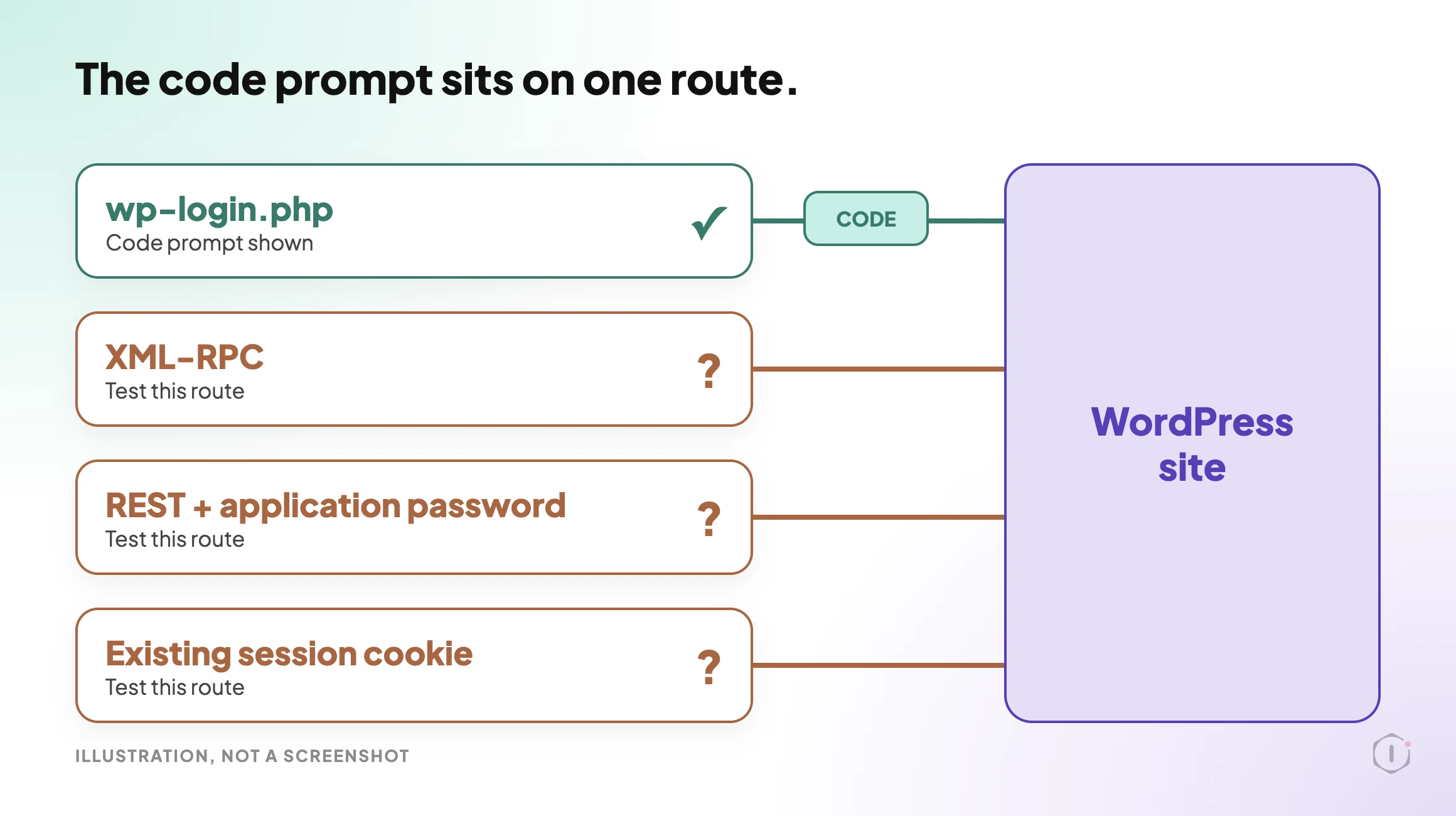
    Four WordPress sign-in routes, wp-login.php, XML-RPC, REST API with an application password and an existing session cookie, each with a line to a WordPress site box. Only the wp-login.php line has a code prompt marked on it. The other three are marked to test.
    Illustration, not a screenshot. The code prompt is usually drawn on one route. Sign-in is possible on four.

    What The Official Plugin Says About Itself

    On the wordpress.org plugin directory, the community-maintained Two Factor plugin is one widely installed option. Read on 19 October 2026, its page showed version 0.17.0, 100,000+ active installations and “tested up to” WordPress 7.1.3, the current release (6 October 2026, seven security fixes, none of them described as a sign-in or two-factor change).

    The page is direct about what it does and does not enforce. In its own words and settings:

    • Setup is per user. Each user configures their own methods from their profile. An administrator can also configure another user by editing that profile.
    • Methods listed: an authenticator app (TOTP), email codes and backup codes. A dummy method exists for testing and needs WP_DEBUG.
    • No built-in enforcement. The FAQ asks whether you can require 2FA for all users or specific roles. The answer is not through the plugin’s interface, there are no built-in enforcement settings, and native enforcement is a tracked feature request (GitHub issue #255). On multisite, there are no network-wide settings either.
    • A locked-out user is a profile edit away. An administrator can untick every method in that user’s profile, and the user then signs in with the password alone.
    • Passkeys and hardware keys come from a separate plugin, Two-Factor Provider: WebAuthn, not from the Two Factor plugin itself.
    • API sign-in, by version. The changelog on the same page says version 0.14.0 (3 July 2025) turned on application passwords for REST API and XML-RPC authentication by default, while XML-RPC login stays disabled for regular user passwords. Version 0.17.0 (25 September 2026) lists a security fix to ensure that regular passwords cannot bypass the two-factor requirement for REST API and XML-RPC requests.
    • A filter for API sign-in. The page lists two_factor_user_api_login_enable, which it describes as restricting authentication for the REST API and XML-RPC to application passwords only.

    Read that as a list of questions for your own install, not a verdict. “Enabled” on this plugin means the options are available. Who has set one up, whether it is required and which routes it covers are separate facts. This is one plugin’s documentation on one date, and other plugins make other choices.

    What Each Method Proves

    Before asking where a factor is enforced, be precise about what each method proves. They are not interchangeable.

    MethodWhat it provesKnown weakness
    Authenticator app (TOTP)Possession of a device holding a shared secretThe secret can be phished at set-up, and the code can be relayed
    Email codeControl of the mailboxOnly as safe as the mailbox, and only works while the site can send email
    SMS codeControl of a phone numberSIM swap, interception, recycled numbers
    Push approvalPossession of an enrolled deviceApproval fatigue: people tap yes to make it stop
    Hardware key or passkeyPossession of a key bound to the site’s domainLost keys, and a weak recovery path
    Backup codesPossession of a stored listA complete bypass of the main method, by design

    The domain binding in the fifth row is the real difference, not the hardware. A key will not sign for a look-alike domain, so a phished login cannot be completed, while any code you type can be relayed by someone in the middle. And if backup codes sit in a shared password note, the enforced method is effectively the note.

    Enforcement Is A Separate Question From Method

    A strong method says nothing about who has to use it. Four questions decide whether 2FA is a control or a suggestion:

    1. Required, or optional per user? If it is opt-in, coverage is whatever share of people opted in.
    2. Can an administrator skip it? Administrators are the accounts worth protecting. If the highest role can remove its own requirement, or anyone else’s, that is the largest hole in the model.
    3. What happens to an unenrolled user? Blocked at sign-in until they enrol, or let through with a reminder. Those two answers describe different sites.
    4. What happens to sessions that already exist? If current cookies stay valid, someone already holding a session is unaffected by the change you just made.

    The fourth question turns a tidy change into a false sense of security. “2FA is now on” and “every live session is now backed by 2FA” are different statements, and the second usually needs sessions to be ended on purpose.

    The Routes That Do Not Use The Login Form

    This is the gap in the opening, and the reason for the whole exercise.

    RouteHow authentication happensWhat to check
    wp-login.phpInteractive form, username and passwordAlmost certainly covered. Confirm anyway
    XML-RPCCredentials in the request body, no formWhether the endpoint answers at all, and whether it accepts a password without a code
    REST API, cookie sessionExisting browser session plus a nonceIt inherits whatever the session was granted when it began
    REST API, application passwordUsername plus a generated password over basic authBuilt for sign-in without a form. That is its purpose
    WP-CLIA system process, not an HTTP sign-inNo second factor is involved, by design
    Host or panel single sign-onThe hosting panel drops you into the adminCheck whether it passes through the same second-factor step

    Two rows need more than a table cell.

    XML-RPC takes credentials directly, which is why it has long been a target for credential stuffing: one request can try many pairs without touching the login form. Whether a given 2FA plugin blocks it, ignores it or turns it off is something to check, not assume. Whether to turn the endpoint off at all depends on what still uses it, and that argument is in WordPress XMLRPC In 2026: Block It Or Leave It Alone.

    Application passwords are the harder case, because they are not a flaw. Core introduced them in WordPress 5.6 as a way to make authenticated requests without a form. The core integration guide says the credentials go to the REST API over HTTPS with Basic Auth, and that for the legacy XML-RPC API you use the application password in place of the account’s real password. A second factor cannot sensibly apply to a background script, so the useful questions are different: who can create them, how many exist right now, what is each one for, and does any belong to someone who has left?

    Attackers also need a valid username before a password is worth guessing, and WordPress is still generous with those. That half of the problem is in WordPress User Enumeration: Three Routes, One Fix Each, and it is why 2FA reduces risk rather than removing it.

    A Test You Can Run This Afternoon

    Run this on a staging copy, or a site you are explicitly allowed to test. Record what happened at each step, not the impression you came away with.

    1. Turn on 2FA with your chosen method. Enrol one administrator and leave one editor unenrolled.
    2. Sign out completely. Sign in as the administrator. Note whether the code prompt appears.
    3. Sign in as the unenrolled editor. Note whether you are blocked, prompted or let straight in.
    4. From the administrator’s profile, try to remove the requirement for yourself, then for another user. Note what the screen allows.
    5. Create an application password and use it for an authenticated REST request. Note the status and the body:
    curl --user "USERNAME:APP-PASSWORD" \
      "https://example.com/wp-json/wp/v2/users/me?context=edit"
    1. Make an XML-RPC call with the same credentials. Note the status and the body:
    curl -s -d '<?xml version="1.0"?><methodCall><methodName>wp.getProfile</methodName><params><param><value>1</value></param><param><value>USERNAME</value></param><param><value>APP-PASSWORD</value></param></params></methodCall>' https://example.com/xmlrpc.php
    1. Repeat steps 5 and 6 with the account’s regular password in place of the application password. Note the status and the body. A plugin that covers these routes should refuse it, but the result you record is the one that counts.
    2. Open a session in a second browser first, then change the enforcement setting and reload that session. Note whether it survives.
    3. Use one backup code. Confirm it works once and not twice.
    4. List every route that let you in without a second factor.

    Step ten is the output. The rest is instrumentation.

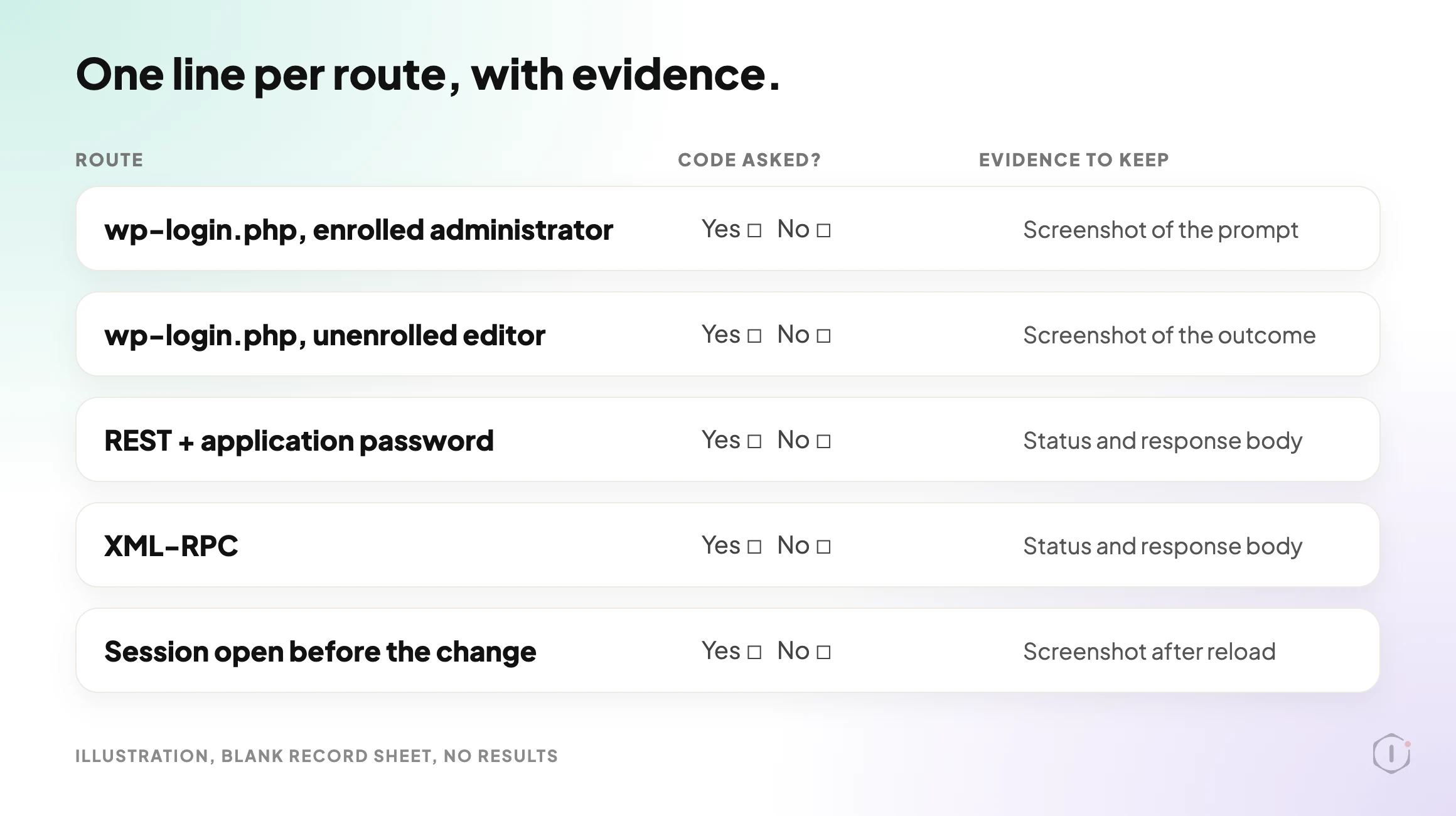
    A blank record sheet with five rows: wp-login.php for an enrolled administrator, wp-login.php for an unenrolled editor, REST with an application password, XML-RPC and a session open before the change. One column for whether a code was asked has empty Yes and No boxes, and another lists the evidence to keep.
    Illustration of a blank record sheet. Nothing on it is a measured result.

    A short silent video walks through the same ideas.

    Silent video, illustration, not a real run.

    The output of that run is a short table you can show a client, one line per route, with the evidence next to it. Compare that with “Two-factor authentication: enabled”. One is a finding. The other is a checkbox. The same difference runs through WordPress Hardening Checklist, Ranked By What It Changes, which ranks hardening steps by what they actually change.

    Two Outside Views

    A video from someone who tried a plugin. WPTuts walks through FluentAuth 3.0, a free plugin from the WPManageNinja team, from its set-up wizard to its login-protection options. The video description lists what it covers:

    “two-factor authentication, email verification codes, failed login lockouts, XML-RPC blocking, username protection”

    WPTuts, 100% FREE WordPress 2FA, Passkeys, Magic Login & More Plugin, video description, 18 September 2026

    It is a review of one plugin, so treat it as one person’s setup, not a comparison. It does show that XML-RPC blocking is listed as its own feature, apart from the two-factor codes.

    A thread from people living with it. In an r/Wordpress thread titled “I need to disable API logins. How do I do this and how can I verify that the blocking is working?”, the poster is seeing many failed logins even though /wp-admin/ is limited by IP. One reply explains why a login limiter might not see them:

    “limit login attempts won’t catch REST failures because they’re not going through wp-login.php”

    A reply in the same thread, r/Wordpress, 6 August 2026

    Another reply suggests checking the access logs to see whether attempts are hitting the login page, the XML-RPC file or the REST path, because those are three different paths. That is the same instinct as the test above: stop treating “login” as one door.

    Where 2FA Sits Among The Other Controls

    2FA defends one thing well: an attacker who has a valid password and nothing else. That is a large and common case, so the control earns its place.

    It does nothing about a stolen session cookie, because the factor was satisfied when that session began. The flags that limit how a cookie can be read are in WordPress Cookie Security: Secure, HttpOnly And SameSite. It also does nothing about a vulnerable plugin that allows privilege escalation without signing in, or when an attacker is using a browser that is already signed in.

    So it belongs inside a wider pass, not on its own. The surrounding sequence is in WordPress Security Audit: The Playbook, Step By Step, and the question of which accounts exist and what each can do is in WordPress User Roles: Who Really Has The Keys. If an account is already compromised, WordPress Hacked: The First Hour, In Order covers what to do next.

    What This Does Not Solve

    Turning on 2FA and testing it leaves these untouched:

    • Session theft. A valid cookie skips the prompt entirely. Session lifetime and the ability to end sessions matter more here than the factor does.
    • Real-time phishing. Any code you type can be relayed within its validity window. Only domain-bound keys resist that.
    • Recovery. The reset path, the support process and the backup codes are now the weakest way into the account, and attackers go there.
    • Non-interactive credentials. Application passwords, integration keys and host-level access sit outside the model by design.
    • The one unenrolled account. Coverage is a percentage, and the percentage is the control.
    • Whether the factor still works. An email-code method stops working the day the site stops sending email, and the failure can look like a login problem rather than a security one.

    That last point is quieter than it sounds. An email-code method depends on everything in WordPress Email Deliverability: Alignment, Not SPF, and a site that cannot deliver a code can end up with the requirement switched off in a hurry.

    The Point

    Comparing 2FA plugins by feature list compares marketing. Comparing them by sign-in route compares security.

    The test is dull and takes an afternoon: list every way a credential can be presented to the site, try each one with 2FA turned on, and write down which ones asked for a factor. On most sites, that table has at least one row that surprises somebody.

    So for the sites you look after: you know 2FA is enabled. Do you know, with evidence, every route that still signs in without it?

    Sources And Further Reading

  • WordPress Contact Form Health Check: The Playbook, Step By Step

    WordPress Contact Form Health Check: The Playbook, Step By Step

    A visitor fills in a contact form and sees “Thank you for your message. It has been sent.”

    If the message goes nowhere, nobody finds out until a client asks why enquiries stopped.

    Short answer: Contact Form 7 not sending emails is often a setup problem, and the setup behind a form can be checked before a single message is lost. Is an SMTP plugin active? Does the form send from the site’s own domain? Does it have a recipient? A read-only setup check can answer those in minutes, without sending a message. That is the whole job of the Contact Form Health Check playbook, and this post walks through its two steps.

    What this post is, and is not: A method write-up of one read-only playbook, based on its two step files as shown in the Protuno dashboard on 19 October 2026. It is not a result from a real run: no playbook was run for this post, and every picture in it is an illustration with example values. It checks the setup only. It never says that mail is delivered, and neither does this post.

    What A Setup Check Can See Before A Form Fails

    The post on a form that says it sent, while nothing arrives covers what happens after the message is lost. This one covers the part before that, when nothing has gone wrong yet.

    Contact Form 7’s own guidance on mail, “Best practice to set up mail”, explains why setup matters. Mail providers have been fighting spam and spoofing for years, and their filters are not flawless. Behaving like a spammer increases the chance of being treated like one. Its bottom line for the From field is plain: use an email address that belongs to the same domain as the site.

    None of that needs a failed message to check. Four facts sit in the site’s settings, and they are the first things anyone asks about when a form stops reaching its owner:

    • Is an SMTP plugin active, or does the site send form email with plain PHP mail?
    • Does each form send from an address on the site’s own domain?
    • Does each form have a recipient at all?
    • Is any anti-spam plugin active?

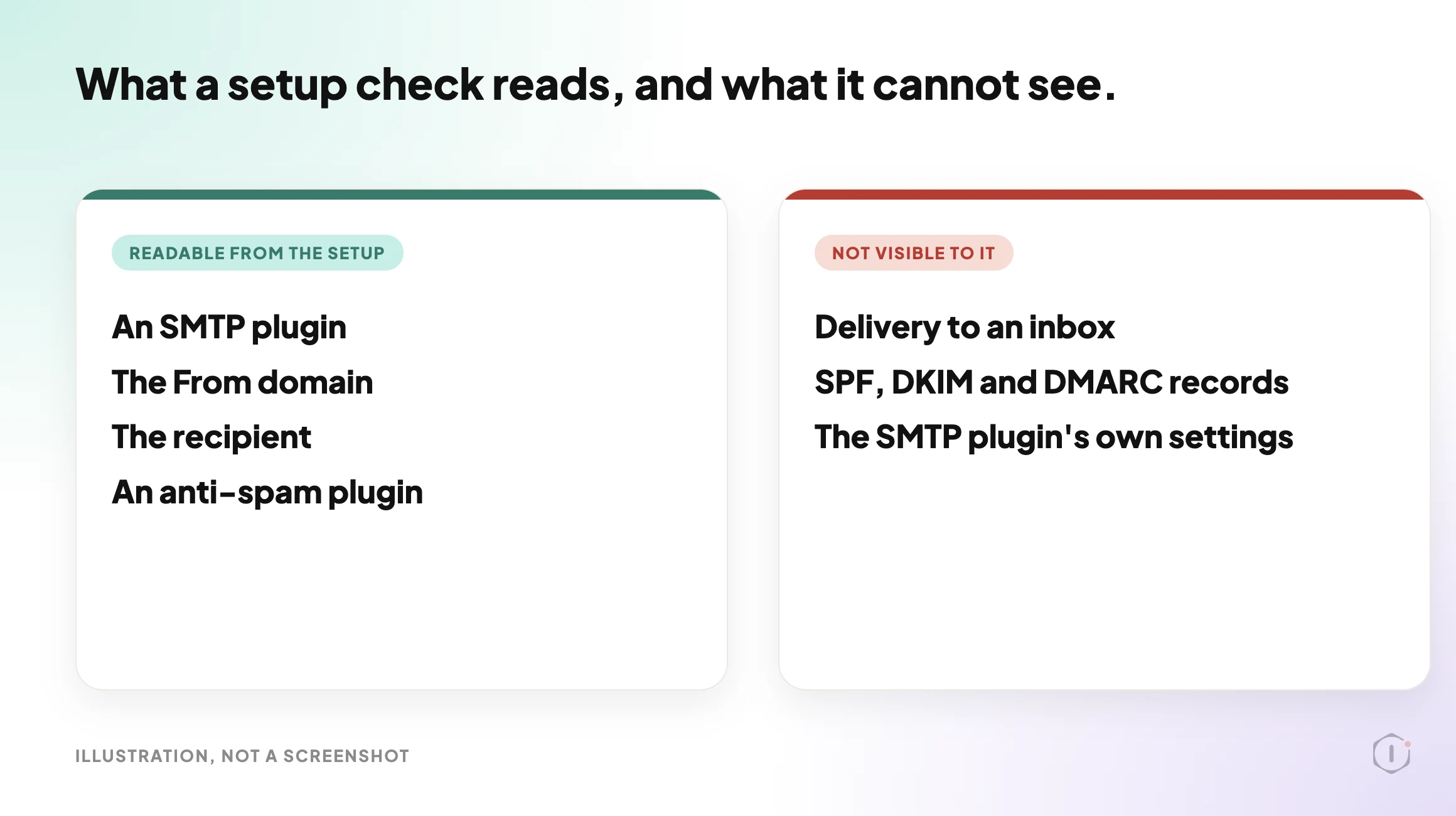
    A setup check reads those four. It cannot tell you whether a message arrived, because nothing in the setup says so.

    Illustration with two cards. The left card lists four things a setup check can read: an SMTP plugin, the From domain, the recipient and an anti-spam plugin. The right card lists three things it cannot see: delivery to an inbox, SPF, DKIM and DMARC records, and the SMTP plugin's own settings.
    What a setup check can read, and what it cannot see. Example list, not a real run.

    The Playbook, Step By Step

    Contact Form Health Check is a Beta playbook with two steps. It only reads: every call it makes is a GET, no form is submitted, no email is sent, and no plugin or setting is changed. The dashboard shows both steps with Automatic backup set to None and the approval checkpoint off, which is consistent with a playbook that changes nothing.

    It runs when you start it. No schedule is set by default, and it needs no connector.

    A short silent video walks through the same two steps.

    Silent video, illustration with an example form, not a real run.

    Step 1: Detect Forms And Mail Setup

    The first step reads the site and writes one block of facts for the second step to use. It makes about 15 calls, in this order:

    1. The site’s settings, to get the site’s host name and the domain of the administration email.
    2. The list of active plugins, sorted by exact slug into form plugins, SMTP or mail plugins, and anti-spam plugins.
    3. For Contact Form 7, the list of forms (up to 20), then the sender and recipient of each form (up to 10).
    4. For each active form plugin, a search of pages and posts for its shortcode, to find where forms are embedded.
    5. For Contact Form 7, which form sits on which page, by reading the content of up to 10 pages or posts that matched.

    The slug matching is exact. A plugin that is not on the lists is not counted, so a mail plugin under an unlisted name looks like no SMTP plugin at all. The form plugins it knows are Contact Form 7, WPForms Lite, WPForms, Gravity Forms, Fluent Forms, Ninja Forms and Formidable Forms. Elementor Pro is noted, but its forms live inside page layouts and are not checked.

    One privacy rule runs through the whole playbook: it never writes a full email address. The report shows the domain only, such as @example.com.

    Step 2: Form Health Report

    The second step makes no calls. It applies eight rules to what the first step found, and it evaluates every rule every time, so one finding never hides another.

    #RuleWhere it appearsSeverity
    1No SMTP plugin while forms are presentFindings tableHigh
    2An SMTP plugin is presentHeader lineNot a finding
    3A form sends from a different domain than the siteFindings tableMedium
    4A form has no recipientFindings tableMedium
    5Forms are present and no anti-spam plugin is activeFindings tableLow
    6Administration email is on another domainHeader lineNot a finding
    7A form plugin is active but no forms were foundHeader lineNot a finding
    8A form is not on any published pageFindings tableLow

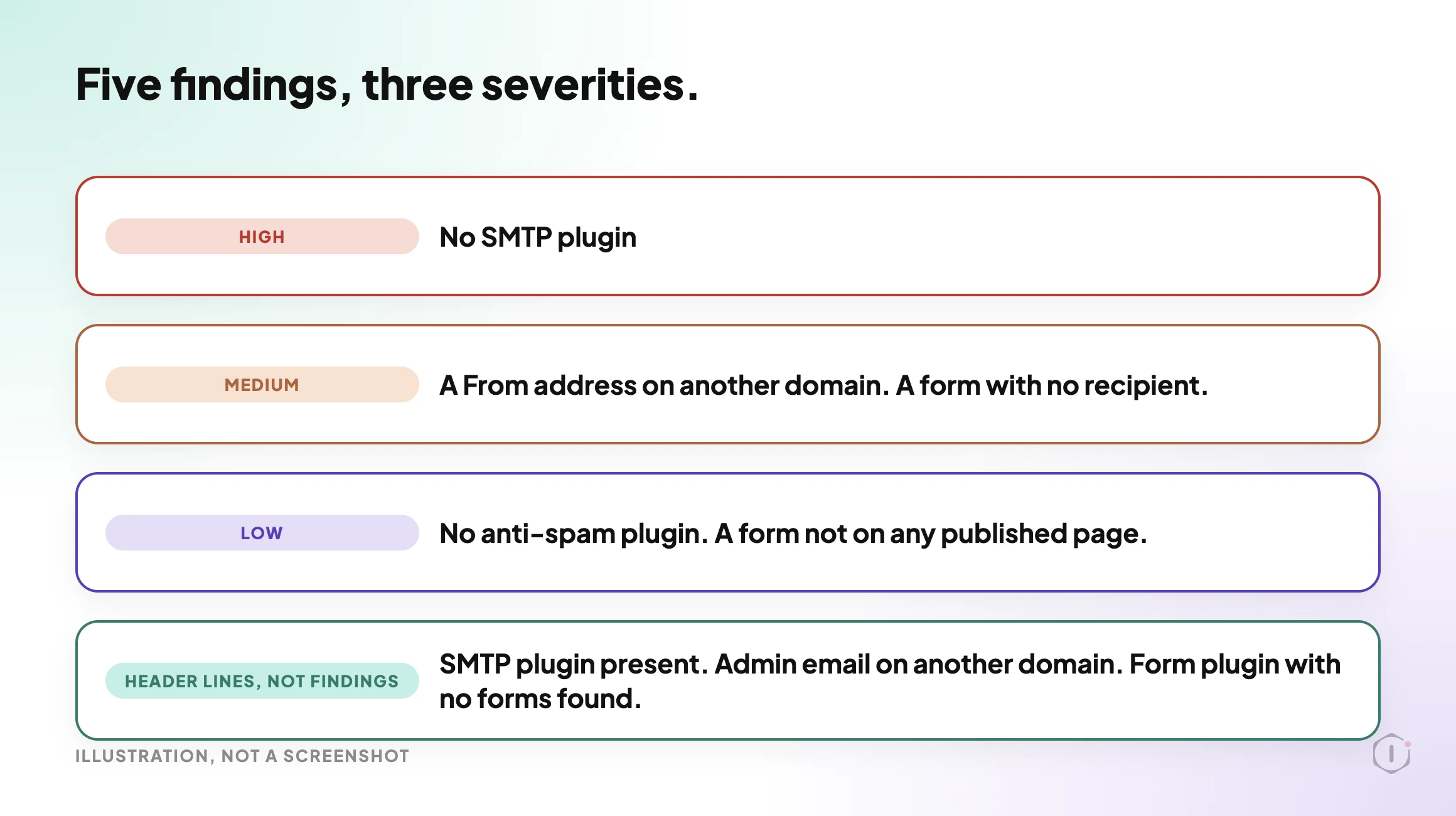
    Only rules 1, 3, 4, 5 and 8 become rows in the findings table, ordered High, then Medium, then Low. Rules 2, 6 and 7 are lines at the top of the report, because they describe the setup rather than a problem.

    Illustration of the three severities. High: no SMTP plugin. Medium: a From address on another domain, and a form with no recipient. Low: no anti-spam plugin, and a form not on any published page. Three further rules appear as header lines, not findings.
    Five findings in three severities, plus three header lines. Example list, not a real run.

    Why Each Finding Matters

    The step file gives a reason for each finding, and the reasons are worth reading as they are written.

    No SMTP plugin (High). The site most likely sends form emails with plain PHP mail, which many mail providers reject or file as spam. It is the only High finding.

    A From address on another domain (Medium). Mail sent from a domain other than the site’s often fails SPF and DMARC checks. A From of the default site admin placeholder counts as the admin email’s domain, so the check compares that instead. This is the same advice as the Contact Form 7 documentation, turned into a rule a machine can apply to every form.

    A form with no recipient (Medium). A form whose To field is empty has nowhere to send. It is the simplest finding in the list.

    No anti-spam plugin (Low). Forms are present and no anti-spam plugin is active. It is rated Low, below the three findings that concern mail setup and recipients. The spam comments post covers the comment side of the same problem.

    A form not on any published page (Low). The form may be unused, or placed somewhere the check cannot see, such as a widget, a page builder layout or a theme template. The suggested next step is to check where the form is used and, if nowhere, leave it or tidy it up.

    What The Report Looks Like

    The report is plain markdown with a fixed layout. In order, it has:

    • A header with the form plugins, the number of forms, the pages that embed them, the mail setup line and the administration email domain.
    • A Checks section with one line per rule, showing the values compared and the outcome.
    • A Findings table, or the words “No findings”.
    • A Forms table with each form, its From and To, and where it appears.
    • Lists of where forms appear and of what was not checked.
    • Next steps, which always begin with sending a test message through each form.

    The mail setup line is worded carefully. When an SMTP plugin is active it reads “<plugin> is active; its settings and delivery were not verified.” The report never says mail works, is delivered, arrives or is fine. That restraint is the point of the playbook, and it is the right instinct for anyone writing a hand-made version of this check.

    A Ten-Minute Version By Hand

    You do not need the playbook to run the same check once.

    1. Open Plugins and note any form plugin, any SMTP or mail plugin and any anti-spam plugin that is active.
    2. Open Settings, then General, and note the domain of the administration email address.
    3. Open Contact, then Contact Forms. For each form, open the Mail tab and read the From and To fields.
    4. Compare each From domain with the site’s domain. Anything that differs is worth a second look.
    5. Find the page that embeds each form. A form you cannot find on a page may be unused.
    6. Send a real message through each form and confirm it reaches the inbox that should receive it.

    Step 6 is the one no setup check can replace. The playbook says so too, and it is the first item in its own next steps.

    What A Setup Check Does Not Solve

    It does not prove delivery. A site can pass every rule and still lose mail, for the reasons the email deliverability post describes.

    It does not read the sending domain’s DNS. SPF, DKIM and DMARC records are listed in the report as not checked. The posts on SPF lookups, DKIM selectors and DMARC for agencies cover those, and the next steps point to the SMTP Deliverability Check playbook for real delivery and DNS tests.

    It does not read the SMTP plugin’s own settings. “An SMTP plugin is present” is the strongest positive wording it allows itself.

    It lists forms one by one for Contact Form 7 only. Forms from other plugins are found only where they are embedded.

    One more limit follows from how the step is written, and it is my reading of the step file rather than something it states. Rule 5 looks at the active plugin list. The first step makes no call that reads a form’s own CAPTCHA or Turnstile settings, so a Contact Form 7 form protected only that way would still be reported as having no anti-spam plugin. Treat a Low finding there as a prompt to check, not as proof.

    Two Outside Views

    A tutorial and a forum thread. Neither is an endorsement, and neither describes the Protuno playbook.

    In a September 2026 video, WP Handy walks through the usual repair for a Contact Form 7 form that is not sending. The video’s own timestamps run from installing the free FluentSMTP plugin, through creating a Google Cloud project and a client ID and secret, to authenticating with Google and sending a test email. Its description lists, among the things it covers:

    “How to check and fix your Contact Form 7 Mail tab settings”

    WP Handy, How to Fix Contact Form 7 Emails Not Sending (Easy Method), video description, 11 September 2026

    That Mail tab check is the part the playbook reads automatically. The SMTP setup that follows is a long, hands-on job, and it is what the “No SMTP plugin” finding is pointing at.

    On Reddit, an r/Wordpress thread titled “Automated Email form tester” starts with a developer describing a worry close to the one this playbook is aimed at:

    “I’m a WP dev, that continues to have my client’s email forms suddenly stop working (email not delivered).”

    Original poster, r/Wordpress, 23 September 2026

    The replies split on what to test. One argues for checking the mail path rather than the form:

    “test the mail path, not the form”

    Reply in the same thread, r/Wordpress, 23 September 2026

    Another argues the opposite, that skipping the form loses an important part of the test:

    “SMTP can work while the submit button doesn’t.”

    Another reply in the same thread, r/Wordpress, 23 September 2026

    Both replies are about live testing, which is the step a setup report cannot do. That is the honest limit of any setup check, including the one this post describes.

    Where Protuno Fits

    The Contact Form Health Check playbook is the narrow, repeatable part of this problem. It reads the form plugins, the forms and the mail setup, applies the eight rules, and writes one report with findings by severity and a next step for each. It only reads, and it makes no promise about delivery.

    It sits beside the other checks. The plugin conflict post covers a different plugin-list check. This one has its own page at Contact Form Health Check, and the one that tests real delivery is SMTP Deliverability Check.

    The Point

    A form that has never failed can still be one weak setting away from failing. The setup is the part you can read today, and reading it costs no message at all.

    Run the check, fix the High and Medium findings, then send a real test through each form. The setup report tells you where to look. Only the test tells you whether it arrived.

    Which of your forms sends from a domain that is not the site’s?

    Sources And Further Reading

  • WordPress CDN: Prove It Is Serving

    WordPress CDN: Prove It Is Serving

    The CDN dashboard is green. The traffic graph shows requests. The plugin settings page says “Connected”.

    Then someone pulls the response headers for the homepage and for the nine heaviest files on it. The CSS and JavaScript come from an edge. The hero image, the webfonts and the HTML document do not. Three of the heaviest things on the page are still travelling from the origin, on every request, for every visitor.

    Nothing is broken and nothing alerts. The dashboard is telling the truth about the account. It says nothing about the page.

    Short answer: a CDN is proven by response headers, not by a settings screen. Request the HTML document and each heavy asset separately, then read the server, cache status, age and cache-control headers on each one. The CDN is serving only the exact URLs that come back as an edge cache hit. Everything else is still your origin, whatever the dashboard says.

    What this post is, and is not: this is a walk-through of outside-in verification you can run yourself with curl and a browser, on a site you are authorised to test. It shows which responses were served from an edge at the moment you asked. It does not measure end-user speed, it does not prove the CDN is configured well, and header names differ between providers, so read your own provider’s documentation before deciding that a missing header means a miss.

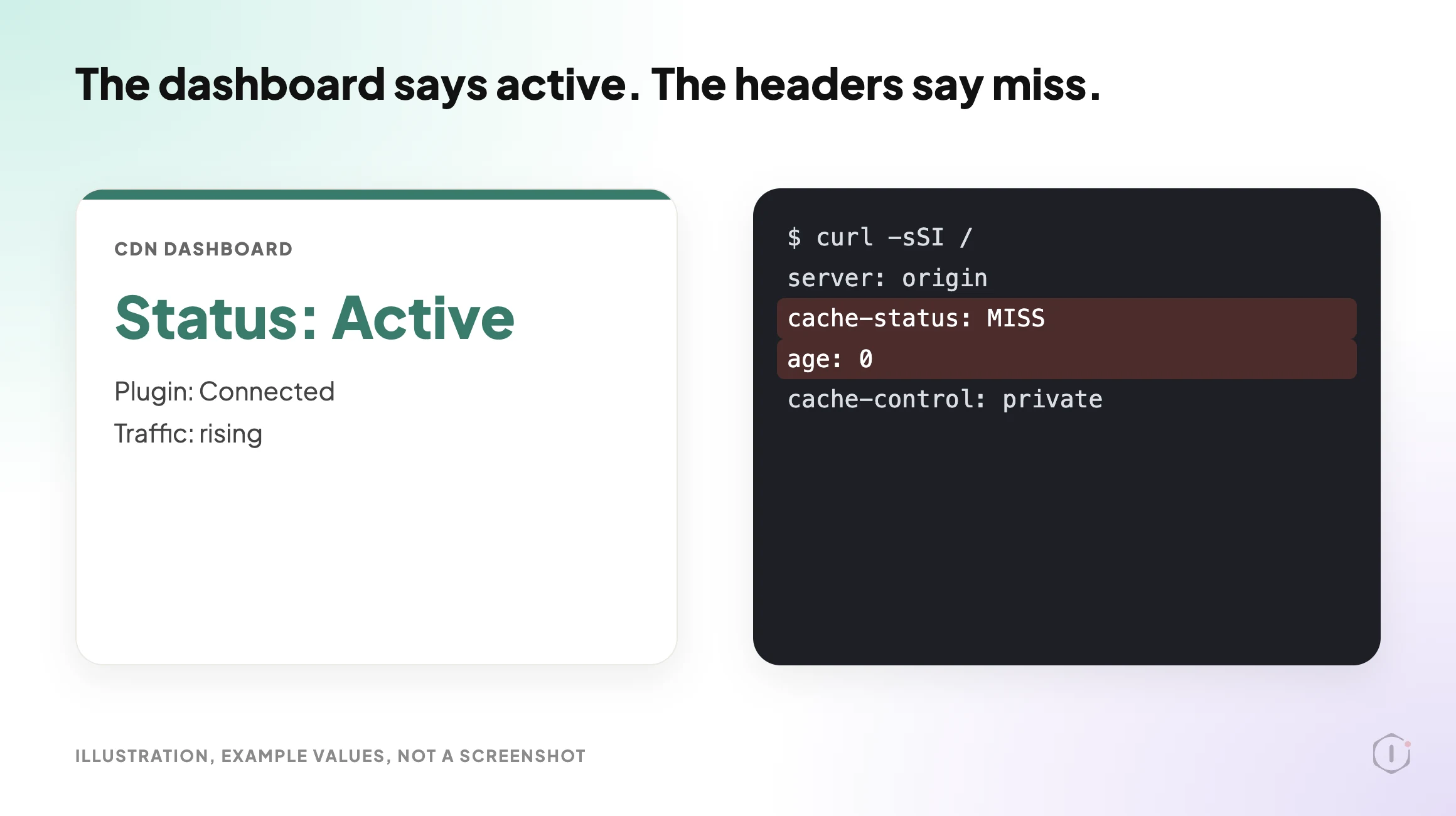
    A CDN dashboard showing an active status next to terminal output showing a cache miss for the same page.
    Illustration. The dashboard describes the account. The headers describe the request.

    Why This Matters Now

    WordPress 7.1.3 shipped on 6 October 2026 as a maintenance and security release, and most sites will have updated since. An update can touch the files and URLs a CDN is serving, and a changed plugin can change what the origin tells the edge. A check from last quarter does not describe the site you have today.

    That is the practical case for a check you can repeat: it costs a few minutes, and it tests the one thing the dashboard cannot.

    What Set Up Actually Means

    At least four states get called “we have a CDN”.

    StateWhat is trueWhat is not true
    Account created, DNS not movedThe provider has a zone for your domainNo visitor traffic reaches the edge
    DNS proxied, nothing cachedRequests pass through the edgeThe edge forwards almost everything to the origin
    Static assets cachedCSS, JS and images can come from an edgeThe HTML document is still built per request
    HTML cached at the edgeFull pages can be served without PHP runningLogged-in and cart pages must be excluded correctly

    A site that feels slow despite a CDN is often in state two or three while being described as state four. The dashboard reports account health. It does not report, per URL, whether the bytes a visitor received came from an edge.

    Read The Headers, Not The Settings Page

    Start with the HTML document, because it gates everything else. On a site you control:

    curl -sSI https://example.com/ | sed -n '1p;/^[Ss]erver:/p;/[Cc]ache/p;/^[Aa]ge:/p;/^[Vv]ia:/p'

    Four fields carry most of the answer.

    HeaderWhat it tells youWhat to watch for
    server or viaWhether an intermediary answered at allIf it names only your web server, the request may never have touched an edge
    A cache status headerHIT, MISS, BYPASS, DYNAMIC, EXPIRED and similarThe name and values are provider-specific. Confirm them in your provider’s docs
    ageSeconds the object has been held in a cacheA value of 0 on every repeat request suggests it is not being kept
    cache-controlWhat the origin told caches to doprivate, no-store or max-age=0 from the origin can stop edge caching

    Two cautions. First, a cache status header can be present and still say MISS. Finding the header is not the same as finding a hit. Second, one request proves nothing on its own. The first request to a cold edge is expected to miss. Run the same request twice, a few seconds apart, from the same place, and compare the pair.

    Cloudflare documents its own cache status values on its cache responses page, and by default it caches by file extension rather than caching HTML, which its default cache behavior page explains. Other providers differ, which is why the table above says to confirm the names.

    The same confusion appears one layer down, where a page cache plugin reports a hit that the response does not support. That is worked through in The WordPress Page Cache Header Lies, and it is worth reading before you trust any single cache header at either layer.

    Per-Asset, Because The Page Is Not One Request

    A page is one document plus, typically, dozens of subresources. A CDN can serve some of them and not others.

    The method is plain. Open the page in a browser with the network panel recording, hard reload, then sort by size. Take the ten heaviest responses and check each for an edge cache status. Do it twice, so the second load shows what was kept.

    Things that often bypass the edge while everything else is fine:

    • Fonts loaded from a path that was never rewritten to the CDN hostname, or from a third party with its own cache policy.
    • Images inserted with absolute origin URLs in post content, so a rewrite filter never sees them.
    • Admin-ajax and REST responses, which usually should bypass, but are worth confirming rather than assuming.
    • Files a plugin enqueues using a hardcoded site URL.
    • Uploads added before the CDN was connected, when the integration only rewrites URLs for new content.

    A miss on a 3KB icon costs almost nothing. A miss on the hero image costs the point of the exercise. If the heavy responses on your page are images, the CDN question and the file-size question are the same question, and the file-size half usually has the bigger win. WordPress Image Optimization: Find The 794KB File Before Your Visitor Does covers that audit.

    HTML Caching Is A Different Decision

    Caching static assets at an edge is close to free. Caching the HTML document is not, and the two are often discussed as one feature.

    When the edge holds the HTML, a visitor can get a complete page without your PHP running. That is the largest win available on many sites. It also means the edge must be told, correctly and reliably, never to serve a cached page to someone who is logged in, has items in a cart or is mid-checkout. The failure is not slowness. It is one person seeing another person’s page.

    So verify two things, in this order:

    1. Logged out, request a public page twice. Does the second response show an edge hit with a non-zero age?
    2. Logged in, request the same page. Does the response bypass the cache?

    If the second check does not bypass, fix that before celebrating the first. The cart version of this failure is described in WooCommerce Cart Caching: One URL, Two Customers, One Very Bad Morning, and it is the clearest case for giving HTML caching its own verification pass.

    Silent video, illustration with example values, not a real site.

    Headers That Look Like Proof And Are Not

    SignalWhy it feels conclusiveWhy it is not
    The CDN plugin says “Connected”It made a successful API callIt says nothing about any visitor request
    A provider header is presentSomething sat in the pathPresent is not the same as HIT
    Traffic appears in the provider dashboardRequests reached the edgeProxied and forwarded still counts as traffic
    A speed test score improvedSomething changedMany things change at once, so attribute carefully
    The IP resolves to the providerDNS is proxiedThat is state two in the table above

    The last row deserves a pause. Pointing DNS at a provider is the step people remember doing, so it becomes the thing they believe they verified. It proves routing. It proves nothing about caching.

    Where The Origin Still Decides

    An edge largely obeys your origin. If WordPress sends cache-control: no-cache on the document, most setups will forward every request. If vary is too broad, the cache splits into many near-unique entries and hits become rare, as MDN’s Vary reference explains. A cookie set on every response, including anonymous ones, commonly stops HTML being cached by default.

    So a CDN rarely fixes a slow origin. It changes who answers, not how long the answer takes when nobody has it yet. The first visitor in each region still waits for your server. When that wait is long, measure time to first byte properly first, using WordPress TTFB: The Number Everyone Quotes And Almost Nobody Measures Properly. Two checks sit beside this one: Enable Gzip Compression On WordPress, Then Check What It Missed for compression on edge-served files, and Browser Caching On WordPress for what the visitor’s own browser keeps.

    Three stacked cards labelled browser cache, edge cache and origin, each marked as its own separate check.
    Illustration. Three caches, three separate verifications. A pass at one layer says nothing about the others.

    Two Outside Views

    A tutorial and a forum thread. Neither is an endorsement, and neither describes Protuno.

    In a June 2026 video, Learn With Miller sets up Cloudflare’s CDN from the dashboard in about three and a half minutes. It confirms the site’s DNS records are proxied (the orange cloud), leaves mail records unproxied, sets the caching level and browser cache TTL, switches on compression and HTTP/3, and ends by opening analytics to read the cache hit ratio. That ratio is a site-wide figure. It cannot say which URL on a given page came from an edge, which is the question this post is about.

    On Reddit, an r/Wordpress thread titled “design looked broken after css changes – plugin cache clear wasn’t enough” makes the same point one layer down. The original poster cleared the browser and plugin caches and the layout was still wrong, until the server and CDN page cache were purged:

    u201cplugin cache alone is not always the full stack.u201d

    Original poster, r/Wordpress, 9 October 2026

    A reply adds that a stylesheet enqueued with a fixed version string can be kept by the browser and the CDN long after the page HTML is fresh.

    What This Does Not Solve

    Header verification tells you where a response was answered. It does not tell you:

    • whether the visitor experienced the page as fast, since render order, layout shift and script execution never appear in a header;
    • whether the edge you reached is the edge a visitor in another region gets, because your result is specific to your location;
    • whether the cache is purged correctly when content changes, which needs an edit and a re-request;
    • whether a hit came from a stale copy of a page you updated an hour ago;
    • whether the CDN costs more than it saves on a low-traffic site; or
    • whether an asset should exist at all, which is usually the larger win and never a CDN question.

    It also proves one moment. A deploy, a plugin update, a rewrite rule change or a provider default changing underneath you can quietly put the site back in state two. The check is cheap enough to repeat, which is the main argument for repeating it rather than filing the result.

    Sources And Further Reading

    The Point

    “We put a CDN on it” describes a purchase. “The HTML document and the nine heaviest assets returned an edge hit on a second request, and the logged-in request bypassed correctly” describes a site.

    The two sentences cost about the same time to produce. Only one survives a client asking what changed.

    So for the sites you look after: when did you last read the actual response headers, rather than the dashboard built to reassure you?

  • WordPress Plugin Conflicts: The Playbook, Step By Step

    WordPress Plugin Conflicts: The Playbook, Step By Step

    Your site shows a white page, or the message “There has been a critical error on this website.”

    You updated one plugin an hour ago, and you have a lot of plugins installed.

    Short answer: A plugin list cannot prove a WordPress plugin conflict. Only errors, logs and a clean test can. What a plugin list can do is show you which plugins do the same job, which ones are switched off but still installed, and where to test first. That is the whole job of the Plugin Conflict & Redundancy Check playbook, and this post walks through its two steps.

    What this post is, and is not: A method write-up of one read-only playbook, based on its two step files as shown in the Protuno dashboard on 16 October 2026. It is not a result from a real run: no playbook was run for this post, and every picture and plugin name in it is an illustration with example values. It is not a conflict detector, and it does not read error logs.

    What A Plugin Conflict Looks Like When It Shows Up

    A conflict rarely announces itself with the names of the plugins involved.

    It shows up as a symptom. A page that stops loading. A checkout button that does nothing. A spinner in the editor that never finishes. In the worst case, the critical error message, or the white screen.

    WordPress’s own training material describes where these come from. The Learn WordPress lesson on plugin and theme conflicts lists the most common causes of a white screen or critical error as an exhausted memory limit, PHP errors, database issues, and plugin or theme conflicts or compatibility issues. Within conflicts, it names code incompatibility with the current WordPress version, JavaScript errors that stop a page loading, and deprecated functions.

    So a conflict is one of four possible causes, and the symptom does not say which. That matters for everything that follows. If you are staring at a broken page right now, read the white screen of death post first, because it covers the playbook for exactly that moment.

    This post is for the quieter situation. The site works. You want to know where trouble is most likely to start.

    Illustration comparing an overlap, two active page cache plugins visible in the plugin list, with a conflict, a critical error message that only an error or a test can confirm
    Two plugins on one job is a risk to test, not a proven conflict. Example plugins, not a real run.

    Overlap Is Not The Same As Conflict

    Two words get used as if they meant one thing. They do not.

    An overlap is two active plugins doing the same job. Two page cache plugins. Two SEO suites. Two backup plugins on separate schedules. You can see an overlap from the plugin list alone.

    A conflict is two pieces of code interfering with each other so that something breaks. You can only see a conflict from an error, a log, or a test that fails and then passes when one plugin is removed.

    Overlap is a sensible place to look first, because two plugins doing the same job can end up competing for the same files and settings. But it is only a place to look. Plugin A and plugin B can have nothing in common and still collide, and two plugins in the same job can sit side by side for years without a problem.

    The playbook is built around that gap. It reports overlaps and does not call them conflicts. The step instructions say so directly: say “overlap” or “risk”, never “broken” or “conflicting” as a fact, because the check reads the plugin list, not errors.

    That restraint is what makes the report usable. A report that cried “conflict” about every pair of plugins would train you to ignore it.

    The Playbook, Step By Step

    In the Protuno dashboard the playbook is called Plugin Conflict & Redundancy Check. It carries the Beta label, it has two steps, and it only reads. The public playbooks page lists it under Care with the same name and the same two steps, and says it needs no connector and sets no schedule: it runs when you start it.

    Both steps show Automatic backup as None and Approval checkpoint as Off in the dashboard. No step pauses to ask you anything.

    A short silent video walks through the same two steps.

    Silent video, illustration with example plugins, not a real run.

    Step 1: Plugin Inventory And Classification

    The first step reads the site’s plugin list twice: once for active plugins and once for inactive ones. Every call is a read. No plugin is activated, deactivated, updated, deleted or configured.

    Each plugin is then sorted into one job from a fixed table, by exact slug. The slug is the part of the plugin path before the first slash, so wordpress-seo/wp-seo becomes wordpress-seo.

    Three rules in this step are worth knowing before you read any report.

    • The table is closed. A plugin whose slug is not in the table is marked unclassified. The step is told never to infer a job from a plugin’s name or description.
    • Protuno’s own plugins are left out. The three connection plugins are listed as “Protuno connection” and are never classified or flagged.
    • The counts must add up. Classified plus unclassified plus Protuno connection must equal active plus inactive, and the step checks the sum before it answers.

    There is also a size limit. The reply from the plugin list is cut at 8,000 characters, which the step instructions estimate at about 75 plugins per status. If a list is cut, the step uses the complete items it has and records the inventory as partial. It never guesses the missing ones.

    The Fixed Table Of Jobs

    The table has thirteen jobs. Ten of them can produce an overlap finding, and each carries a severity.

    JobSeverity when two or more are active
    Page cacheHigh
    Security and firewallHigh
    SMTP and mailHigh
    SEO suiteMedium
    Asset optimisationMedium
    BackupMedium
    Image optimisationMedium
    Page builderMedium
    RedirectsLow
    Anti-spamLow

    Three more jobs are handled differently. Elementor add-on packs count as stacking when three or more are active, and that is rated low. Forms and analytics plugins are listed for information only, because several of each on one site is often normal.

    Illustration of the ten overlap jobs grouped into high, medium and low severity, plus the stacking and information-only jobs
    The ten overlap jobs by severity, and the two that are handled differently. Illustration, not a screenshot.

    Step 2: Overlap And Conflict Report

    The second step makes no calls at all. It composes a report from the inventory, and if the inventory is missing or the first step failed, it stops with a broken-chain message rather than inventing one.

    It applies four findings and nothing else.

    1. Overlap. Two or more active plugins in the same job, rated by that job’s severity.
    2. Several installed. Two or more active forms or analytics plugins, listed under “For information” and not treated as a risk.
    3. Add-on stacking. Three or more active Elementor add-on packs, rated low, because of overlapping widgets and extra assets on every page.
    4. Inactive plugin. Every inactive plugin except Protuno’s own, rated low.

    Inactive plugins never count toward an overlap. The reason they still show up is different. Inactive code is still on disk, and the step’s own wording is that it can still be attacked. If a plugin is not needed, delete it from the Plugins screen. The same wording adds that deleting cannot be undone, so keep the zip or a backup.

    Why Each Overlap Matters

    For every job, the step has a fixed reason, so the report explains itself instead of only listing names.

    • Page cache: both try to own the cache and the advanced-cache.php file, so pages can go stale or break after an update.
    • Security and firewall: double login blocking and lockouts, and rules that can block each other.
    • SMTP and mail: both rewrite how mail is sent, and one can silently override the other. A separate post covers email deliverability.
    • SEO suite: duplicate titles, meta tags, sitemaps and schema.
    • Asset and image optimisation: double processing of the same files.
    • Backup: two schedules, double load and storage, and no clear answer on which one restores.
    • Page builder: two editors loading their assets.
    • Redirects and anti-spam: rules evaluated twice, which makes it harder to tell which one acted.

    Each finding names the plugins, gives the reason, and offers one safe next step: on staging, keep one, deactivate the other, then check the front end, forms and checkout.

    What The Report Looks Like

    The report has a fixed layout, so two reports from two sites can be read the same way.

    • Plugins read: the active and inactive counts, and whether the inventory is complete or partial.
    • Summary: overlaps by severity, inactive plugins, and unclassified plugins that were not assessed.
    • Overlaps: a table of severity, job, active plugins, why it matters, and the first step.
    • Add-on stacking, Inactive plugins and For information: each its own short section, or “none”.
    • Not checked: real runtime errors and hooks, each plugin’s own settings, must-use plugins, and every unclassified plugin.
    • Note: a line confirming it was a read-only check and nothing was changed.

    “No overlaps found” counts as a pass.

    A Five-Minute Version You Can Do By Hand

    You do not need a playbook to get the first half of this value. Open the Plugins screen and do this.

    1. Sort the installed plugins in your head into jobs: cache, security, SEO, backup, mail, images, redirects, spam, page builder.
    2. Write down any job that has two active plugins.
    3. Write down every inactive plugin and ask whether anyone needs it.
    4. Mark the overlaps by how much damage they could do. A doubled page cache or a doubled firewall is worse than a doubled redirect plugin.
    5. Pick one overlap. Test it on staging, not on the live site.

    If you test on staging, the staging drift post is about what drifts between staging and live, which matters before you trust a test result.

    The playbook applies the same table to every site you point it at, which is the real gain on a client portfolio. On a single site you own, the manual version is fine.

    What An Overlap Check Does Not Solve

    An overlap report is useful because it is narrow. Here is what it will not do.

    • It does not find conflicts between unrelated plugins. Plugins in different jobs can still collide, and the check cannot see it.
    • It does not read error logs. Logs are where a real error would show. A related post covers the debug log exposed check.
    • It does not judge plugins that are not in its table. They are listed as not assessed, and a re-run gives the same result, because the table is fixed.
    • It does not read plugin settings. Two caching plugins with caching switched off in one of them would still be reported as an overlap.
    • It does not see must-use plugins. The report says so under “Not checked”.
    • It does not fix anything. Fixing an overlap is the site owner’s decision, made on staging first.

    That last point is also a safety property. A tool that only reads and reports cannot break a site.

    If You Already Have A Real Conflict

    Then you need a test, not a report.

    WordPress has a supported way to run one. The Health Check and Troubleshooting plugin on WordPress.org describes a troubleshooting mode: a clean session where all plugins are disabled and a default theme is used, but only for your own user until you turn it off or log out. Everyone else keeps seeing the normal site. That is a safer way to answer the question “is it a plugin?” on a live site, because it does not change what the public sees.

    The Learn WordPress lesson also starts the same way every careful guide does. Make a backup before changing anything, and use a staging site if you have one. If the broken thing is an update you just ran, the update process playbook post is a related read.

    When the cause is a plugin that has stopped receiving updates, the story is different: the premium plugin licenses post and the removed plugin risk post cover two ways a plugin can drift out of support without anything visibly breaking.

    Two Outside Views

    A tutorial and a forum thread. Neither is an endorsement, and neither describes the Protuno playbook.

    In a March 2026 video, Ephraim Creations works through a site that kept crashing and shows the manual route most people take. He switches every plugin off at once by renaming the plugins folder in the host’s file manager, confirms the dashboard loads, renames the folder back so the plugins return in a deactivated state, and then turns them on one at a time until the site breaks again. The video ends with a plug for his own WordPress course.

    On Reddit, an r/Wordpress thread titled “How do you figure out which plugin is causing a conflict when your site breaks?” starts with someone describing the manual method and what it costs:

    u201cThe only way I could figure out to diagnose it was the classic “deactivate all plugins, reactivate one at a time, keep reloading the broken page.”u201d

    Original poster, r/Wordpress, 16 April 2026

    An early reply pushes back on that approach:

    u201cWP_DEBUG, DevTools, server logs. Randomly deactivating plugins and hoping something happens is not how you troubleshoot issues.u201d

    Reply in the same thread, r/Wordpress, 16 April 2026

    The original poster answers that logs gave only generic JavaScript failures with no stack trace pointing at a plugin, and that bisecting never isolates the case where two plugins only break when both are active. That is exactly the situation where a list of overlaps gives you somewhere to start.

    Where Protuno Fits

    The Plugin Conflict & Redundancy Check playbook is the narrow, repeatable part of this problem. It sorts the plugin list into jobs, reports the overlaps, the stacked add-ons and the inactive plugins, and says what to test first on staging. It only reads.

    It sits beside the other checks. A related post on the vulnerability scanner is about installed plugins and known problems, which is a different question from whether two of them overlap. The playbooks page lists the playbooks as Protuno publishes them, and this one has its own page at Plugin Conflict & Redundancy Check.

    The Point

    A plugin list cannot prove a conflict. It can tell you where to look first.

    Read the overlaps by severity, test one on staging, and treat a quiet report as a good result. The next time a site shows that critical error, you will already know which pairs of plugins were worth suspecting.

    Which job has two active plugins on the site you manage right now?

    Sources And Further Reading

  • WordPress Redirect Loops And Chains: Find The Hop

    WordPress Redirect Loops And Chains: Find The Hop

    A client calls because the site will not load. The browser shows a “too many redirects” error and says the page redirected too many times. Nothing was deployed, nobody touched the theme, and it worked yesterday.

    Three weeks later the same site is fine. Every page loads, nobody is calling, and one URL is taking three hops before it reaches the page. Nobody will ever call about that one.

    Same underlying fault, two very different experiences. One is an outage with a loud alarm. The other is a quiet detour that only shows up if you go looking.

    Short answer: a loop is a redirect sequence with no end, so the browser gives up. A chain is a sequence that does end, just not on the first hop. Both are diagnosed the same way: request the URL from outside with redirects turned off, follow each hop by hand, and record the status code and the Location header at every step. The hop where the destination stops making sense is the layer that is misconfigured.

    What this post is, and is not: this is an outside-in tracing method you can run against any URL you are allowed to test, plus the three configuration conflicts that cause most loops. It is not a guide to any one CDN’s rule screen, and it does not measure what a chain costs in rankings or load time, because that cannot be read from one site.

    Diagram comparing a WordPress redirect chain that resolves after three hops against a redirect loop that returns to its start and fails.
    The top one is working. That is the problem with it.

    A Loop And A Chain Are The Same Bug

    Both start the same way: more than one thing on the request path believes it is responsible for deciding the canonical URL.

    A chain happens when each of those things makes a different but compatible decision. The server upgrades to HTTPS. WordPress adds the www. A redirect plugin maps the old slug to the new one. Each hop is individually correct, and the visitor still arrives at the right page after several round trips.

    A loop happens when two of those decisions point in opposite directions. The server sends www to the bare domain. WordPress, whose siteurl option still has www in it, sends it back. Neither is wrong on its own. Together they never end, and the browser stops after its own limit and shows an error.

    You do not need two diagnostic routines. The same trace finds both. For what a chain does to a link audit, and why a clean 200 can hide it, see why a 404 is the easy half of a link check. This post stays on finding the hop.

    Trace Every Hop From Outside

    The whole diagnosis is one habit: stop letting your tools follow redirects for you.

    A browser follows the chain silently and shows you the final page. A checker that reports “200 OK” has already walked every hop and thrown the evidence away. You want the hops, one at a time.

    Request the URL with redirect following off, and record four things for each hop:

    1. The URL you requested.
    2. The status code that came back.
    3. The exact Location header, including protocol, host, path and query string.
    4. Whether the Location is absolute or relative.

    With curl, a header-only request does not follow redirects by default:

    curl -sI http://example.com/path

    Then request the Location value and repeat, until you reach a non-redirect status or a URL you have already recorded. A repeat is the definition of a loop, and the URL that repeats tells you where the cycle closes. To let curl do the walking and stop it from running forever, cap the hops and print the count:

    curl -sIL --max-redirs 10 -o /dev/null -w '%{num_redirects} %{url_effective}n' http://example.com/path

    If the cap is hit, curl reports that the maximum number of redirects was followed, which is a loop. Use this only on URLs you are authorised to test.

    Run the trace against four variants of the same page, because the variants are where the disagreements live:

    • http://example.com/path
    • http://www.example.com/path
    • https://example.com/path
    • https://www.example.com/path

    A healthy result is that every variant reaches the canonical URL in one hop, or two when both the protocol and the host have to change. Three or more hops from any starting point means something is doing the same job twice.

    Table tracing redirect hops from four URL variants of a WordPress site, with two variants highlighted for taking three or more hops.
    Four requests, no login, and the misconfigured layer is usually already visible.

    Capture the status code at each hop as well. A 301 and a 302 are both redirects, but they say different things about intent, and a chain that mixes them was probably assembled by more than one person. MDN’s page on 301 Moved Permanently and 302 Found is the quickest way to check what each one promises.

    The Three Usual Culprits

    Most loops and many long chains come from one of three conflicts. Check them in this order.

    #ConflictWhat it looks like in the traceWhere to look
    1Protocol and host settings disagreeingA hop that adds www followed by one that removes it, or HTTPS to HTTP and backWordPress siteurl and home options against the server rewrite rules
    2A plugin redirect fighting a server ruleTwo hops to the same destination, differing by a trailing slash or letter caseThe redirect plugin’s rule list against the server configuration file
    3A CDN or proxy rule added separatelyA hop whose Location matches nothing in WordPress or the server configThe CDN’s own rules and SSL mode, read in its dashboard

    The first is the classic loop. Four combinations of protocol and host exist. Three of them must redirect to the fourth, and that rule should live in one place. WordPress keeps its own opinion in the siteurl and home settings, and its redirect_canonical() function redirects requests toward that address. If the server holds a different opinion about the canonical host, the request bounces between the two. The WordPress documentation on changing the site URL explains the settings, and the wp-config reference covers the WP_HOME and WP_SITEURL constants that can override them.

    The second is the classic chain. A redirect plugin maps /old-page to /new-page, and the server separately enforces a trailing slash, so the visitor goes to /new-page and then to /new-page/. Both rules are right. Together they add a hop to every request that path ever gets.

    The third is the one that wastes an afternoon, because the trace shows a hop that exists nowhere you can read on the server. A CDN rule runs before the request reaches your origin, so it is invisible from inside. Cloudflare documents one well-known version: an SSL mode that makes the CDN talk to the origin over plain HTTP while the origin insists on HTTPS, which loops. Its guide to too many redirects errors is the reference. The way to see it is to compare a request made through the CDN with a request made straight to the origin. If the hop appears in one and not the other, you have found the layer.

    A redirect can also be cached. That means a rule you already removed may still be served to some visitors from somewhere. The WordPress page cache header lies explains why the header you would check to confirm a cached response is not conclusive on its own, so test with a cache-busting request before you declare it fixed.

    Watch Out For Browser Memory

    One thing breaks the method quietly. Browsers remember some redirects, especially permanent ones, and a browser that remembers a 301 will skip the hop you are trying to observe.

    So trace with curl or another client that keeps no memory, or use a private window and clear site data between attempts. If the browser still shows a loop while curl shows a clean path, the difference is stored on the visitor’s side: a cached redirect or a cookie. That is a useful finding on its own, because it explains why one person sees the loop and the next does not.

    Illustration of tracing four URL variants with redirects off. Example values, not a real site.

    Two Outside Views

    A tutorial and a forum thread. Neither is an endorsement.

    Guides by Leonard’s tutorial on the WordPress too many redirects error goes through a short checklist: clear the browser cache and cookies, clear the CDN cache, make sure the WordPress Address and Site Address settings match and use the same protocol, deactivate plugins one by one, regenerate the .htaccess file by re-saving permalinks, and use an online redirect checker to see the path. It is a good first pass. It can clear a loop, and it does not say which layer caused it, which is what the trace in this post is for.

    A beginner tutorial on the WordPress too many redirects error: clear caches, match the two URL settings, test plugins, regenerate .htaccess, then check the redirect path with a tool.

    Guides by Leonard, “Fix WordPress Error Too Many Redirects (2026 Easy Guide)” on YouTube, 21 Feb 2026

    On Reddit, an r/Wordpress thread describes a wp-admin redirect loop after login while the front end still loads normally. The replies were not available for this post, so it does not summarise them. The title is a useful reminder that a loop can sit on one path only, such as the login, which is why a trace should cover more than the homepage.

    “WordPress wp-admin infinite redirect loop after login while frontend still works normally”

    r/Wordpress, “WordPress wp-admin infinite redirect loop after login while frontend still works normally”

    Fixing It Without Creating The Next One

    Once you know which layer is adding the hop, the repair is short. Keeping it fixed is harder.

    Decide the canonical form once and write it down. Protocol, host and trailing slash, in one line of the site’s documentation. Most of these faults exist because two people made the same reasonable decision in two places six months apart.

    Enforce it in exactly one layer. Server rule, or CDN rule, or WordPress. Not two, and never a split where each handles part of the decision. The split works right up until one side is edited.

    Point old rules at the final destination. When /a redirects to /b and /b later moves to /c, update the first rule to point at /c. Adding a second rule is faster today and is how long chains are born.

    Re-trace after every change. The fix is not “the rule was edited”. The fix is “the four variants now resolve in one hop”, and only the trace proves it.

    Take a restore point before you touch rewrite rules on a live site, because a bad rule can lock you out of the admin as well as the front end. If you have a staging copy, test the change there first, and remember that staging drifts from live in exactly the settings that matter here: the site URL, the CDN and the cache.

    What Tracing Redirects Does Not Solve

    A clean redirect map is real work with a real payoff. It is also a narrow fix, and claiming more for it is how these audits lose credibility with clients.

    A trace cannot tell you whether:

    • the destination is a good answer to the request, since a 301 to a loosely related page is technically clean and useless to the visitor;
    • rankings changed because of it, because too many things move at once on a live site to credit one change;
    • a crawler has re-processed the new path yet, as that happens on a schedule you do not control;
    • every rule in the list is still needed, because a rule for a URL nobody has asked for in years still costs evaluation time; or
    • the page at the end of the chain is reachable from anywhere a visitor would actually start.

    The broader limit: a trace tells you what happens to a URL you already know about. It cannot find the URLs you have not thought to test. Finding those means crawling the site and tracing what the crawl turns up, which is the routine in the WordPress crawl audit on our own site. Redirects also belong next to the other checks, as in the technical SEO audit playbook post, rather than being scored on their own. If the redirects you are chasing started as 404s, which 404s actually cost you covers deciding what deserves a redirect in the first place.

    Sources And Further Reading

    For the wider review this belongs to, see the playbooks page.

    Do You Know How Many Hops Your Sites Take?

    Every site you run has a canonical form, and most of them enforce it in more than one place, quietly, on every request.

    Pick five sites. Trace the four variants of the homepage and two inner URLs on each. Write down the hop count and the longest chain. It takes an afternoon, and the results tend to be worse than anyone expects.

    So, across the sites in your care: do you know which ones take an extra hop on every request, or only the ones where it got bad enough that somebody phoned you?

  • Find And Replace In WordPress: The Playbook, Step By Step

    Find And Replace In WordPress: The Playbook, Step By Step

    Your company changed its name. Your site did not hear about it.

    The old name is in a hundred places: titles, excerpts, old announcements, a footer line you wrote years ago. Finding them is easy. Changing them safely is where the trouble starts.

    Short answer: a find and replace is safe when it only touches plain text, shows you every change as before and after, and refuses to touch anything it cannot read in full. A phrase can also sit inside a link, a block setting or a shortcode, and changing it there can break the thing it belongs to. Protuno’s Find & Replace Text playbook works in two steps: one read-only step that plans, then one write step that waits for your approval and reads every change back.

    Where a phrase can hide in a WordPress post

    What this post is, and is not: it is a practical walkthrough of how a Protuno playbook works and how to do the same job by hand. It is not a measured result from a real site, and it does not promise that every occurrence of a phrase on your site will be found. It explains what the playbook reads, what it changes, and what it deliberately leaves for a person.

    A phrase in a paragraph is text. A phrase in a link is part of the link.

    Why Search And Replace Goes Wrong

    The usual tool for this job is a search and replace plugin or a command. They are powerful, and that is the problem. A database-wide replace sees one big pile of text. It does not know that one match is a sentence and another match is the address of a page.

    Think about a rename from “Acme Studio” to “Acme Labs”. In a paragraph, the swap is exactly what you want. In a link address such as a URL that contains the old name, the same swap points the link at a page that does not exist. In a block comment that stores a setting, it can change a value the block expects to read back unchanged.

    Nothing warns you. The page still loads. The damage shows up later as a dead link or a block that quietly resets itself.

    A bulk replace is exactly the moment you want a verified backup. And scope matters too: a replace that runs everywhere also runs on menus, options and page builder data you never meant to touch.

    Four Ways To Change Text Across A Site

    There are four common ways to change a phrase everywhere. Each one answers a different question.

    ViewWhat it tells youWhat it cannot prove alone
    The WordPress search box in the Posts listWhich posts mention the phraseWhere in the post it sits, or whether it is inside a link
    A database search and replace pluginEvery matching string in the tables you pickWhether a match was text, markup or a stored setting
    WP-CLI search-replaceA fast, scriptable replace, with a dry run you can ask forWhich matches a person should have judged first
    A scoped, approval-gated playbookA before and after plan for plain text in posts and pagesAnything outside posts and pages, which it leaves alone by design

    None of these is wrong. The WP-CLI search-replace command is well documented, and a plugin such as Better Search Replace is popular for a reason. The mistake is treating a tool that can change everything as if it were a tool that should.

    Four ways to find and replace, and what each one cannot prove

    What The Playbook Looks At

    Find & Replace Text is a Protuno playbook on the Care side of the public Playbooks page. In the dashboard’s Every Playbook list it sits in the Content group. It is marked Beta, it can change the site, and it has 2 steps. It needs no connector. It reads through the Protuno plugin.

    It works on one phrase that you choose, and it works as plain text. The scope is narrow on purpose:

    • Titles, excerpts and content of posts and pages.
    • Every exact match of your phrase.
    • Whether a match also sits inside block markup, an HTML tag or attribute, a shortcode or a link address.

    It never changes post meta, options, menus, widgets or page builder data. It changes at most 10 items per run, and a post that is too long to read in full is not changed at all.

    You set the phrase in the playbook’s Instructions, one option per line:

    Find: Acme Studio
    Replace with: Acme Labs
    Post types: post, page
    Fields: title, excerpt, content

    Only Find: and Replace with: are required. The phrase must be at least 4 characters. Replace with: may be empty, which removes the phrase. Post types and fields are optional, and by default the playbook uses both post types and all three fields. Matching is case sensitive and exact, so “acme studio” is a different string from “Acme Studio”. If either required line is missing, the playbook makes no changes and tells you which line to add.

    The Playbook, Step By Step

    Find & Replace Text is a Protuno playbook with a fixed sequence of two steps. The first step only reads the site. The second changes it, and only after you approve.

    #StepWhat it does
    1Scan And Snapshot MatchesFinds your phrase in posts and pages, plans each change as before and after, and records when each item was last modified. It writes nothing.
    2Apply And VerifyAfter you approve, replaces the phrase in each approved item, skips any item that changed since the scan, and reads each one back to confirm.

    Step 1 is read-only. The dashboard shows its Approval checkpoint as Off and its Automatic backup as None, which fits a step that writes nothing. Step 2 has the Approval checkpoint On: the run waits for your approval. Its Automatic backup also shows None, so the safety net here is the approval, the item-level before and after plan, and the recorded before-values, not a site snapshot.

    Order matters here. The plan comes before the change, and the approval sits between them. If the order were reversed, you would be approving a result after the fact.

    Step 1 does three things worth knowing:

    1. It searches posts and pages, including drafts, pending, private and scheduled items, and keeps the first 10 matches in ID order. Anything beyond that is reported as over this run’s limit.
    2. It reads each item in full. If the reply is cut short, or the content is longer than 6,000 characters, the item is reported as not checked because it is too long to read in full. A change is never planned from a partial read.
    3. It sorts every item into change, review by hand, or no change.

    An item goes into review by hand when the phrase also appears inside block markup, a tag or attribute, a shortcode or a link address. Even one such occurrence in any field is enough. Protuno lists it for you to fix yourself rather than guess.

    Step 2 is careful in a different way. It records when each item was last modified during the scan. Before it writes, it re-reads the item and compares. If the item was edited in the meantime, it skips it with the reason “changed since the scan”. If the phrase now sits inside markup or a link, or has gone, it skips that too.

    Then it writes only the fields that held the phrase, through Protuno’s content update route, which records each changed field’s before-value. After the write it reads the item back. An item counts as changed only when each written field no longer contains the phrase and contains the replacement as many times as the phrase appeared before.

    Watch The Walkthrough

    The video below follows the two steps in order, from the instruction lines to the plan, the approval and the read-back. It is an illustration built from the playbook’s step names and described behaviour. It shows no real site and no measured result.

    Illustration of the two steps, built from the playbook’s step names. It is not a run on a real site.

    What Find And Replace Does Not Solve

    A scoped replace is safe because it is narrow. That also means it leaves things alone.

    • It does not change post meta, options, menus, widgets or page builder data. If your old name lives in a menu label or a builder template, you fix it there.
    • It does not change an item where the phrase also sits in a link, block settings or a shortcode. Those go on the review by hand list.
    • It does not handle more than 10 items per run. A site with hundreds of matches needs several runs.
    • It does not read posts that are too long to read in full, and it says so.
    • In a scheduled run, step 2 is skipped, so a scheduled run never makes the change. A person starts the run and approves it.

    A tool that says what it did not cover is more useful than one that reports a clean sweep. The same thinking sits behind the permission model for agents: the smaller the reach, the easier it is to trust.

    Questions To Ask Your Current Tooling

    Whatever you use for bulk text changes, ask it these:

    • Does it show me every change as before and after, before anything is written?
    • Does it tell me when a match sits inside a link or a setting, or does it replace it anyway?
    • Can it limit itself to titles, excerpts and content, or does it search the whole database?
    • What happens if someone edits a post between the preview and the write?
    • Is the before-value of every changed field recorded, so I can undo it?
    • Does it read the result back, or does it assume the write worked?

    If the answer to most of these is “I am not sure”, you are relying on luck, and a rollback plan is worth having before the next bulk change.

    Which Check Are You Actually Running?

    If you need to knowEvidence to look atNext action
    Which posts mention the phraseSearch results from the Posts listOpen the posts that matter and read them
    Whether a match is plain textThe post in the code editor, or the plan from step 1Change plain text, review the rest by hand
    Whether the change landedA read-back of each written fieldConfirm the count of replacements matches the count of matches
    Whether you can undo itRecorded before-values for each changed fieldUse Rollback on the run in the app

    Rollback is part of the design. Every change the playbook makes is recorded with its before-value, field by field, and Roll back in the app undoes the changes it made.

    Fixing Findings In The Right Order

    When the plan comes back, do not treat every line the same way.

    PriorityWhat to do
    FirstRead the review by hand list. These are the matches the playbook refused to change, and they are where a blind replace would have caused damage.
    SecondRead the before and after snippets for the items marked to change. Look for a replacement that reads oddly in context.
    ThirdCheck the not checked list. Long posts need a manual pass.
    LastApprove the run once the plan reads the way you want.

    Two rules help:

    1. Have a restore point first. Step 2 shows no automatic backup, so take your own before approving anything on a site you care about.
    2. Re-check after the change. Open two or three changed pages and a page from the review by hand list. Read them as a visitor would.

    A Five-Site Audit You Can Do This Week

    You do not need the playbook to test your own process. Pick five sites you look after and, for each one, write down:

    • The phrase that changed most recently, such as a brand name, a product name or a price label.
    • How many posts and pages mention it, from the Posts list search.
    • How many of those mentions are inside a link or a shortcode.
    • Whether the site has a restore point you could use today.
    • Who would approve a bulk change, and where that approval is written down.

    Then decide, for each site, one of these:

    • Fix now: the matches are plain text and a restore point exists.
    • Test first: copy the site to staging and try the replace there. See staging drift for why staging and live can disagree.
    • Replace by hand: the matches sit inside links or settings.
    • Leave it: the old phrase is harmless, and you note who decided and when.
    • Investigate: matches show up in places you did not expect, such as old drafts.

    Why Old Text Quietly Comes Back

    A bulk replace is a one-time event, but old wording finds ways back in: a teammate pastes from an old document, or a reusable block still holds the old name. That is why the playbook reports what it left alone. If you want to keep content tidy in other ways, the Disable Comments playbook and the image alt text audit follow the same read first, change second pattern, and the broken link audit is a useful follow-up after any large text change.

    Two Outside Views

    A tutorial and a forum thread. Neither is an endorsement.

    Extreme How To’s video walks through a plugin route: install Better Search Replace, type the text or URL to find and the replacement, pick the wp_posts table, run a test, then run the replace. The test step is the part worth copying. It is also where the plugin route stops: the plugin counts matches in a table, and it does not say which ones are plain text and which sit inside a link or a block.

    A short tutorial on finding and replacing a URL or text in WordPress with a search and replace plugin, including a dry run before the real change.

    Extreme How To’s, “How to find and replace URL or text WordPress [2026 Full Guide]” on YouTube, 14 Aug 2026

    On Reddit, an r/Wordpress thread is titled as a migration that still cannot update every reference to a local address. I could not read the replies, so this post does not summarise them. The title alone shows the shape of the problem: after a move, old addresses survive in places a simple text search does not reach, which is why a replace needs a plan before it needs a button.

    “Migrating from Studio still can’t update all references to local”

    r/Wordpress, “Migrating from Studio still can’t update all references to local”

    Where Protuno Fits

    Protuno’s Super Agents page describes the Care agent, Wren, as the one that runs updates behind a restore point and watches the jobs that quietly stop. This playbook is one of the Care playbooks that can change a site, so it asks first.

    The pattern is the same every time. Protuno plans the change, shows it to you, waits for you, then writes only what you approved and reads it back. You can see every step written out on the Playbooks page and meet the agents on the Agents page.

    The fields it works with, title, excerpt and content, are the same ones the WordPress REST API reference for posts documents.

    Sources And Further Reading

    The Point

    A find and replace should be boring. You pick a phrase, you see what will change, you approve it, and you check that it worked.

    The risk was never the swap. It was the swap in the wrong place.

    So when you last changed a phrase across a site, did you know which matches were text and which were part of something else?

  • Disable Comments In WordPress: The Playbook, Step By Step

    Disable Comments In WordPress: The Playbook, Step By Step

    You switched comments off. Your site still takes them.

    That is the quiet trap in WordPress. One checkbox sounds like a site-wide switch, and it is not one. If you want to disable comments WordPress-wide, that single setting is not enough.

    Short answer: the Settings > Discussion checkbox only sets the default for posts you write from now on. Every older post, page and media item keeps its own comment and ping setting. To really close comments, you need to close the defaults and the existing items, and keep the comments you already have untouched. Protuno’s Disable Comments playbook does exactly that in two steps: one read-only step that plans, then one write step that waits for your approval.

    Where comments can still be open on a WordPress site

    What this post is, and is not: it is a practical walkthrough of how a Protuno playbook works and how to do the same check by hand. It is not a measured result from a real site, and it does not promise that a closed item will never receive a spam attempt. It explains what the playbook reads, what it changes, and what it refuses to touch.

    A setting is a default. An item is a fact.

    Why The Settings Checkbox Falls Short

    Open Settings > Discussion in WordPress and you will find the box that says people can post comments on new posts. WordPress’s own documentation words it carefully: it is the setting for new articles, and individual articles can override it.

    That wording matters. The box is a template that gets copied onto each new post at creation time. Posts that already exist are not rewritten when you change the template.

    So a site that turned comments off two years ago can still have a hundred older posts with comments open. Spam bots do not care which setting you changed last. If you have ever had to clear a flood of junk, you have met the result. We covered the cleanup side in WordPress Spam Comments: The Playbook, Step By Step. This post is about closing the door instead of mopping the floor.

    There is a second, easier-to-miss setting. Comments and pings are separate switches. A post can have comments closed and still accept pings, the link notifications other sites send. WordPress’s documentation lists them as two different options. Pings are the same family of traffic as xmlrpc.php, so closing comments but leaving pings open leaves half the door ajar.

    Four Ways To Look At The Same Problem

    There are four common ways people turn comments off. Each one answers a different question.

    ViewWhat it tells youWhat it cannot prove alone
    Settings > Discussion defaultNew posts will start with comments closedWhether any existing post is still open
    Bulk edit in the Posts listThe posts you selected are now closedPages, media items, and posts you did not select
    A plugin that removes comments sitewideThe comment feature is hidden or blocked in the siteWhether the stored setting on each item changed, and how you undo it
    Auto-close after a number of daysOld posts close on a schedulePosts newer than the cut-off, and pages and media

    None of these is wrong. They answer different questions, and the mistake is treating the first one as if it answered all of them.

    The part people forget is media. WordPress can keep a comment status on attachment pages too, so an old image can be a place where comments are open even when no post looks open. A hand check that only looks at the Posts screen never sees it.

    An item is open if either comments or pings are open

    What The Playbook Looks At

    Disable Comments is a Protuno playbook in the Content group of the Every Playbook list. It is marked Beta and shown as Can Write, with 2 steps. You will find it in the dashboard’s Every Playbook list, not on the public playbooks page.

    It is built around one rule that is worth reading twice. The playbook only closes comments and pings. It changes two Discussion defaults, and each item’s comment status and ping status. It never deletes, approves, unapproves or edits a comment, and it never touches any other field.

    That scope is the reason it is safe to describe. A tool that can “manage comments” is a broad promise. A tool that can only flip two switches on a list you approved is a small one.

    The Playbook, Step By Step

    Disable Comments is a Protuno Content playbook with a fixed sequence of two steps. The first only reads the site. The second changes it, and only after you approve.

    #StepWhat it does
    1Comments Baseline And SnapshotReads the two Discussion defaults, counts open and closed posts, pages and media, counts existing comments, and plans up to 25 items to close. Writes nothing.
    2Apply Comment ClosuresAfter approval, closes the defaults and the planned items, reads every change back, and checks that the comment count has not changed.

    Here is how each step works, based on the step instructions shown in the dashboard.

    Step 1: Comments Baseline And Snapshot

    This step is 100 percent read-only. It begins with the before-values: whether new posts accept comments, and whether they accept pings.

    Then it reads posts, pages and media, newest first, 100 per page, asking only for the id and the two status fields. Drafts, private, pending and scheduled posts are included, not just published ones. The instructions cap the read at 5 pages per type.

    An item counts as open when its comment status is open, or its ping status is open. The instructions call out one case by name: pings open with comments closed is still open. WordPress’s default “Sample Page” is often exactly like that.

    It also counts existing comments, page by page, and writes down the number. That count is the control for step 2.

    Finally it builds the close list: open items in the order posts, then pages, then media, newest first, at most 25. Each item’s current values are written beside it, so the change can be undone later. The step ends with a plan block that step 2 reads, and nothing else.

    Step 2: Apply Comment Closures

    The dashboard shows this step with an approval checkpoint turned on, which means the run waits for you. Step 1 has no checkpoint because it only reads.

    After you approve, the step does the following, in this order:

    1. If either default is open, it closes both defaults. Nothing else is sent in that settings call.
    2. It re-checks the planned items. An item that is already closed or missing is skipped, not rewritten.
    3. It closes each remaining item, changing only the comment status and the ping status. Each item’s previous values are recorded.
    4. It reads everything back. An item only counts as closed when the read-back shows both comments and pings closed.
    5. It counts comments again and compares with step 1. The count must match, or the step fails.

    The order is the point. The re-check protects against a plan that went stale while you were reading it. The read-back protects against a write that quietly did not stick. The comment recount is the proof that nothing was deleted along the way.

    The report ends with three honest tables: the defaults with before and after values, the items closed, and anything skipped or failed. It says plainly that the Discussion defaults are not covered by rollback, so it tells you the before-values to set them back by hand. The items are covered by rollback, and the report says so.

    The clip above is an illustration of the two steps and their order, built from the playbook’s real step names. It is not a recording of a run and it shows no results.

    What Disable Comments Does Not Solve

    A two-switch playbook has edges. Here they are, so nobody is surprised.

    • It does not delete or moderate comments. Existing comments stay as they are. If you want spam cleared, that is a different job, covered in WordPress Spam Comments.
    • It closes up to 25 items per run. A site with a few hundred open items needs several runs. The plan says how many remain open after each one.
    • It reads a limited window. Step 1 reads at most 5 pages of 100 per type, newest first. On a very large site, treat the first runs as a start, not a full census.
    • It does not remove the comment form from your theme. A closed item stops accepting new comments. How your theme displays a closed notice is a theme matter.
    • It does not stop spam signups or other abuse. If bots register accounts, that lives elsewhere. See WordPress User Roles for the access side.
    • The defaults are not rolled back by Rollback. Only the item changes are. The report gives you the before-values.
    • It has no automatic backup of its own. The dashboard shows Automatic backup as None for both steps. The safety net is the recorded before-values and Rollback for items. Take your own restore point first if the site matters.

    A Small Test You Can Run Today

    You do not need Protuno to see the problem. WordPress exposes each public post’s comment and ping status in its REST API. Try this on your own site:

    # Replace example.com with your domain
    curl -s "https://example.com/wp-json/wp/v2/posts?per_page=100&_fields=id,comment_status,ping_status"
    curl -s "https://example.com/wp-json/wp/v2/pages?per_page=100&_fields=id,comment_status,ping_status"
    curl -s "https://example.com/wp-json/wp/v2/media?per_page=100&_fields=id,comment_status,ping_status"

    Write down, for each type:

    • how many items returned "comment_status":"open"
    • how many returned "ping_status":"open" with comments closed
    • how many are closed on both

    Then compare with Settings > Discussion. If the setting says closed and your list still shows open items, you have just seen the gap this playbook exists for.

    Three cautions. This only sees what the public API shows, so private and draft items are missing from it. Each call returns at most 100 items, so if you get exactly 100 back, there are more. And counting open items tells you what exists, not whether anyone is using it.

    Questions To Ask Your Current Tooling

    If you already use a plugin or a bulk action to turn comments off, ask it plainly:

    • Does it change the stored setting on each existing item, or only hide the form?
    • Does it cover pages and media, or only posts?
    • Does it close pings as well as comments?
    • Can you see the before-values, and can you undo item changes?
    • Does it prove that your existing comments are untouched afterwards?
    • Does it wait for you before it writes?

    A good answer to the last two matters most. A write that cannot be undone and cannot show what it did is the kind of write you should not run on a client site.

    Which Check Are You Actually Running?

    If you need to knowEvidenceNext action
    Will new posts accept comments?Settings > DiscussionClose the default
    Are existing posts open?Each item’s comment statusClose items, with a way back
    Are pings still open?Each item’s ping statusClose pings with comments
    Did anything get deleted?Comment count before and afterCompare the two numbers
    Did the change actually stick?A read-back after the writeOnly trust the read-back

    Fixing Findings In The Right Order

    If your check finds open items, here is a sensible order.

    PriorityFindingWhy
    1Open defaultsEvery new post inherits them, so the problem grows
    2Open posts with the most trafficThey are the likeliest spam targets
    3Pages that accept commentsOften forgotten, rarely meant to be open
    4Media items with comments openInvisible from the Posts screen
    5Pings open with comments closedSame family of traffic, easy to miss

    Two practical rules apply whatever tool you use:

    1. Take a restore point first. The playbook records before-values, but a backup of the database is still the cleanest way back. See WordPress Rollback After An Update for what a rollback can and cannot undo.
    2. Re-check after the change. Run the same count again and compare. If the numbers did not move, the write did not land.

    A Five-Site Audit You Can Do This Week

    Pick five sites you look after. For each one, record:

    • the Discussion default for comments and for pings
    • the count of open posts, pages and media
    • the count of existing comments
    • whether comments are actually wanted on this site

    Then decide for each site:

    • Fix now: comments are not wanted and items are open.
    • Test first: comments are used on some posts, so list which and close only the rest.
    • Replace: a plugin hides the form but items stay open underneath.
    • Remove: a comment plugin you no longer need.
    • Accept with owner and date: comments stay open on purpose, with a named person and a review date.
    • Investigate: the numbers do not match what the owner expects.

    The decision that is easy to skip is the last one. “Open on purpose, owned by someone, reviewed on a date” is a perfectly good answer. “Open because nobody noticed” is not.

    Why Comment Settings Go Stale

    Comment settings drift for ordinary reasons. A new plugin imports old posts with comments open. A theme change adds a feature that re-enables them. A migration copies content but not the default. A team member publishes a page from a template that was built years ago.

    None of it is dramatic. It is just that a setting you checked in March says nothing about the post you published in June.

    That is why it helps to treat this as a check you repeat, not a task you finish. The Settings screen answers one question once. The items answer it again every time something new is created.

    Two outside references show how this looks in practice. A YouTube tutorial covers turning off comments on WordPress posts, and an r/Wordpress thread asks whether comments should stay in core at all.

    A short tutorial on turning off comments on WordPress posts.

    Entrepreneurs Skool, “Disable Comments On WordPress Posts” on YouTube, 28 Aug 2026

    “There is no single “turn off comments” switch. It’s a dance of around 7 setting hooks, last time I checked.”

    r/Wordpress, “Move Comments to a plugin in 8.0”, September 2026

    The video title promises an easy fix. The Reddit reply explains why that is only half true: the setting is spread across several places, which is the gap the two steps above are built to cover.

    Where Protuno Fits

    Protuno is a set of Super Agents for WordPress, each running playbooks against your connected sites. Disable Comments is one of the playbooks in the Content group, available in the dashboard. Other playbooks are listed at protuno.com/playbooks, and the agents are at protuno.com/agents.

    This one changes the site, so it needs the Protuno plugin connected. It plans first, you approve, and it writes only the two comment fields. A human decides every change, and the playbook reports what it did in plain tables.

    If you also care about the other side of tidy access, see WordPress Security Audit for the wider read-only picture.

    The Point

    Closing comments is not one click. It is a default, a list of items, and a proof that nothing was deleted.

    The only honest report is the one that shows the before, the after, and a read-back in between.

    When did you last count how many of your old posts still take comments?