Your site can look perfectly fine to you and still be selling pills to Google.
That is the unsettling part of modern WordPress malware. The owner loads the homepage, sees the real homepage, and moves on. The crawler gets a different page. The client finds out when a customer asks why the search result mentions casinos.
Short answer: a useful WordPress malware scan checks four places, not one: what the site shows to crawlers, what is sitting in the files, what is sitting in the database, and what has been set up to bring the problem back. Then it verifies every hit before it accuses anything, and it says plainly which areas it could not reach.
What this post is, and is not: this is a practical walkthrough of how a read-only malware scan is built and how to read its output. It is not a claim that any scanner can promise a site is clean forever, and it does not describe a cleanup. Detection and removal are different jobs, and mixing them is how good files get deleted.
An alert says something matched. A report says what it is, how sure we are, and what we could not see.
Why A Single Scan Falls Short
Most people meet malware scanning as one button. It reads the files, matches them against a list, and prints a number.
That catches the loud cases. It misses the quiet ones, and the quiet ones are the ones that last.
Where can an attacker leave something behind?
- In a PHP file that only runs when the visitor looks like a search engine.
- In an option row in the database, stored encoded so a plain text search finds nothing.
- In a scheduled task that quietly rewrites the payload an hour after you delete it.
- In an administrator account that does not show up in the normal user list.
- In an application password, which can survive a normal password reset.
A scanner that reads files only will never see the second, third, fourth or fifth. A scanner that reads your pages only as a browser will never see the first. Each blind spot is a place to hide.
Three Ways To Look At The Same Infection
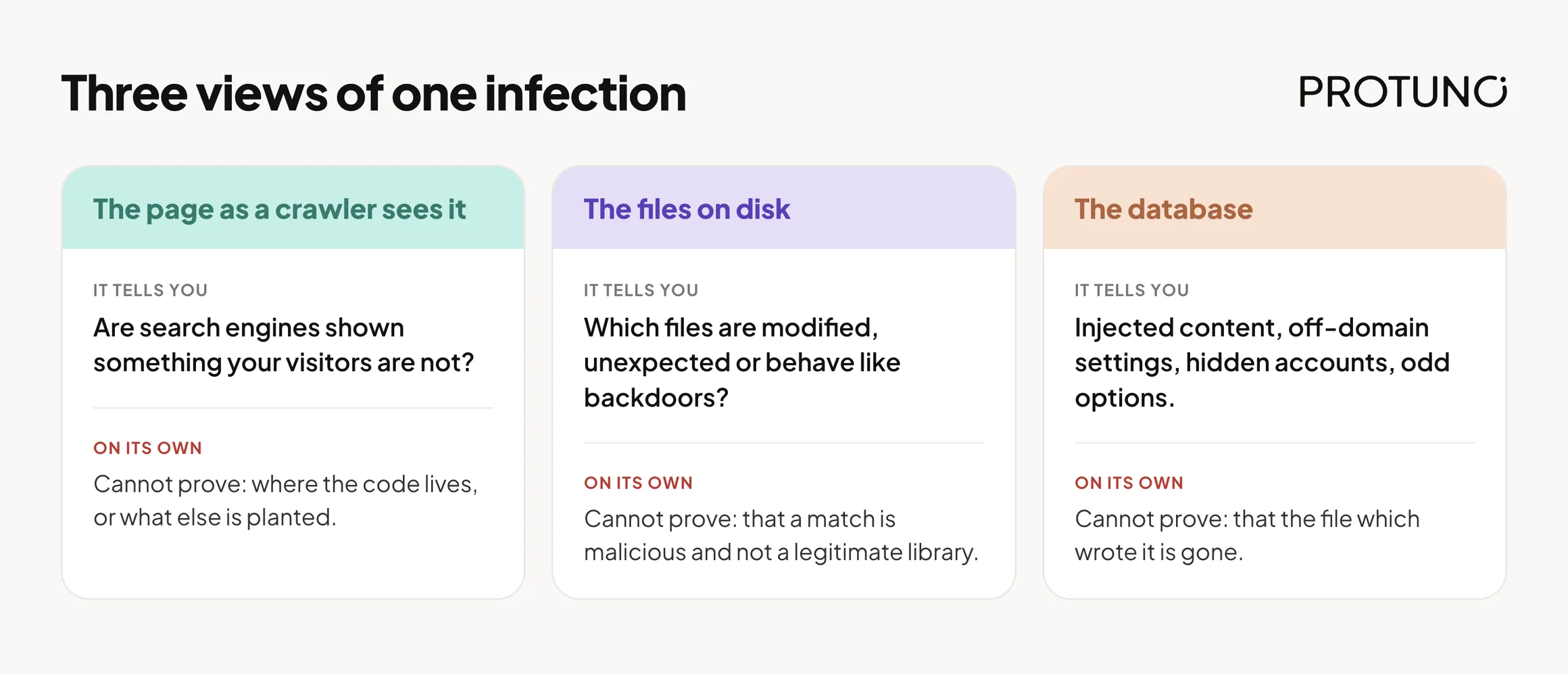
The same compromise looks different depending on where you stand. That is why one view alone is rarely enough.
| View | What it tells you | What it cannot prove alone |
|---|---|---|
| The page as a crawler sees it | Whether search engines are being shown something your visitors are not | Where the code lives, or whether anything else is planted |
| The files on disk | Which files are modified, unexpected or behave like backdoors | Whether a match is malicious or a legitimate library that looks odd |
| The database | Injected content, off-domain settings, hidden accounts, odd options | Whether the file that wrote it is still there to write it again |
A file match is a clue. A cloaked page is evidence of a symptom. A database row is a place to look. None of them is a verdict until someone reads it in context.
A Small Test You Can Run Today
Before you trust any scanner, including ours, ask a simpler question. Does your site show the same page to everyone?
Pick five URLs: the homepage, two recent posts, one page from your sitemap, and one odd query string. Then request each one three ways and compare. Write down:
- The page title for each request.
- The social preview title and image.
- Any words in the body that do not belong on your site.
- Any script or image loaded from a host you do not recognise.
A basic way to see it from a terminal:
curl -s -A "Googlebot/2.1 (+http://www.google.com/bot.html)" https://example.com/ | grep -i "<title>"
curl -s -A "Mozilla/5.0 (Macintosh; Intel Mac OS X 10_15_7)" https://example.com/ | grep -i "<title>"
curl -s -A "Googlebot/2.1 (+http://www.google.com/bot.html)" "https://example.com/?g=casino" | grep -i "<title>"
If the titles differ, or a query string produces a page that does not exist in your sitemap or your editor, stop and investigate. Two different titles are not proof of malware on their own, because some sites legitimately serve different markup to bots. But an unexplained difference is exactly what a scan is meant to surface.
The Playbook, Step By Step
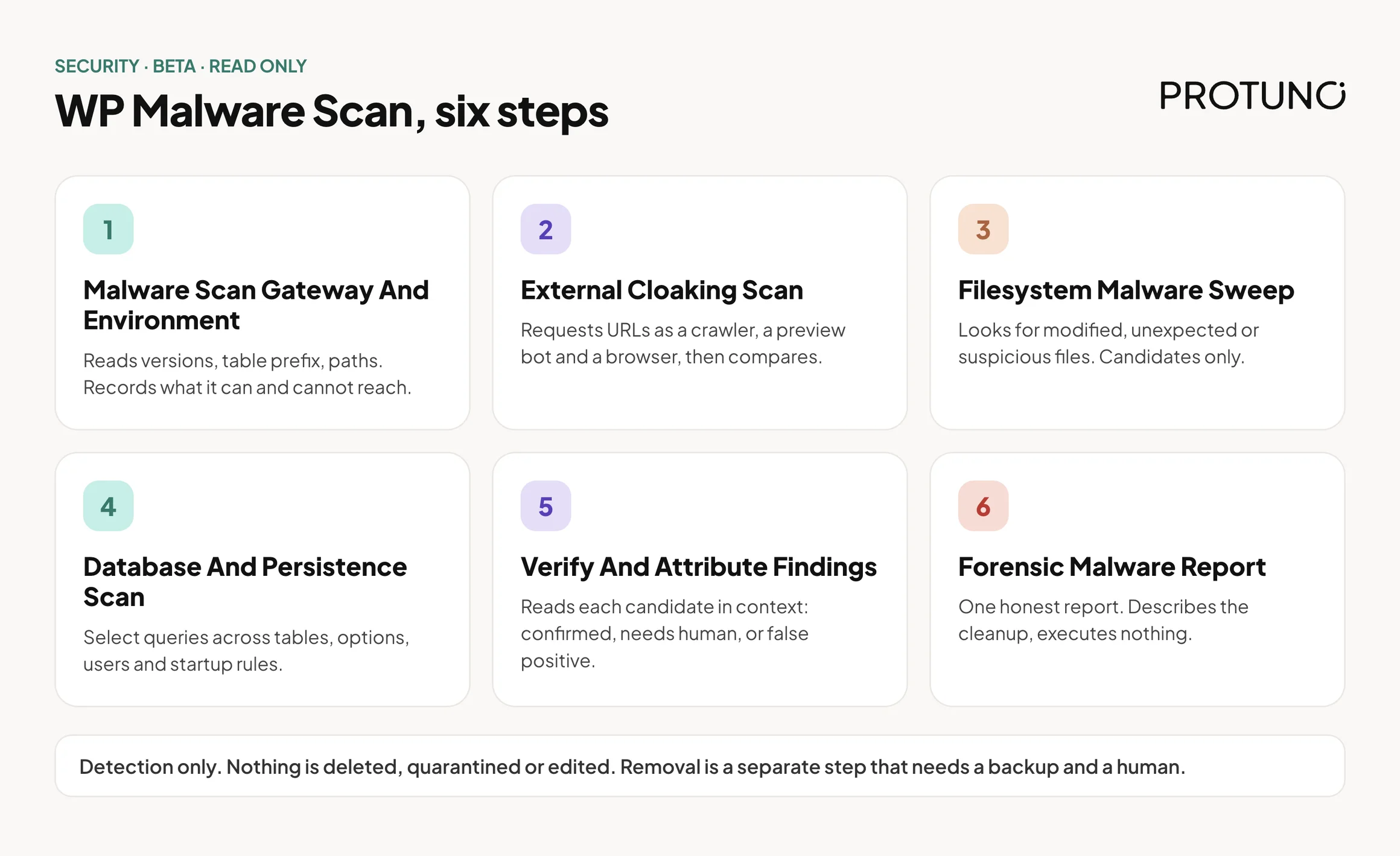
WP Malware Scan is a Protuno security playbook, currently in beta. It runs a fixed sequence of six steps, and it only reads the site. It changes nothing: nothing is deleted, nothing is quarantined, nothing is edited. It needs the Protuno plugin on the site, because it runs its checks from inside it. It is not on the public playbooks page yet, so treat it as a new playbook that is still being rolled out.
| # | Step | What it does |
|---|---|---|
| 1 | Malware Scan Gateway And Environment | Reads the WordPress and PHP versions, the real database table prefix, multisite status and key paths, then records what the scan can and cannot reach. |
| 2 | External Cloaking Scan | Requests a bounded set of URLs as a crawler, a social preview bot and a desktop browser, and compares what each one is shown. |
| 3 | Filesystem Malware Sweep | Looks across the web root, WordPress core, plugins, themes, uploads, mu-plugins and drop-ins for modified, unexpected or suspicious files. Reports candidates, not verdicts. |
| 4 | Database And Persistence Scan | Reads options, posts, users and scheduled tasks, plus startup rules such as .htaccess, for injected content and ways back in. Select queries only. |
| 5 | Verify And Attribute Findings | Reads each candidate in context and sorts it into confirmed, needs human review, or false positive. Looks for the likely way in. |
| 6 | Forensic Malware Report | Writes one honest report with a status, the evidence, and a described remediation plan. Executes nothing. |
The order matters. The first step decides what the others are allowed to claim. The next three collect candidates. The fifth step is the only one allowed to turn a candidate into a finding. The sixth cannot invent anything the earlier steps did not produce.
Step 1: Know What You Can Reach
Before it looks for anything, the scan records its own limits: can it read files, search content, query the database, make web requests, read the debug log. Server-level scheduled jobs and web server access logs sit outside what a WordPress plugin can read, so they are written down as coverage gaps from the start. It also reads the real table prefix instead of assuming wp_.
Step 2: Look Like Google
This is the step most scanners skip. The scan requests a bounded set of URLs, the homepage, up to around fifteen sitemap URLs and a few recent posts, as Googlebot, as a social preview bot and as a normal desktop browser. It compares titles, social titles and images, and checks the body for spam words such as casino, slot, pharmacy and replica. It also flags images or scripts loaded from hosts that commonly serve spam payloads.
If the real server address is known, it asks the origin directly too, because a clean cached copy at a CDN can hide a dirty origin. If it is not known, that is recorded as a gap, not a pass. It also tries a couple of query strings as a crawler, because some spam pages only exist when a particular URL is requested.
Step 3: Candidates Only
The filesystem step works through the places files hide: odd folders and loose PHP in the web root, modified core files, plugins on disk but not active, PHP in uploads, mu-plugins and drop-ins, known web shell patterns and obfuscated code that runs input.
Core files are compared with the official WordPress checksum list for the exact version installed. If that reference cannot be fetched, the step must say core integrity could not be checked. It may not compare against an empty reference and call a file modified. A false alarm that sends an agency hunting a compromise that does not exist is treated as worse than an honest “not checked”. Vendor folders and minified files are listed but never marked safe to auto-clean, because legitimate code uses the same tricks malware does.
Step 4: The Database And The Way Back
The database step reads every table with select queries only. In options it looks for injected scripts, off-domain site addresses and known indicator keys. It also decodes values that look like base64 and tests the decoded text, because an encoded payload contains none of the obvious markers.
It compares the number of administrators in the database with the number in the user list; a gap means a hidden account. It lists application passwords by name, never the secret. For comments it reads only for injected markup. It does not count spam or advise emptying the spam or trash folders, because that trash is the undo path for comment cleanup.
Step 5: Read Before You Confirm
Every candidate is read in context and labelled confirmed, needs human, or false positive. Unsure means needs human, never confirmed. A documented list covers legitimate things that look suspicious, such as snippet plugins that store PHP in uploads on purpose.
The step also tries to work out how the attacker got in, using the debug log where available. Without access logs, the report says attribution is limited. It maps everything that could rewrite a payload, so those can be switched off together, and if no vulnerability feed key is set it says that check was not assessed, never “no vulnerabilities”.
Step 6: Say What Is Actually Known
The report ends in one of four states:
| Status | What it means |
|---|---|
| Infected | At least one finding was confirmed, in a file, the database or a cloaked page. |
| Suspicious | Nothing confirmed, but at least one item needs a human to look. |
| Clean | Nothing confirmed, nothing needing review, and full coverage with no gaps. |
| Incomplete | Nothing confirmed, but some areas could not be scanned, or an earlier step did not finish. |
The last one is the important one. “No malware found in what could be scanned” is a different sentence from “your site is clean”. The playbook is written so that the word clean is earned, never assumed, and so that a layer that did not finish is never reported as clear.
What A Read-Only Malware Scan Does Not Solve
- It does not remove anything. Cleanup needs an off-site backup you hold and a human confirming each item.
- It cannot see server-level persistence or web server access logs from inside WordPress.
- It cannot promise the site stays clean after today.
- It does not fix the way in. A stolen password or an outdated plugin will let the next one through.
Questions To Ask Your Current Scanner
Whatever you use today, these separate a scan from a signature match:
- Does it ever request pages as a crawler, or only read files?
- Does it check core files against the official checksums for your exact version?
- Does it read the database, including encoded option values?
- Does it look for hidden administrators and leftover application passwords?
- When it finds a match, does it read it in context before calling it malware?
- When it cannot reach a place, does it tell you, or stay silent?
If the answer to the last one is silence, the green tick means less than it looks like.
Which Check Are You Actually Running?
| If you need to know | The evidence you need | The next action |
|---|---|---|
| Whether search engines see spam you do not | Crawler and browser responses compared | Investigate any difference before touching files |
| Whether WordPress core was altered | Files compared against the official checksum list | Reinstall from a clean source, after a backup |
| Whether something is hidden in the database | Option, post and user rows read in full context | Review by a person, with a backup in hand |
| Whether an old vulnerability is the door | Installed versions matched against a vulnerability feed | See vulnerability monitoring |
| Whether it will come back | A map of every item that can rewrite the payload | Neutralise them together, then watch for reinfection |
Fixing Findings In The Right Order
When a scan reports a confirmed finding, the order of work matters more than the speed.
| Priority | Action | Why this order |
|---|---|---|
| 1 | Take a full off-site backup of files and database | You need an undo that the attacker cannot touch |
| 2 | Note a health baseline | So you can tell whether your fix broke something |
| 3 | Reinstall legitimate core and plugin files from clean sources | Replaces modified files without guessing |
| 4 | Neutralise everything that can rewrite the payload, together | Delete one writer first and it regenerates |
| 5 | Move confirmed malware aside rather than deleting it | Quarantine can be reversed |
| 6 | Rotate secrets and revoke rogue application passwords | A reset alone leaves some access in place |
| 7 | Prove it clean as a crawler and watch for ten to fourteen days | Reinfection often shows up later |
Two practical rules sit under all of it. Restore point first, because you are about to change a live site. Re-check after each change, because the fix itself can break things. See verify a WordPress backup for why a backup you have not tested is only a hopeful file.
A Five-Site Audit You Can Do This Week
Pick five client sites. For each one, write down:
- The site and who owns it.
- Whether pages looked the same as a crawler and as a browser.
- Whether the number of administrators matches the user list.
- The date core files were last checked against official checksums.
- Which areas nobody can currently see: server logs, scheduled jobs, the origin behind a CDN.
Then choose one outcome for each item you found:
- Fix now: confirmed, backup taken, plan agreed.
- Test first: looks suspicious, reproduce it on a copy.
- Replace: a plugin you cannot verify, swap it for a maintained one. See what happens when a plugin leaves the repository.
- Remove: unused plugins and themes, which still count as attack surface.
- Accept with an owner and a date: a known gap, written down, with a review date.
- Investigate: unexplained difference, needs a person.
Stopping the next break-in is half the job, so read the hardening checklist and the wp-config exposure check next.
Why A Malware Scan Goes Stale
A scan is a photograph. It tells you about the moment it ran.
A clean result on Monday says nothing about a plugin installed on Tuesday, a password reused on Wednesday, or a vulnerability published on Thursday. The real value of a scan is not one report. It is the habit of running it again, comparing the answers, and noticing what changed.
Coverage gaps matter as much as findings. A gap you wrote down is a question you can answer next month. A gap nobody recorded is where the next problem lives.
Where Protuno Fits
Protuno’s Rook is the Security Super Agent. WP Malware Scan is one of its playbooks, and it is read-only: it reports what it found, how sure it is and what it could not see, and a human decides what happens next. It does not clean, quarantine or delete anything. It is new and not on the public playbooks page yet; the current public security playbooks are listed on the playbooks page.
For the wider picture of how security checks fit together, read WordPress security monitoring and WordPress security audit.
The Point
A site is not clean because nobody has complained yet.
It is clean when the places that matter have been looked at, the matches have been read, and the gaps have been named.
When did you last look at your site the way Google does?